This guide explains how to create and manage default monitoring schedules
Takes 5 minutes
For: Seniors
Updated: 26th June 2026
Introduction
Monitoring Defaults allow you to create standard monitoring schedules that can be applied across your organisation. This helps ensure service users receive consistent monitoring while reducing the need to configure the same monitoring areas individually.
In this guide you'll learn how to:
Create a new default monitoring area
Configure monitoring schedules and frequencies
Apply missing defaults to active service users
View, edit, and delete existing monitoring defaults
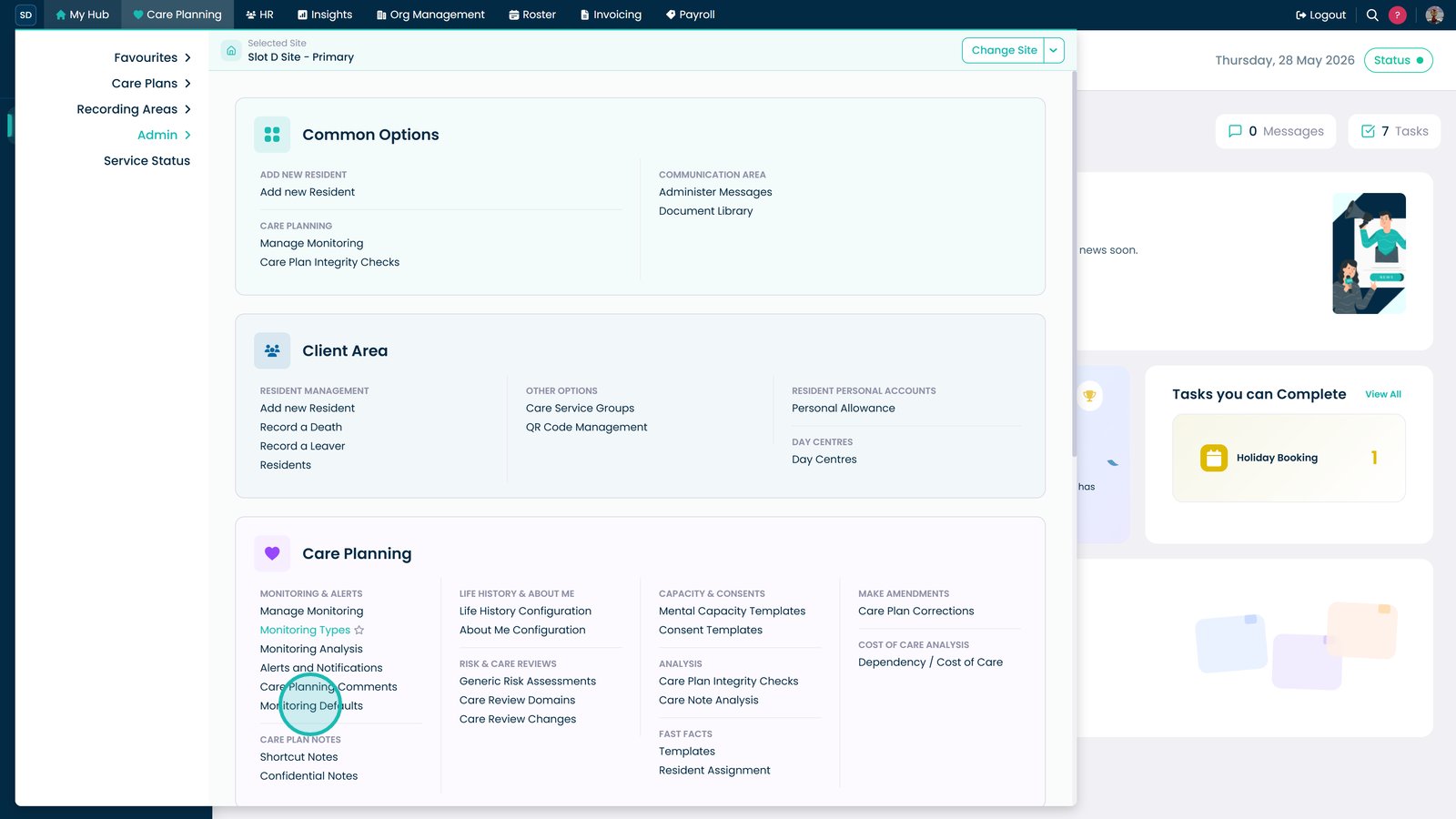
Open Monitoring Defaults from the Care Planning section.
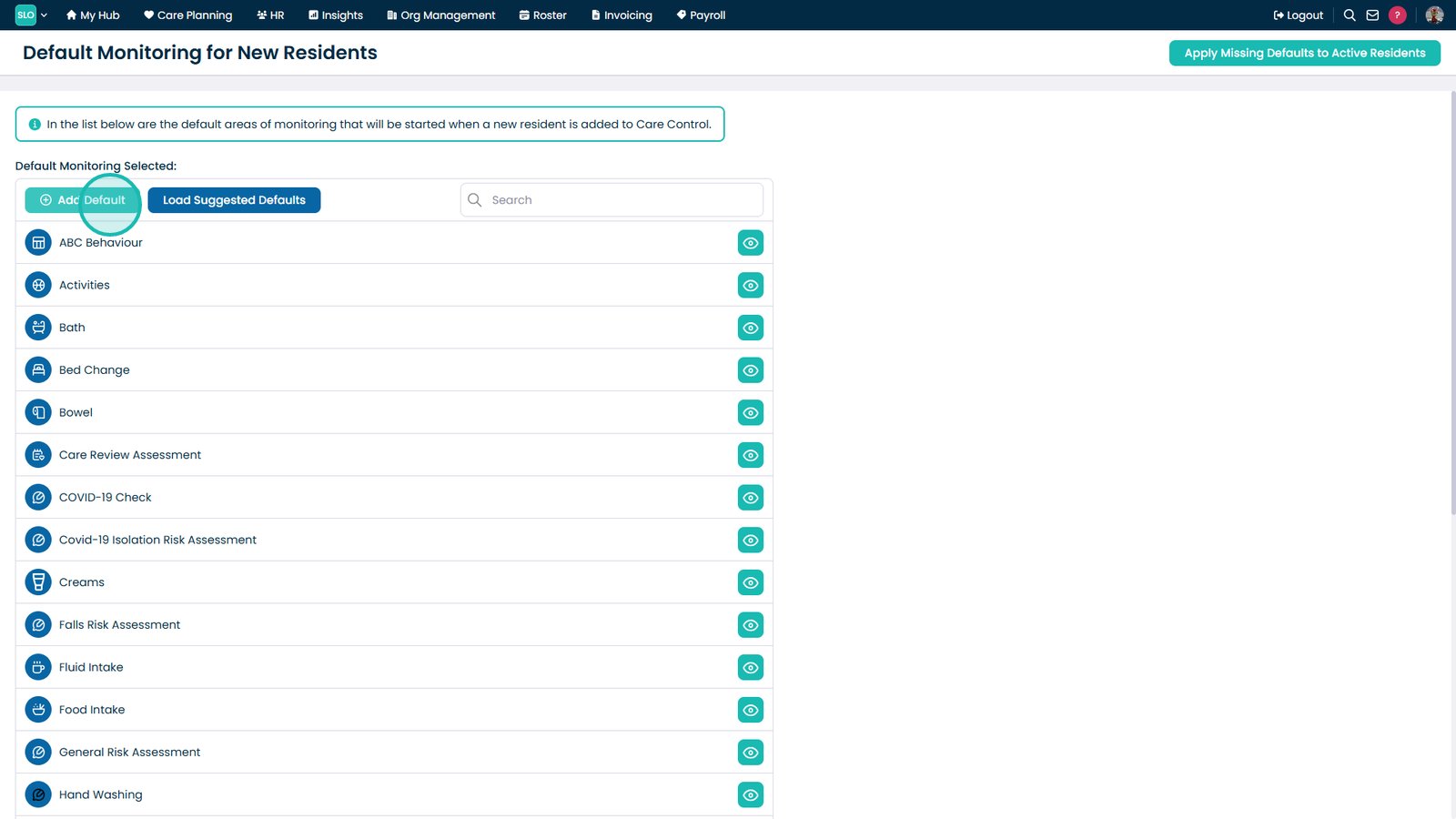
Select Add Default to create a new monitoring schedule.
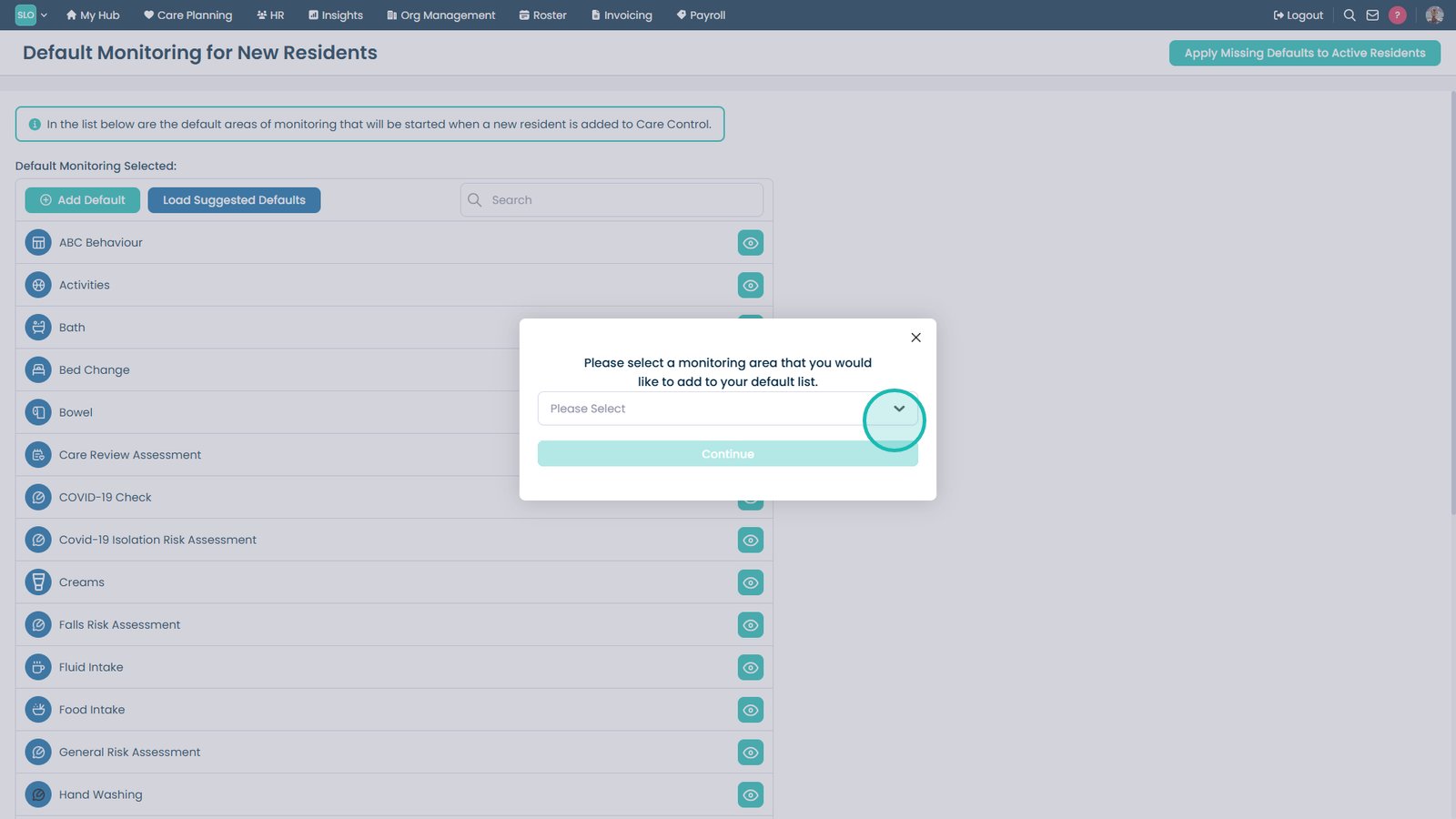
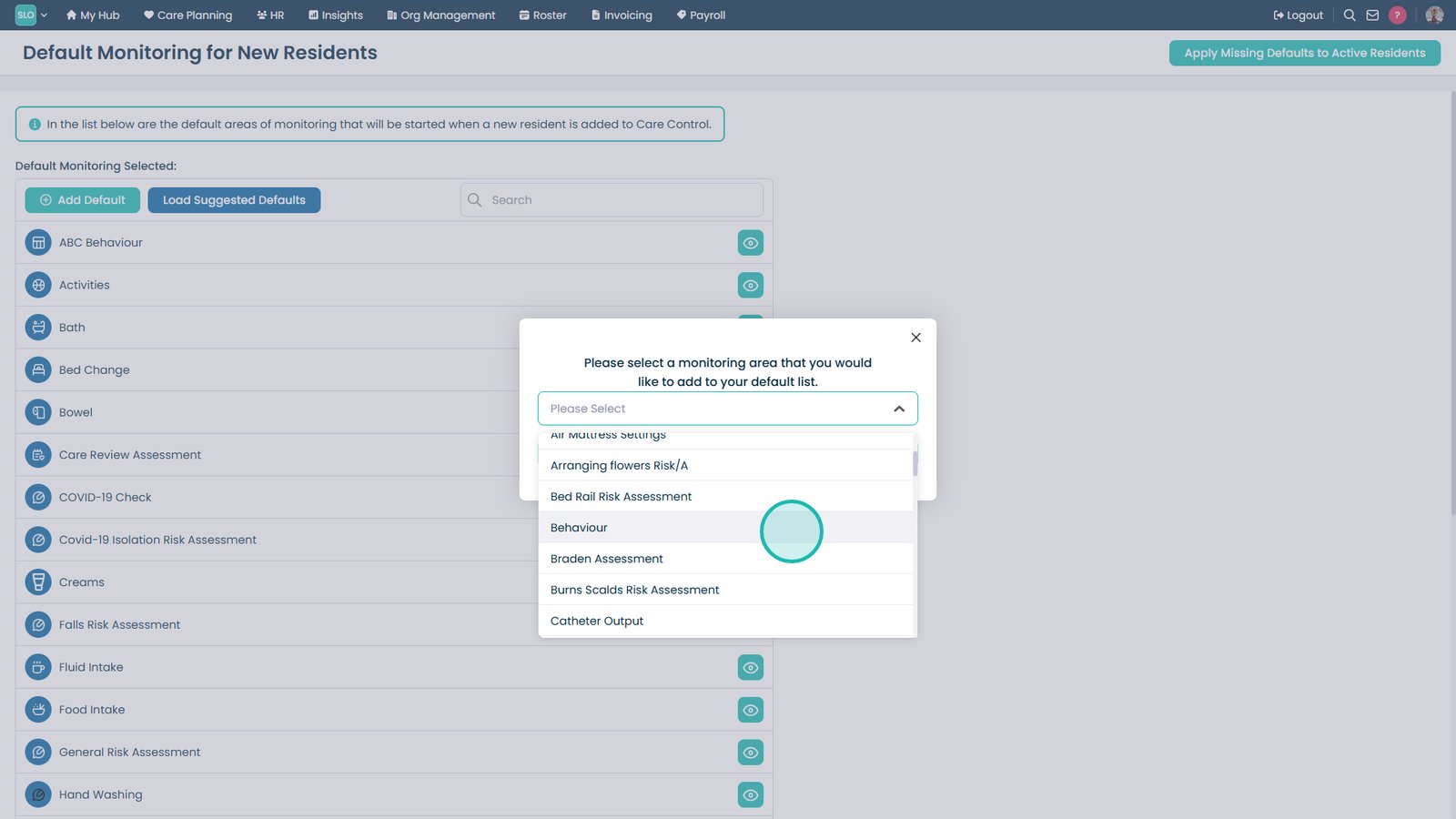
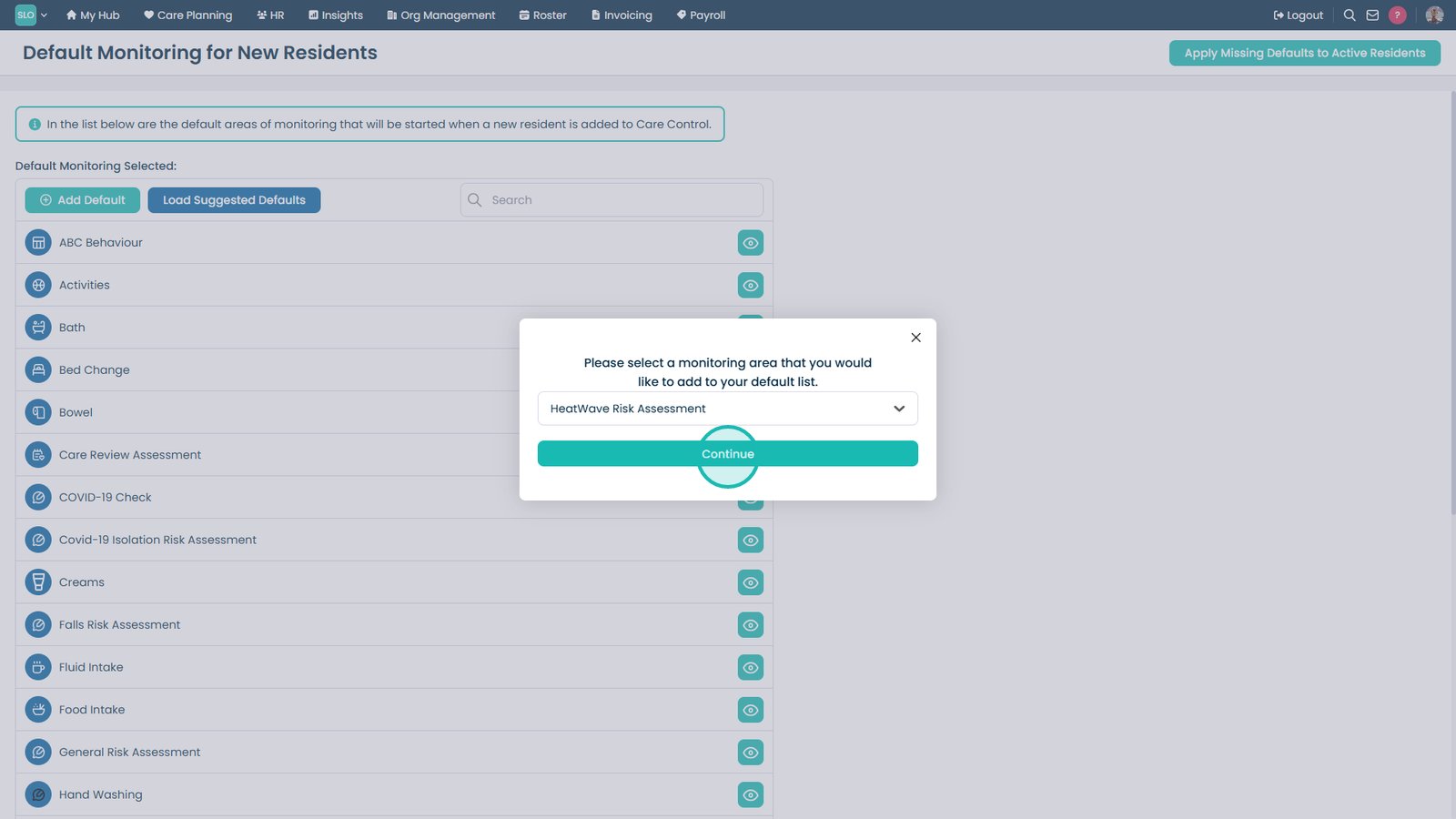
Open the Monitoring Area dropdown.
Select the monitoring area you want to add.
Select Continue.
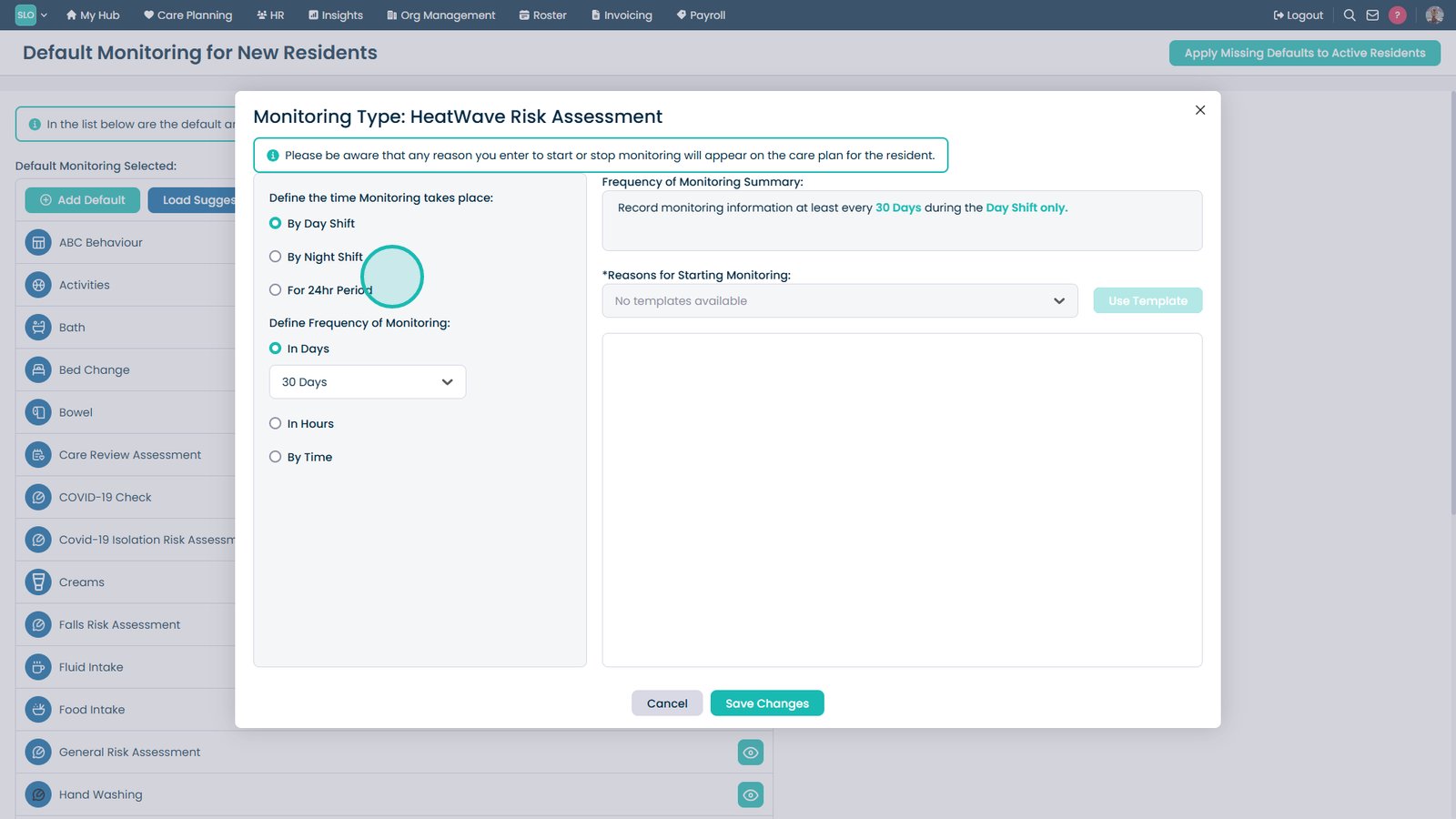
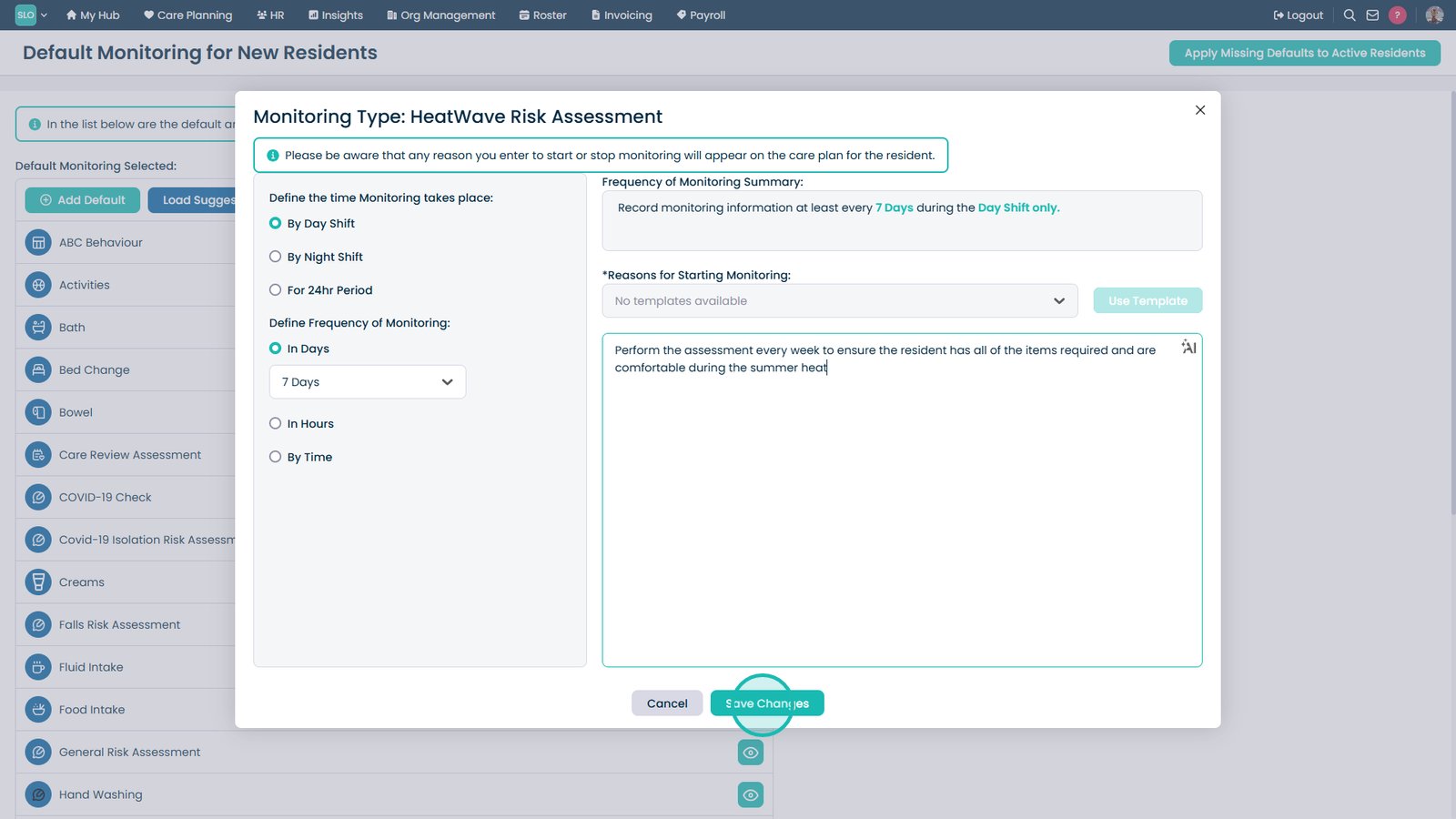
Set the time when the monitoring should take place.
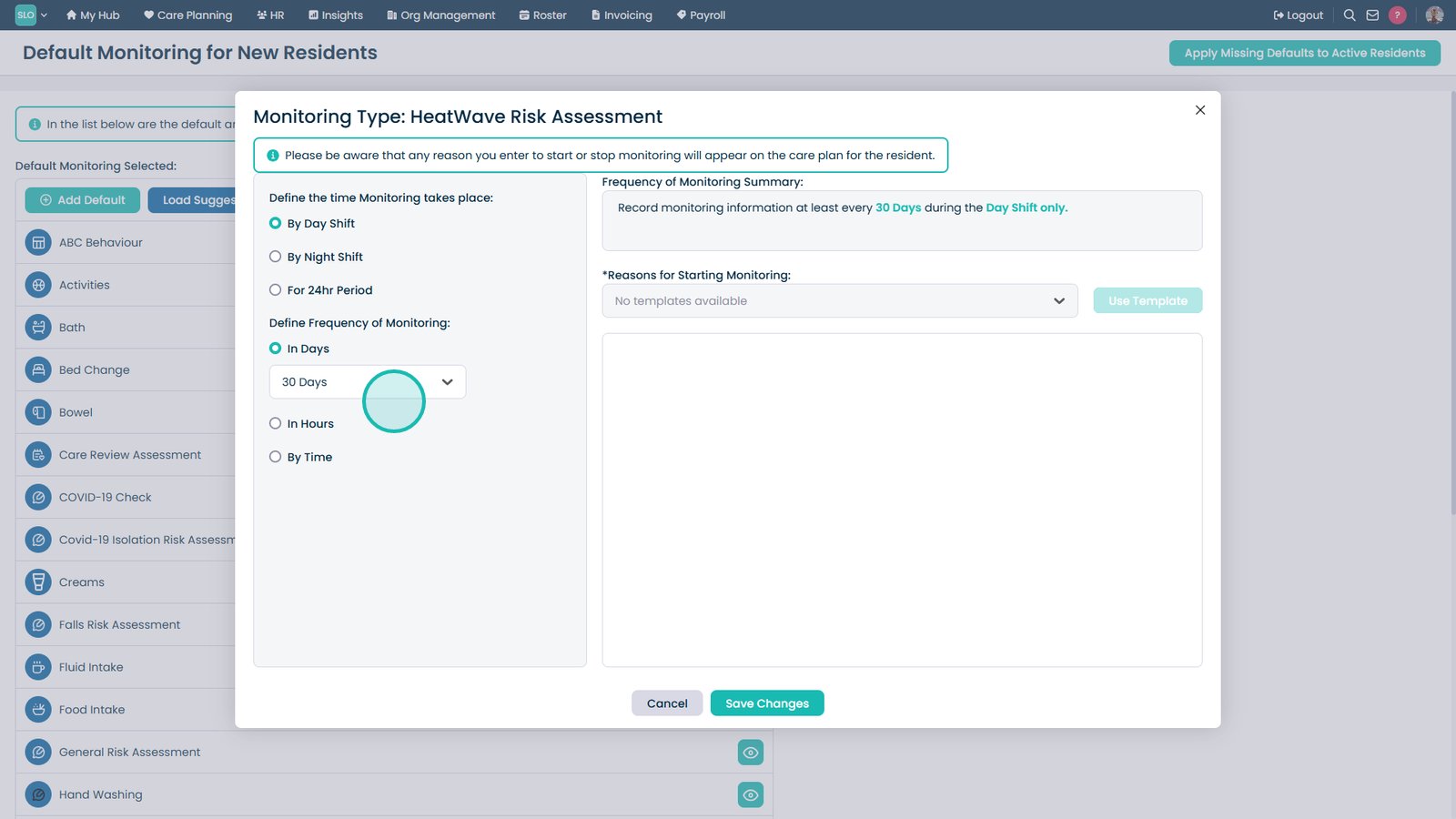
Configure how often the monitoring should occur.
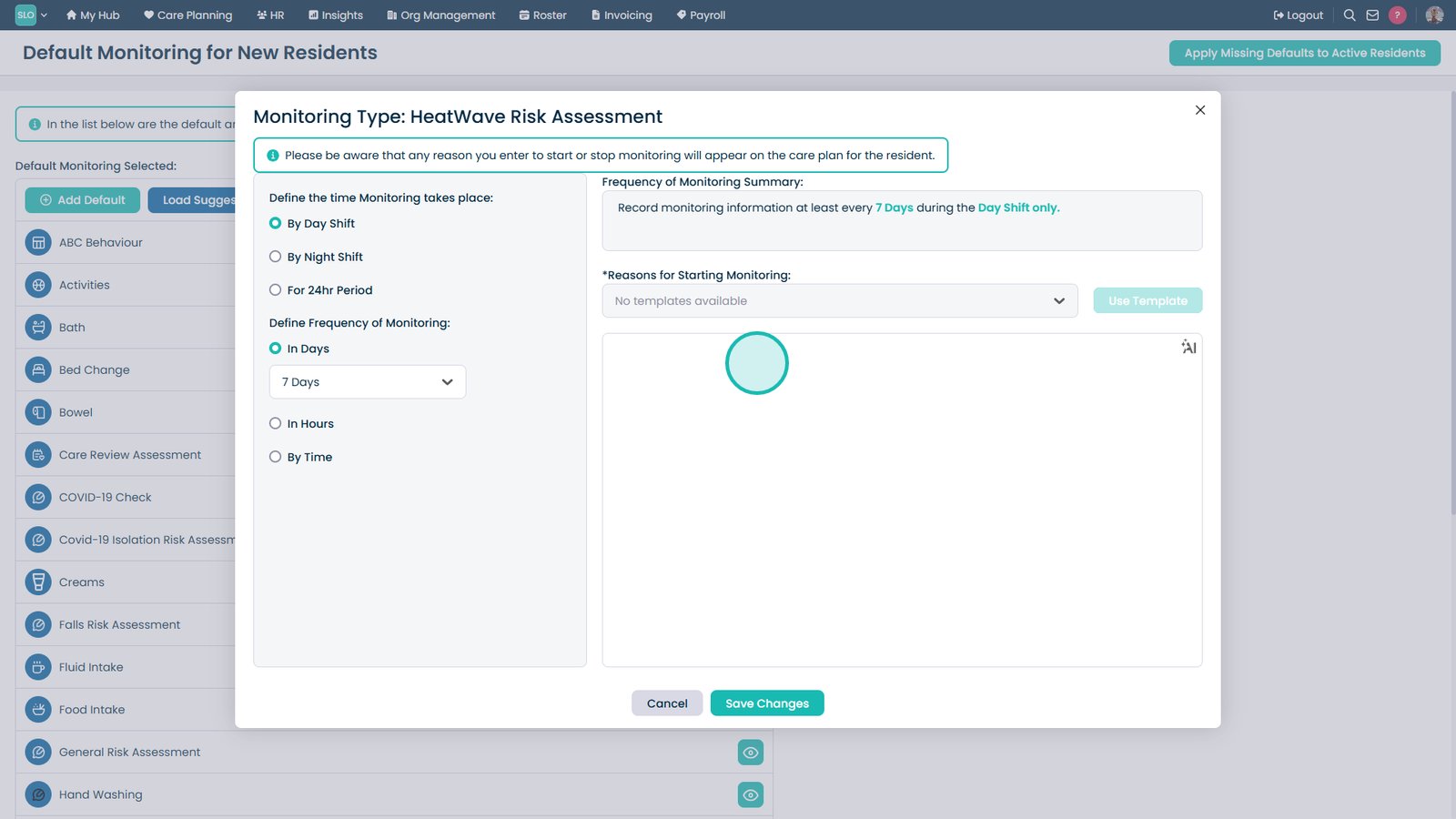
Enter the reason for creating the monitoring schedule.
Select Save Changes to create the default monitoring schedule.
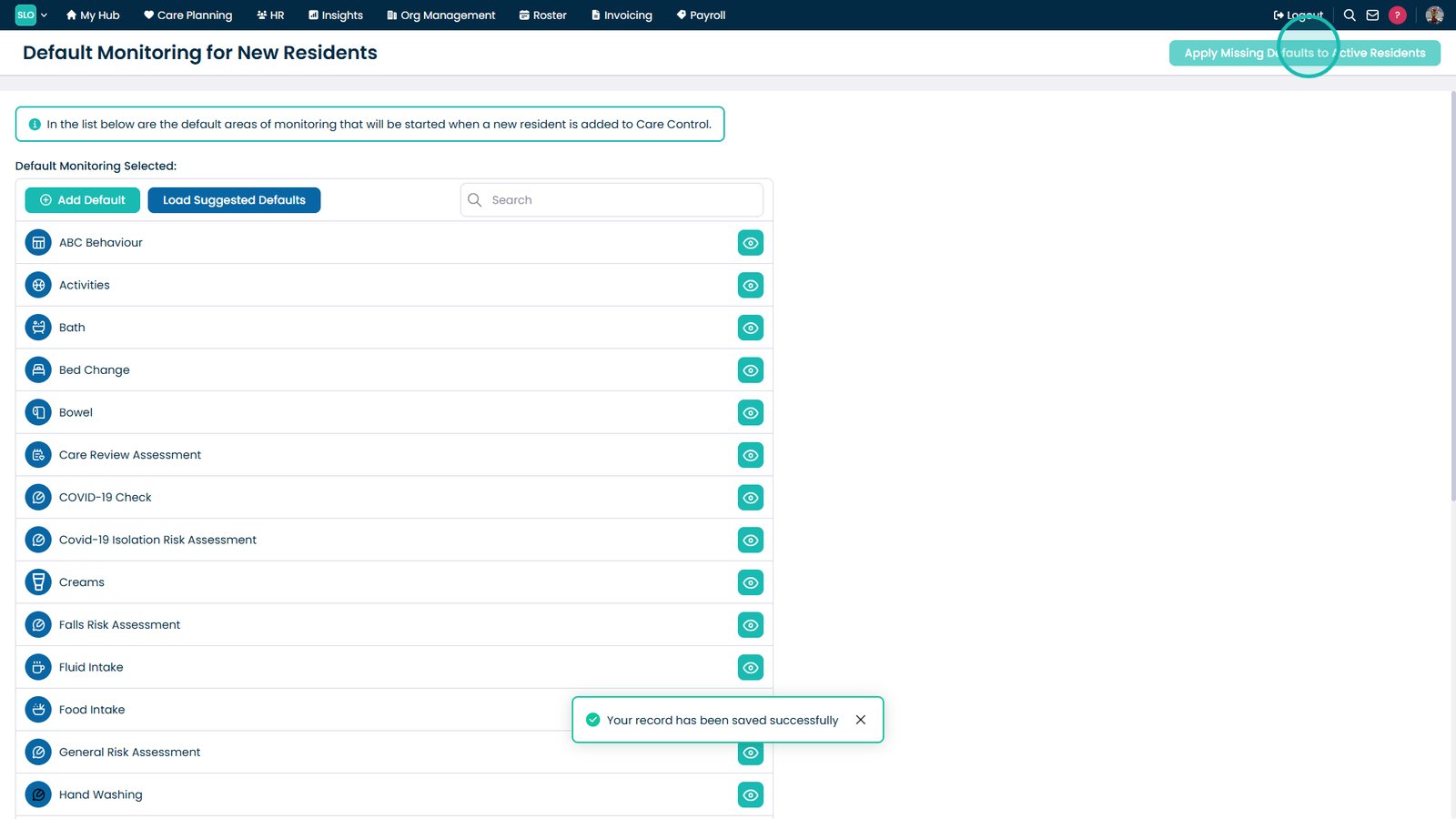
Select Apply Missing Defaults to Active Service Users to assign new defaults where they are missing.
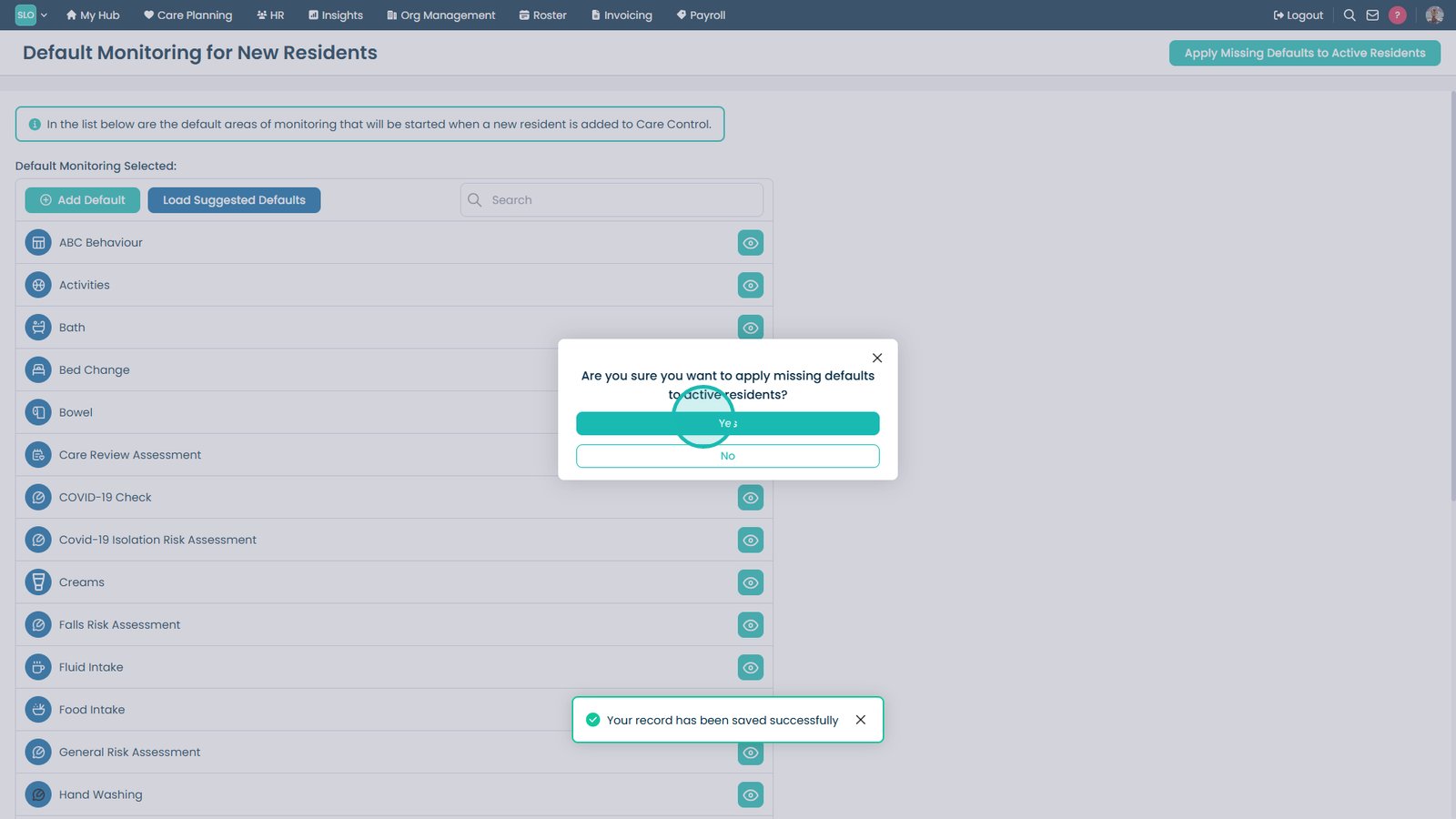
Select Yes to confirm applying the monitoring defaults.
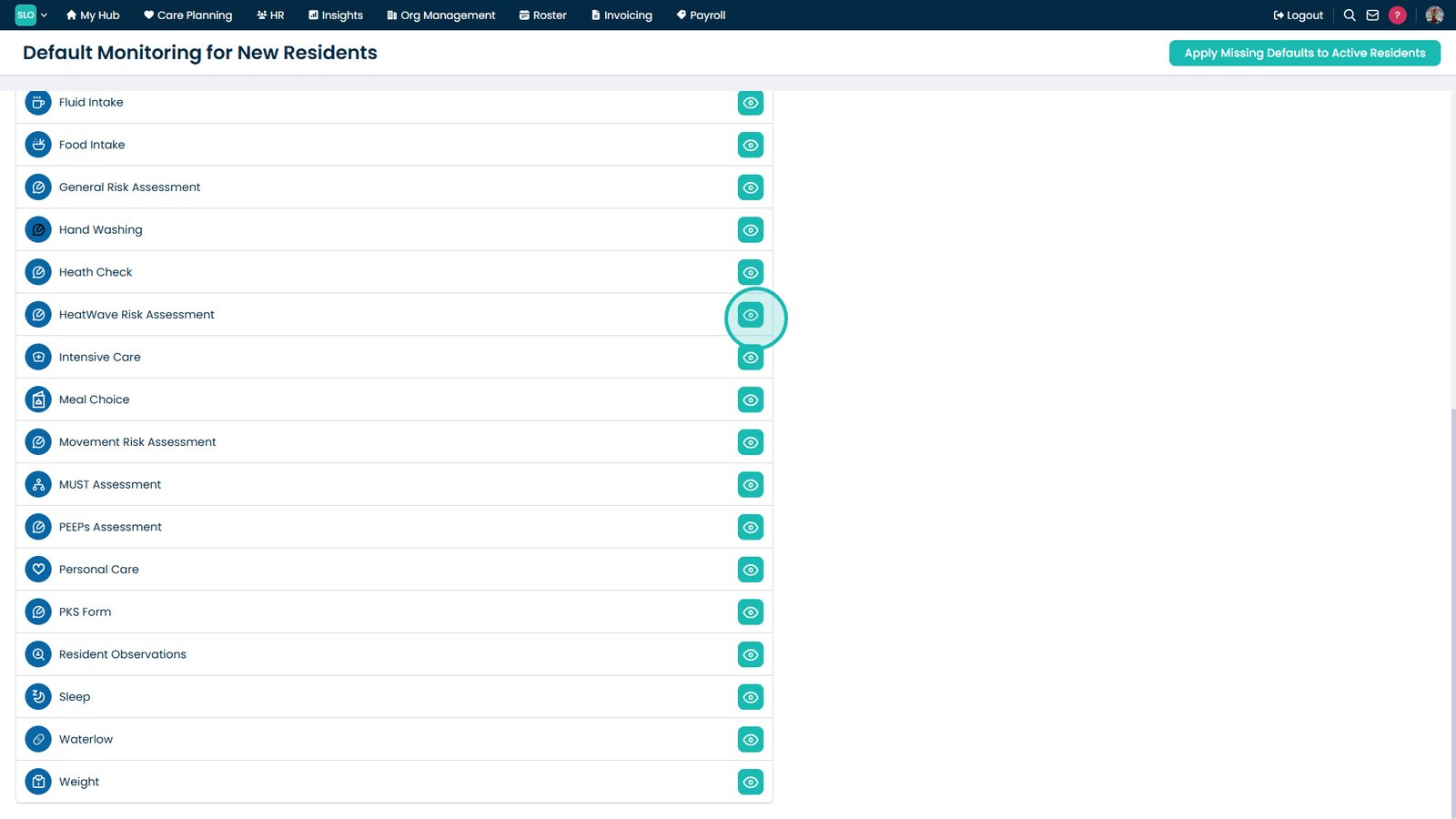
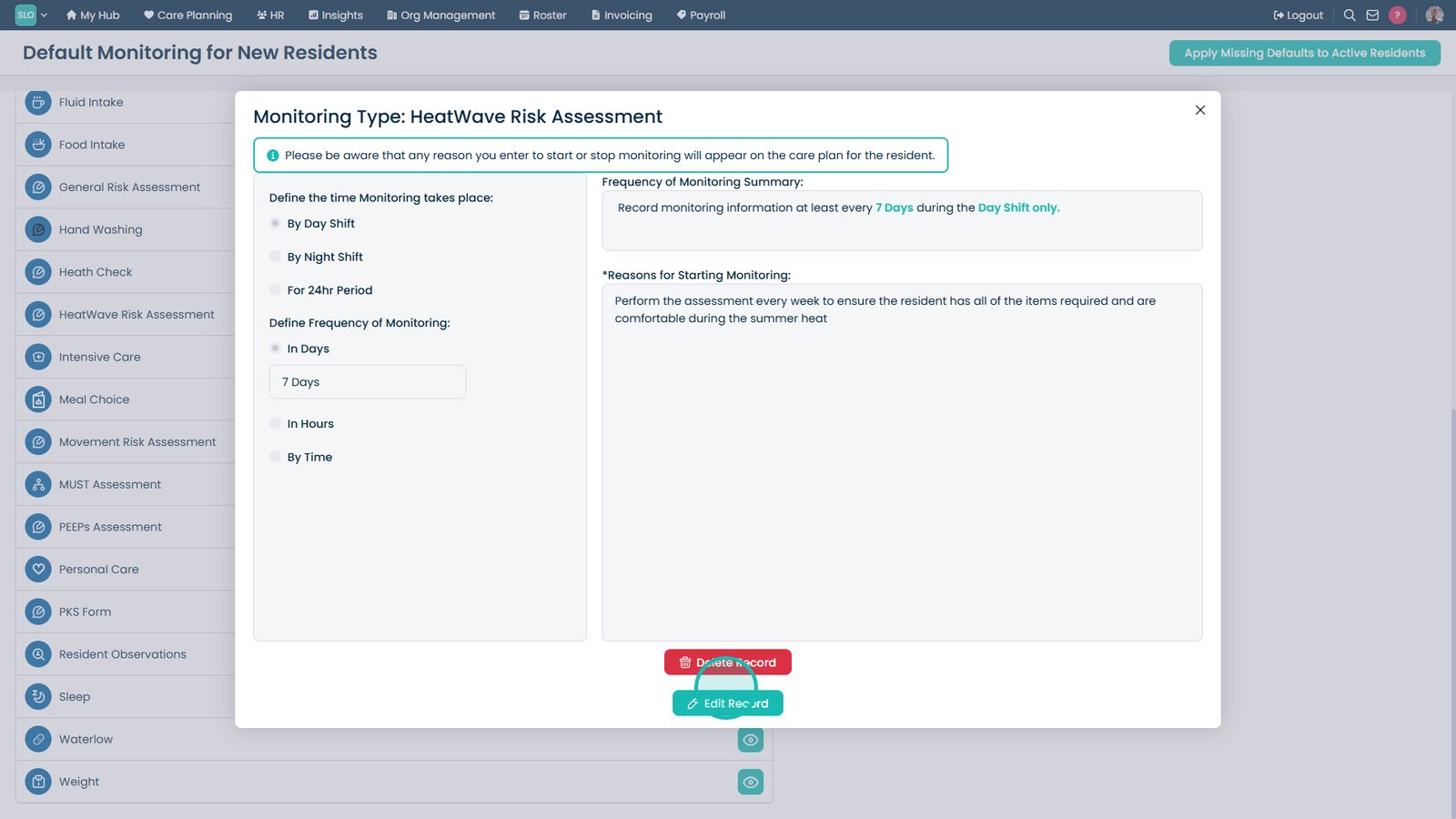
Select the View icon beside a monitoring area to review its settings.
Edit or delete the monitoring schedule as required.
Top tip
After creating or updating monitoring defaults, use Apply Missing Defaults to Active Service Users to ensure existing service users receive any newly configured monitoring schedules.