This guide will cover how to expire an active service user consent or mental capacity assessment. This is completed within a service user Care Plan on Care Control Windows.
1
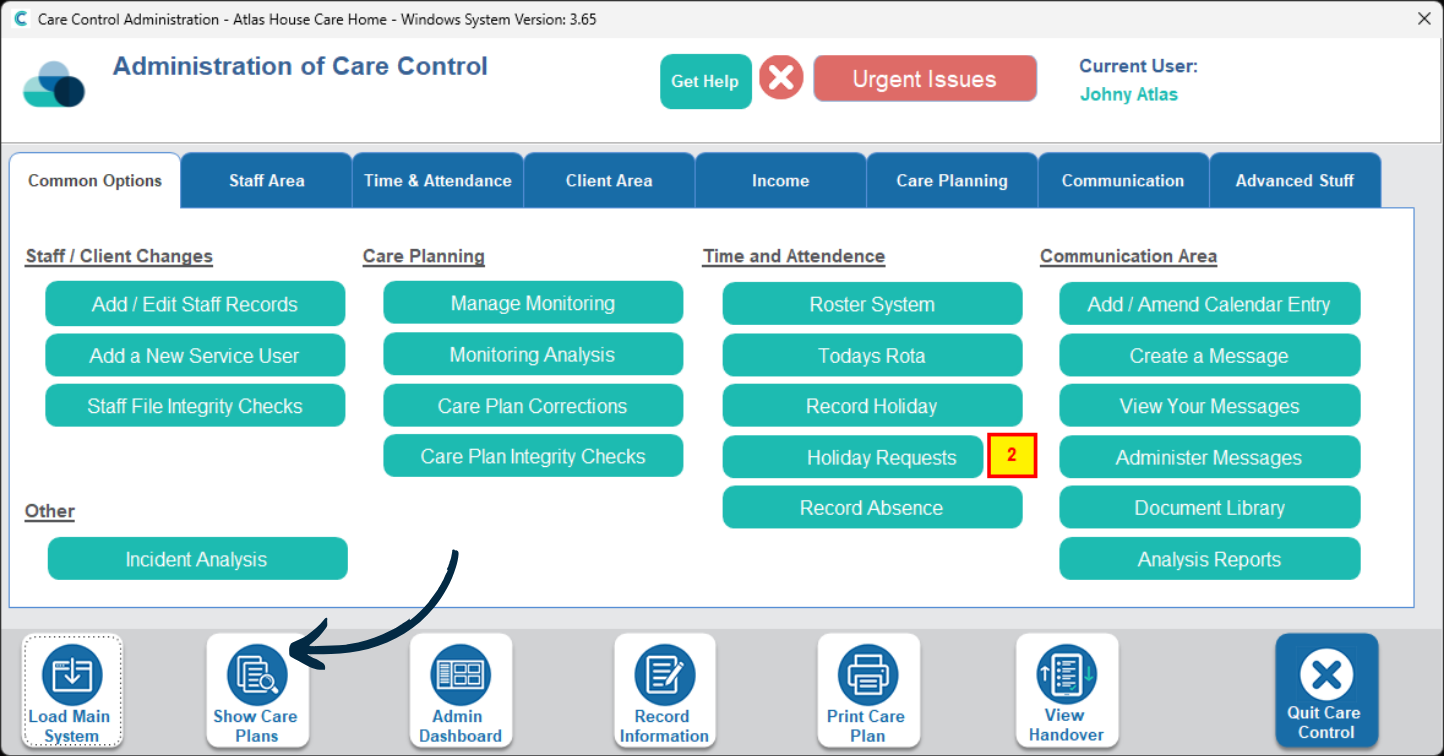
In the Administration of Care Control Windows, navigate to the Show Care Plans tool.
2
Here, select a Service User, then choose Consents & MCA’s from the options on the right hand side.
3
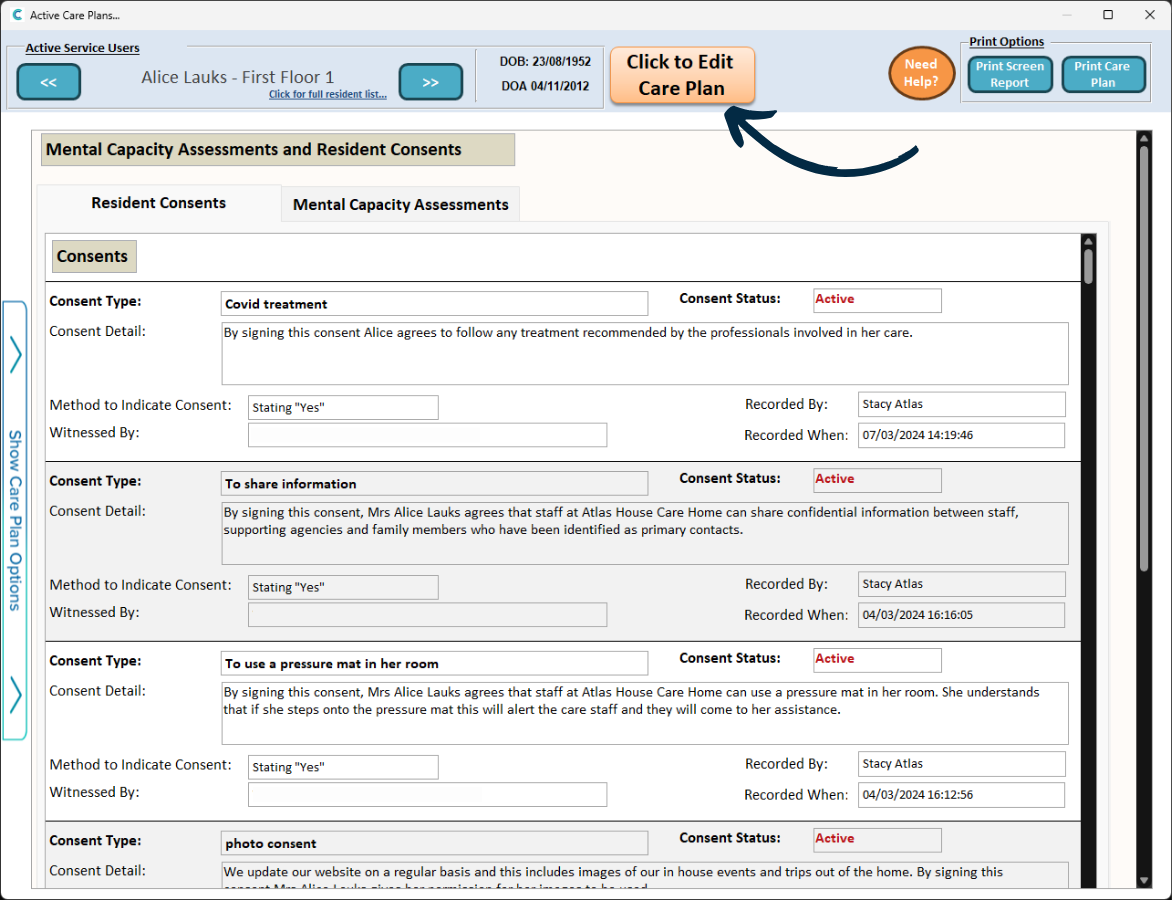
The Consent and MCA part of the Care Plan will open. Here, press Click to Edit Care Plan.
4
Next, press the Expire Active Consents button.
5
A new window will open. Begin by choosing whether you want to expire Consents or MCA’s. This will show the relevant, active forms in the list on the left hand side.
6
Select the form you wish to expire, then enter a Reason.
Finally, press Save and Continue to complete the process.