How to regenerate allocations on Cloud
This guide provides a detailed walkthrough on how to regenerate staff allocations within the Care Control Admin App. It is designed to help managers and administrators efficiently manage staff allocations, assign team members to shifts, and update daily staffing arrangements. You’ll learn how to access the Staff Area, navigate the Manage Allocations screen, add or remove care staff, and regenerate allocations for different shift types, including Day, Evening, and Overnight.
By following these steps, you can ensure that care staff are correctly assigned, agency workers are included where needed, and shift coverage is properly maintained. Keeping allocations accurate in the Care Control Admin App supports smooth care delivery, staff coordination, and compliance with workforce management standards.
Interactive Guide
Text based guide
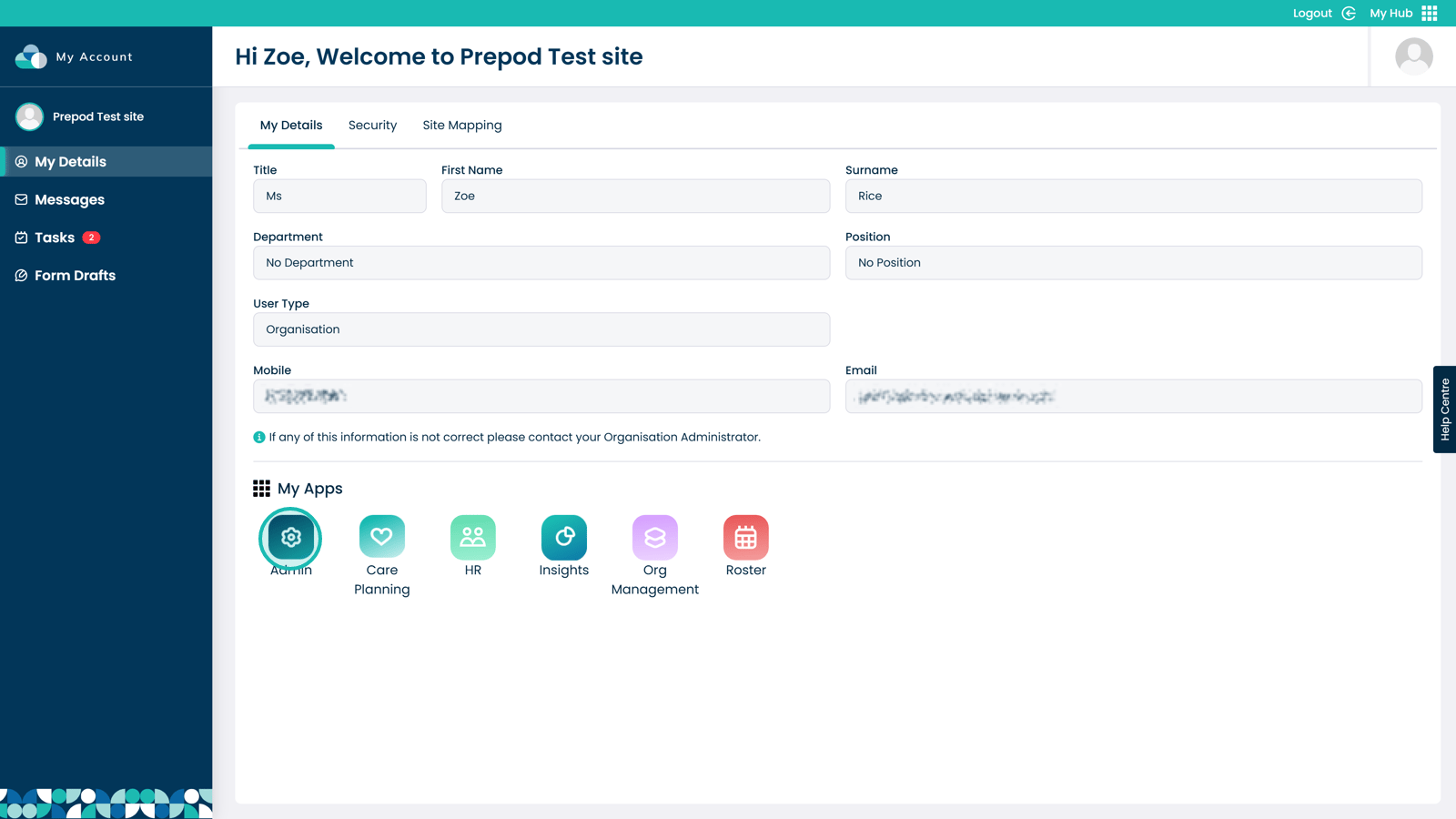
Enter the Admin App

Â
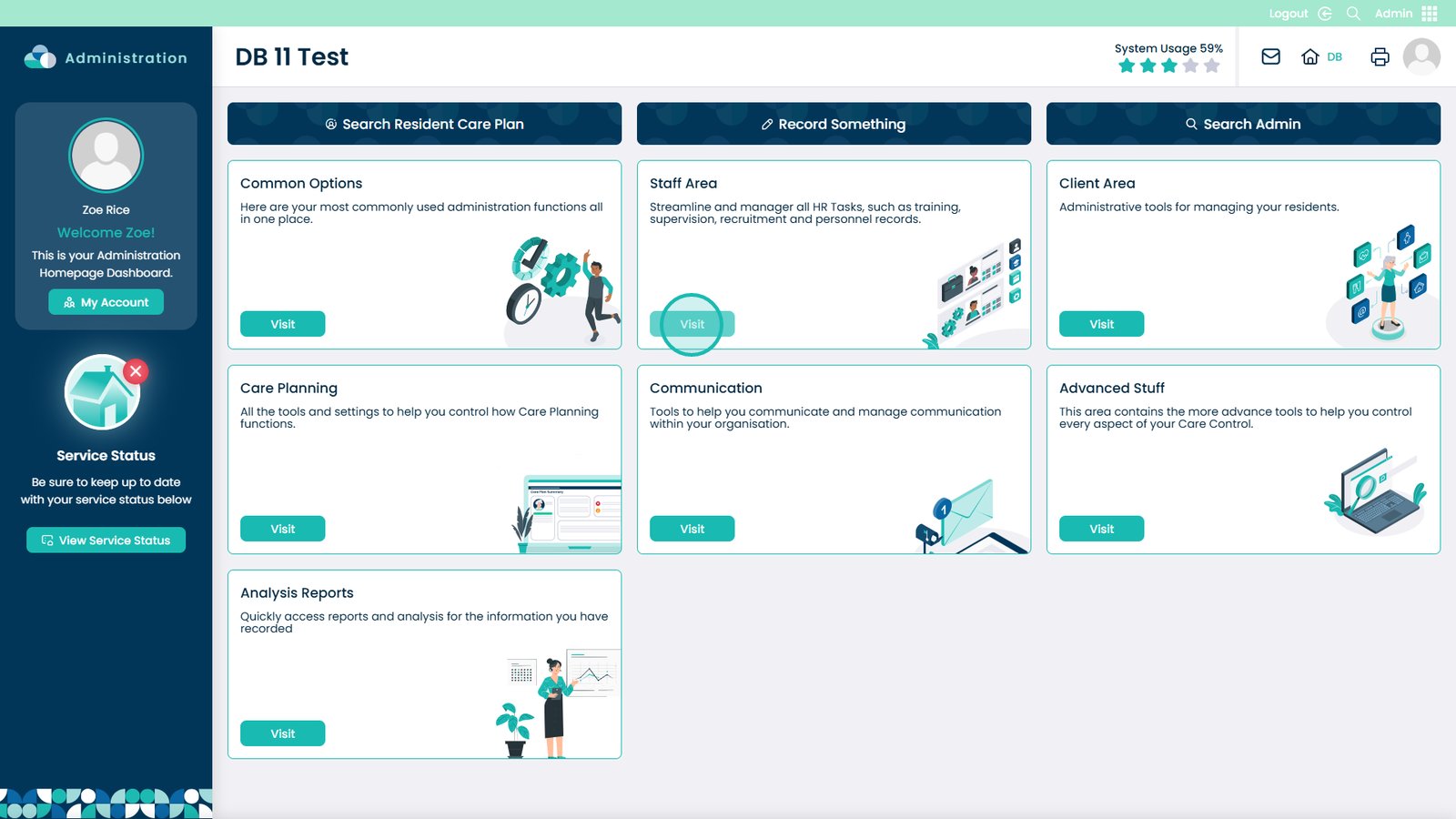
Click Visit under Staff Area

Â
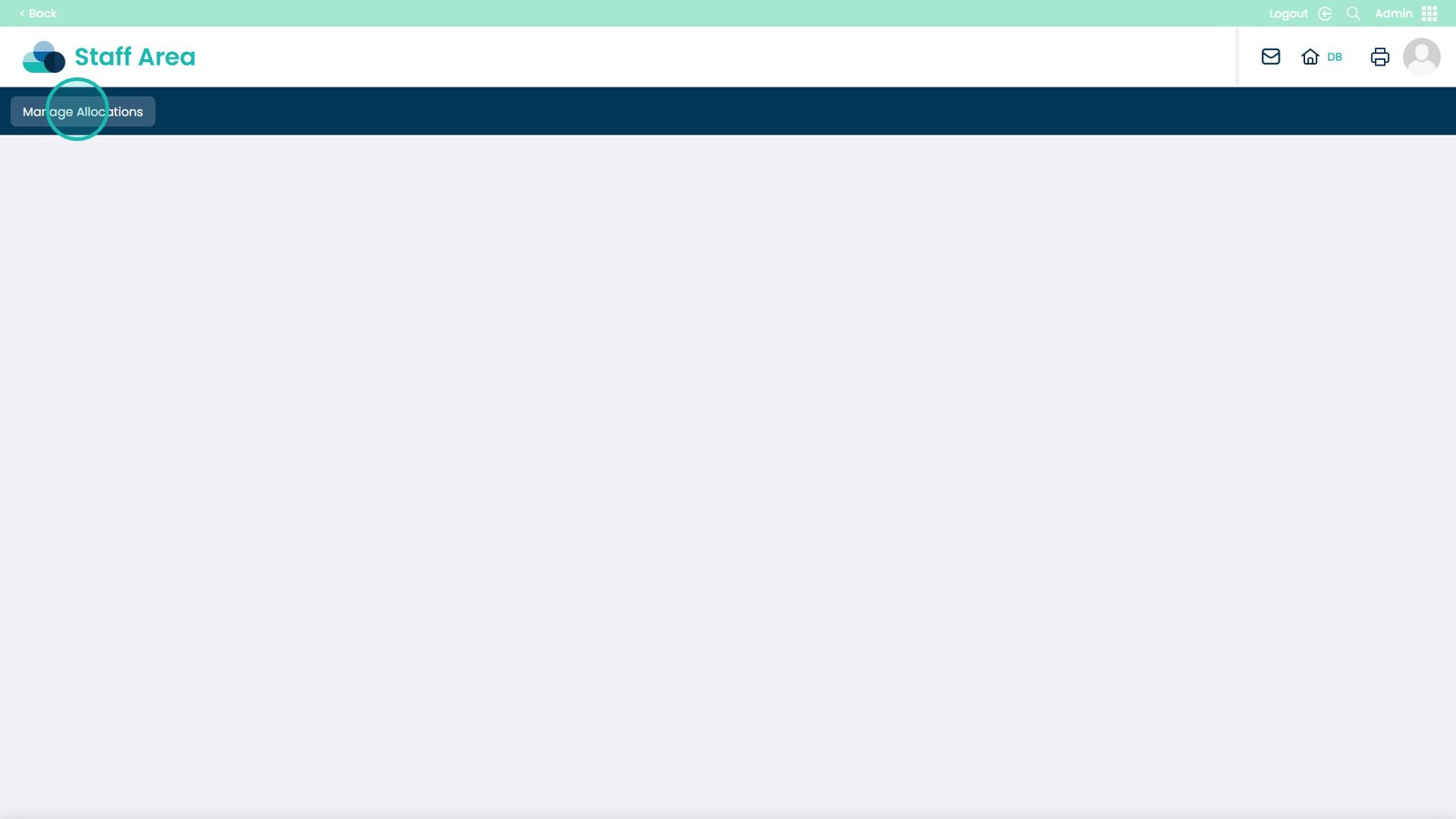
Select Manage Allocations

Â
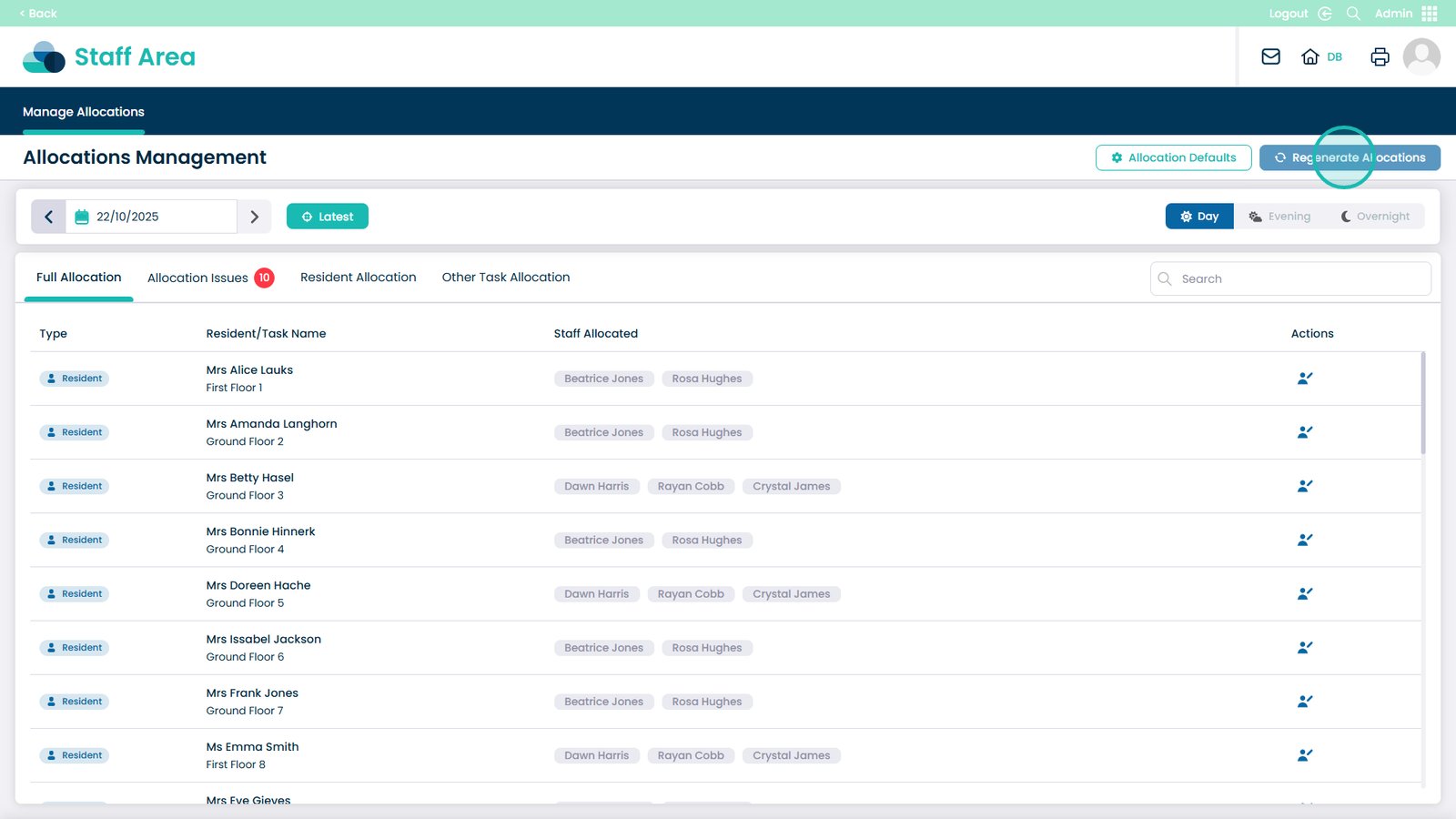
Select Regenerate Allocations

Â
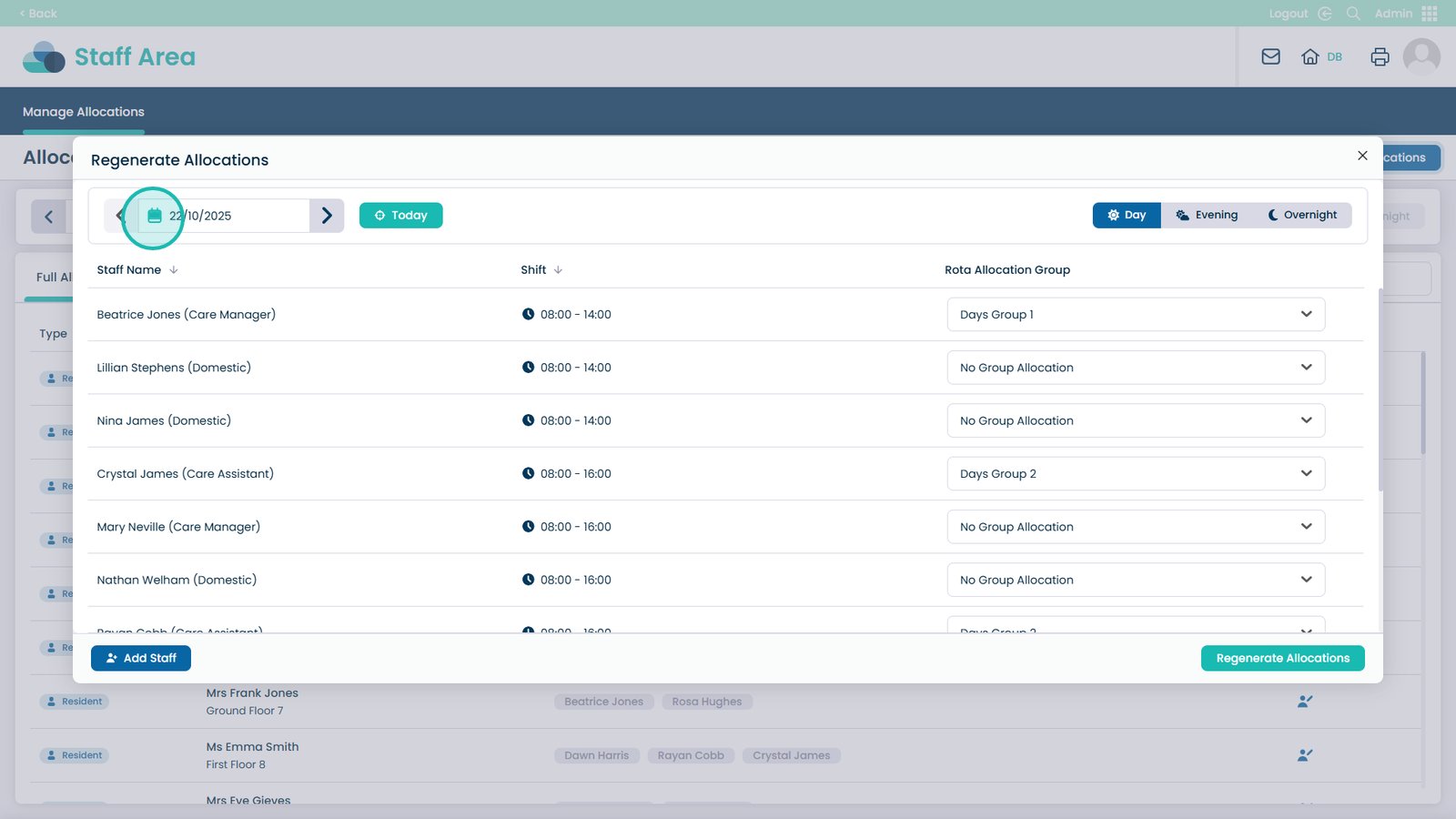
You can click the Calendar button to change the date for the allocation regeneration

Â
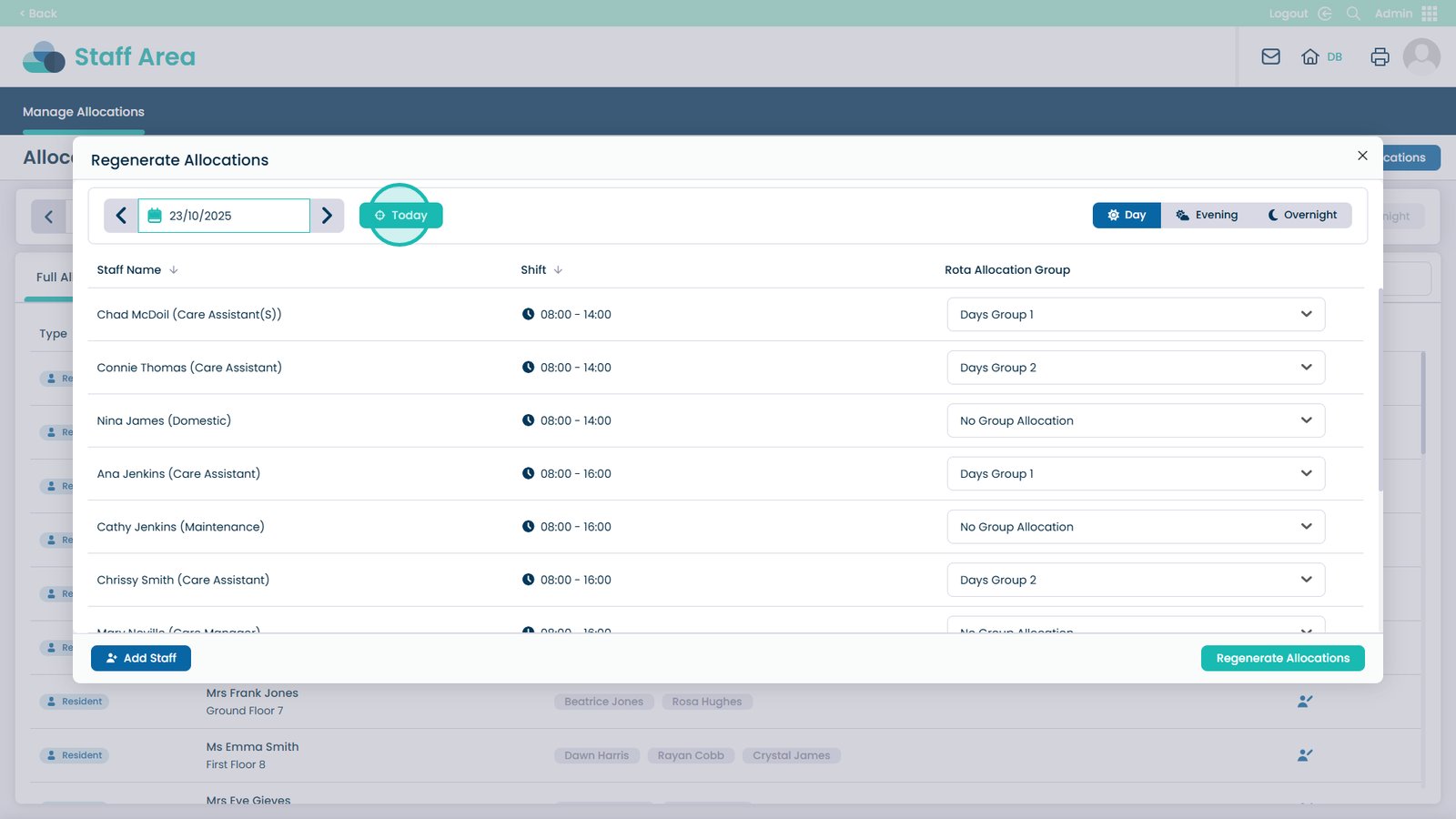
You can also reset the day to today by clicking the Today button

Â
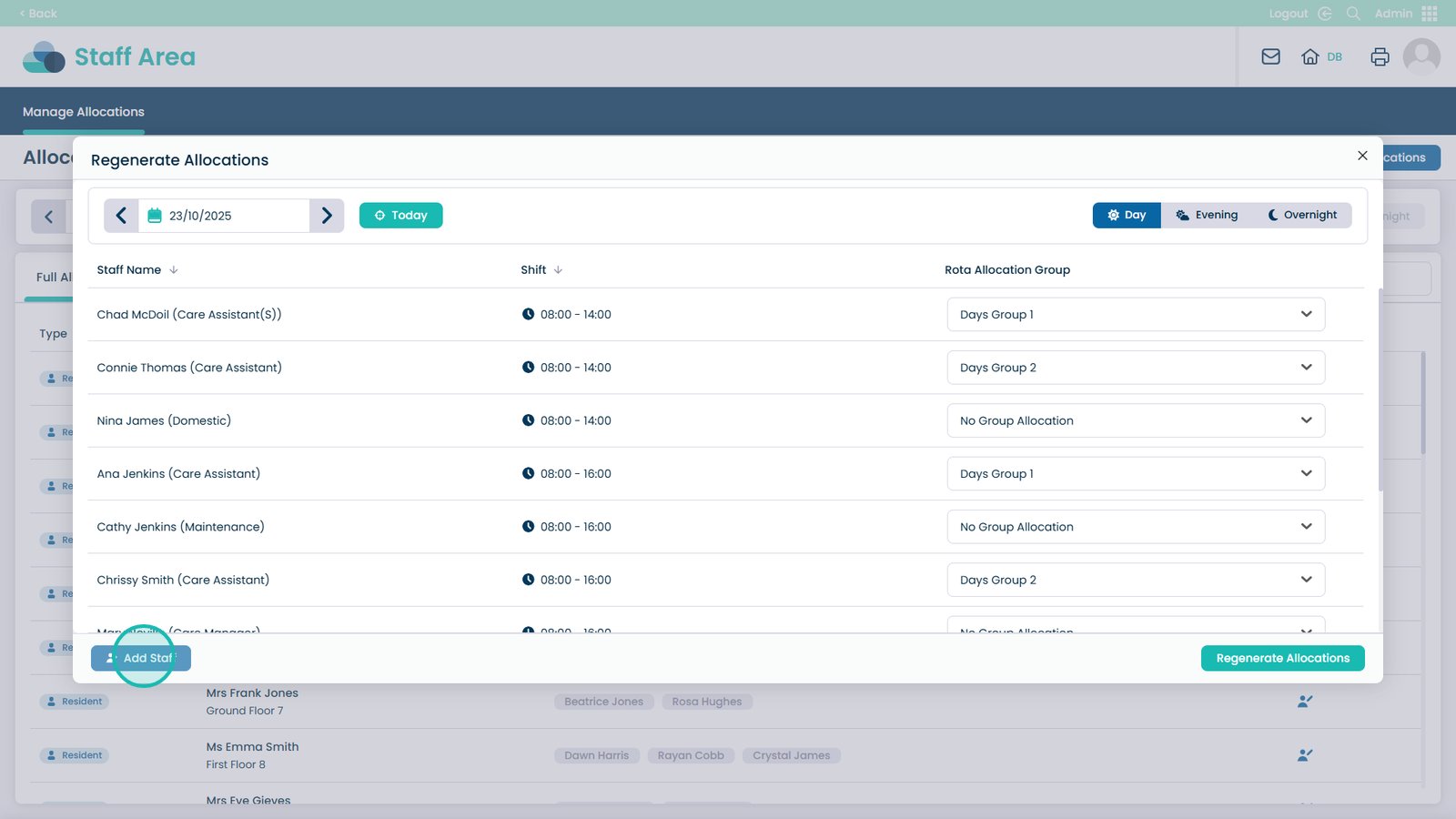
You can add further staff to the allocations by clicking this button; this is useful especially if there are agency workers required

Â
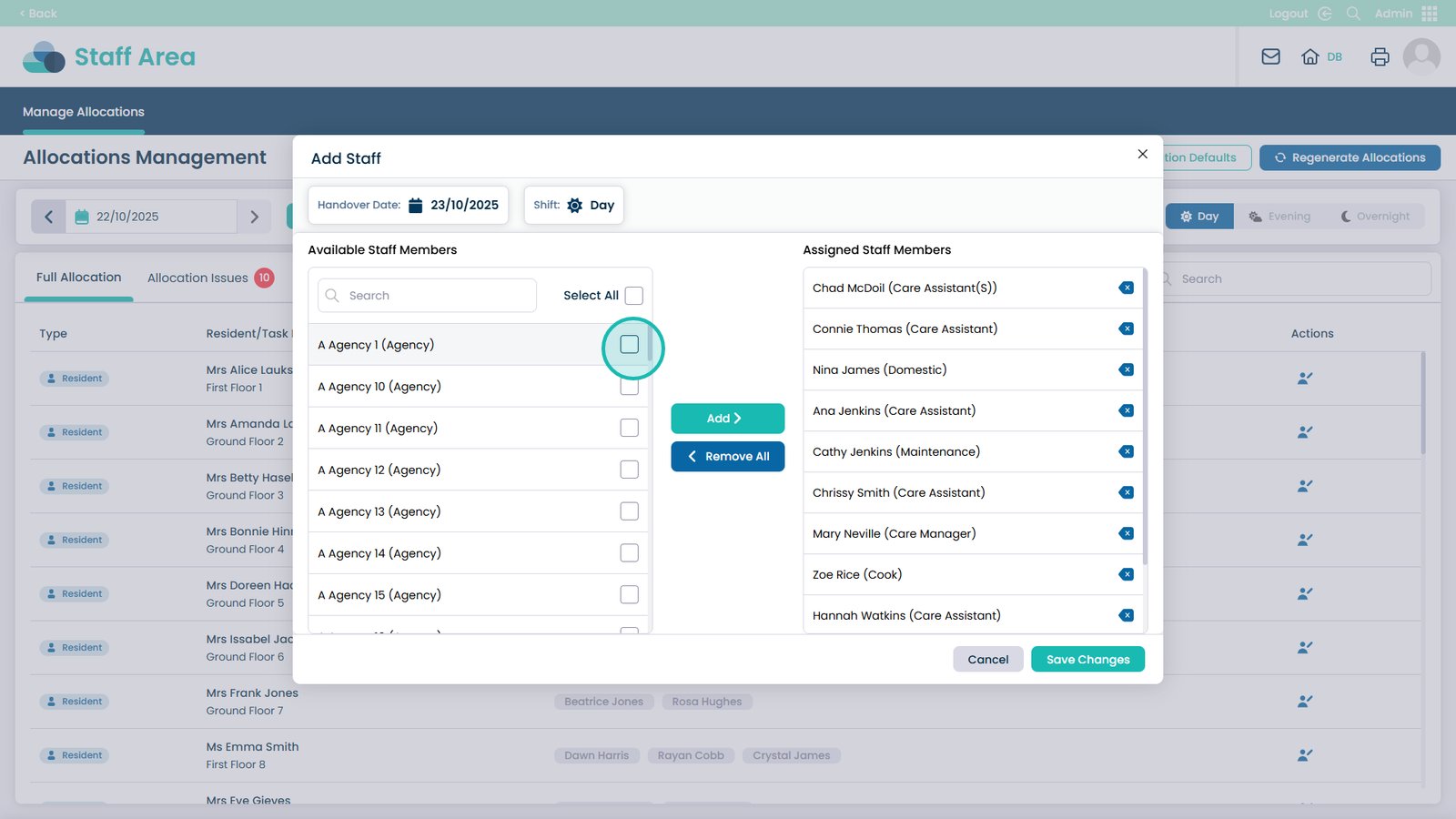
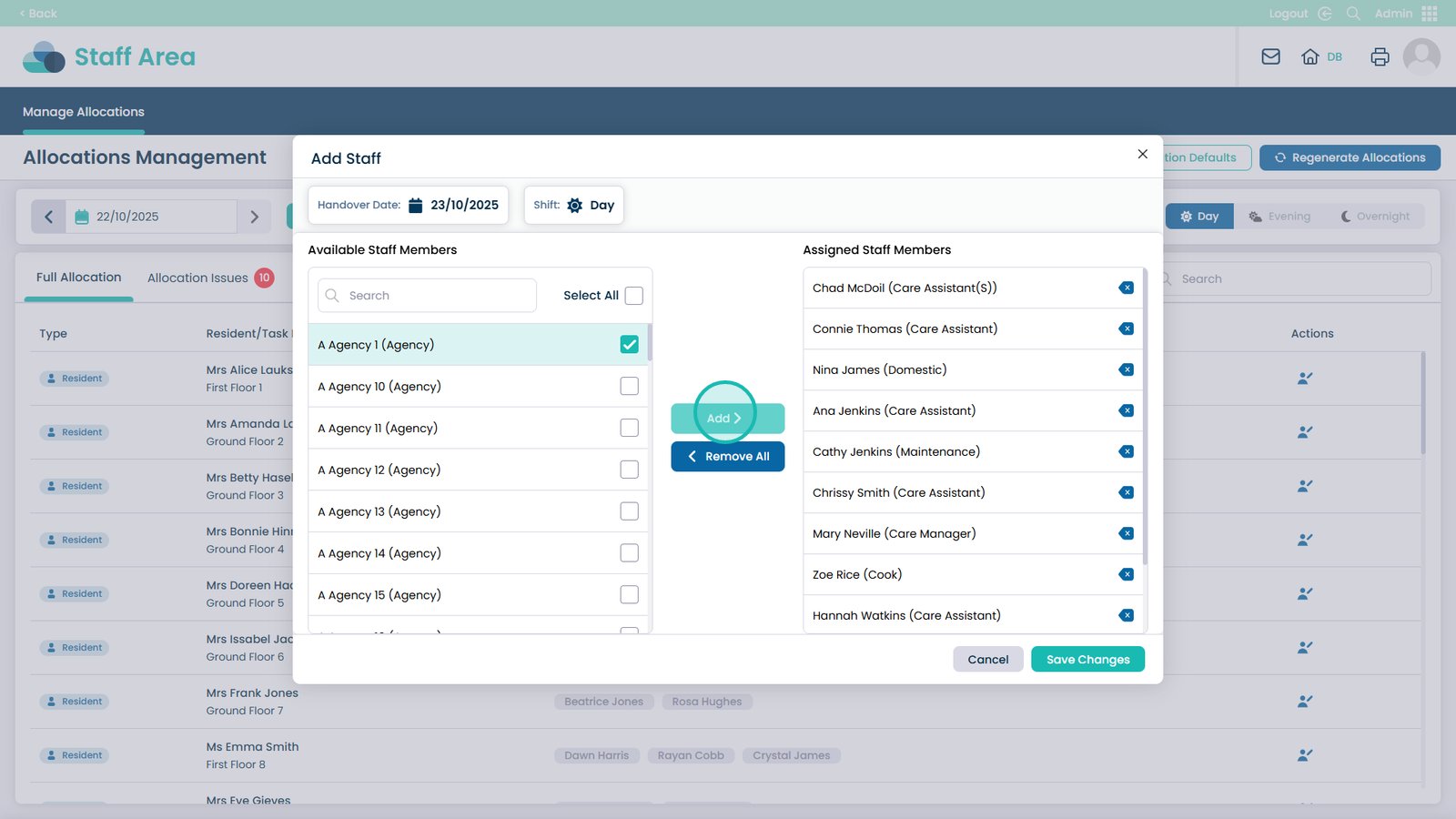
Select the staff member on the left-hand panel; you can select multiple, or all

Â
Click Add to add them

Â
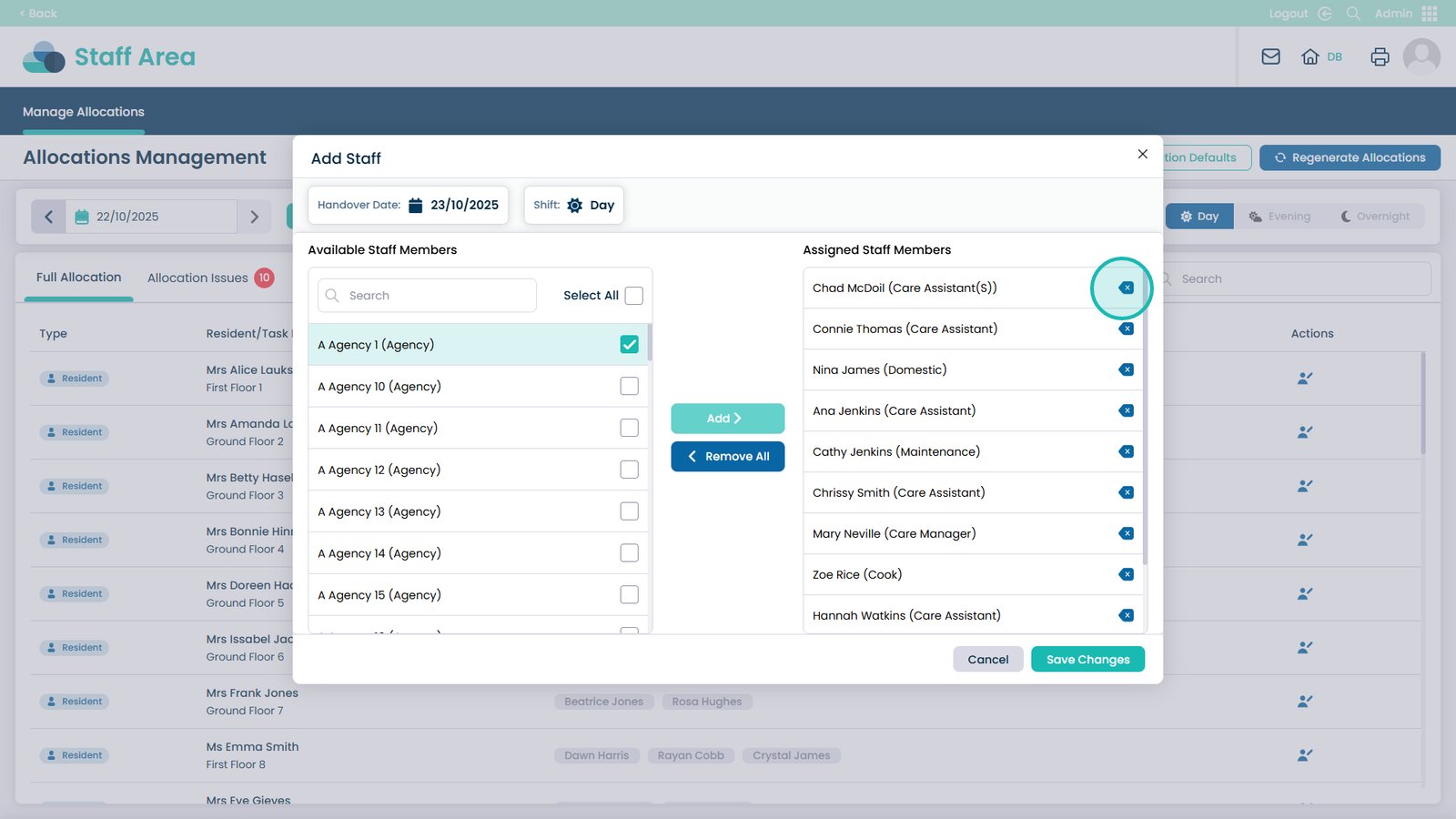
You can also click the x next to the already assigned staff members to remove them from the allocations

Â
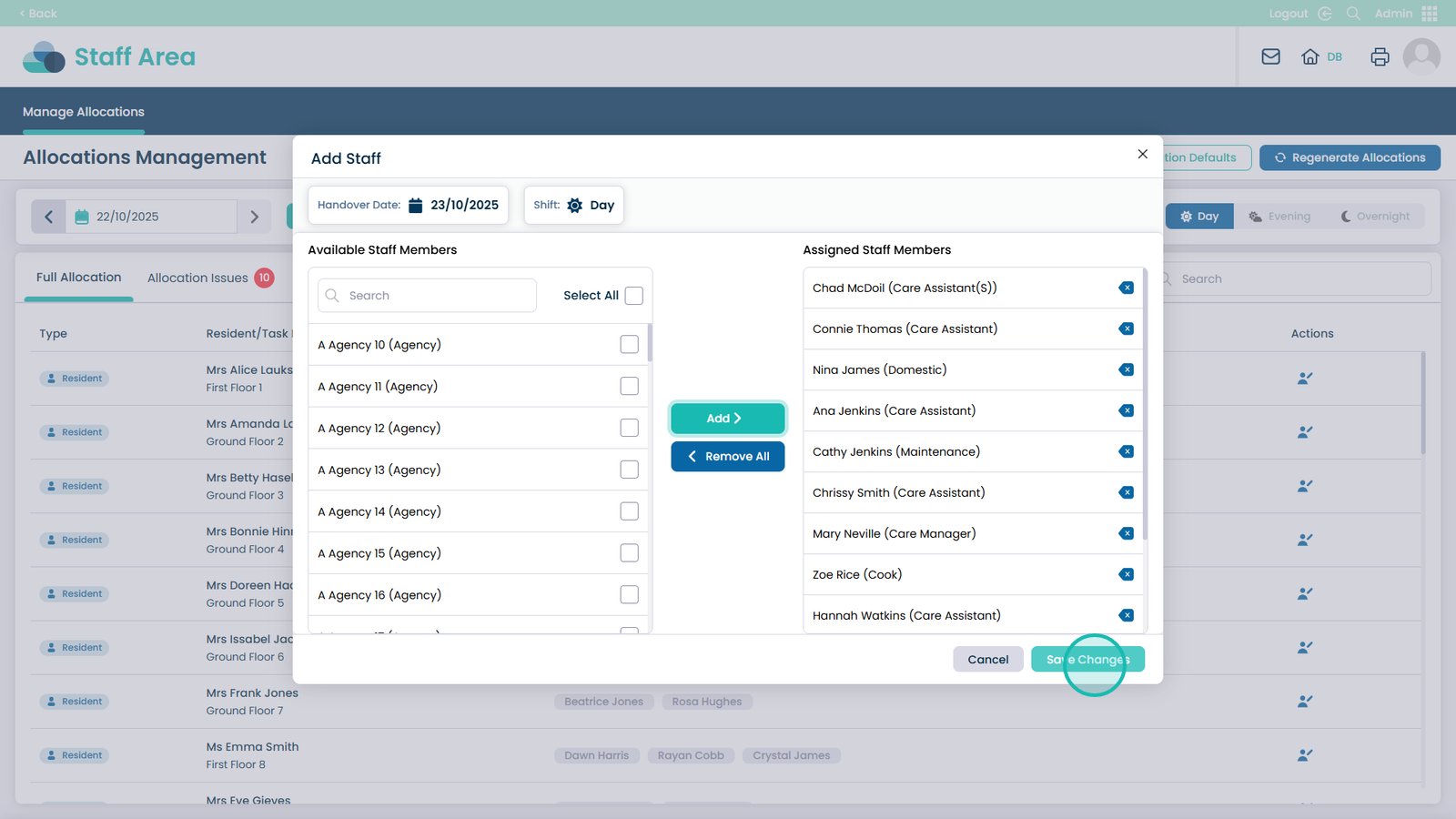
When happy with the staff, click Save Changes

Â
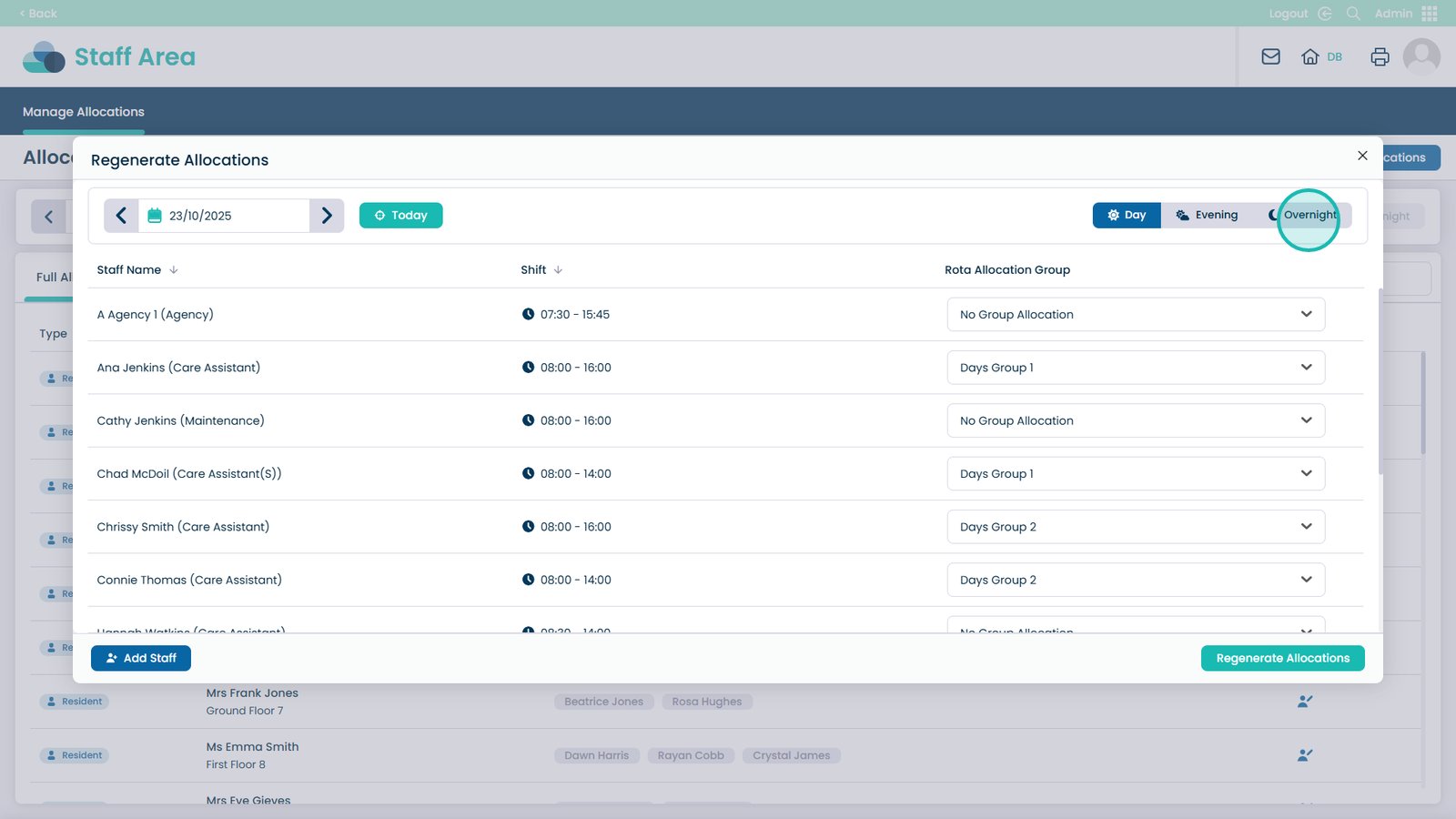
You can view the Day, Evening or Overnight allocations by selecting these buttons

Â
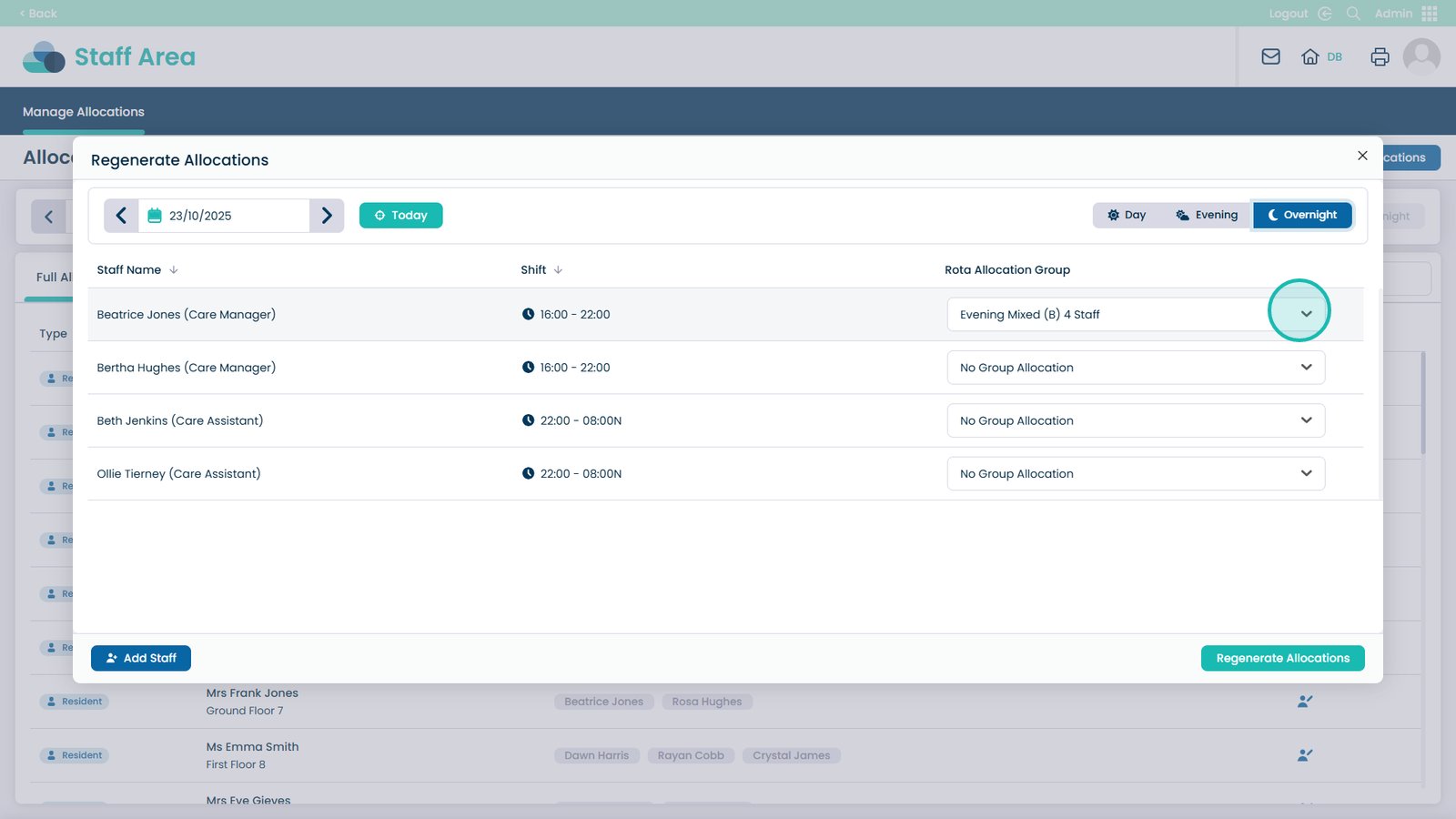
You can change the rota allocation group if required by opening the drop-down menu

Â
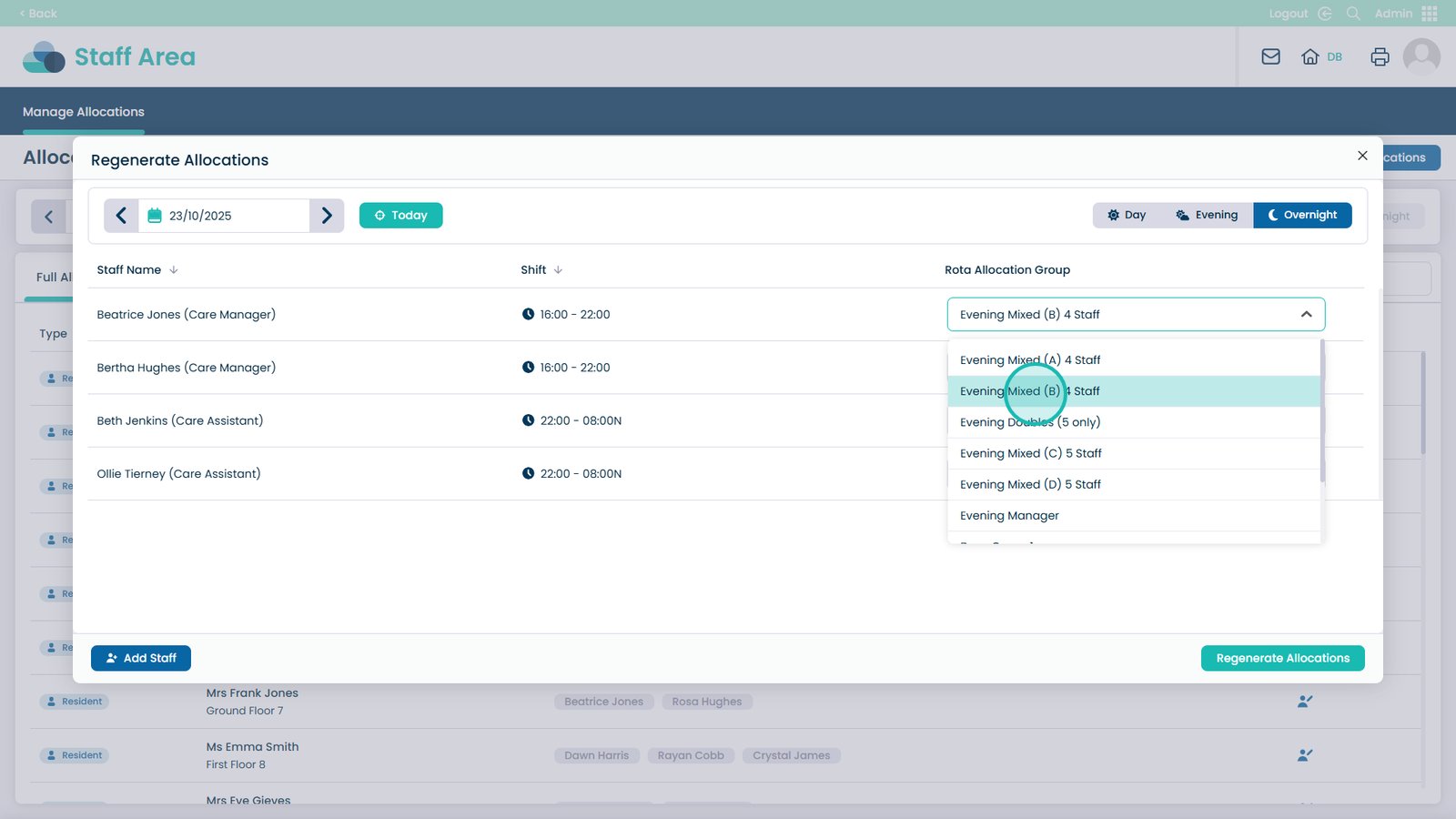
Select the Rota Allocation Group from the drop-down menu

Â
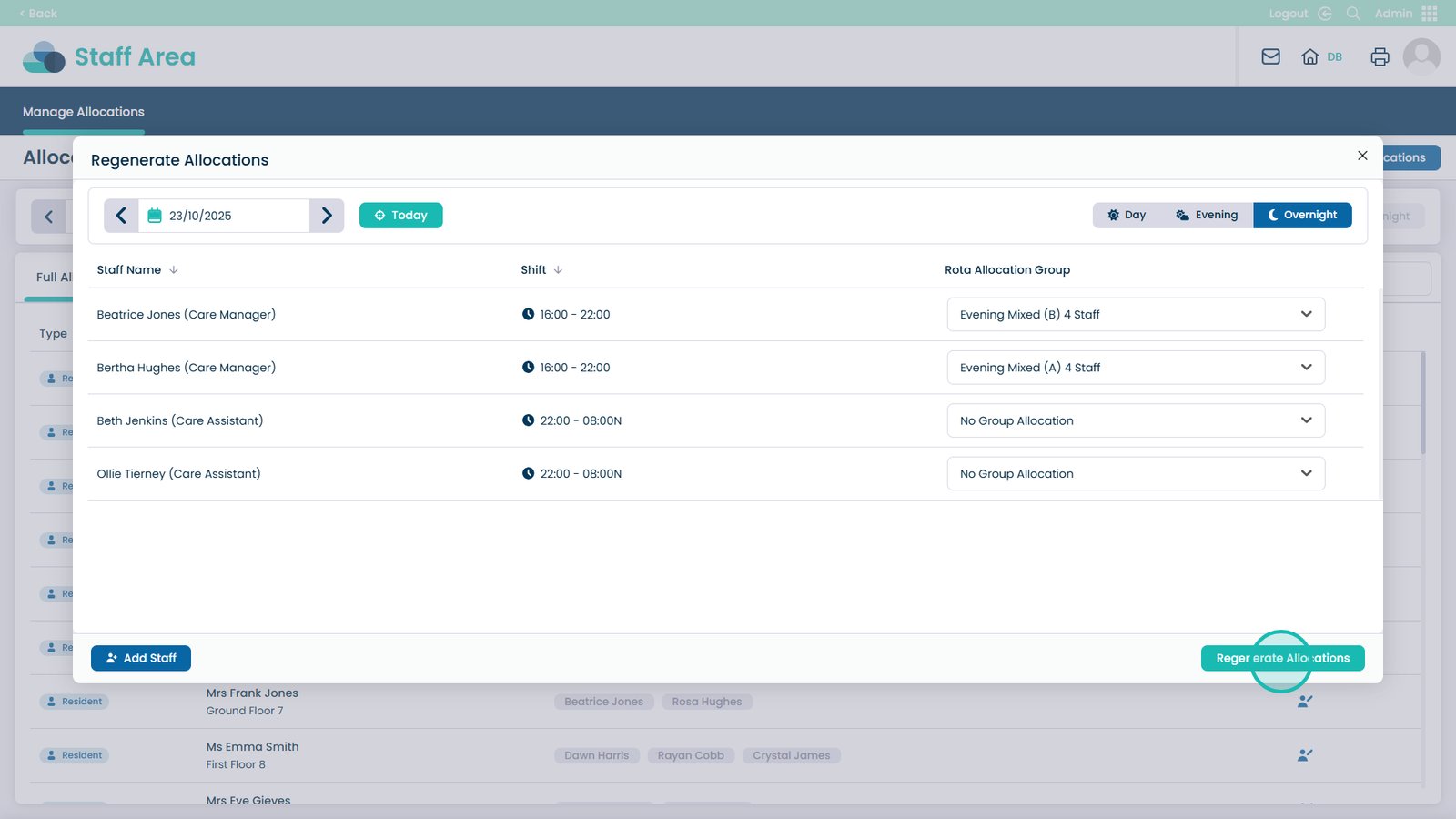
When happy, click Regenerate Allocations to allocate the staff members