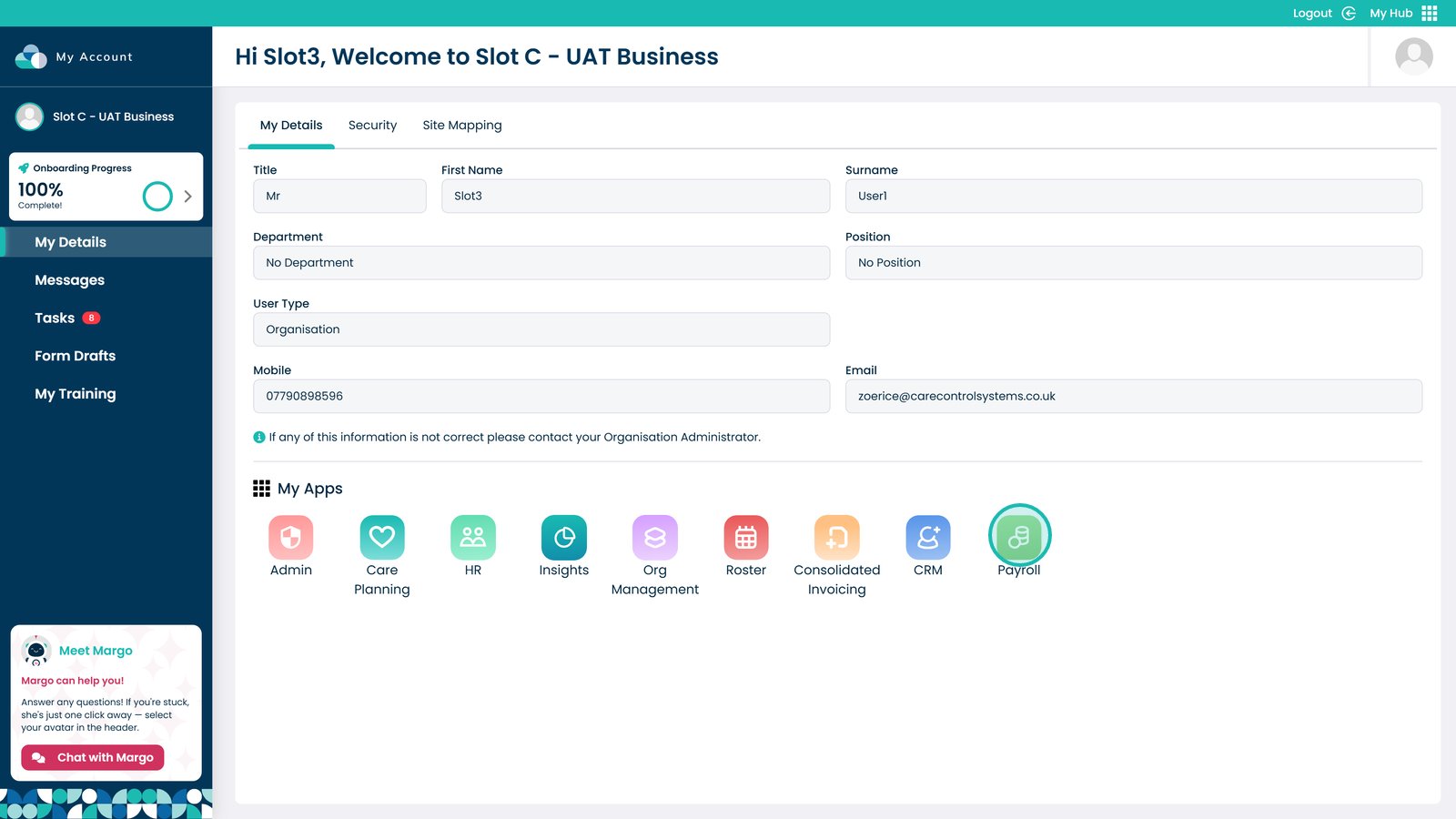
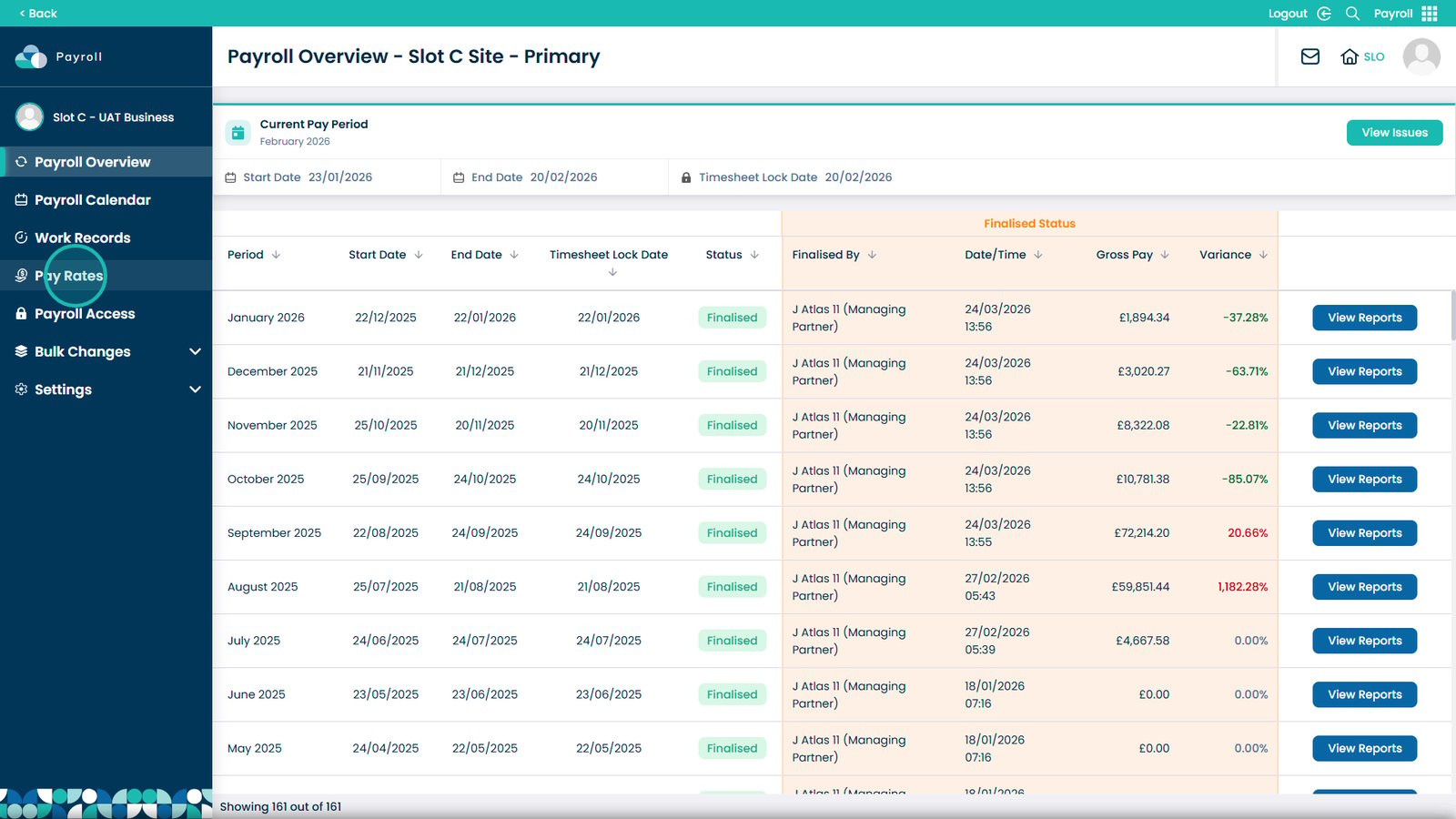
This guide explains how to view and manage
staff pay rates within the
Payroll App.
In the
Pay Rates section, users can:
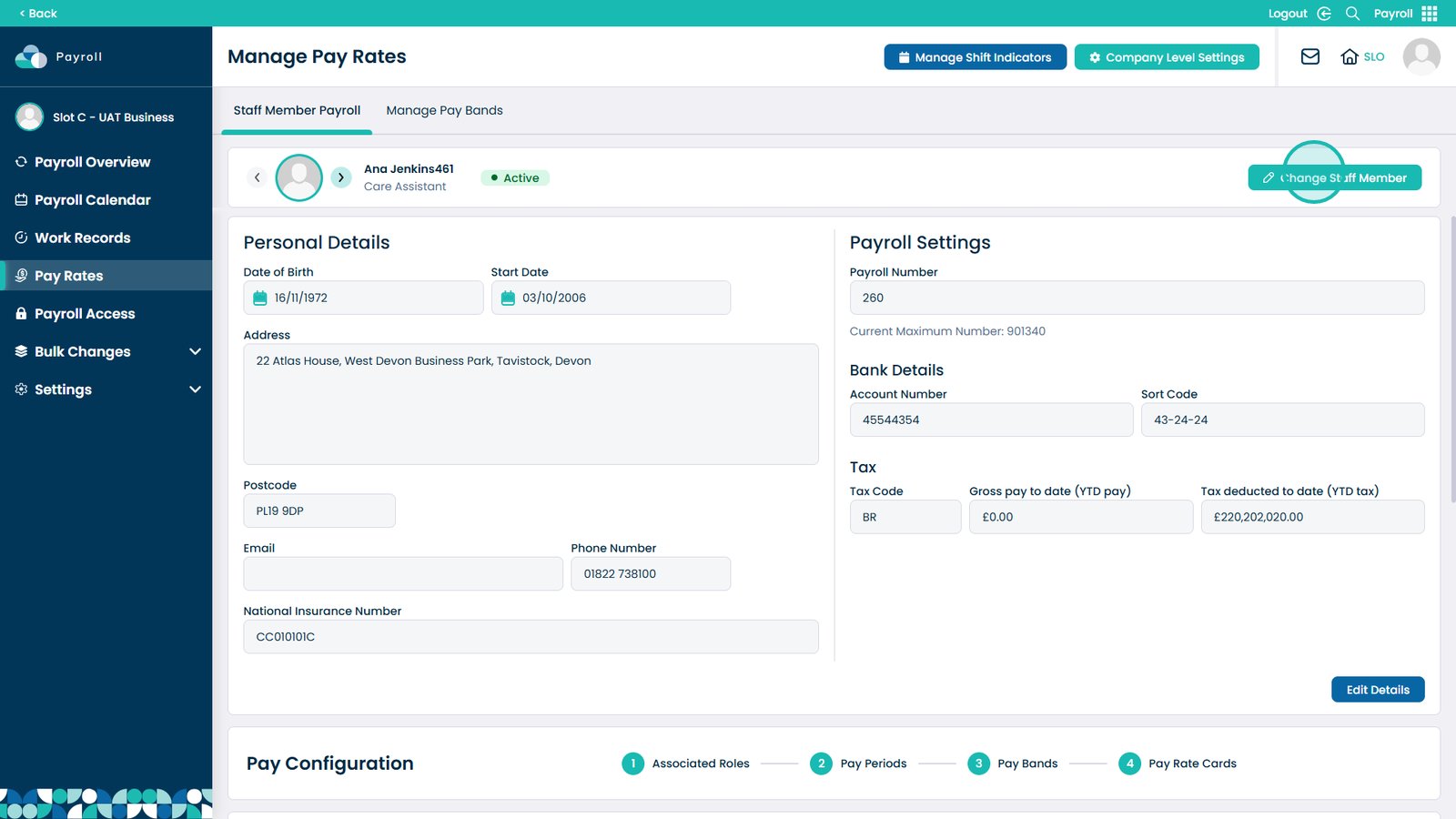
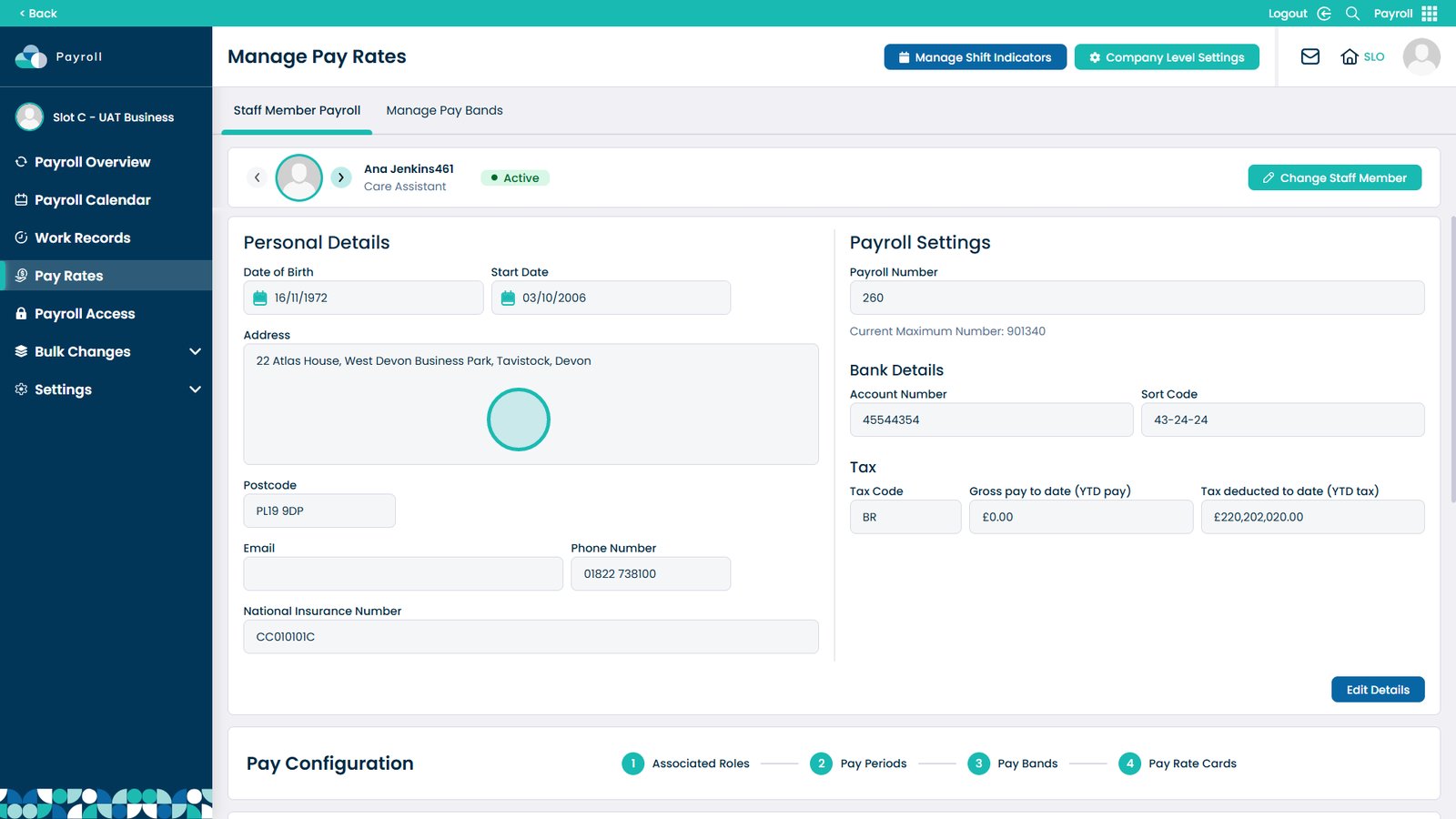
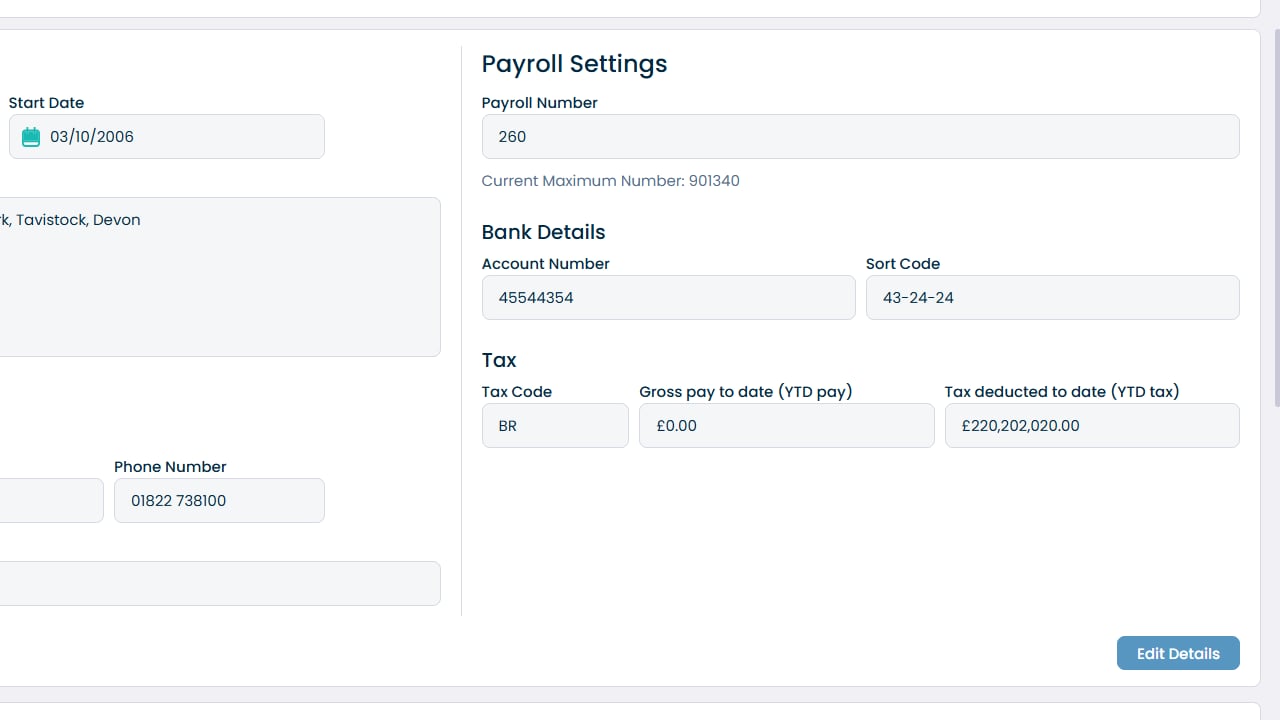
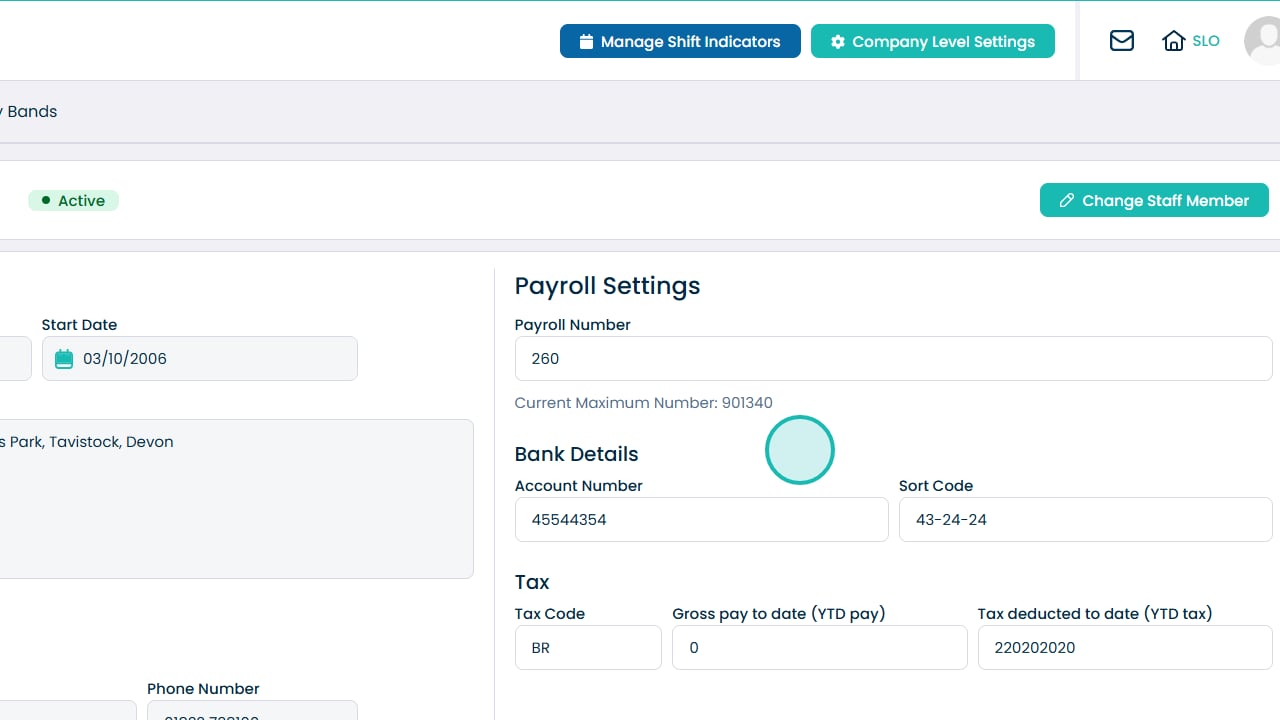
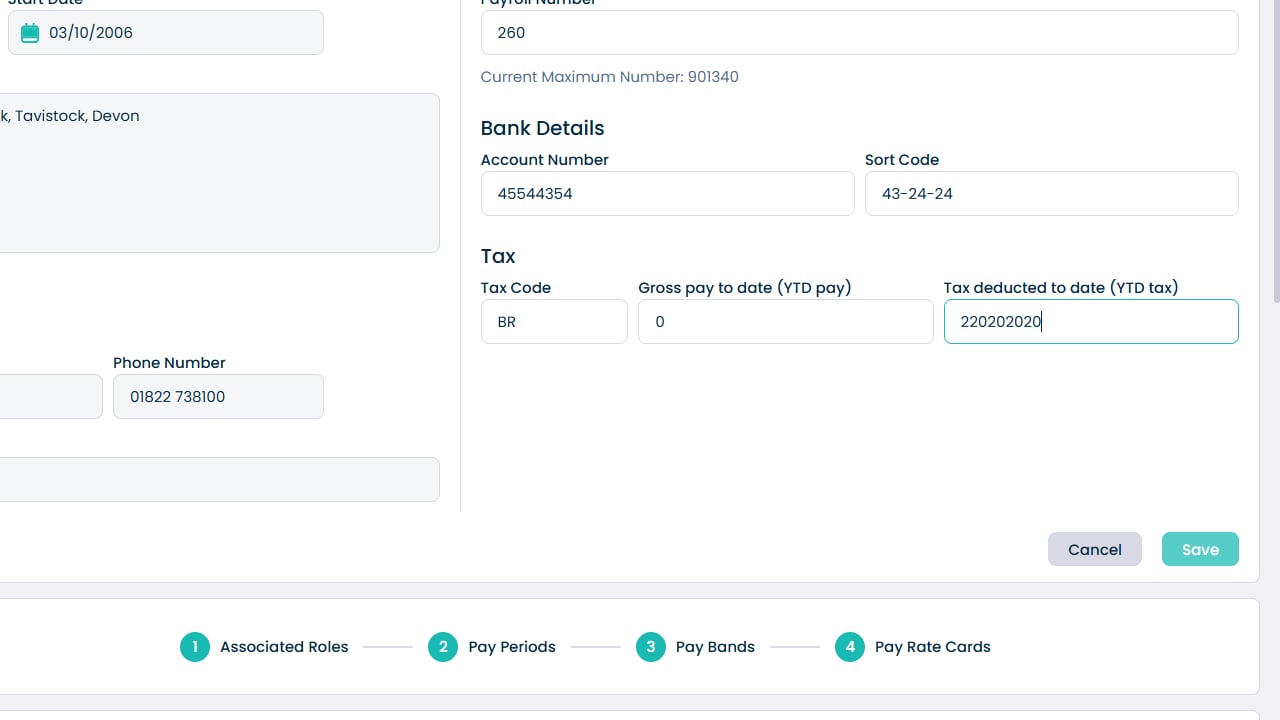
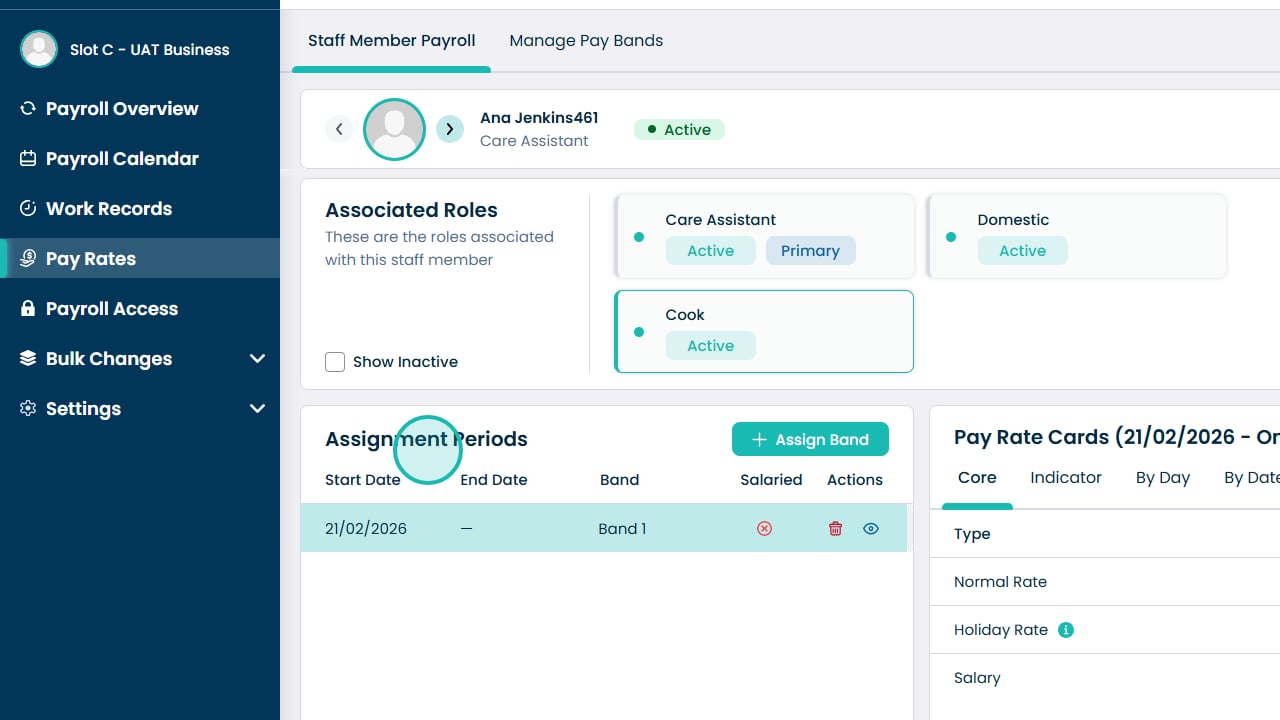
- Select a staff member and view their payroll details
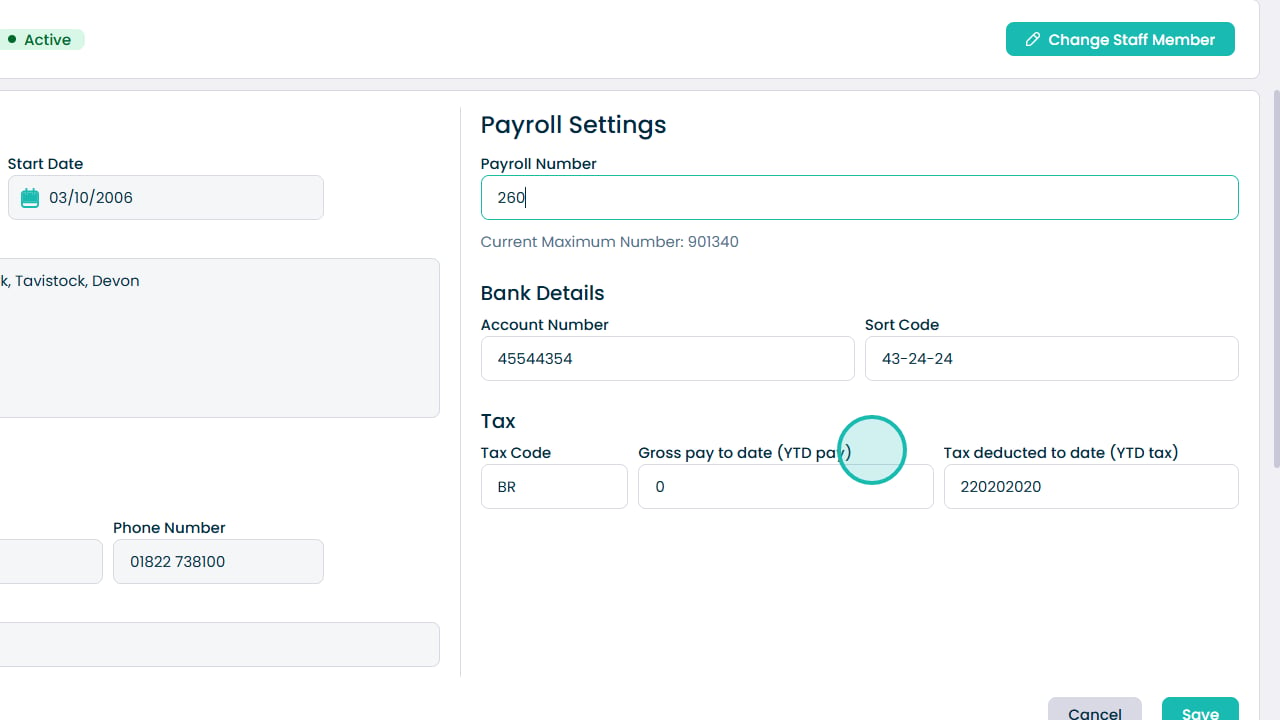
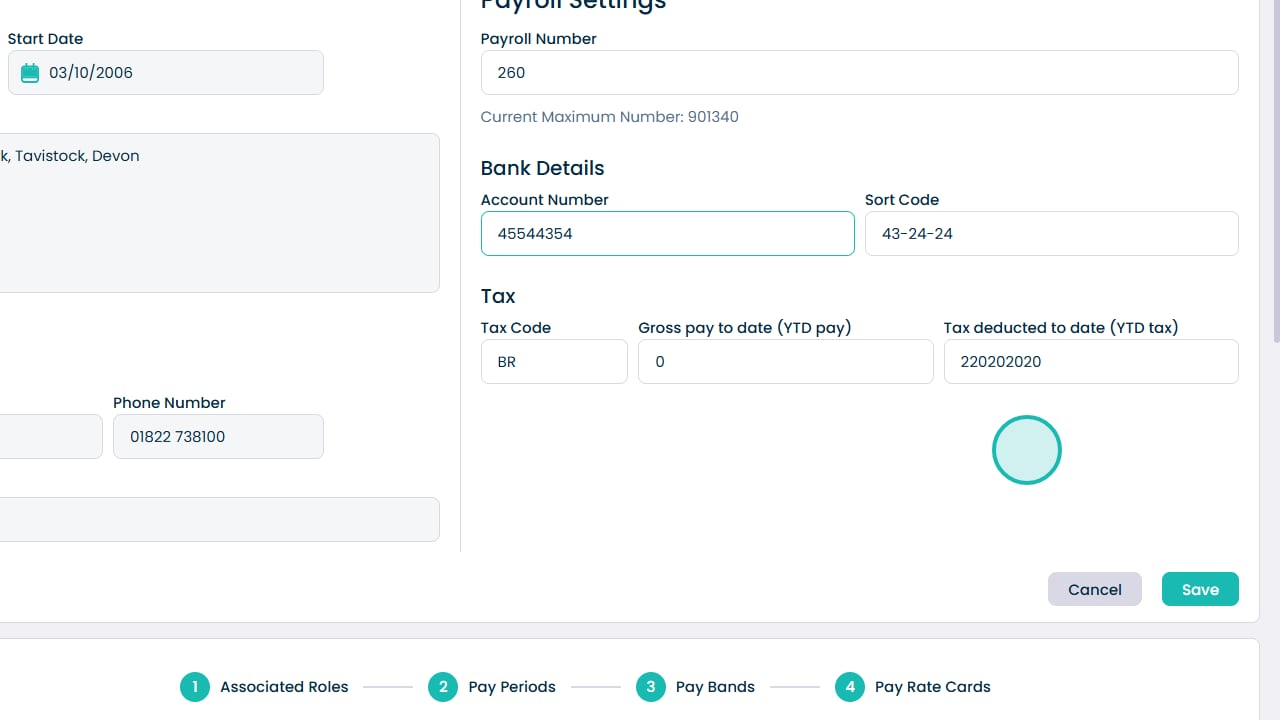
- Edit key information such as payroll number, bank details, tax code, and year-to-date (YTD) pay and tax
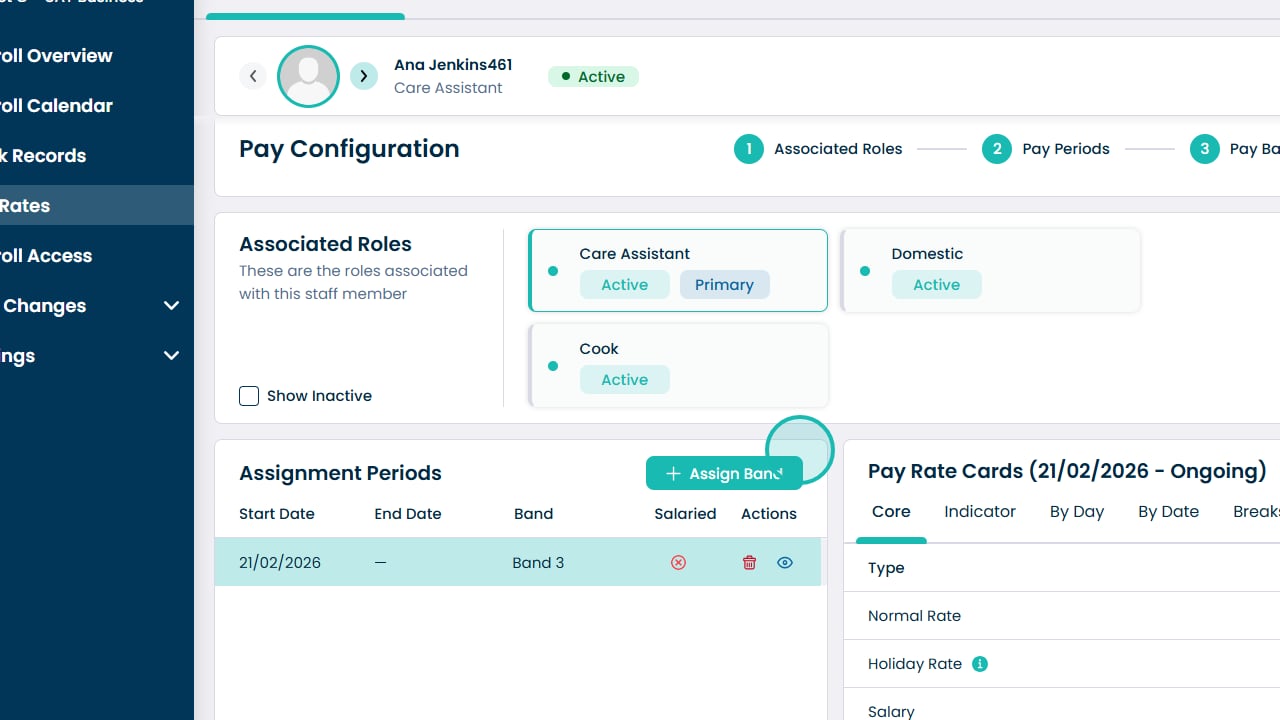
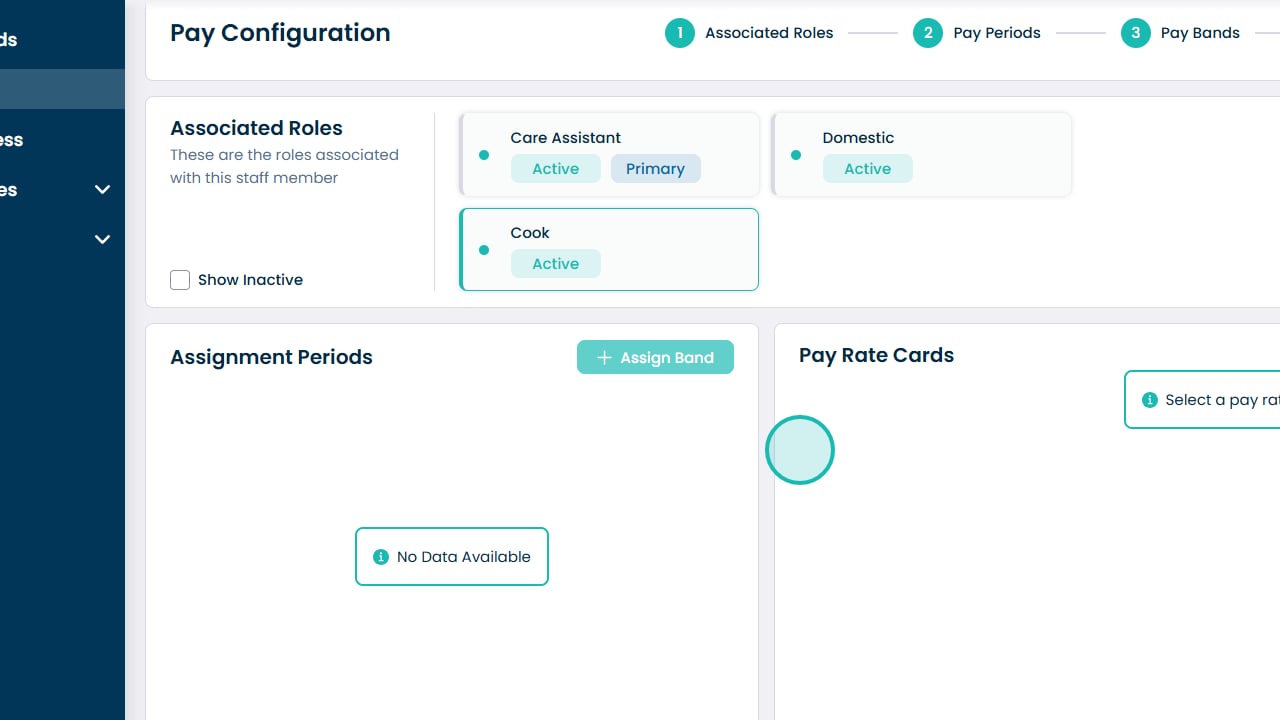
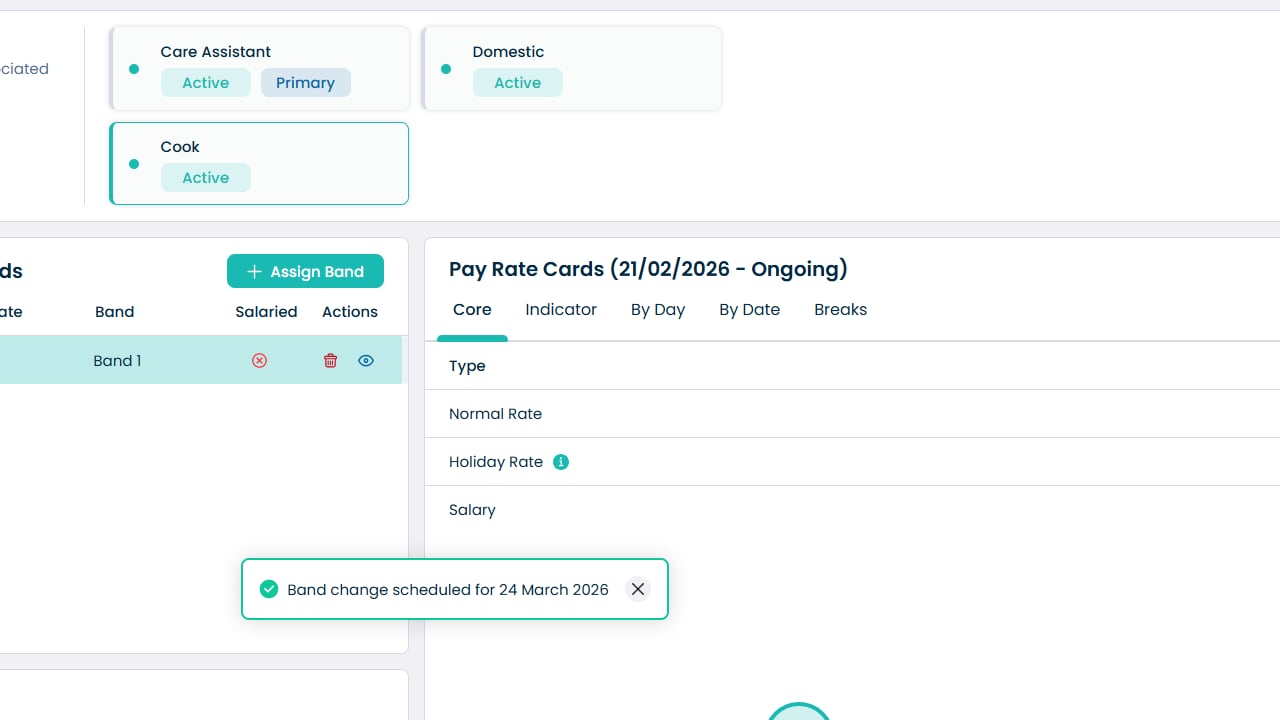
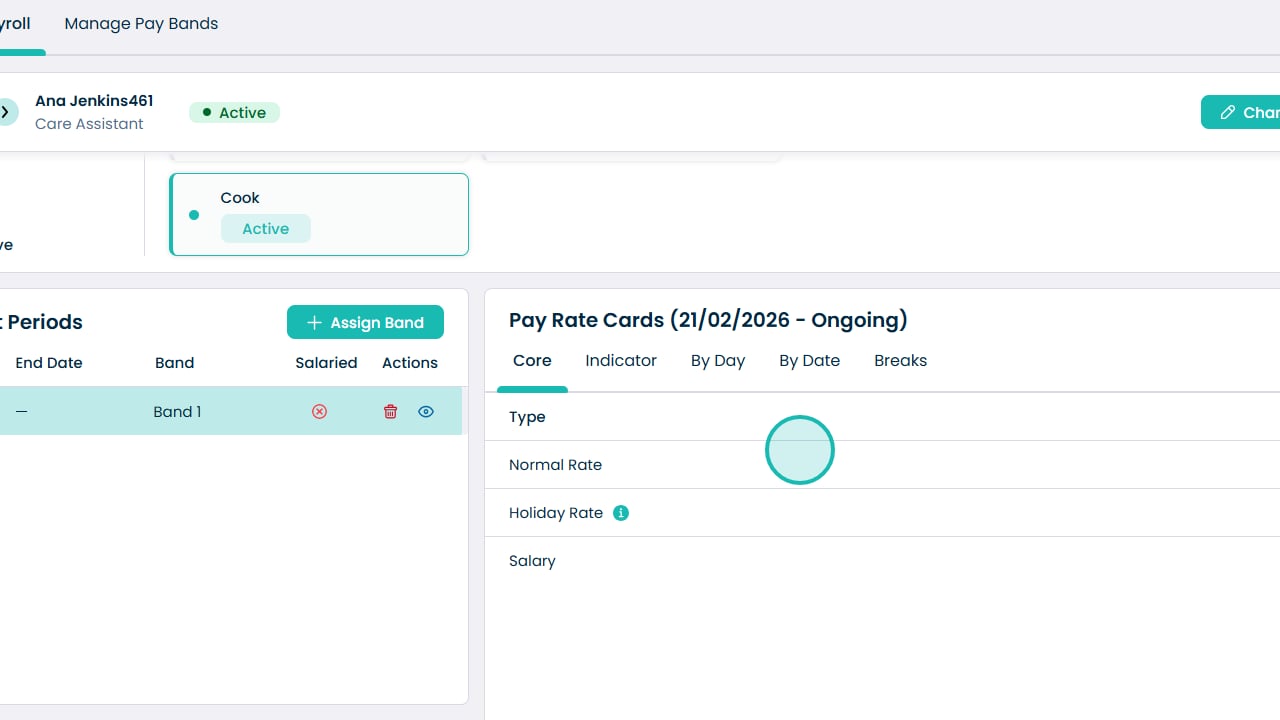
- View all roles assigned to the staff member and their associated pay rates
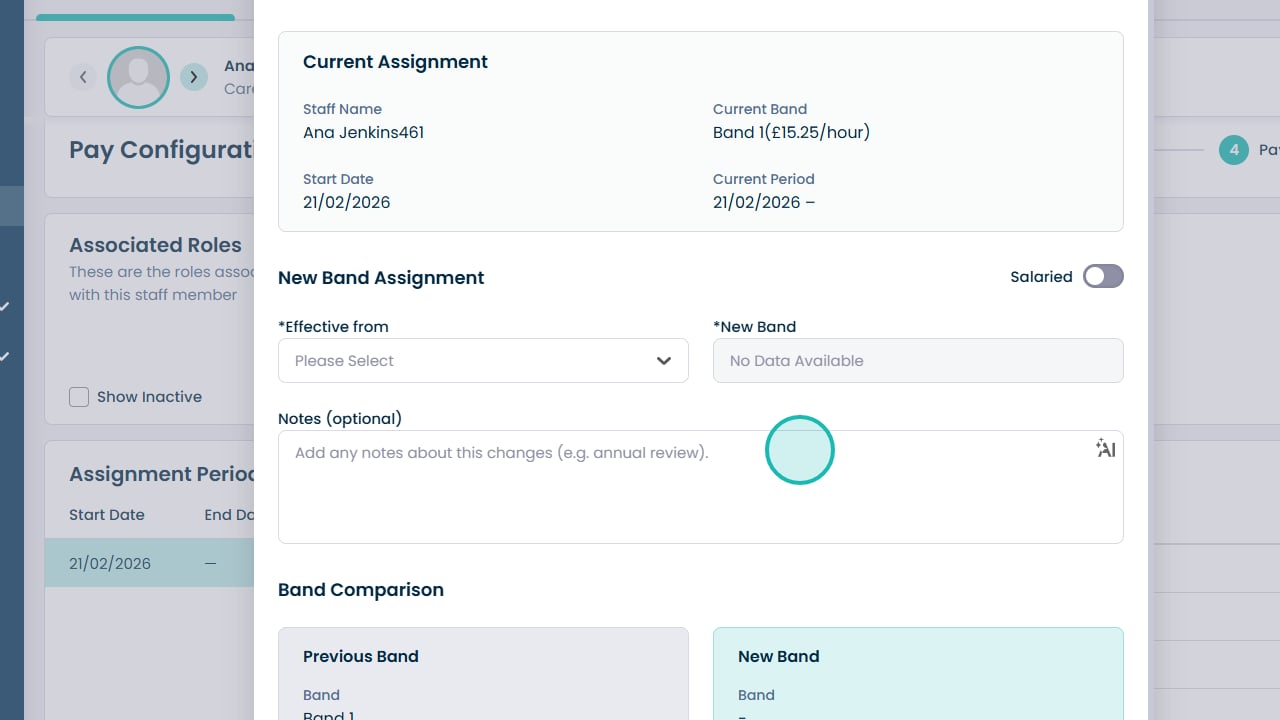
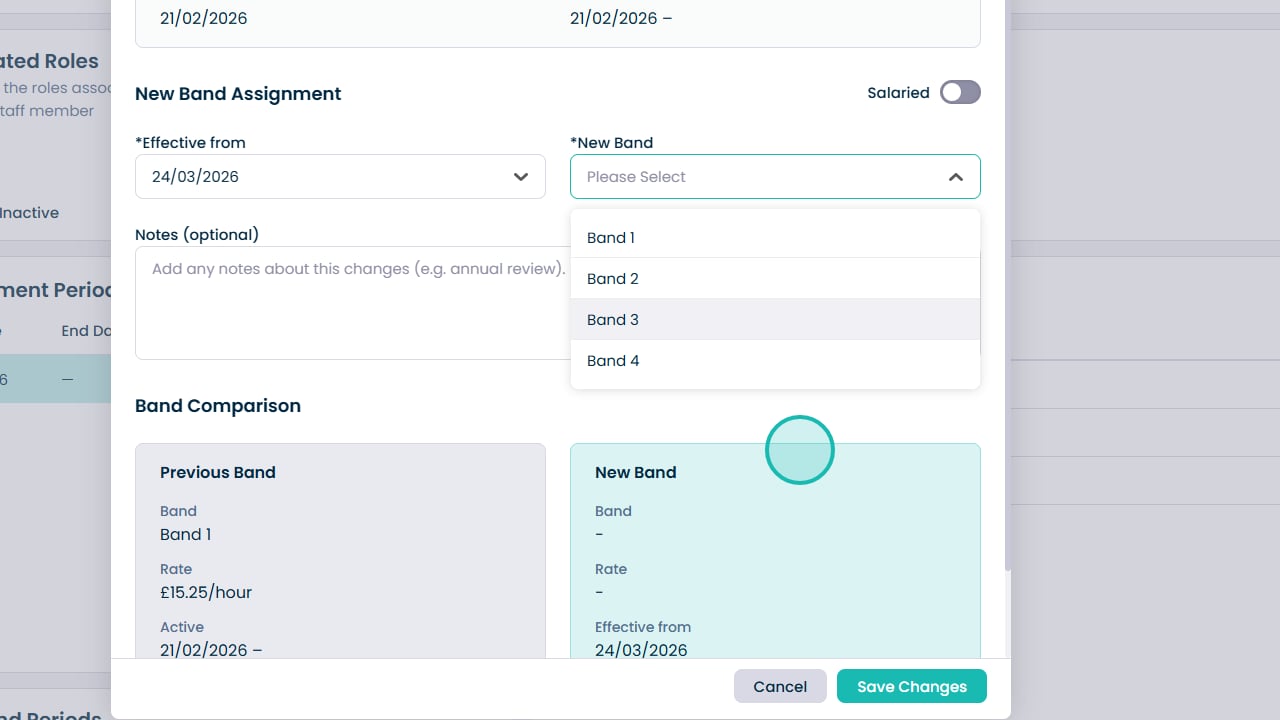
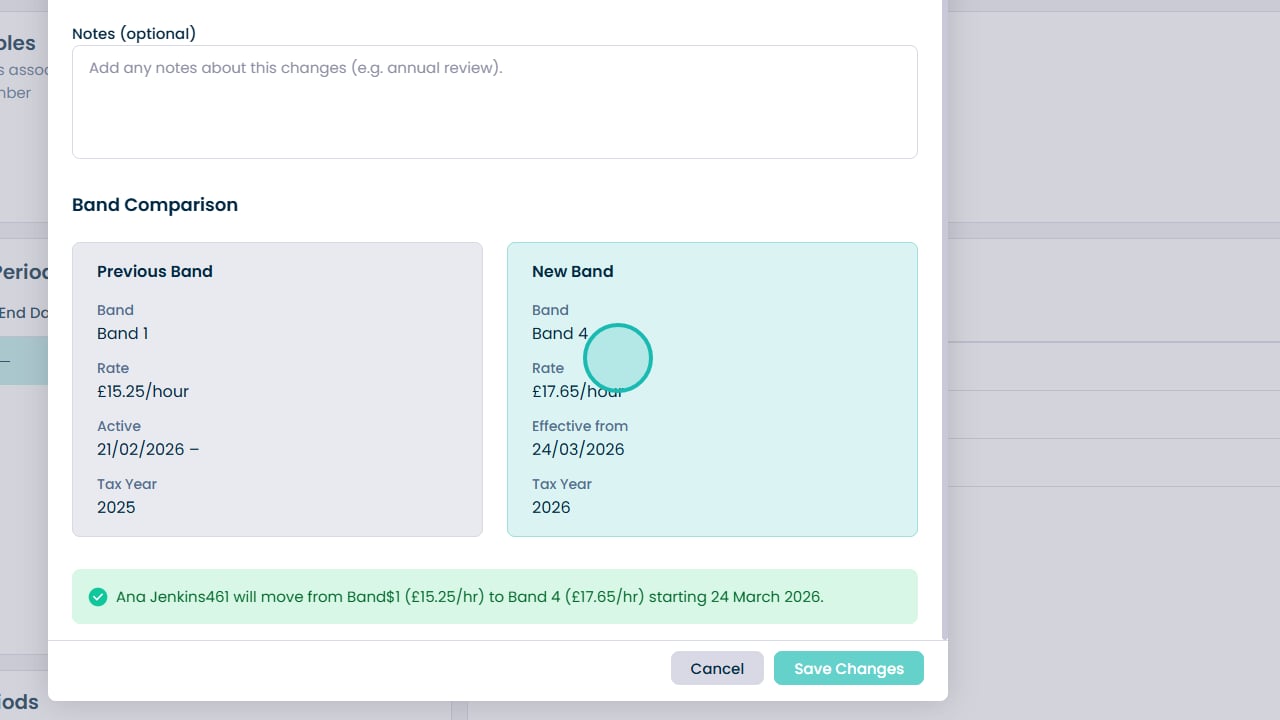
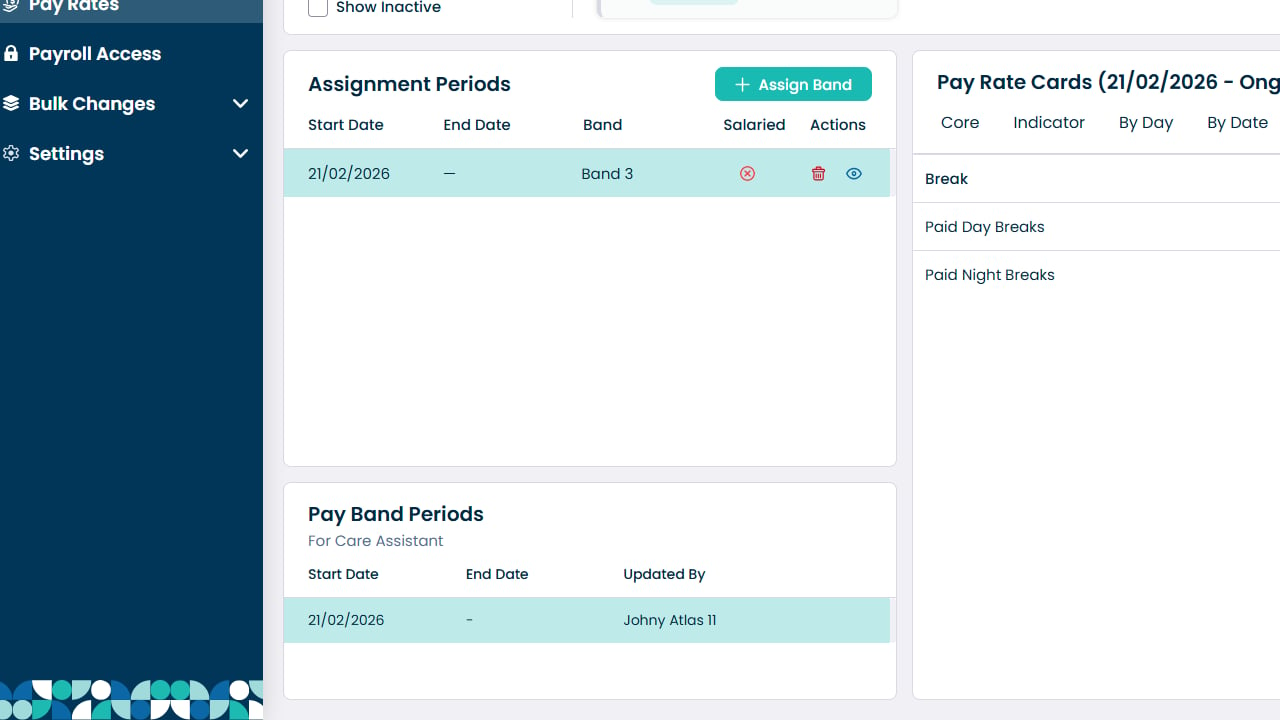
- Assign or update a pay band for a role
- Set an effective start date for pay changes
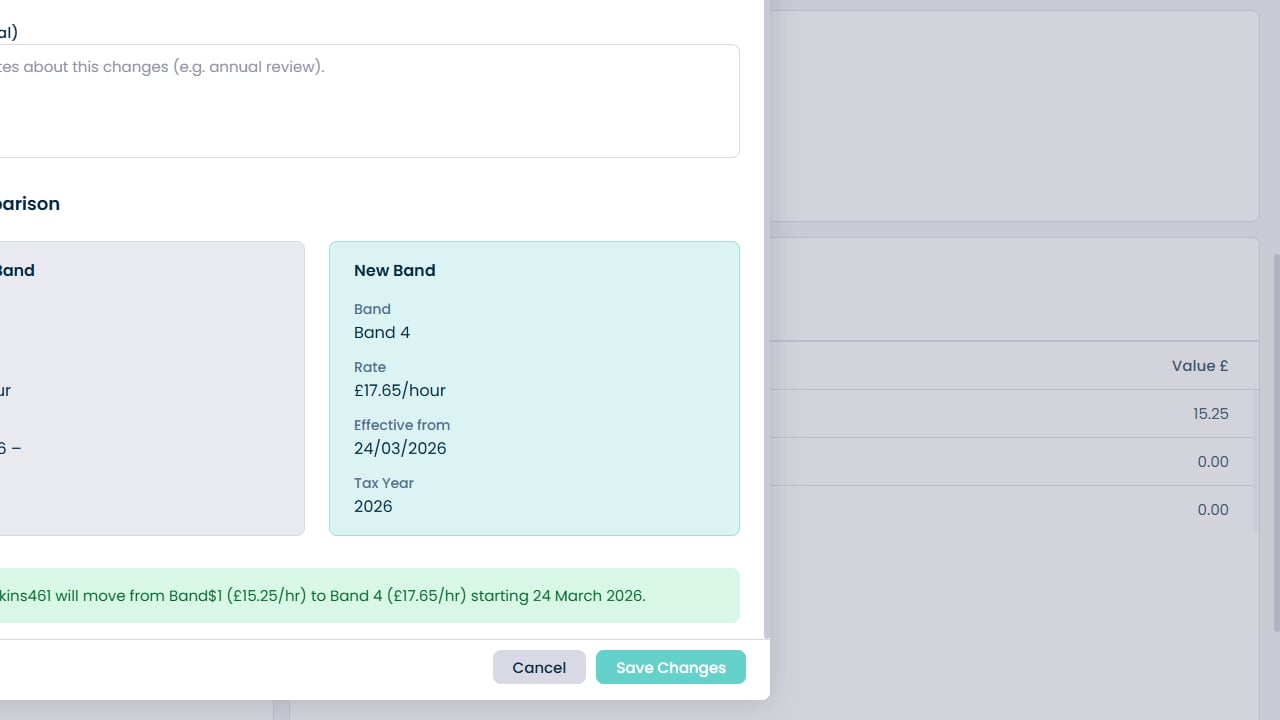
- Compare previous and new pay rates before confirming changes
- Review pay band history, including who made changes and when
The system allows you to manage pay structures accurately by linking staff roles to pay bands and maintaining a clear history of changes.
Keeping pay rate information up to date ensures:
- Accurate payroll calculations
- Correct staff payments
- Clear audit trails for pay changes
Follow the steps below to update payroll details and manage pay bands for staff members.