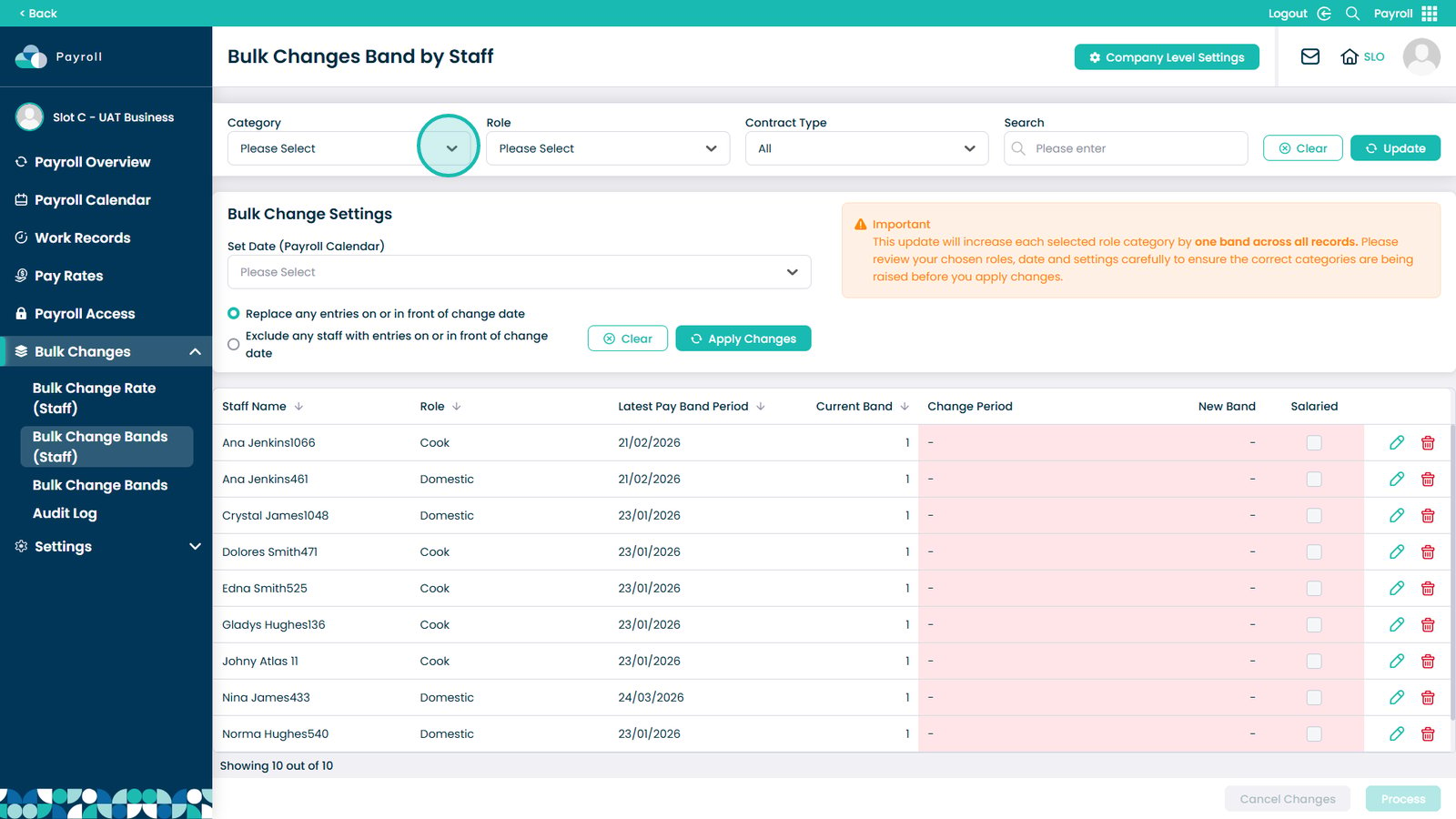
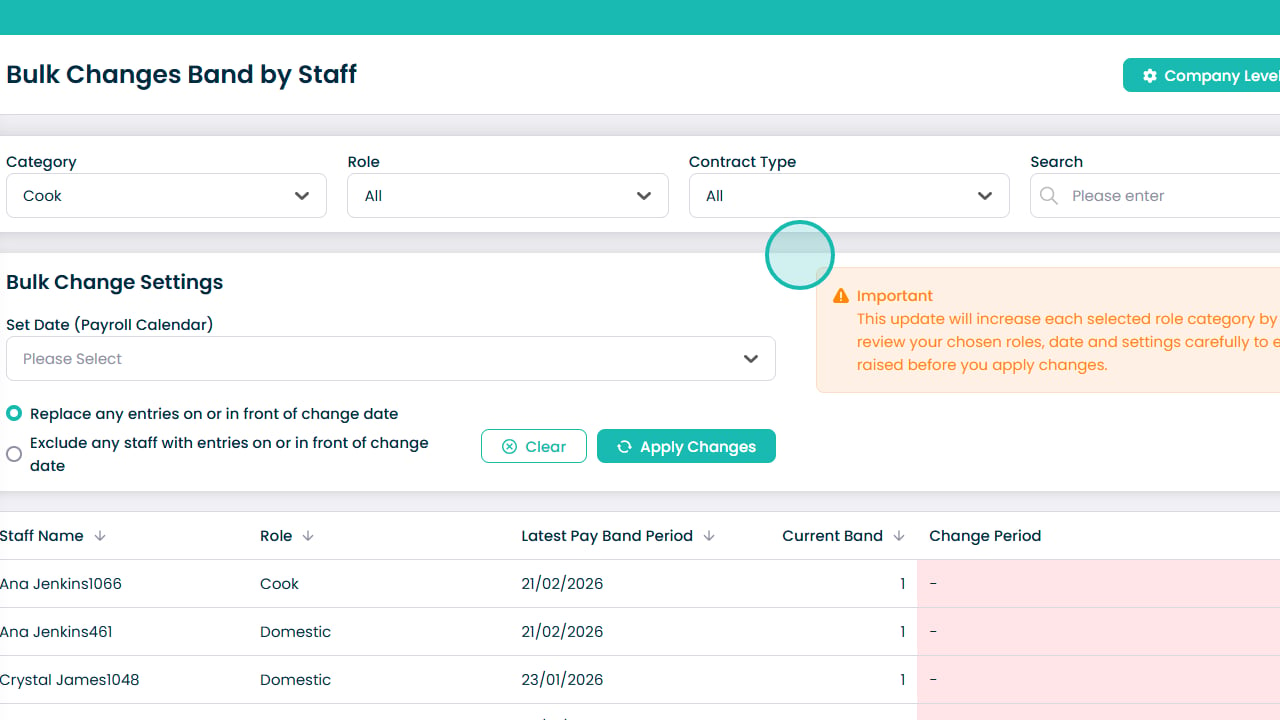
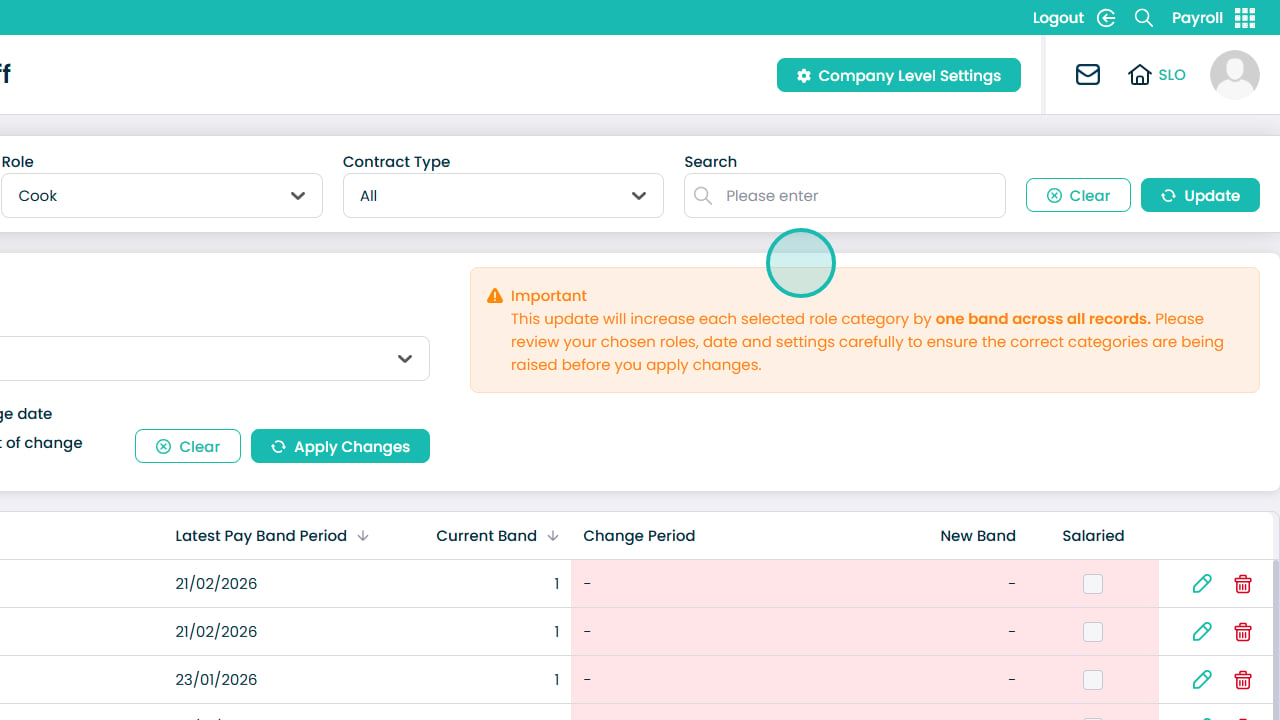
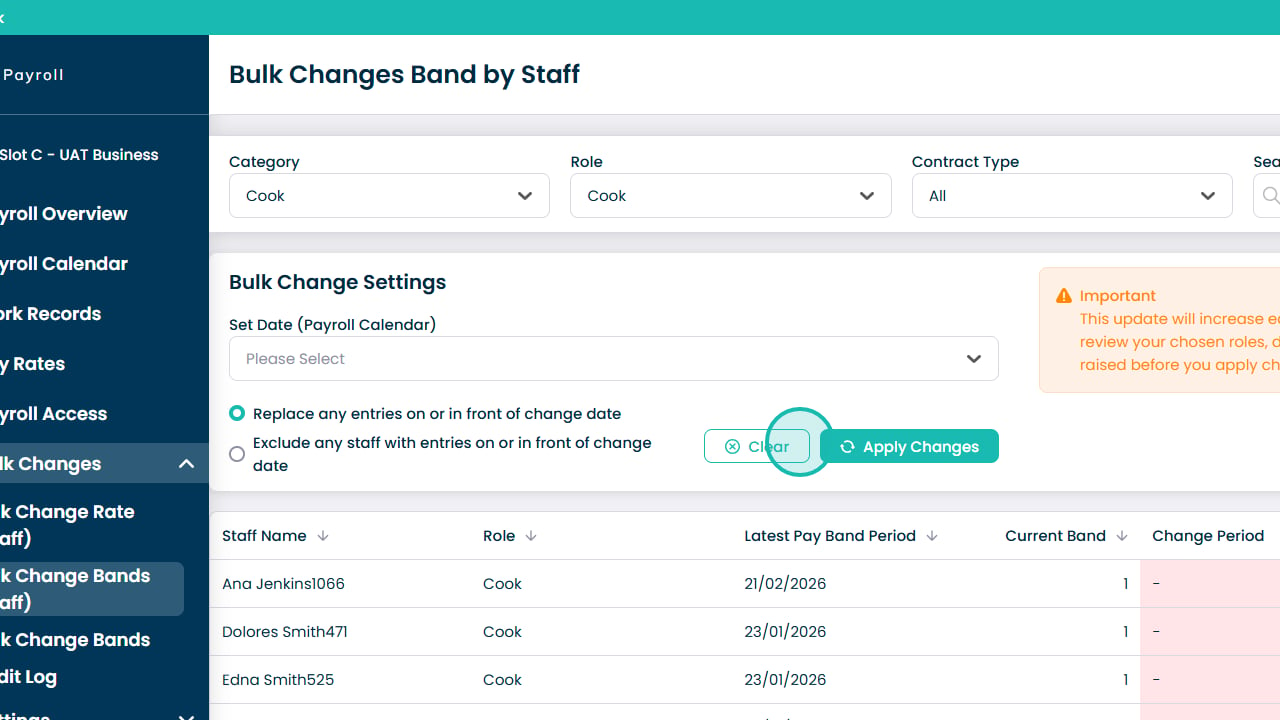
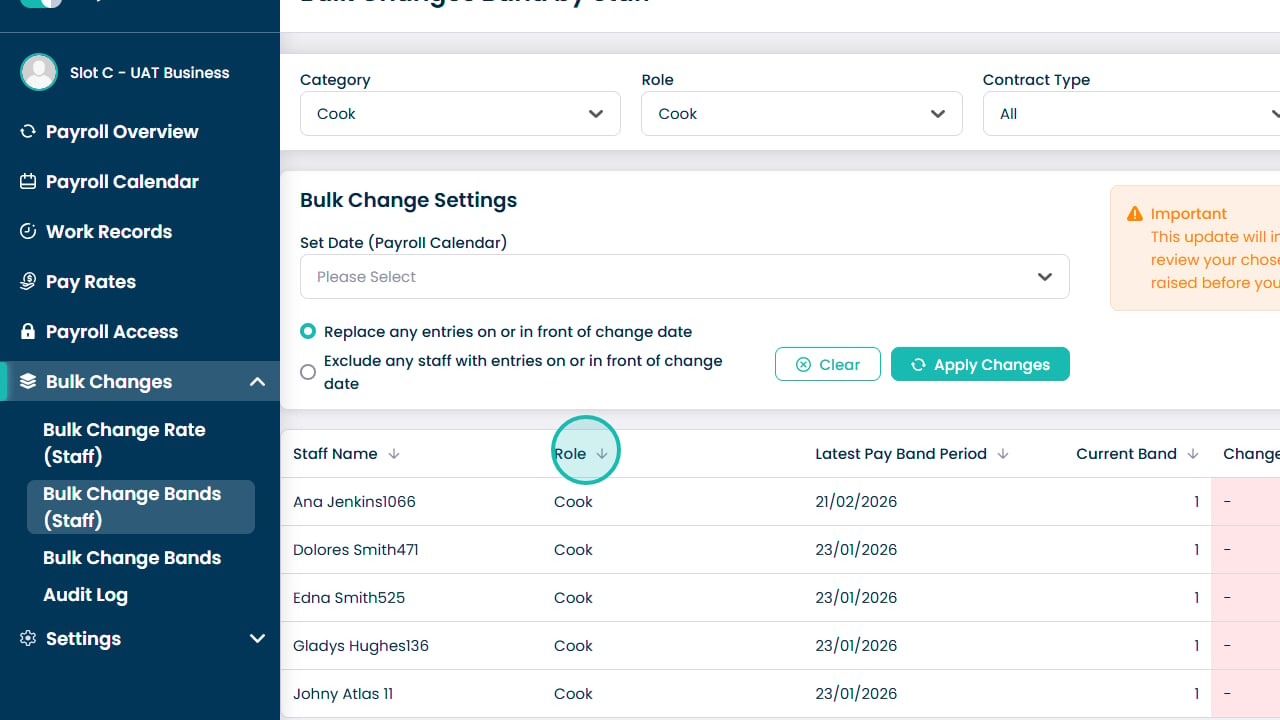
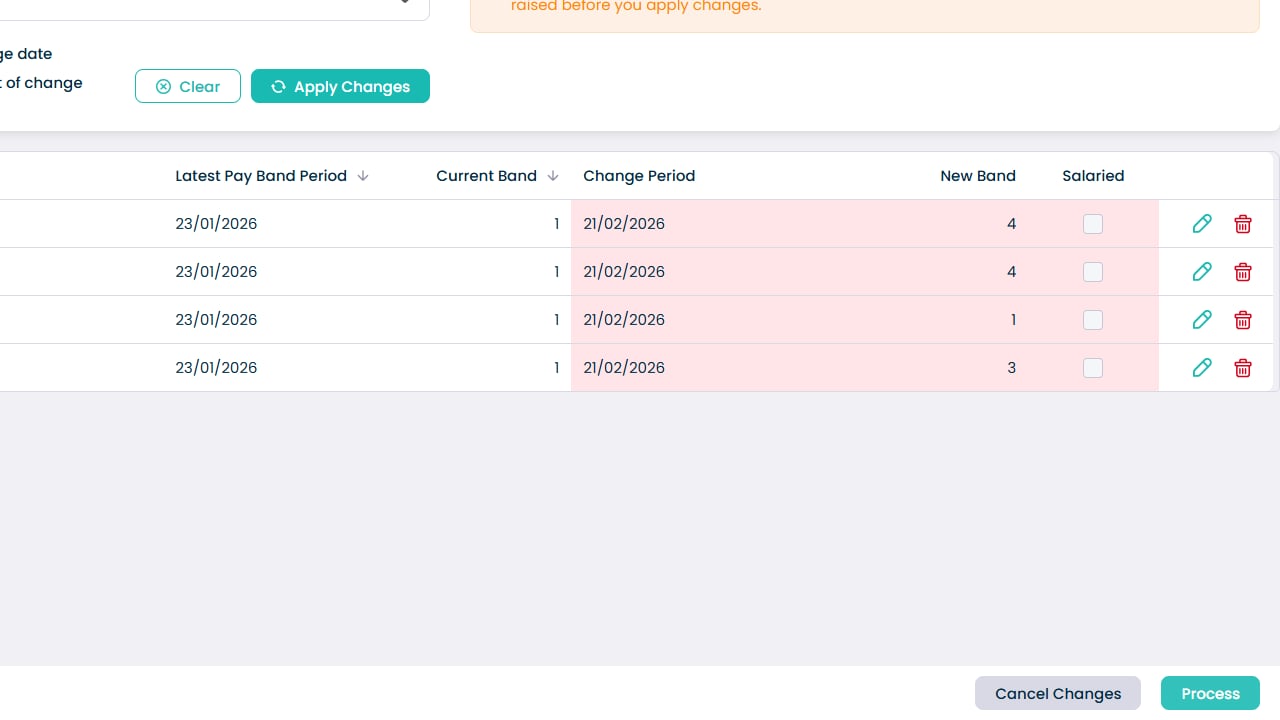
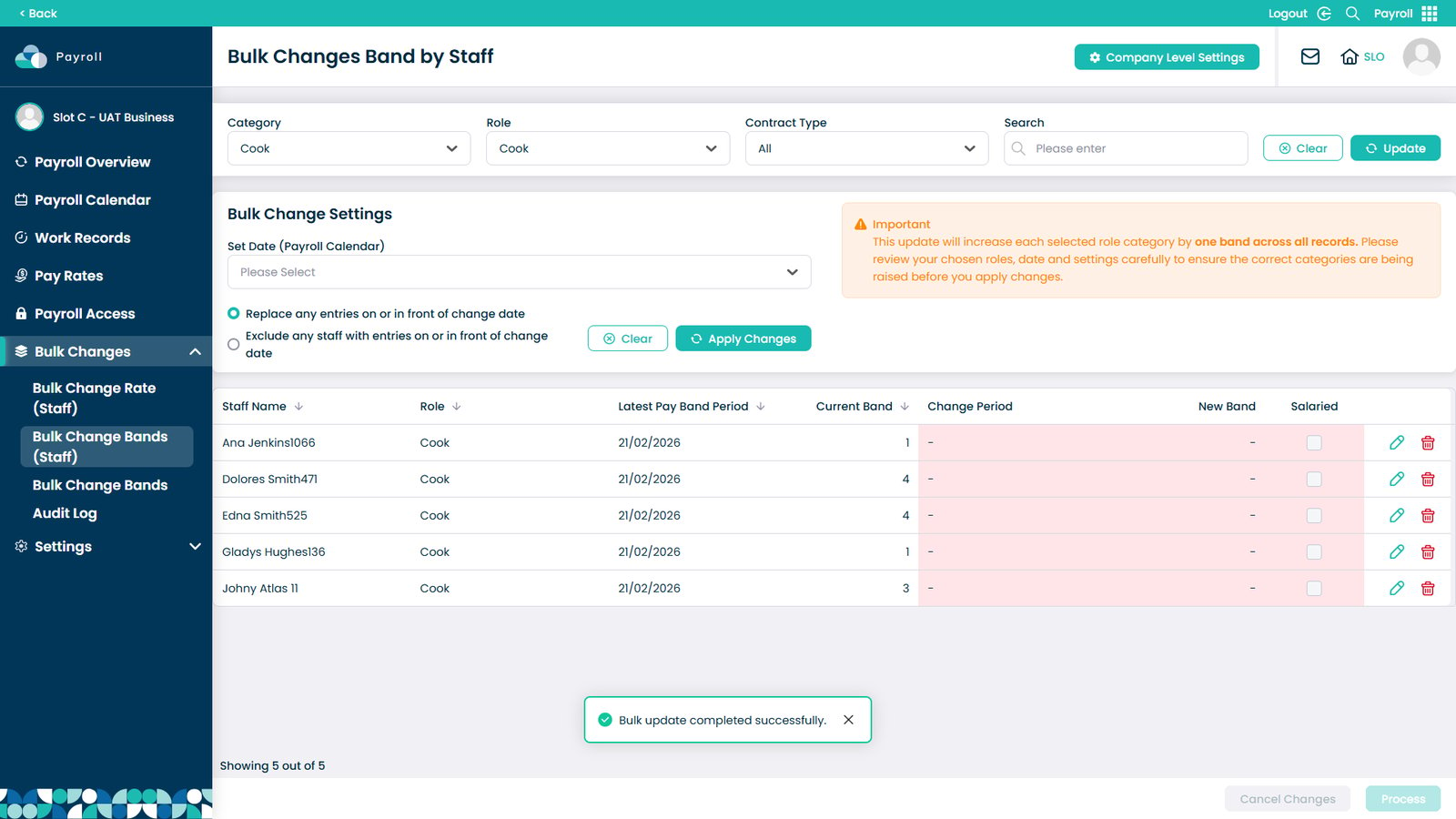
This guide explains how to apply bulk changes to staff pay bands within the Payroll app in Care Control Cloud. Bulk Change Bands allows you to update multiple staff members at once, helping you efficiently manage pay adjustments across categories, roles, or contract types.
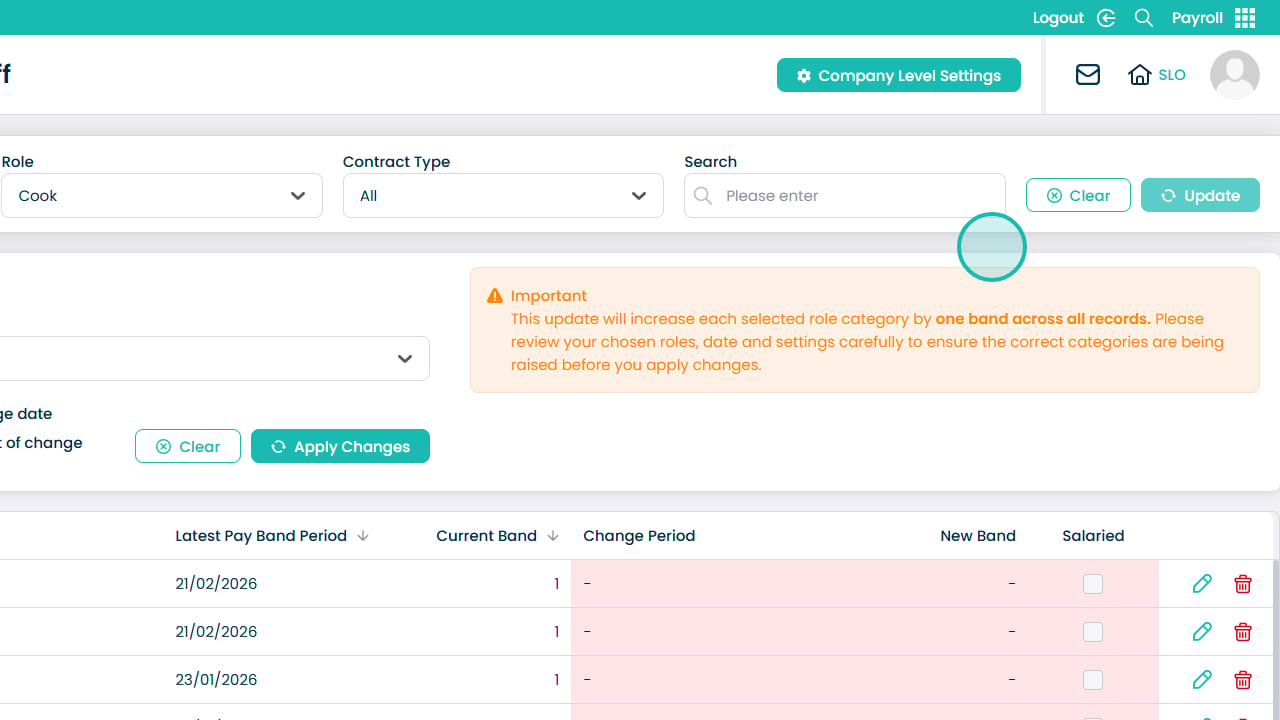
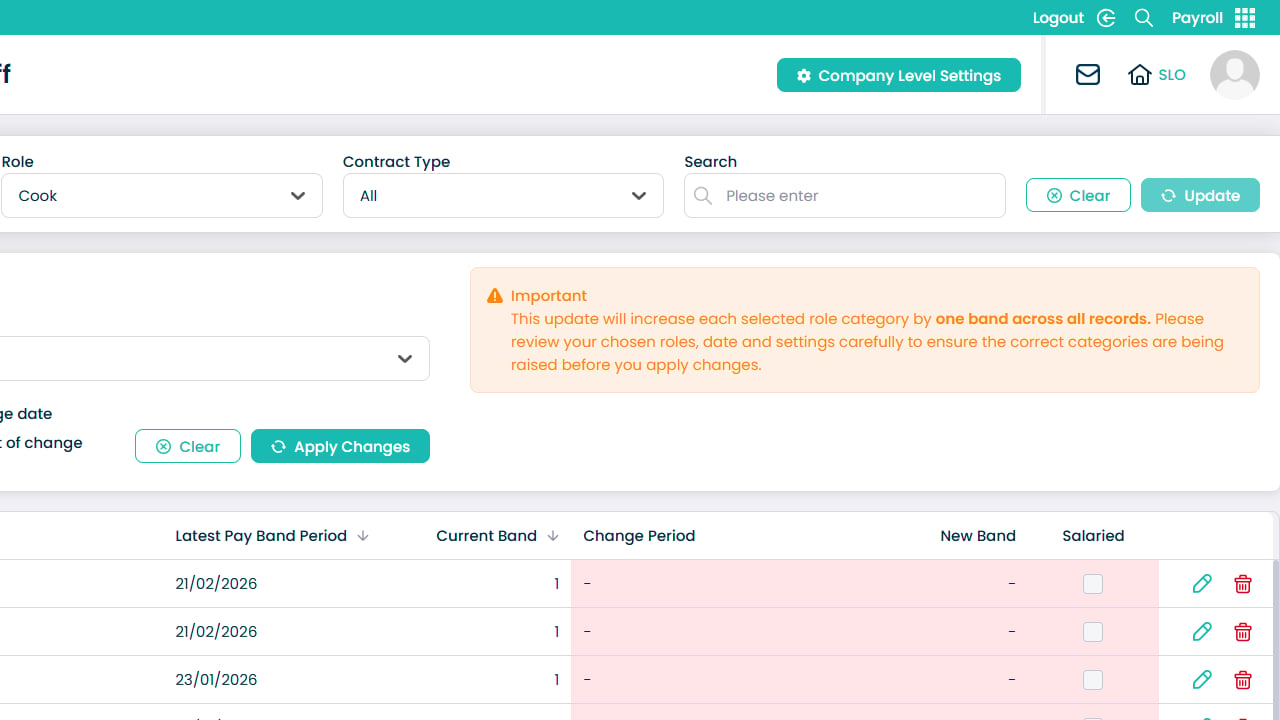
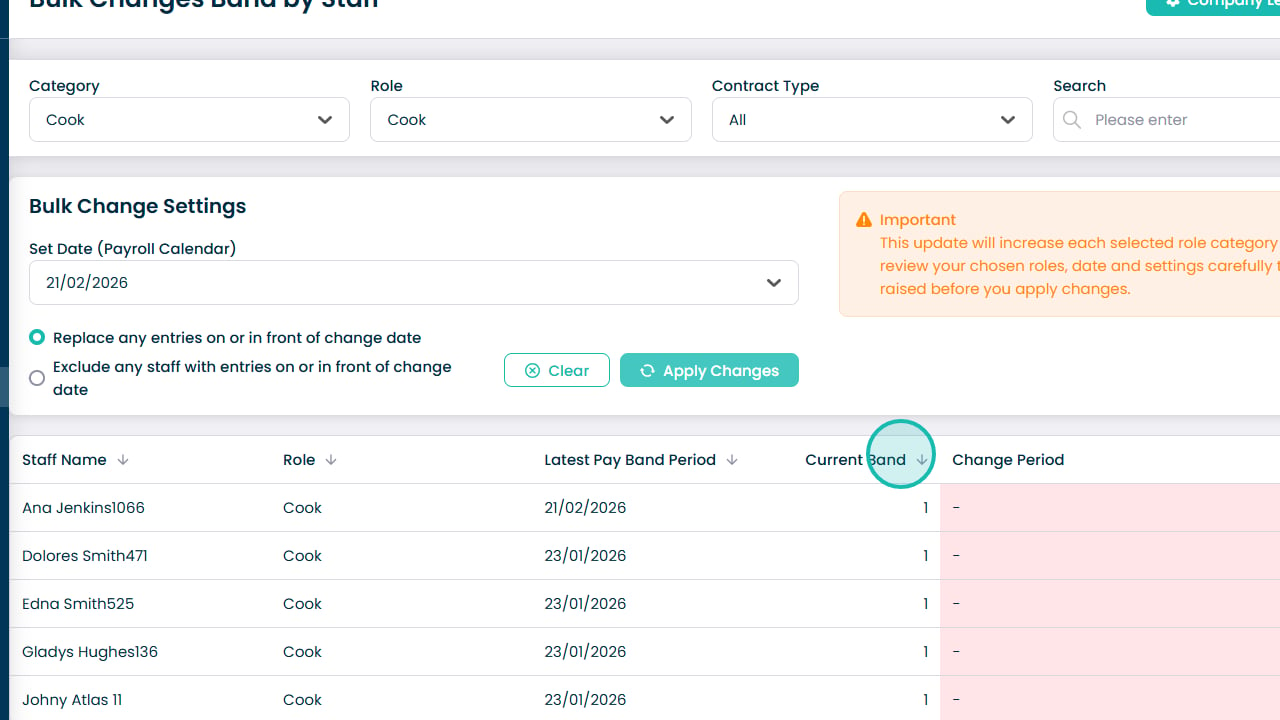
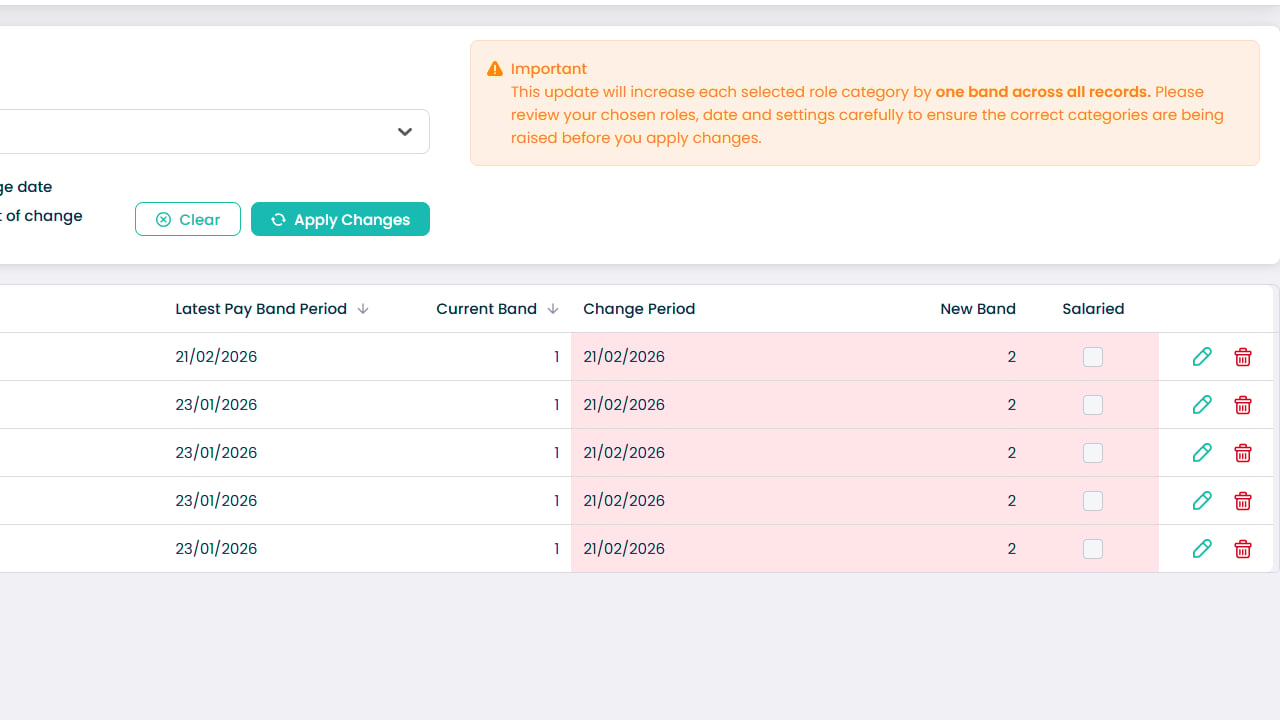
The bulk change feature provides filtering options to target specific groups of staff and control when changes take effect. You can also review and adjust individual entries before processing, ensuring accuracy and preventing unintended updates.
By following this guide, you will learn how to:
- Filter staff by category, role, and contract type
- Select an effective date for pay band changes
- Apply rules for replacing or excluding existing entries
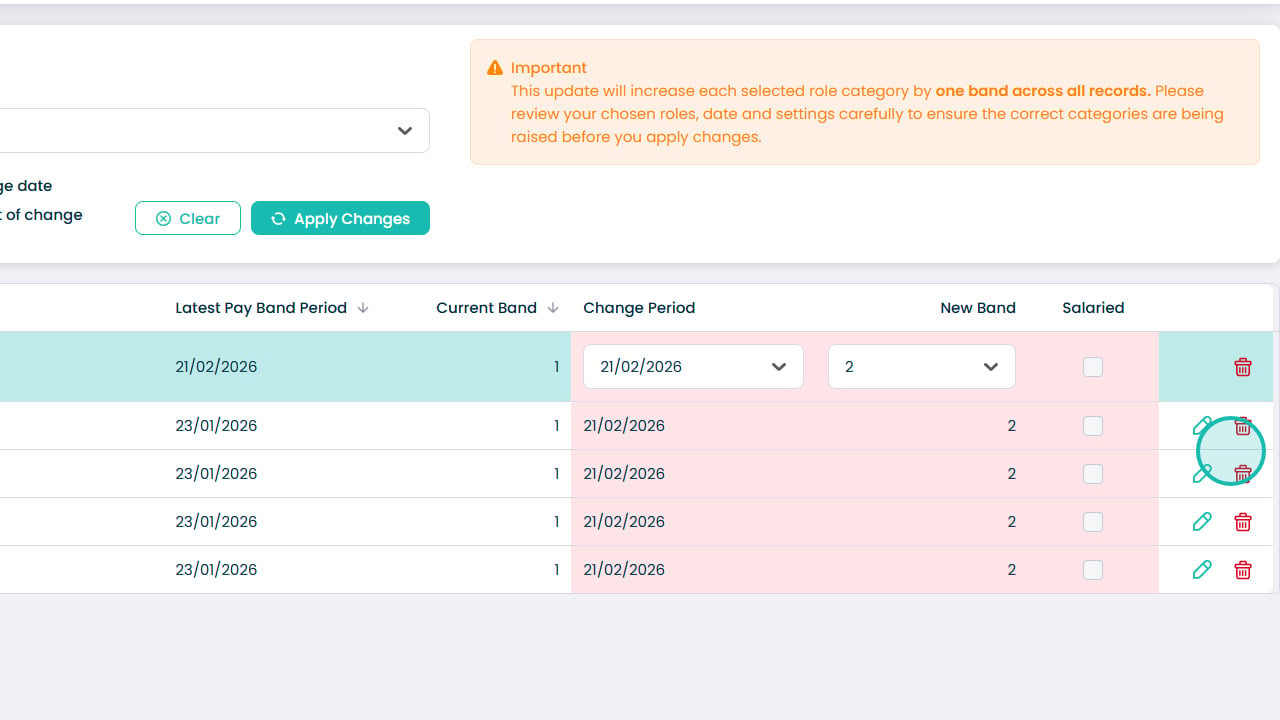
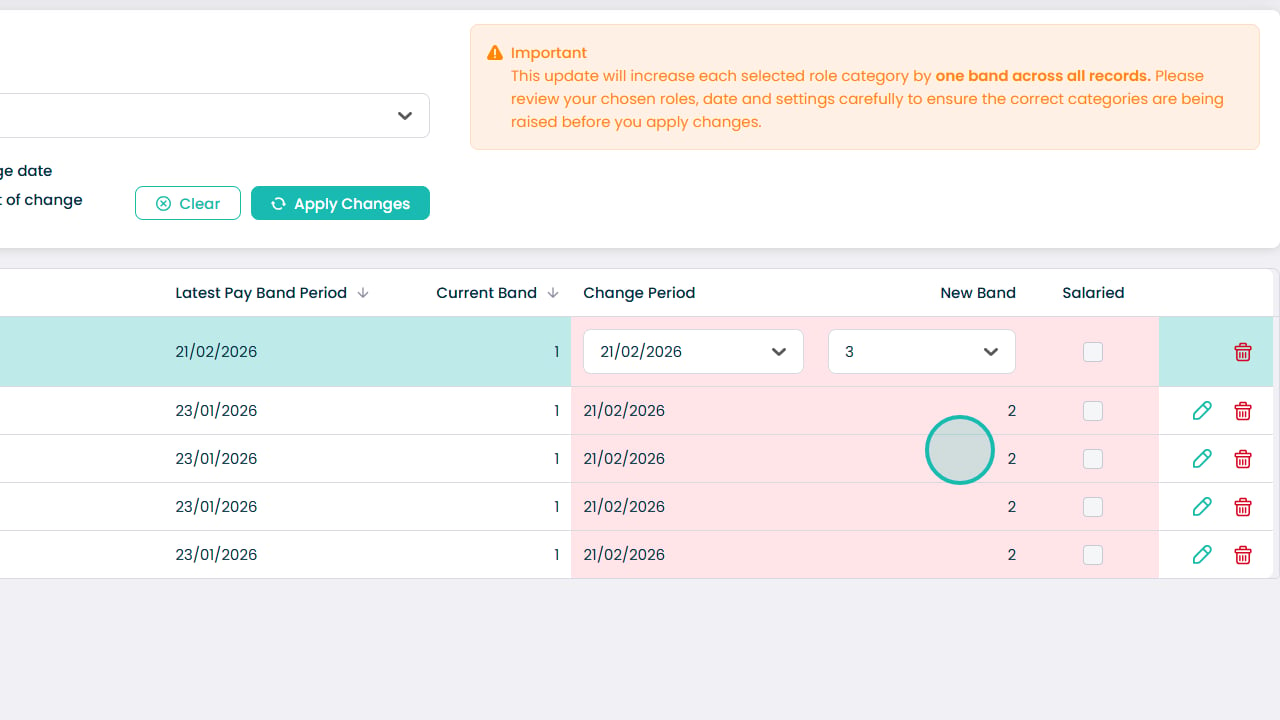
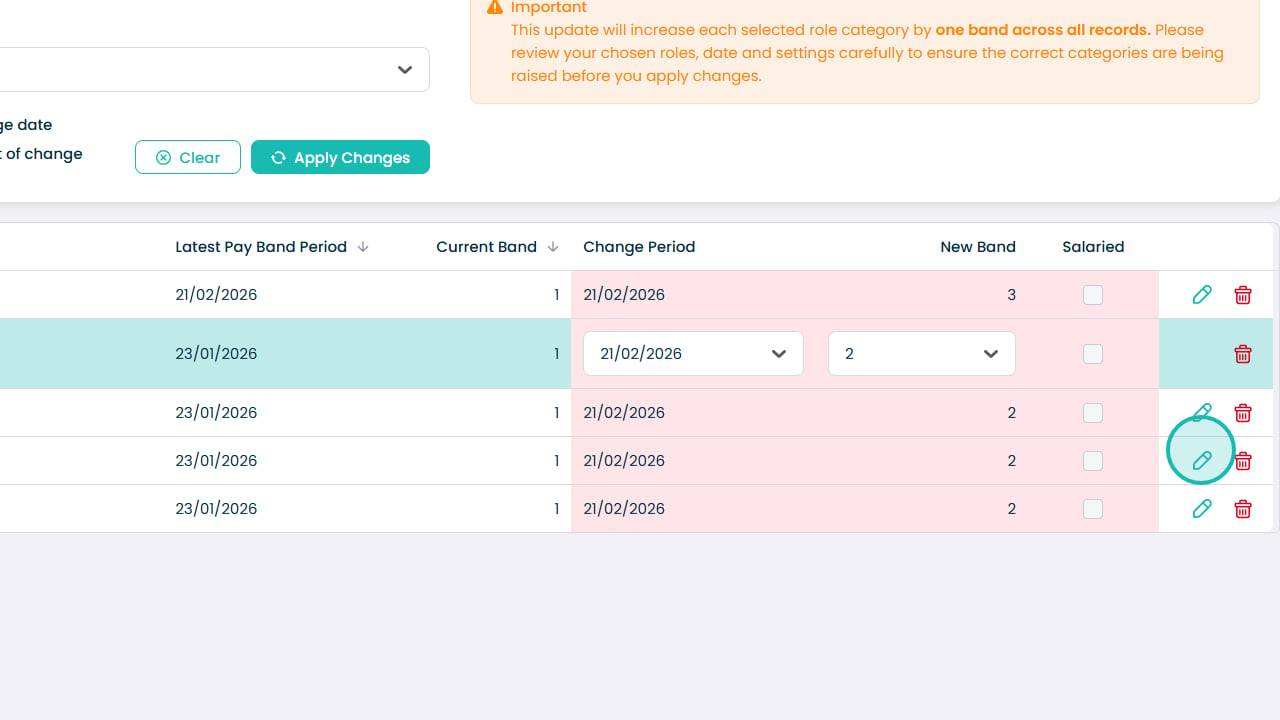
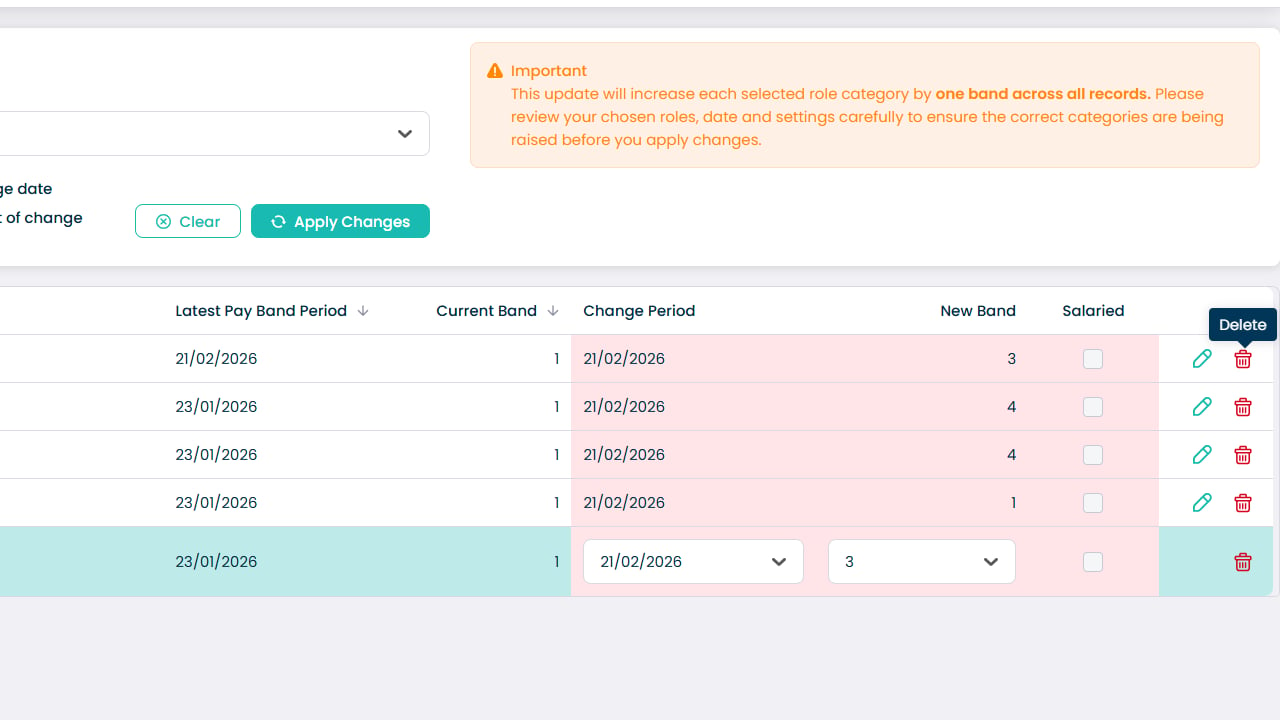
- Modify individual staff band changes before processing
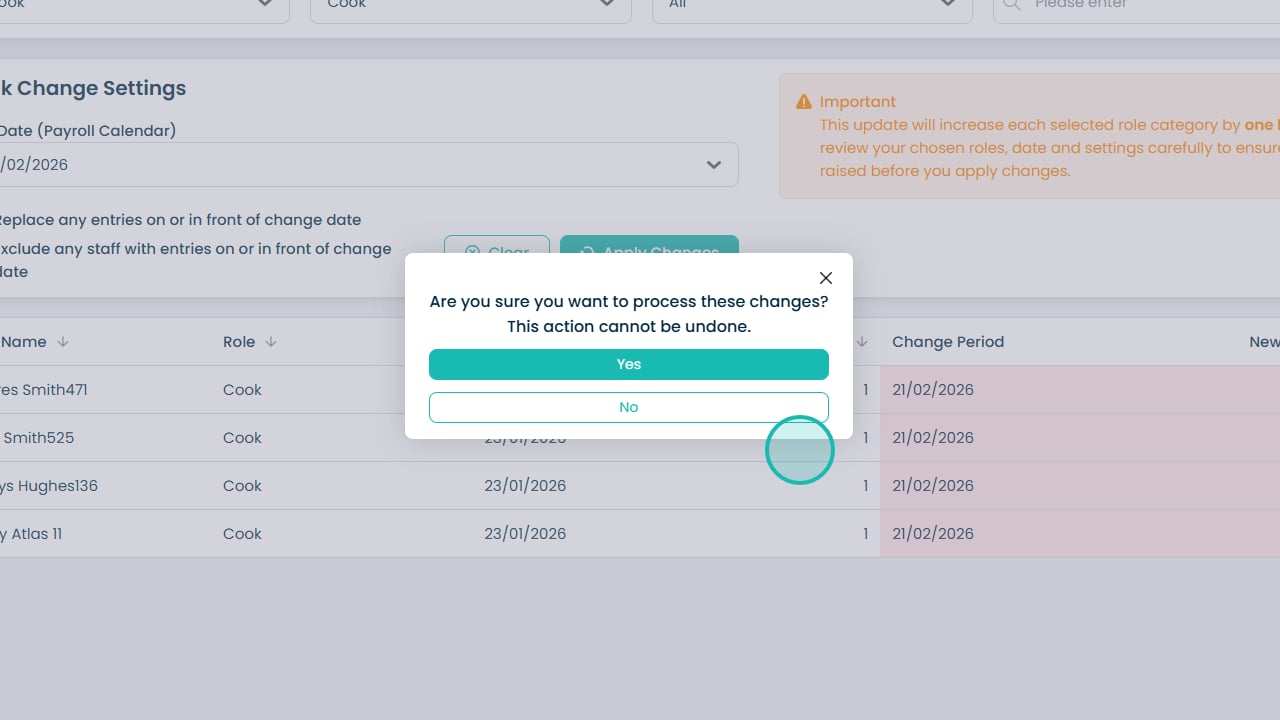
- Process and confirm bulk updates safely
This process ensures that pay band updates are applied consistently, efficiently, and in line with your organisation’s payroll requirements.