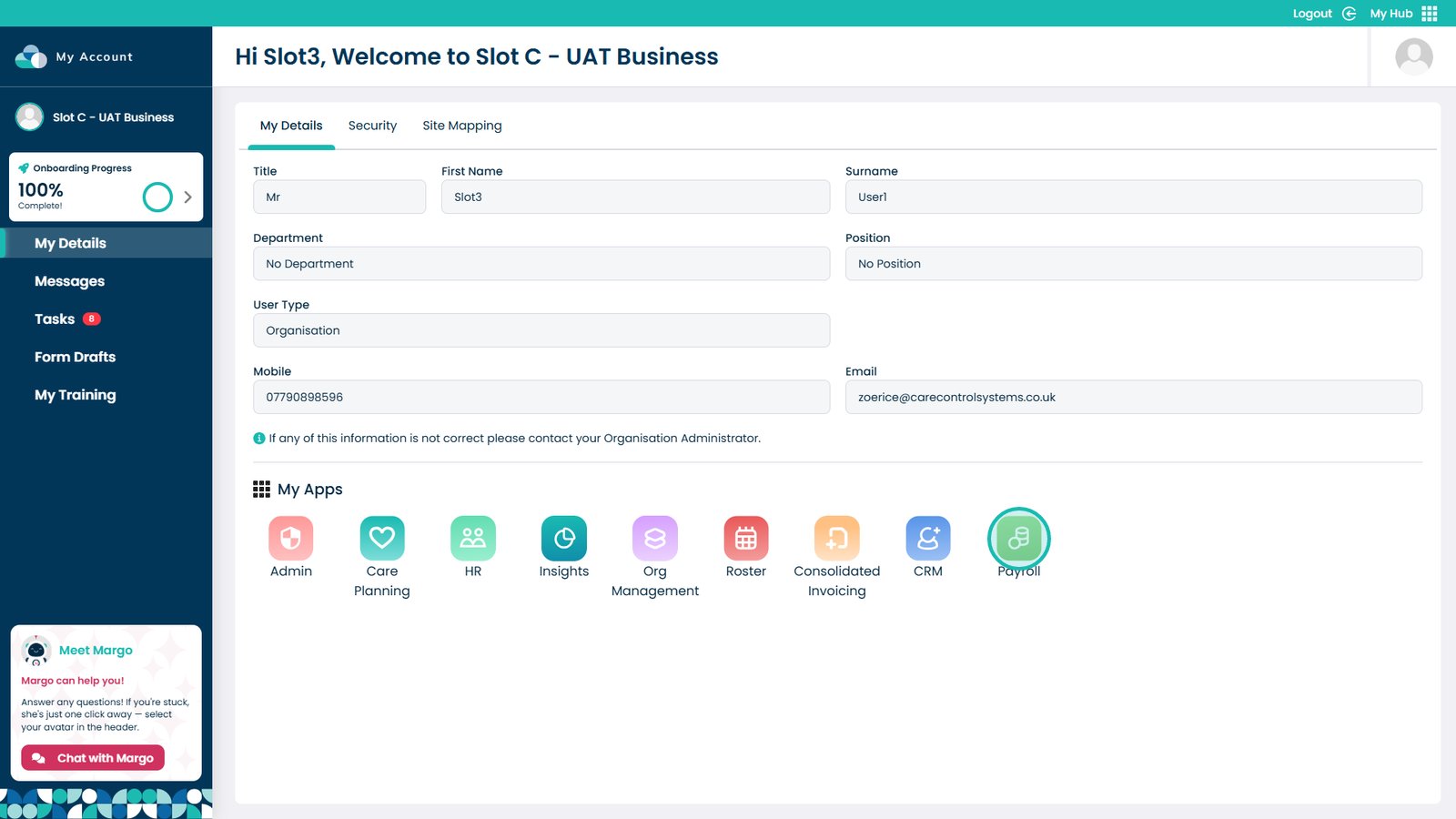
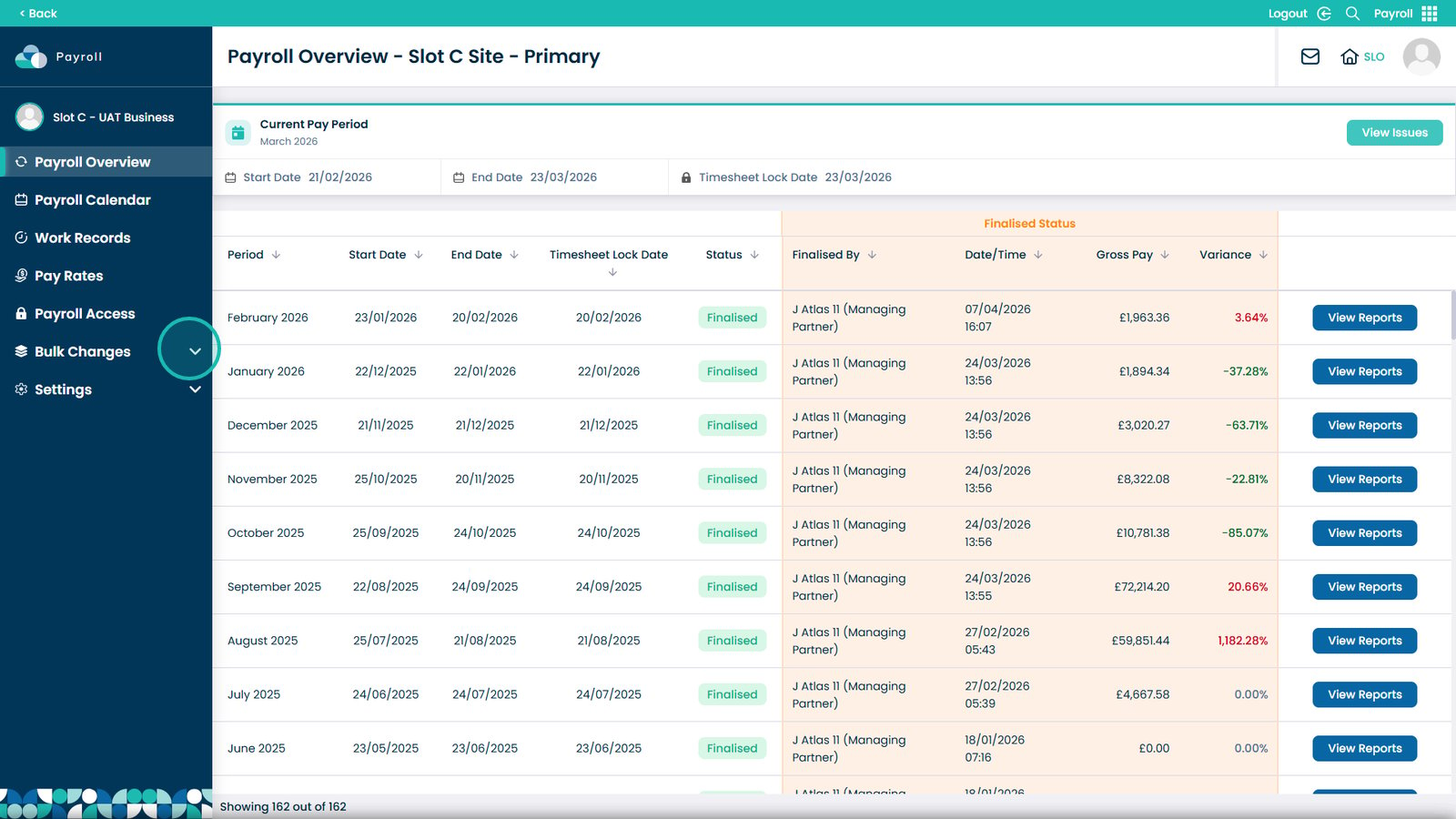
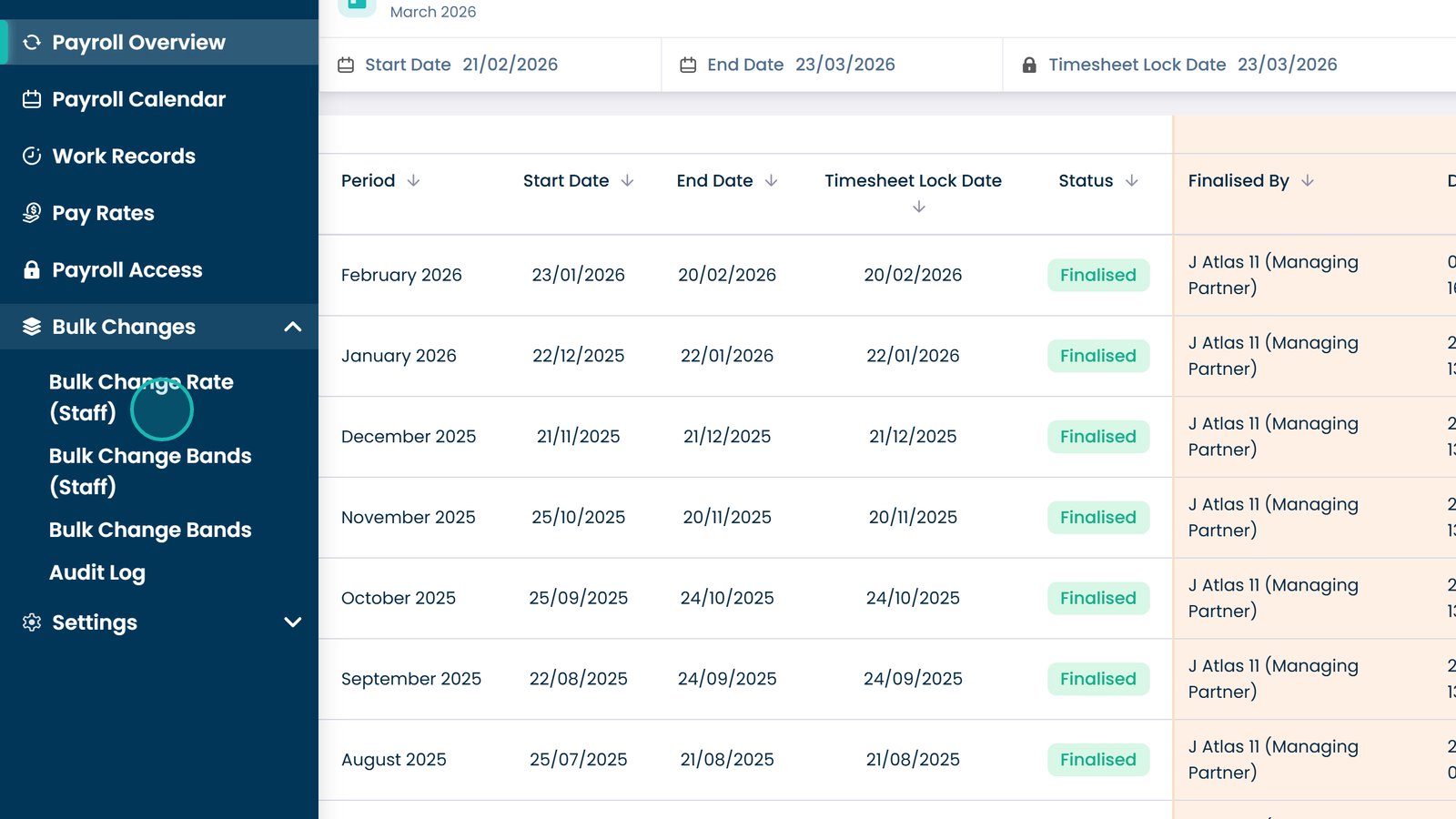
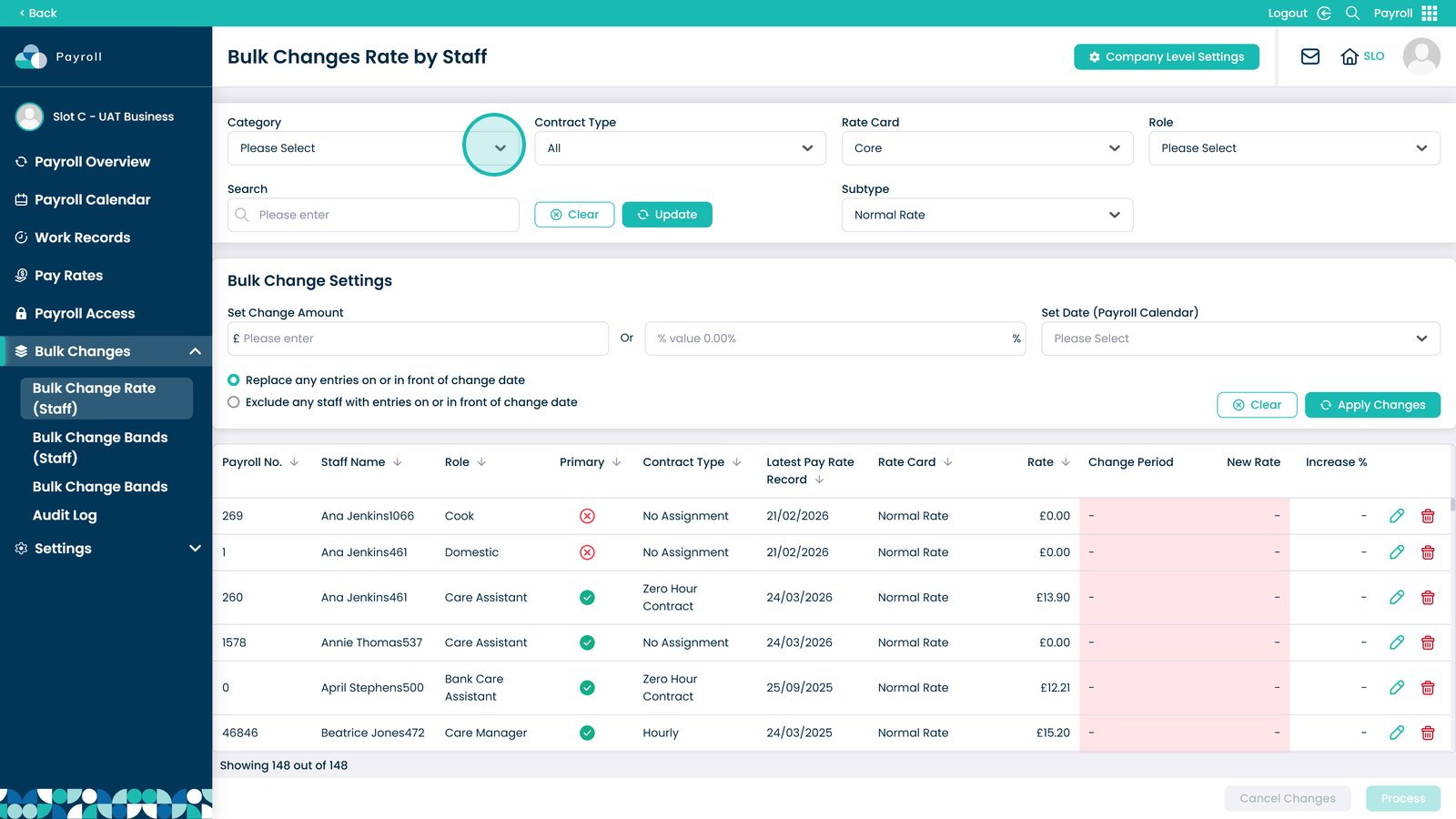
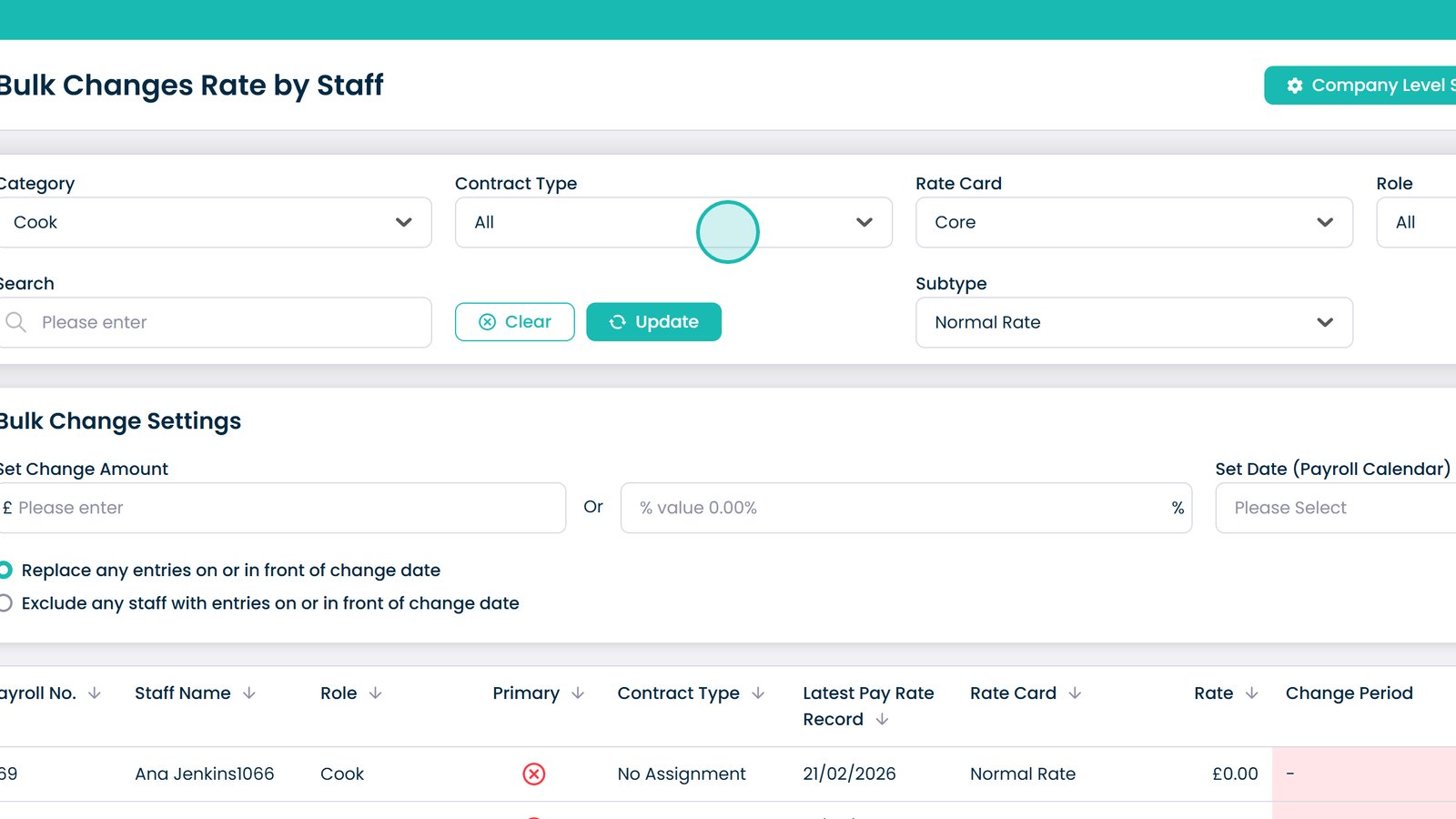
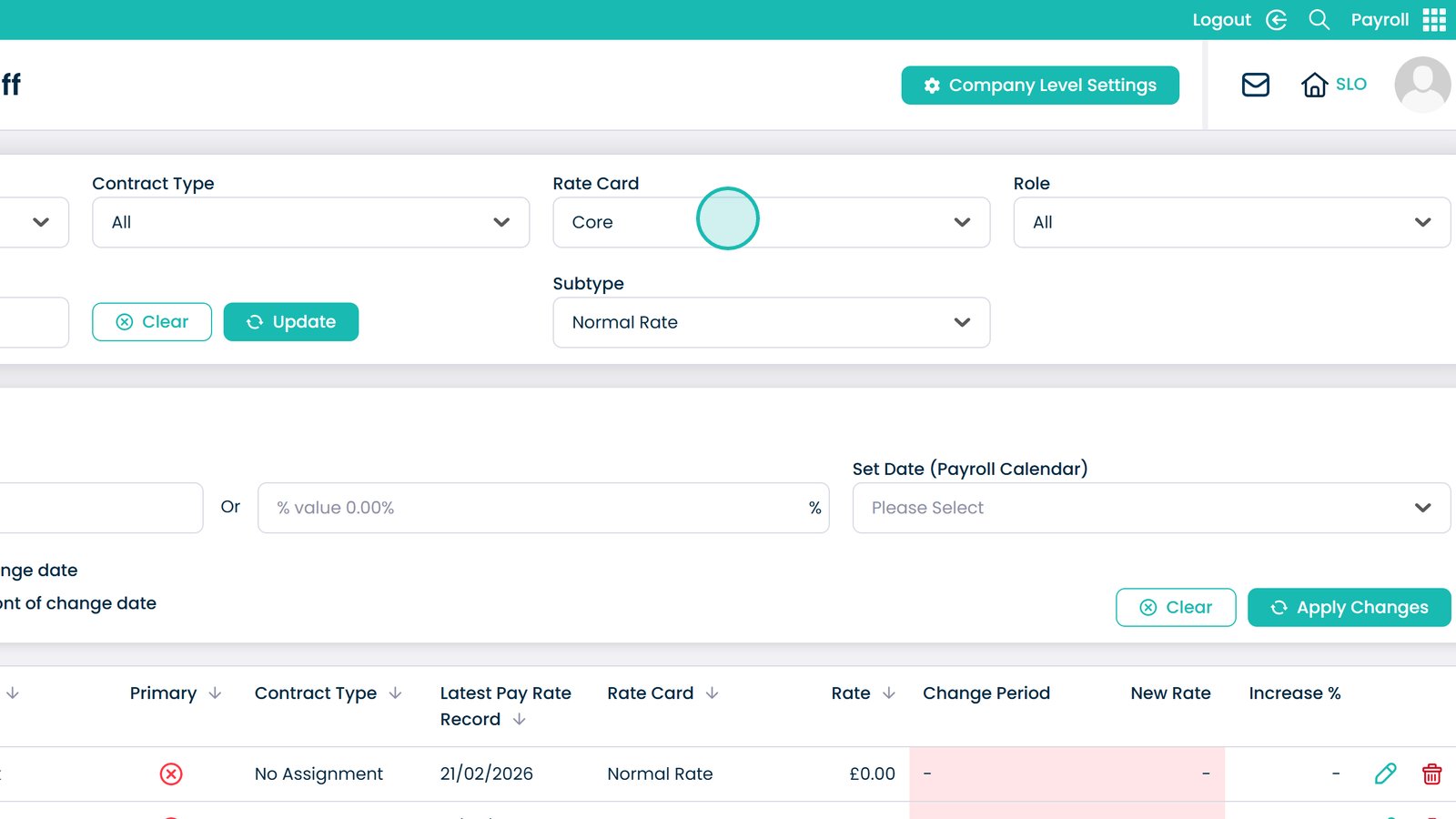
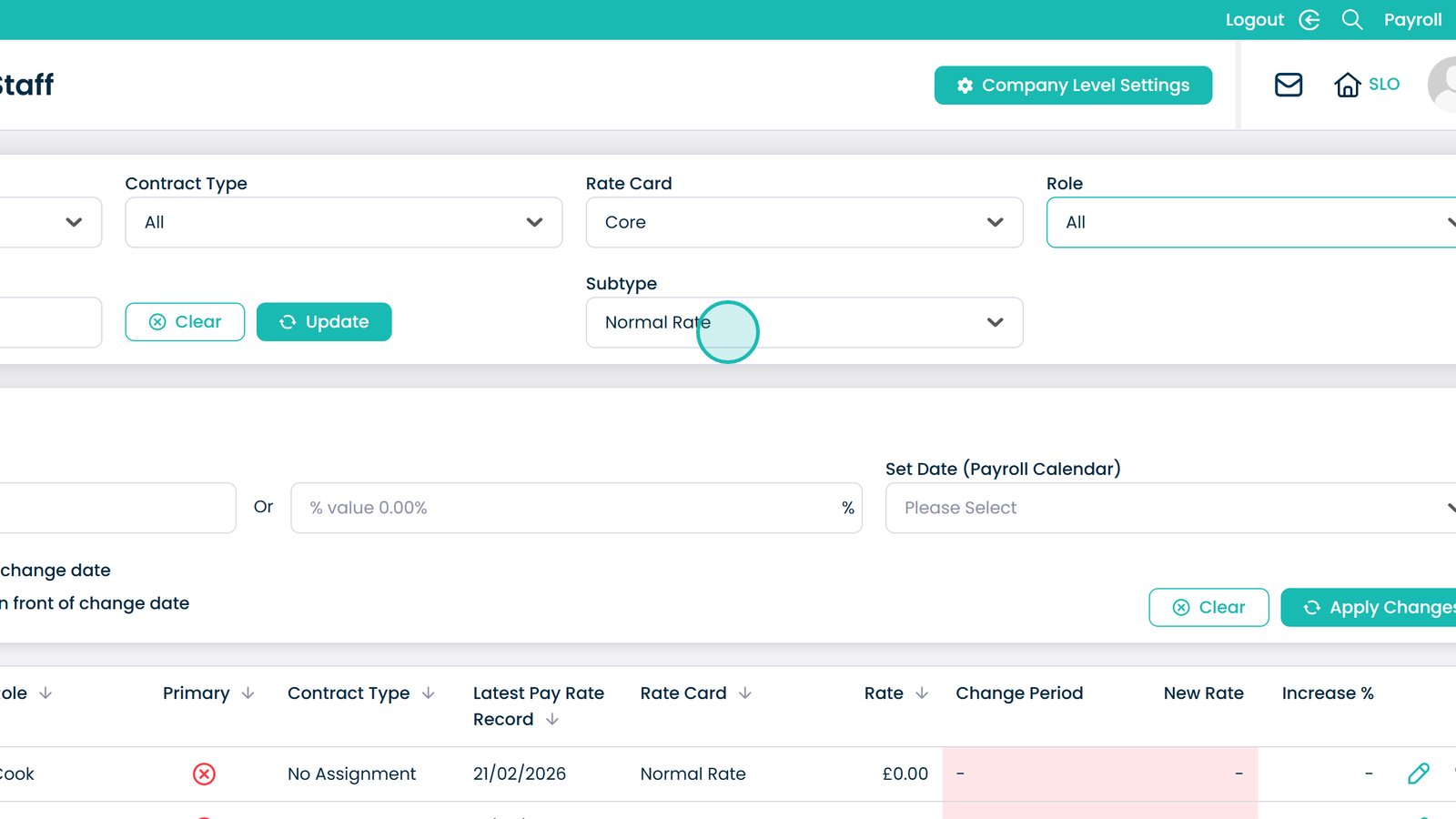
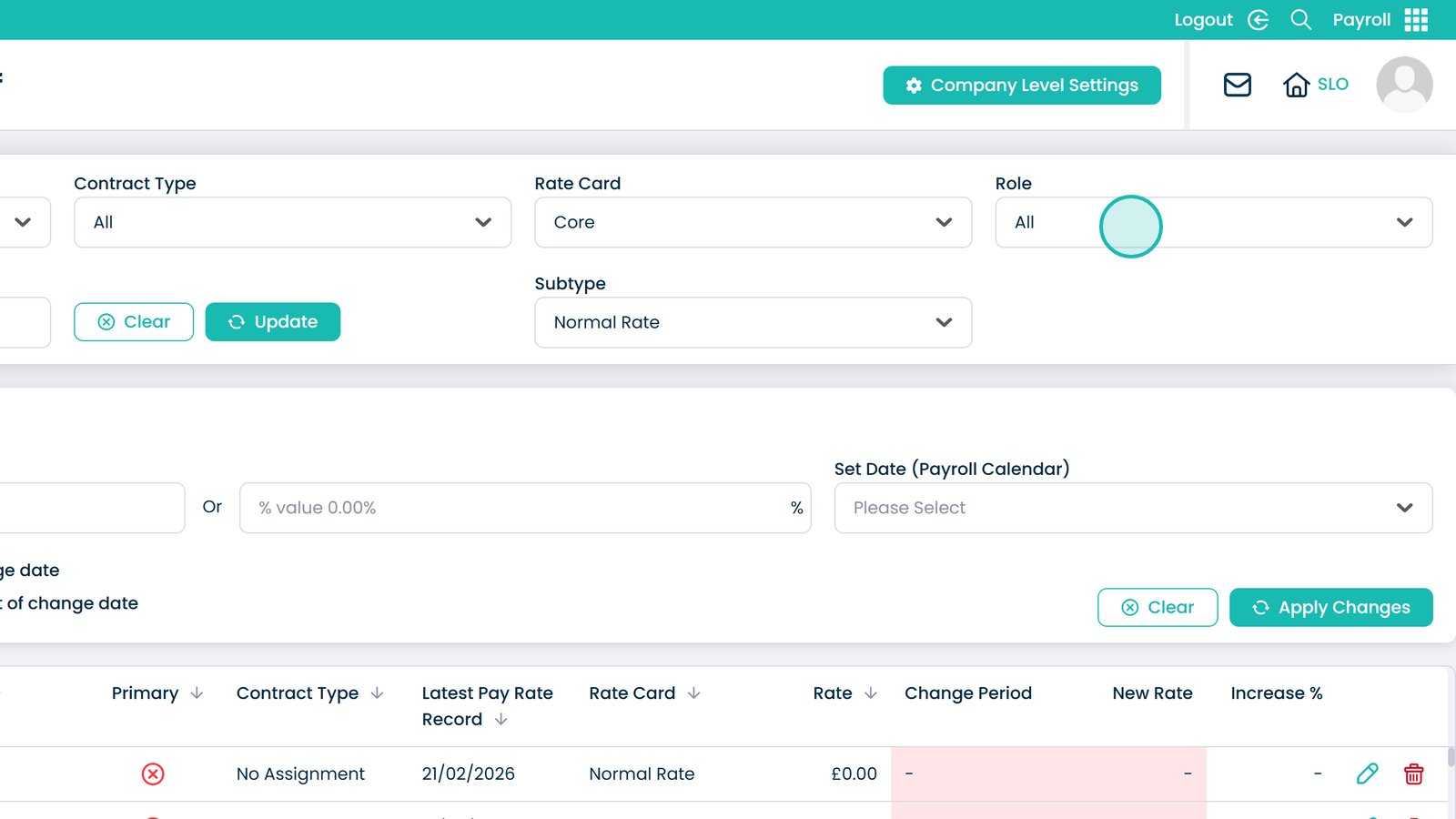
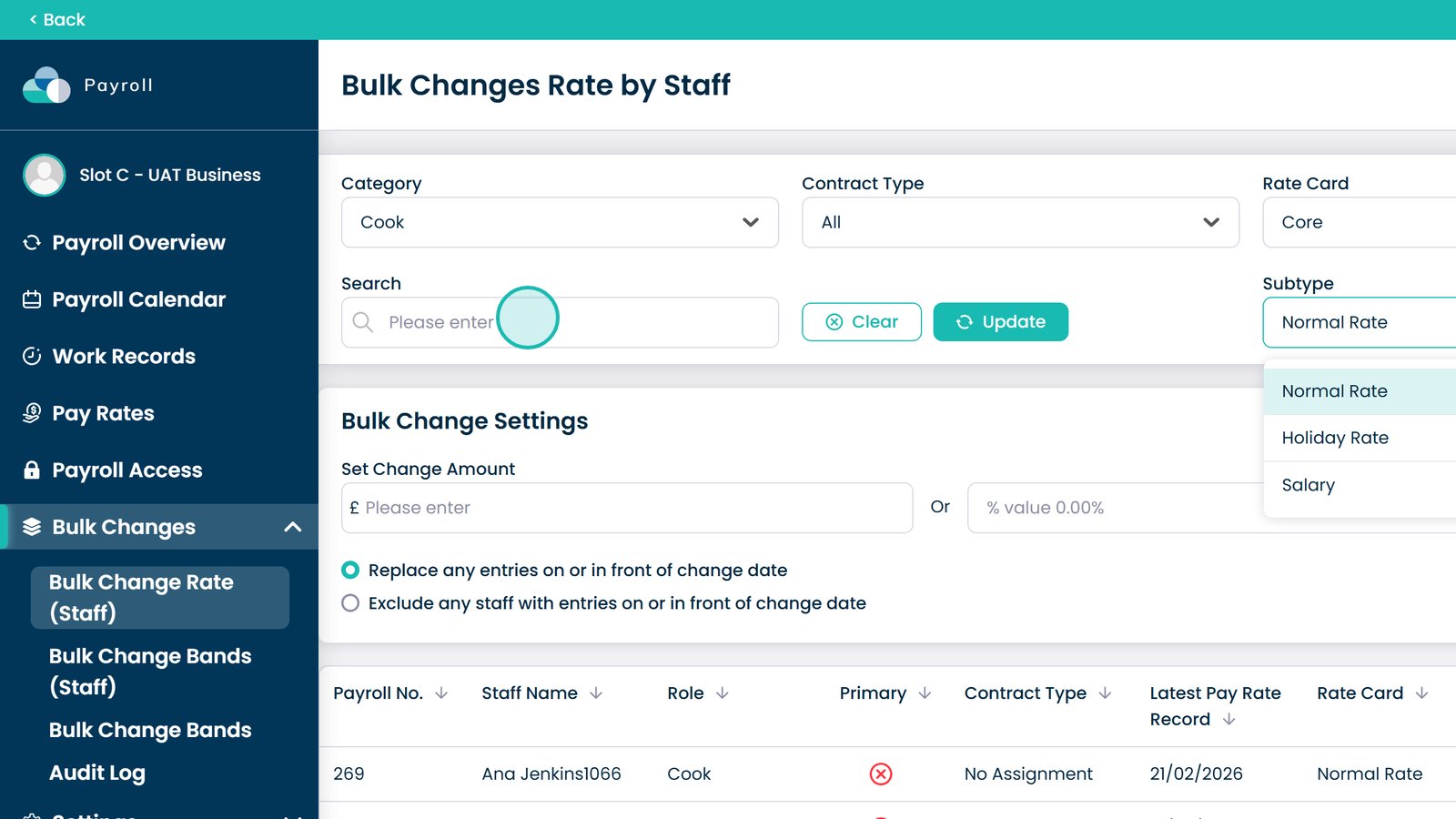
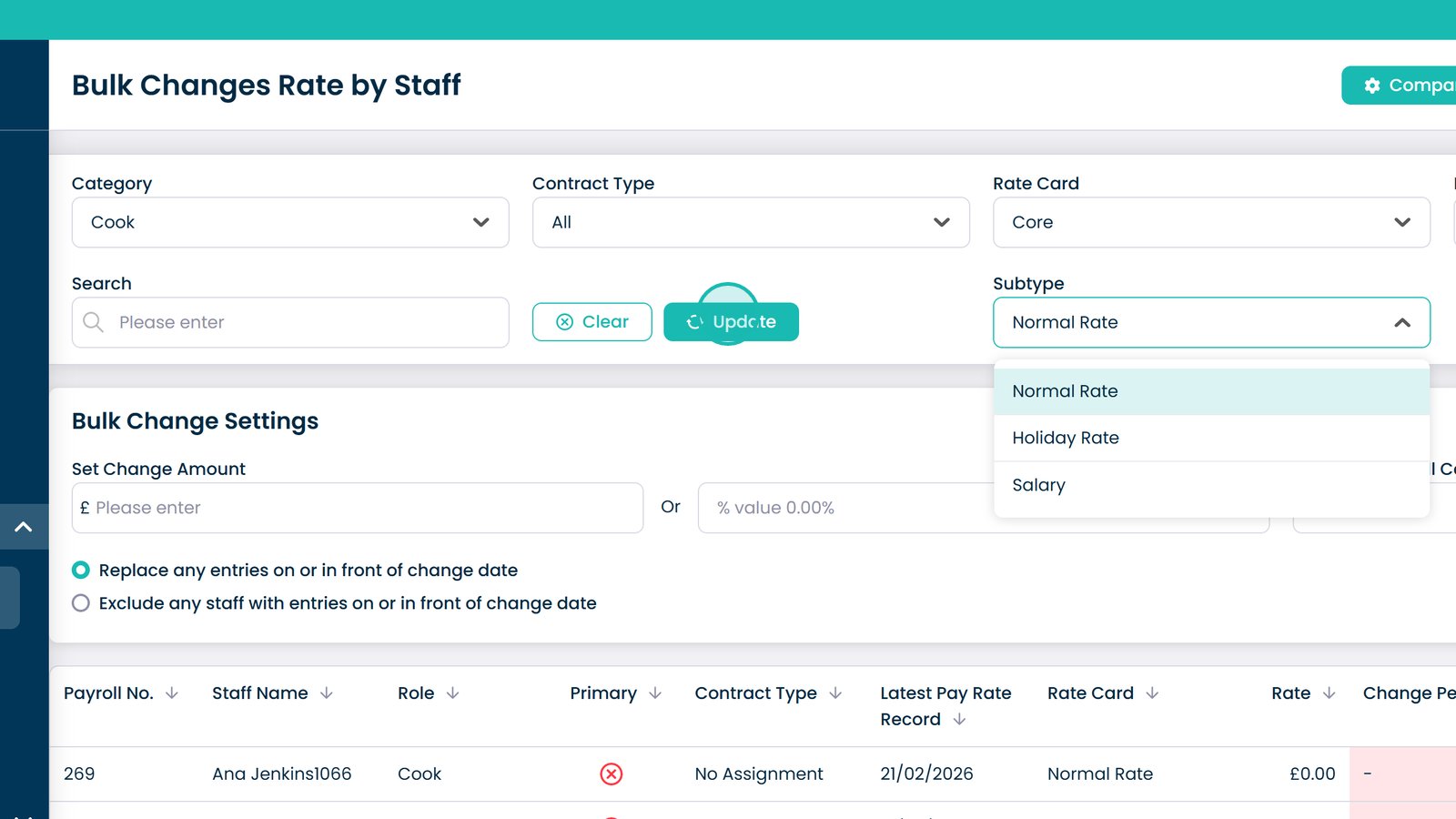
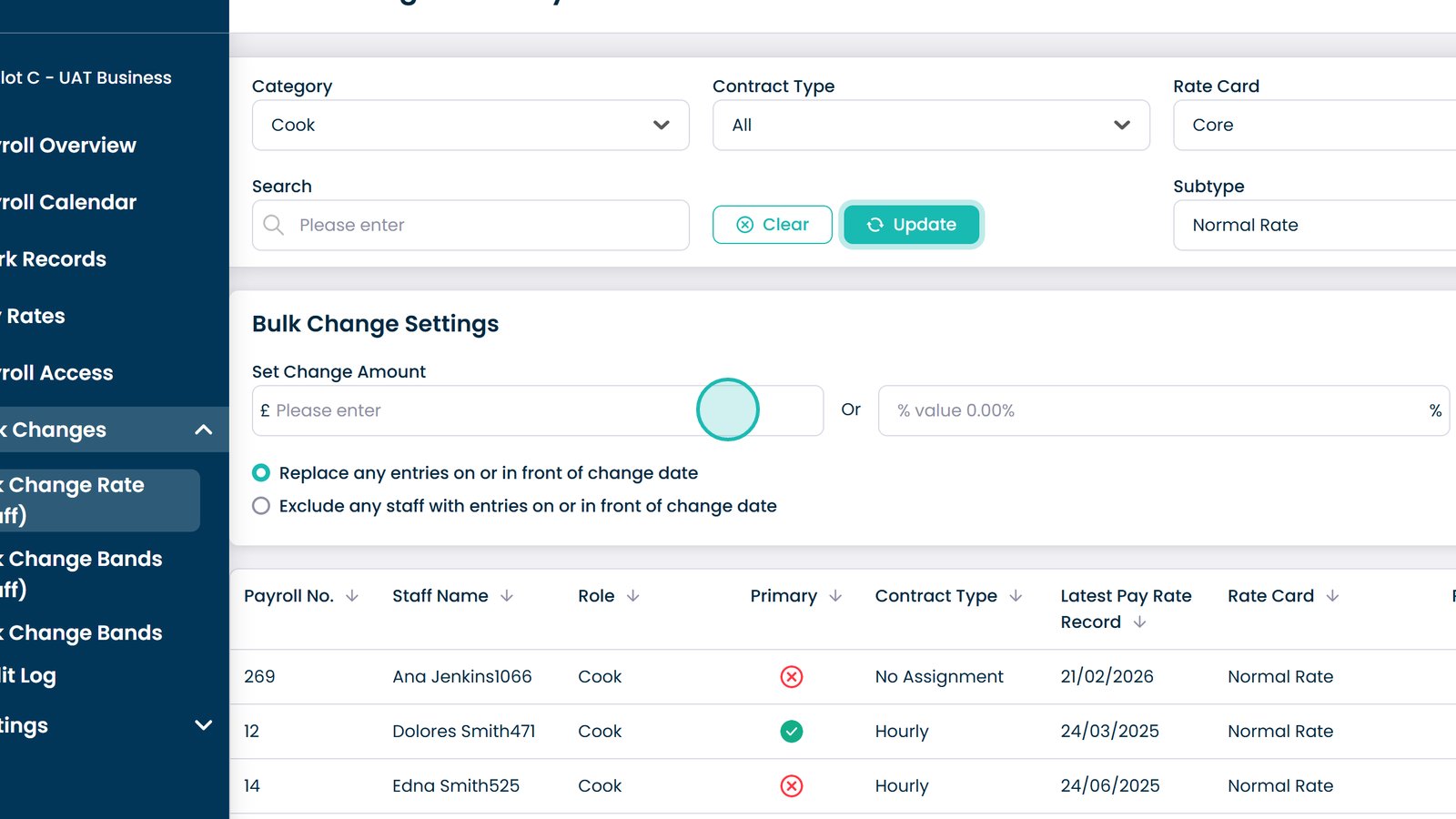
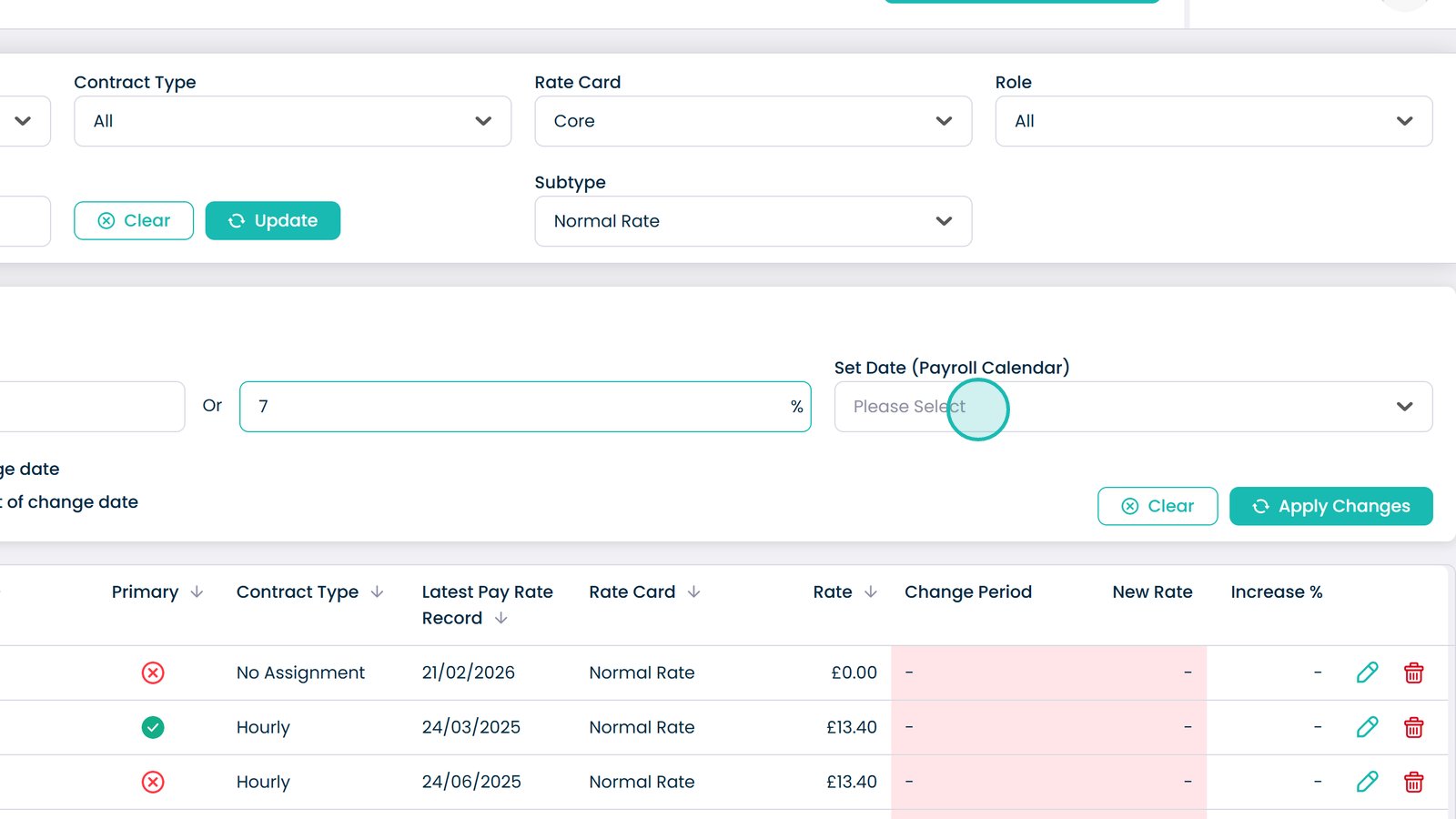
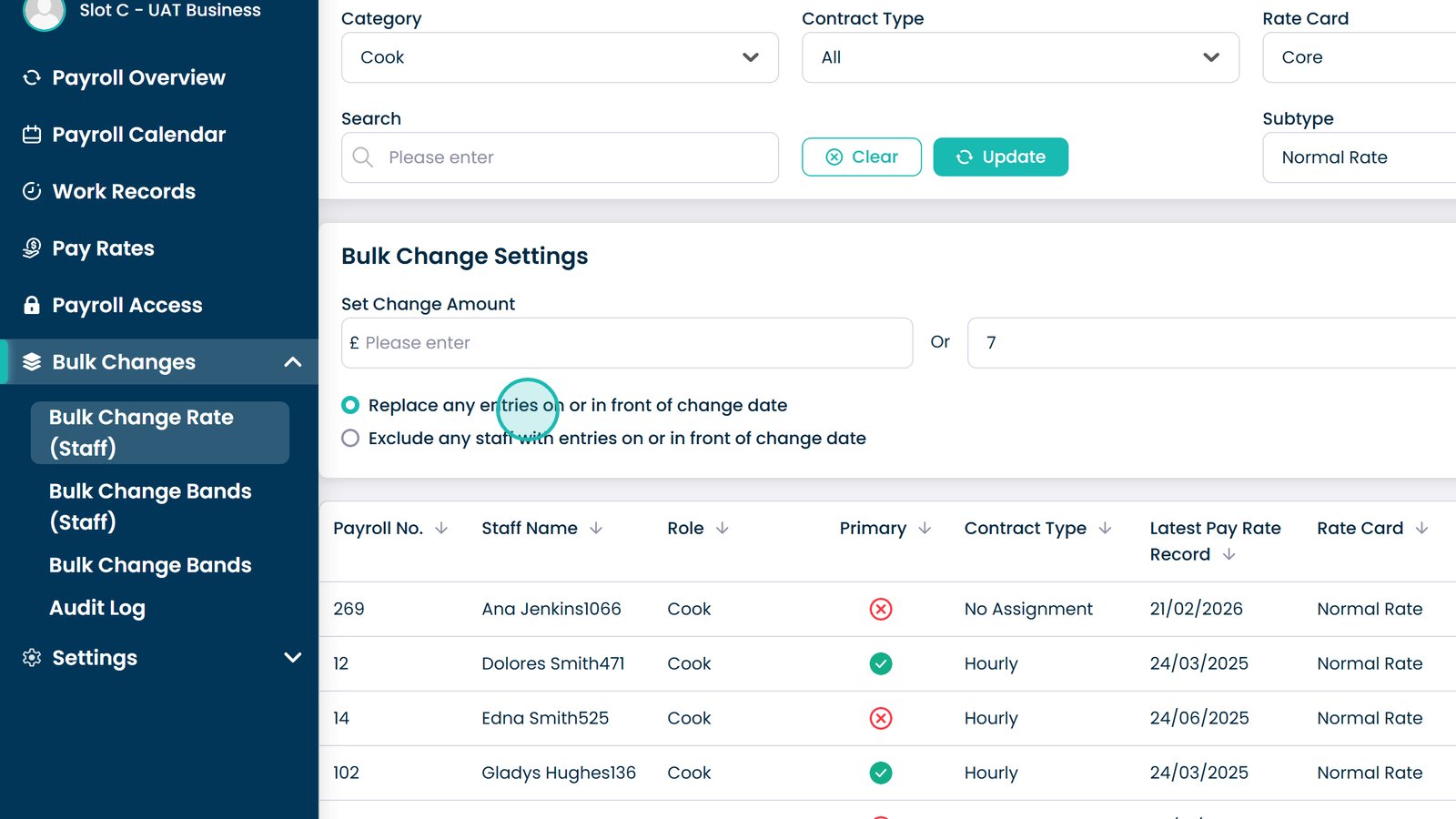
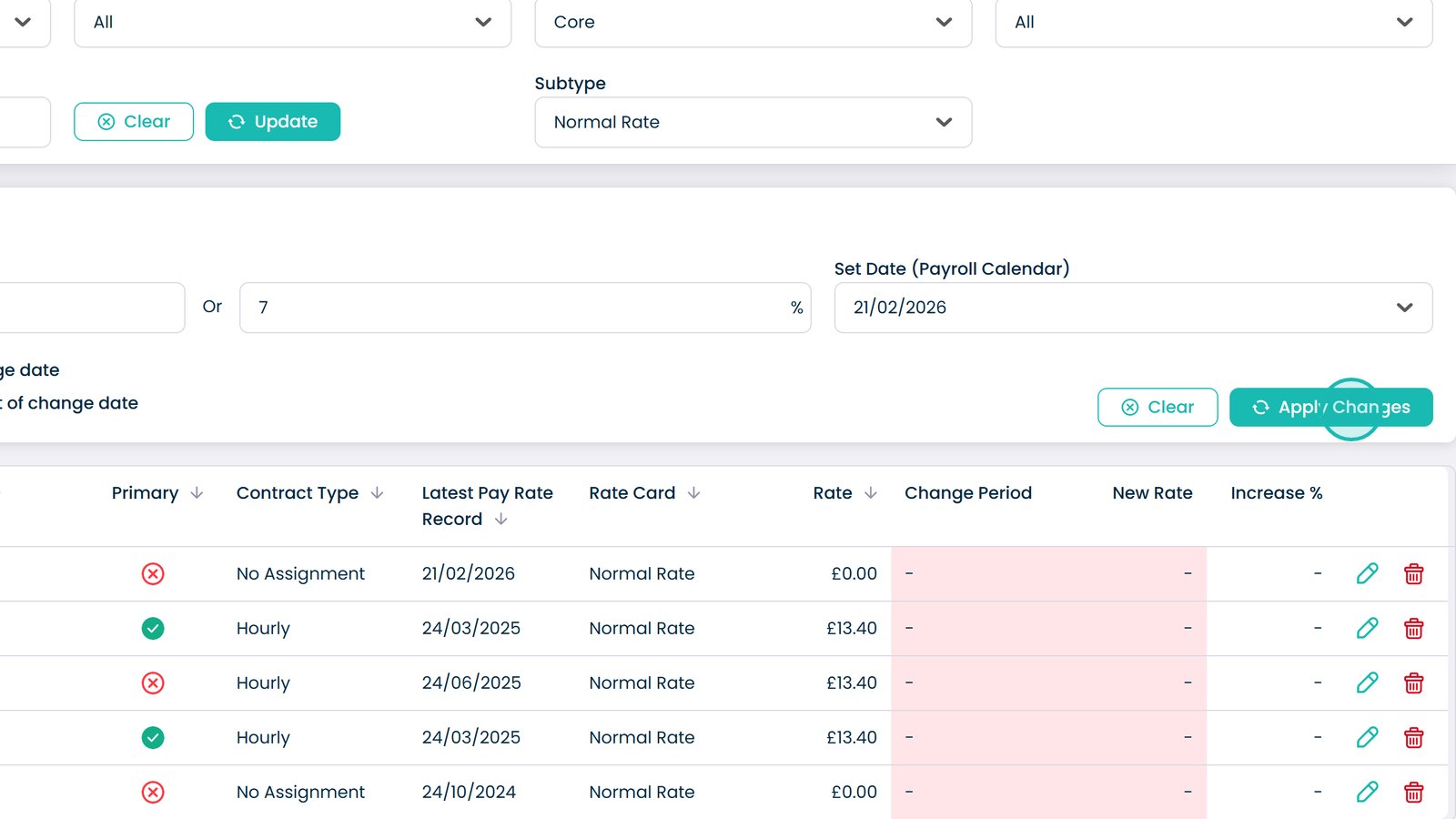
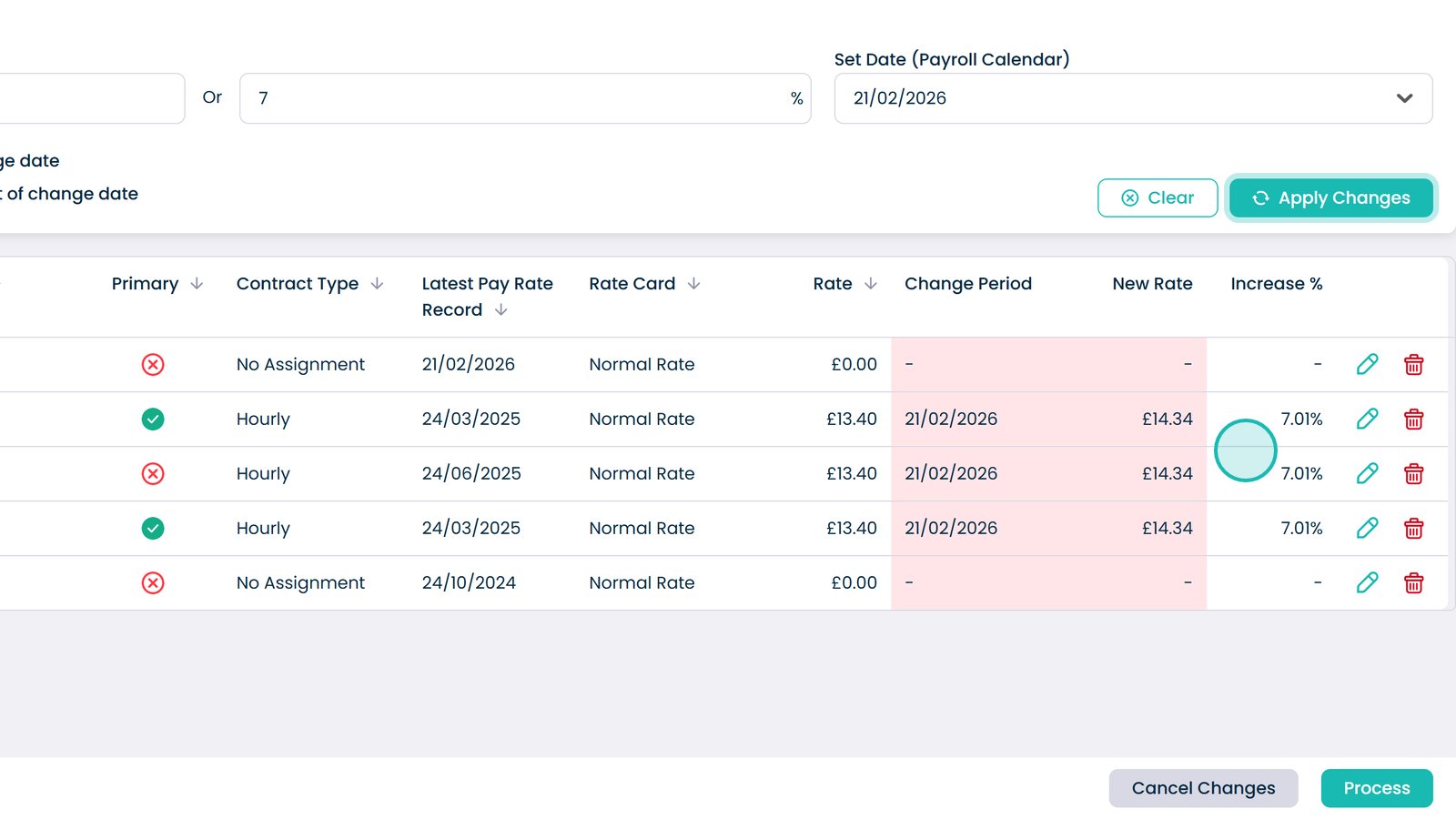
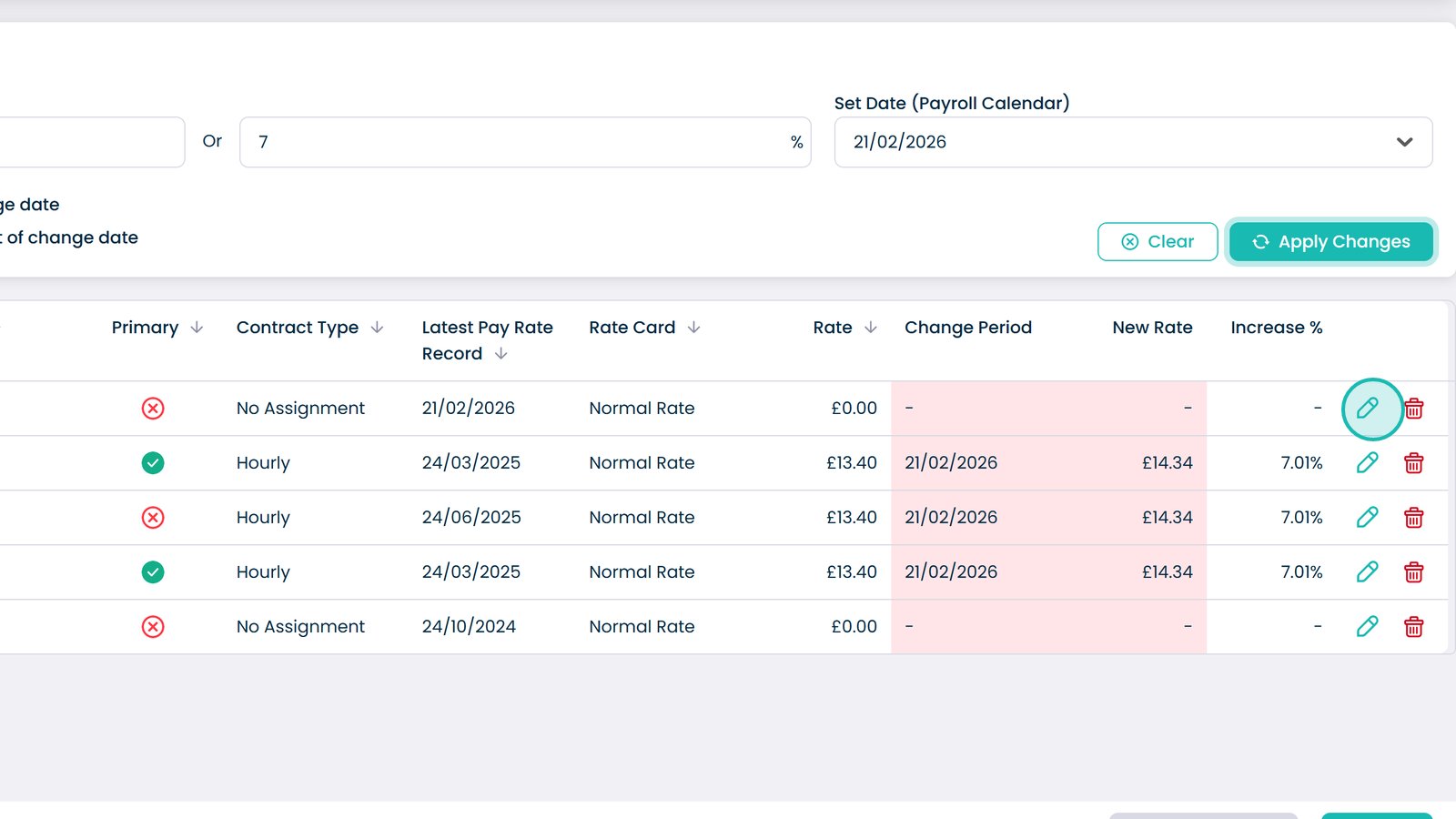
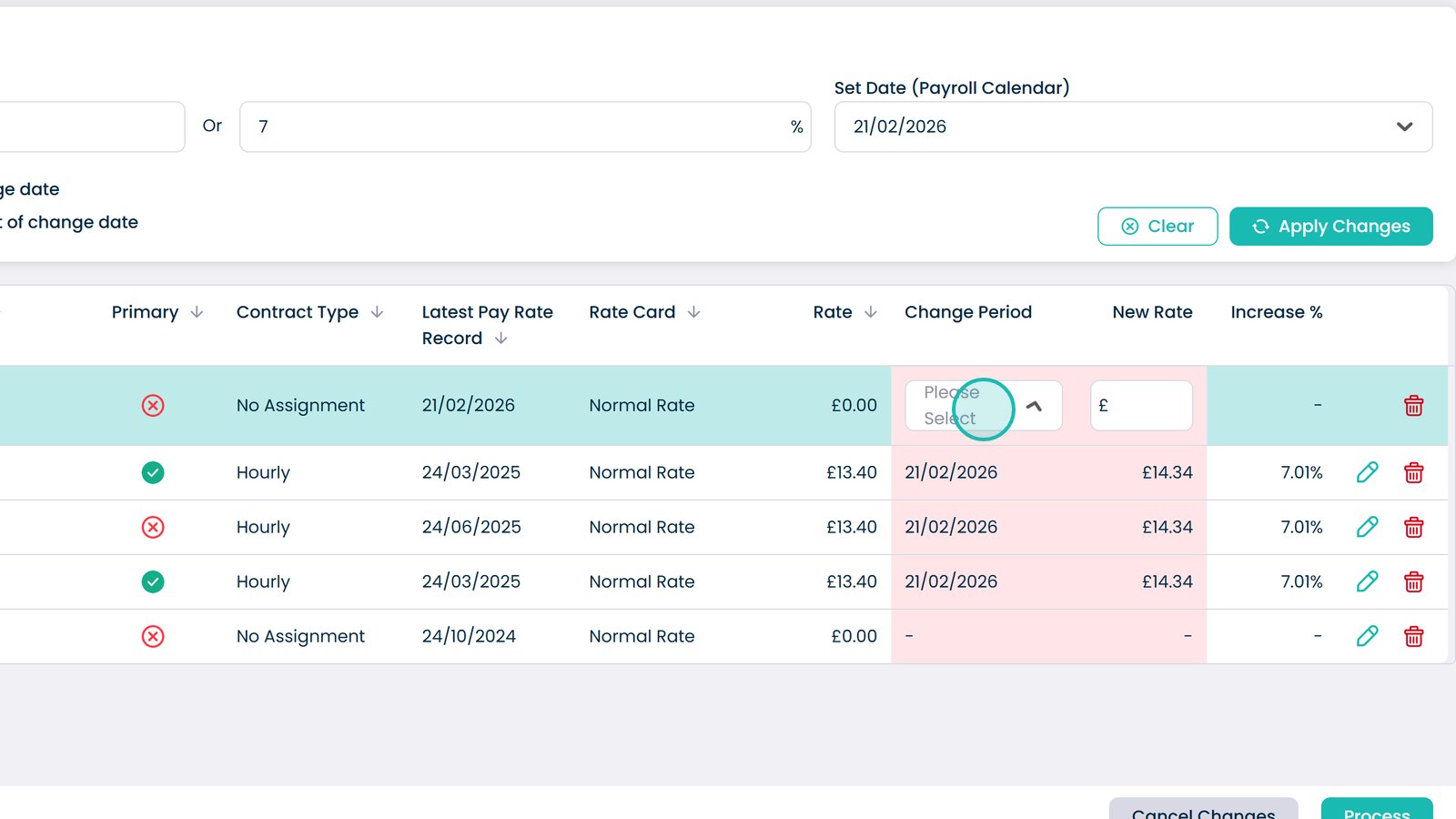
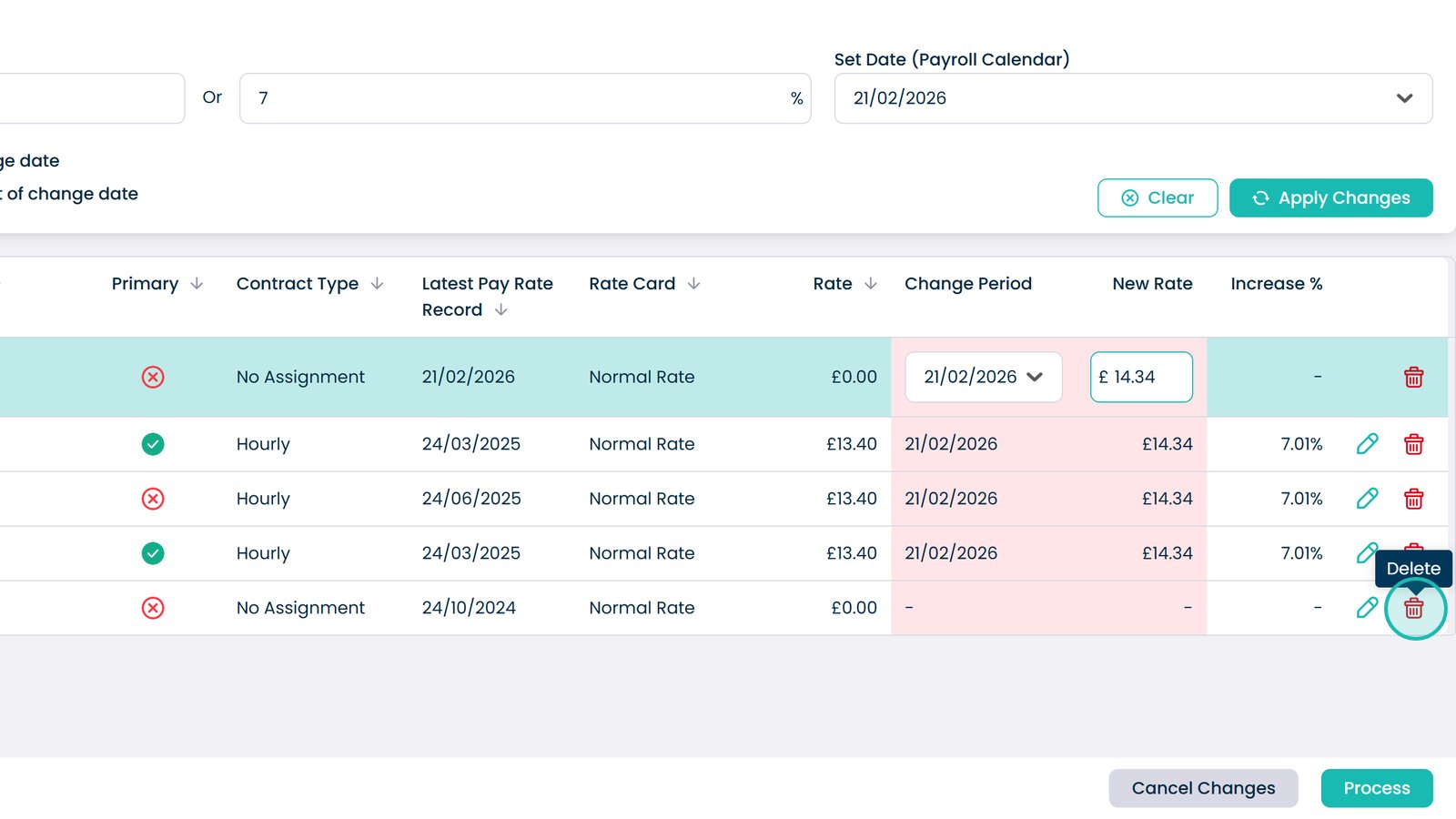
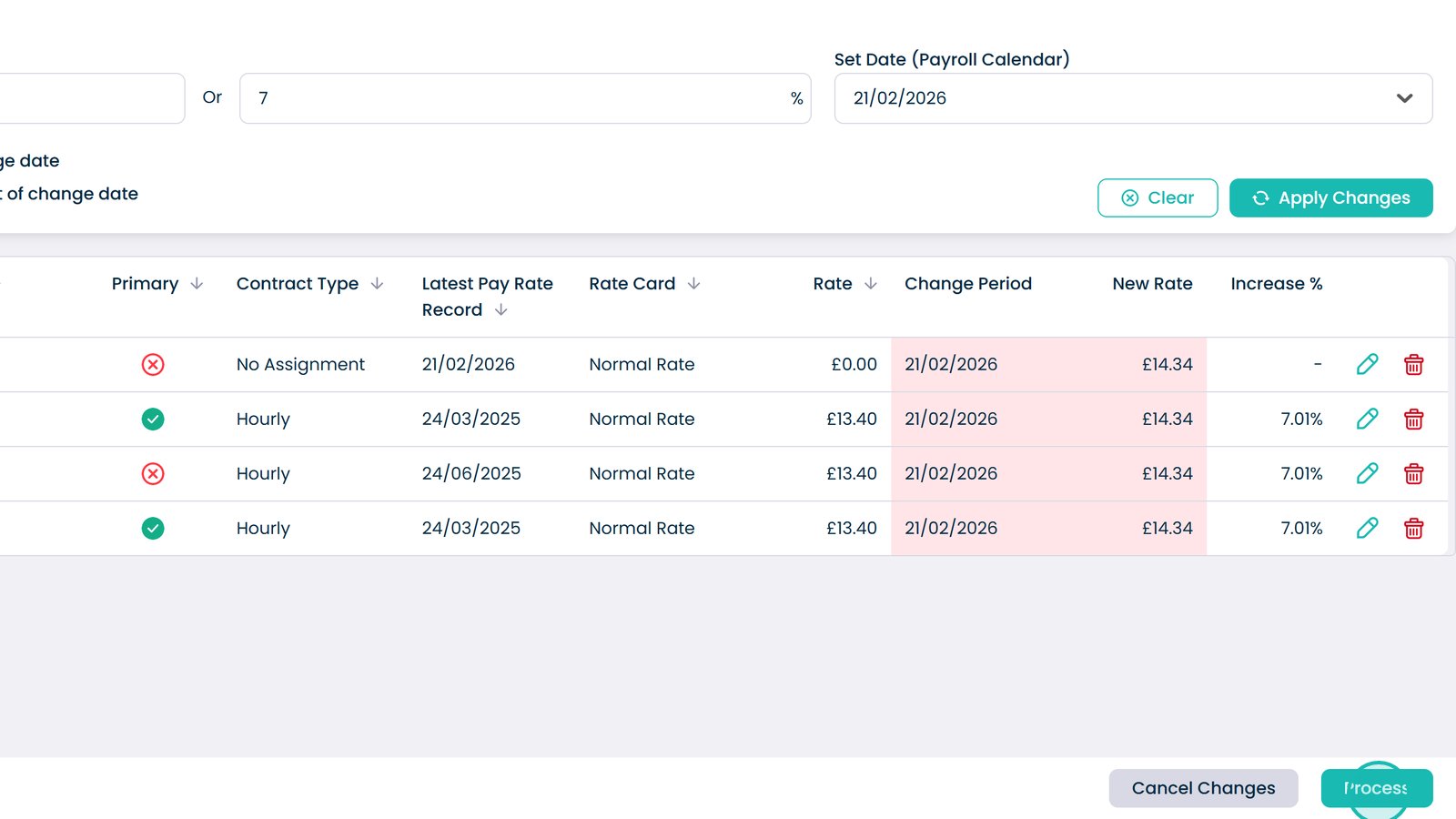
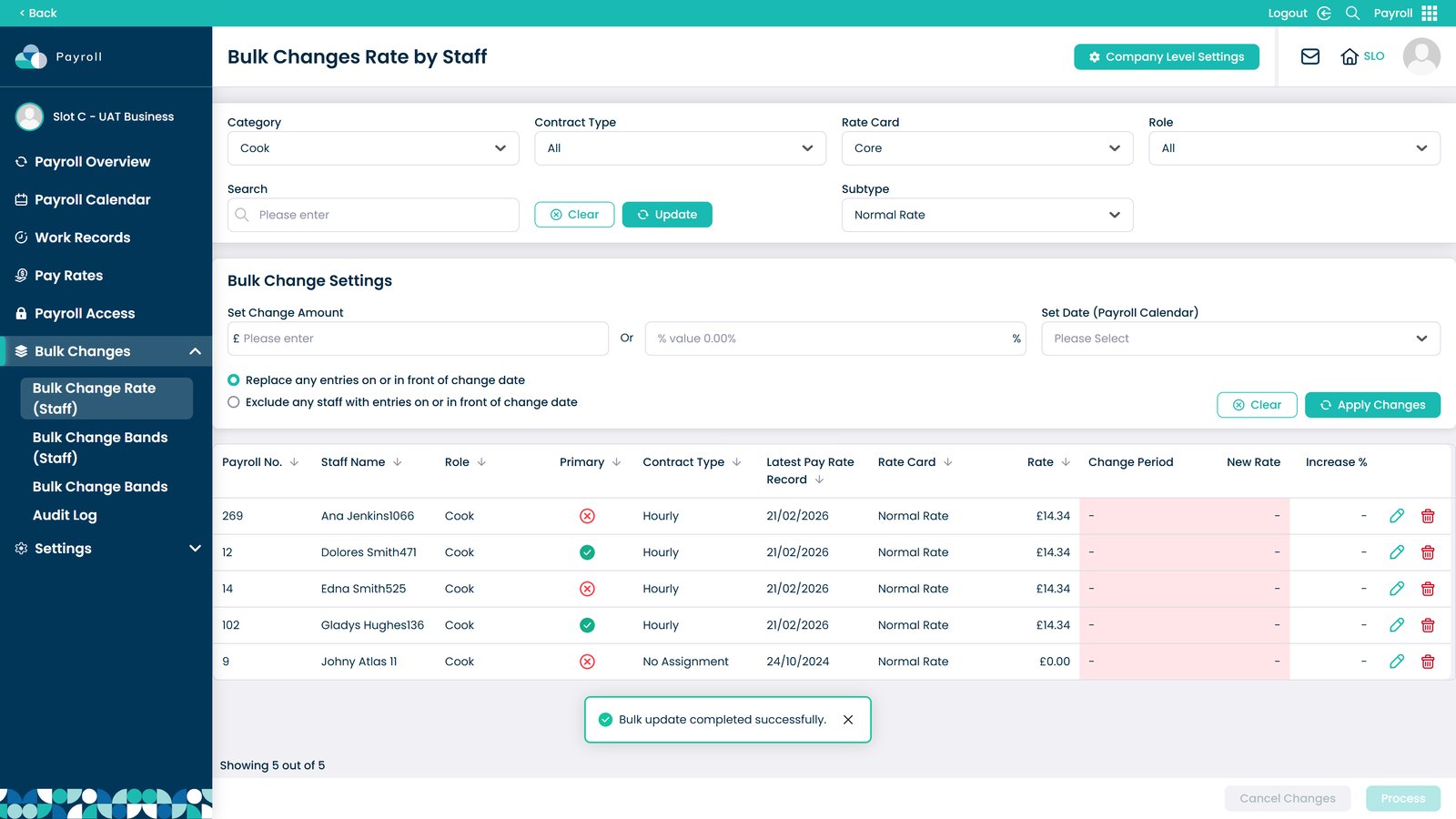
This guide explains how to bulk update staff pay rates within the Payroll app in Care Control Cloud. The Bulk Change Rates feature allows you to efficiently apply pay increases or adjustments across multiple staff members at once, saving time and ensuring consistency across your organisation.
You can filter staff by category, contract type, role, and other criteria to target exactly who should be included in the update. Changes can be applied using either a fixed amount or a percentage increase, with the option to control when the changes take effect based on your payroll calendar.
By following this guide, you will learn how to:
- Select and filter staff for bulk updates
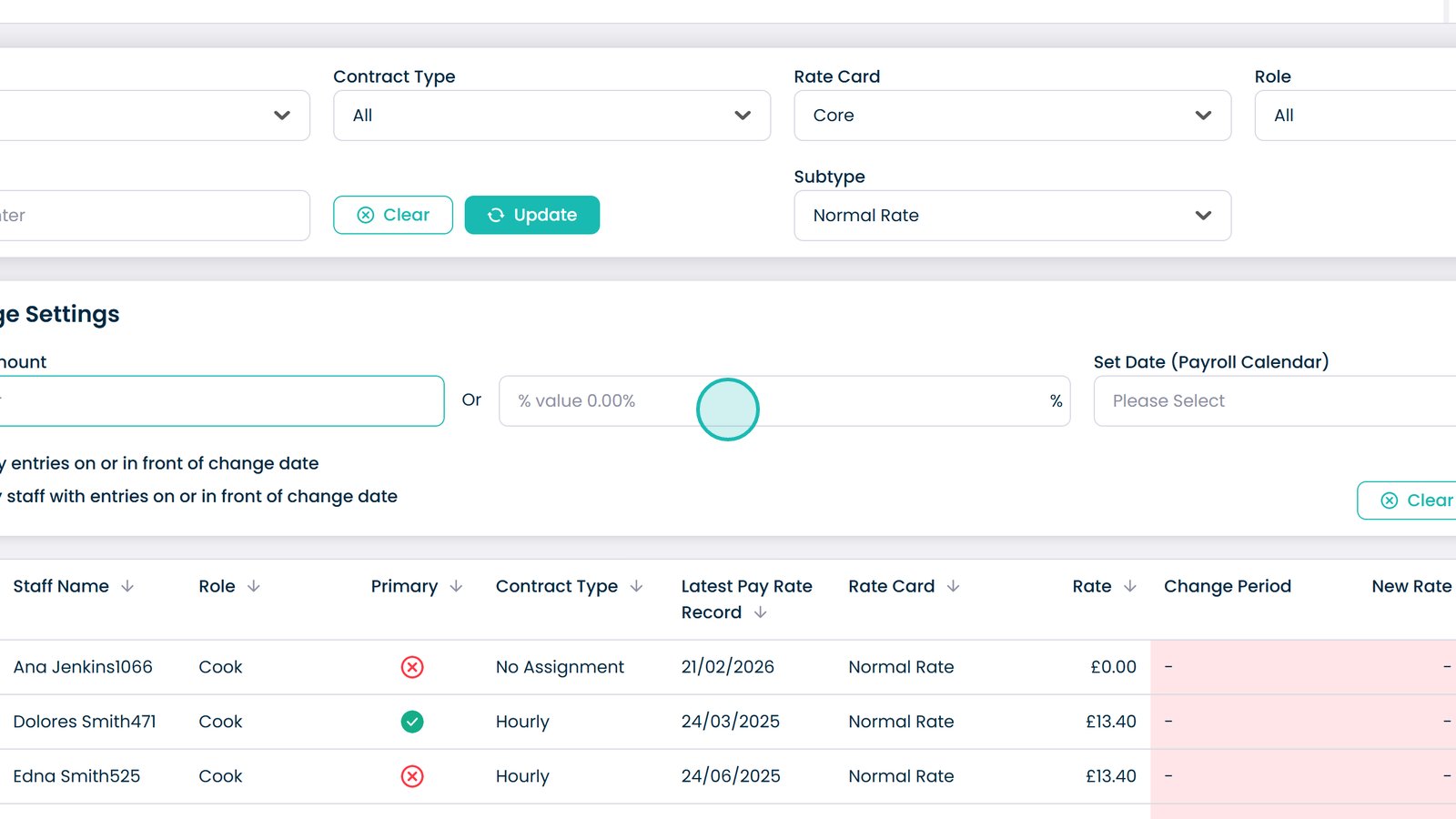
- Apply pay changes using fixed amounts or percentage increases
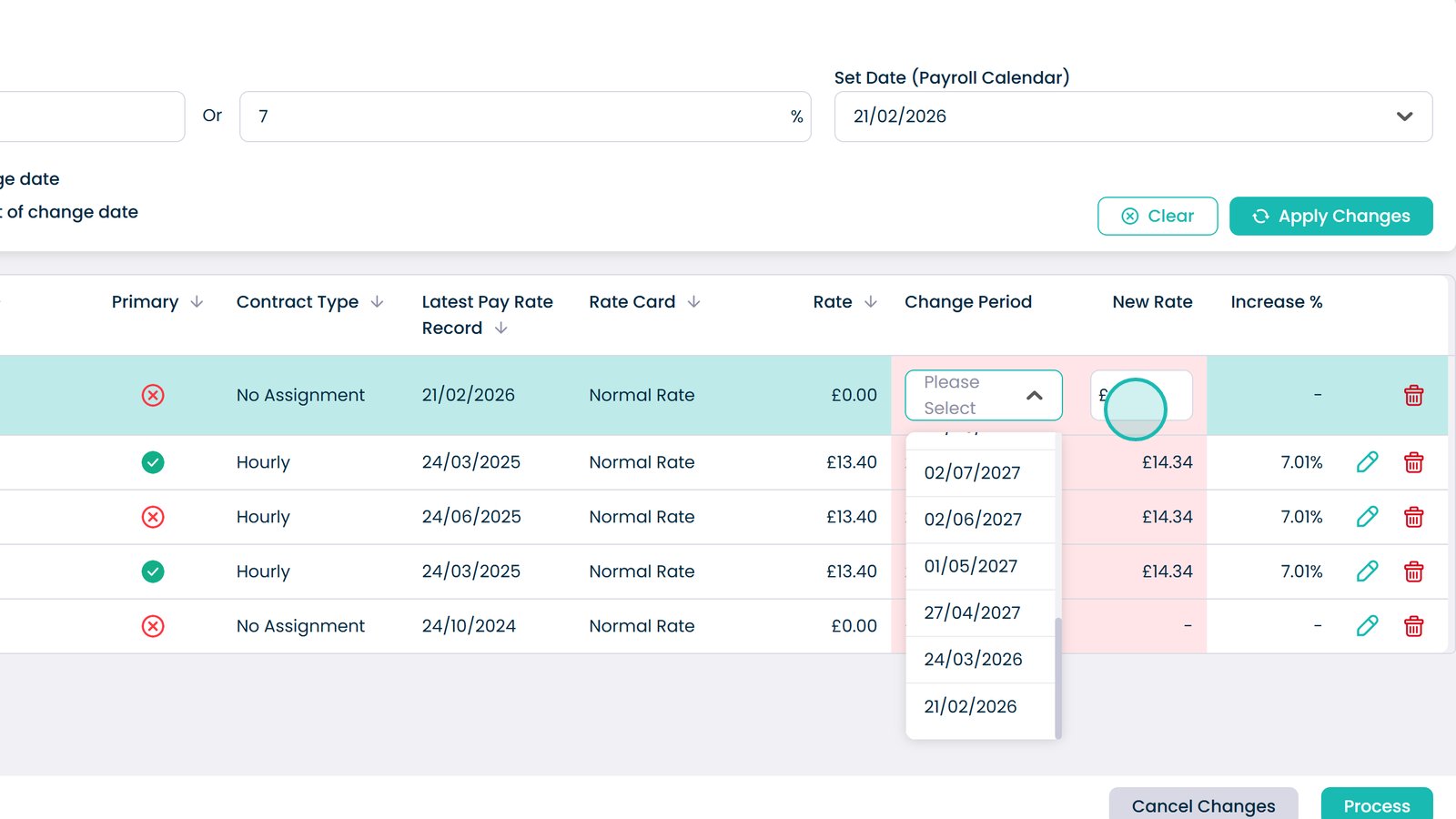
- Set effective dates for when changes should apply
- Control how existing payroll entries are handled
- Adjust individual staff members where required
This process helps ensure pay updates are applied accurately, consistently, and in line with your organisation’s payroll structure.