How to Export and Review Facial Recognition Attempts
This guide explains how to access and manage digital sign-in records using facial recognition within the Admin app.
Monitoring attendance through digital sign-in is essential for maintaining accurate records, improving security, and reducing manual errors. By using these tools effectively, you can quickly verify staff activity, investigate discrepancies, and ensure reliable time tracking across your organisation.
By following this guide, you will learn how to:
- Navigate to the Digital Sign-In area within the Admin app
- Filter and search facial recognition records by staff and date
- Sort and export attendance data for reporting
- Review detailed sign-in attempts, including match percentages and results
- Identify successful and failed sign-in or sign-out attempts
- Ensure staff attendance records are accurate and up to date
This ensures your attendance tracking is accurate, secure, and easy to manage, helping maintain compliance and operational efficiency.
Interactive Guide
Text based guide
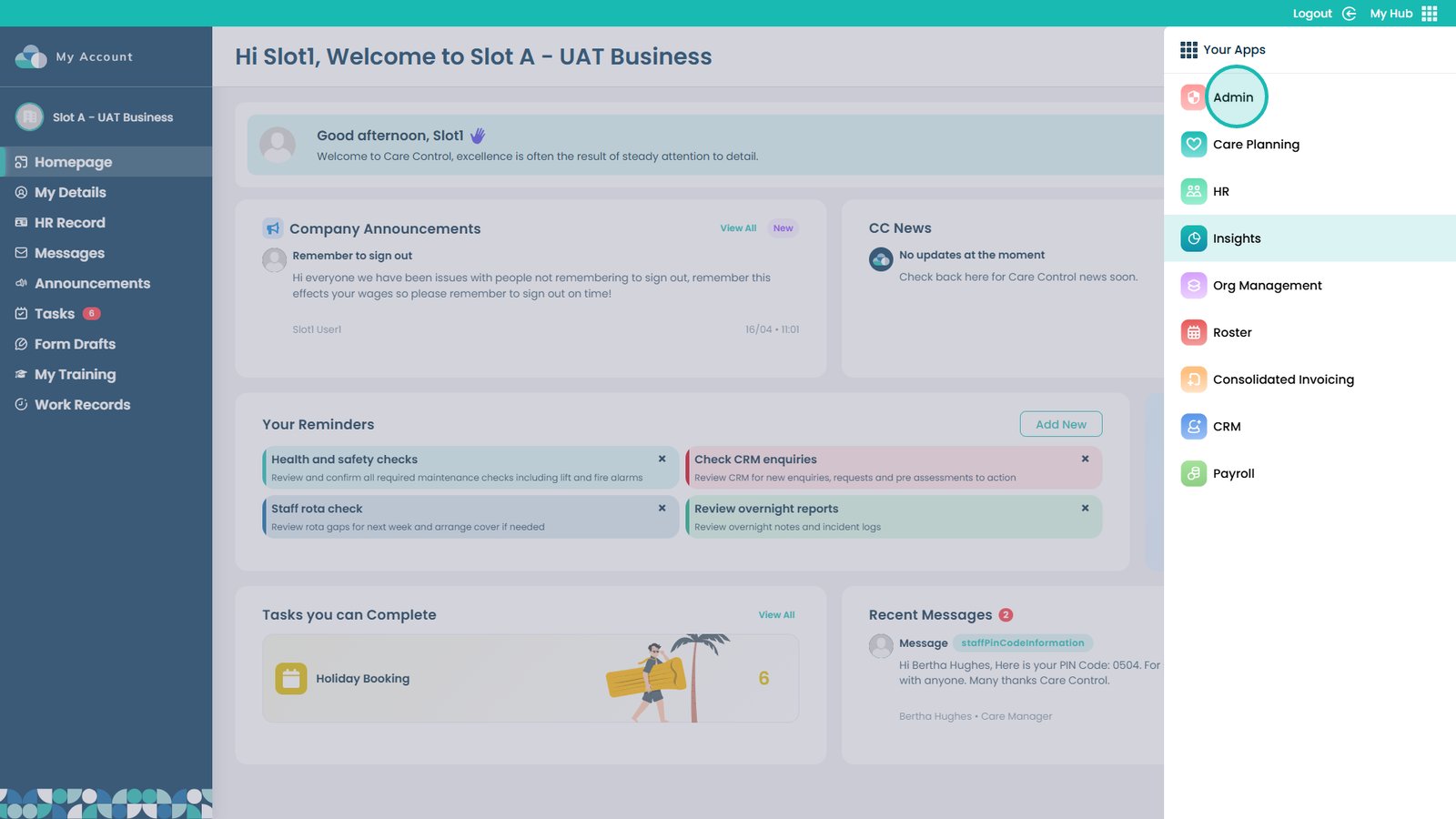
Launch the app from your dashboard to begin.
Open the Admin App to access management features.
Enter the Staff Area to manage HR and team-related activity.
Open the Digital Sign-In tab to view attendance using facial recognition.
Use the search bar to quickly find records by staff name.
Select a start date to filter records for a specific time period.
Choose an end date to define the full range of results.
Filter by attempt type to view sign-ins, sign-outs, or both.
Clear filters to return to the full set of records.
Click Update to refresh results based on your filters.
Export filtered results for reporting or offline review.
Sort records using the arrows in each column header.
Select View Record to open detailed information for a specific attempt.
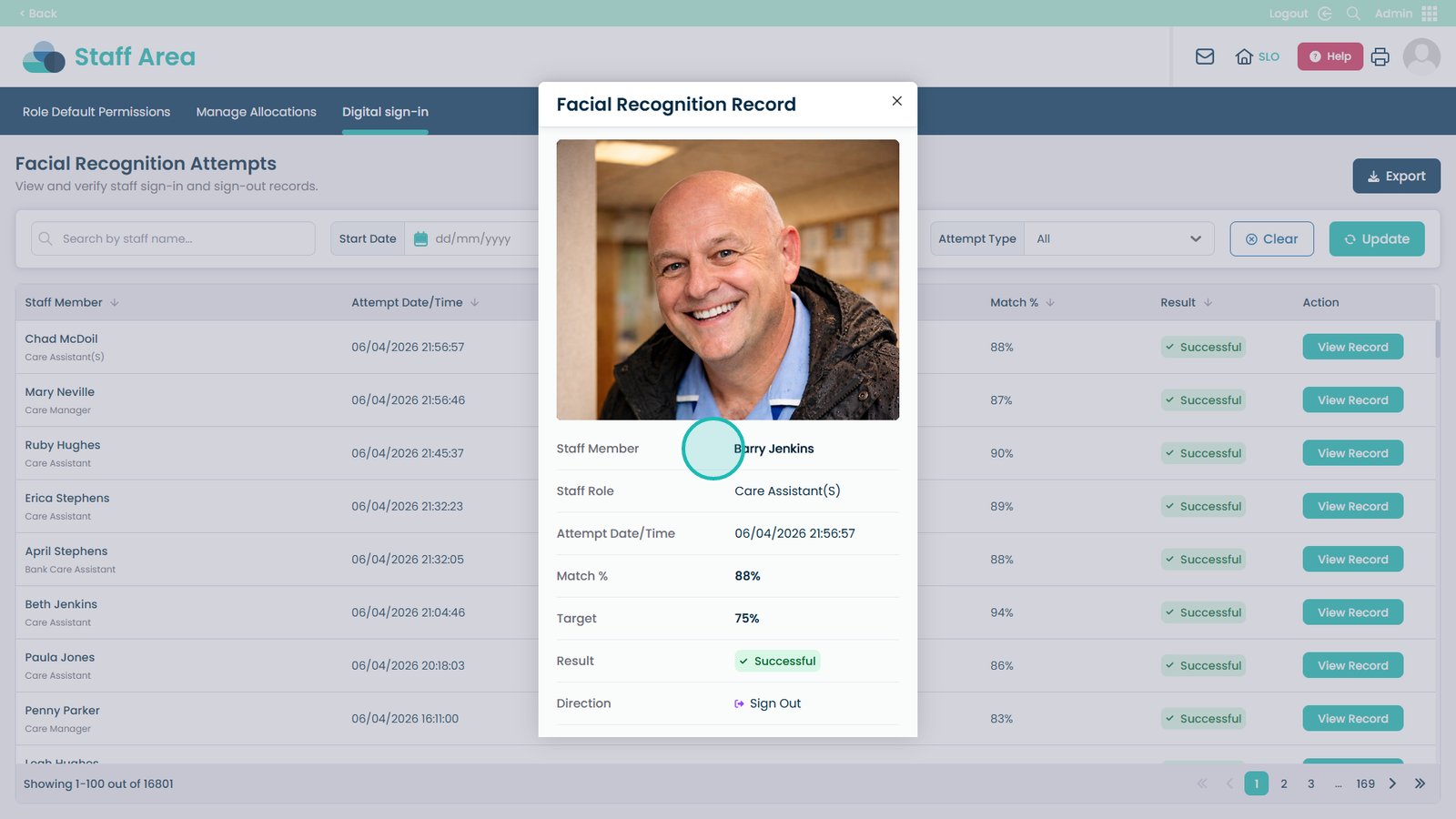
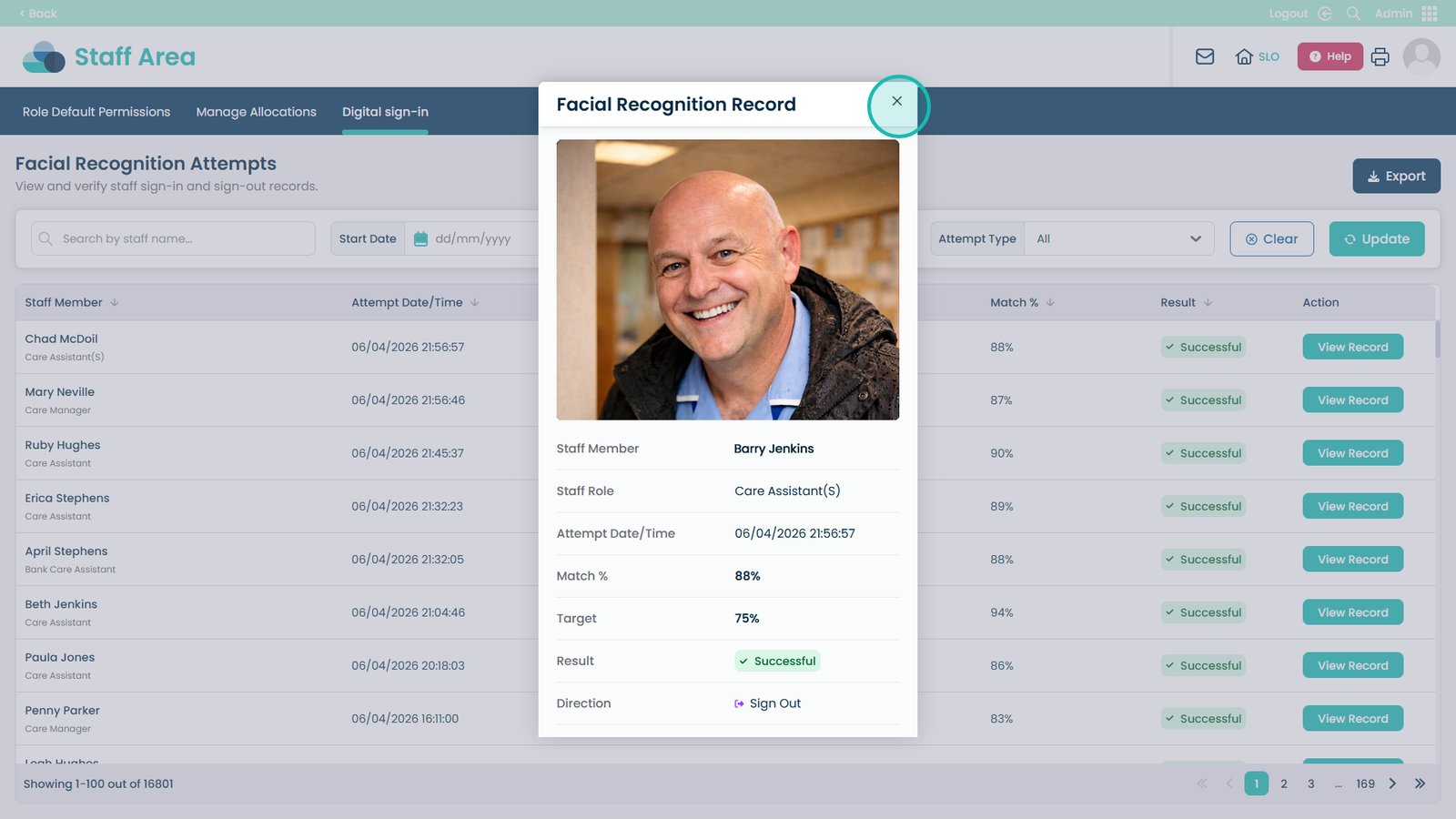
Confirm the correct staff member is displayed in the record.
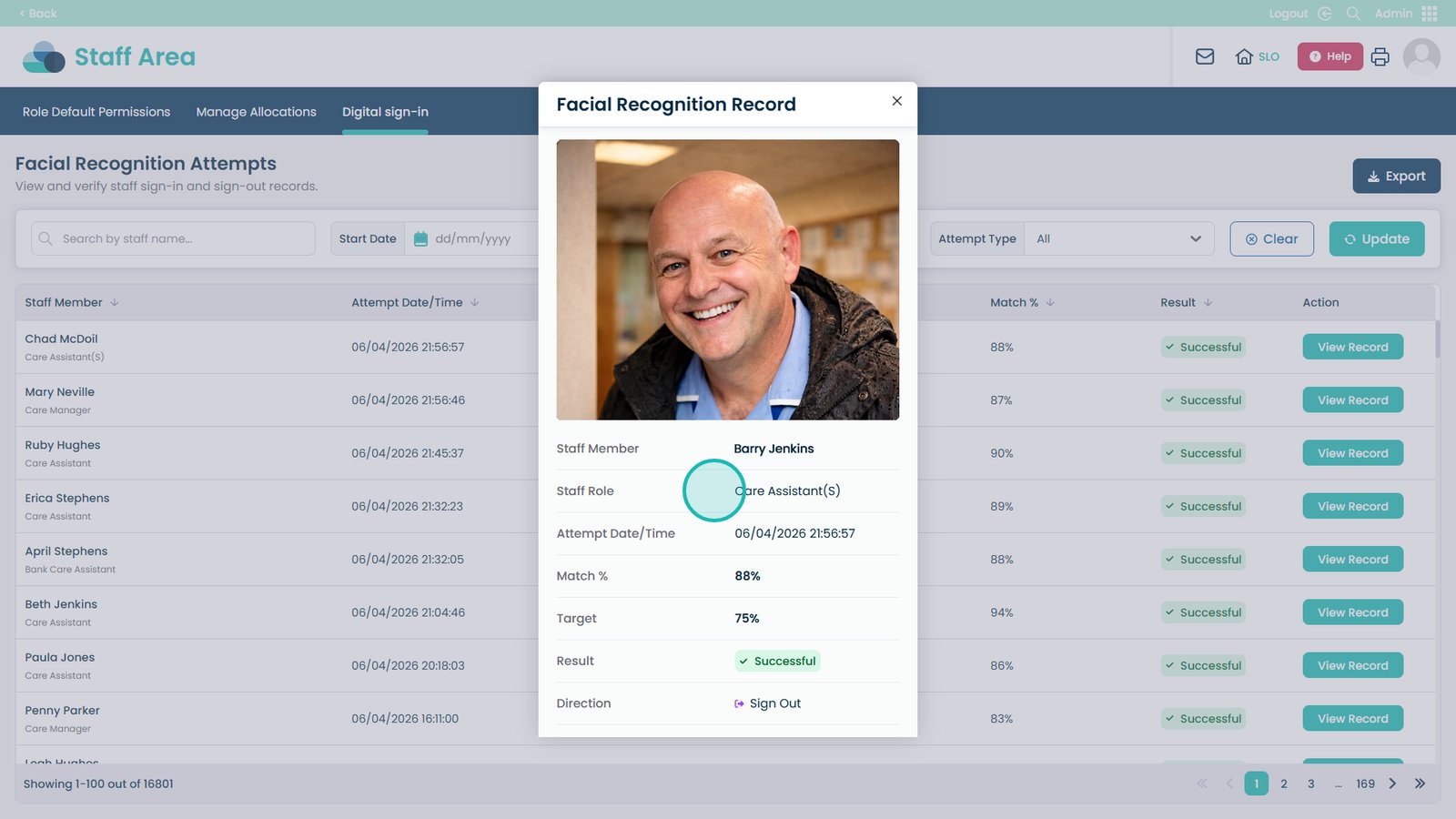
Review the staff role associated with the sign-in attempt.
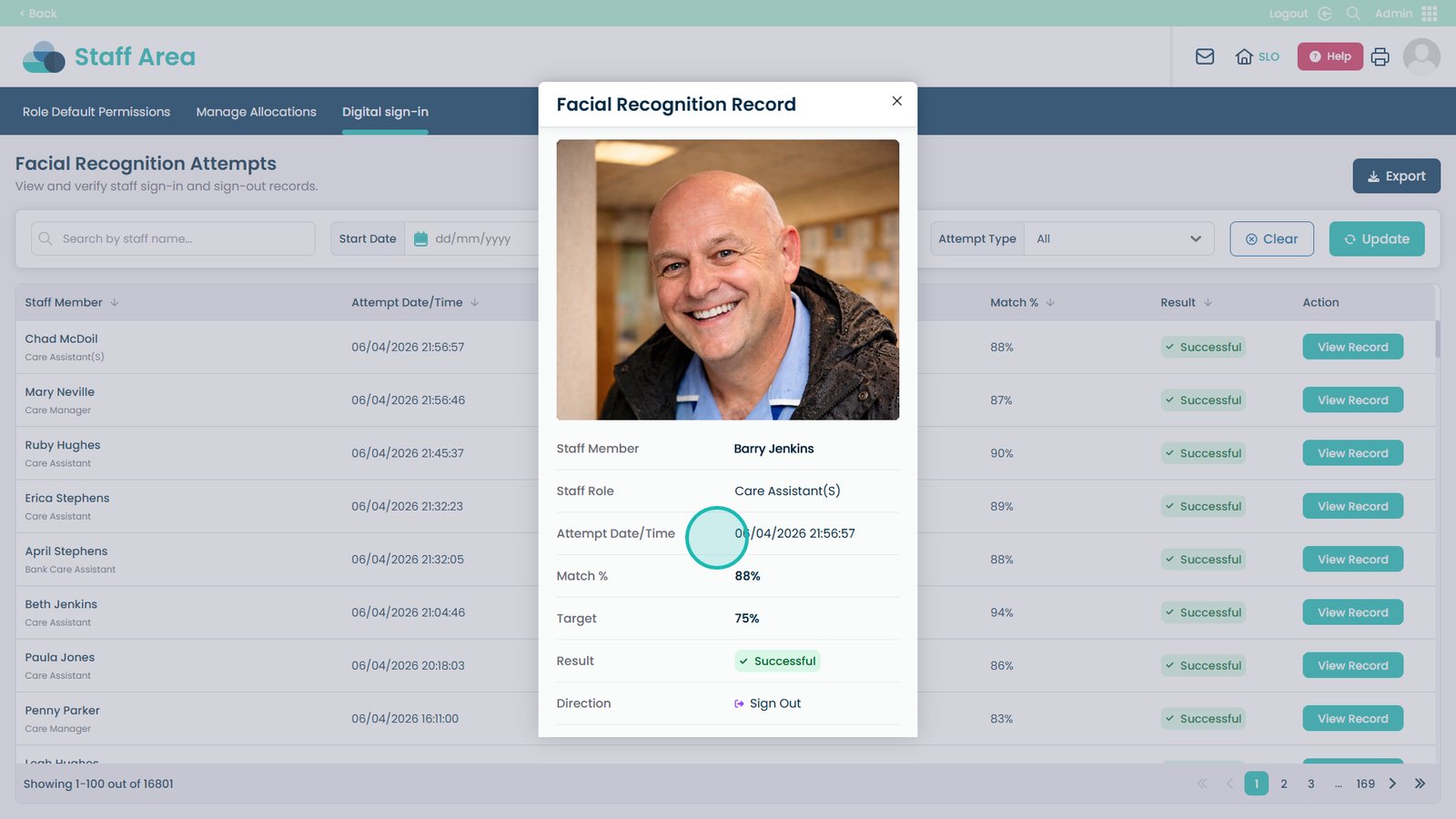
Check the date and time of the attempt for accuracy.
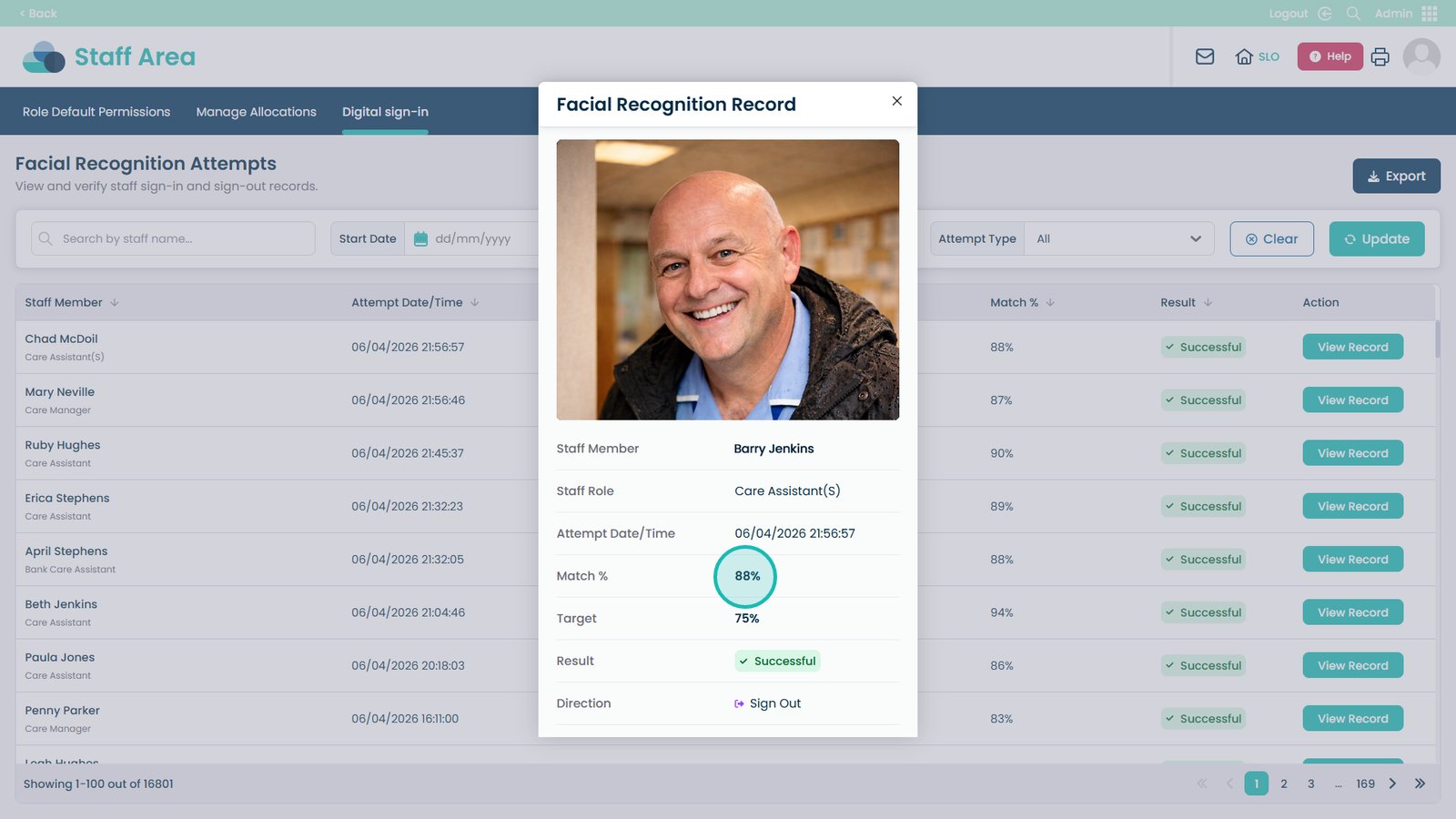
Review the match percentage to assess recognition accuracy.
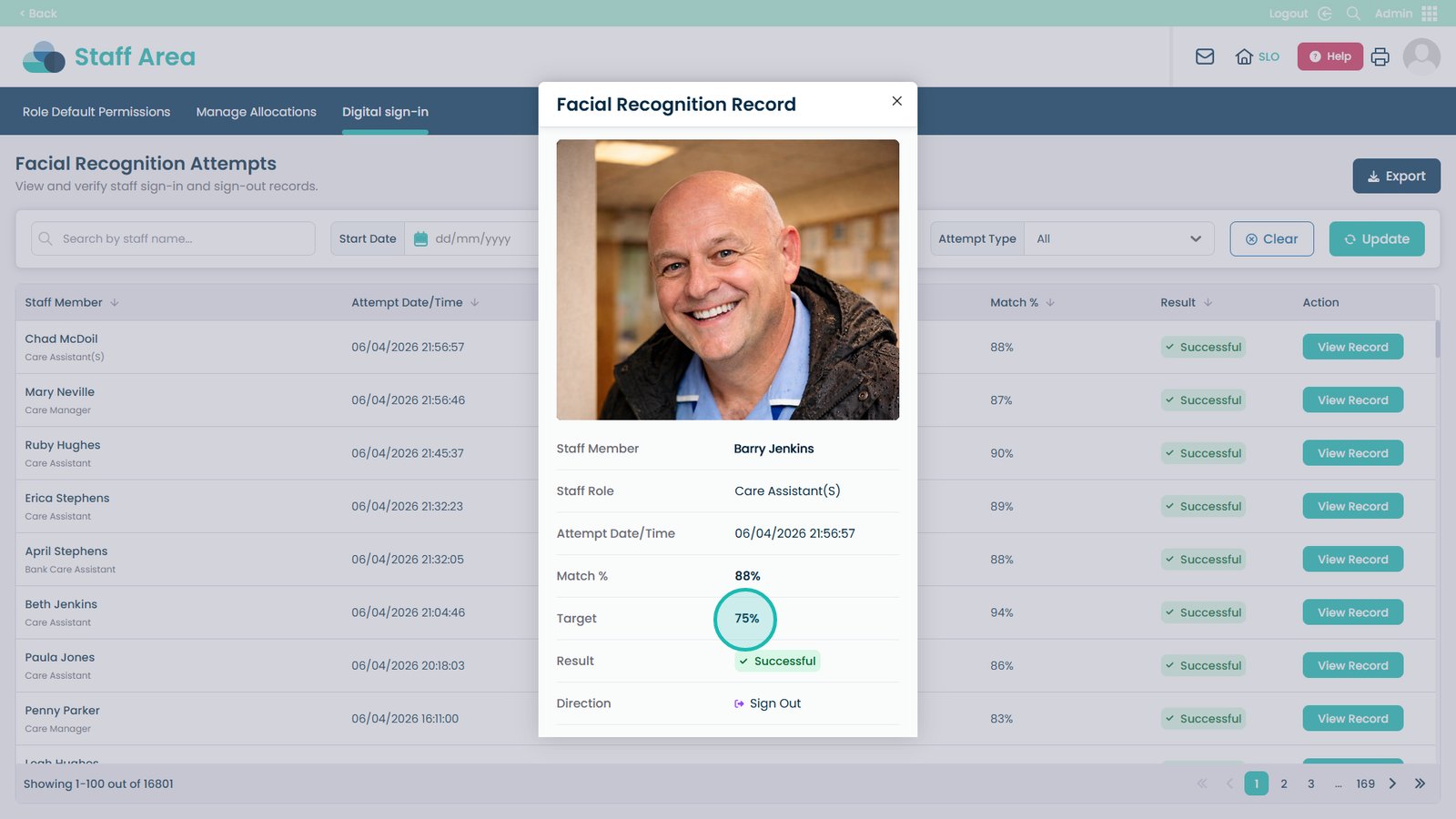
Understand the target percentage required for successful sign-in.
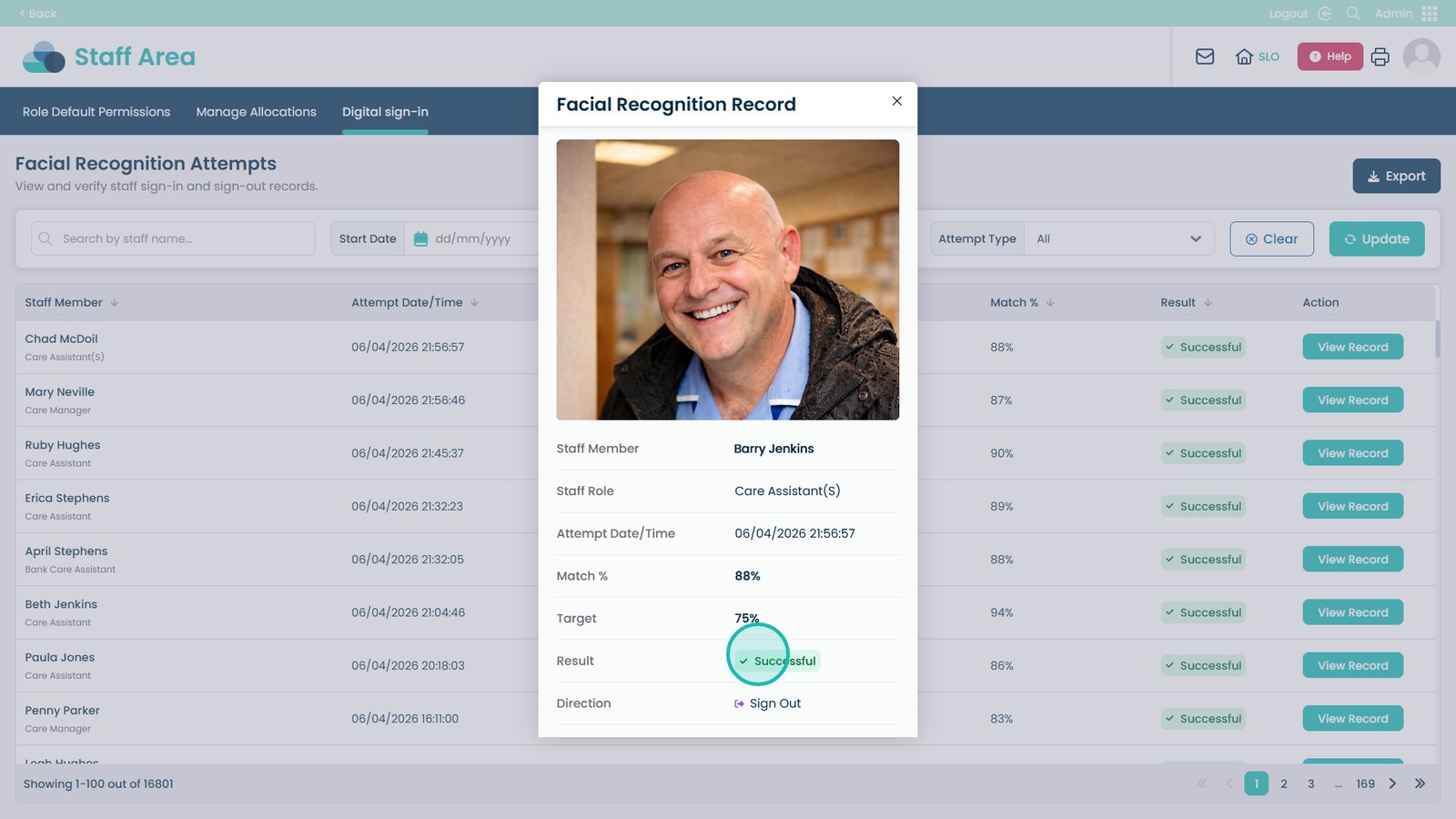
Check the result field to confirm if the attempt was successful.
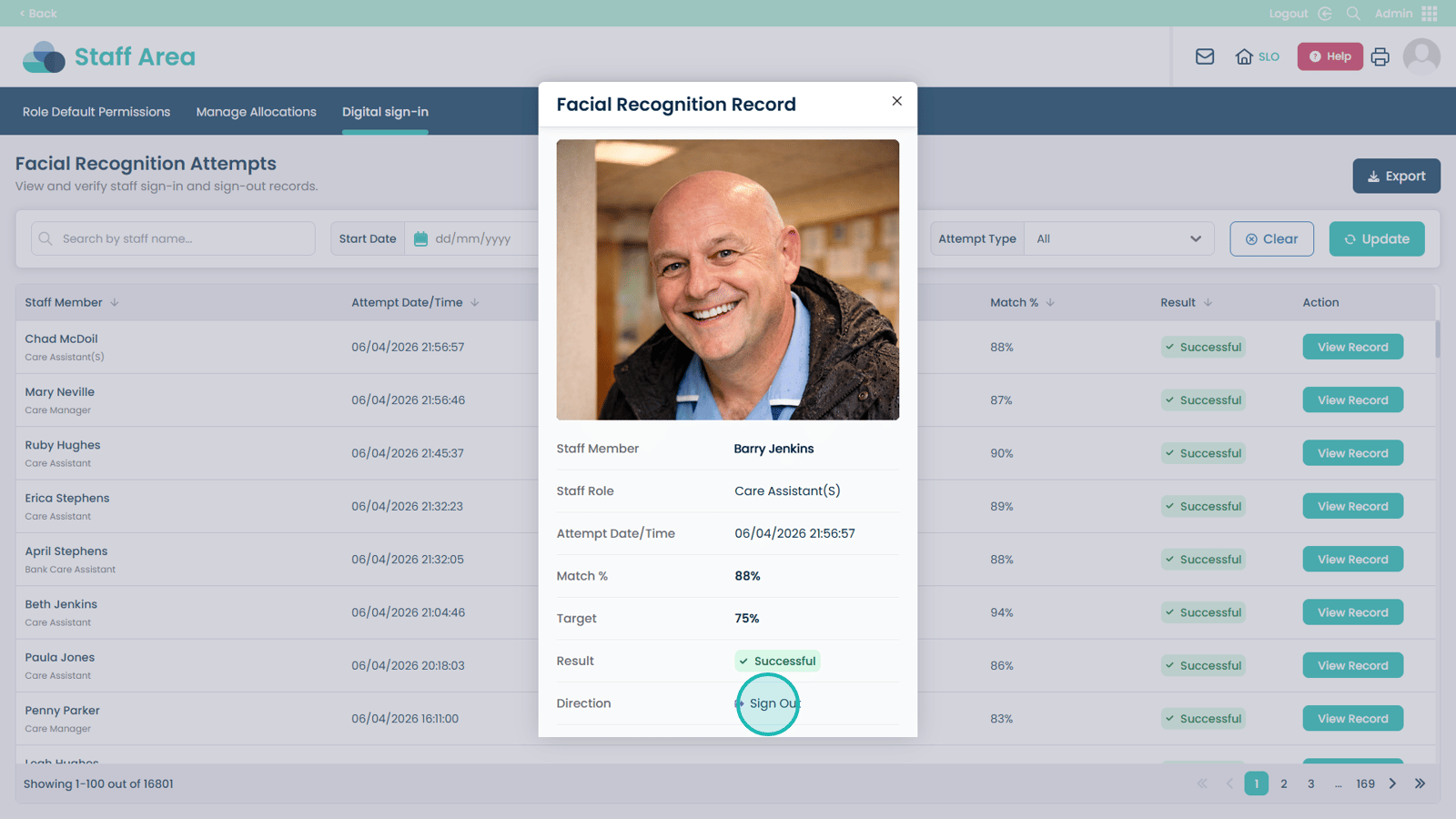
Verify whether the record is a sign-in or sign-out using the direction label.
Close the detailed view to return to the full records list.
Return to the main list to continue reviewing attendance records.