How to Print and Email Domiciliary Rotas
This guide explains how to print or email client rotas by selecting a date range, choosing recipients, generating PDF copies, and sending the rota by email.
Takes 4 minutes
For: Care Coordinators
Updated: 26th May 2026
Introduction
The Roster module allows you to print or email service user rotas. You can select a date range, choose which service user's rota to share, decide who should receive it, and either download a PDF or send it directly by email.
In this guide you'll learn how to:
- Open the rota printing screen
- Select a date range
- Choose a service user's rota
- Print a rota as a PDF
- Email a rota to selected recipients
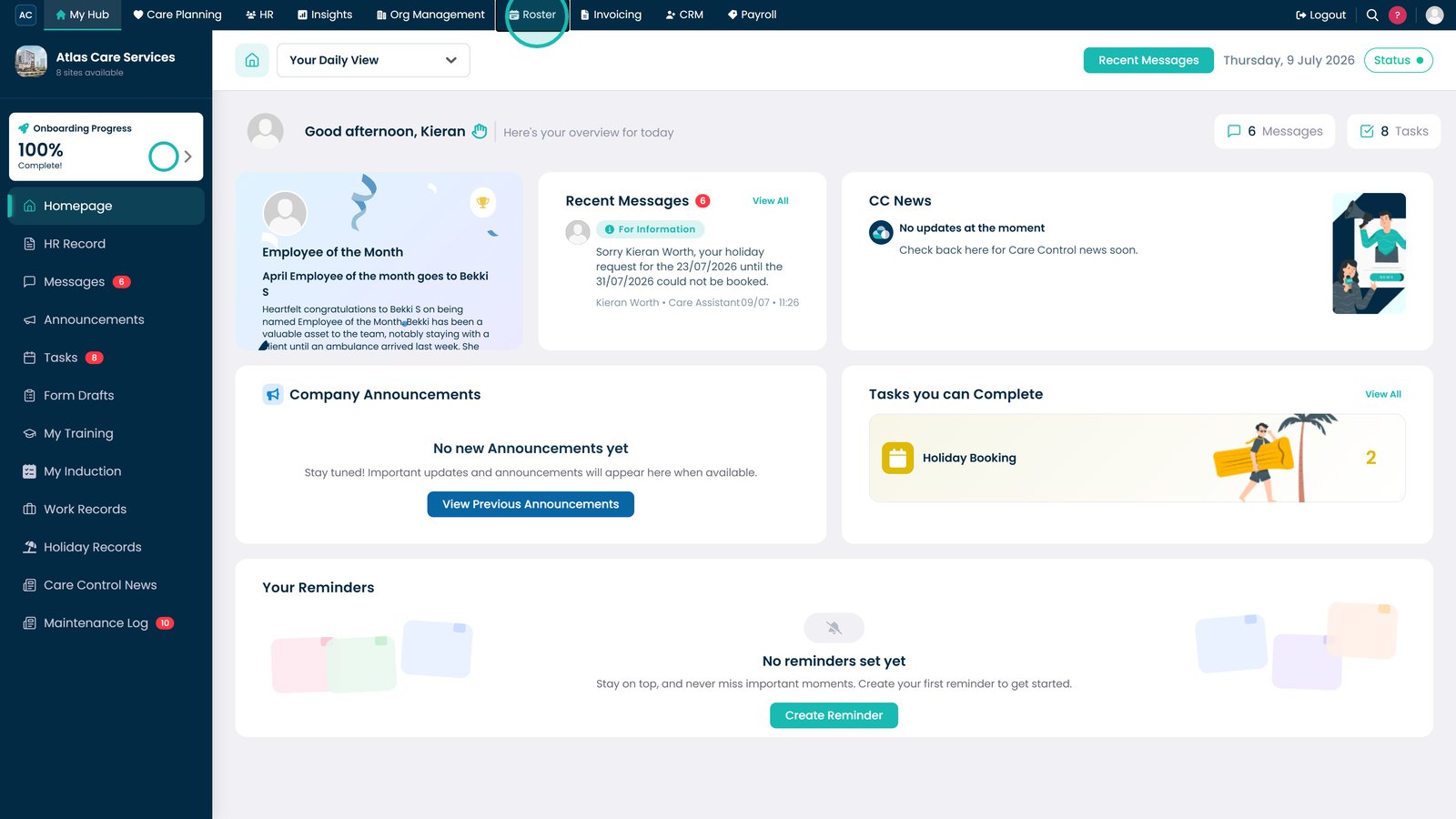
Open the Roster app.

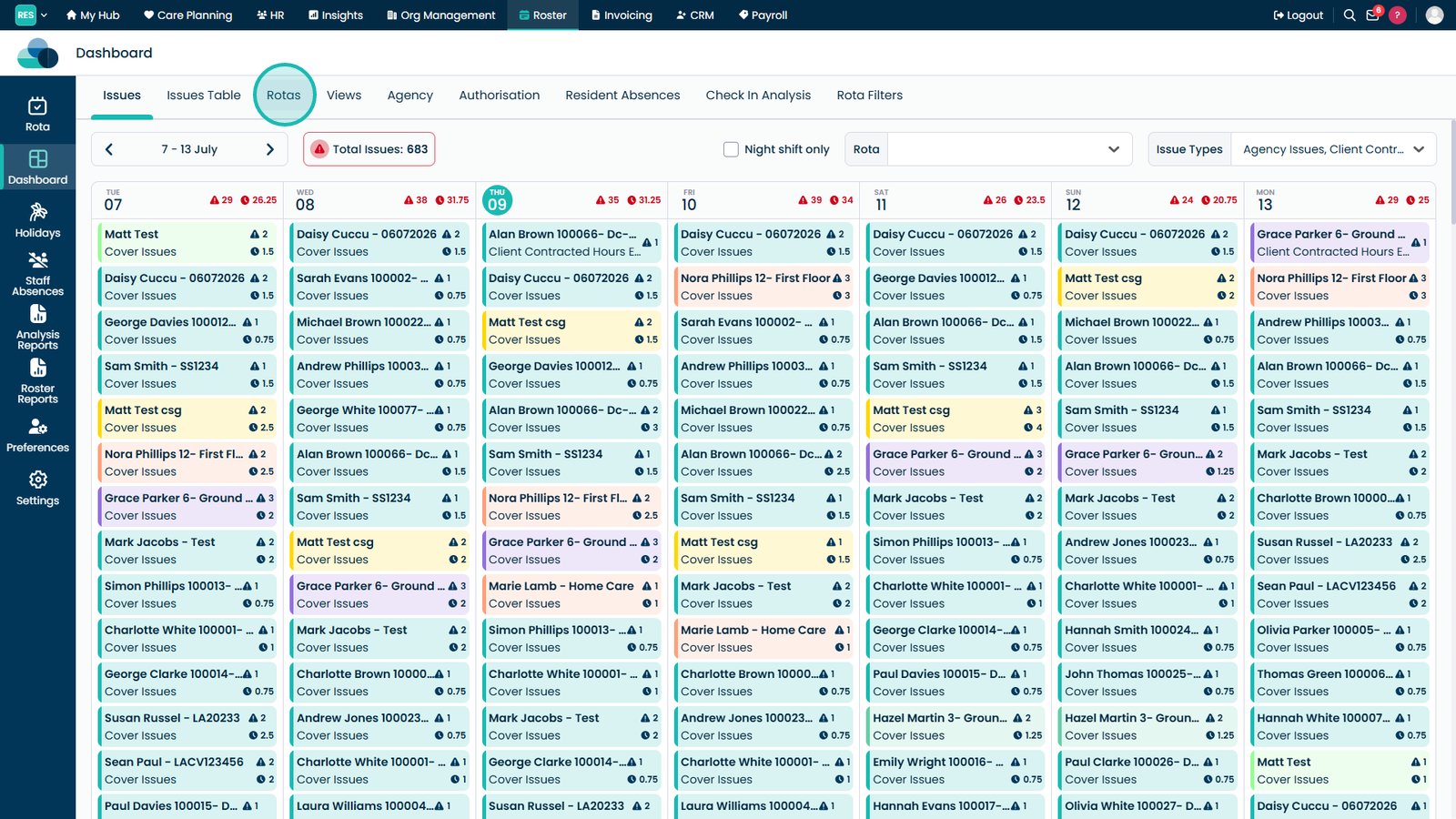
Select Rotas.

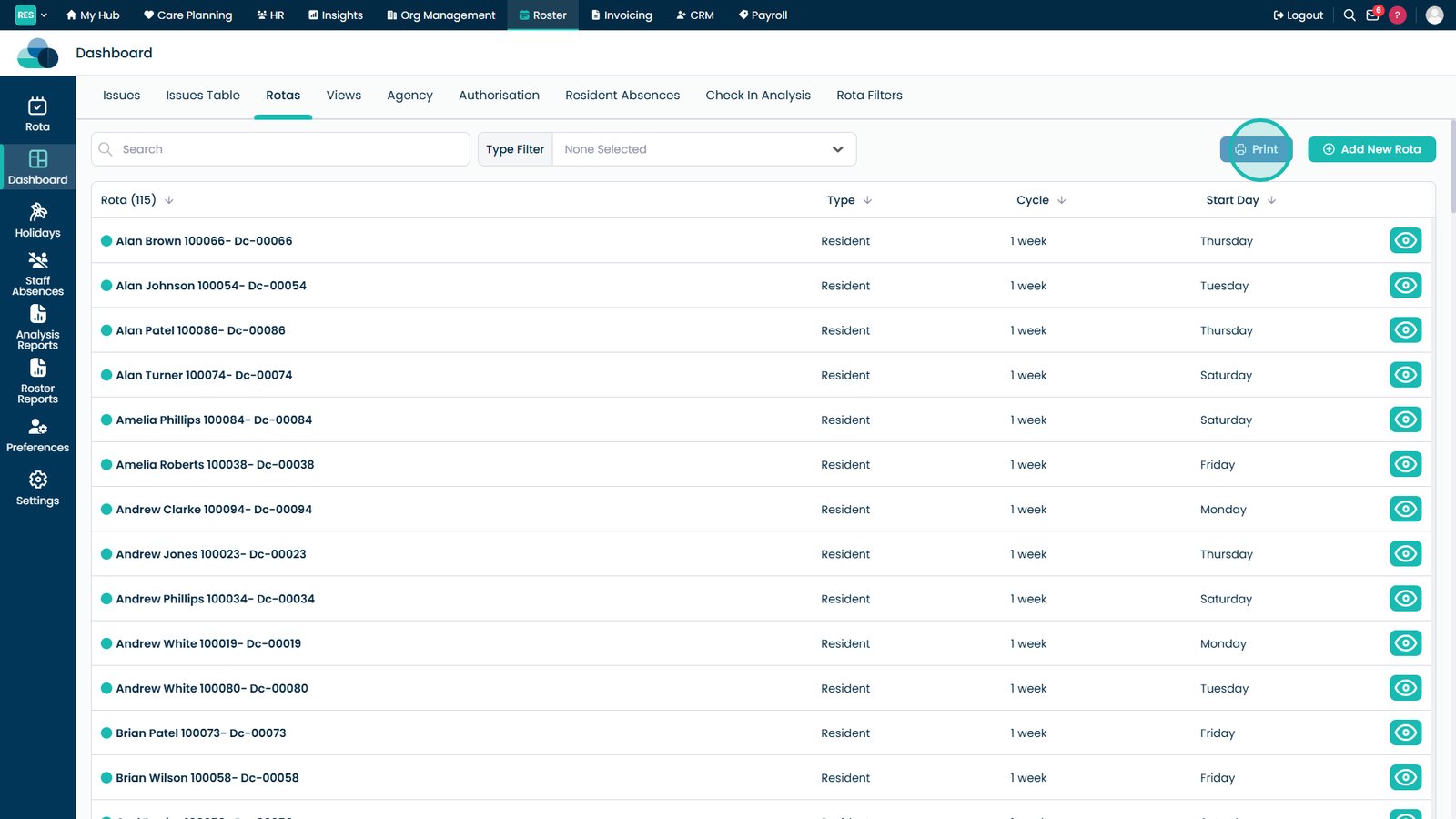
Select Print.

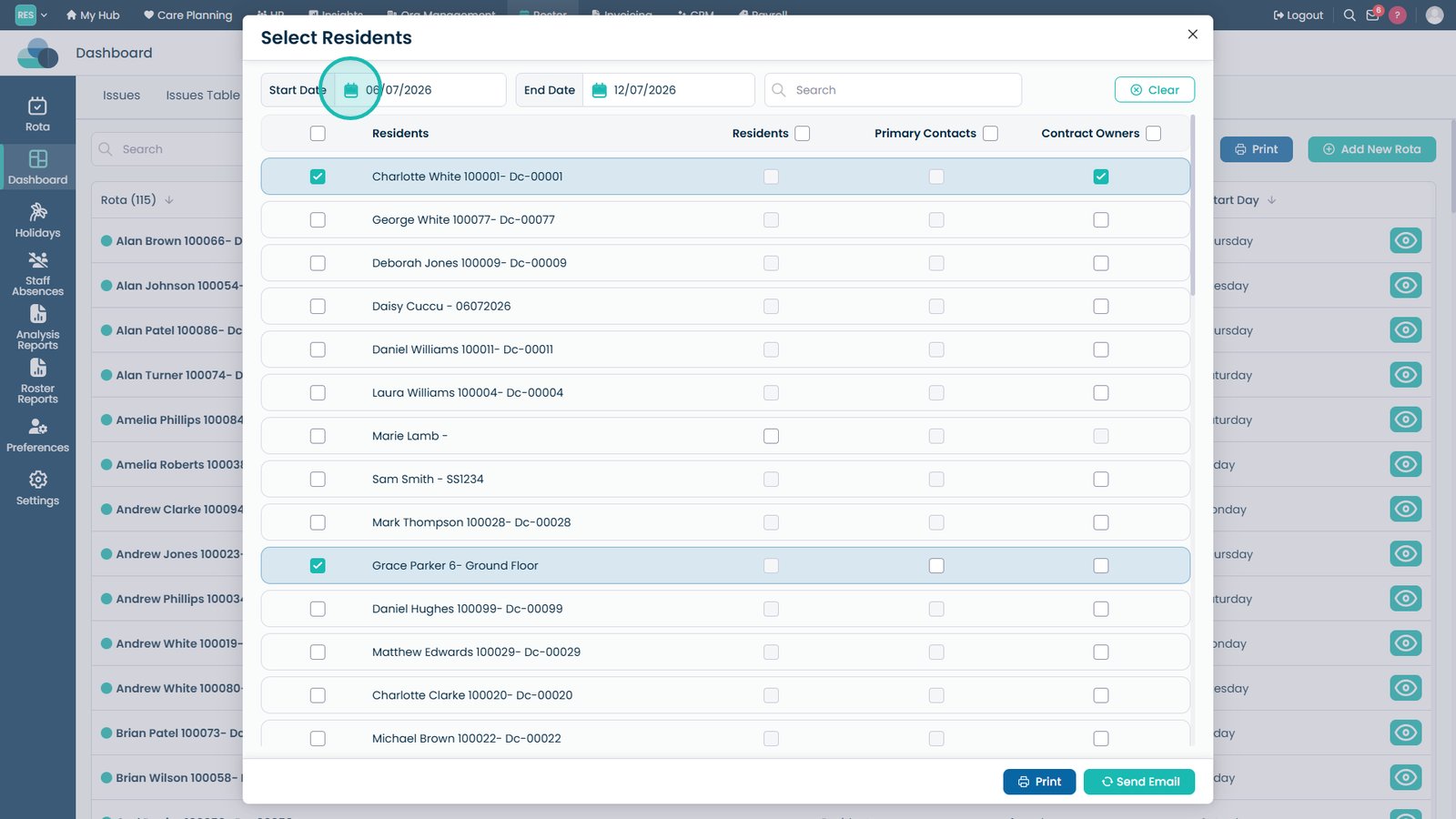
Select the start and end dates for the rota you want to print.

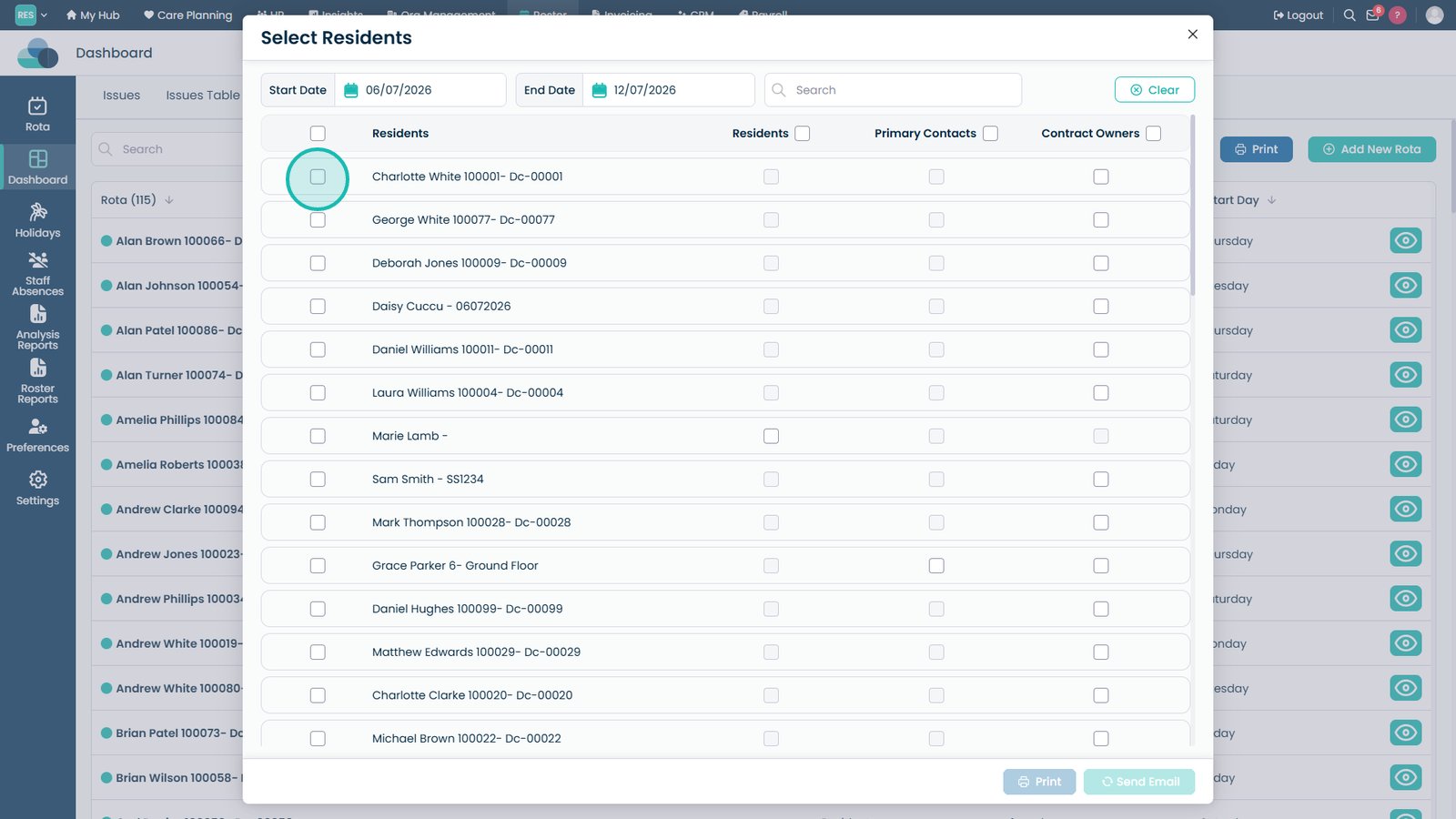
Select the service user whose rota you want to print.

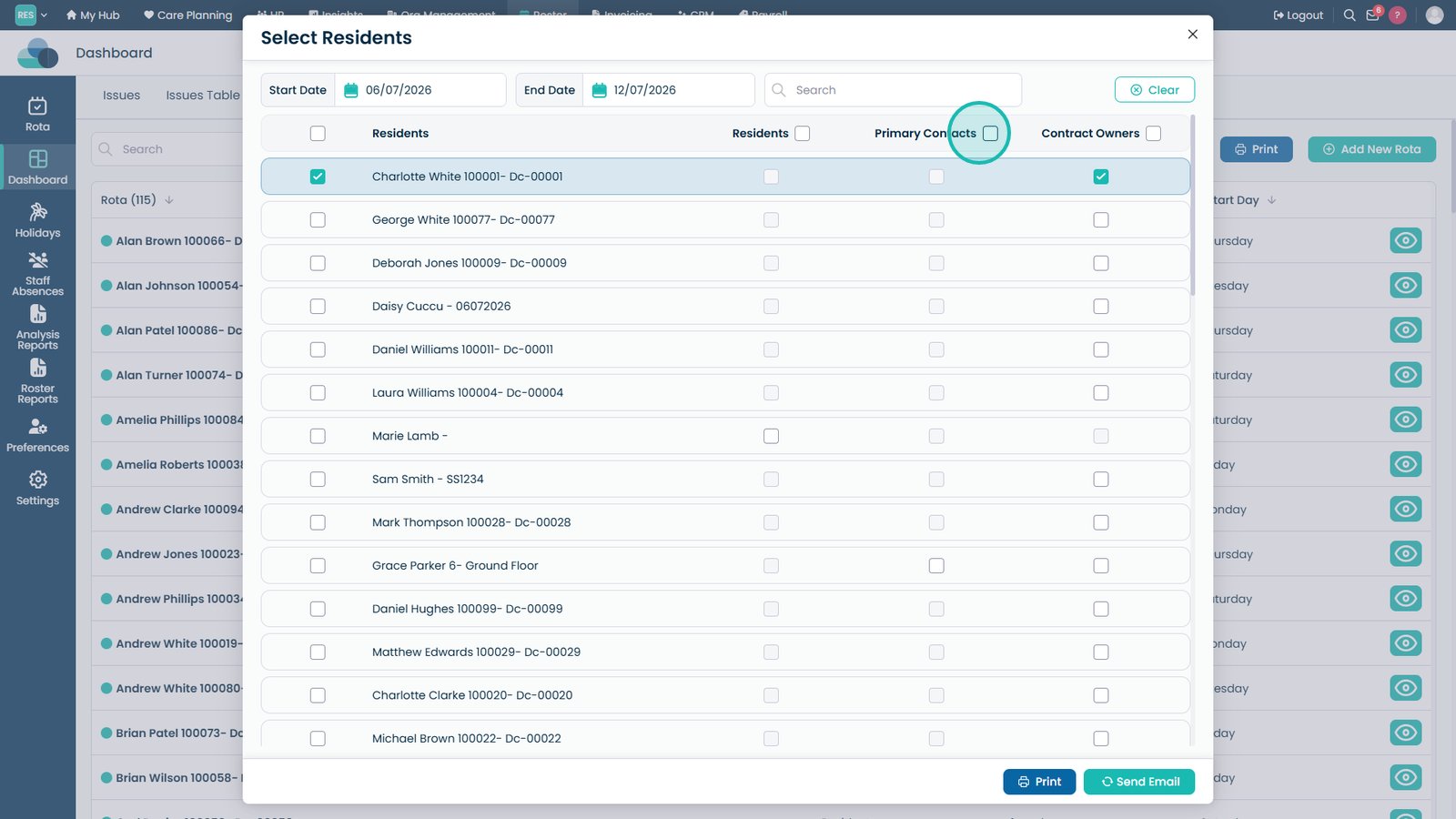
Select whether to send the rota to the service user, the primary contact, and/or the contract owner.

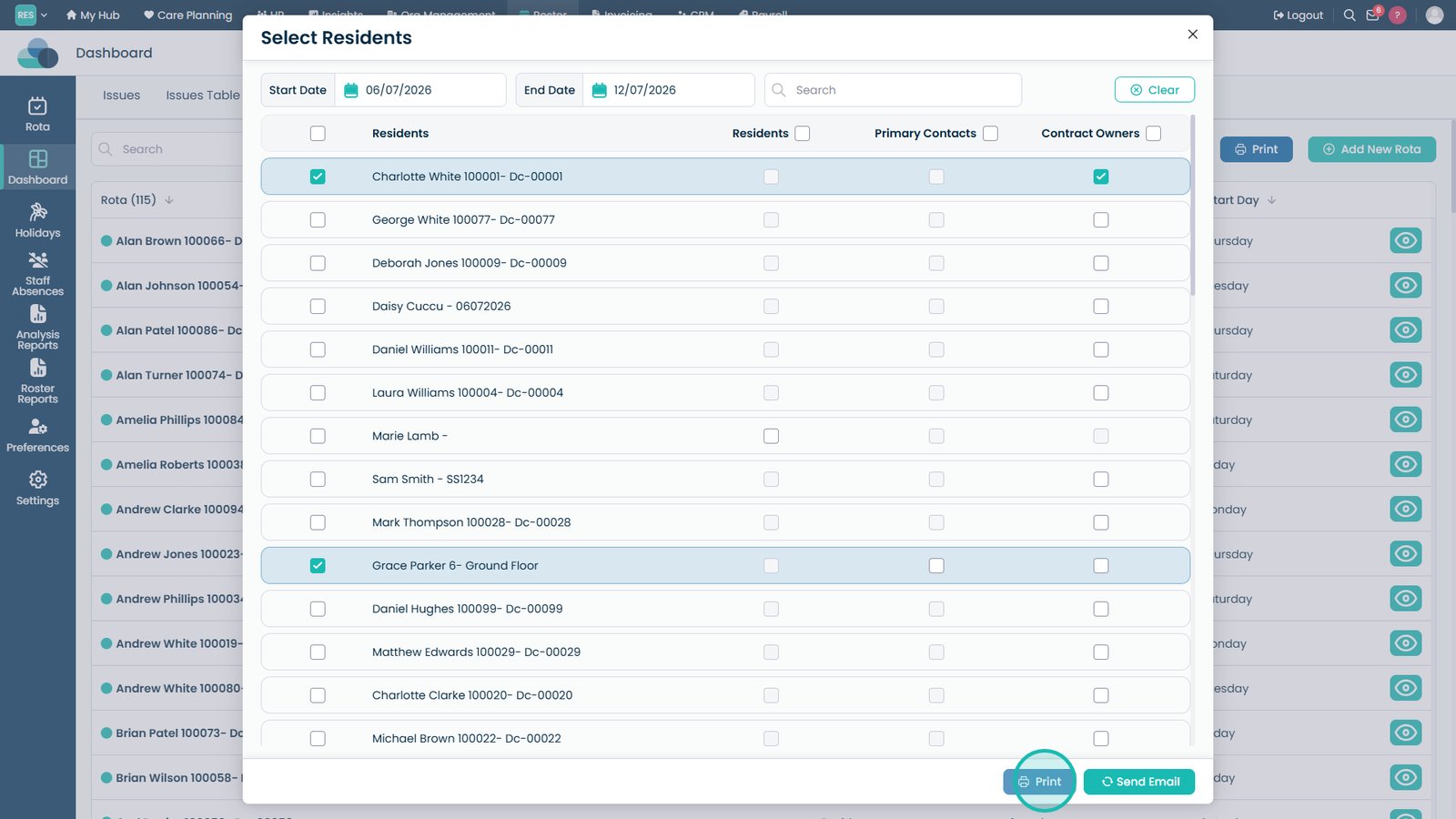
Select Print to generate PDF copies of the rota.

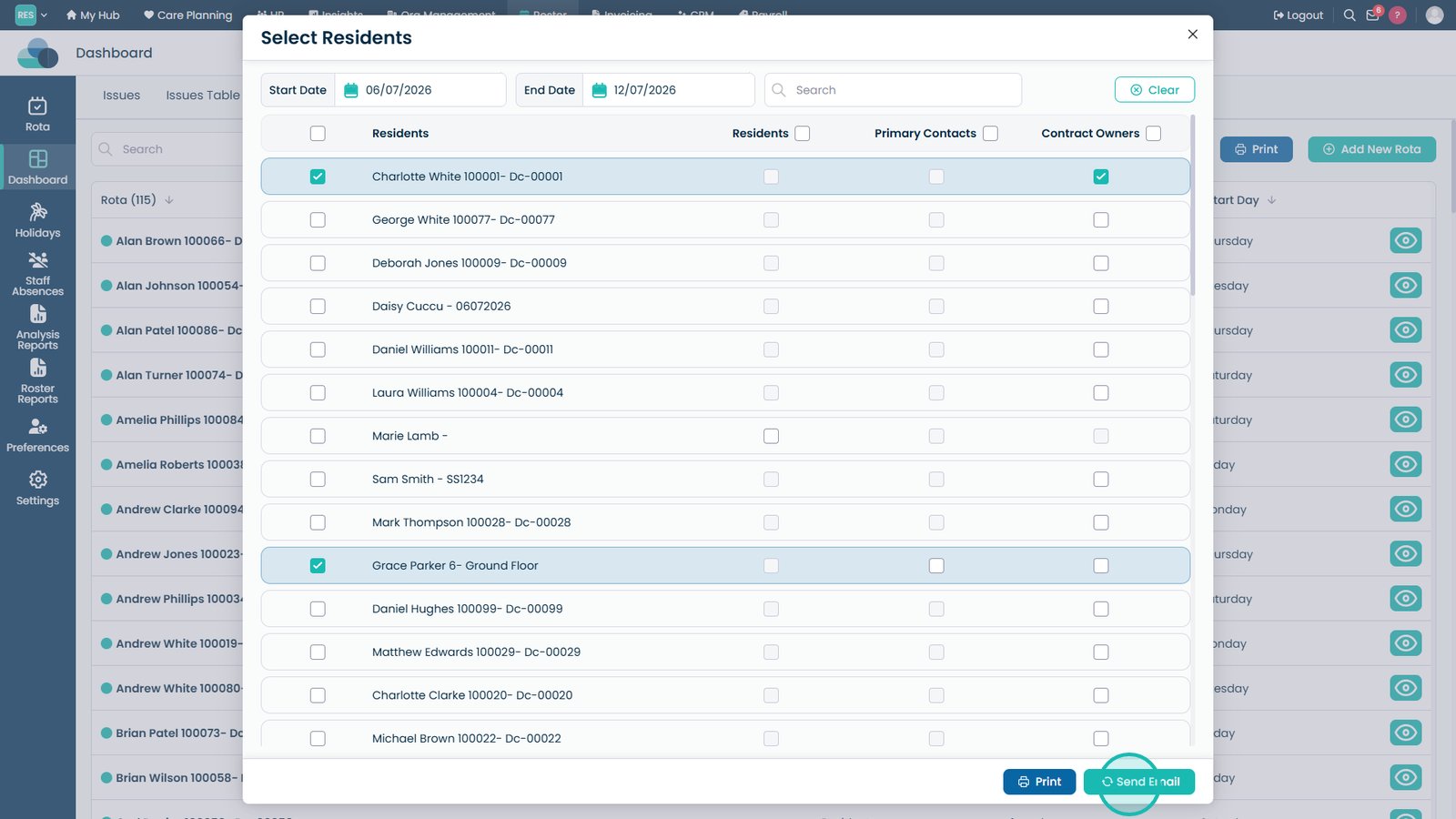
Select Send Email to email the rota to the selected recipients.

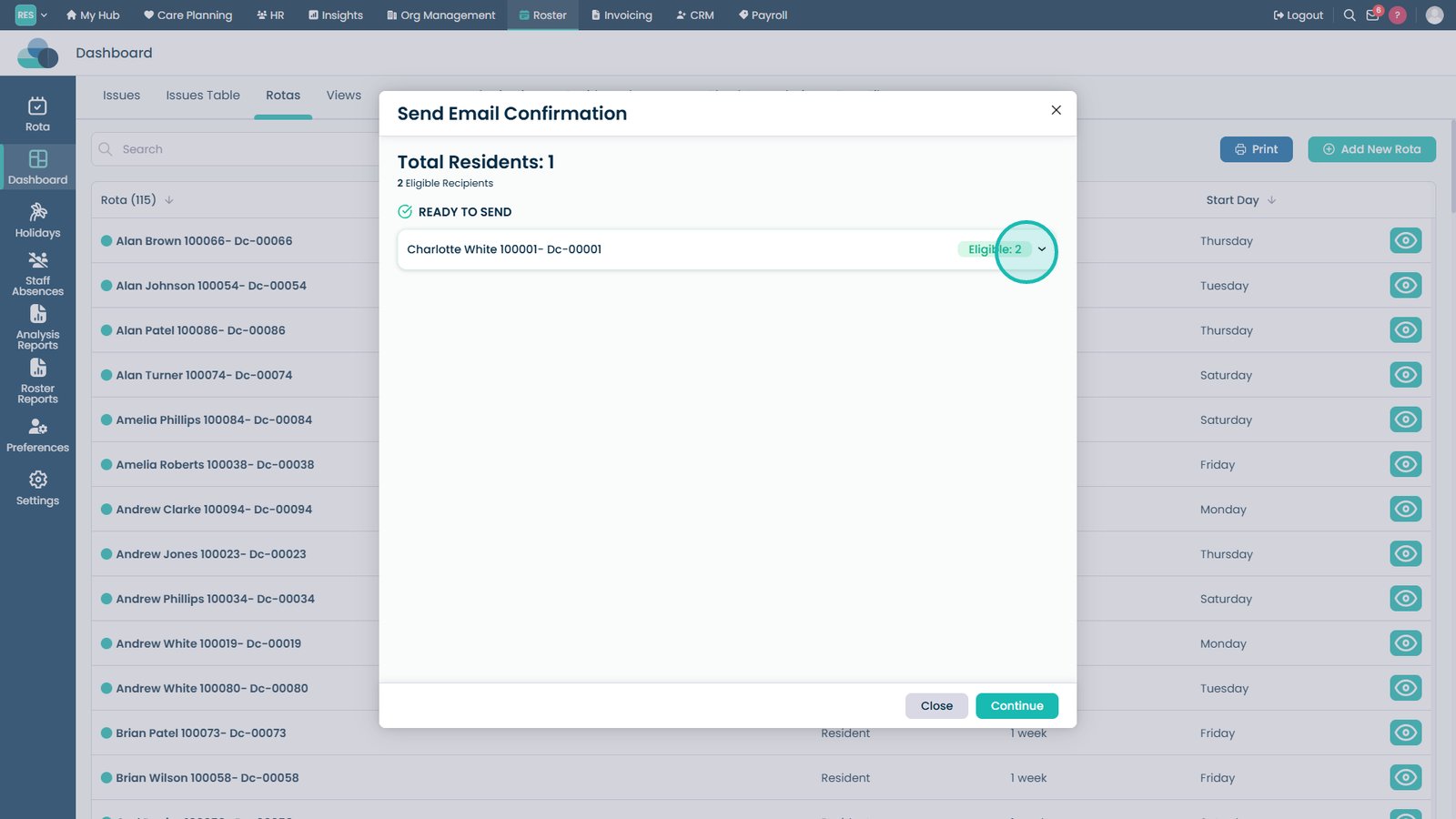
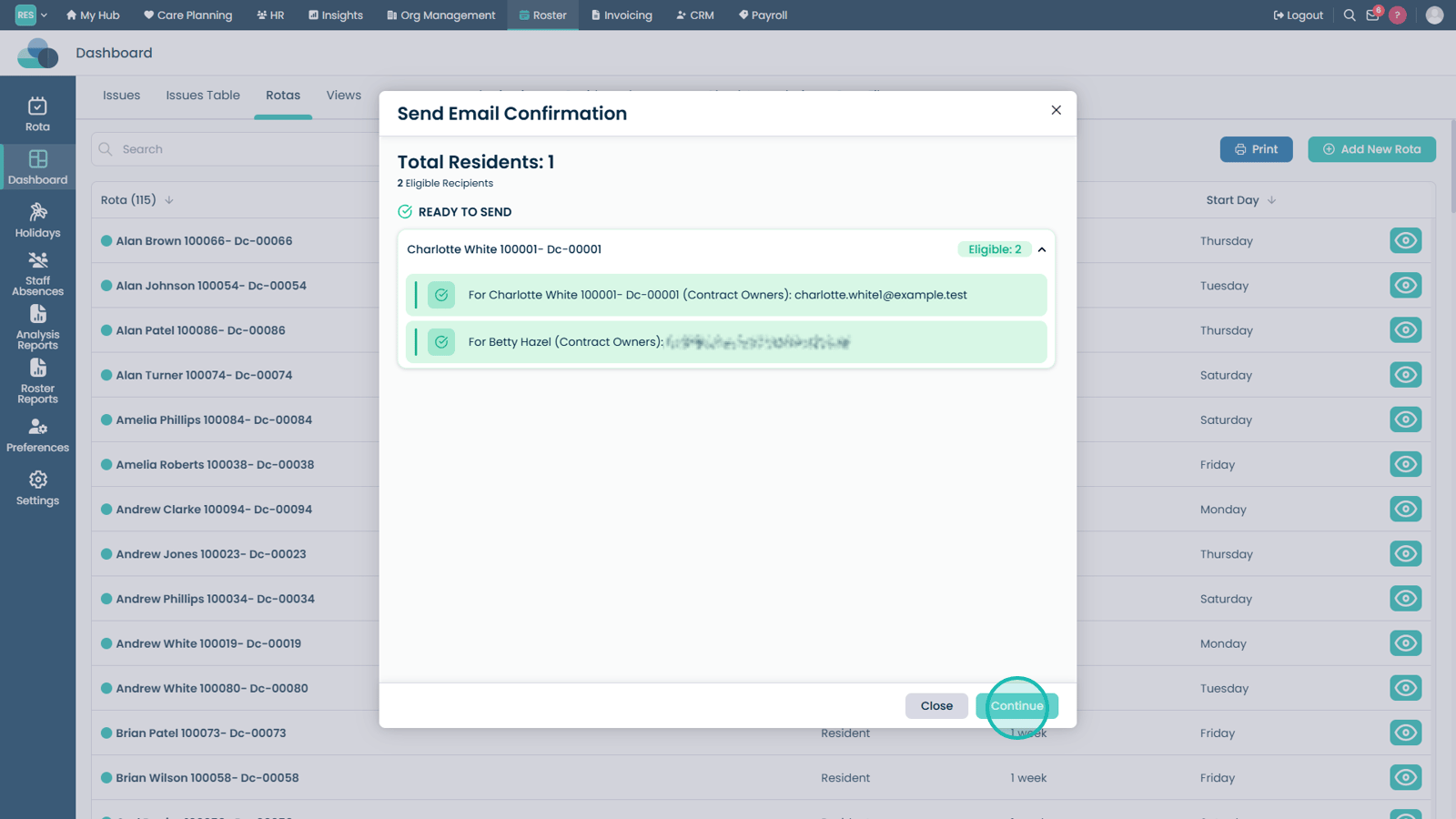
Review the recipient list to confirm who will receive the email.

Select Continue to send the email.

Top tip
Always check the selected date range and email recipients before printing or sending the rota to ensure the correct schedule is shared.
Need more help?
Can't find what you're looking for? Our support team is here to help.
Contact SupportOr call us on