View Categories

How to Complete a Formal Handover

Learn how to review and complete a Formal Handover in Care Planning. This guide covers reviewing handover information, filtering notes, using the summary and AI assistant, marking each area as reviewed, and completing the handover.
Takes 10 minutes
For: Managers
Updated: 21st Sept 2026

Introduction

Formal Handovers provide a structured way to review important information from a previous shift or period of care. Each handover is split into areas that can be reviewed individually, helping staff work through relevant updates in a consistent way.

You can search and filter handover notes, review information from a selected time period, open individual records for more detail, and use the summary tools to bring key information together. Once an area has been reviewed, it can be marked as complete before moving on to the next part of the handover.

In this guide you'll learn how to:

  • Open and review a Formal Handover
  • Search and filter handover information
  • Review notes from a selected time period
  • Use the handover summary and AI assistant
  • Mark each handover area as reviewed
  • Complete the Formal Handover

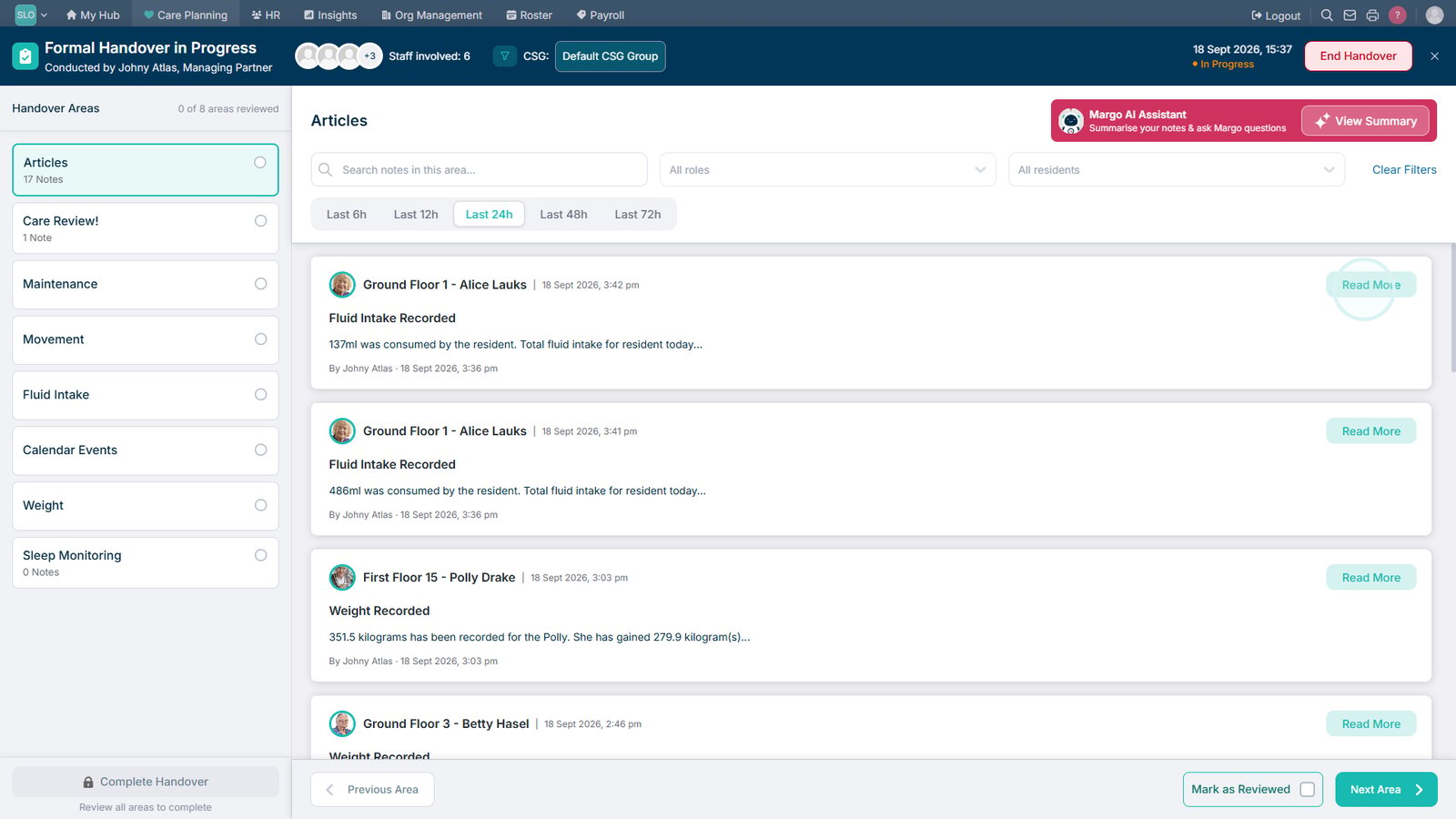
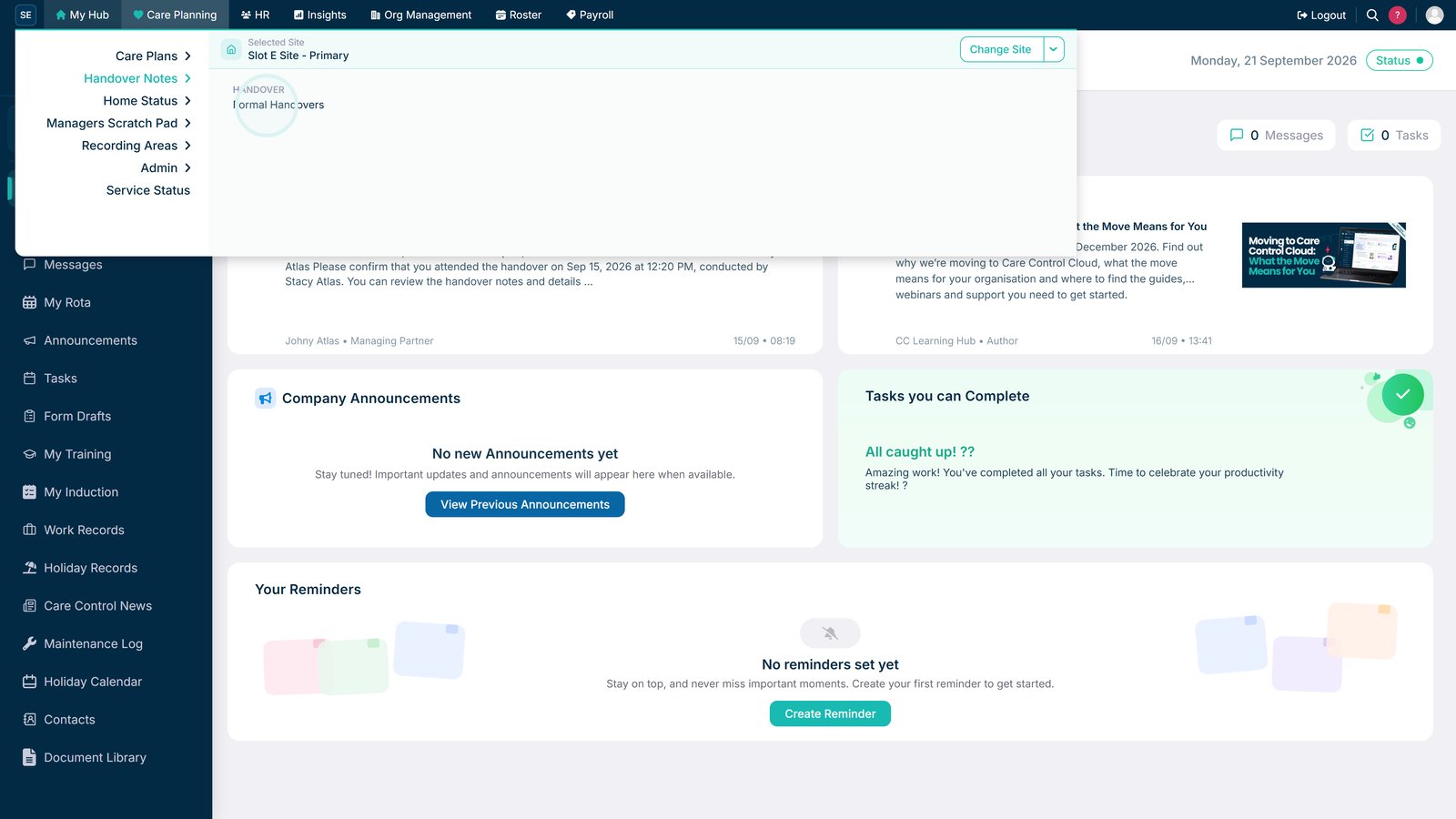
Open Formal Handovers within Care Planning.

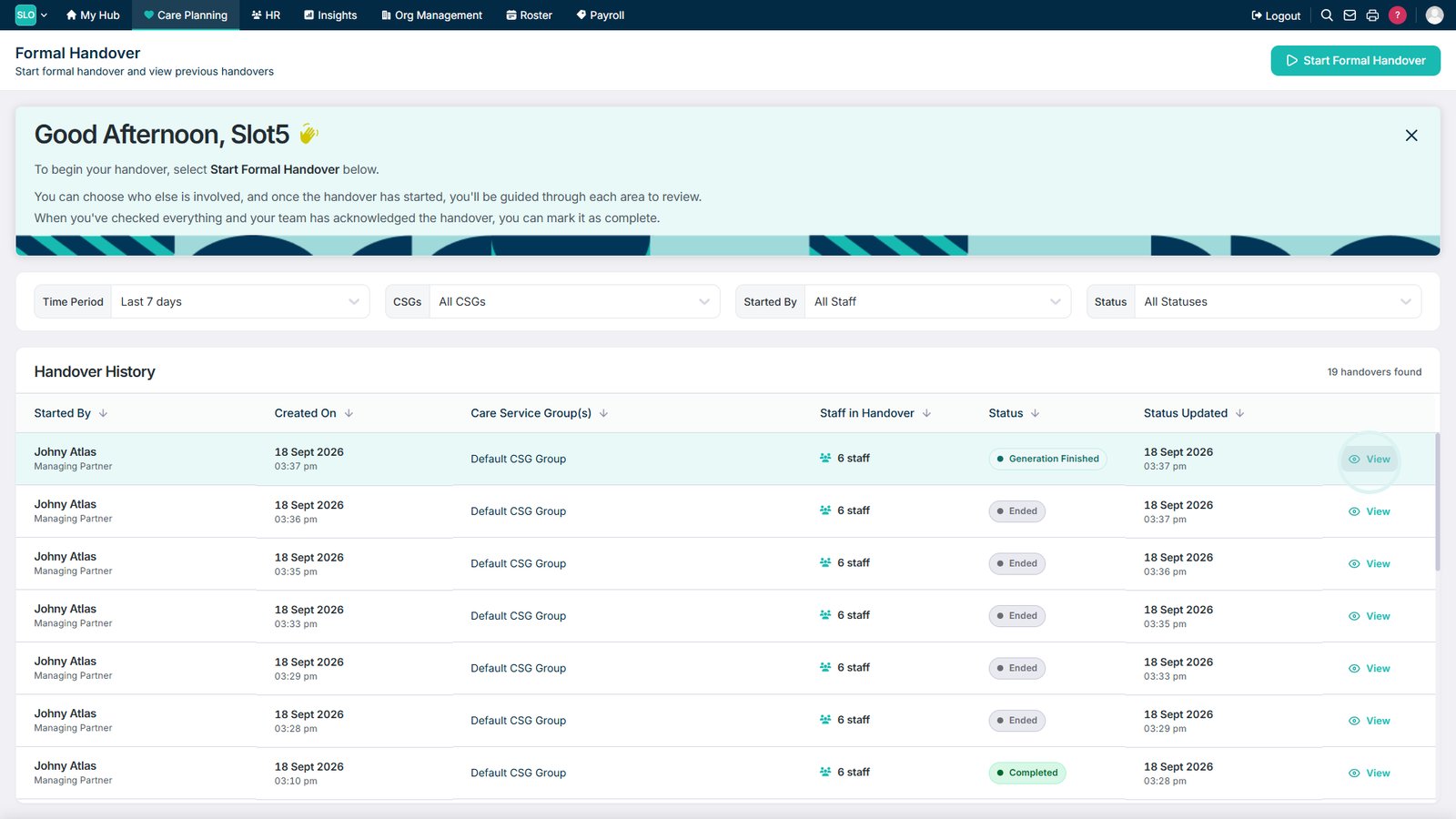
Select View on the latest handover.

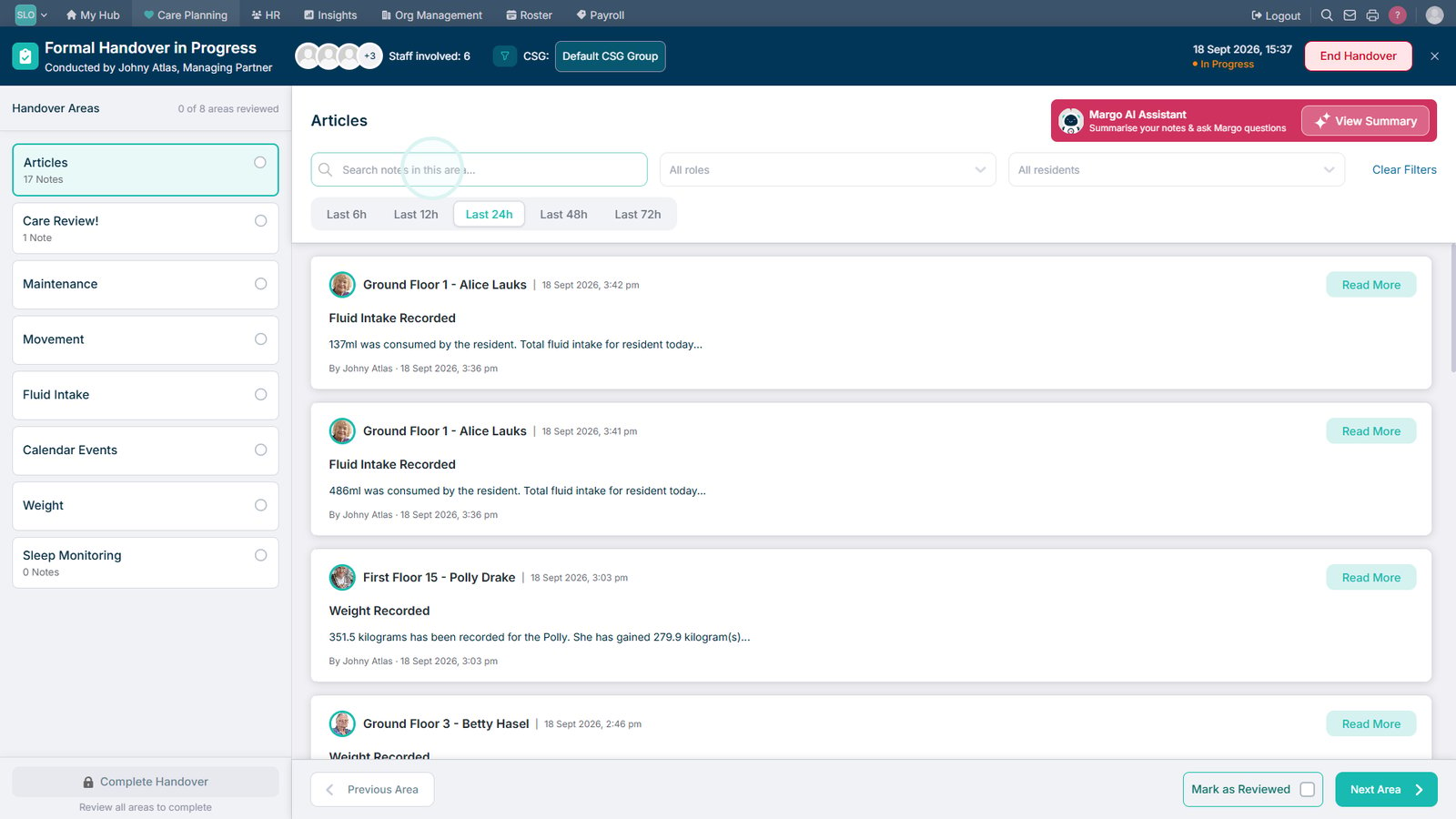
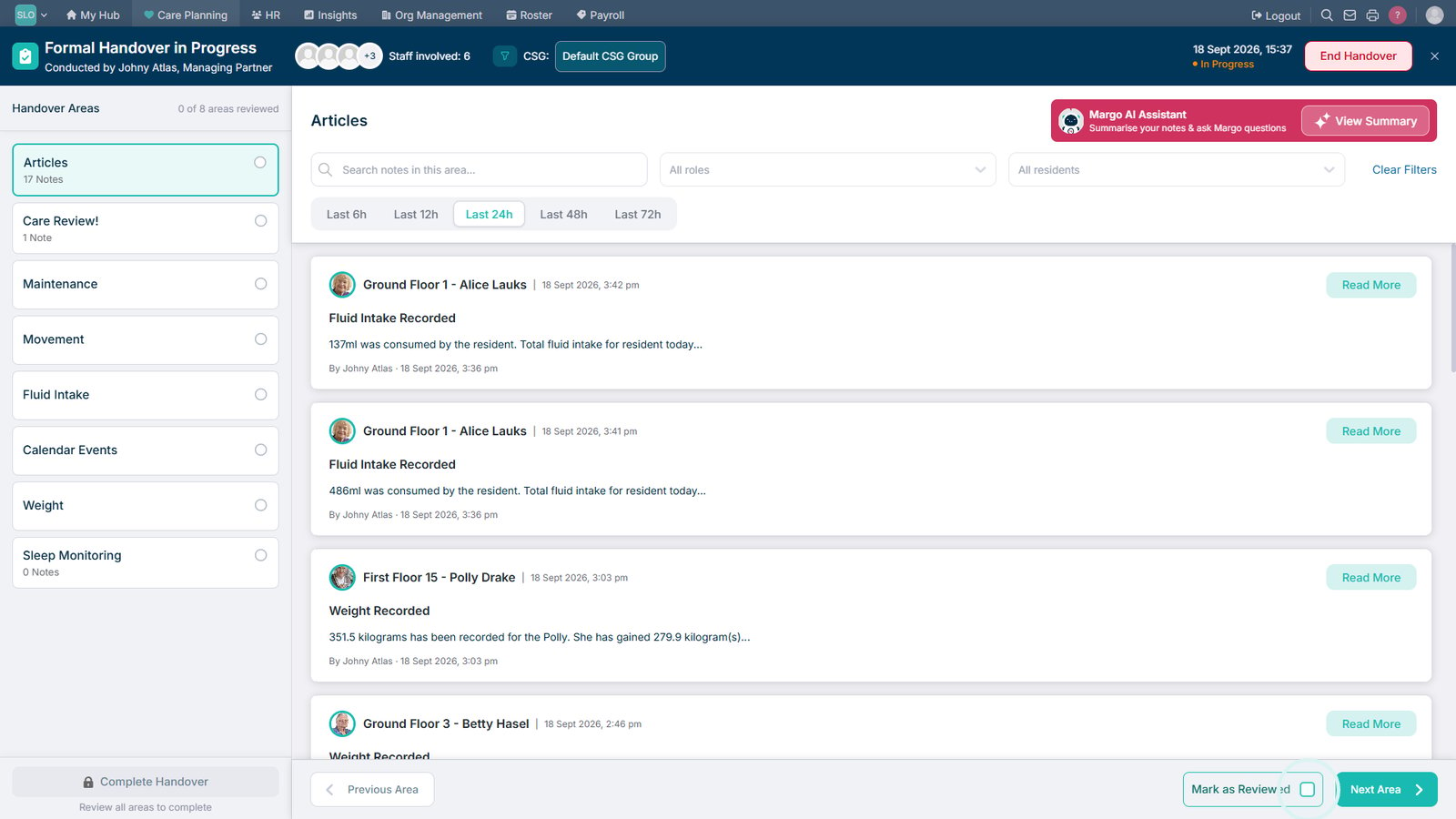
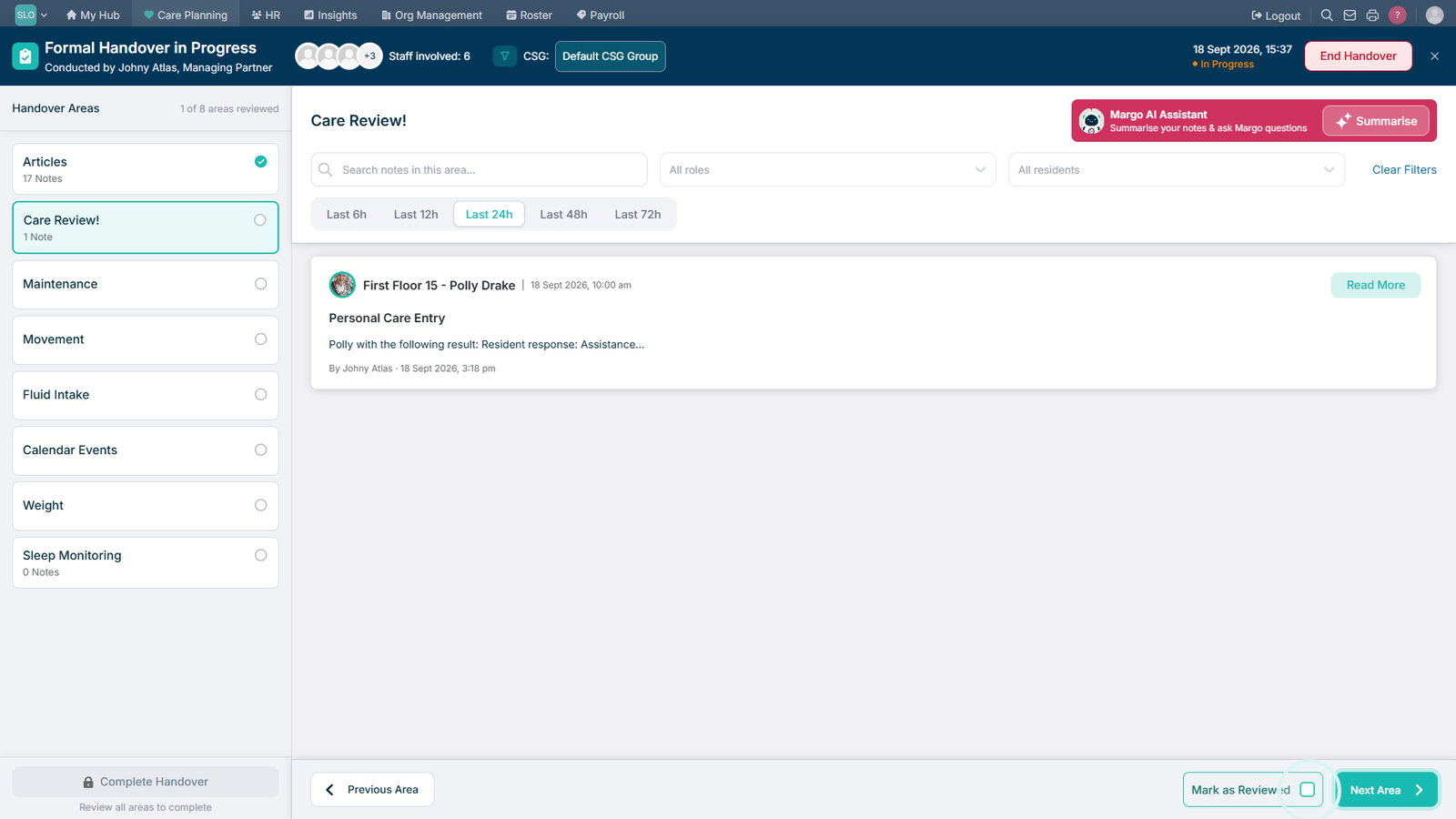
Use the search box to find specific notes within the Articles area.

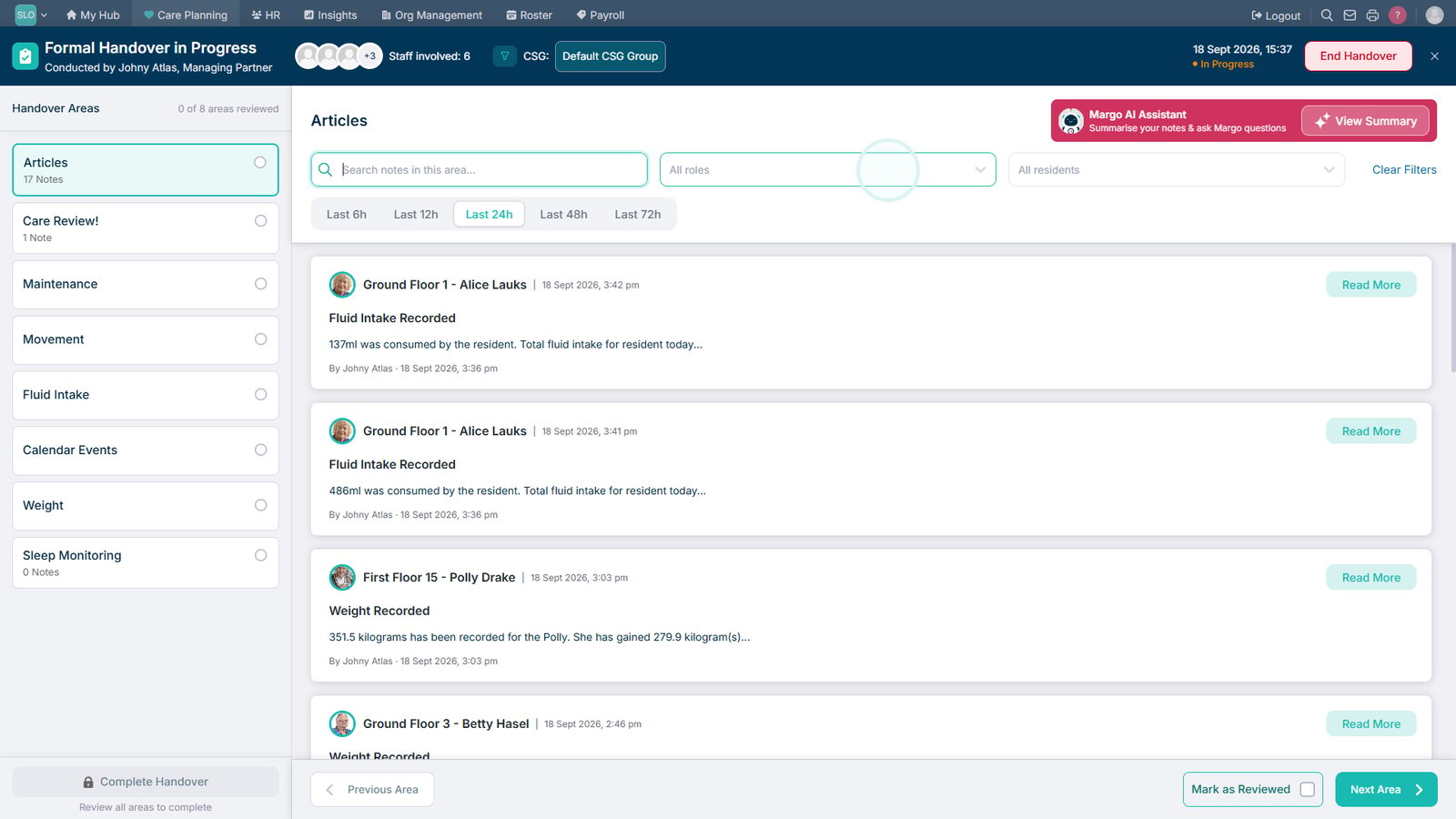
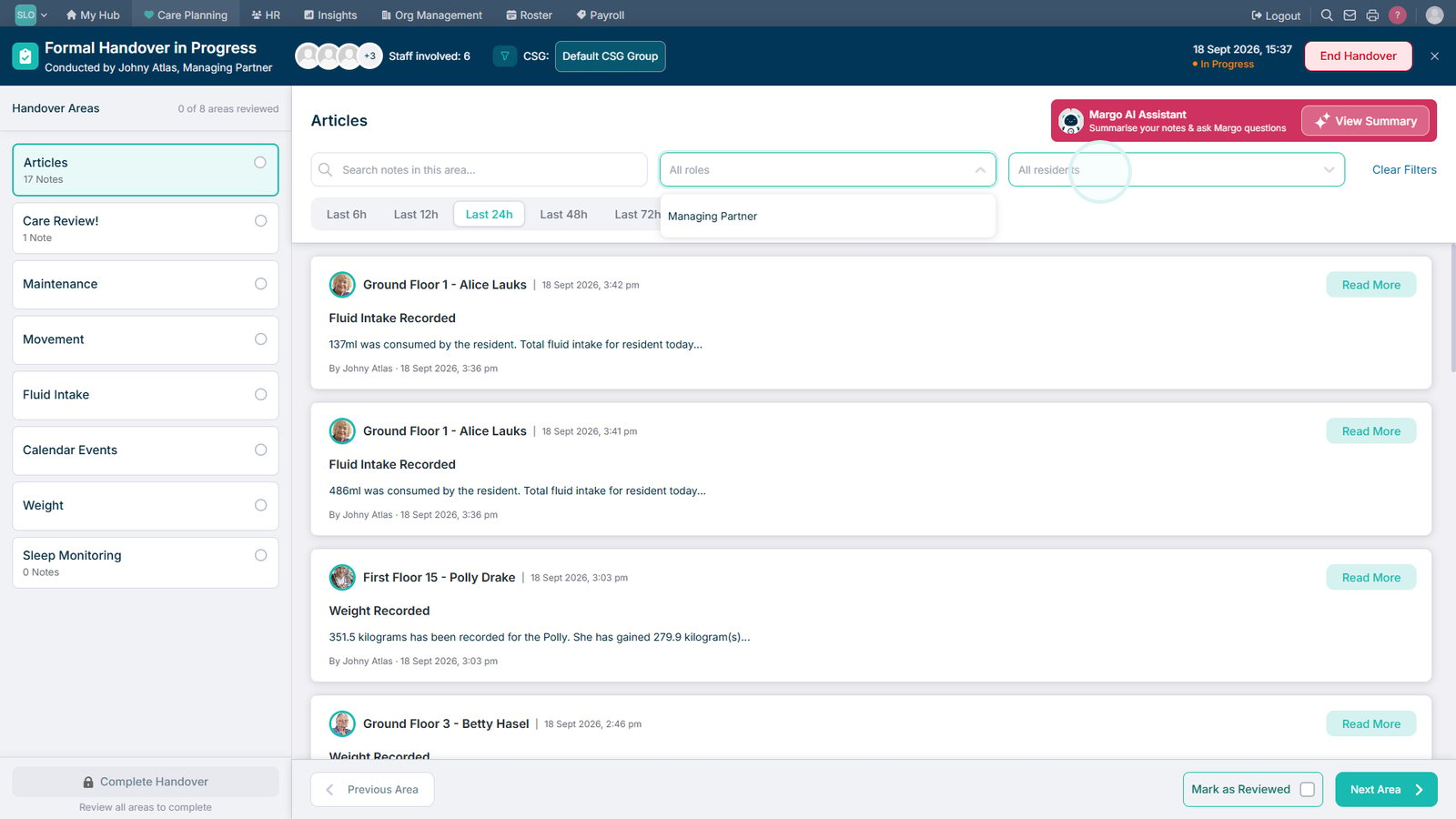
Filter the handover information by staff role if required.

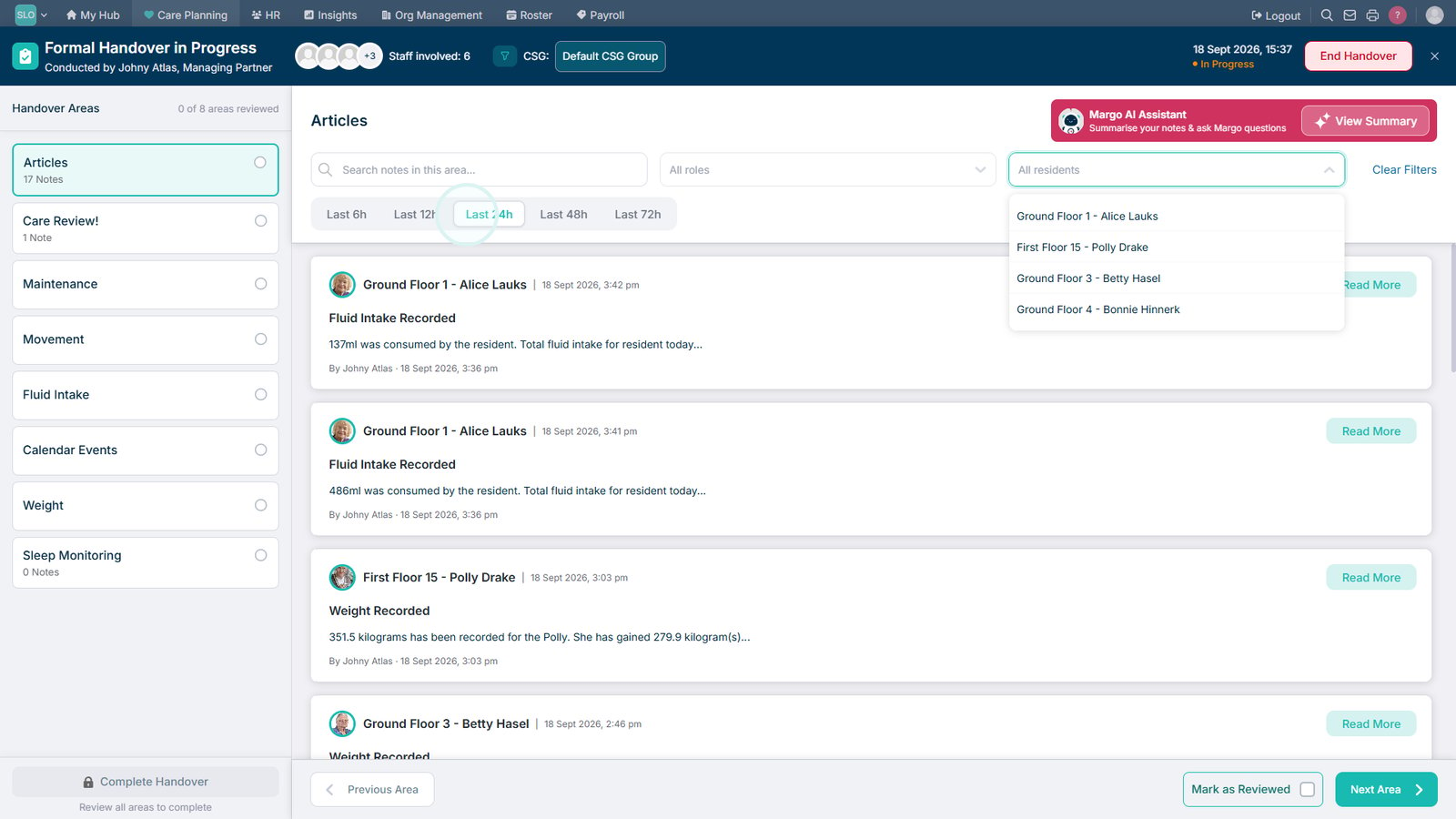
Filter the information by service user to focus on their records.

Select the time period you want to review, from the last 6 hours up to 72 hours.

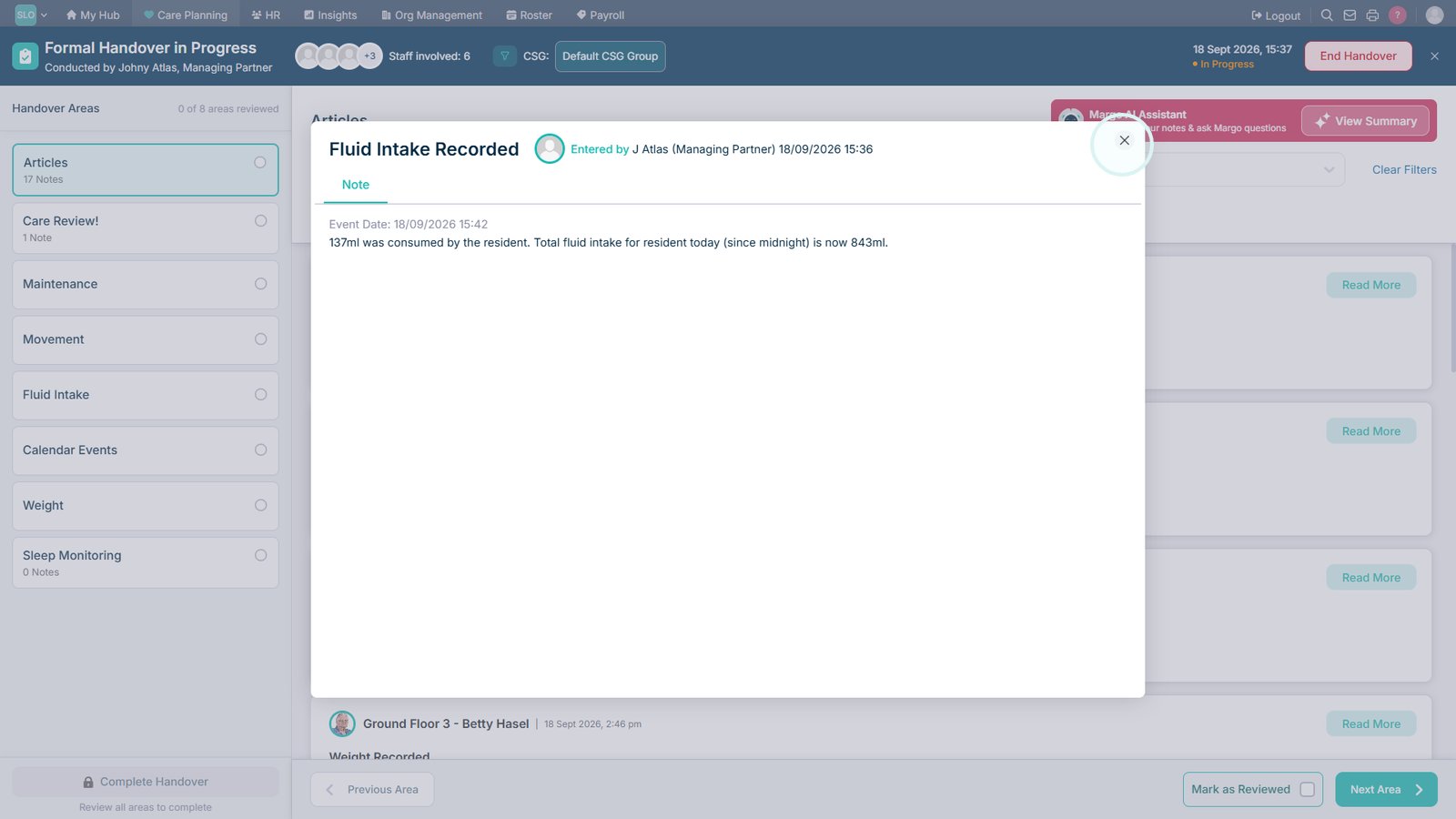
Select Read More to view the full details of a note.

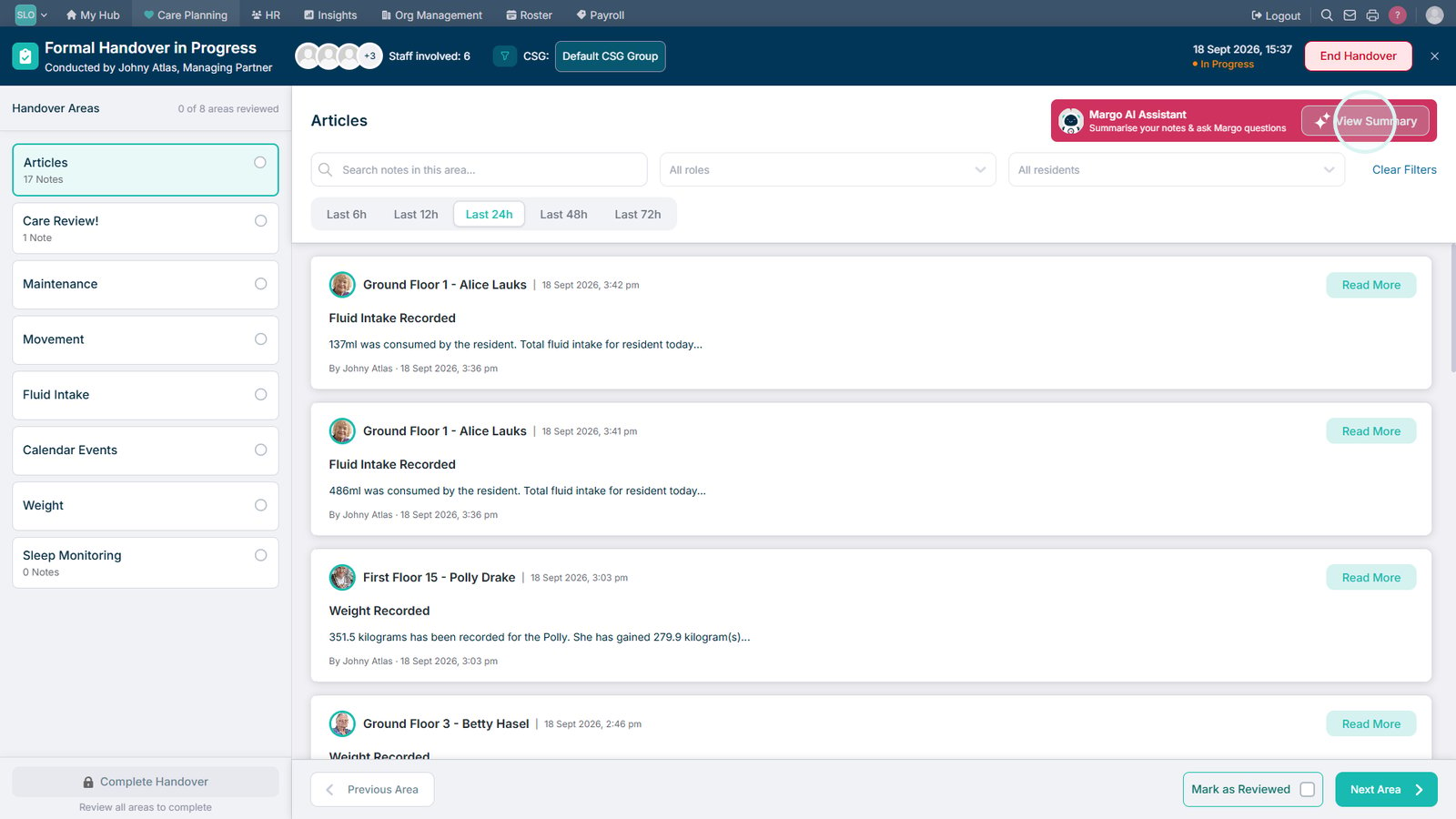
Close the detailed view to return to the handover overview.

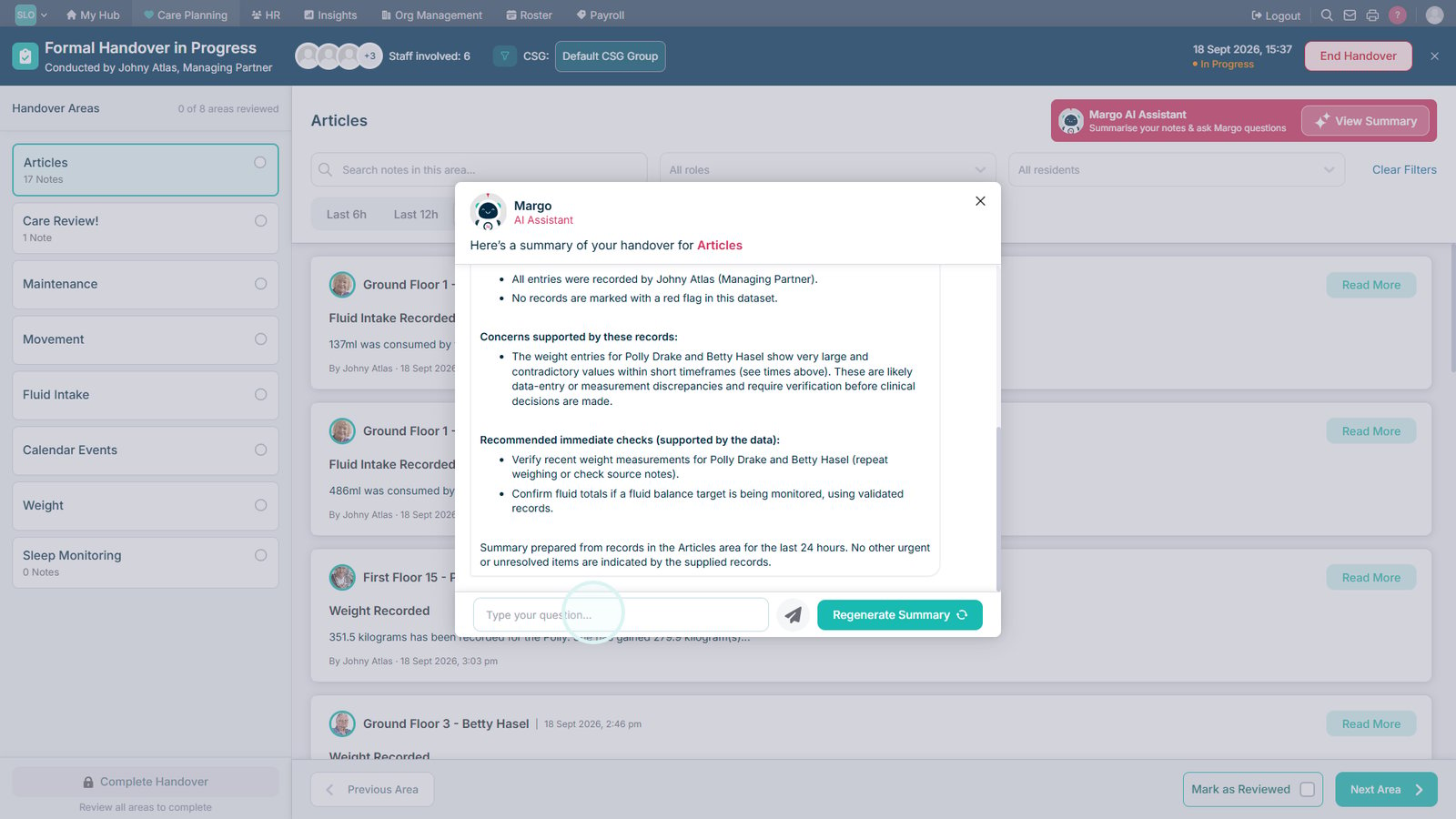
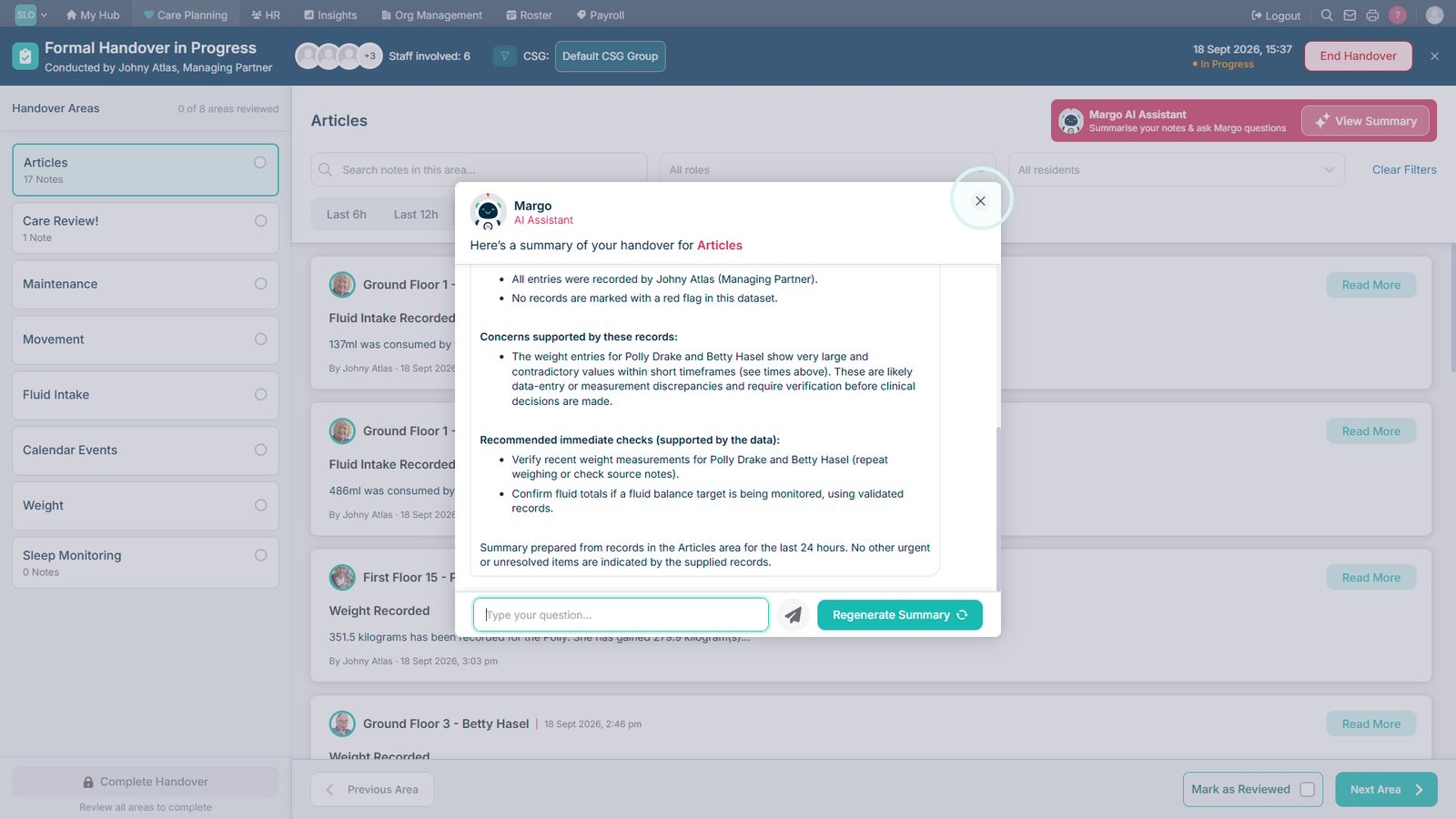
Open the summary to review the handover information in one place.

Enter a question for the AI assistant to explore the handover information further.

Close the summary to continue reviewing the handover.

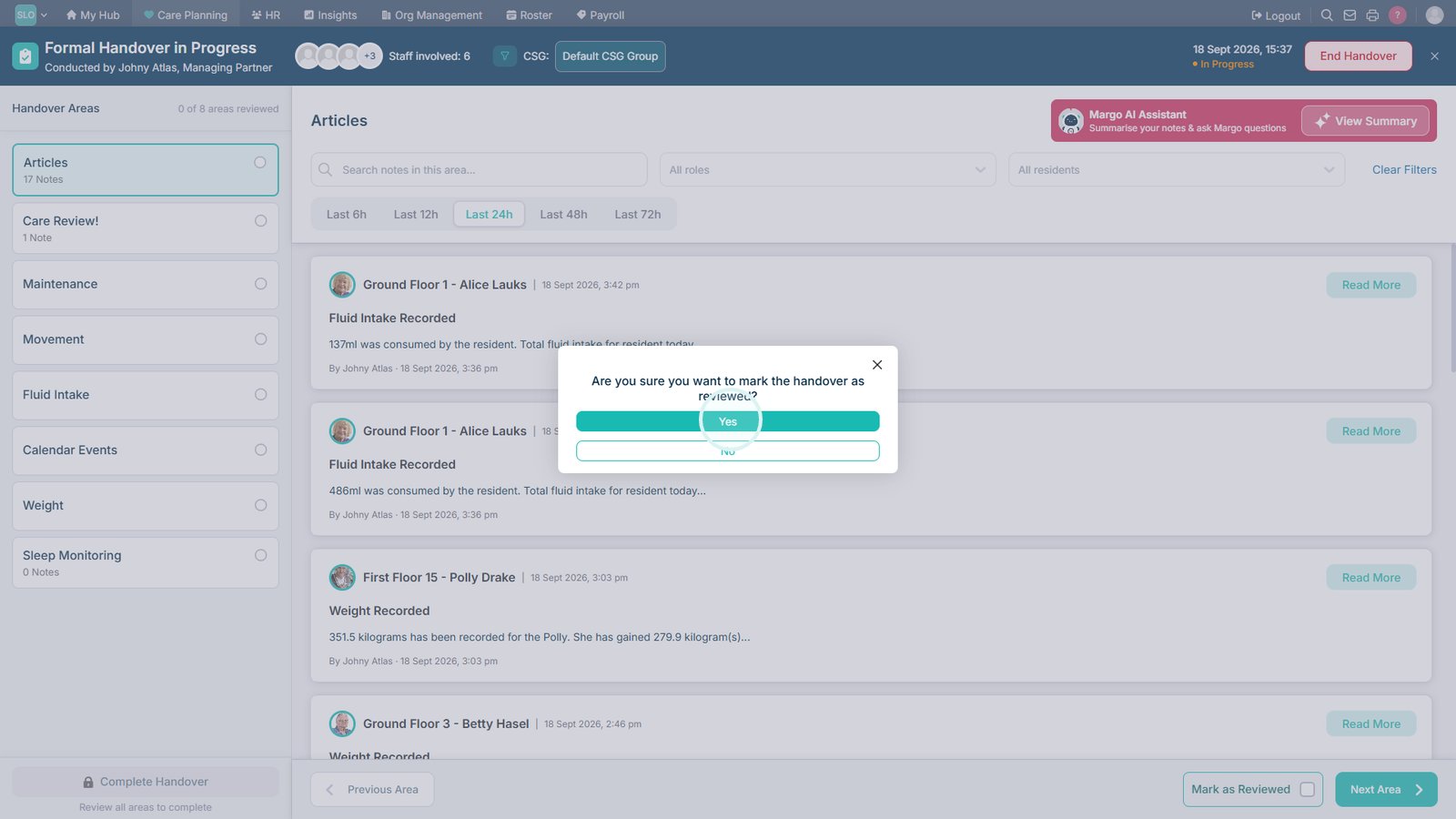
Mark the Articles area as reviewed once you have finished checking the information.

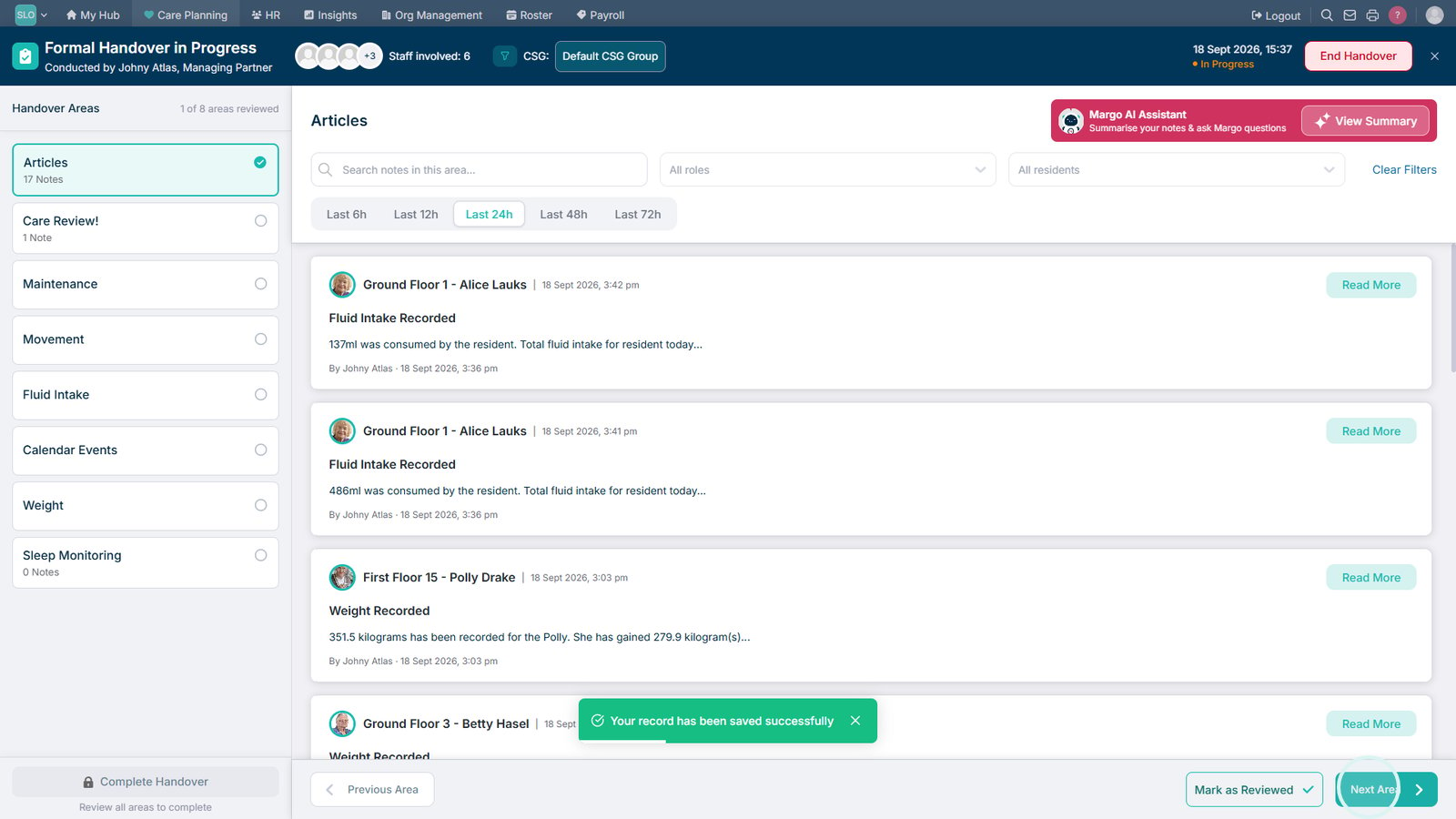
Confirm that you have reviewed the area.

Select Next Area to continue through the handover.

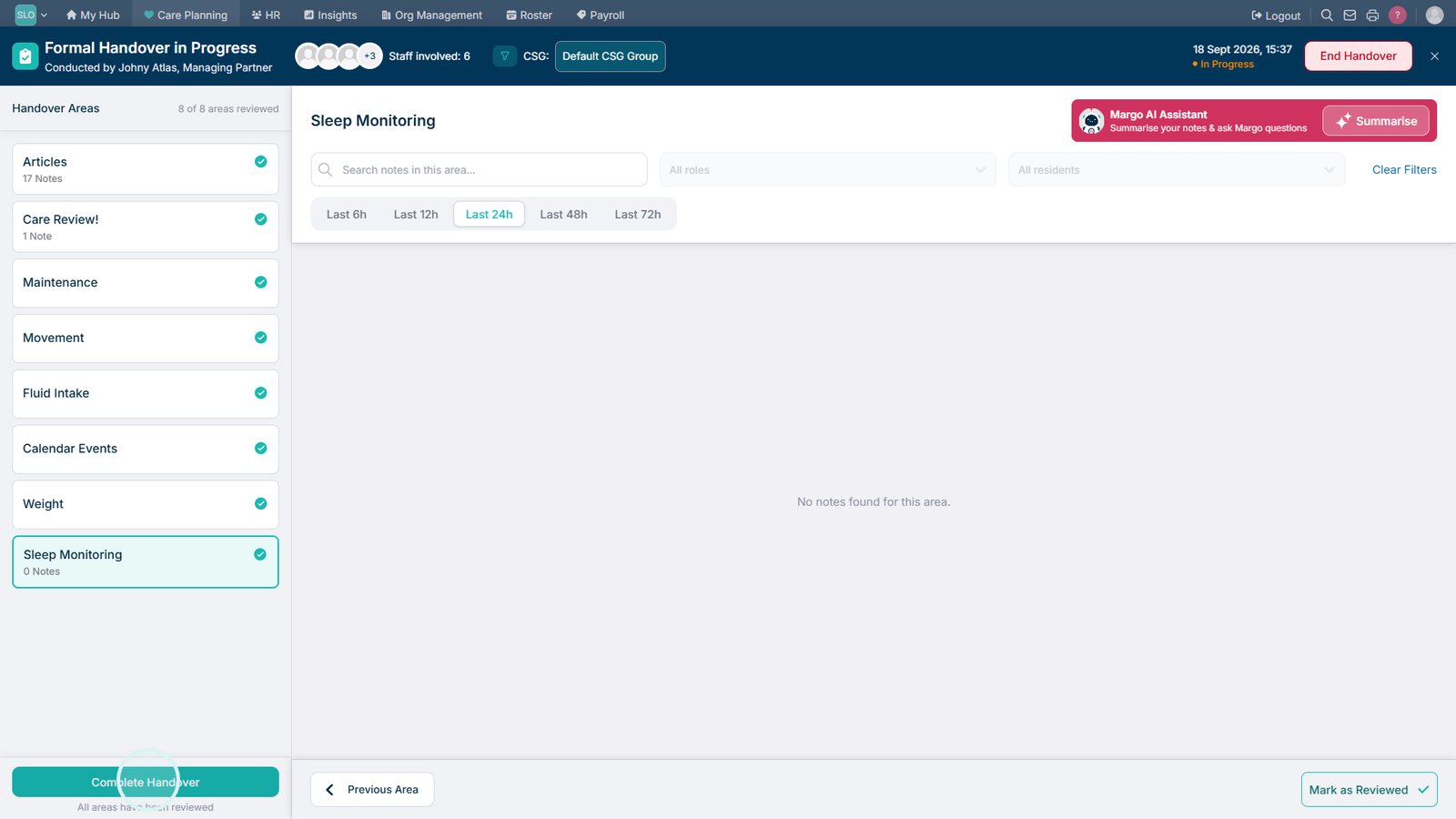
Continue reviewing each remaining handover area.

Select Complete Handover once all areas have been reviewed.

Top tip

Use the filters and summary tools to focus on the information most relevant to your handover, then mark each area as reviewed as you work through it.

Was this guide helpful?

Need more help?

Can't find what you're looking for? Our support team is here to help.

Contact Support

Or call us on

On this page