If a rota is no longer required, you can delete it with these simple steps.
Step 1:
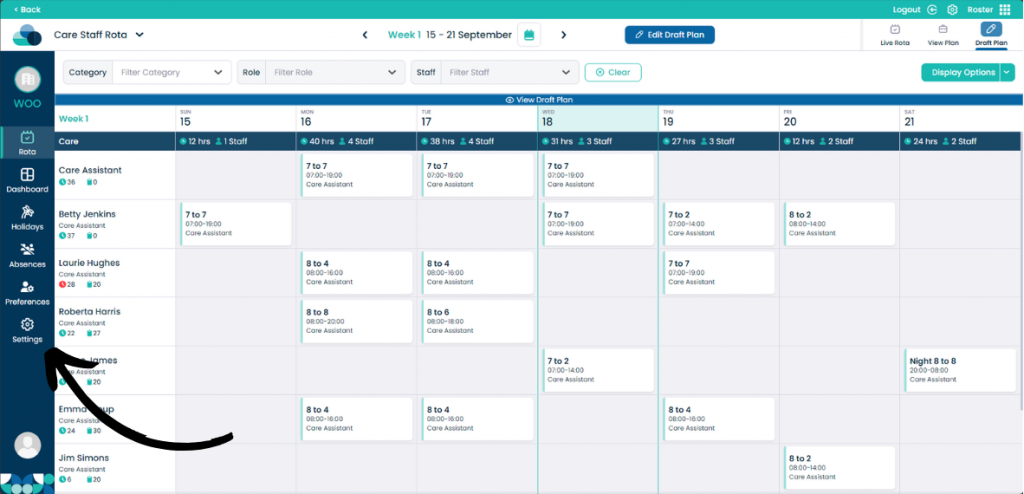
When looking at the rota screen, click the Settings button on the left hand pane.
Step 2:
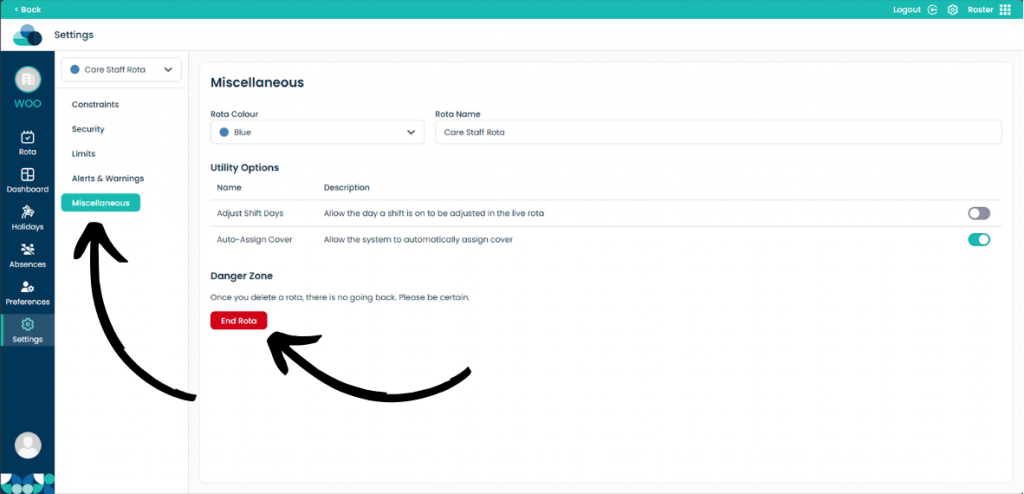
Ensure your rota is selected and then click Miscellaneous to open the new tab.
In here you can now click End Rota.
Step 3:
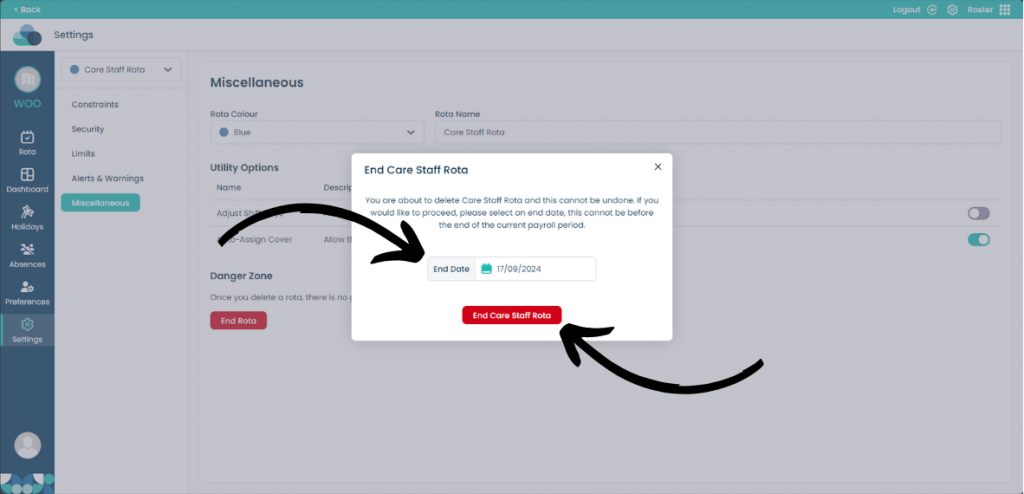
On this page you can select the End Date for the rota. This can be in the future on the same day. If selected on the same day, the rota will be deleted straight away.