Bank Holiday Closure Notice: We will be closed on the 3rd April for the Easter bank holiday, so our customer service team will not be available on this day. If you need to get in touch, you can still use our customer contact form and we will get back to you as soon as possible. Even better, Margo will still be available on our phone lines to help with your queries whenever you need support. We hope you have a lovely Easter weekend 🐣
View Categories
How to Accept & Create or Decline a Pending Service User in Cloud
This guide explains how to review and manage pending pre-assessment requests within the CRM app. From the Dashboard area, you can view service users awaiting action, review their submitted information, and decide whether to accept or decline the request.
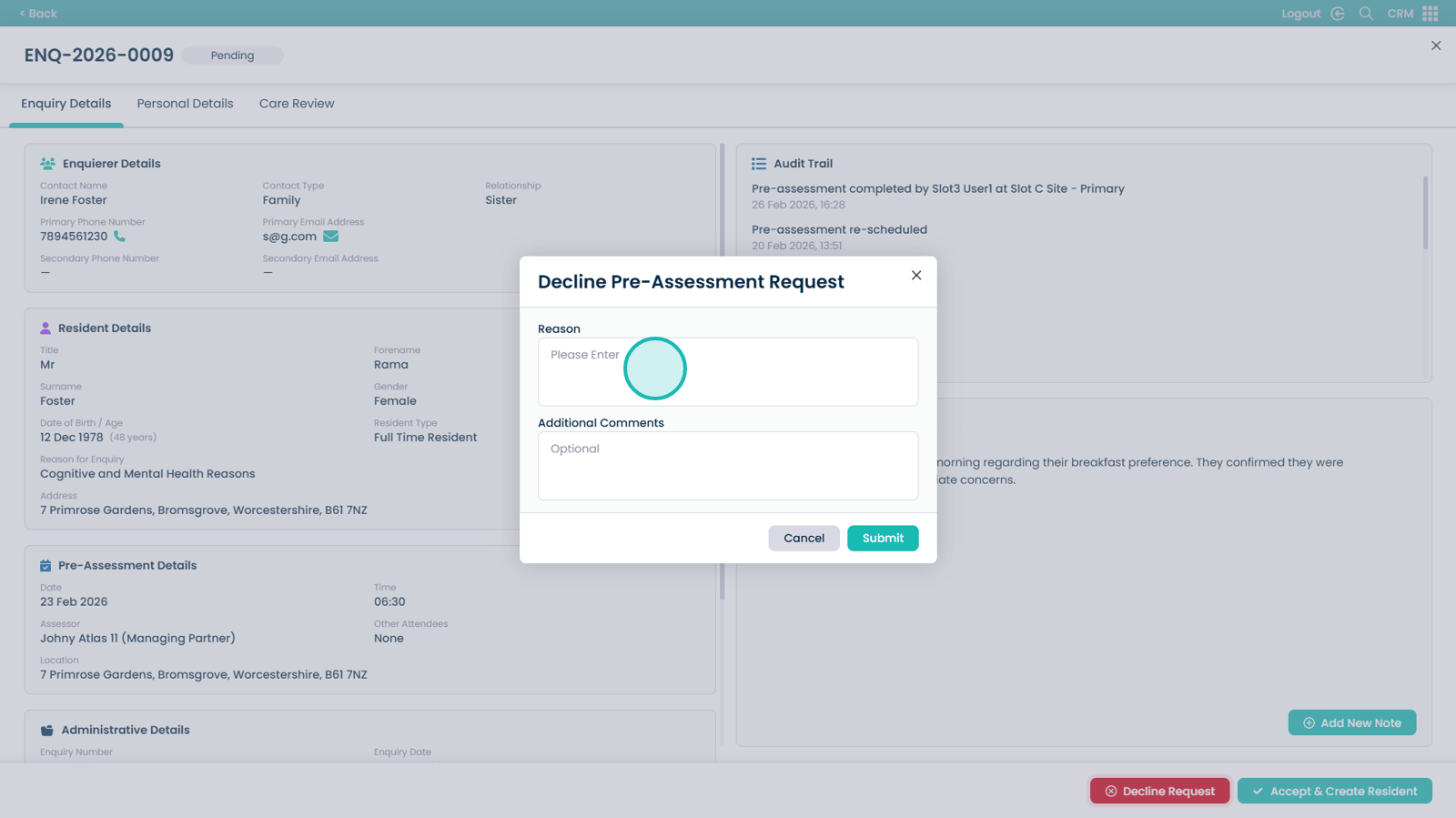
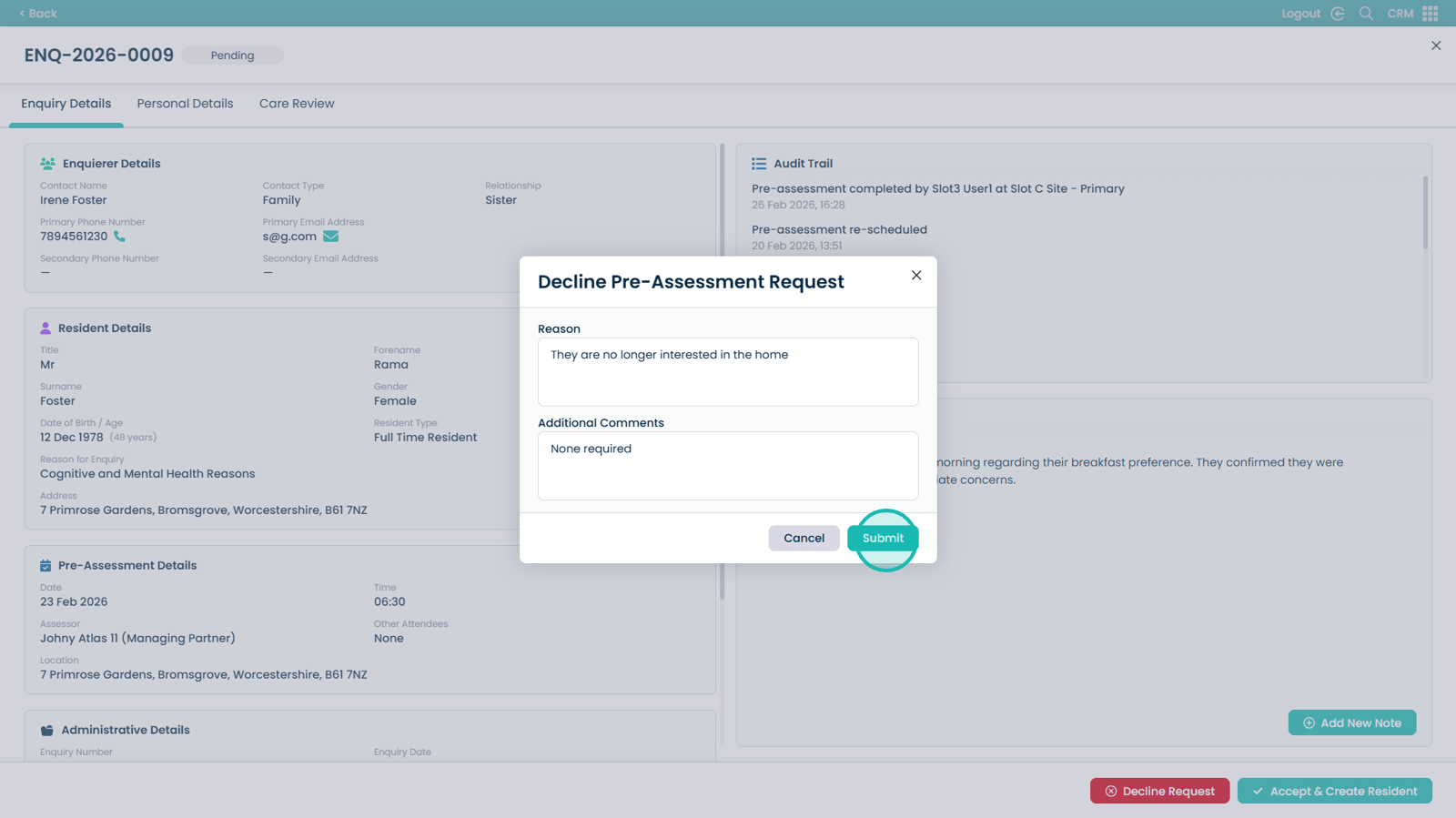
If accepted, you can create a new care plan directly from the pre-assessment information, allowing a smooth transition into care planning. If declined, you will be prompted to record a reason and any additional notes to ensure accurate documentation.
Following these steps ensures pre-assessment requests are handled consistently, transparently, and in line with your organisation’s onboarding process.
Interactive Guide
Text based guide
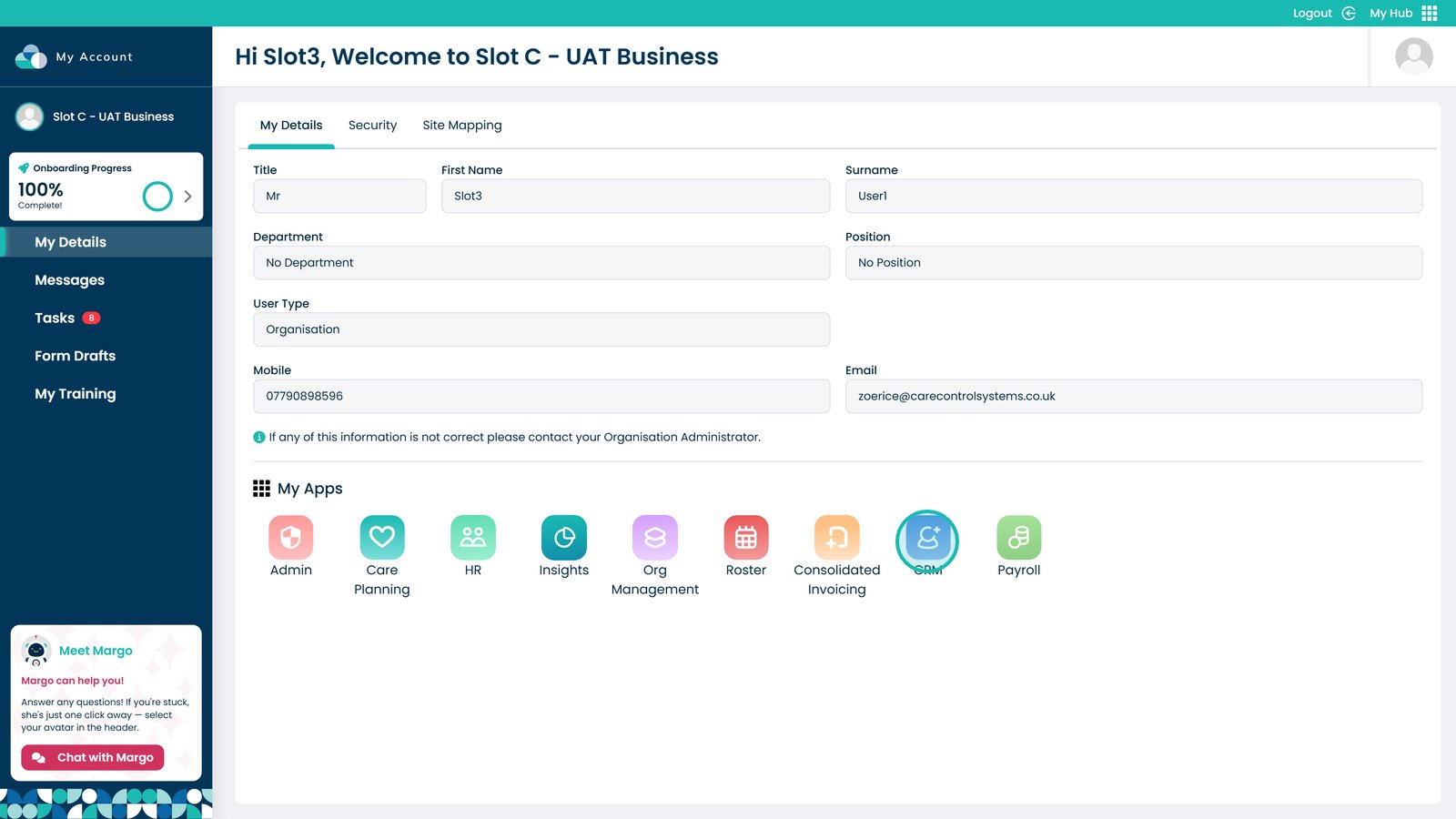
Enter the CRM App
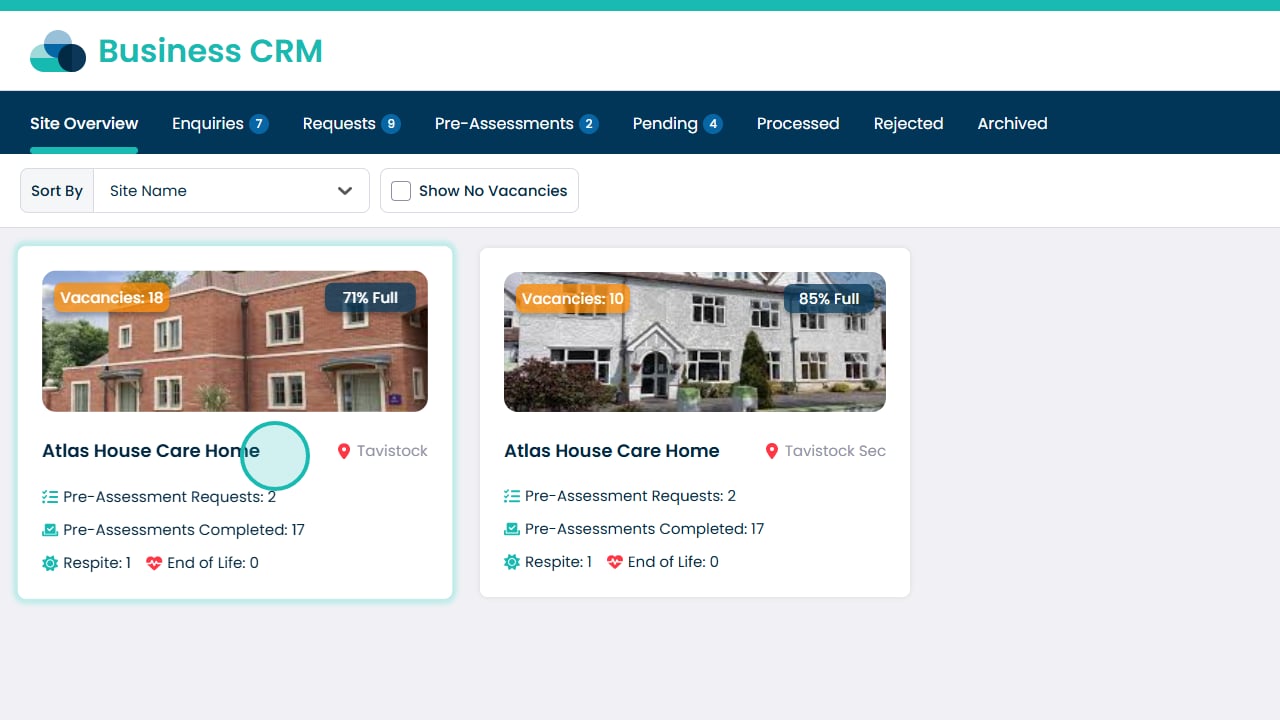
Open the home you wish to view further details for
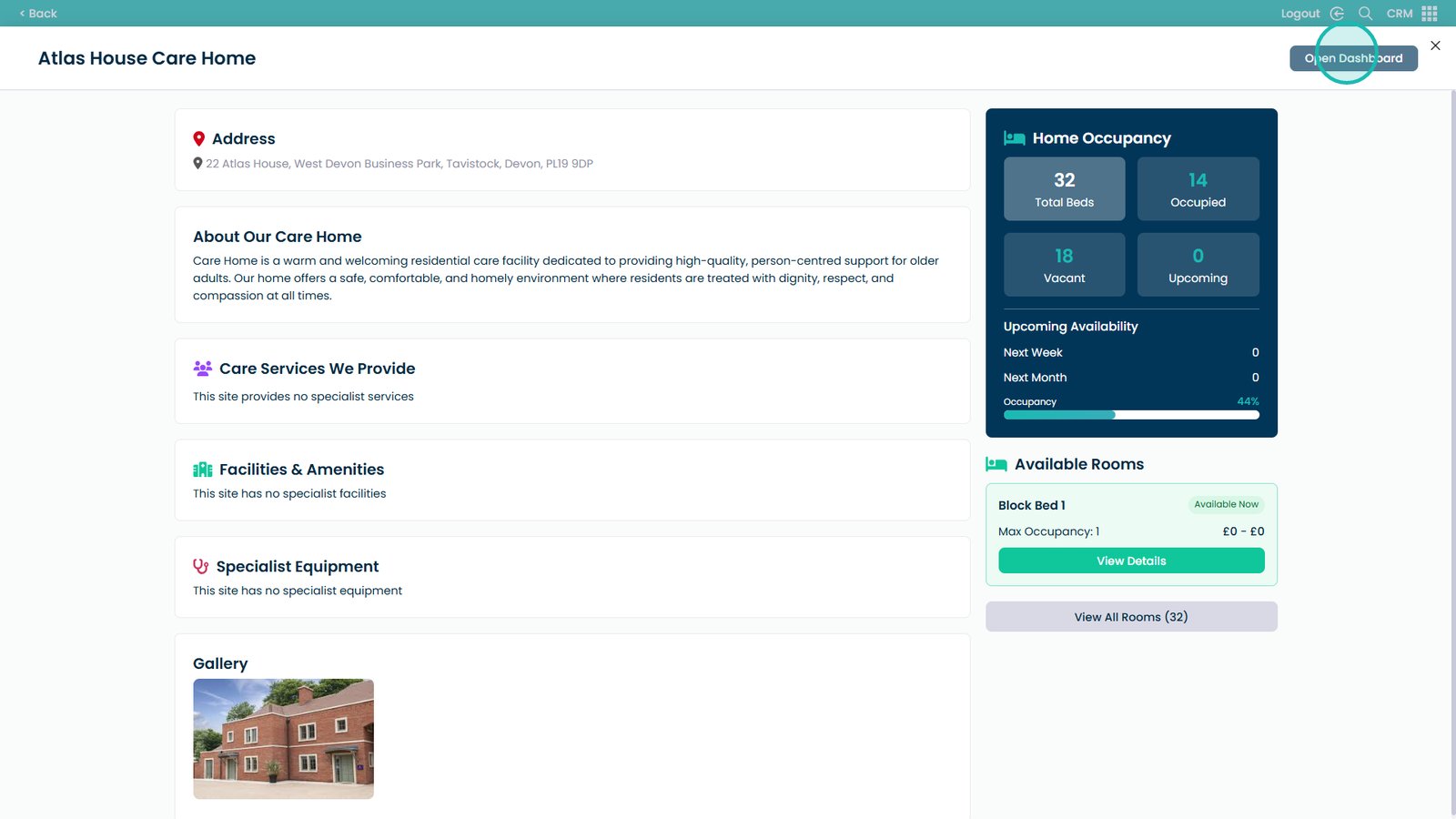
Open the Dashboard area
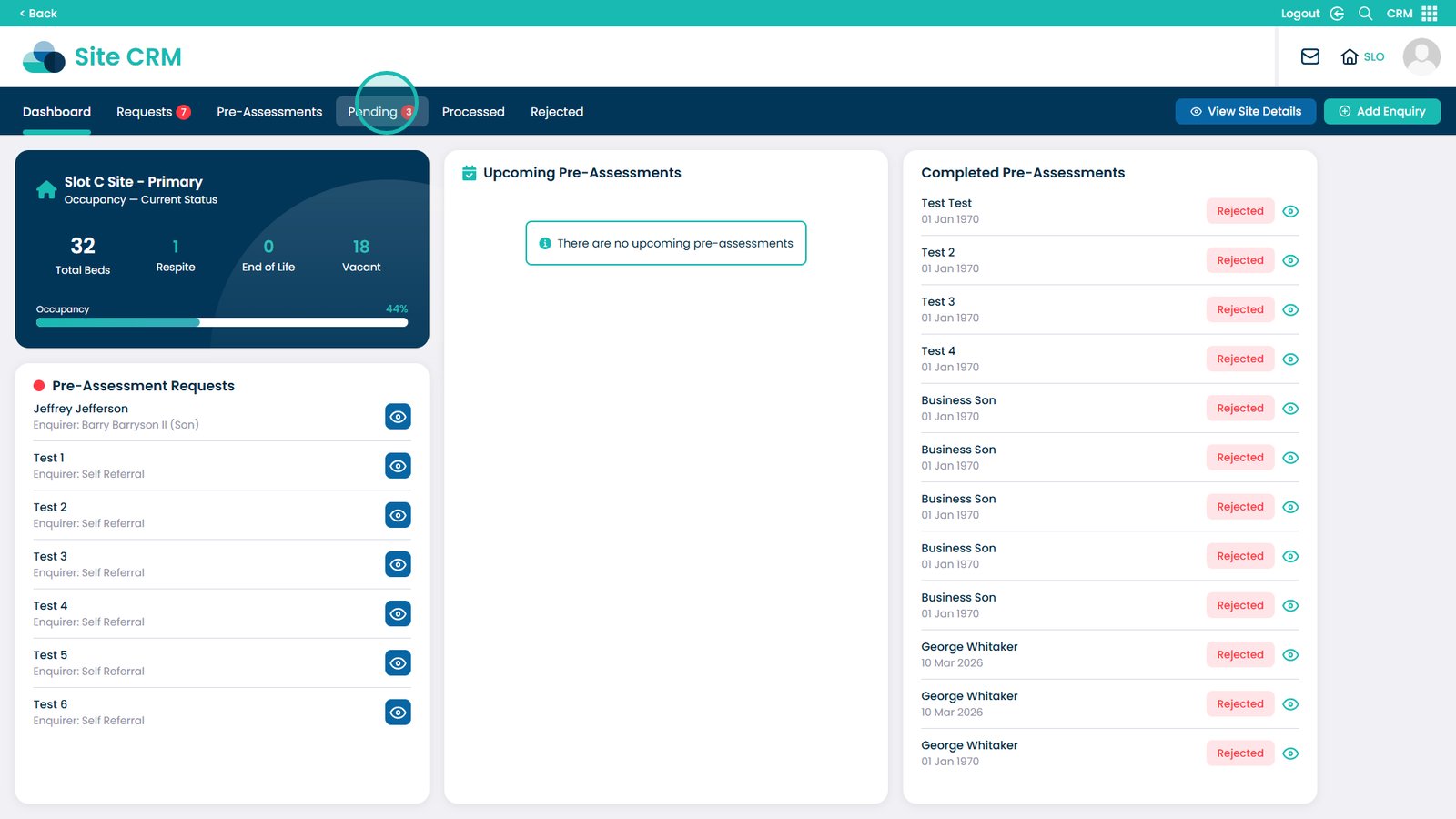
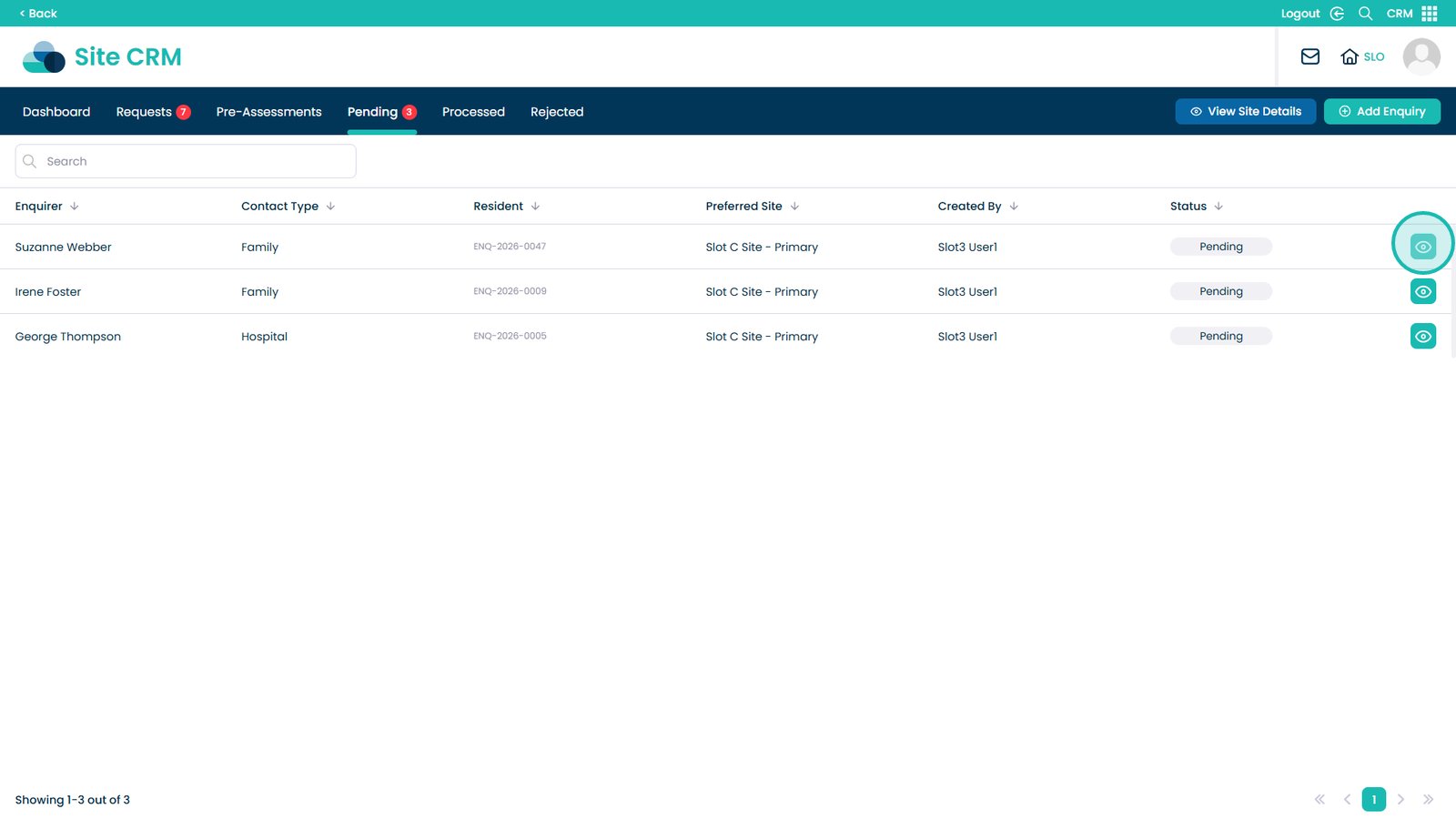
Select Pending
Click the eye icon for the service user you wish to view
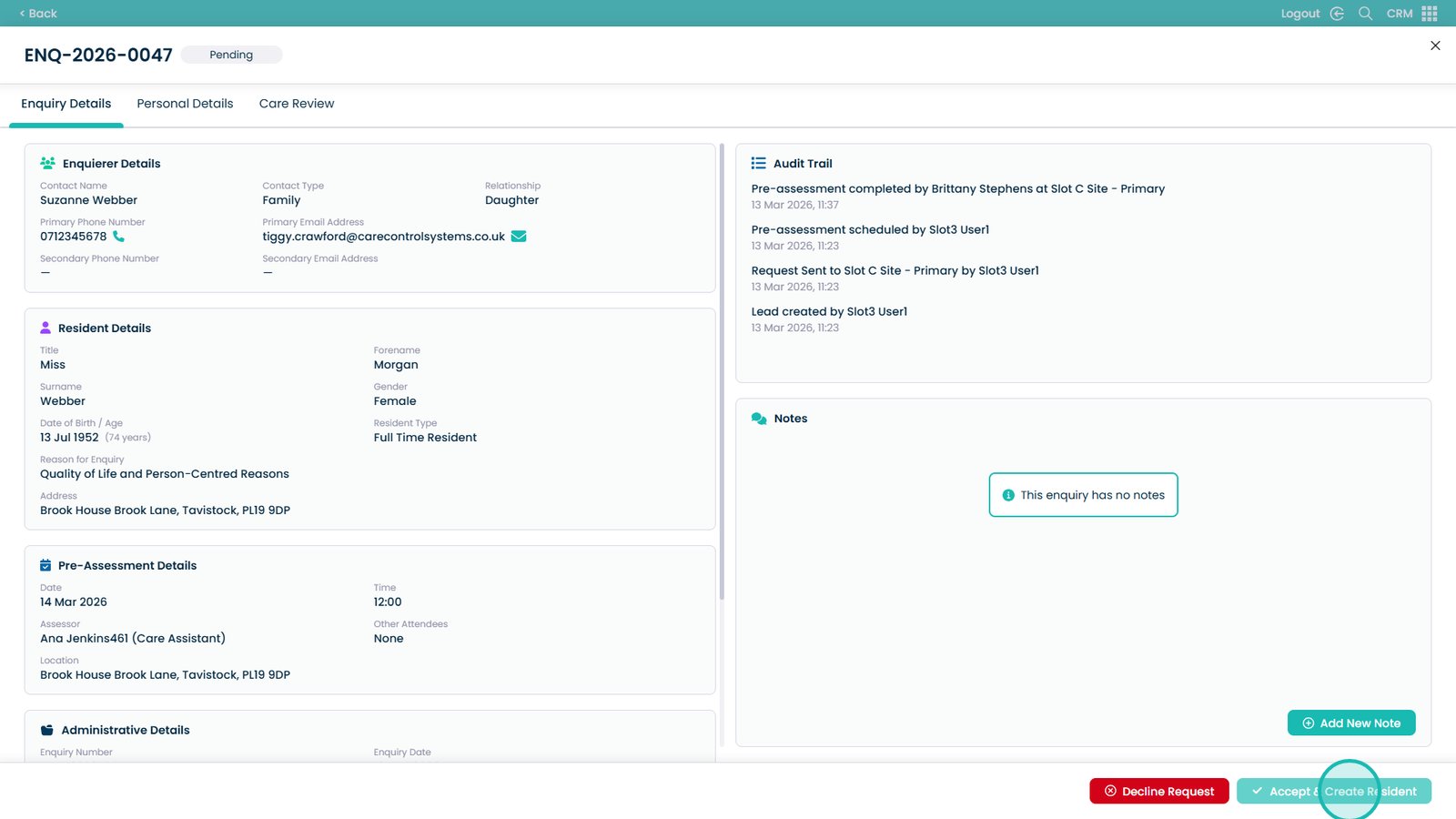
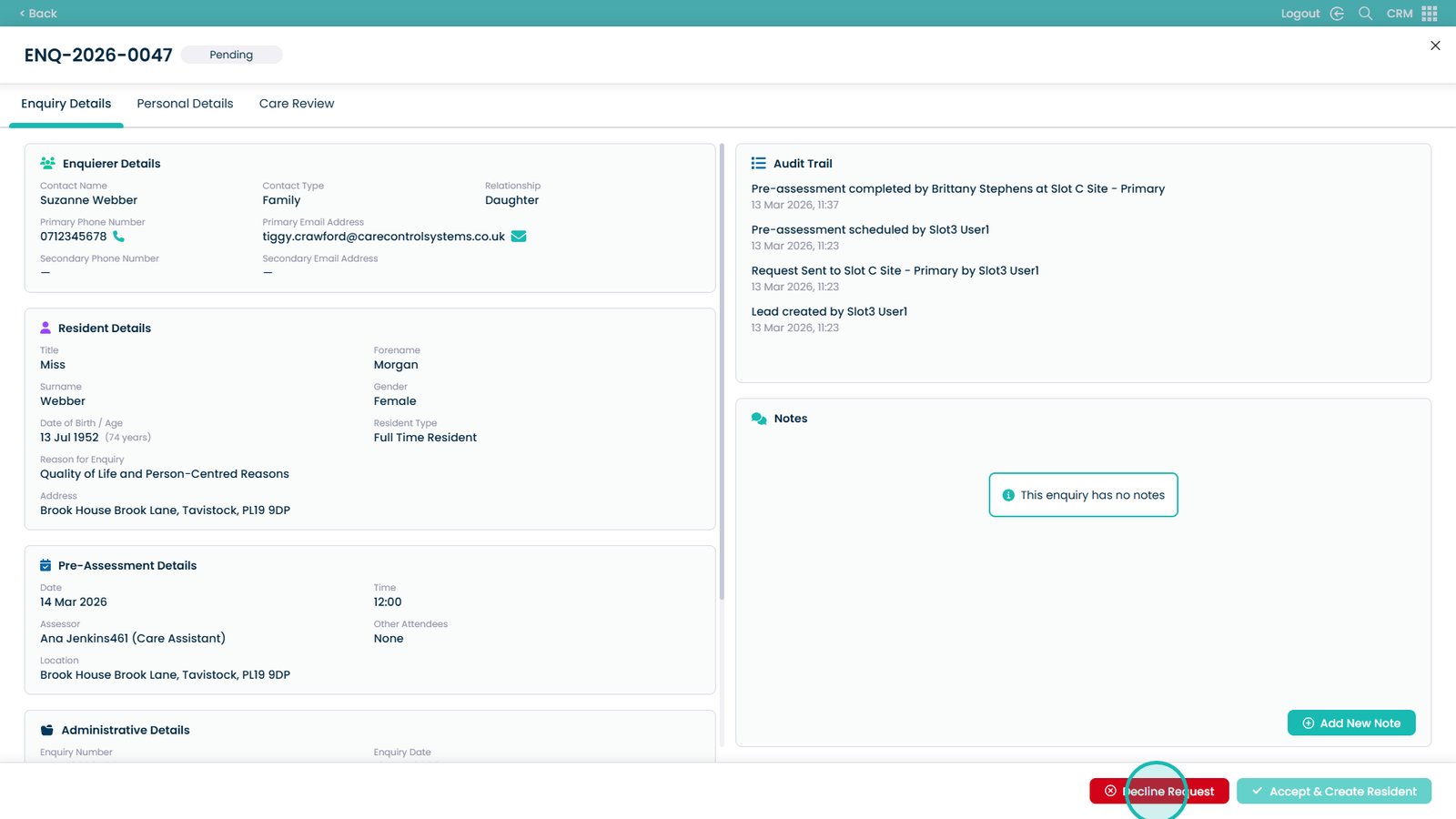
Click Accept & Create to confirm acceptance
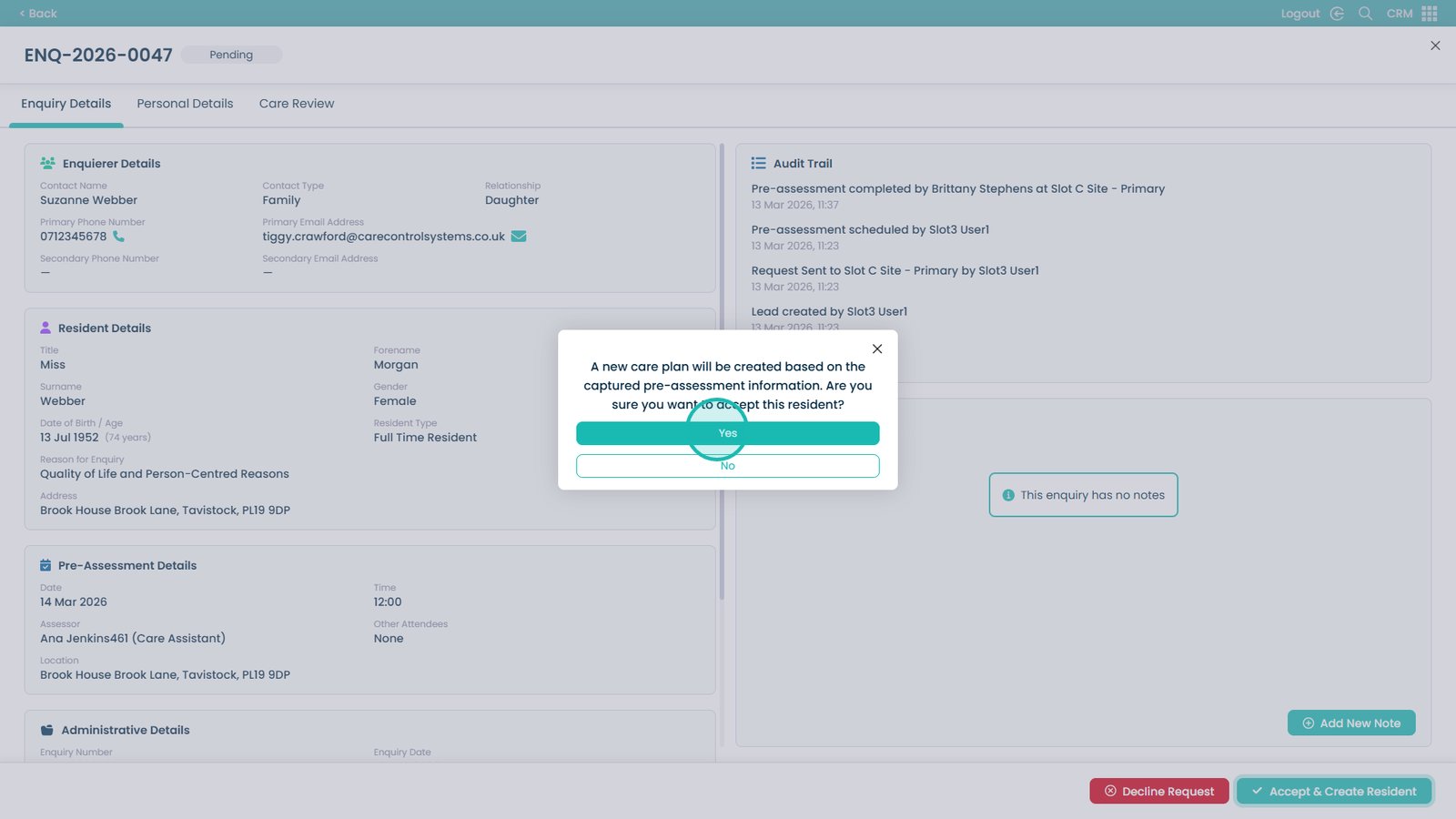
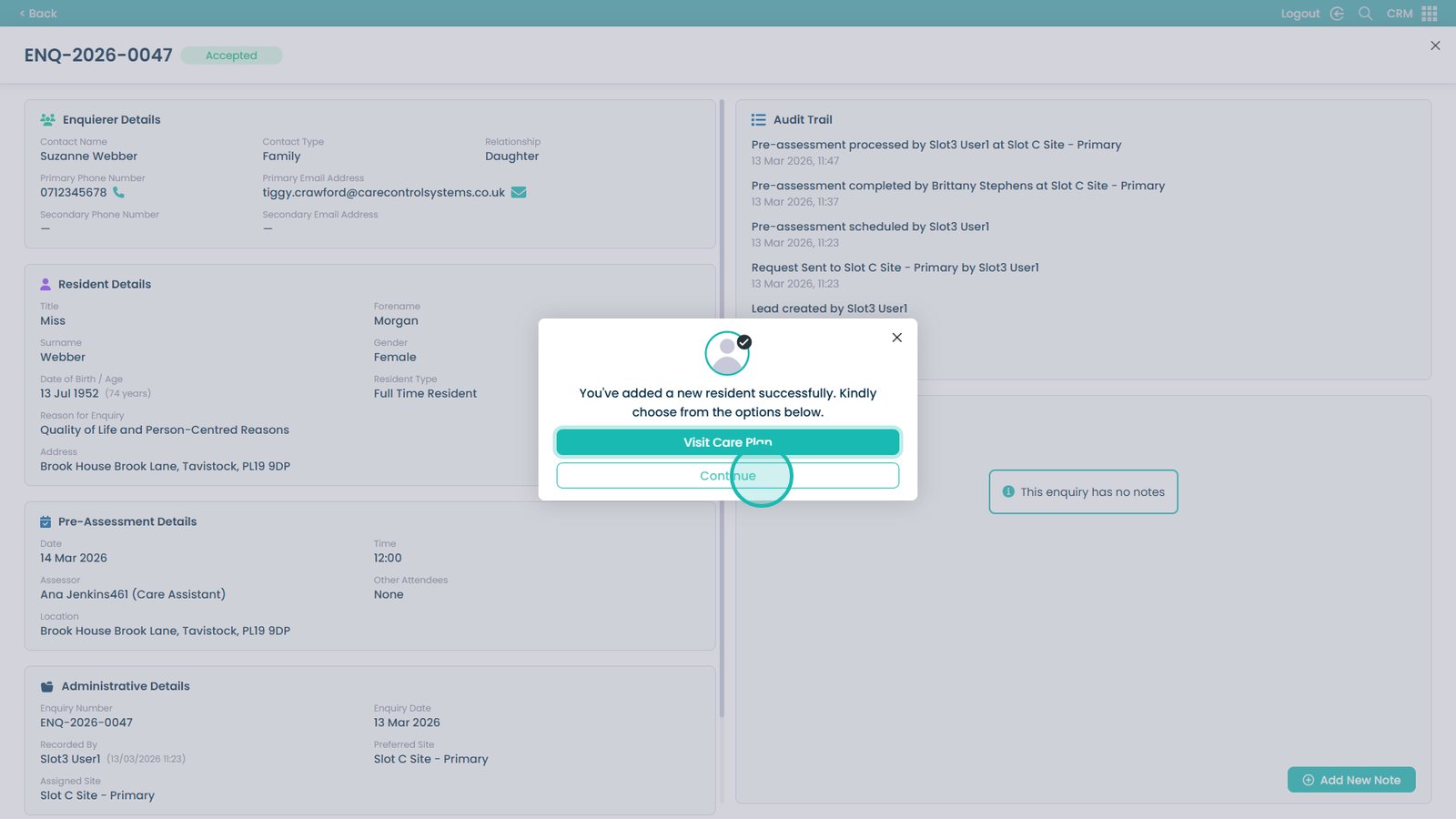
Select Yes to create a new care plan based on the pre-assessment information
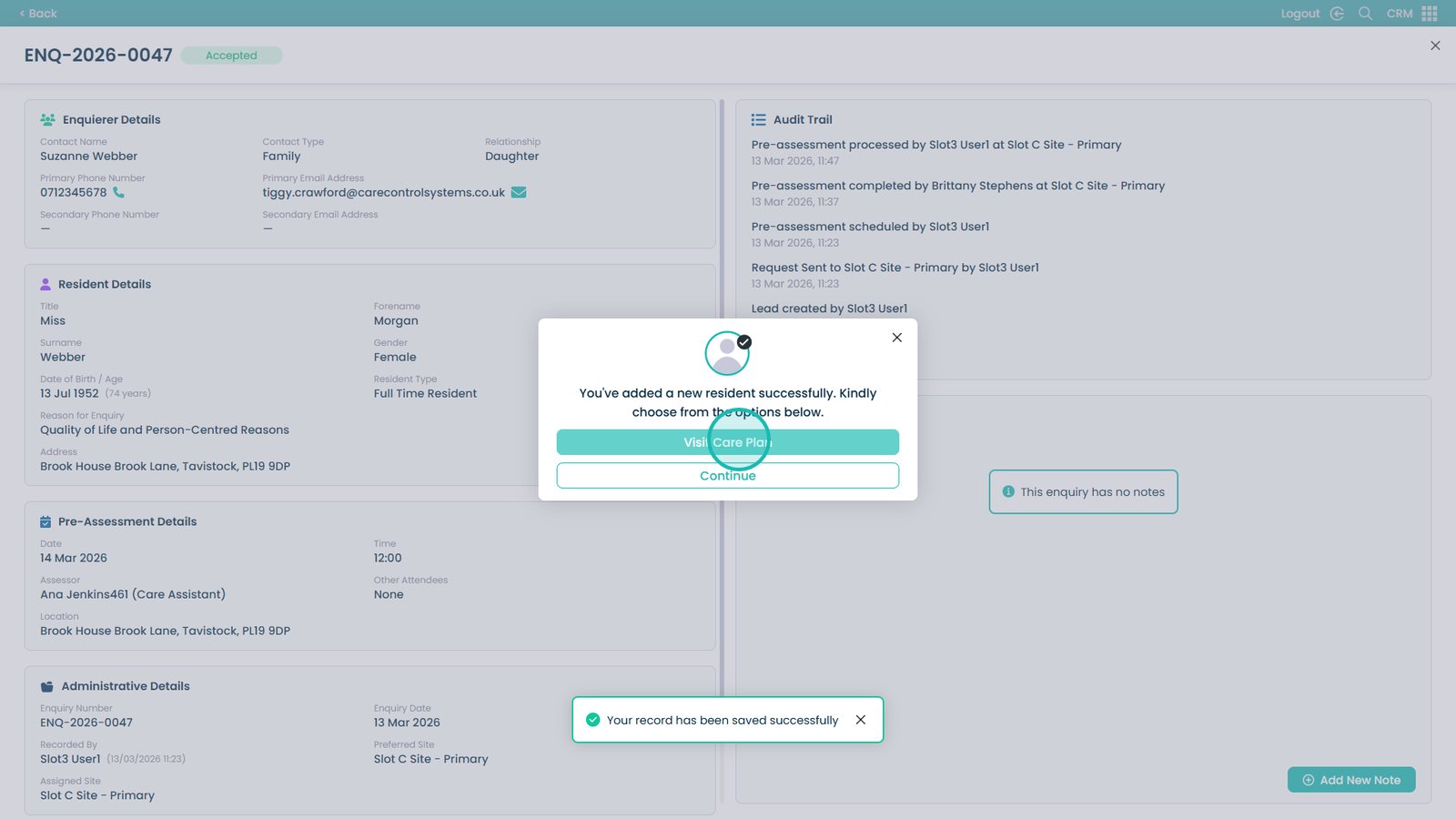
Visit the newly created care plan
Or click Continue to close the window
You can also decline the request using this button