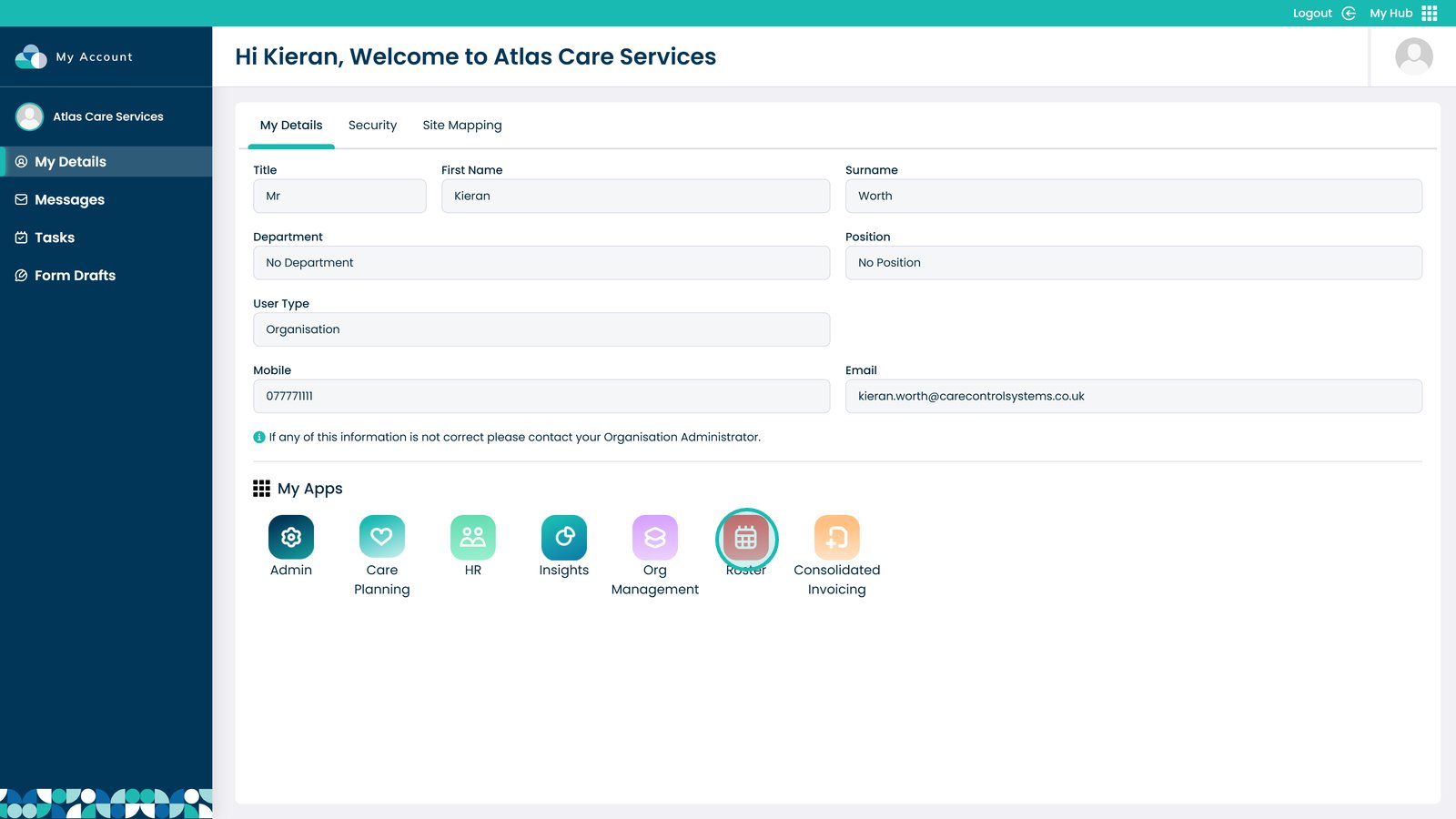
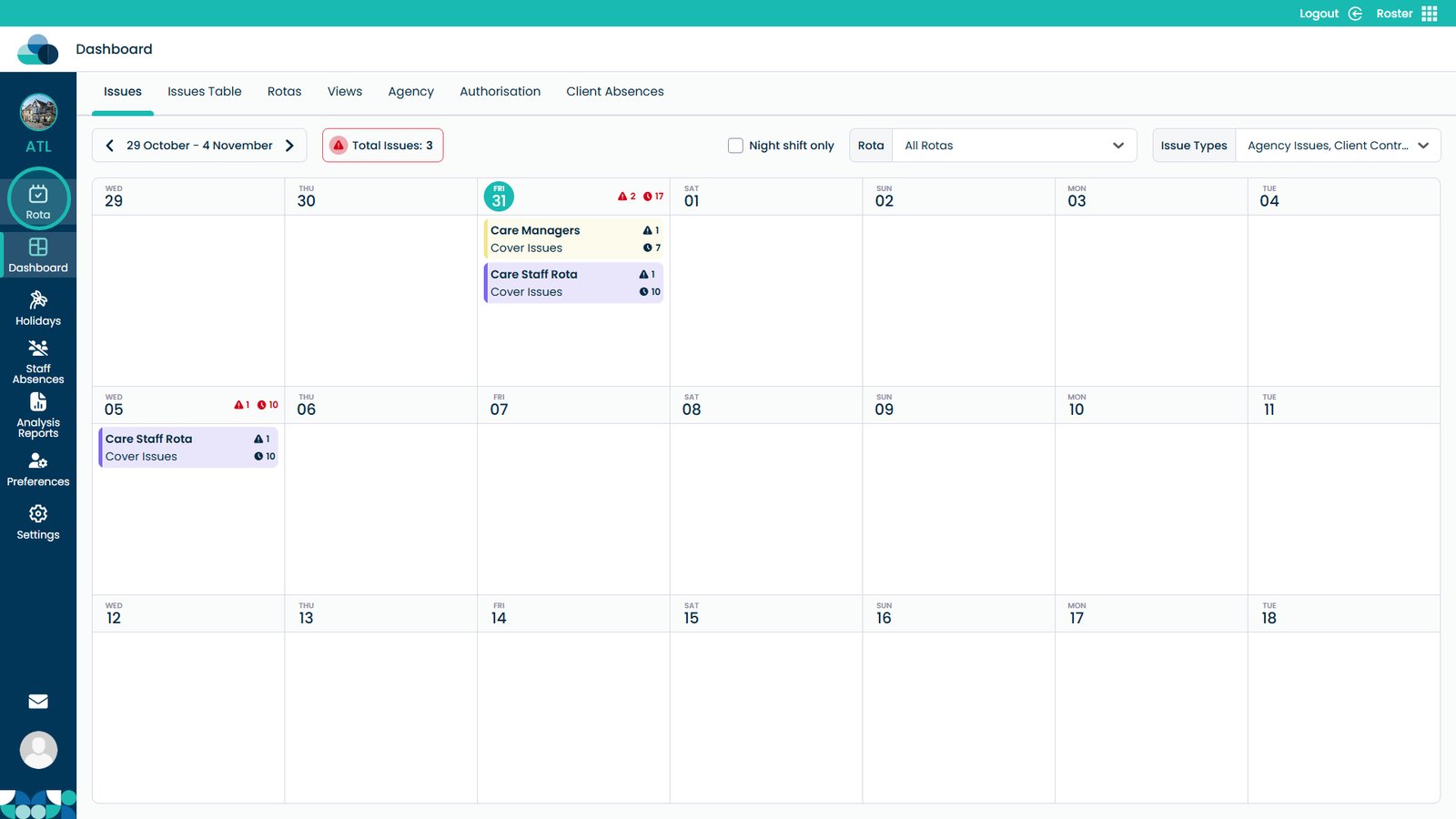
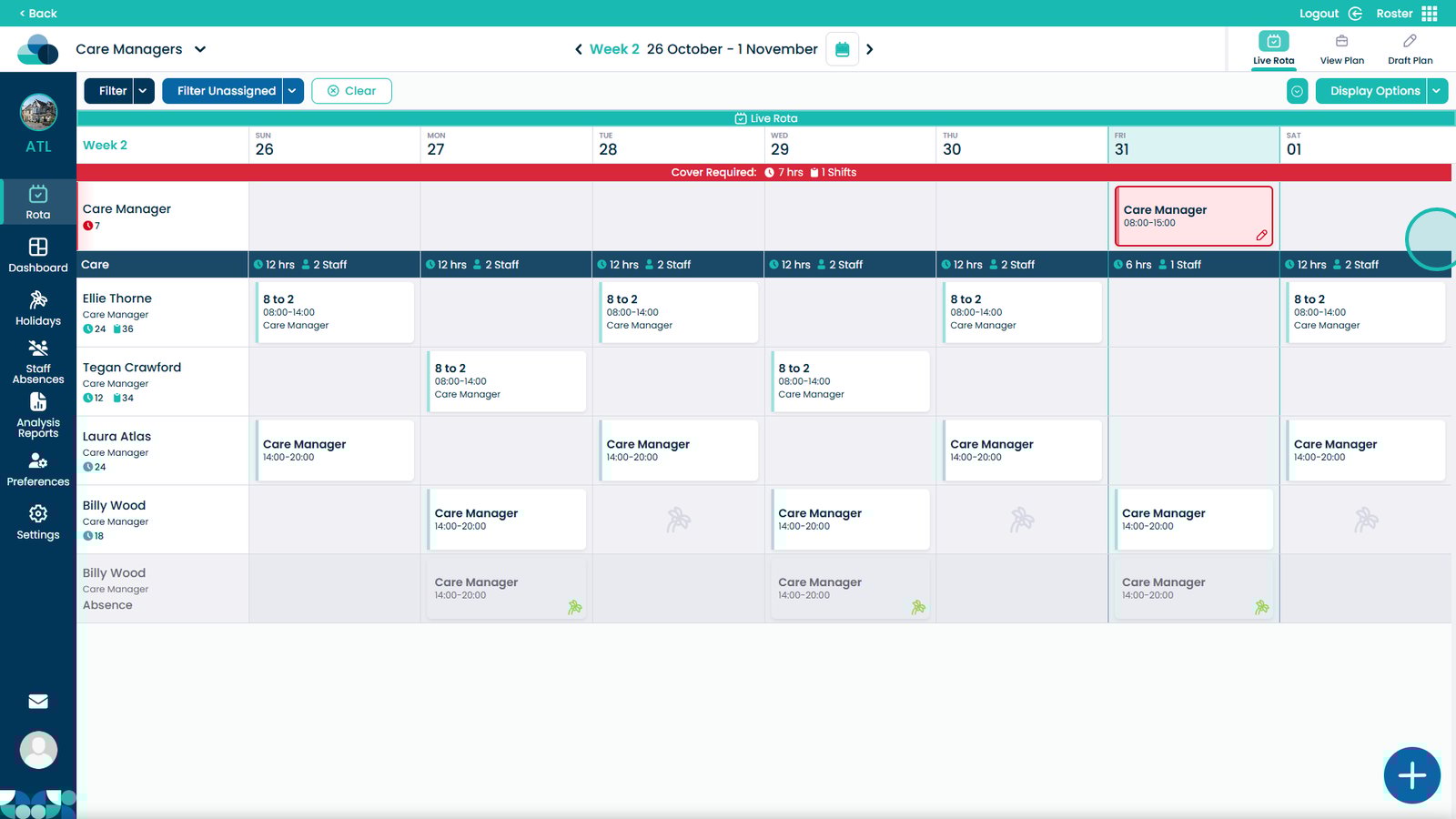
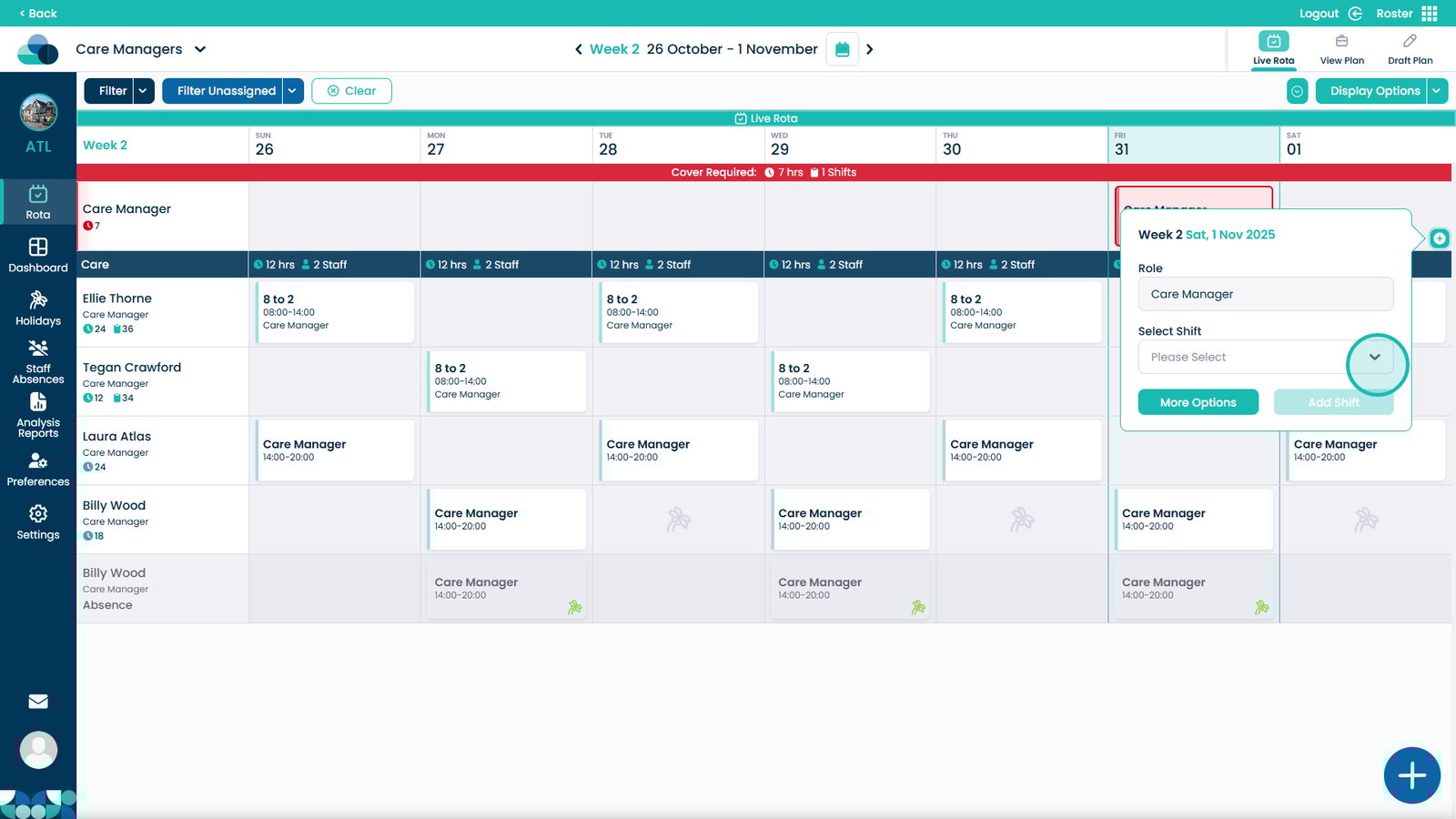
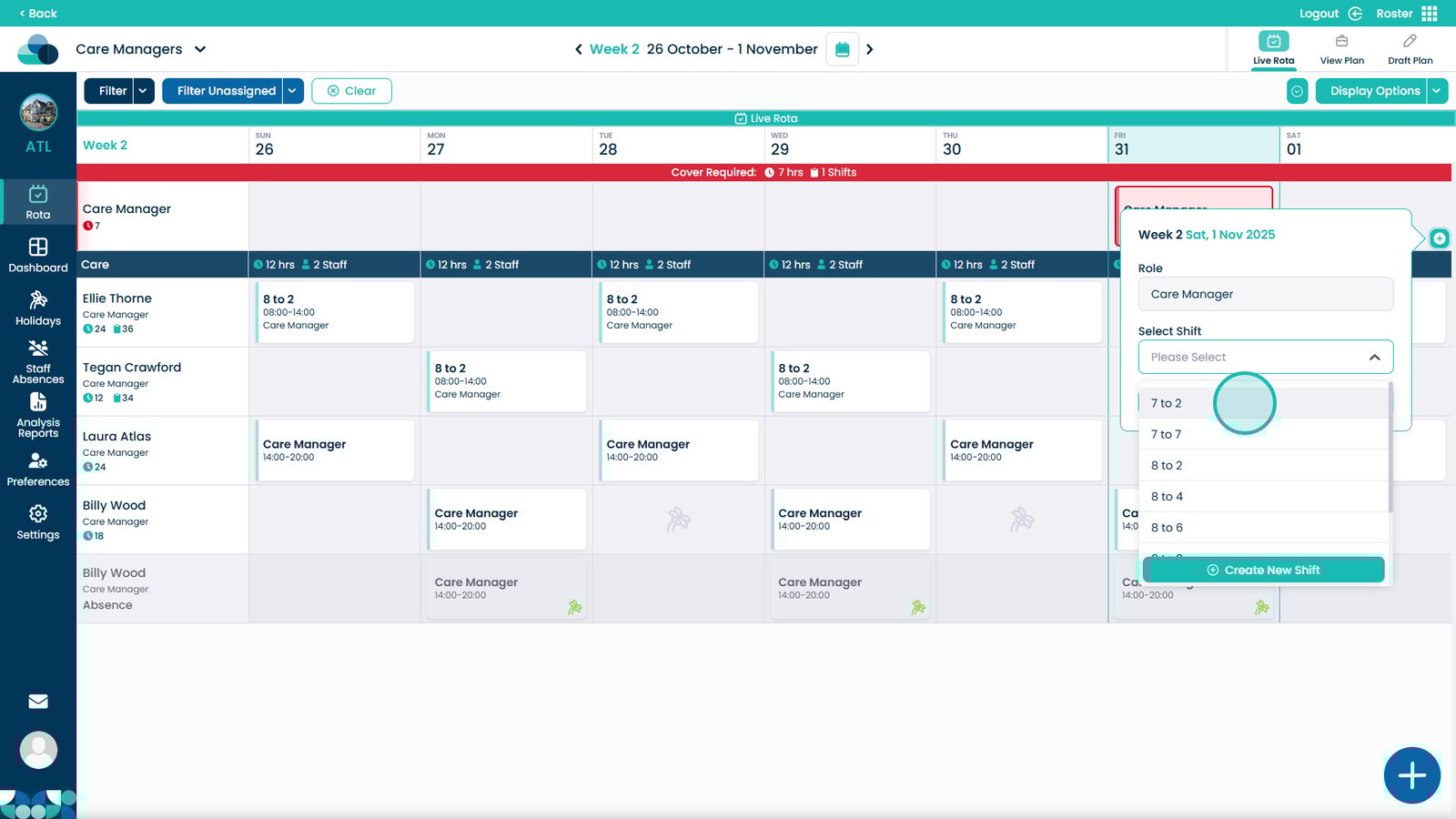
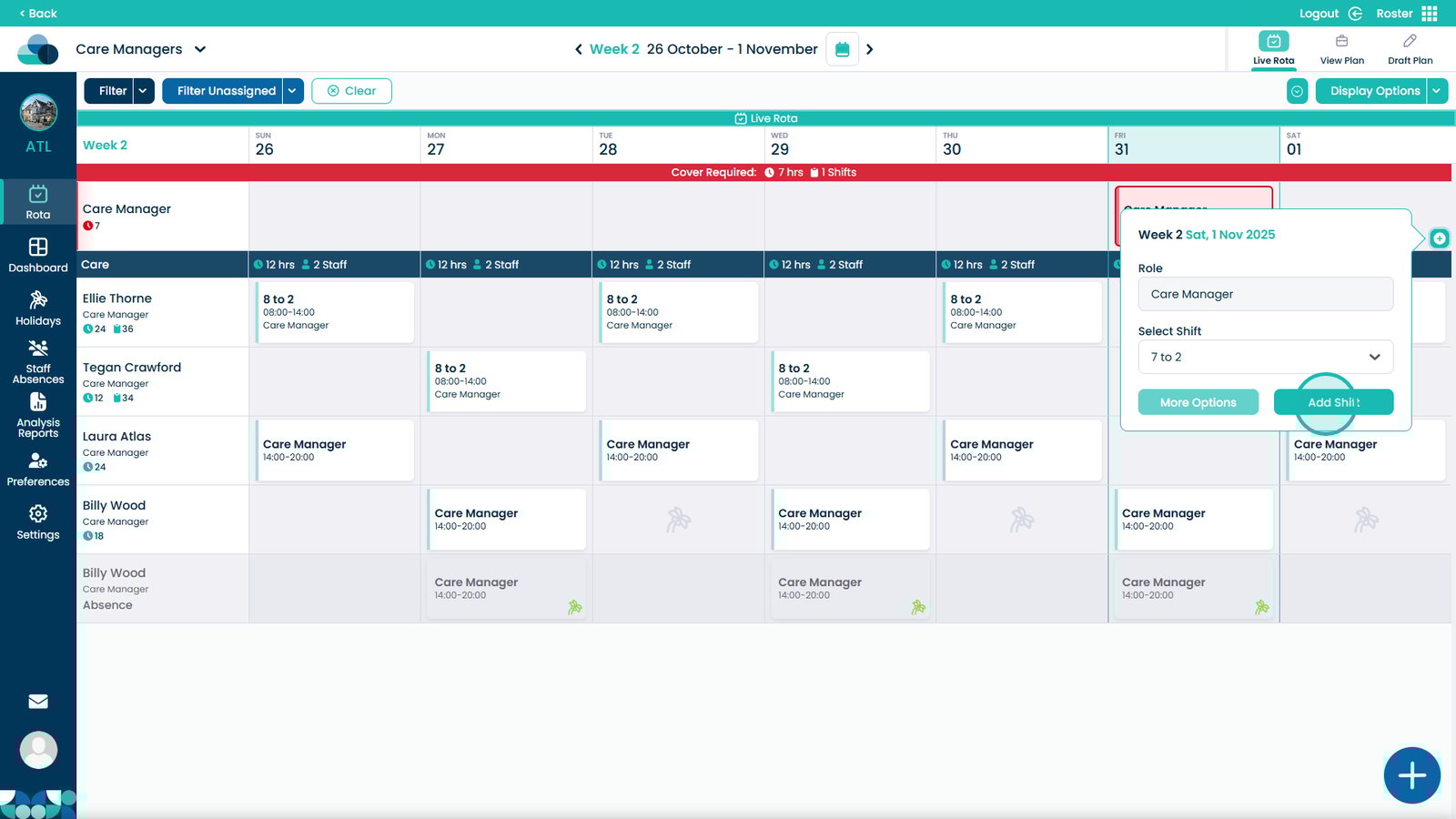
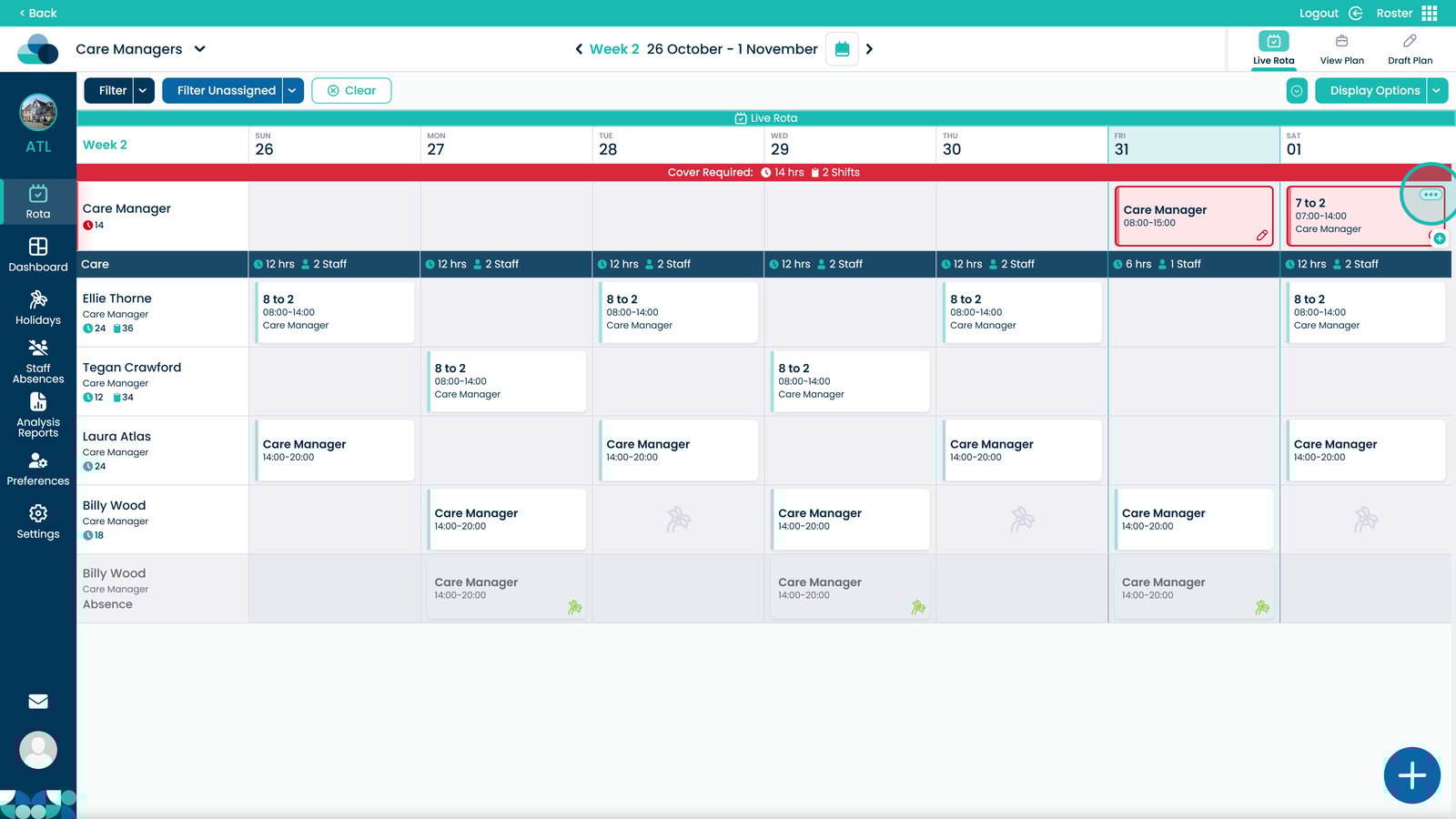
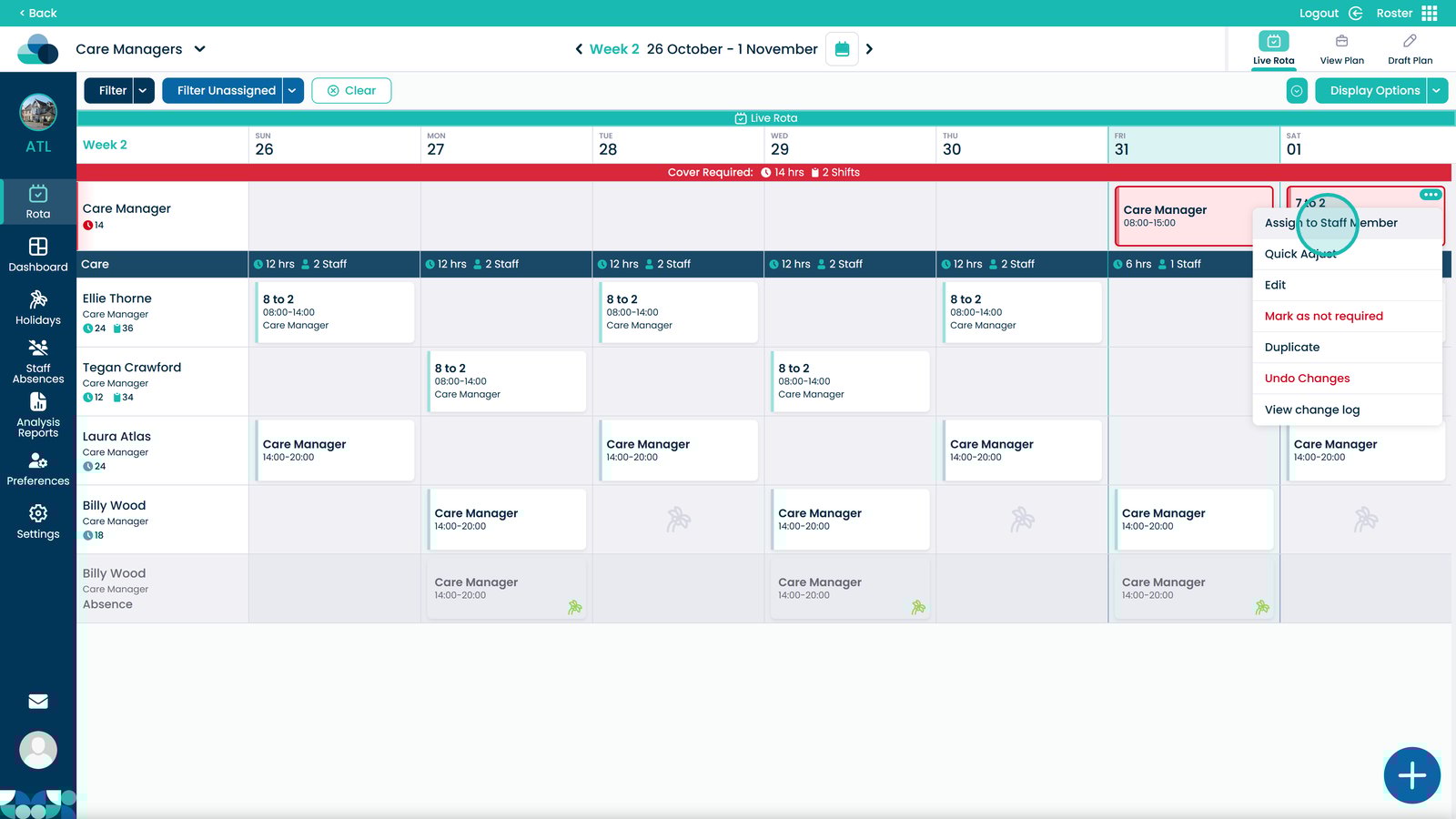
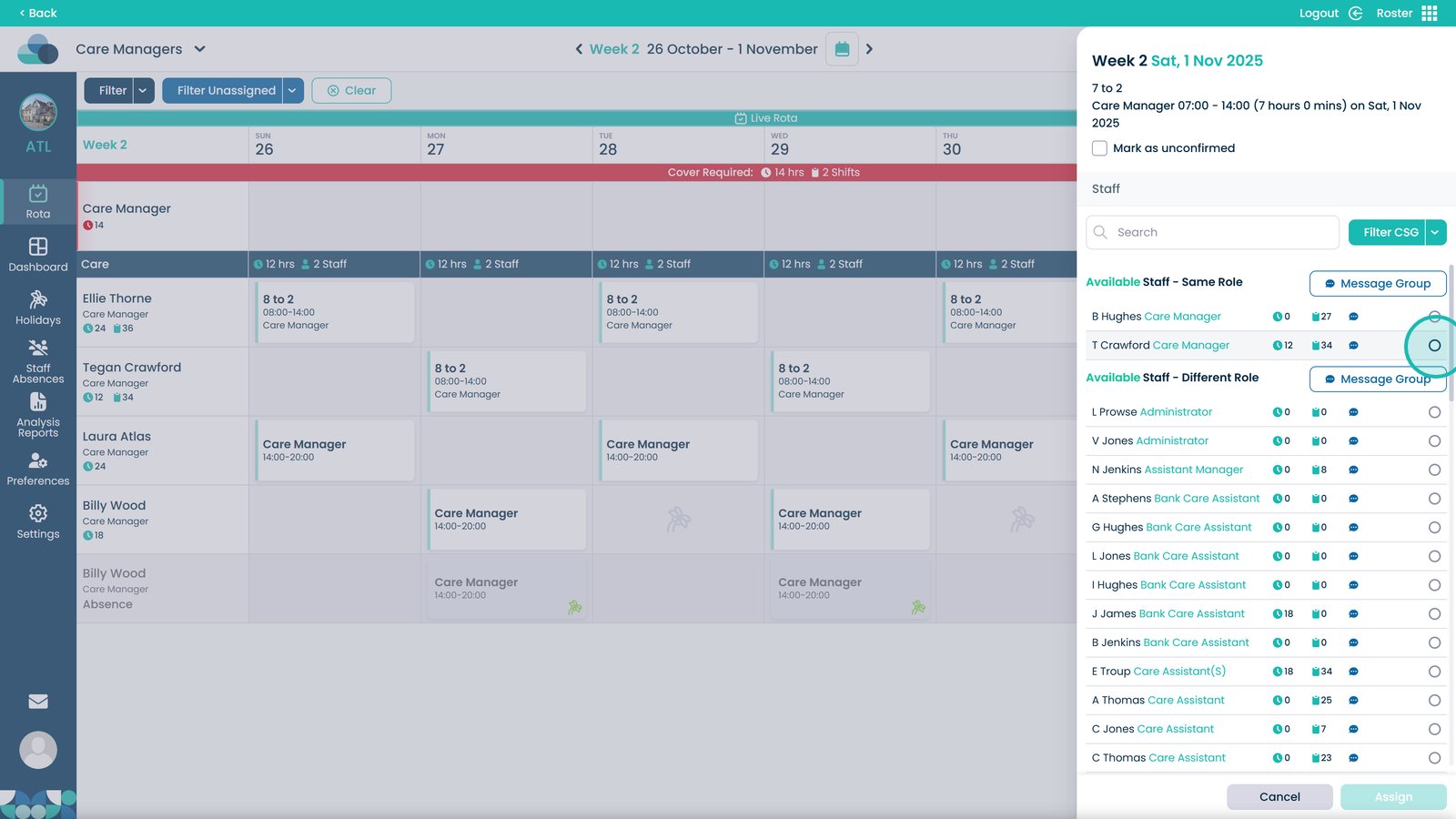
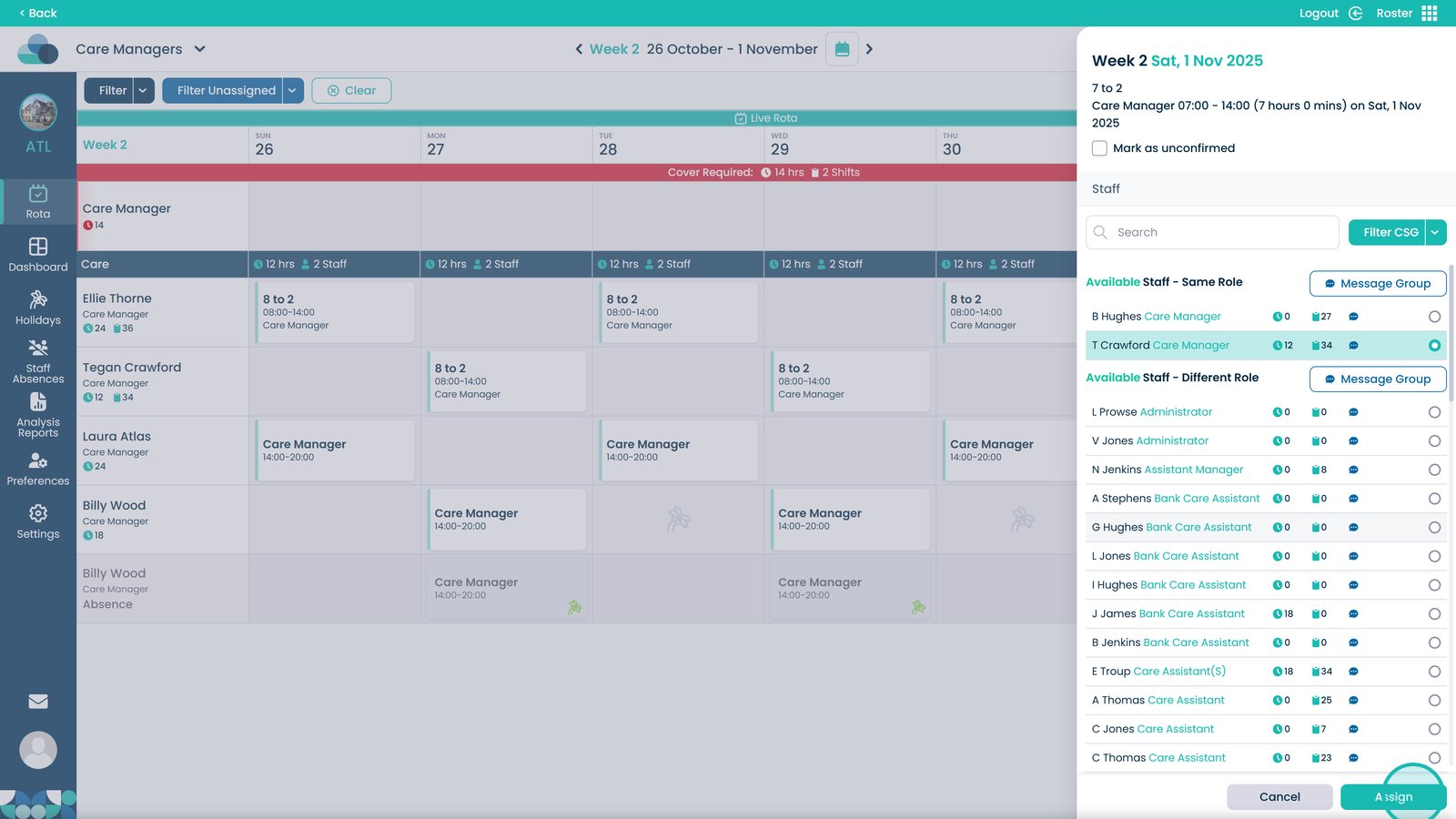
This guide explains how to add and assign shifts in the Roster App within Care Control Cloud. You’ll learn how to open the rota, add new shifts, select from shift templates, and assign staff members to specific shifts. The process helps managers and administrators manage staff scheduling, rota planning, and workforce allocation more efficiently.
By following these steps, you can ensure that each shift is properly created, assigned, and visible within the rota, improving shift management, care team coordination, and staff coverage across your organisation.