How to Bulk Assign Staff Members to Care Service Groups
This guide explains how to bulk assign one or more staff members to selected Care Service Groups.
Takes 2 minutes
For: Seniors
Updated: 30th July 2026
Introduction
The Care Service Groups area allows you to manage which staff members are assigned to each group. Using the bulk assignment option, you can select multiple staff members and assign them to one or more Care Service Groups at the same time.
In this guide you'll learn how to:
- Open Care Service Groups
- Access the bulk staff assignment option
- Select one or more staff members
- Choose the required Care Service Groups
- Confirm the staff assignments
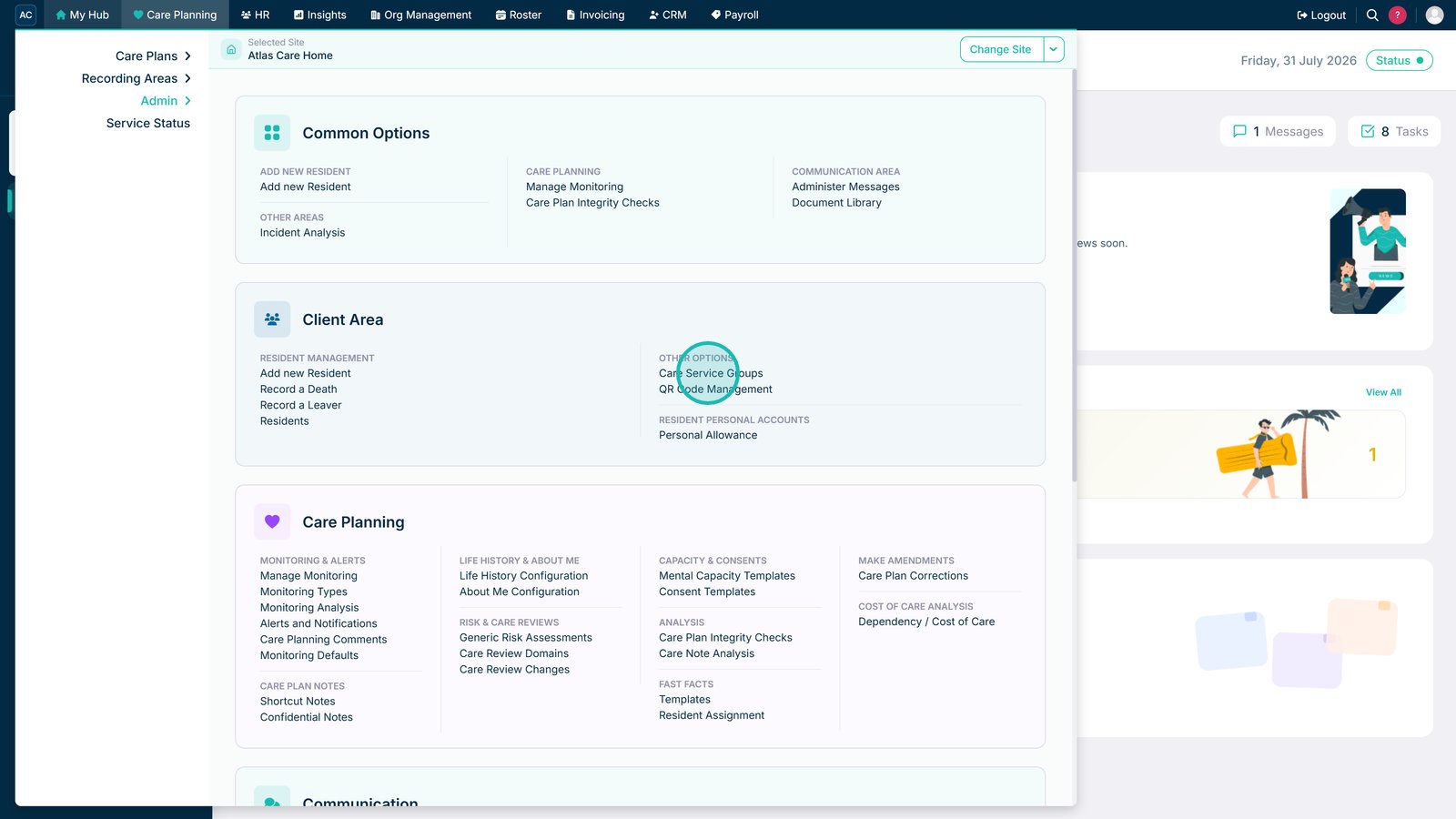
Open Care Service Groups from the Client Area menu.

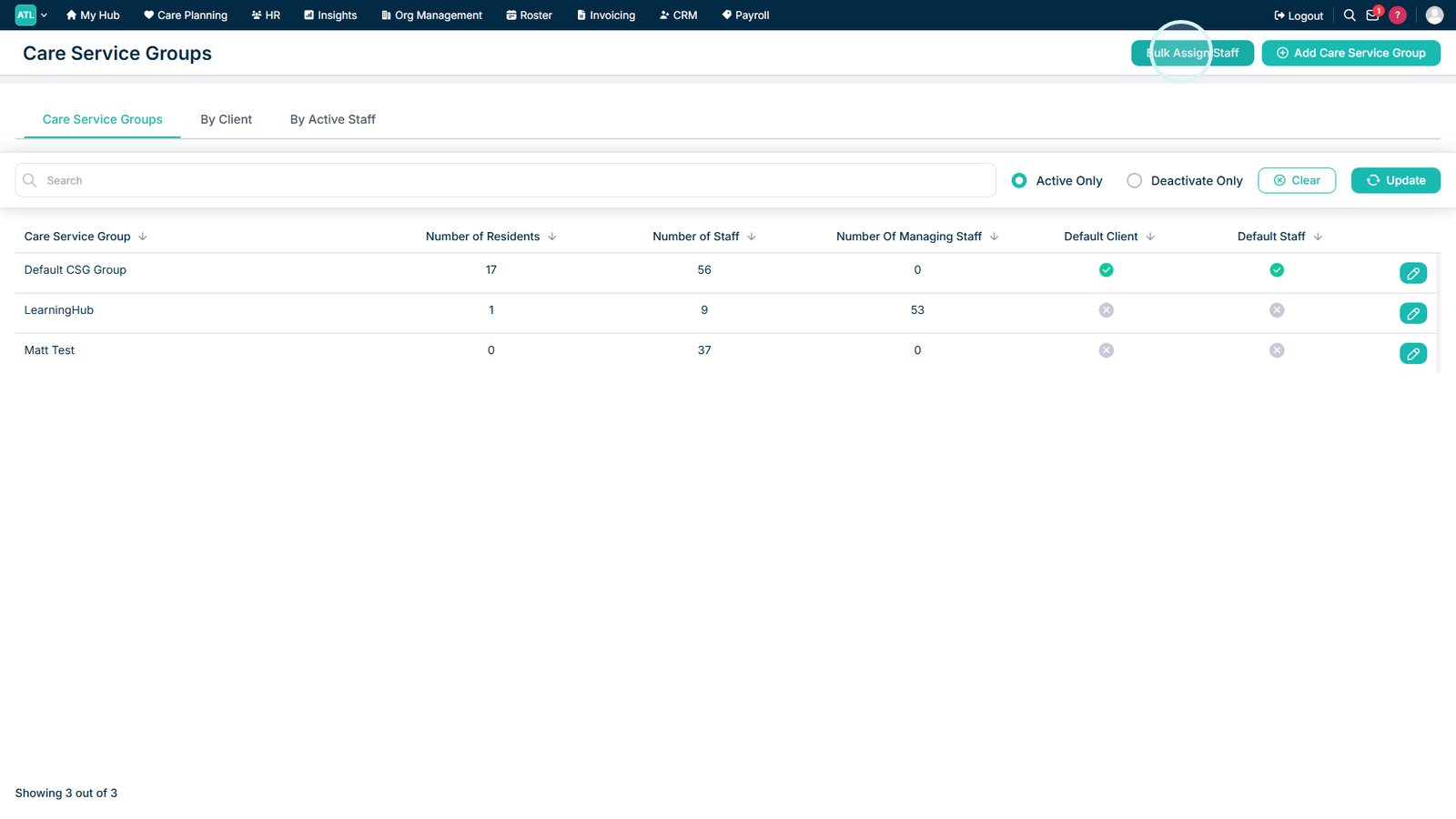
Select Bulk Assign Staff.

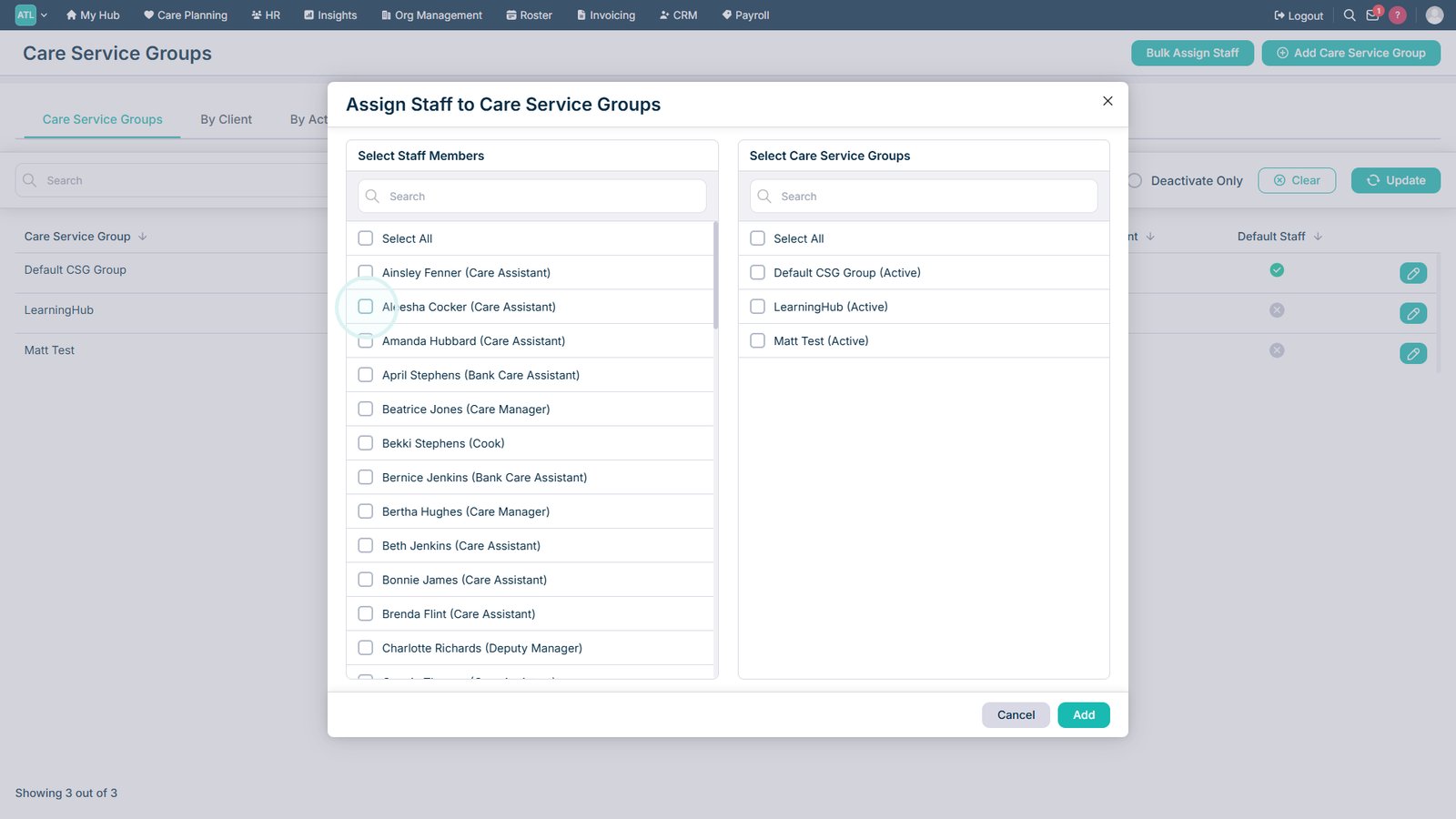
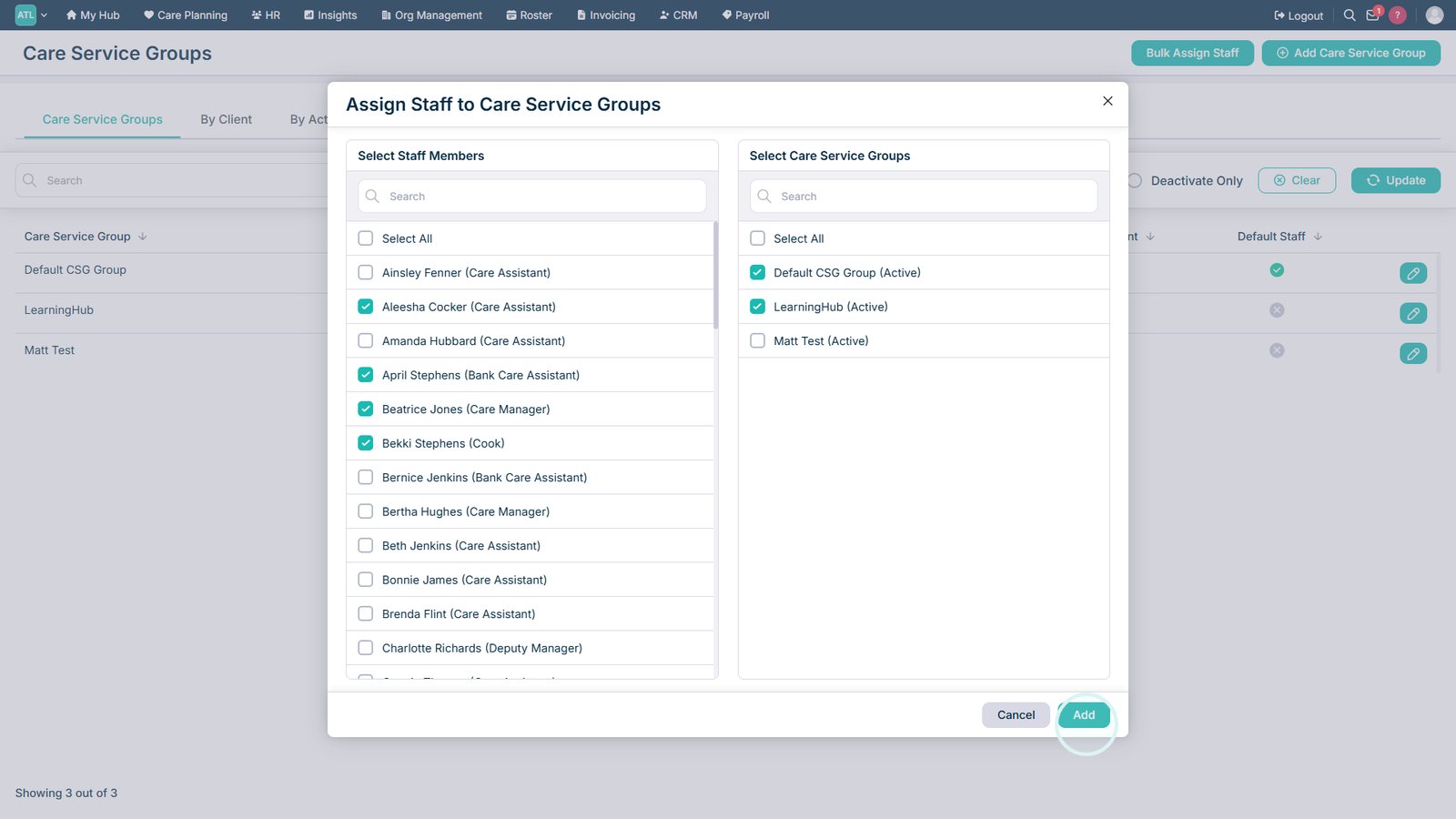
Select the staff members you want to assign, or use Select All.

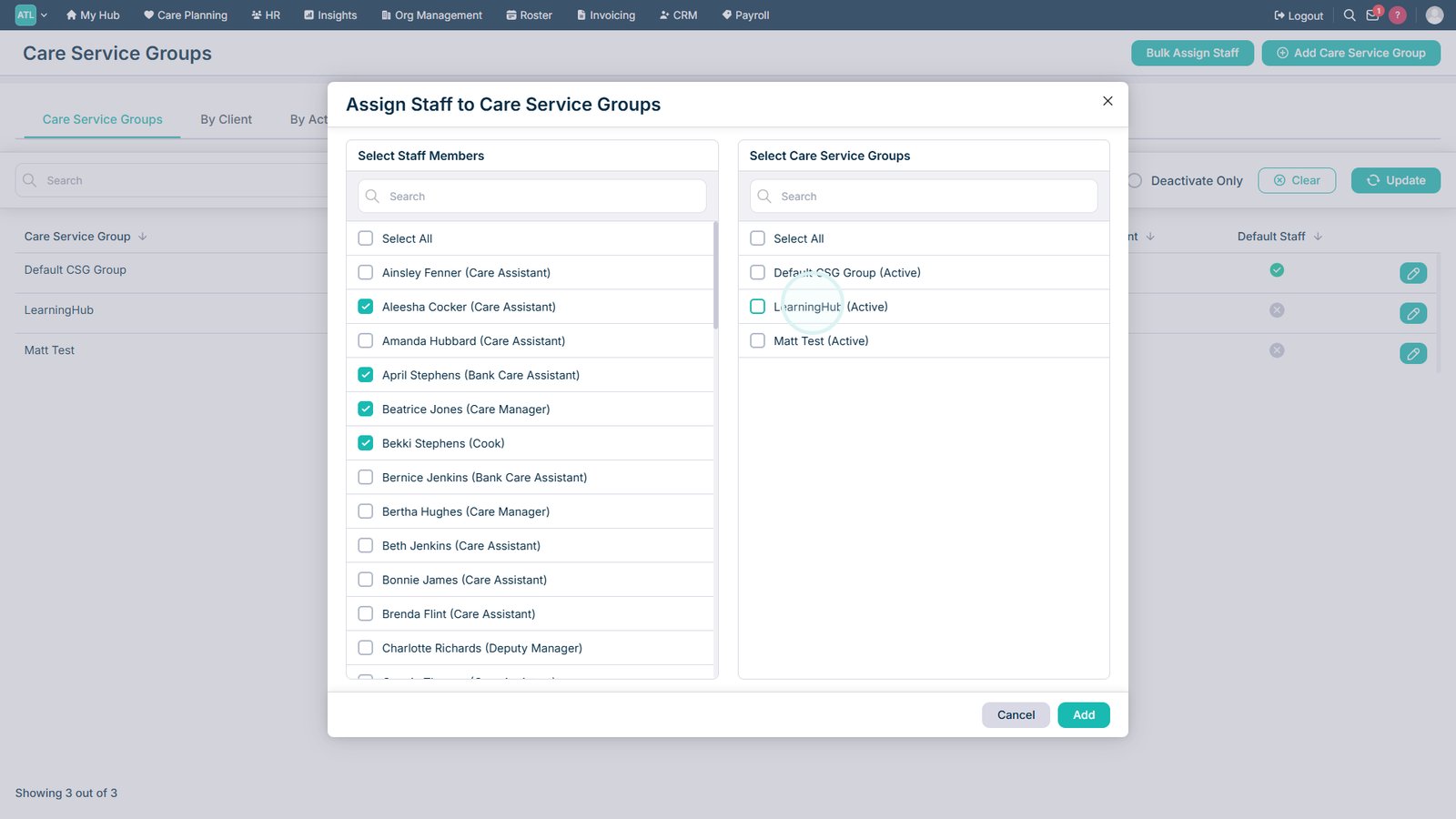
Select one or more Care Service Groups, or choose all groups.

Select Add to confirm the staff assignments.

Top tip
Use Select All when assigning every staff member or Care Service Group, then review your selections before confirming.
Need more help?
Can't find what you're looking for? Our support team is here to help.
Contact SupportOr call us on