This guide explains how to manage user access and permissions within the HR Appusing the Cloud Accesssection in Staff Records. From here, you can control which areas of the system a staff member can access by assigning the appropriate permission levels for each app.
Adjusting access levels ensures that staff only have access to the features they need for their role, helping to maintain security and improve system usability. You can also view detailed descriptions of each permission level to better understand what access they provide before making changes.
Follow the steps below to update and review user permissions.
How to Enable Cloud Application Access Levels
Text based guide
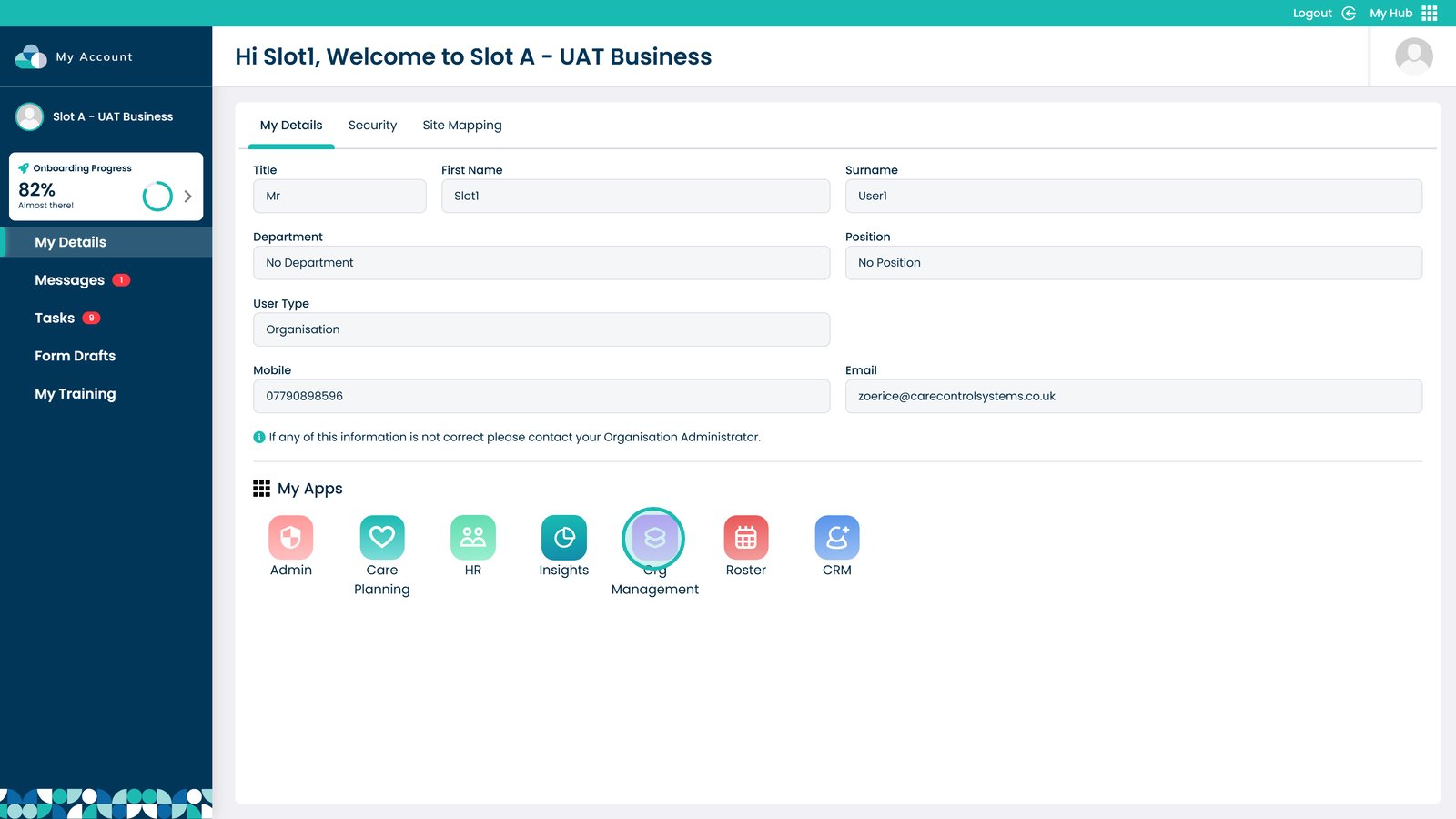
Enter the Org Management App
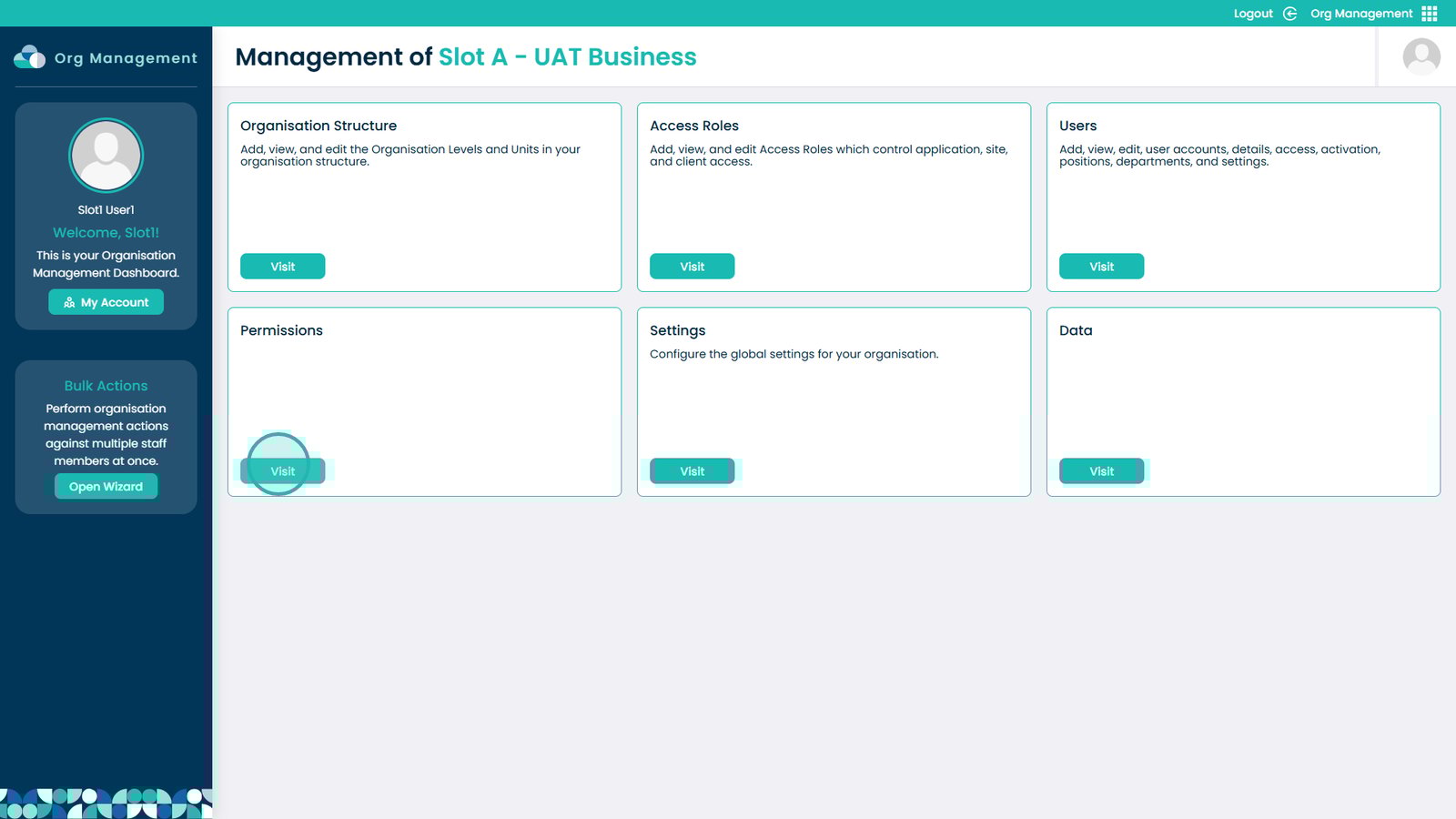
Click Visit under Permissions
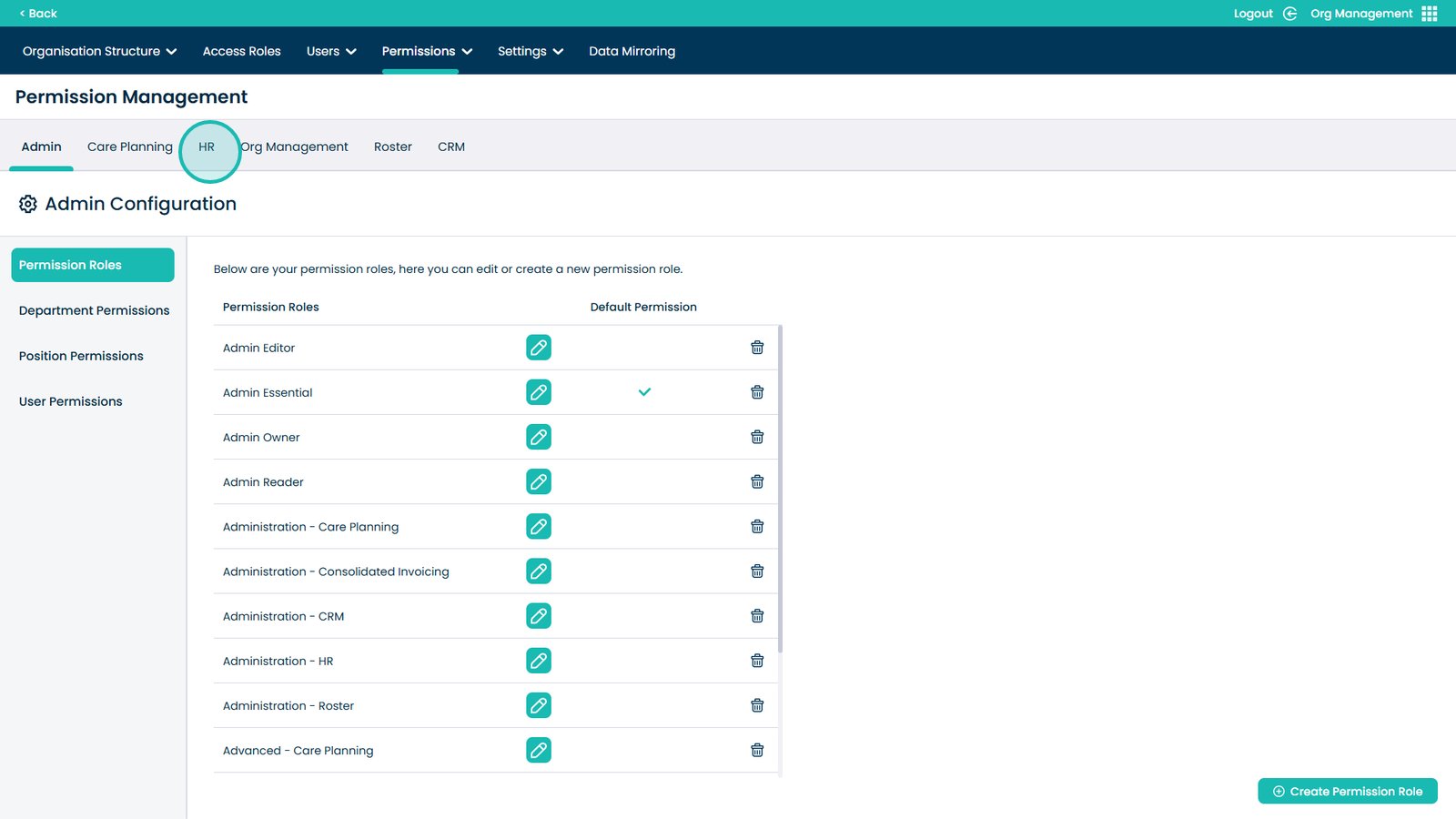
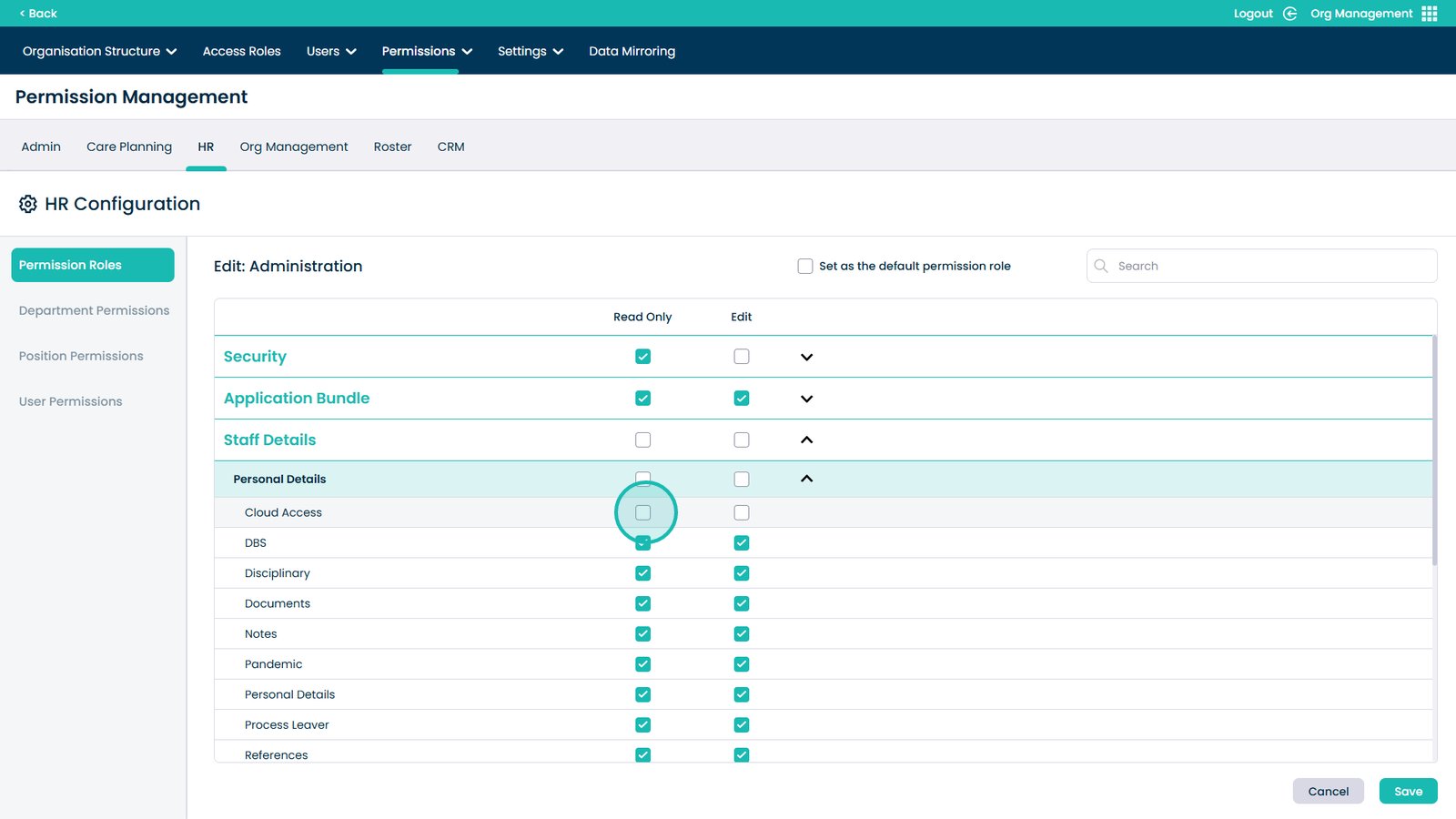
Select HR
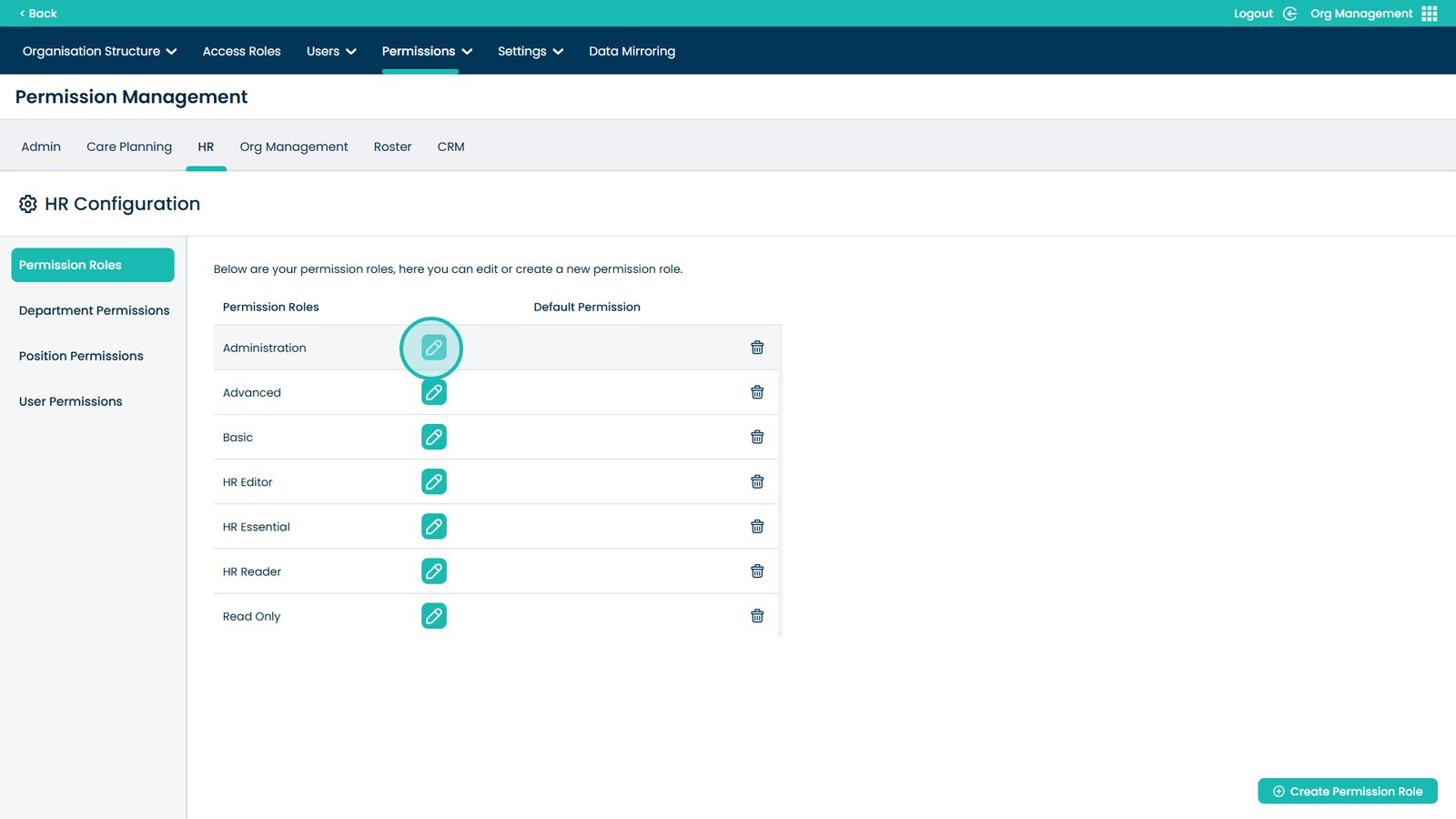
Select the role you want to update
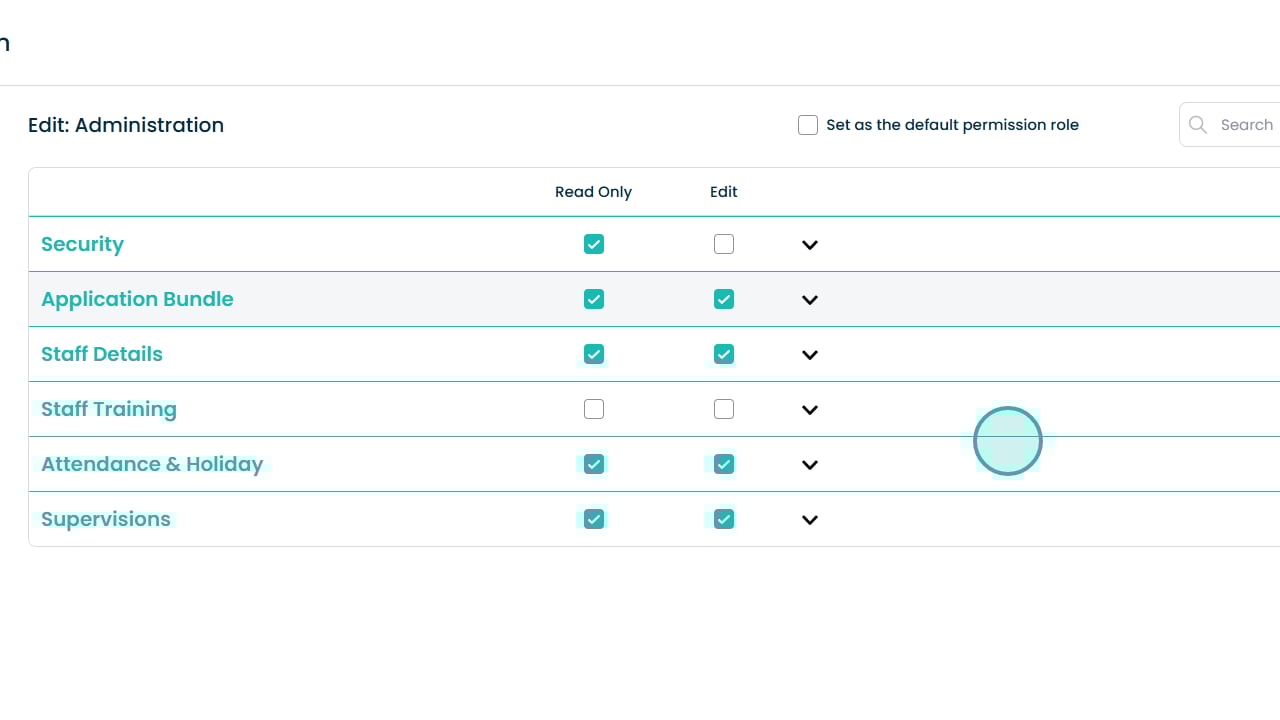
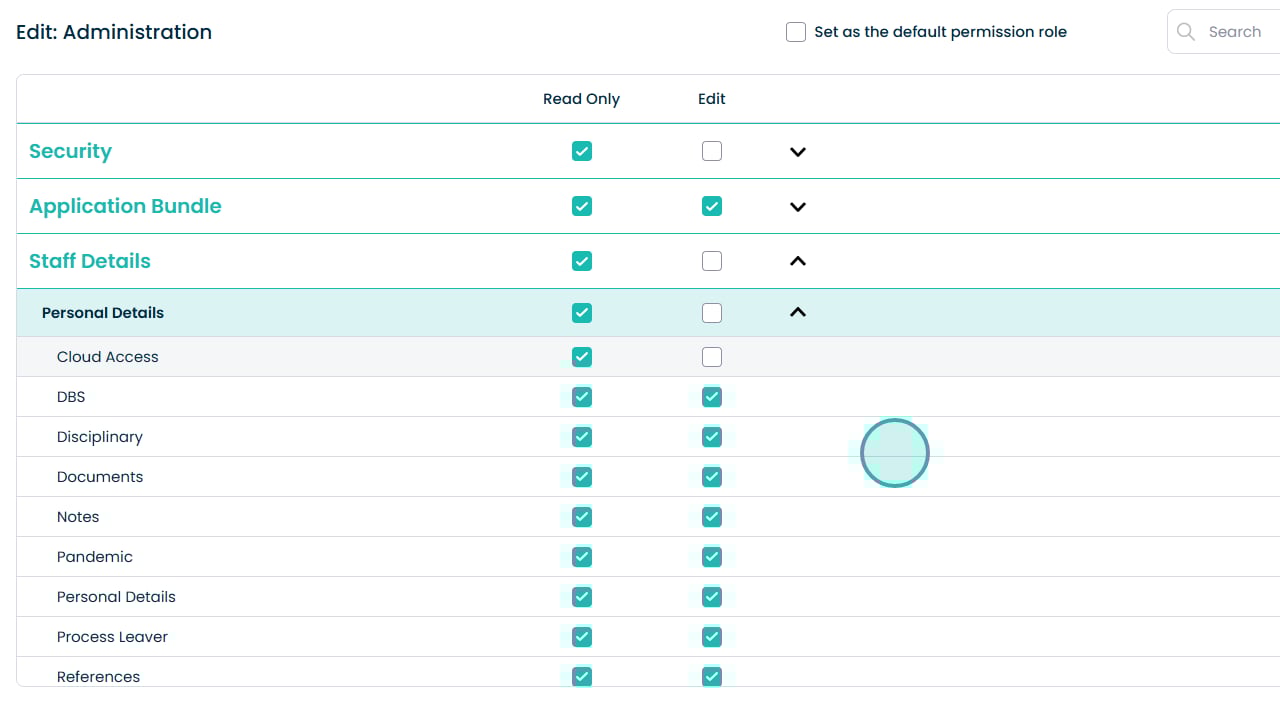
Open the dropdown under Staff Details
Select Read Only to allow viewing access
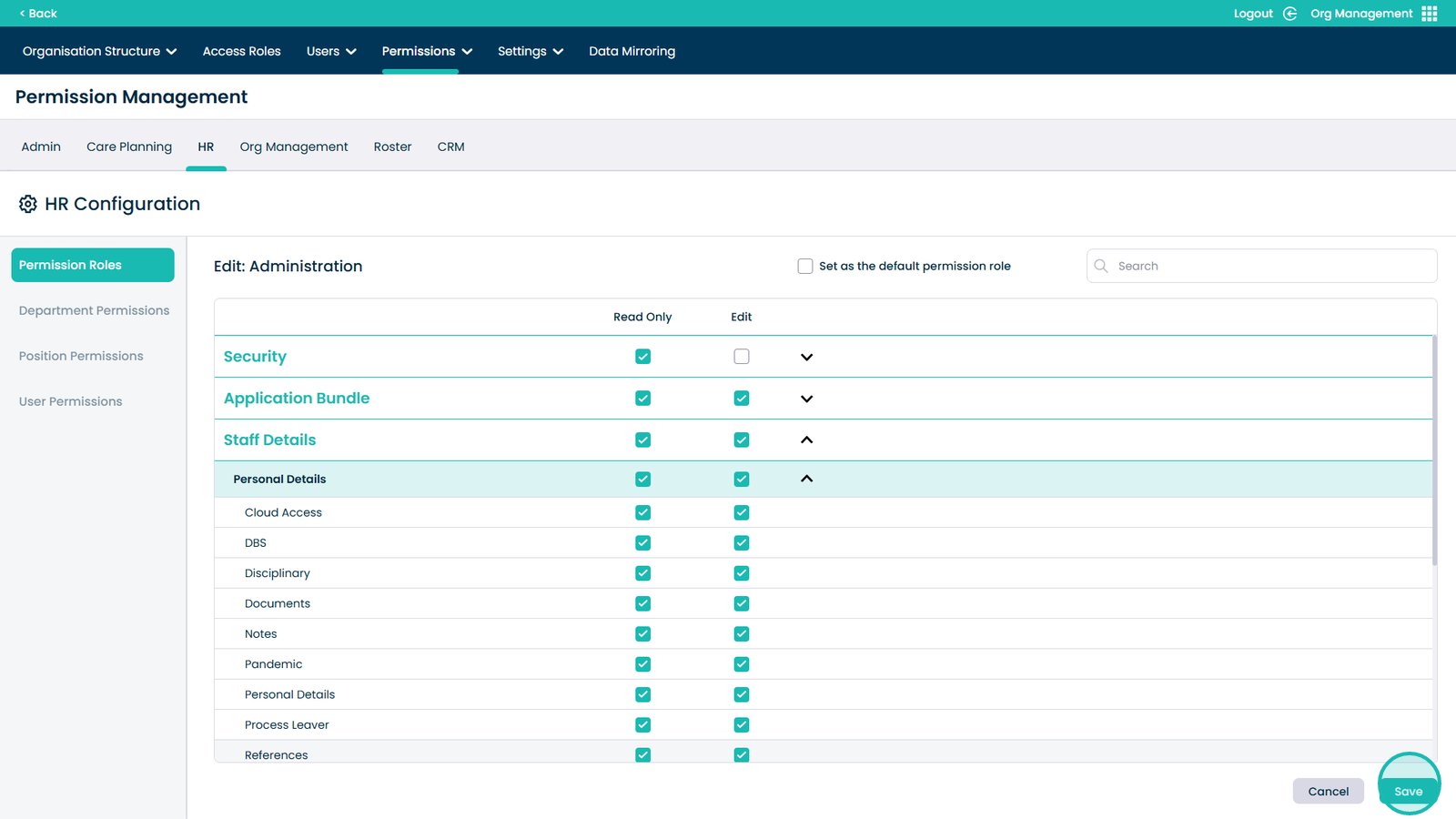
Select Edit to allow changes to be made
Click Save to apply changes
How to Change Cloud Application Access Levels
Text based guide
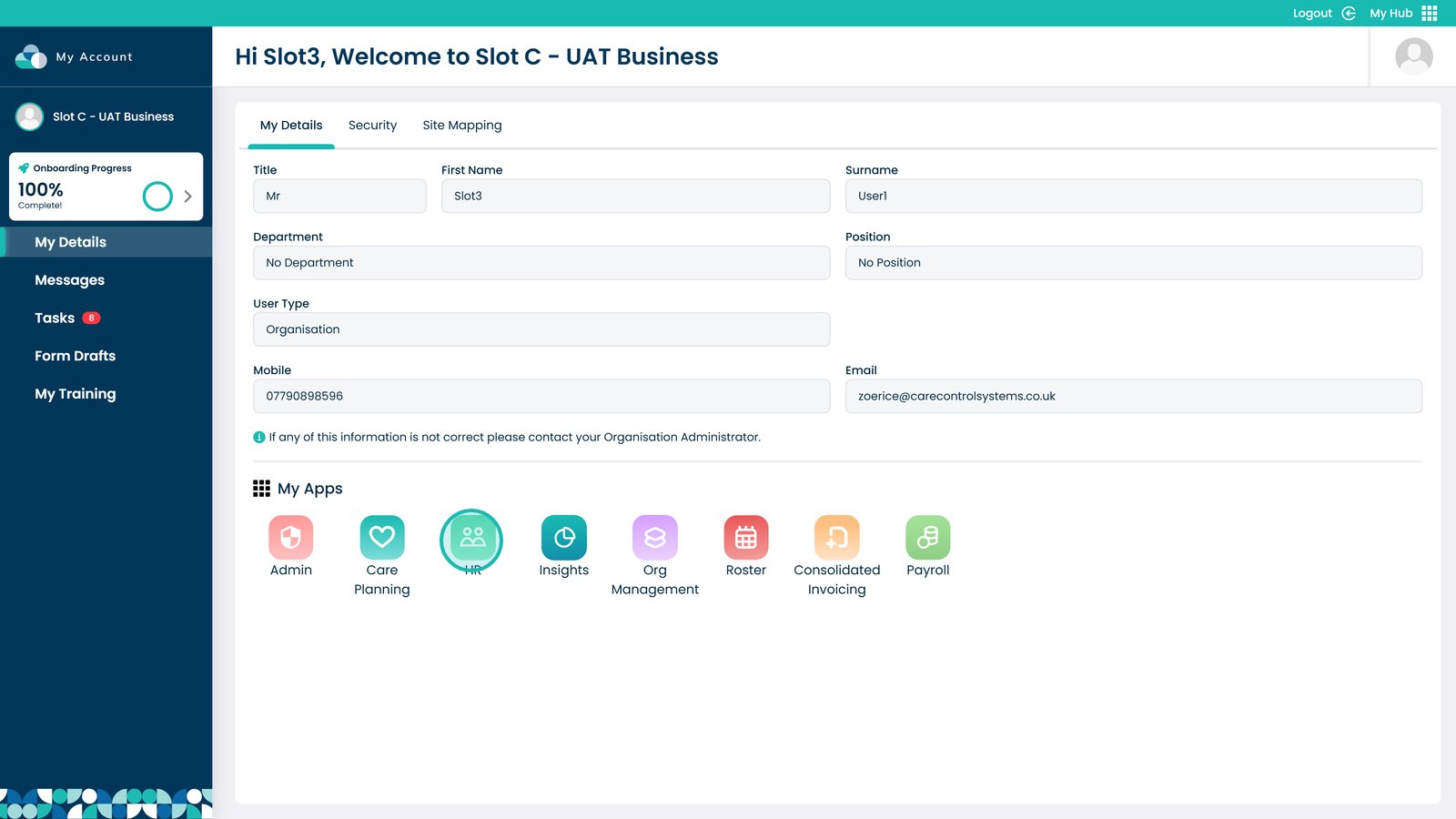
Enter the HR App
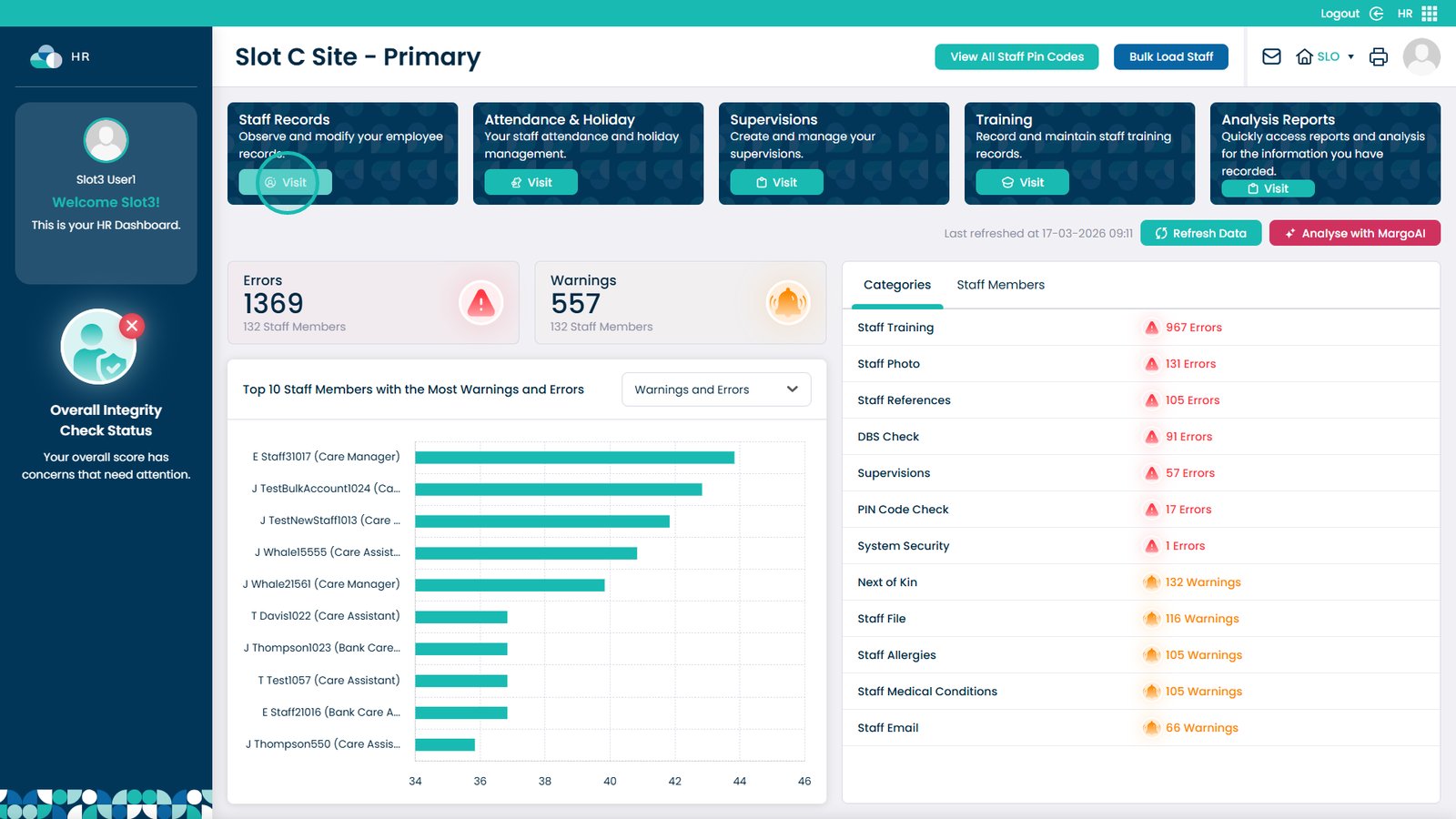
Click View under Staff Records
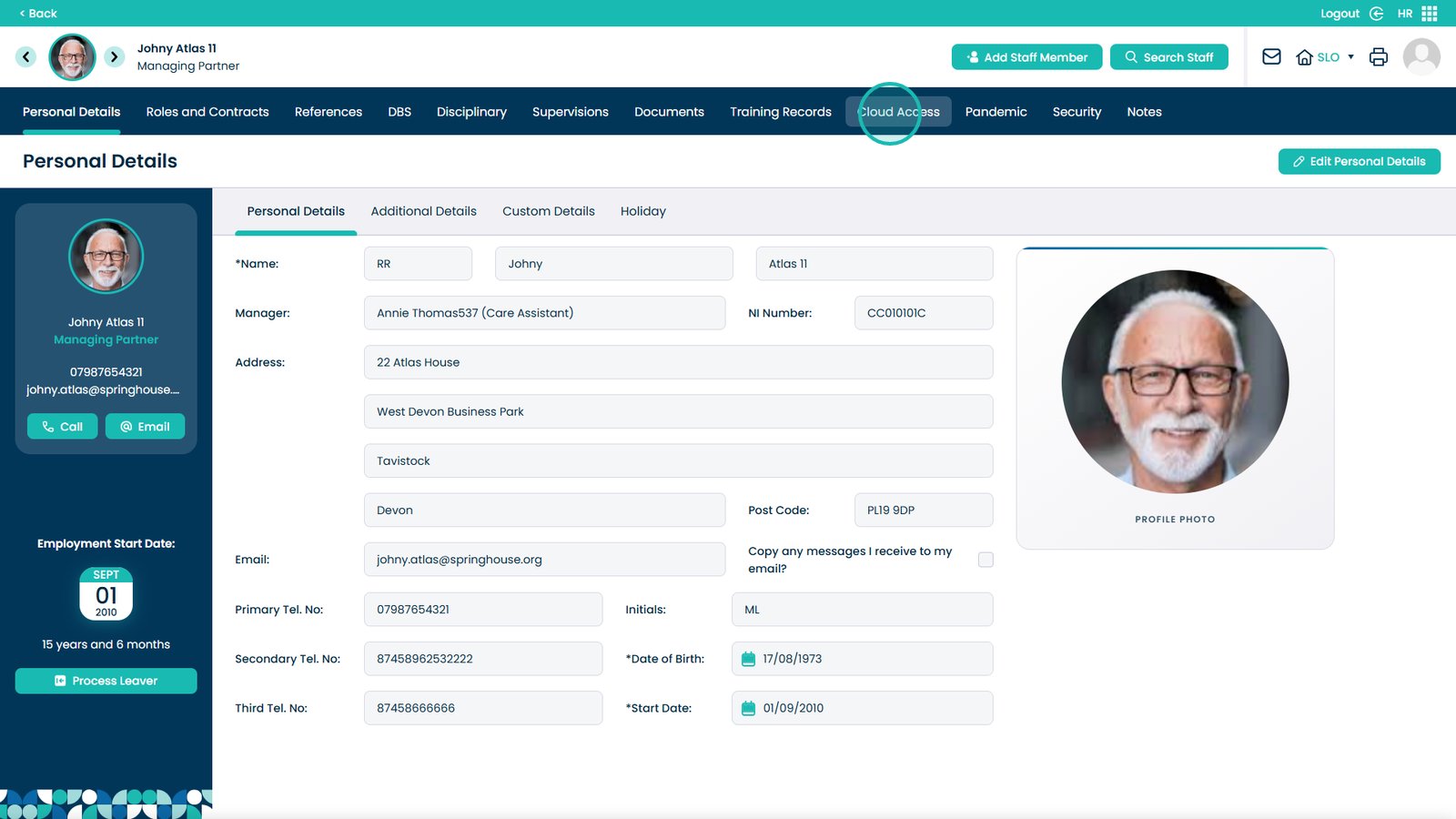
Select the Cloud Access tab
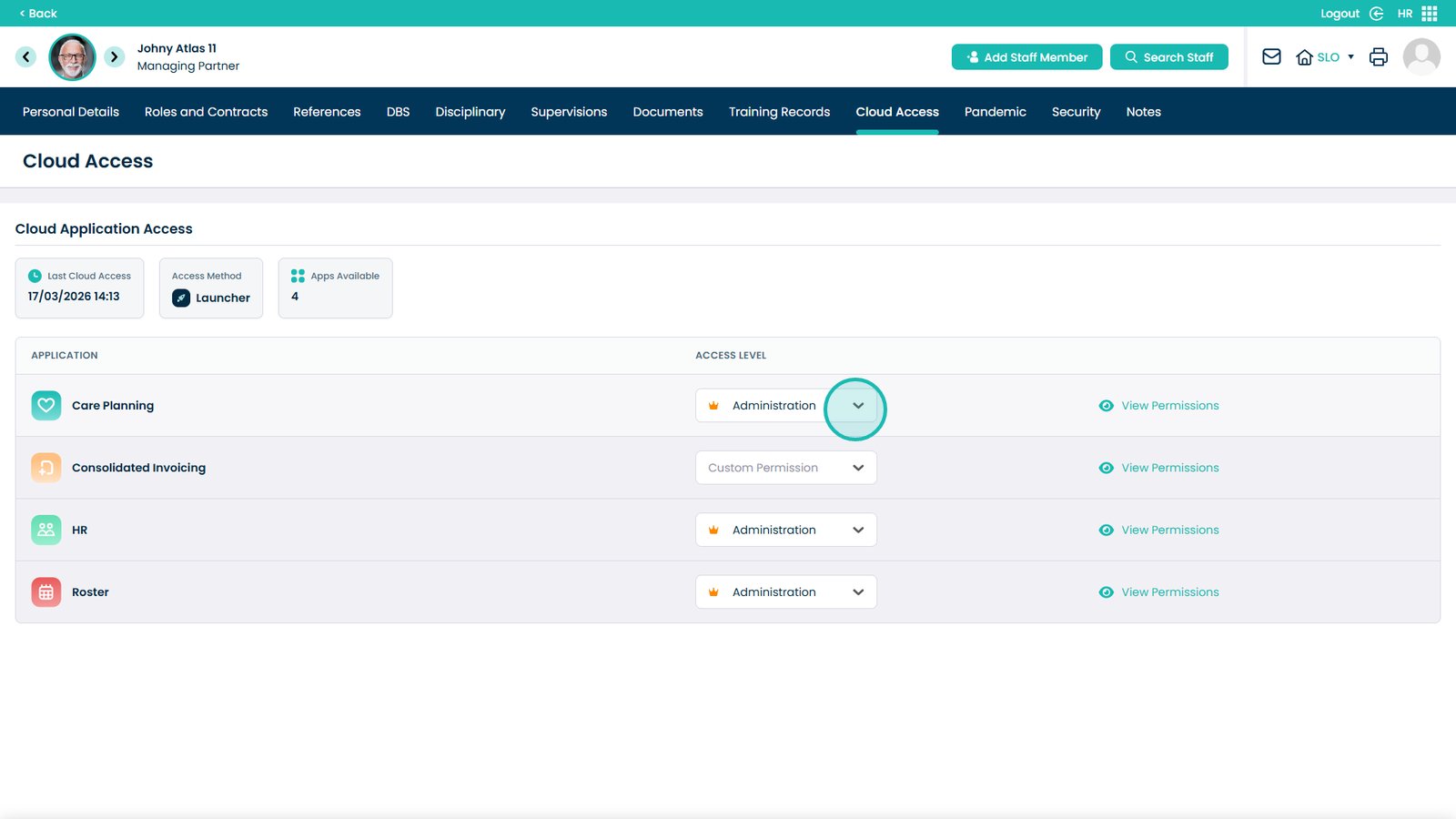
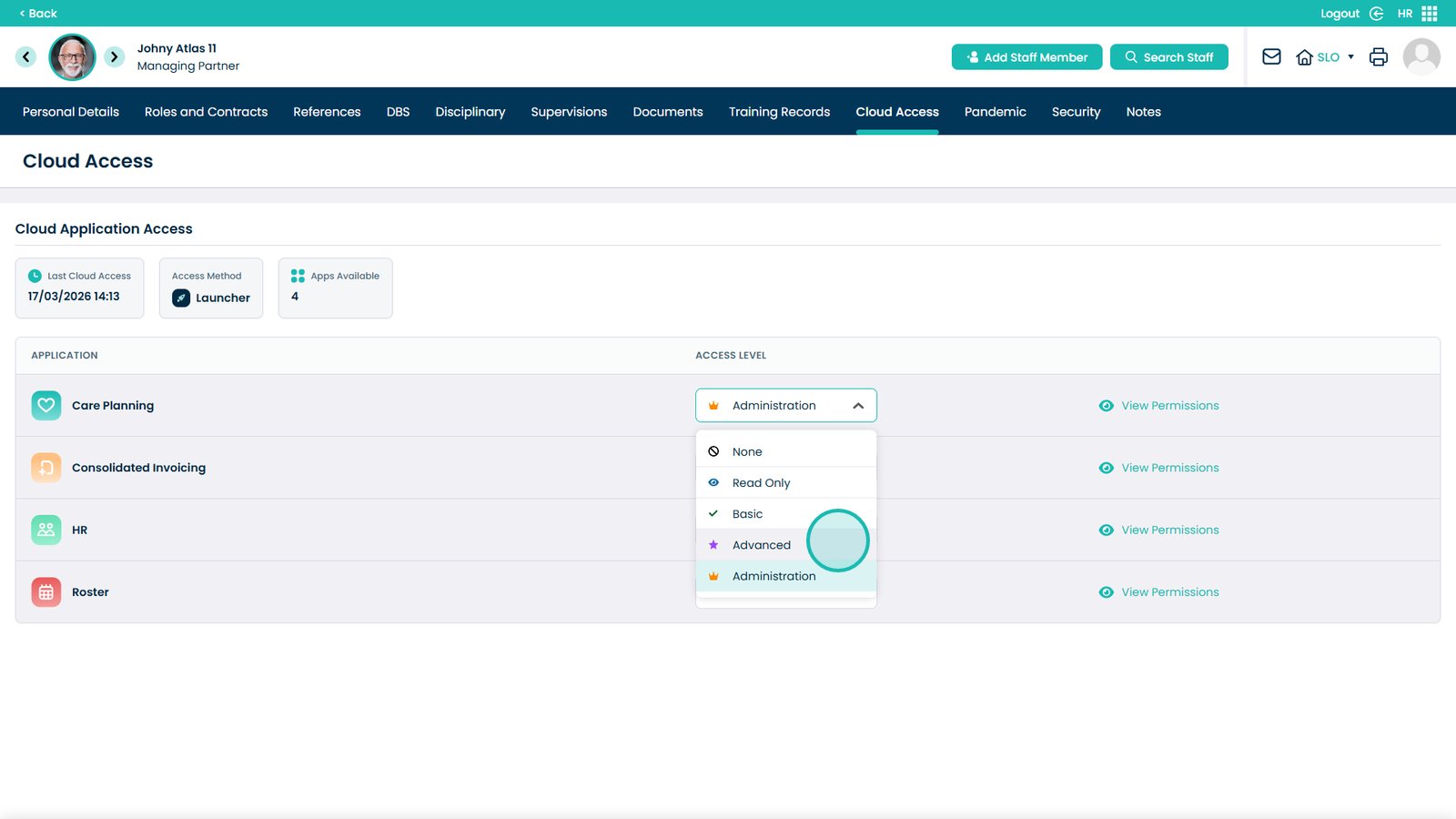
Open the Access Level dropdown for the app you want to modify
Select the required permission level
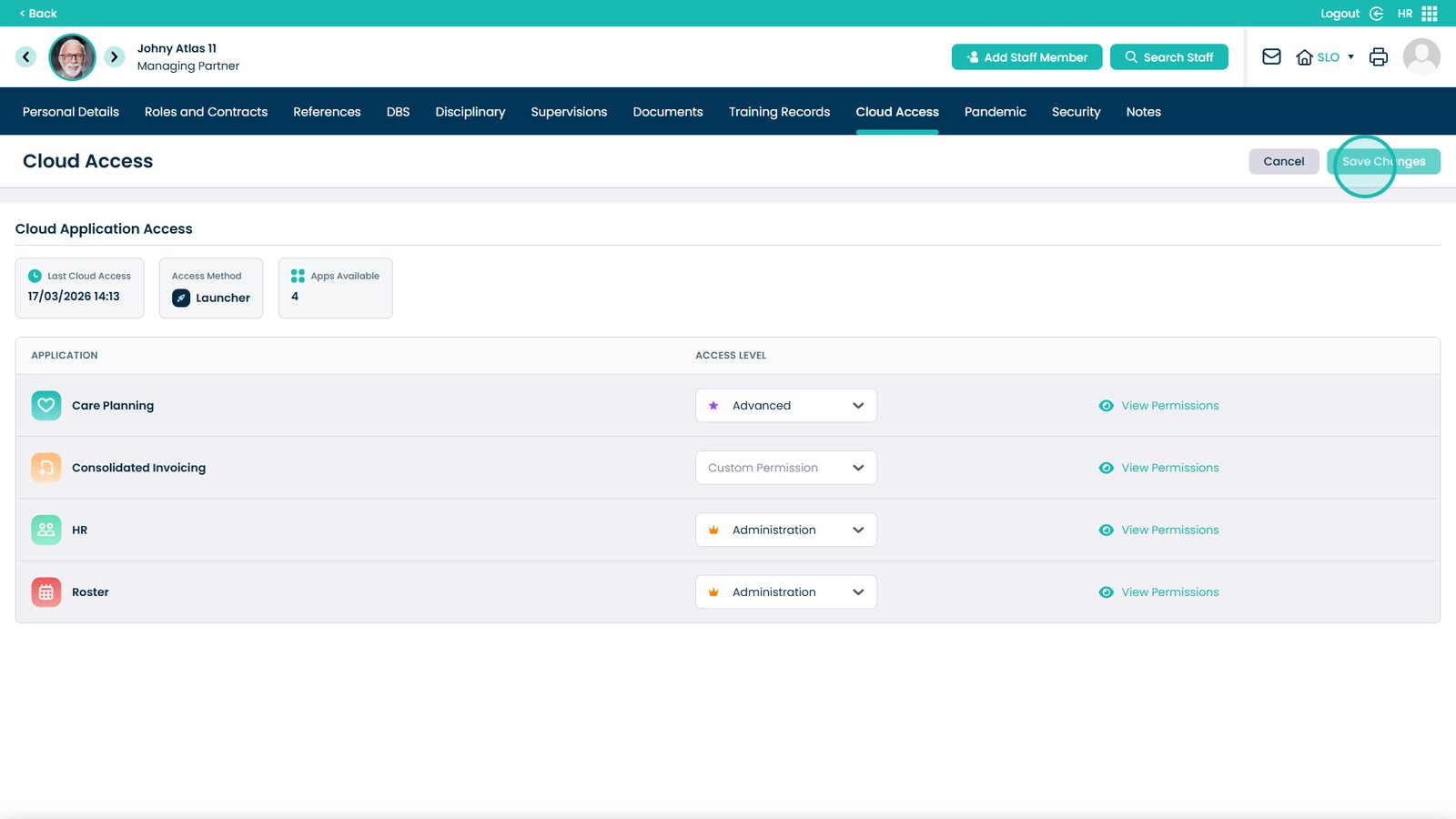
Click Save Changes
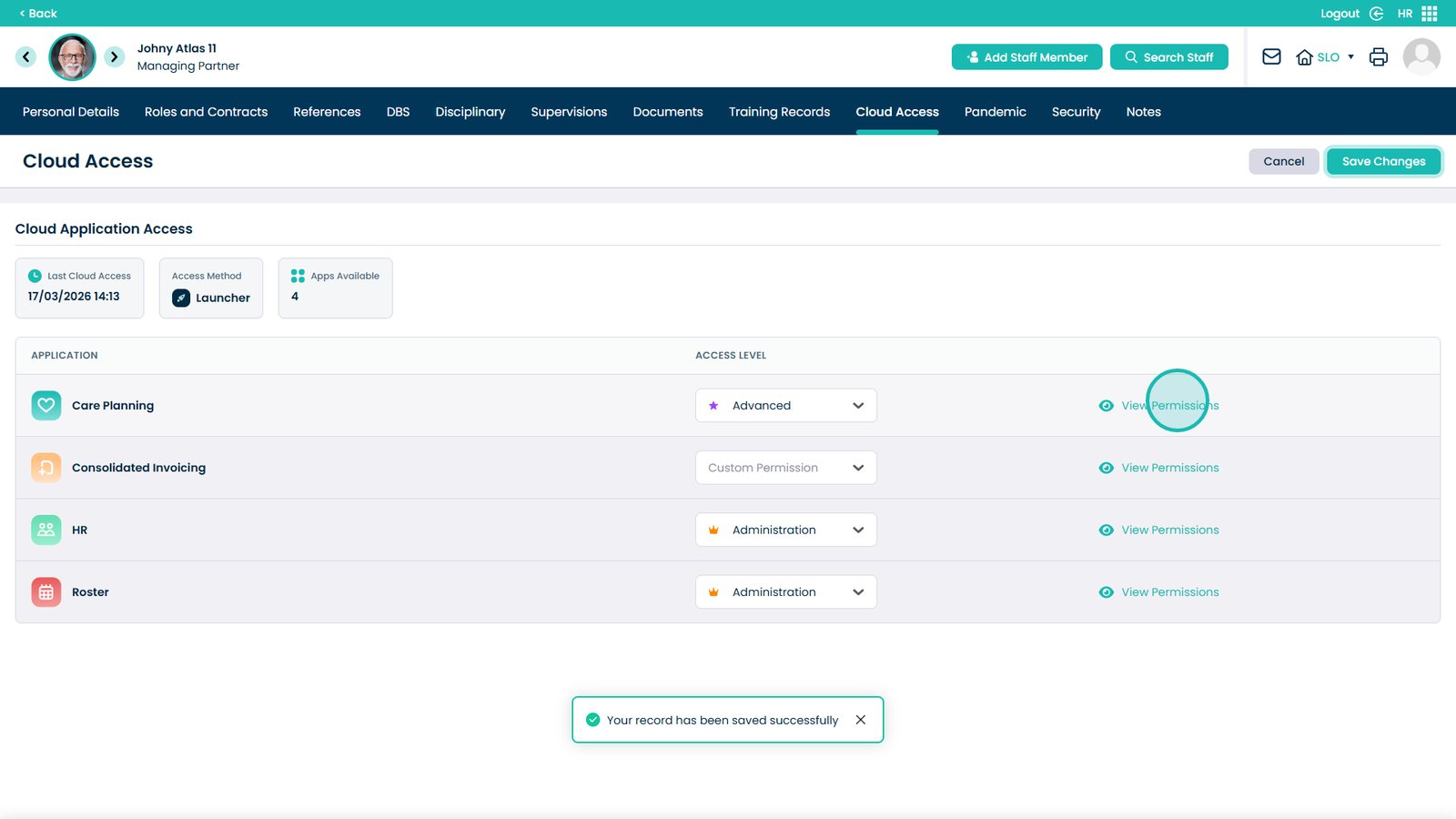
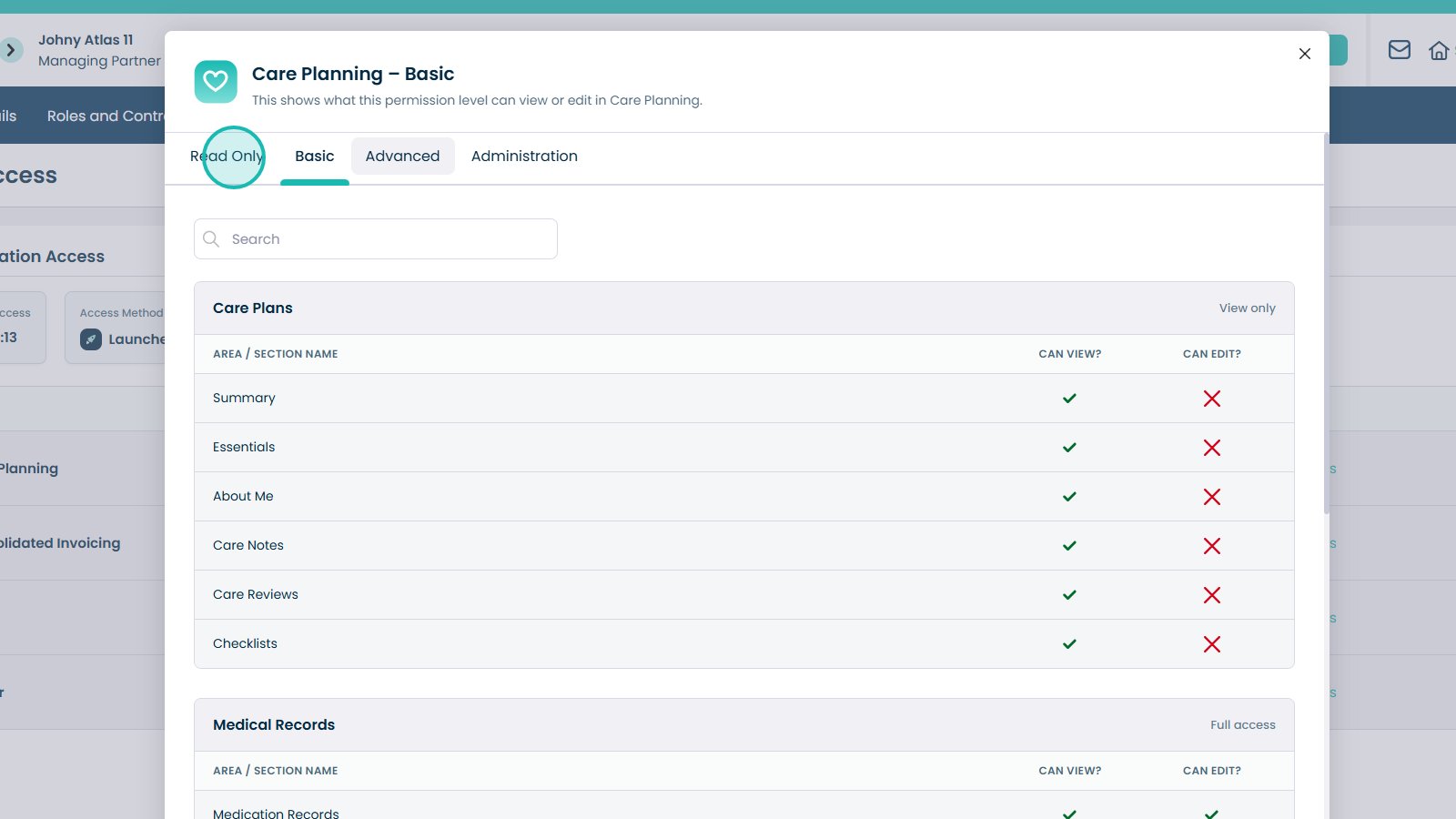
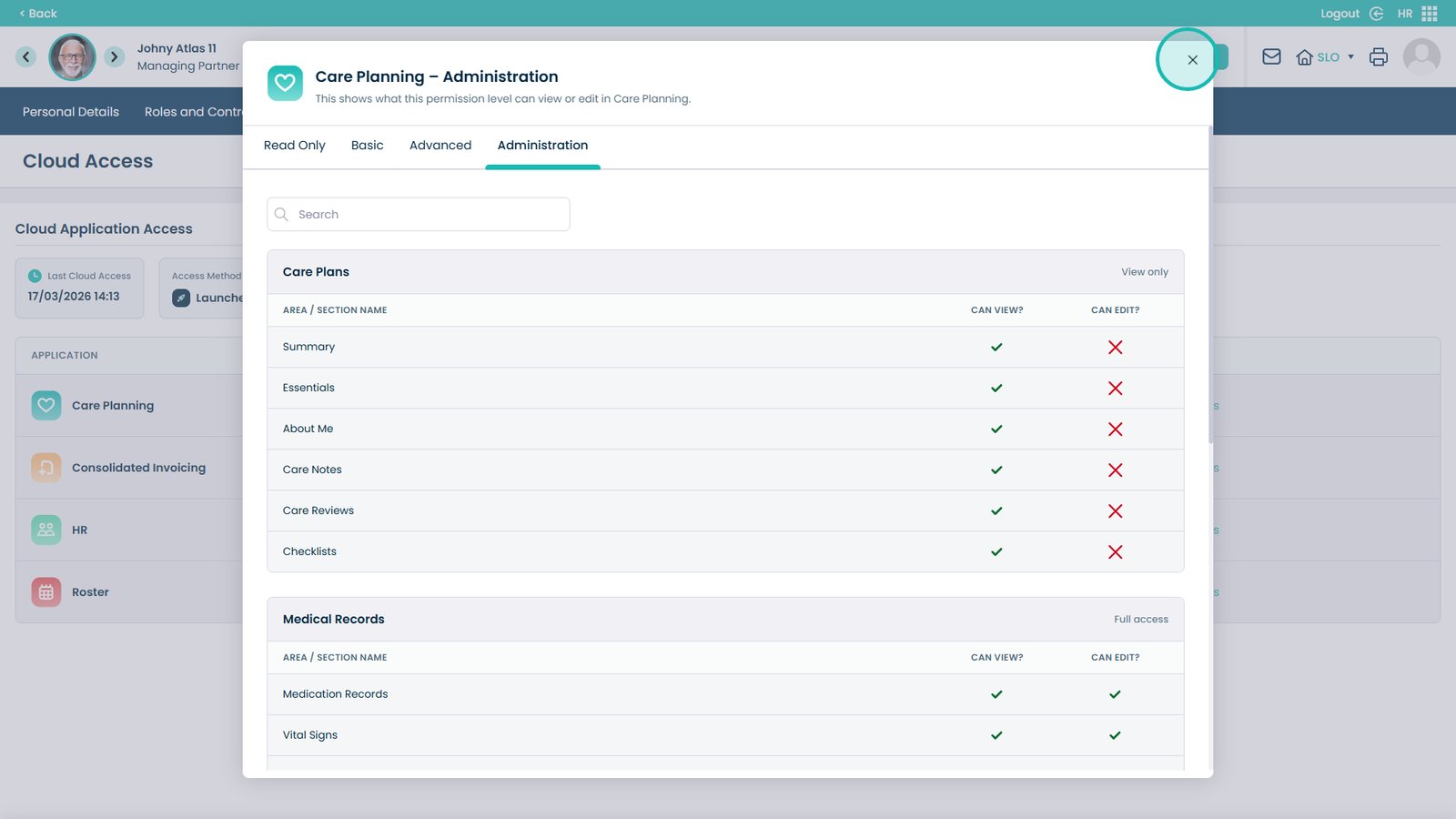
Select View Permissions to see what each level includes