How to Complete an Intelligent Care Review
Learn how to complete an Intelligent Care Review for a service user, from recording initial review information and completing the Pre-Care Assessment through to reviewing triggered care domains, setting levels of need, finalising the review, and recording consent.
Takes 10-20 minutes
For: Everyone
Updated: 28th Sept 2026
Introduction
Care Reviews help you review a service user's current needs and make sure their care information remains accurate and up to date.
The review begins with general information about the service user and their involvement in the review. You'll then complete a Pre-Care Assessment, where the answers provided can trigger relevant care domains that need to be reviewed in more detail.
Within each relevant care domain, you can review the level of need, present situation, planned staff actions and expected outcomes. Once the review is complete, consent can be recorded directly within Care Control.
In this guide you'll learn how to:
- Start a new Care Review
- Record service user and family or advocate involvement
- Complete the Pre-Care Assessment
- Review the care domains triggered by the assessment
- Update levels of need and care information
- Complete and submit the Care Review
- Record consent and signatures
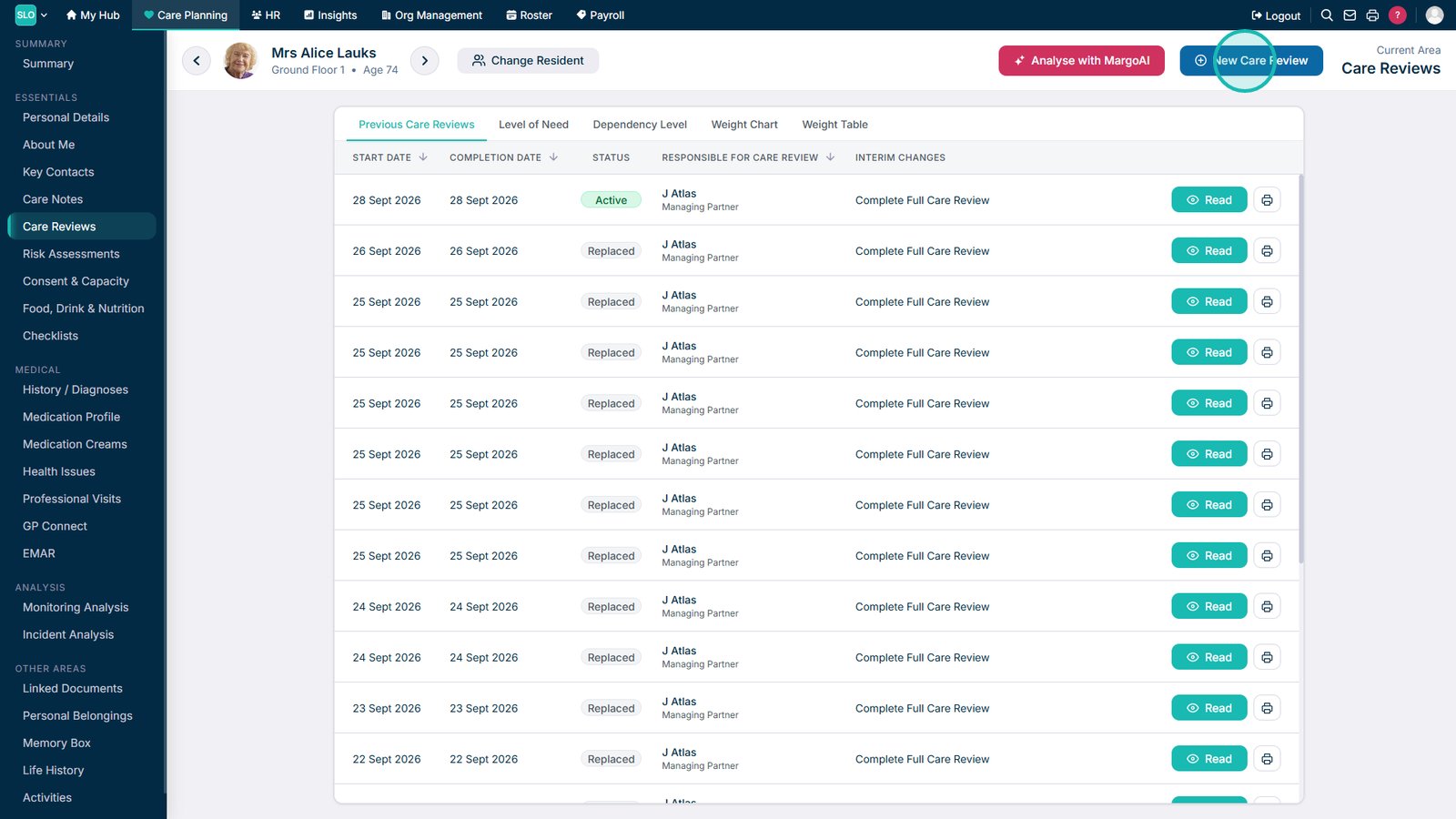
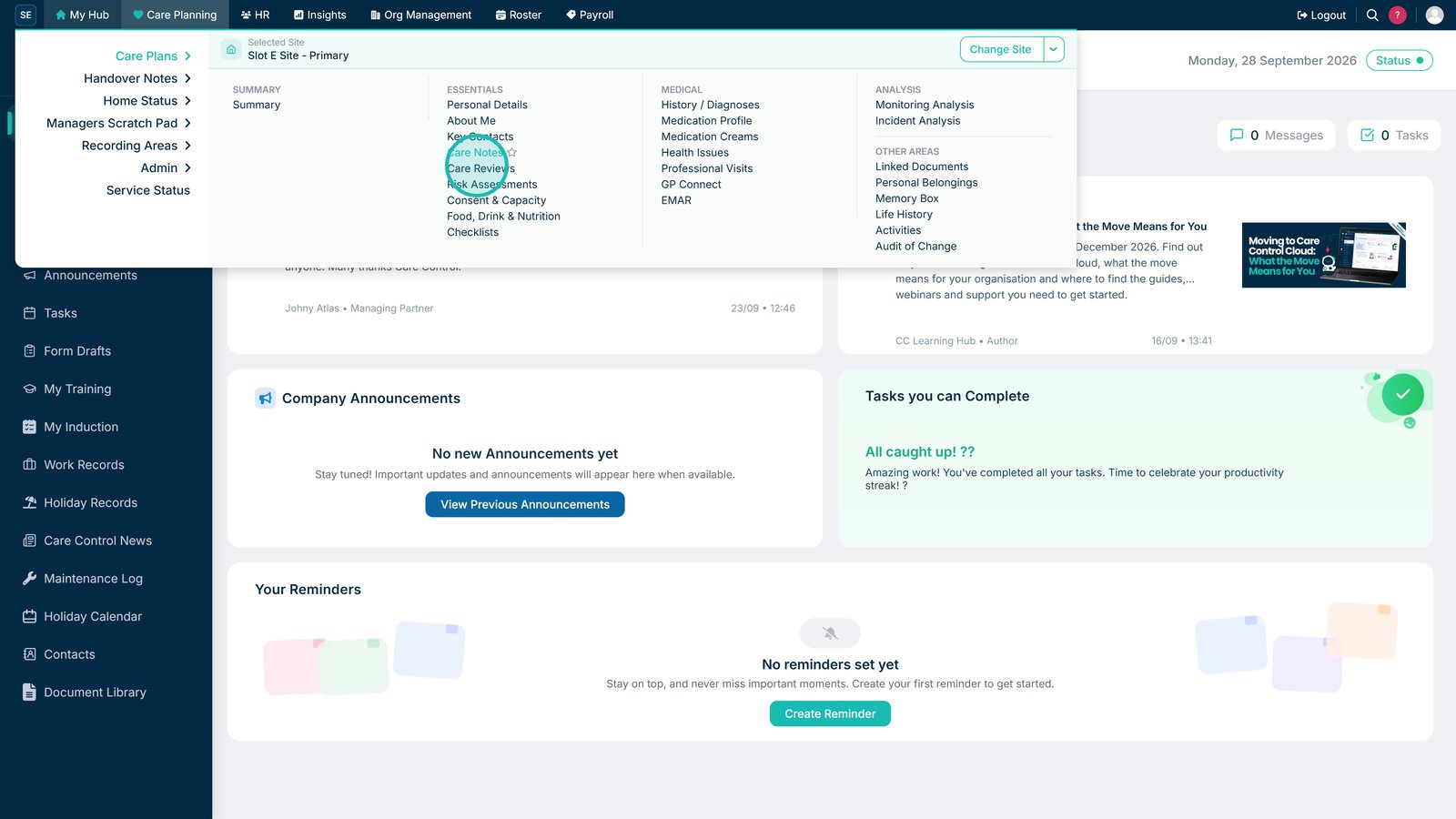
Open Care Reviews.

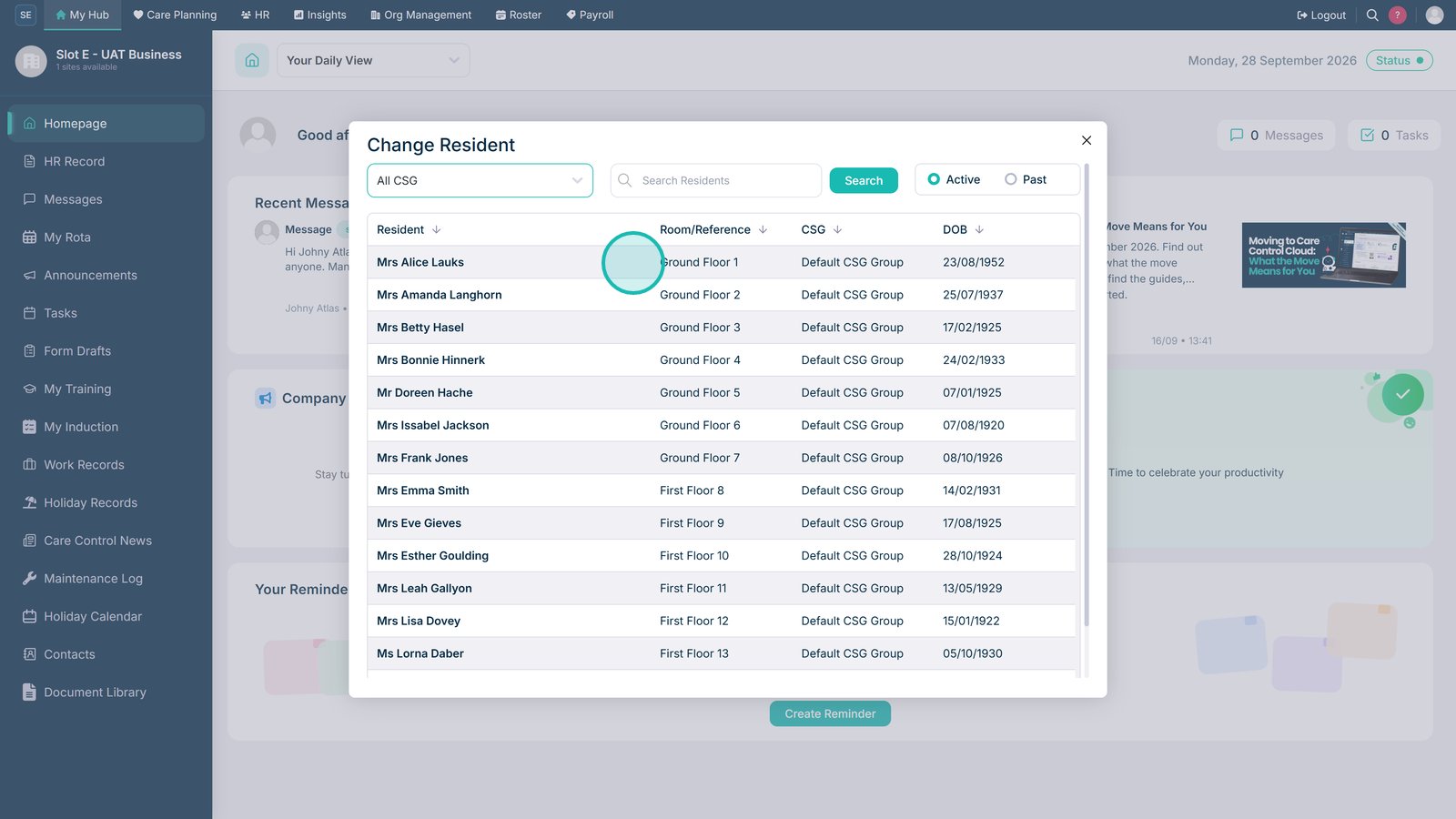
Select the service user you want to review using their room reference.

Select the option to start a new Care Review.

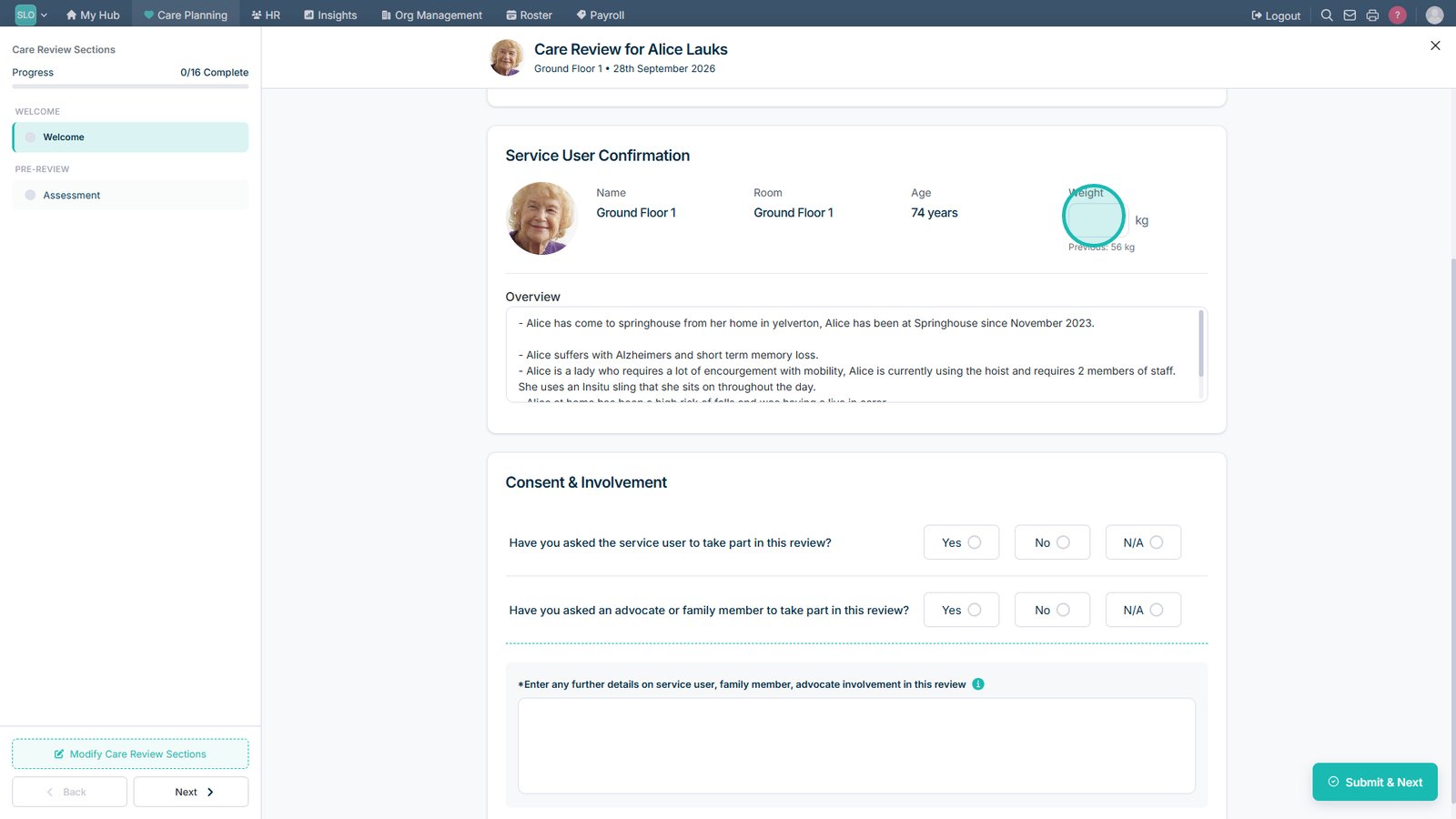
Review and update the service user's weight where required.

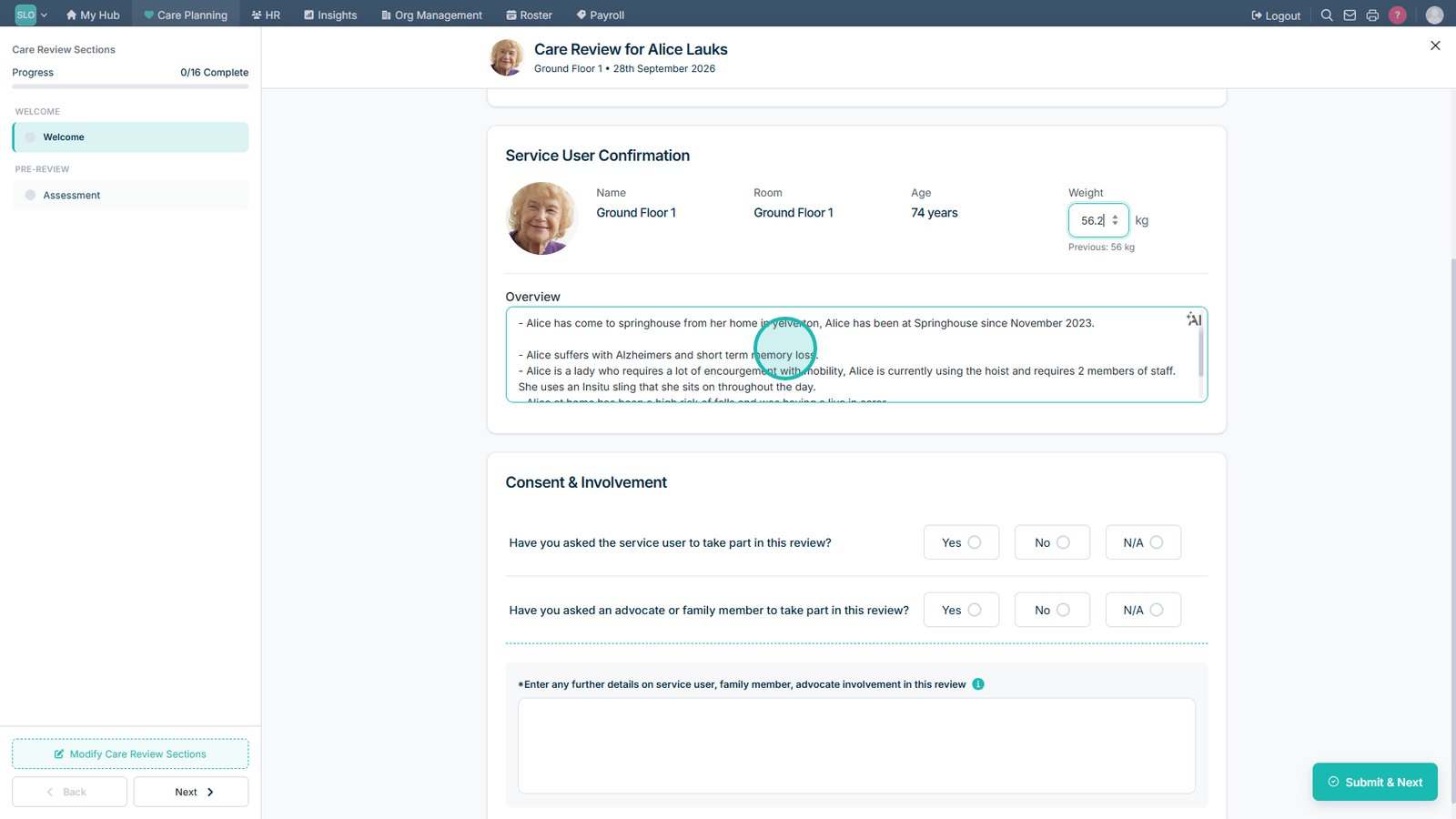
Complete the Overview with any relevant information about the service user and their review.

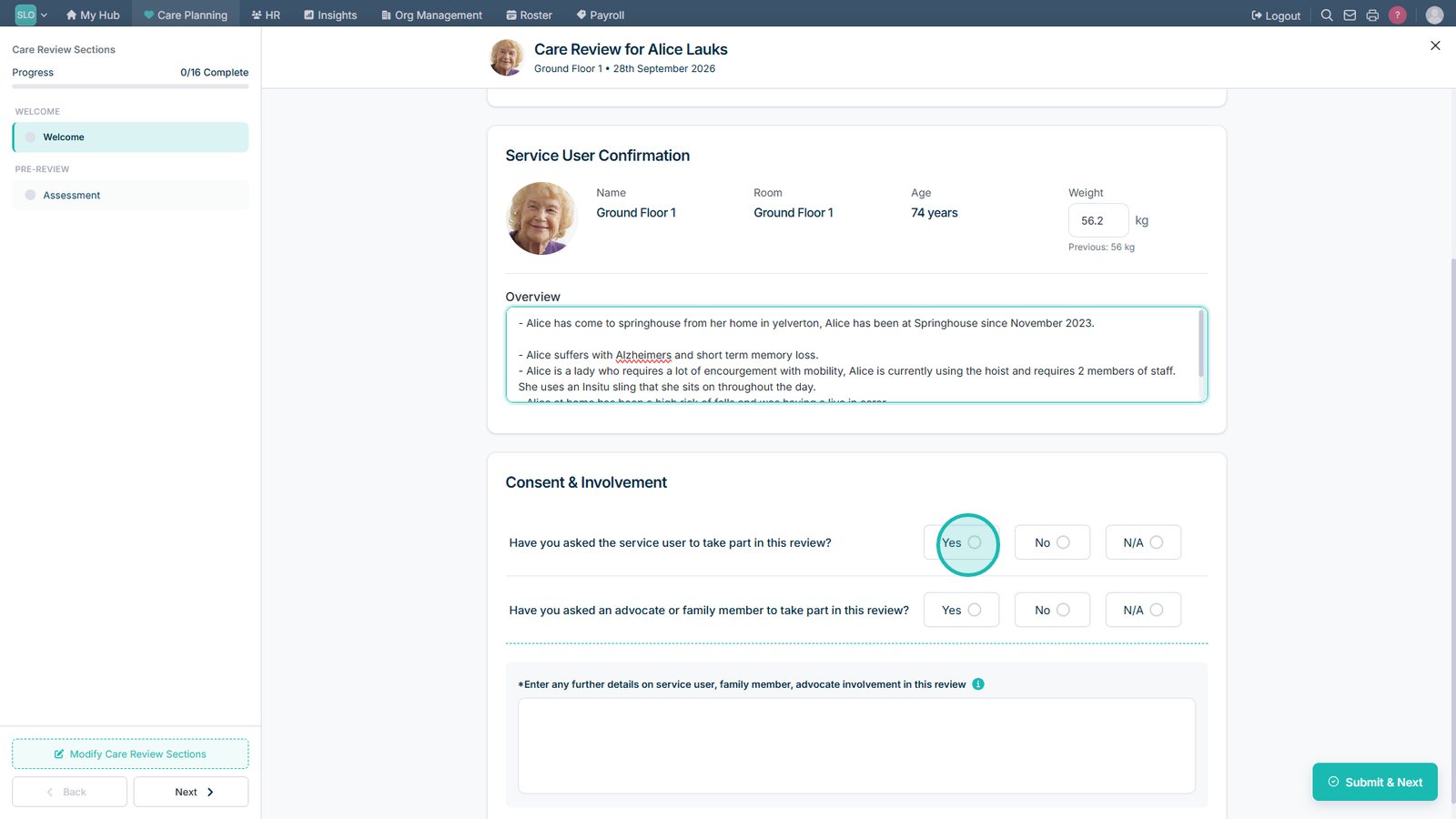
Record whether the service user has been invited to participate in their Care Review.

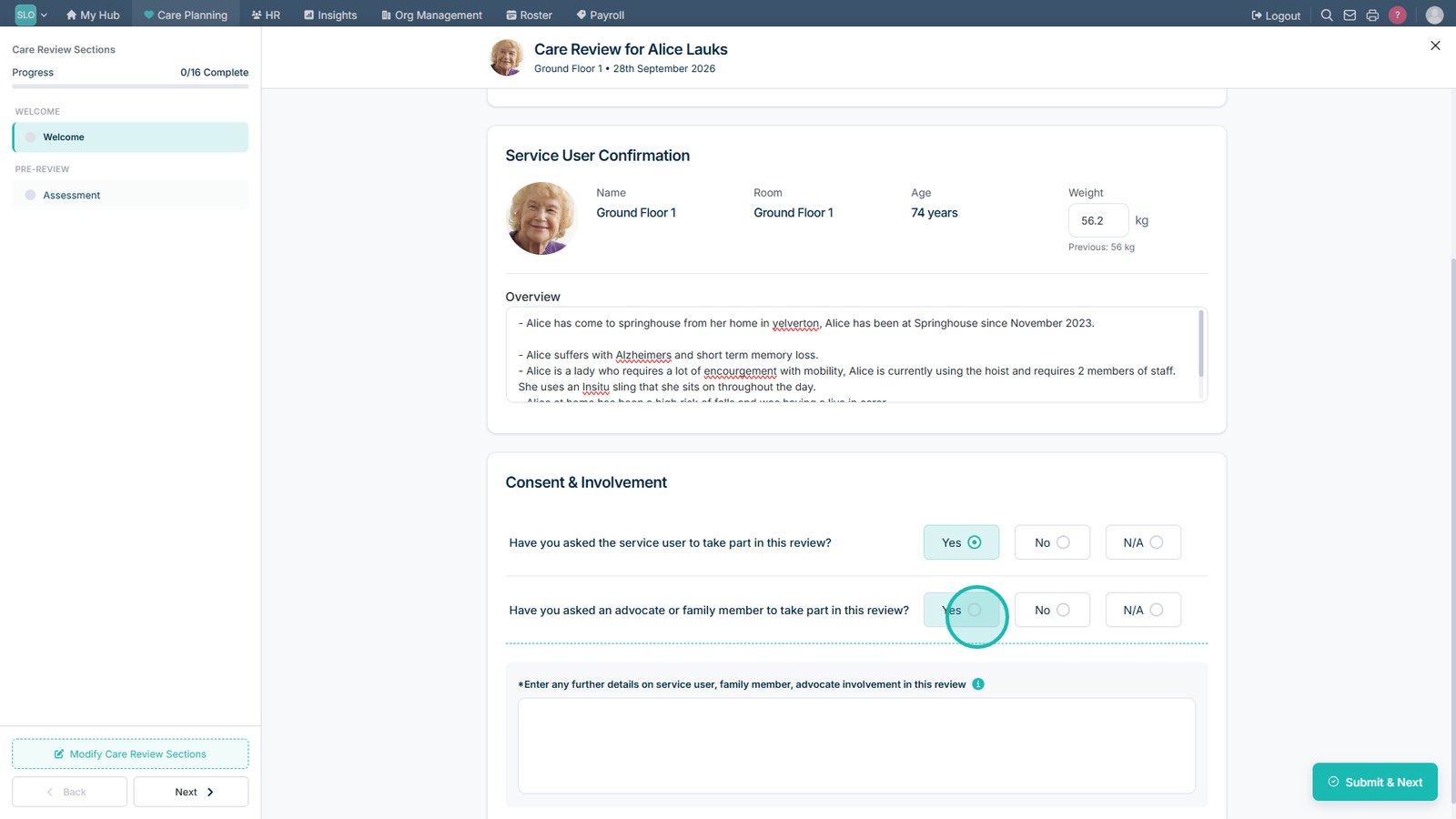
Record whether family members or an advocate have been involved in the review.

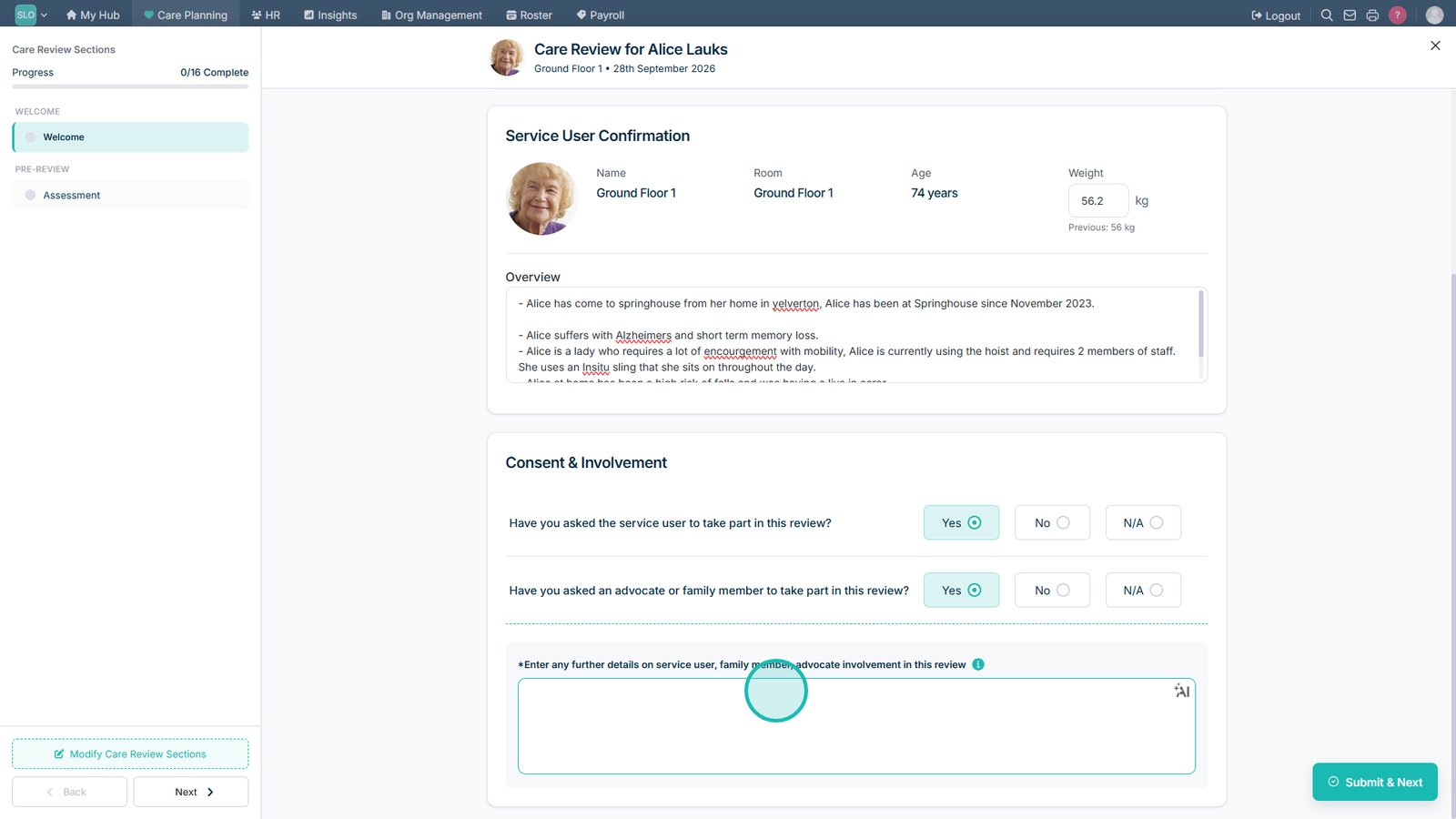
Add any relevant notes about the service user's and family or advocate's involvement.

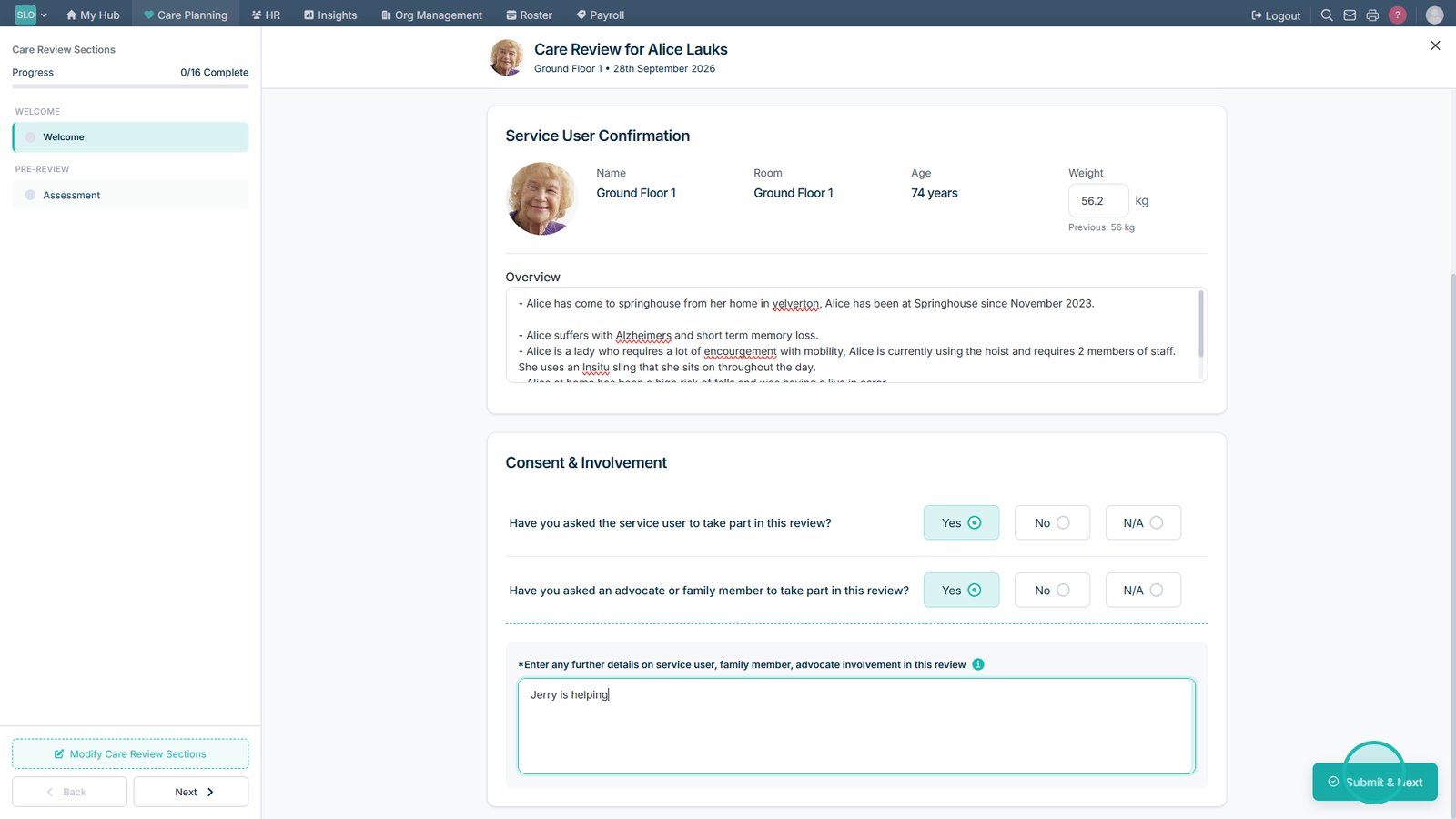
Select Submit & Next to save the information and continue.

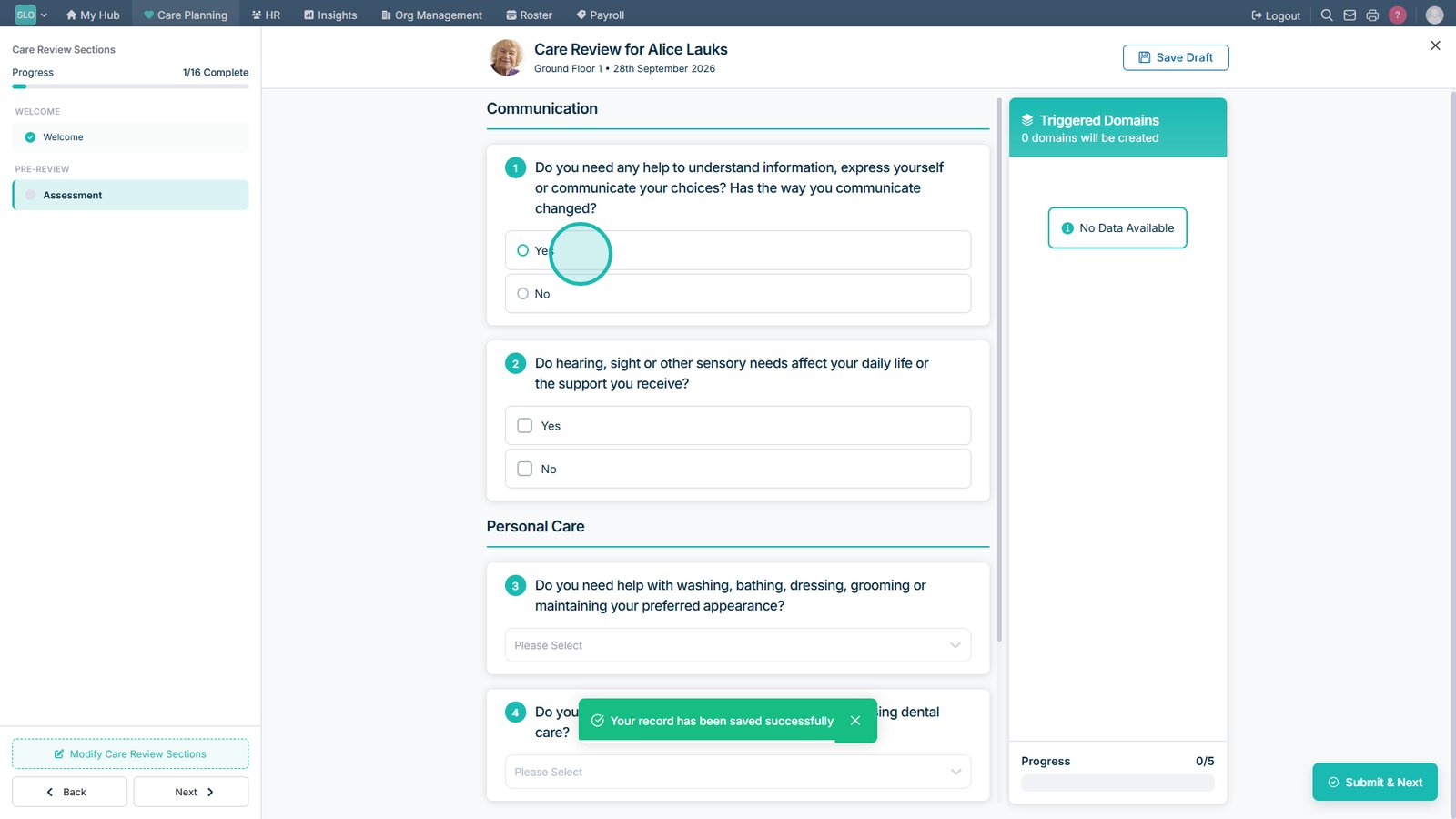
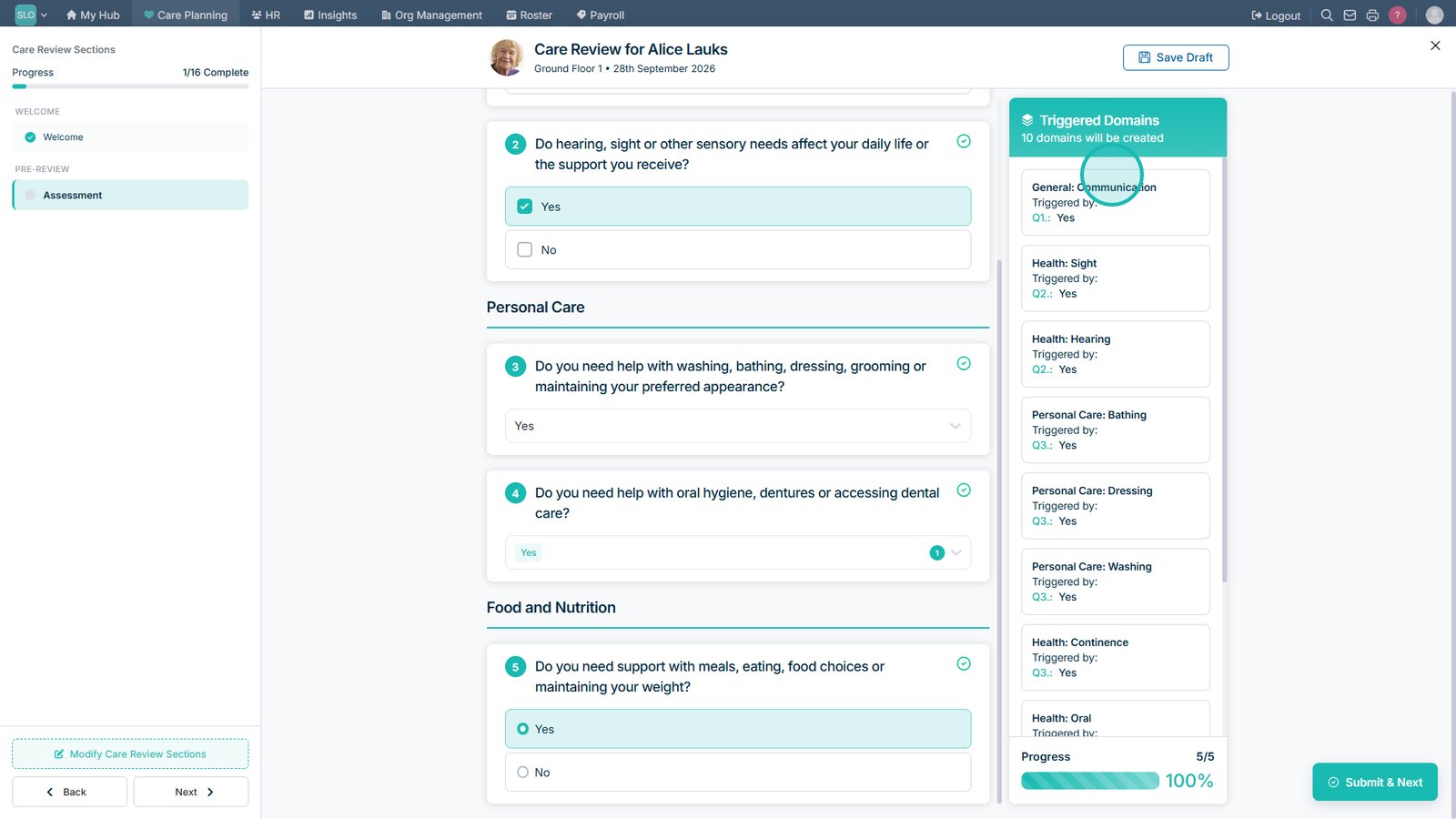
Complete the Pre-Care Assessment by answering each question.

As you complete the assessment, relevant care domains will be triggered based on the responses provided.

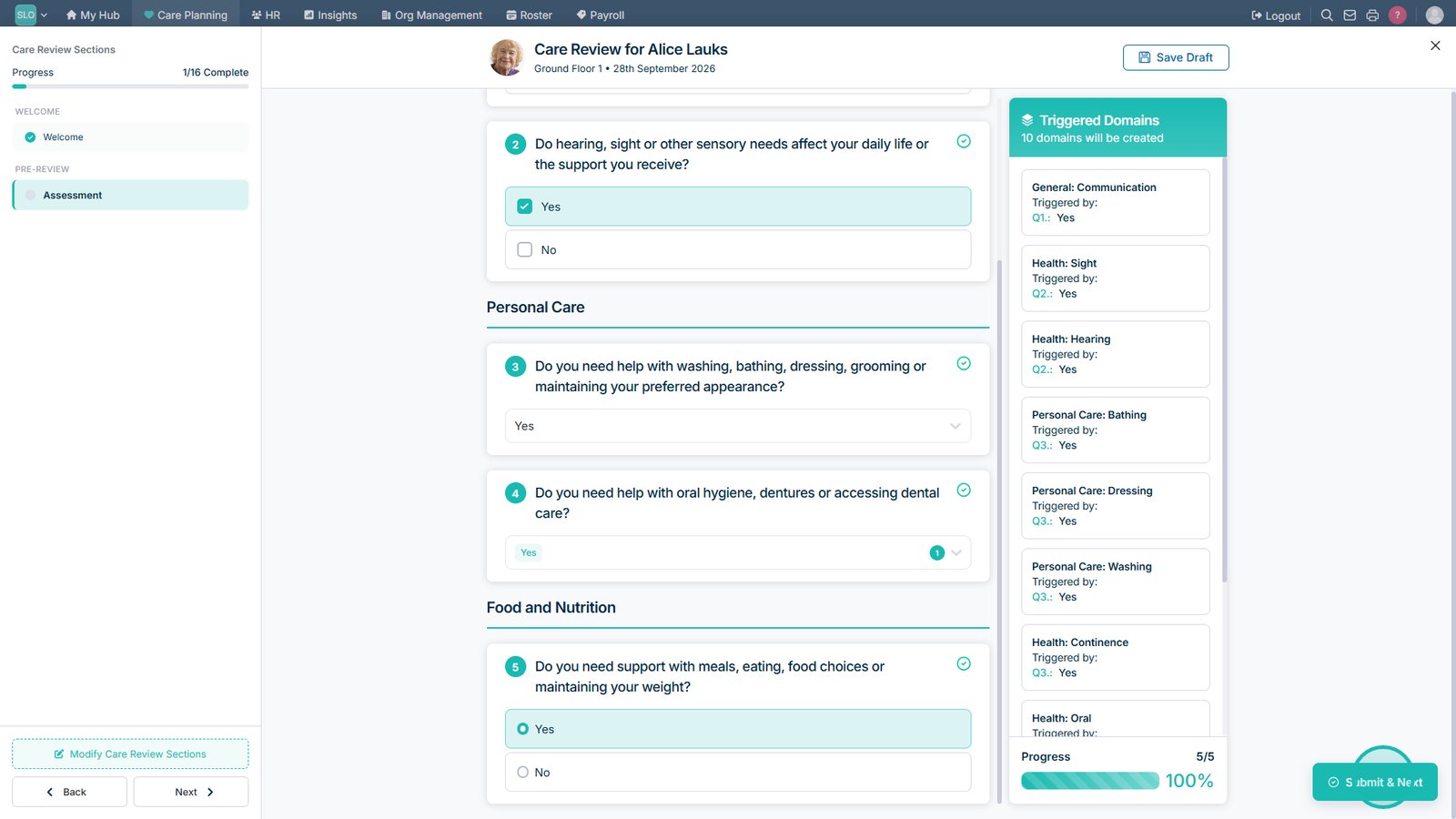
Once all questions have been answered, submit the Pre-Care Assessment to continue.

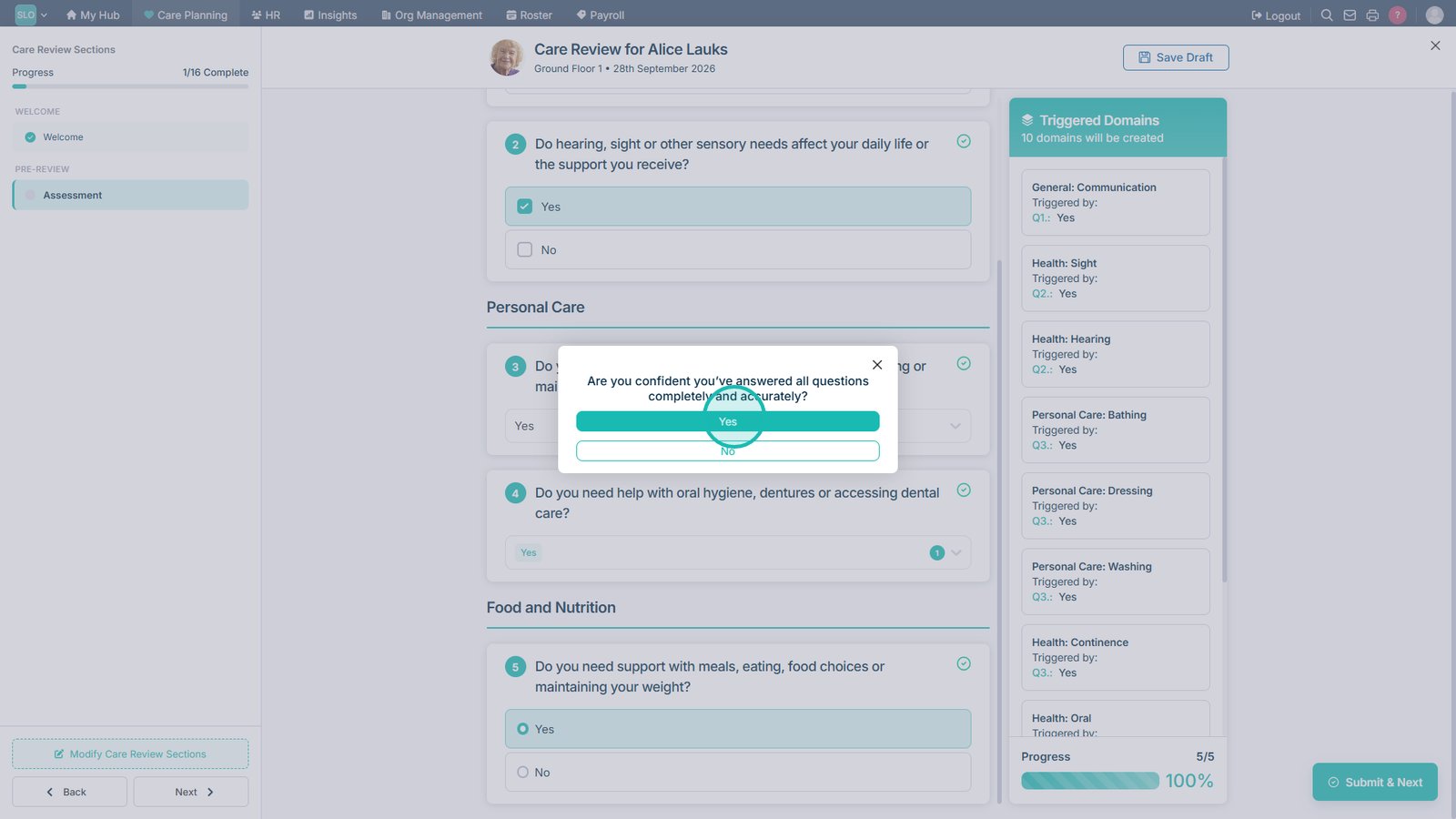
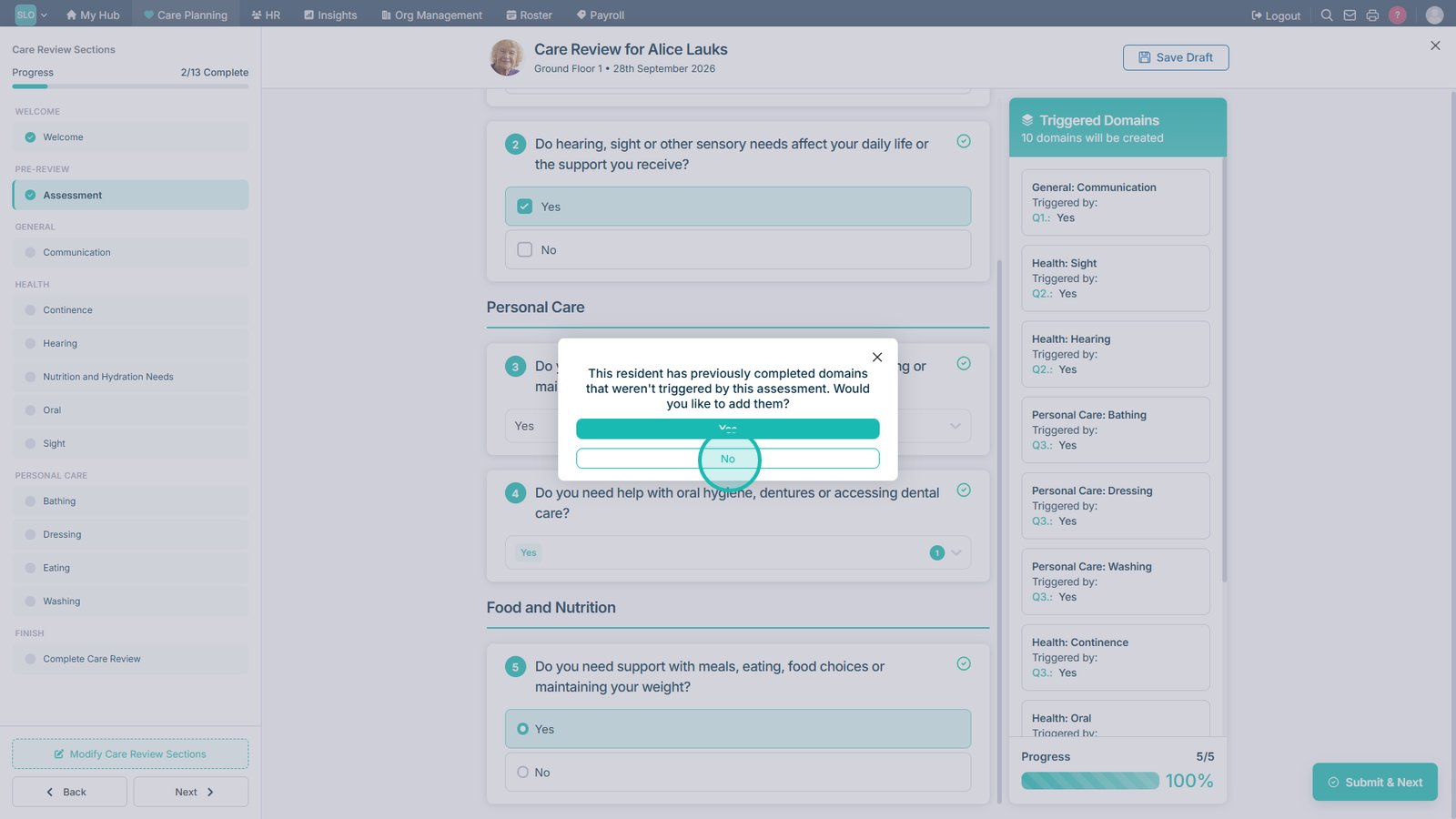
Confirm that the assessment is complete and you are ready to continue.

Choose whether you want to include care domains from the service user's previous review.

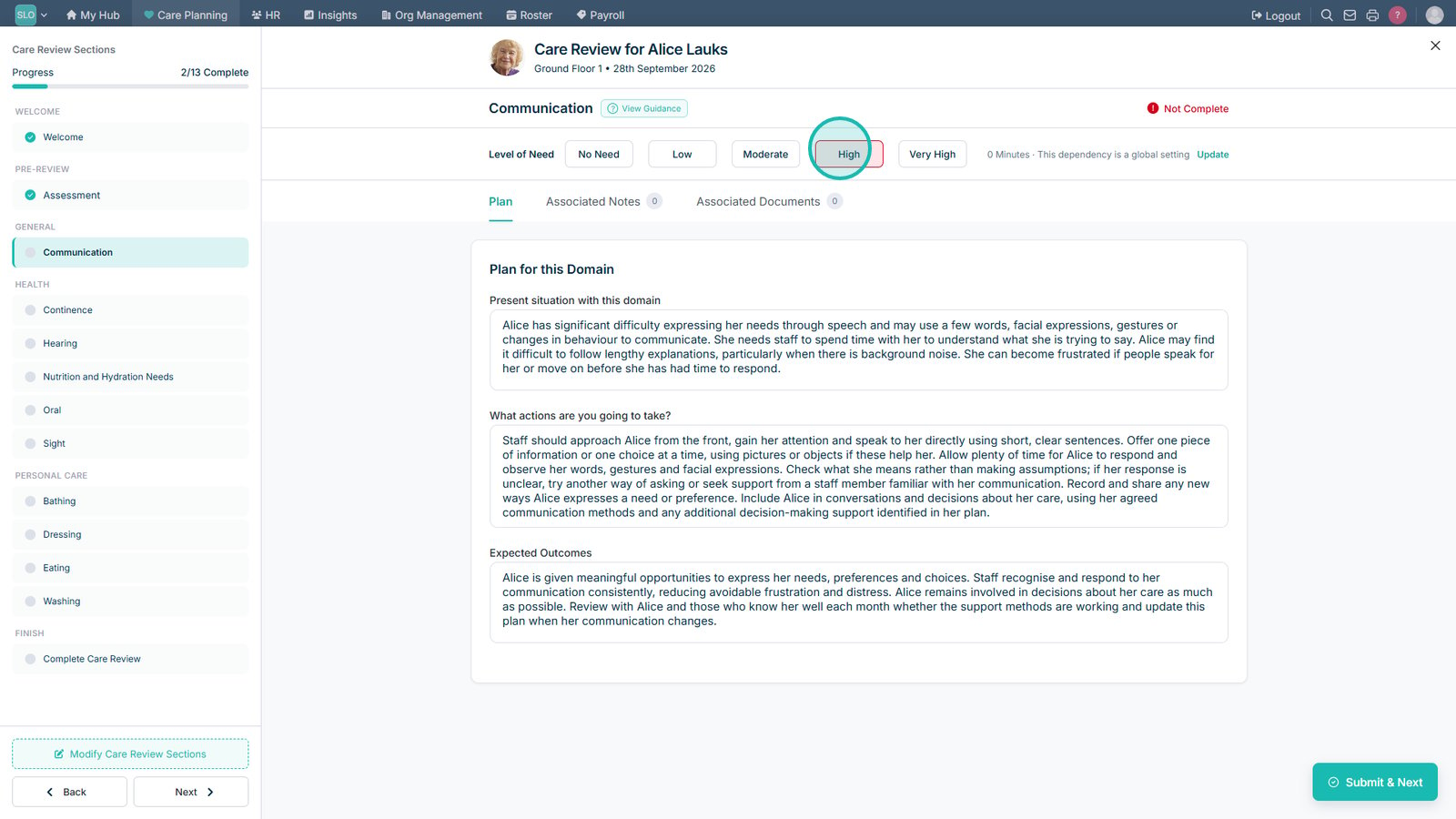
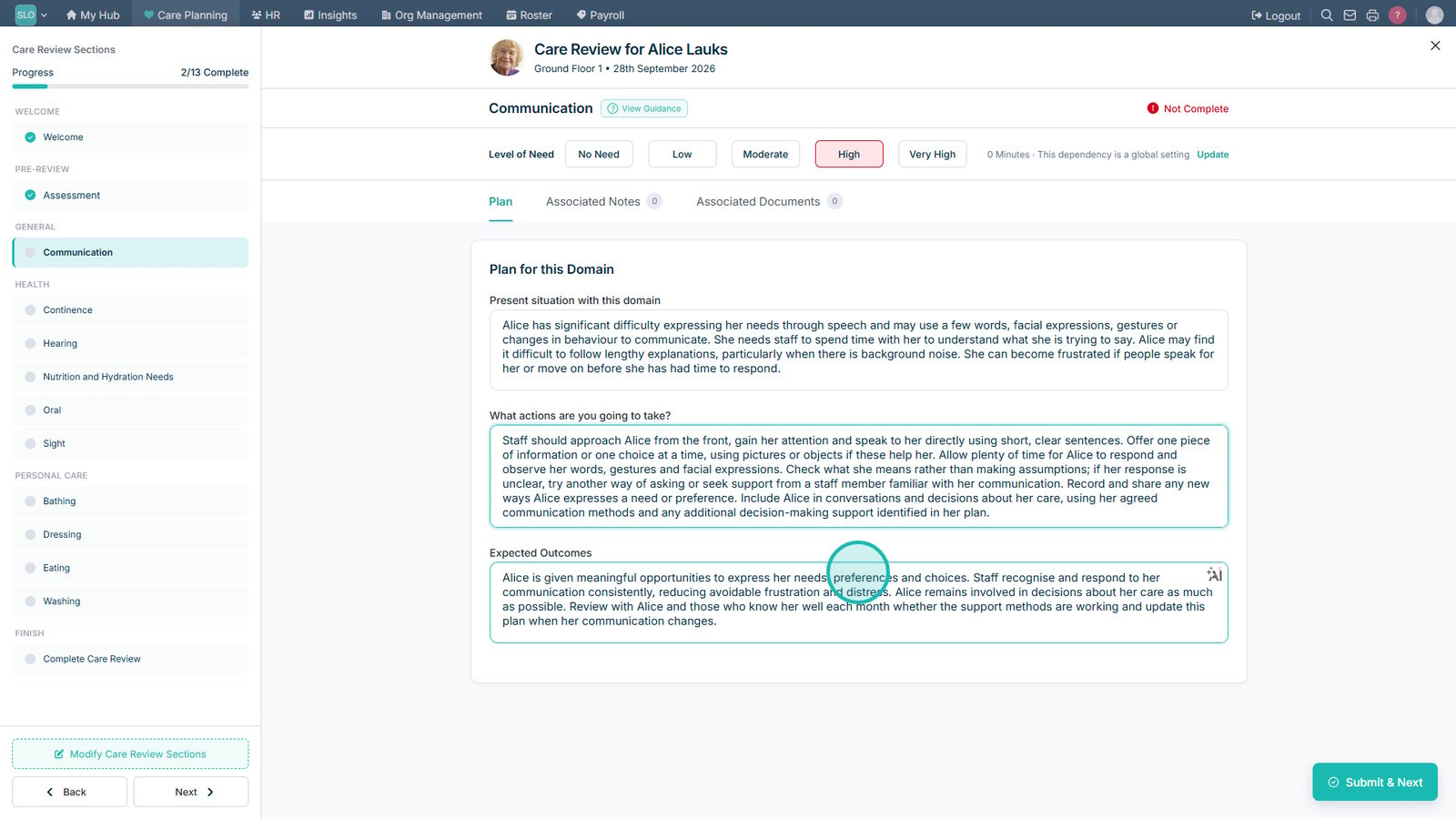
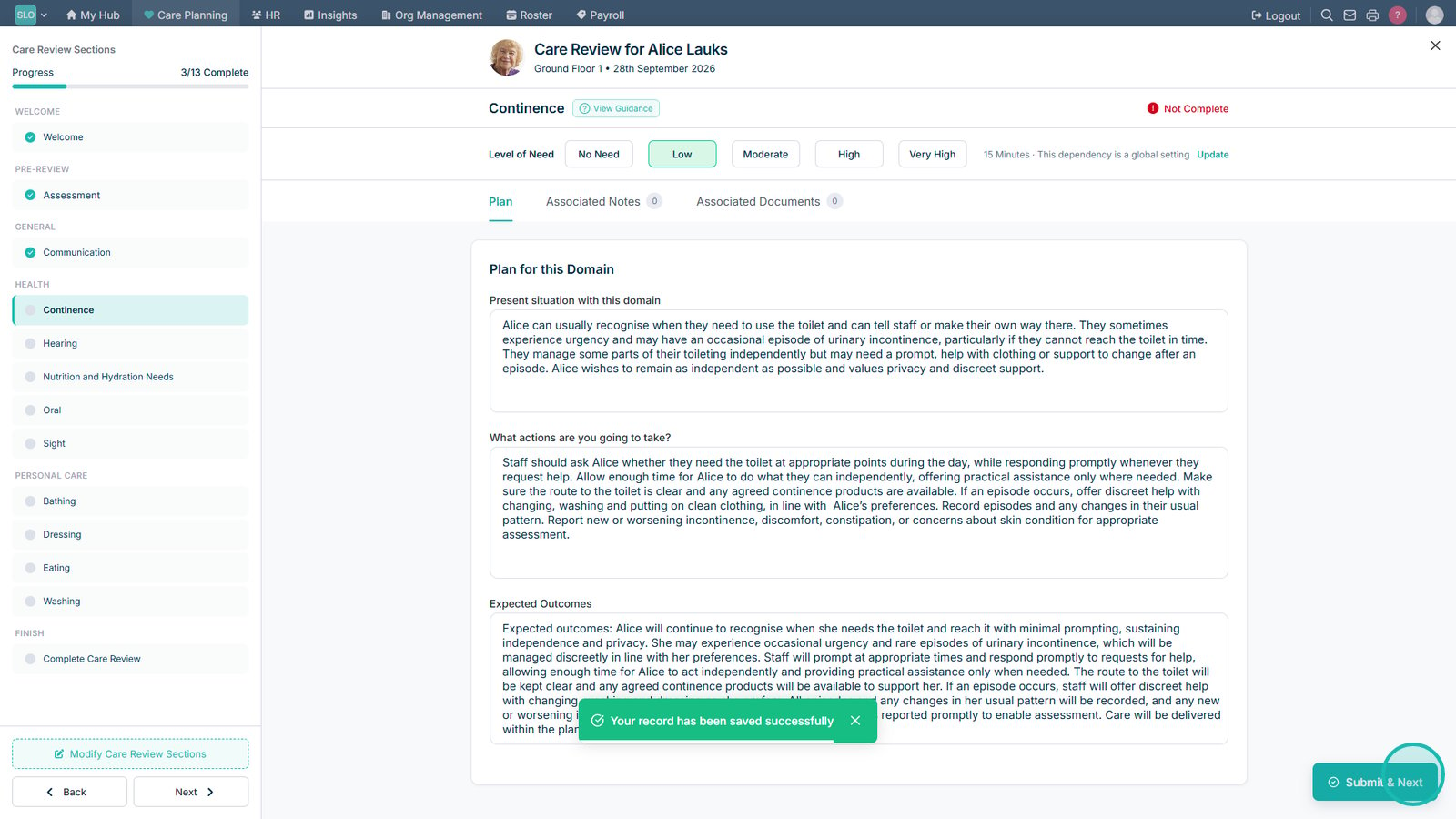
Set the Level of Need for the care domain.

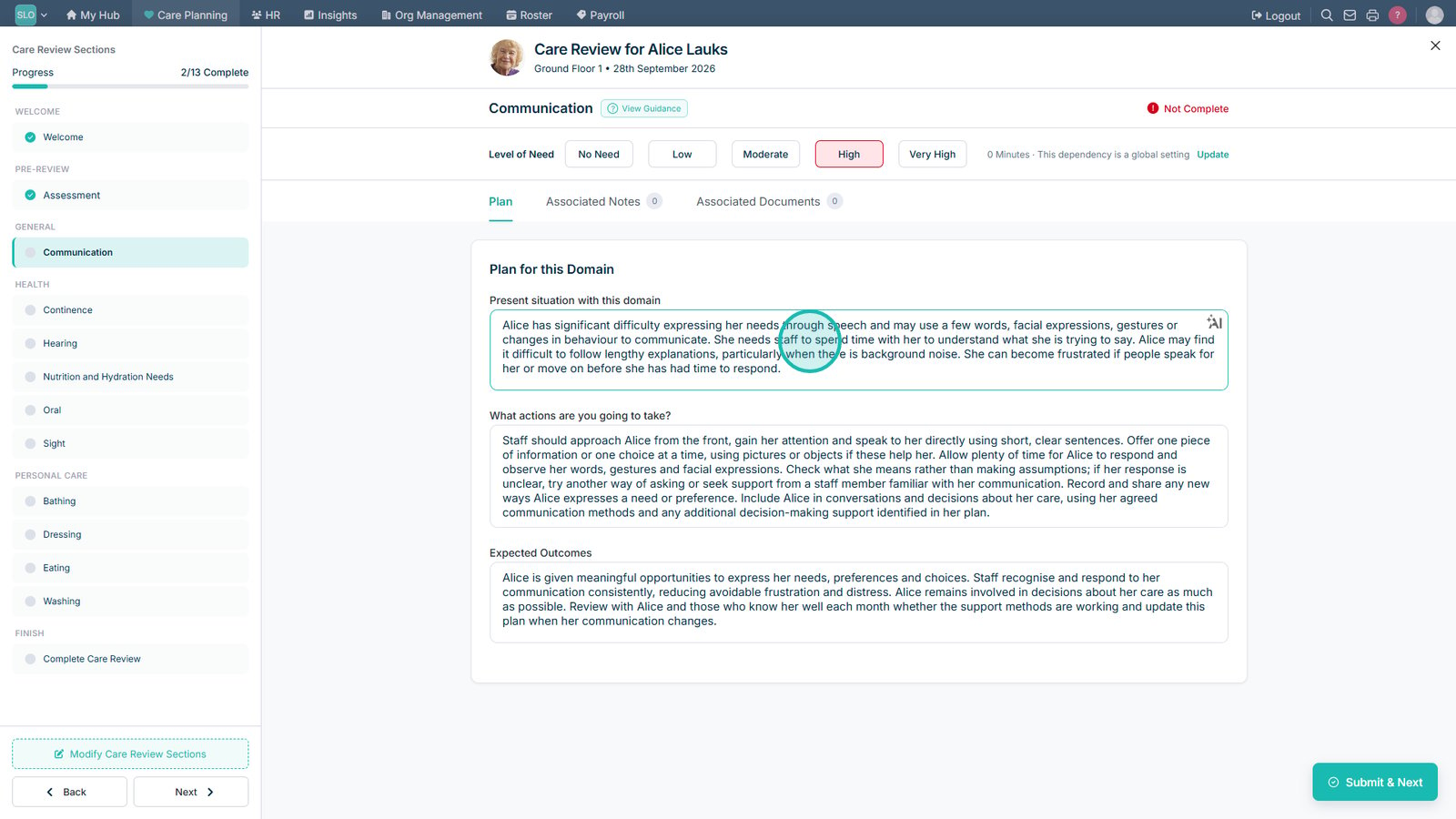
Review and update the Present Situation for the care domain.

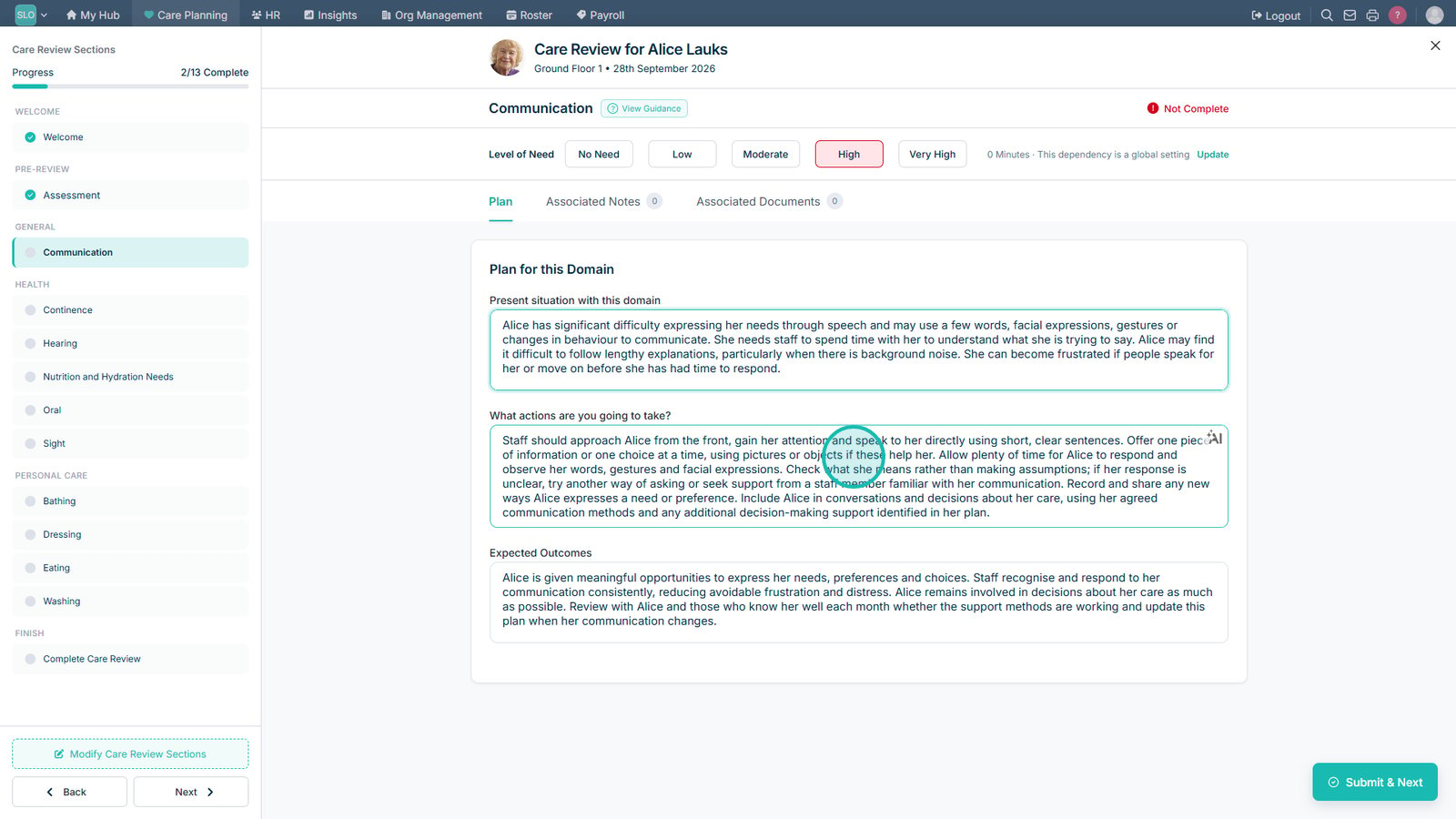
Review and update the Planned Staff Actions.

Review and update the Expected Outcomes to reflect the service user's needs, preferences and goals.

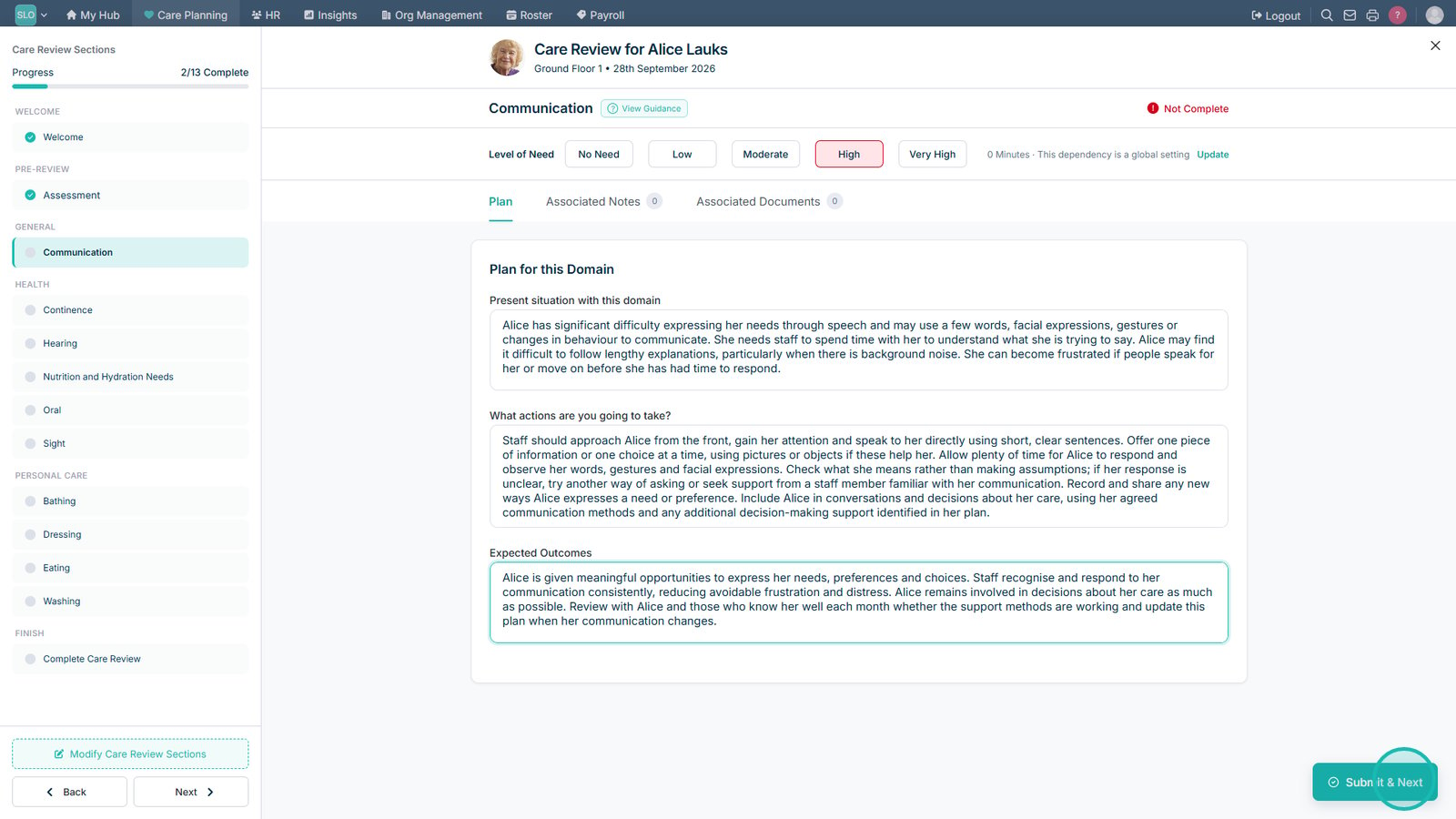
Submit the care domain when you have finished reviewing its information.

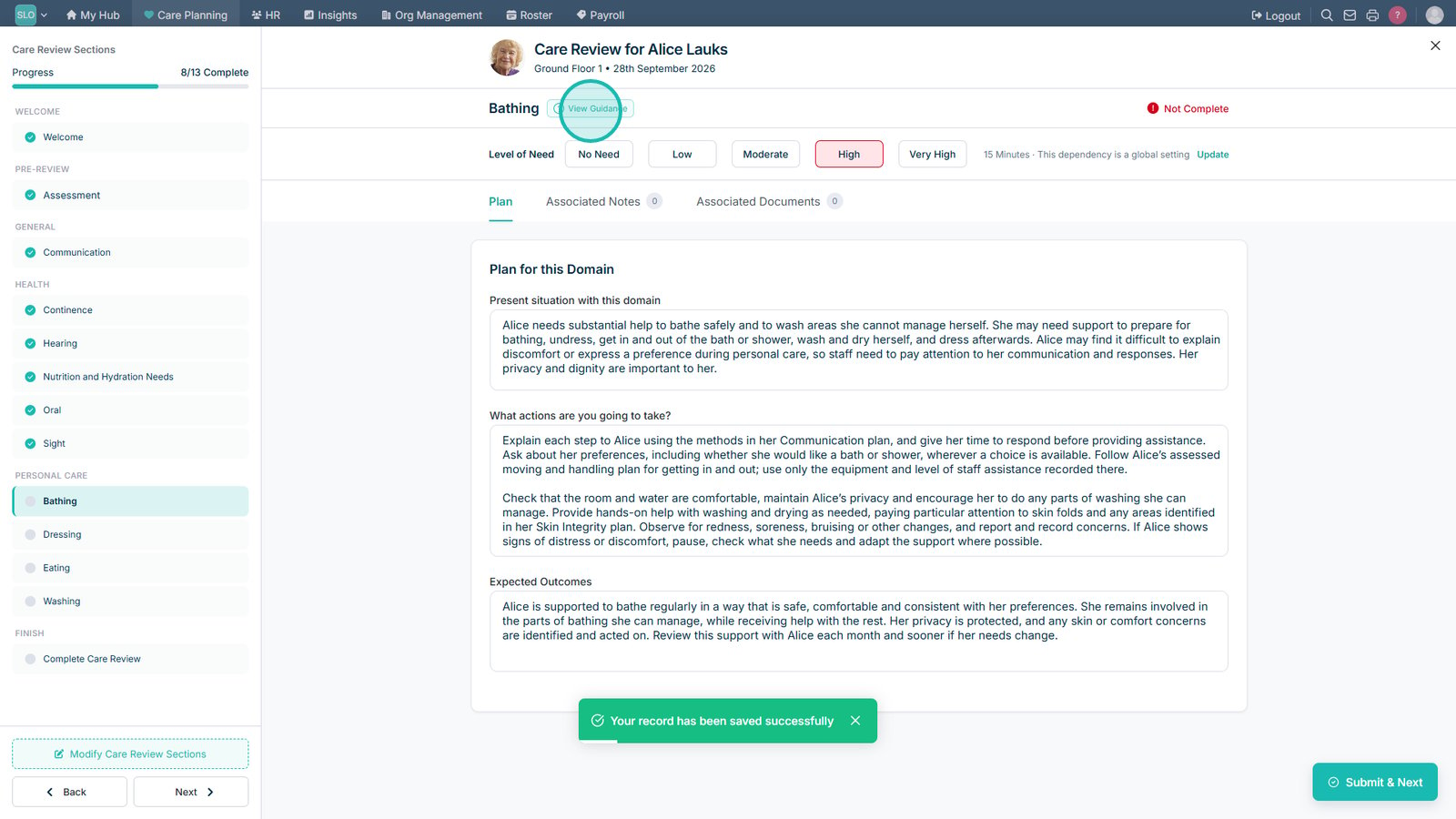
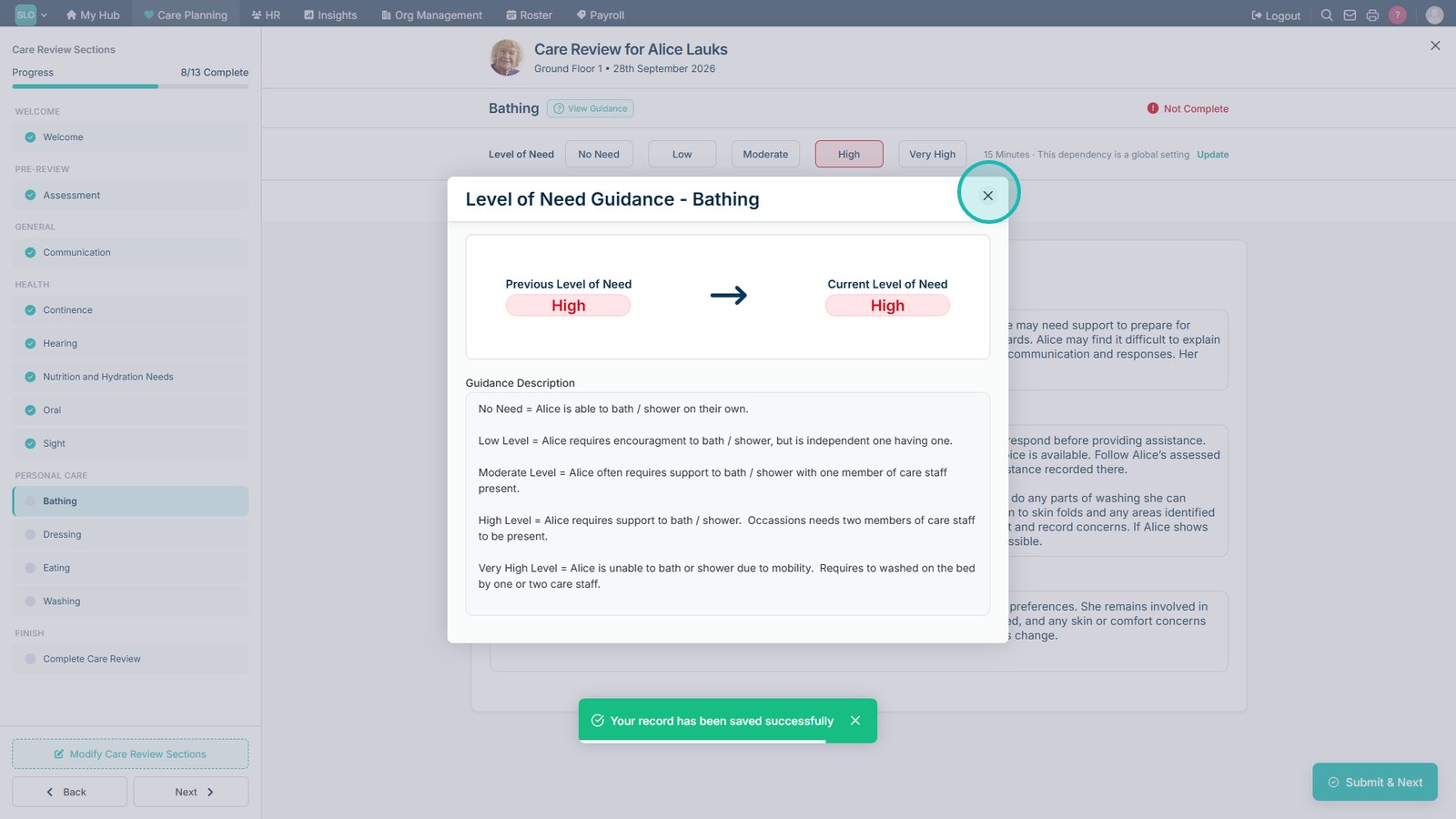
Select View Guidance if you need more information about the available Levels of Need.

Close the guidance when you are ready to return to the Care Review.

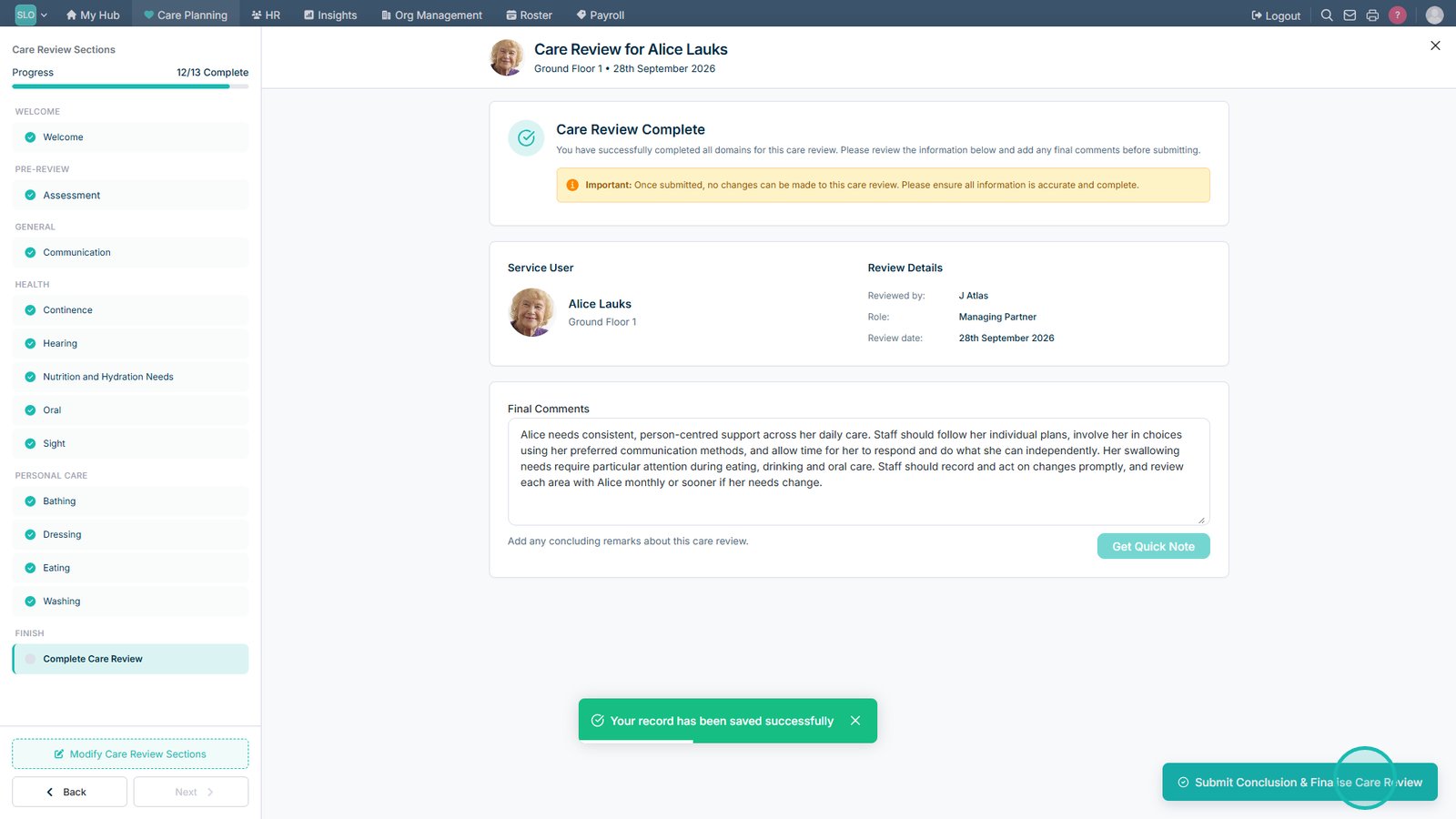
Continue through the remaining care domains and complete the rest of the Care Review.

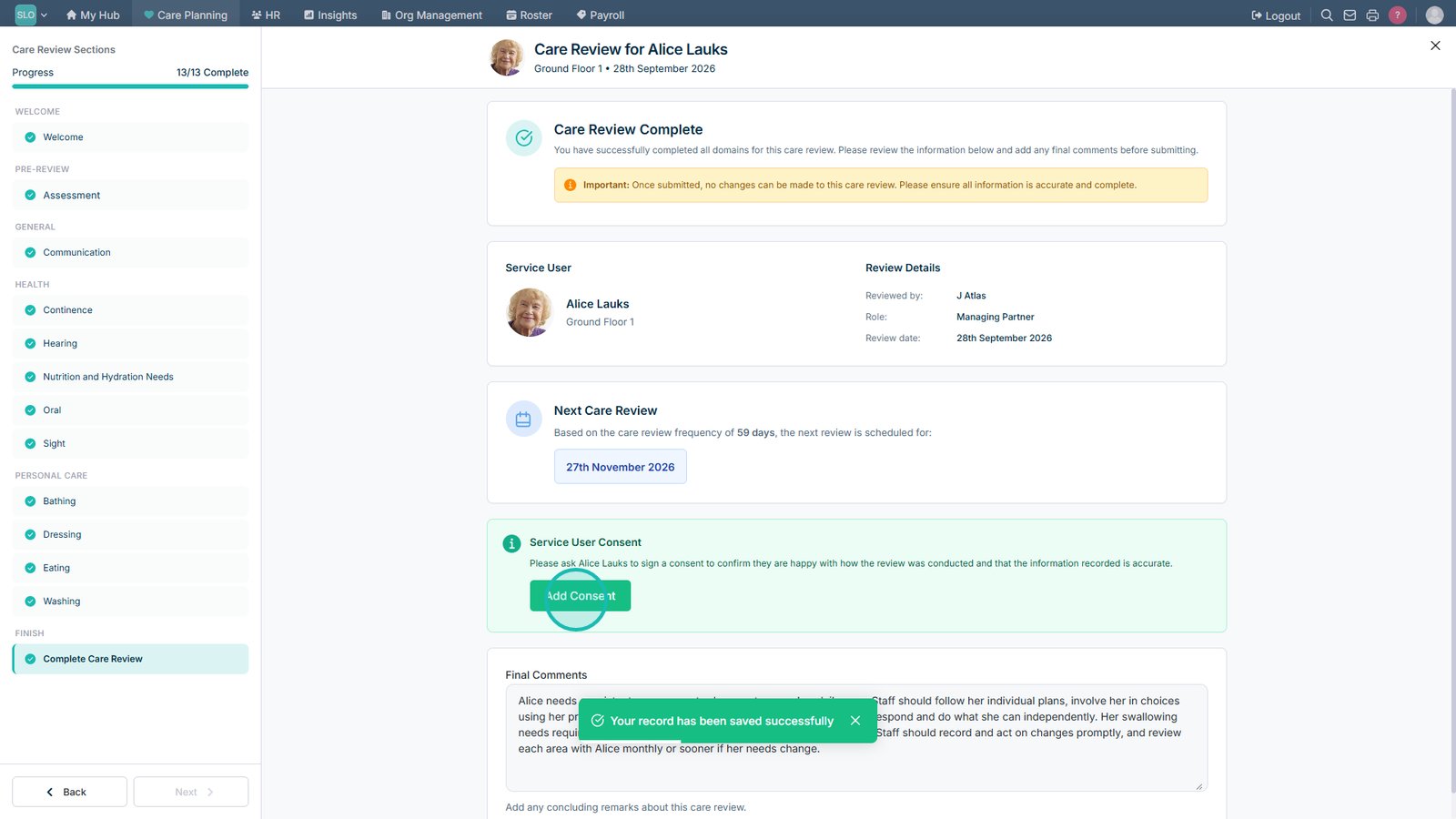
Finalise and submit the completed Care Review.

Select the option to add consent to the completed Care Review.

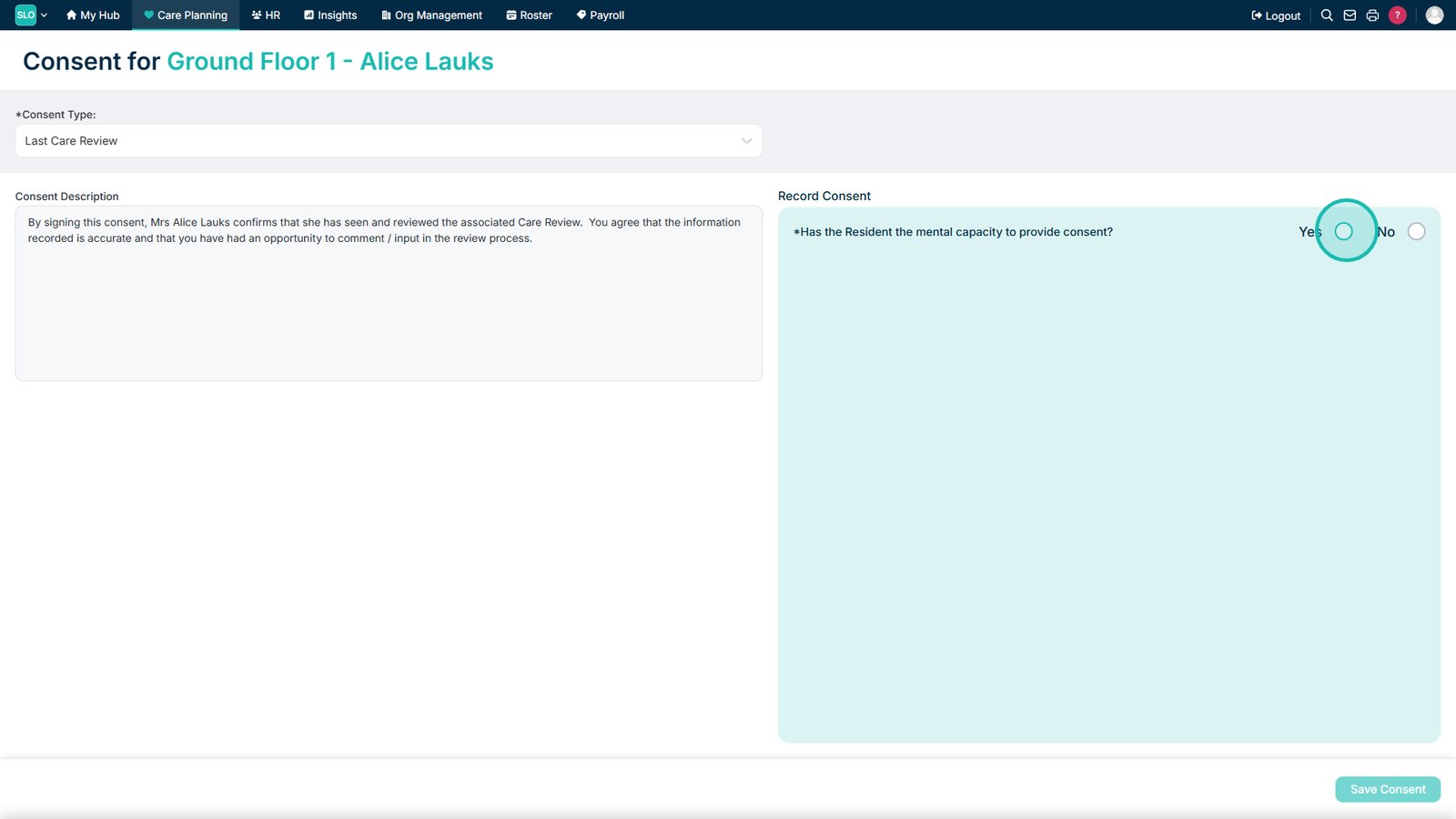
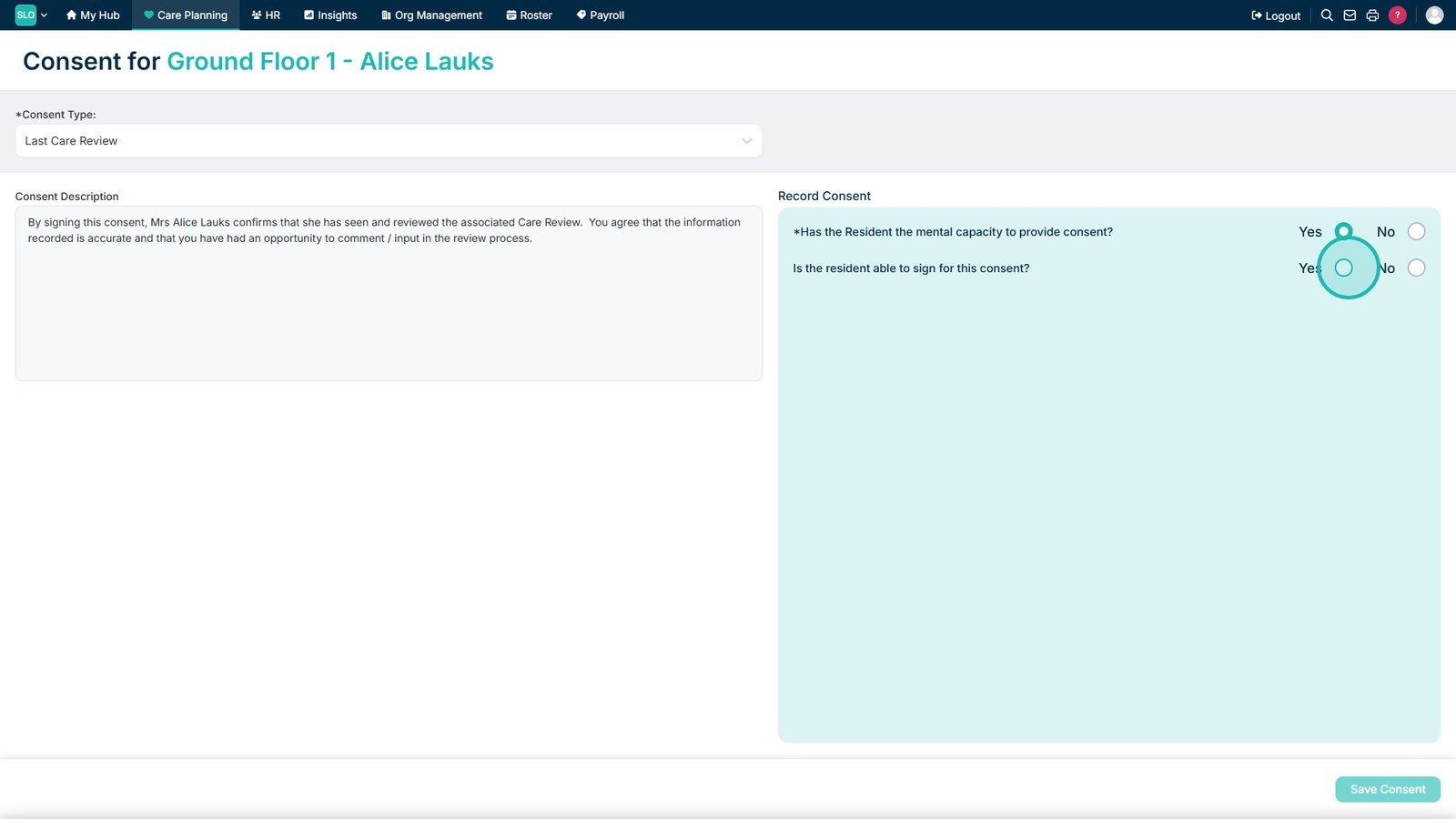
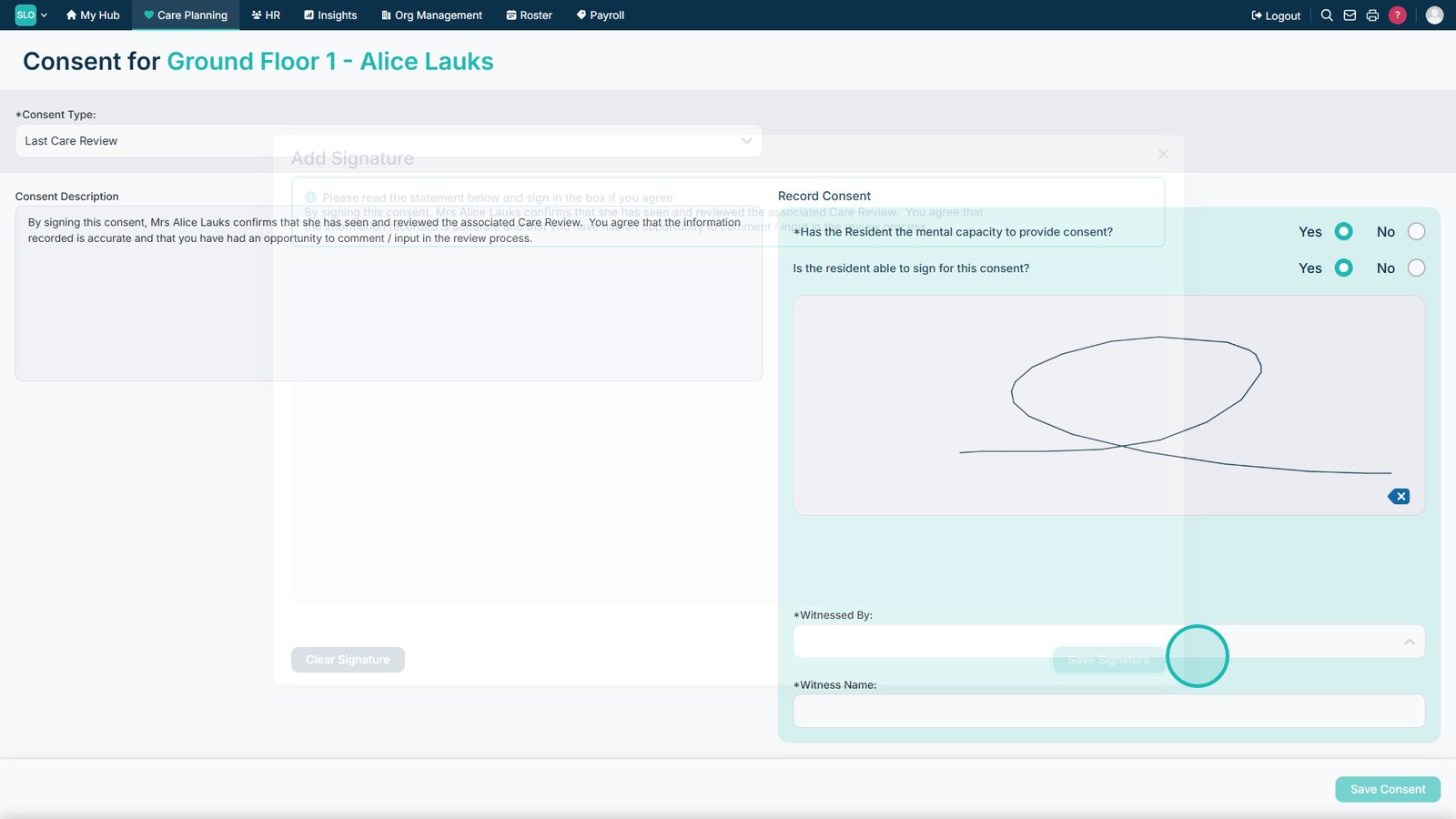
Record whether the service user has the mental capacity to provide consent.
Confirm whether the service user can sign the consent themselves.

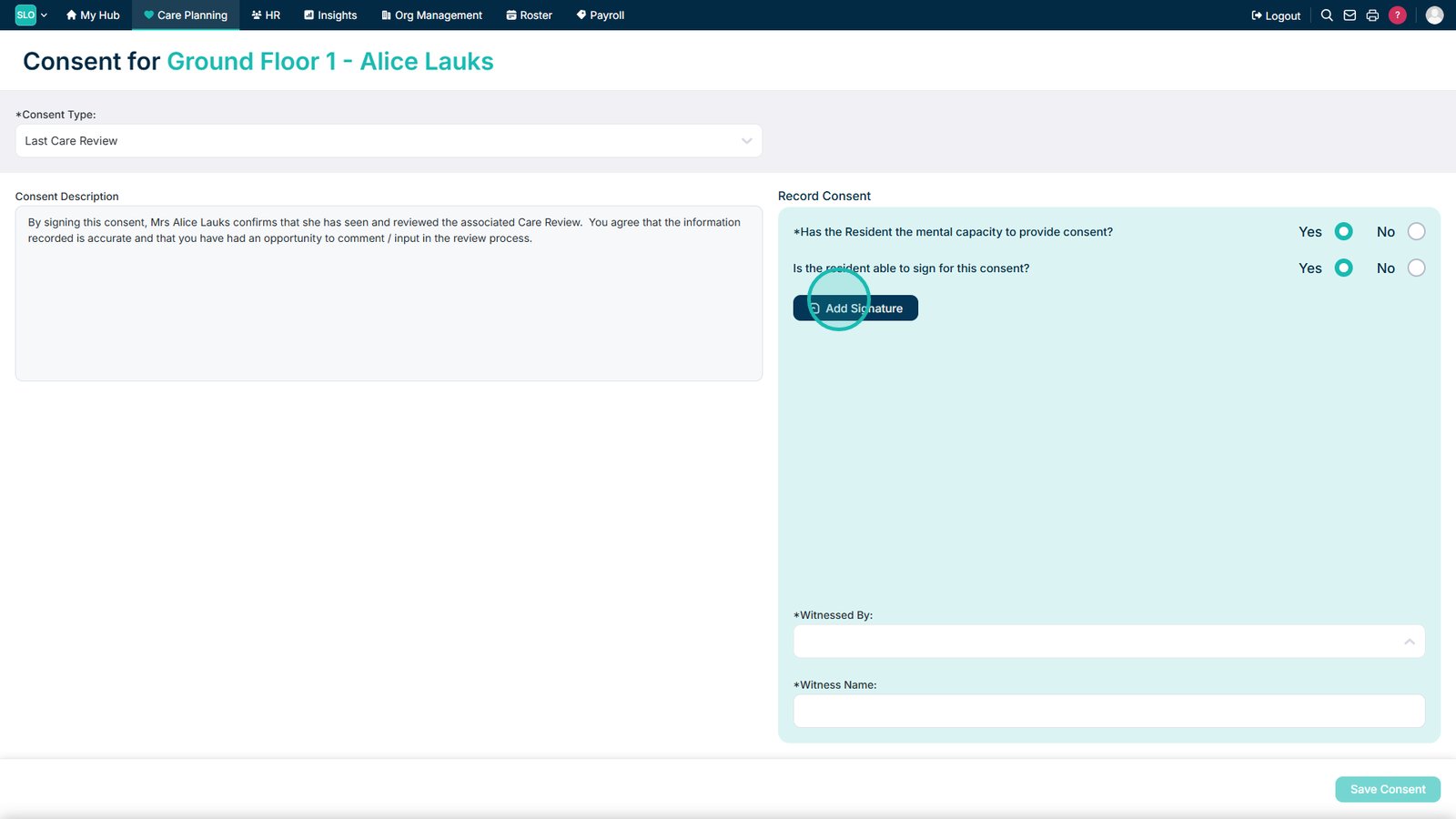
Select the signature option to record the service user's consent.
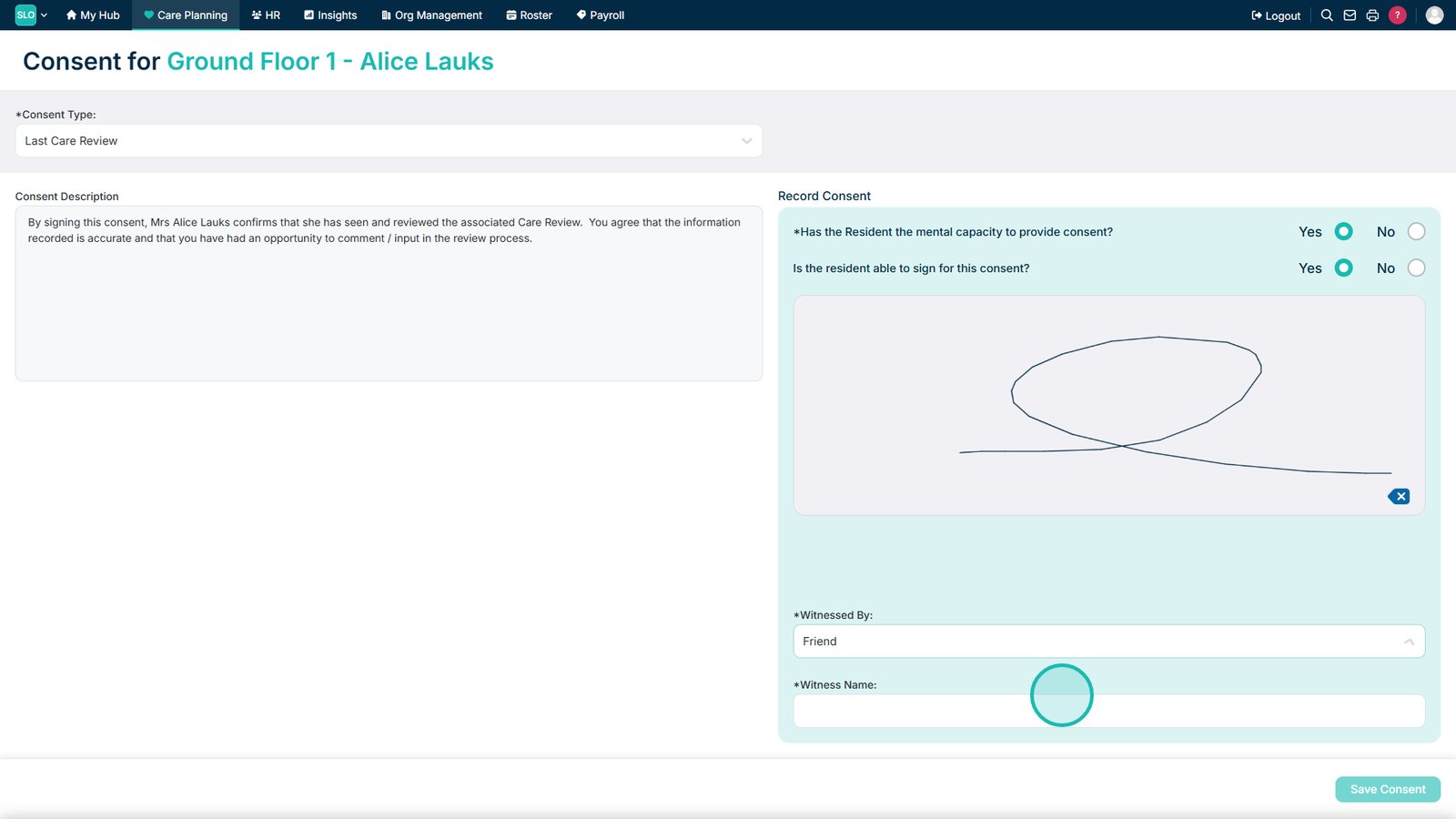
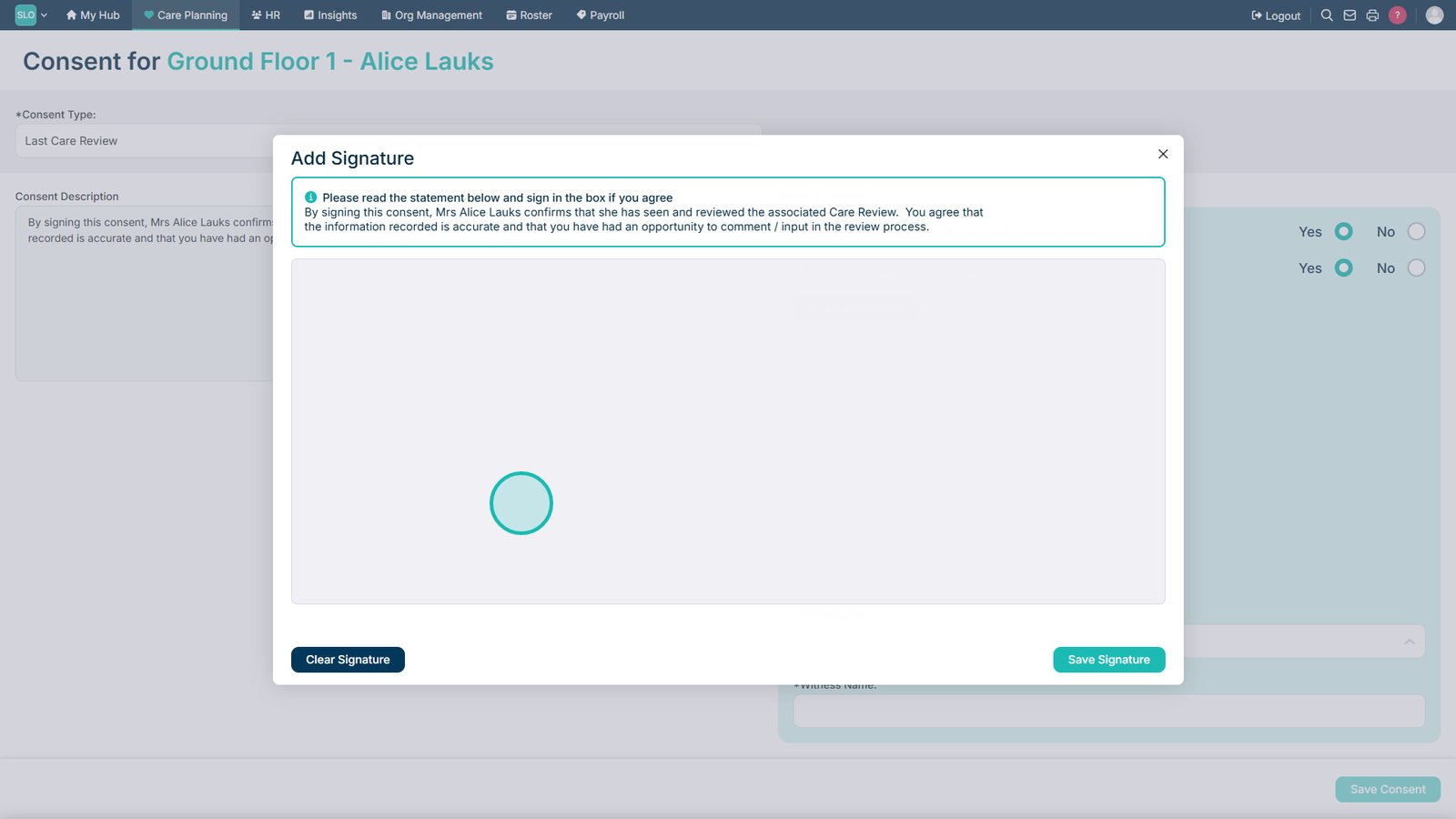
Ask the service user to enter their signature.

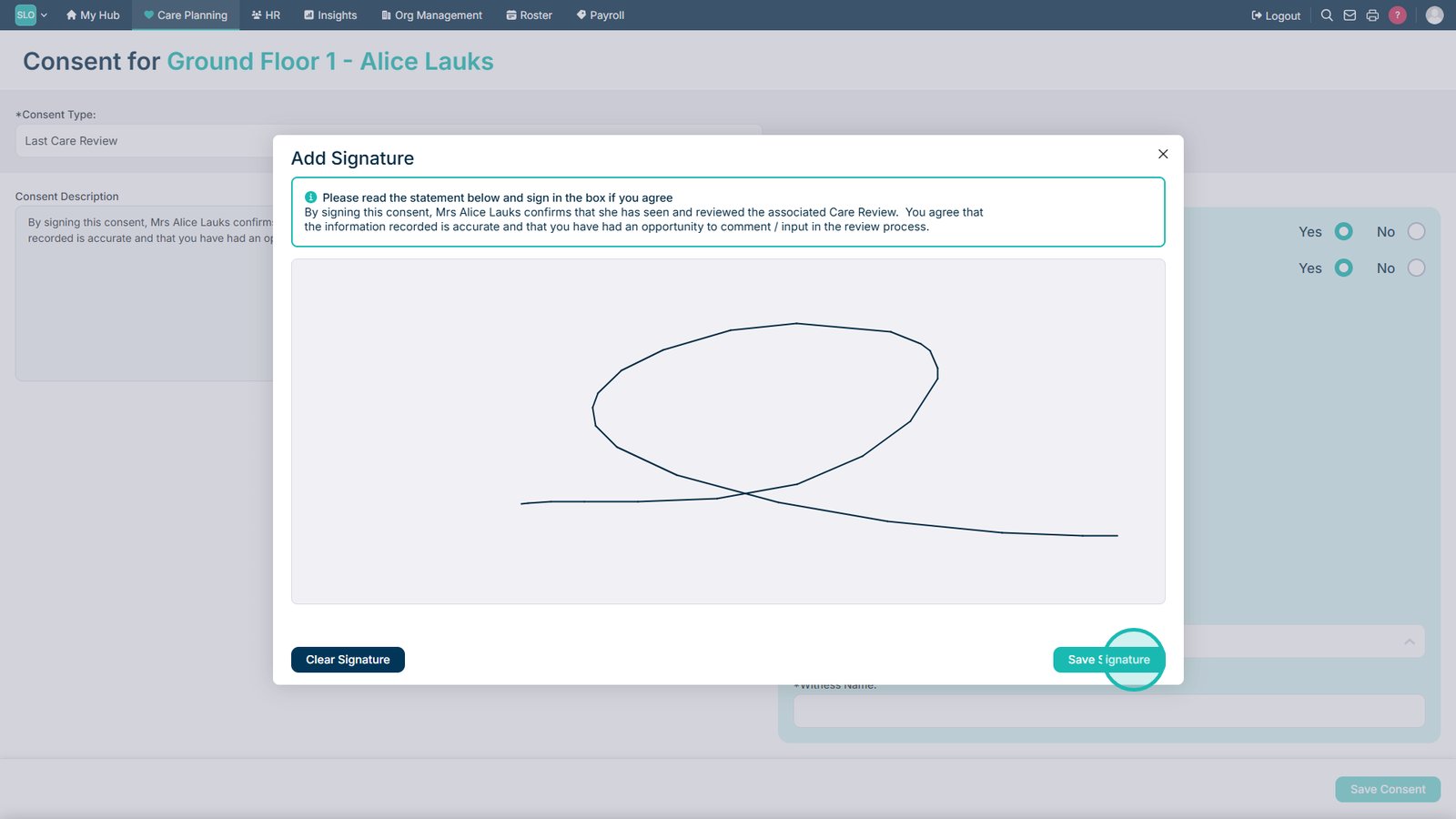
Select Save Signature once the signature has been entered.

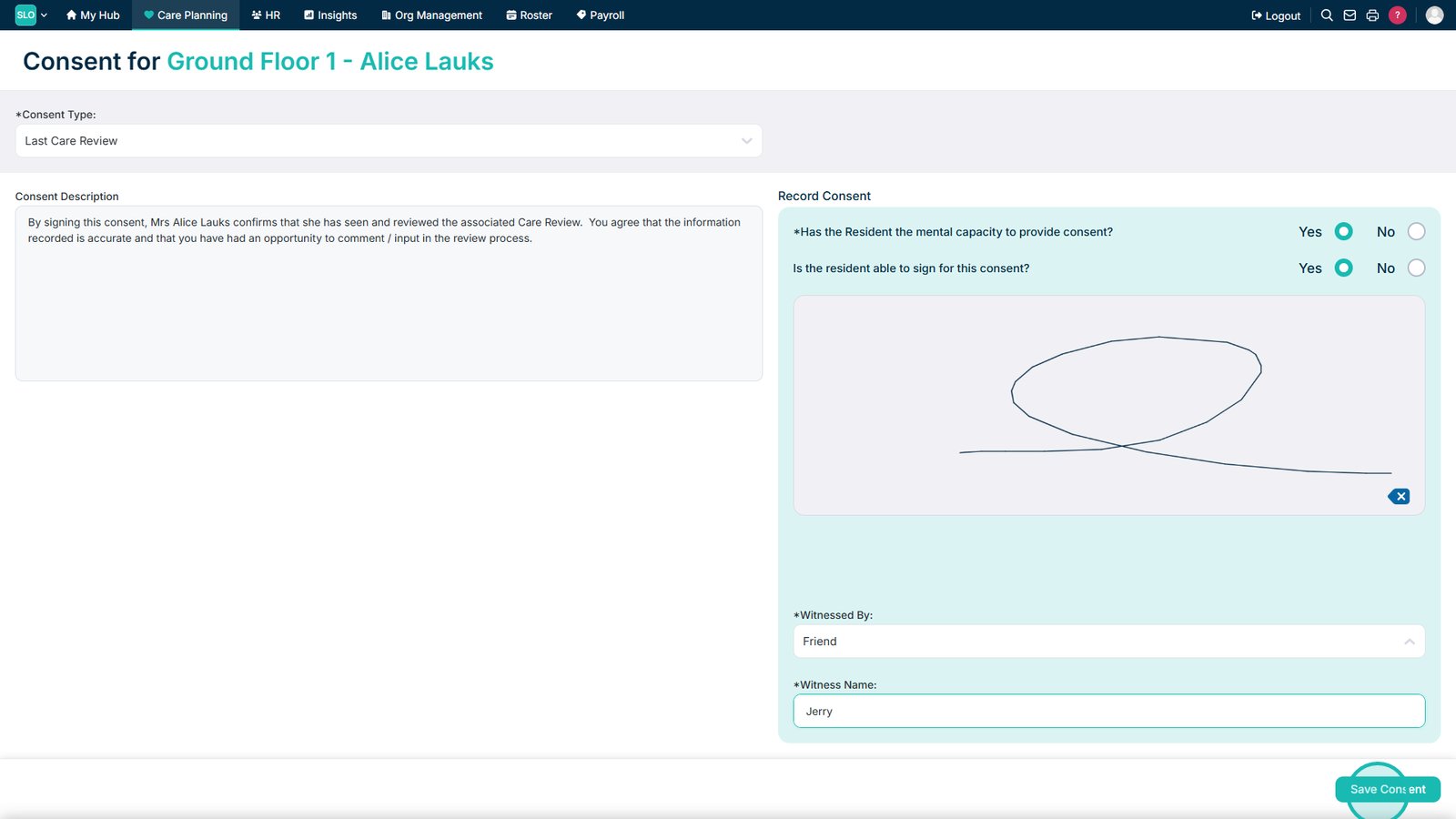
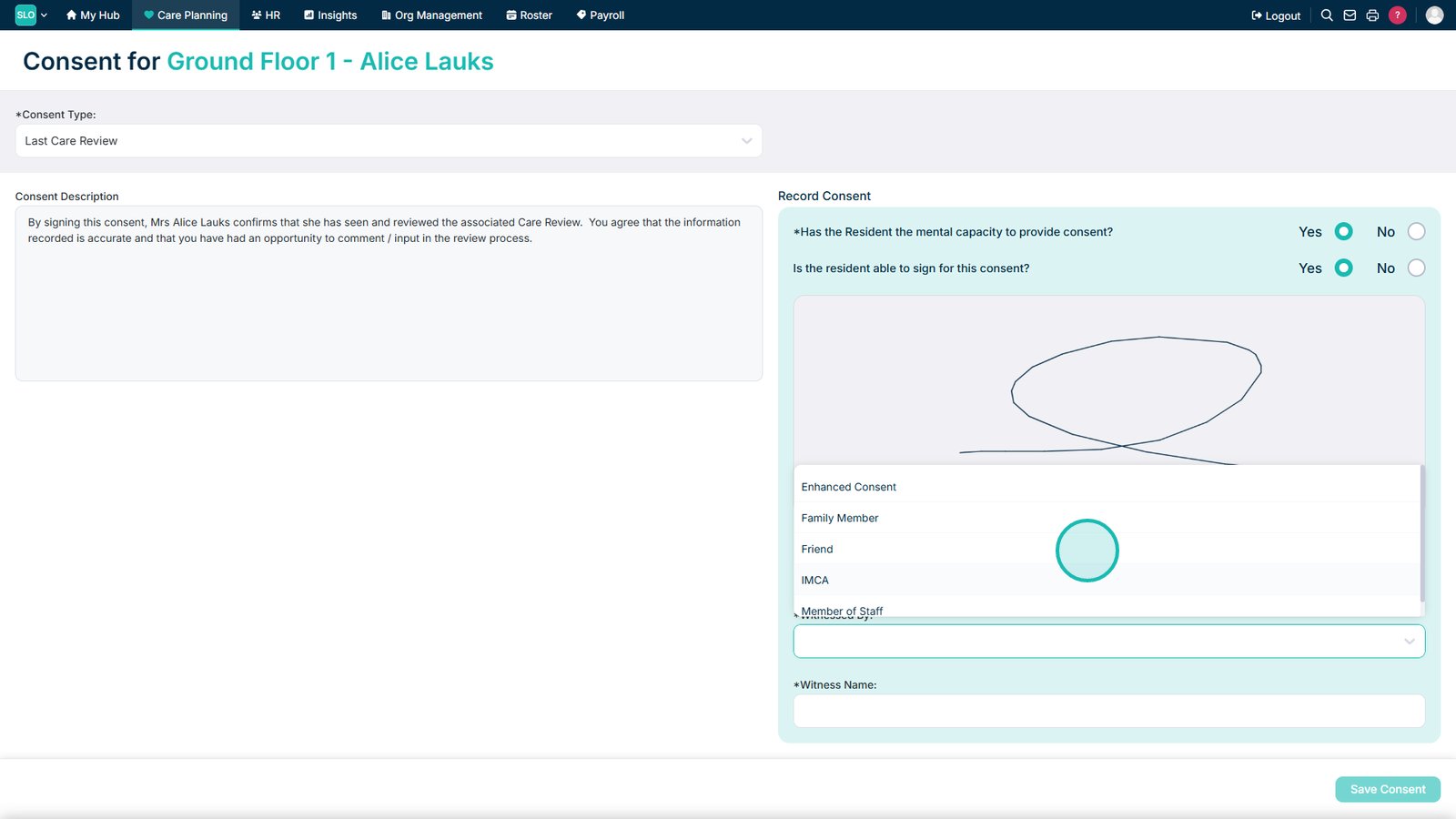
Enter the witness details where required.

Select the witness's relationship to the service user.

Enter the witness's name.

Save the consent information to complete the process.

Top tip
Complete the Pre-Care Assessment carefully, as the responses you provide determine which care domains are triggered for review. Check each triggered domain before moving on to make sure the service user's current needs are accurately reflected.
Need more help?
Can't find what you're looking for? Our support team is here to help.
Contact SupportOr call us on