🚀 UPCOMING WEBINAR: See Payroll in Care Control Cloud in action on Thursday 18th June and discover how to manage payroll more efficiently from one connected system. Click here to find out more!

View Categories

How to Configure Payroll Calendar

This guide explains how to configure a Payroll Calendar within the Payroll app in Care Control Cloud. The payroll calendar controls how pay periods are structured, including how often payroll runs, when periods start and end, and when staff are paid.

The Payroll Calendar configuration allows you to define frequency, set fixed or custom payment dates, and apply rules such as automatically adjusting for weekends and bank holidays. This ensures payroll is processed on consistent and accurate schedules across your organisation.

By following this guide, you will learn how to:

  • Set the payroll frequency and number of periods
  • Define period end dates and payment dates
  • Configure automatic adjustments for weekends and bank holidays
  • Preview and validate payroll schedules before creating them
  • Modify individual payroll dates after creation if required

This process ensures your payroll calendar is structured, reliable, and aligned with your organisation’s pay schedule.

Interactive Guide

Text based guide

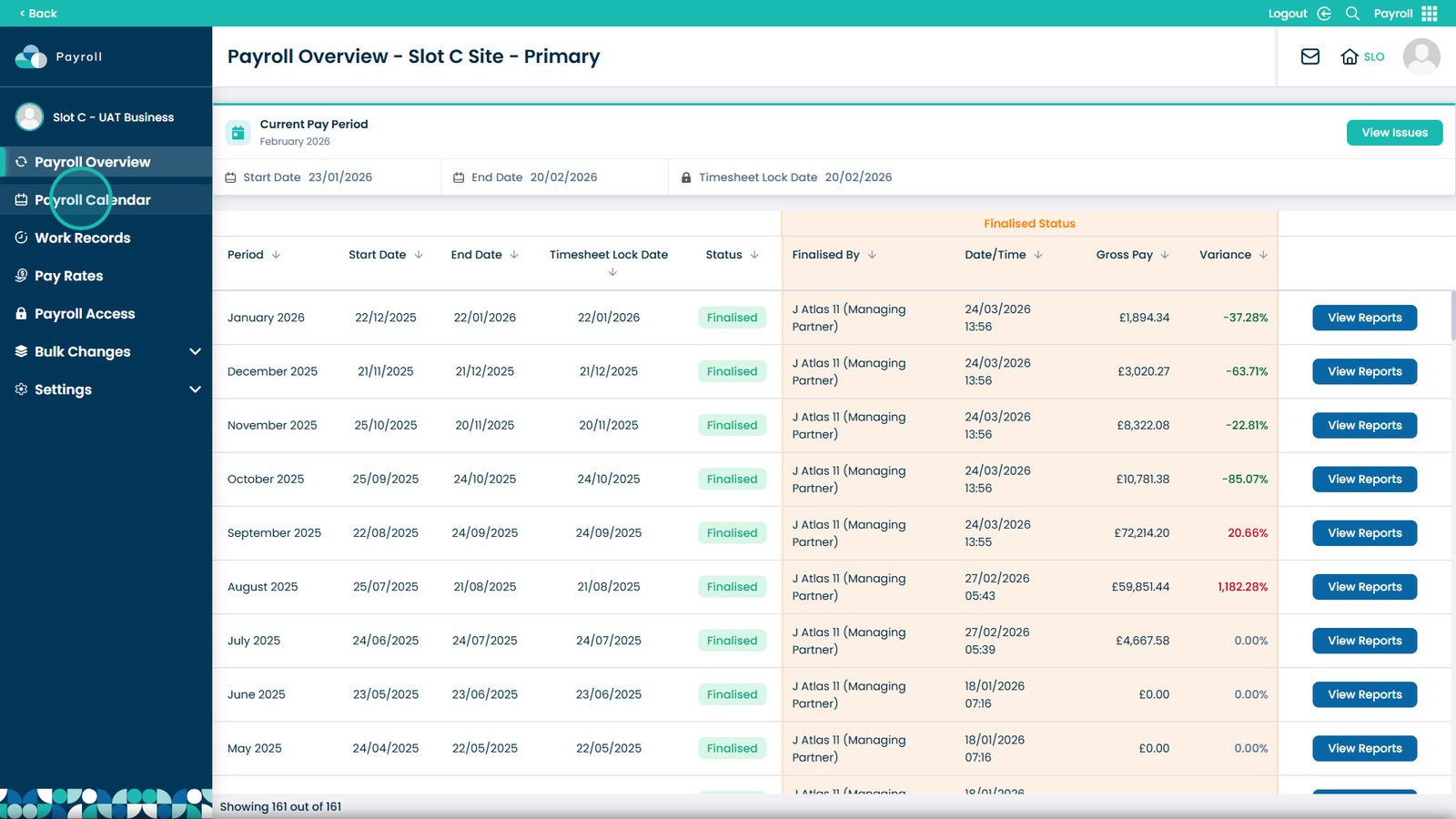
Enter the Payroll App
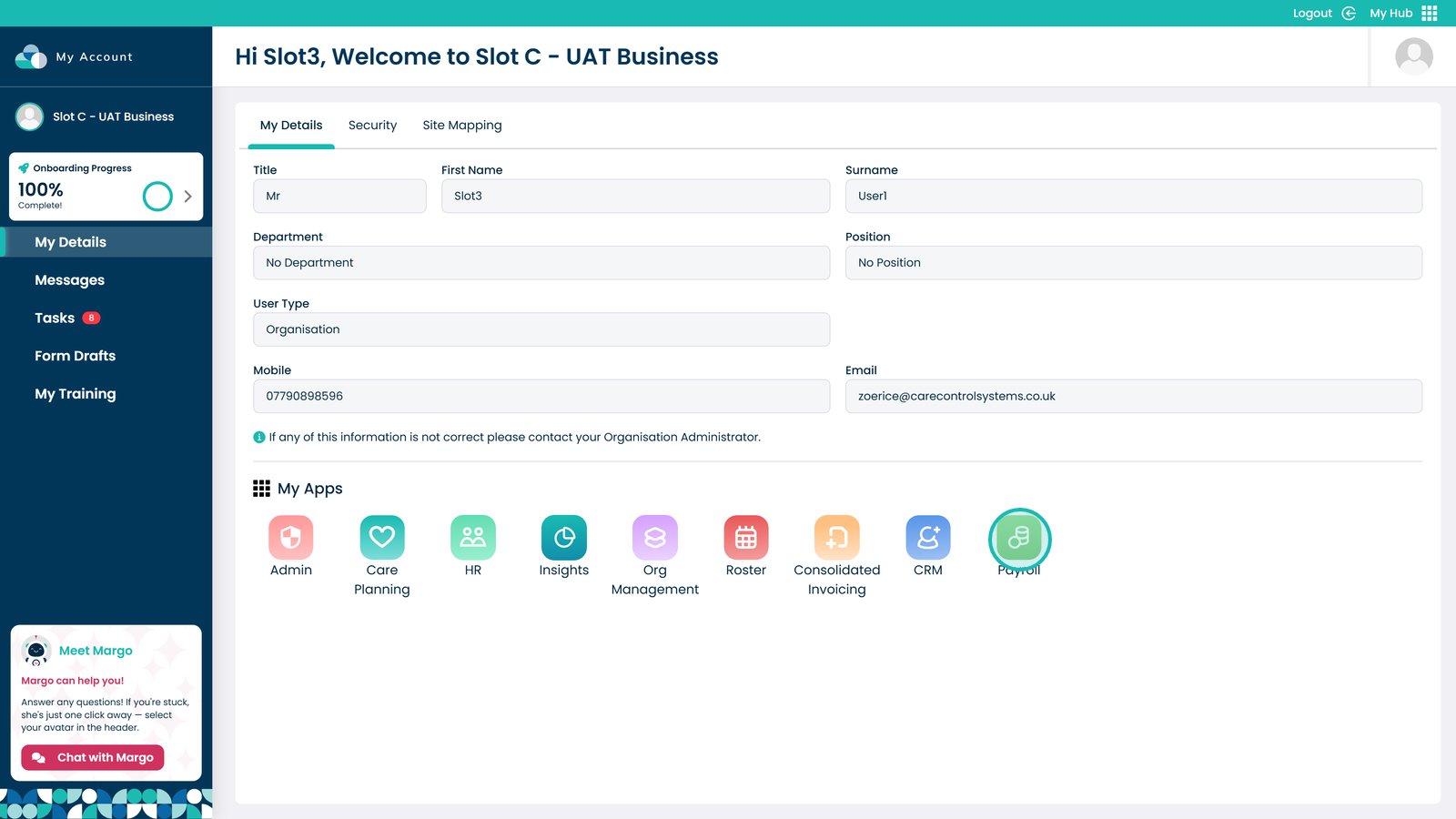
Enter Payroll App

Open Payroll Calendar

Payroll Calendar

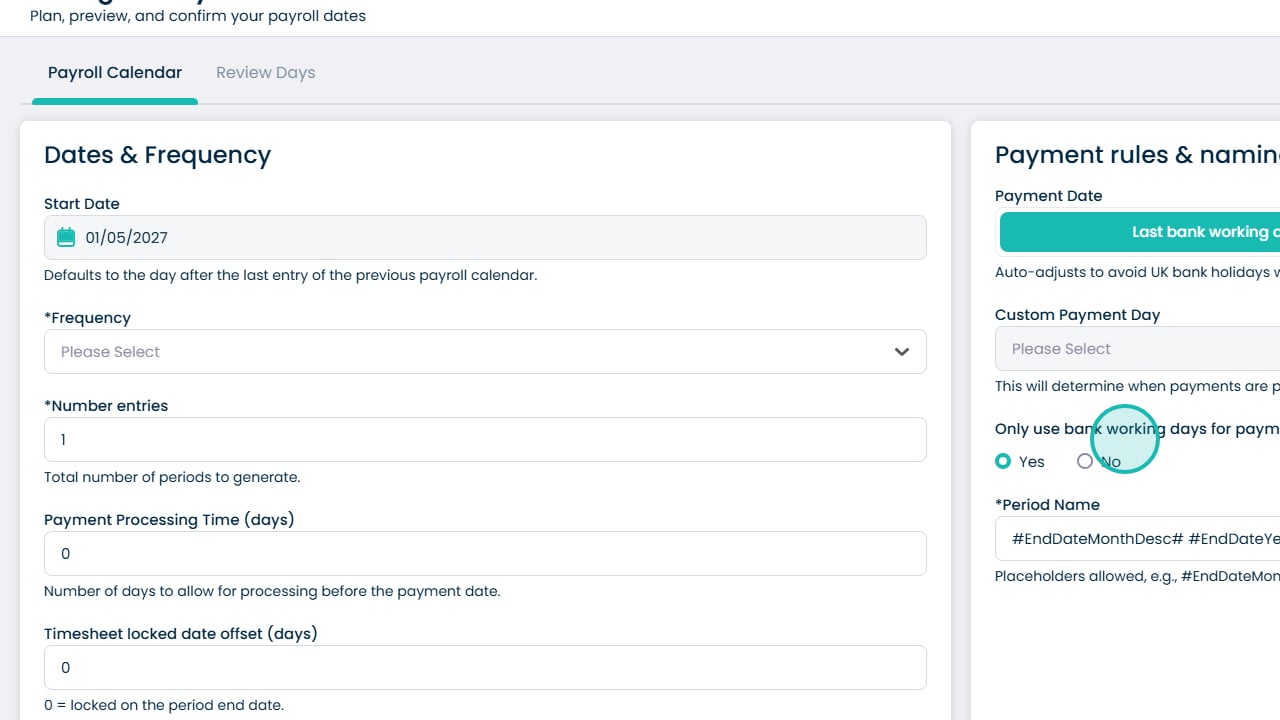
Select Configure Payroll Calendar
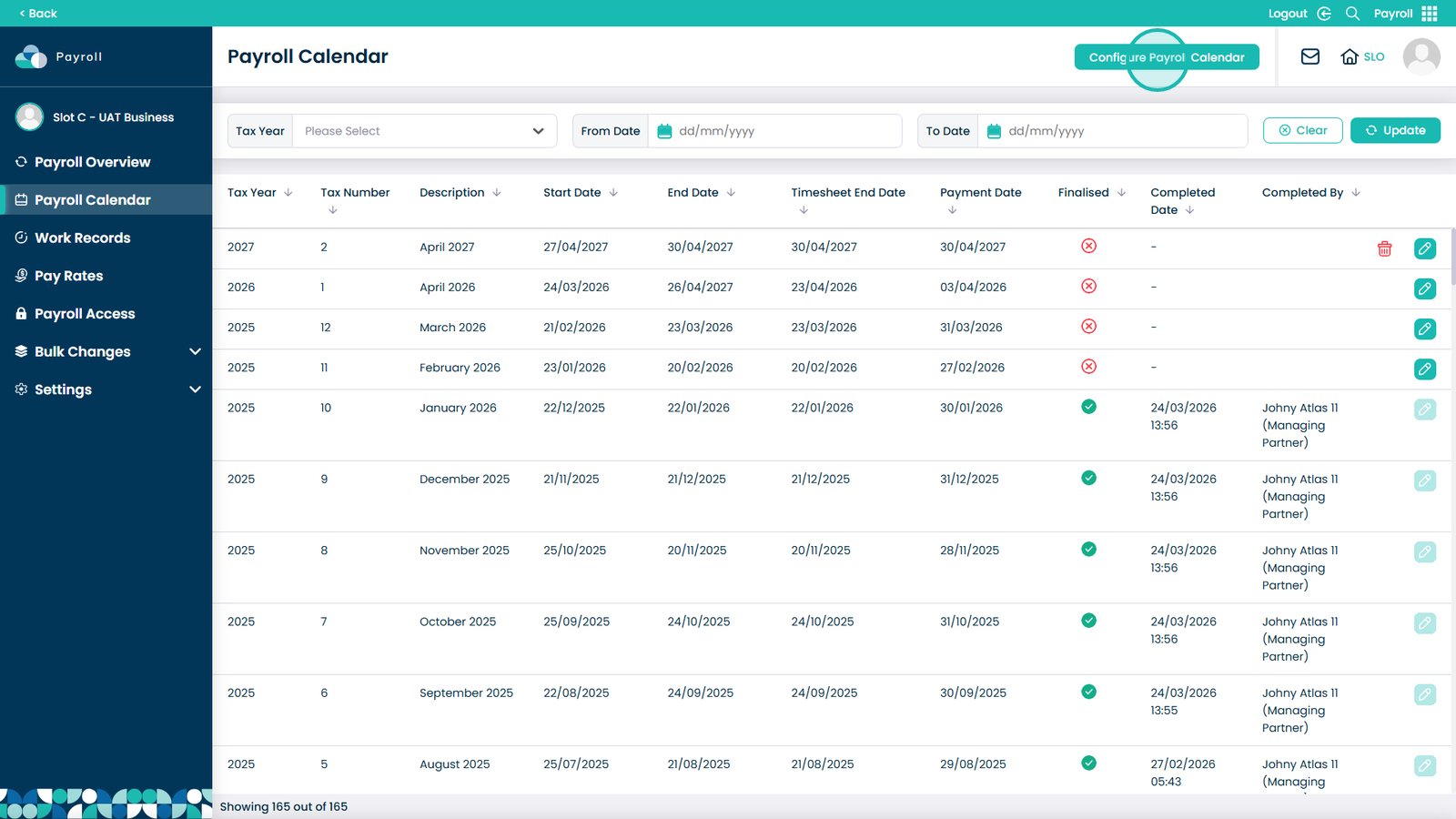
Configure Payroll Calendar

Review the default start date

The start date is automatically set to the day after the previous payroll calendar entry. Start Date
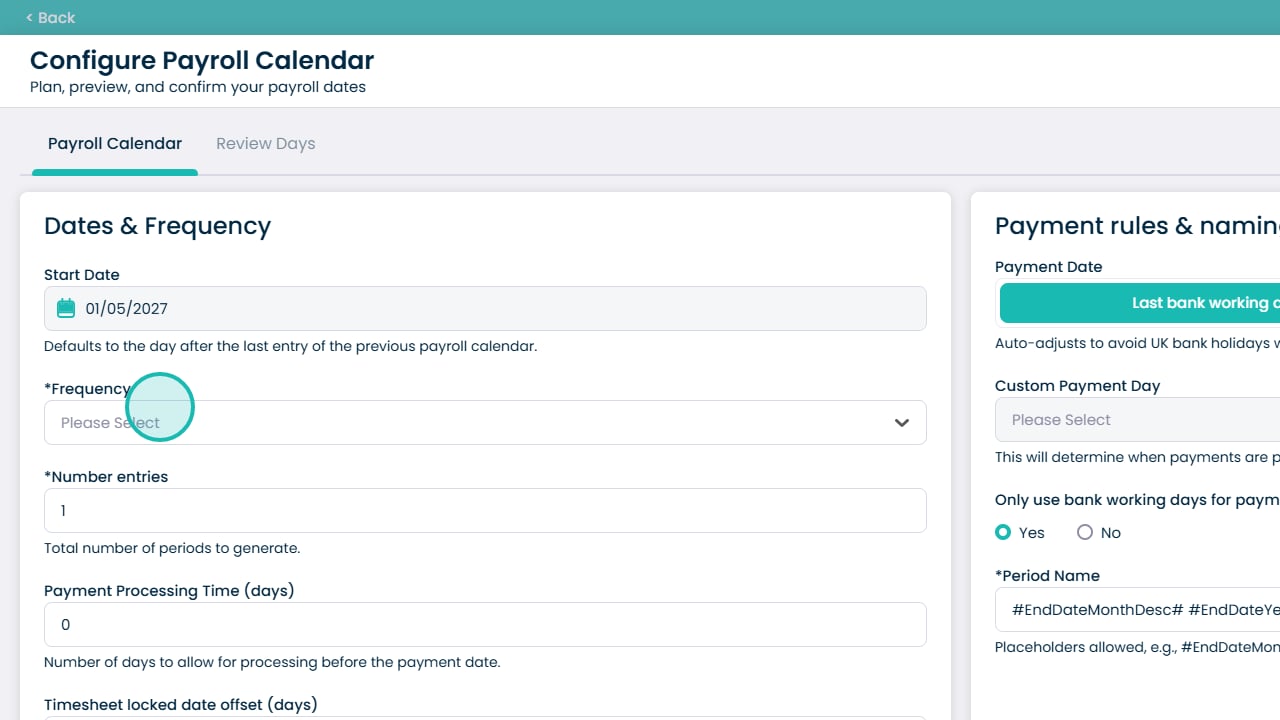
Open the frequency dropdown

Frequency Dropdown

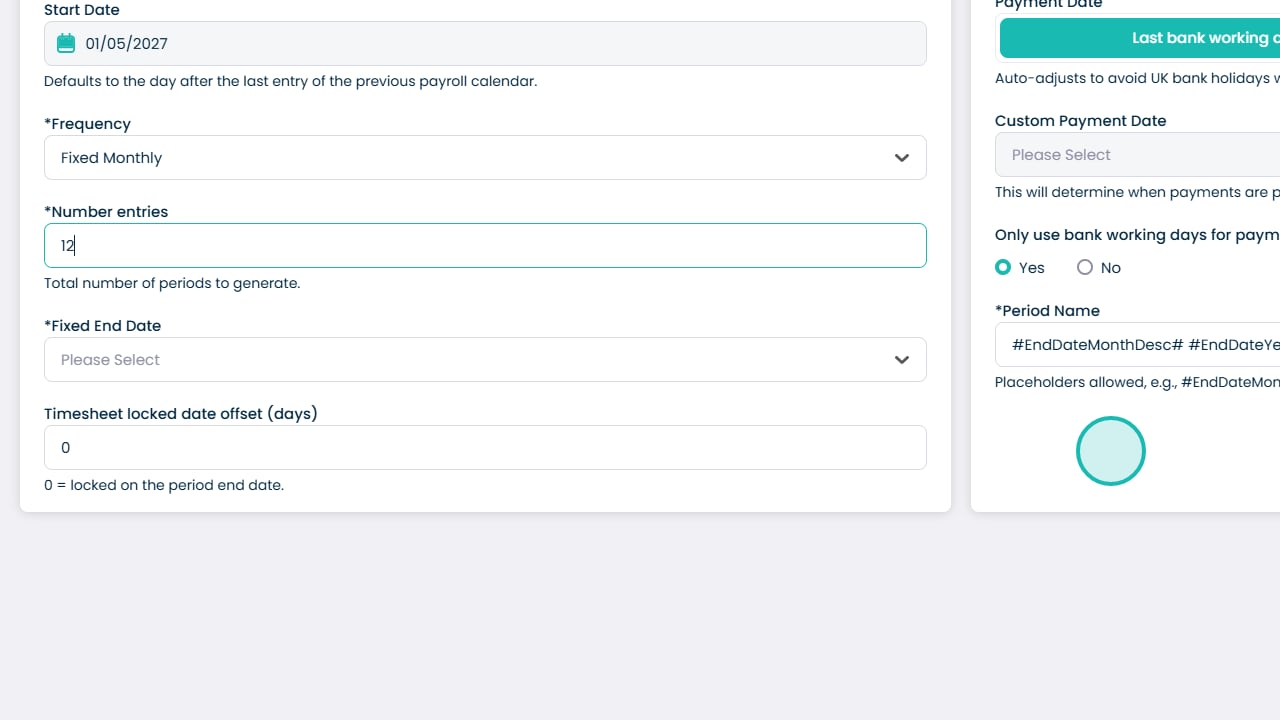
Select how often payroll entries are created
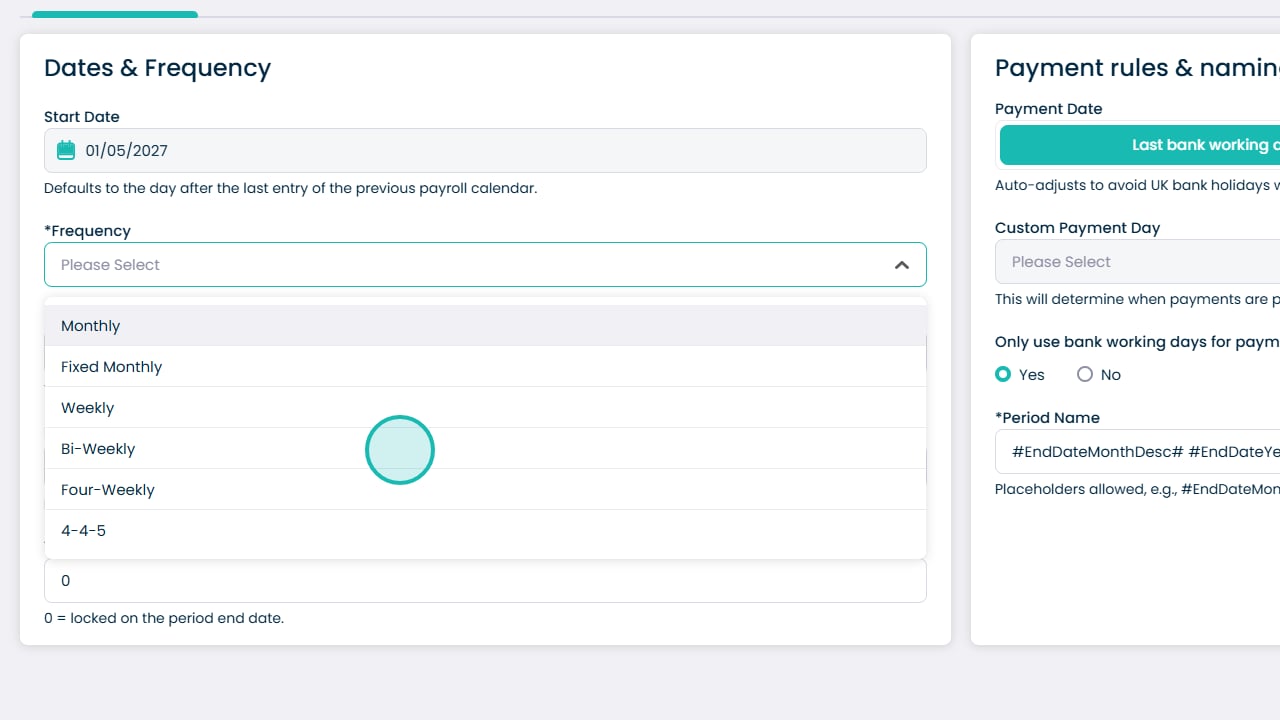
Frequency Options

Choose how many entries to create

You can create up to 12 payroll entries. Number of Entries
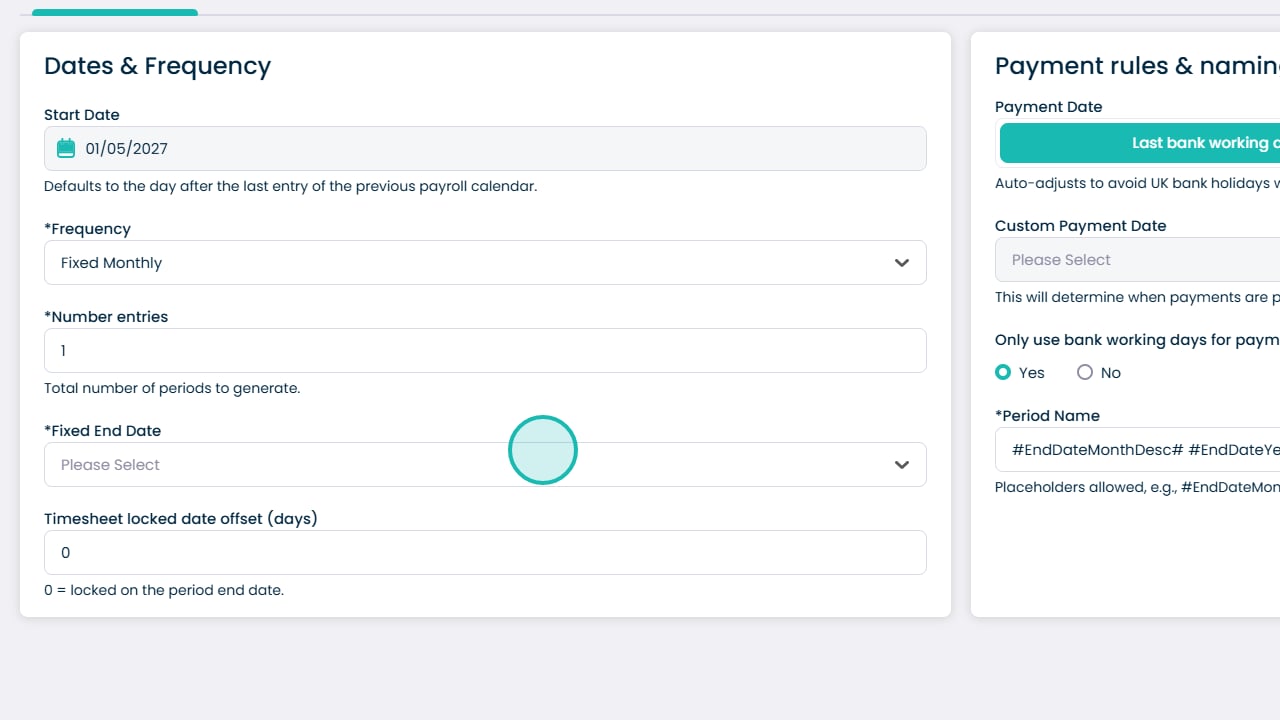
Open the fixed end date dropdown

End Date Dropdown

Select the payroll period end date
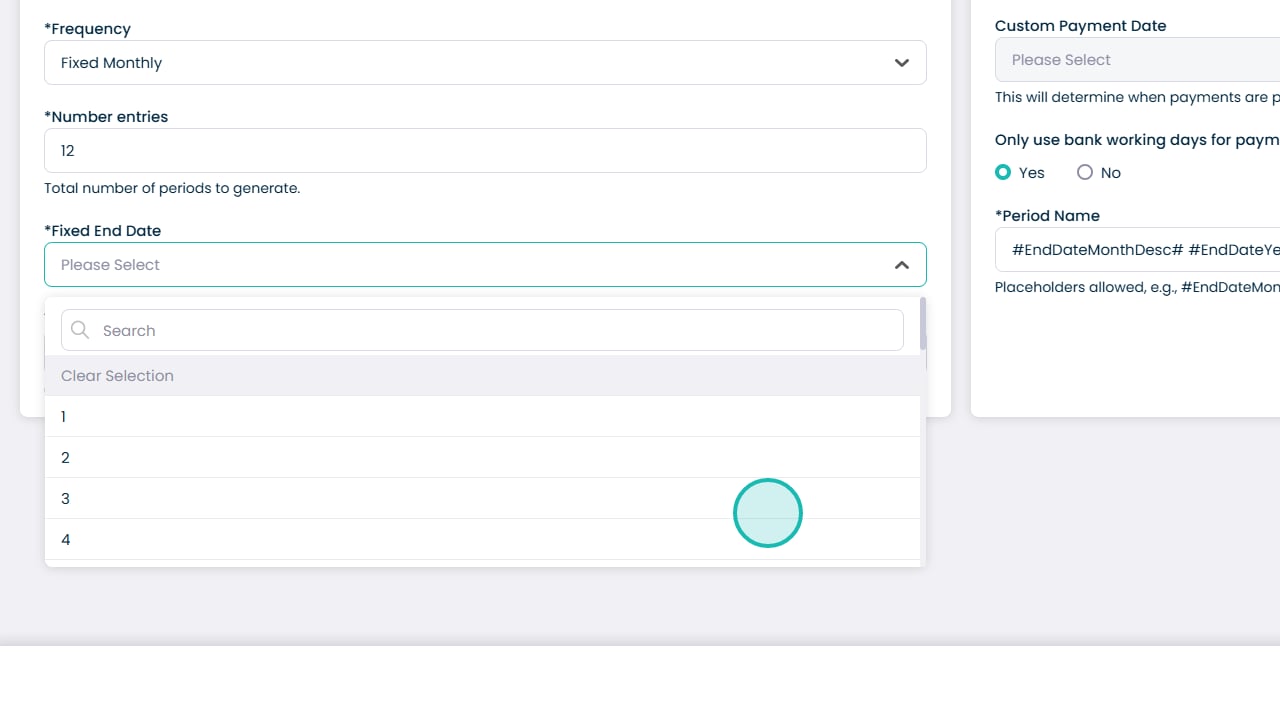
End Date Selection

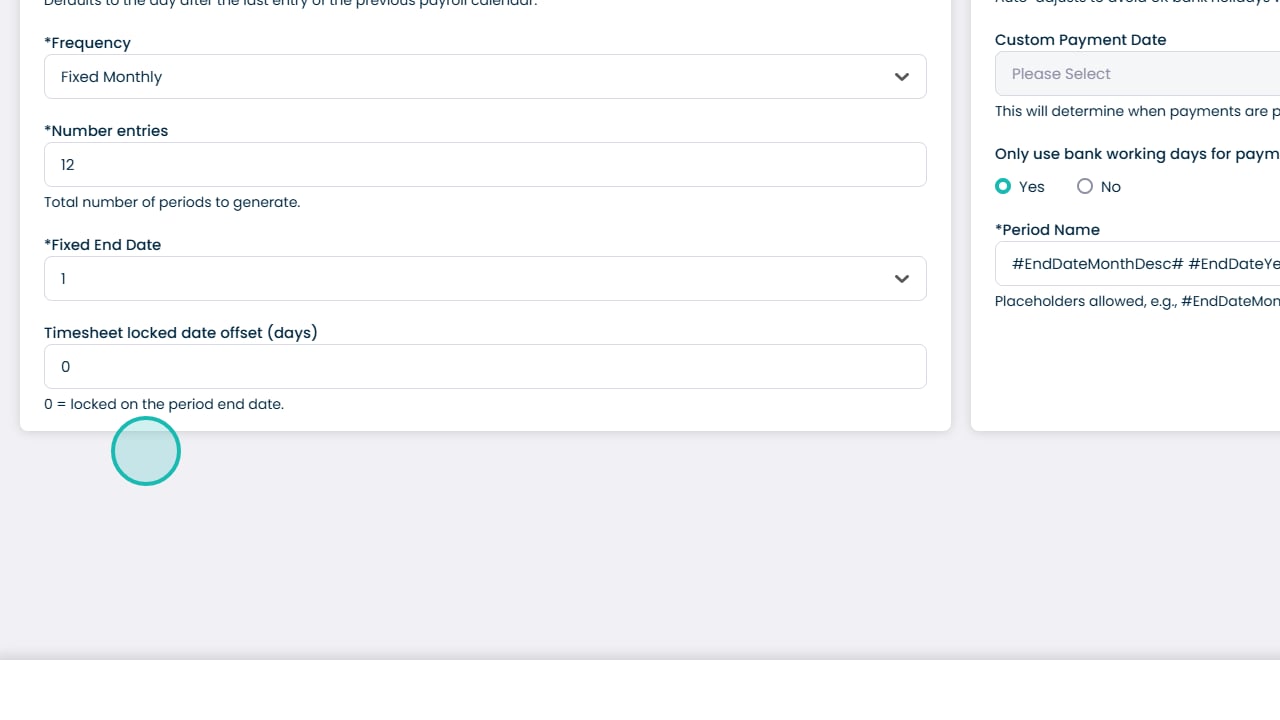
Configure payroll locking

Choose whether payroll should be locked after it has been processed. Lock Payroll
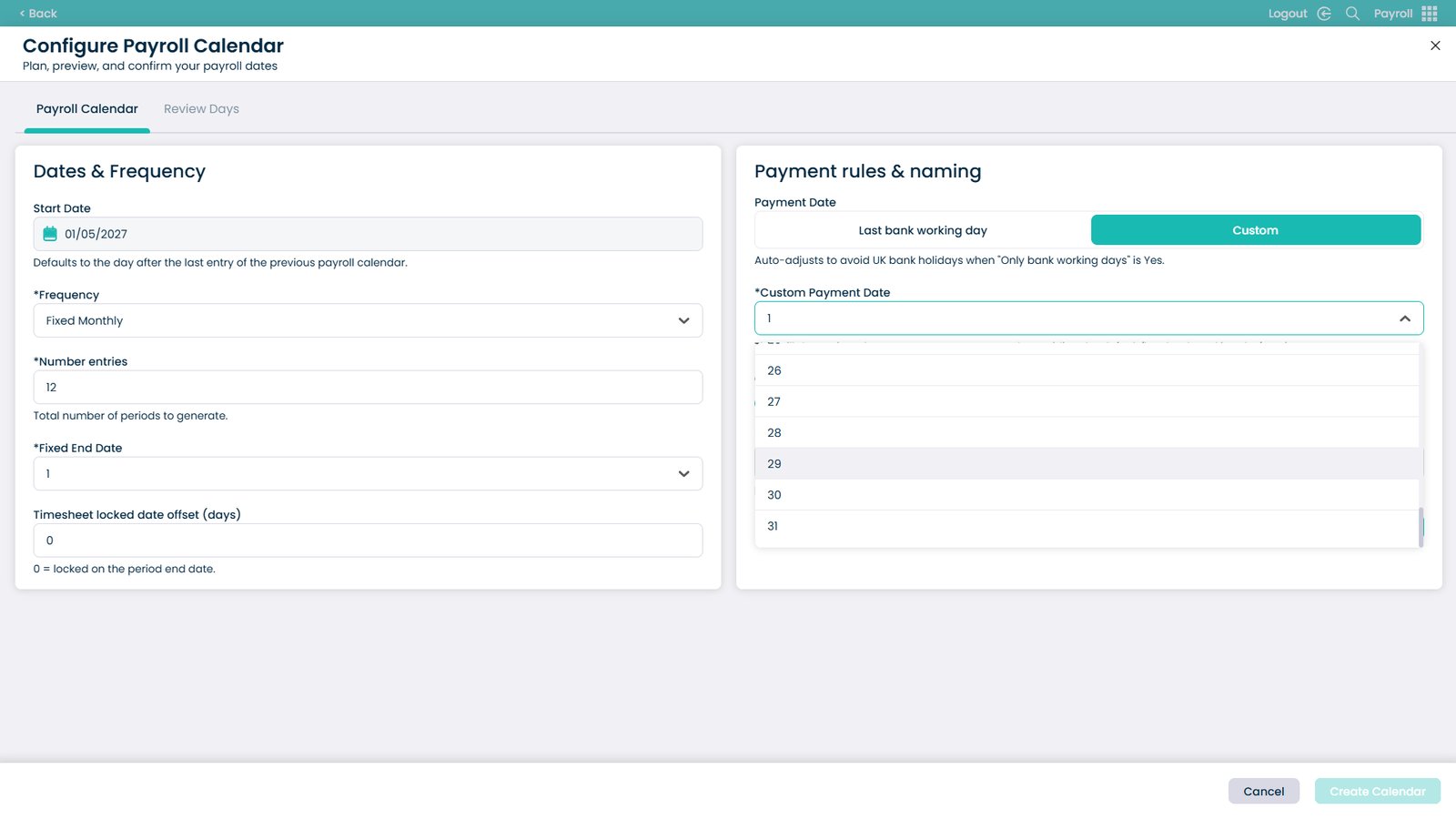
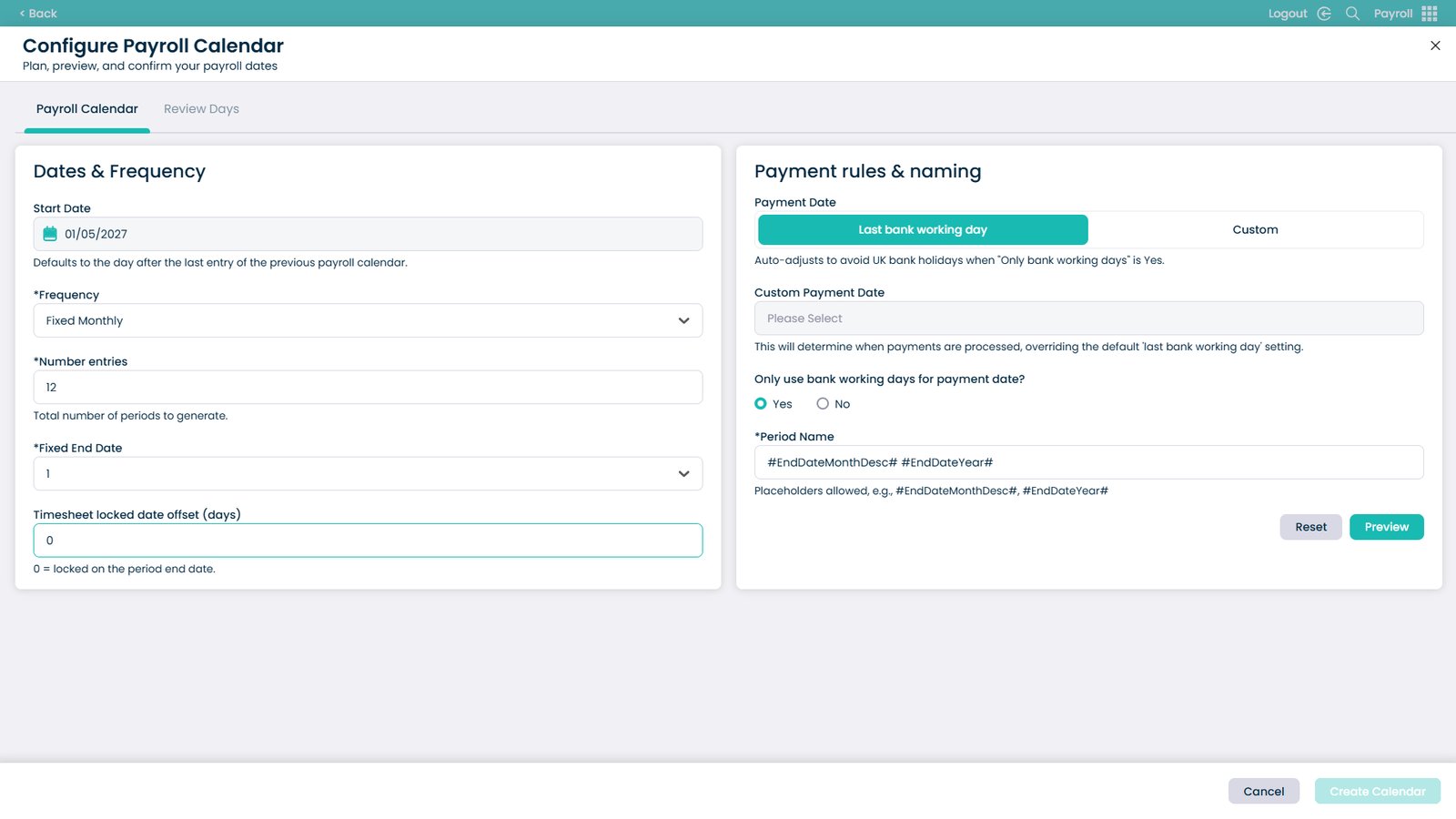
Set payment date rules

Select the last bank working day or define a custom option. Payment Rules
Select a custom payment option if required
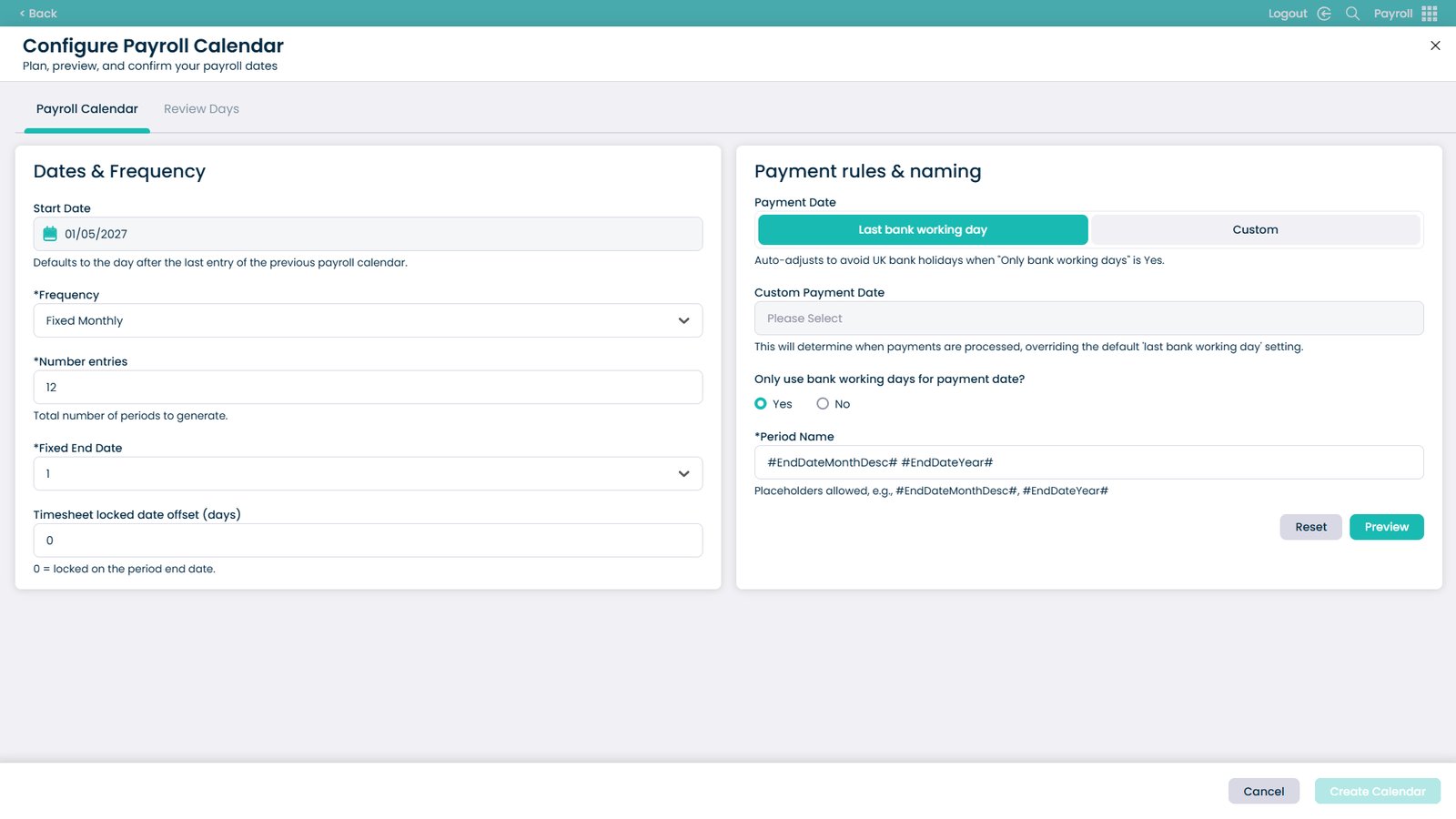
Custom Option

Open the custom payment date dropdown
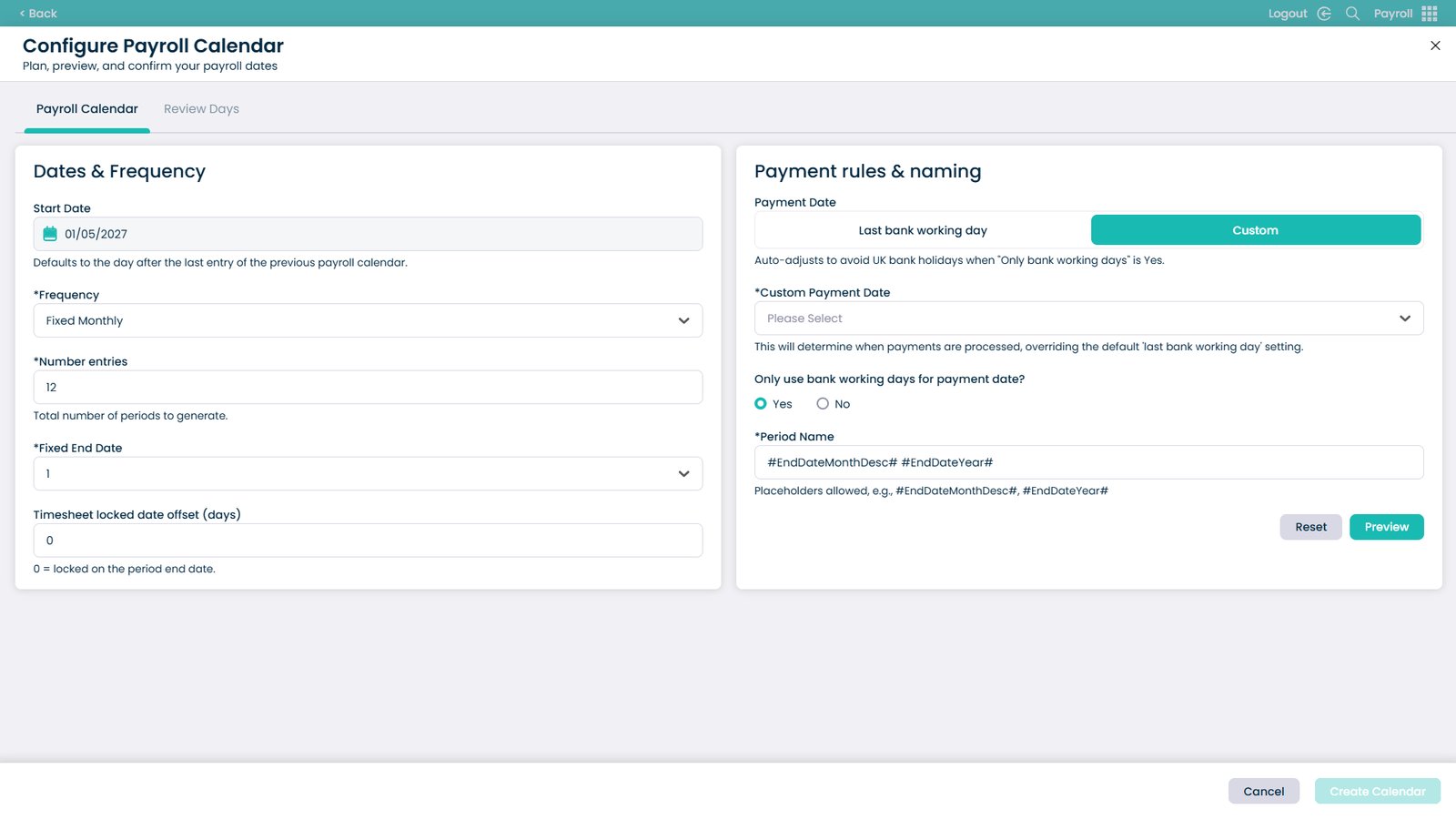
Custom Payment Date

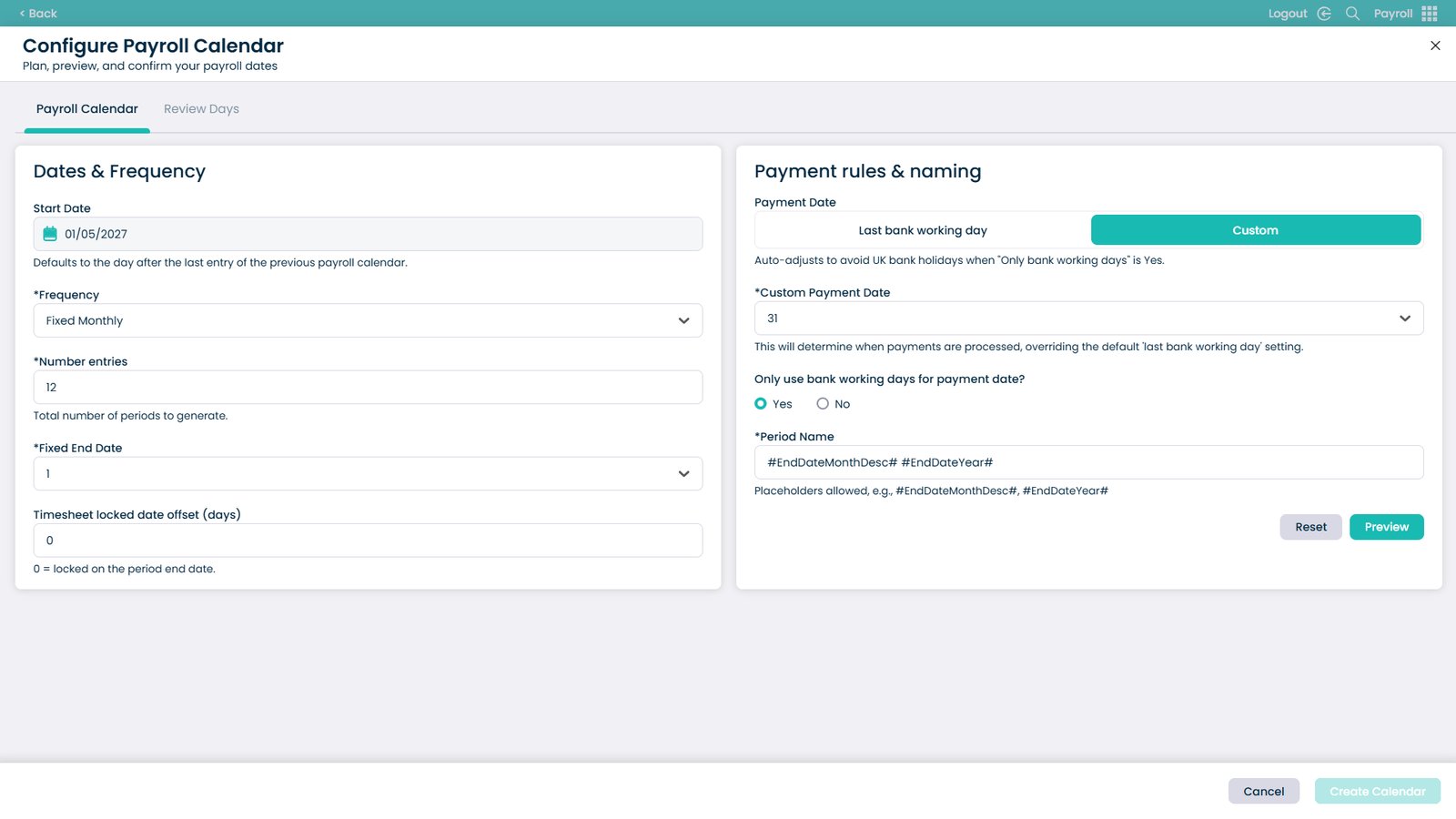
Select the payment date

Payment Day

Avoid weekends and bank holidays

Enable this option to automatically adjust payment dates. Avoid Holidays
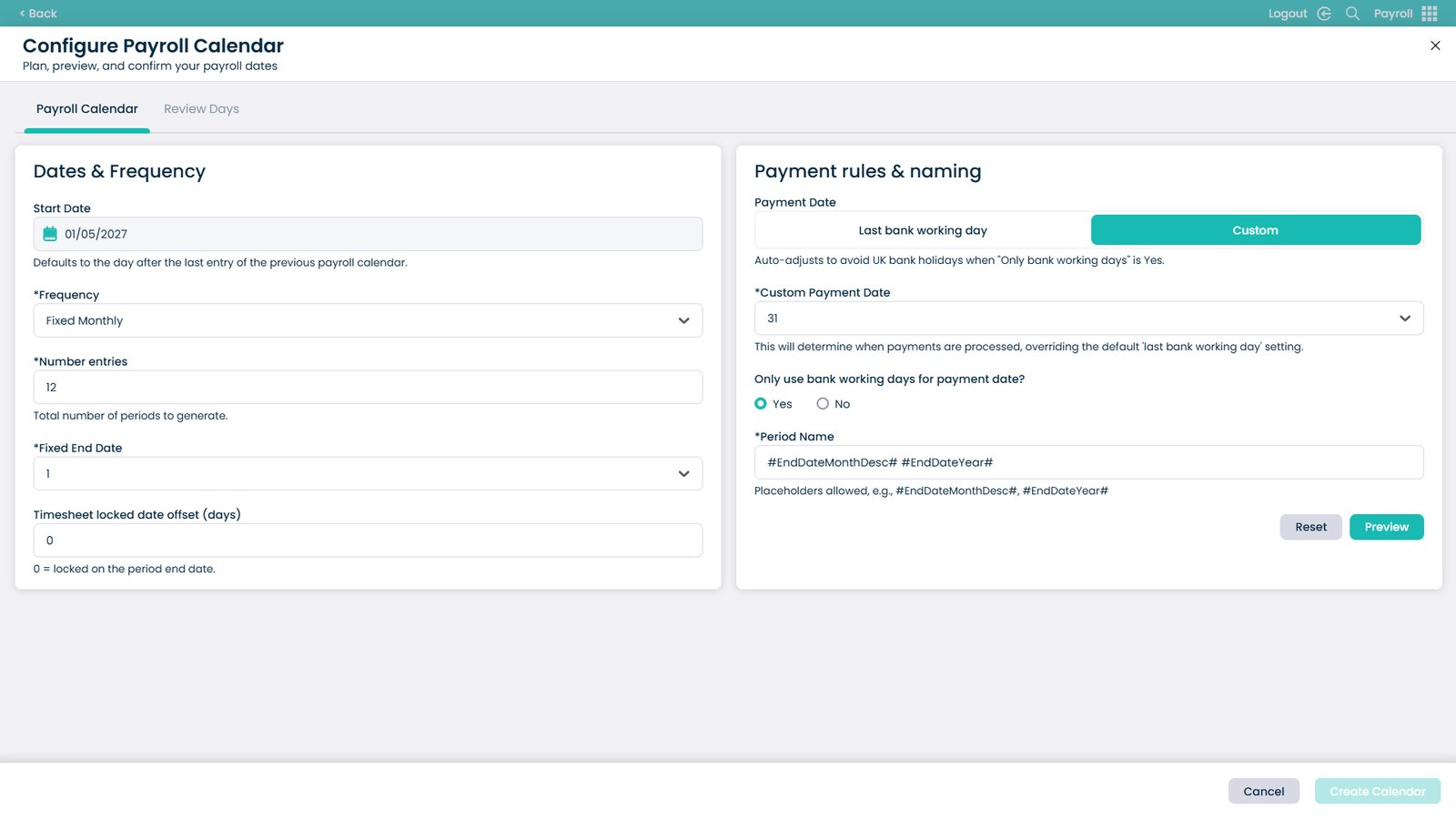
Optional: name the payroll period

If not set, the system uses the month and year automatically. Period Name
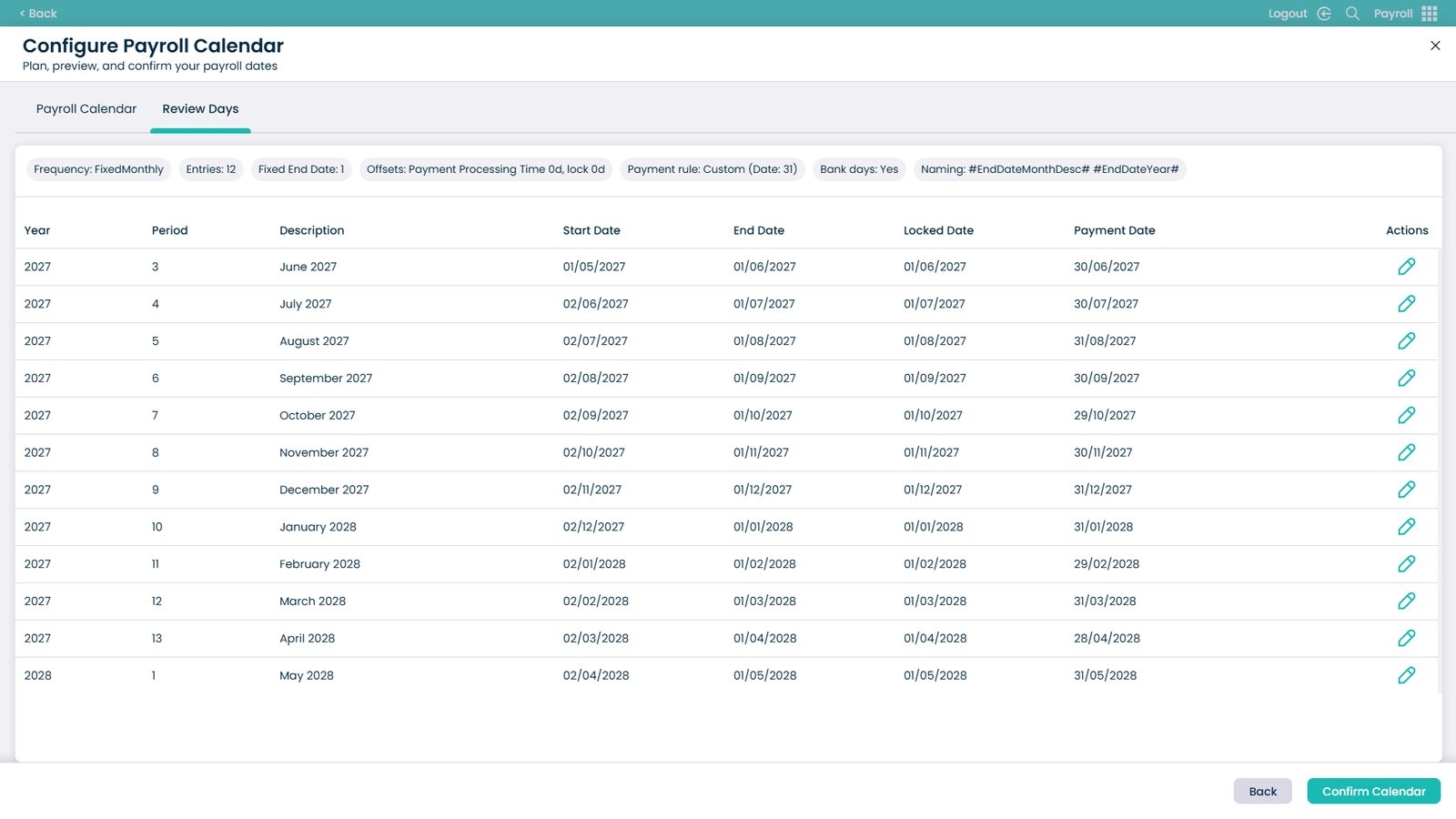
Preview the payroll calendar

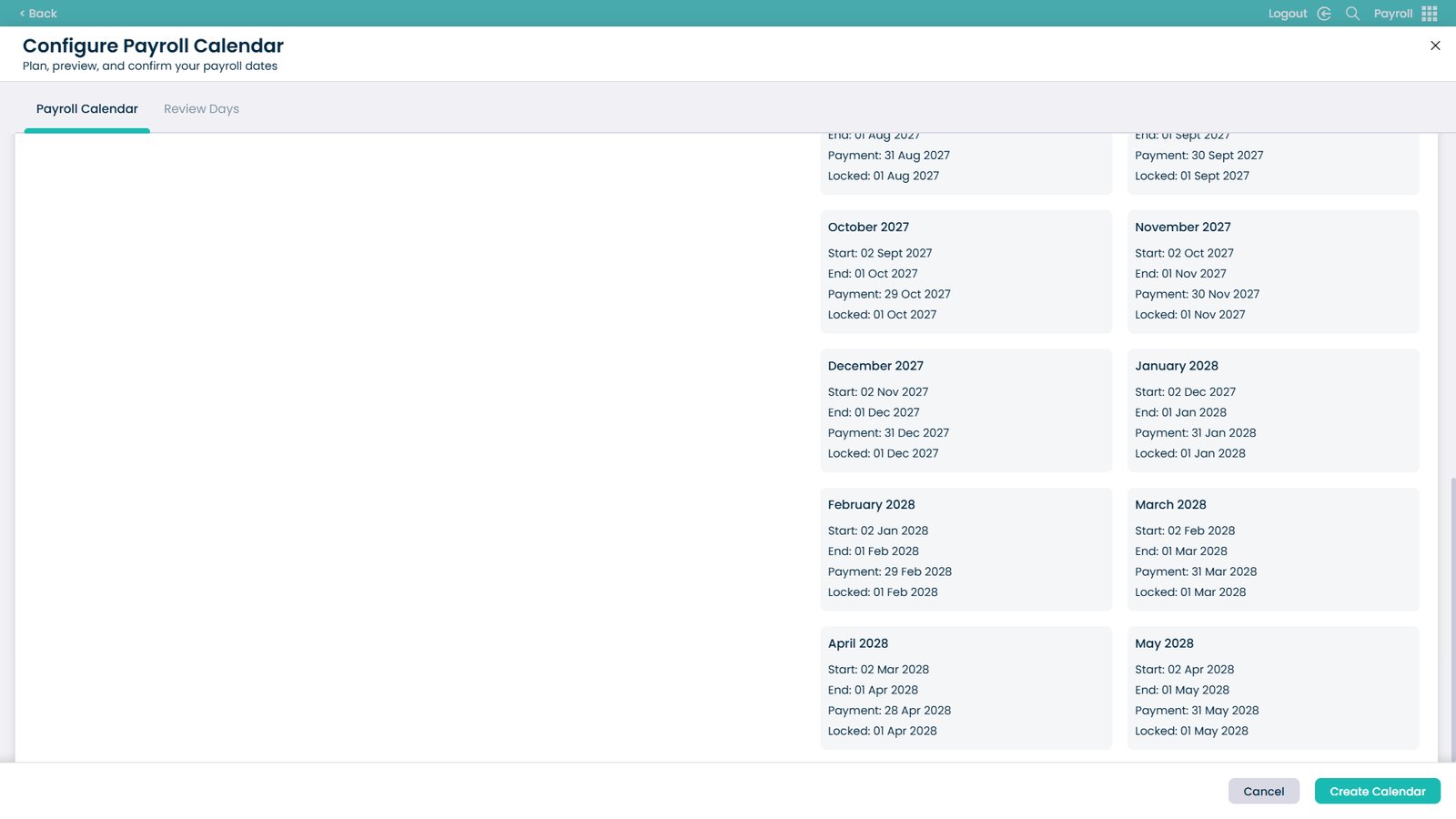
Preview

Review generated payroll dates

Payroll Dates

Create the payroll calendar

Create Calendar

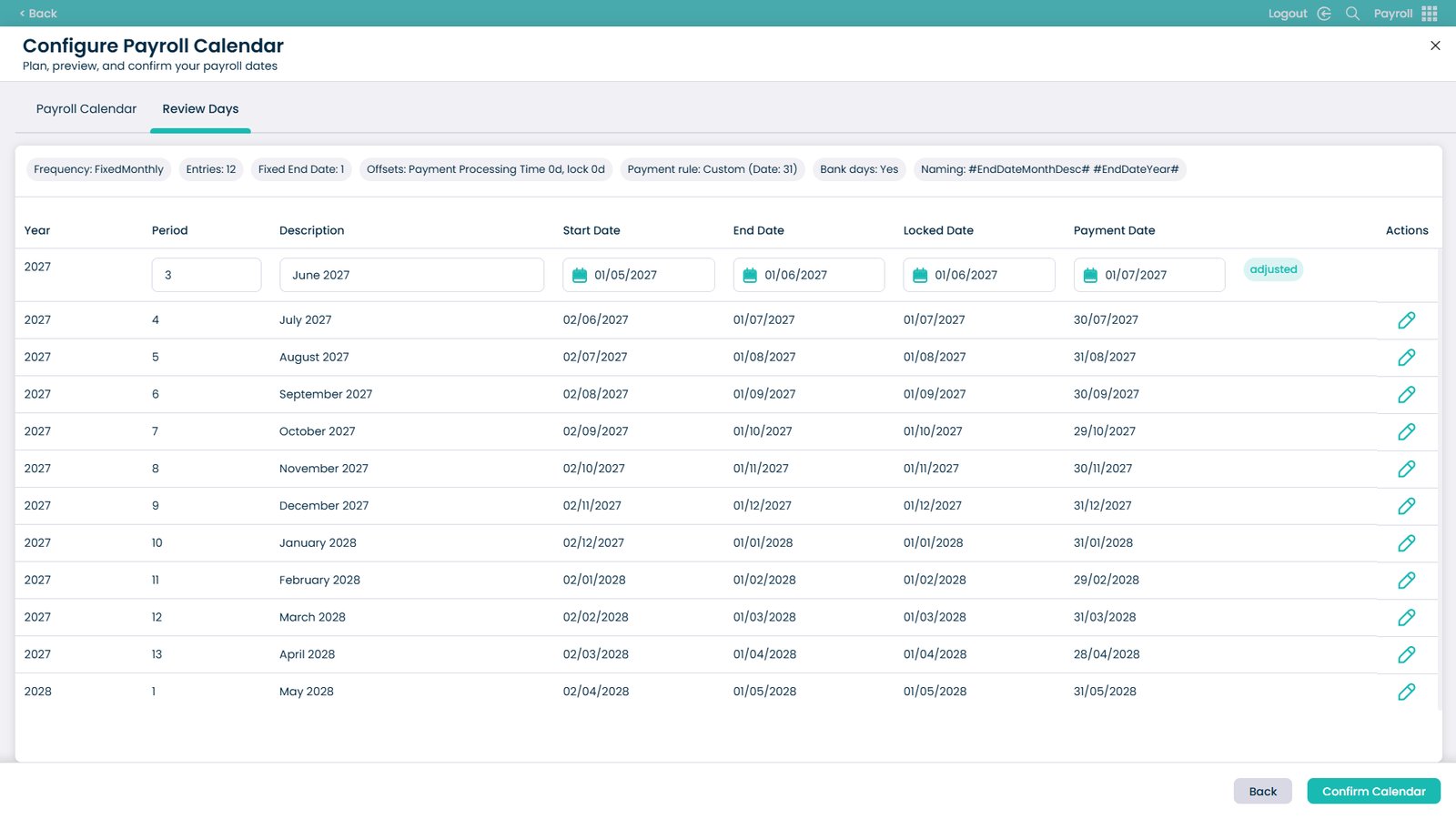
Modify payroll dates if needed

Modify Dates

Edit dates using the calendar or manual input
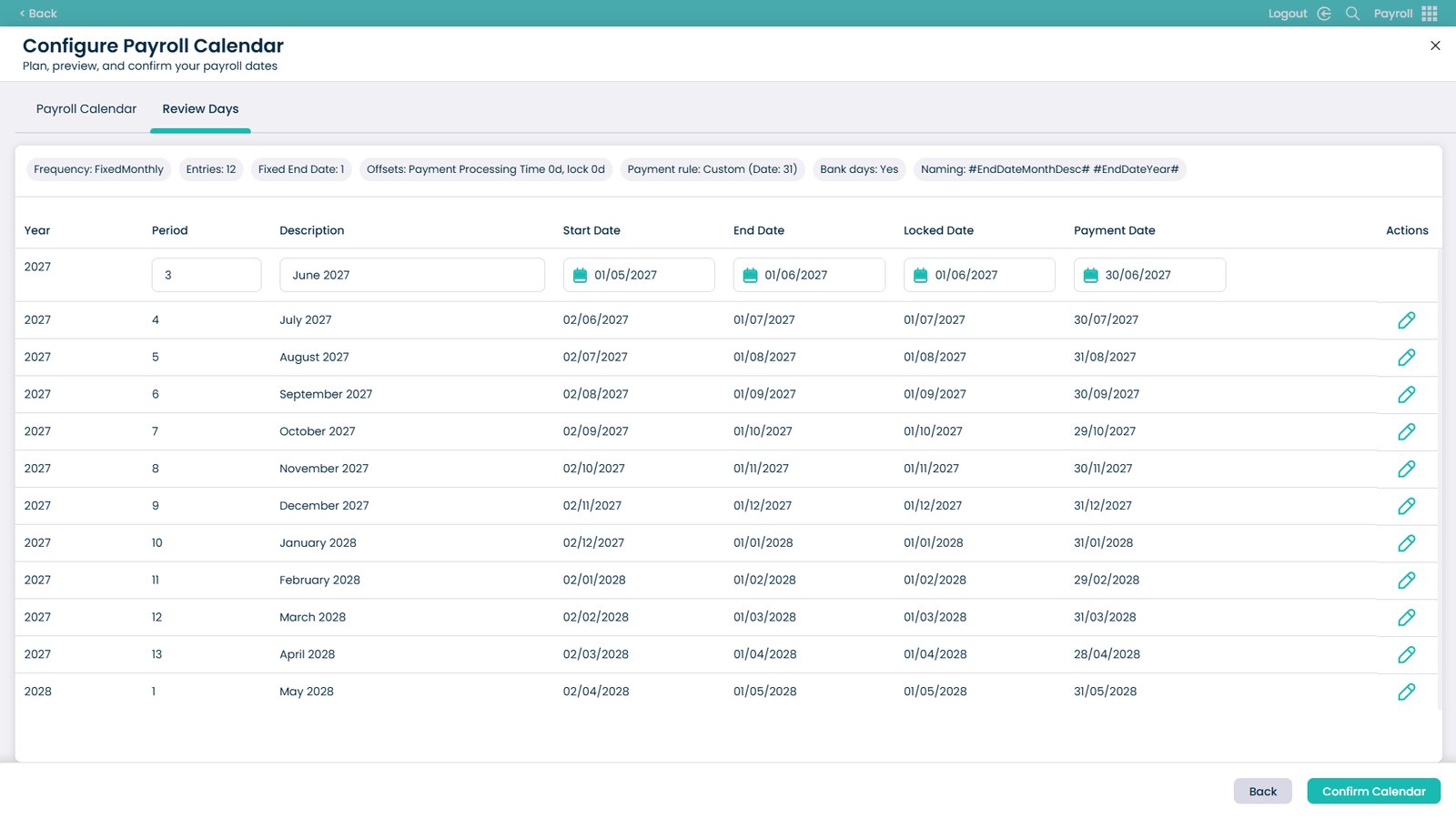
Edit Dates

Review adjusted entries

Adjusted entries are automatically saved and marked. Adjusted Entries
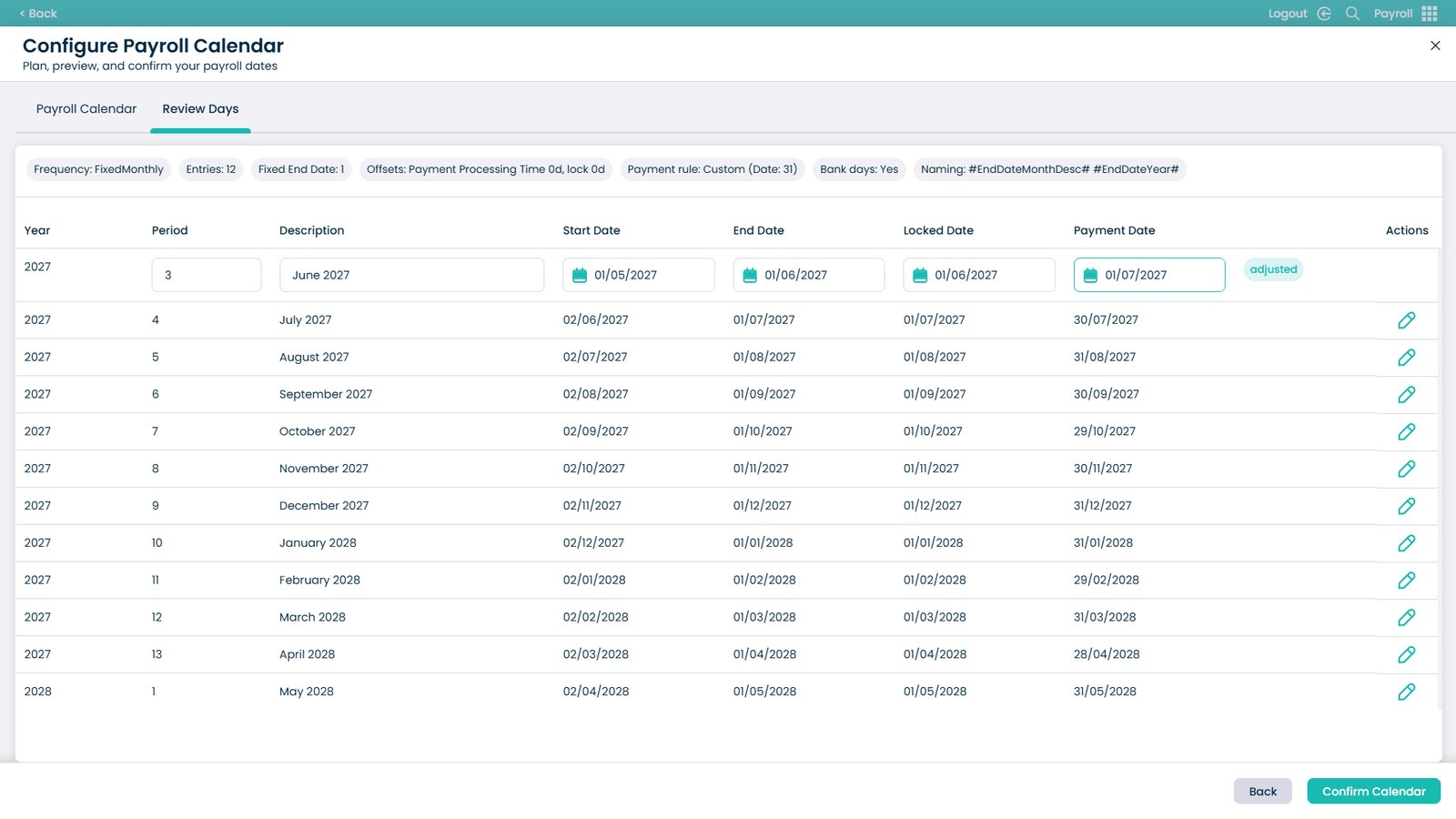
Confirm the payroll calendar

Confirm Calendar

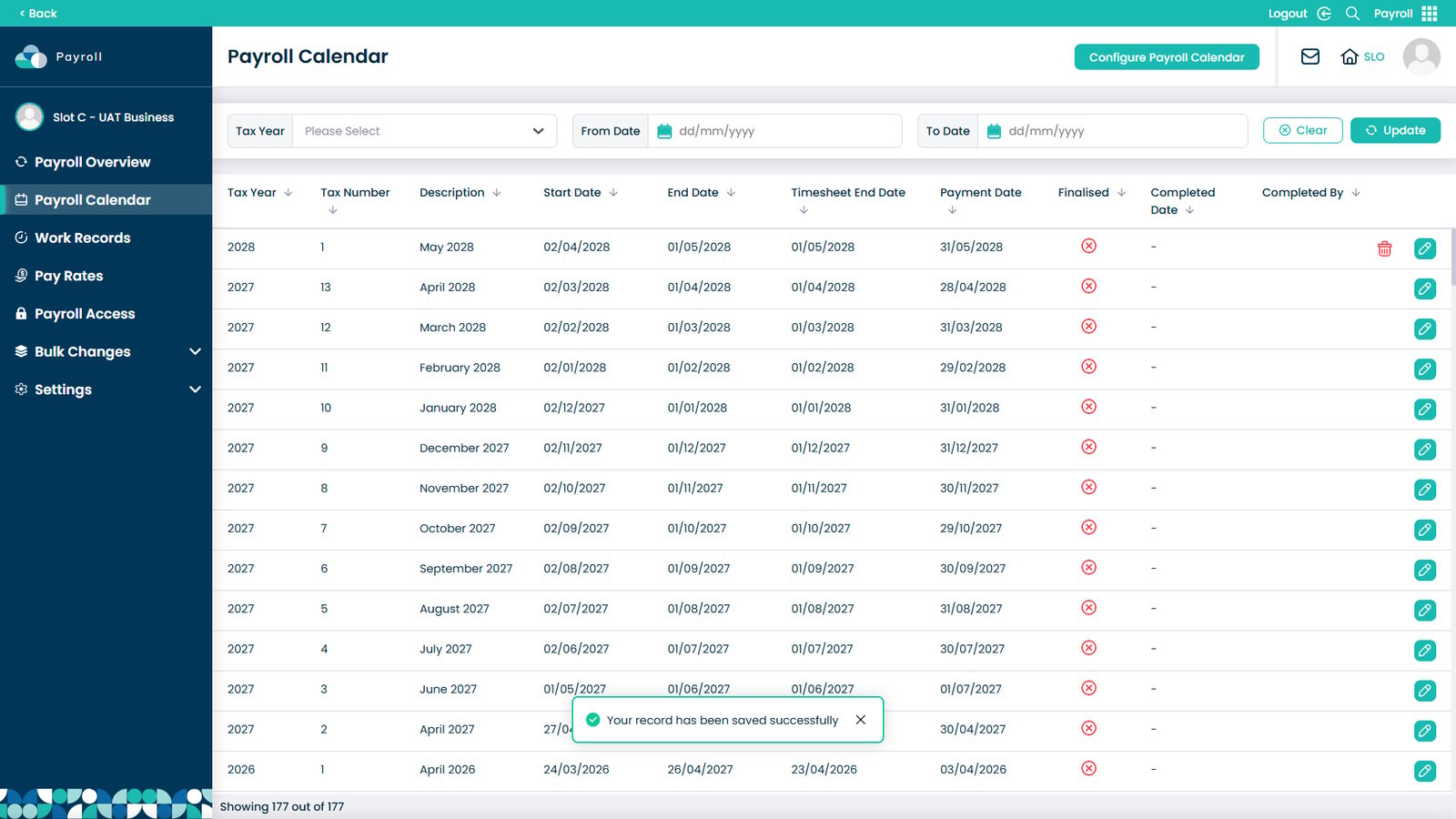
Final step

Final Step
Was it helpful ?
Table of Contents
↑ Top