How to Copy a Shift
This guide explains how to quickly copy an existing shift to another cell within the Draft Rota and publish the changes to the live rota.
Takes 2 minutes
For: Managers
Updated: 31st July 2026
Introduction
The Draft Rota allows you to quickly copy an existing shift to another staff member, date, or rota cell. This can save time when creating similar shifts across the rota.
In this guide you'll learn how to:
- Open the Draft Rota
- Copy an existing shift using your keyboard and mouse
- Place the copied shift into another rota cell
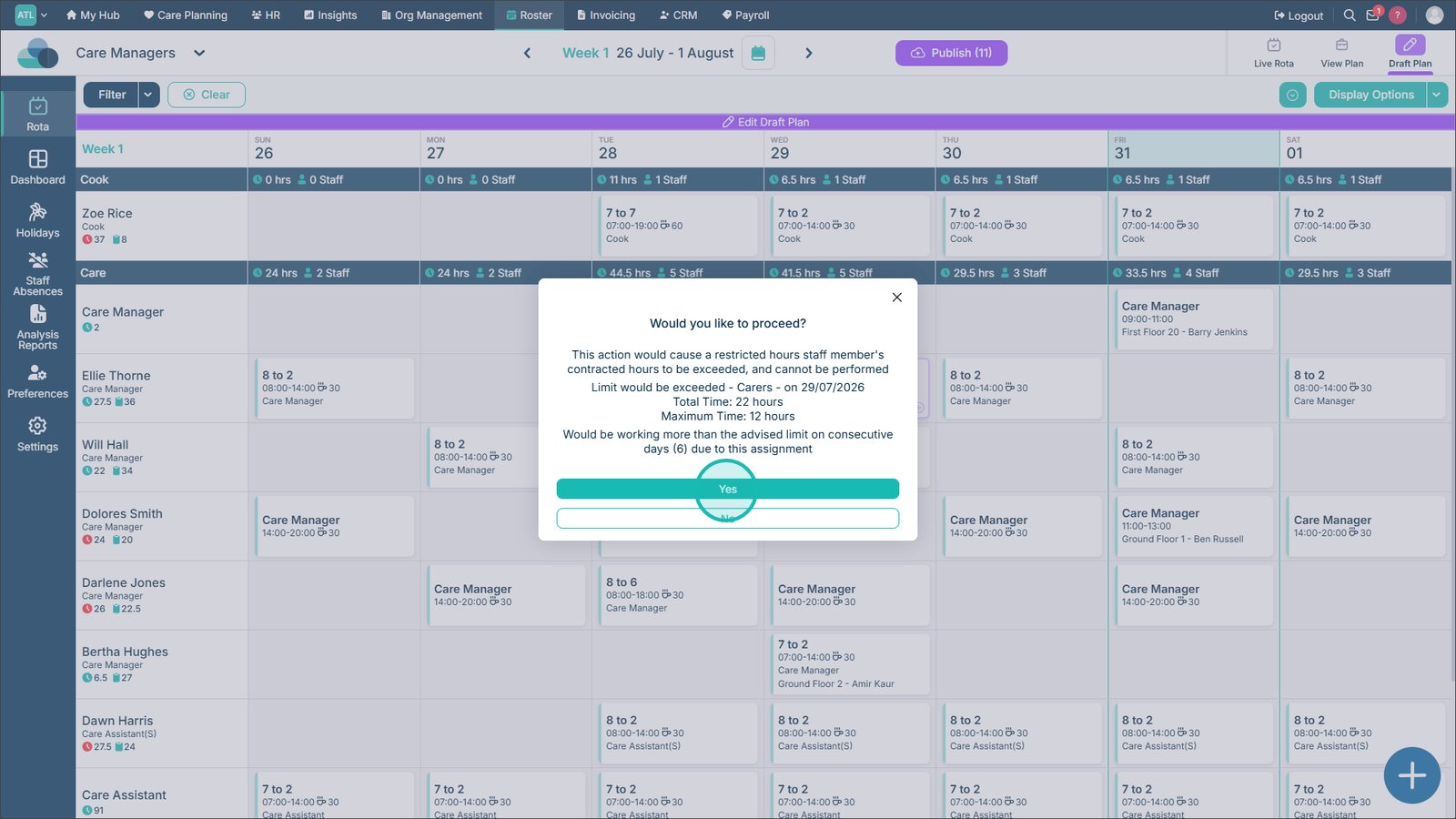
- Review any warnings or issues
- Publish the changes to the live rota
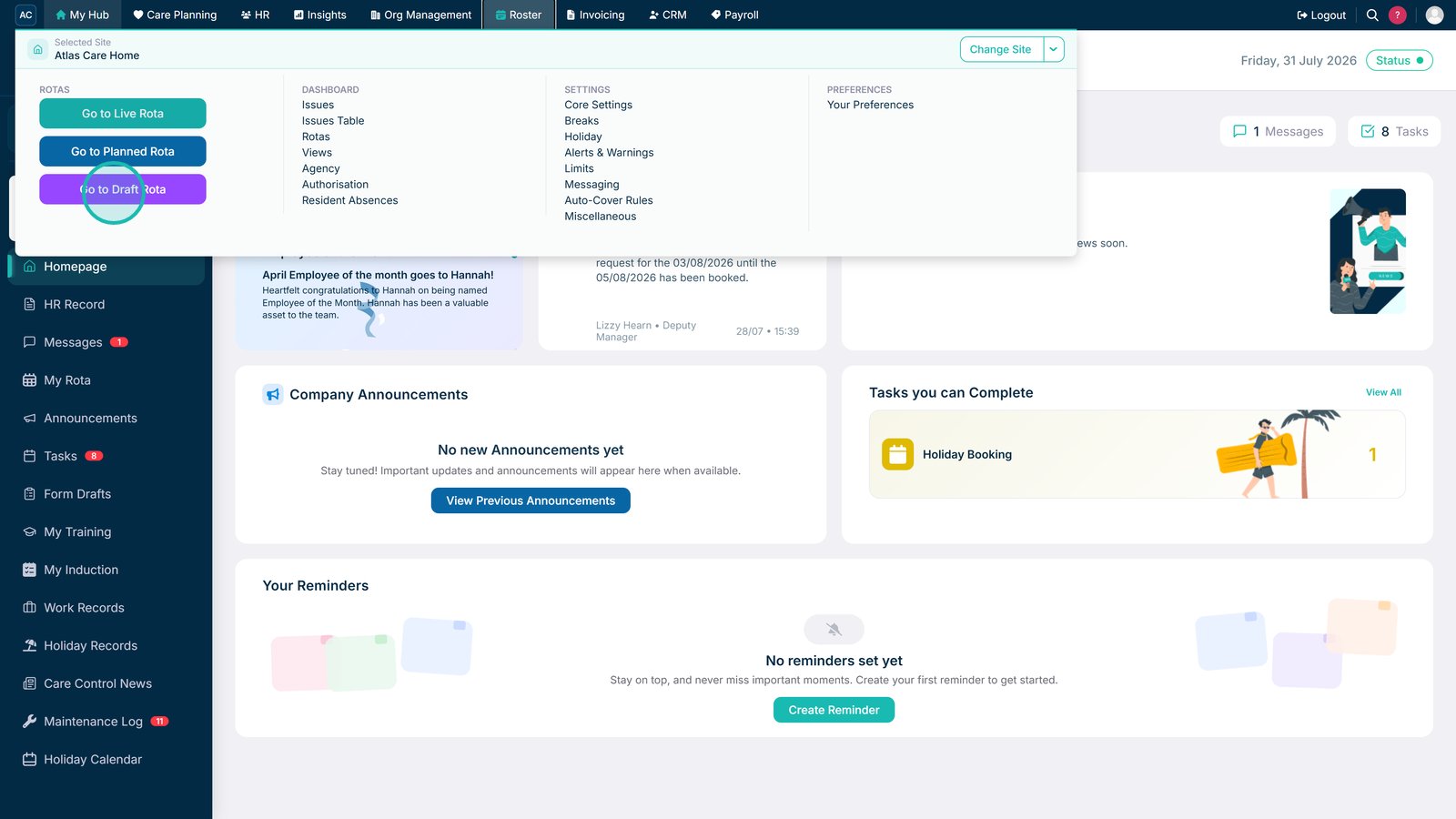
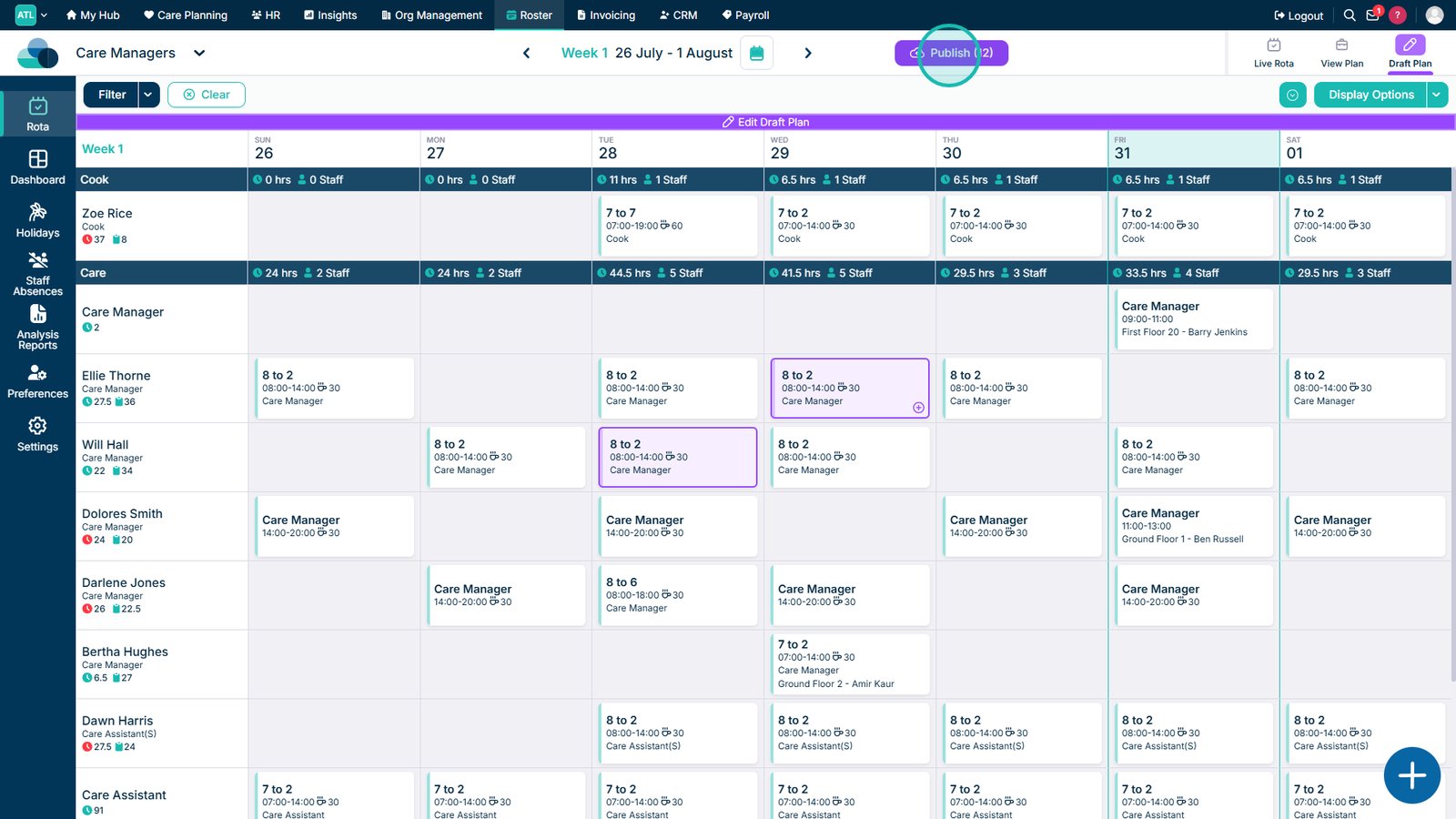
Open the Draft Rota.

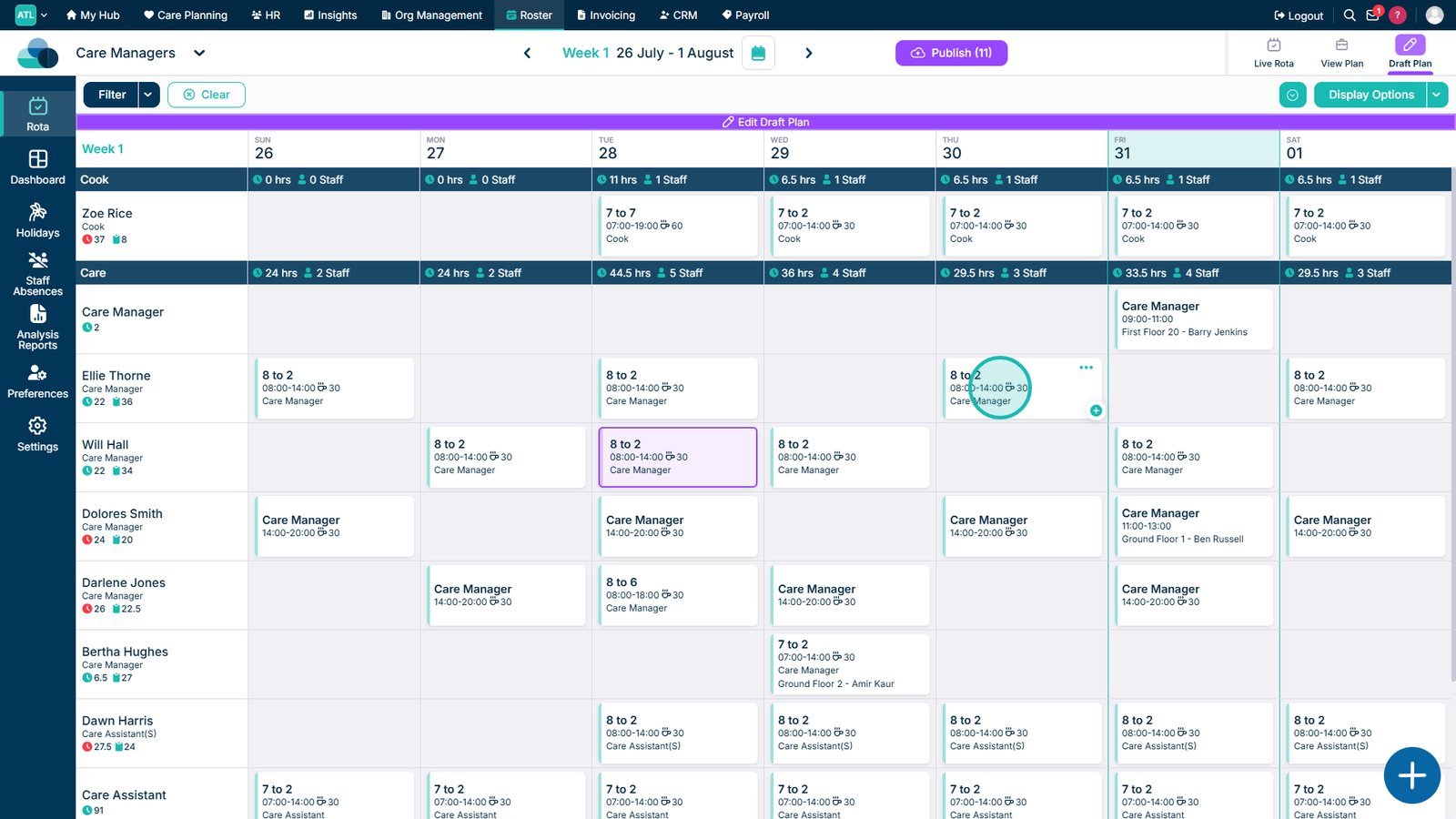
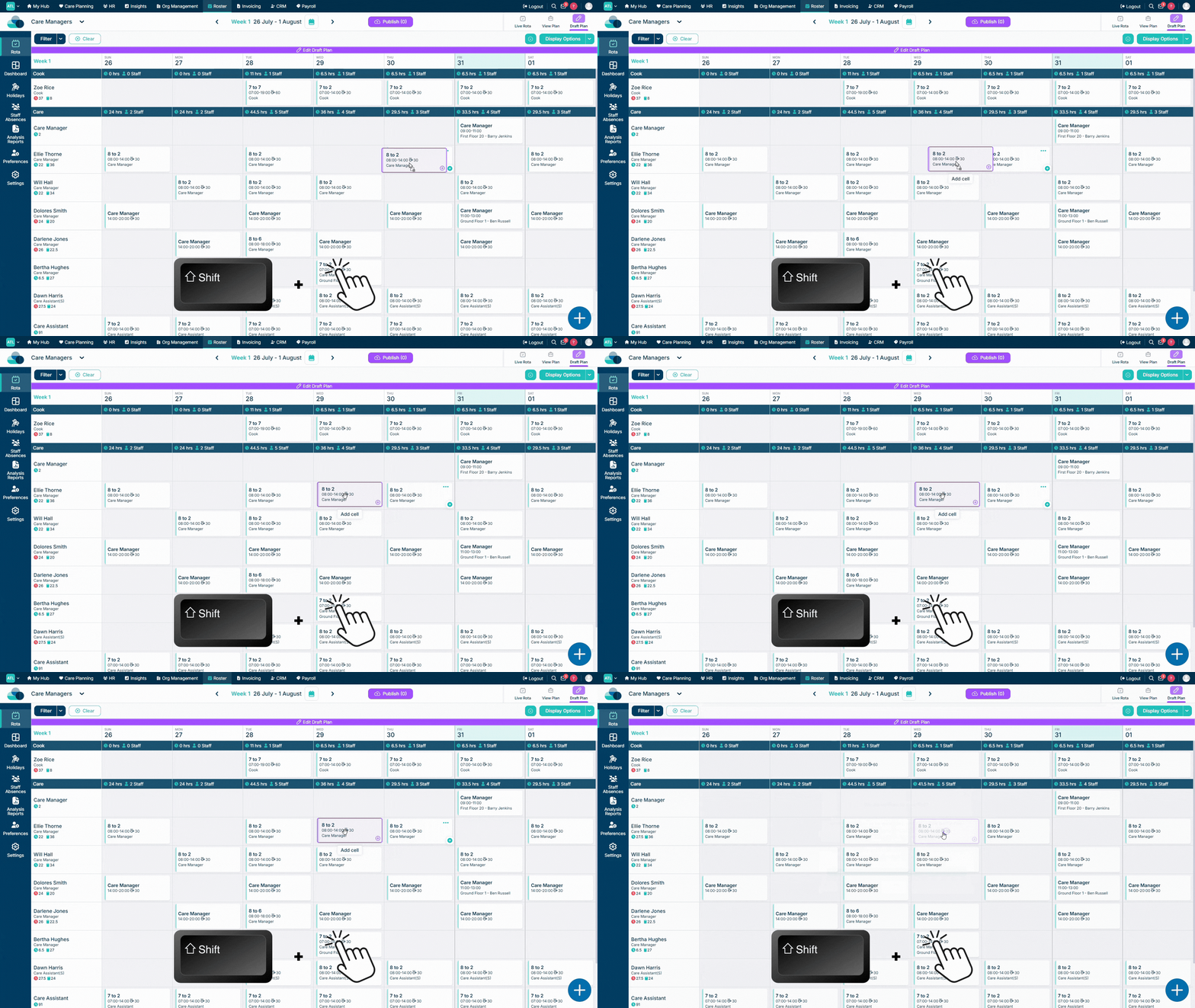
Hold the left Shift key and left mouse button on the shift you want to copy.

Drag the shift to the required cell, then release the Shift key and mouse button.

Review and confirm any issues with the new shift.

Publish the changes to update the live rota.

Top tip
Check the destination cell carefully before releasing the mouse button, then review any warnings before confirming the copied shift.
Need more help?
Can't find what you're looking for? Our support team is here to help.
Contact SupportOr call us on