View Categories

How to Create Custom Filters for Formal Handovers

Learn how to create Custom Filters within Formal Handover Configuration. This guide explains how to name a filter, add trigger words, choose how those words should be matched, and save the filter for use in handovers.
Takes 3 minutes
For: Managers
Updated: 22nd Sept 2026

Introduction

Custom Filters in Formal Handover Configuration help you organise handover information by automatically identifying notes that contain specific words or phrases.

You can create a filter, add one or more trigger words, and choose how Care Control should match them within a note. This makes it easier to group and review relevant information during a Formal Handover.

In this guide you'll learn how to:

  • Open Formal Handover Configuration
  • Create a new Custom Filter
  • Add trigger words to the filter
  • Choose how trigger words are matched
  • Save the completed filter

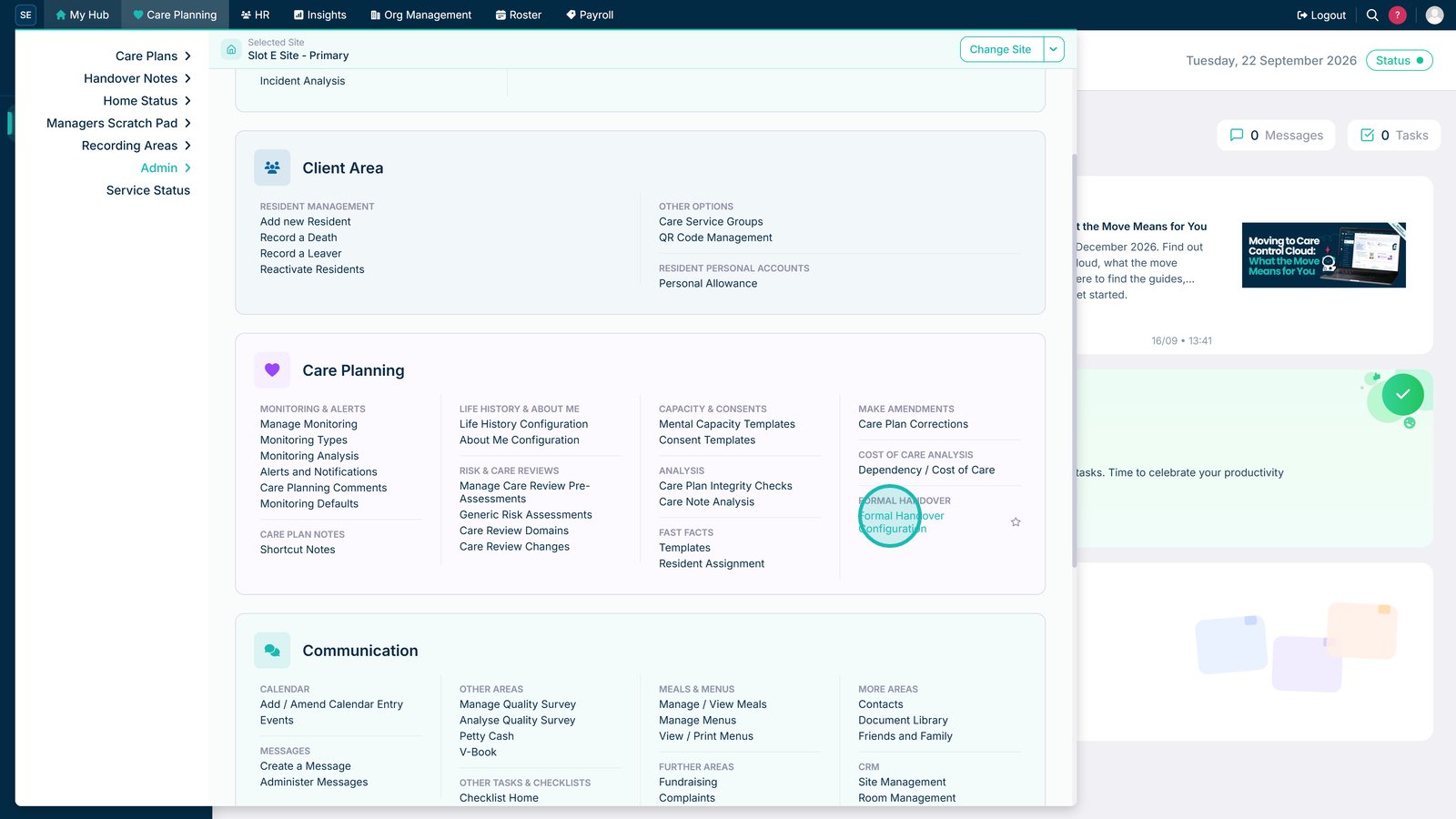
Open Formal Handover Configuration.

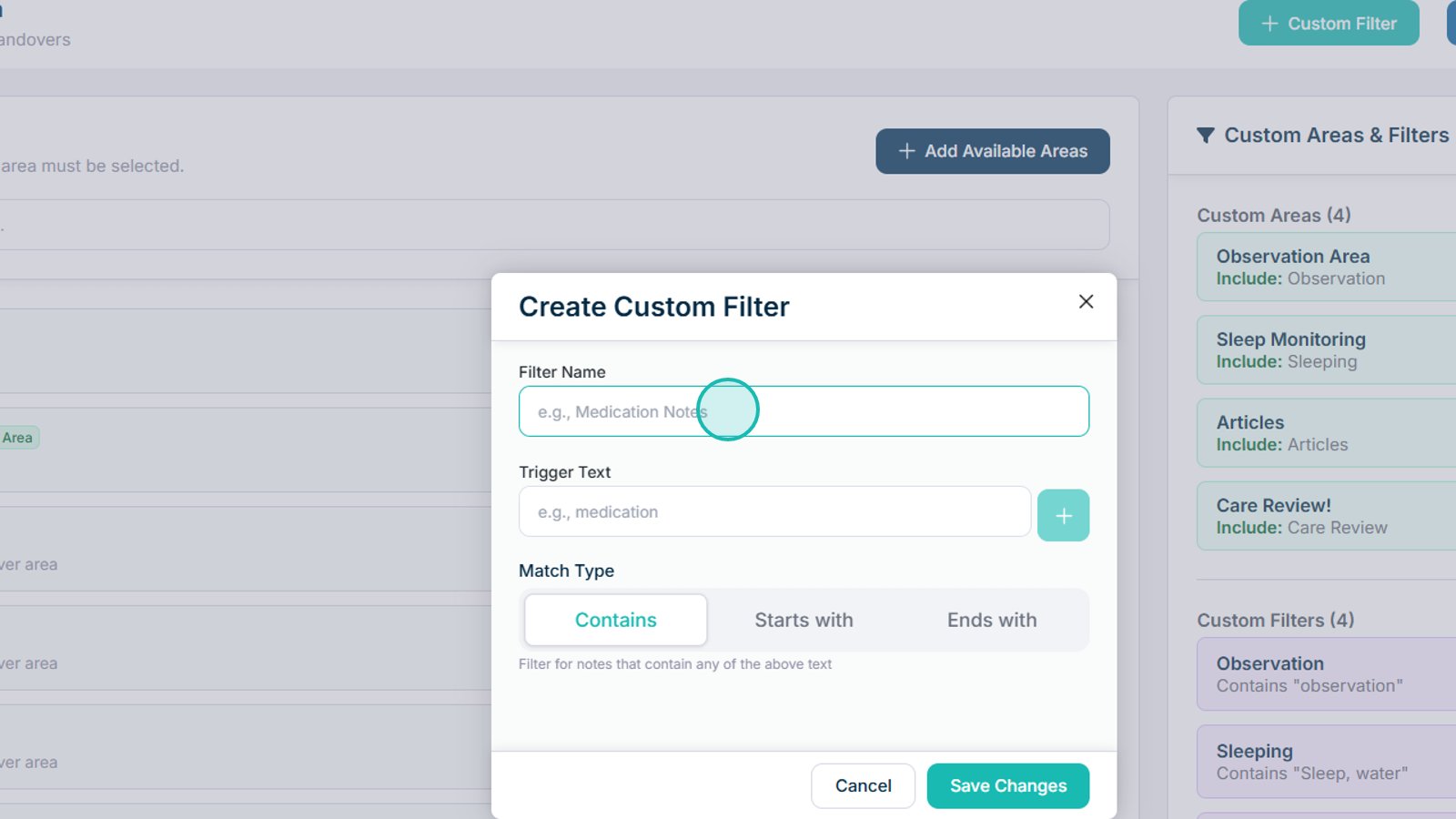
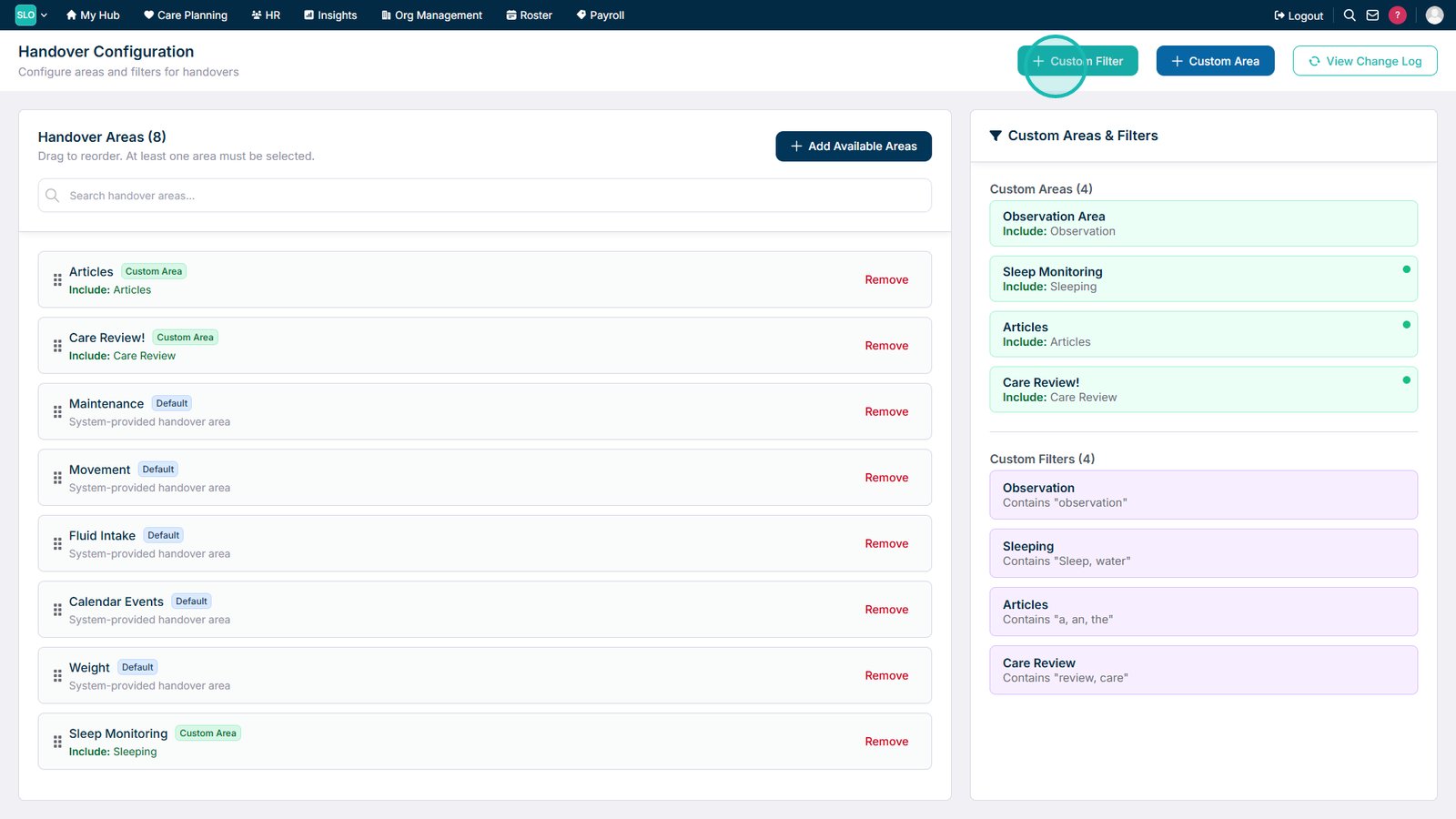
Select Custom Filter to create a new filter.

Enter a clear name for the Custom Filter.

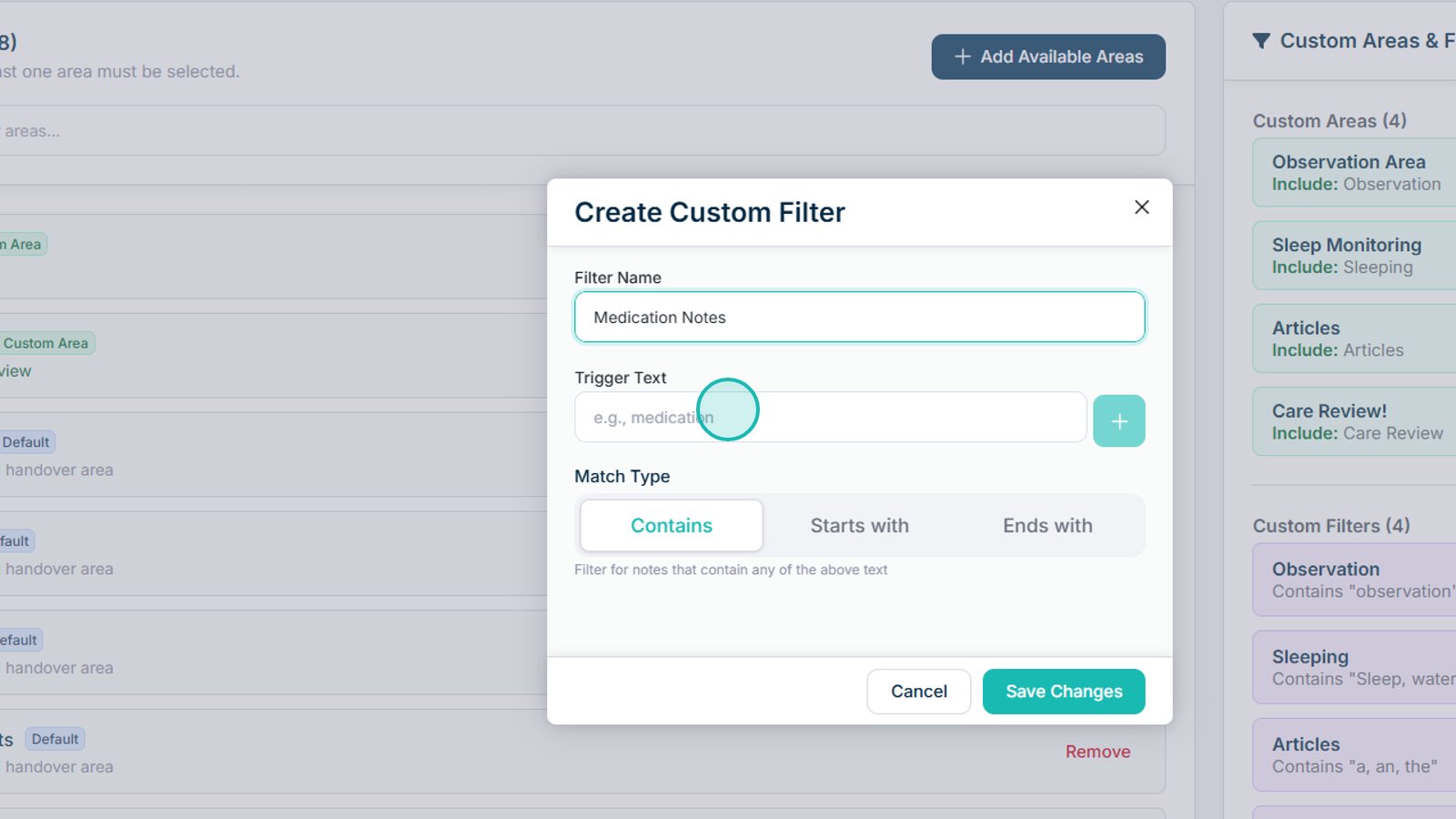
Enter one or more trigger words for the filter.

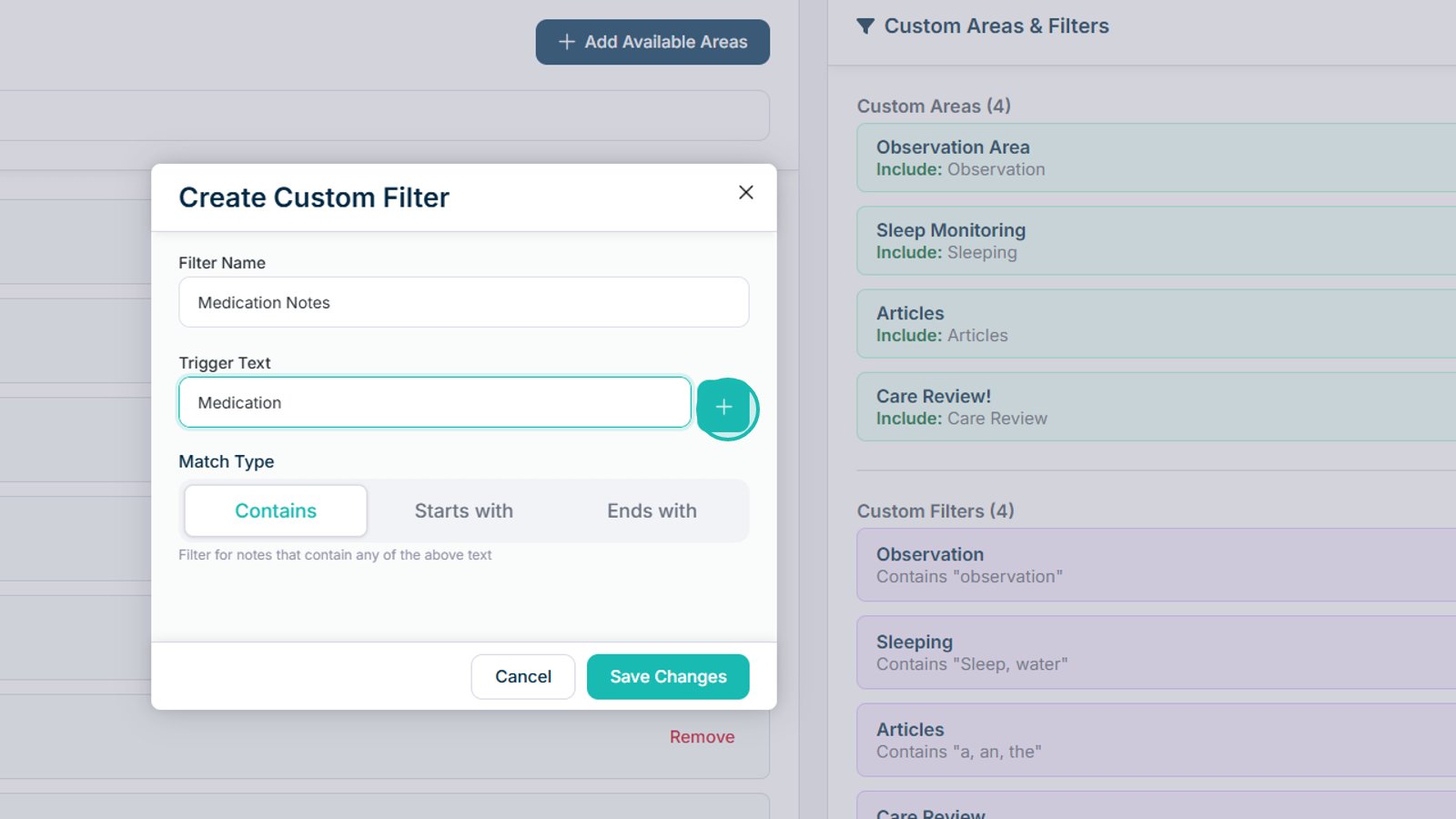
Select Add to include the trigger text in the filter.

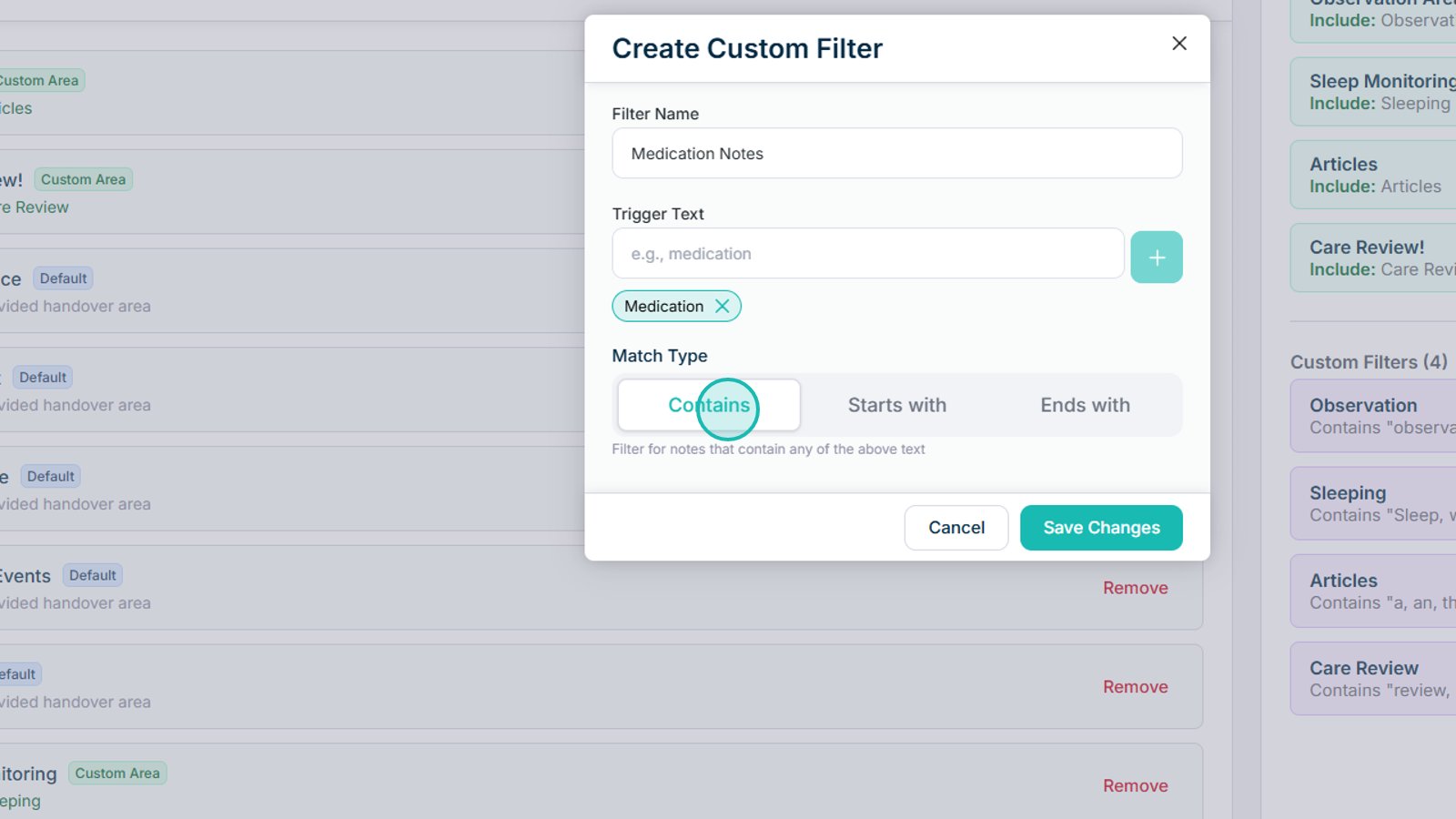
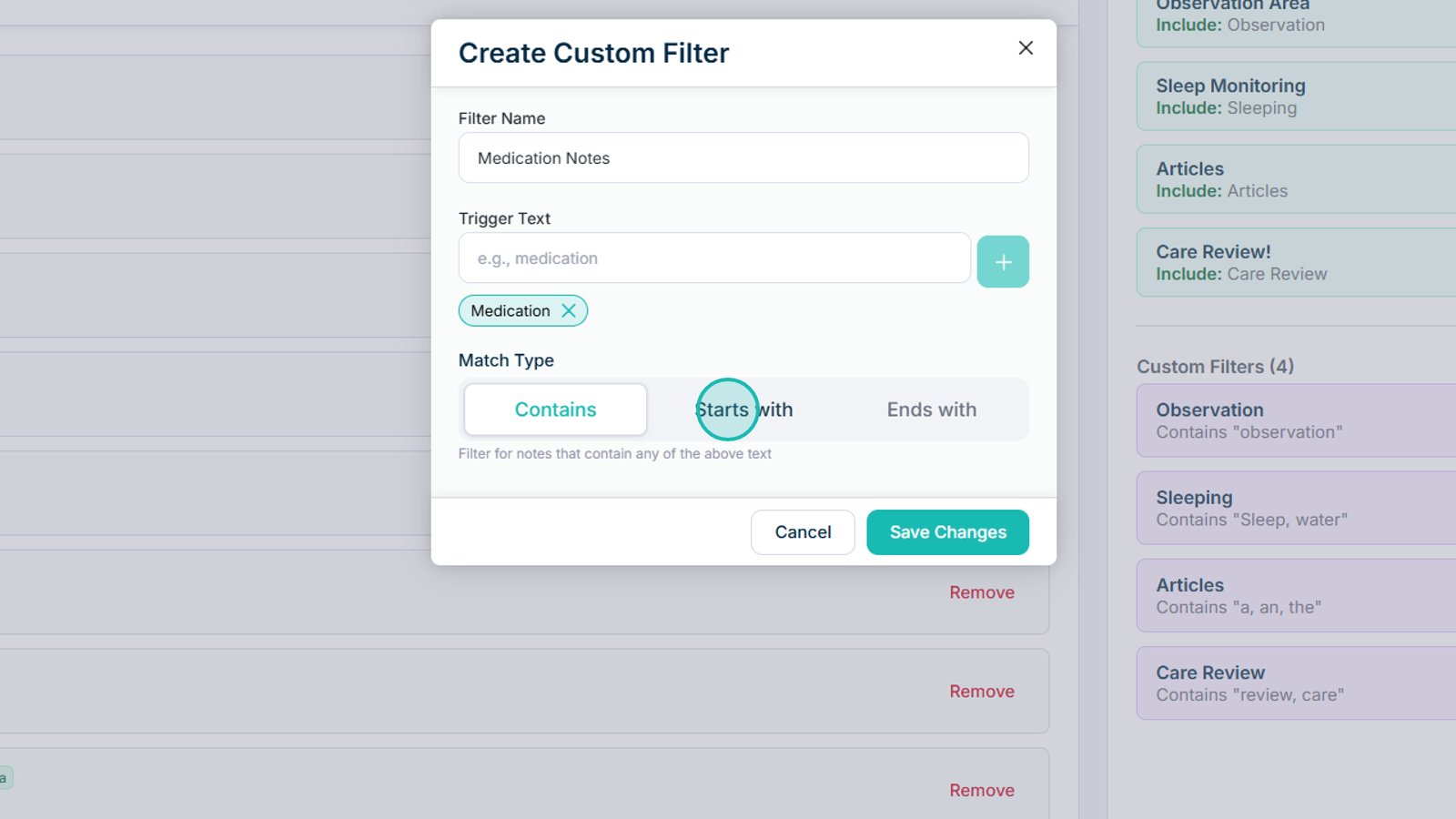
Select Contains to match notes where the trigger text appears anywhere within the content.

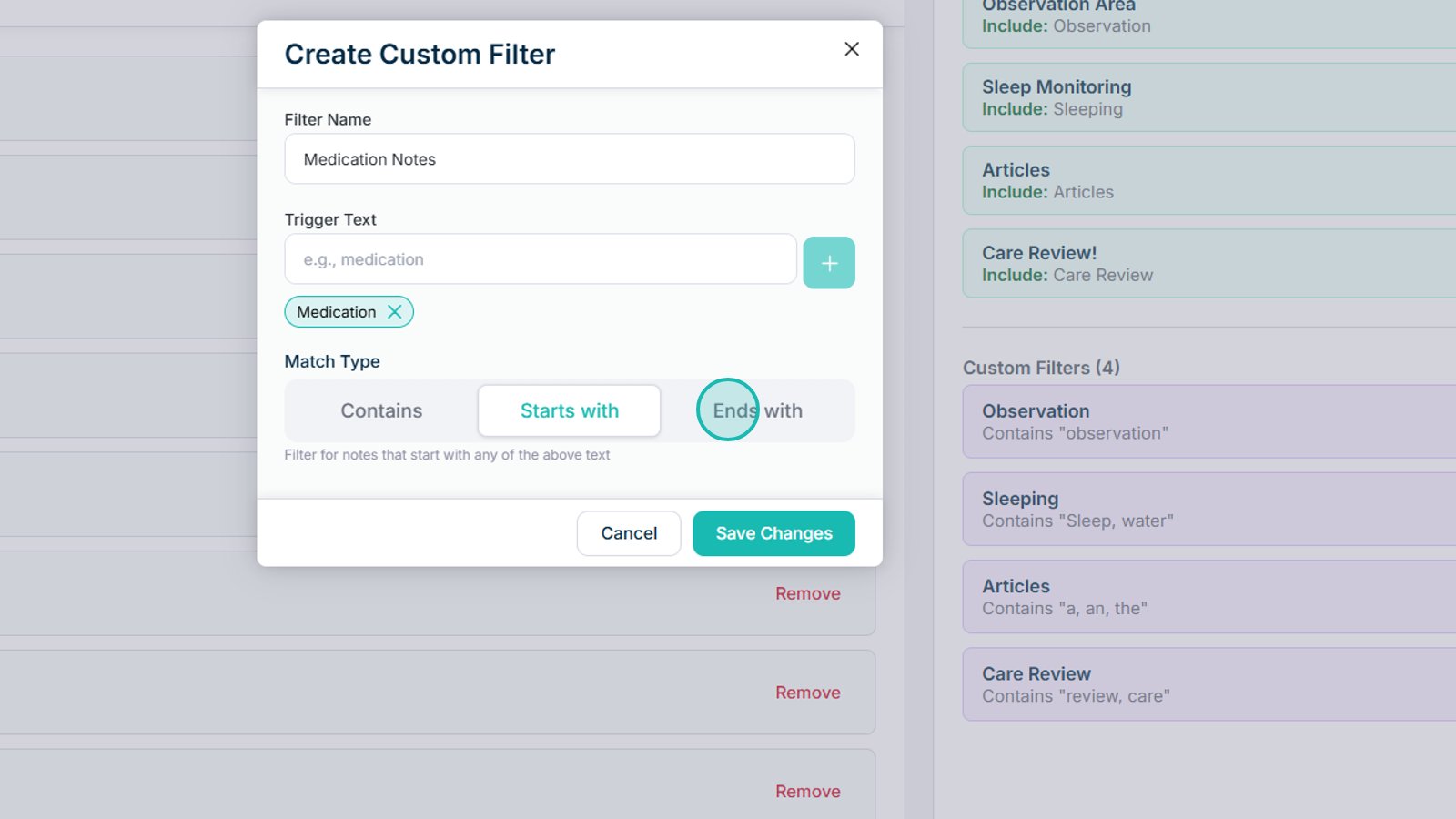
Select Starts with to match notes that begin with the trigger text.

Select Ends with to match notes that finish with the trigger text.

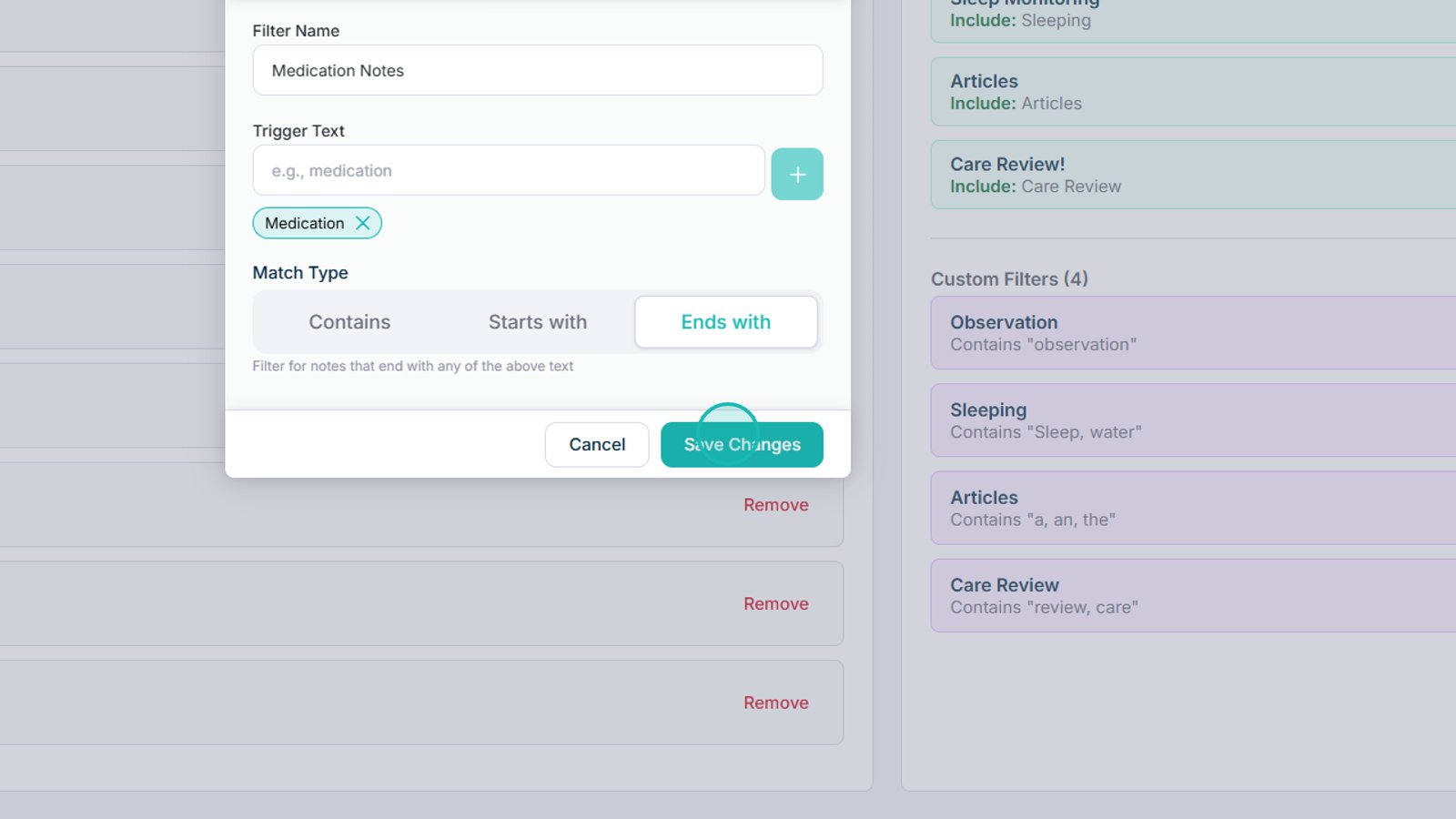
Select Save Changes to save the Custom Filter.

Top tip

Choose clear trigger words that are likely to appear consistently in handover notes. Use Contains, Starts with, or Ends with depending on how specific you want the filter to be.

Was this guide helpful?

Need more help?

Can't find what you're looking for? Our support team is here to help.

Contact Support

Or call us on

On this page