Bank Holiday Closure Notice: We will be closed on the 3rd April for the Easter bank holiday, so our customer service team will not be available on this day. If you need to get in touch, you can still use our customer contact form and we will get back to you as soon as possible. Even better, Margo will still be available on our phone lines to help with your queries whenever you need support. We hope you have a lovely Easter weekend 🐣
View Categories
How to Record a Meal Choice
This guide will cover how to record meal choices for your service users on both Care Control Windows and Care Control Mobile. Meal choices can be selected to help kitchen staff know what to serve to who. This feature works in conjunction with kitchen menu, food intake and kitchen serving tools.
1
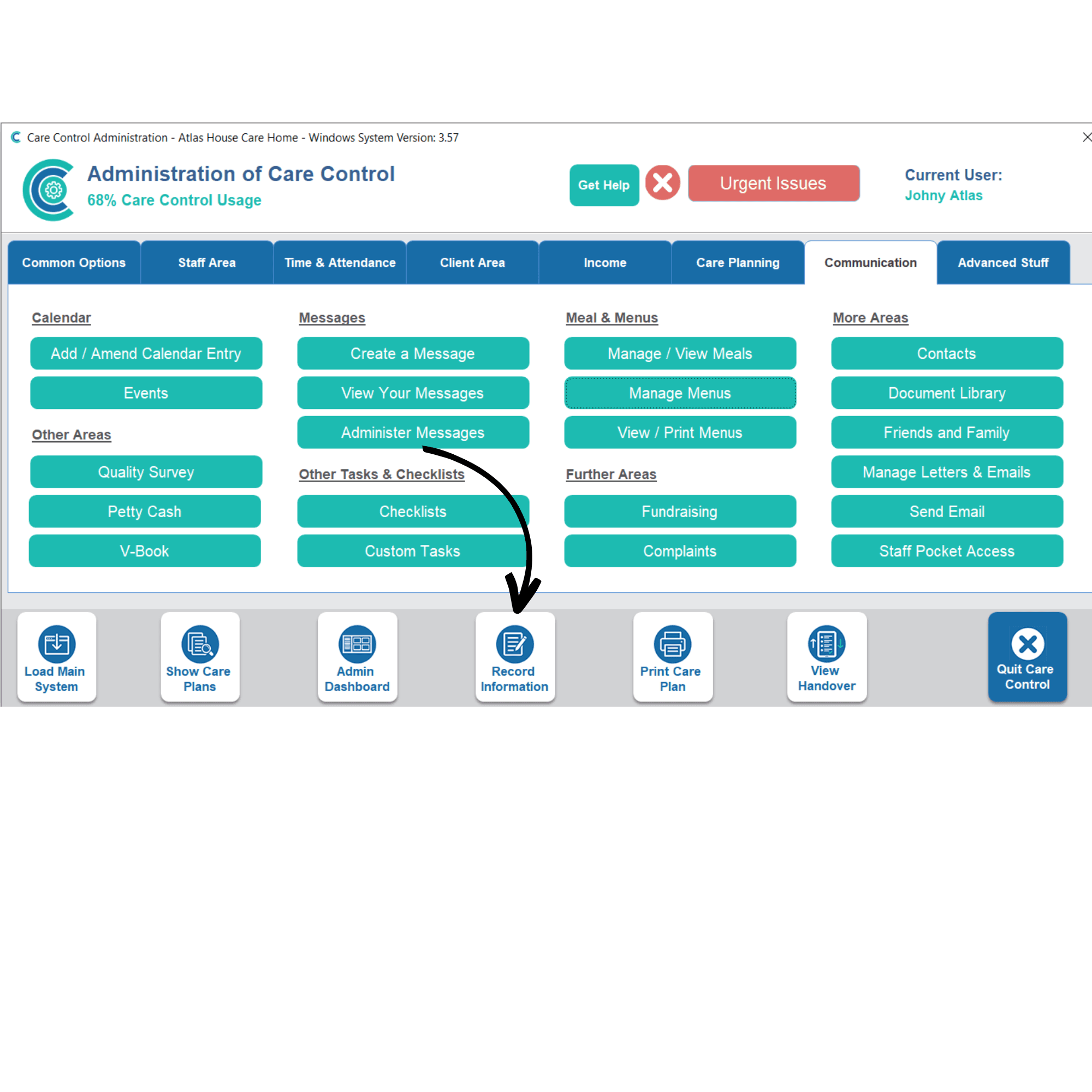
In Care Control Windows, you can record Meal Choice by first selecting Record Information from the options along the bottom of the window.
2
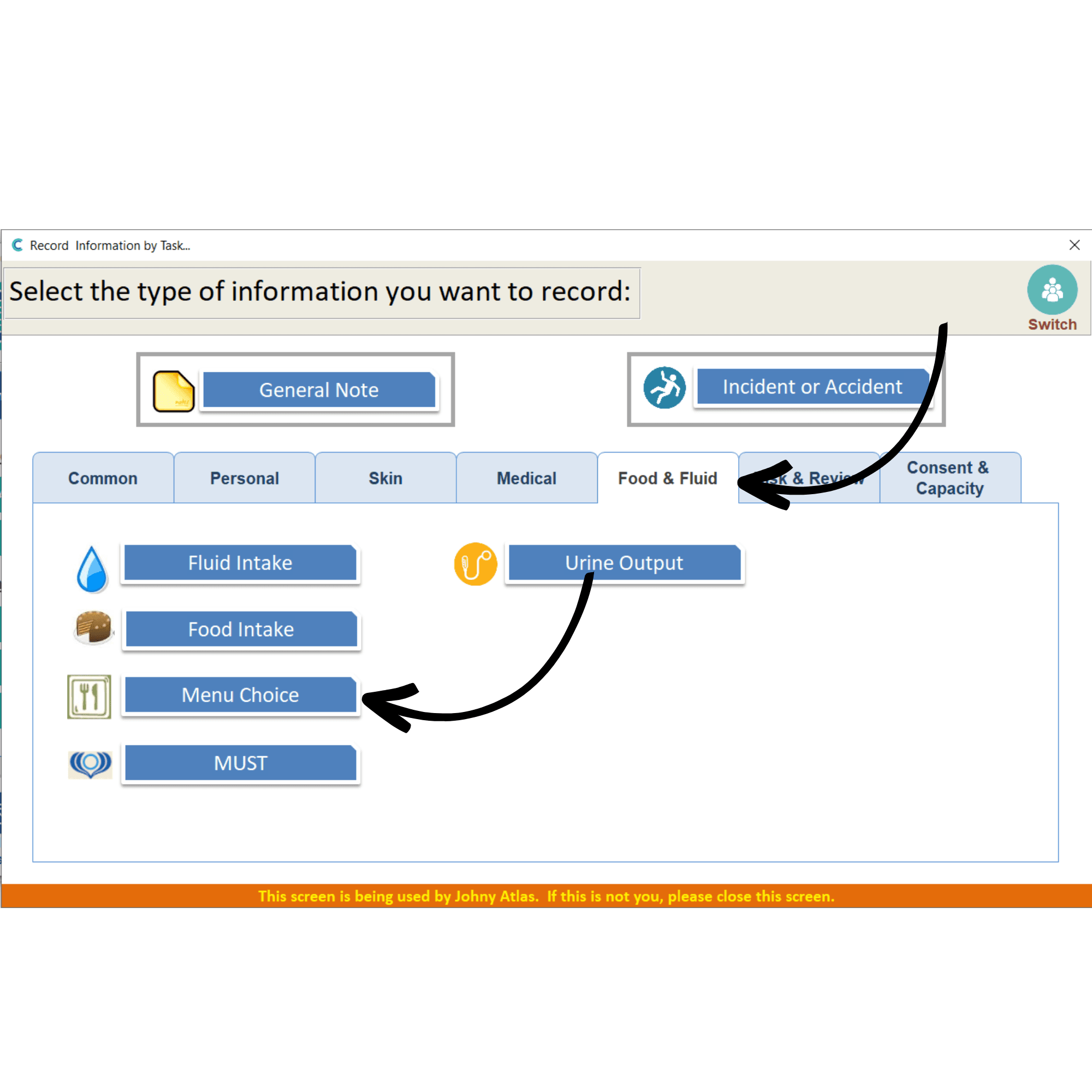
From the recording options, select Menu Choice which can be found under the Food & Fluid tab.
3
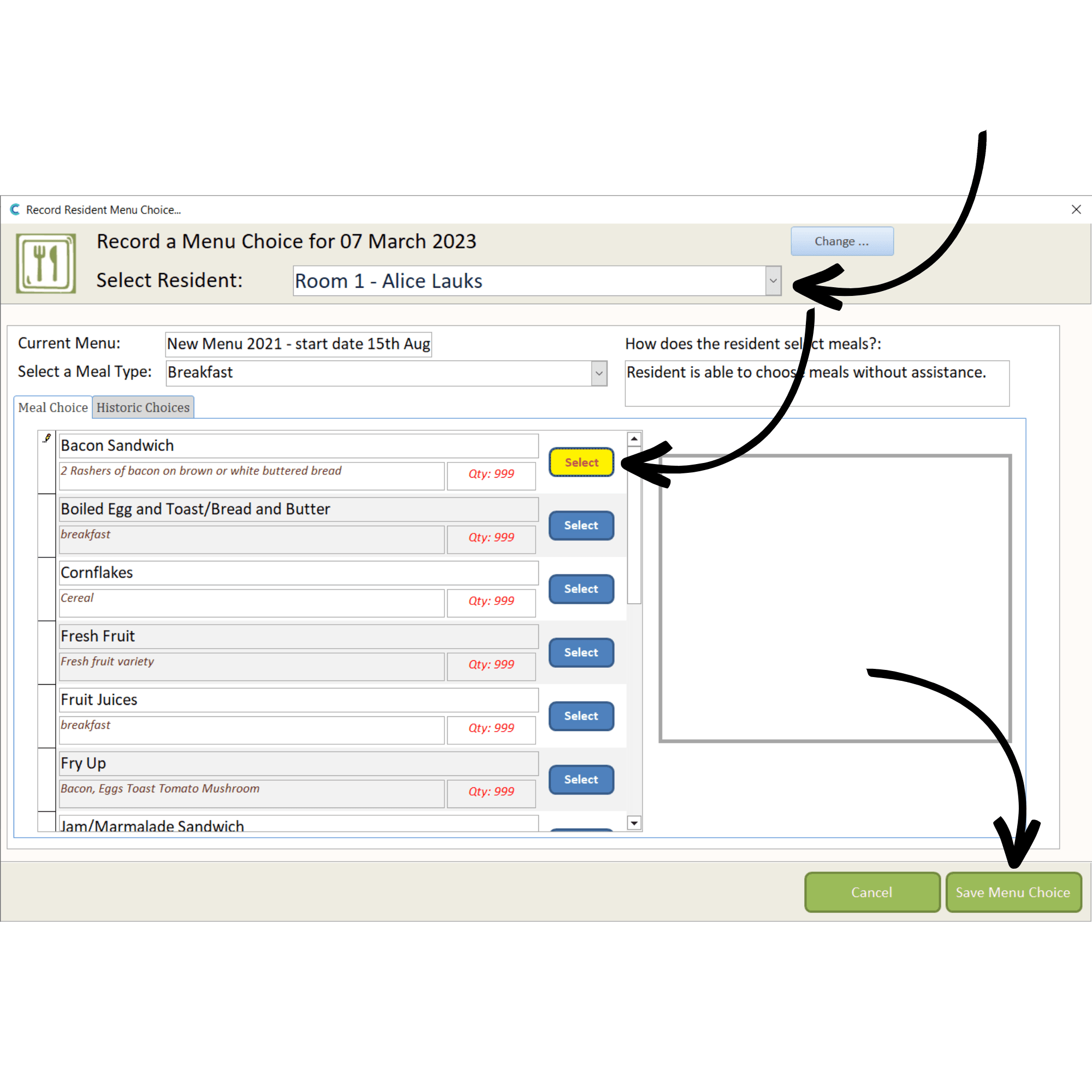
Select a Service User using the drop-down list at the top. Next, select a Meal Type with which you wish to record a choice. Finally, choose a meal by pressing Select.
Press Save Menu Choice after completing the selection.
4
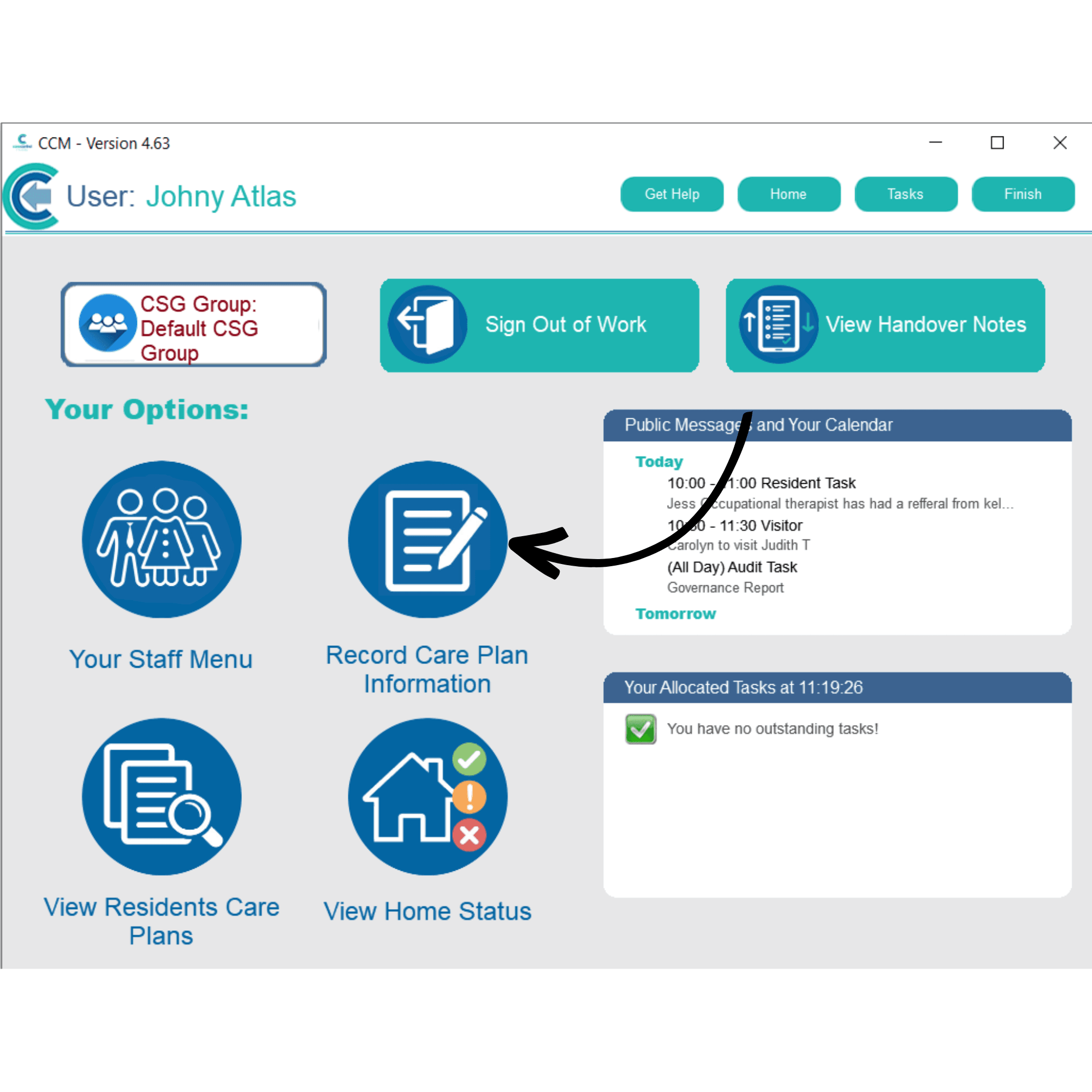
In Care Control Mobile, you can record Meal Choice by first selecting Record Care Plan Information.
5
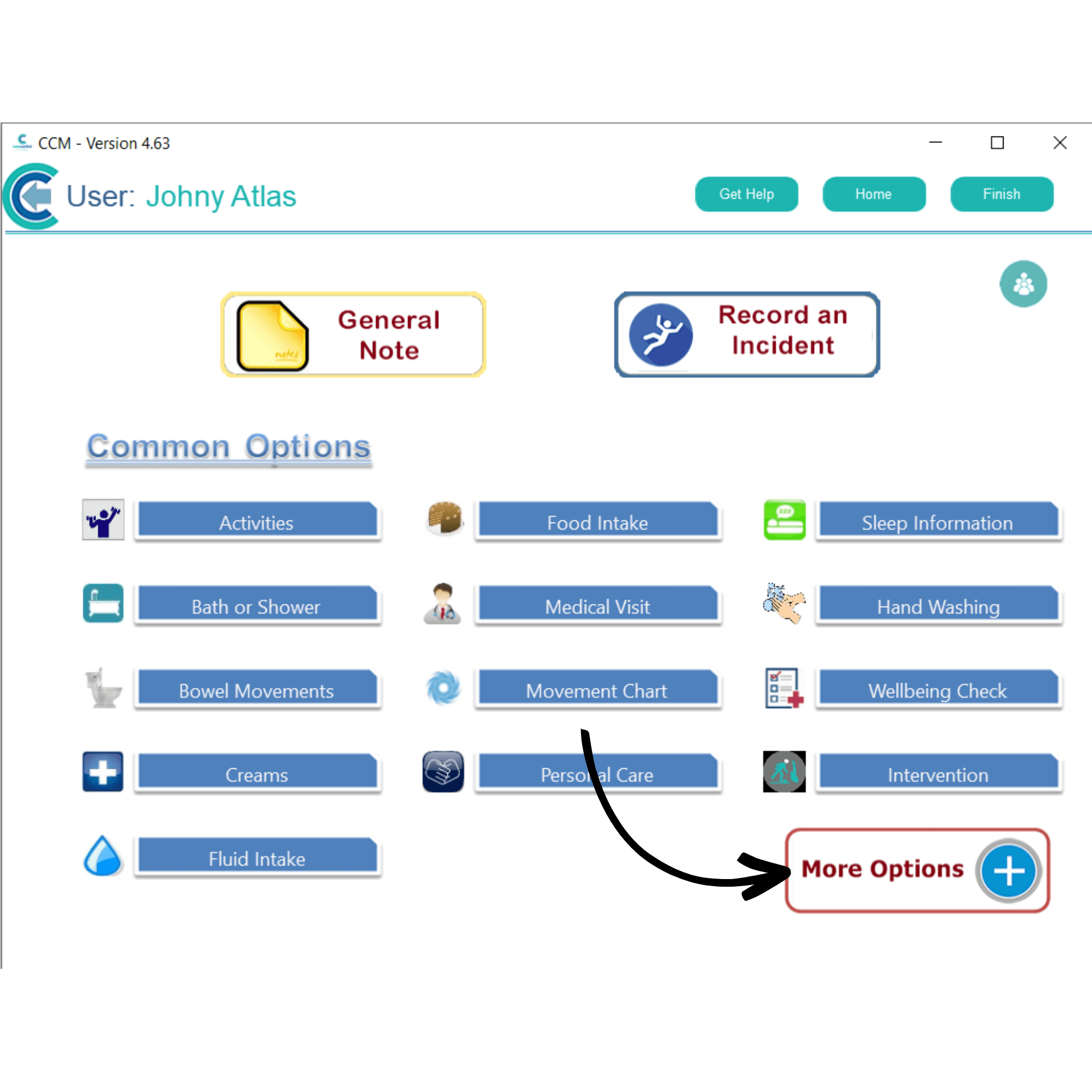
Select More Options.
6
Select Menu Choice from the further recording options.
7
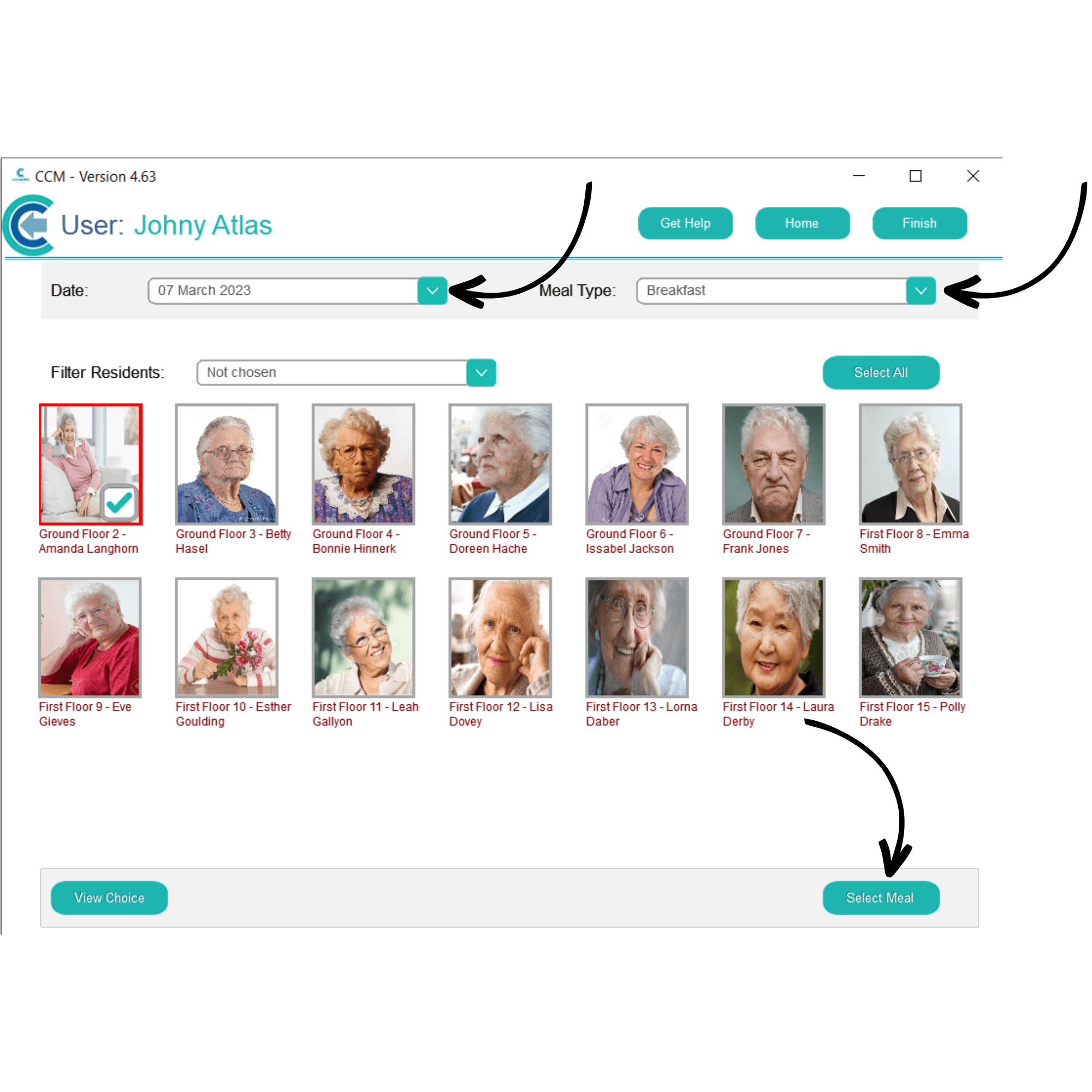
Select the Date and Meal Type at the top of the screen. Then, select the service user you wish to record a meal choice for. Press Select Meal.
8
Tick the meal choice chosen. You can also enter some further, written comments about the choice. Press Save to finish.