Bank Holiday Closure Notice: We will be closed on the 3rd April for the Easter bank holiday, so our customer service team will not be available on this day. If you need to get in touch, you can still use our customer contact form and we will get back to you as soon as possible. Even better, Margo will still be available on our phone lines to help with your queries whenever you need support. We hope you have a lovely Easter weekend 🐣
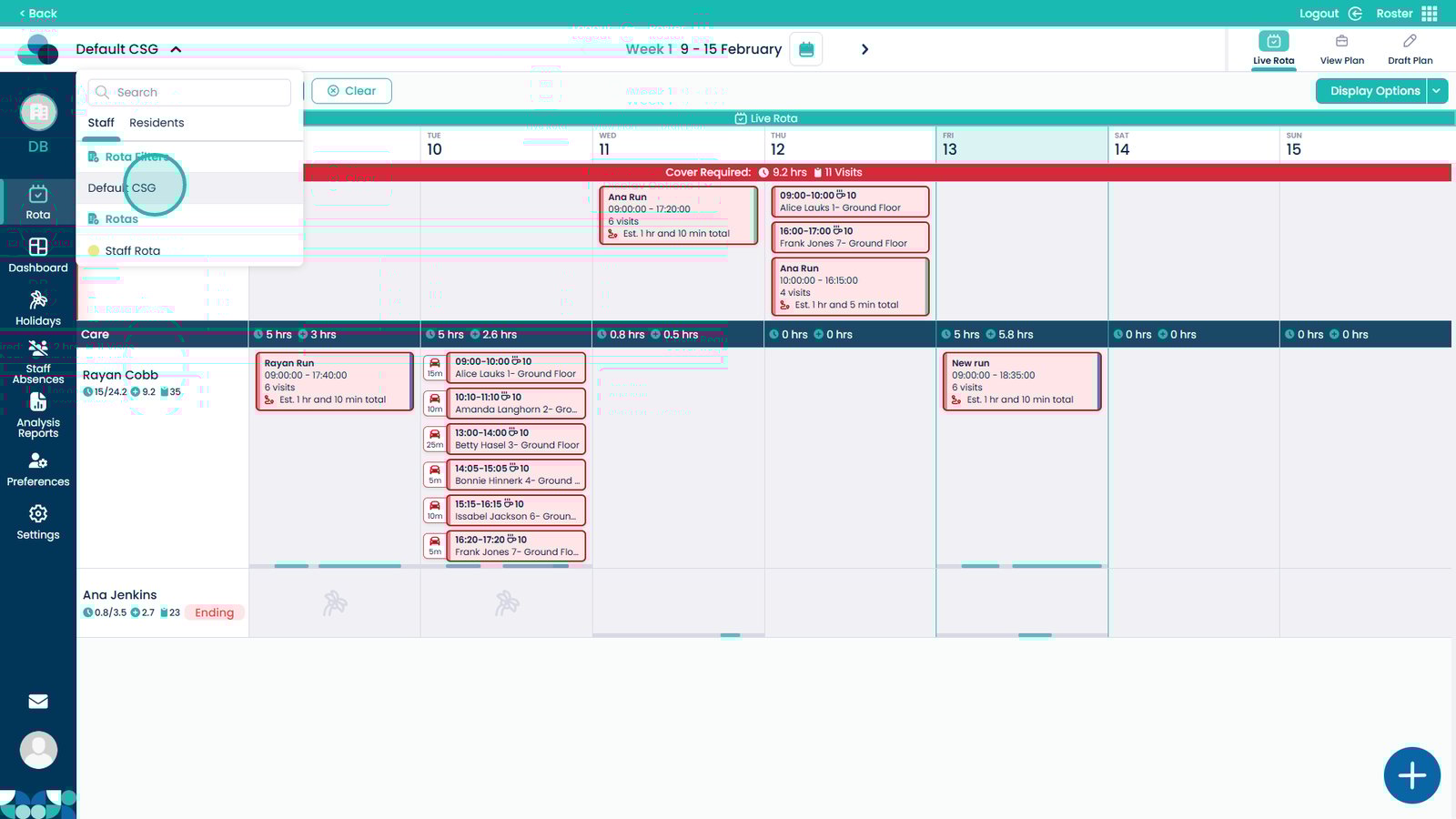
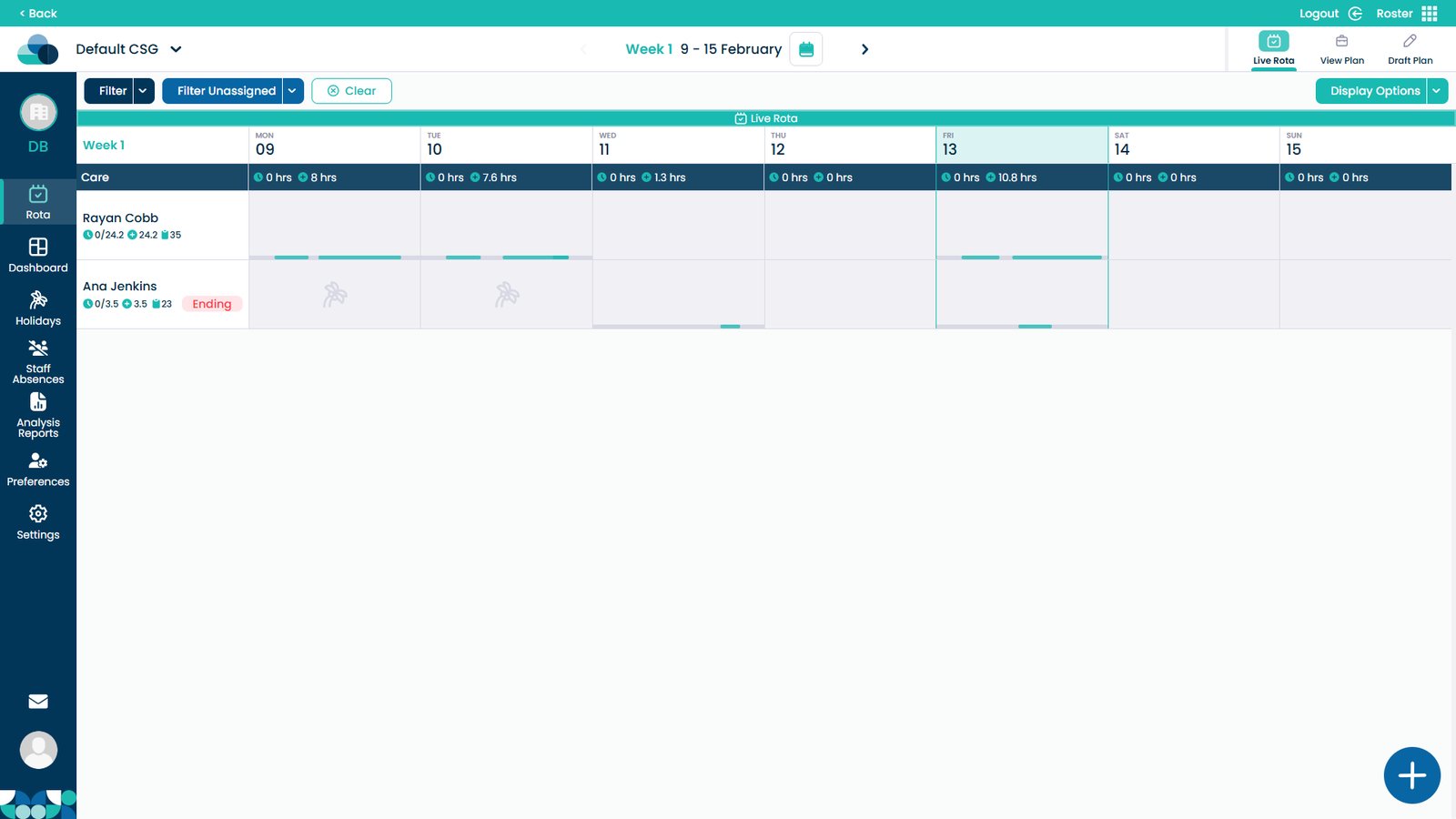
This guide explains how to create and apply Rota Filters within the Cloud Roster system. Rota Filters allow you to customise the rota view so you can focus only on the staff, clients, roles, or service groups that are relevant to you.
By building and saving filters, you can quickly narrow or widen results using specific criteria, wildcards, and AND/OR logic. This makes it easier to manage large rotas, identify the information you need, and switch between different operational views without manually adjusting the screen each time.
Interactive Guide
Text based guide
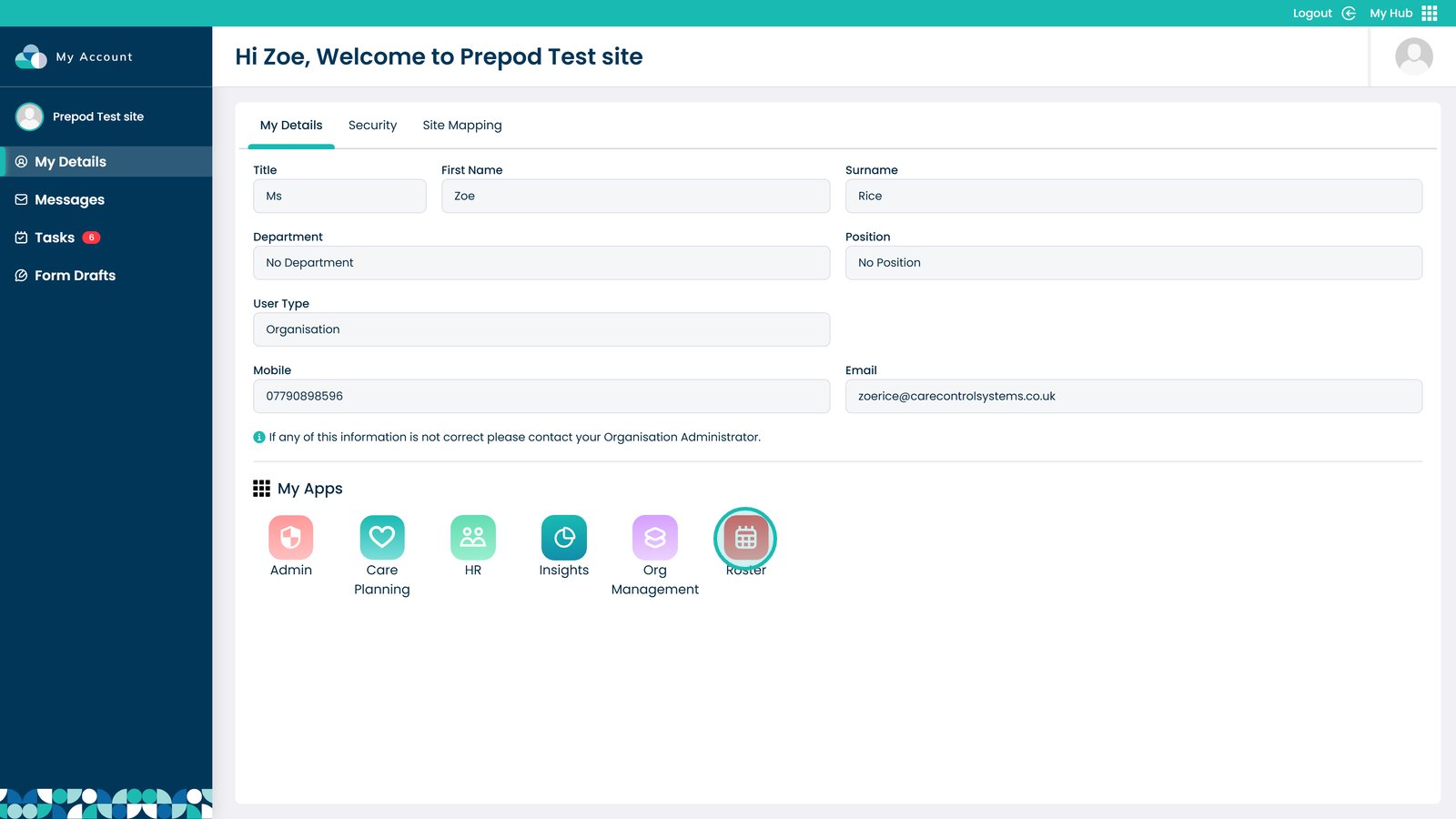
Enter the Roster app
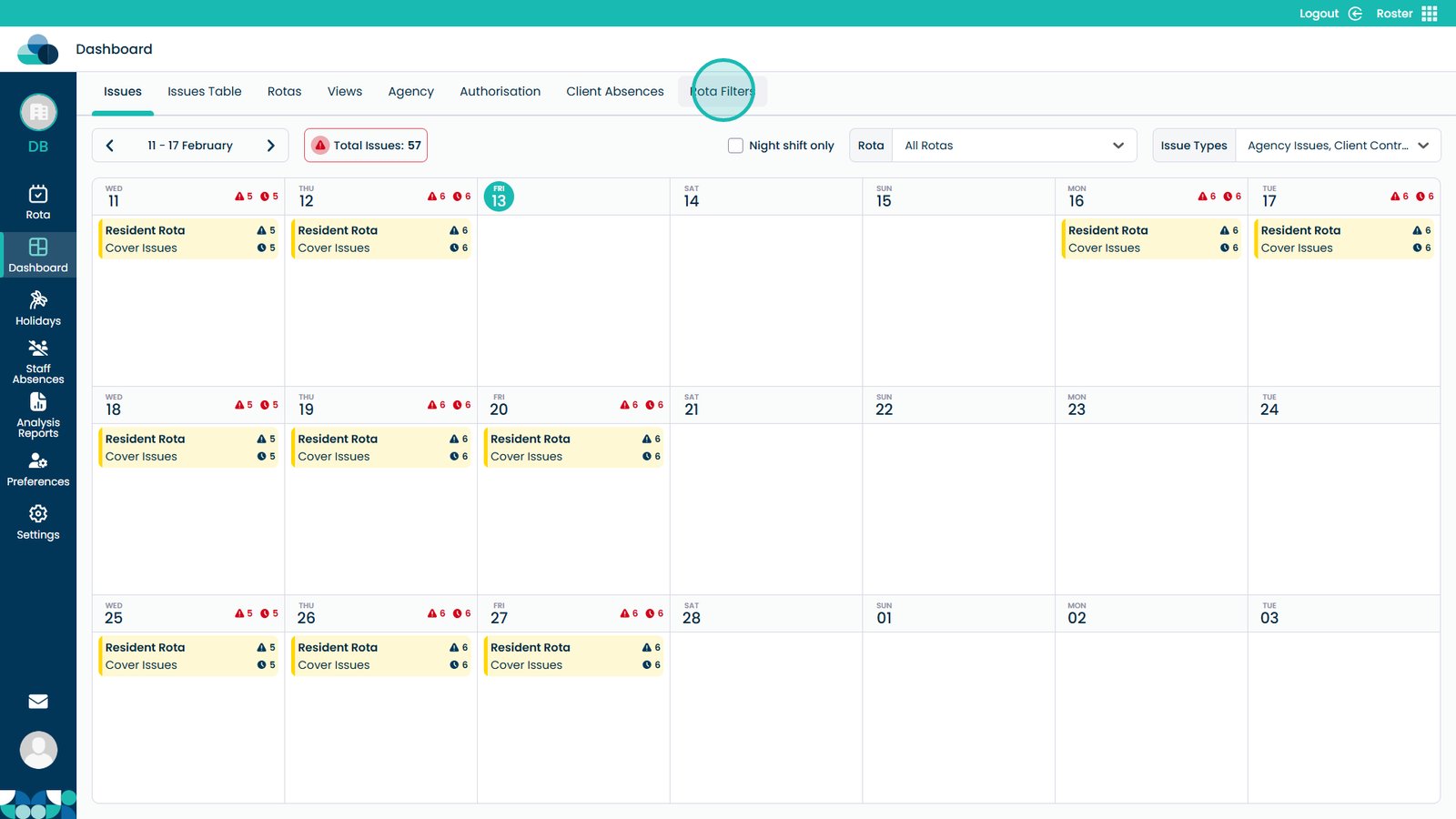
Select Rota Filters from the tabs at the top of the page
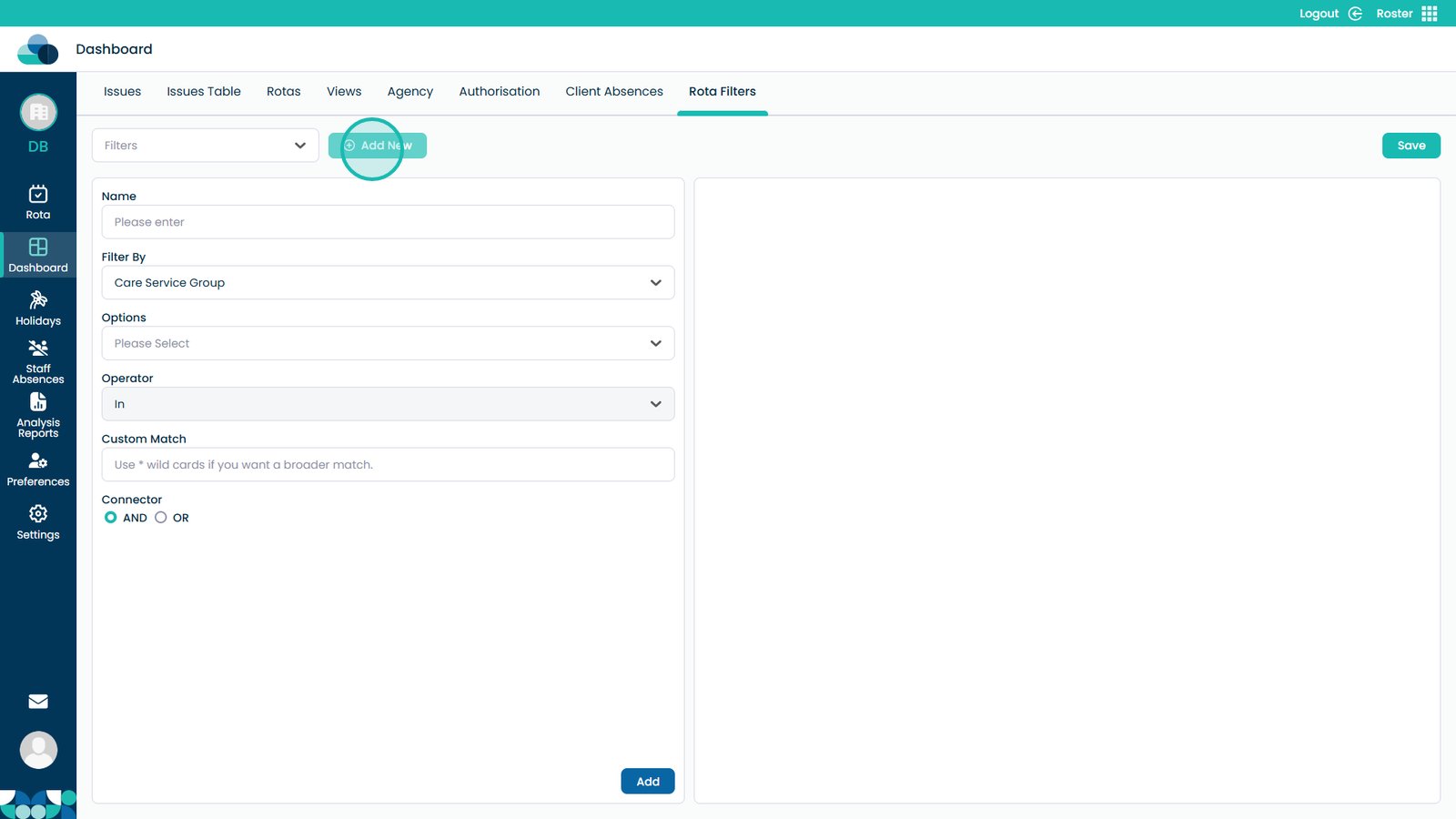
Click Add New
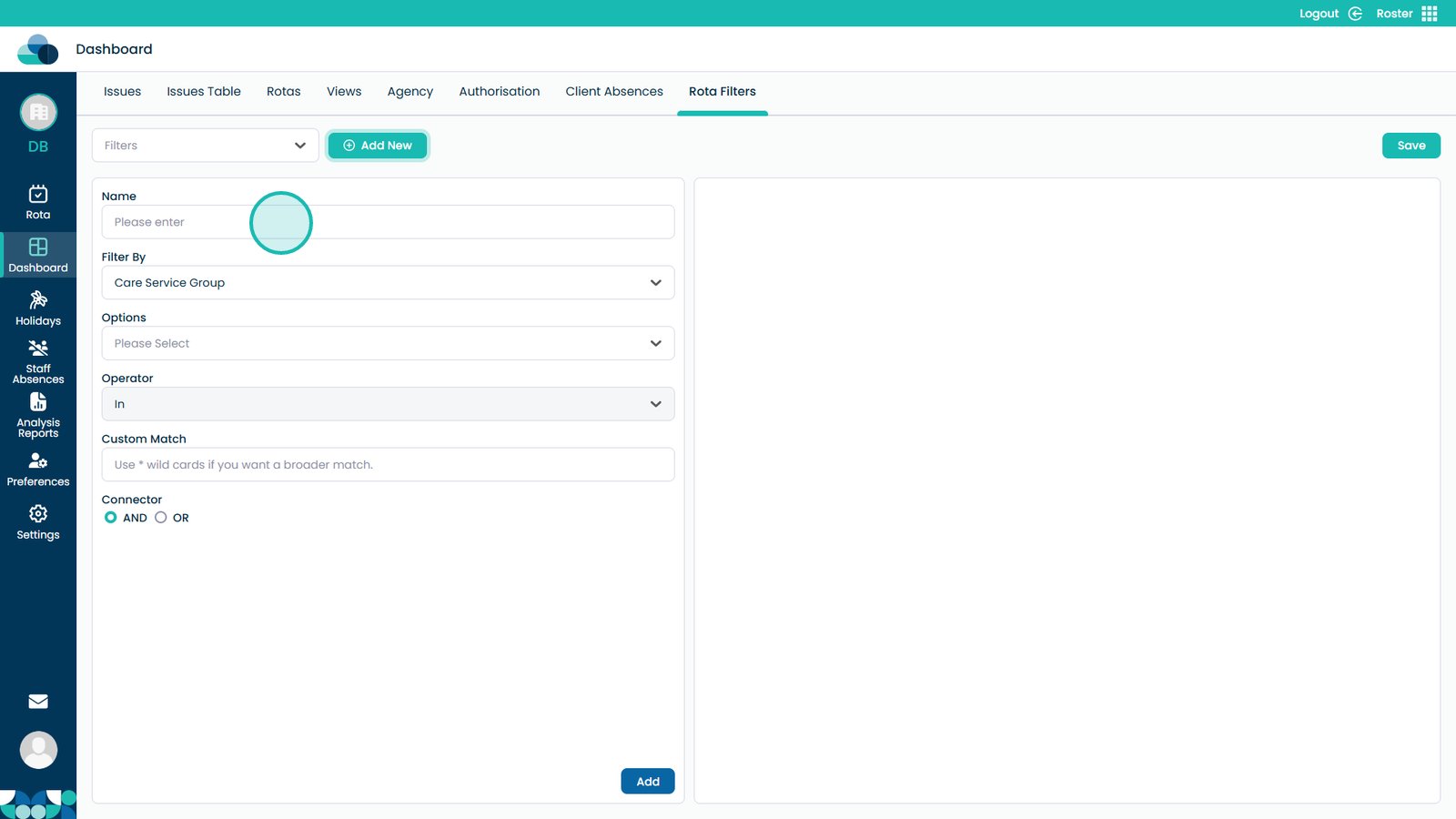
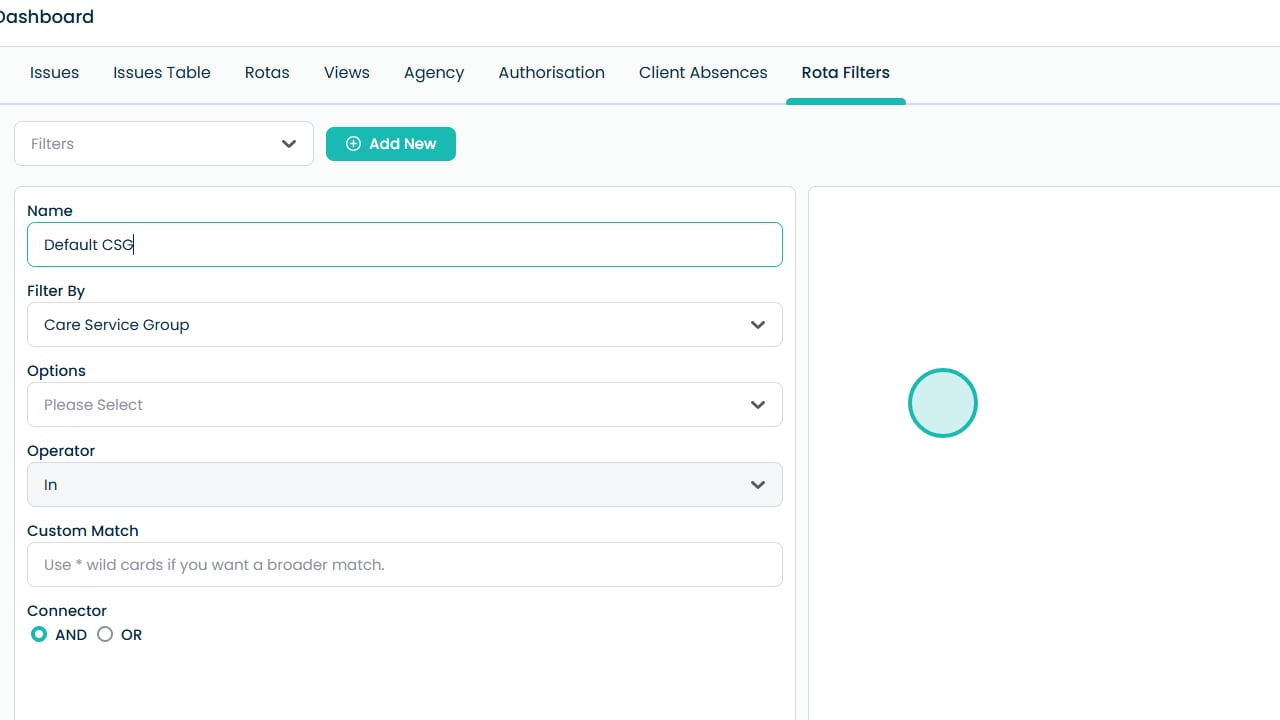
Enter a name for the filter
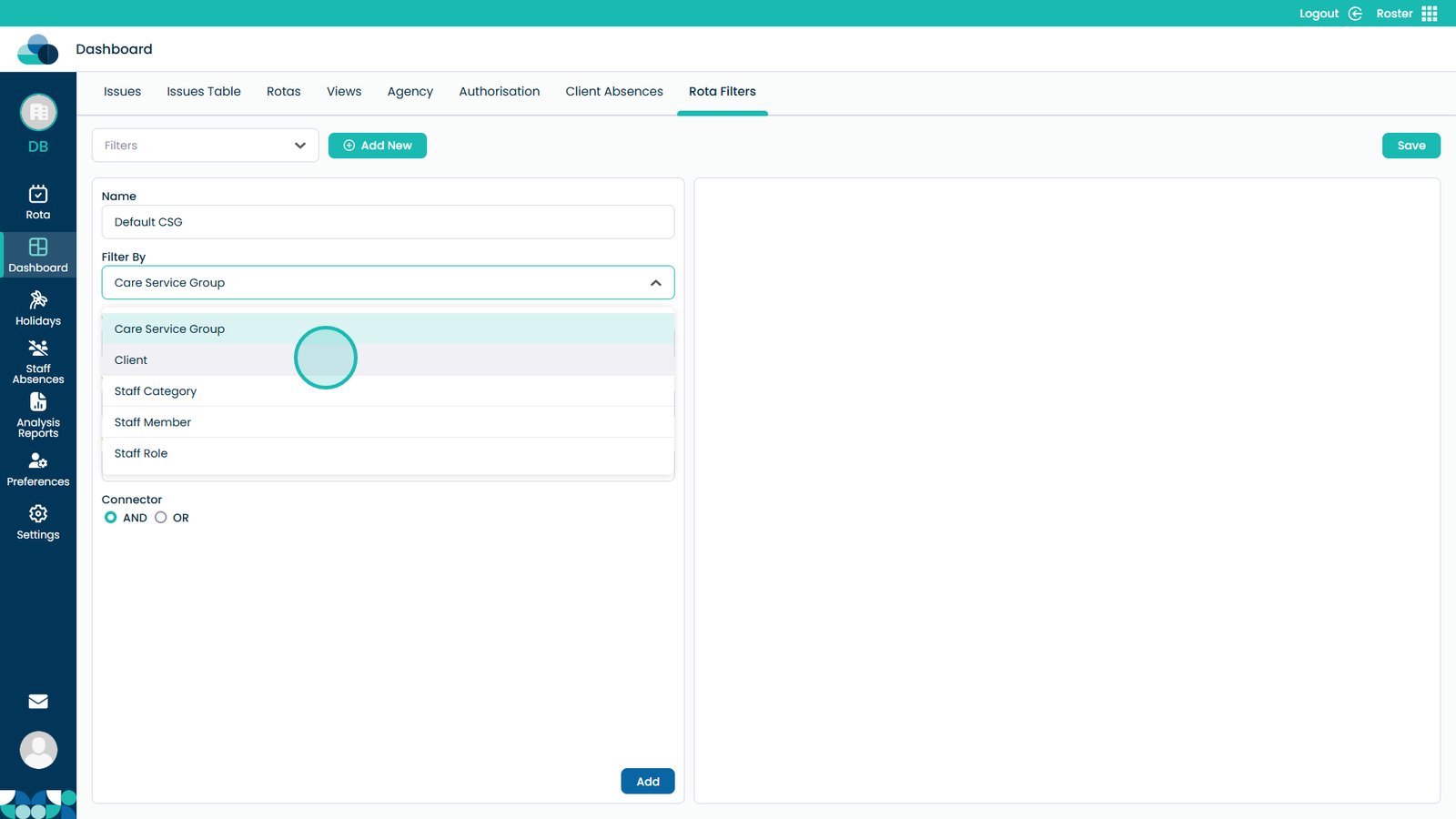
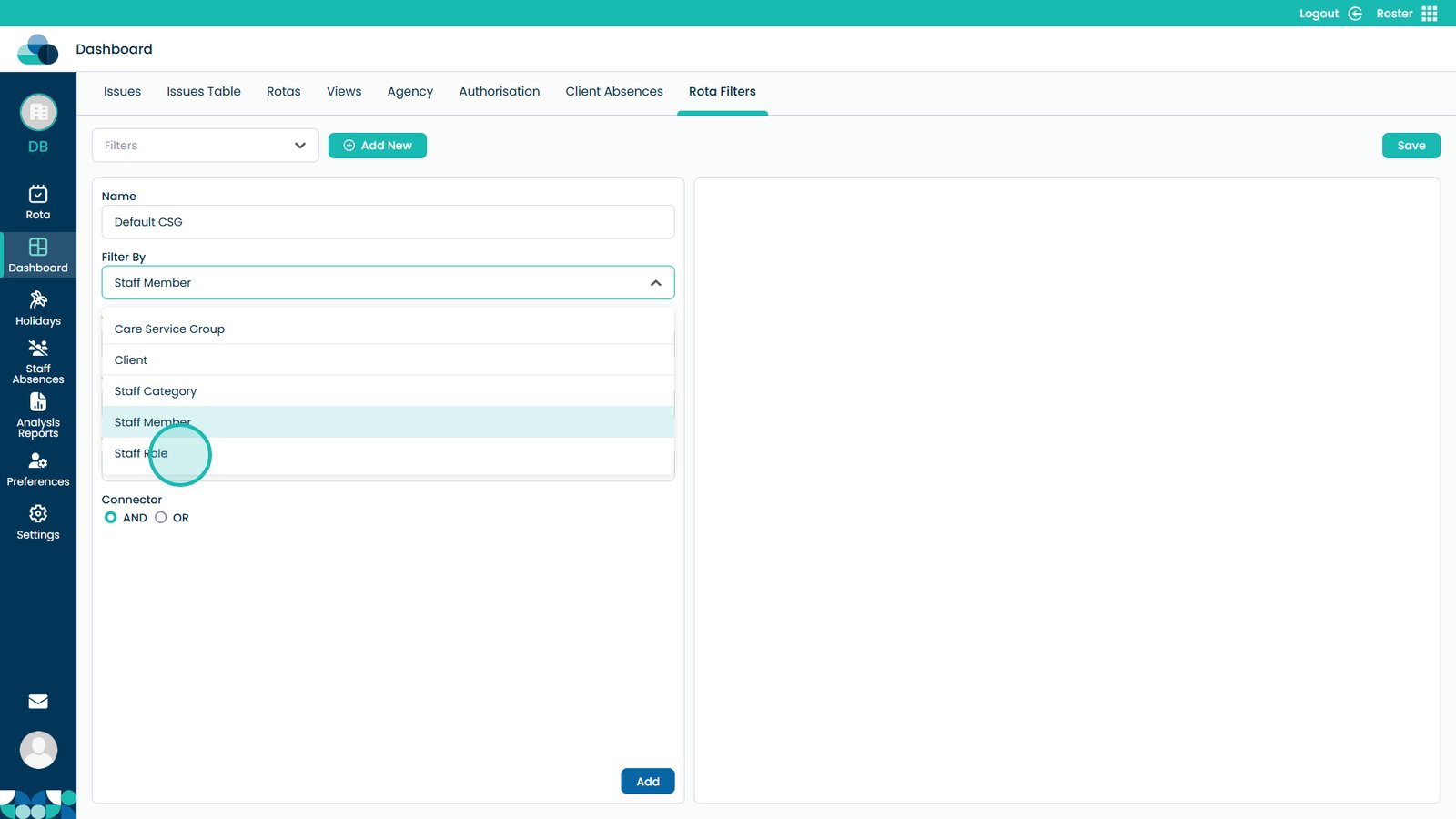
Open the Filter By options to view available filter areas
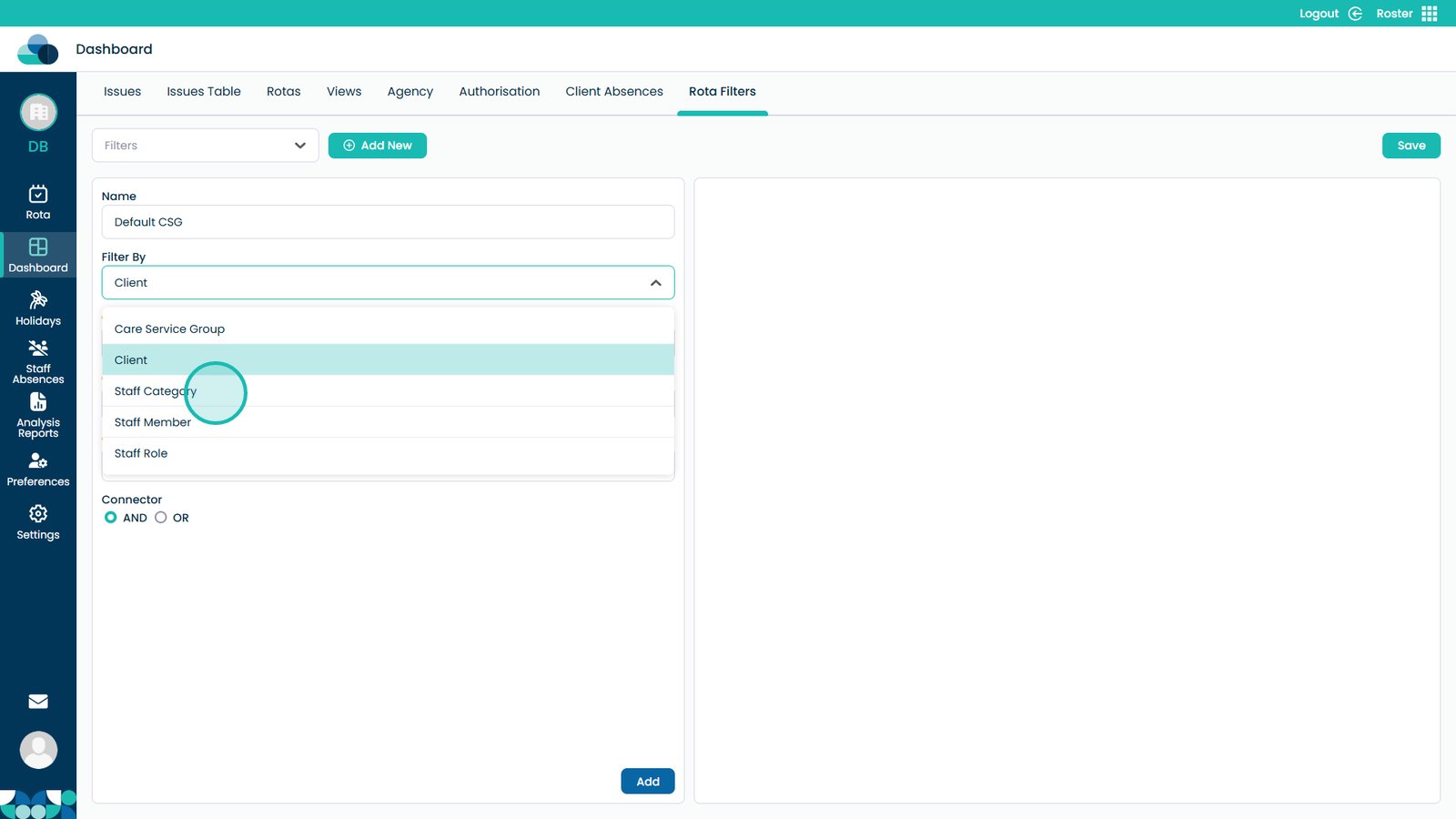
Select Client to filter by individual clients
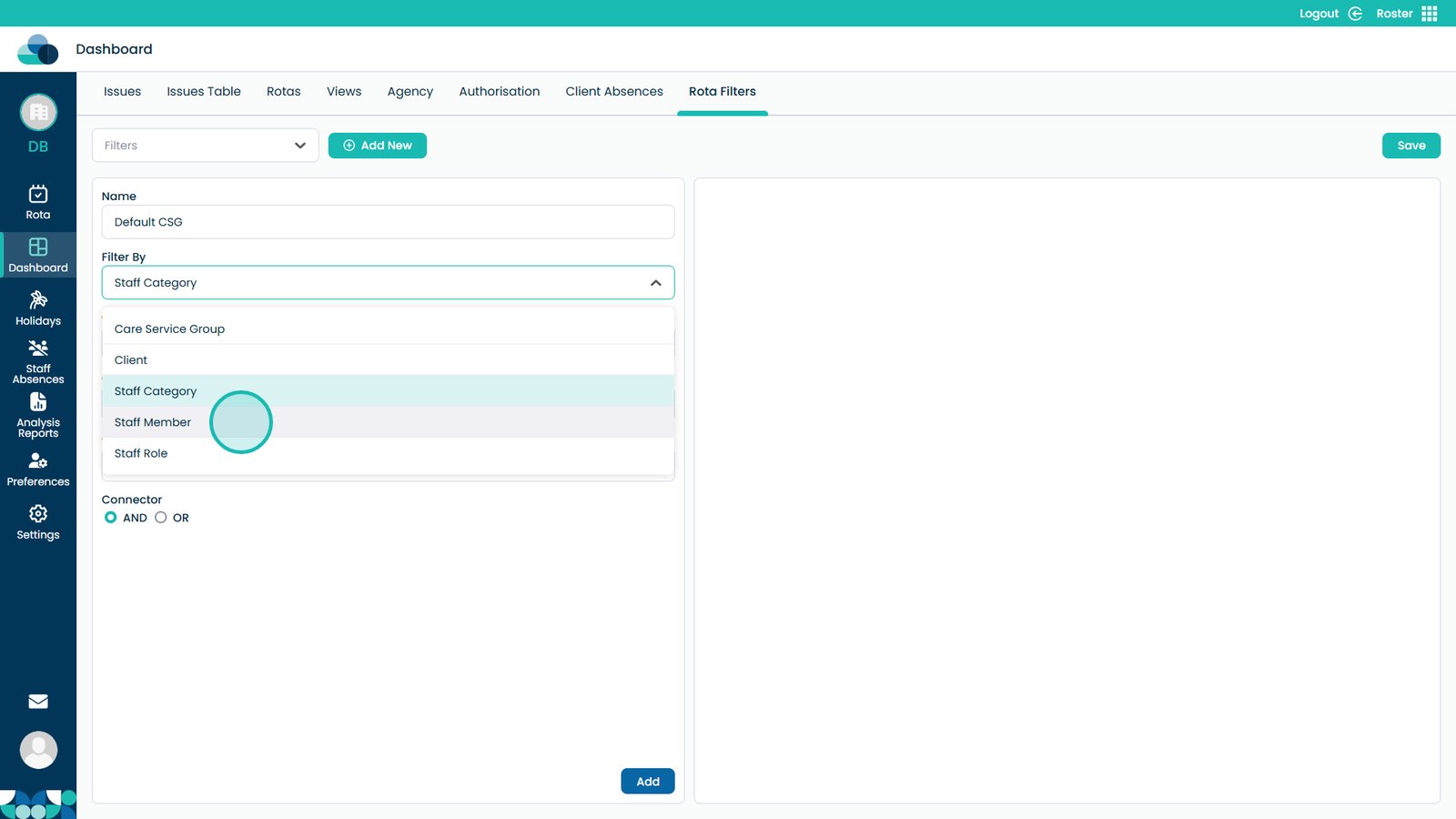
Use Staff Category to filter by a specific staff category
Select Staff Member to filter by individual staff
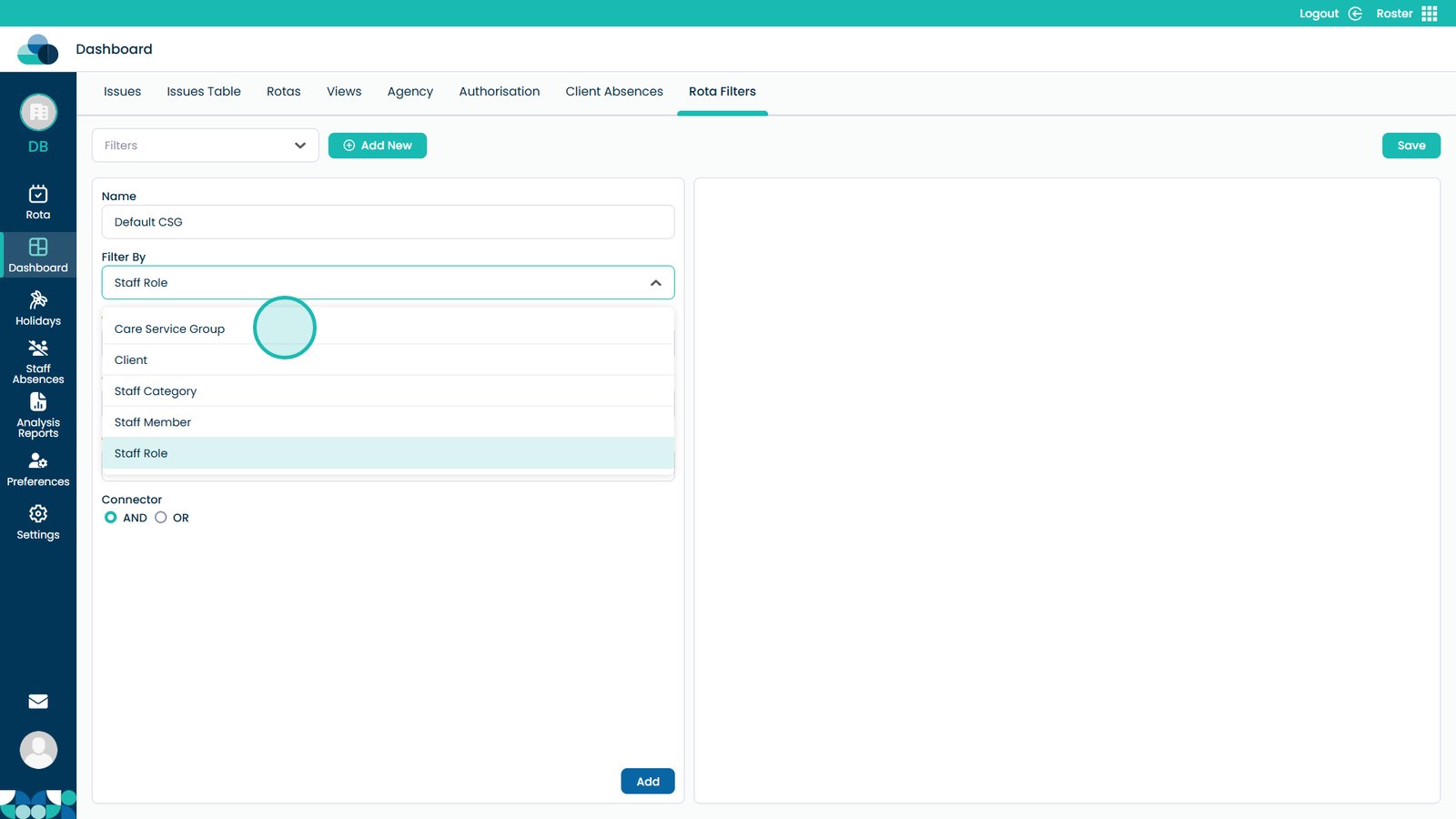
Use Staff Role to filter by a specific role
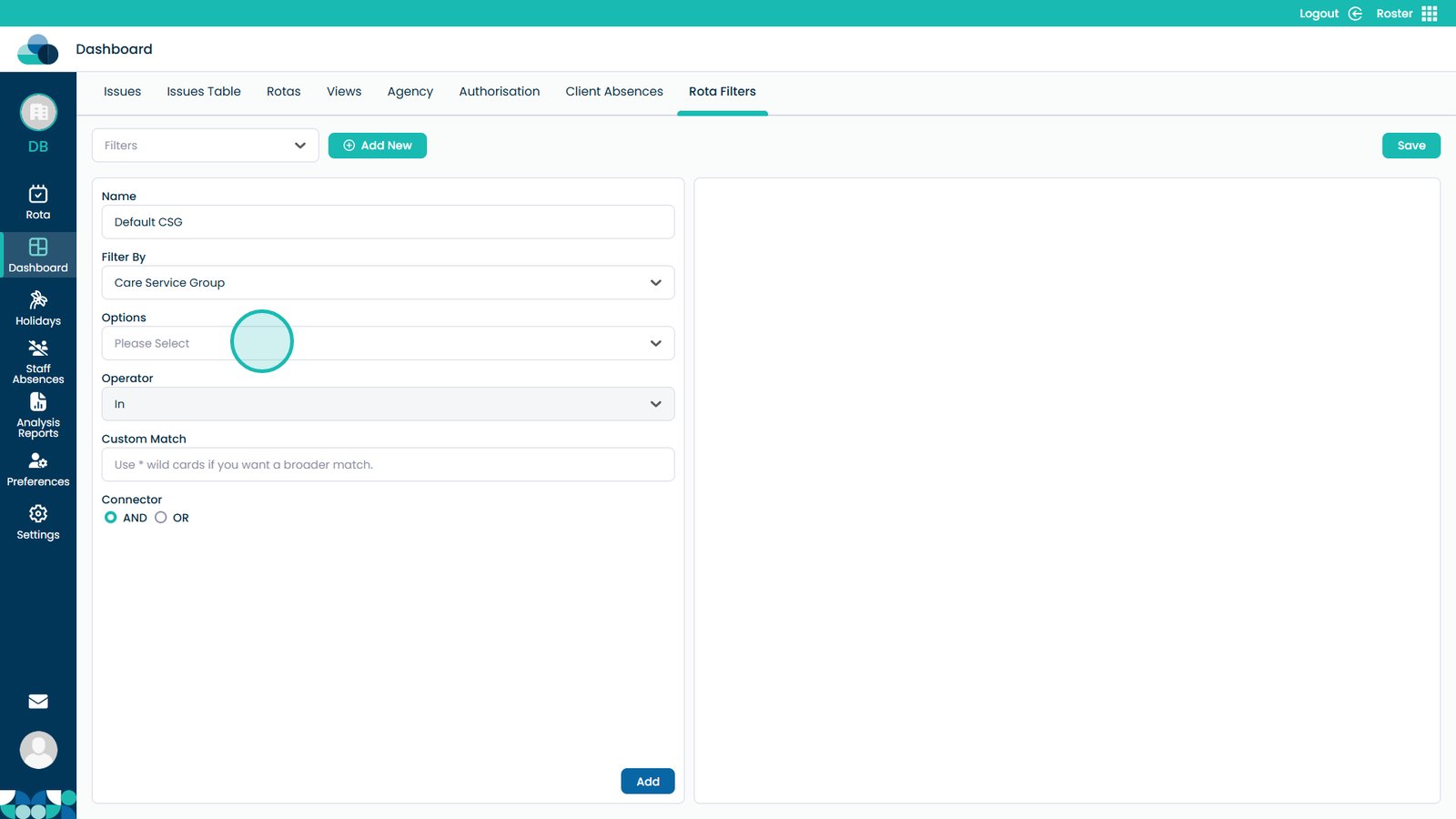
Select Care Service Group for this example
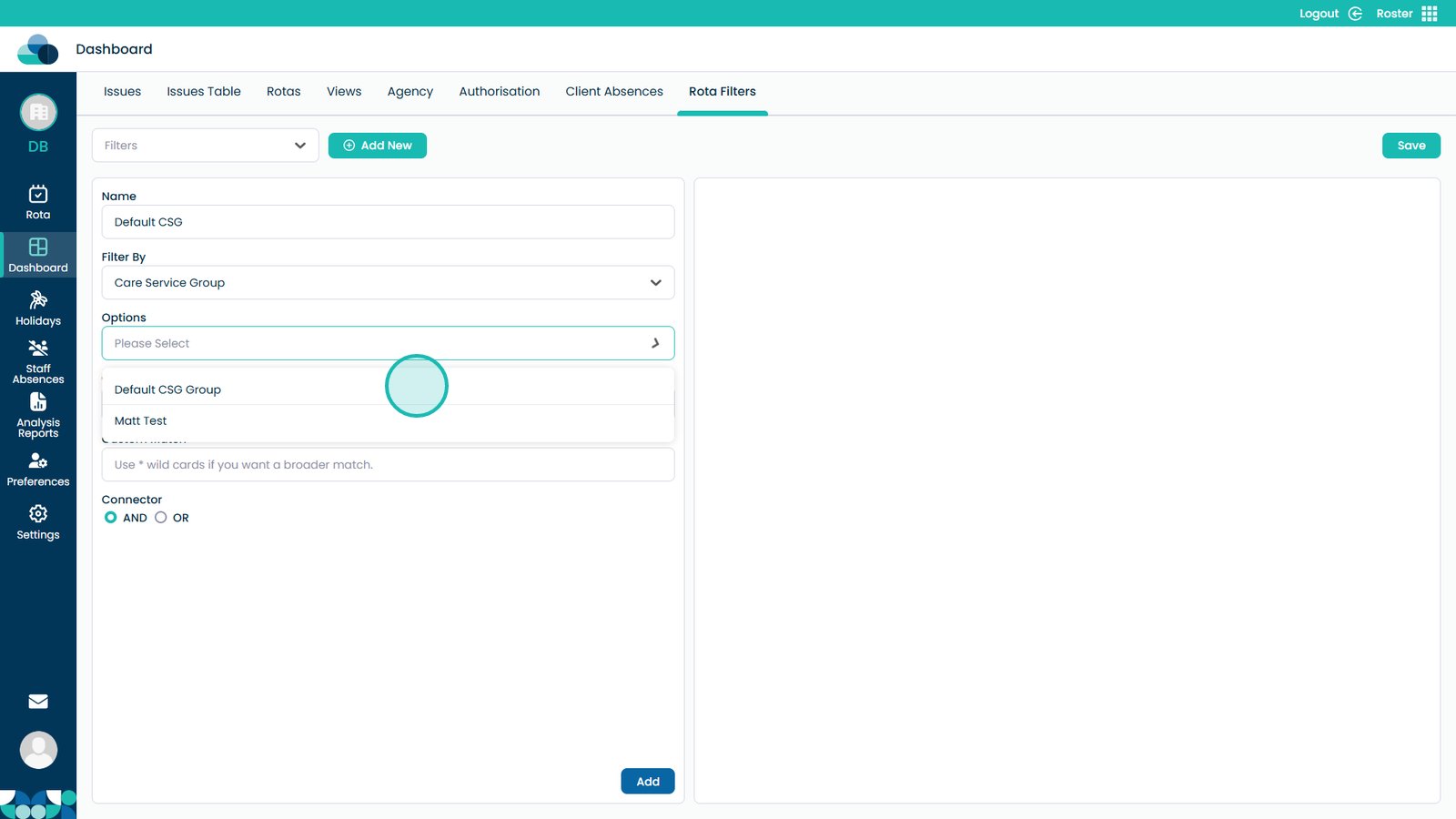
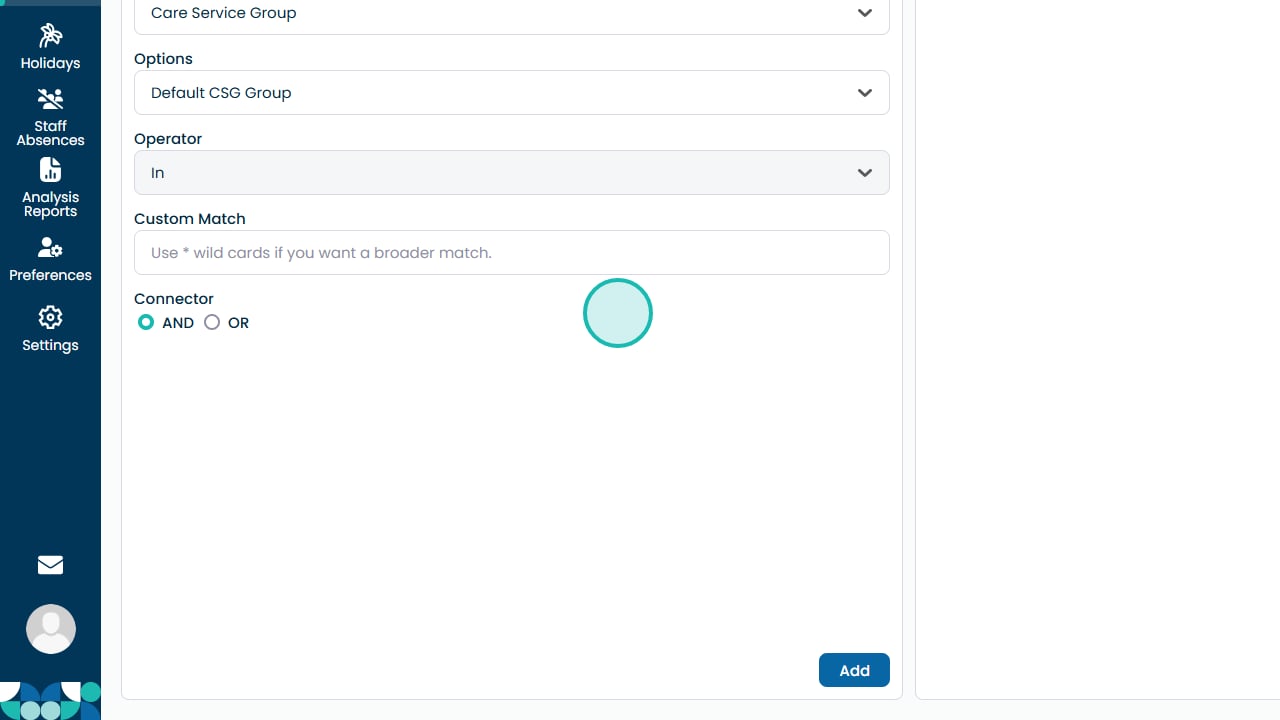
Use the Options drop-down to select values within your chosen filter category
Select the option you want to filter by
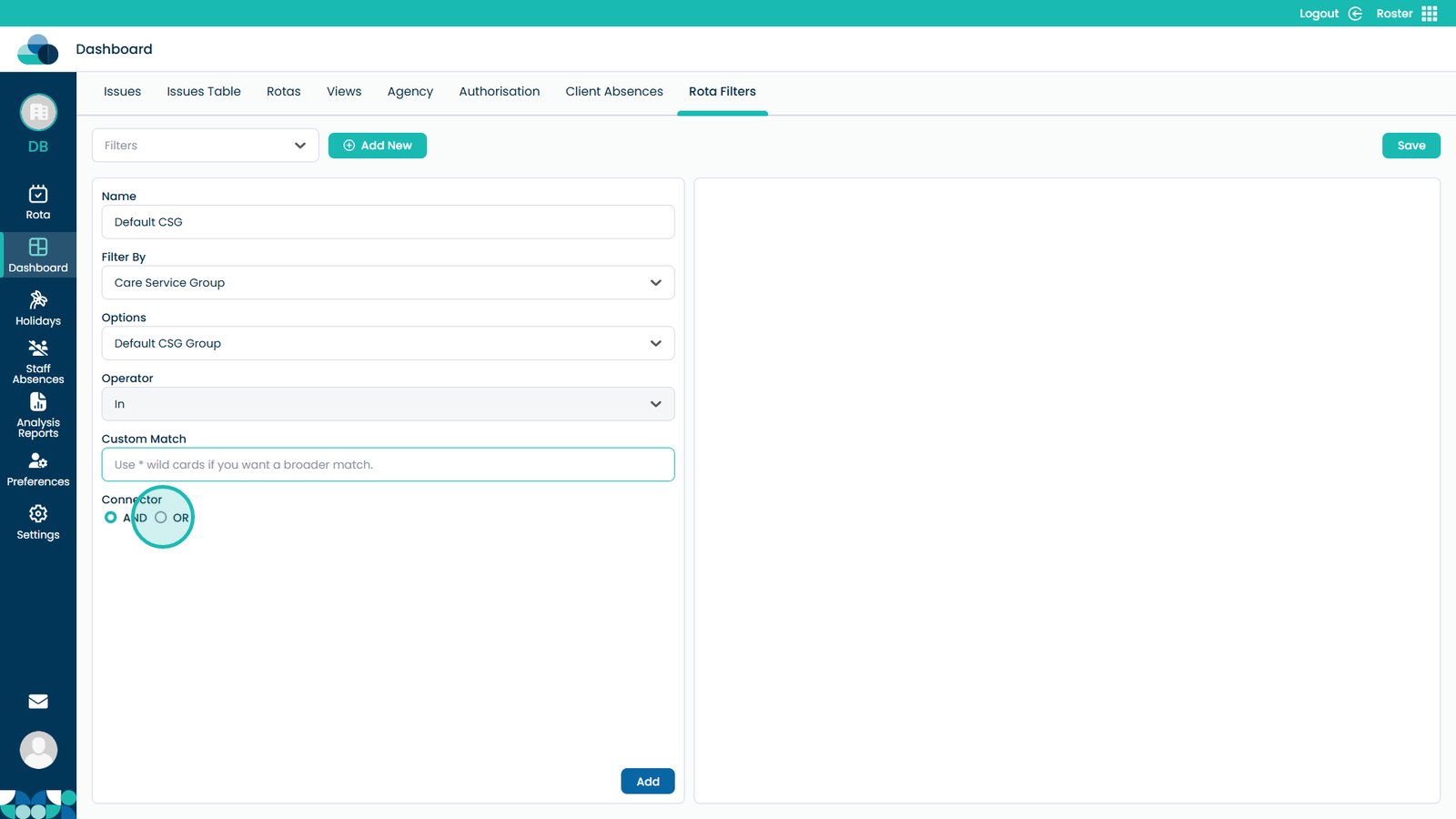
Use the Custom Match box to apply wildcards (e.g. Care*)
Use AND to narrow results or OR to widen results
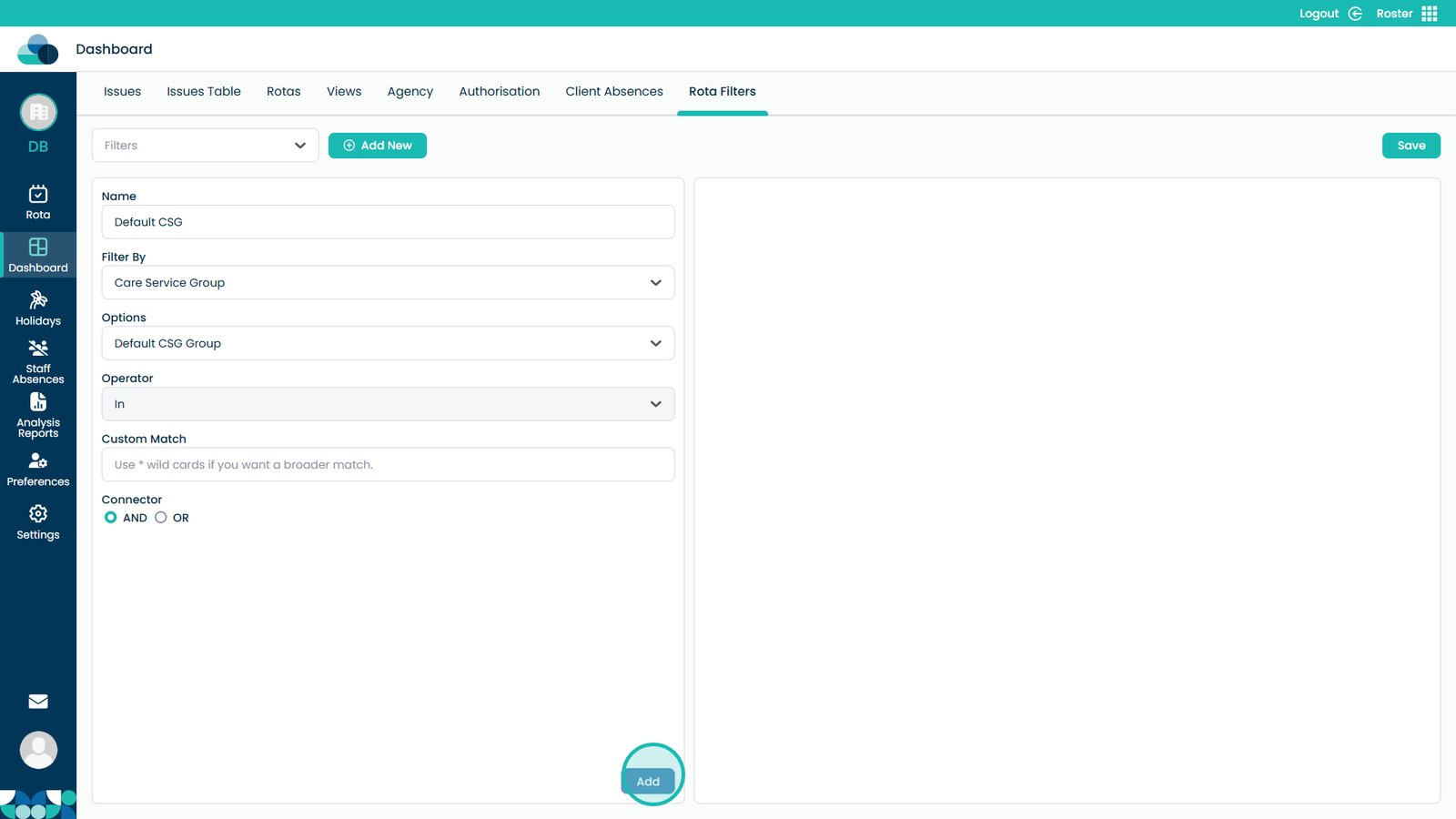
Click Add to confirm the filter
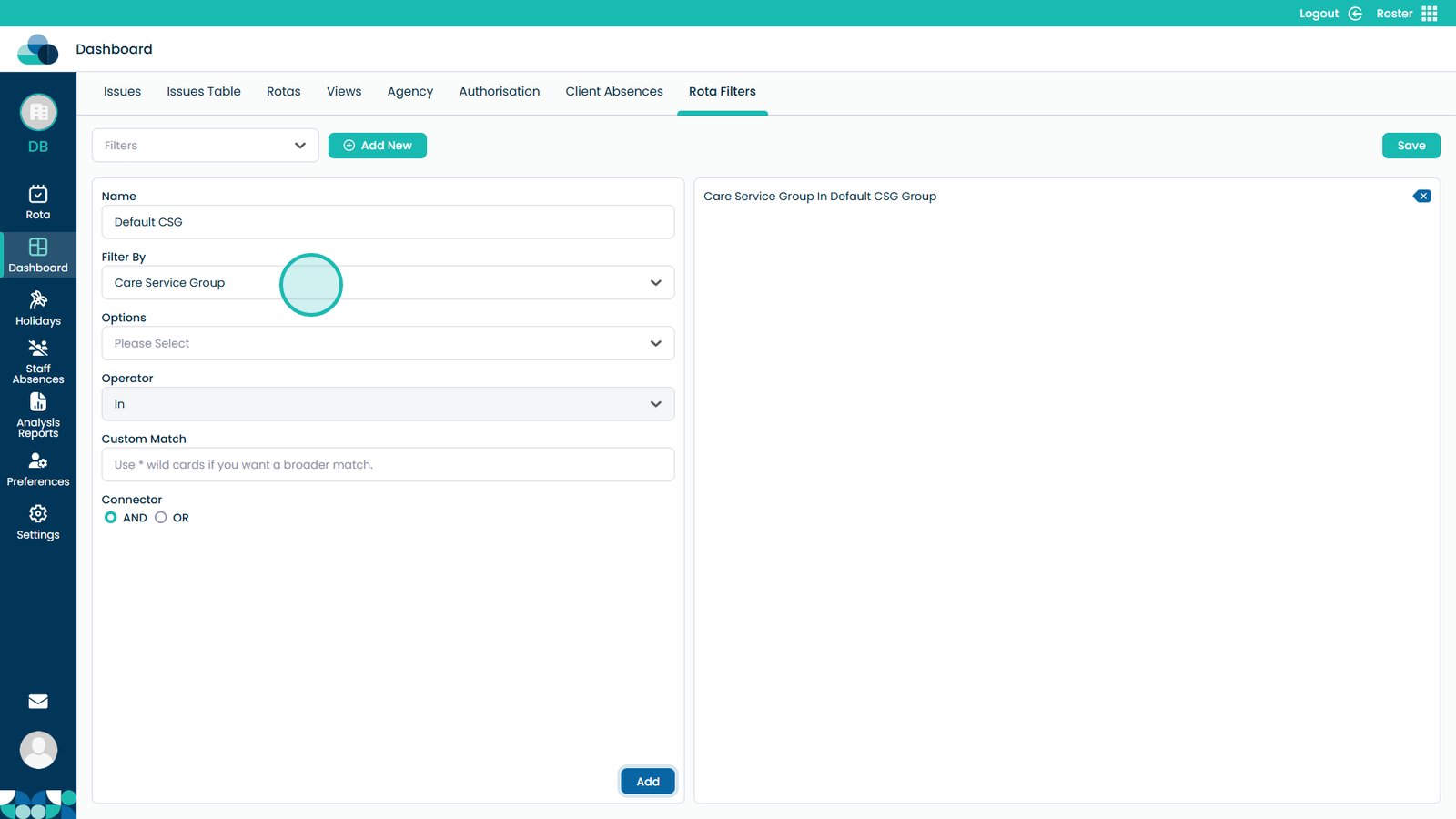
Add further filters and combine them using AND/OR
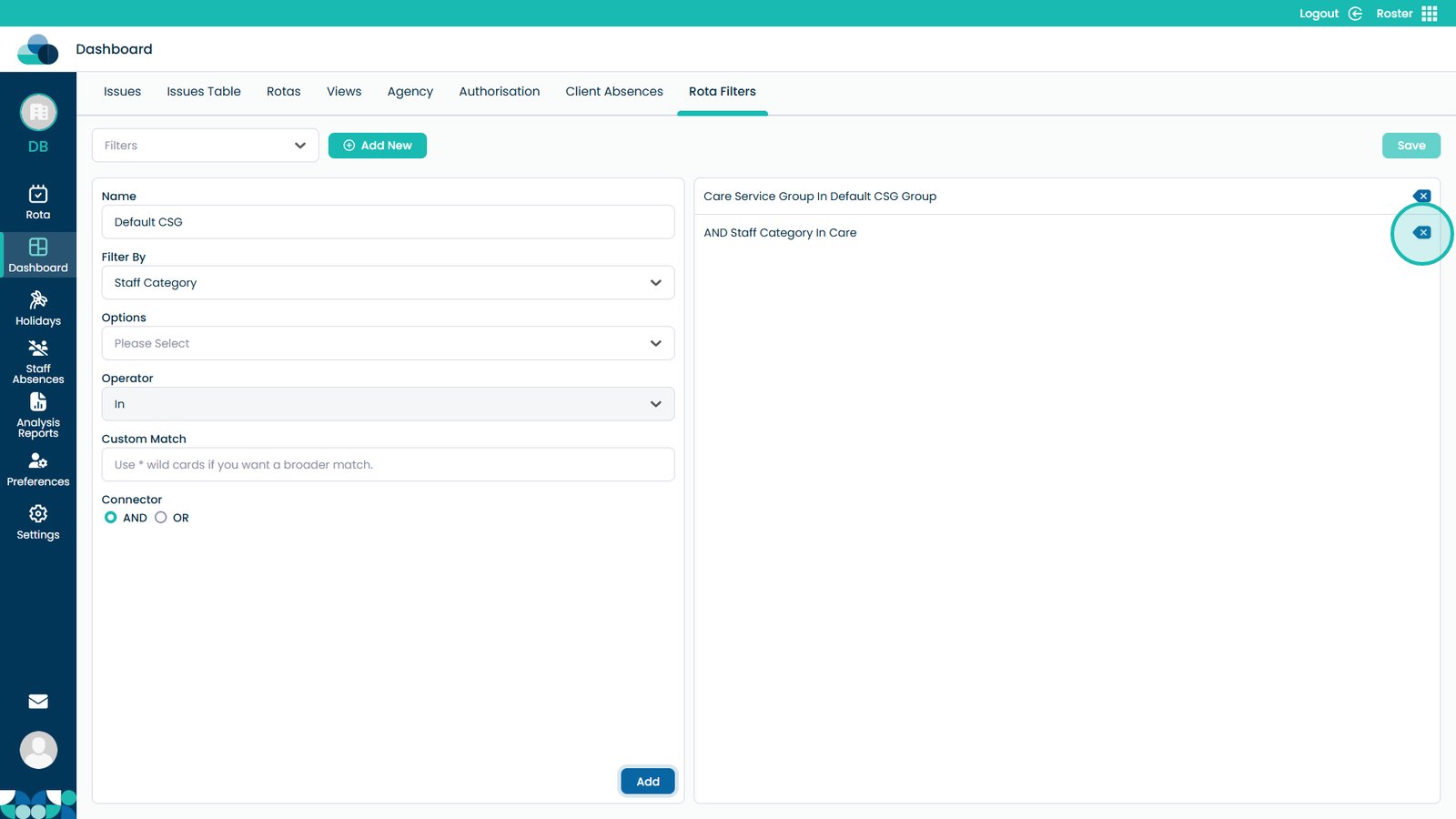
Click the X to remove filters if needed
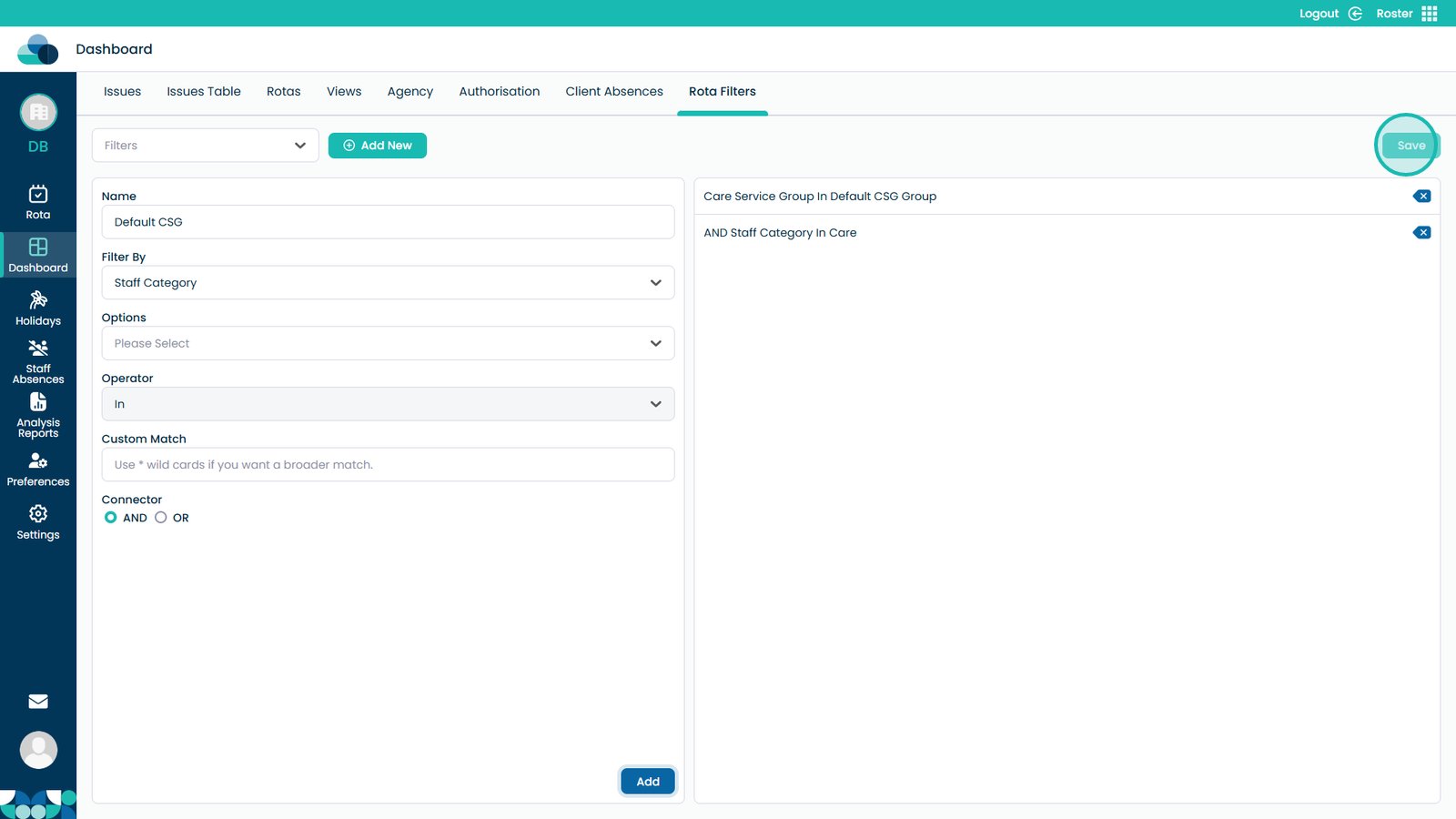
Click Save when finished
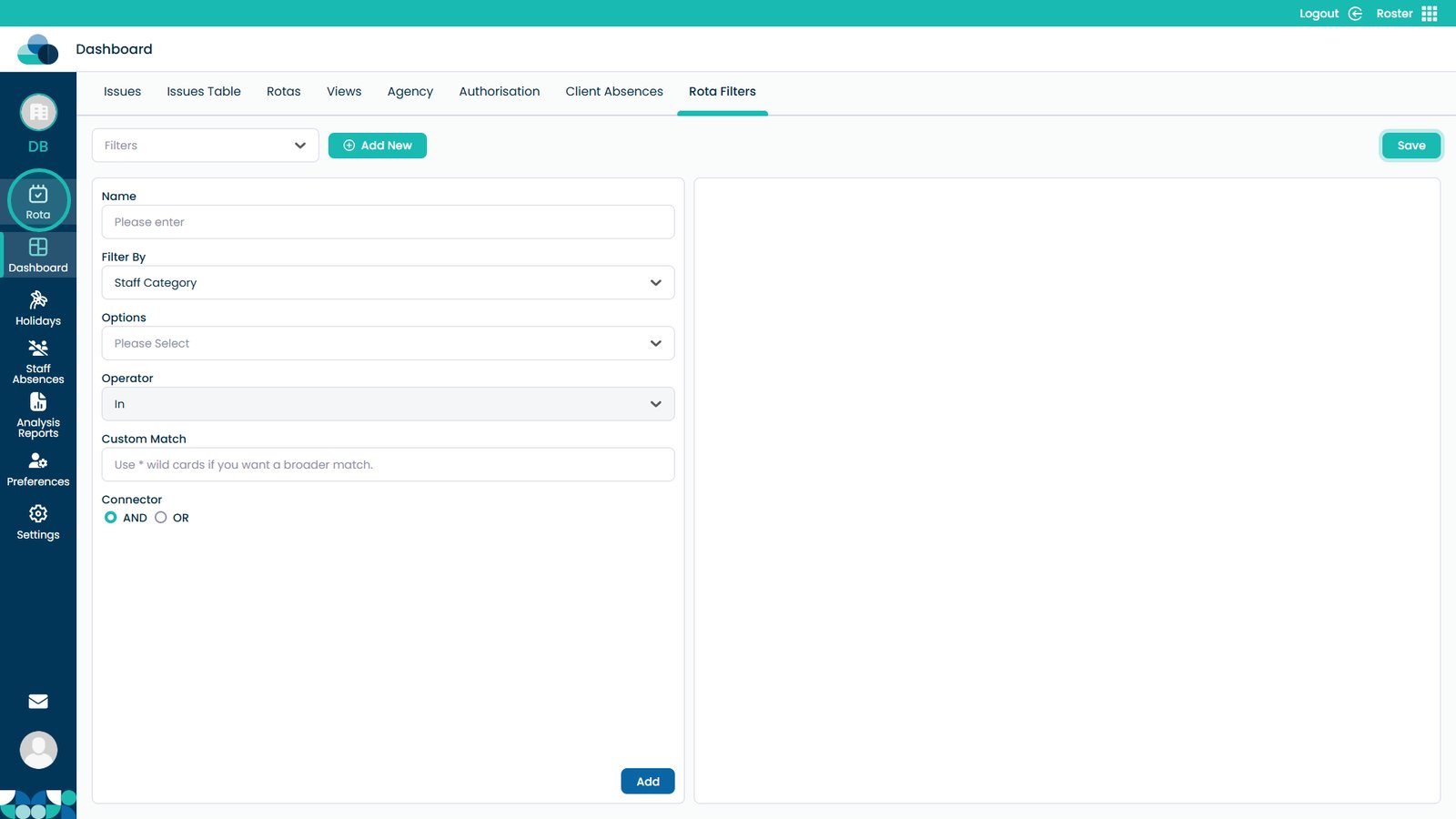
Click the Rota button on the left to return to the rota page