How to Create and Manage a Run in Cloud
This feature allows you to create and manage Runs within the Roster app, helping you group visits together in a clear and structured way. By organising visits into dedicated runs, you can plan routes more efficiently and improve oversight of daily schedules.
You can assign a name, colour, and transport mode to each run, allowing the system to calculate travel times accurately and present routes in a way that’s easy to interpret. This supports better time management, clearer visual planning, and improved coordination across your team, while maintaining an organised and auditable schedule.
Interactive Guide
Text based guide
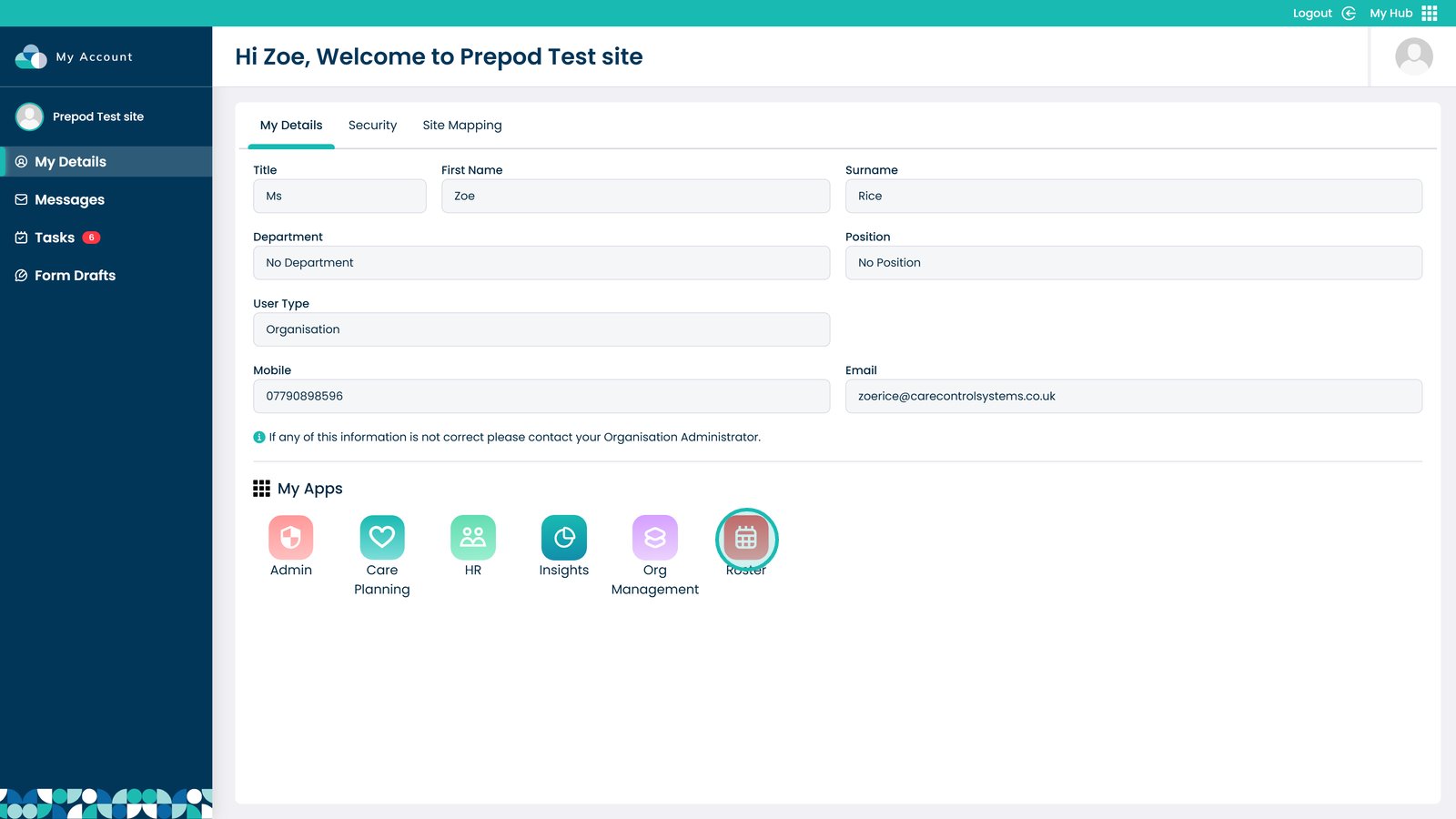
Enter the Roster app
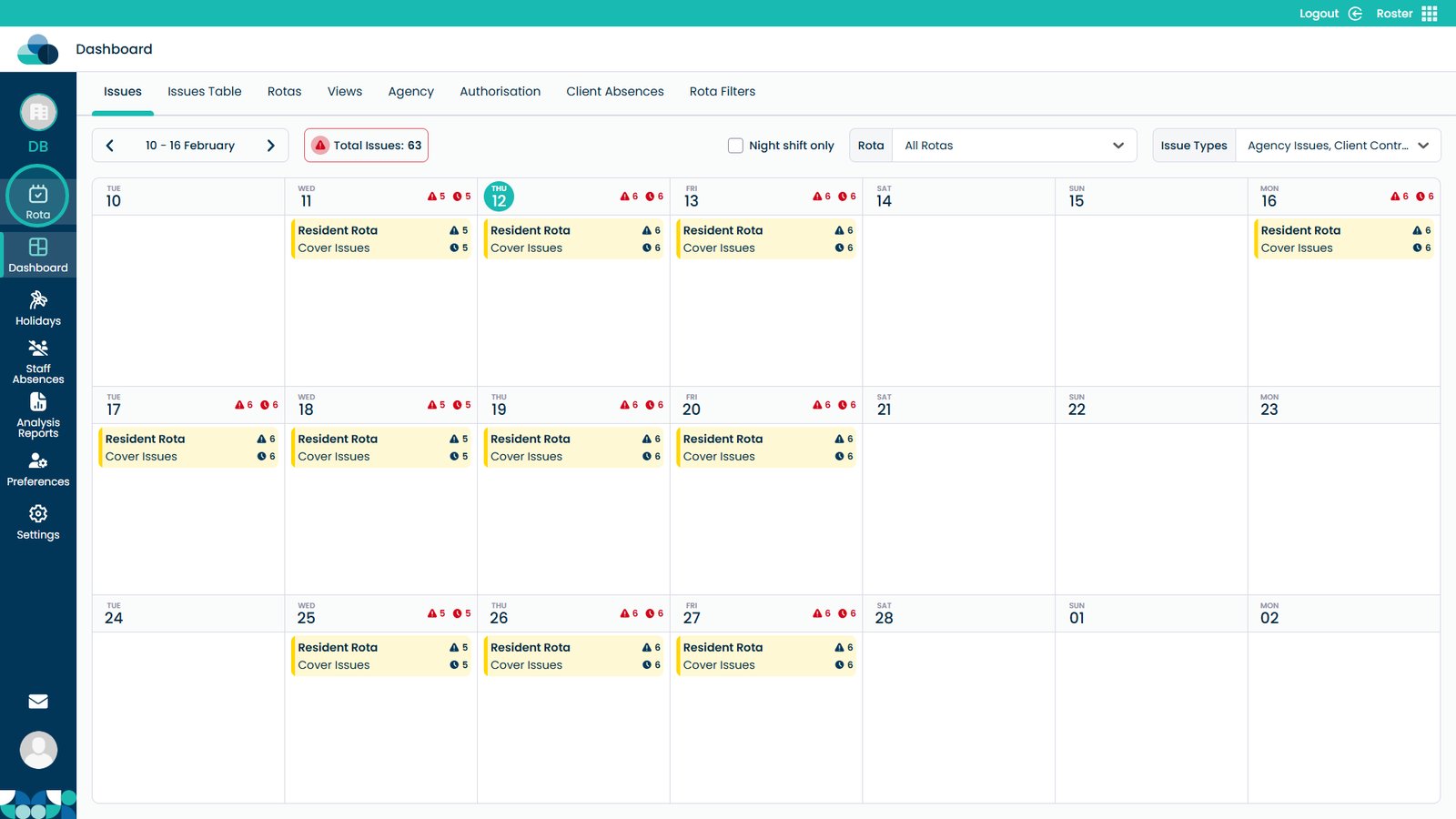
Open the Rota screen
Click the plus button
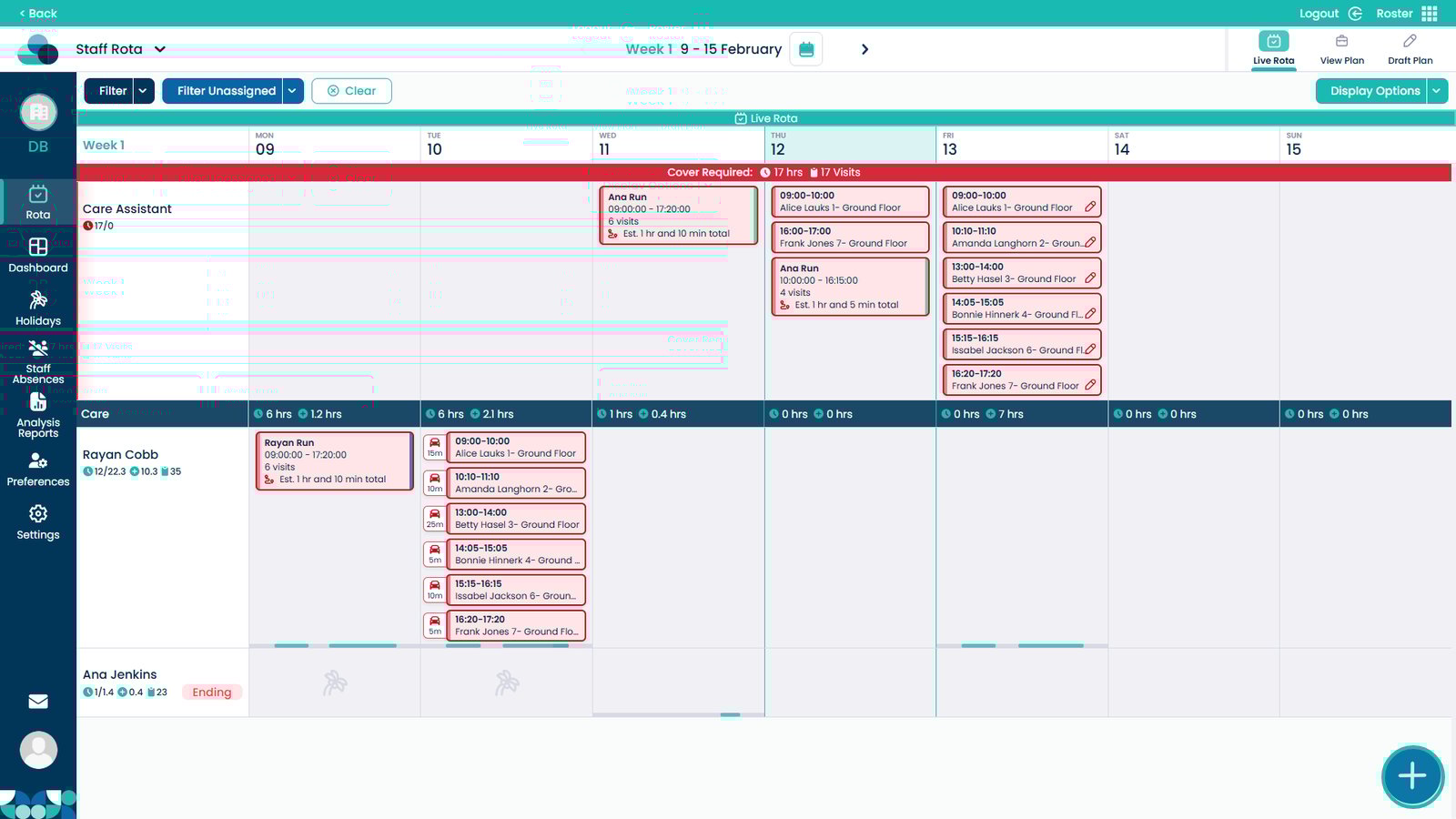
Select Manage Runs
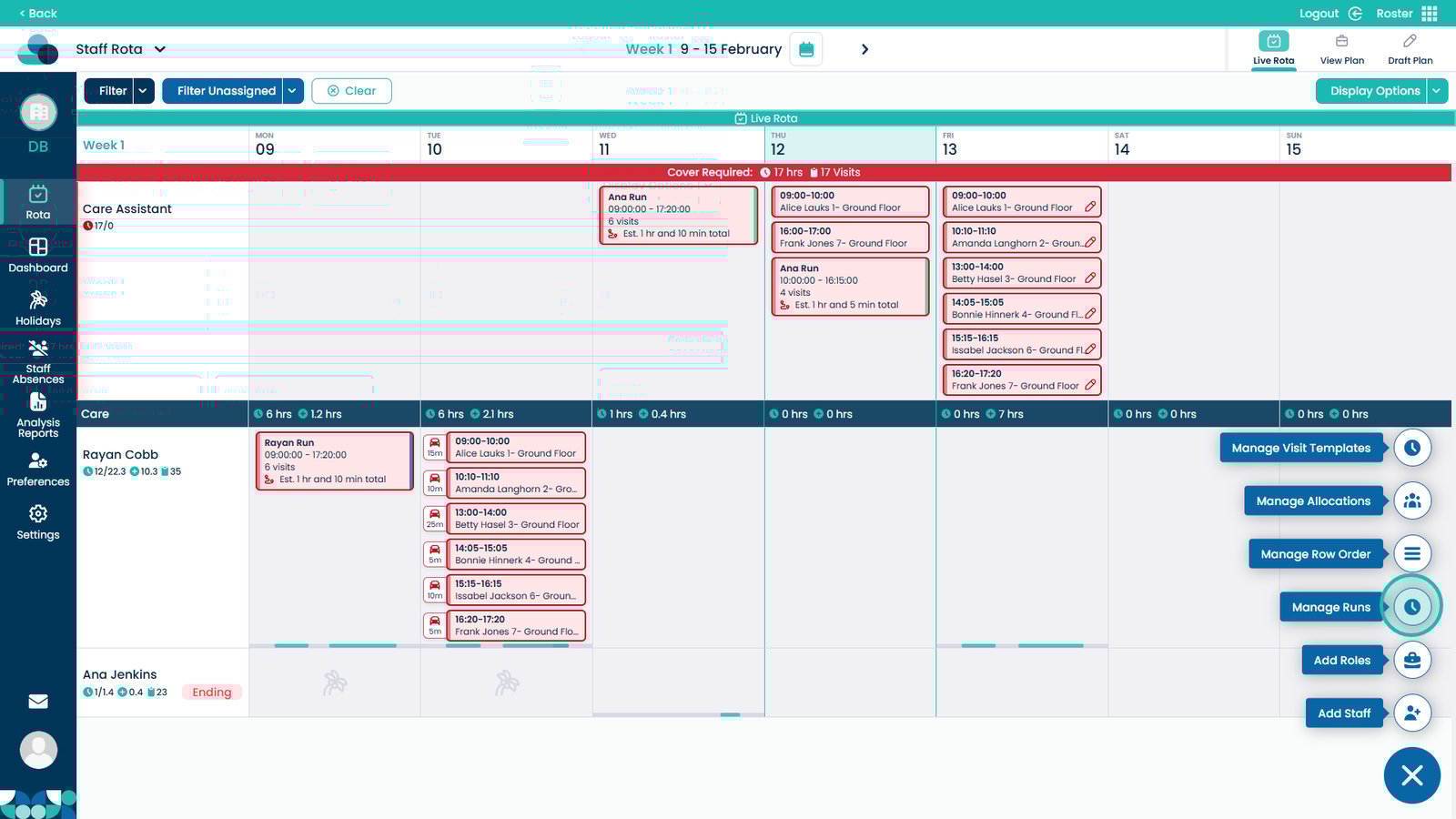
Choose the day of the run in the top right
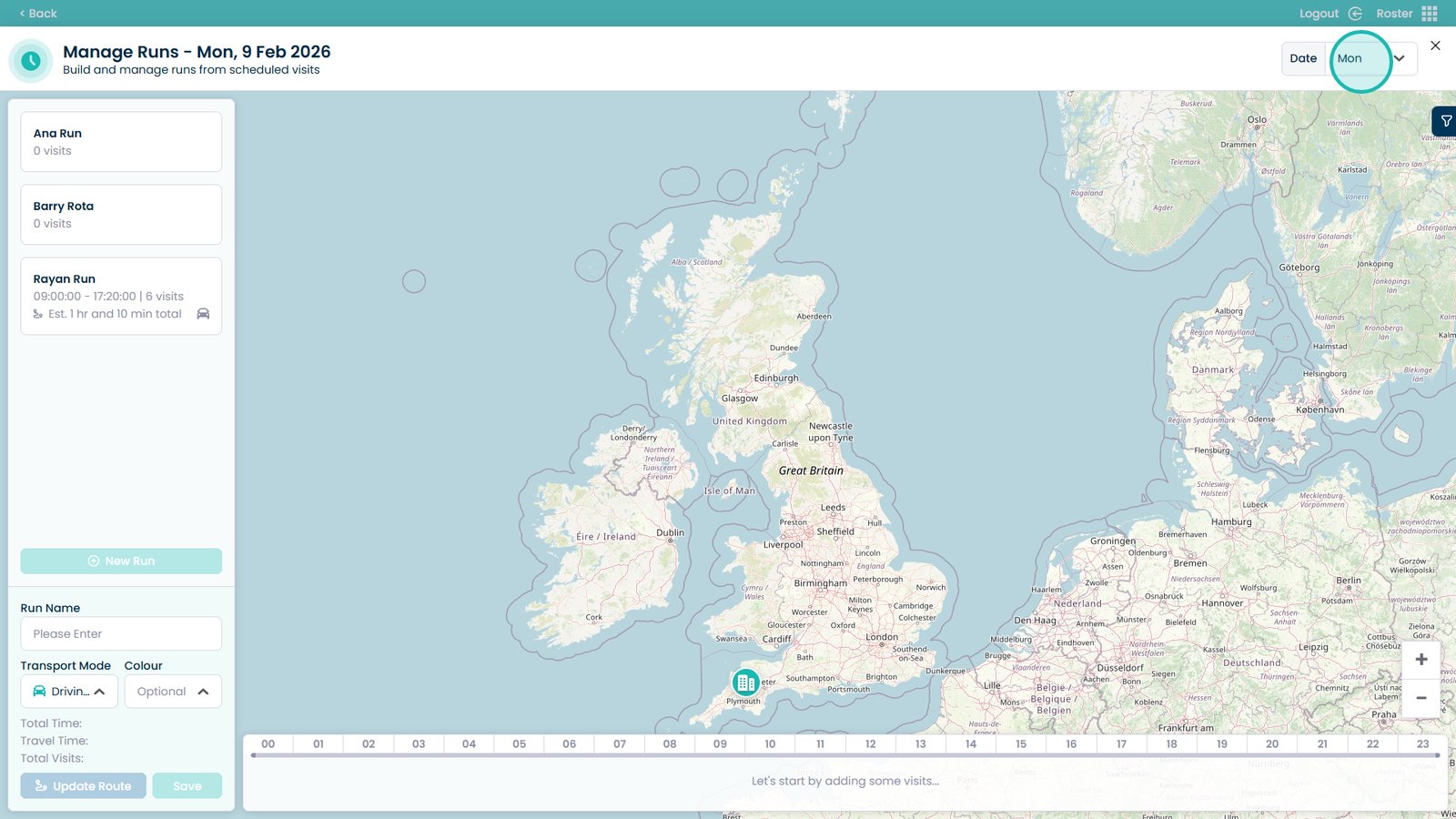
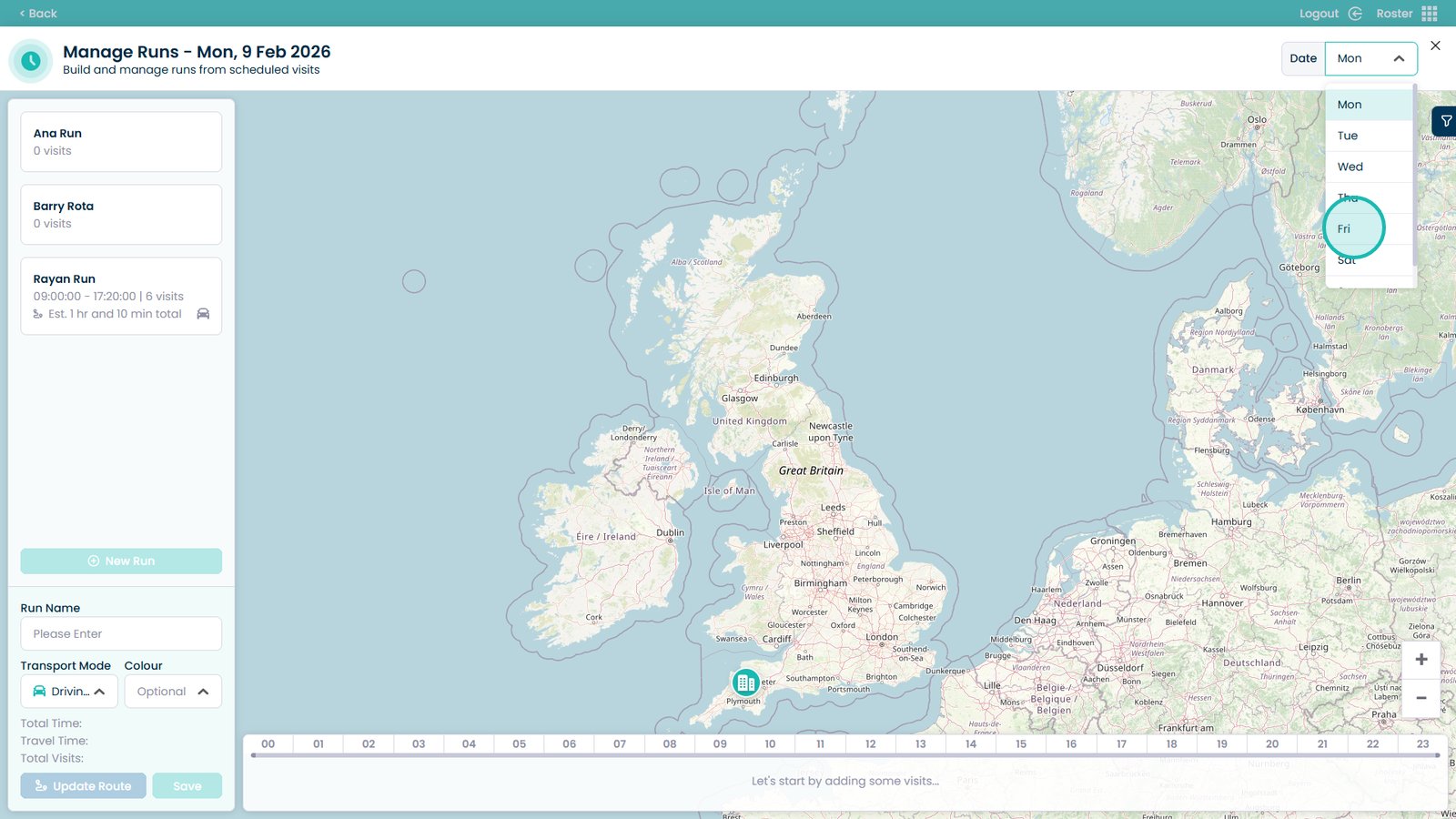
Select the day from the drop-down
Enter the name of the run
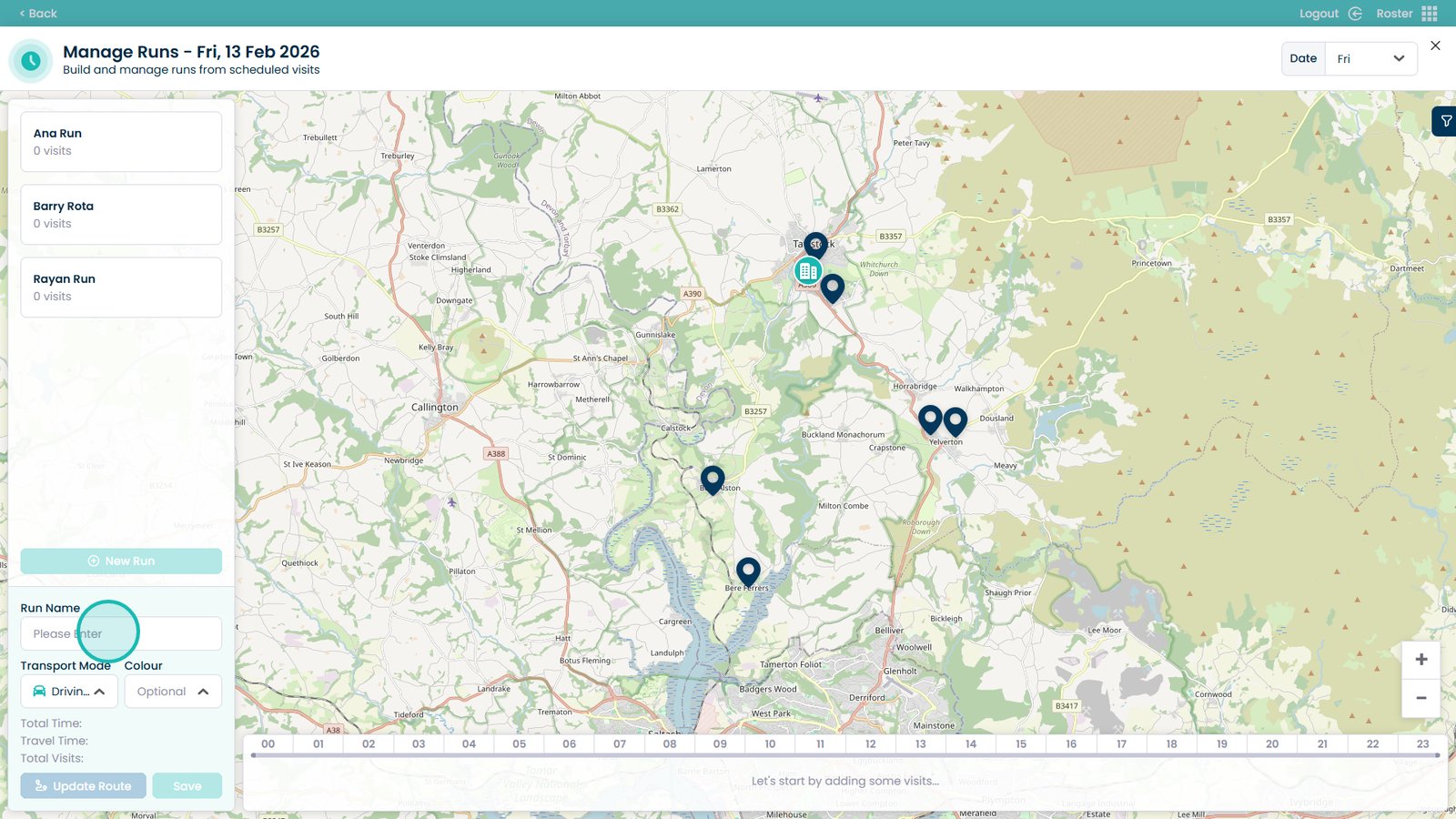
Choose a colour to help differentiate runs
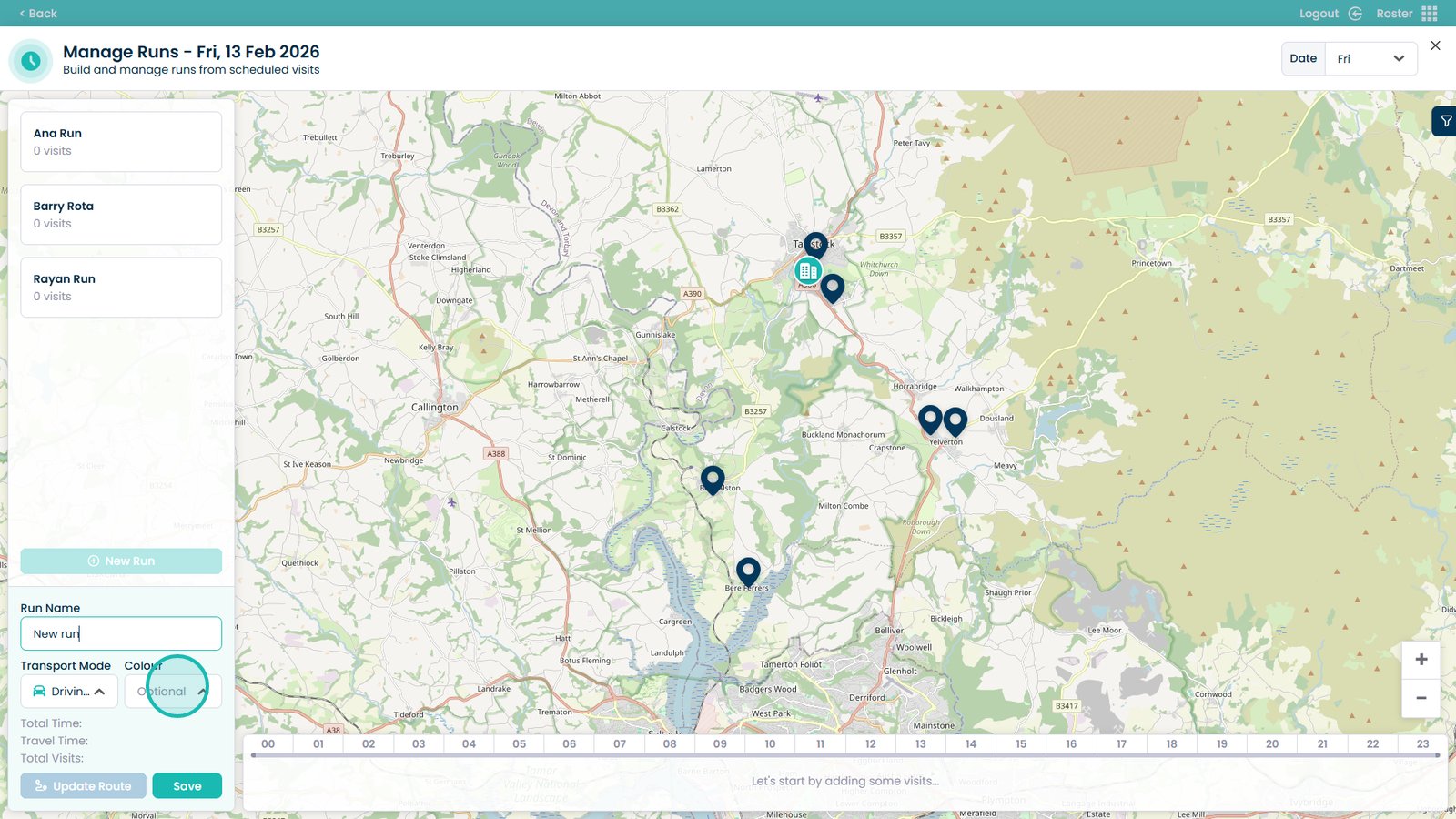
Open the Transport mode drop-down
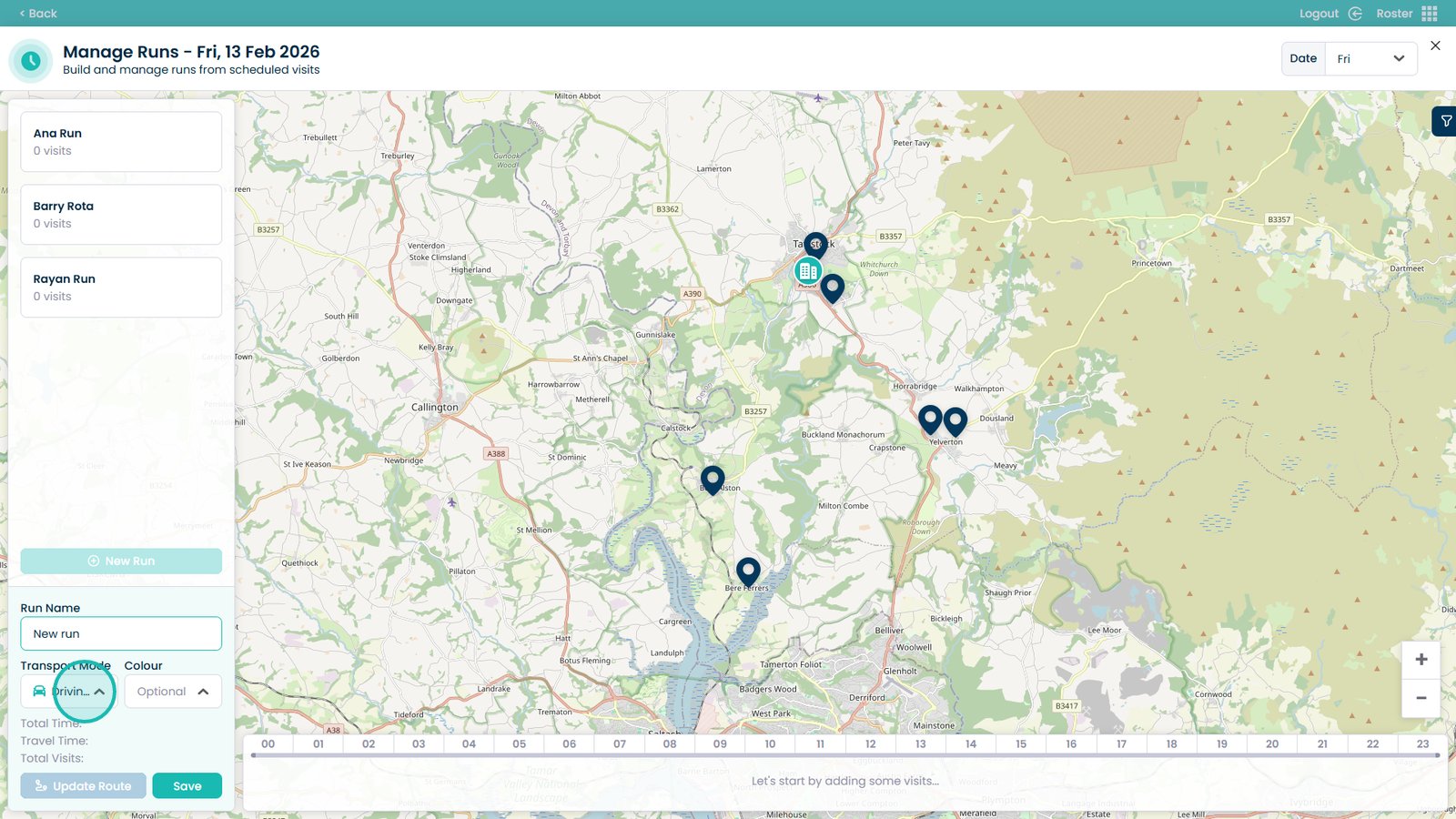
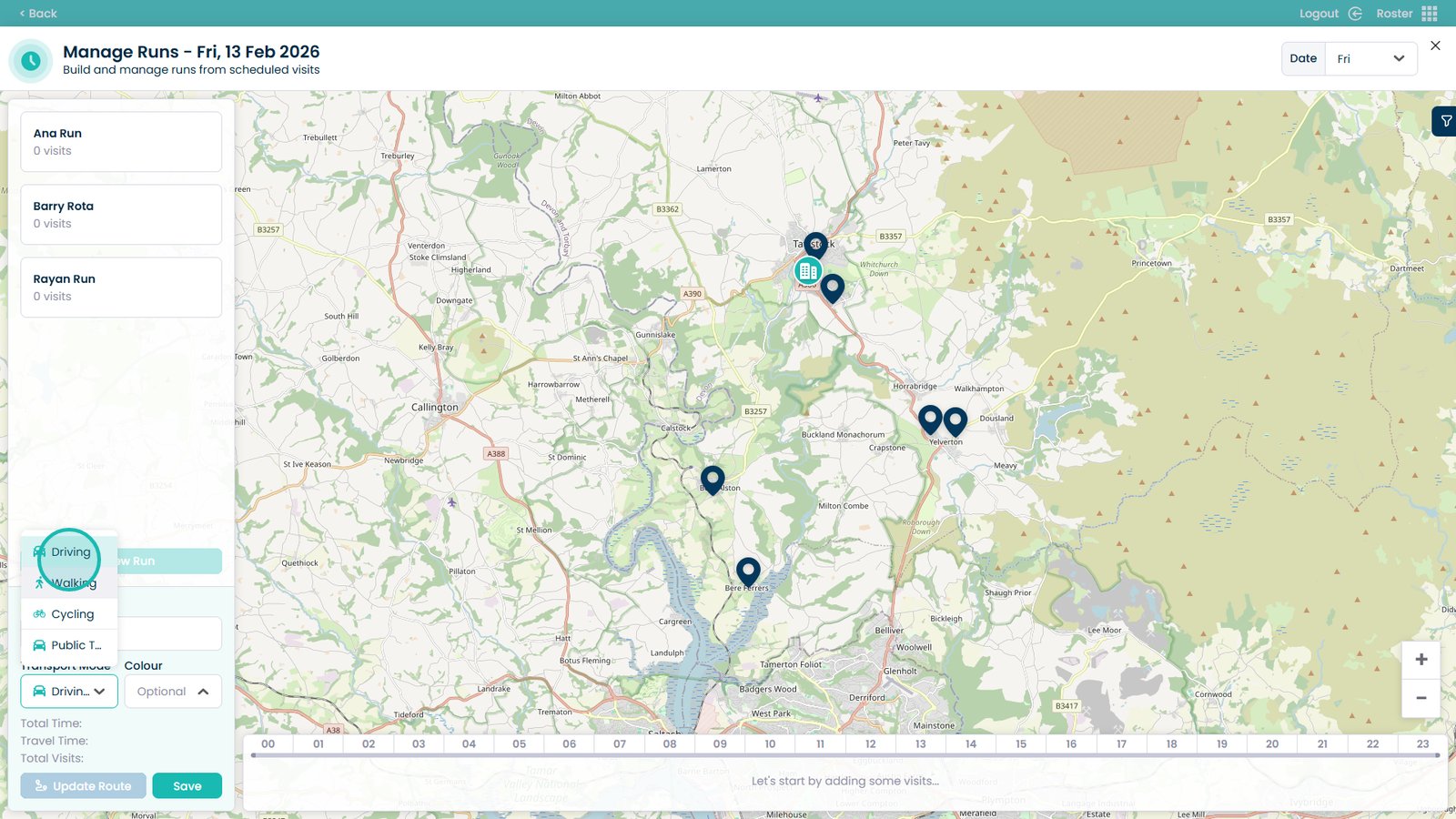
Choose the mode of transport (this affects travel time calculations)
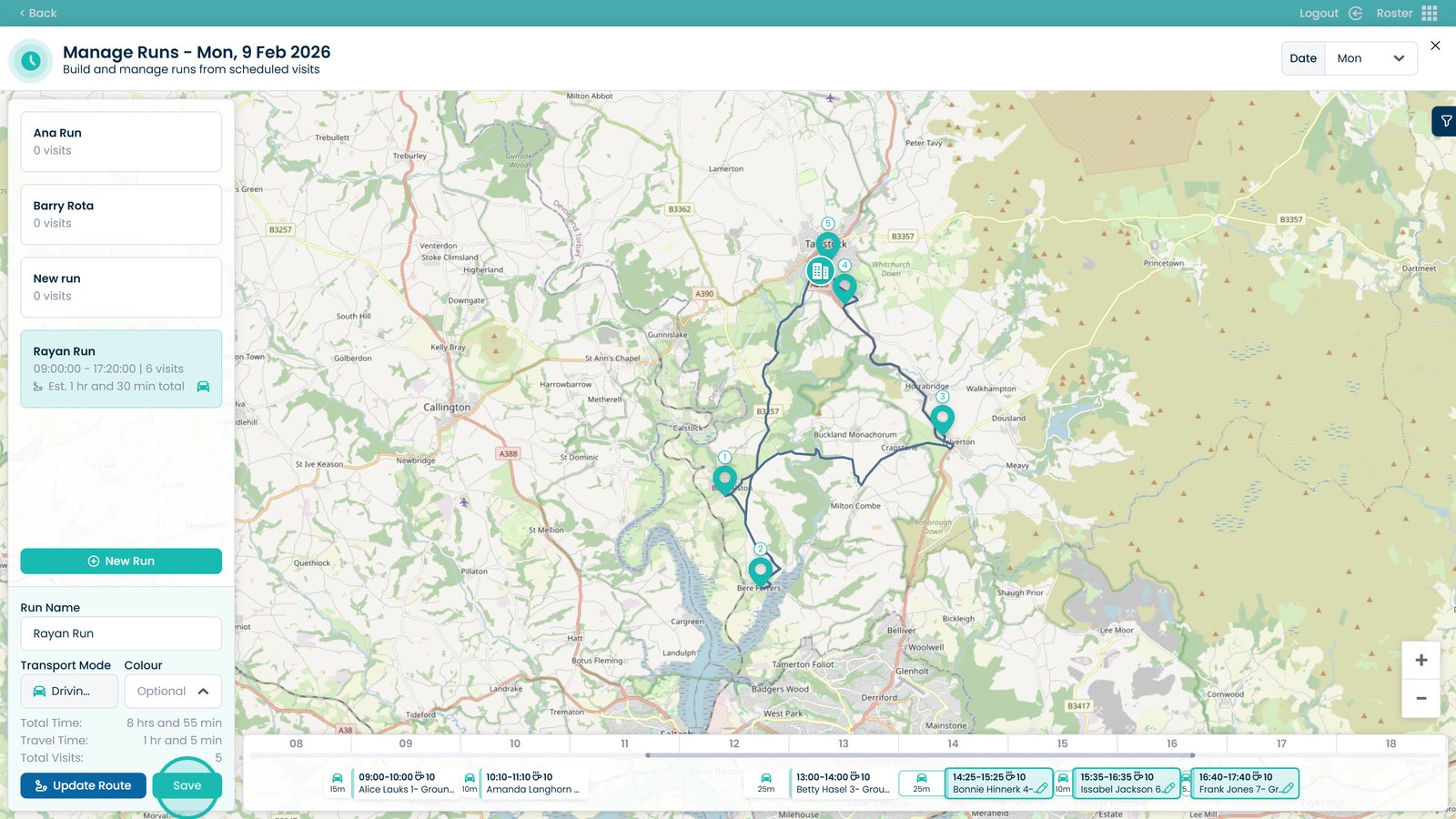
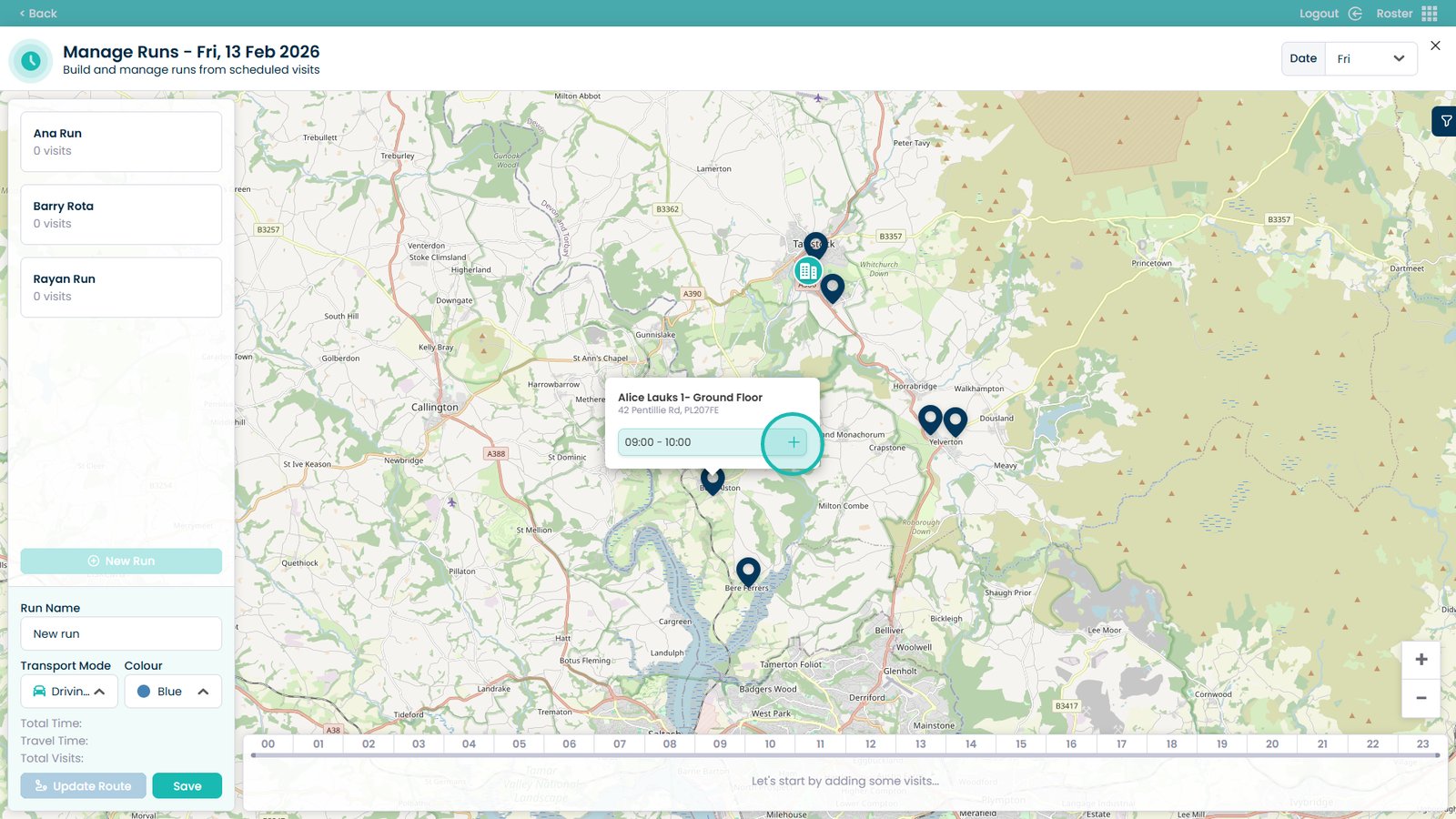
Hover over the visit pin to view visit times
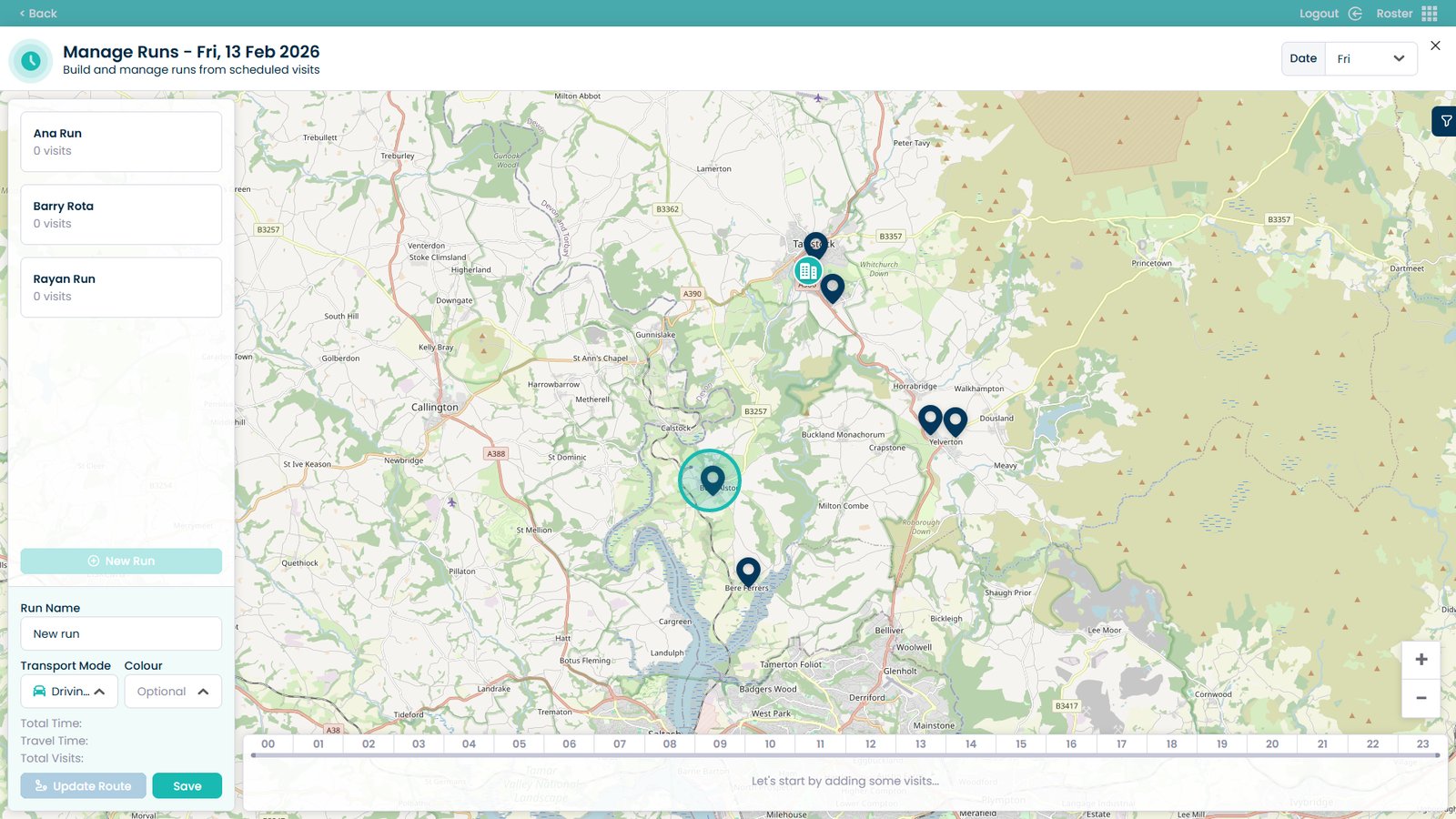
Select the plus button on a visit to add it to the run
Repeat for all visits you want included in the run
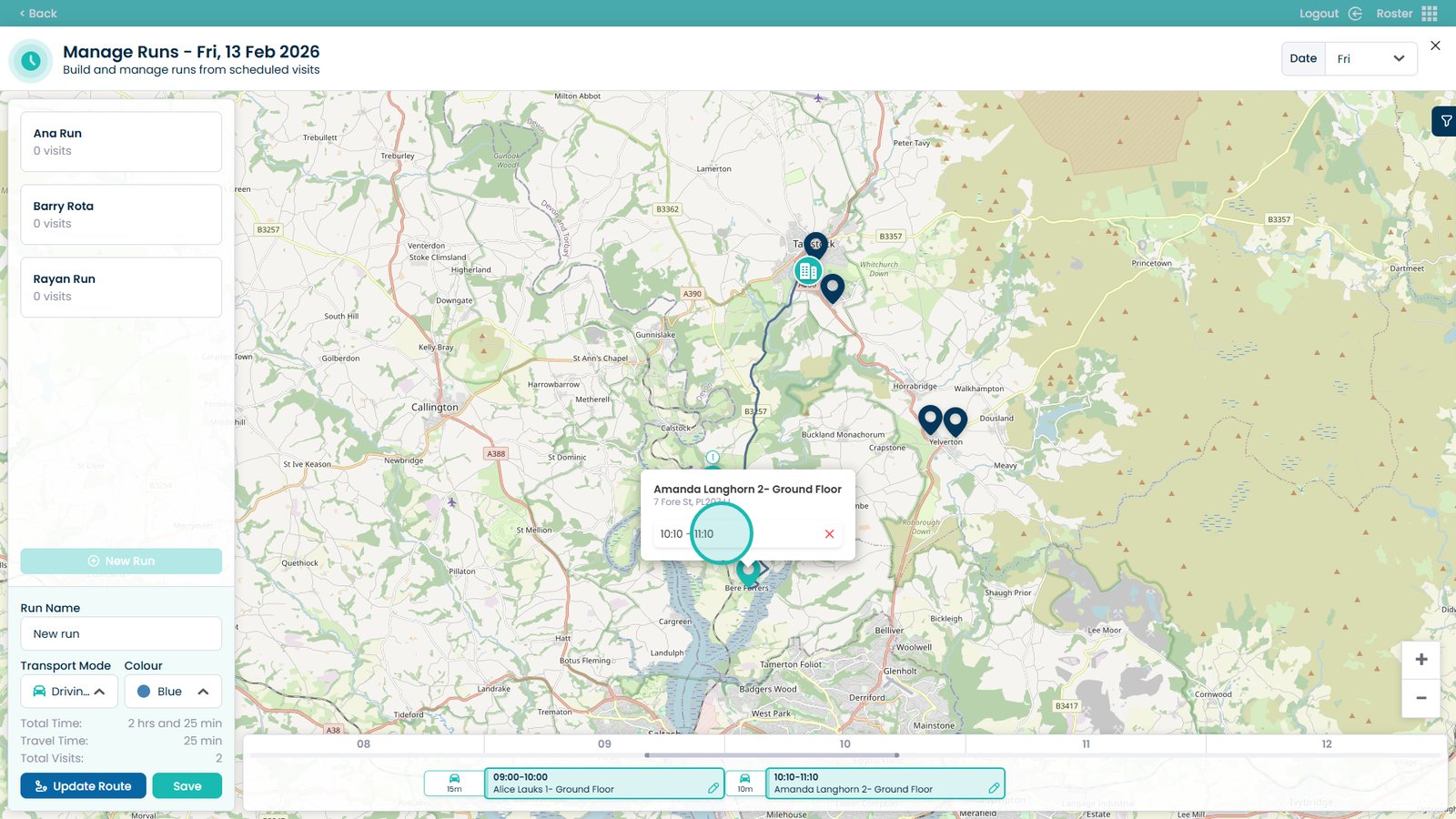
Hover over the transport symbol to view distance and travel time
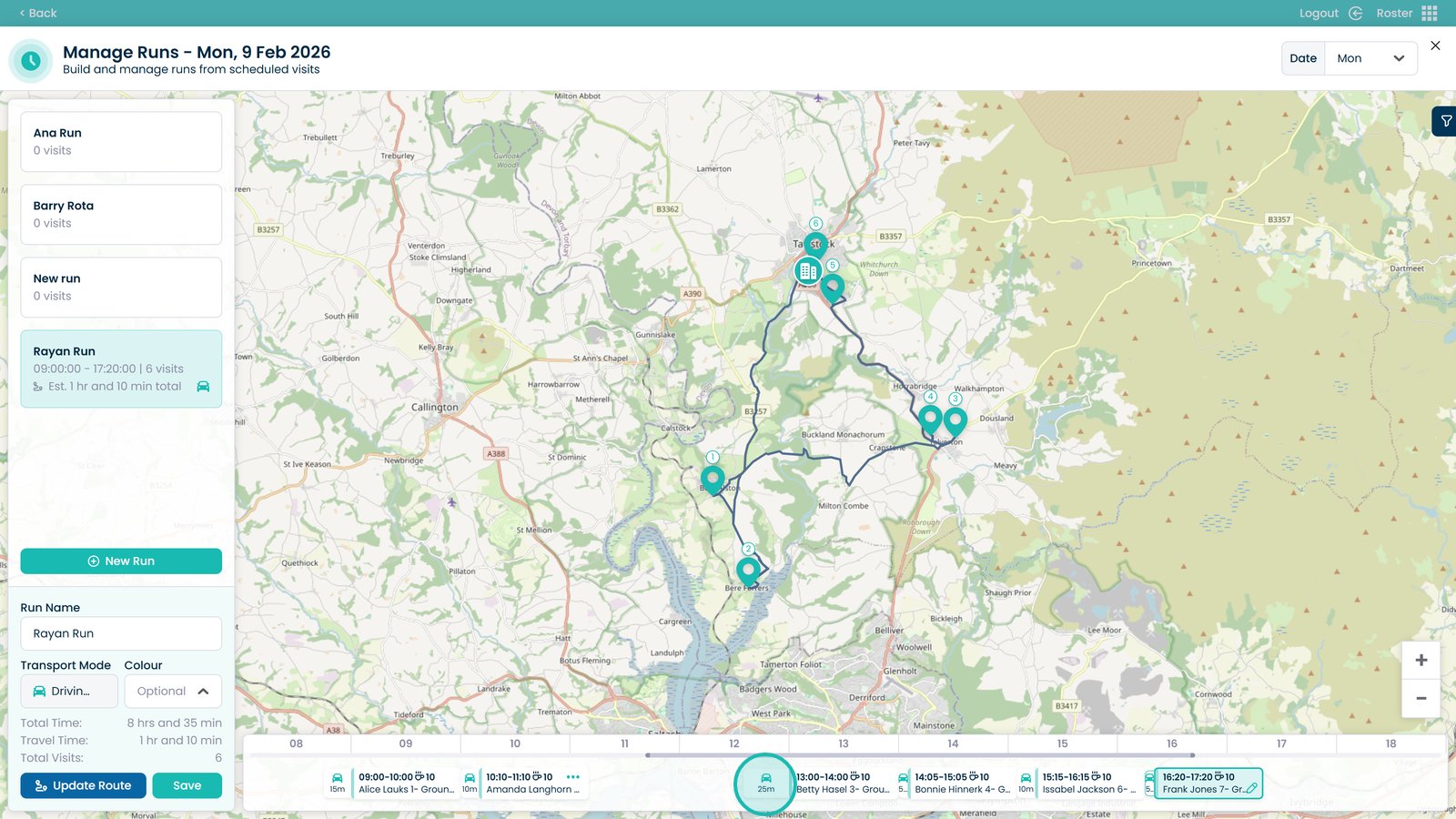
Click and drag a visit to change its time
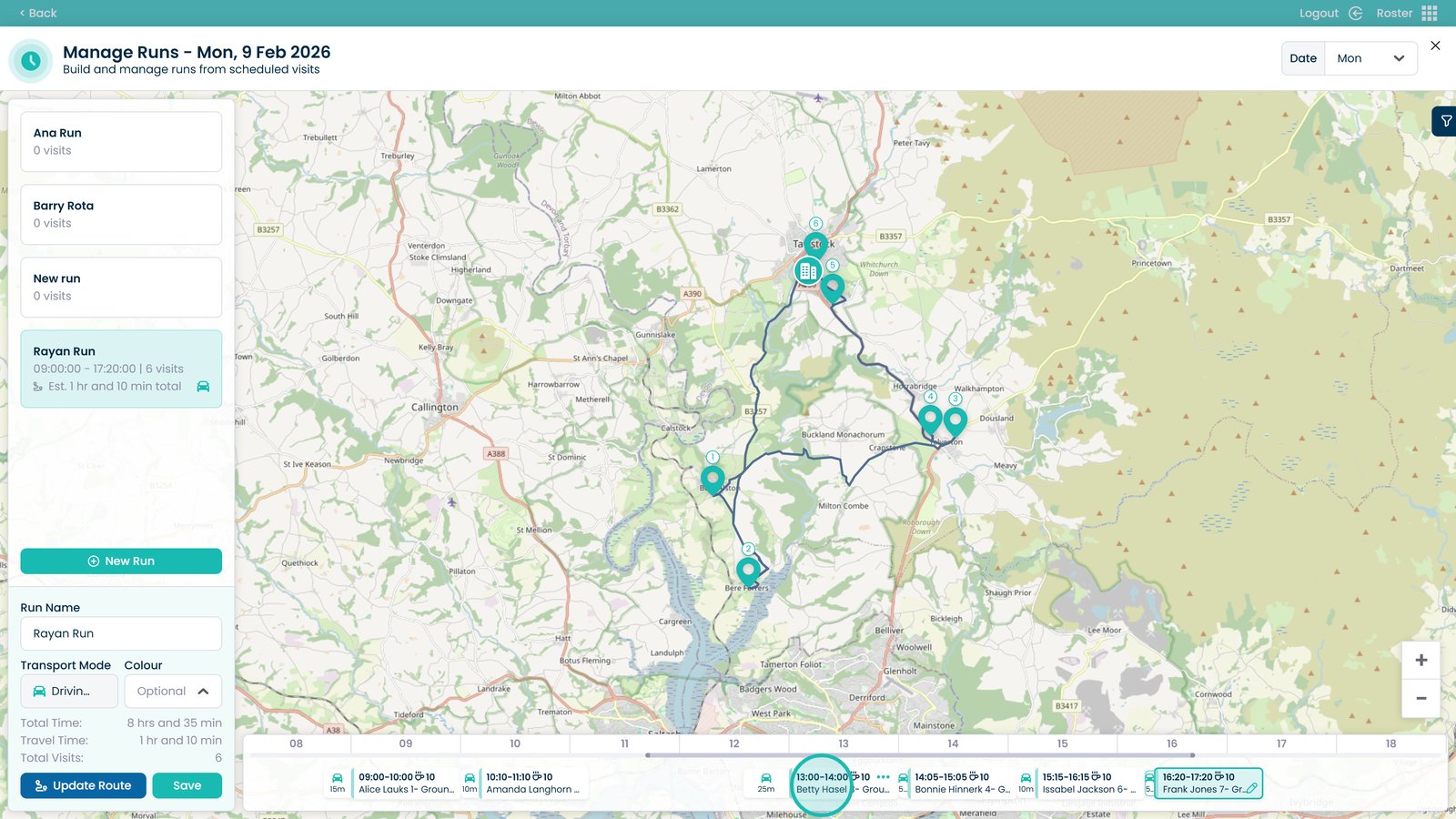
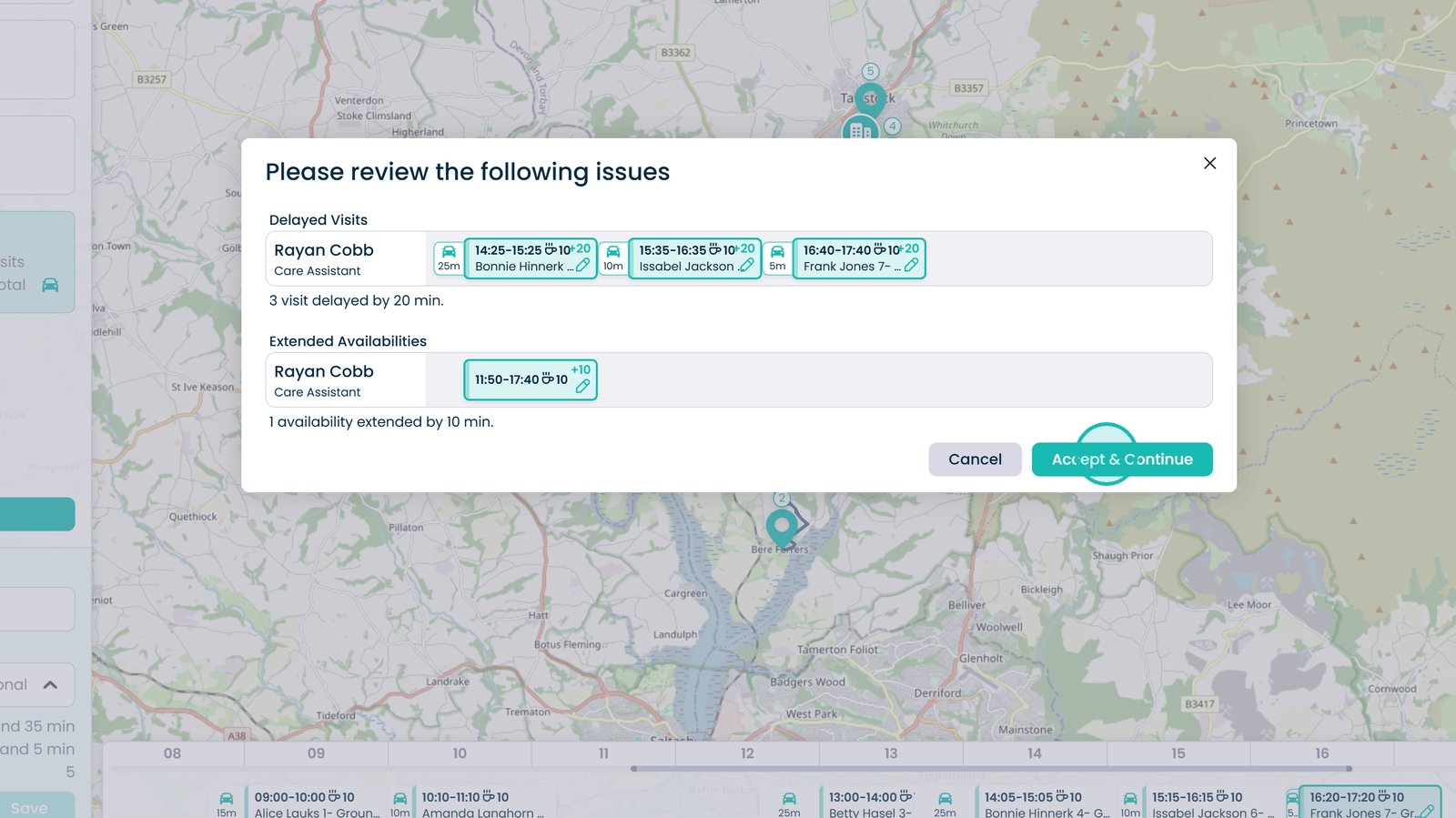
If prompted, confirm availability changes from within the run screen
Select the three dots on the visit
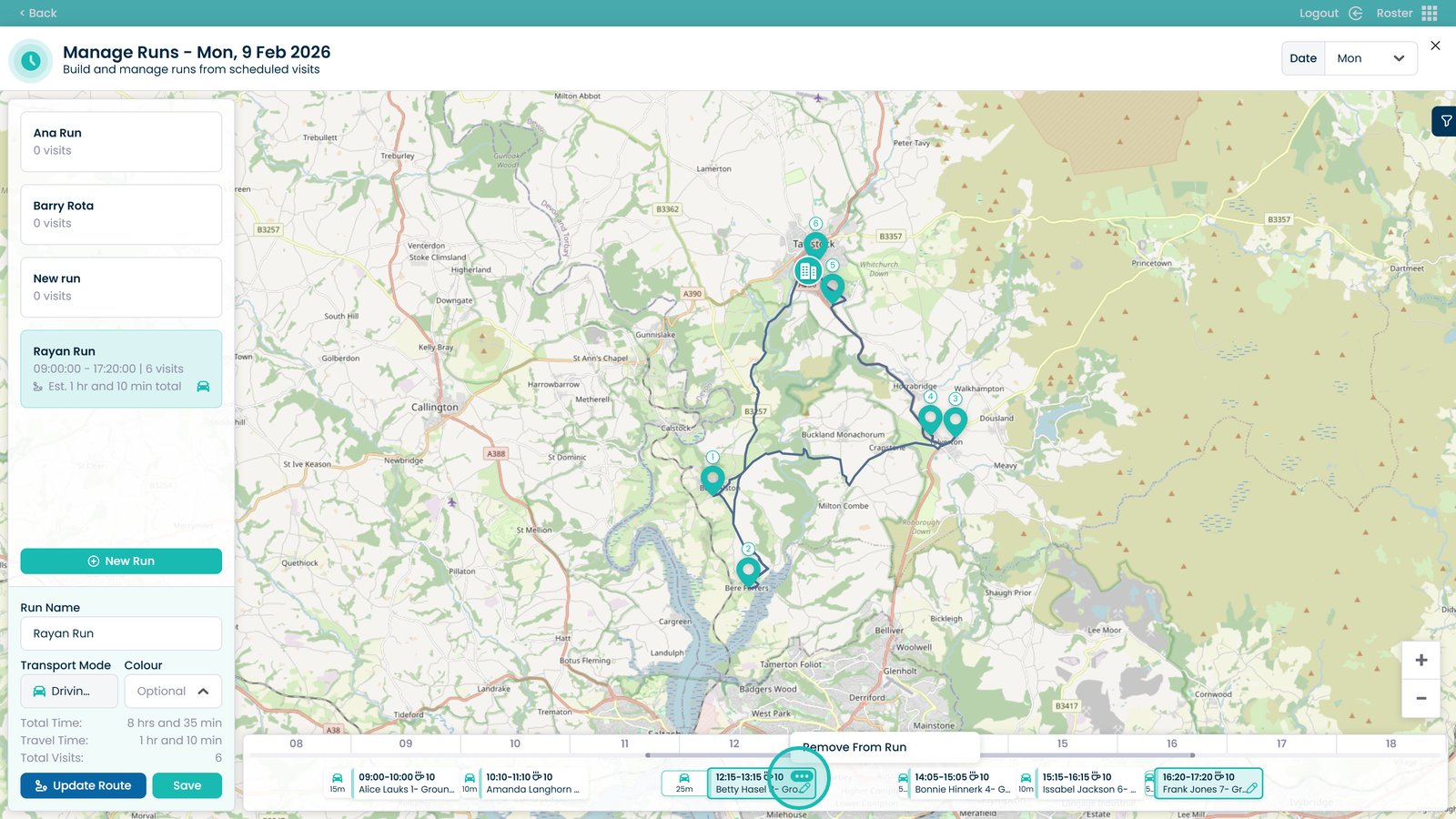
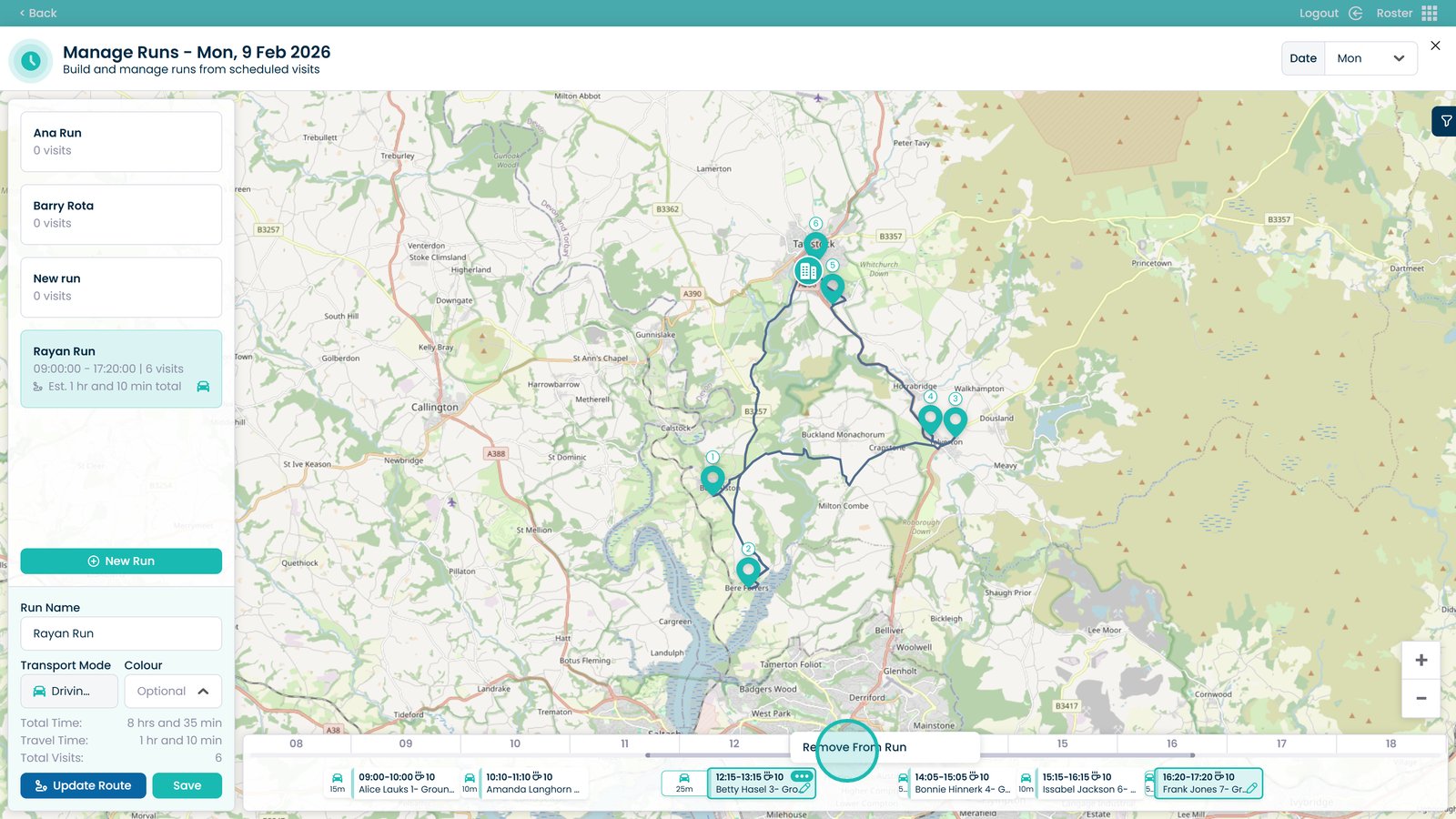
Remove the visit from the run if required

Click Update Route to automatically calculate times and distances

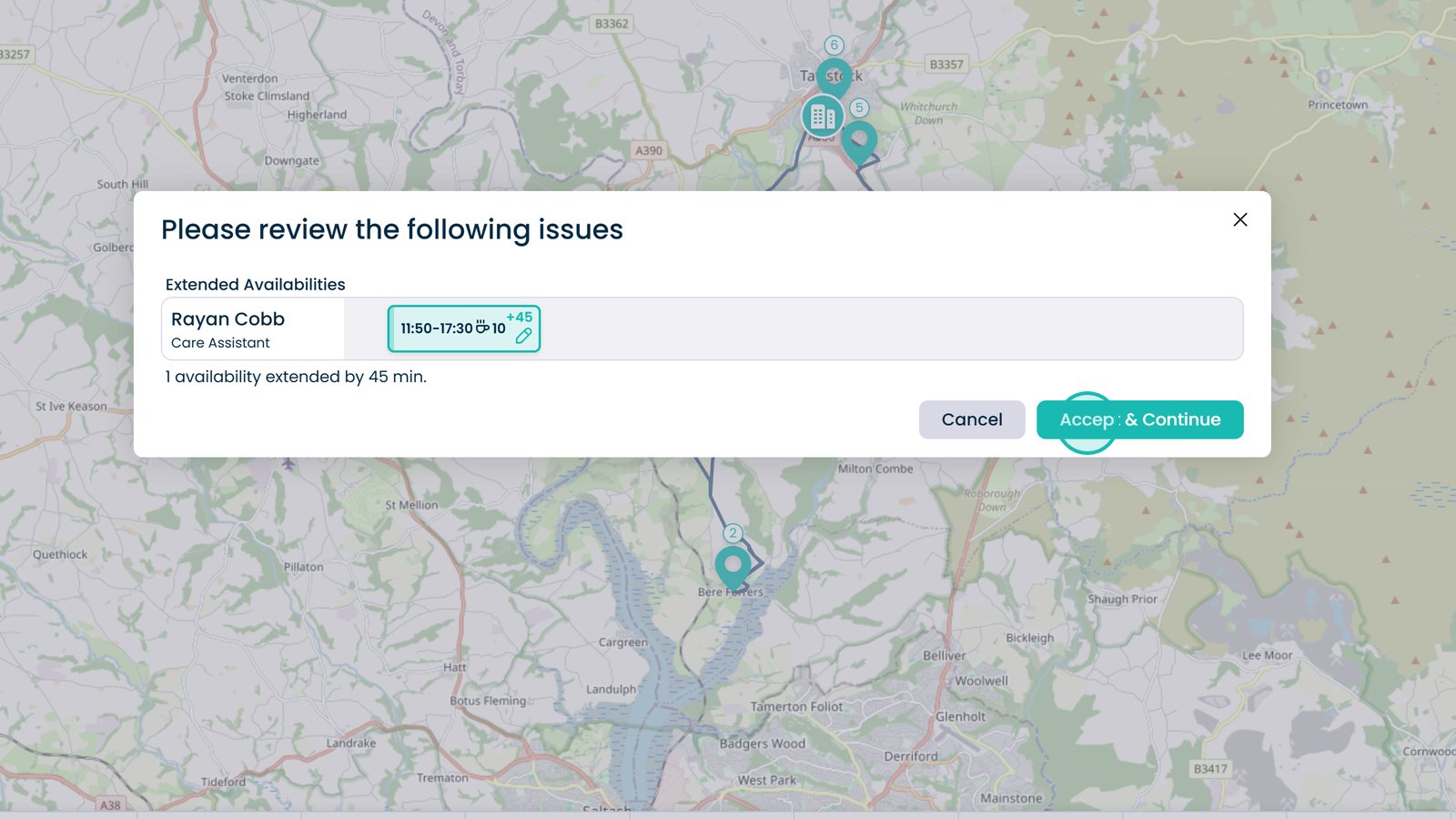
Review any issues and click Accept & Continue to approve changes

Click Save when finished