🚀 UPCOMING WEBINAR: See Payroll in Care Control Cloud in action on Thursday 18th June and discover how to manage payroll more efficiently from one connected system. Click here to find out more!

View Categories

How to Create and Customise a Generic Risk Assessment

This guide will walk you through creating, editing, and managing Generic Risk Assessment templates within Care Control Cloud.

Takes 6 minutes
For: Seniors & Managers
Updated: 1st June 2026

Introduction

This guide explains how to create and manage Generic Risk Assessment templates within Care Control Cloud.
In this guide you'll learn how to:

  • Create new risk assessment templates
  • Build custom assessment questions
  • Use resident placeholders
  • Preview and test assessments
  • Edit, deactivate, and delete assessments

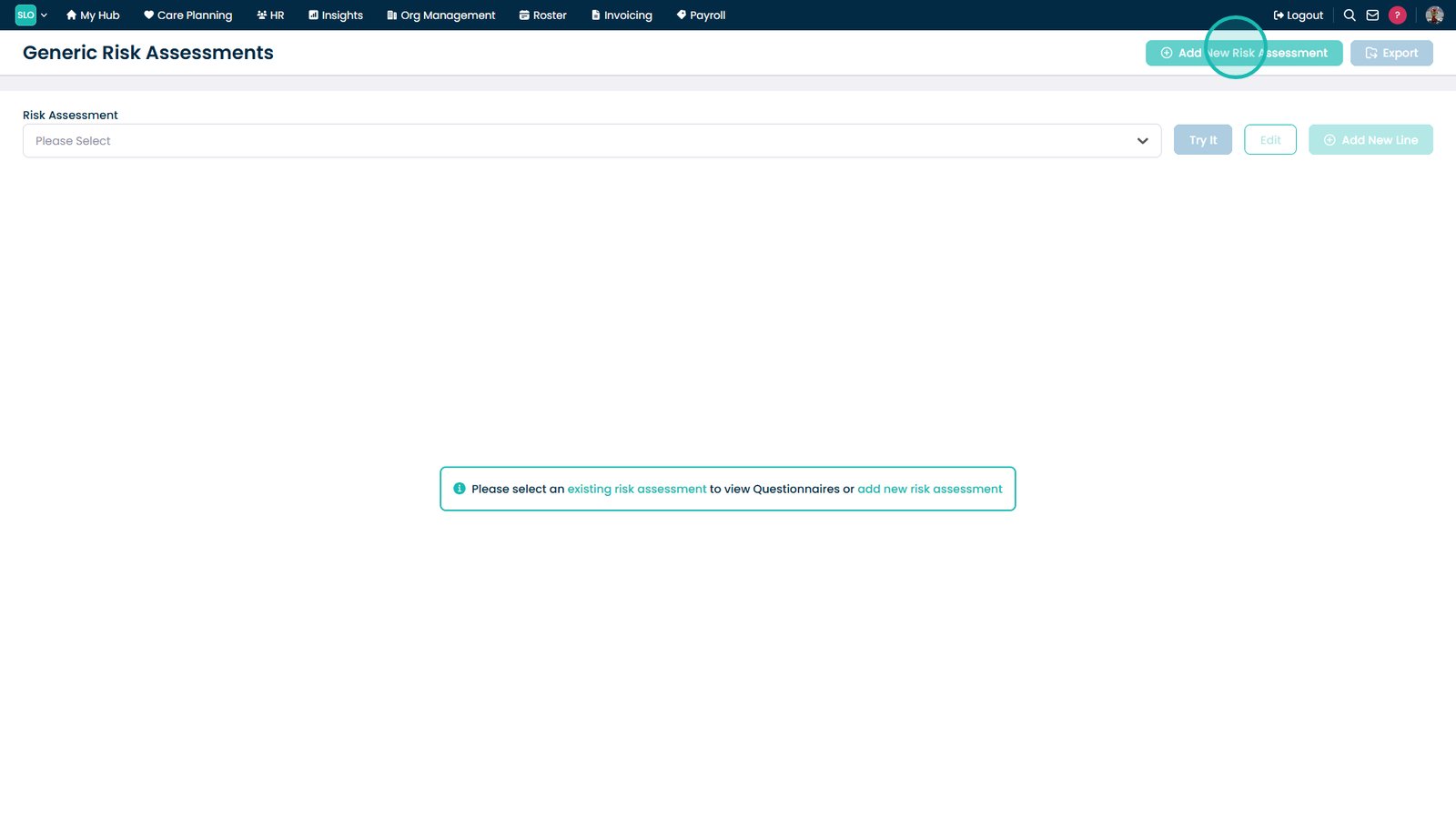
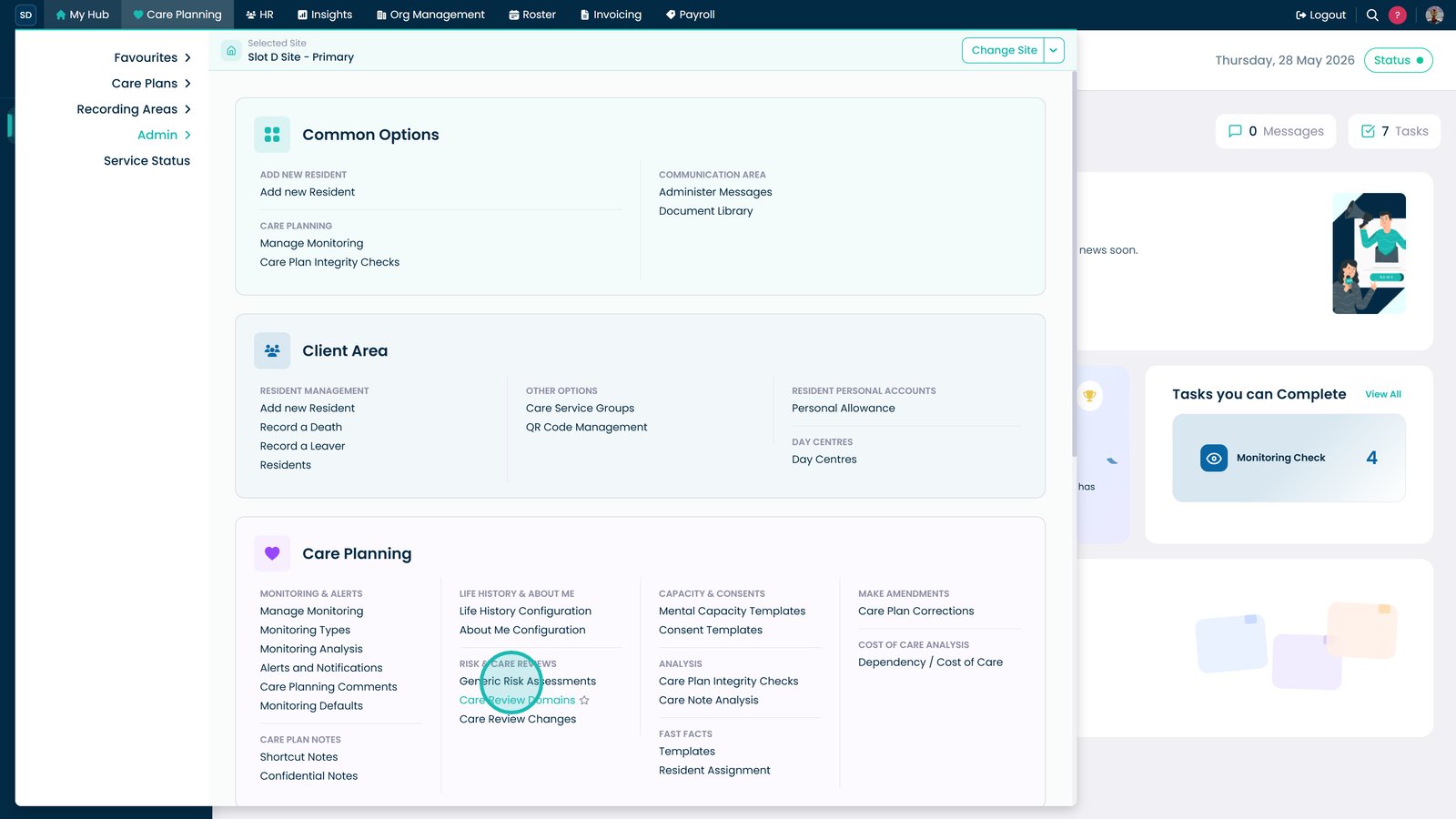
Open Generic Risk Assessments.

Select Add New Risk Assessment.

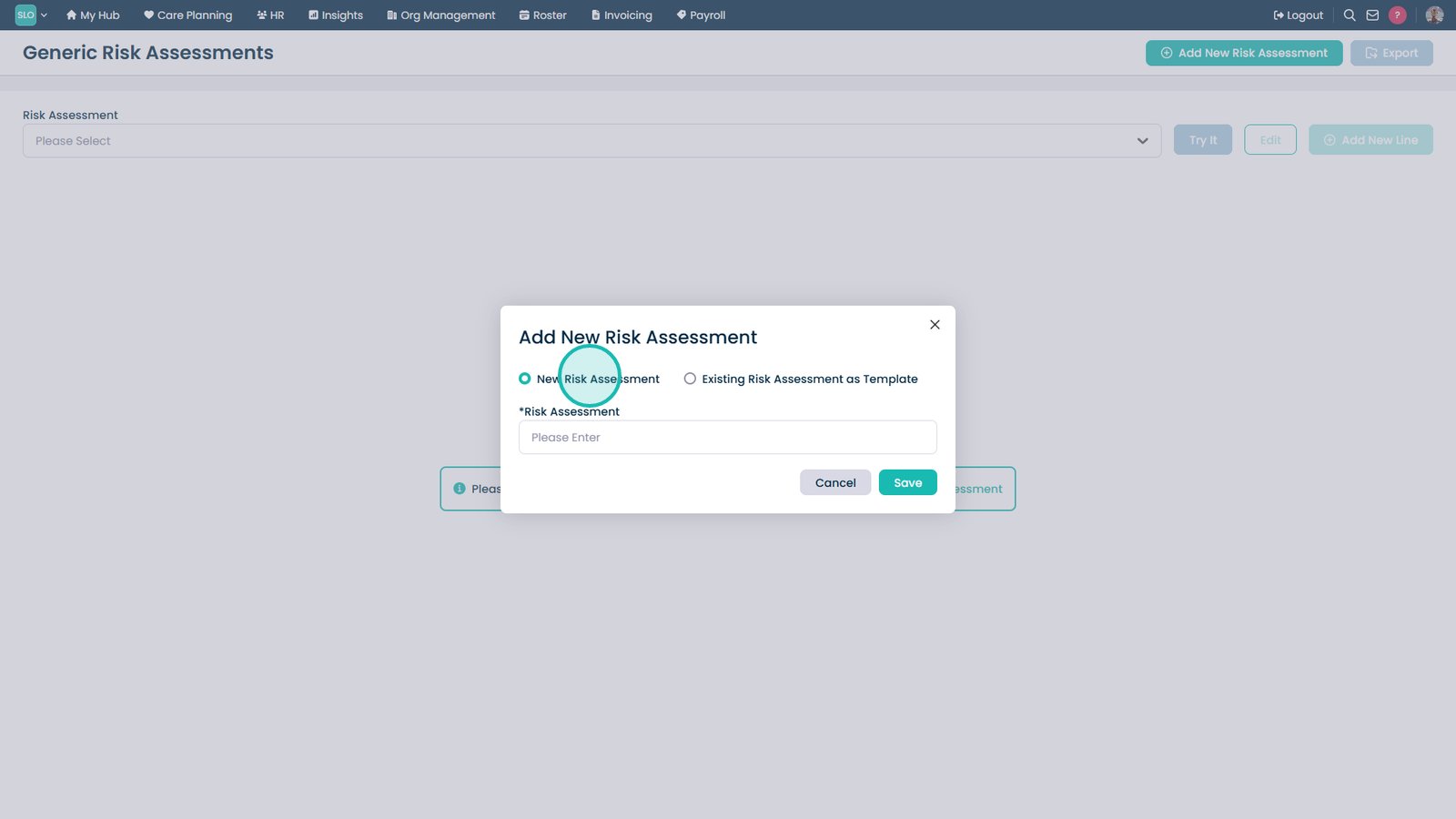
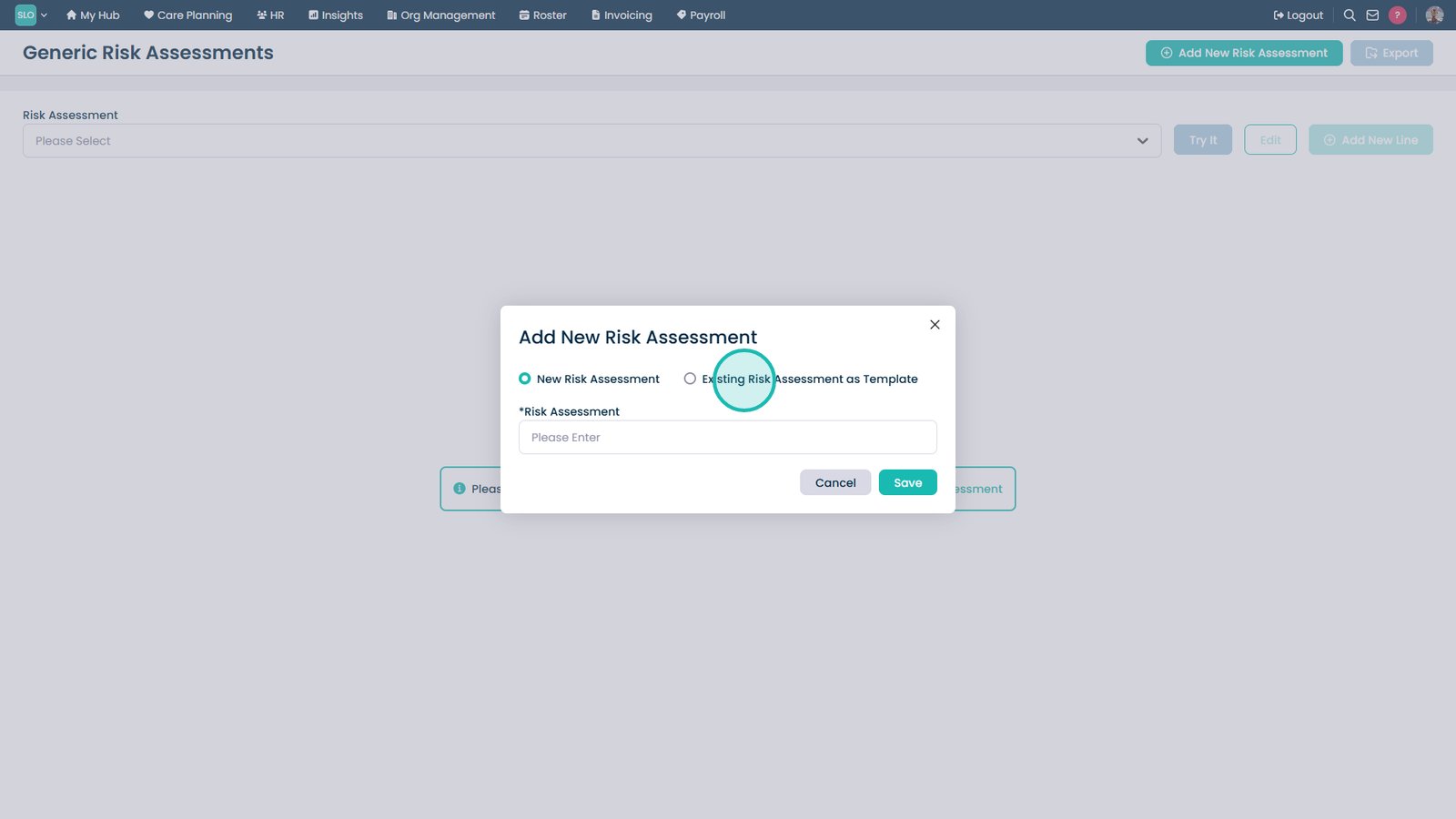
Create a new assessment from scratch.

Or use an existing assessment as a template.

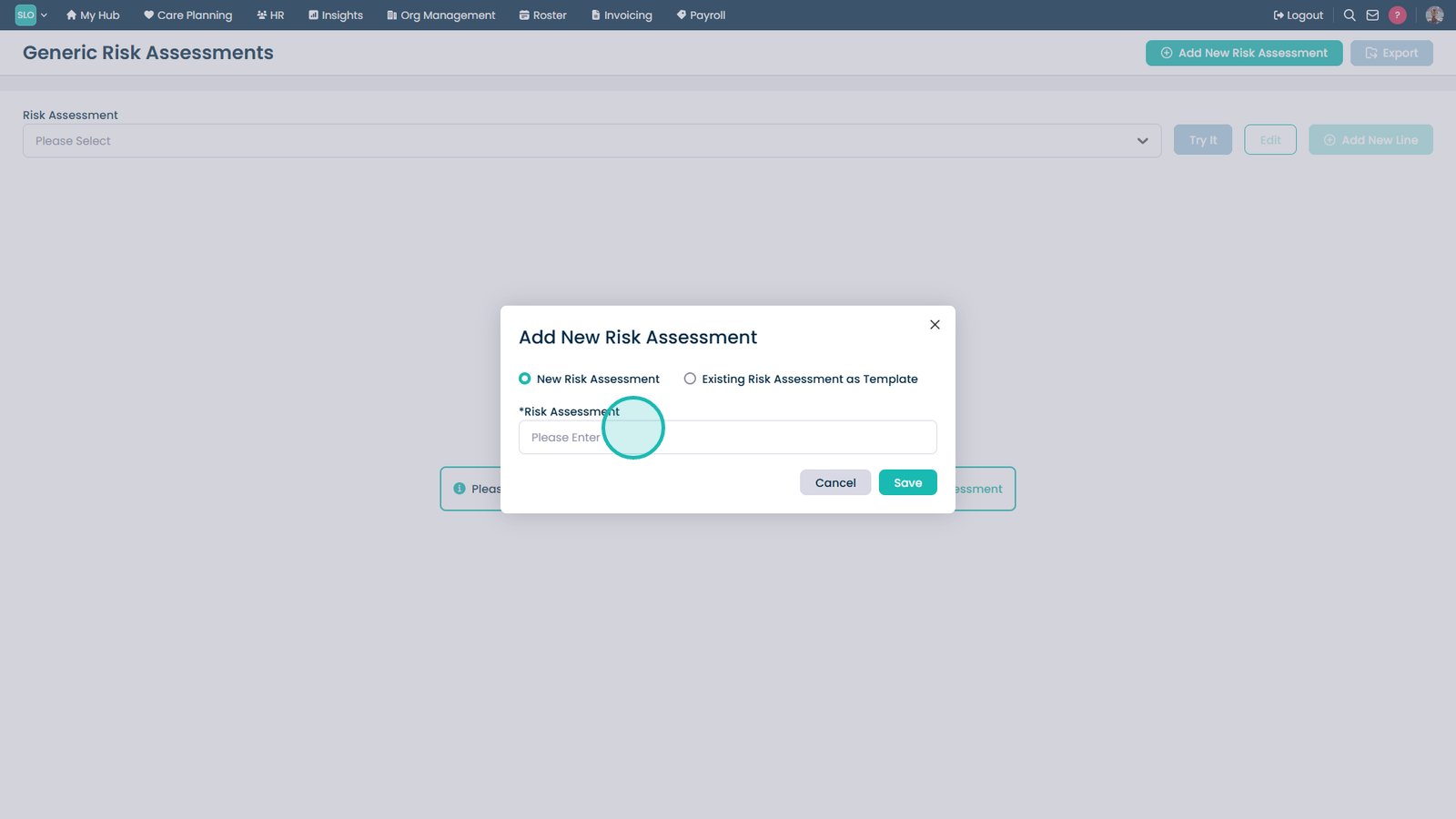
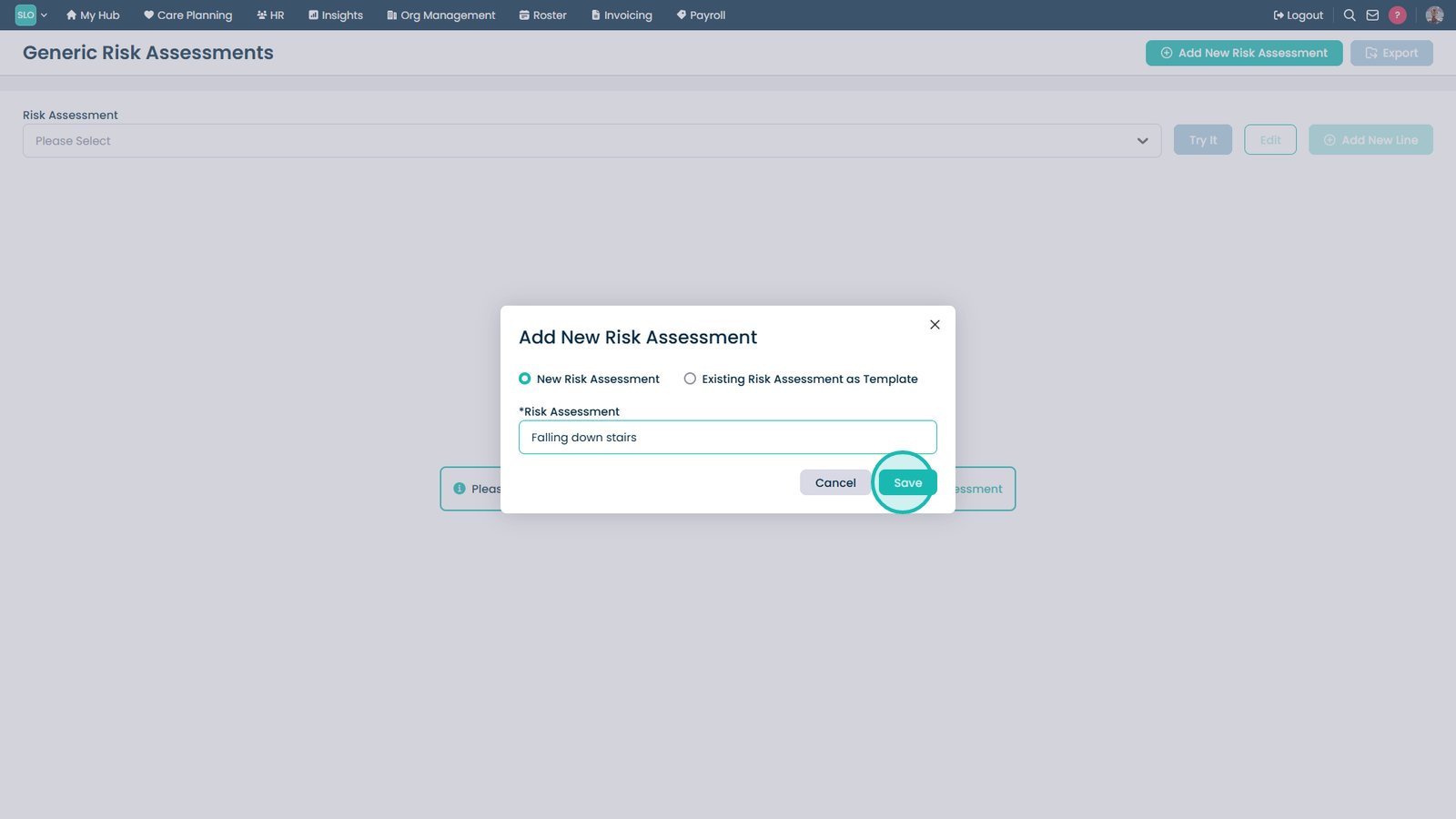
Enter the assessment name.

Select Save.

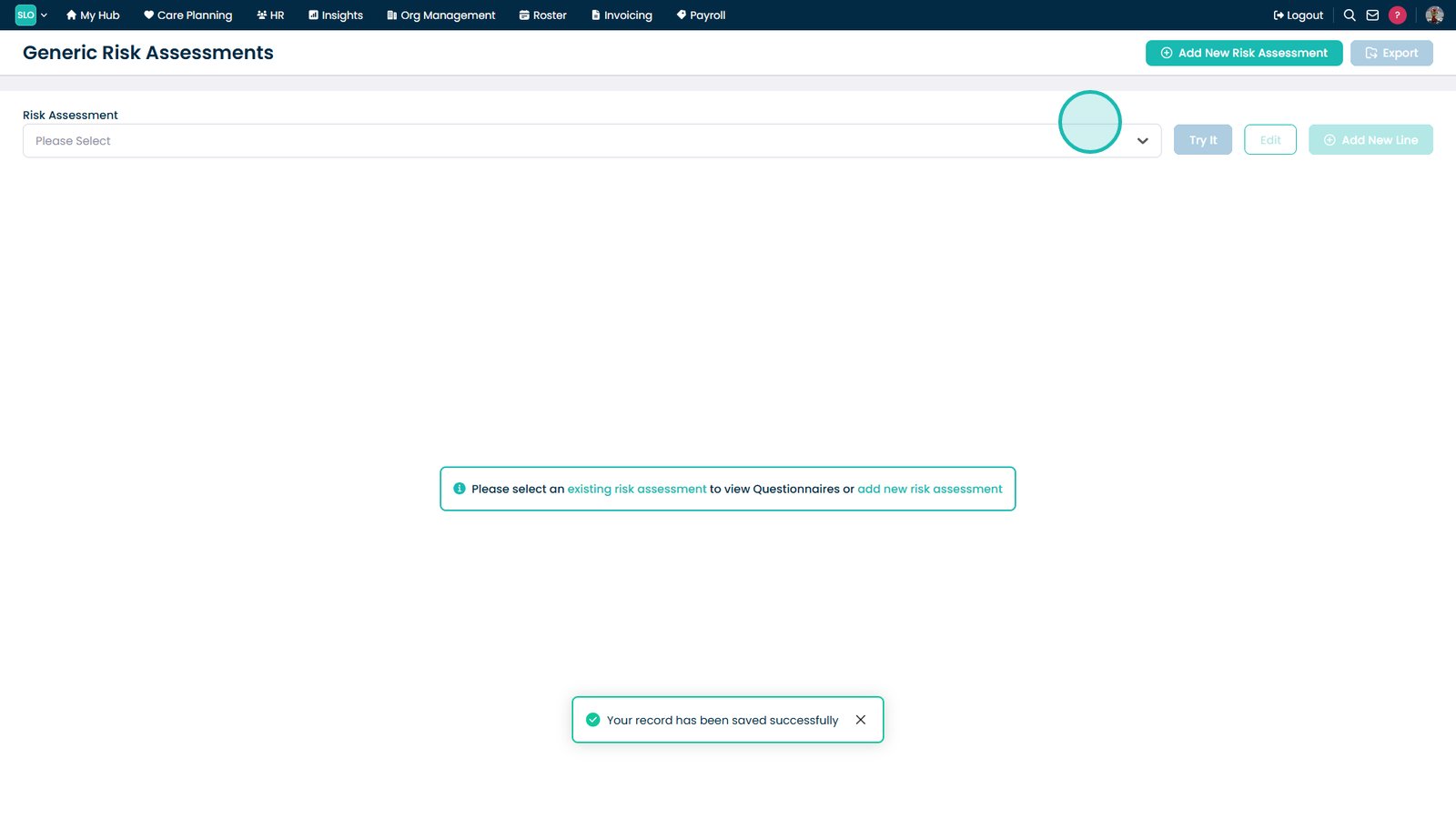
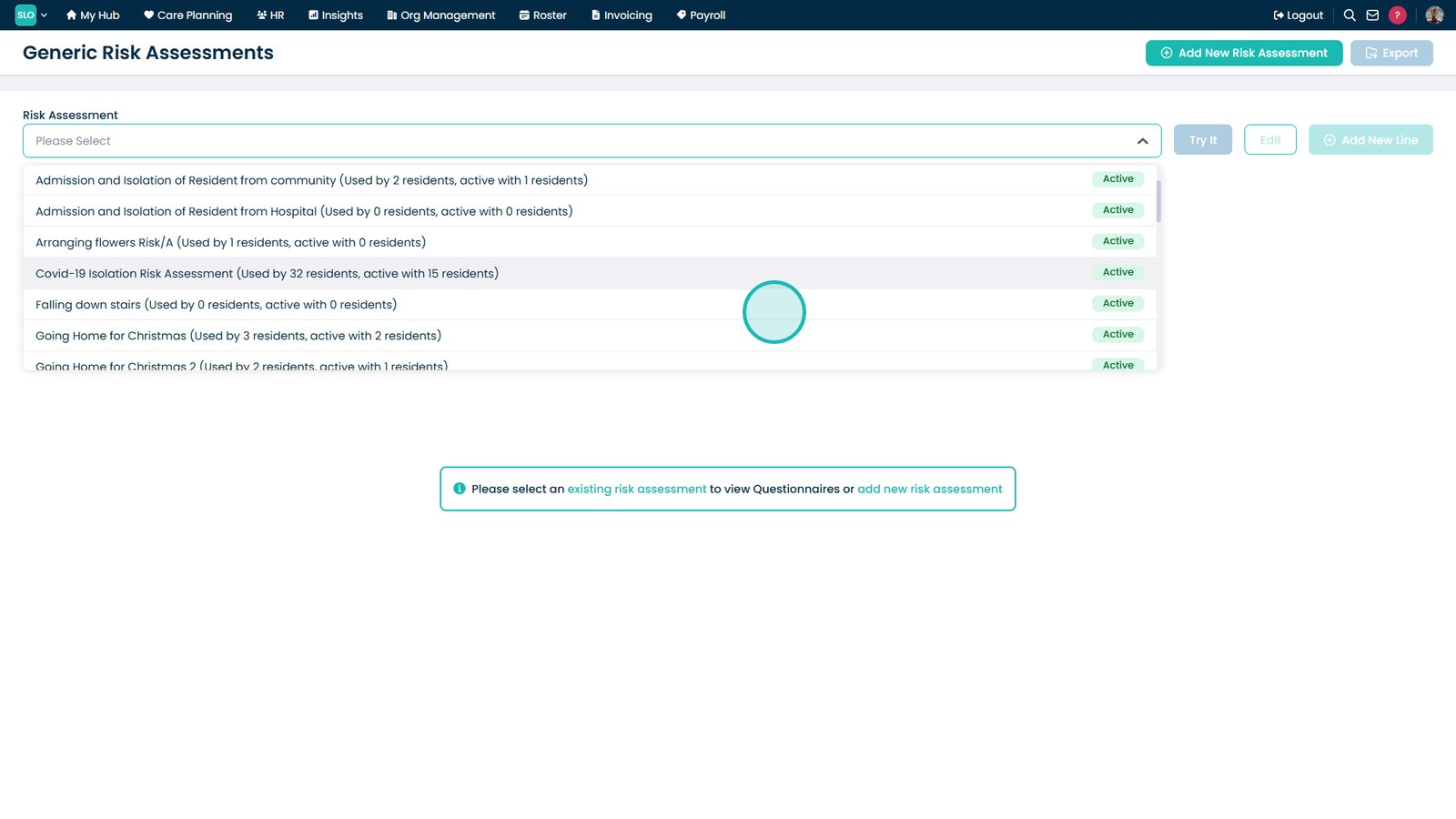
Open the Risk Assessment dropdown.

Select an assessment to edit.

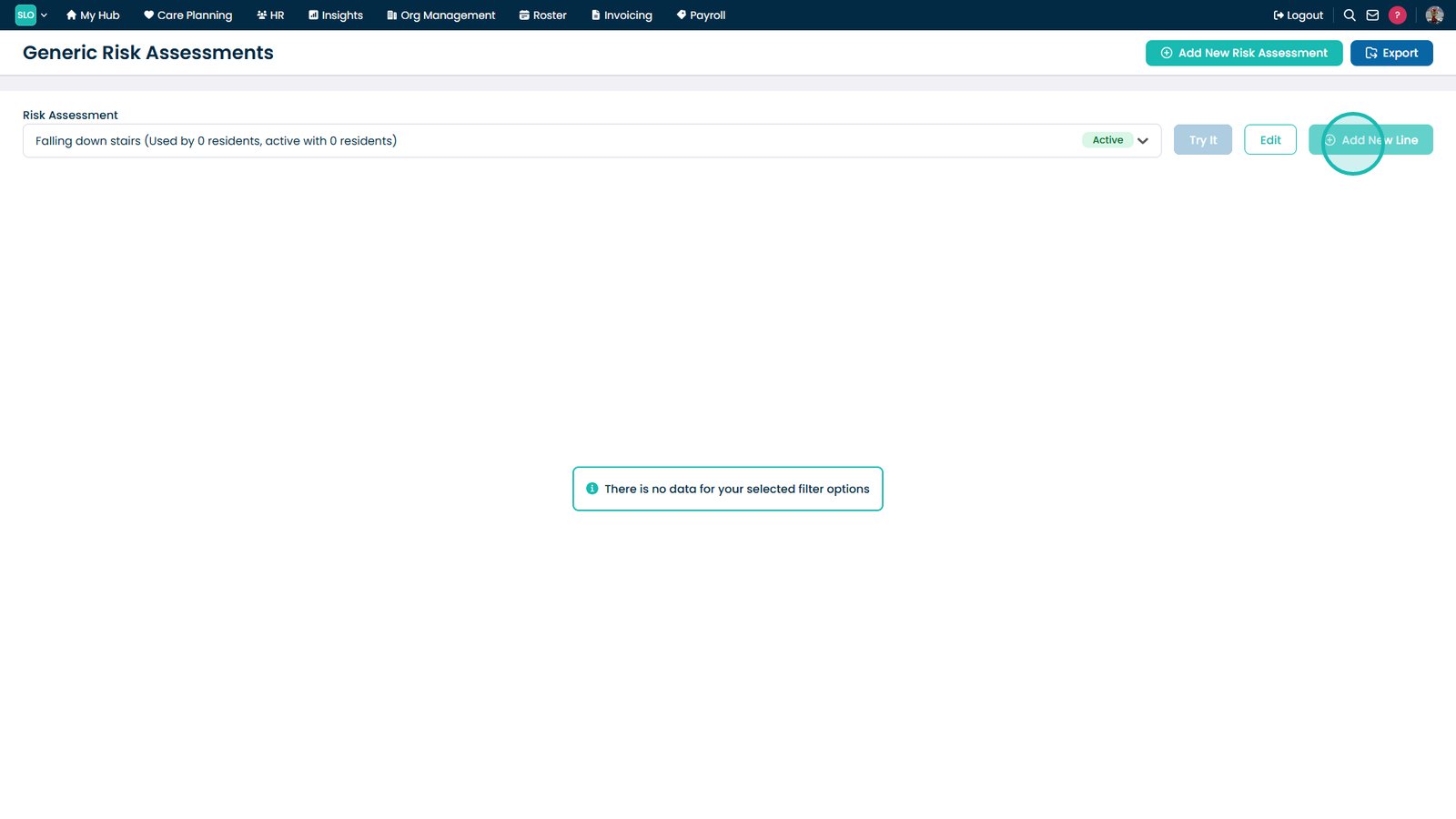
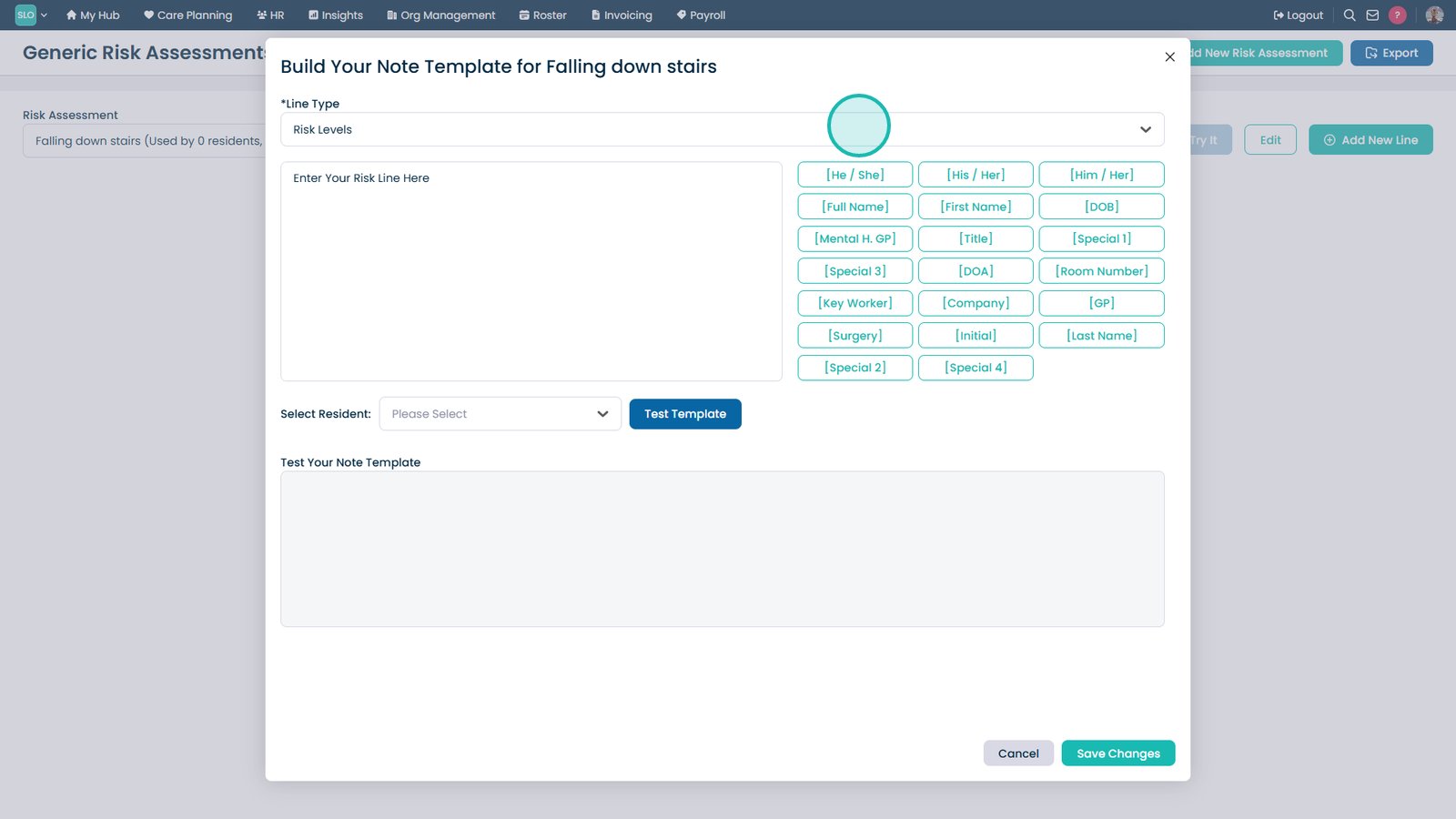
Select Add New Line.

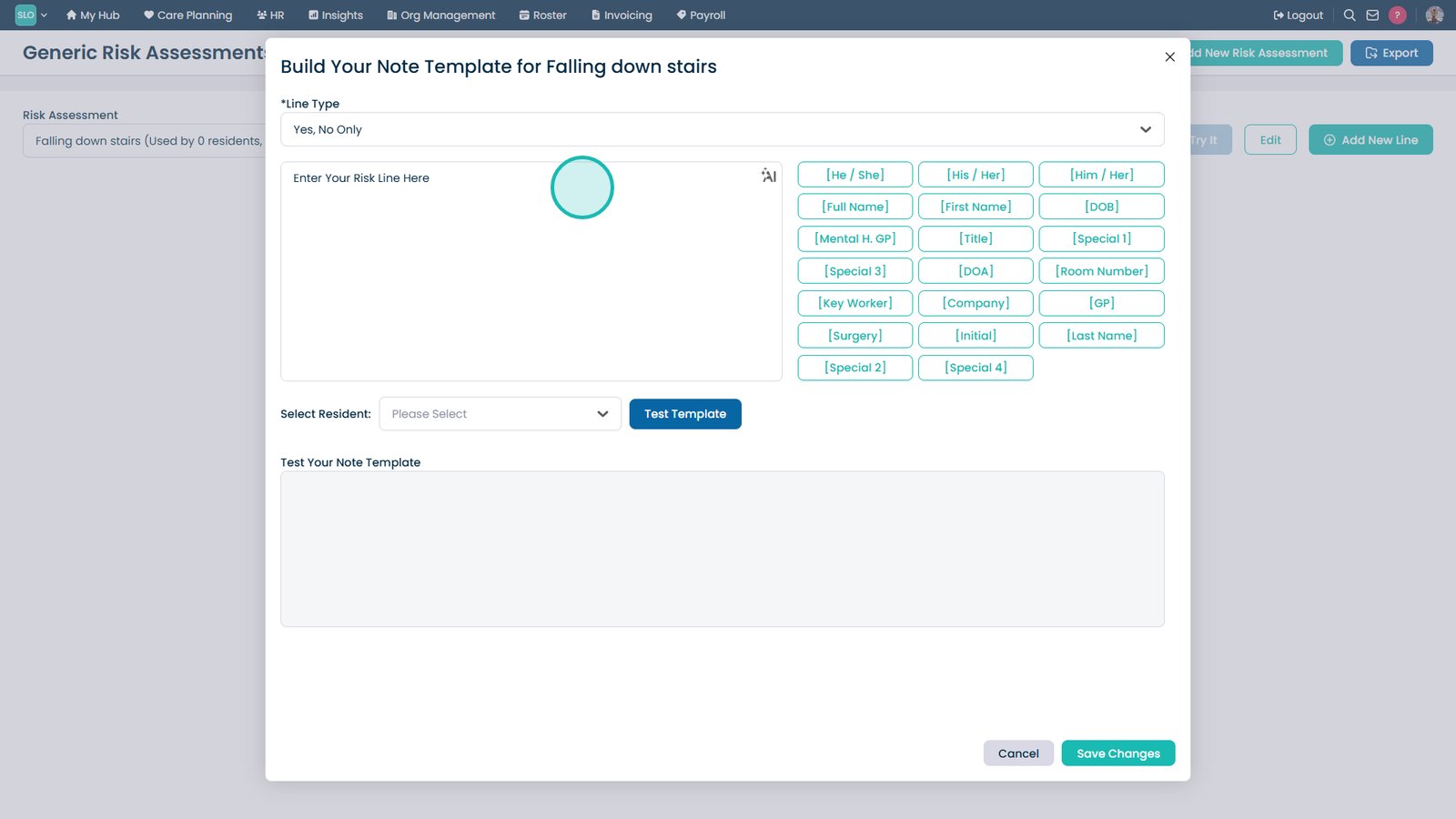
Select a line type.

Enter the assessment question.

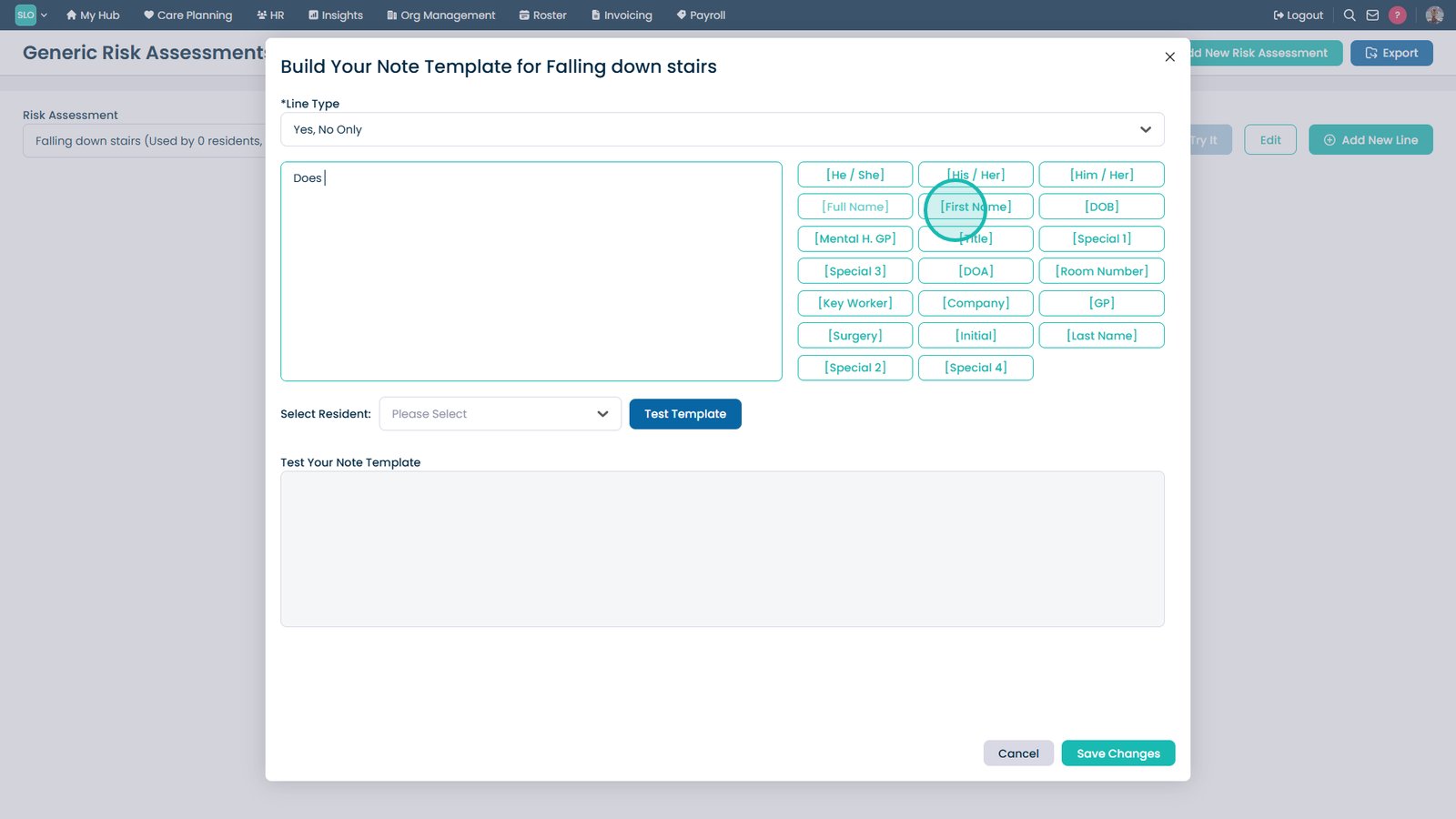
Add resident placeholders if required.

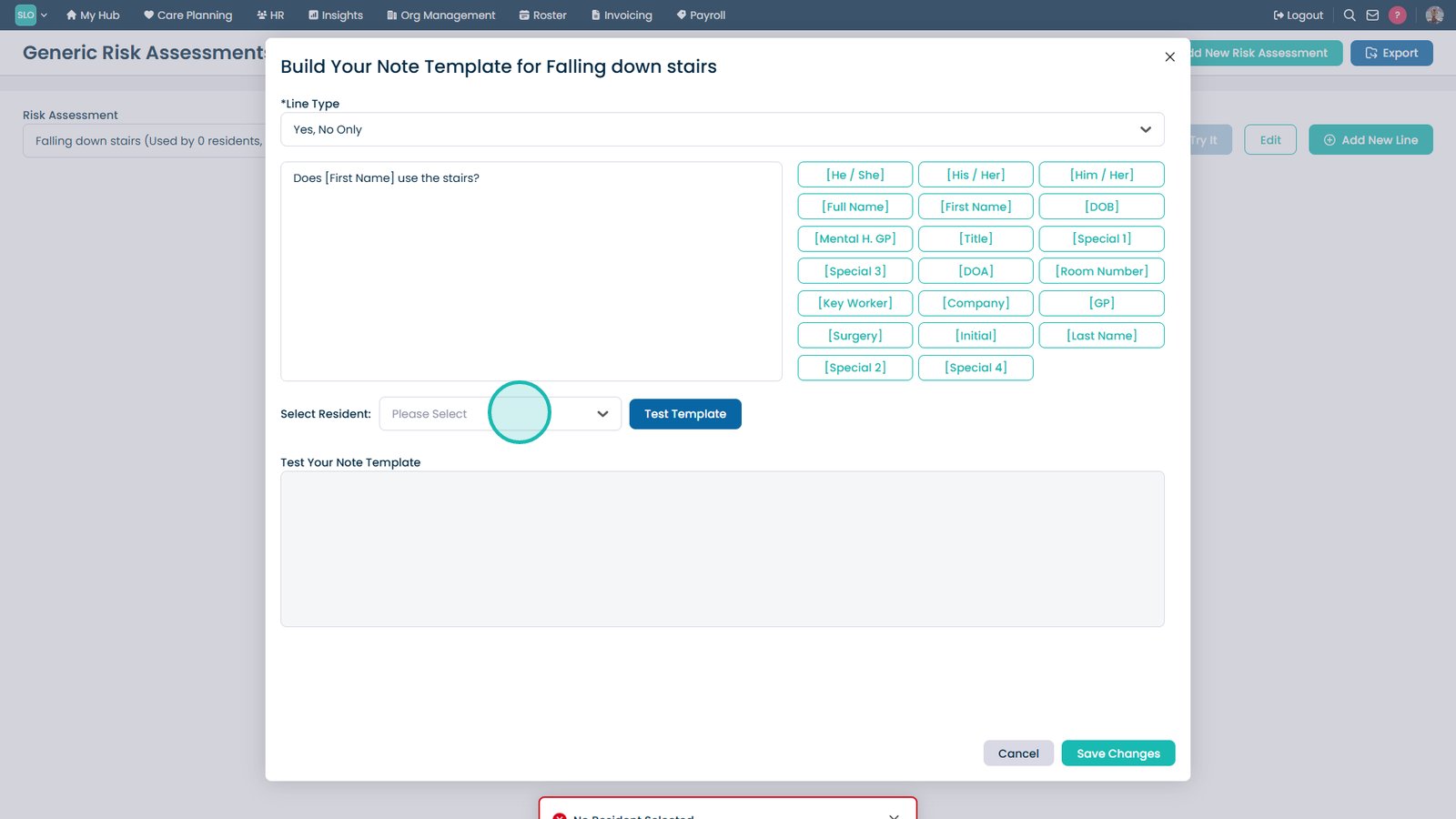
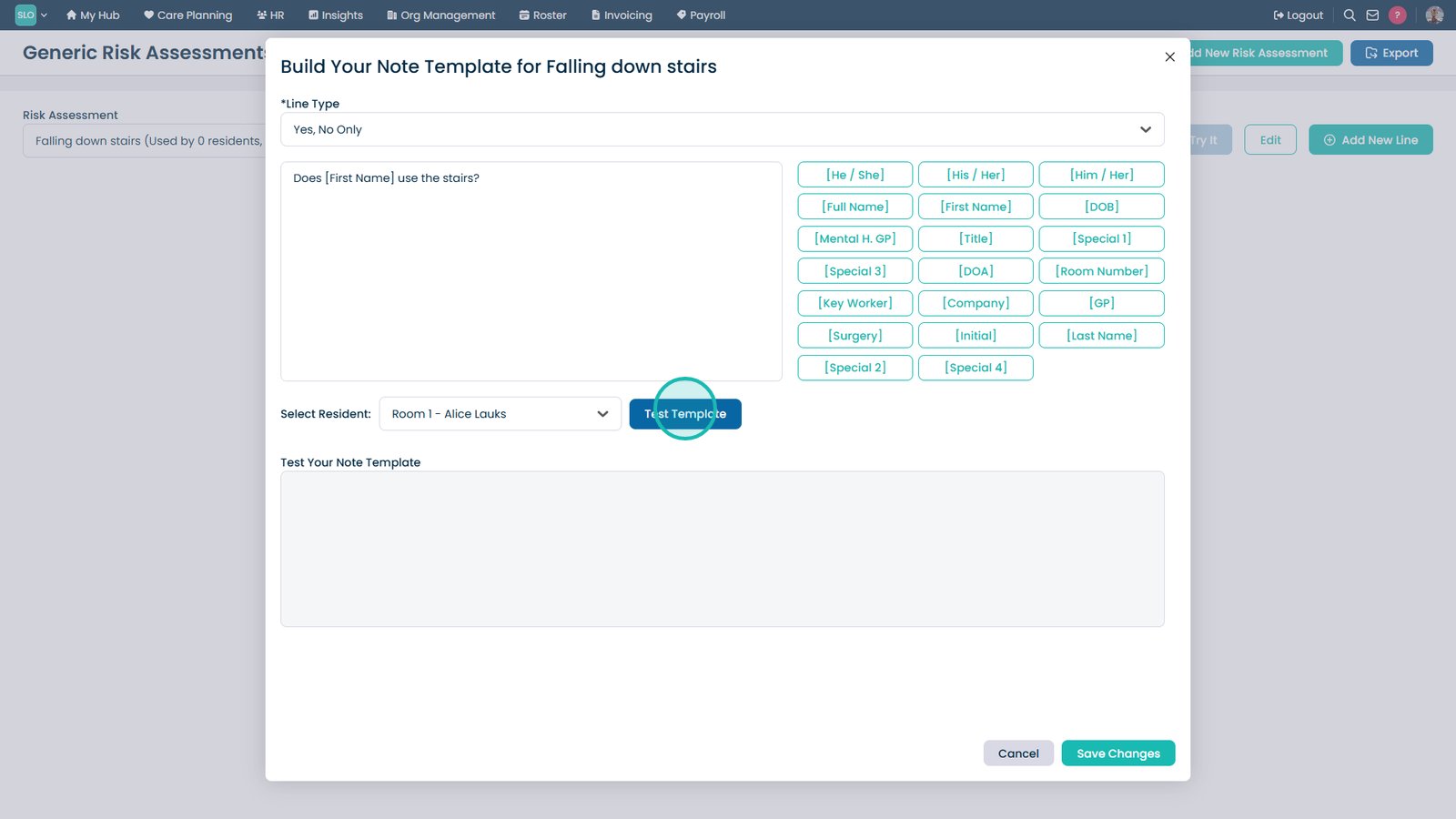
Select a resident for testing.

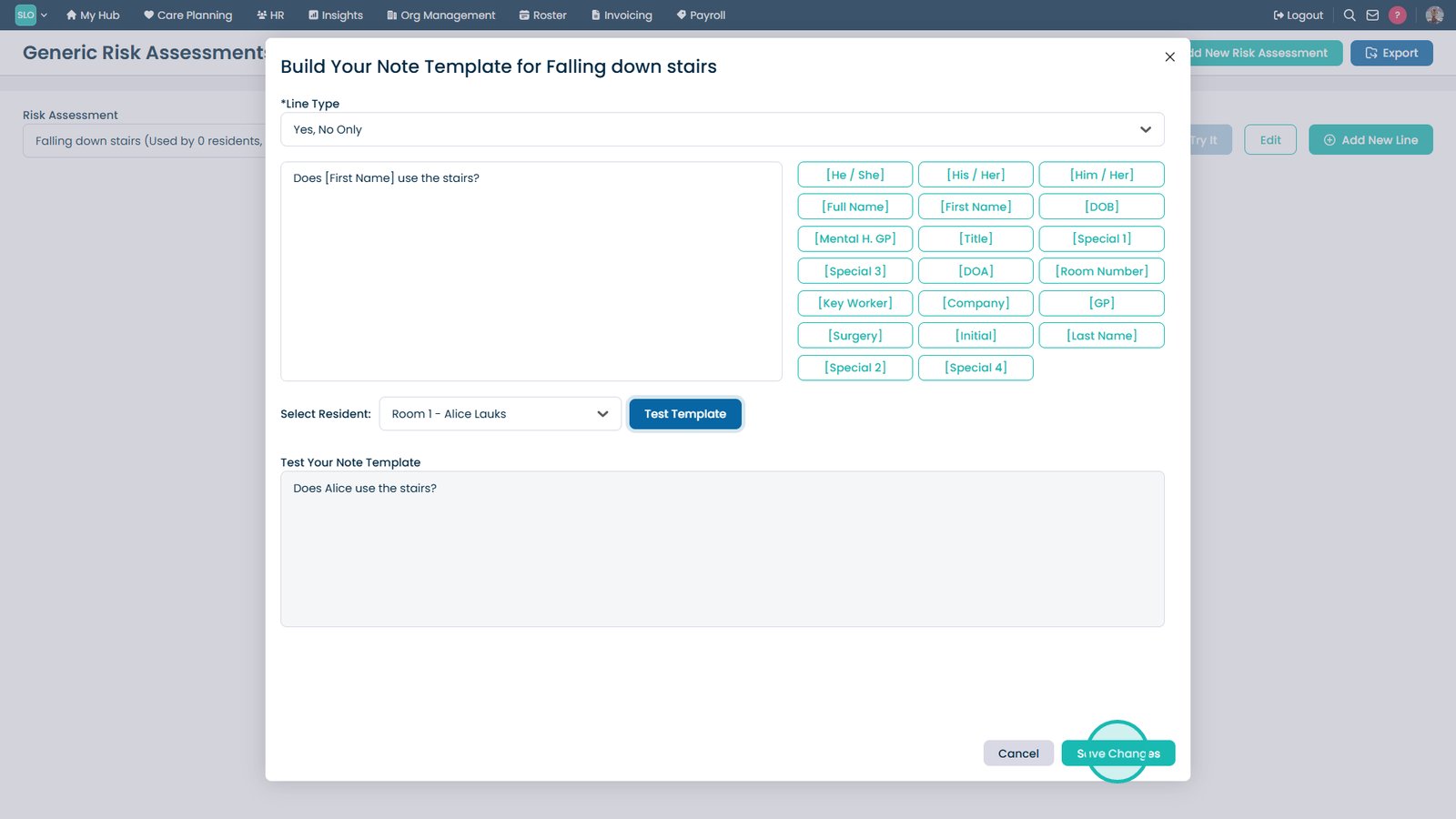
Test the assessment template.

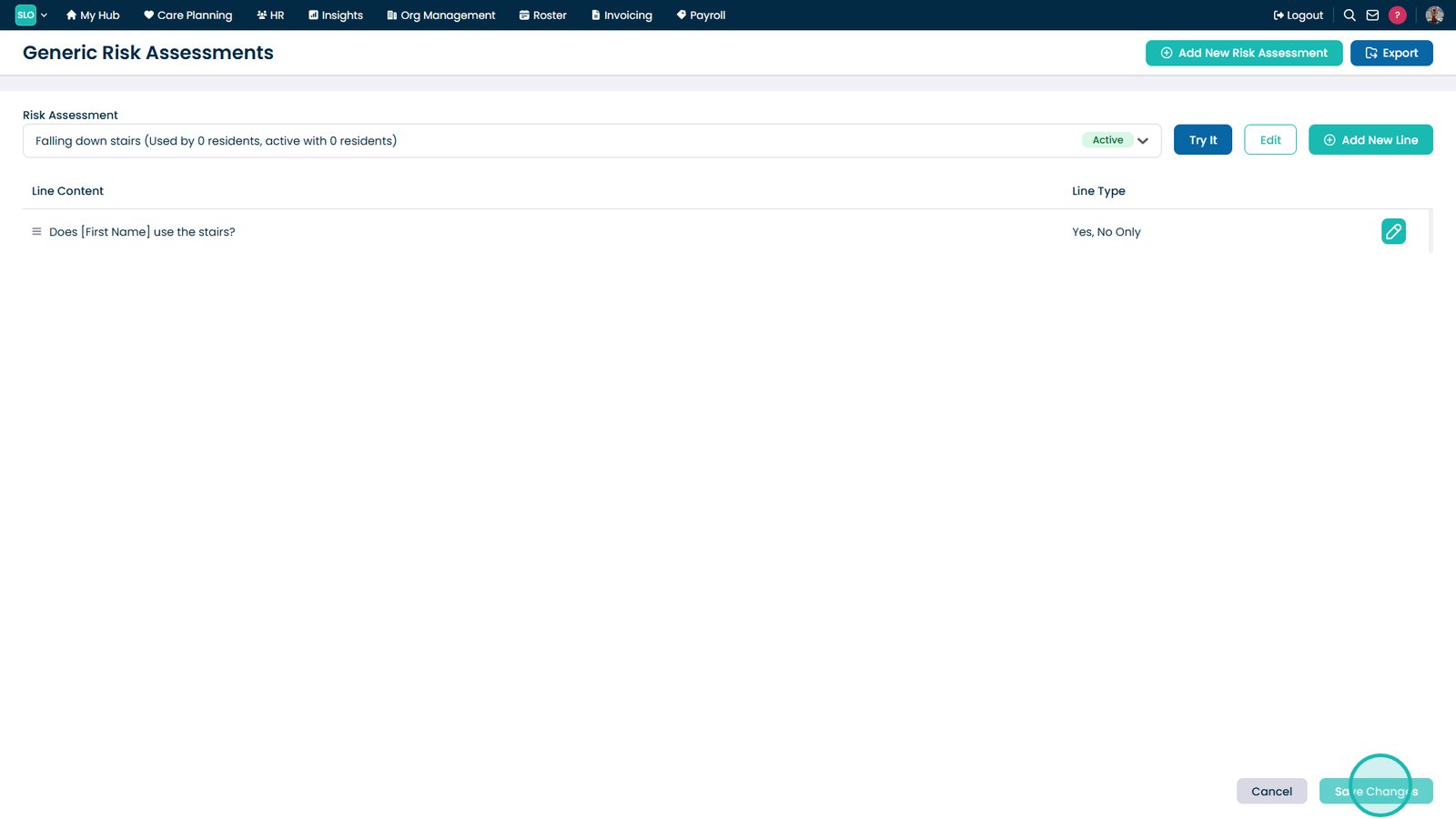
Select Save Changes.

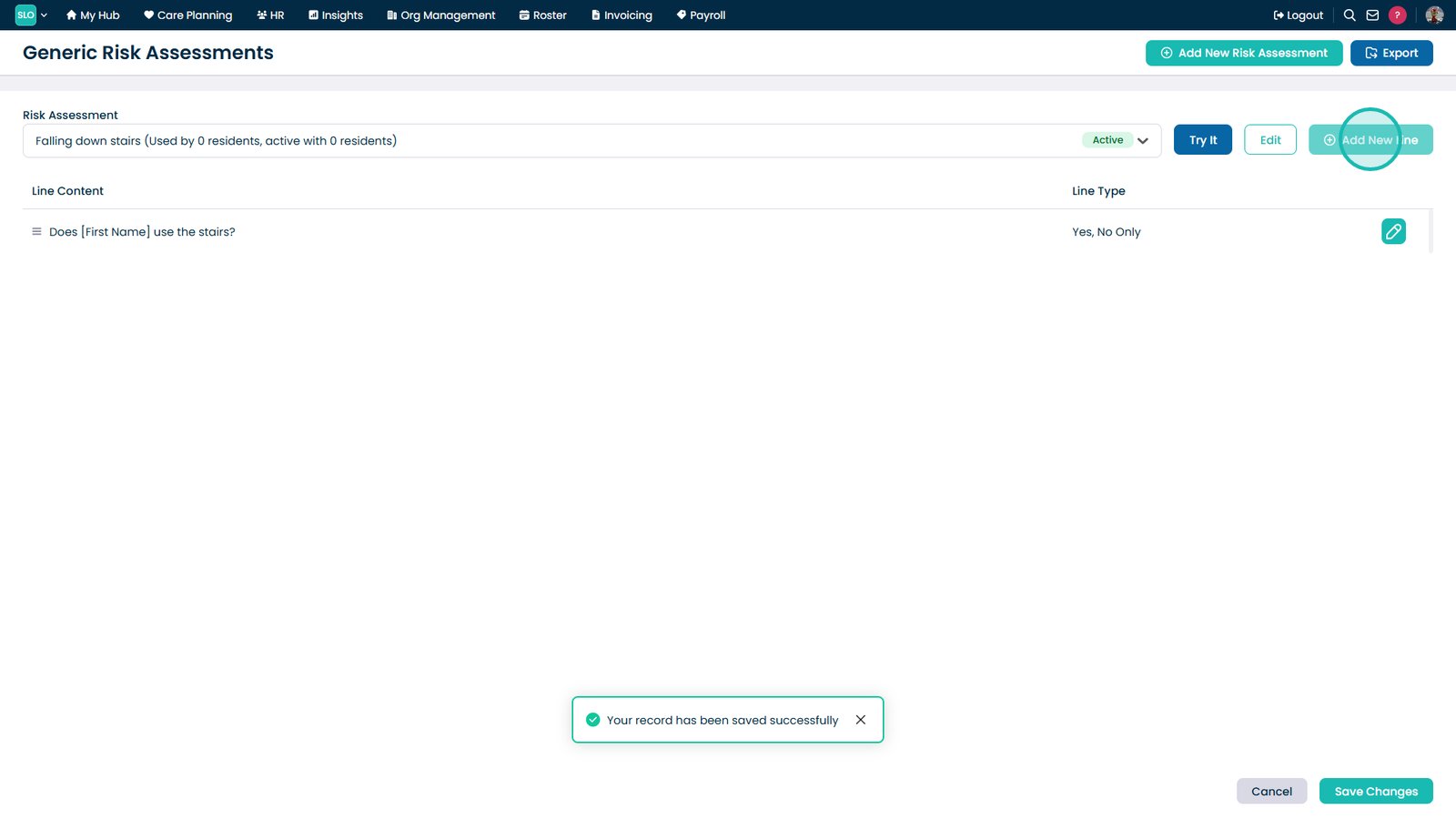
Add additional lines as required.

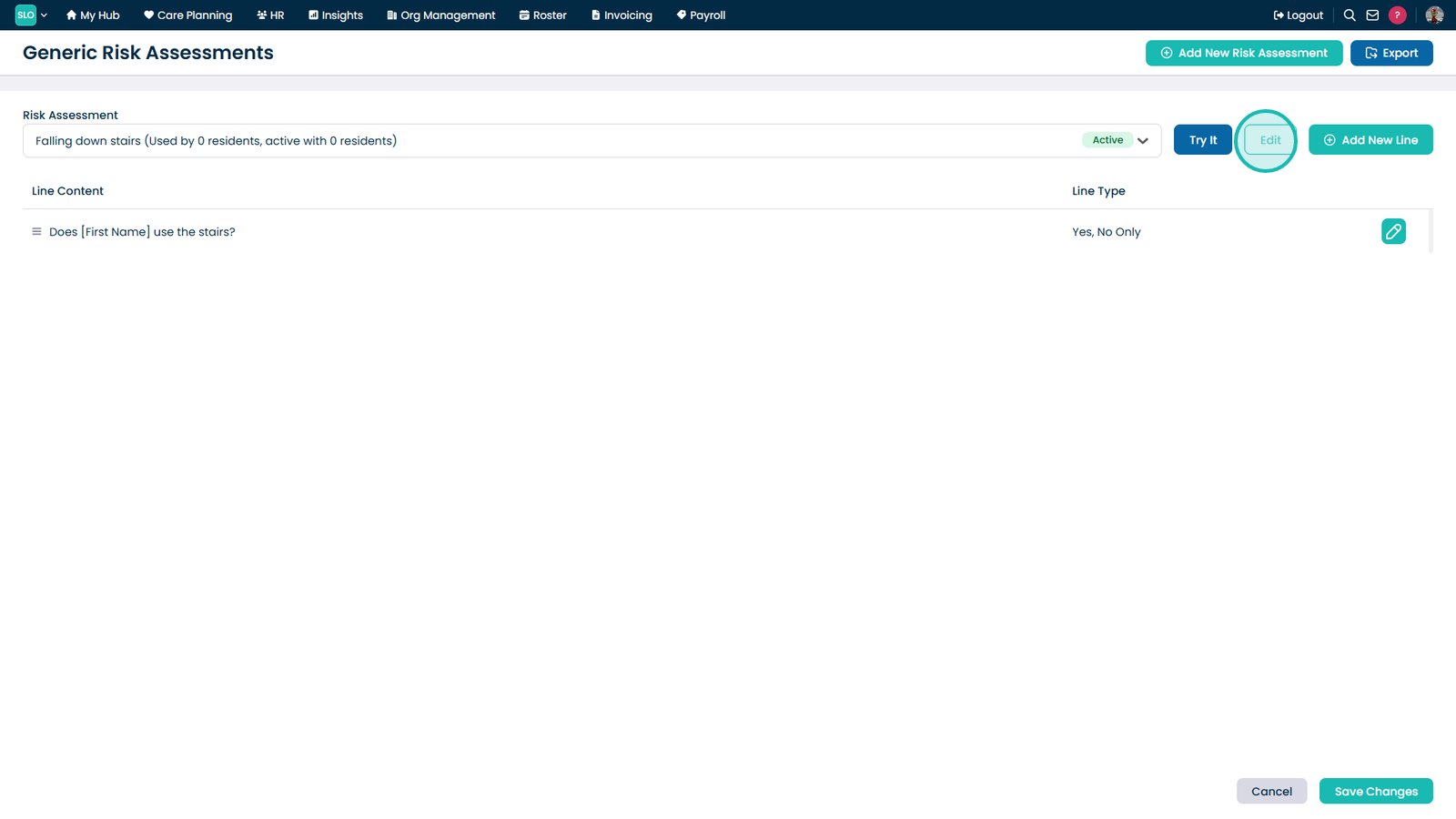
Select Edit to update the assessment.

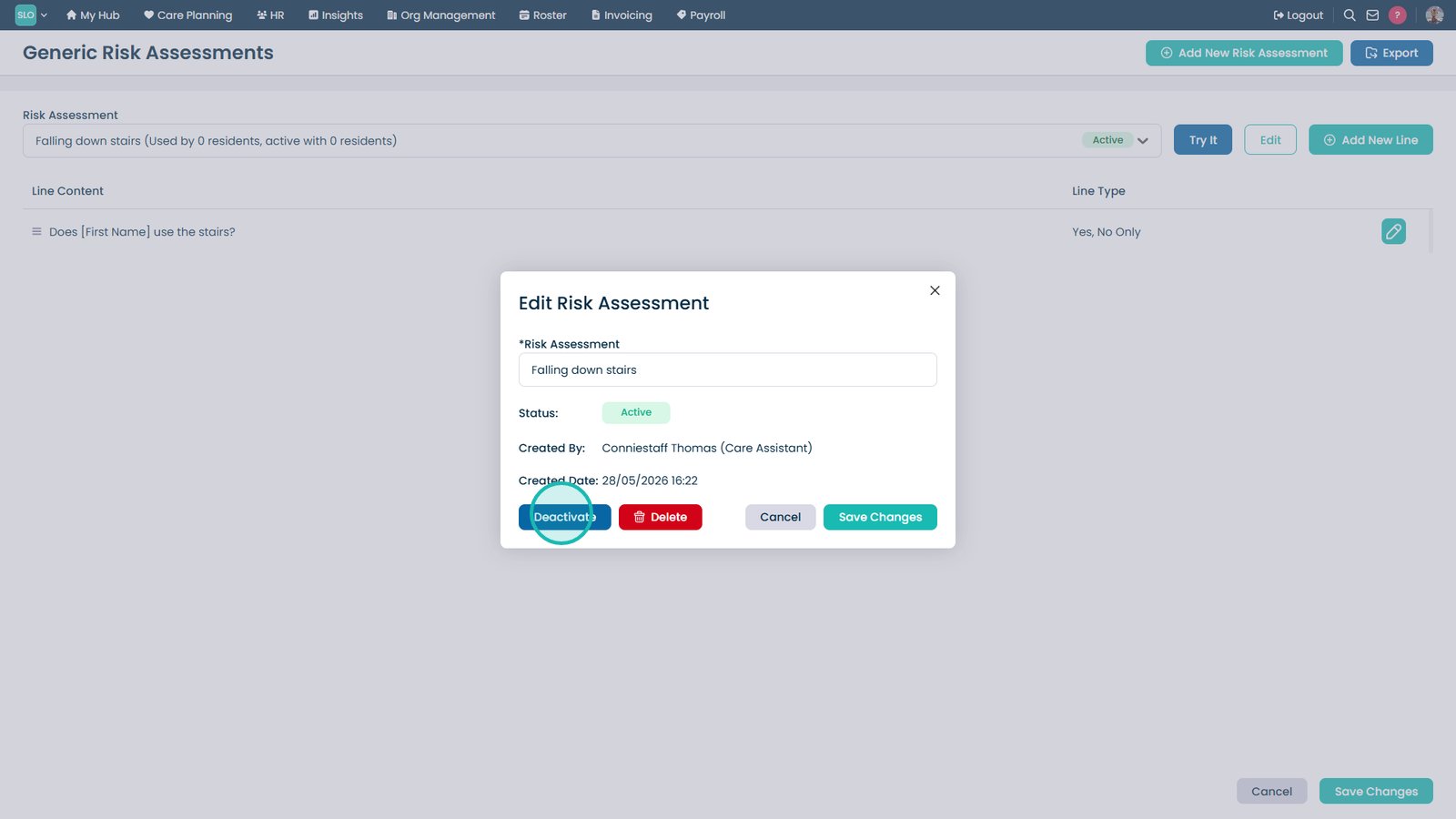
Deactivate the assessment if no longer required.

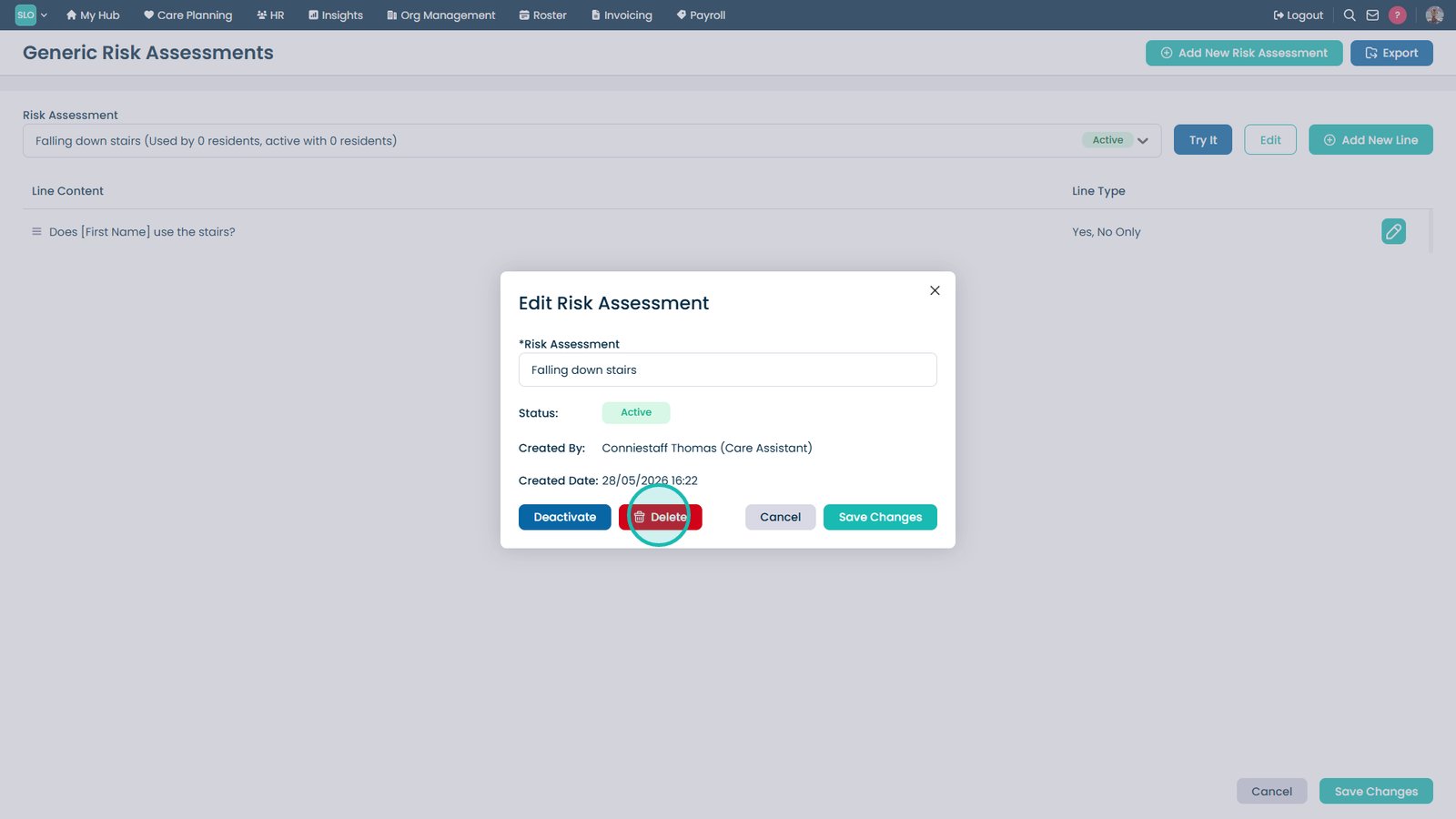
Delete the assessment if required.

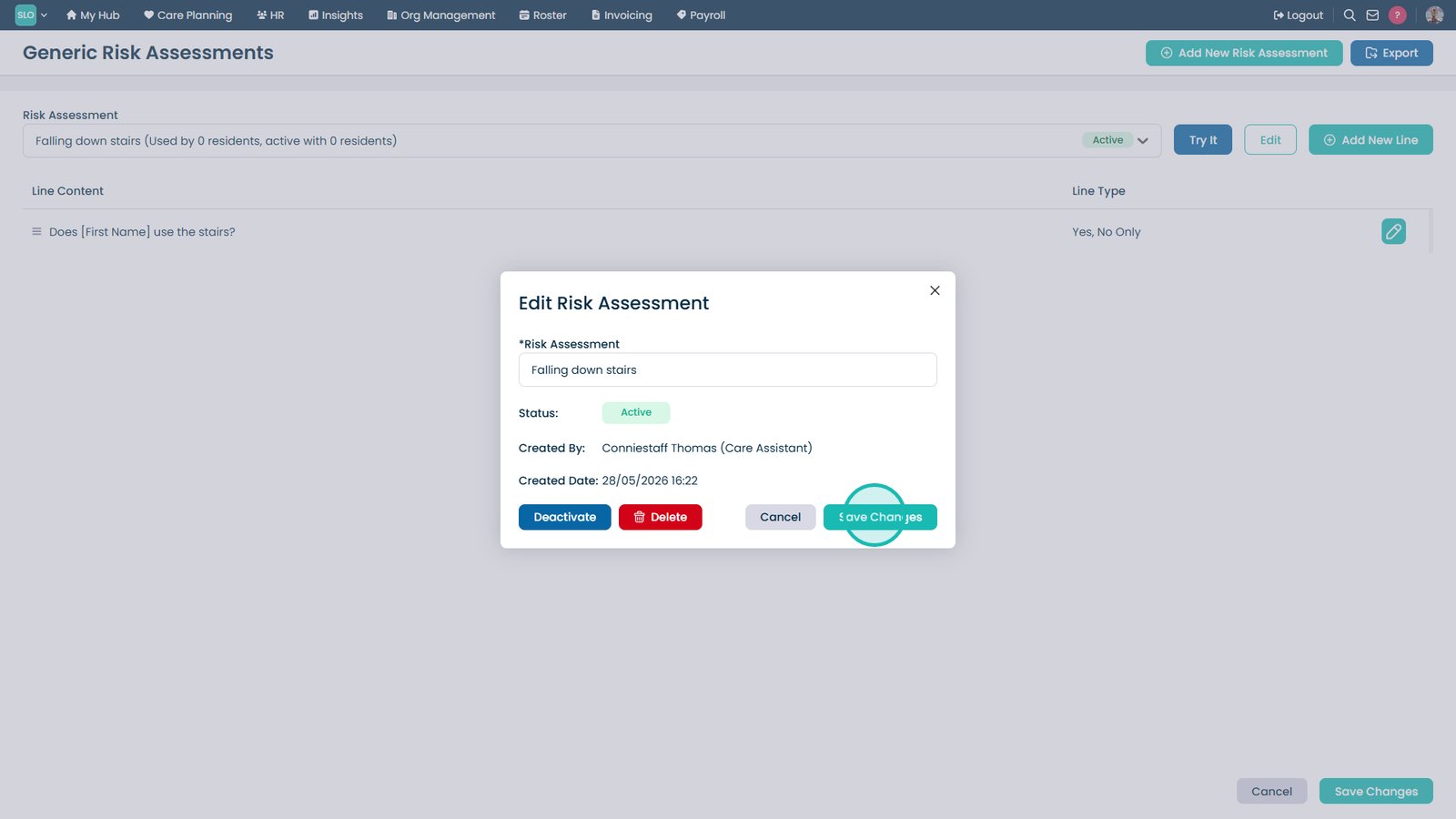
Save your changes.

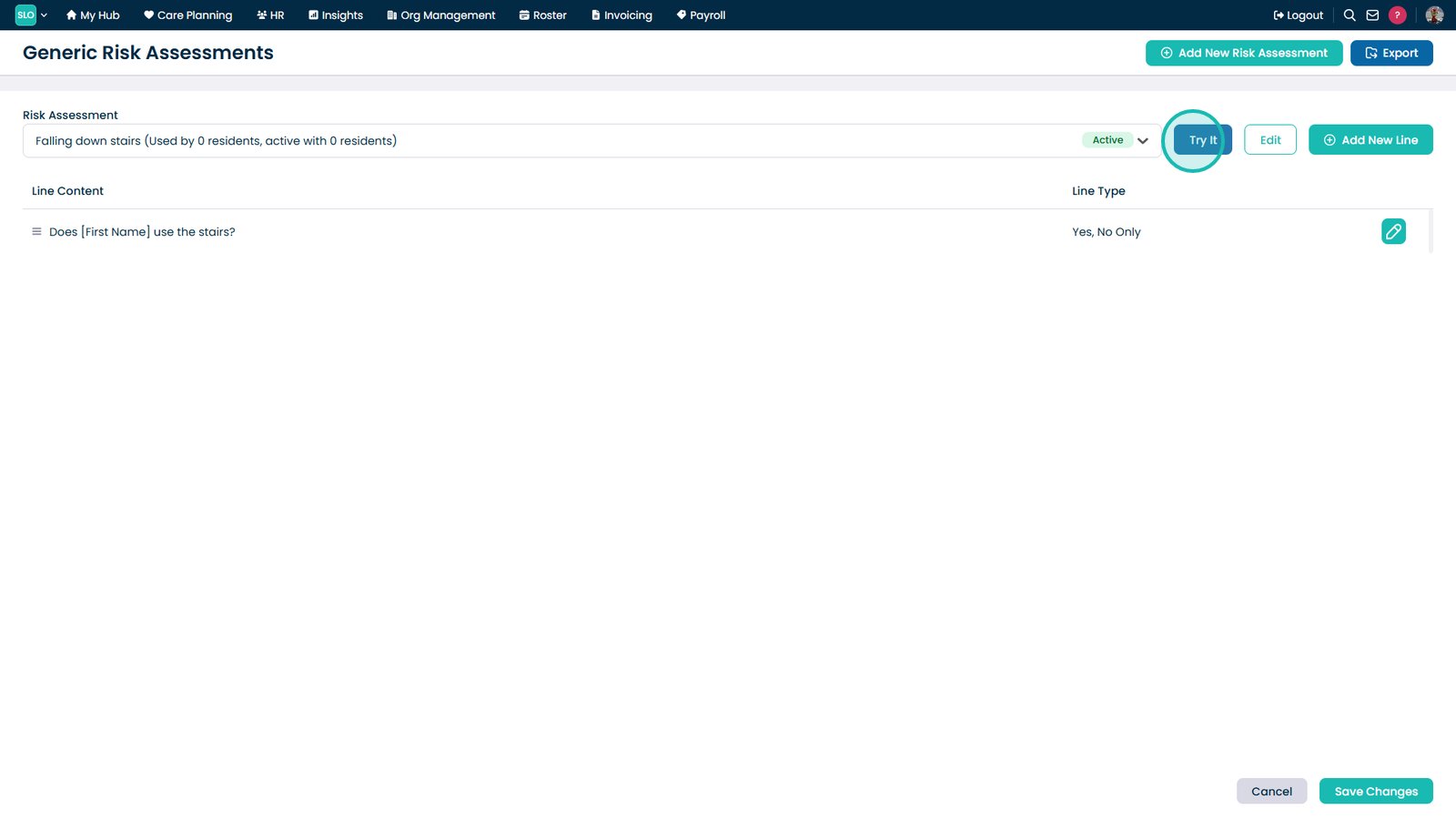
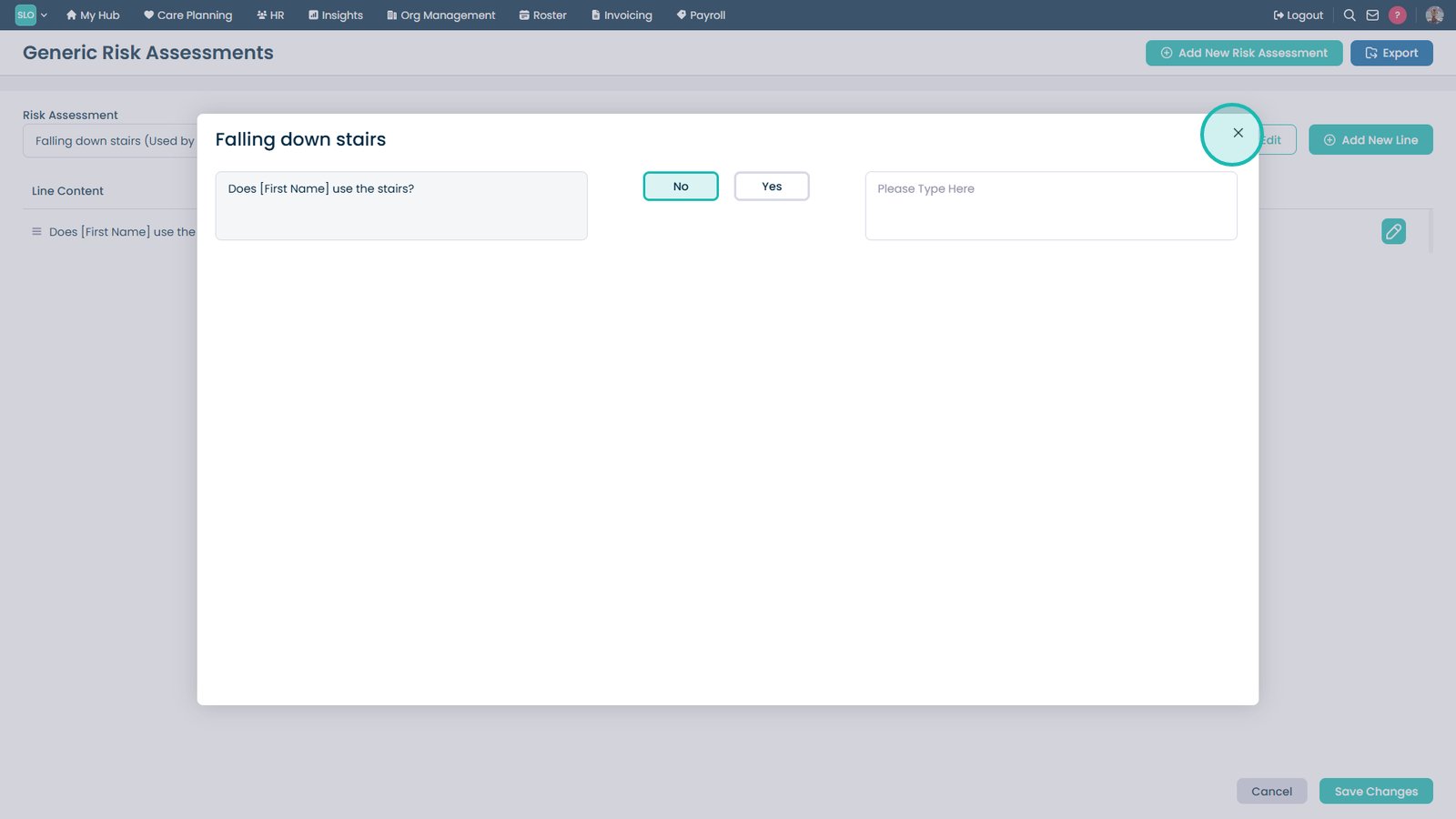
Select Try It to preview the assessment.

Close the preview window.

Select Save Changes to finish.

Top tip

Use placeholders such as First Name to personalise assessments automatically and reduce the need for manual editing when assigning them to residents.

Was this guide helpful?

Need more help?

Can't find what you're looking for? Our support team is here to help.

Contact Support

Or call us on

On this page