How to Create and Modify a Mental Capacity Template
This guide will walk you through creating and managing Mental Capacity Templates within Care Control Cloud.
Takes 5 minutes
For: Seniors & Managers
Updated: 1st June 2026
Introduction
This guide explains how to create and manage Mental Capacity Templates within Care Control Cloud.

In this guide you'll learn how to:
- Create a new decision area
- Build note templates for assessments
- Use placeholders for personalised content
- Test and save templates
- Edit and maintain existing templates
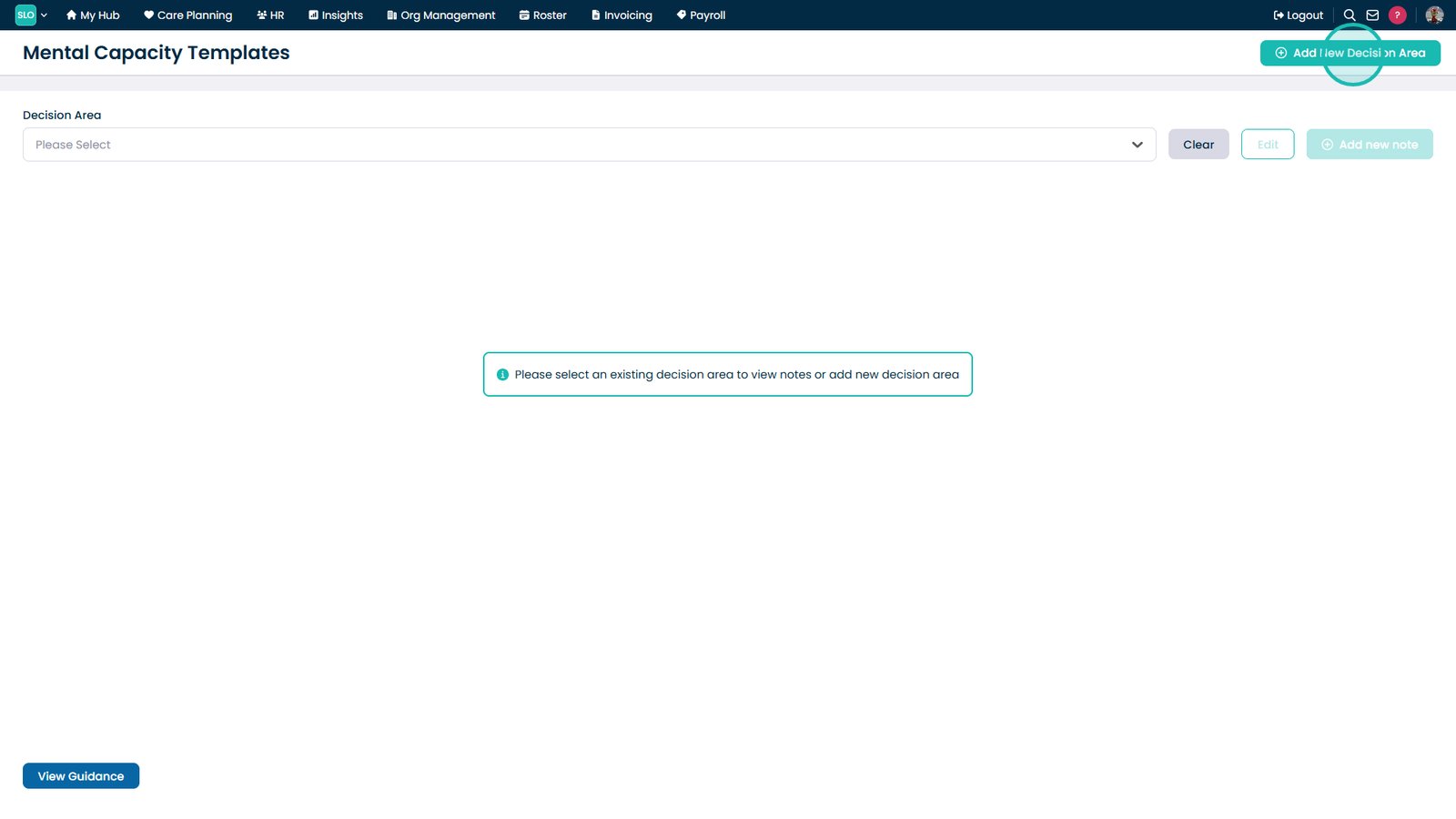
Open Mental Capacity Templates from the Admin area.

Select Add New Decision Area.

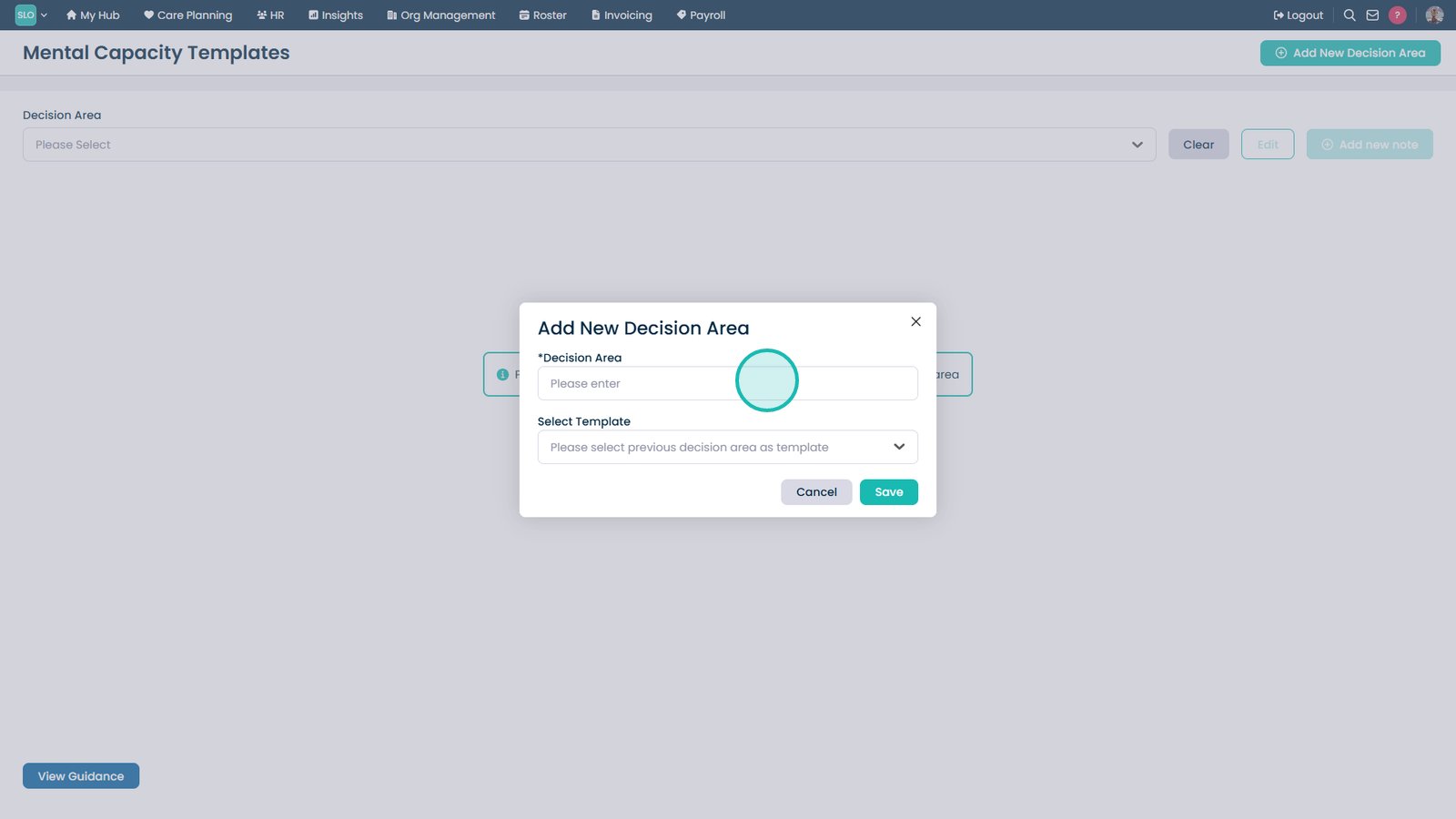
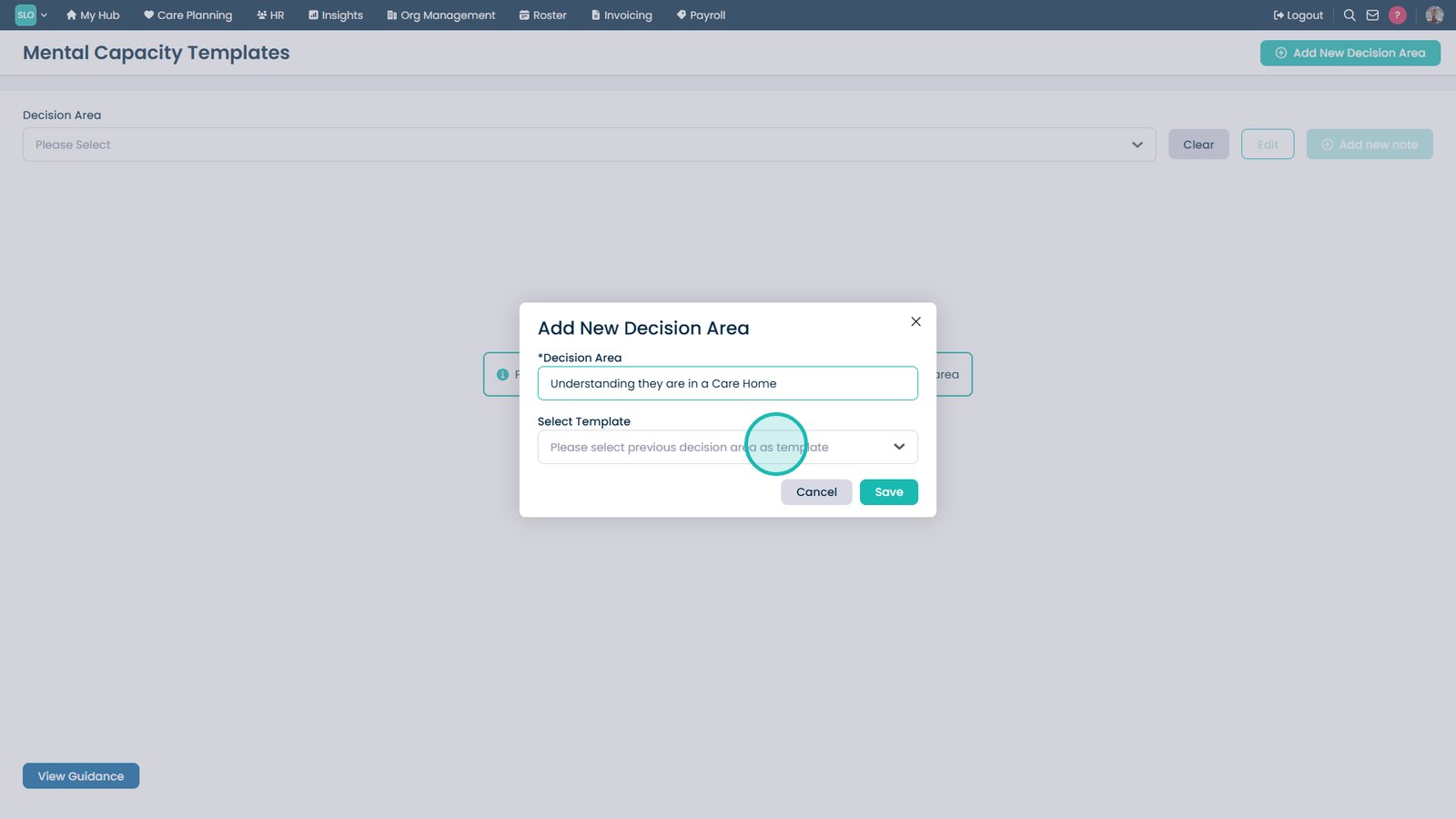
Enter a decision area name.

Select a template if required.

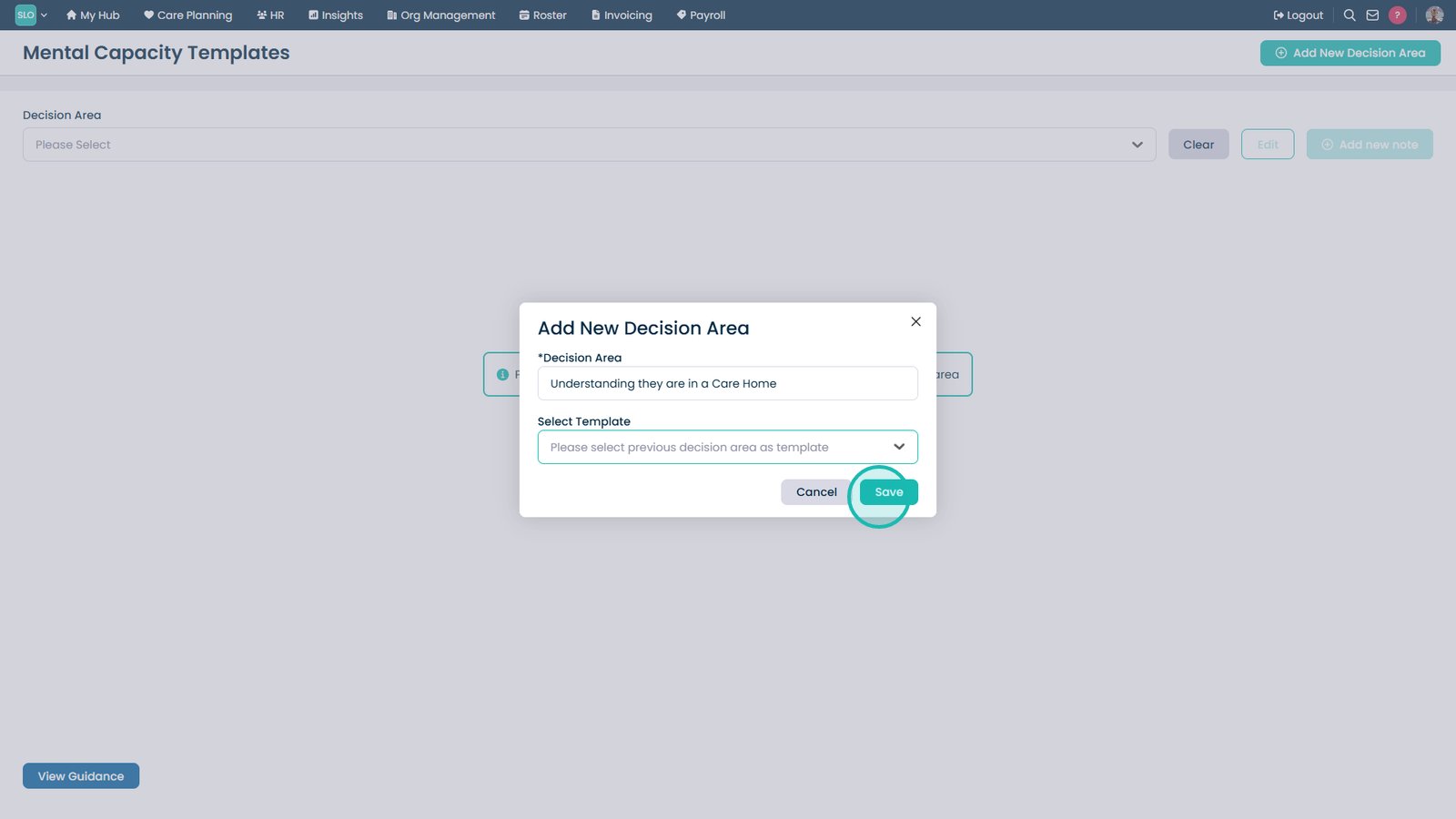
Select Save.

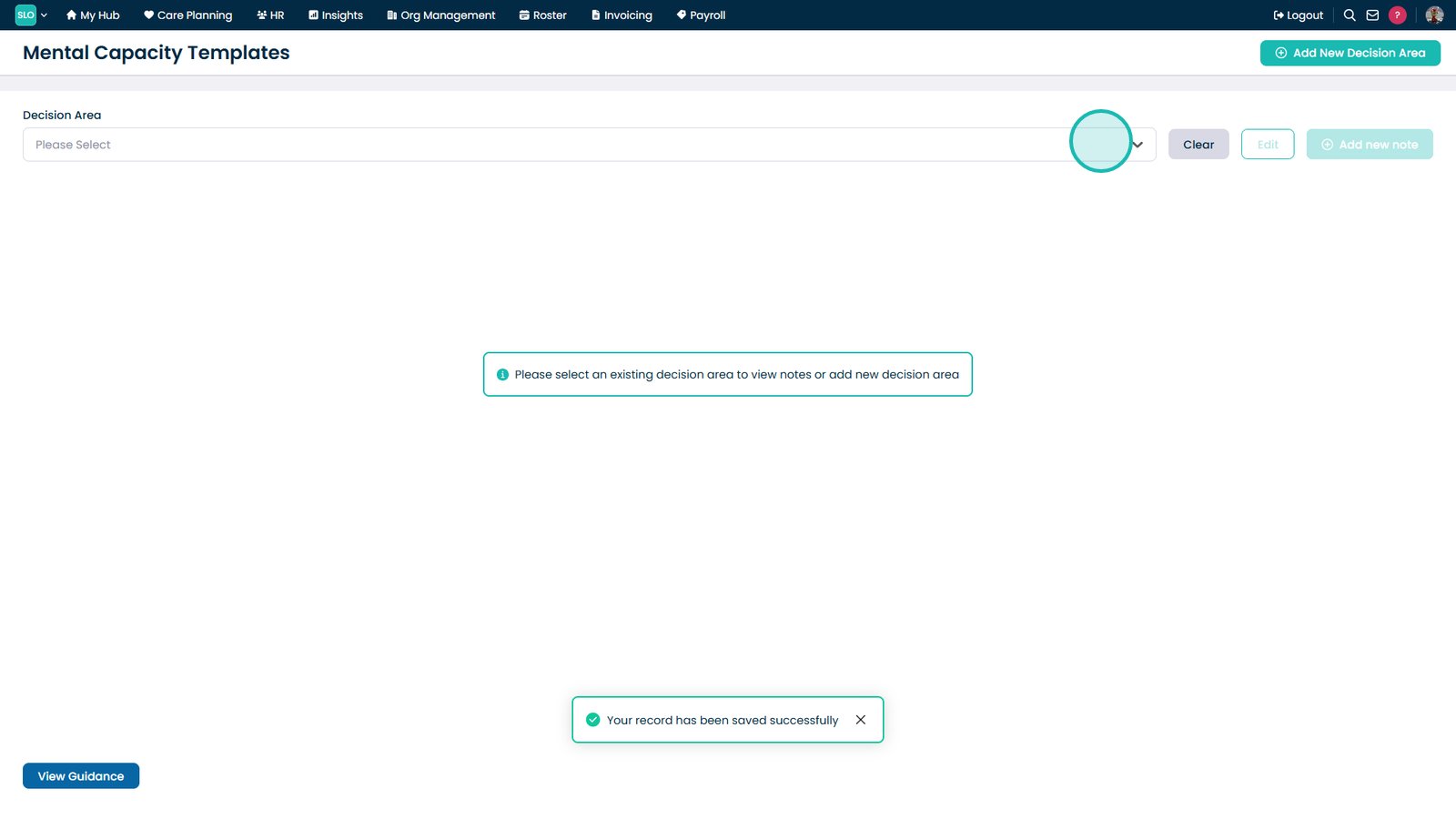
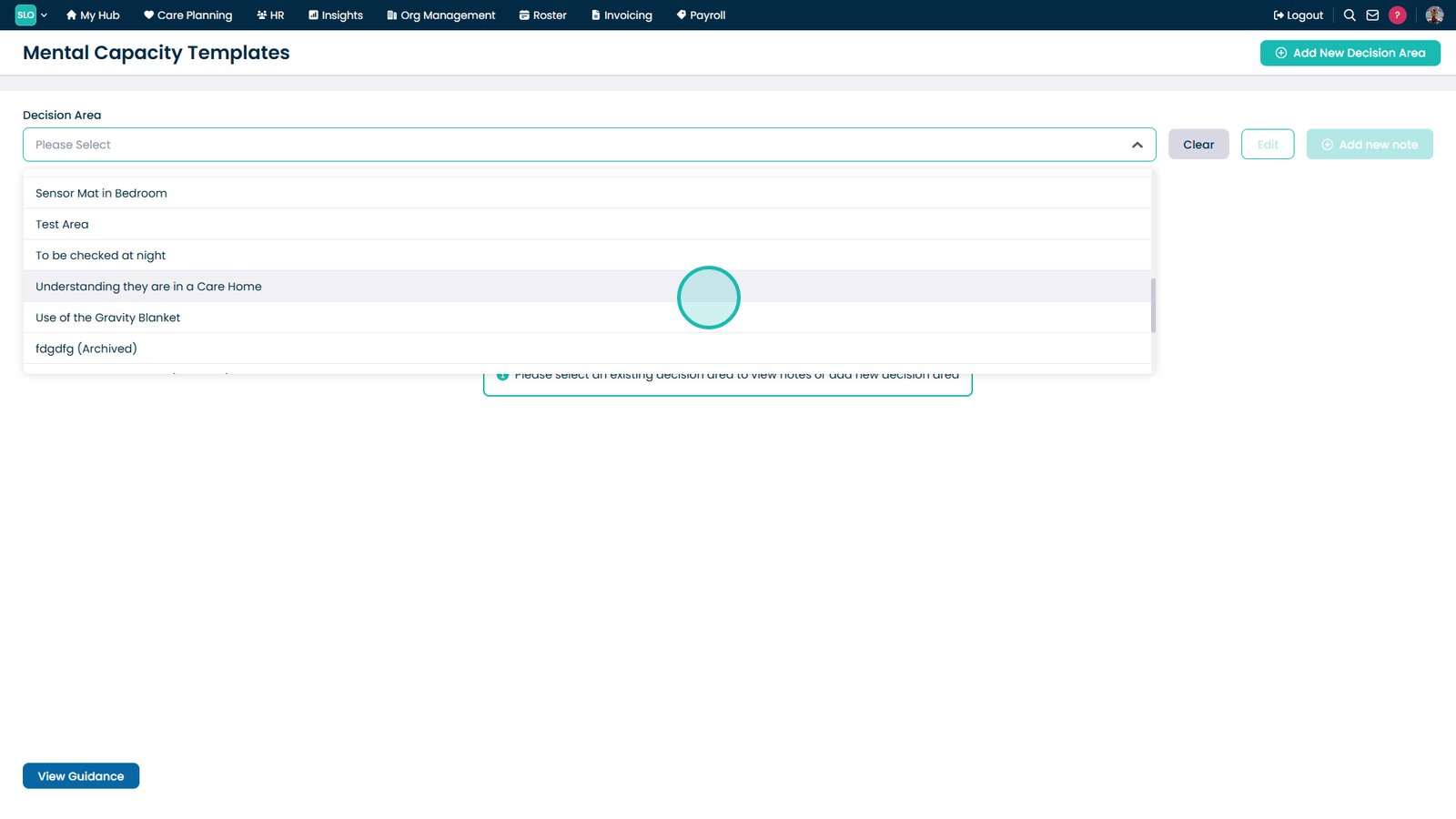
Select a decision area.

Choose the area you want to edit.

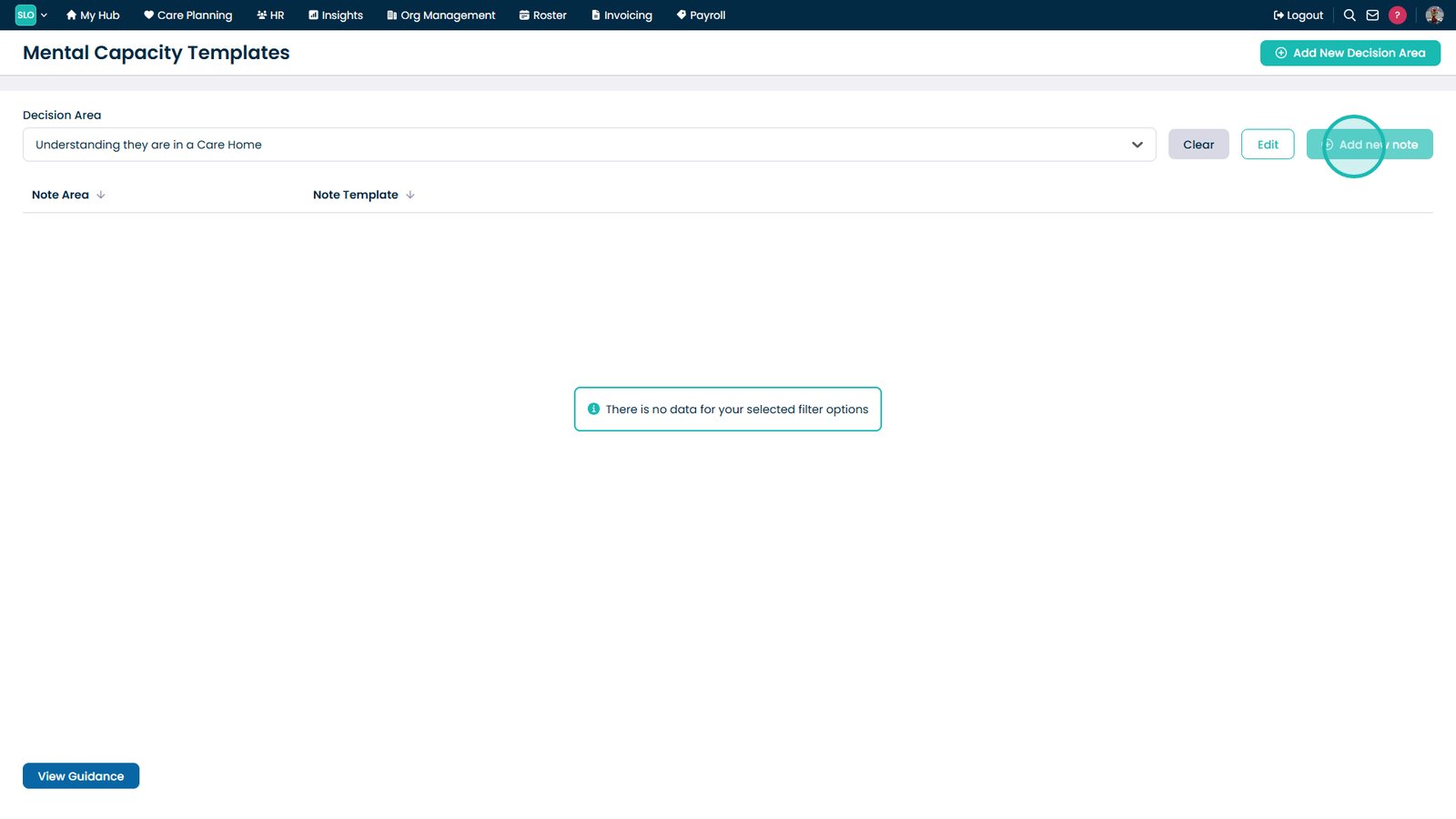
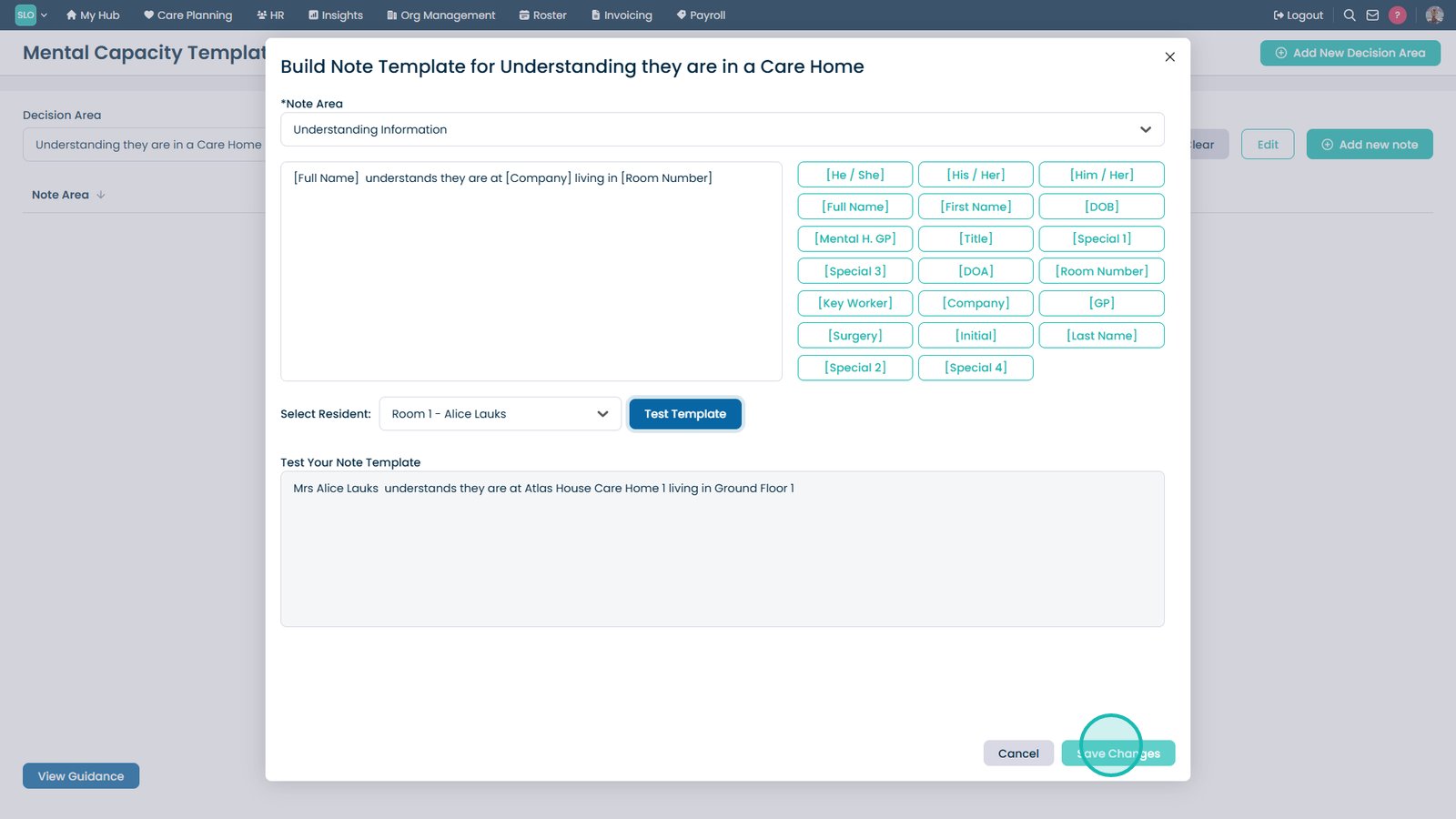
Select Add New Note.

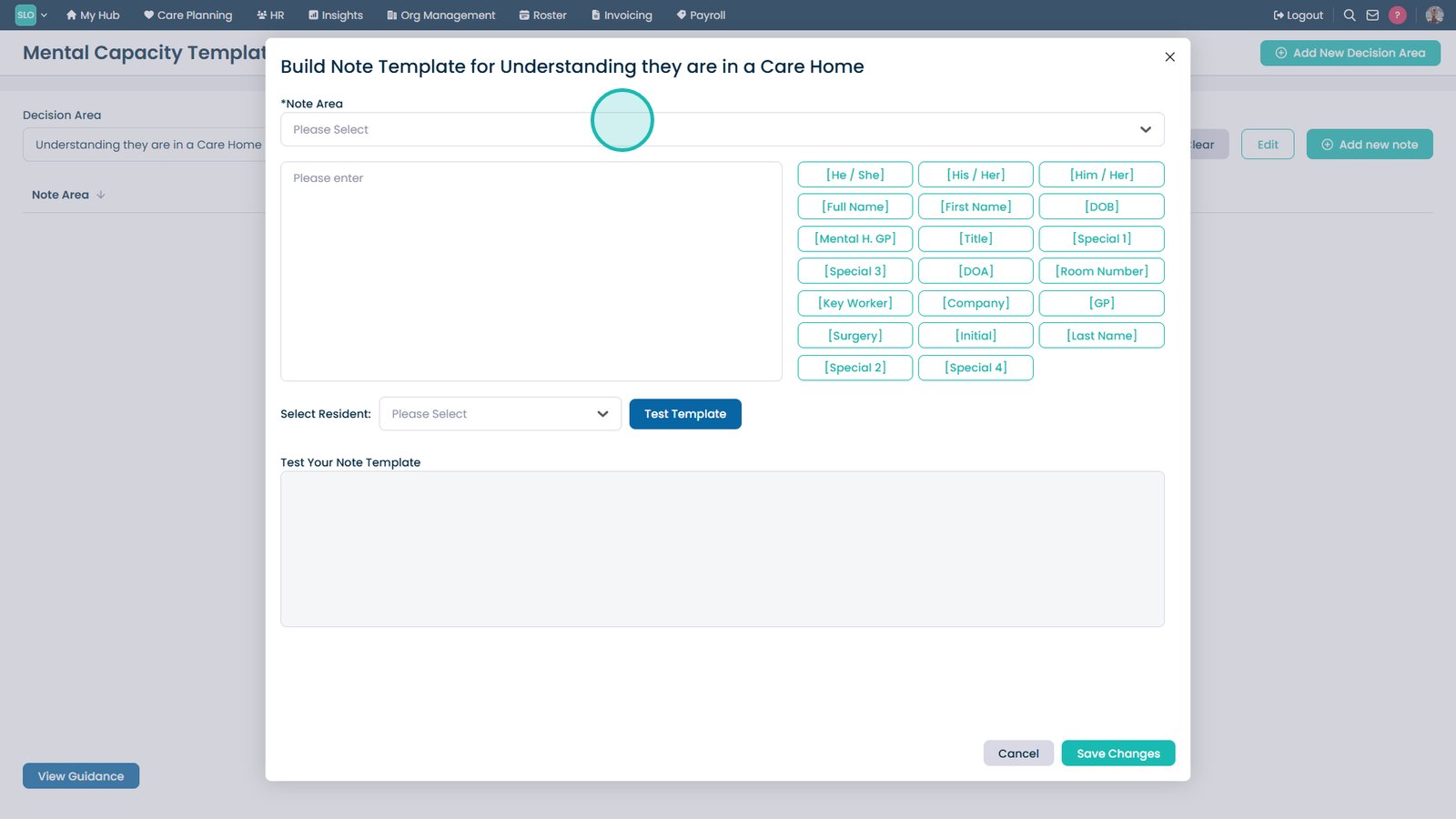
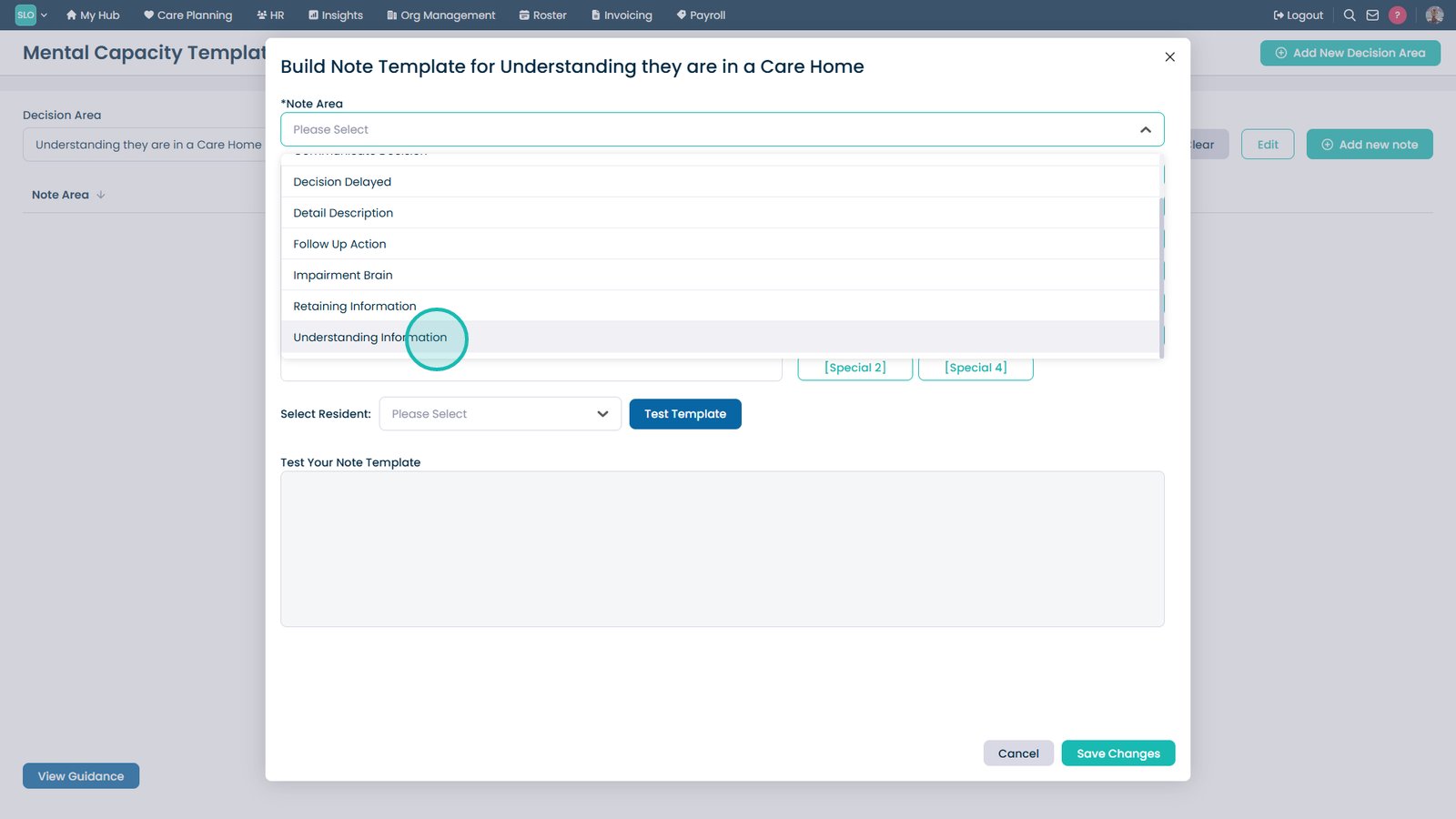
Select a note area.

Choose where the note will be used.

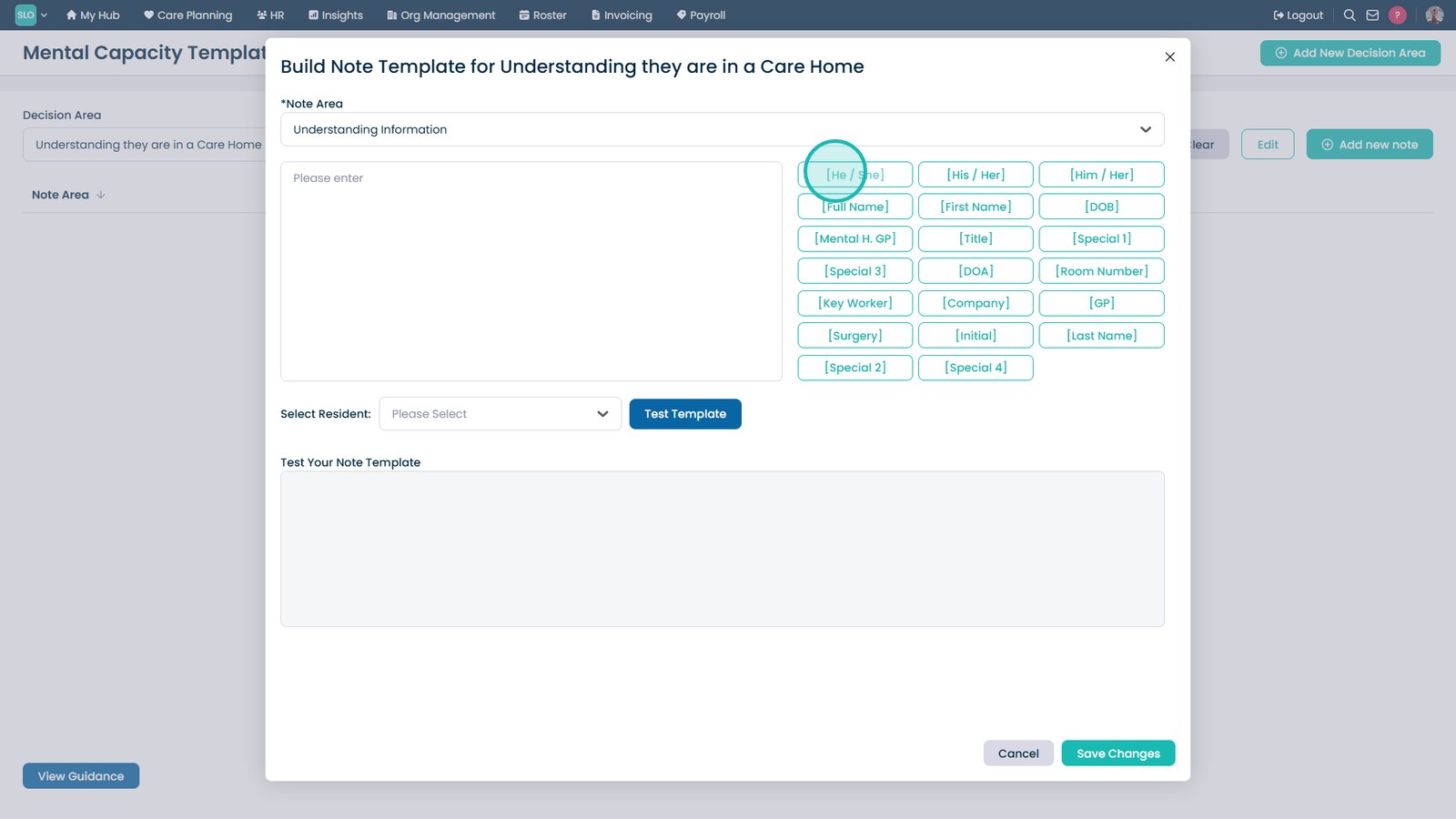
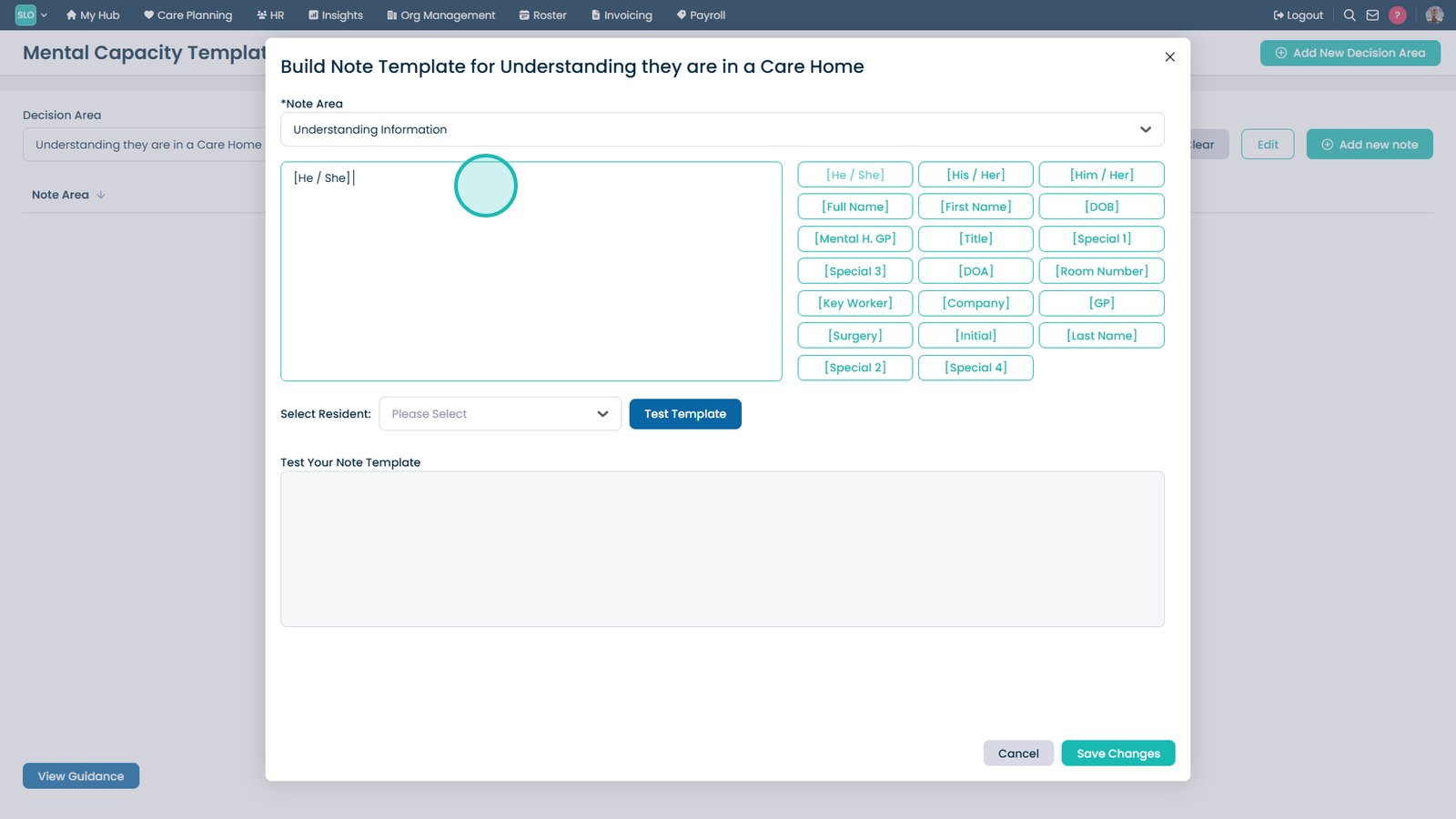
Add placeholders to personalise the note.

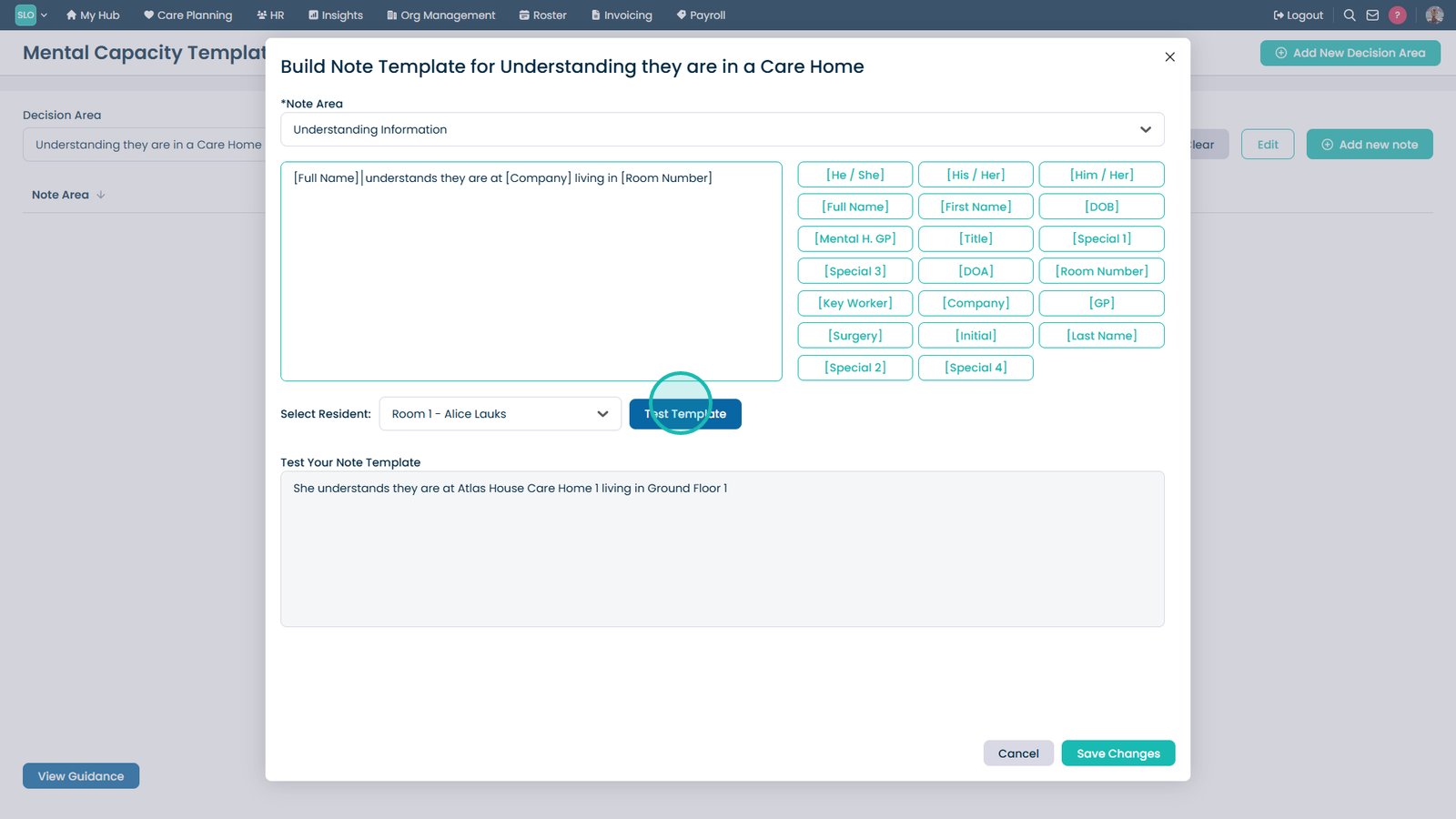
Enter the note template text.

Test the template with a resident.

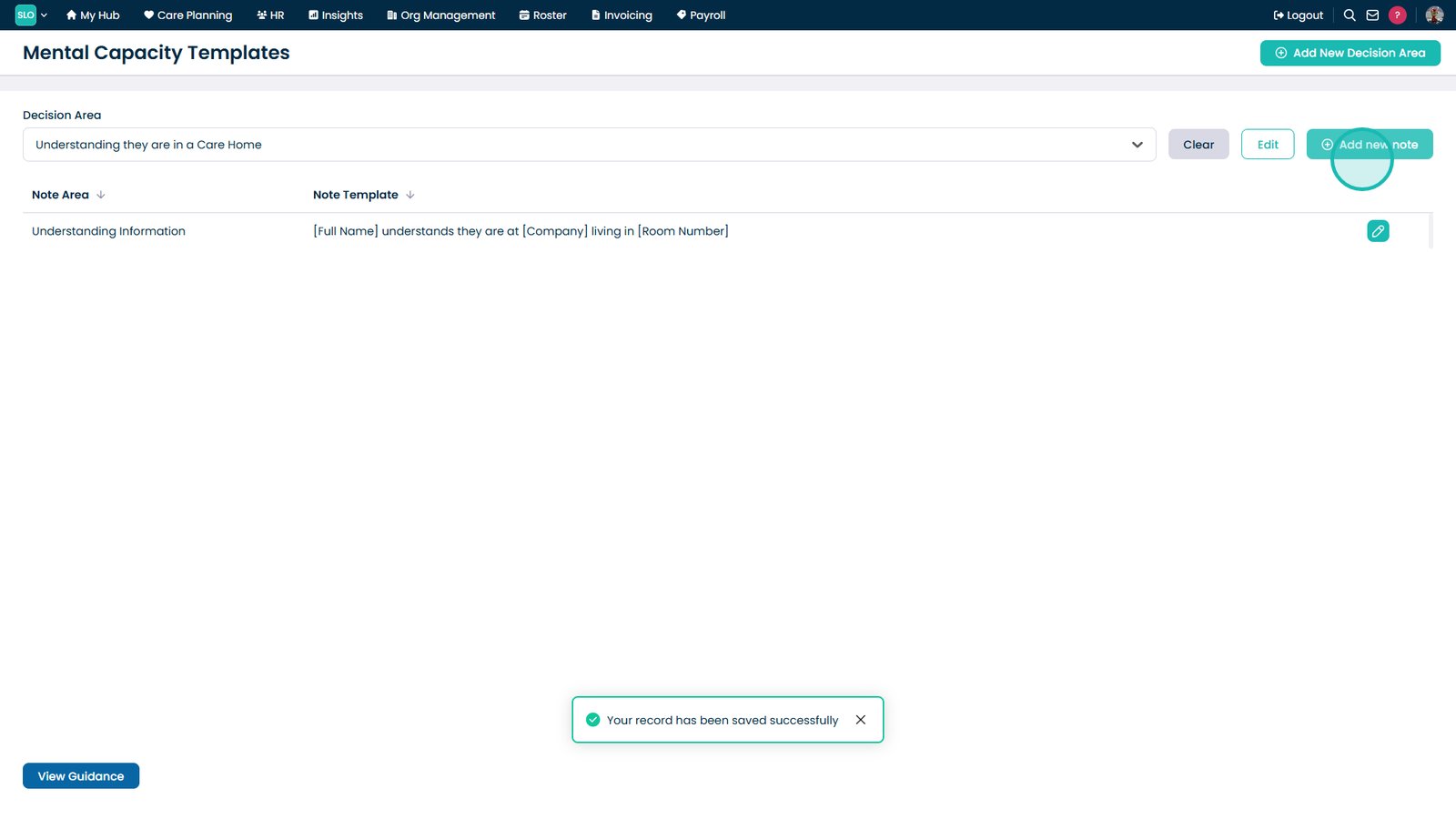
Select Save.

Add another note template if required.

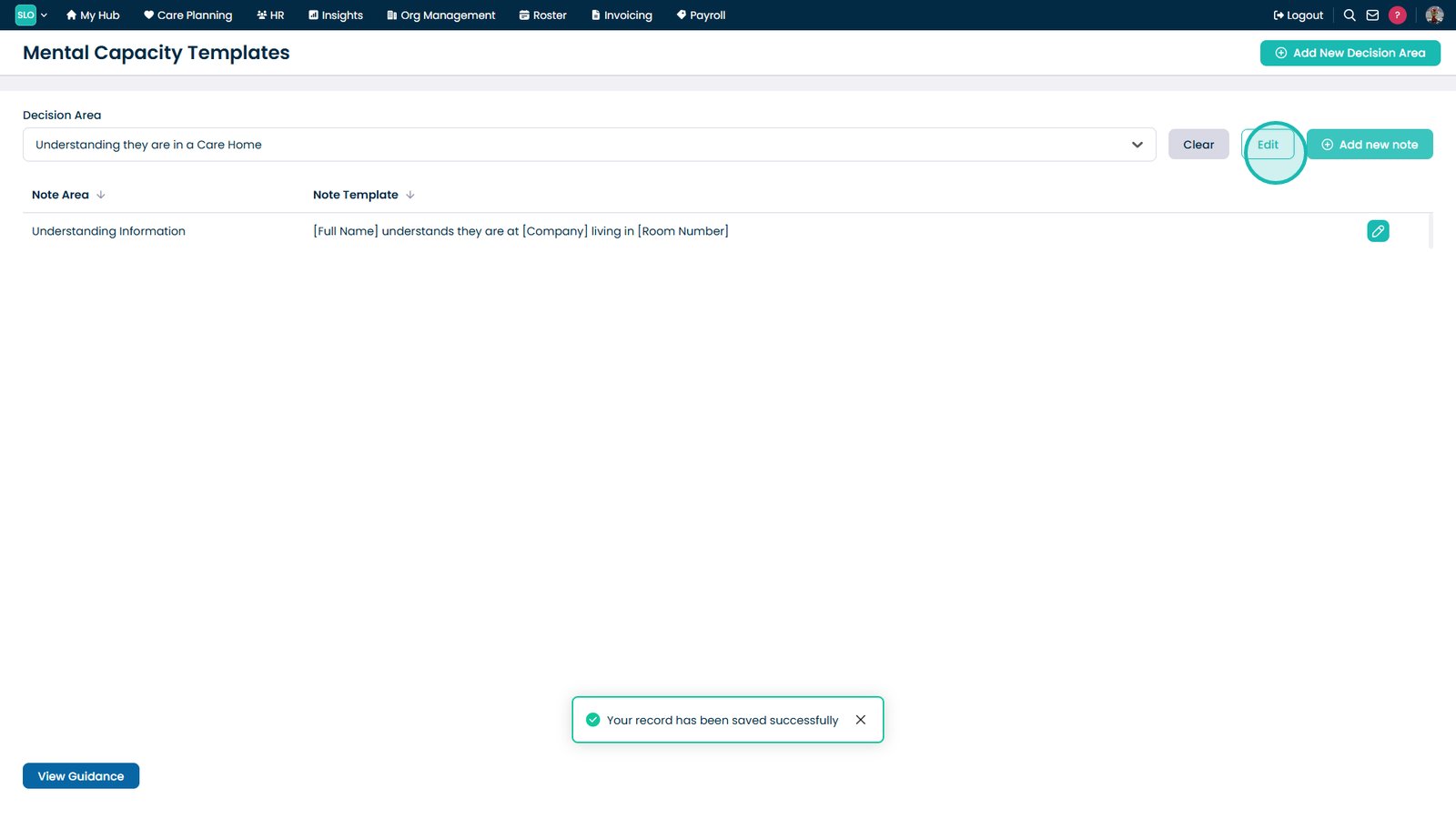
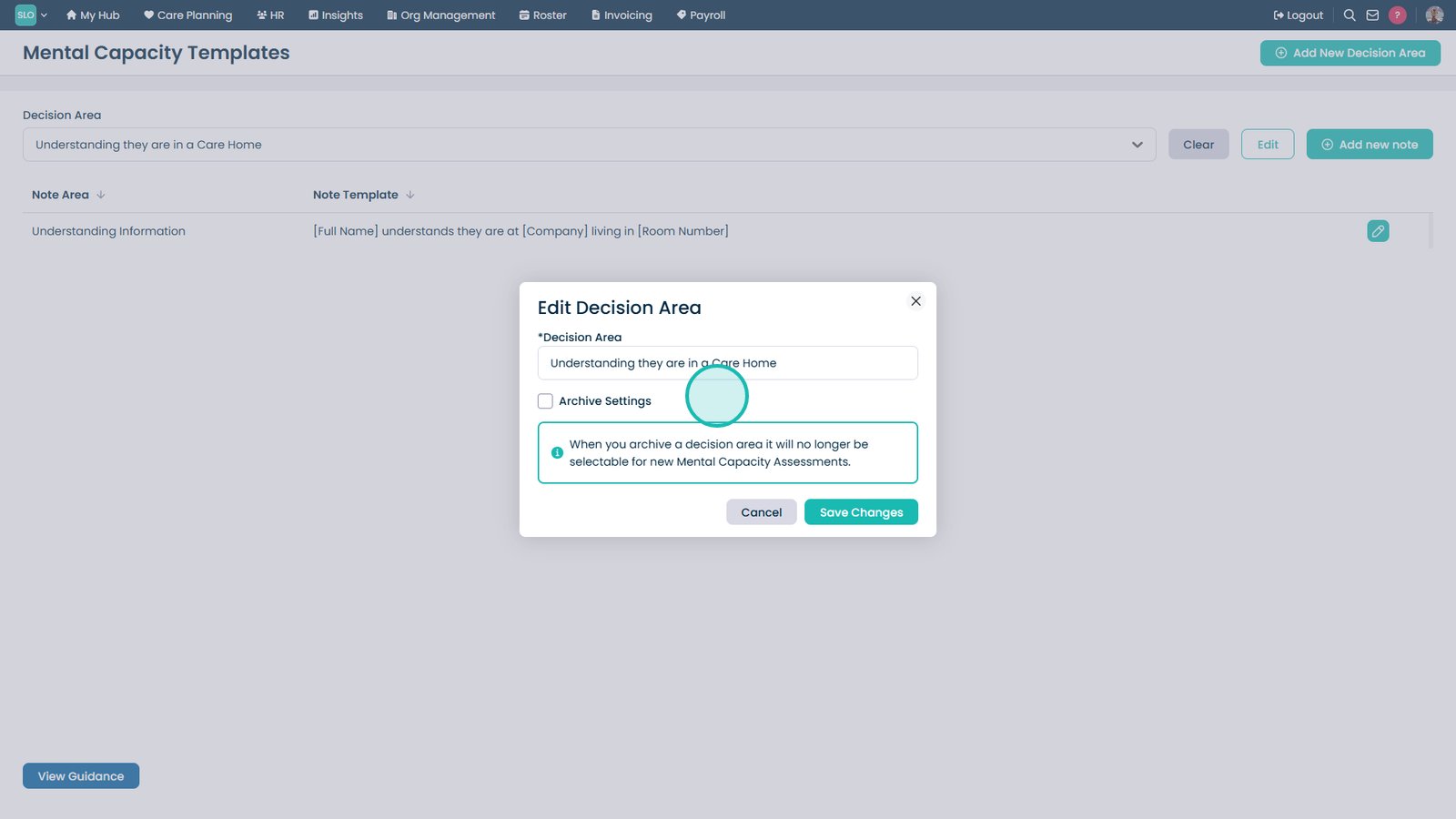
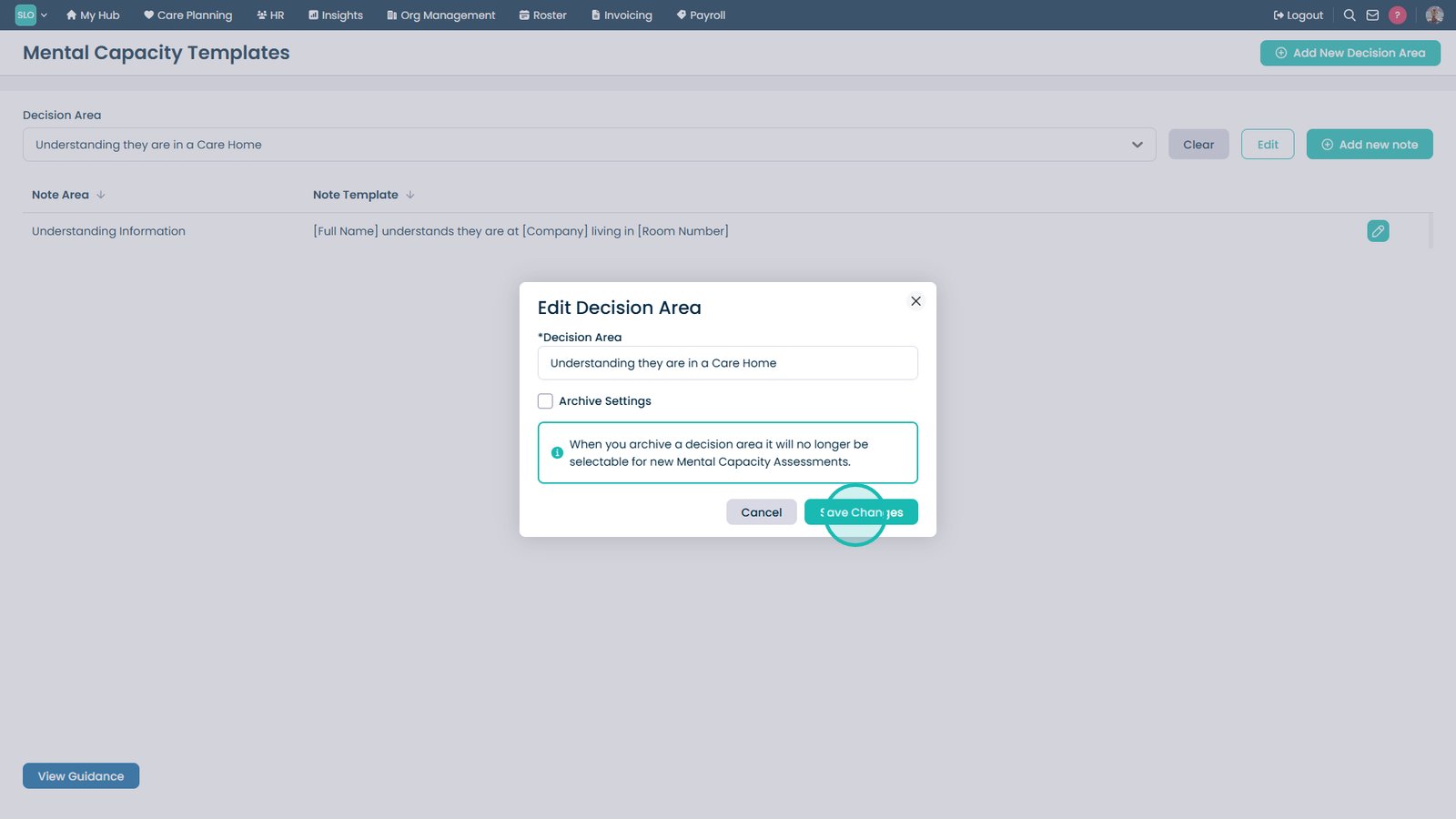
Select Edit to update the decision area.

Update the name or archive the area.

Select Save Changes.

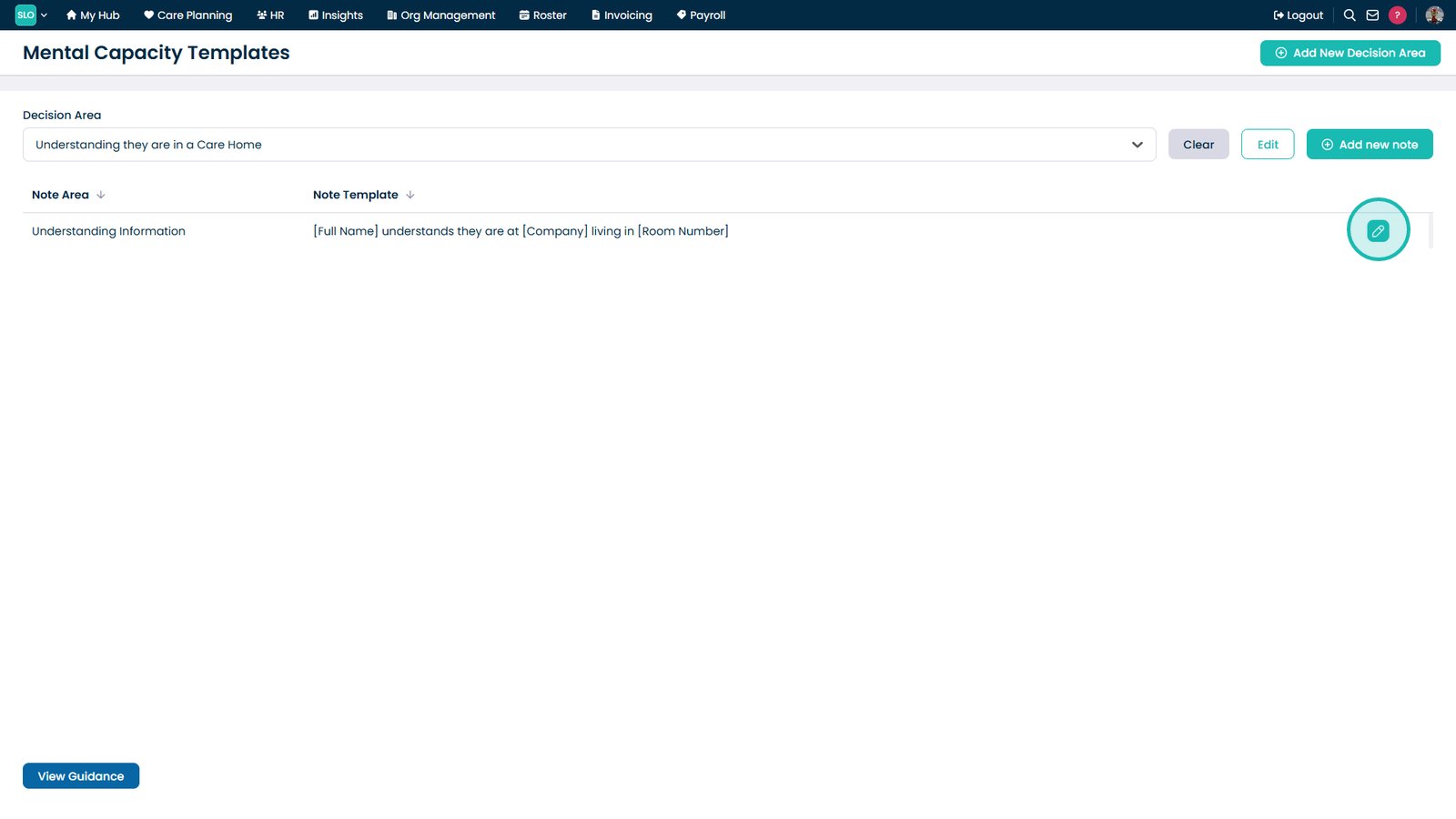
Select the Edit icon to update a note template.

Top tip
Use placeholders within your templates wherever possible to automatically insert resident information and reduce repetitive typing during assessments.
Need more help?
Can't find what you're looking for? Our support team is here to help.
Contact SupportOr call us on