🚀 UPCOMING WEBINAR: See Payroll in Care Control Cloud in action on Thursday 18th June and discover how to manage payroll more efficiently from one connected system. Click here to find out more!

View Categories

How to Create and Modify a Pay Band

This guide explains how to create and manage pay bands within the Payroll app in Care Control Cloud. Pay bands allow you to define how staff are paid across different roles, including base rates, holiday rates, and salary options. You can also configure advanced pay rules such as incremental increases, shift-based indicators, day-specific rates, date-specific overrides (e.g. bank holidays), and break payment settings.

The Pay Band Builder provides a flexible way to structure pay, ensuring accuracy and consistency across your organisation. It also allows you to apply different pay conditions depending on time, role, or specific working scenarios, helping you reflect real-world payroll requirements.

By following this guide, you will learn how to:

  • Create new pay bands for specific roles
  • Define base, holiday, and salary rates
  • Apply incremental increases using percentages or fixed amounts
  • Configure shift indicators such as overtime or enhancements
  • Set different pay rates by day or specific dates
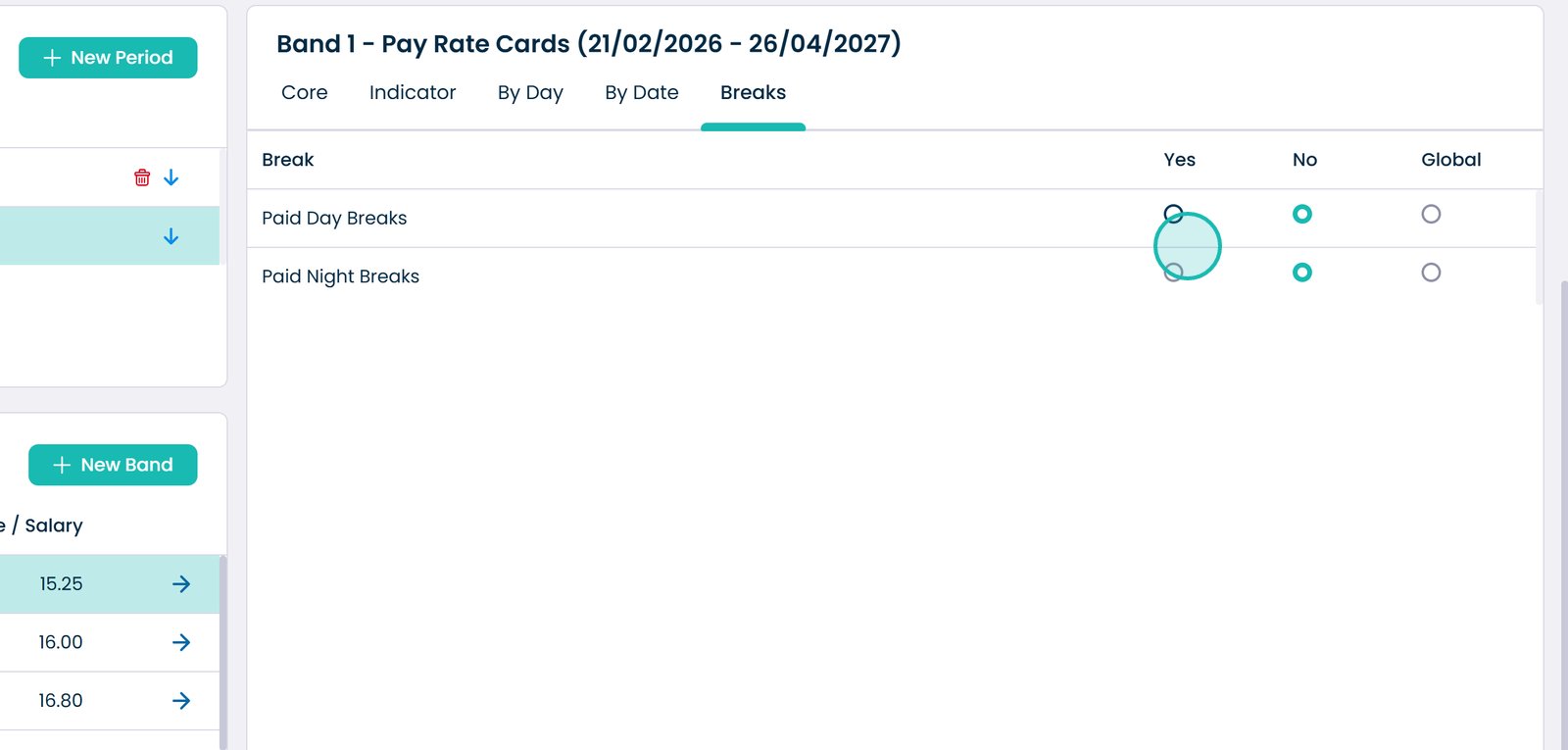
  • Manage how breaks are paid across shifts

This process ensures that payroll calculations are automated, consistent, and aligned with your organisation’s pay structure.

Interactive Guide

Text based guide

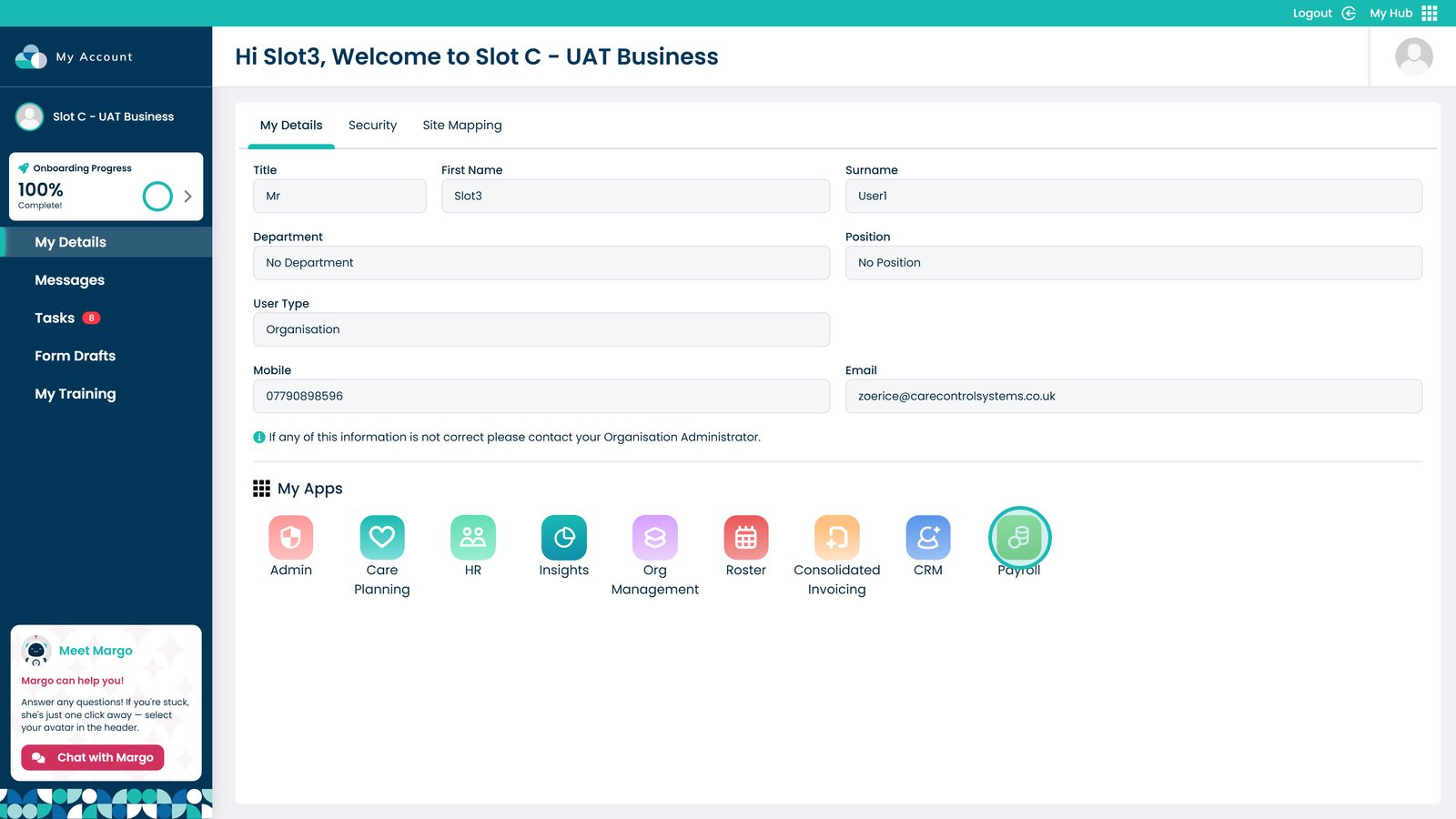
Enter the Payroll App

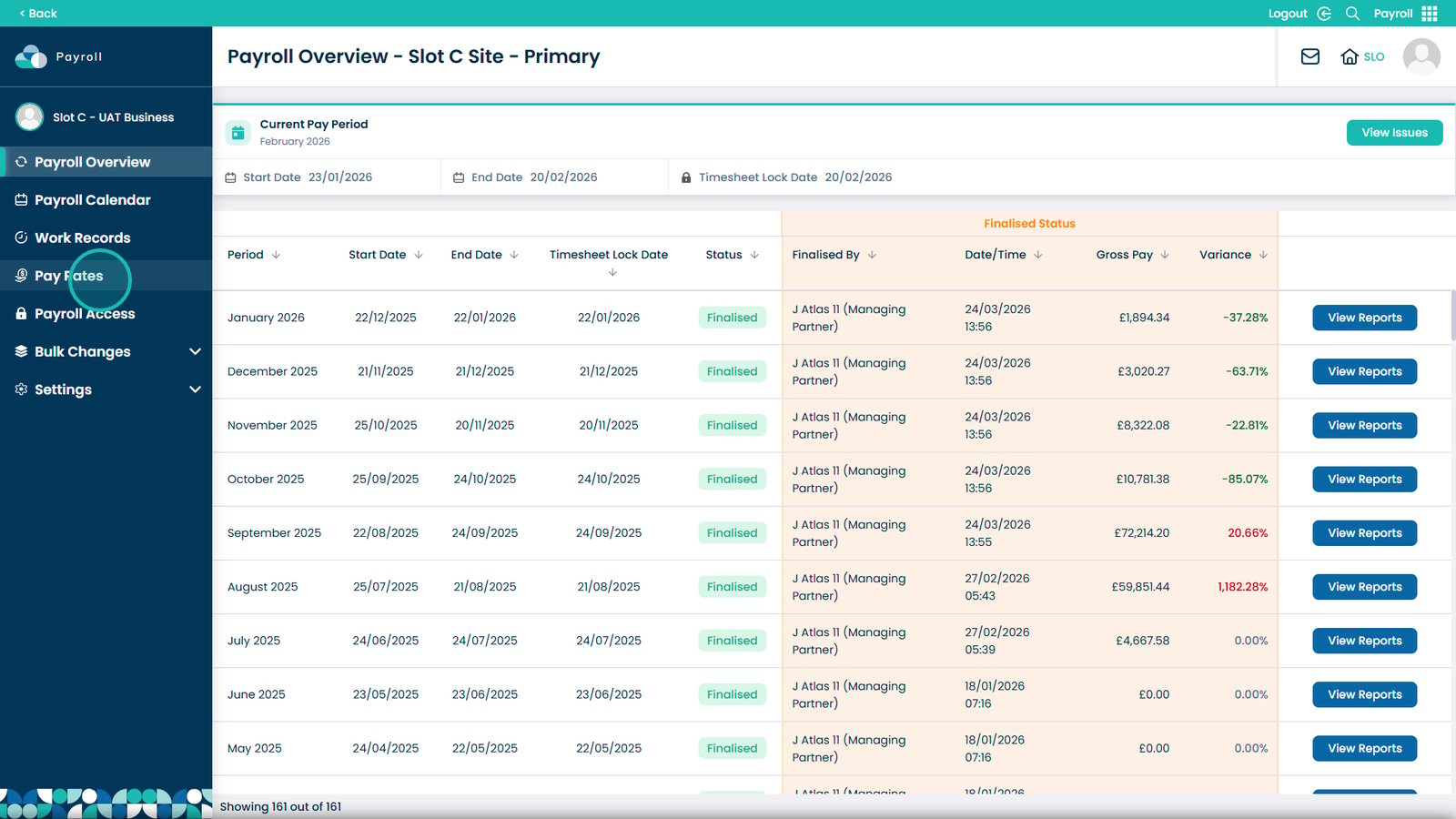
Open Pay Rate from the left-hand menu
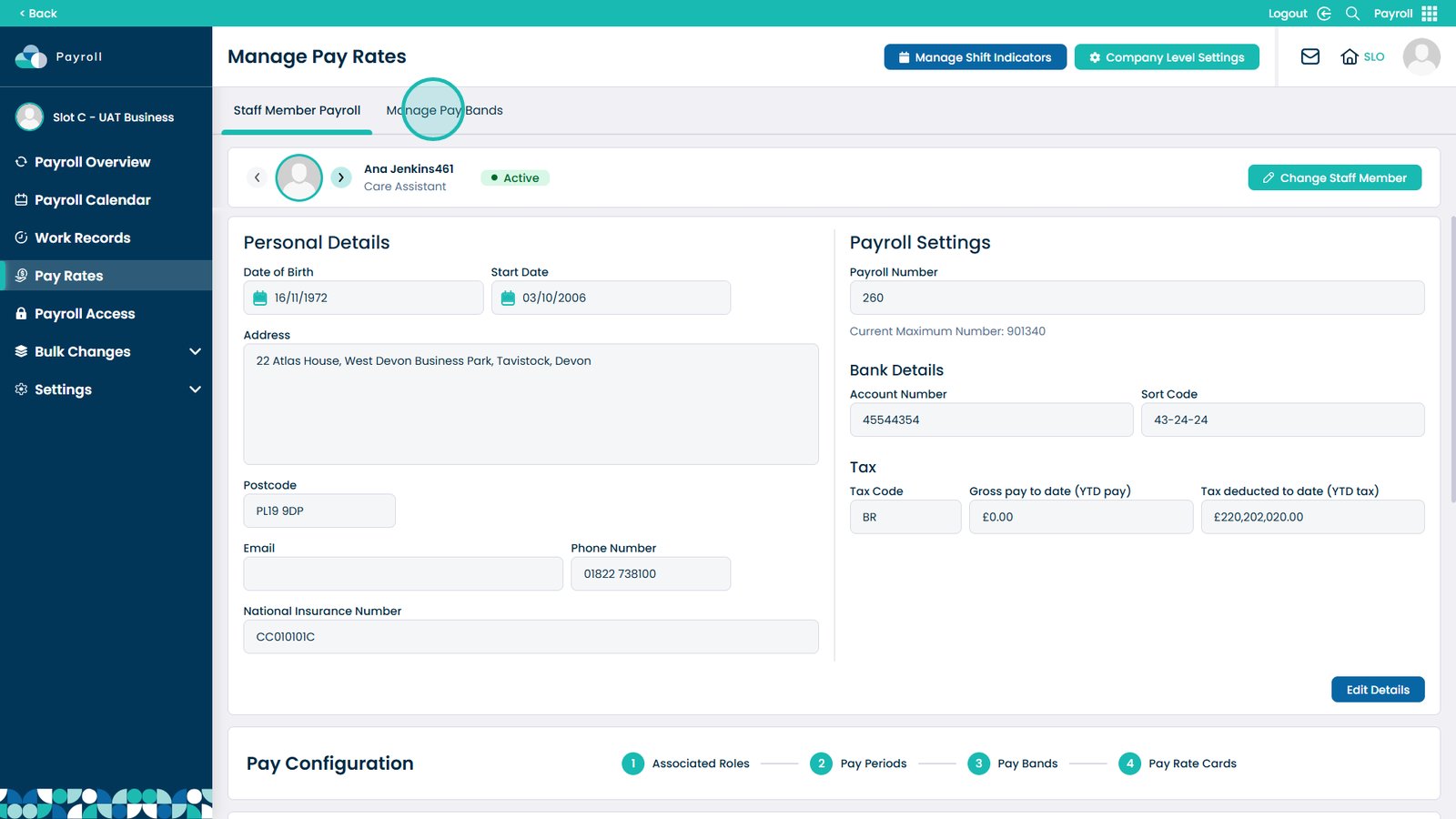
Select Manage Pay Bands
Open Pay Band Builder
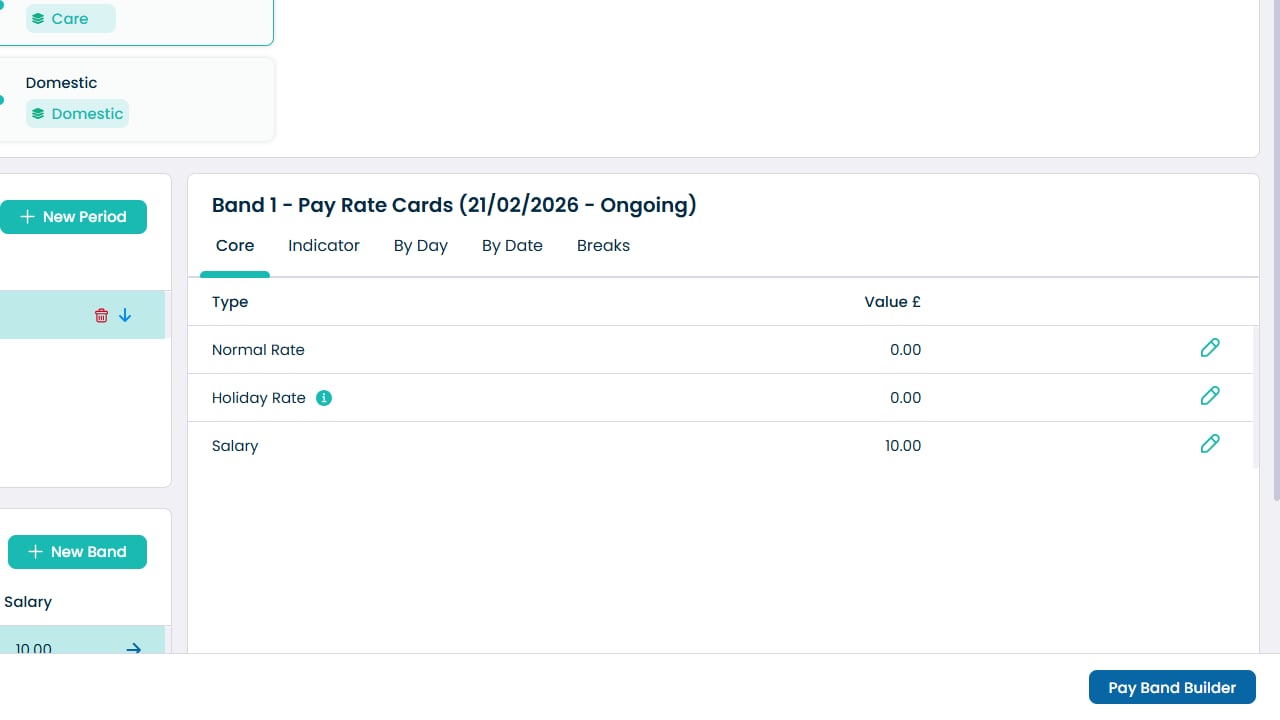
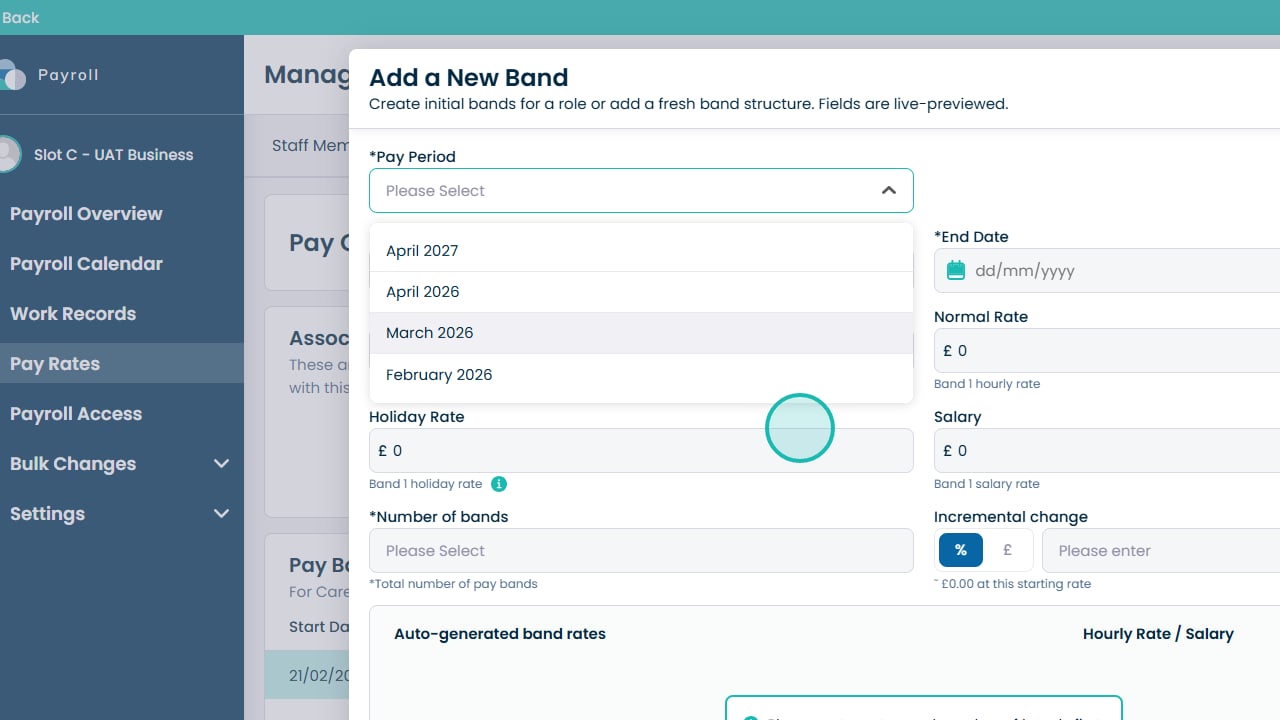
Select the pay period
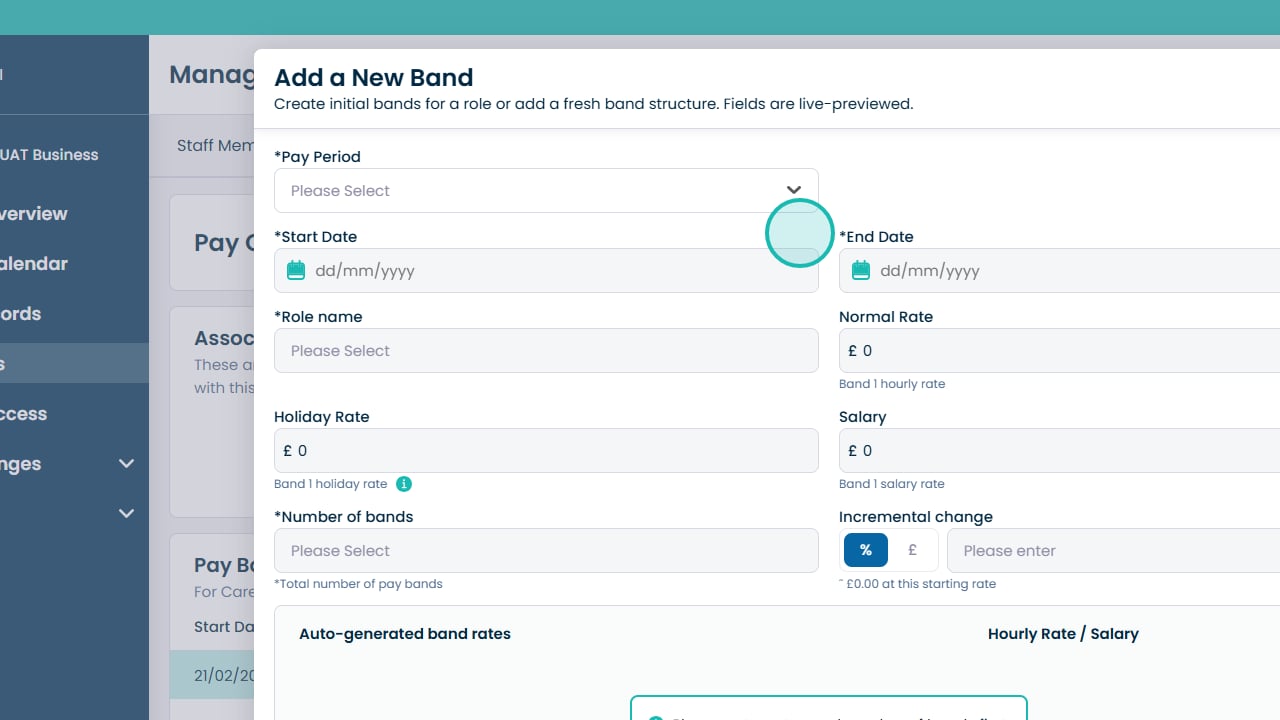
Choose when the pay band will start
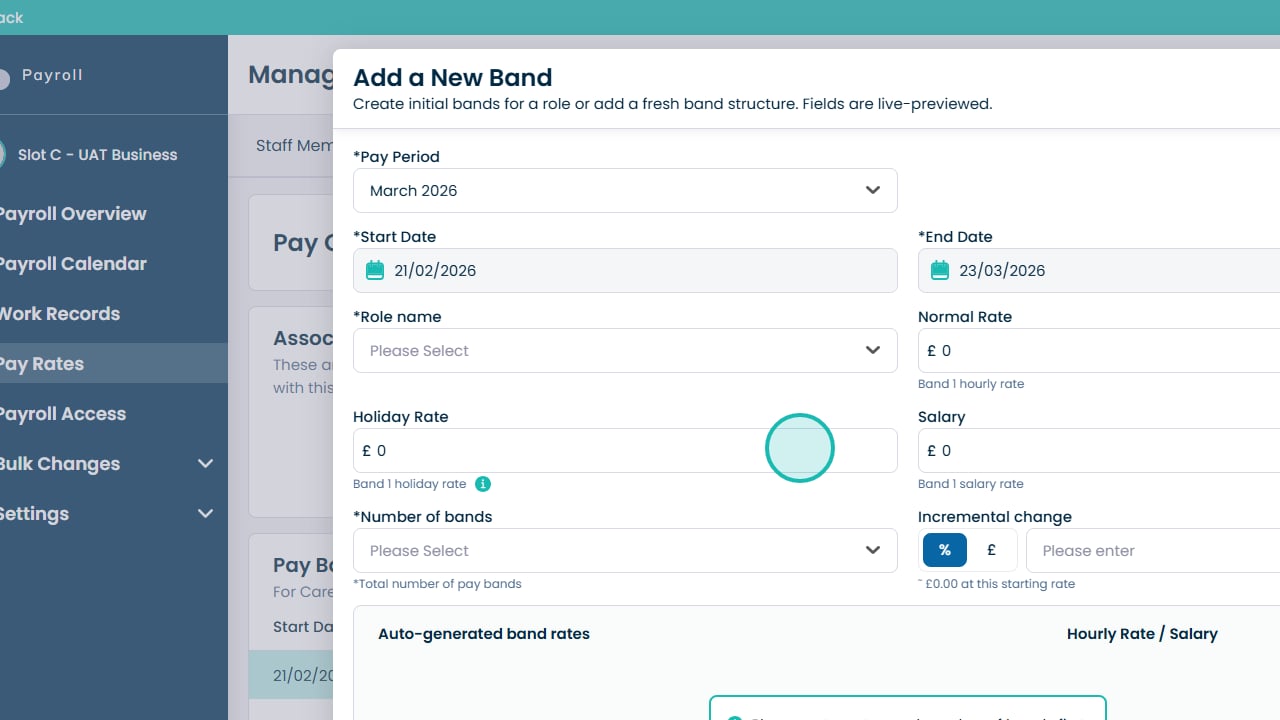
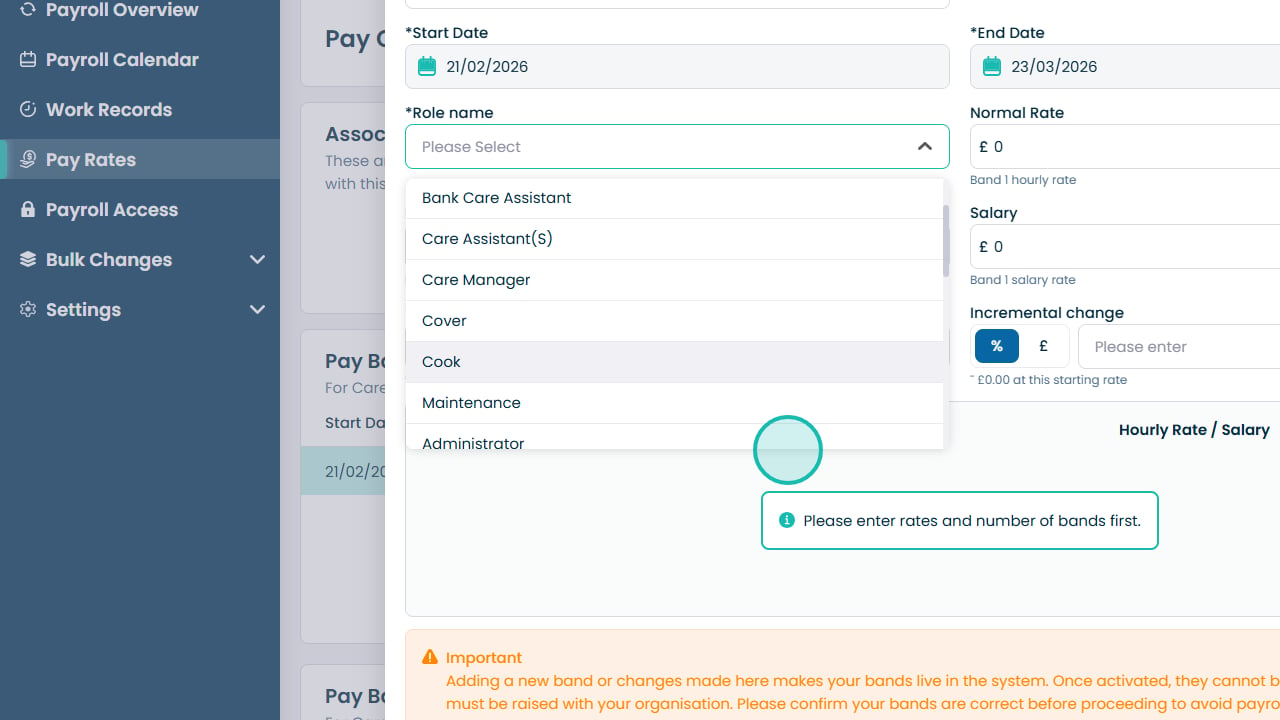
Open the role dropdown
Select the role for the pay band
Enter the base (normal) hourly rate
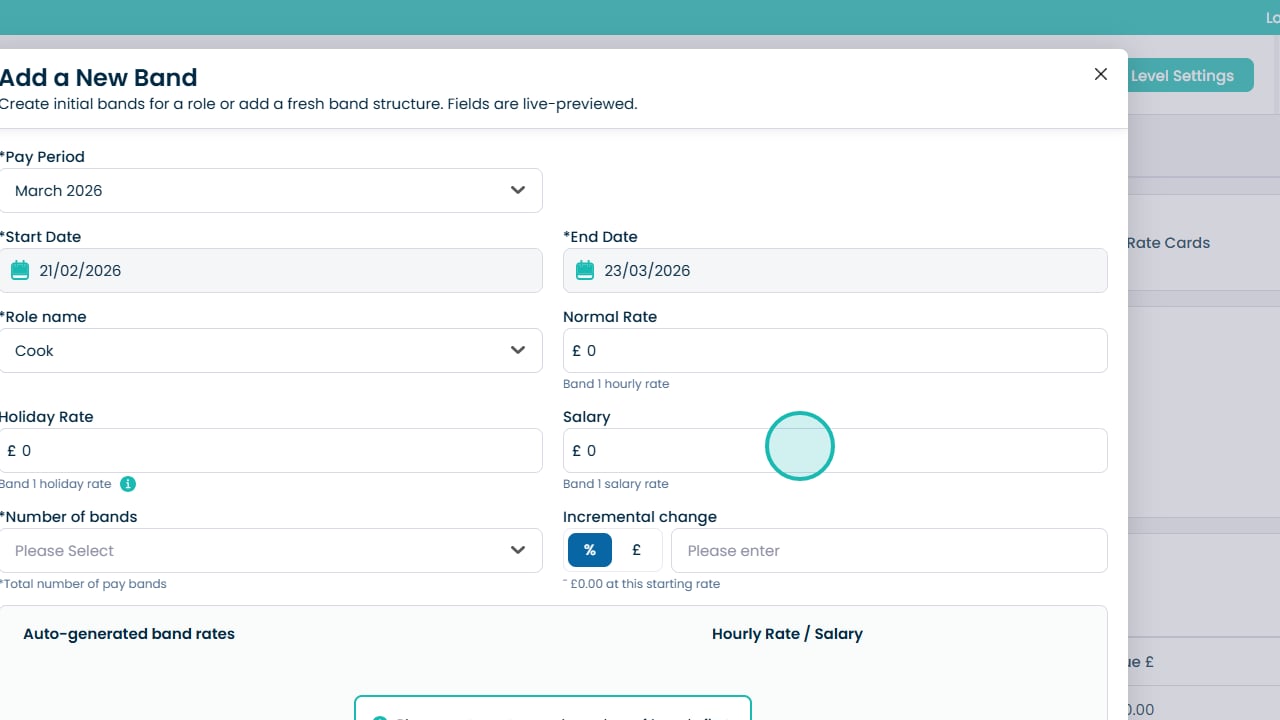
Optional: enter a holiday rate
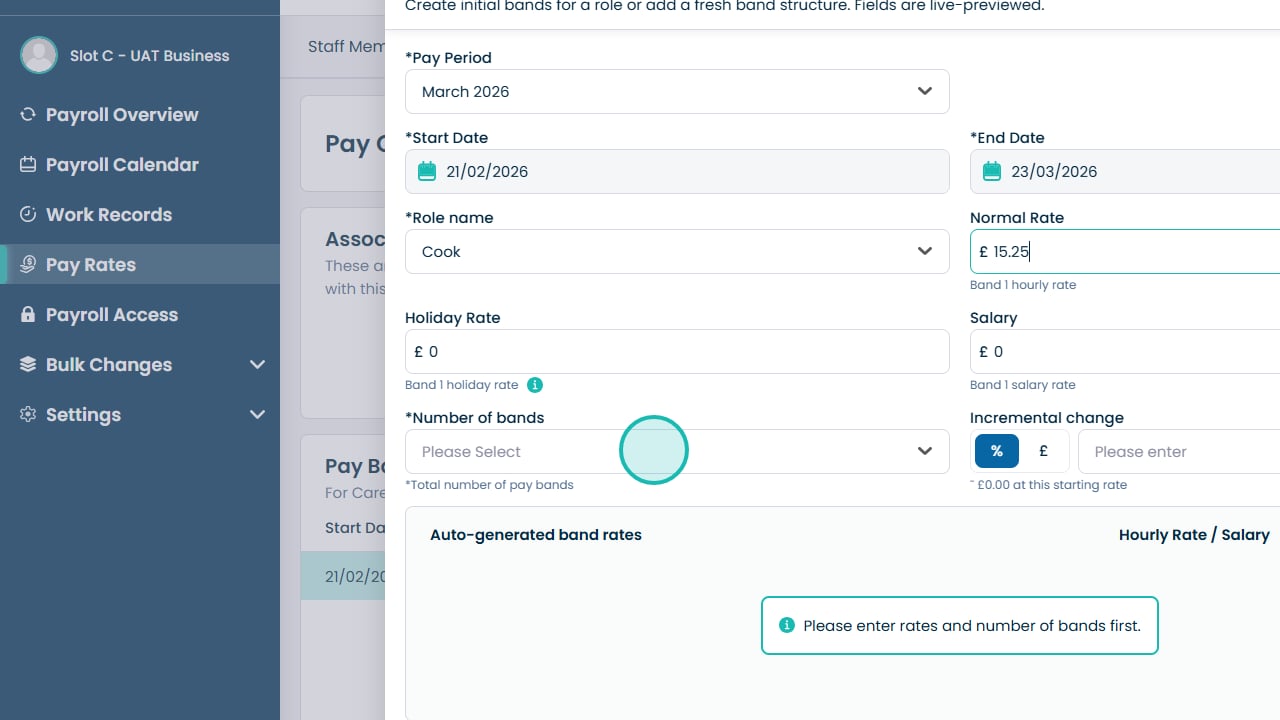
Optional: enter an annual salary
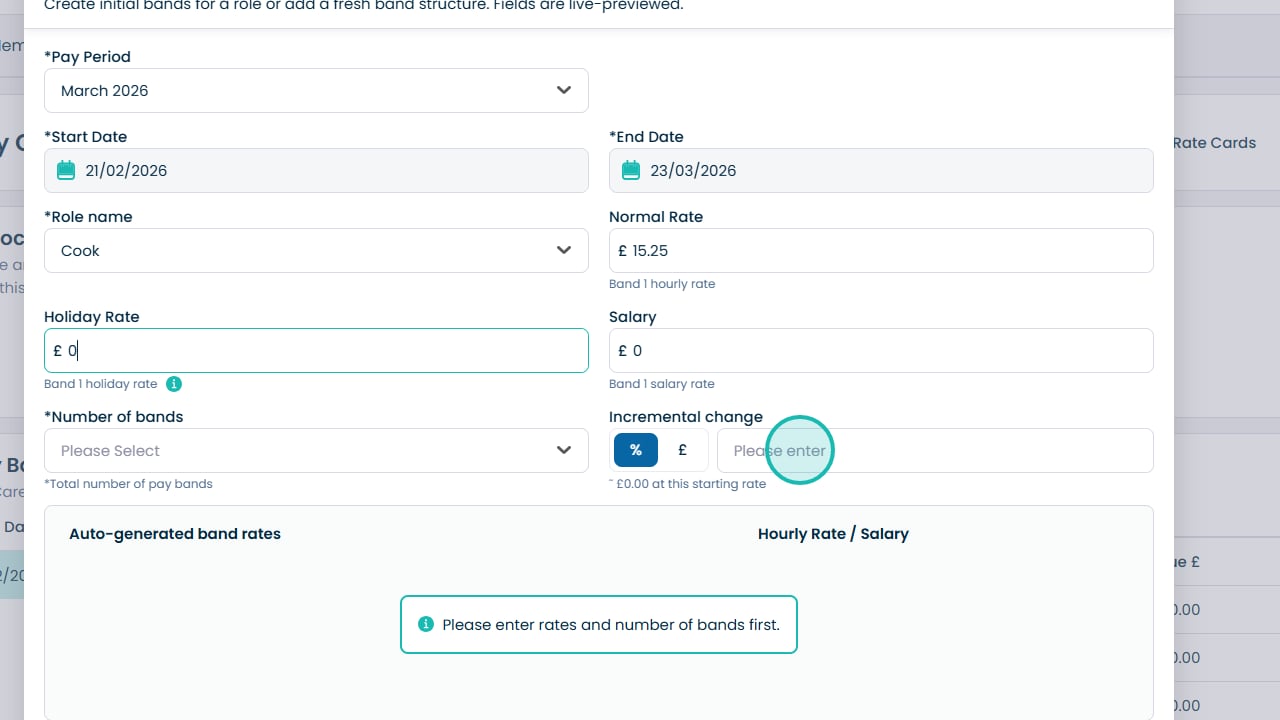
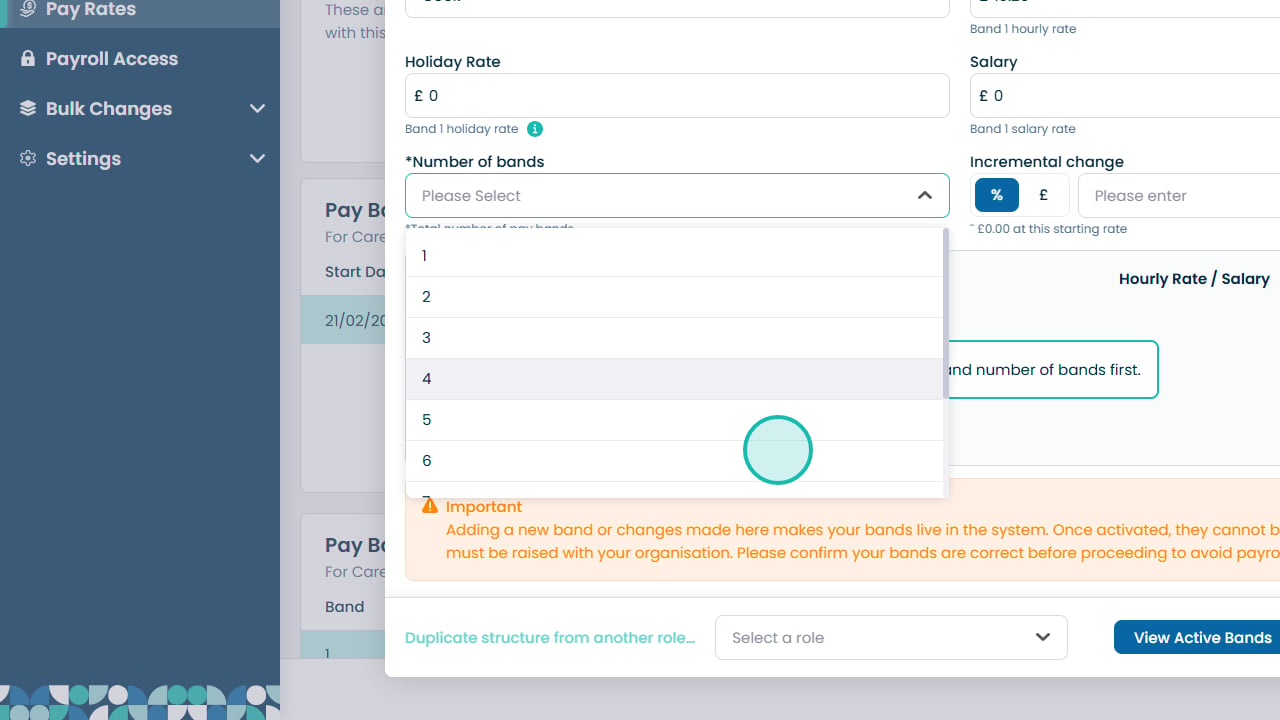
Select the number of pay bands
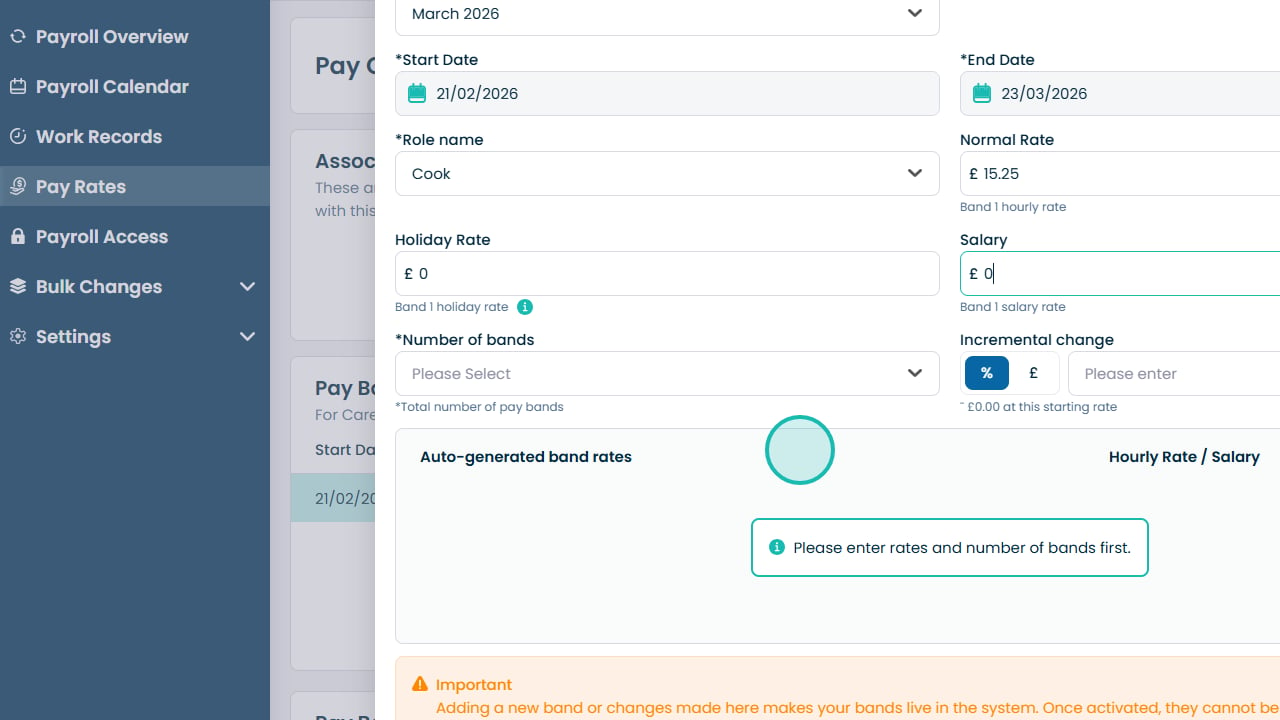
Choose how many pay bands to create
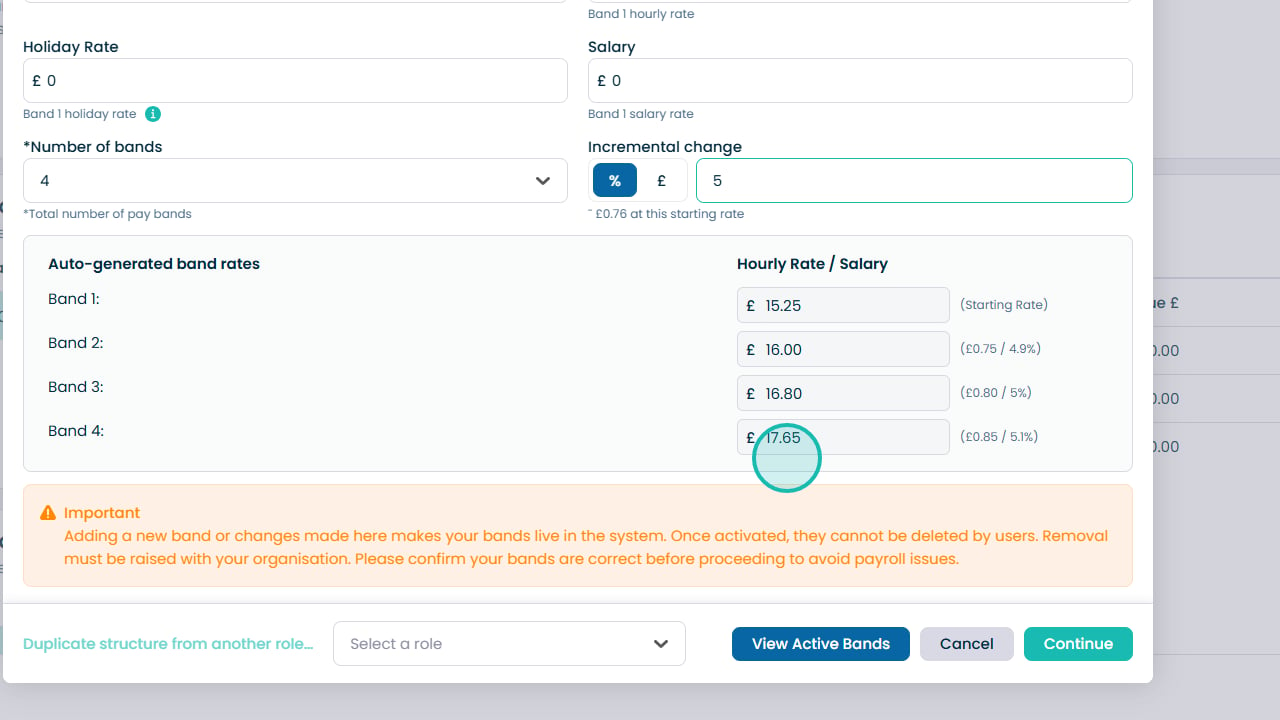
Define how band increments change (percentage or fixed amount)
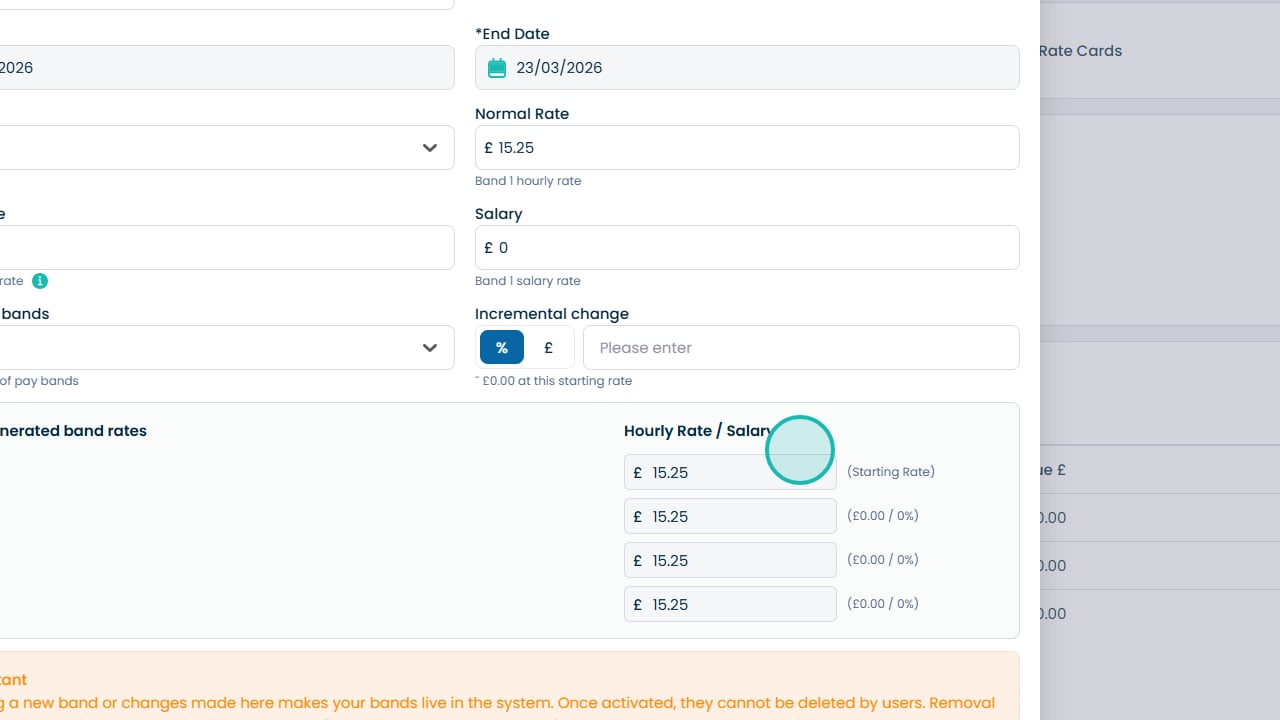
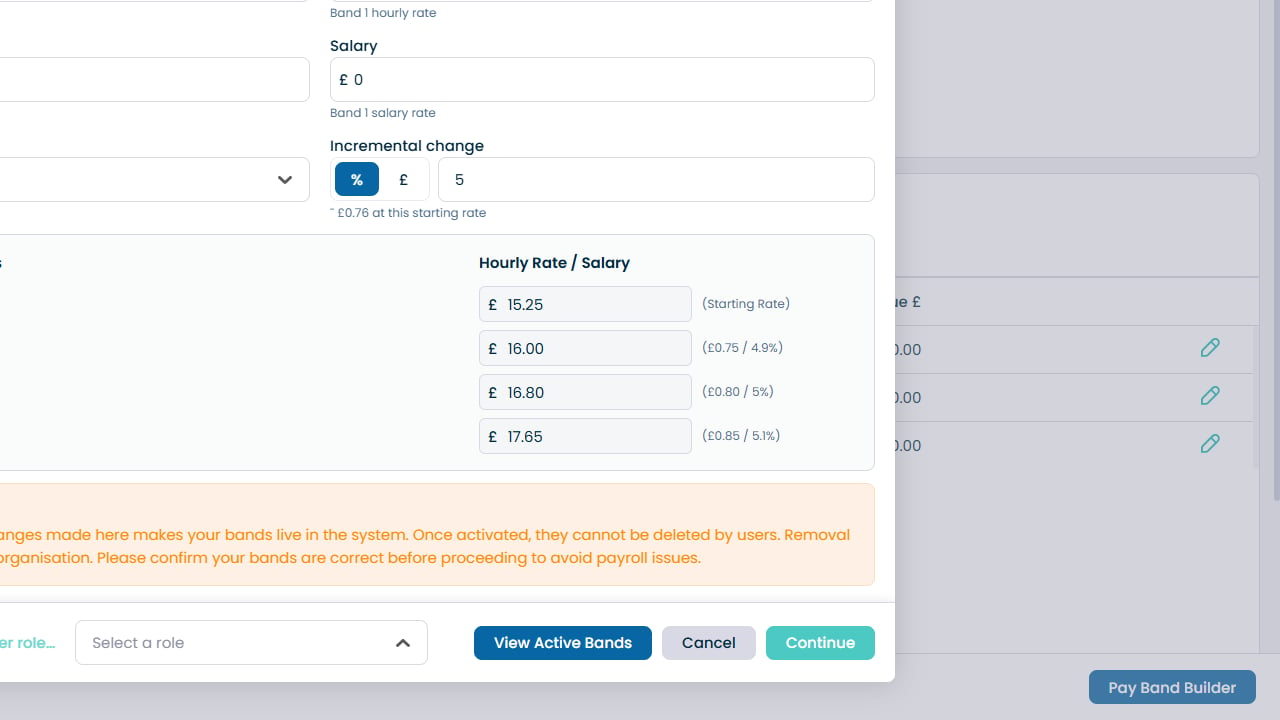
Review automatically calculated hourly rates
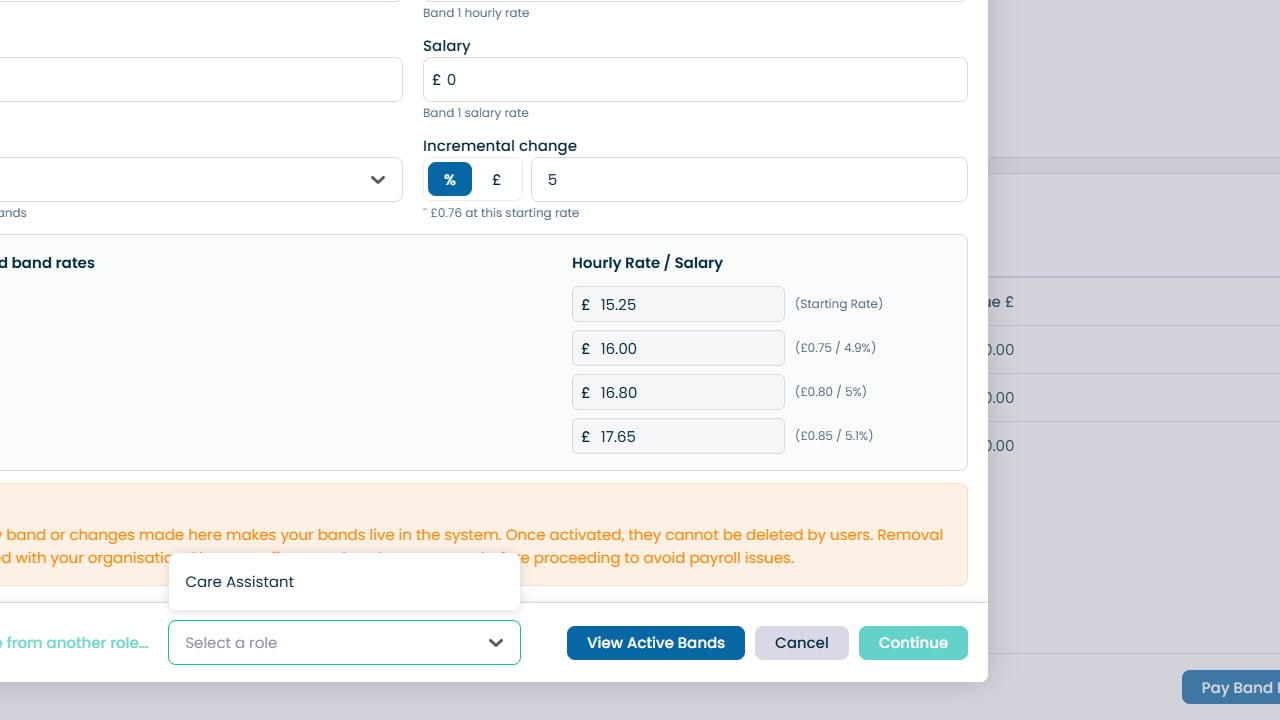
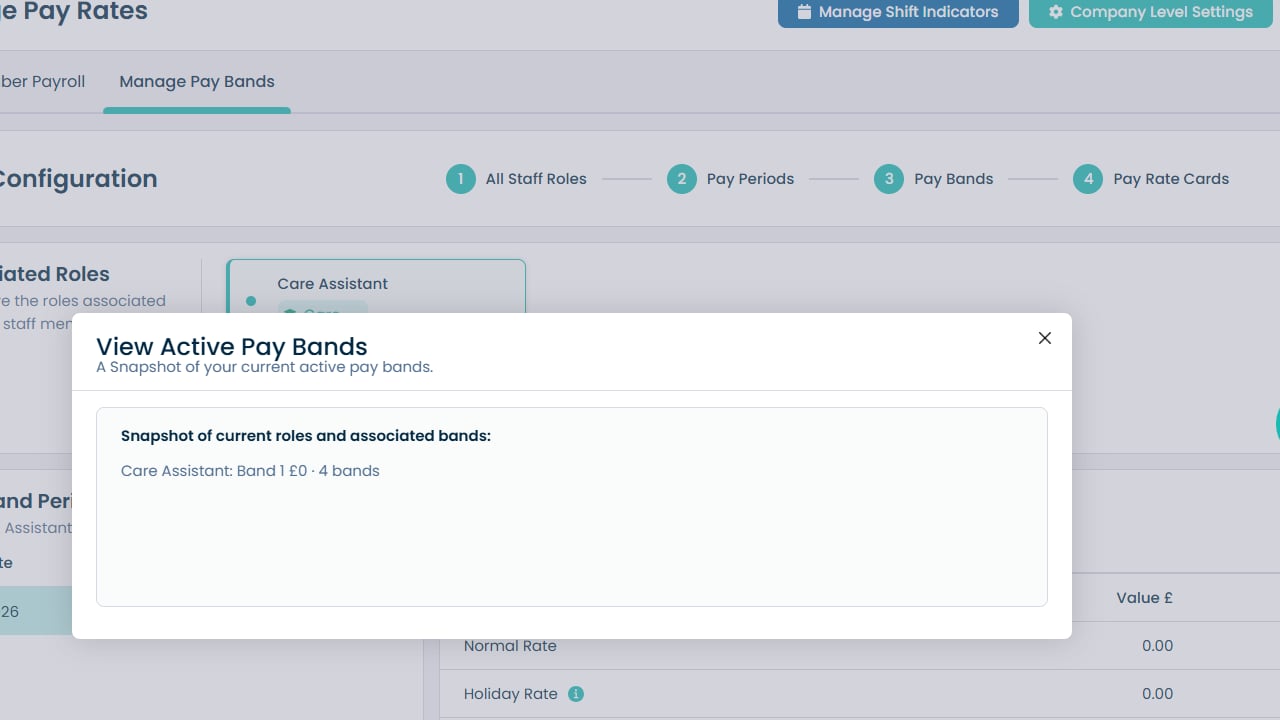
View current active pay bands
Close the preview window
Click Continue to create the pay bands
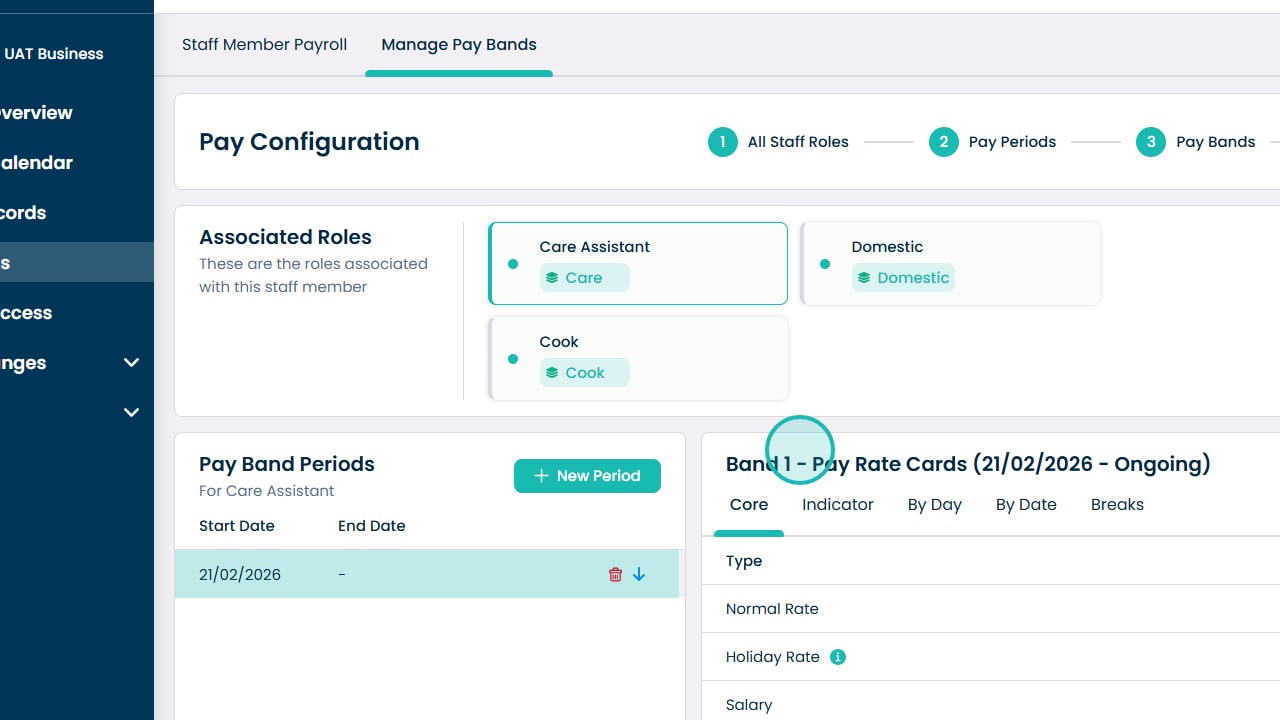
Select the role you created the band for
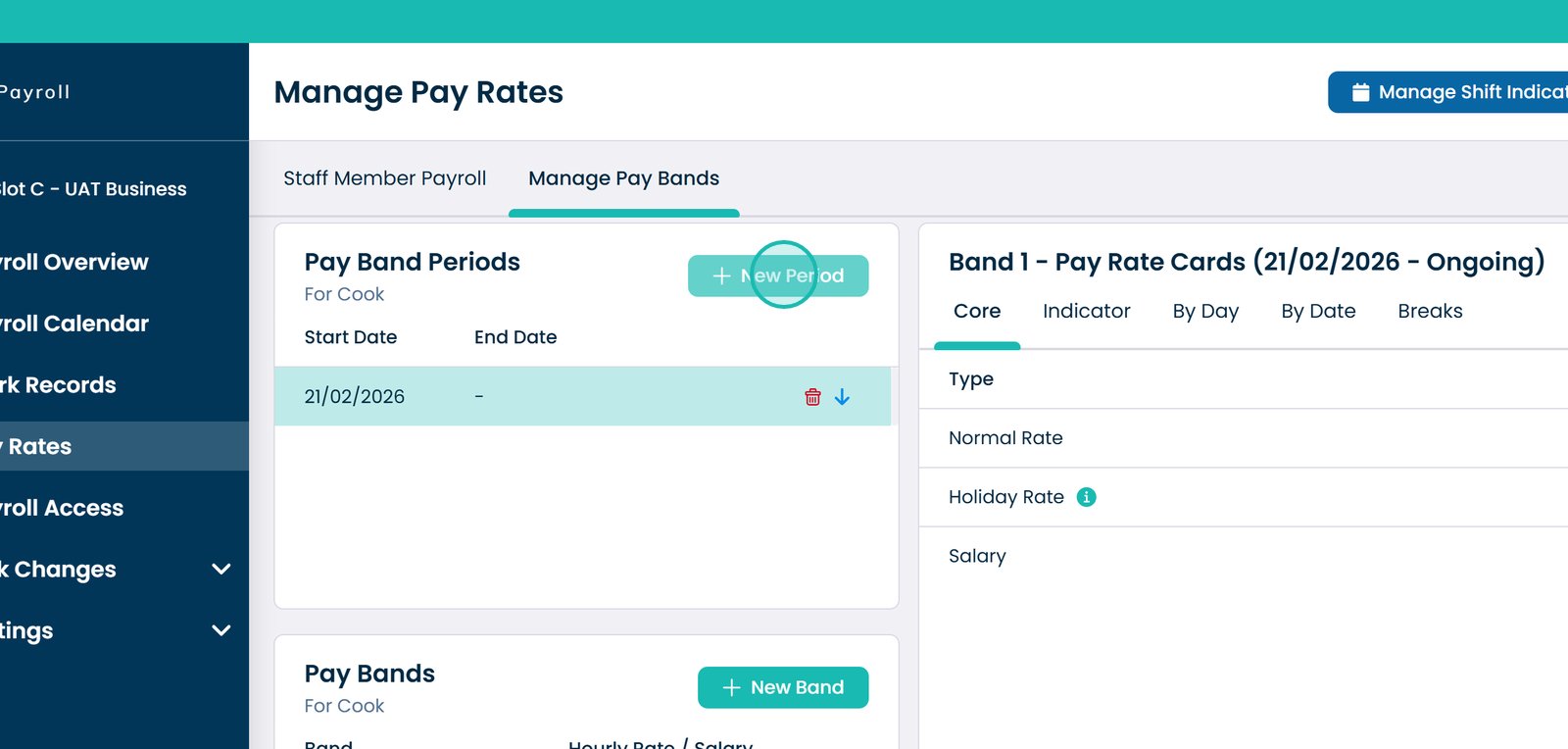
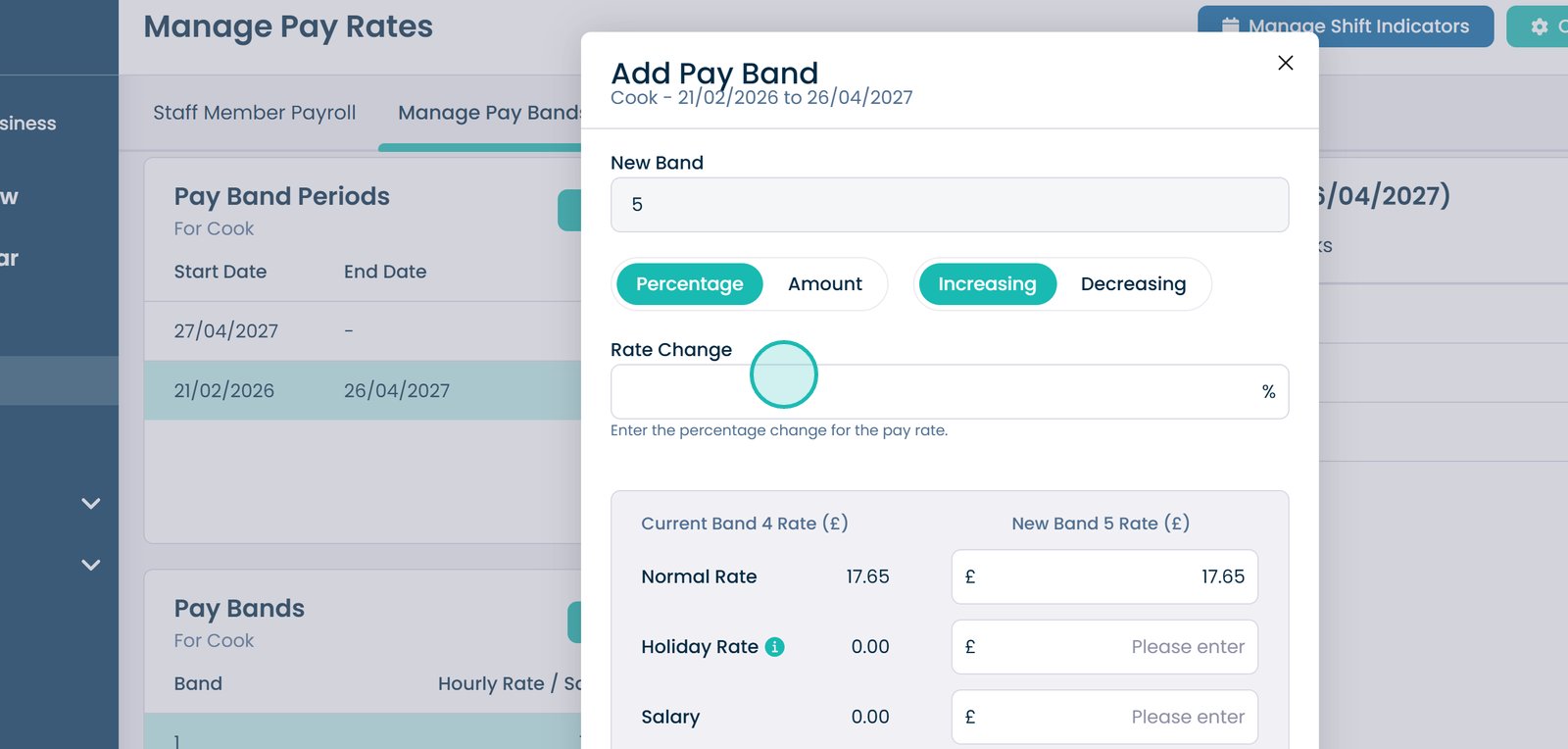
Create a new pay band period
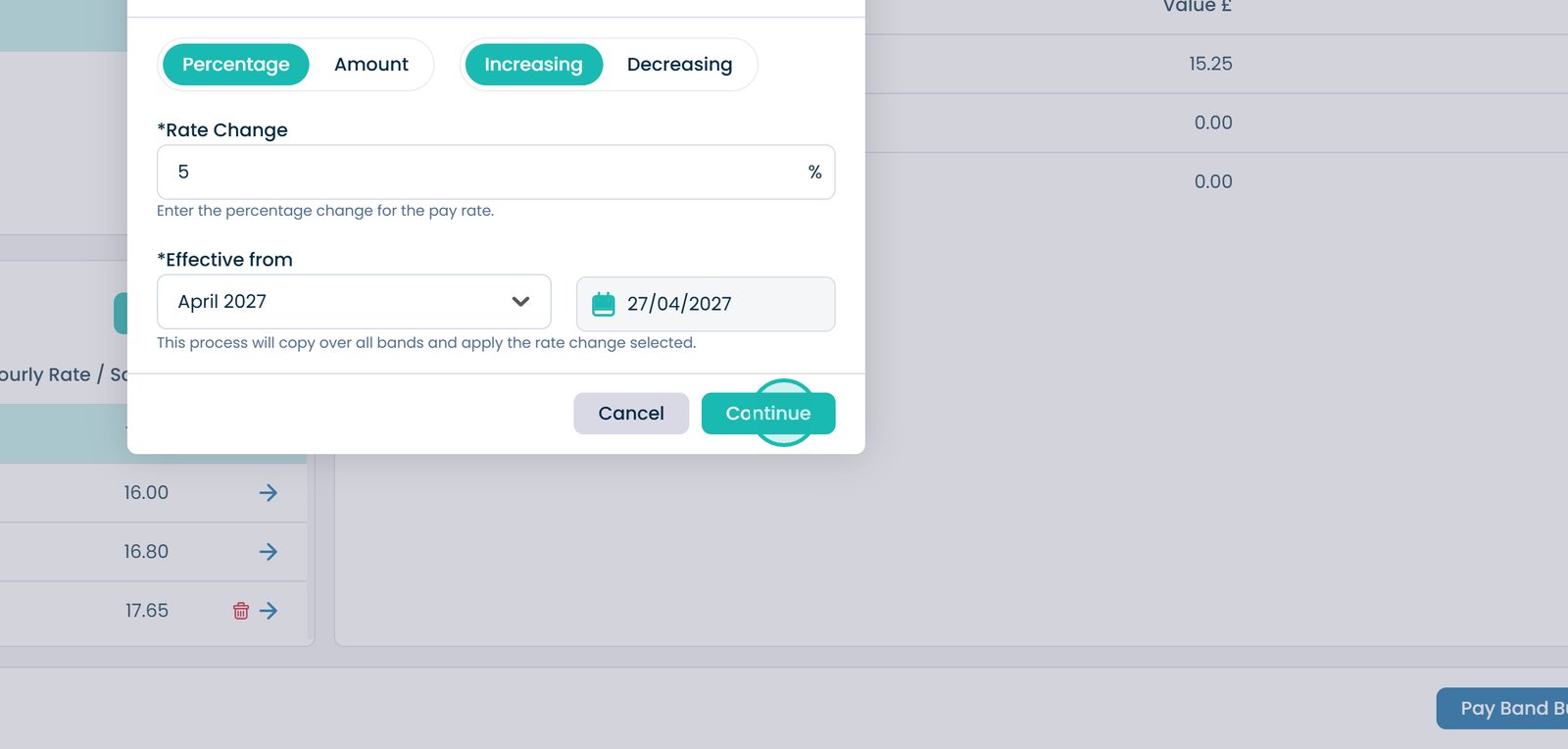
Choose increase or decrease (percentage or amount)
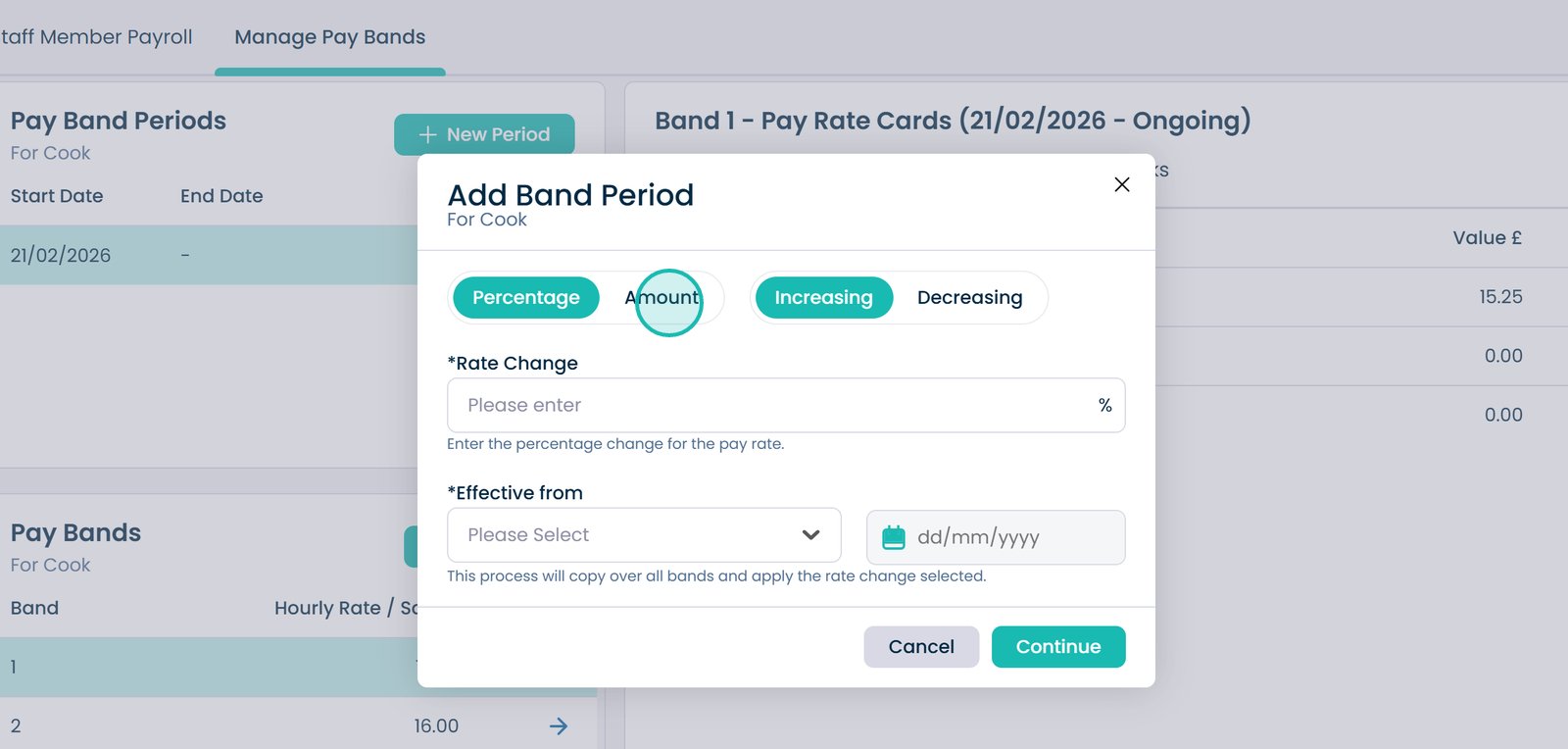
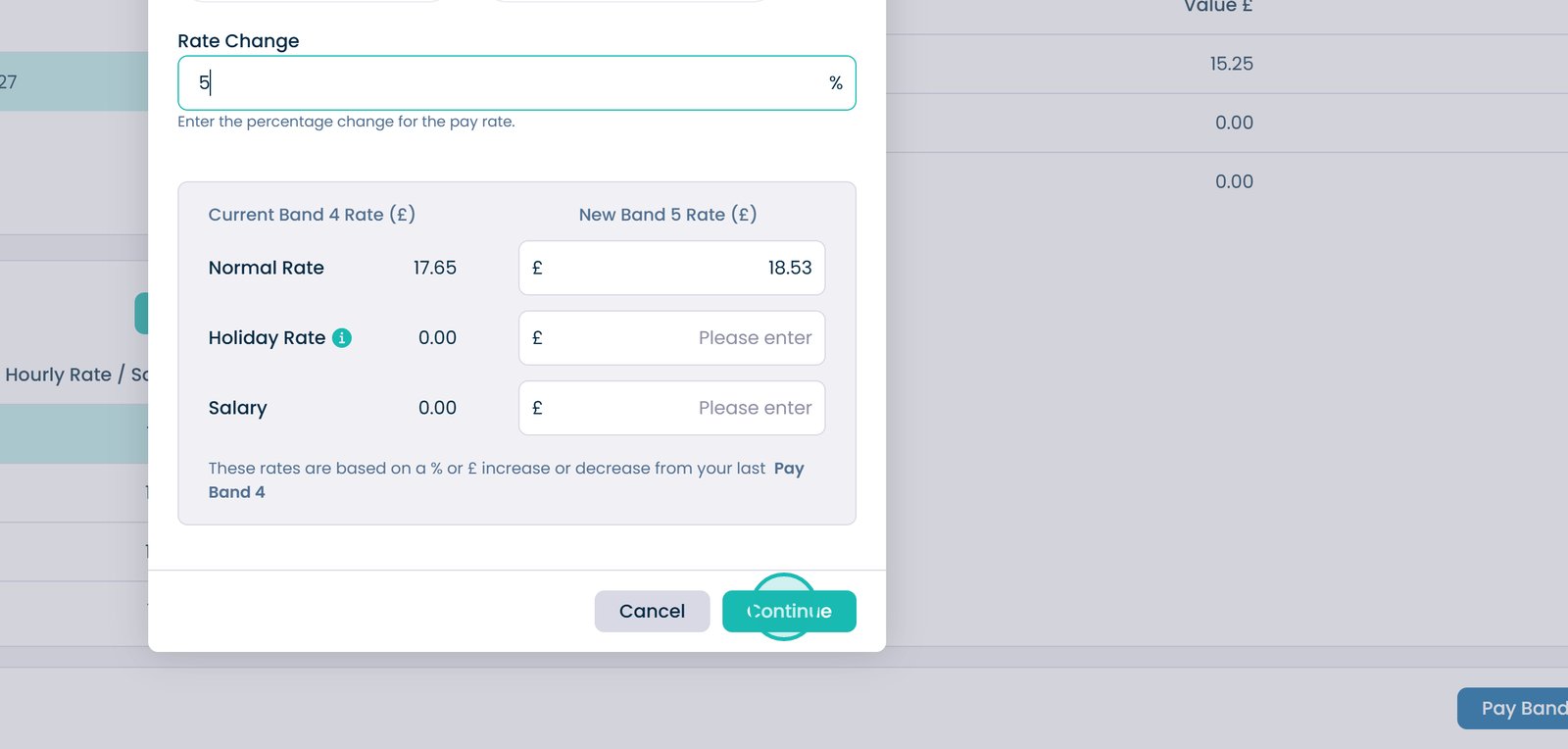
Enter the rate change
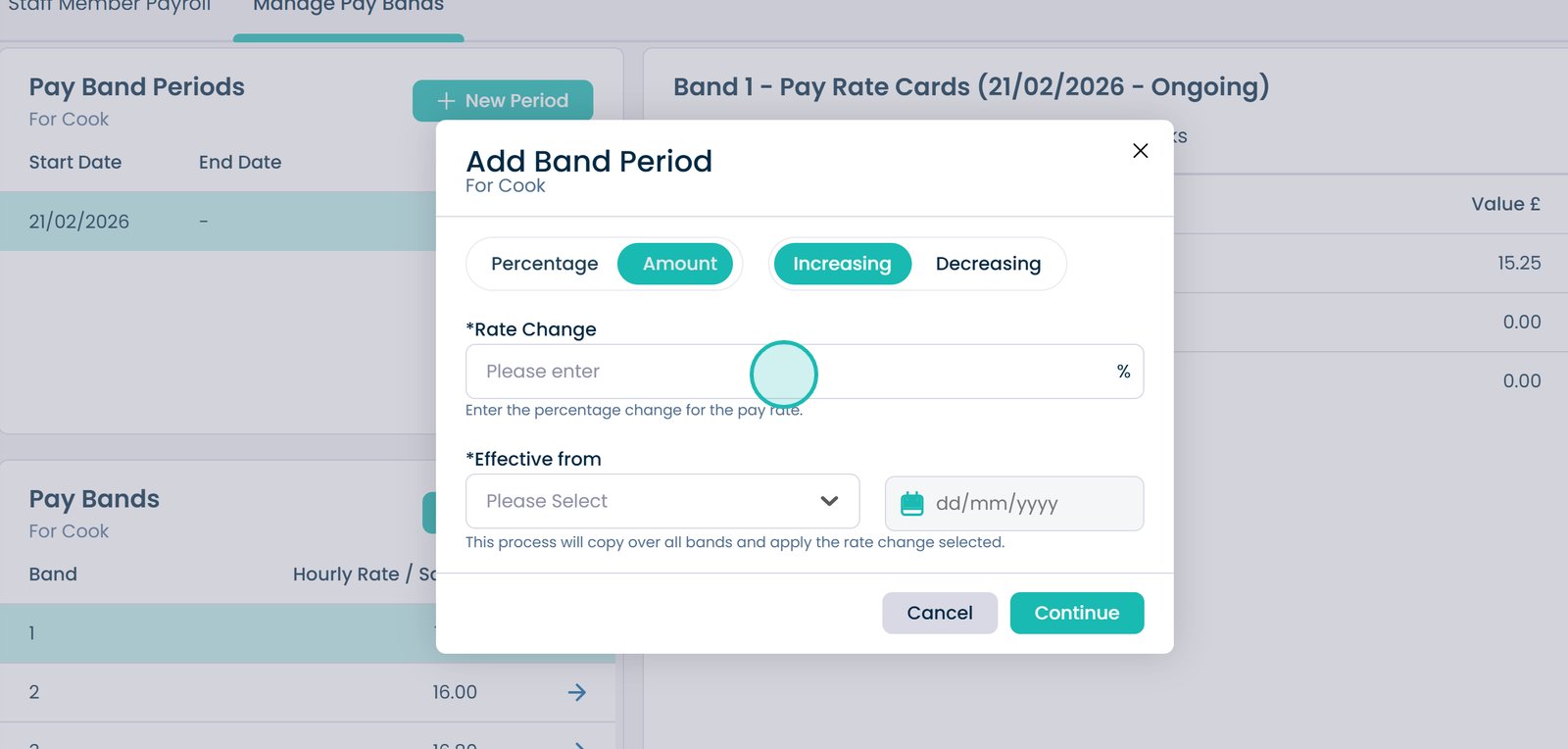
Select the effective start date
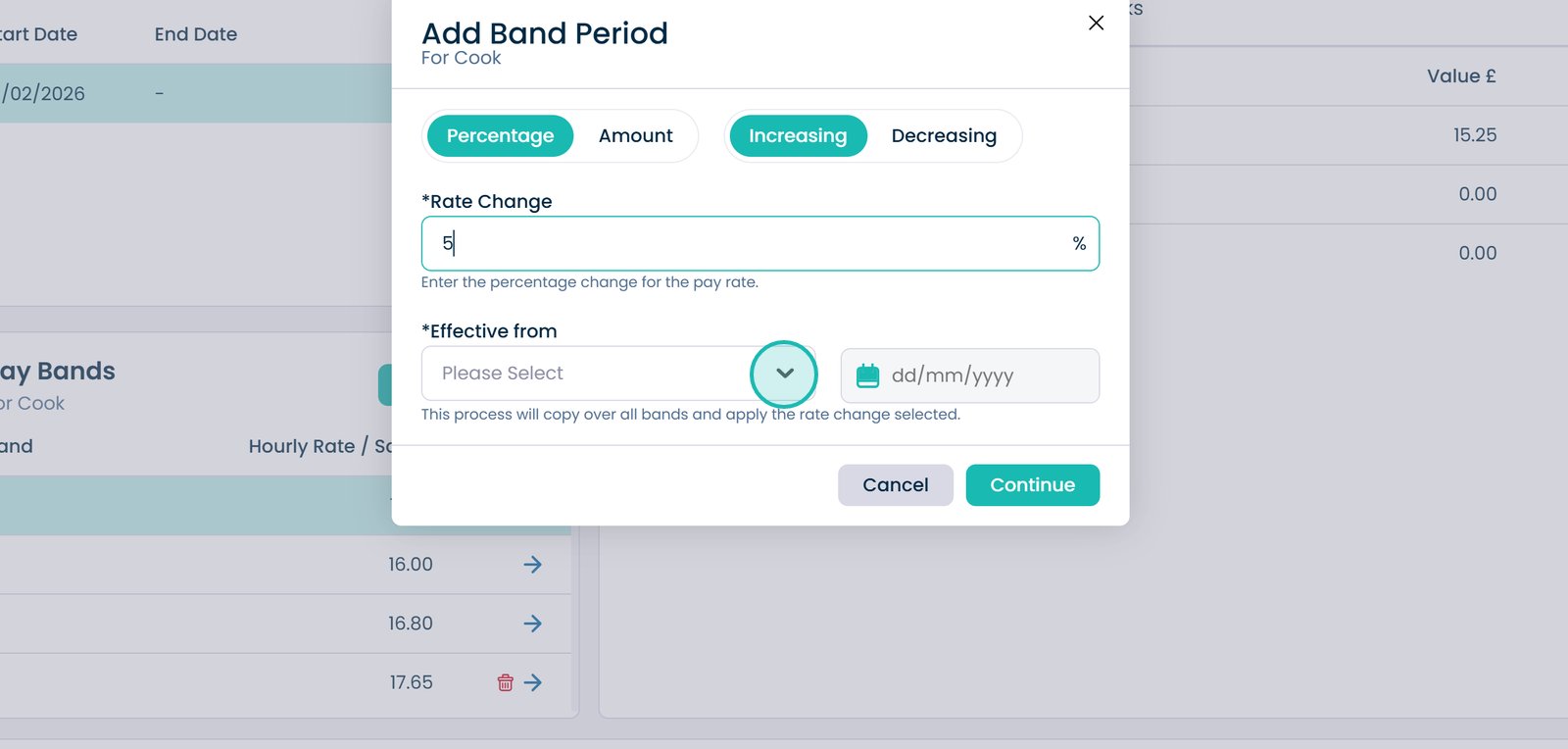
Choose when the new period starts
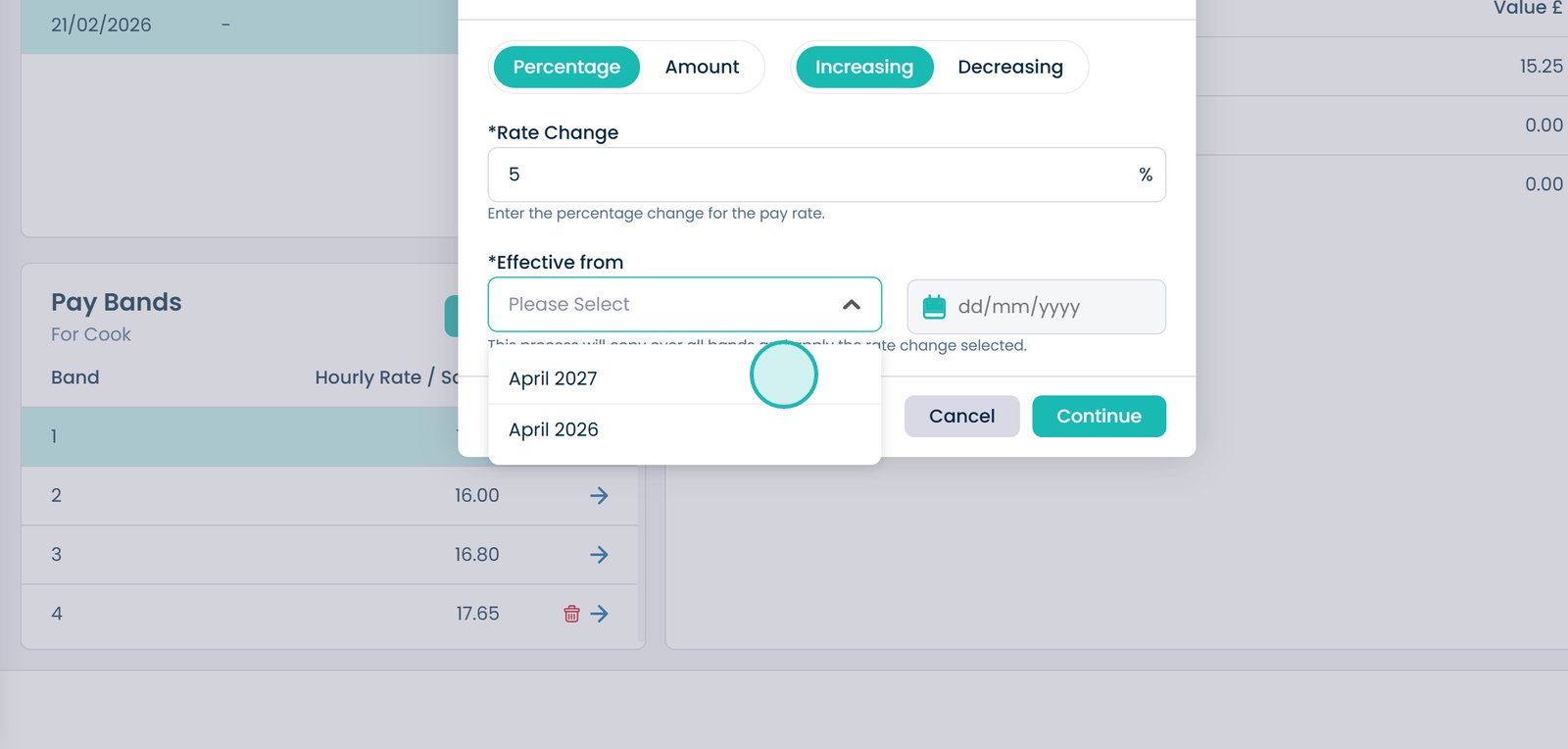
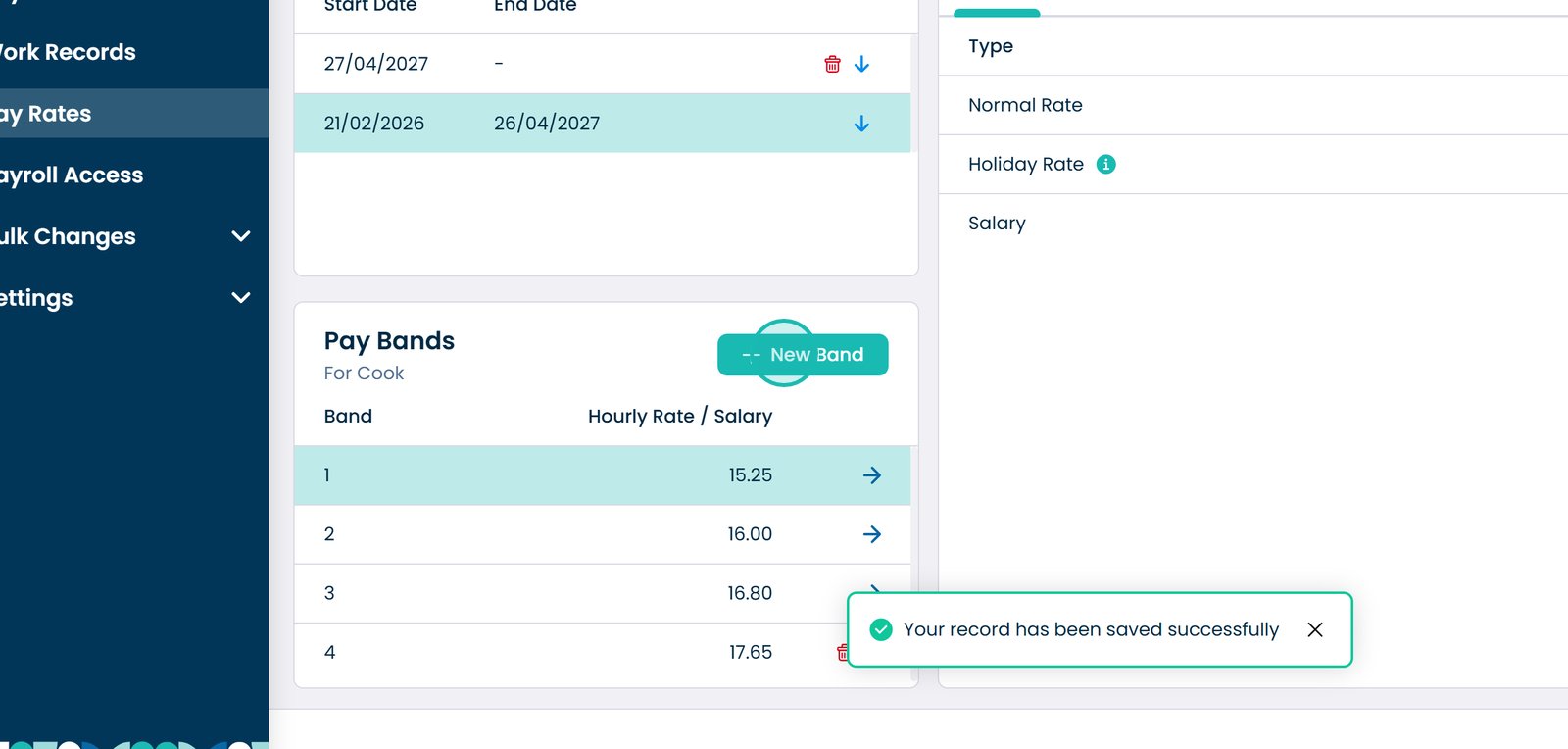
Apply the changes
Create a new pay band
Choose how the band changes (percentage or fixed amount)
Confirm and create the pay band
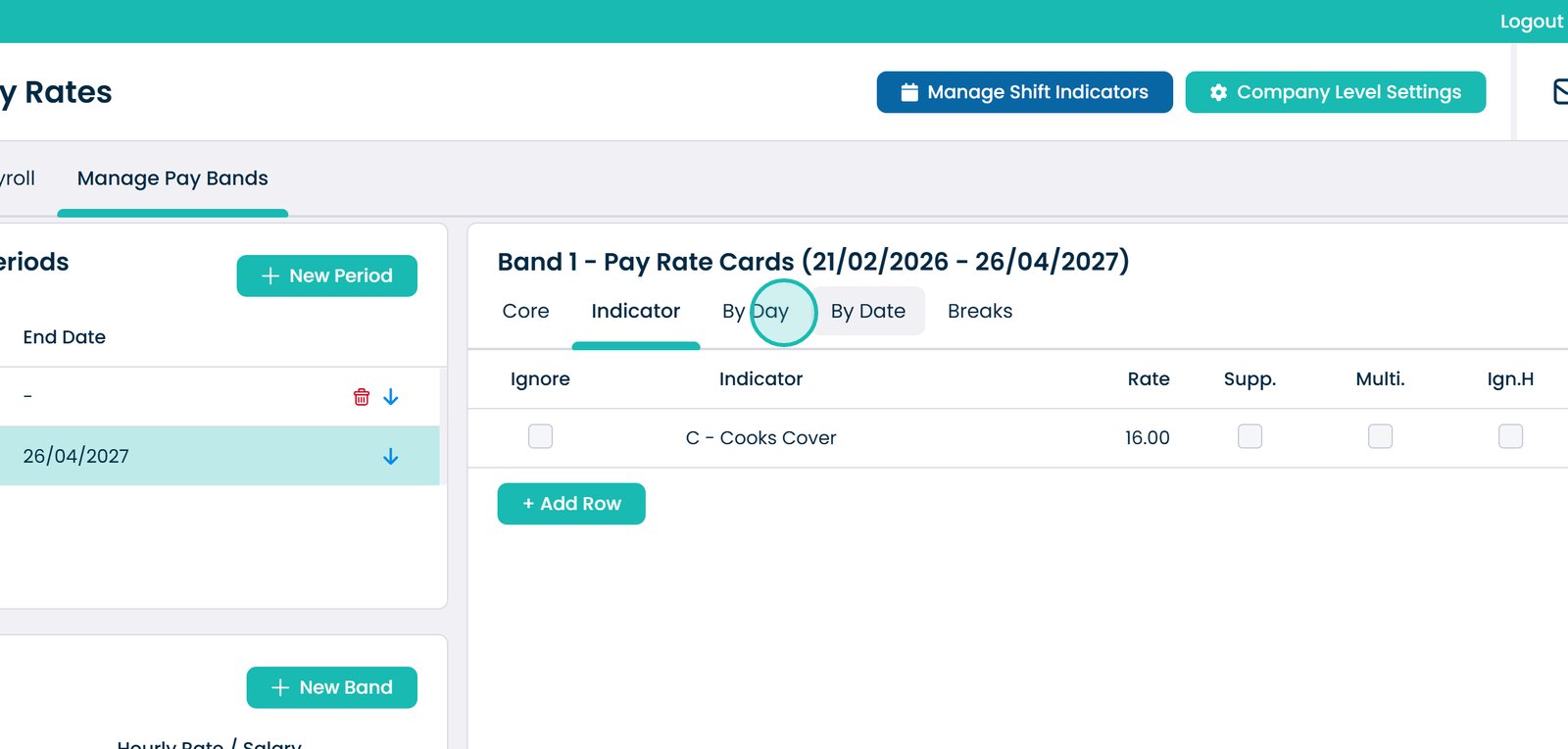
Open the Indicator tab
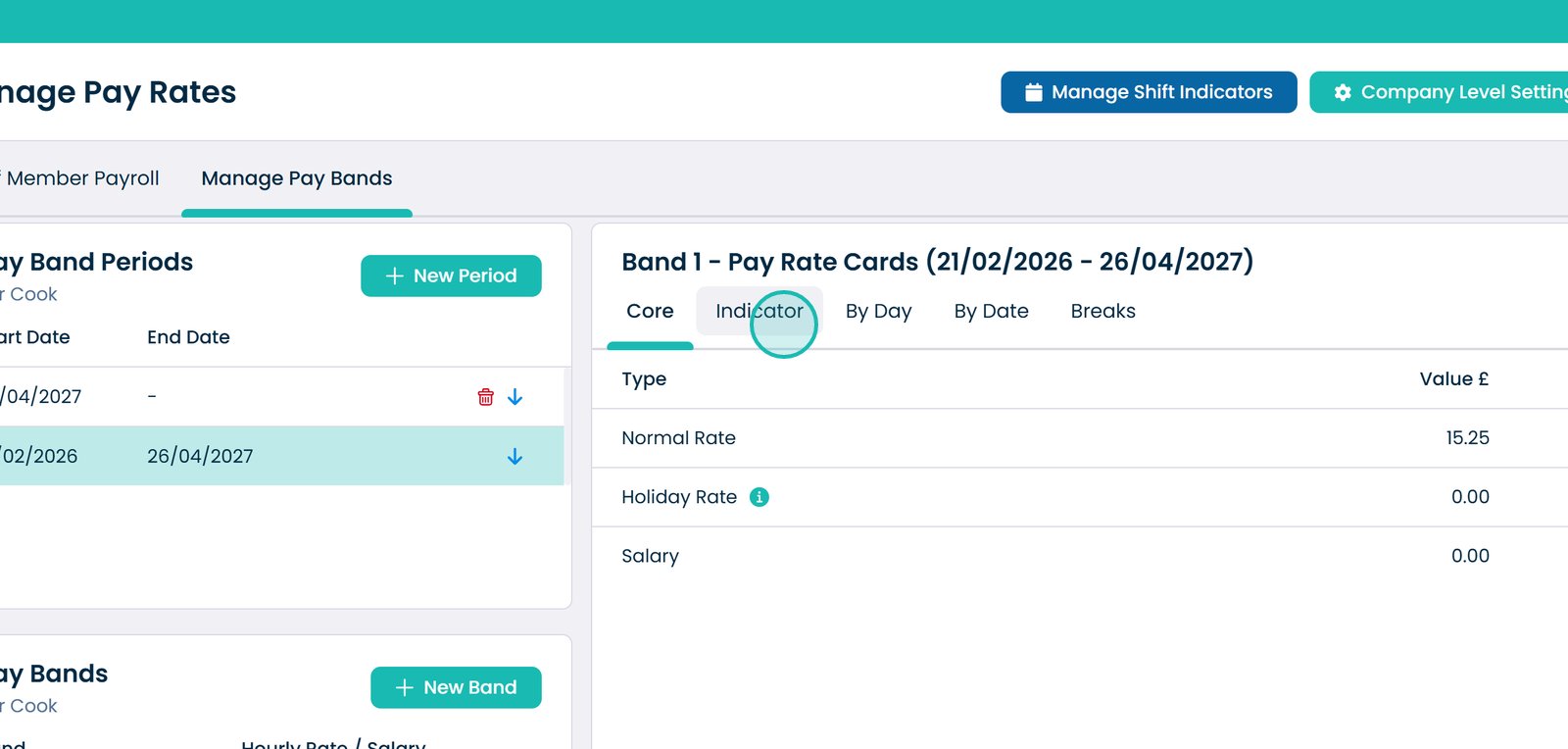
Add a new shift indicator
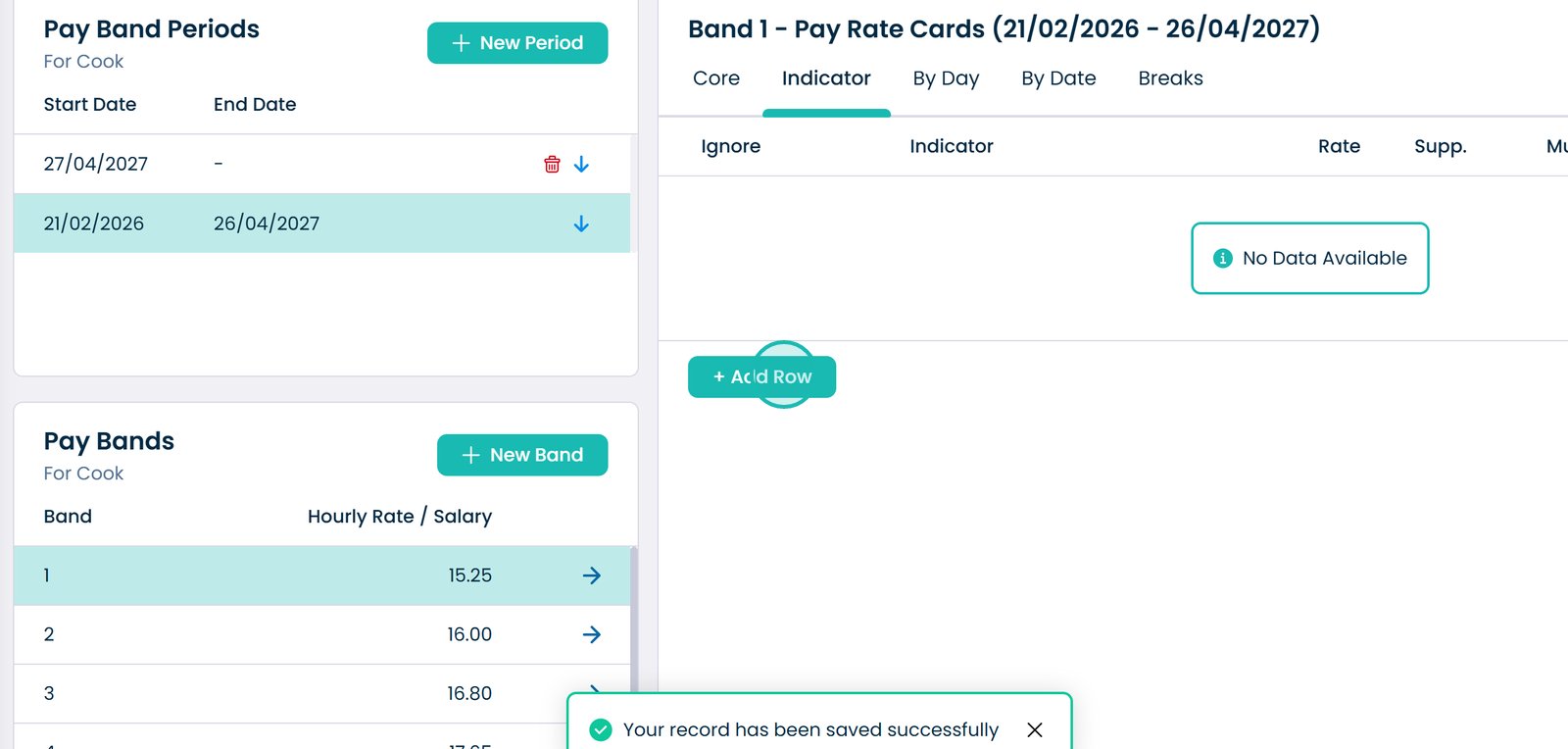
Select an indicator type
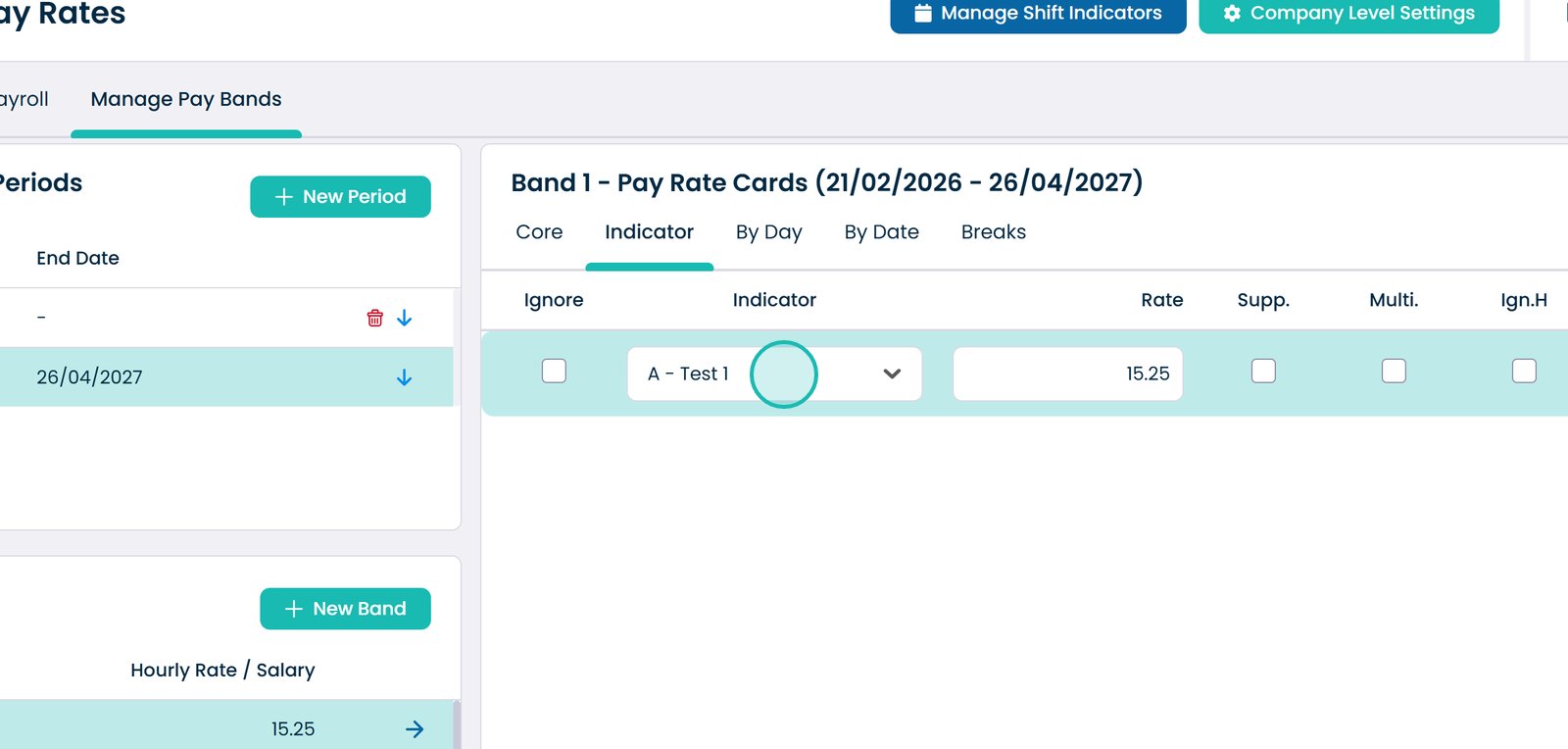
Choose the indicator from the list
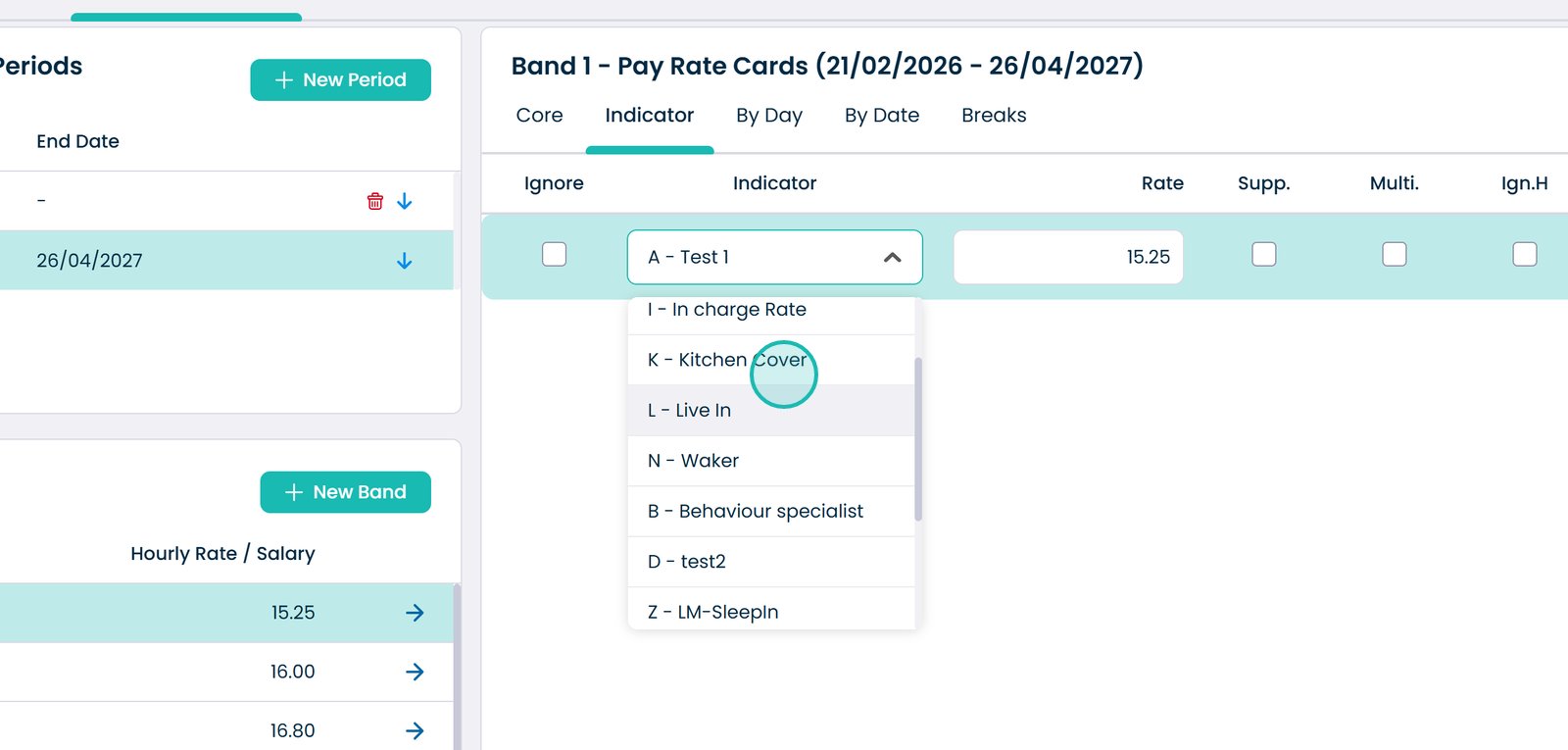
Enter the pay rate for this indicator
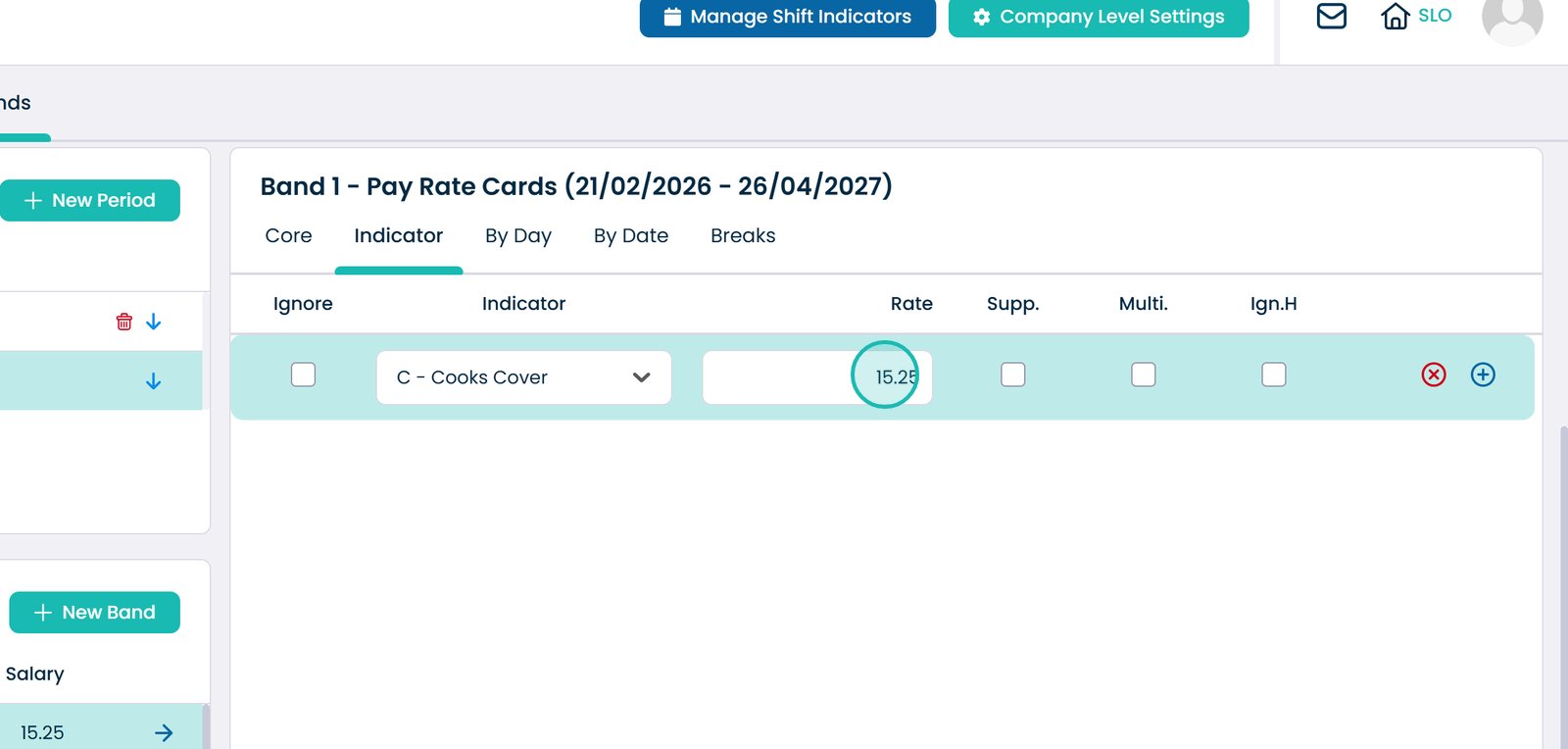
Understand indicator options

Supplement: adds extra pay on top of the base rate.
Multiplier: applies a multiple of the base rate (e.g. ×1.5 or ×2).
Ignore Hours: pays a flat amount regardless of hours worked.
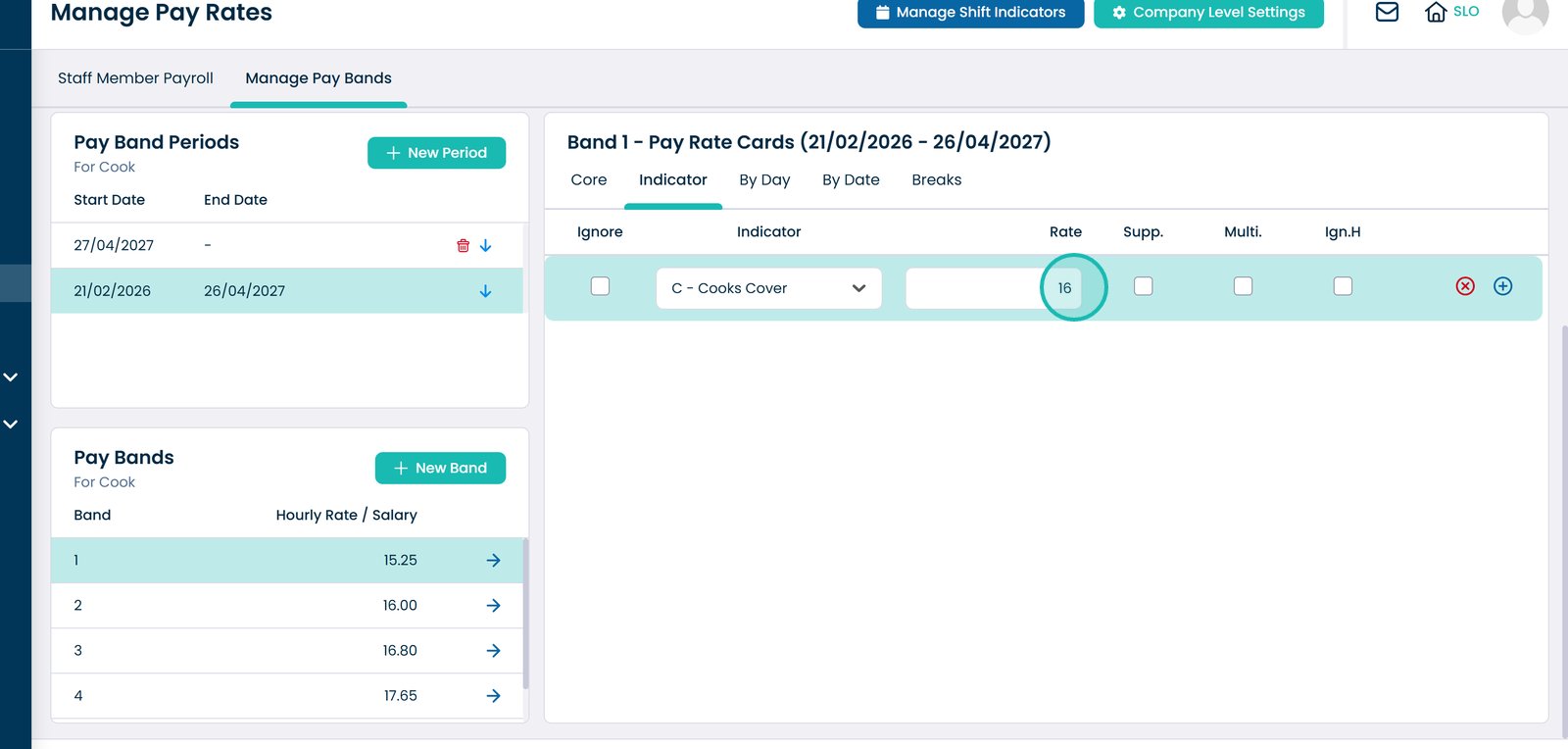
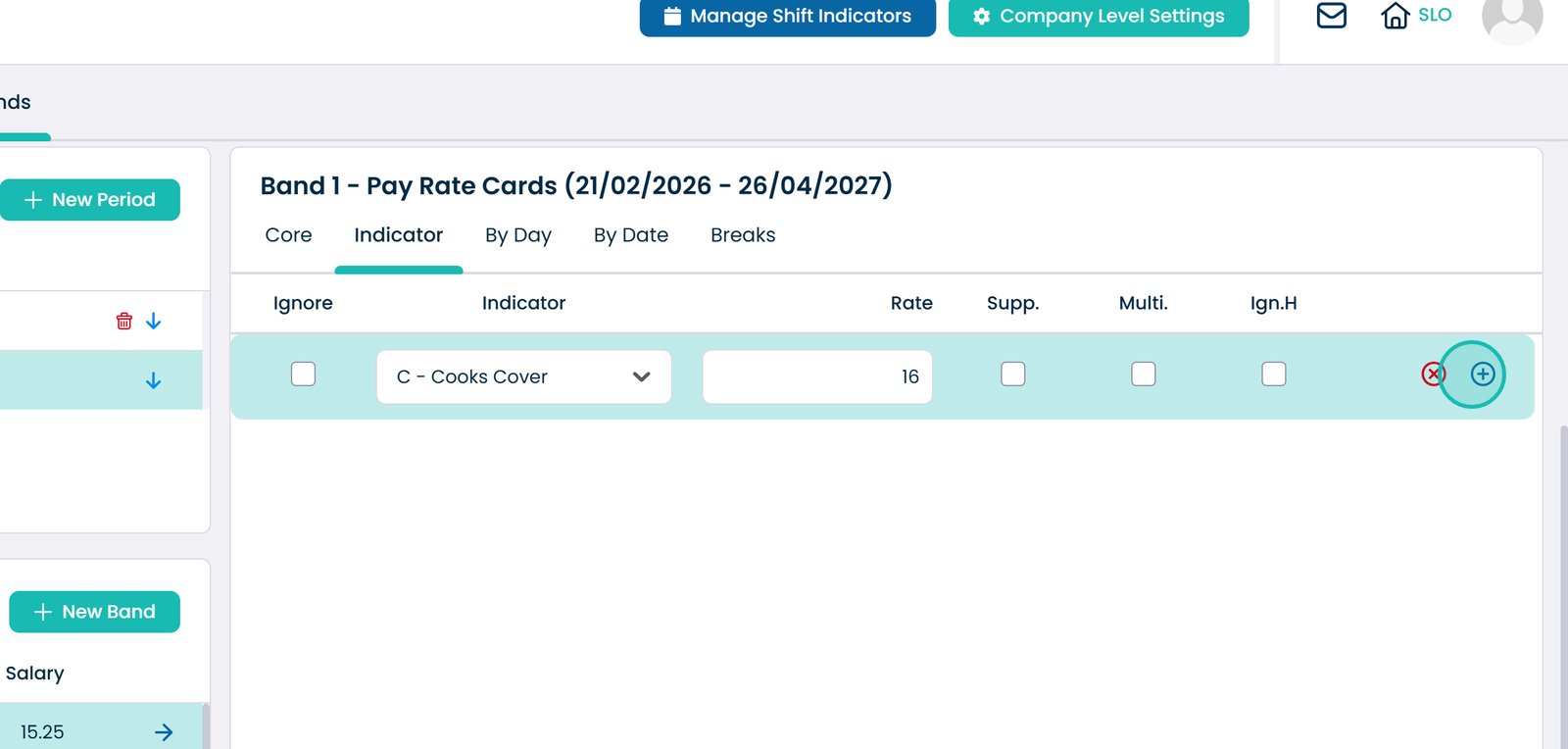
Save the indicator

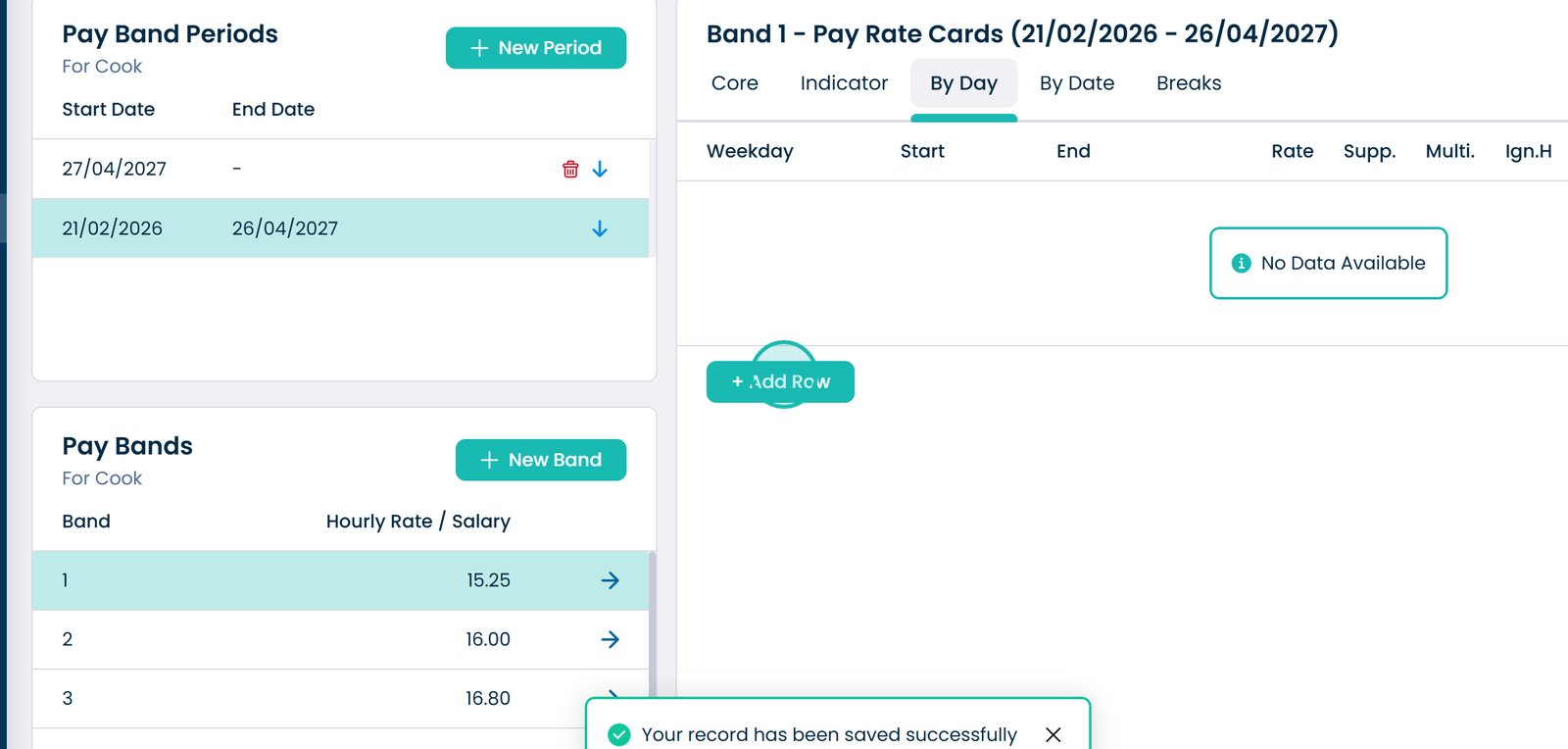
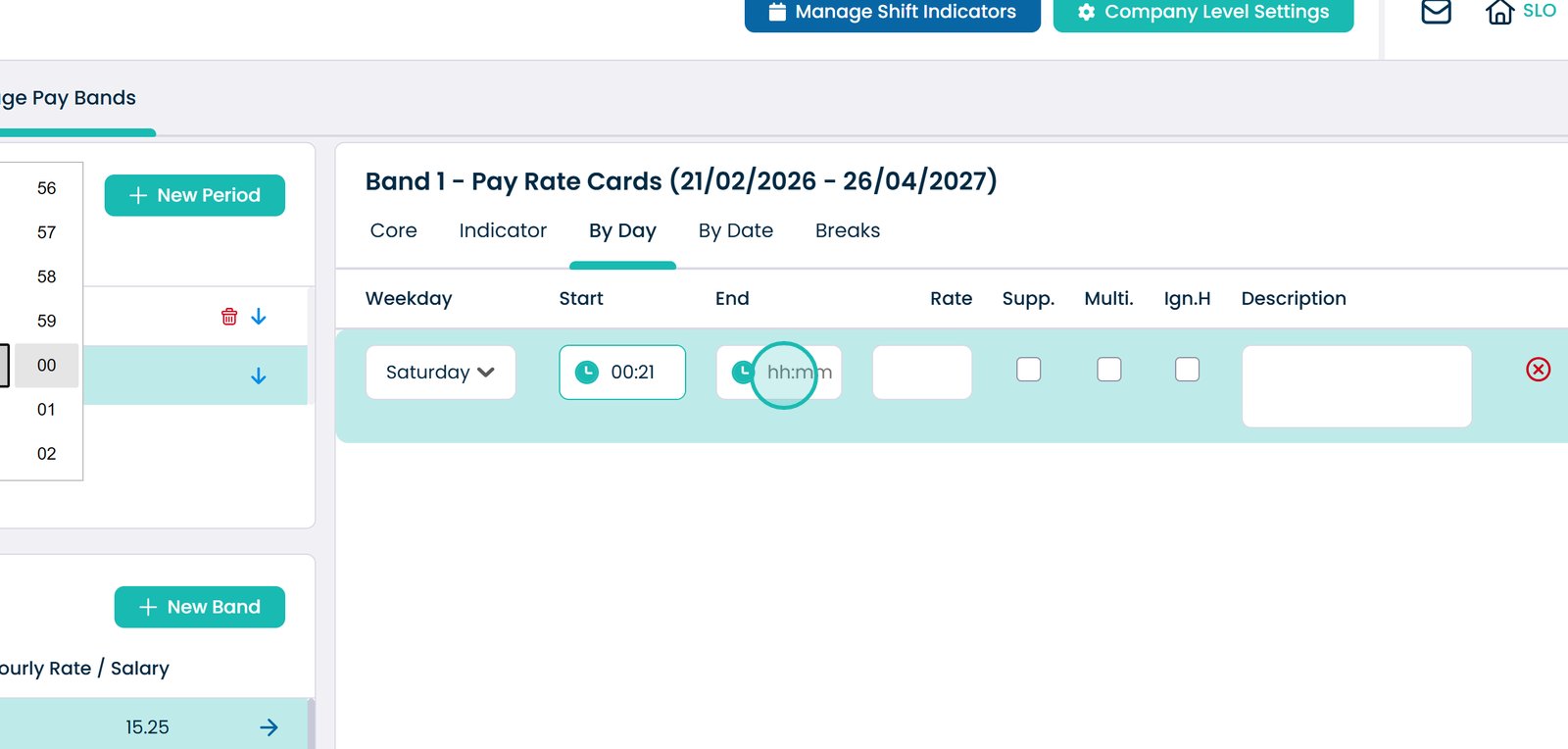
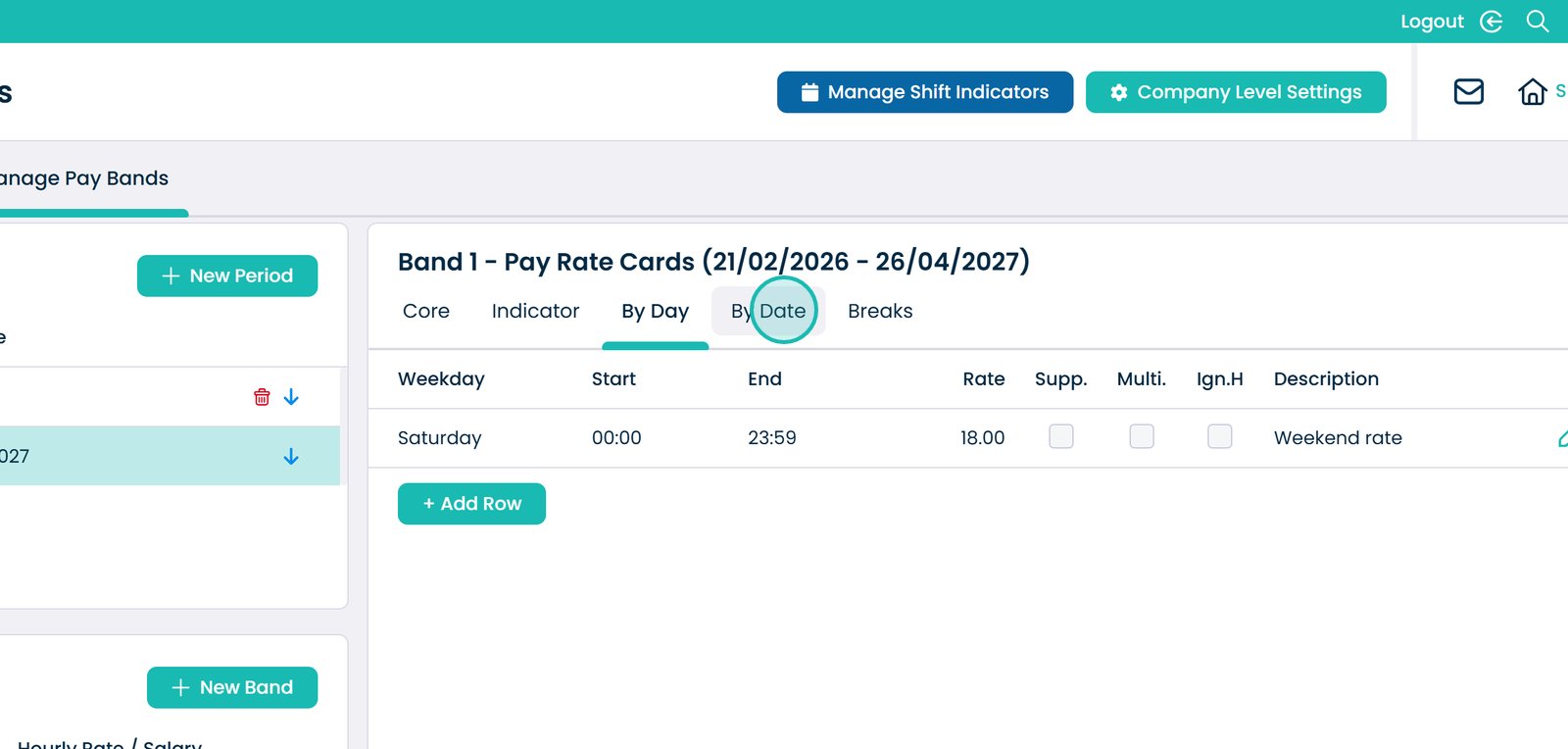
Open the By Day tab

Add a new day-based rate

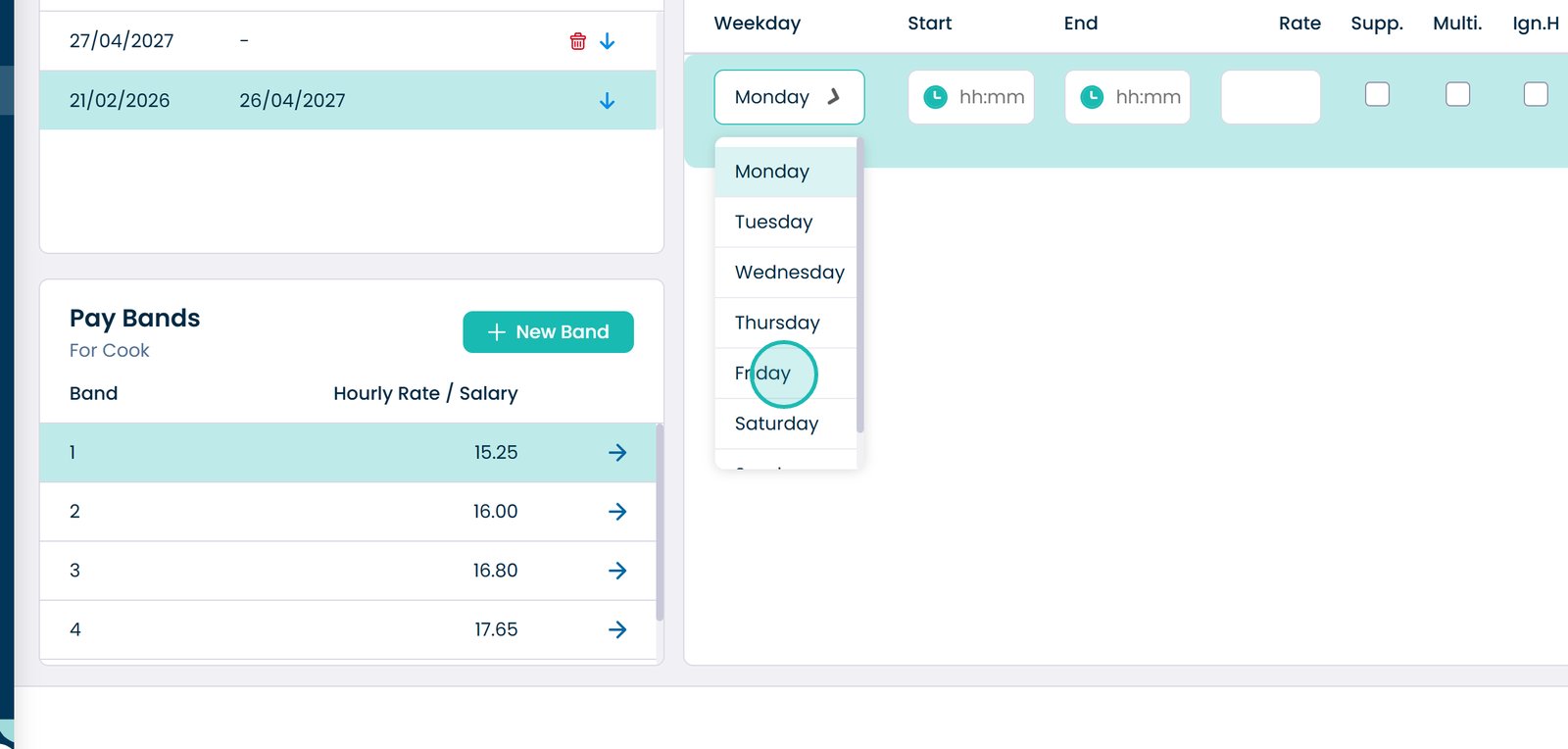
Select the weekday

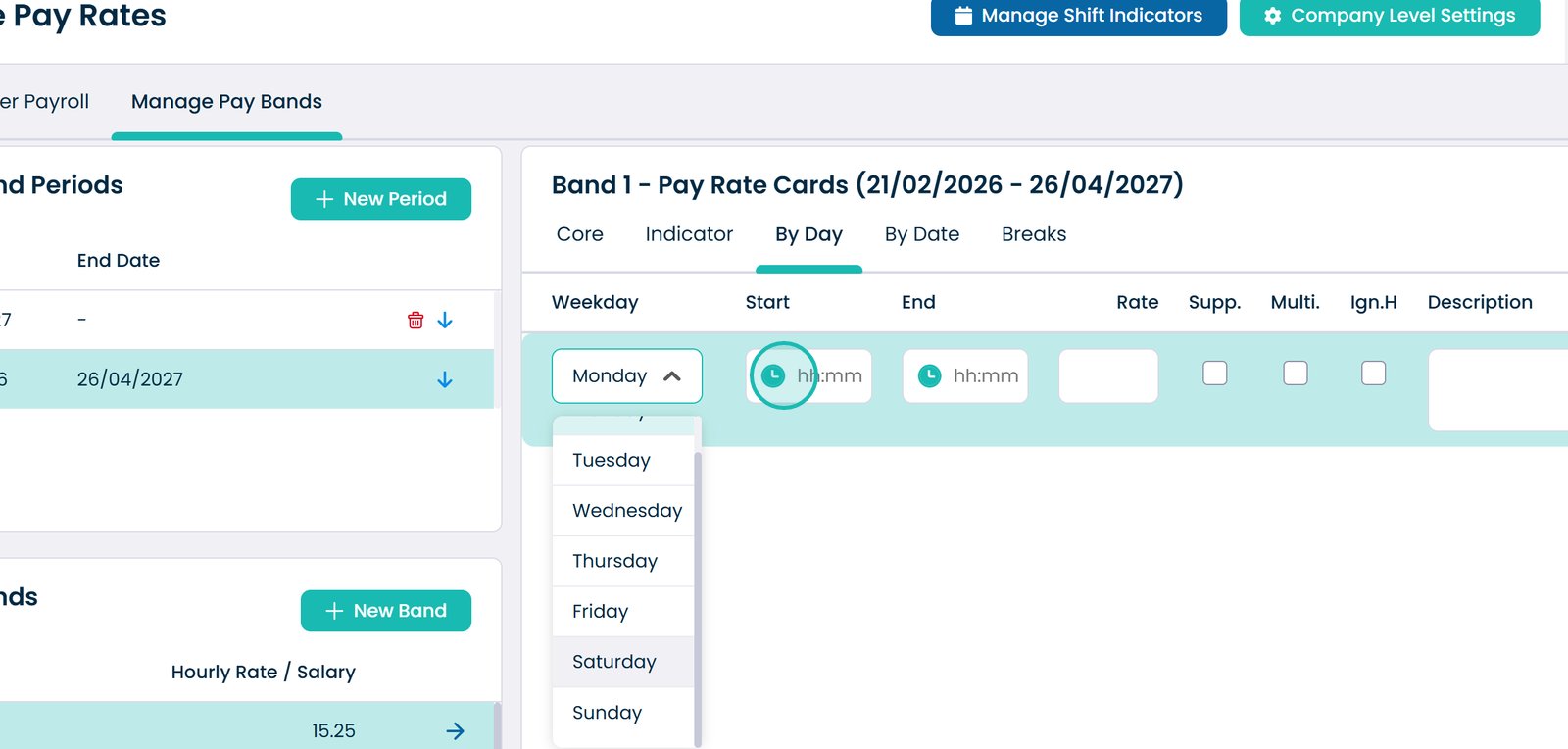
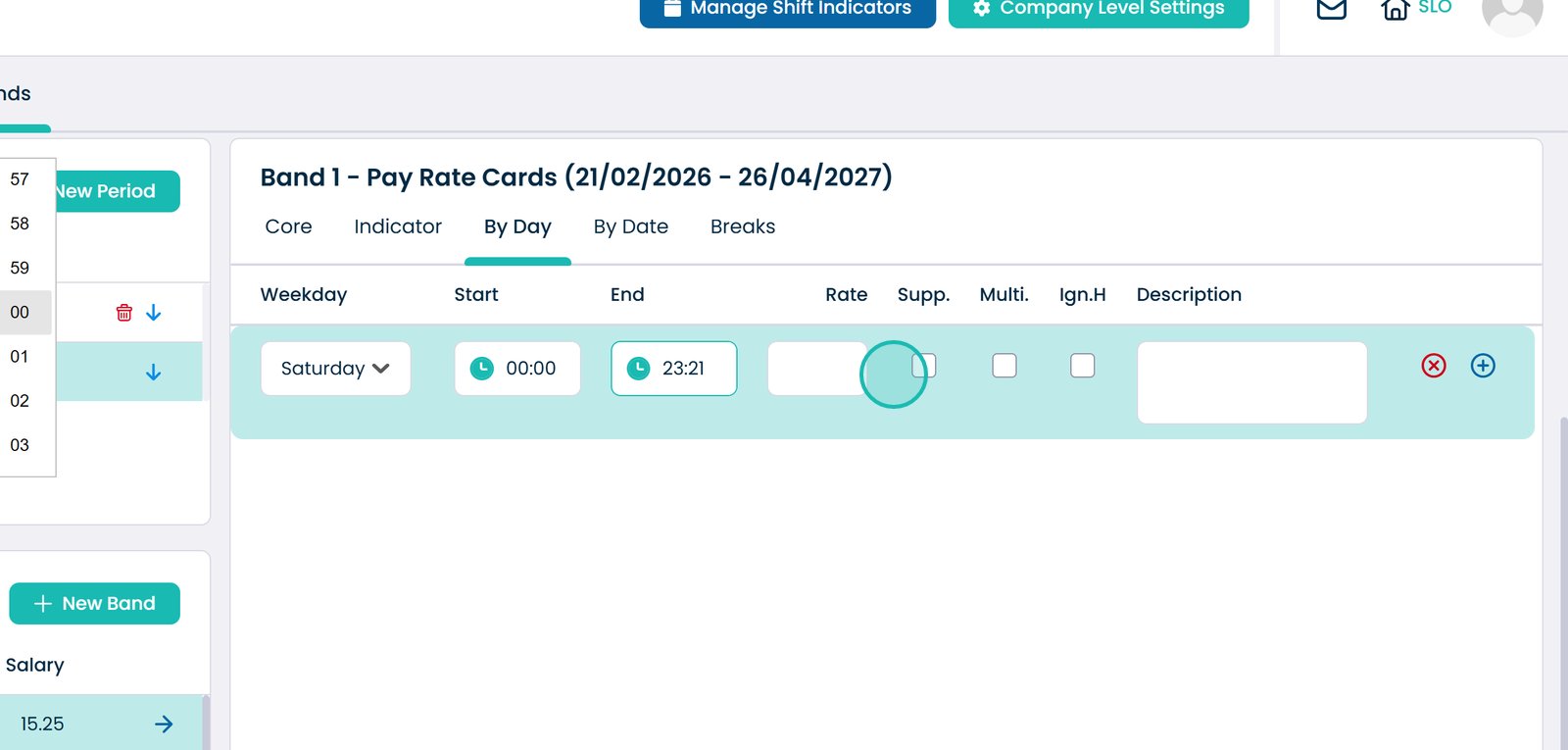
Set the start time

Set the end time

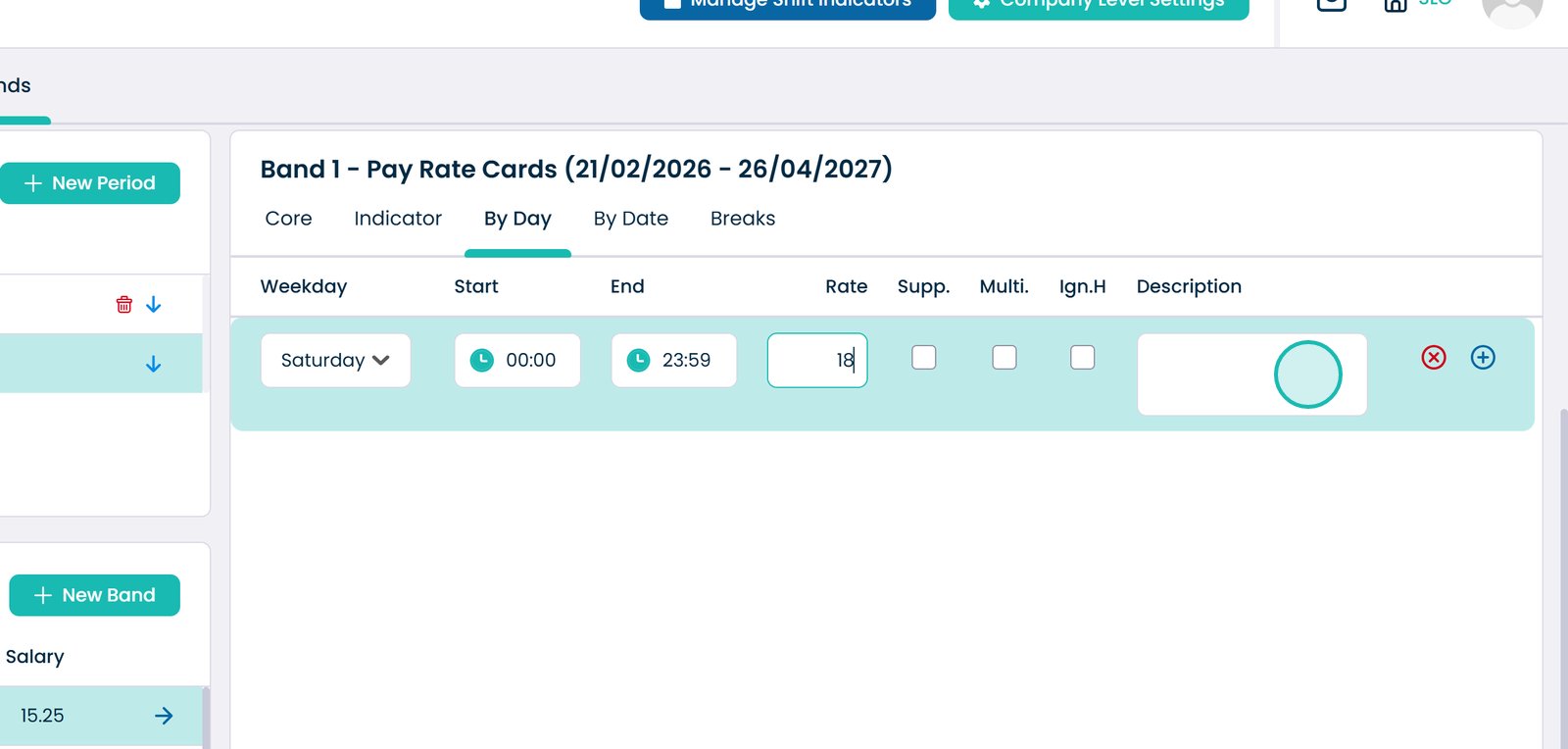
Enter the rate for this day

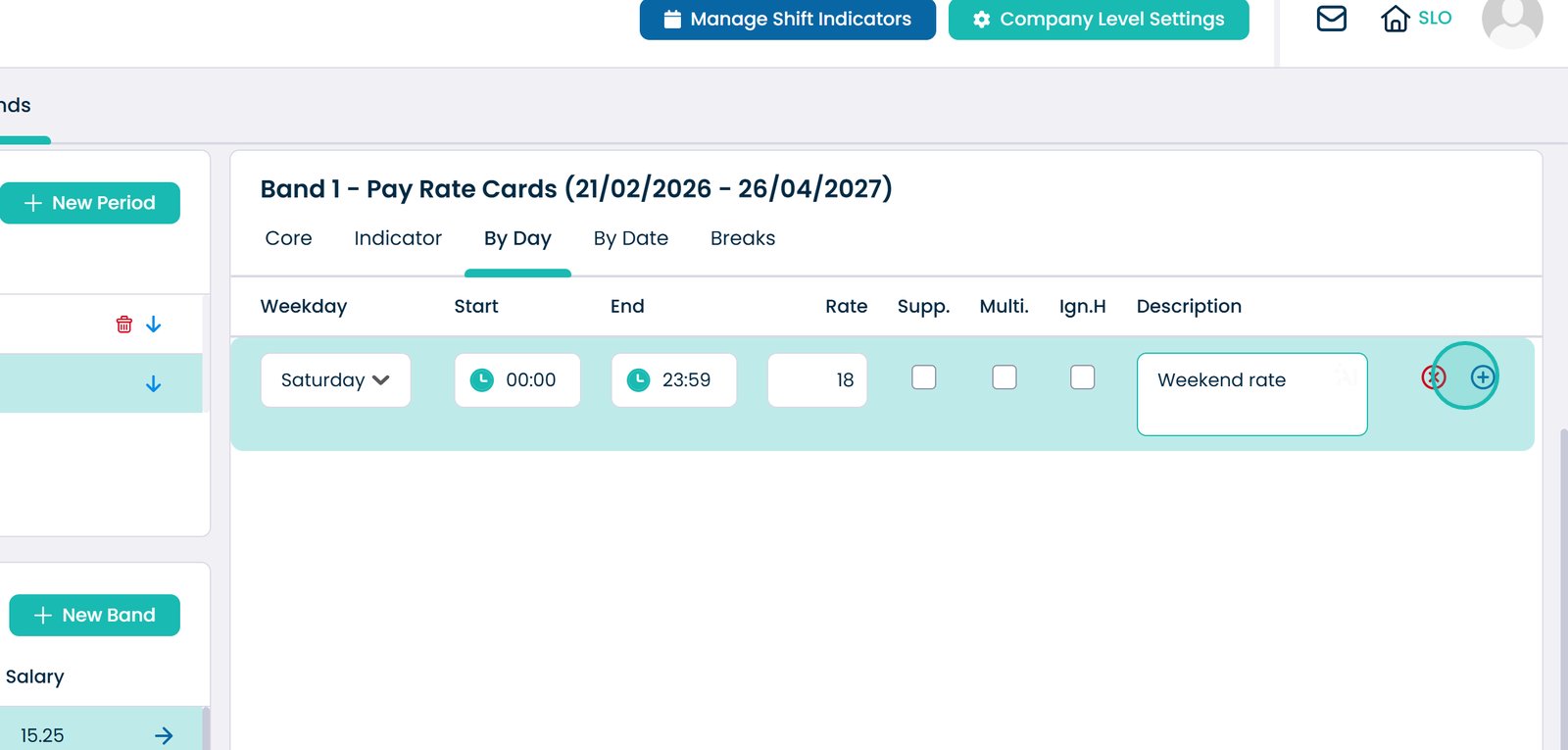
Add a description for the rate

Save the day rate

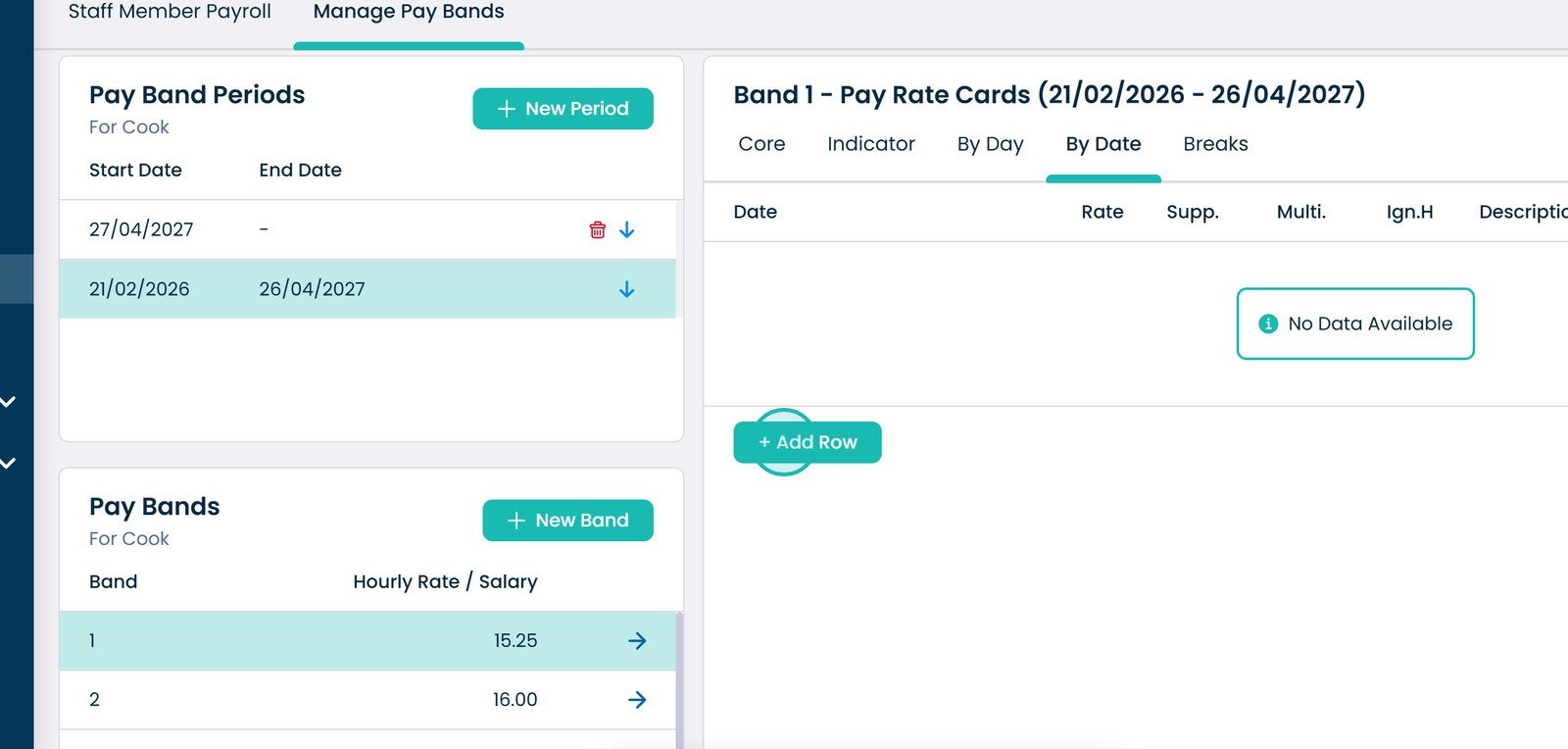
Open the By Date tab

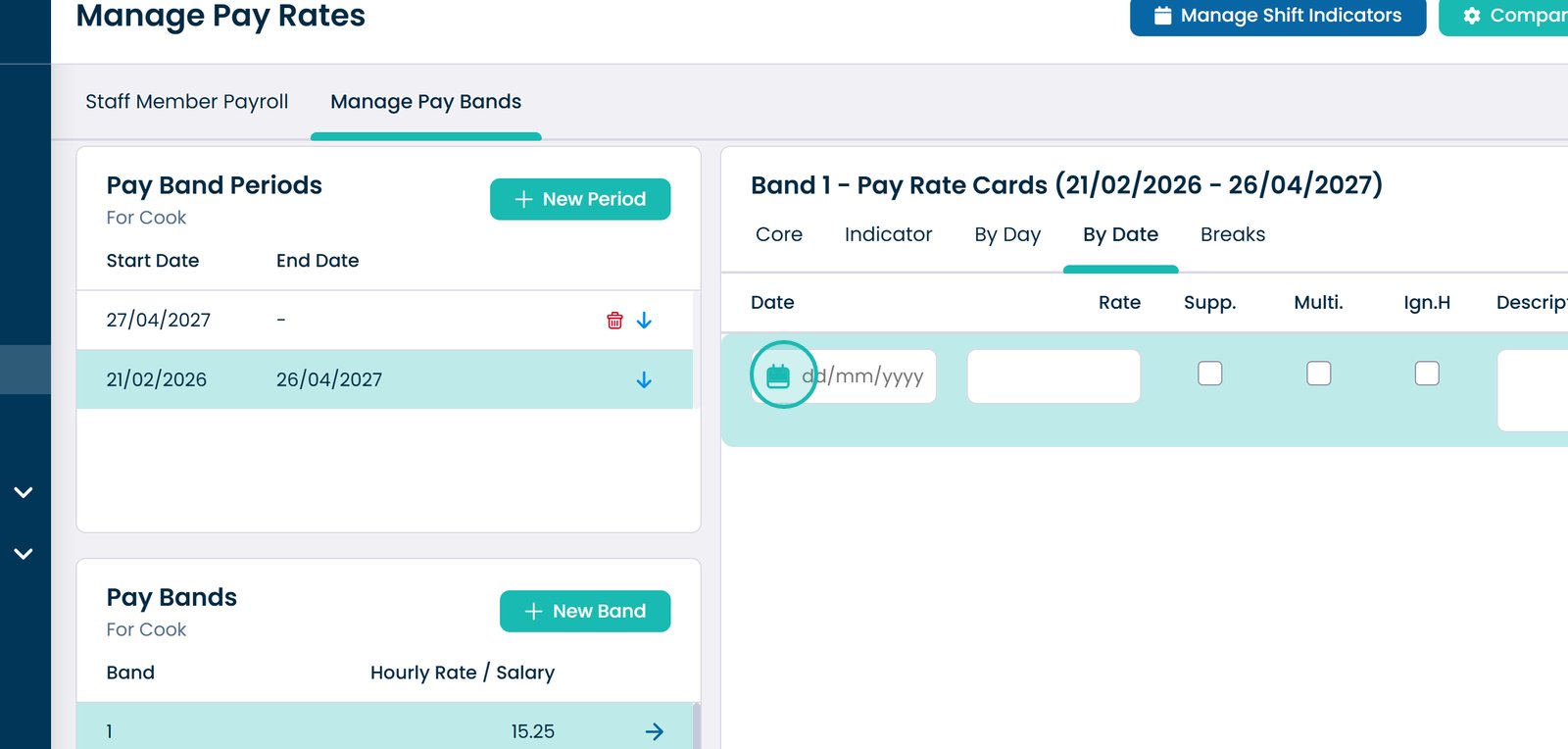
Add a new date-specific rate

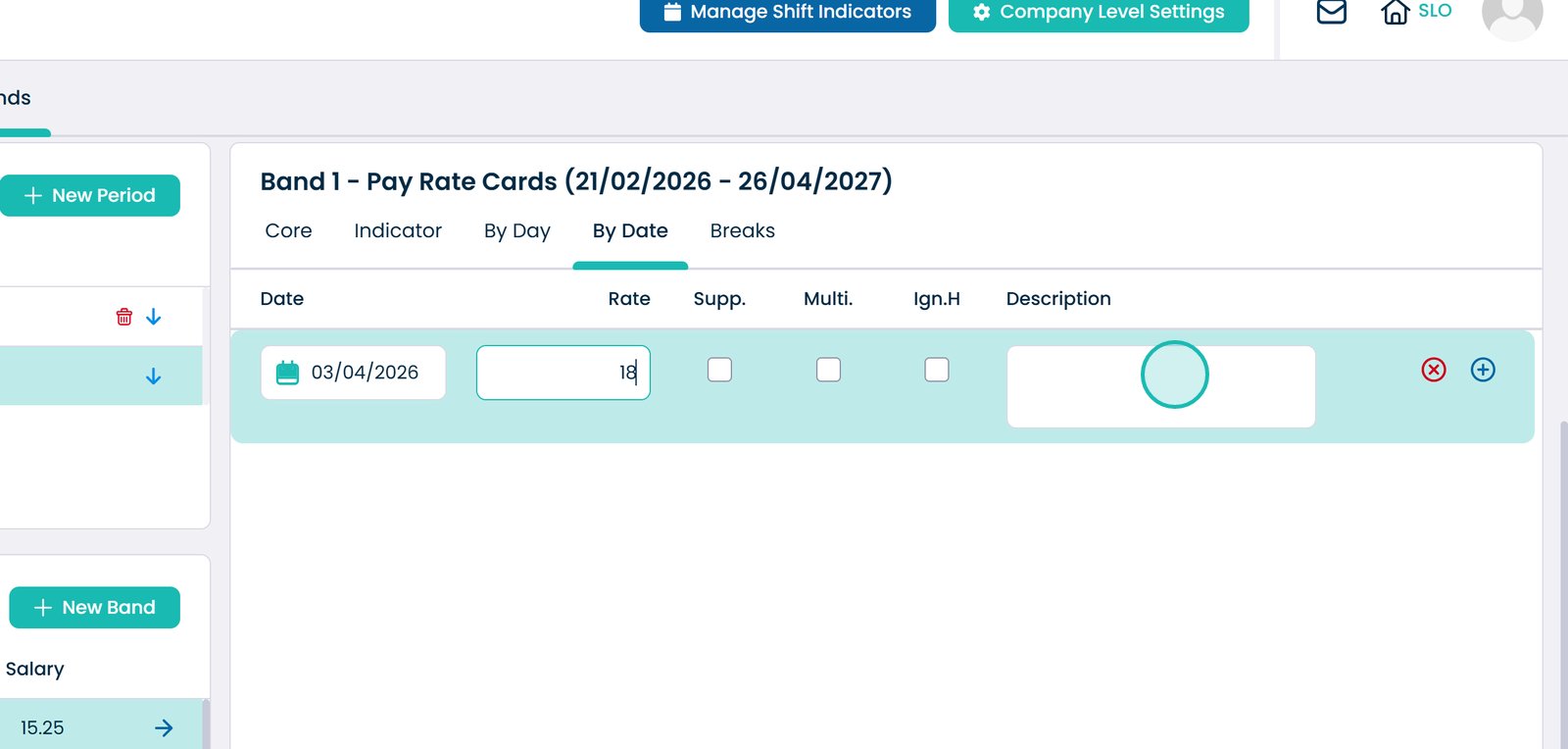
Select the date

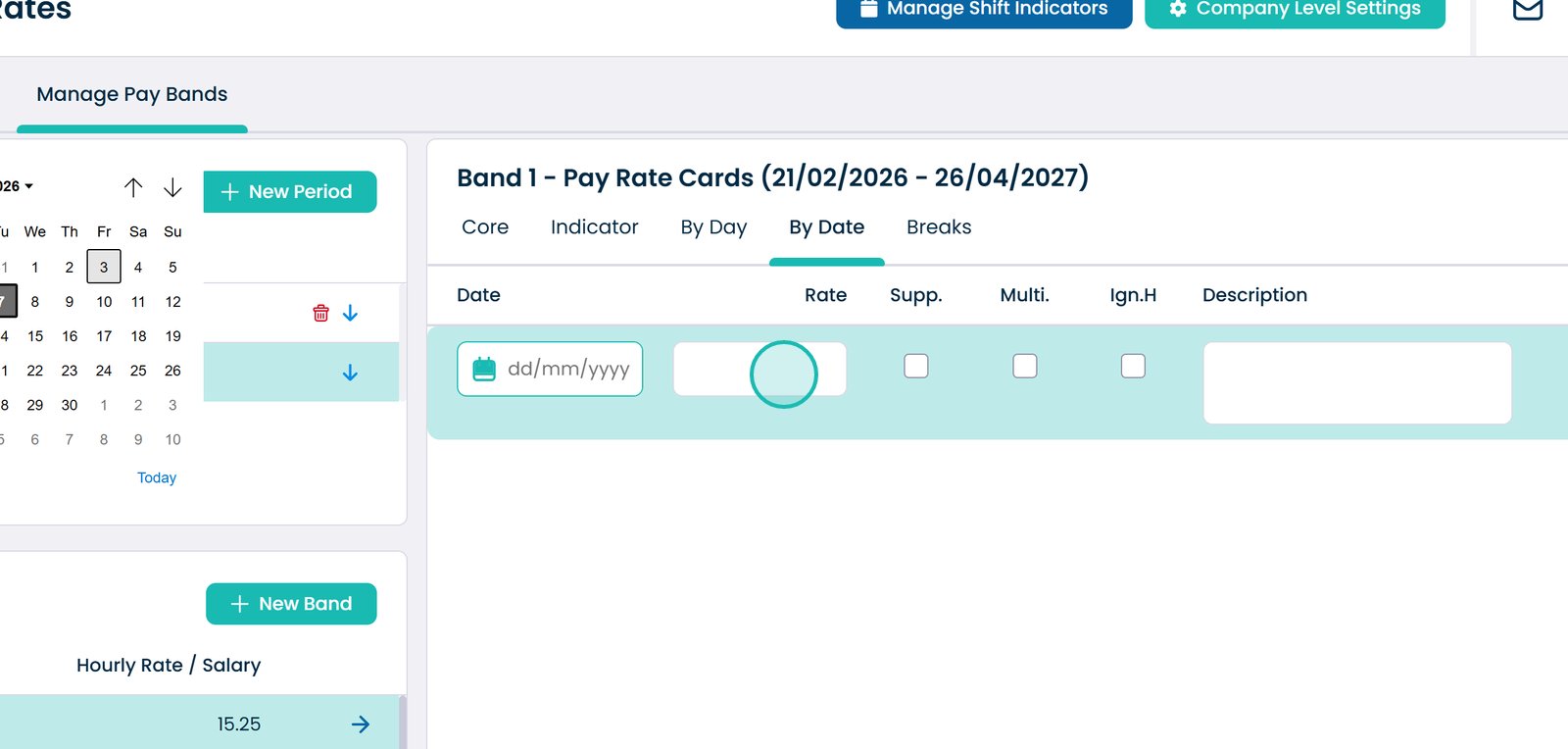
Enter the rate

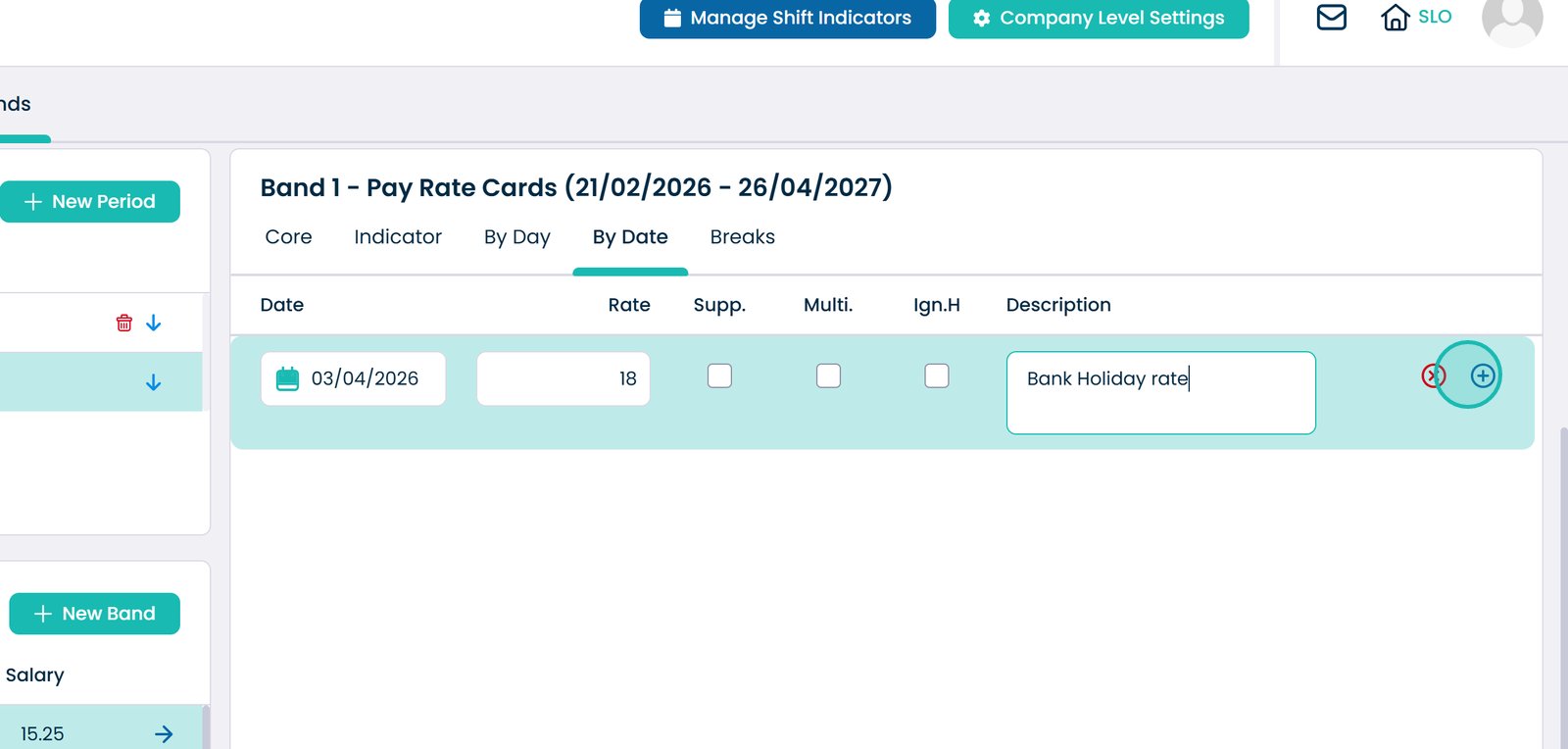
Add a description (e.g. Bank Holiday)

Save the date-specific rate

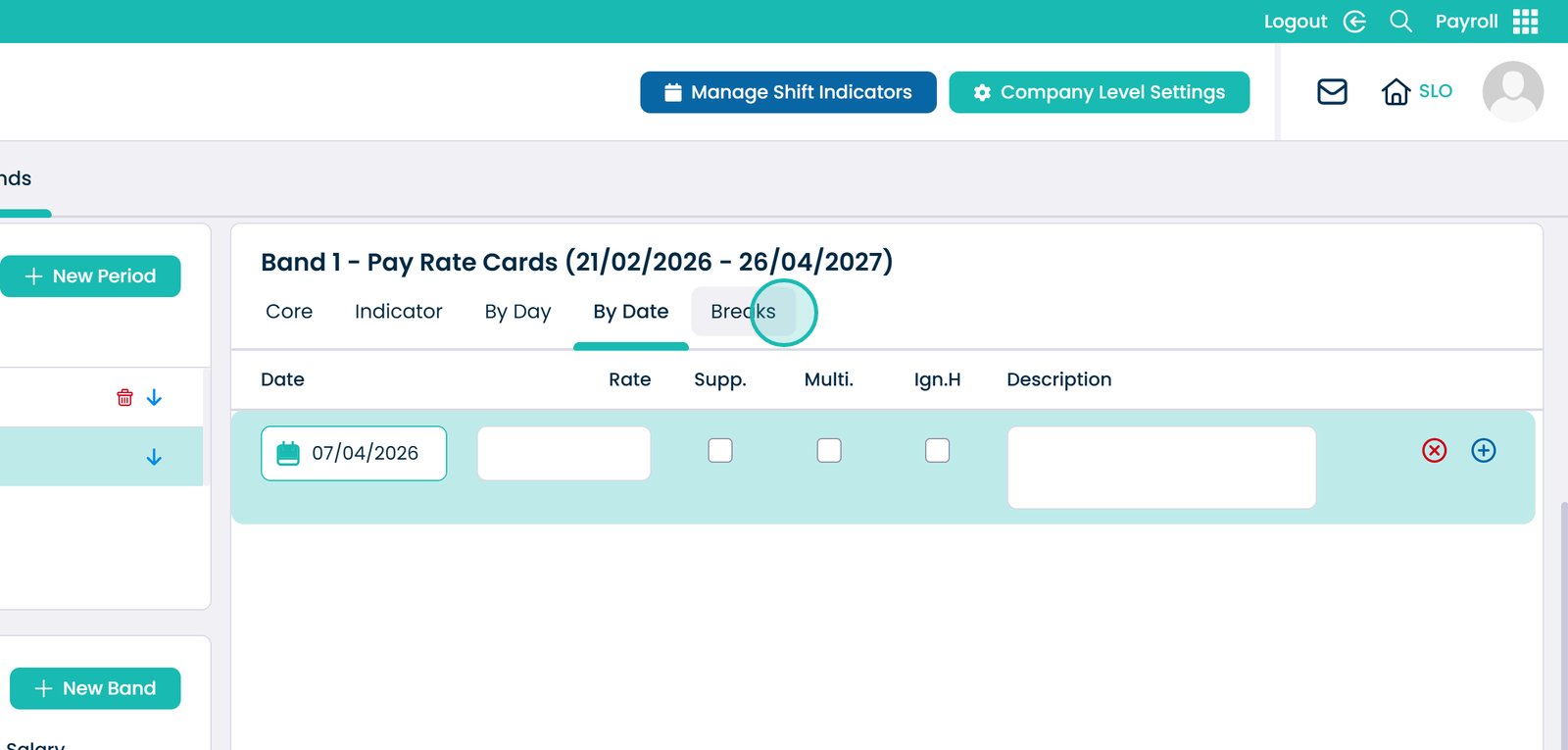
Open the Breaks tab

Configure break payment settings

Was it helpful ?
Table of Contents
↑ Top