This guide explains how to update a service user's personal appearance information
Takes 4 minutes
For: Care Staff
Updated: 30th June 2026
Introduction
The Personal Appearance section allows you to record and maintain information about a service user's appearance. You can customise the body map, select the appropriate body map type, and save any updates to support accurate care documentation.
In this guide you'll learn how to:
Open the Personal Appearance section
Select a service user
Edit personal appearance information
Customise the body map
Save the updated body map
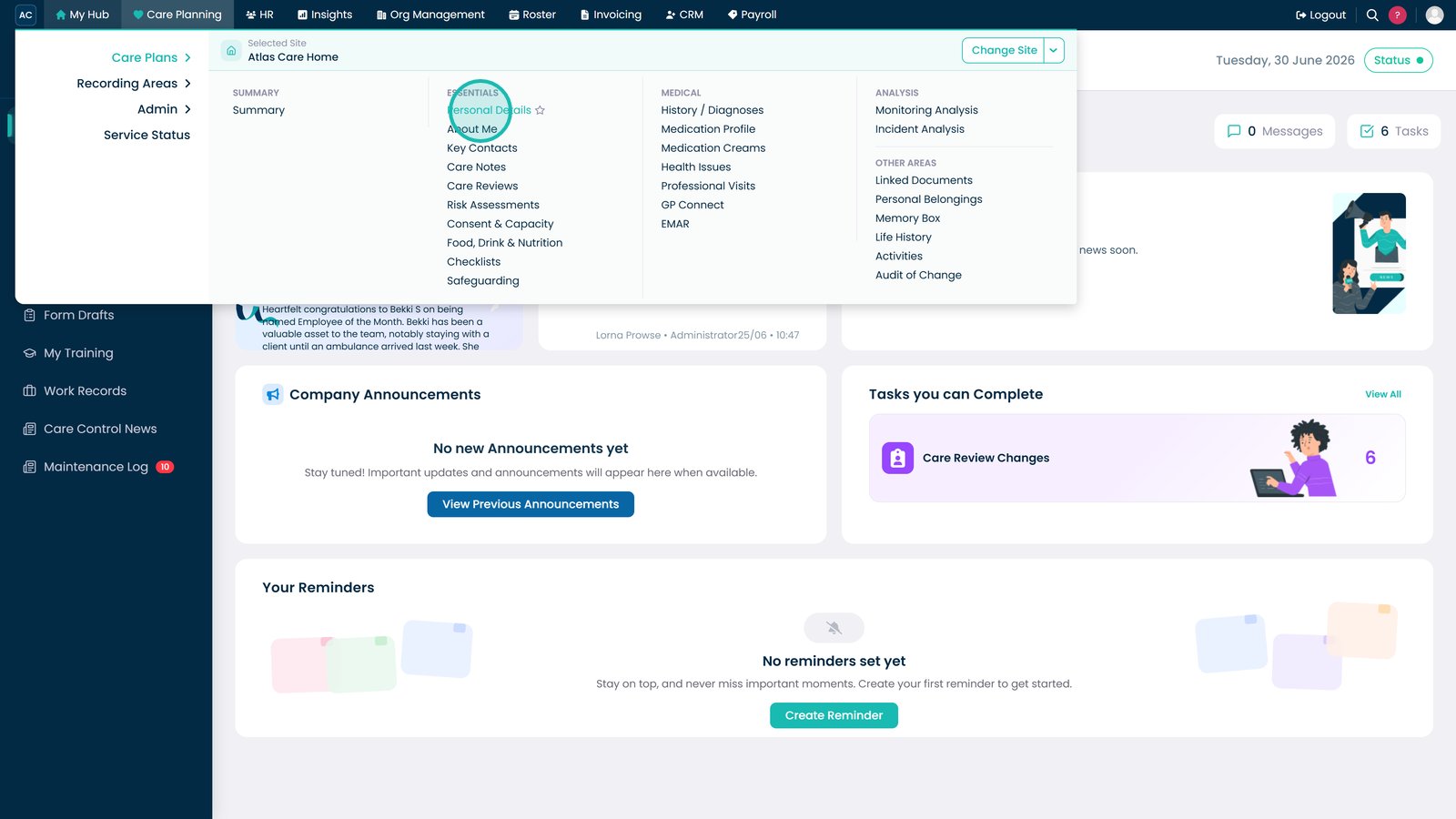
Open the Personal Details section under Care Planning.
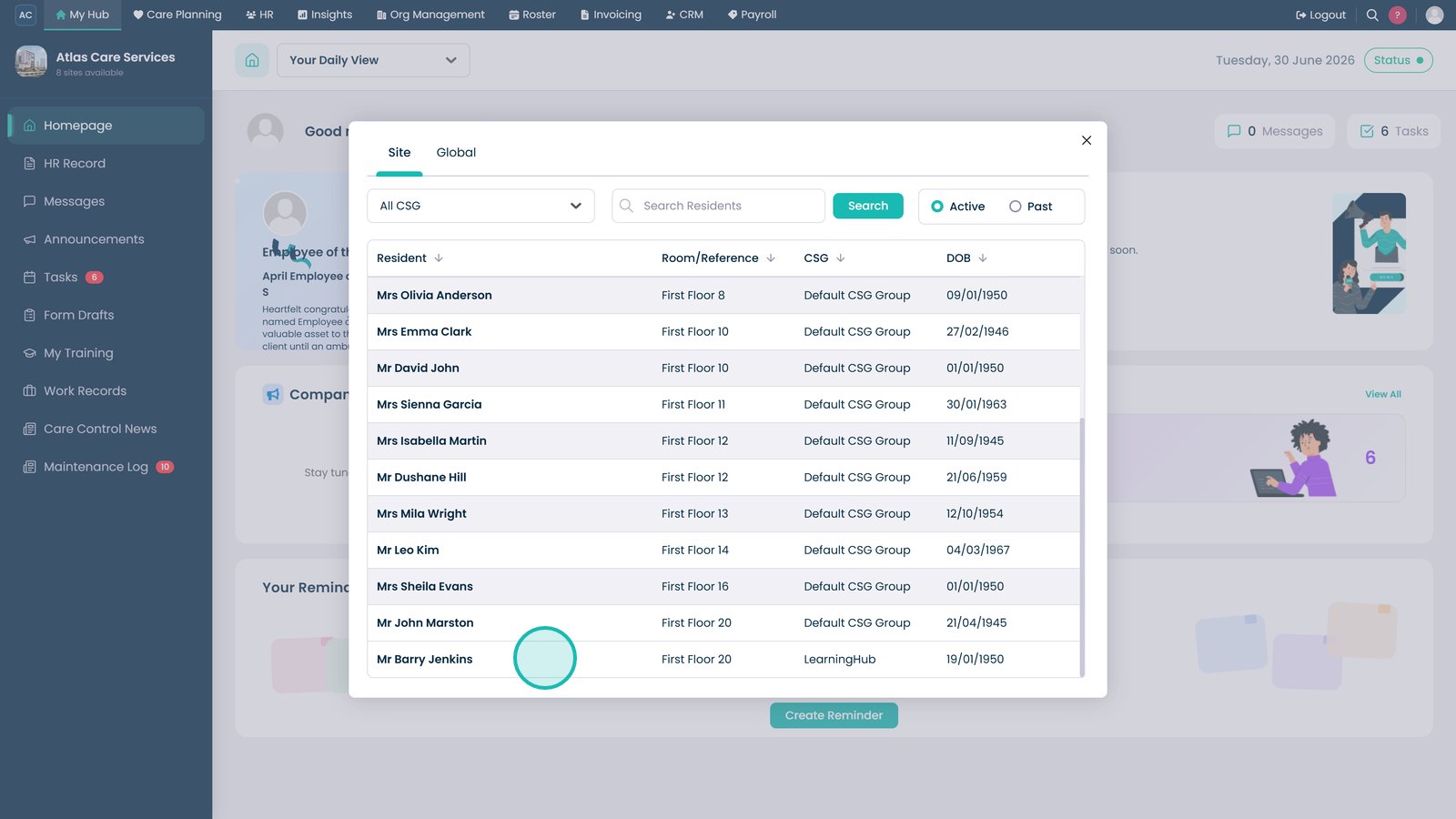
Select the service user whose profile you want to view or update.
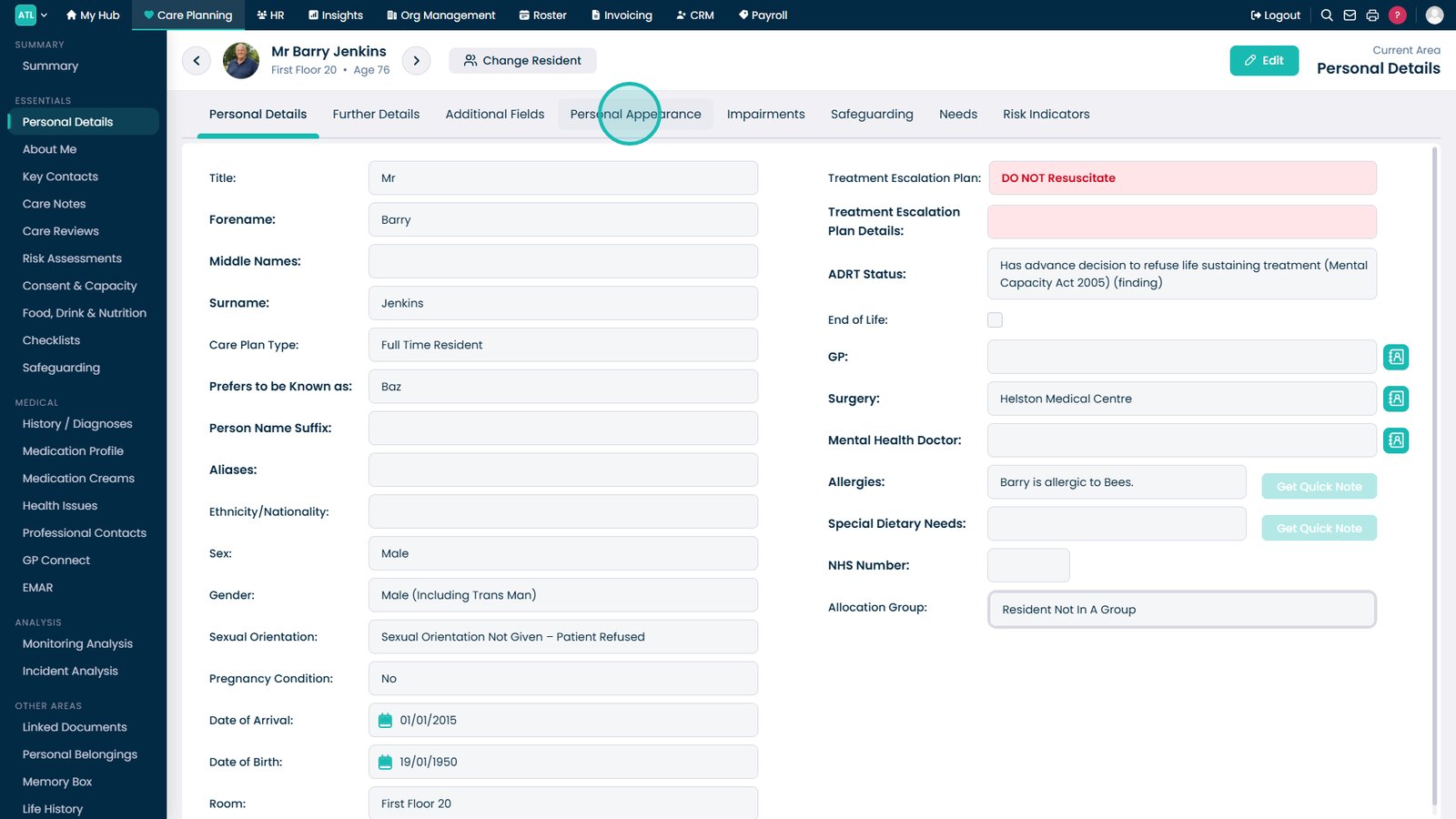
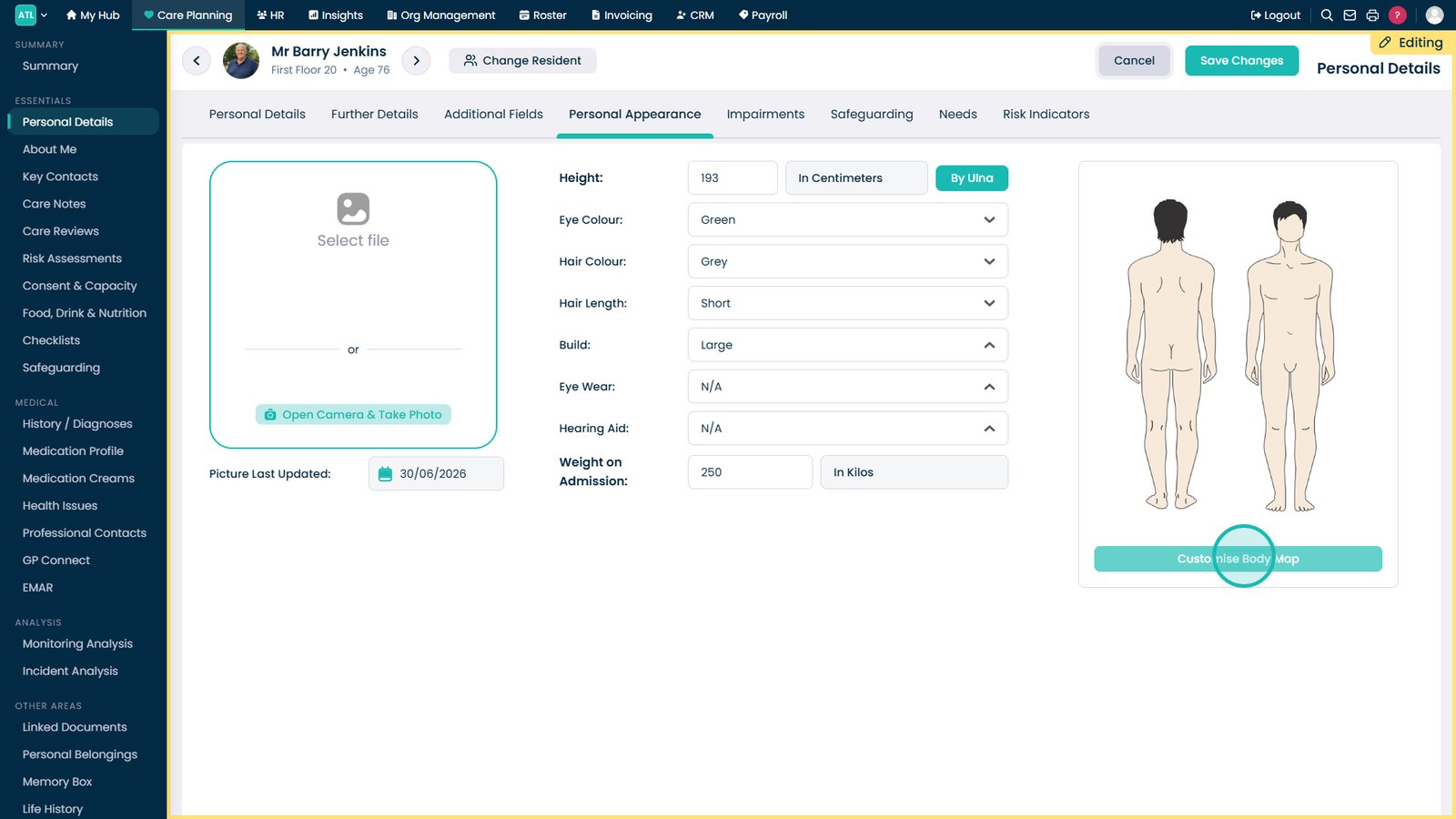
Open the Personal Appearance tab.
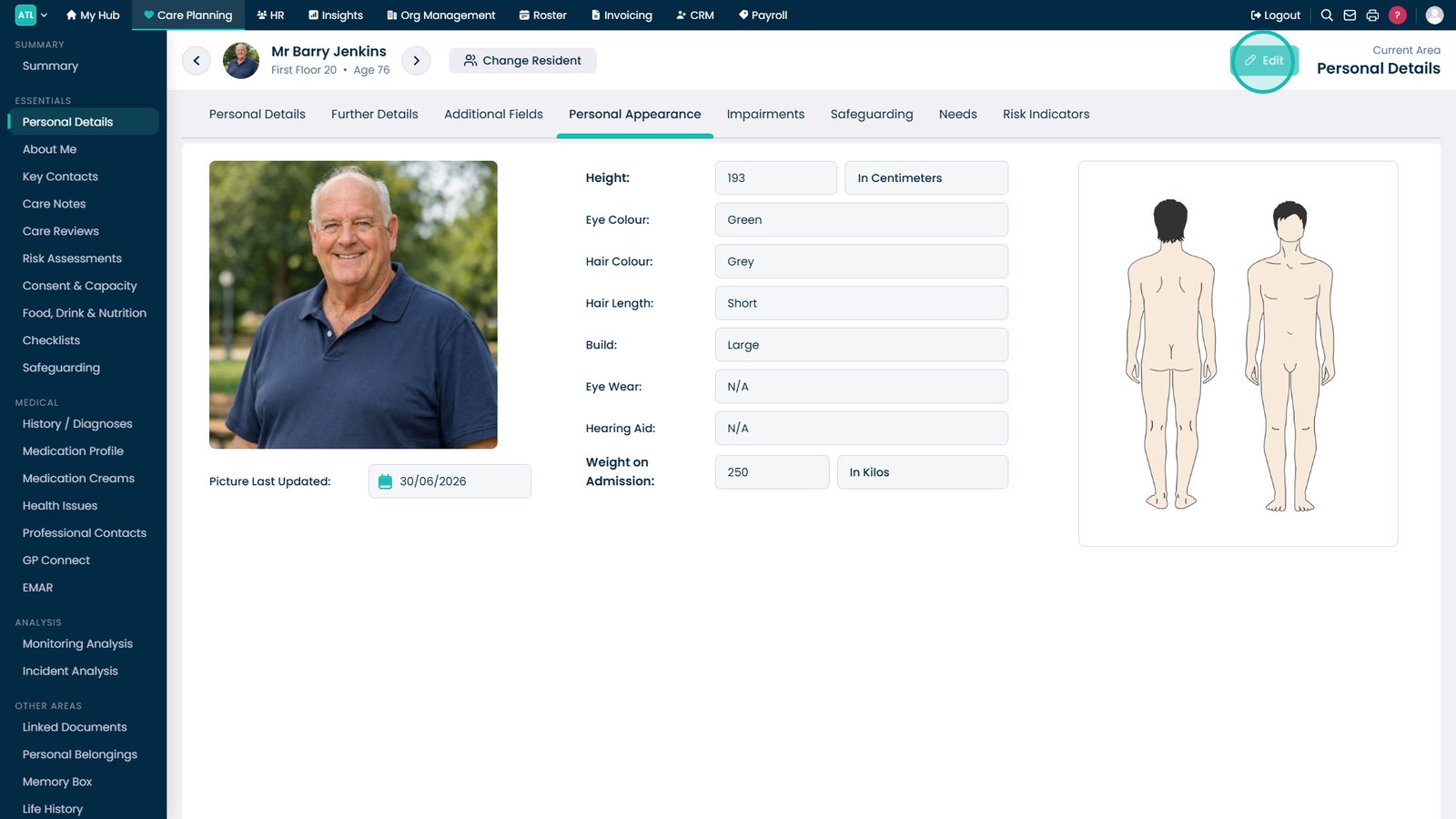
Select Edit to update the service user's personal appearance information.
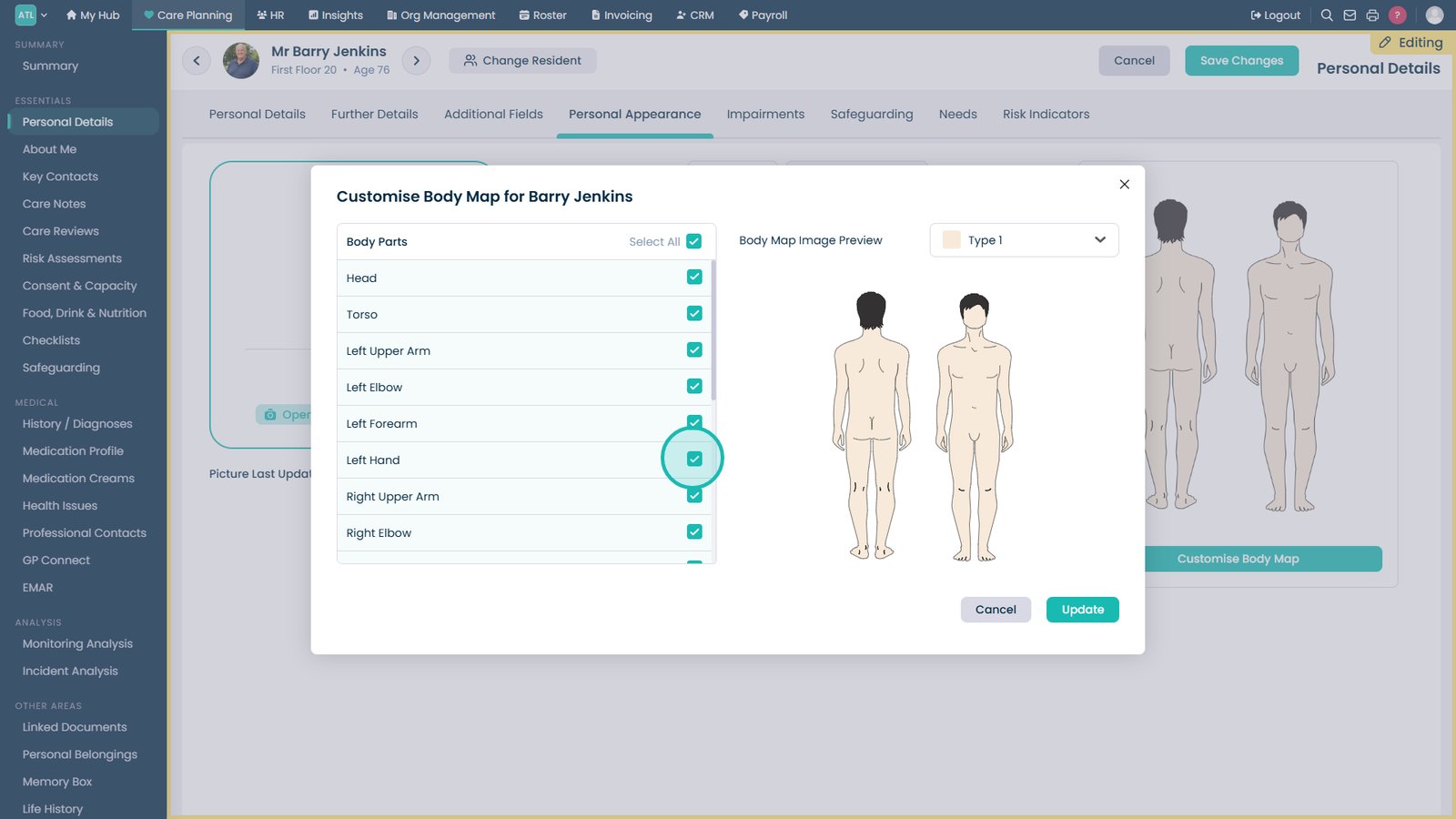
Select Customise Body Map to edit the service user's body map.
Select or clear body parts to customise the body map.
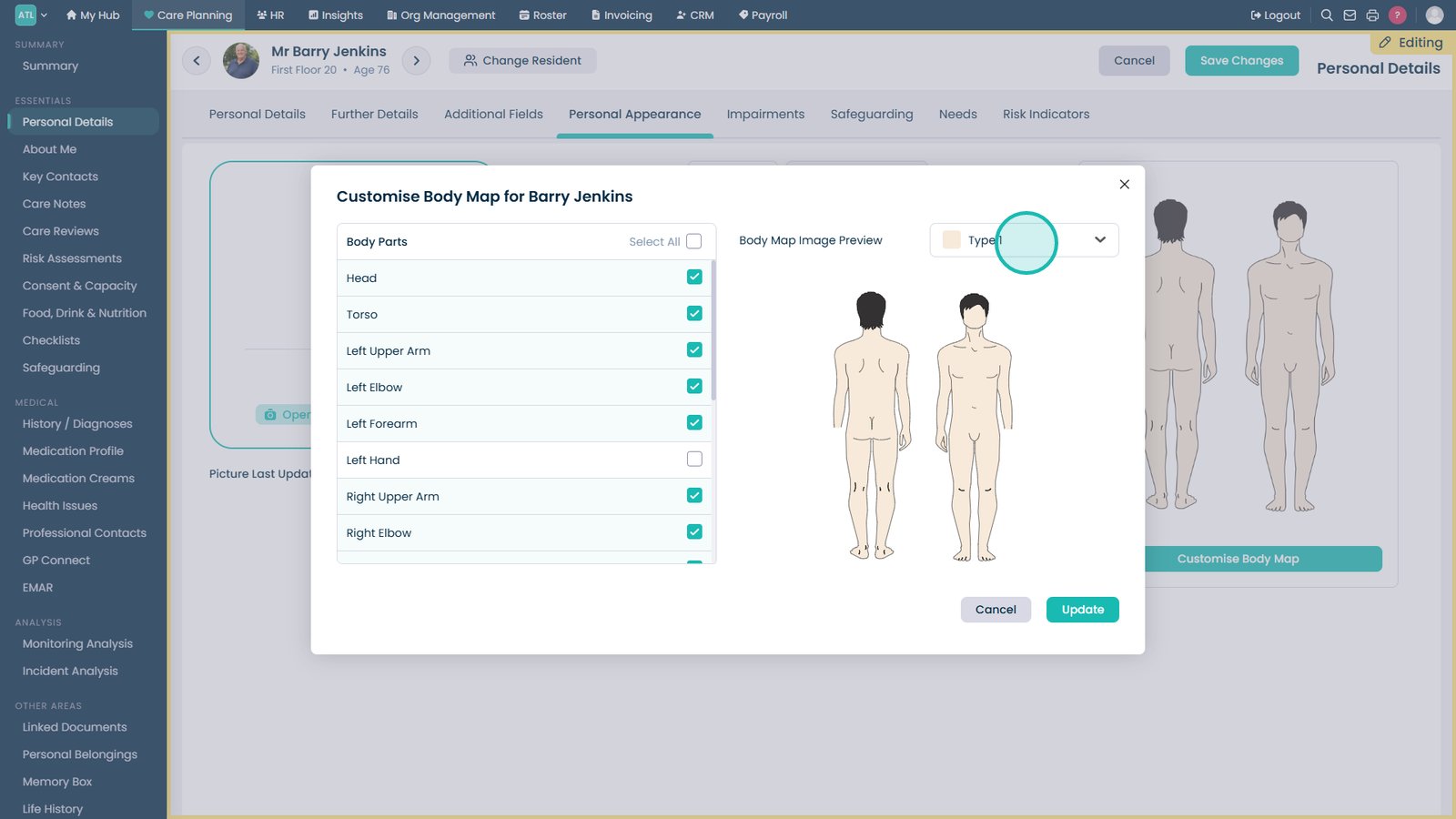
Select the body map type that best matches the service user's skin tone.
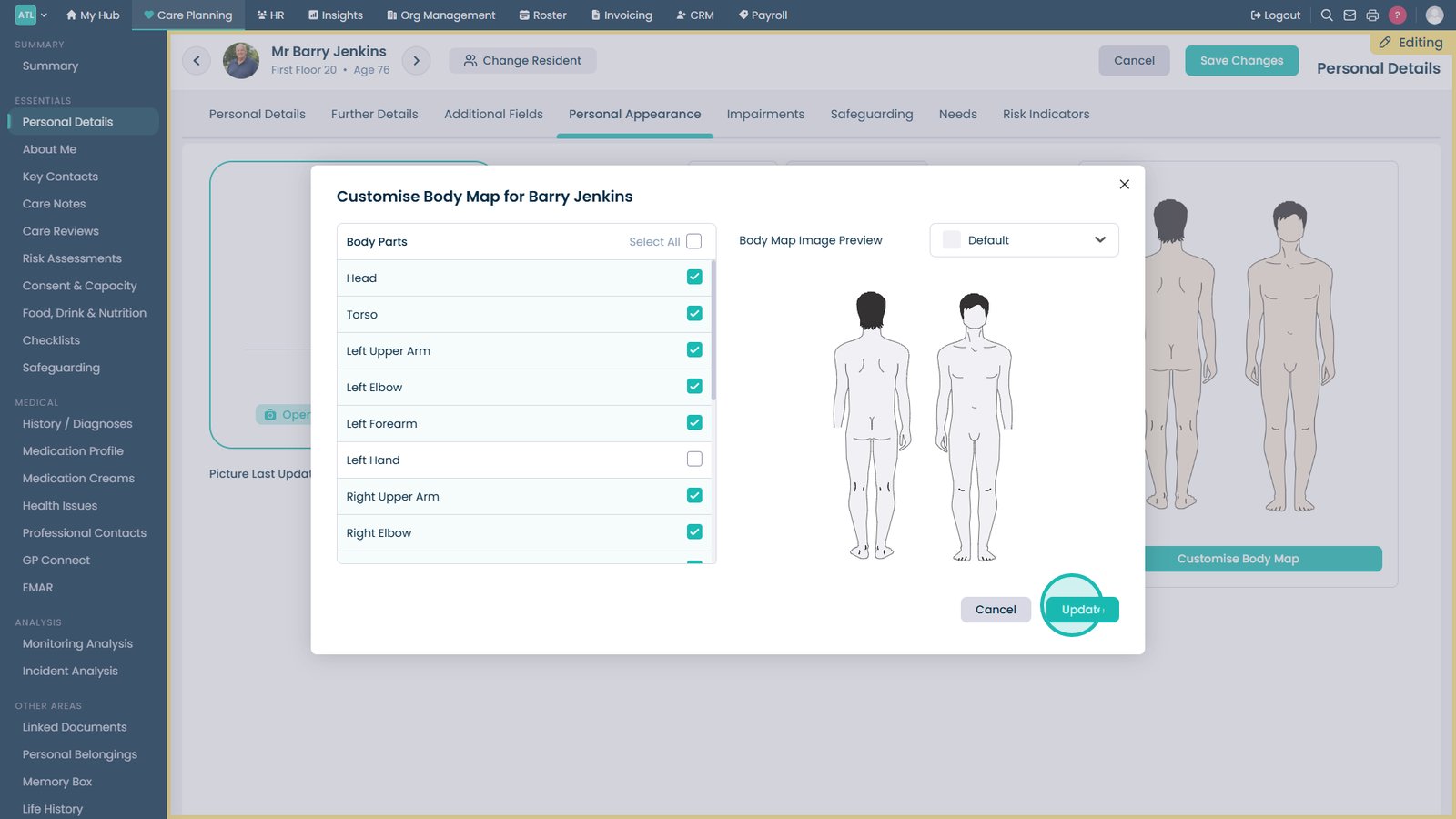
Select Update to save the customised body map.
Top tip
Make sure to click Save Changes after modifying the body map to ensure it is up to date.