View Categories

How to Enable Skin Integrity Prompt

This guide explains how to enable and use the new Skin Integrity Check prompt in the Personal Care and Bath Monitoring sections of Care Control. The feature is activated through Manage Monitoring – Cloud in the Admin App.

When enabled, carers are automatically prompted on Pocket to complete a Skin Integrity Check after providing care. This ensures that any observed skin issues, such as redness, pressure areas, or wounds are consistently recorded as part of daily care routines.

The update supports proactive care monitoring and strengthens compliance with CQC standards, helping care providers demonstrate safe, person-centred care practices. By enabling this prompt, your service maintains accurate evidence of skin integrity checks and promotes best practice in every care interaction.

Interactive Guide

Text based guide

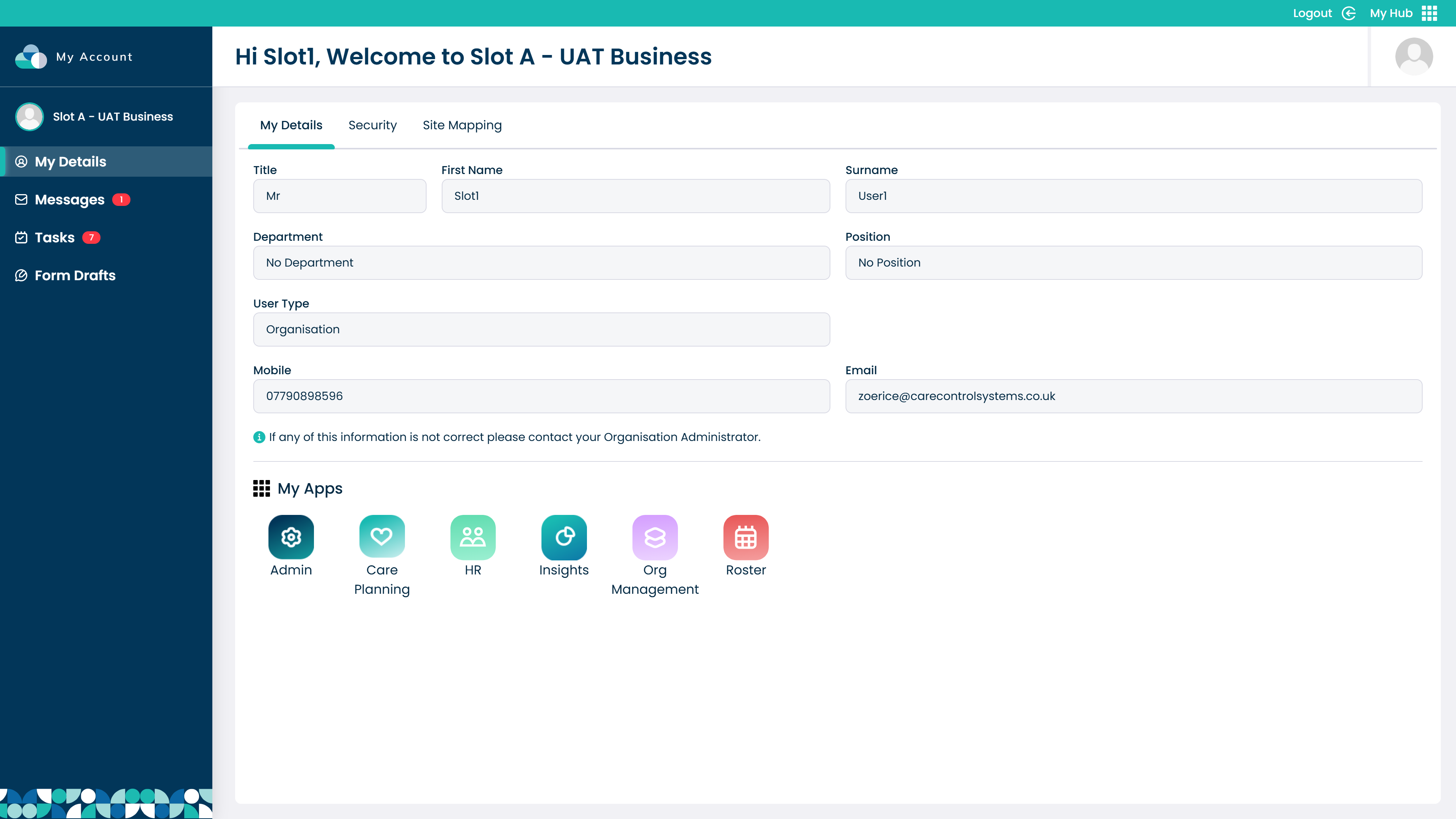
Enter the Admin App

Admin App

Click Visit under Care Planning
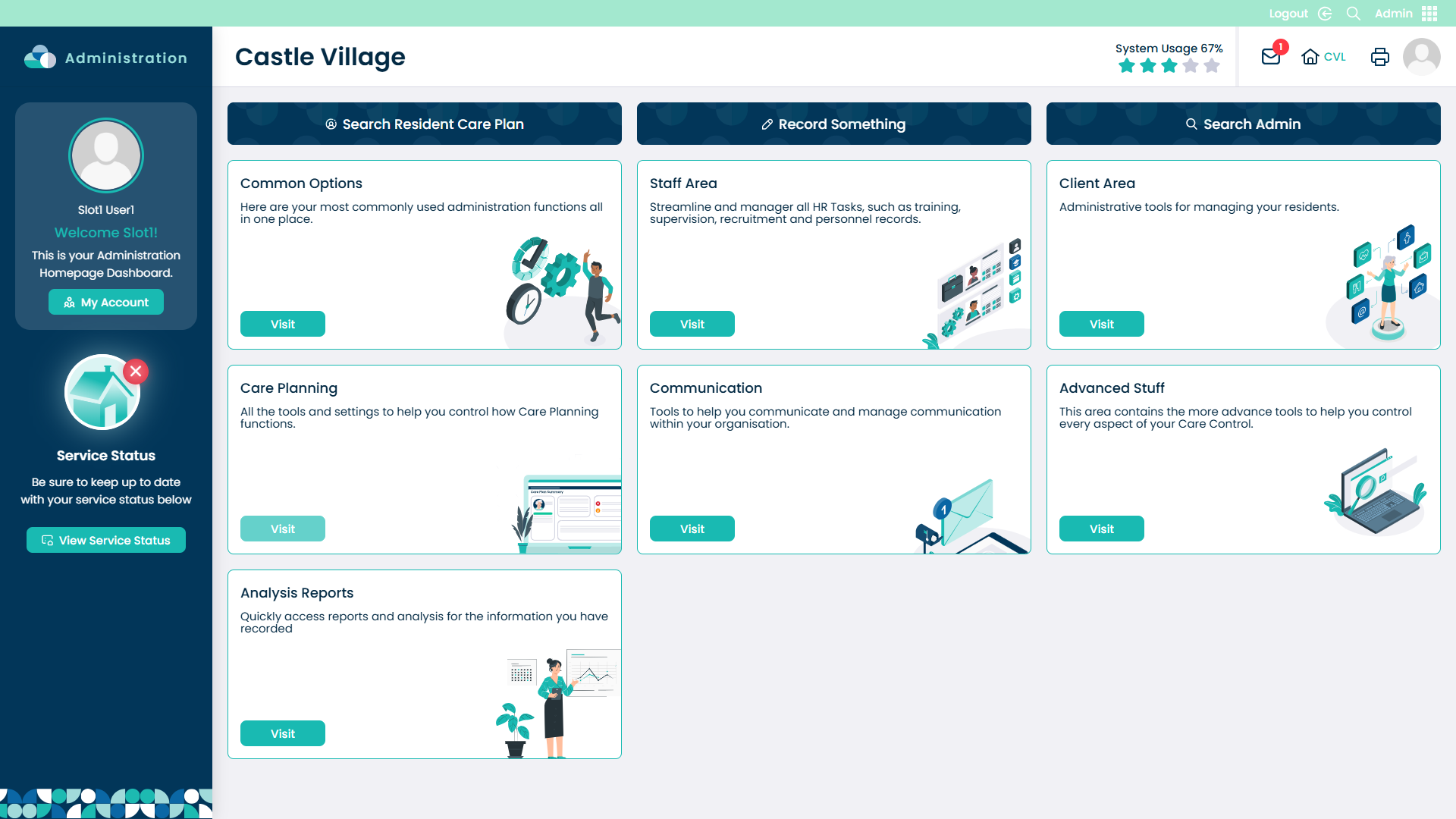
Care Planning

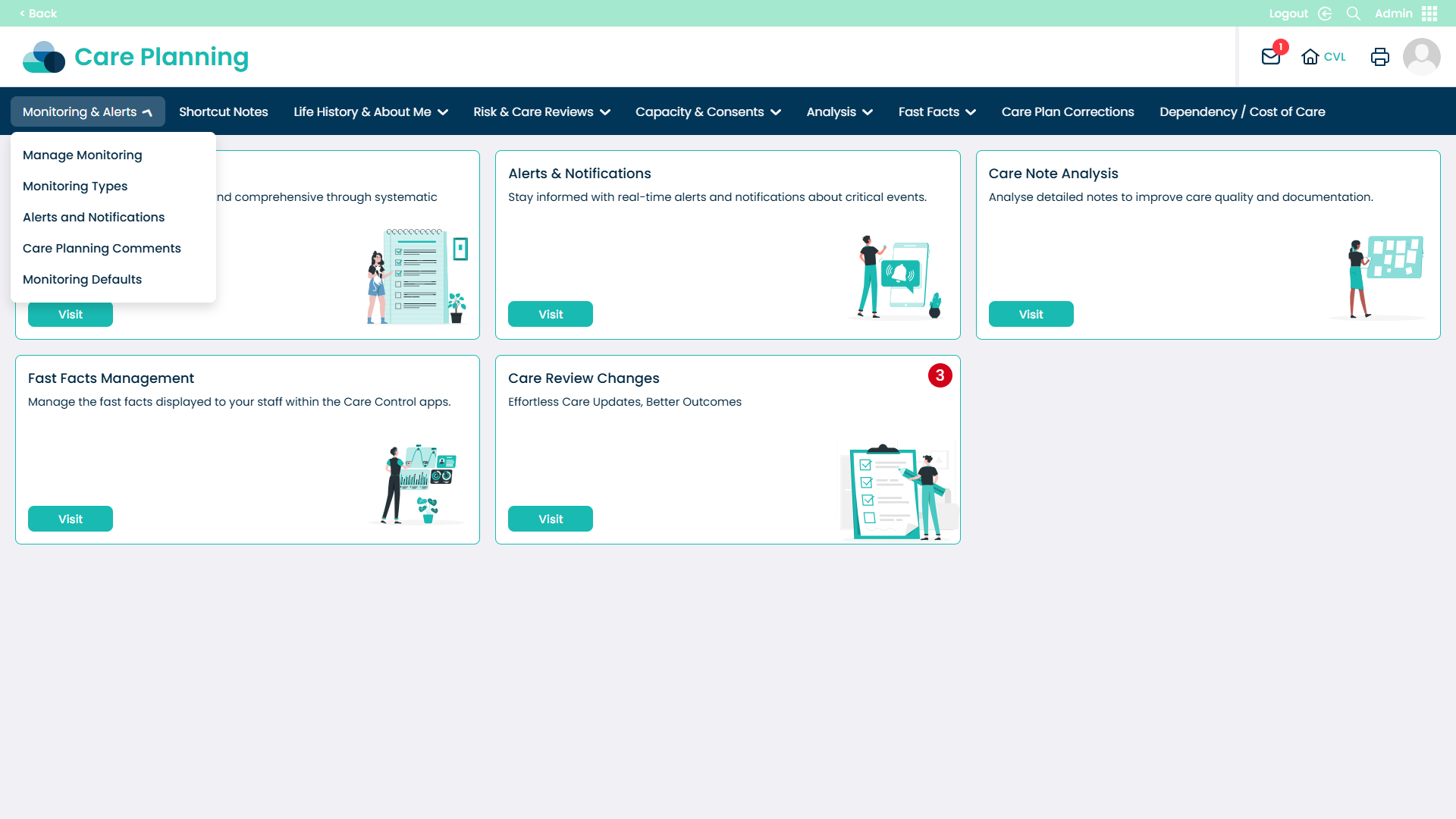
Open the Monitoring & Alerts dropdown
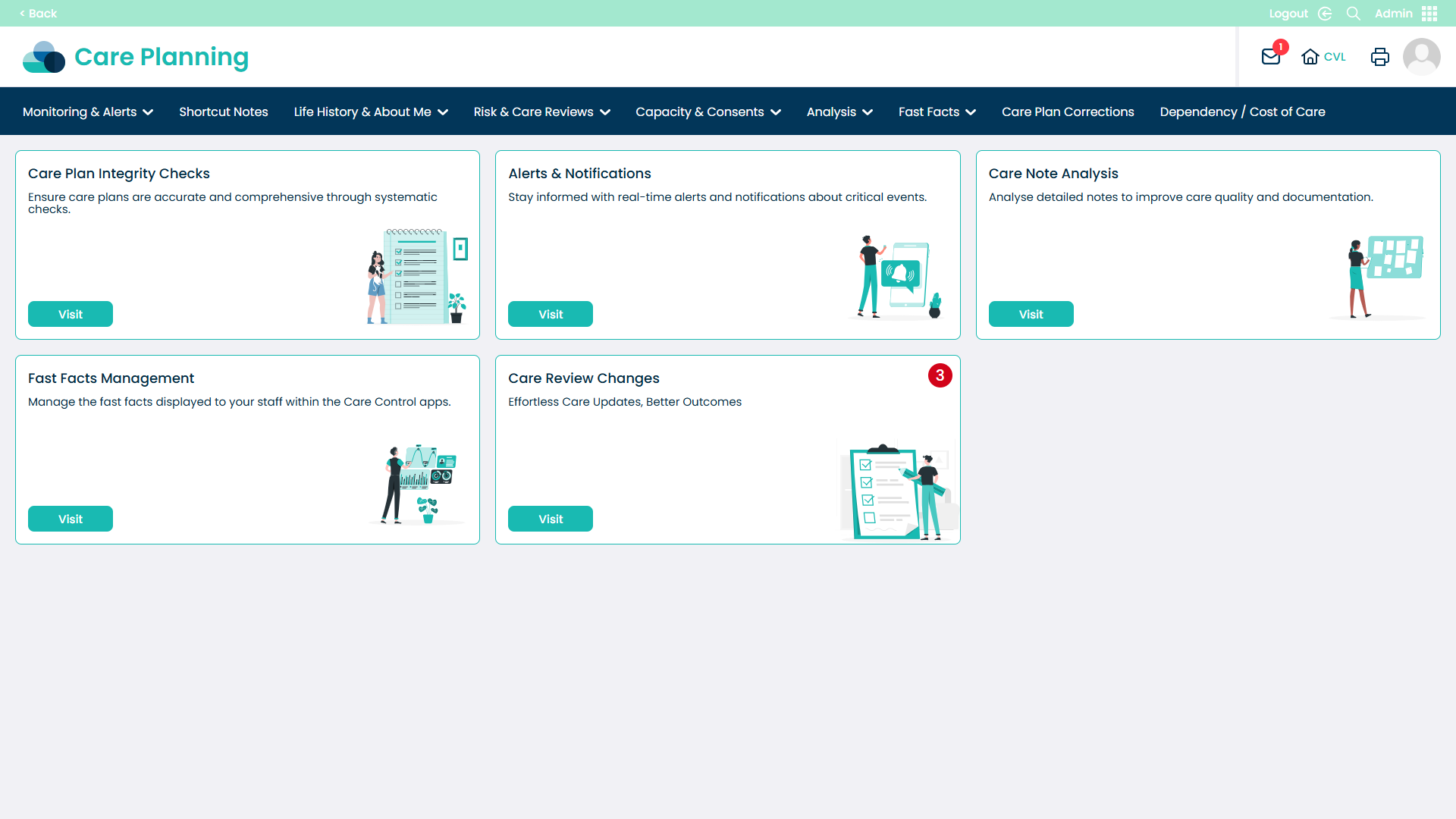
Monitoring and Alerts

Select Manage Monitoring

Manage Monitoring

Choose the Service User from the left menu
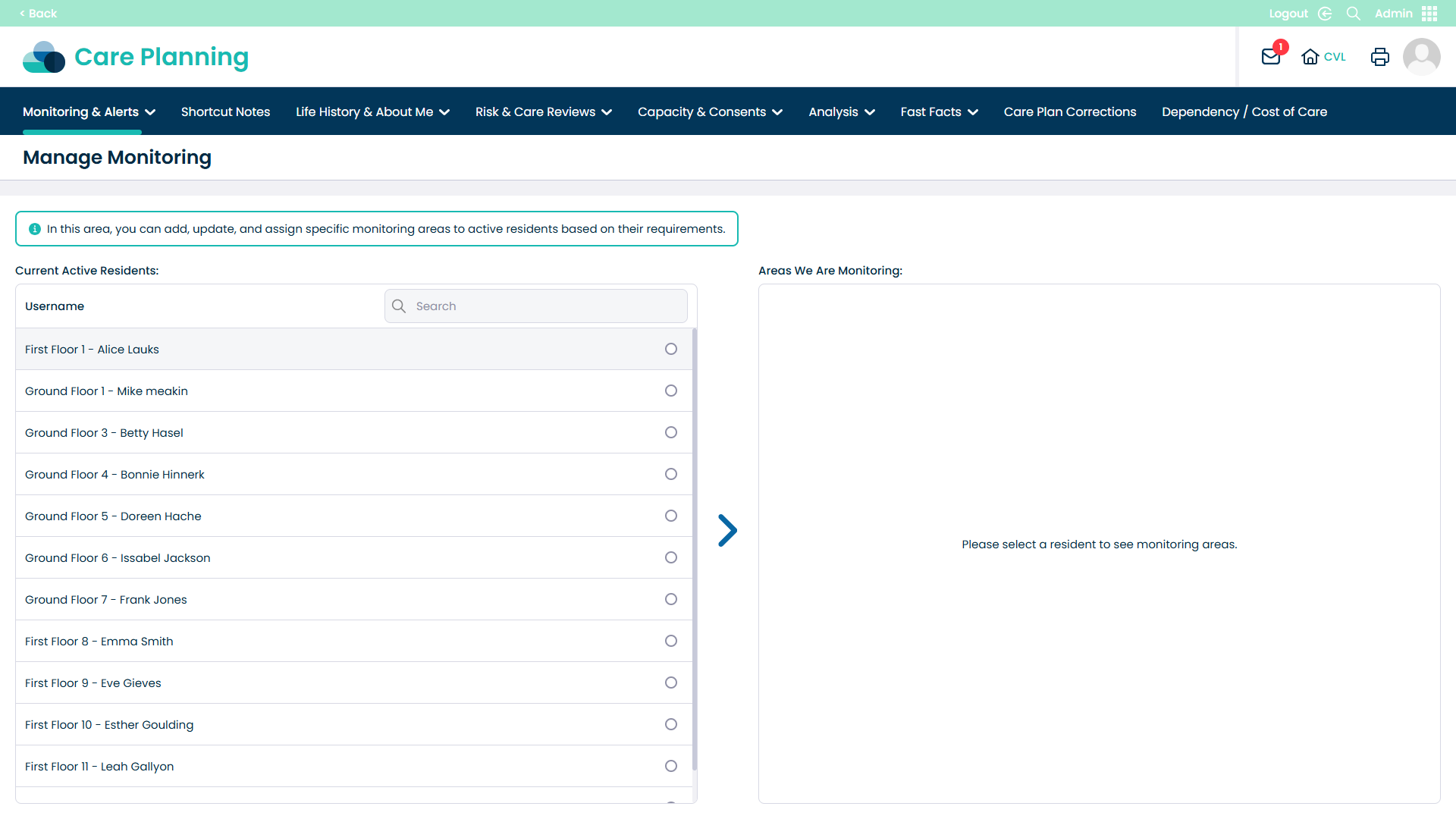
Select Service User

Scroll down until you see Personal Care on the right
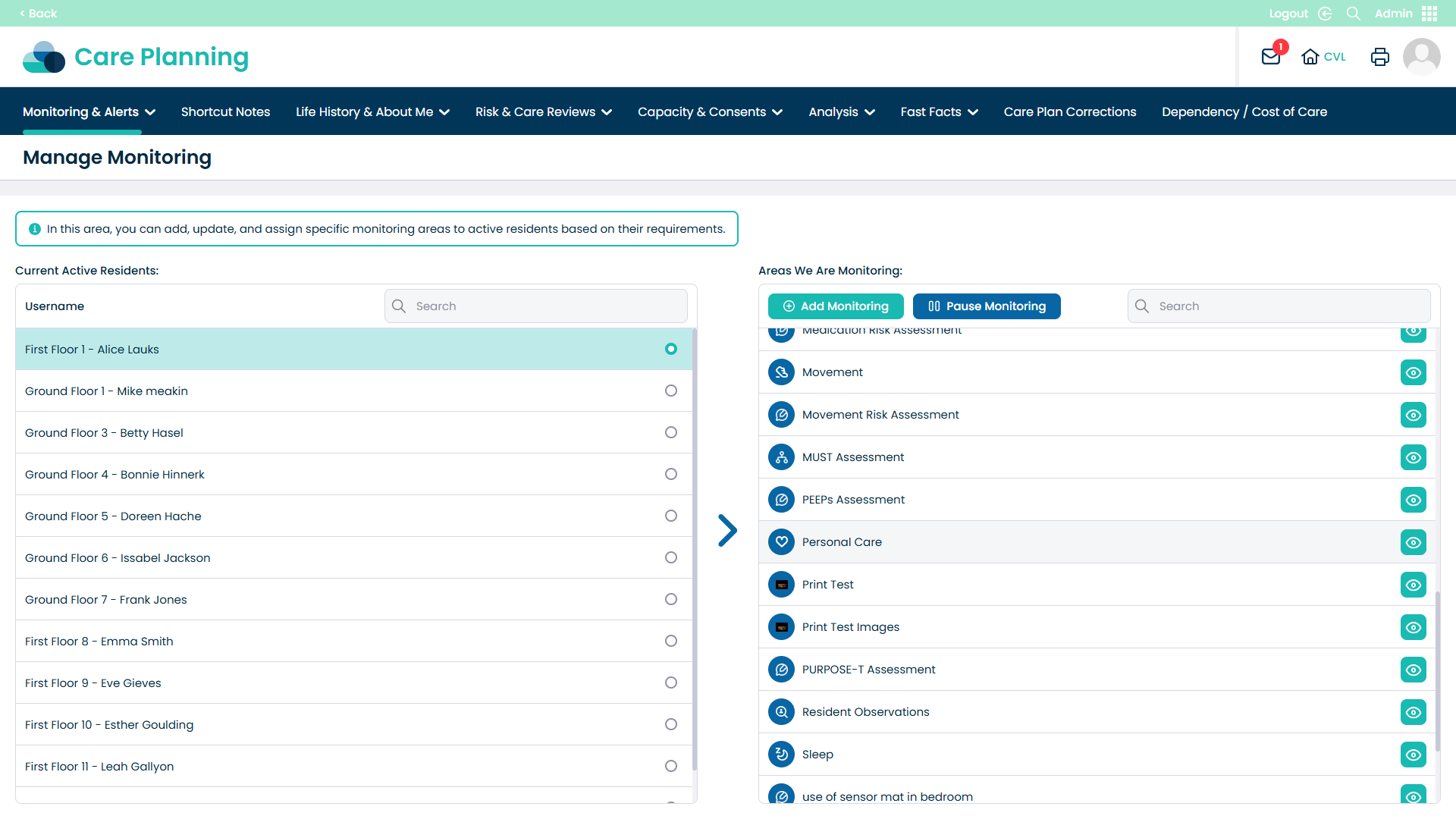
Personal Care section

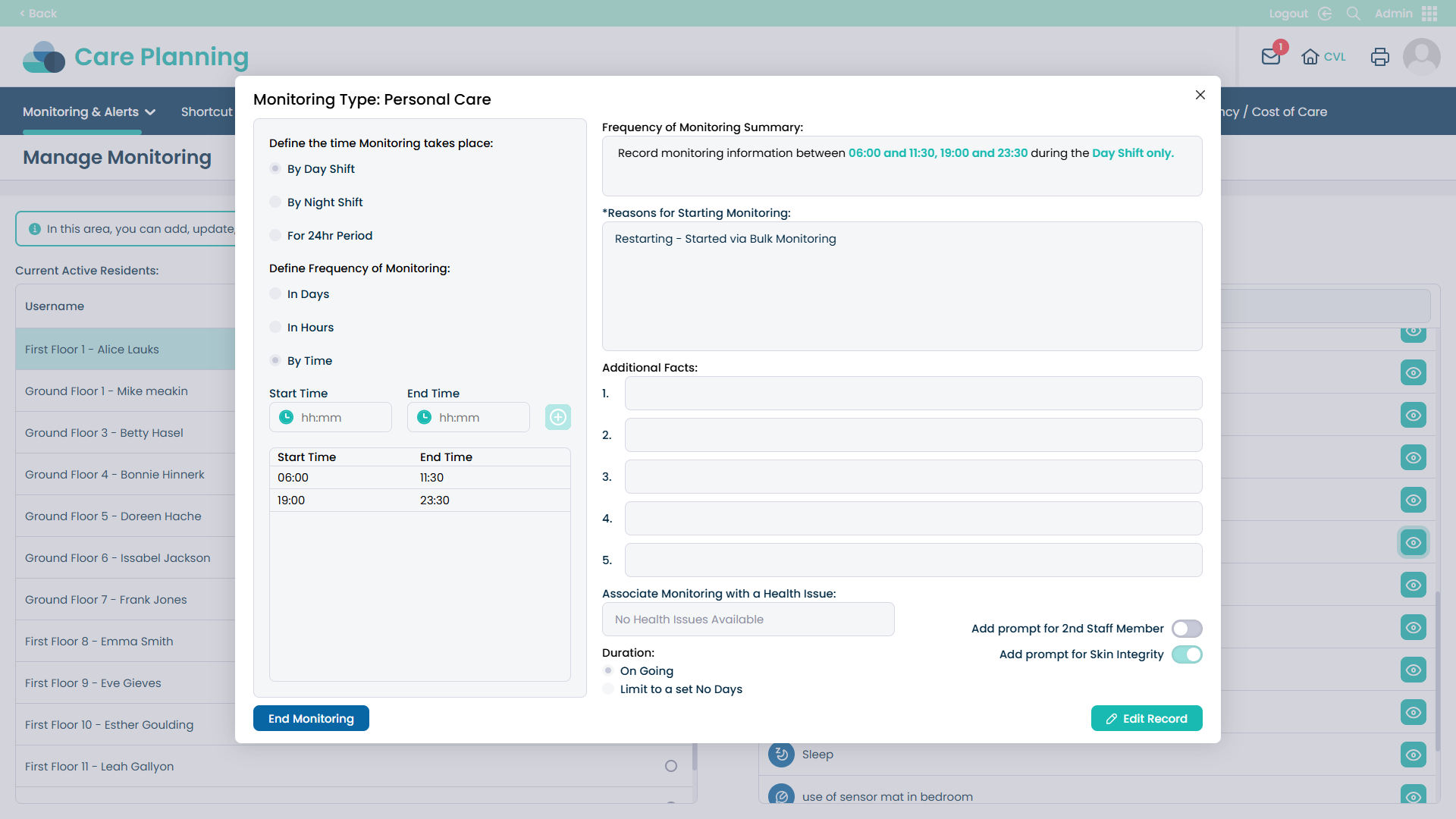
Click Edit Record

Edit Record

Click the toggle on Add Prompt for Skin Integrity
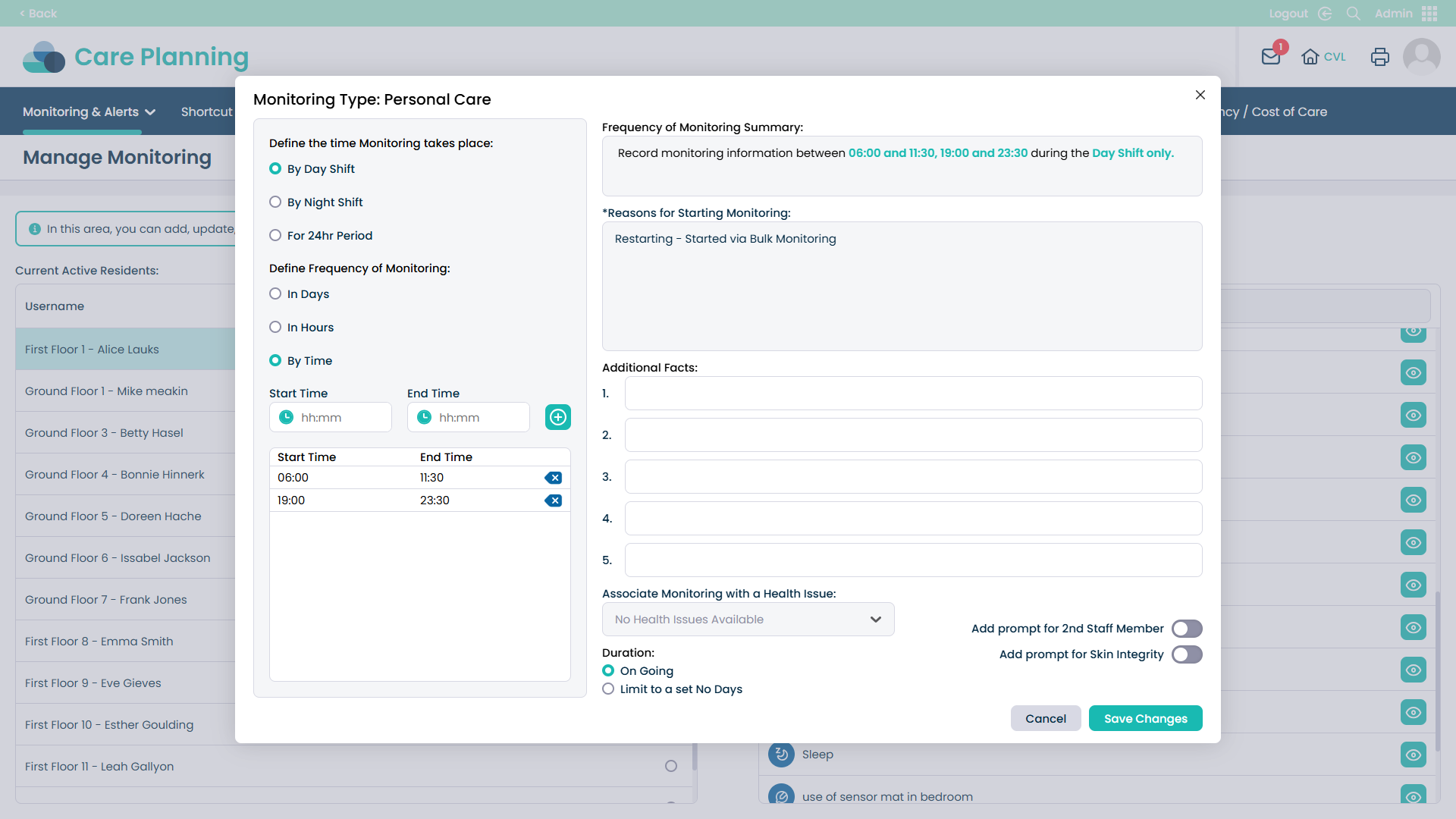
Add Prompt for Skin Integrity

Click Save Changes
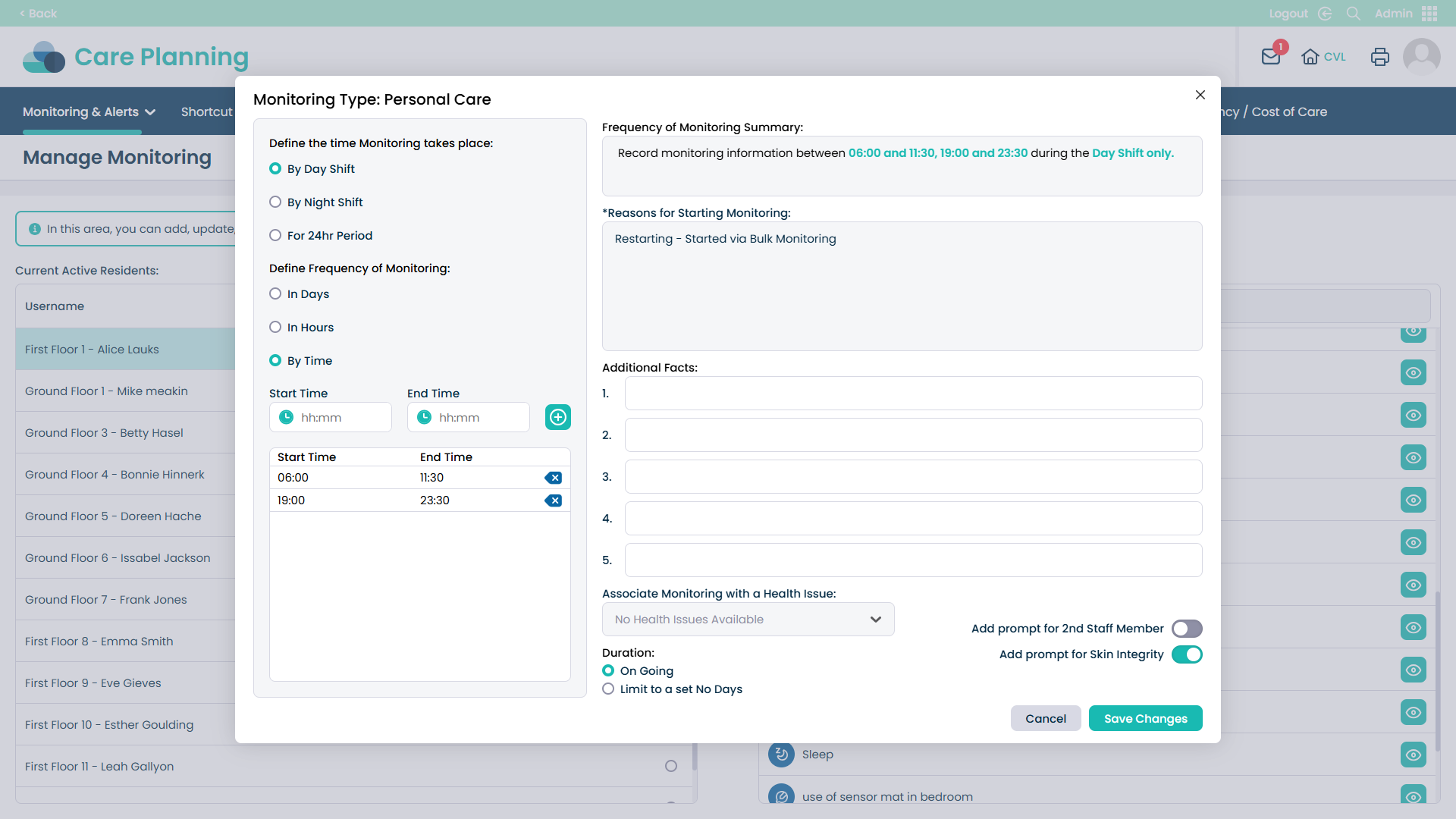
Save Changes

Was it helpful ?
Table of Contents
↑ Top