🚀 UPCOMING WEBINAR: See Payroll in Care Control Cloud in action on Thursday 18th June and discover how to manage payroll more efficiently from one connected system. Click here to find out more!

View Categories

How to expire Mental Capacity Assessments and Consents

This guide will walk you through expiring active consent records within Care Control Cloud.

Takes 2 minutes
For: Care Staff
Updated: 1st June 2026

Introduction

This guide explains how to expire an active consent record within Care Control Cloud.

In this guide you'll learn how to:

  • Locate a resident's consent records
  • Filter active consents
  • Select a consent to expire
  • Record the reason for expiry
  • Confirm and save the change

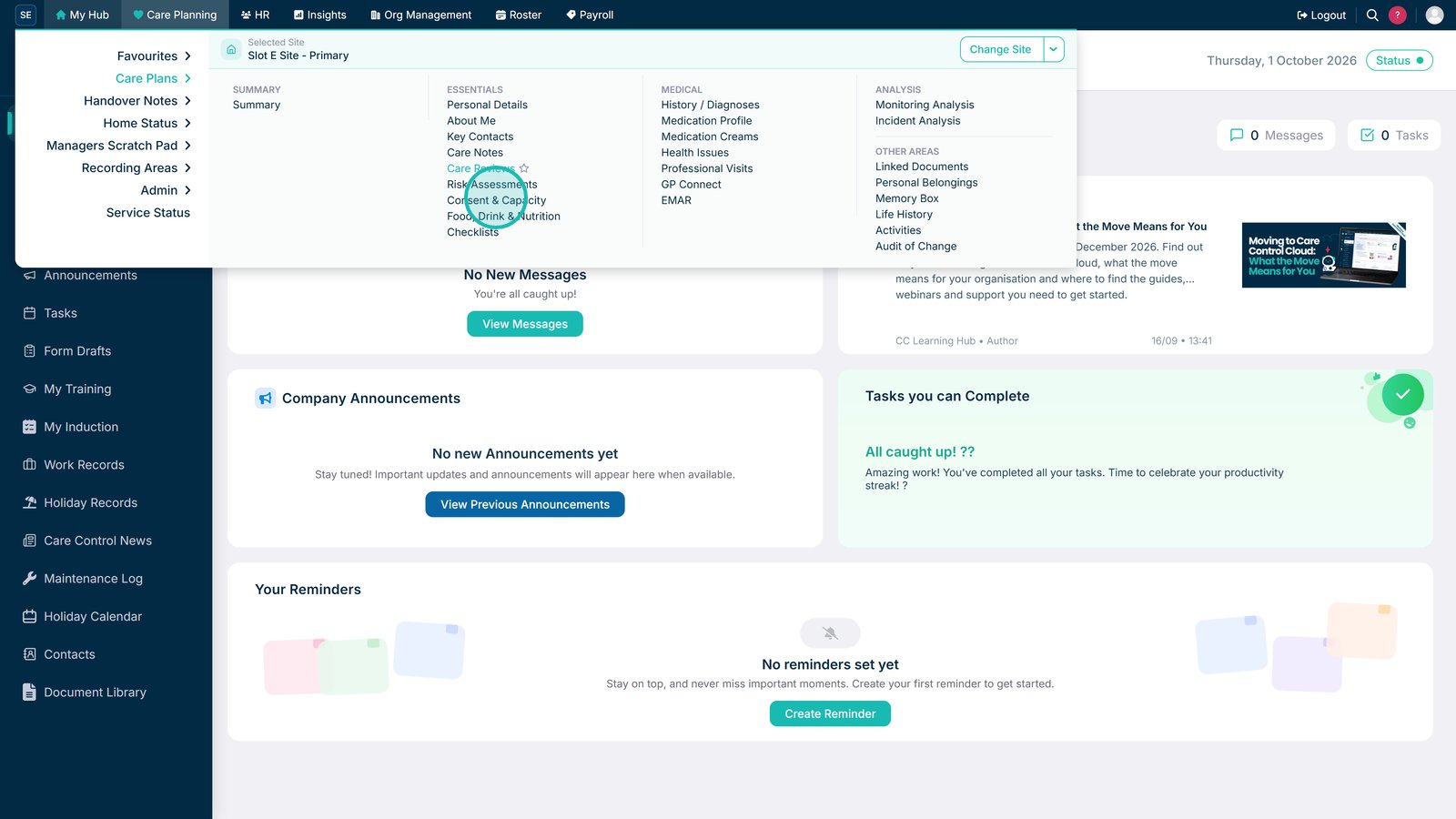
Open Consent & Capacity from the Care Planning menu.

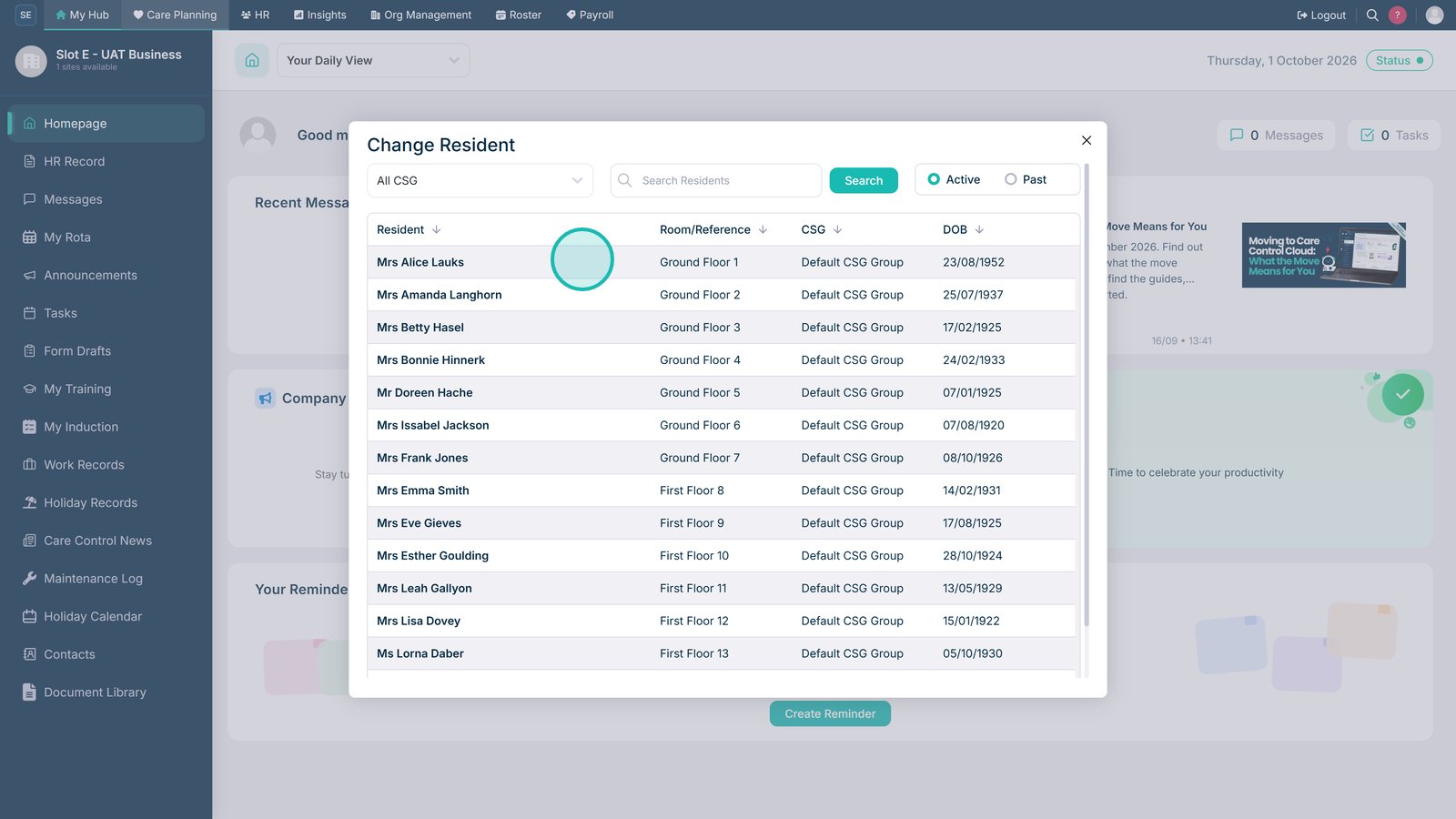
Select the resident.

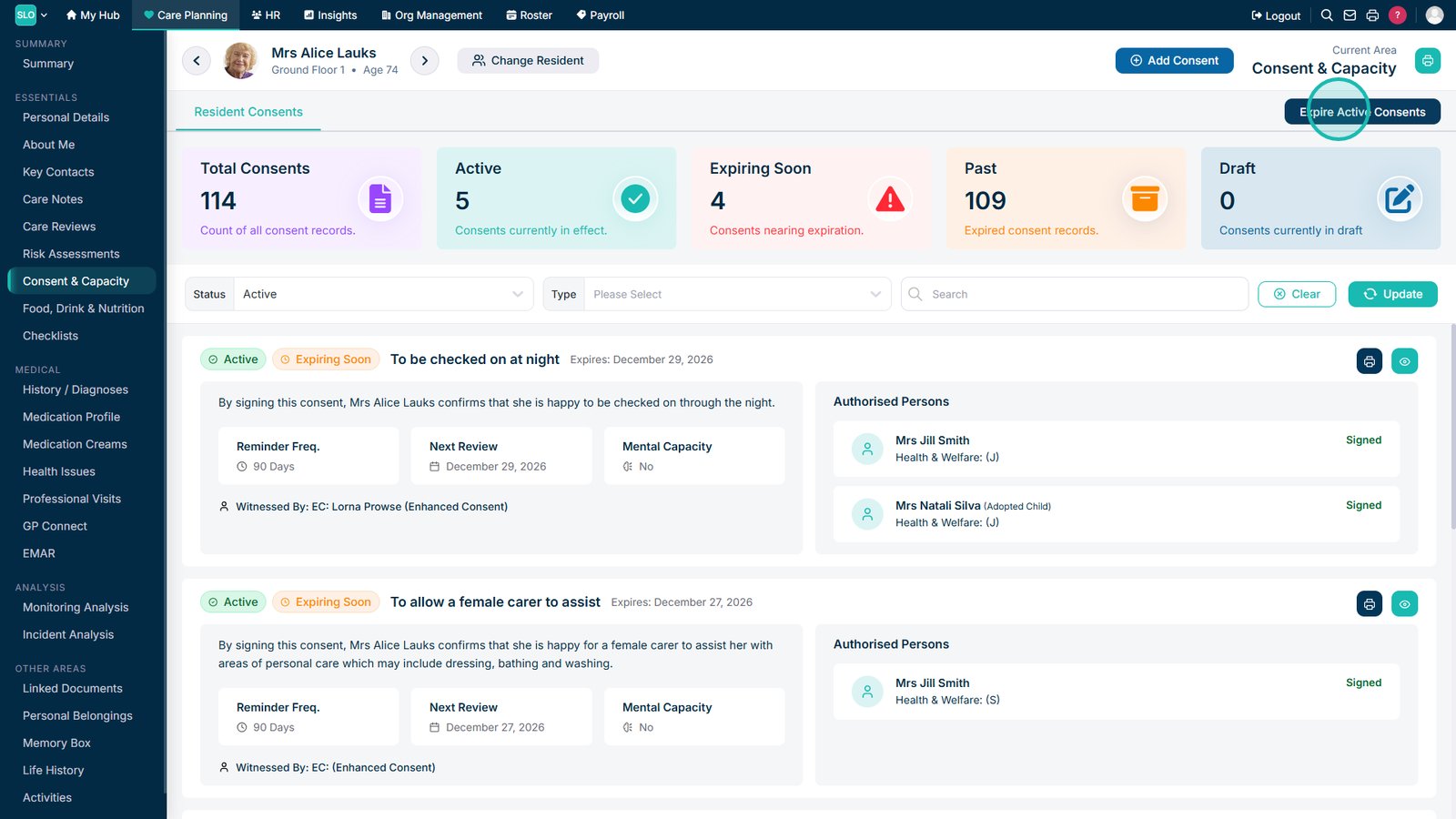
Select Expire Active Consents.

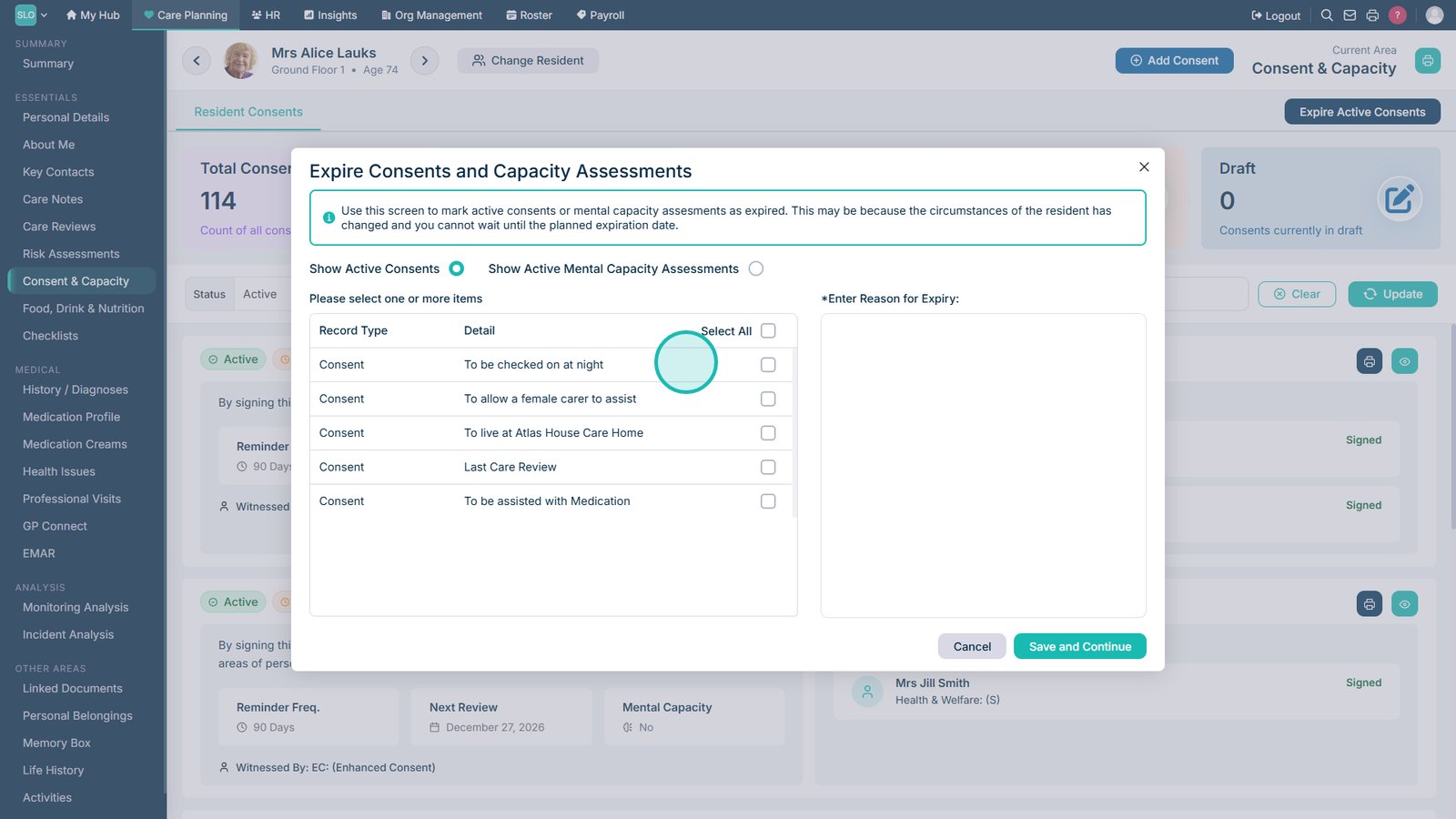
Filter active Mental Capacity Assessments if required.

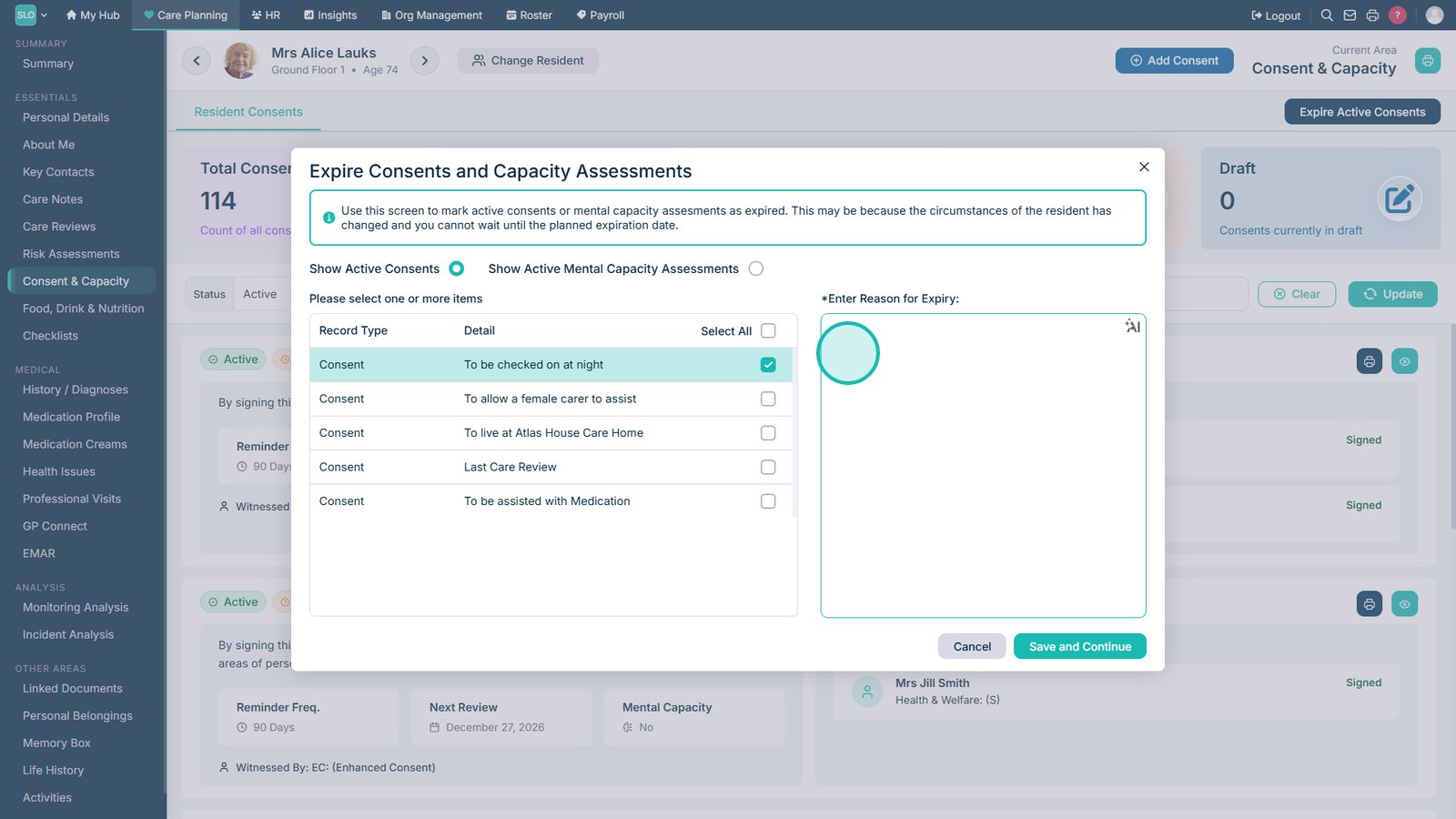
Show active consent records.

Select the consent to expire.

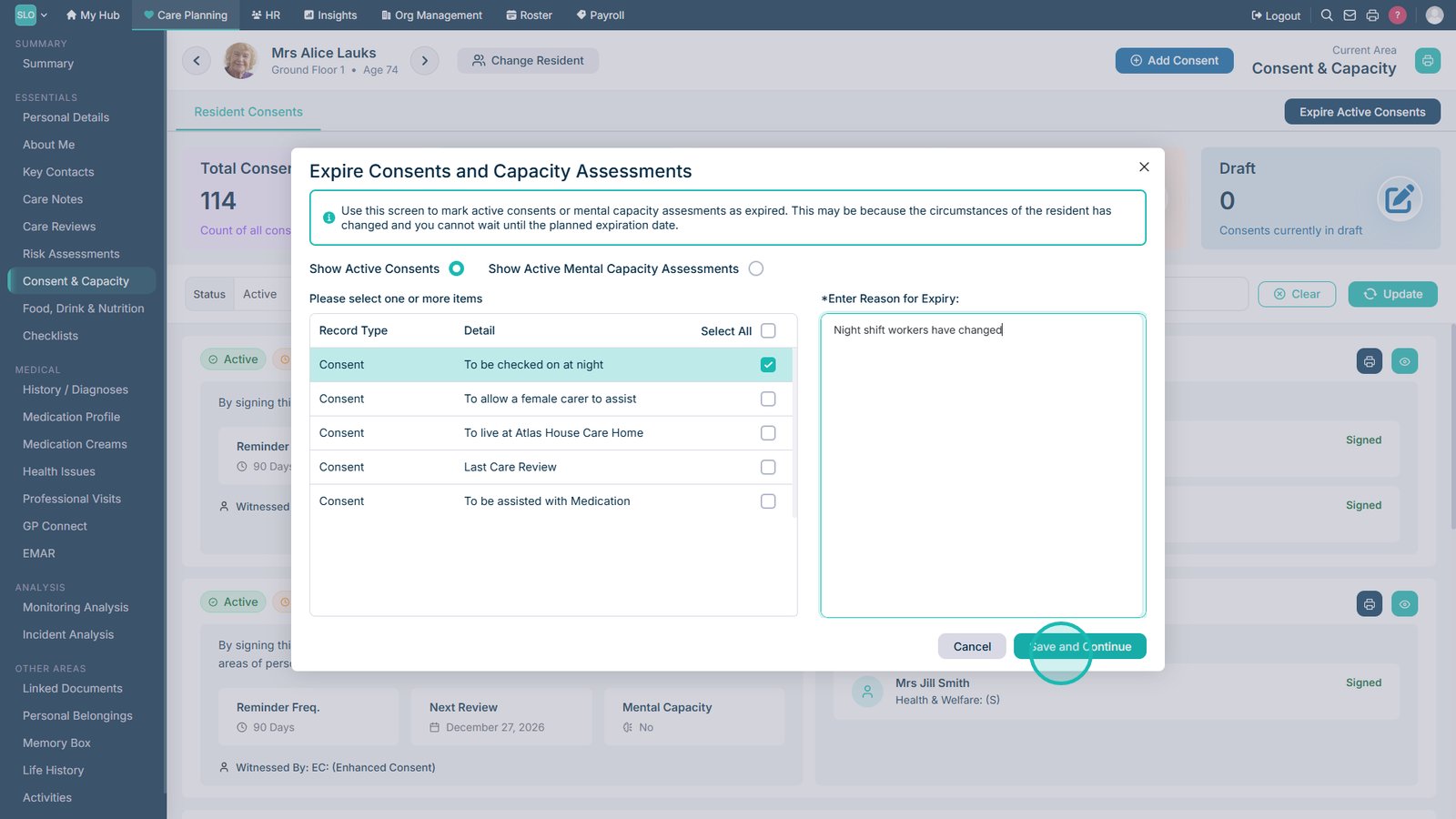
Enter the reason for expiry.

Select Save and Continue.

Top tip

Always record a clear reason when expiring a consent to maintain an accurate audit trail and support compliance requirements.

Was this guide helpful?

Need more help?

Can't find what you're looking for? Our support team is here to help.

Contact Support

Or call us on

On this page