View Categories

How to Manage Monitoring in Cloud

This guide explains how to add, manage, pause, and end Monitoring areas for a service user within Care Planning. Monitoring allows you to record specific observations at set times or frequencies, ensuring important health or wellbeing information is captured consistently.

You can configure when monitoring takes place (day shift, night shift, or 24-hour period), how often it occurs, and how long it should remain active. The guide also covers how to edit existing monitoring areas, pause all monitoring when required, and formally end a monitoring record when it is no longer needed.

Interactive Guide

Text based guide

Enter the Admin App

Select Visit under Care Planning

Open the Monitoring & Alerts drop-down

Select Manage Monitoring

Choose the Service User you wish to manage

Click Add Monitoring

Open the drop-down

Choose the monitoring area you wish to add

Click Continue

Choose when the monitoring will take place

Choose the frequency of the monitoring

Enter the reason for starting the monitoring

Add additional information if required

Set how long the monitoring will run for

Click Save Changes

Click the Pause Monitoring option if required

Enter a reason to pause all monitoring

Select Process to confirm the pause

Click the Eye icon to modify a monitoring area

Select Edit Record

Click Save Changes when finished

View the monitoring summary

Select End Monitoring

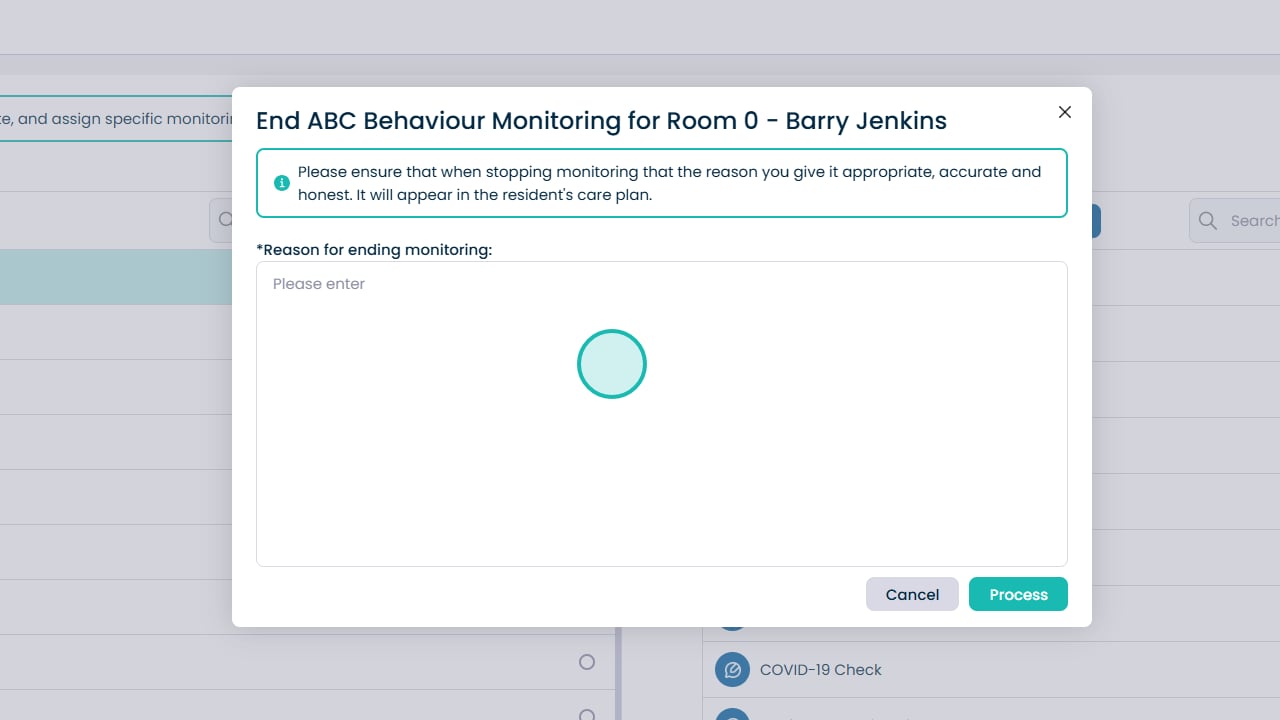
Enter the details for ending the monitoring

Select Process to confirm ending the monitoring

Monitoring area updated

Was it helpful ?
Table of Contents
↑ Top