This guide explains how to manage resident monitoring within Care Control Cloud, including adding, updating, pausing, resuming, and ending monitoring activities.
In this guide you'll learn how to:
Add monitoring for a resident
Configure monitoring schedules
Edit monitoring records
Pause and resume monitoring
End monitoring activities
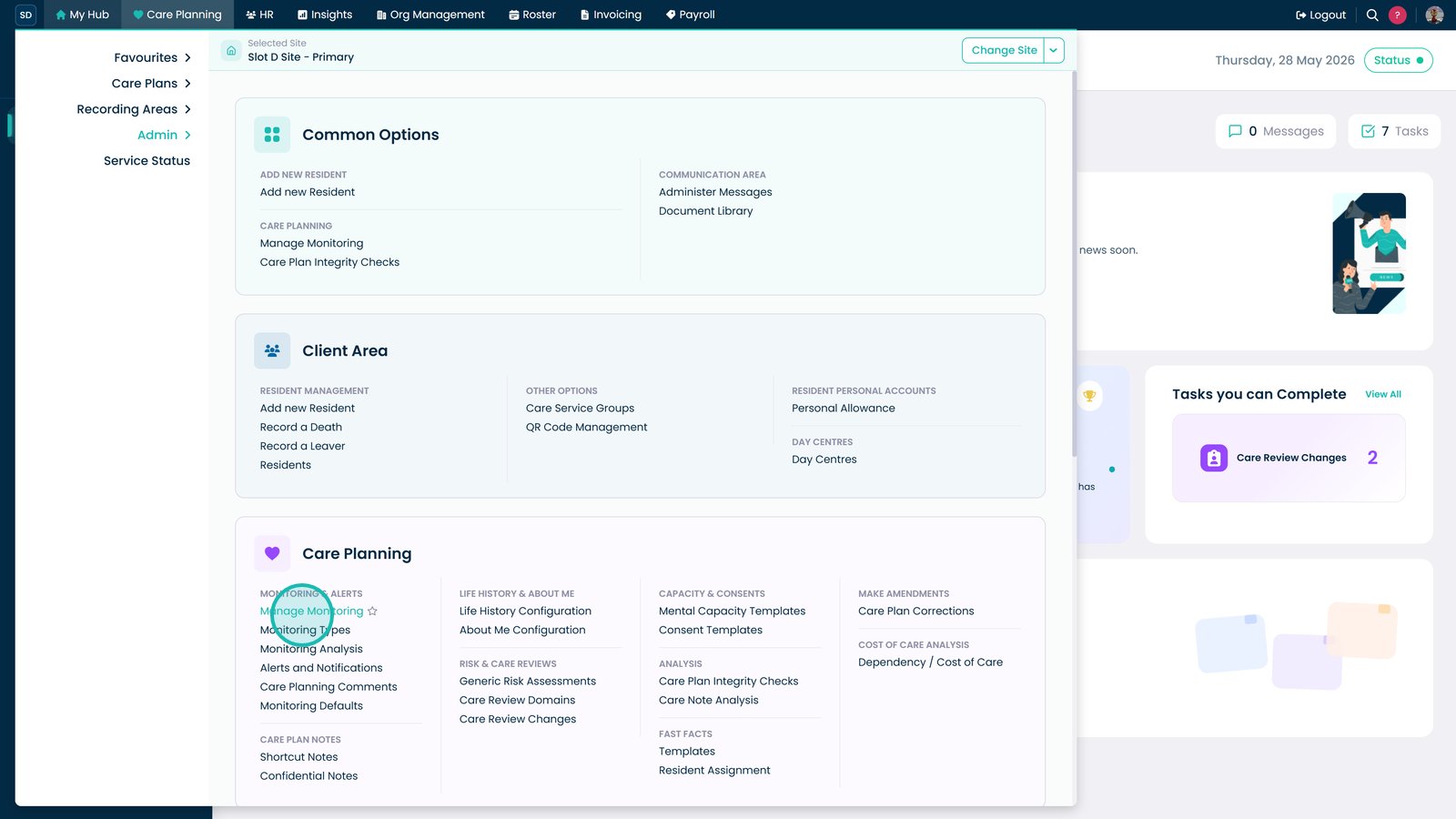
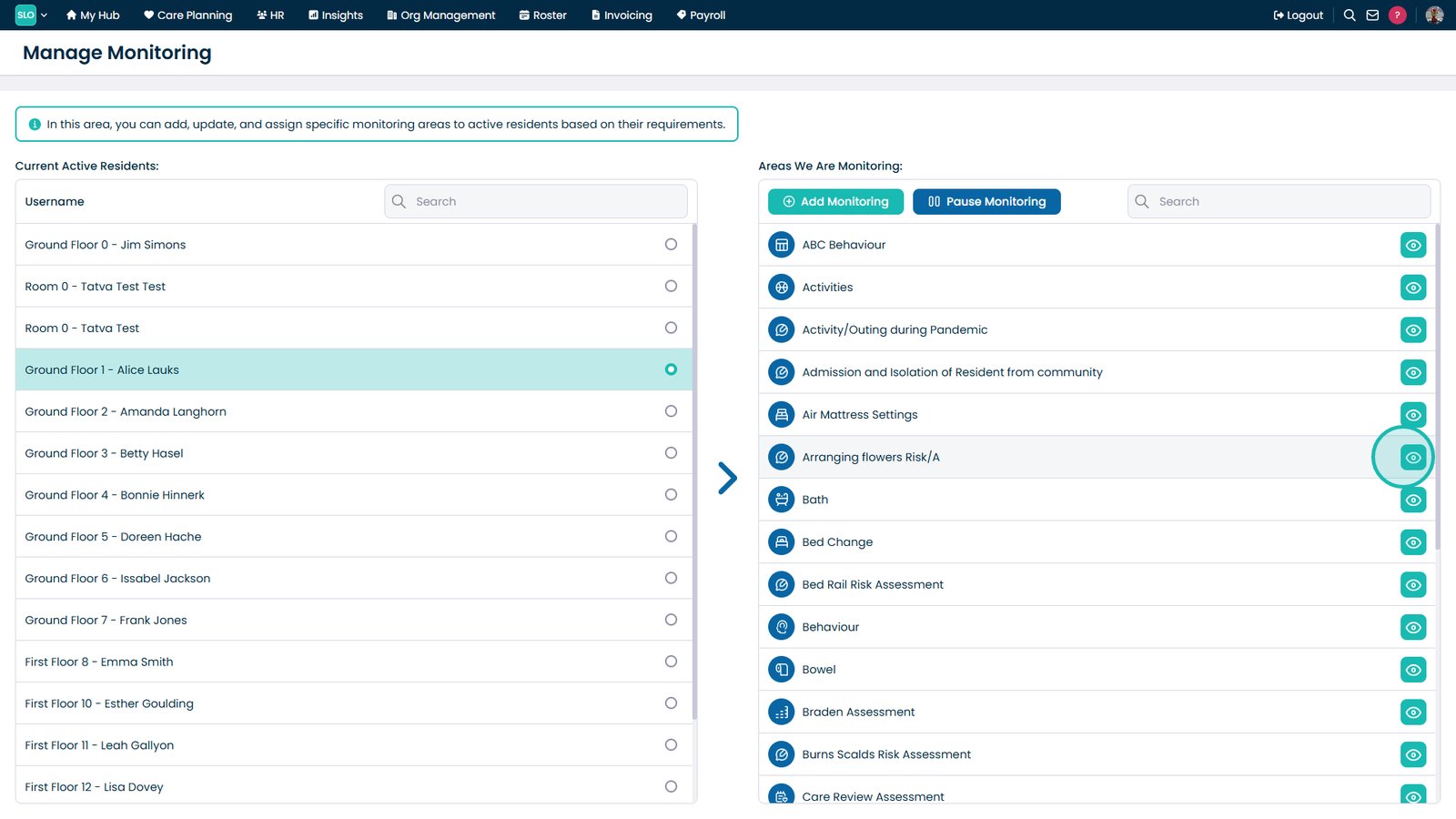
Open Manage Monitoring from the Care Planning menu.
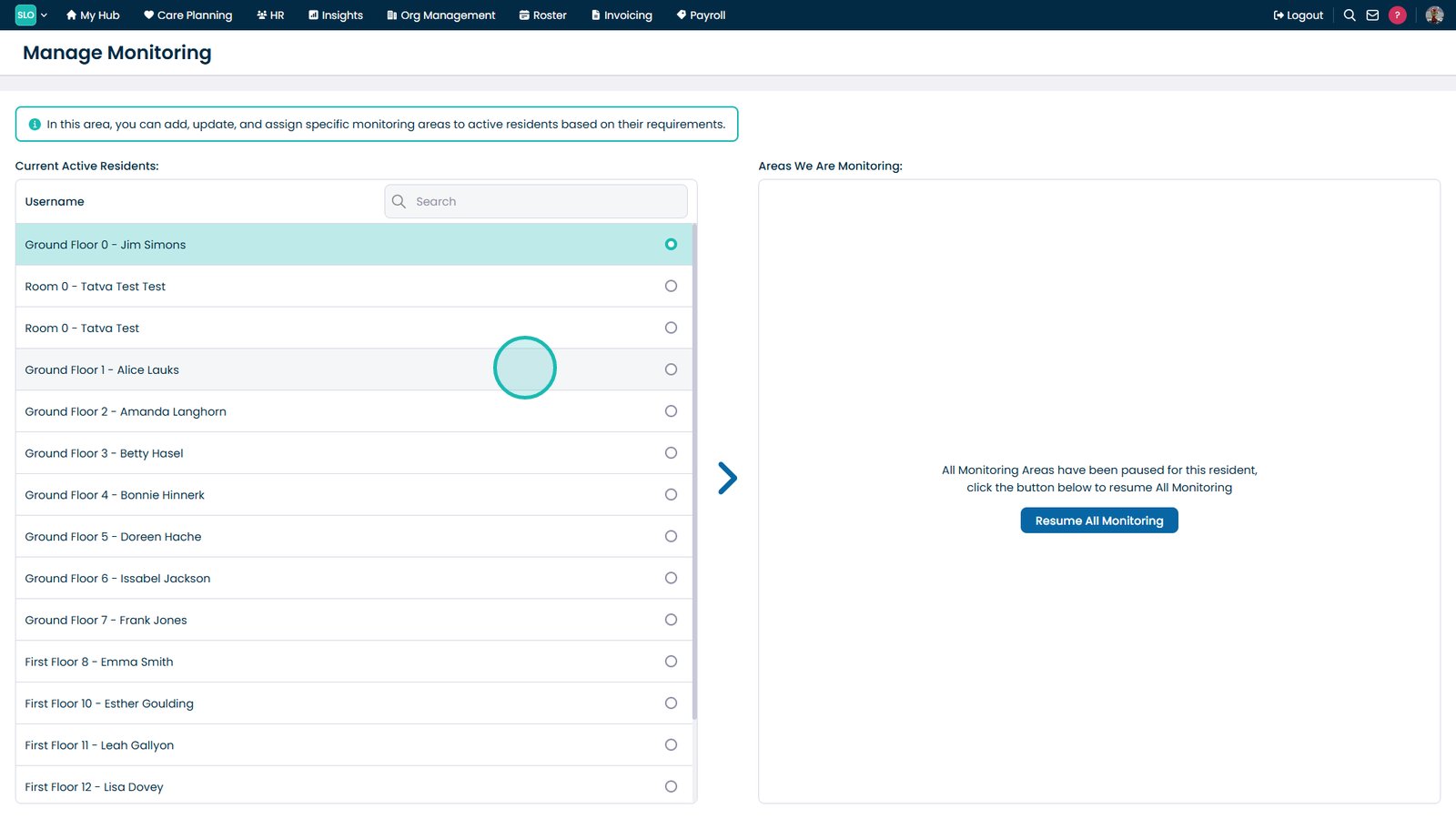
Select a resident.
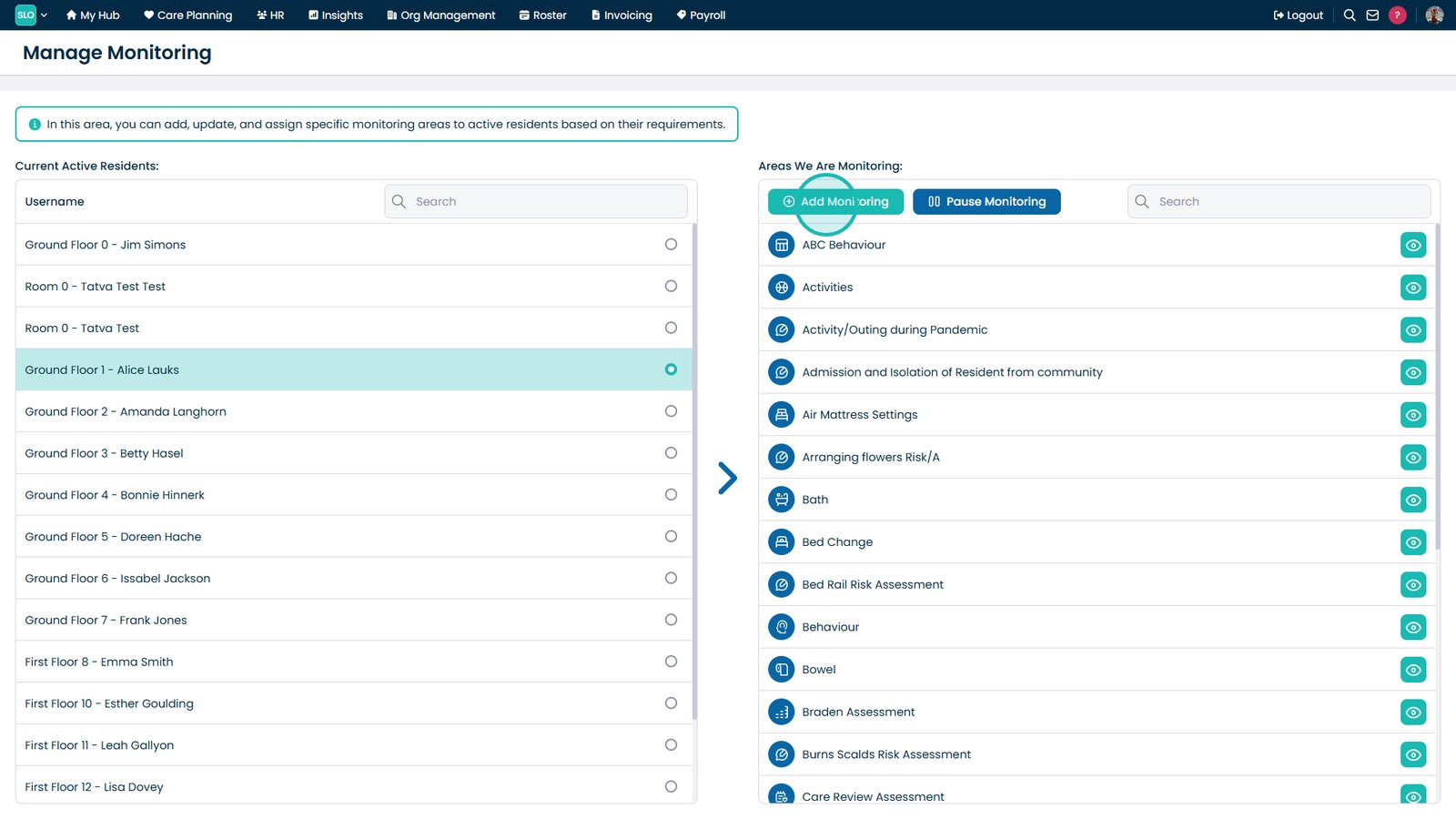
Select Add Monitoring.
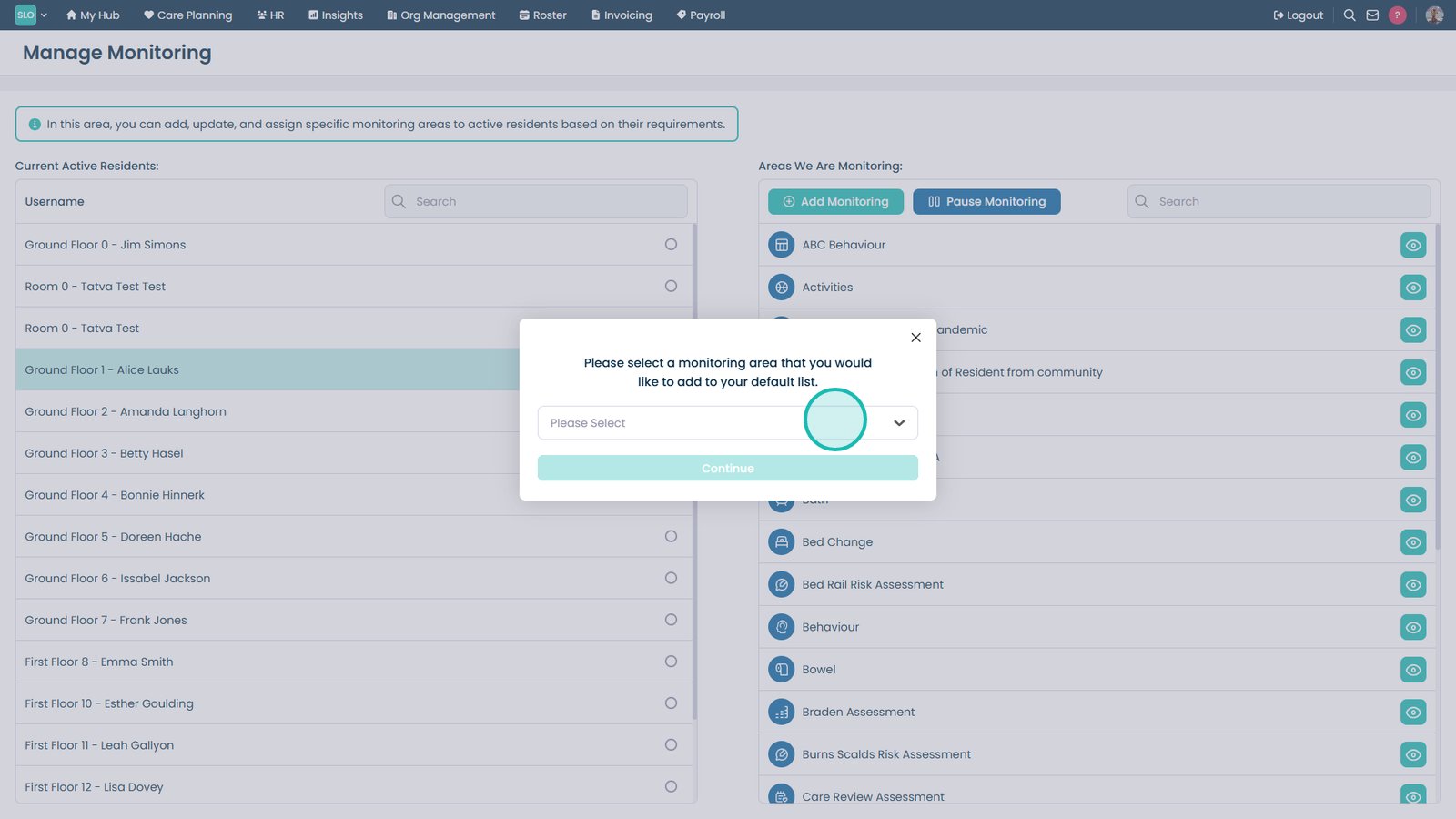
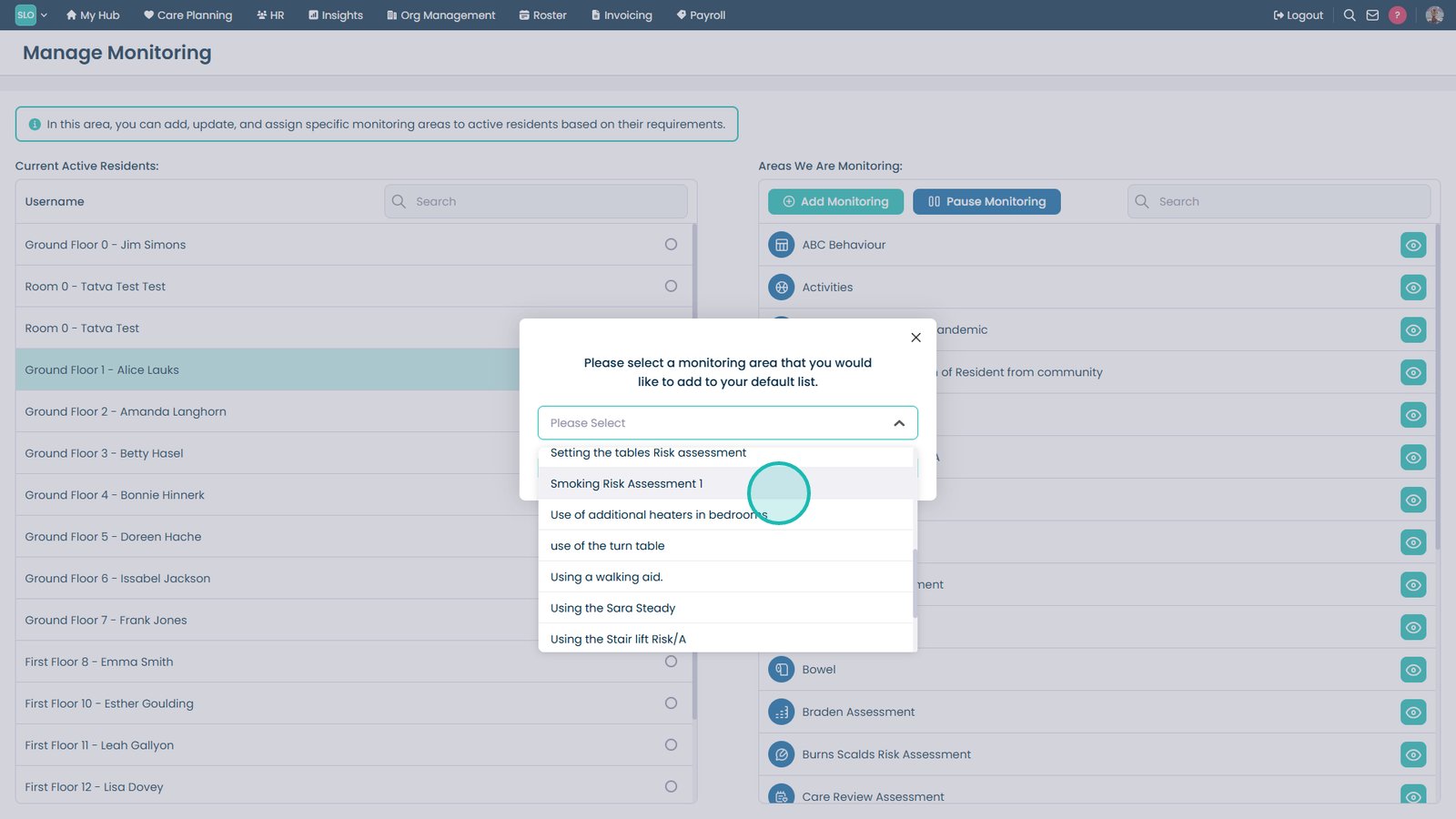
Open the monitoring area dropdown.
Select a monitoring area.
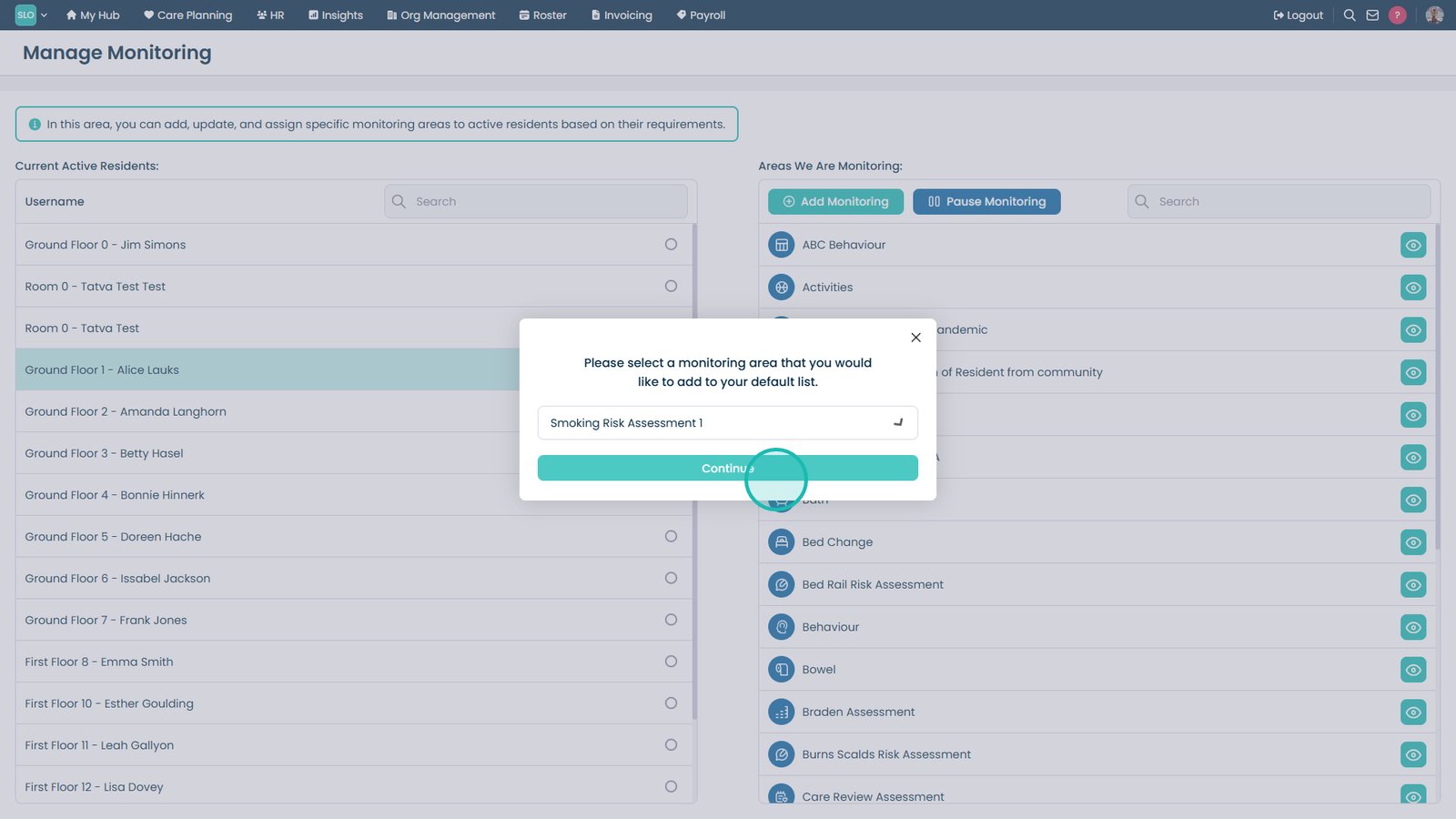
Select Continue.
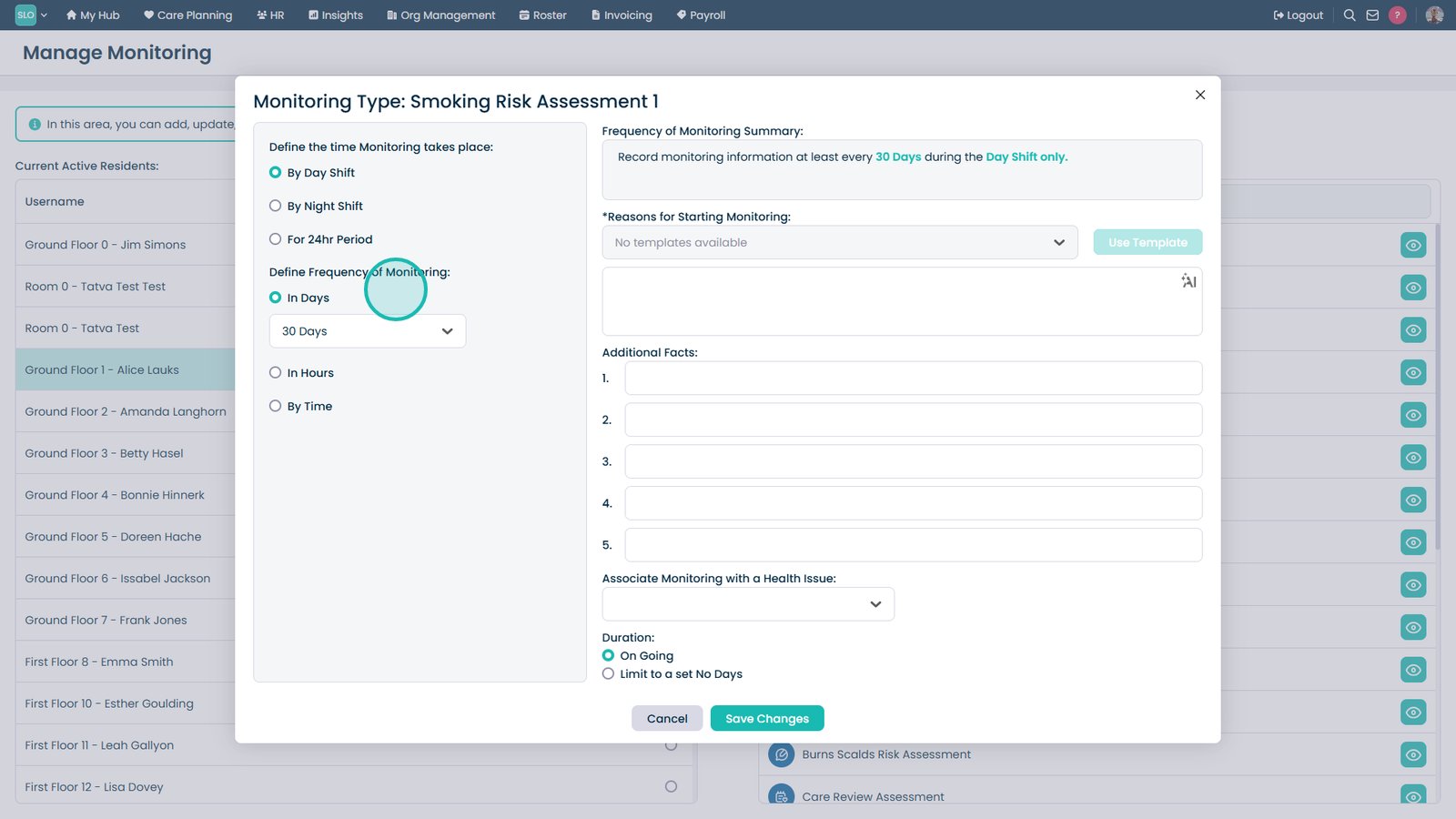
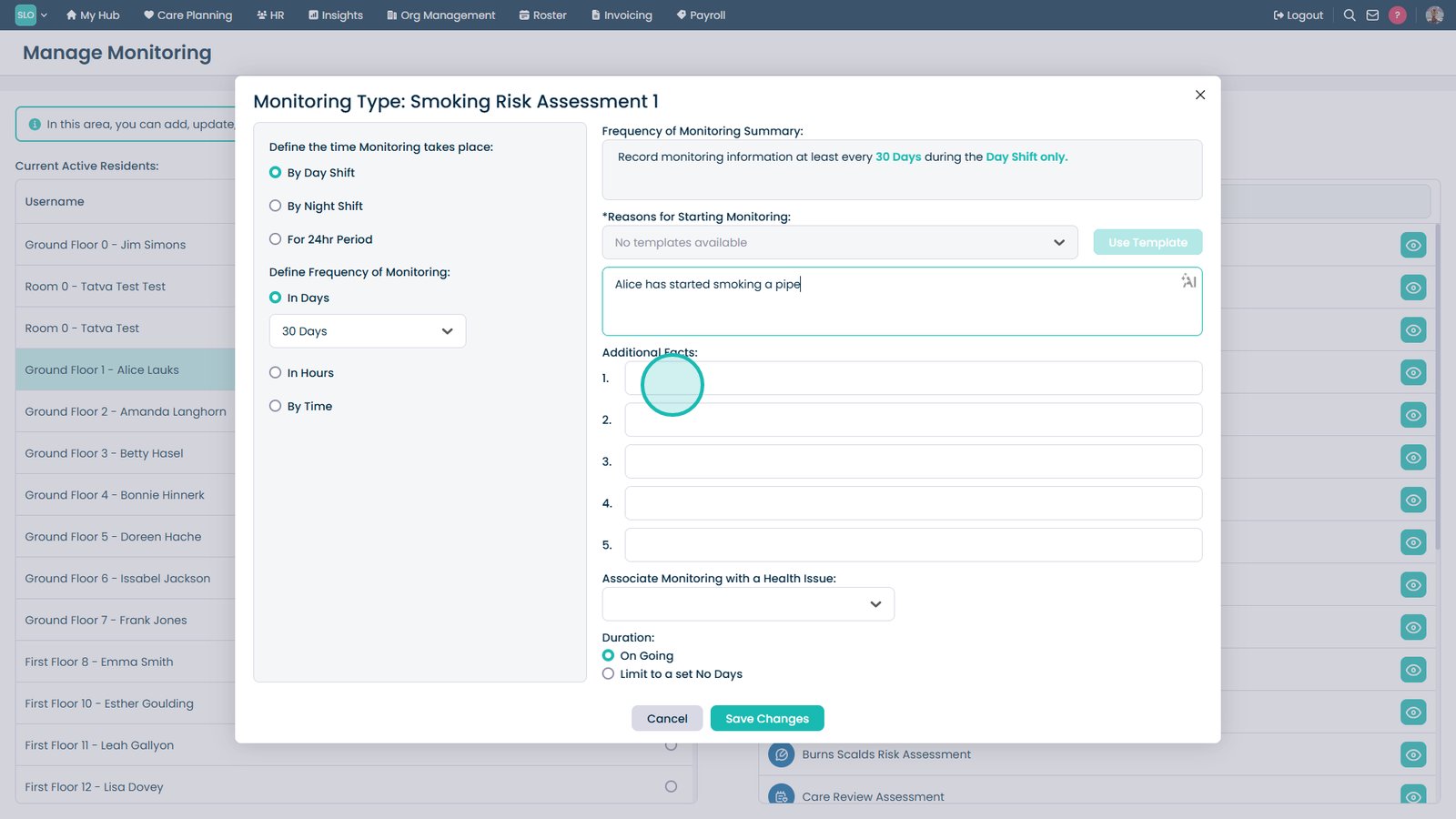
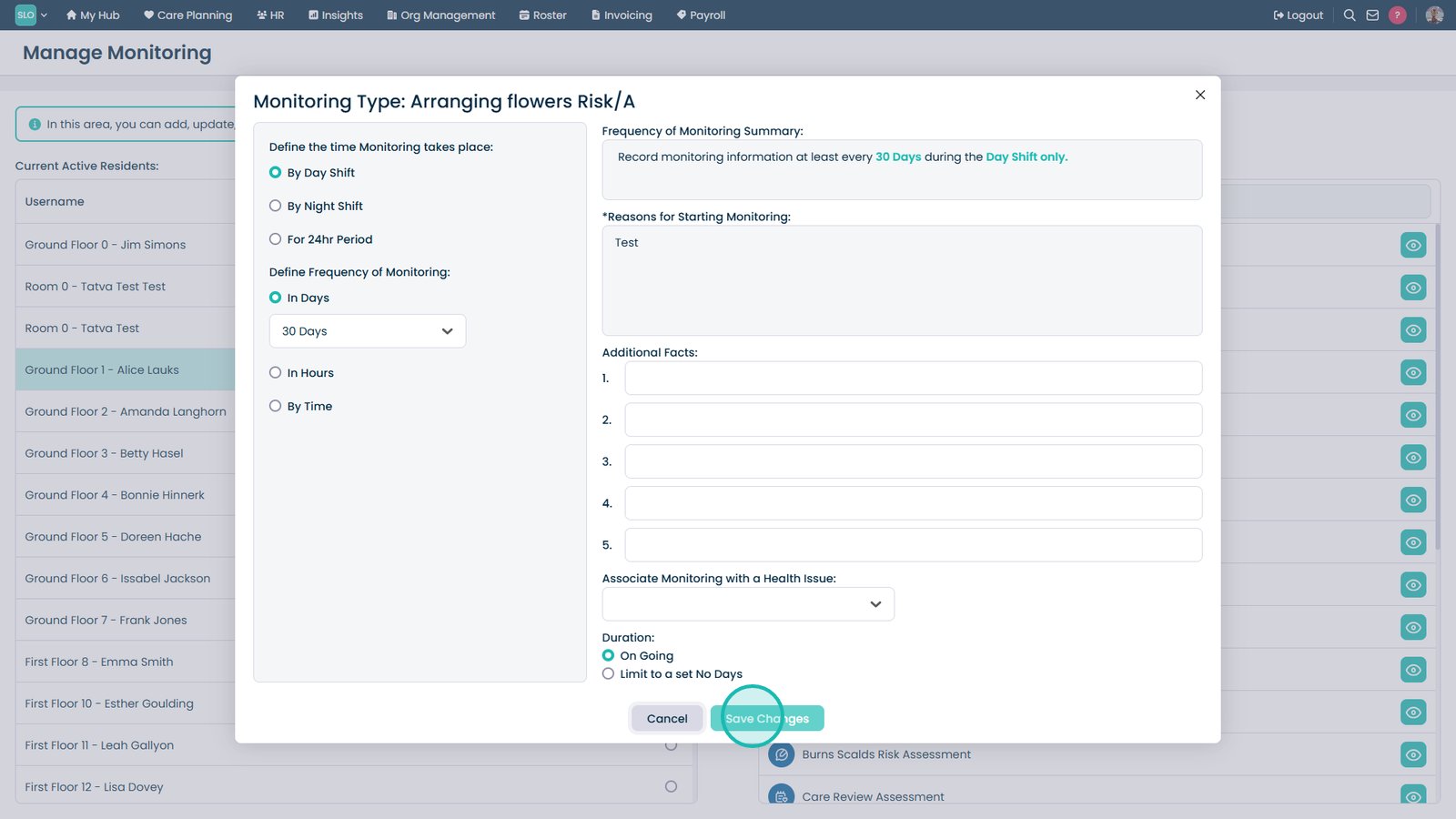
Set the monitoring time and frequency.
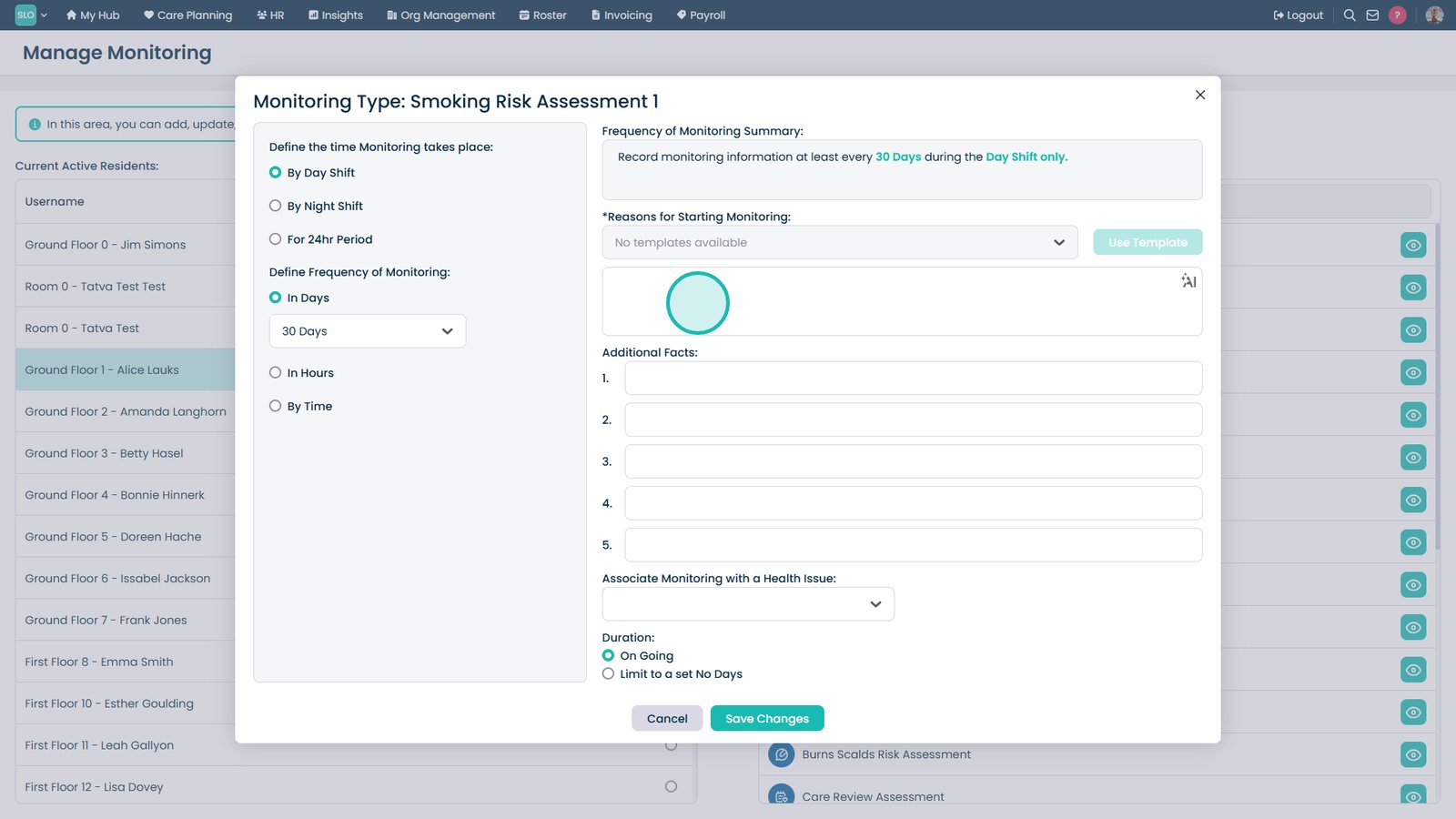
Enter the reason for the monitoring.
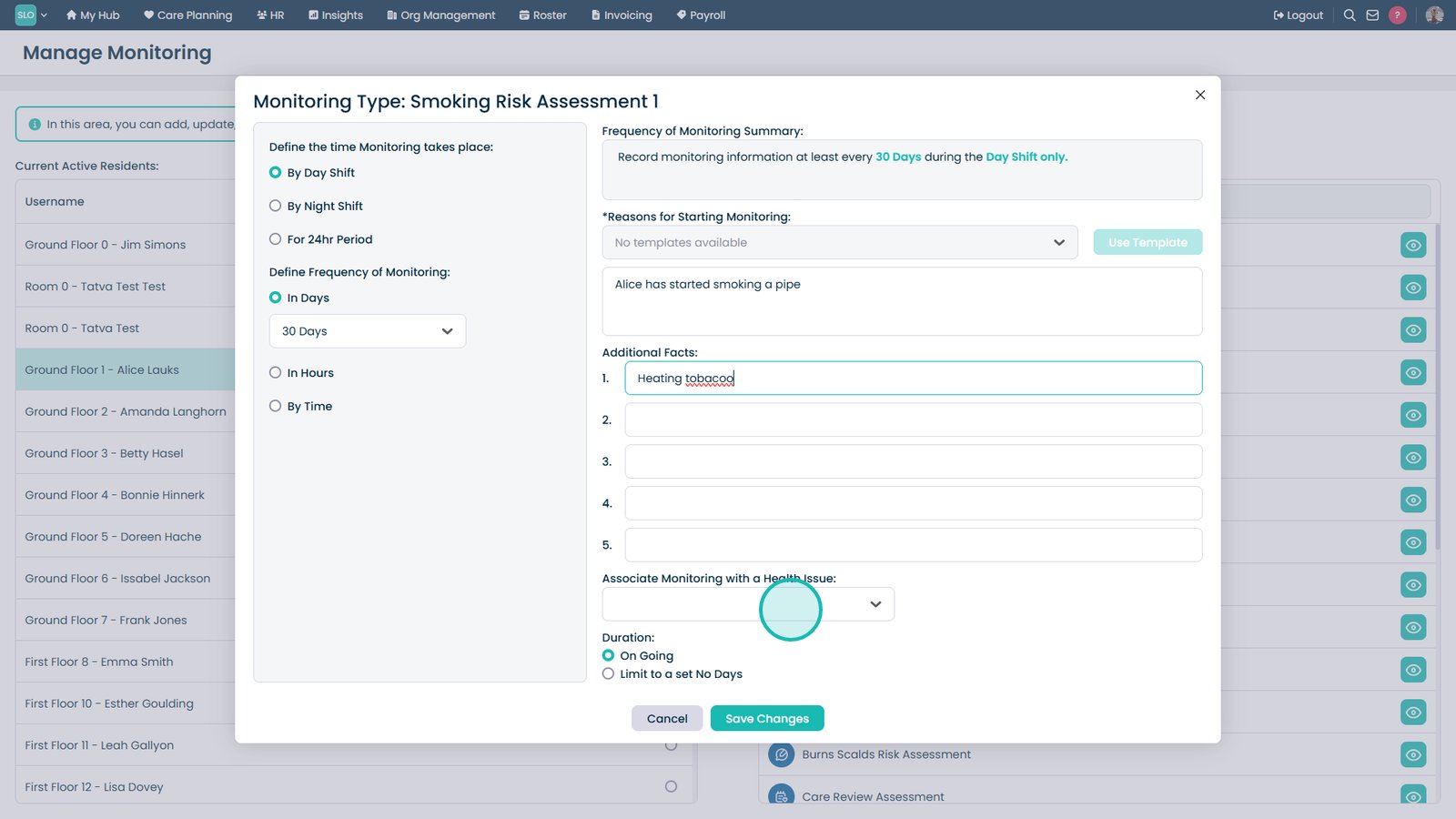
Add any additional information.
Select a linked health issue if required.
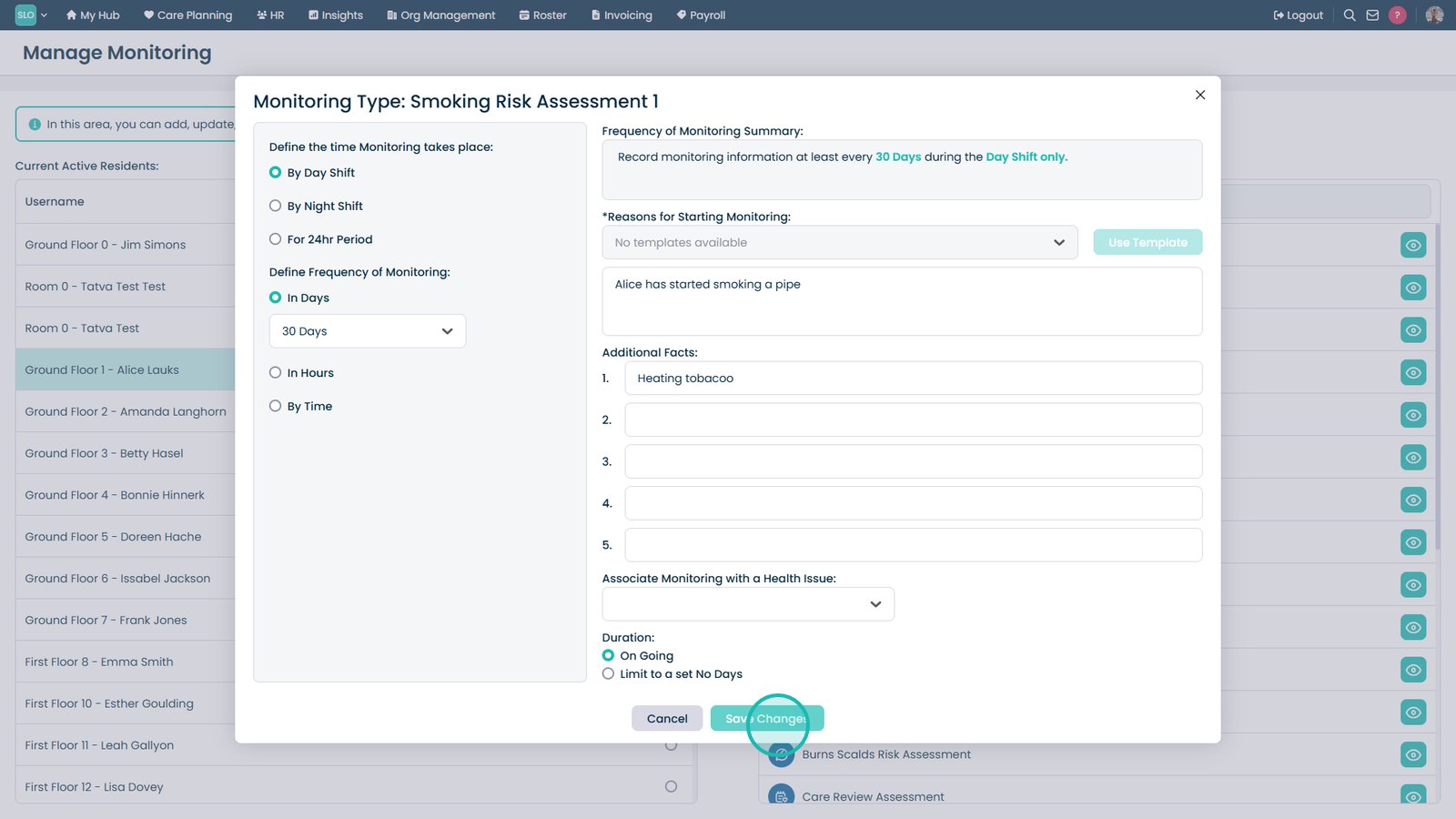
Select Save Changes.
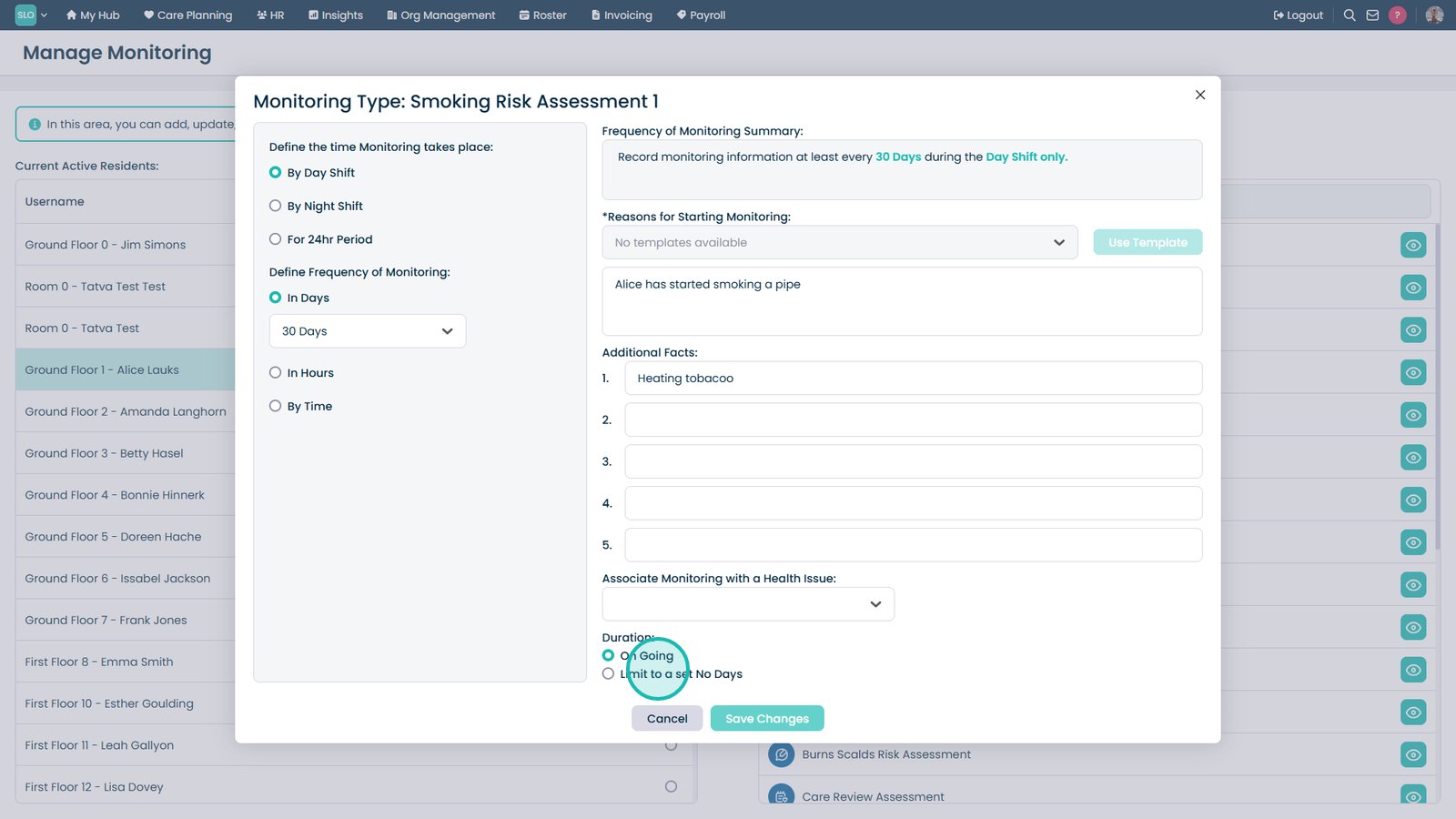
Select the monitoring duration.
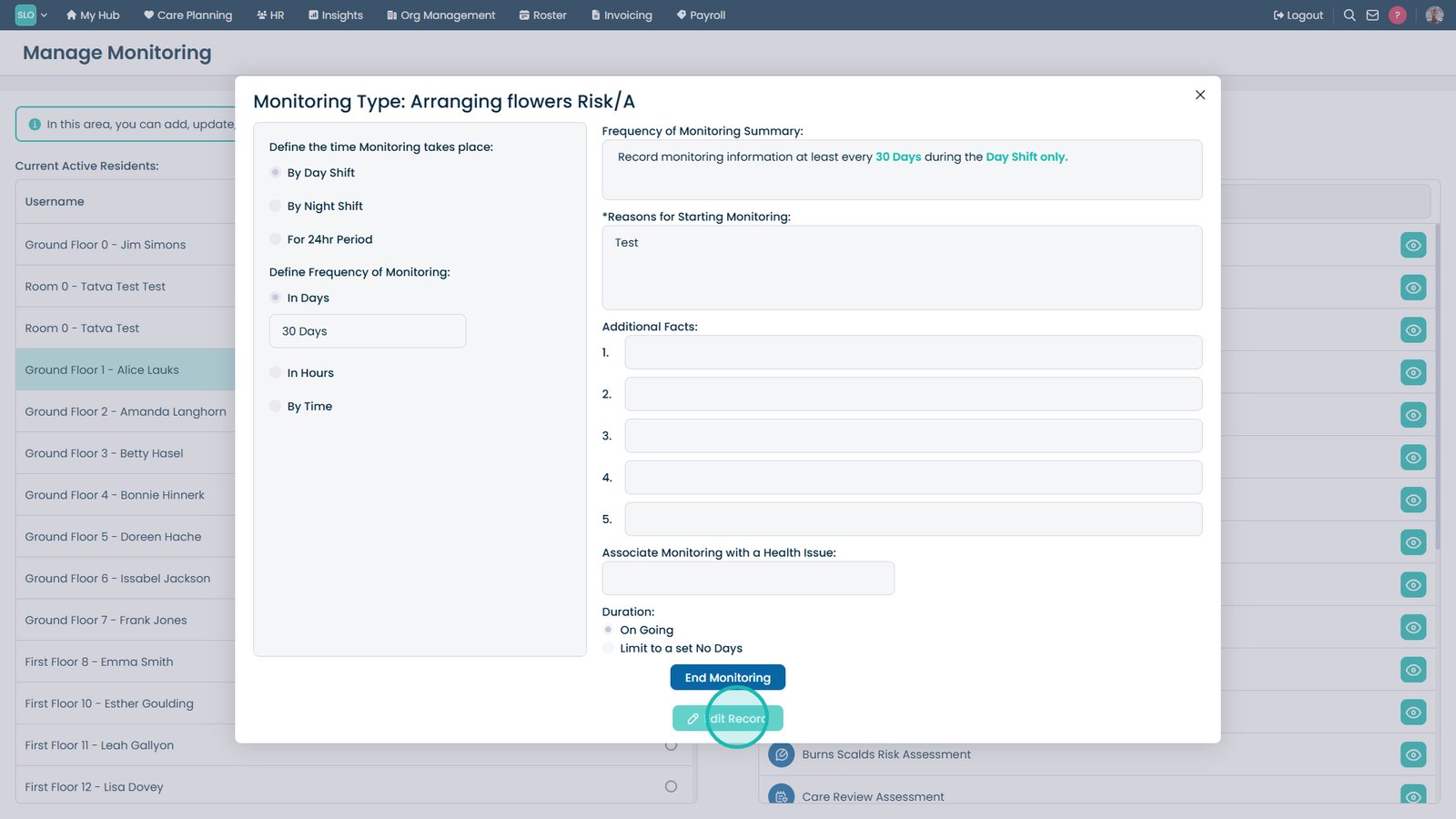
Select the view icon to open the monitoring record.
Select Edit Record to make changes.
Select Save Changes to update the record.
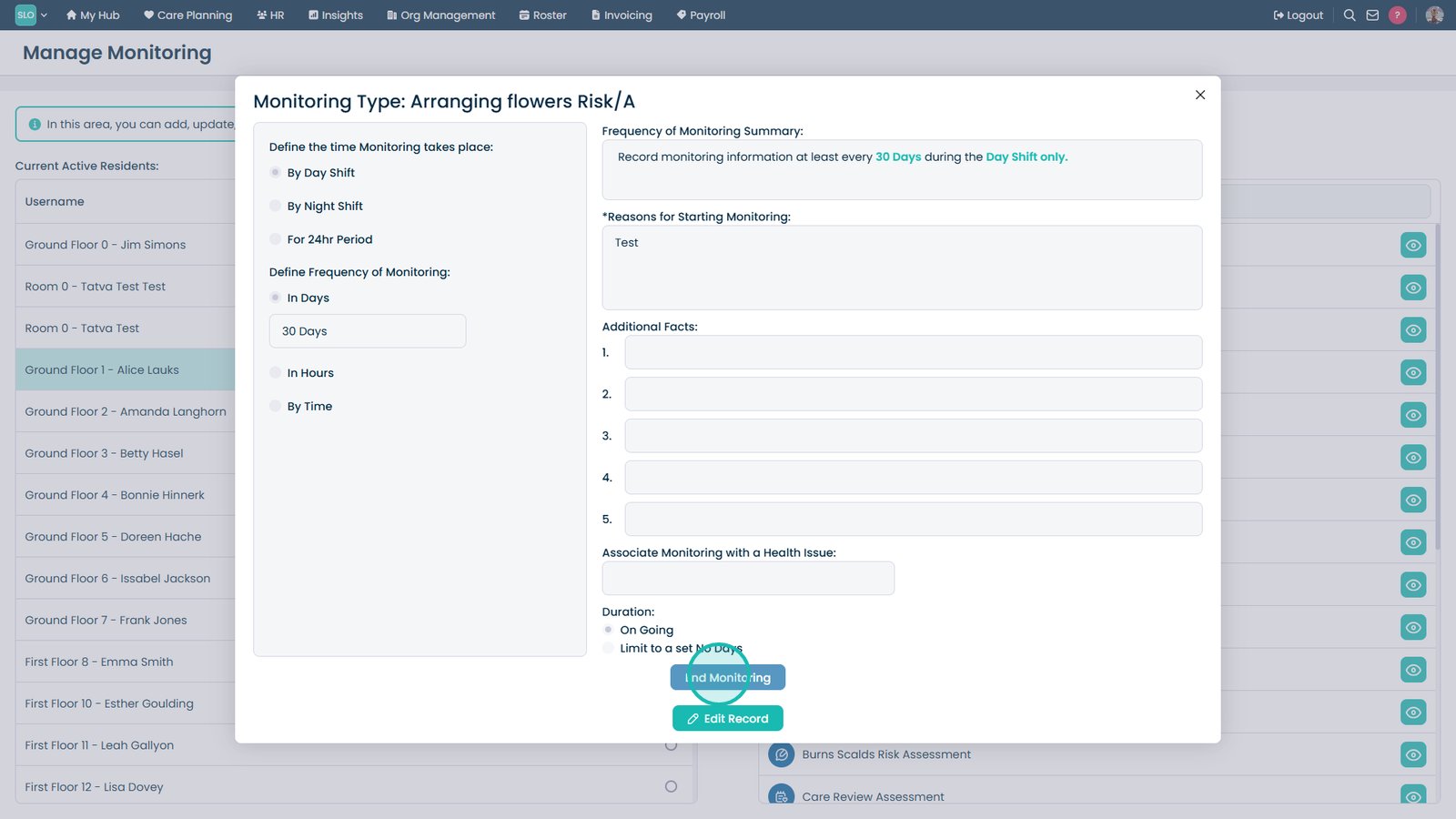
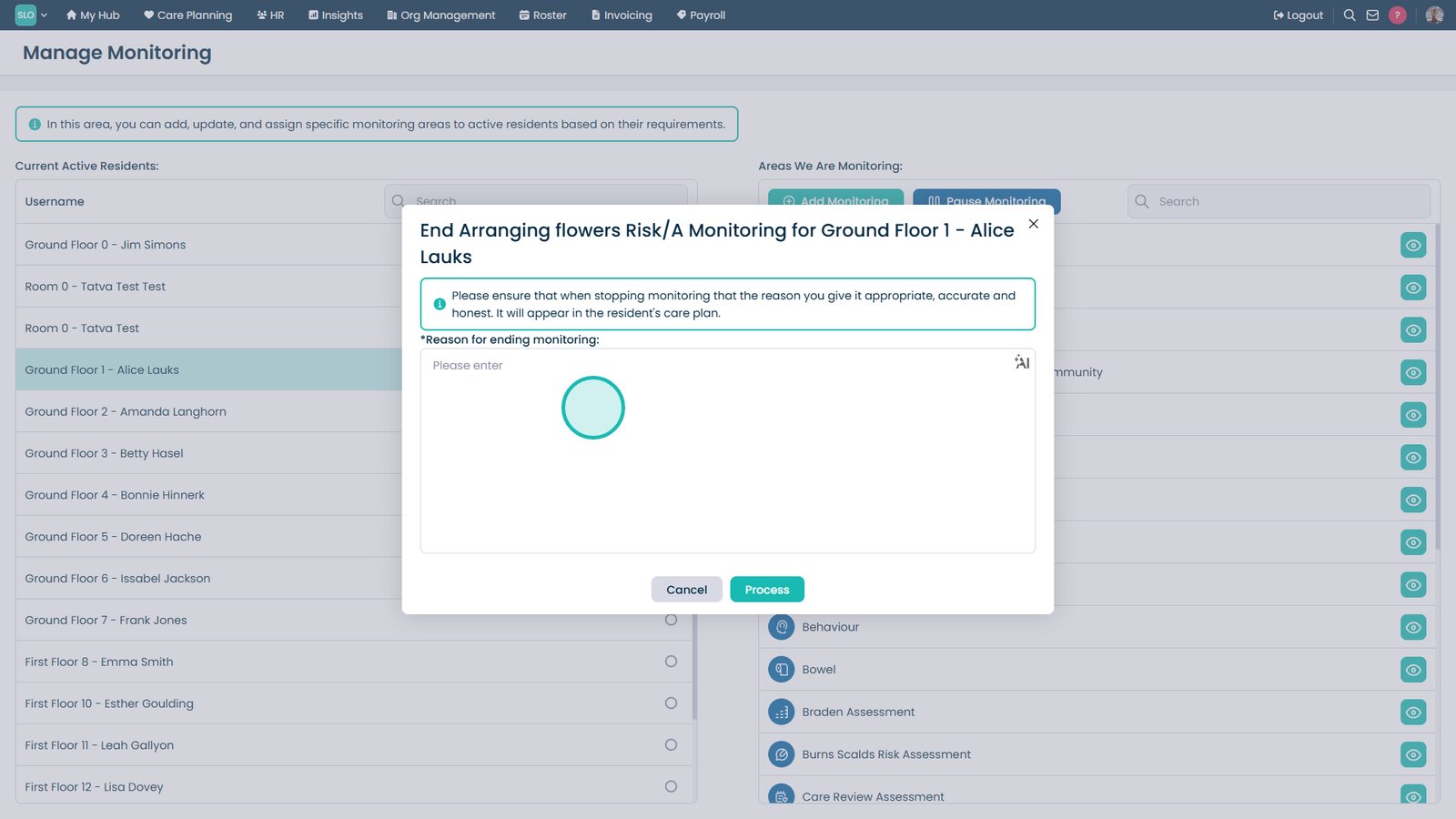
Select End Monitoring.
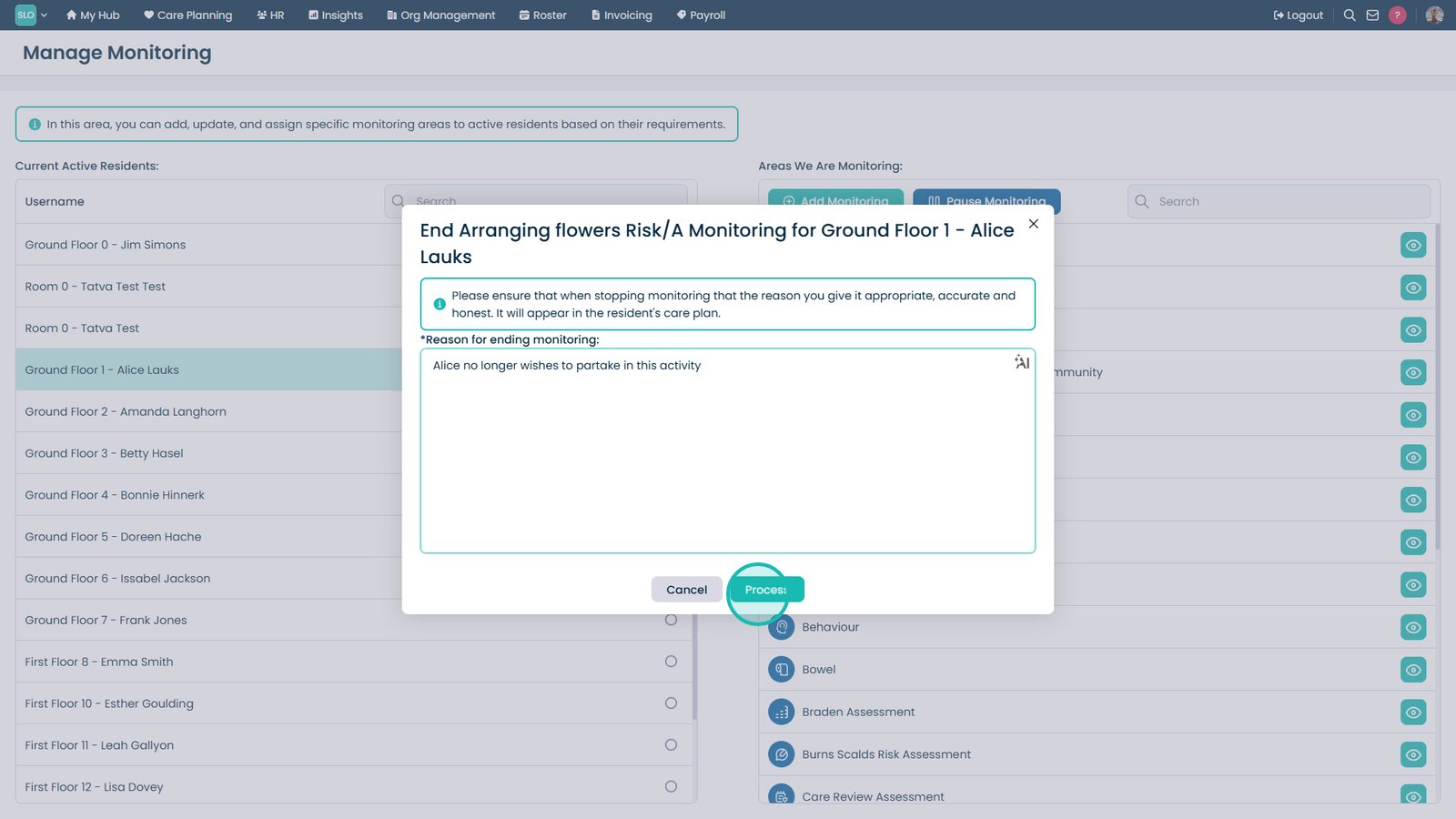
Enter the reason for ending monitoring.
Select Process to confirm.
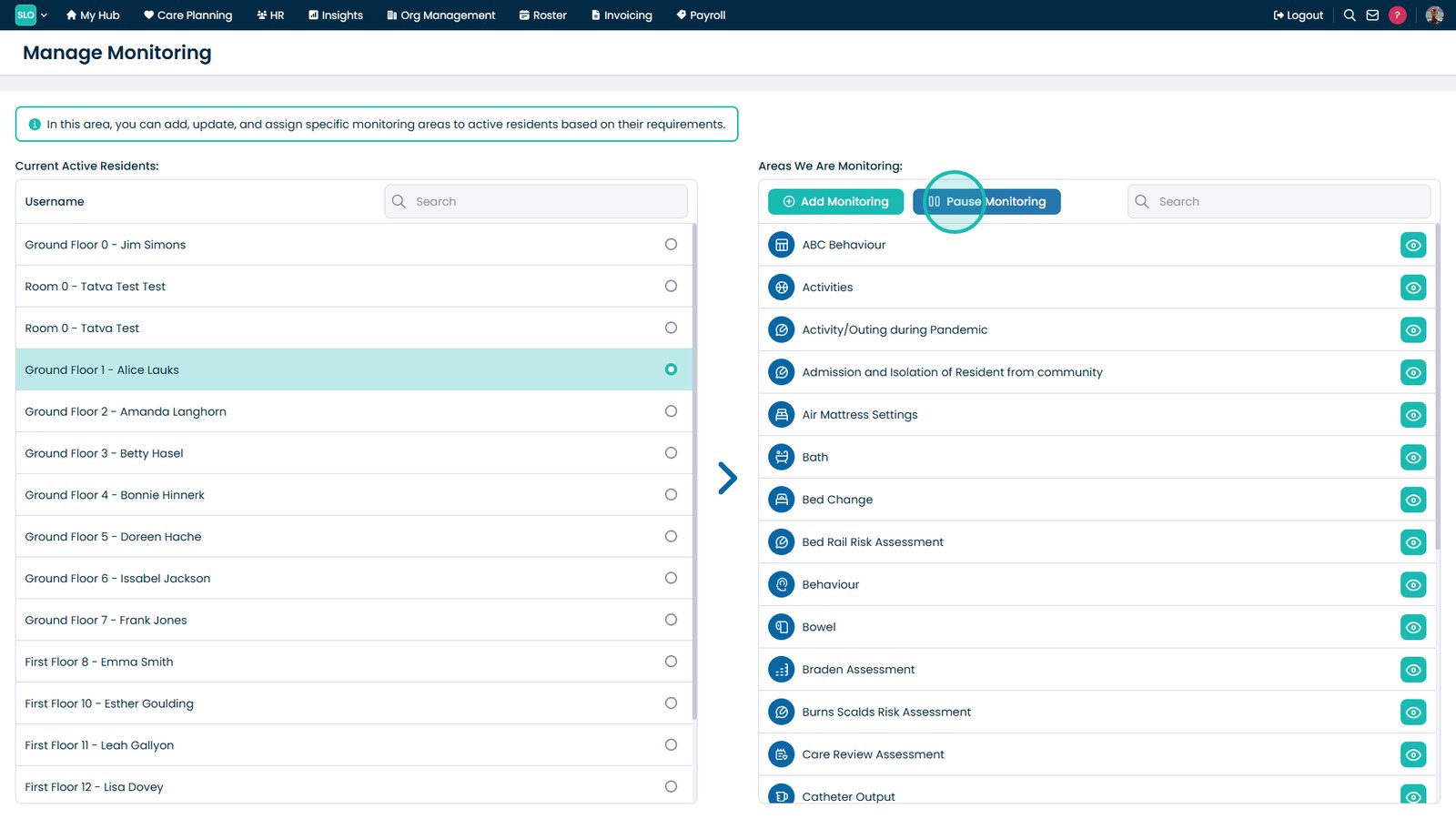
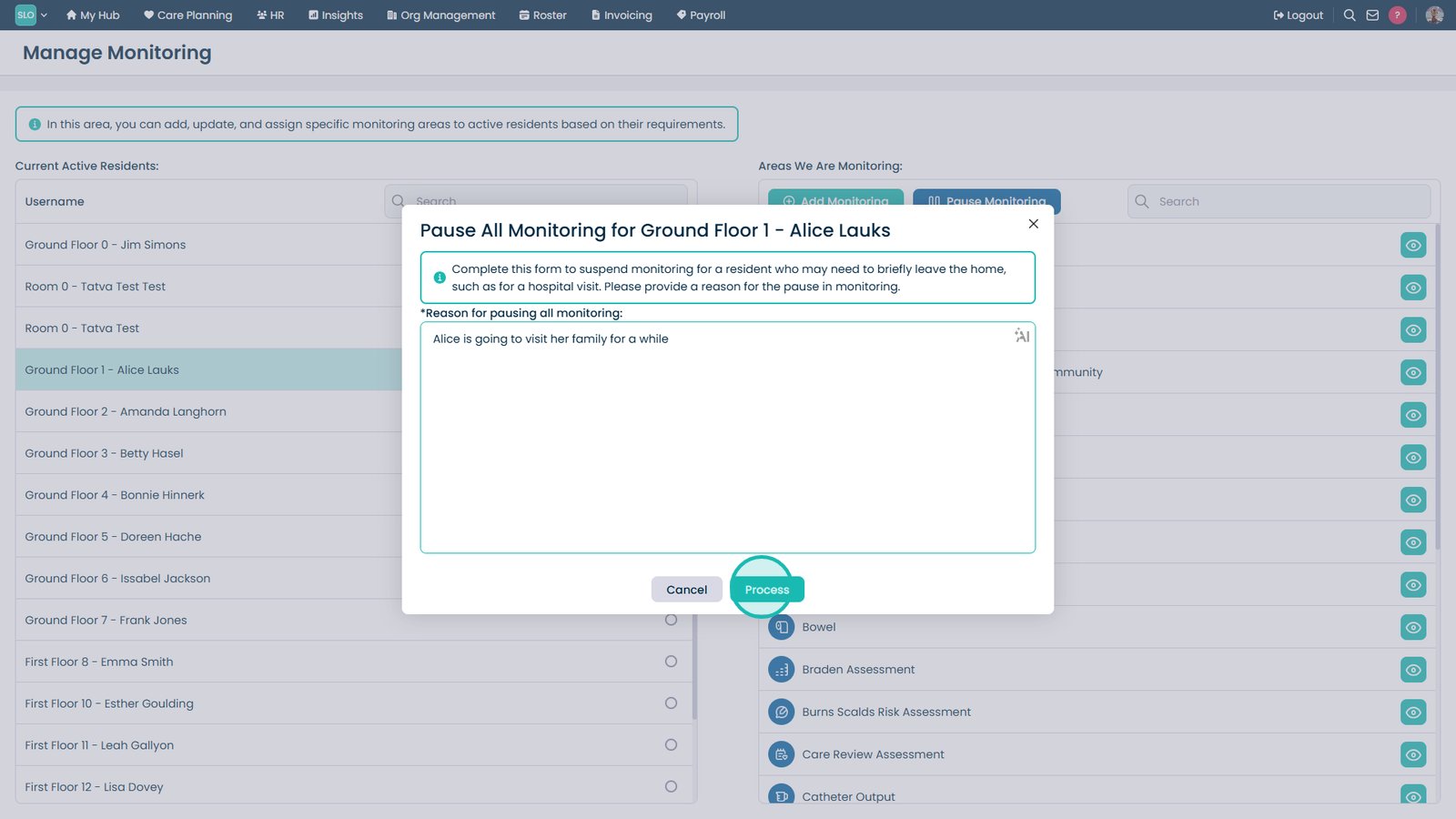
Select Pause Monitoring.
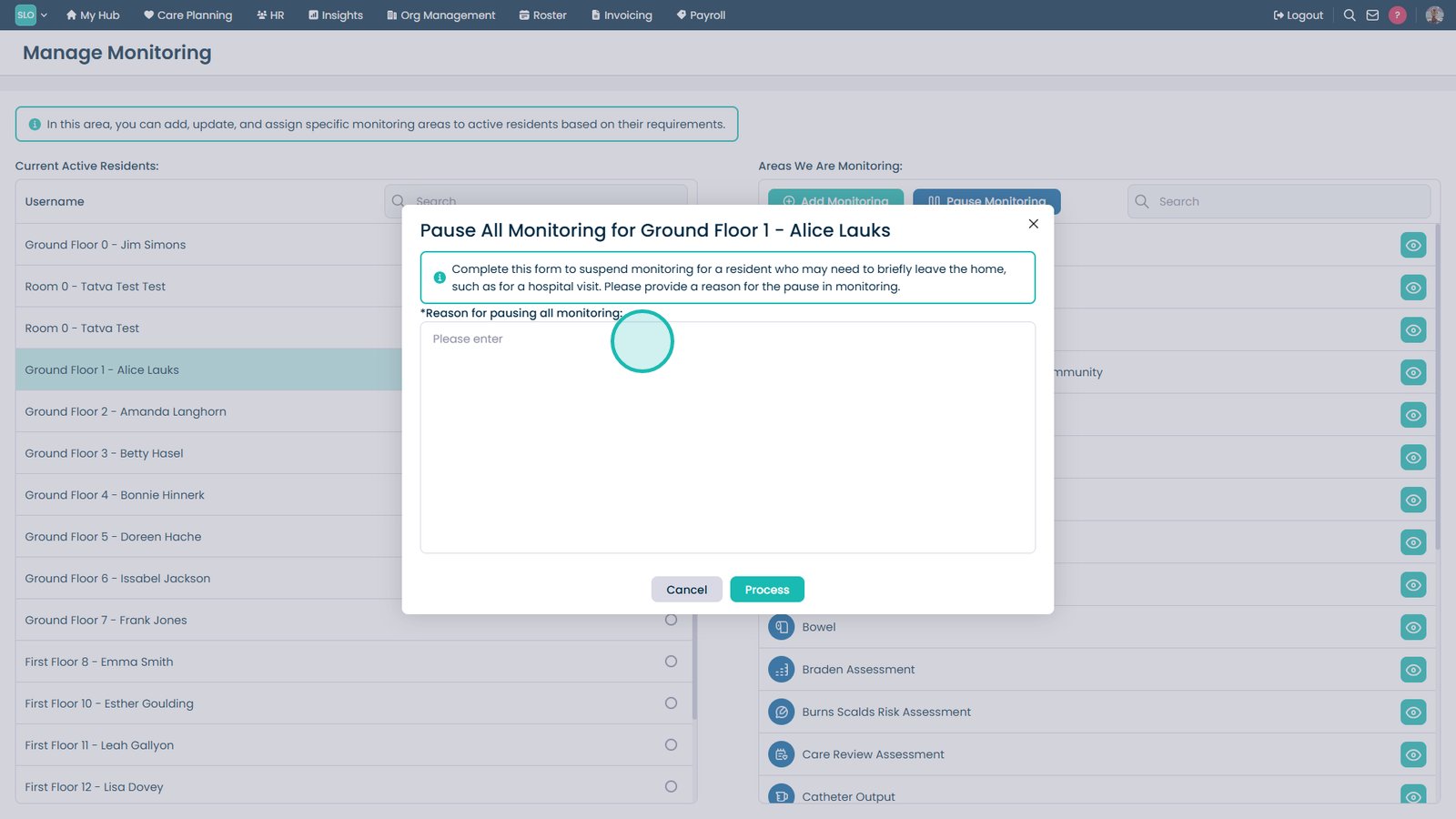
Enter the reason for pausing monitoring.
Select Process to pause monitoring.
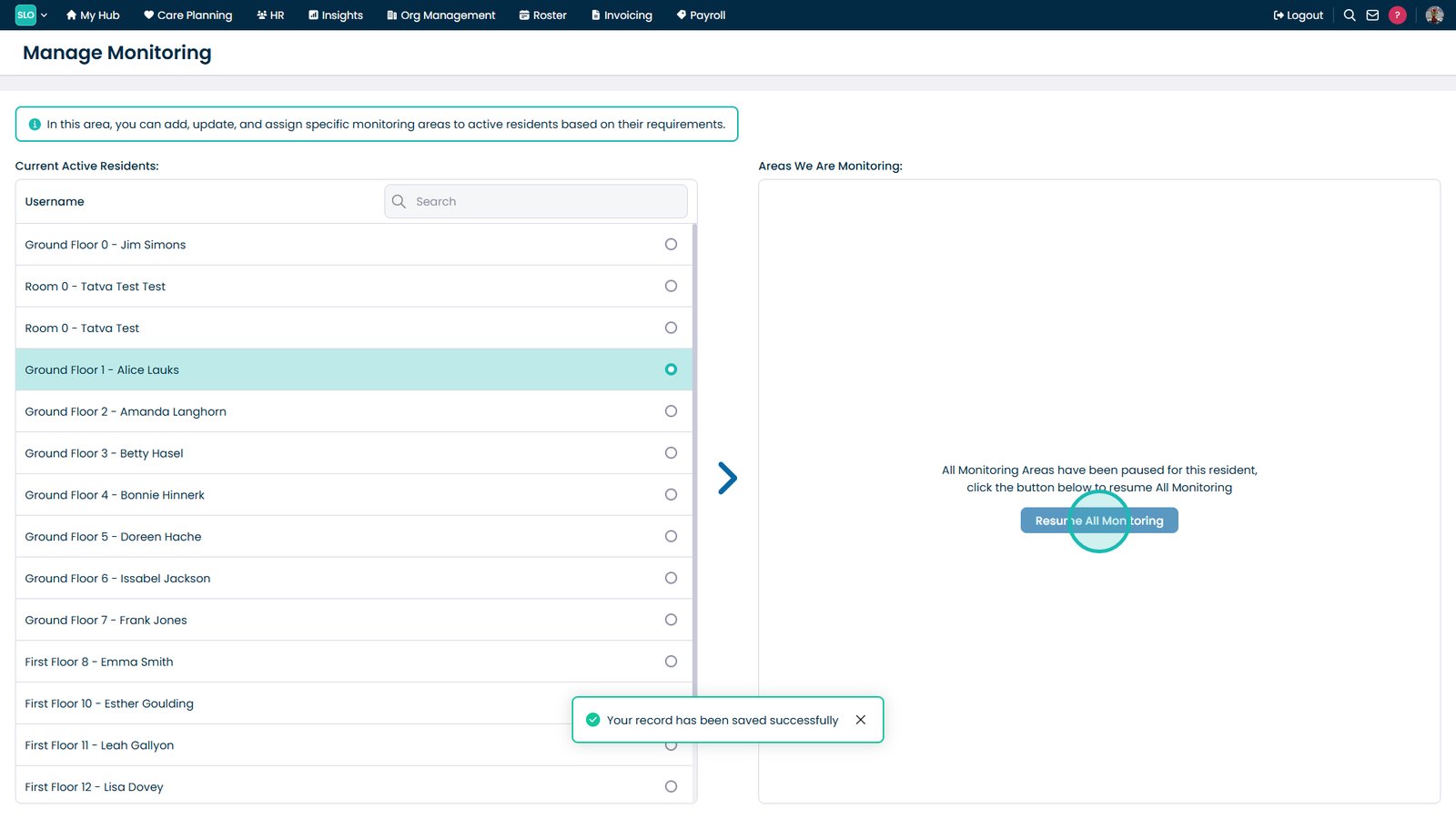
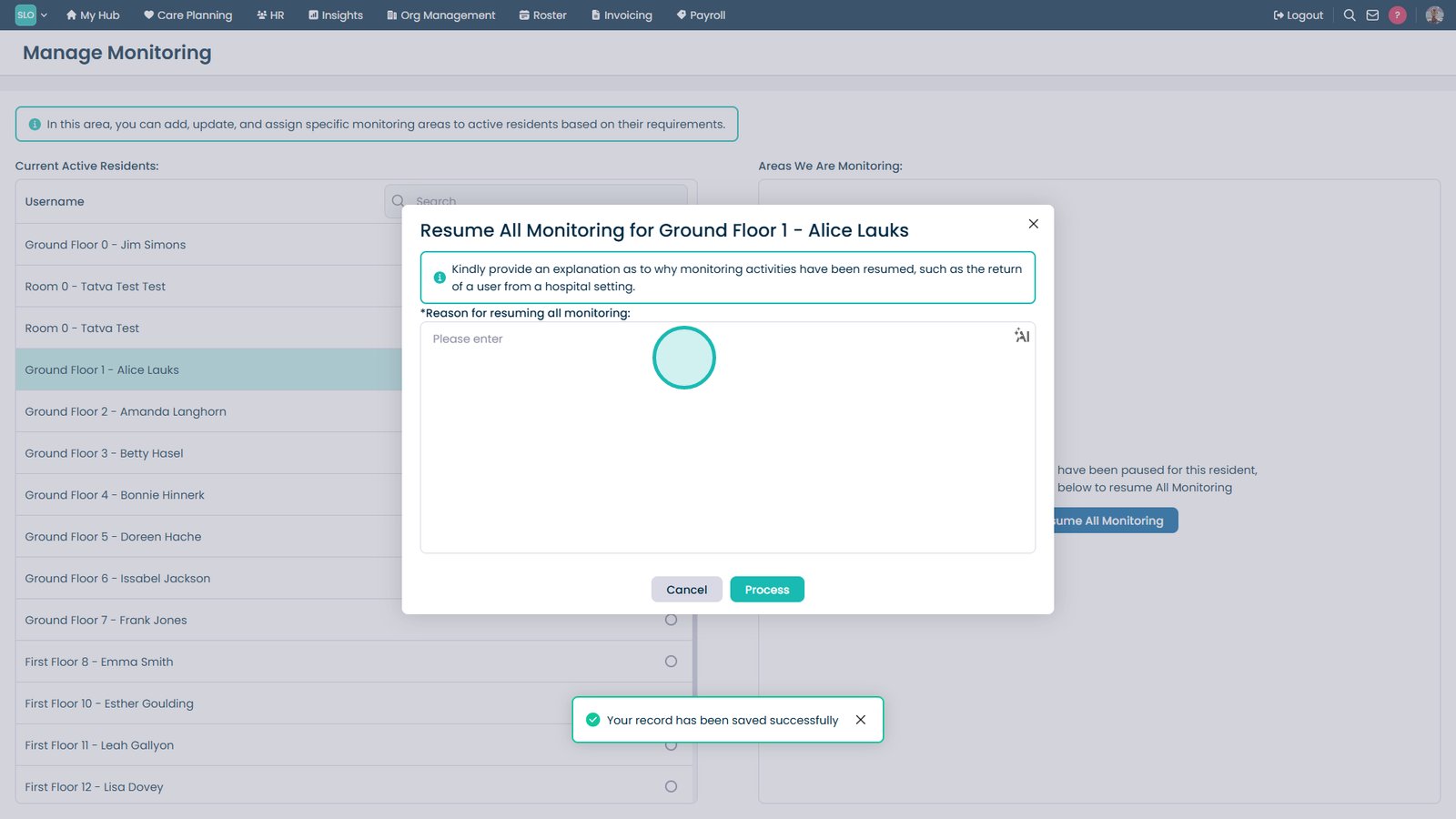
Select Resume All Monitoring.
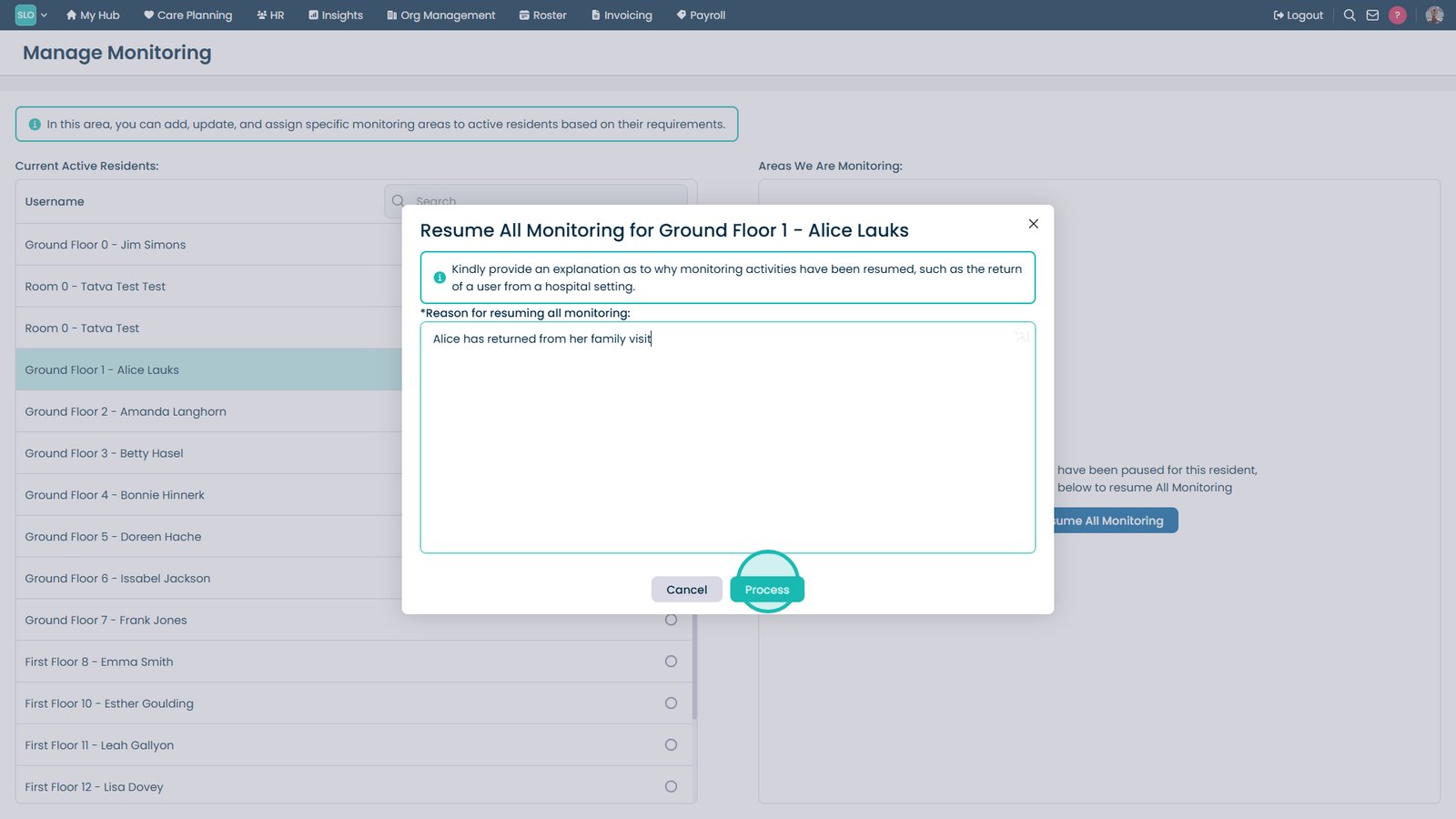
Enter the reason for resuming monitoring.
Select Process to resume monitoring.
Top tip
Certain types of monitoring have additional features you can toggle on, like skin integrity checks with Personal Care!