This guide explains how to complete a Braden Assessment for a service user
Takes 5 minutes
For: Care Staff
Updated: 26th May 2026
Introduction
The Braden Assessment is used to assess a service user's risk of developing pressure ulcers by evaluating factors such as mobility, nutrition, moisture and sensory perception. Completing this assessment helps ensure appropriate preventative care can be planned and monitored.
In this guide you'll learn how to:
Complete a Braden Assessment for a service user
Use the built-in guidance for each assessment section
Add comments and link the assessment to relevant health issues
Place a service user on a movement tracking chart if required
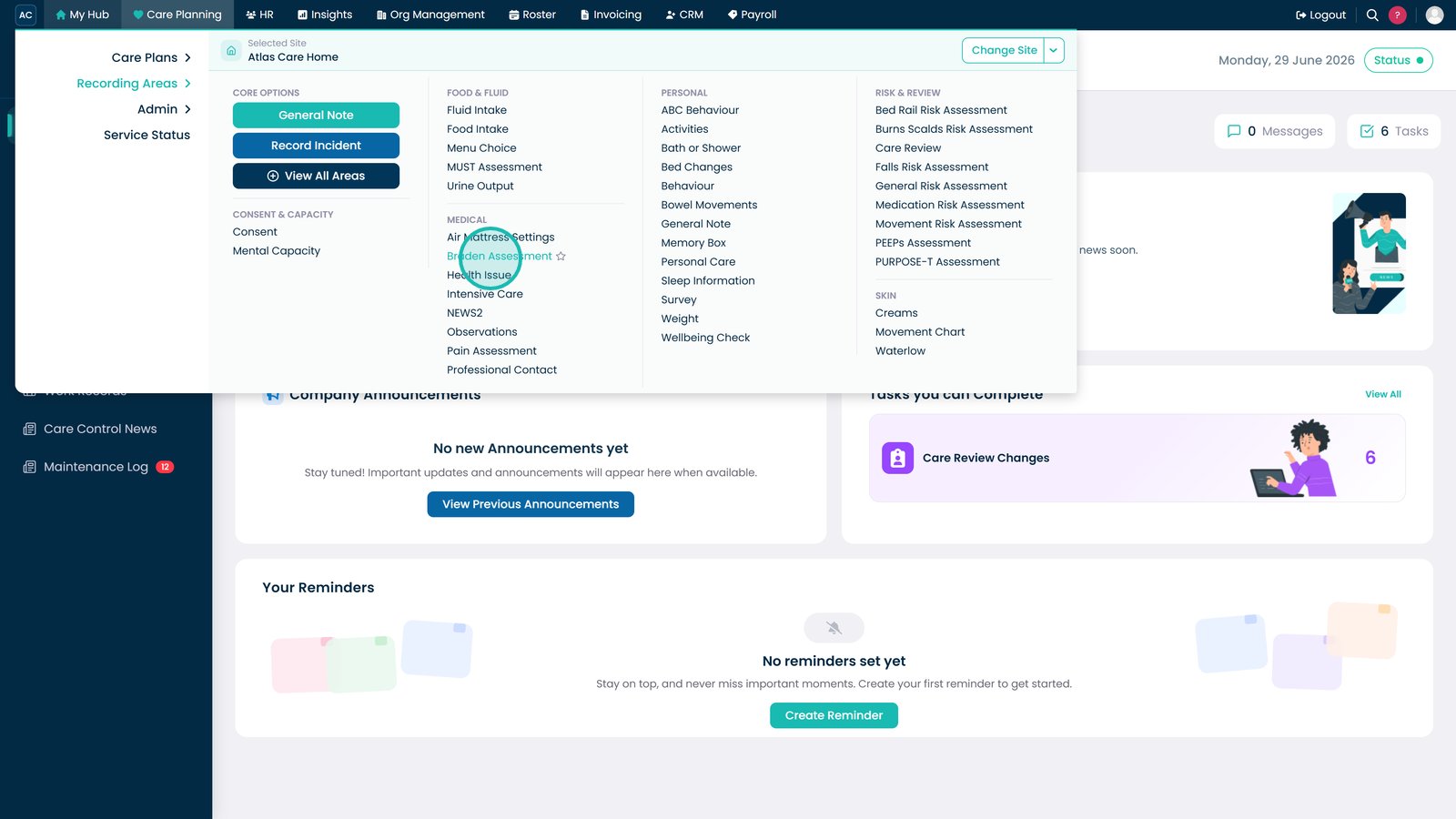
Open Braden Assessment from the Recording Areas menu.
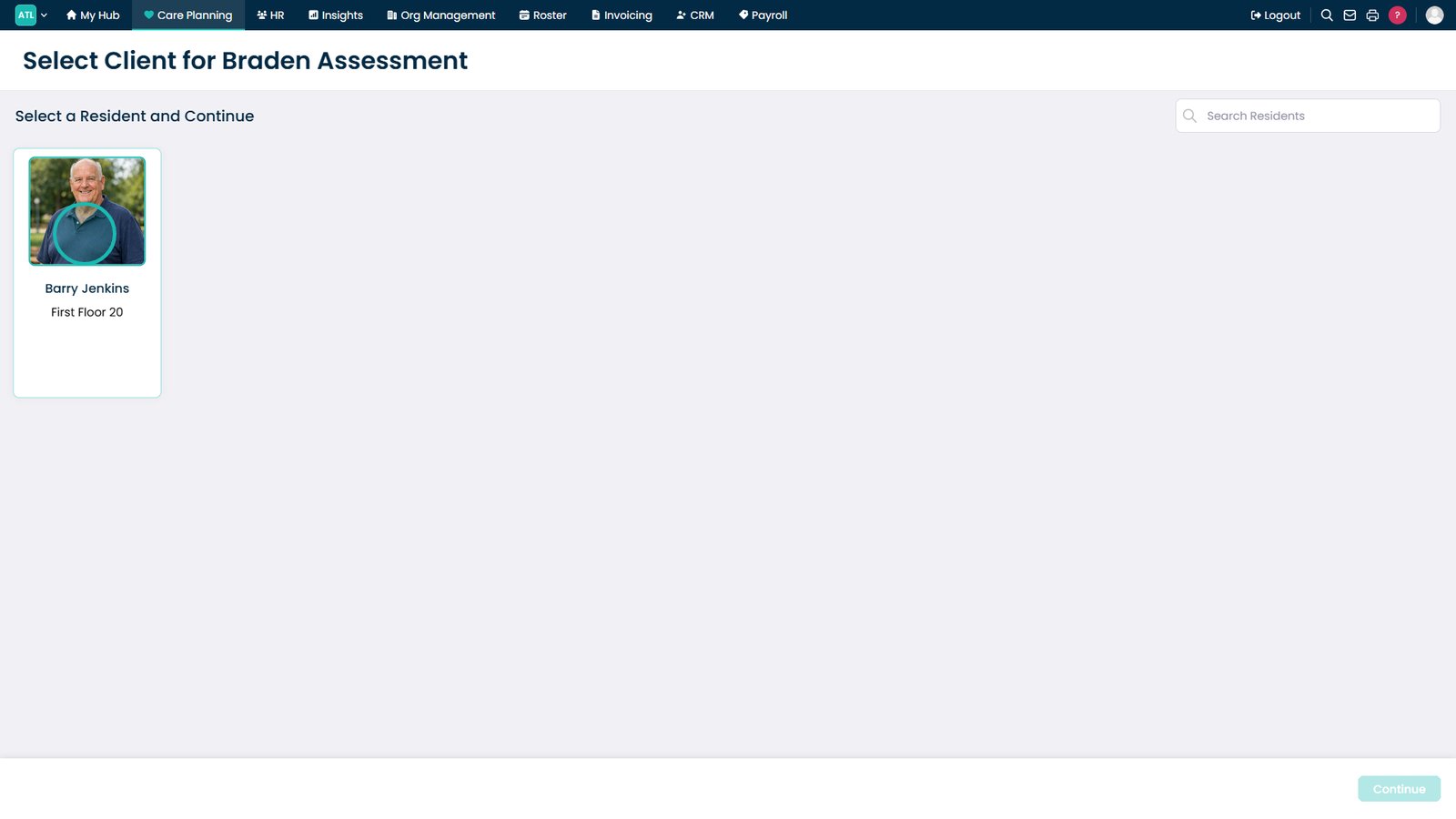
Select the service user.
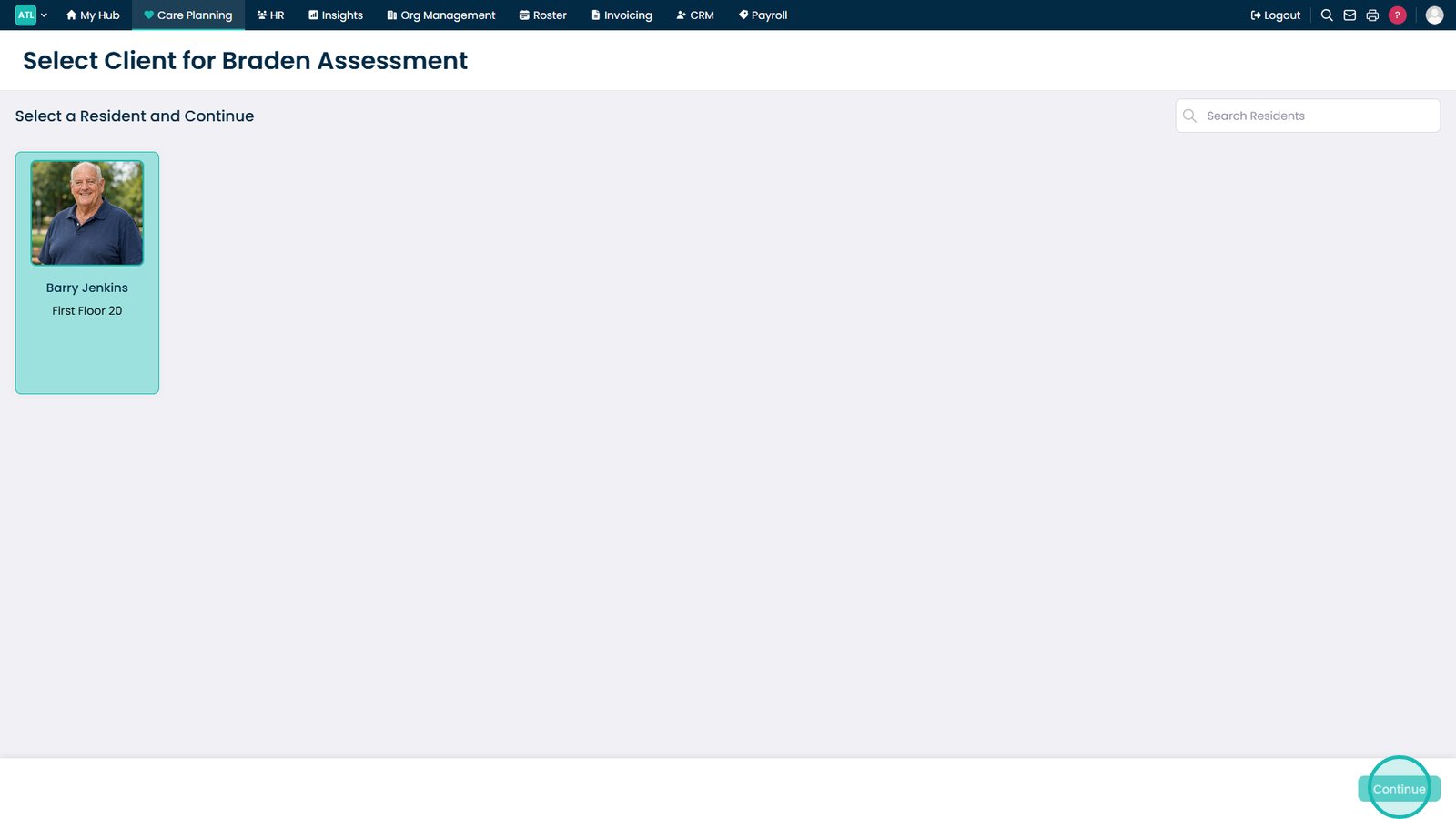
Select Continue to begin the assessment.
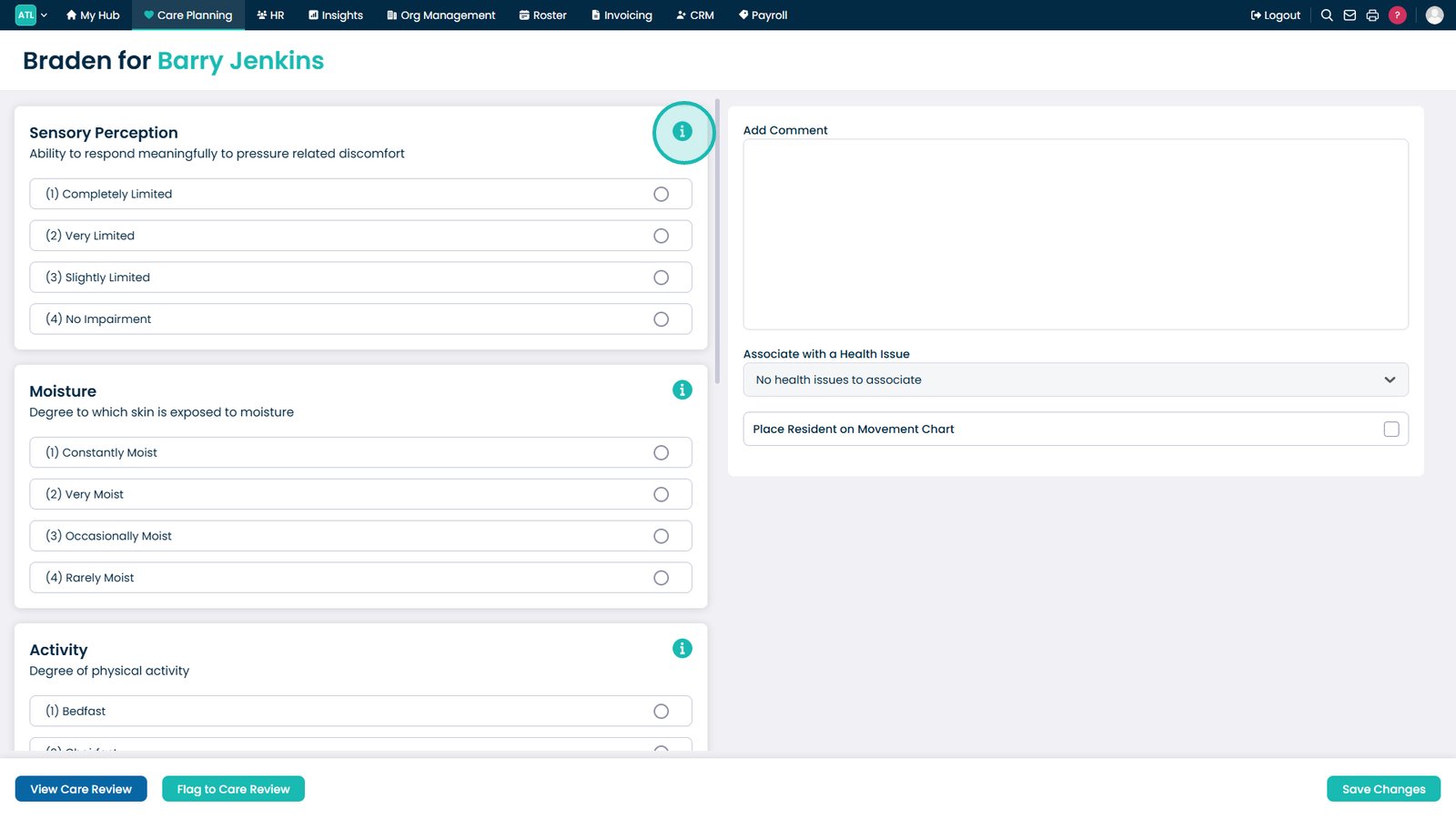
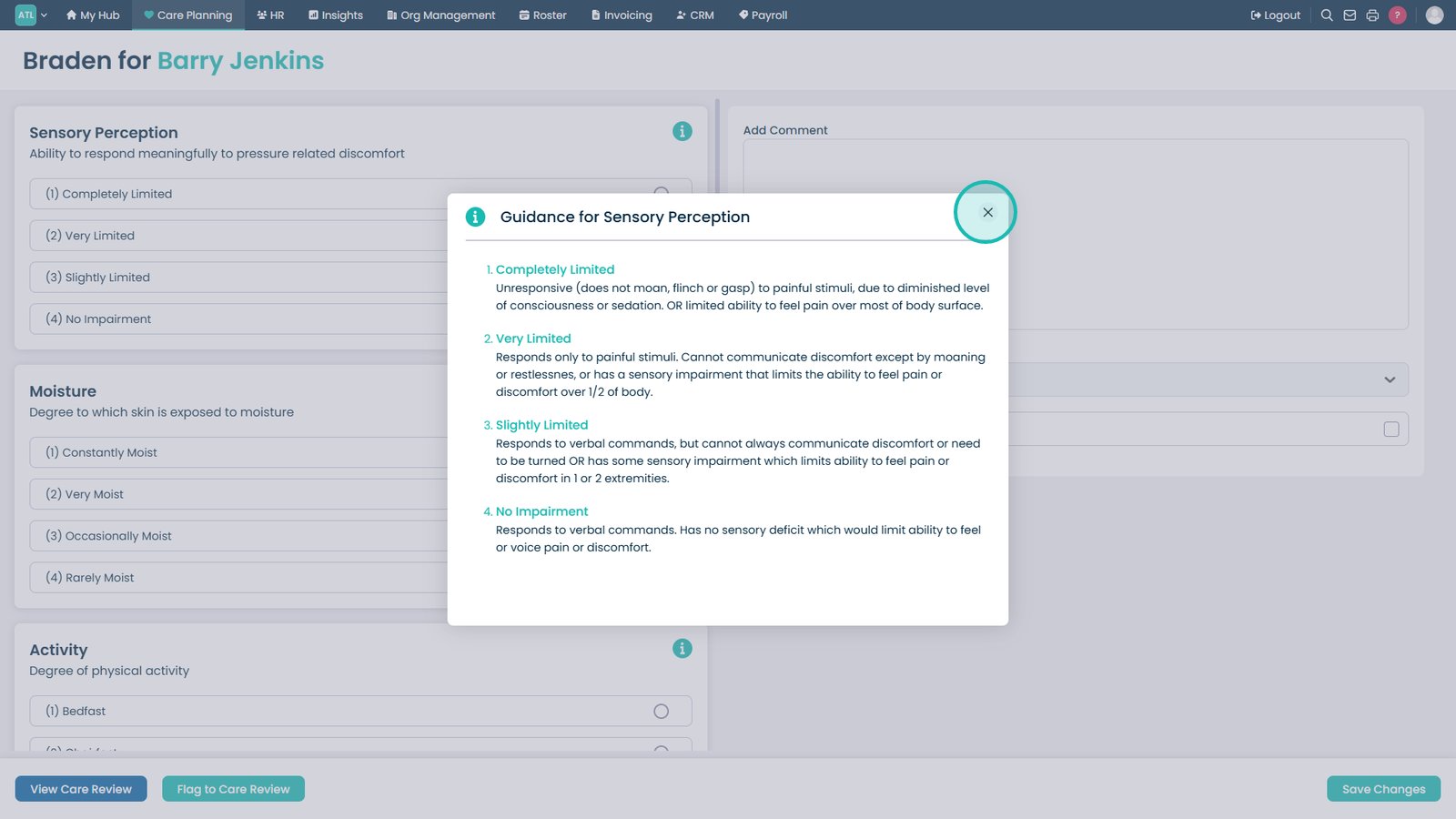
Select the information icon to view guidance for each assessment section.
Close the guidance window to return to the assessment.
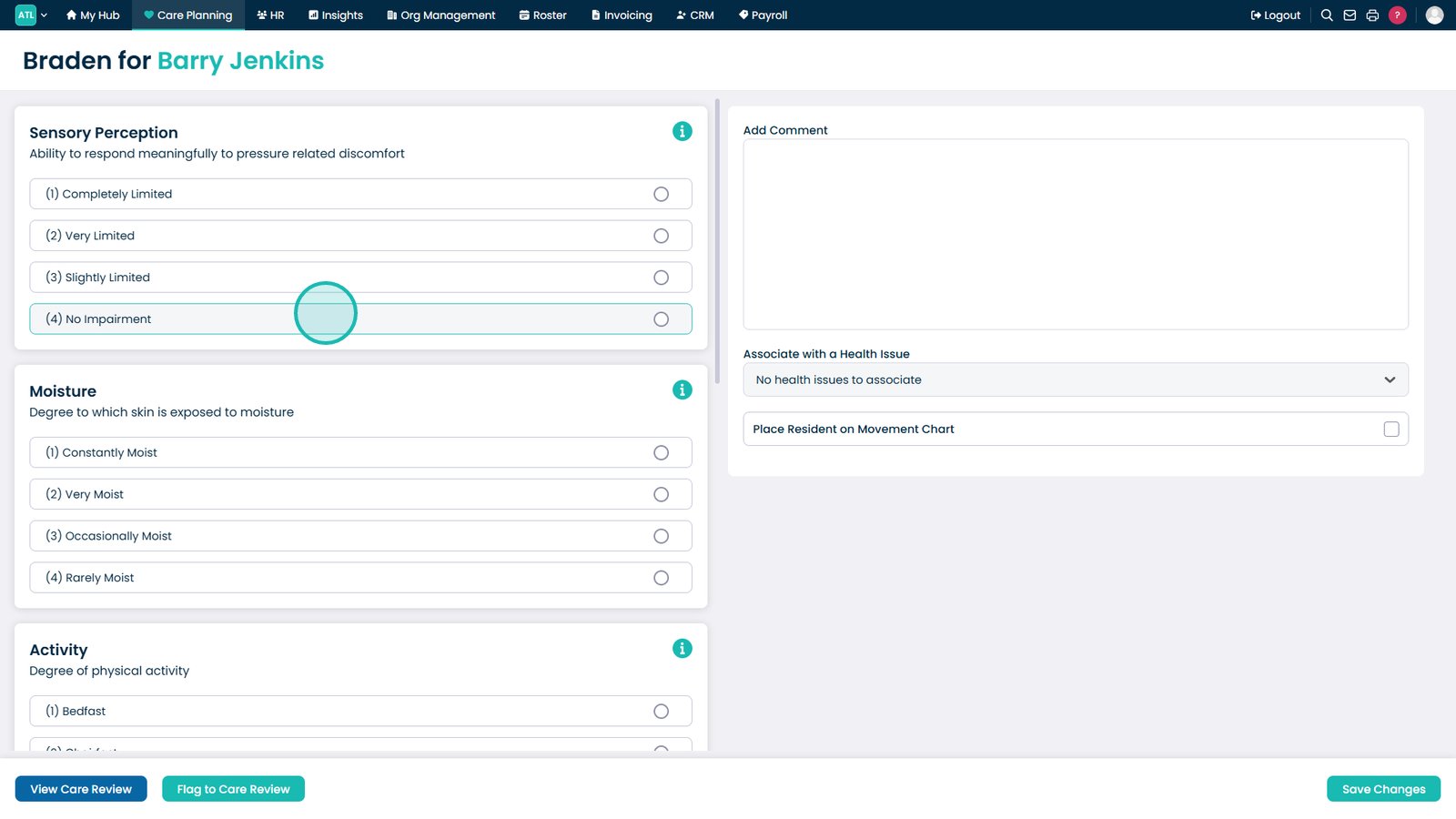
Complete each section of the assessment using the guidance provided.
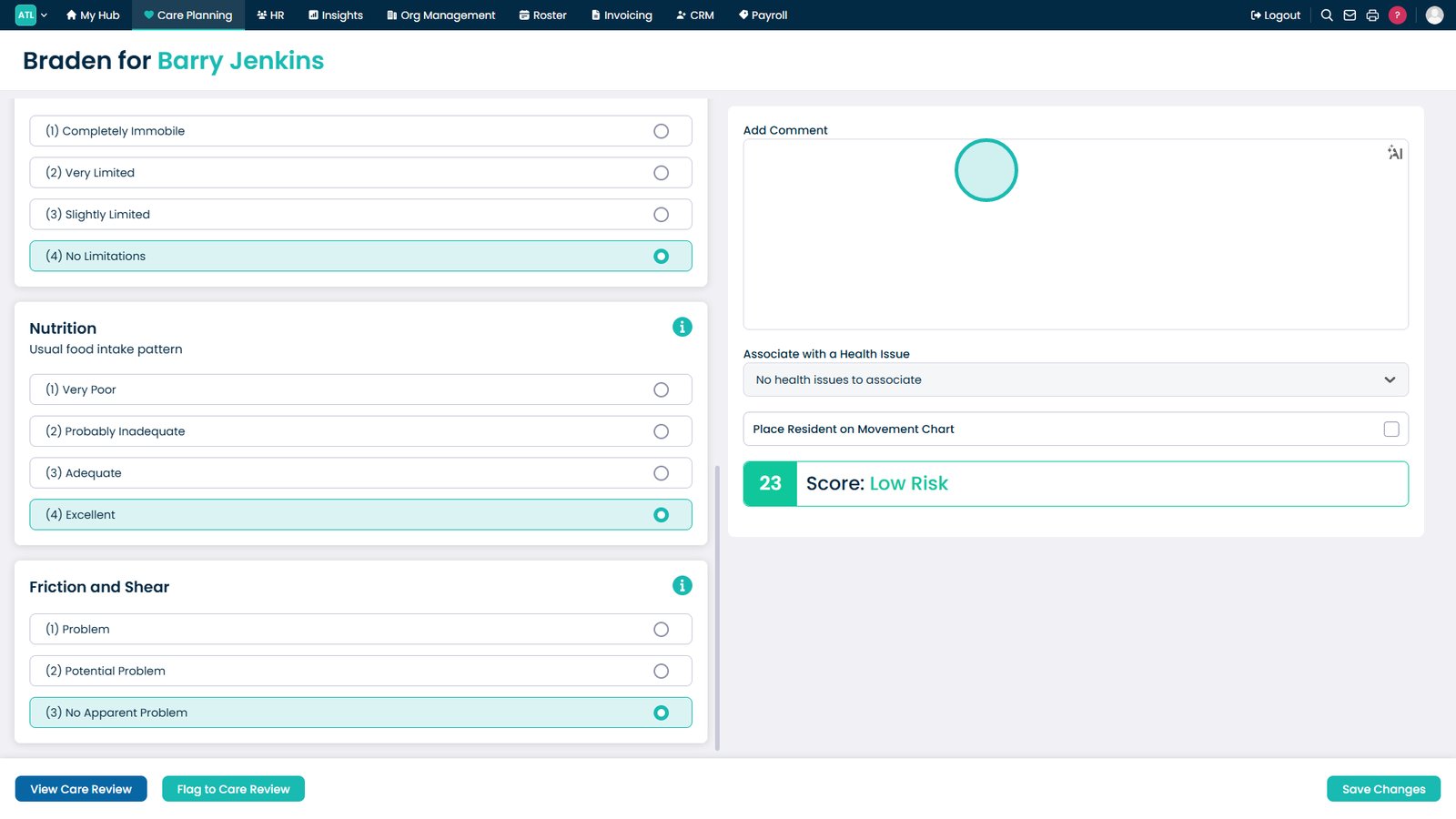
Add any additional comments about the service user's condition or care needs.
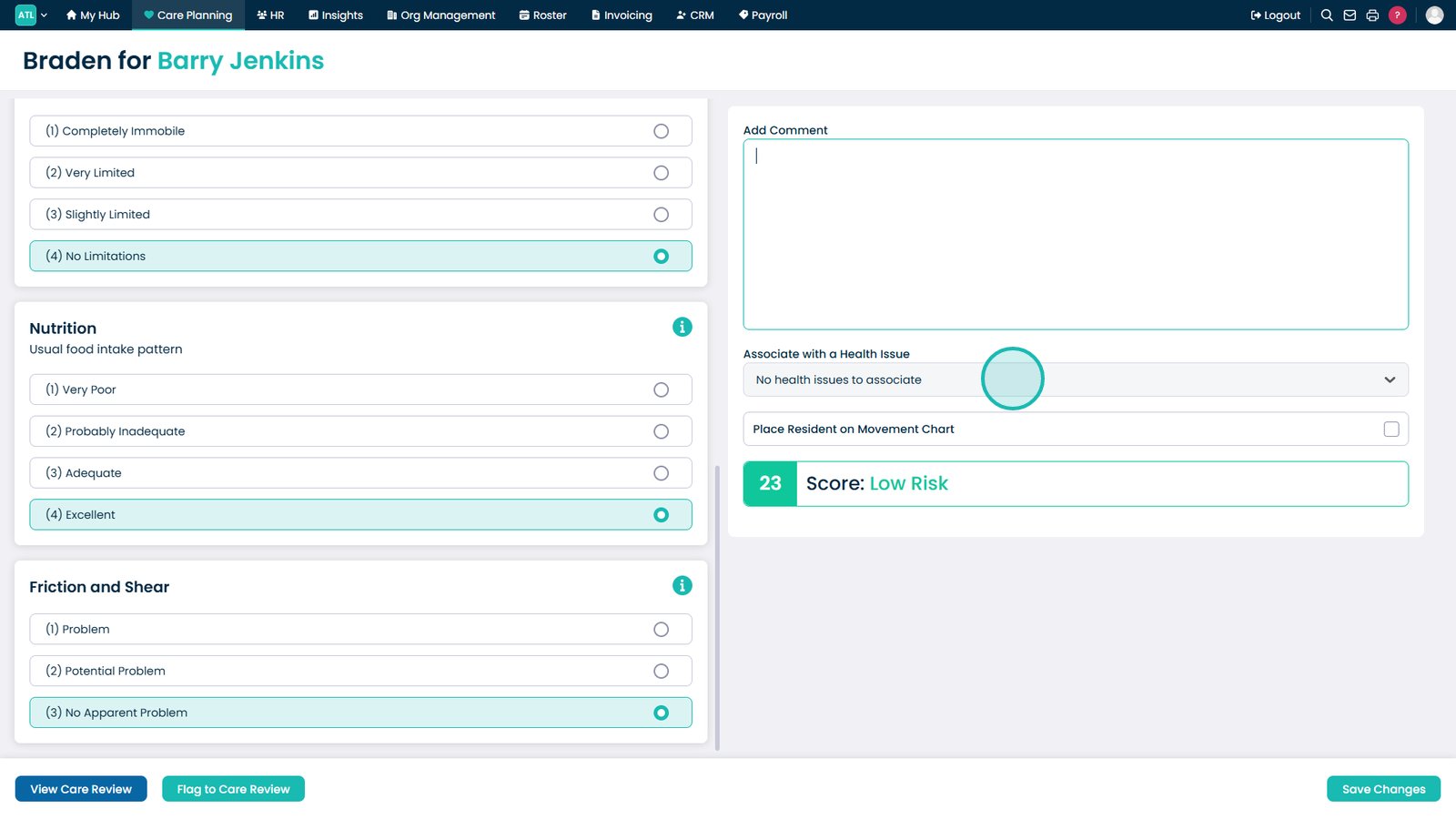
Associate the assessment with a relevant health issue if required.
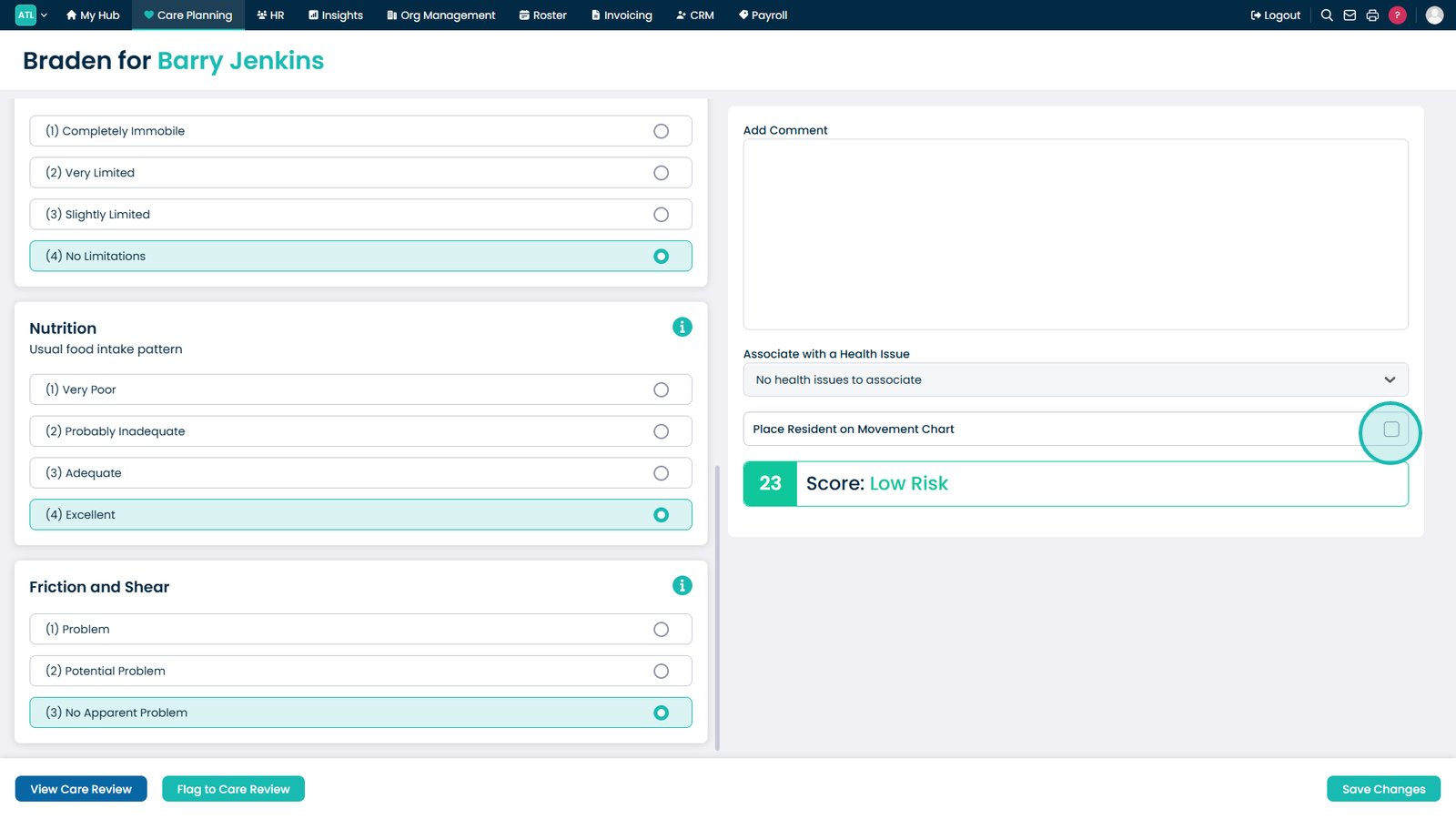
Select the checkbox to place the service user on a movement tracking chart, if required.
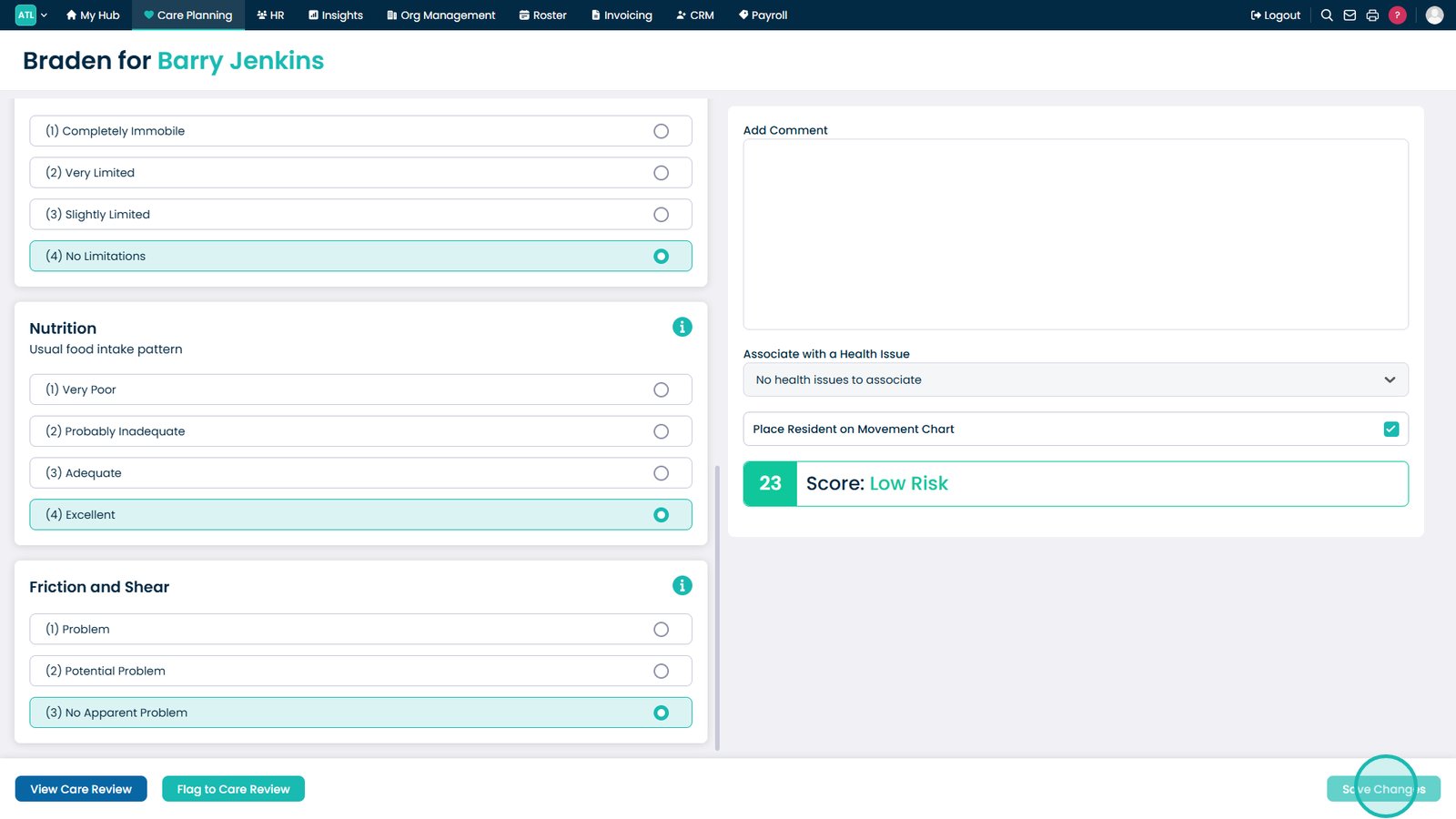
Select Save Changes to complete the Braden Assessment.
Top tip
Use the information icon throughout the assessment if you're unsure how to score a section, ensuring the assessment is completed consistently and accurately.