This guide explains how to start and complete a Care Review for a service user
Takes 20 minutes
For: Care Staff
Updated: 30th June 2026
Introduction
The Care Review module allows you to complete a structured review for a service user. You can record participation details, review care needs, update key information, add supporting notes and documents, complete consent, and finalise the review.
In this guide you'll learn how to:
Start a new Care Review
Complete the Introduction section
Review and update continence care details
Add supporting notes and documents
Complete consent and finalise the Care Review
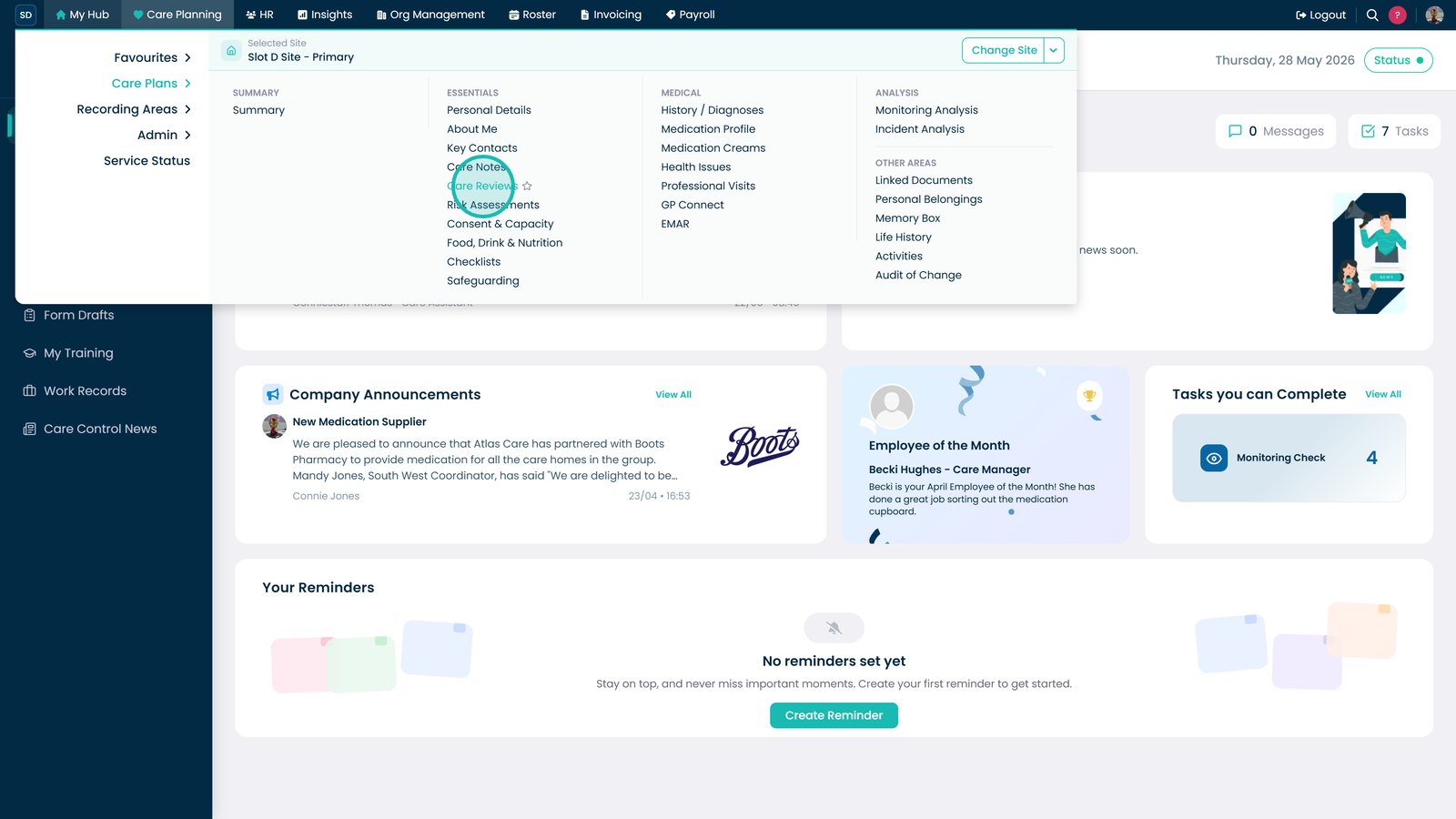
Access the Care Reviews section under Care Planning to begin managing service user reviews.
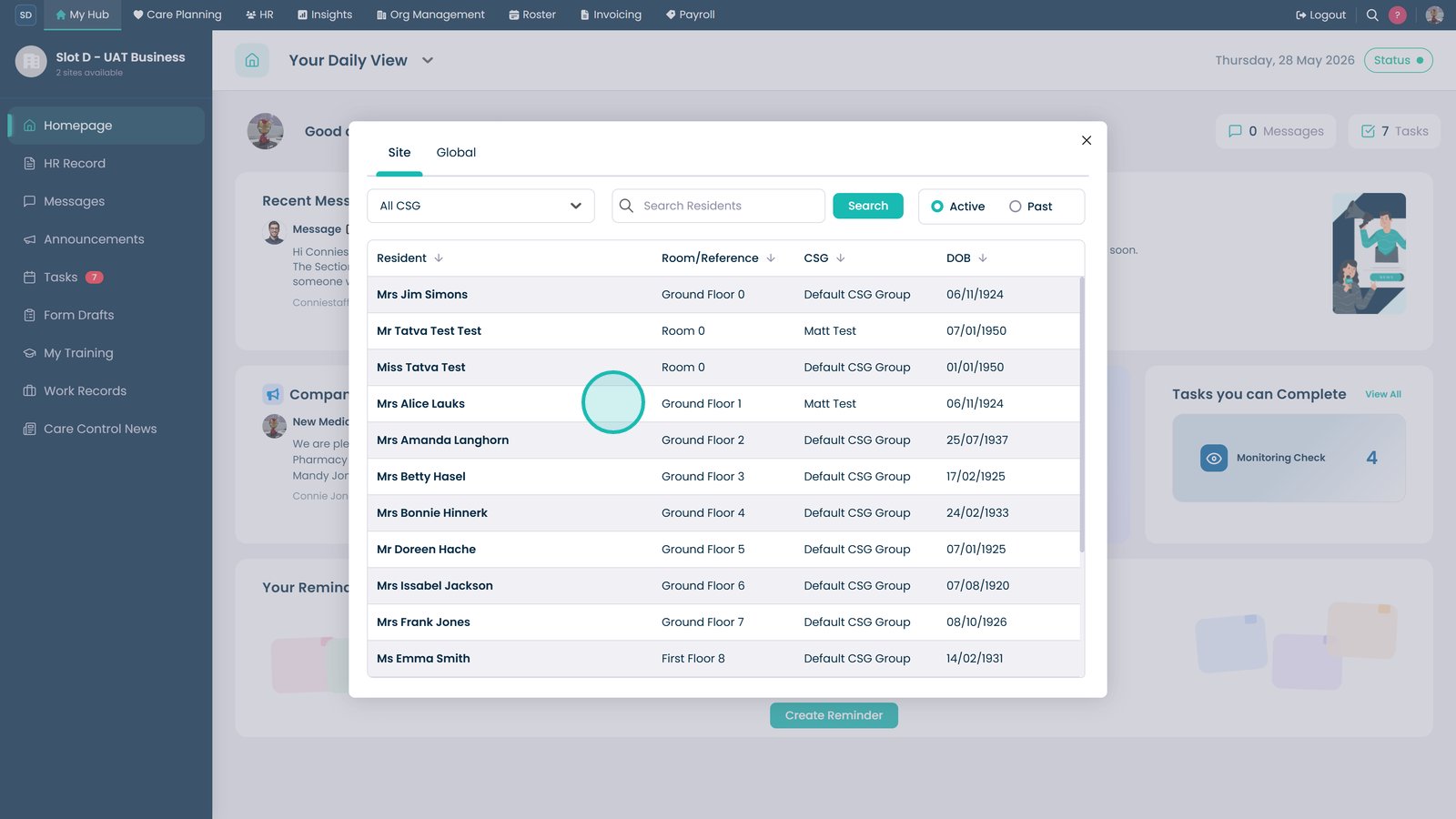
Select the service user by clicking their row in the service user list.
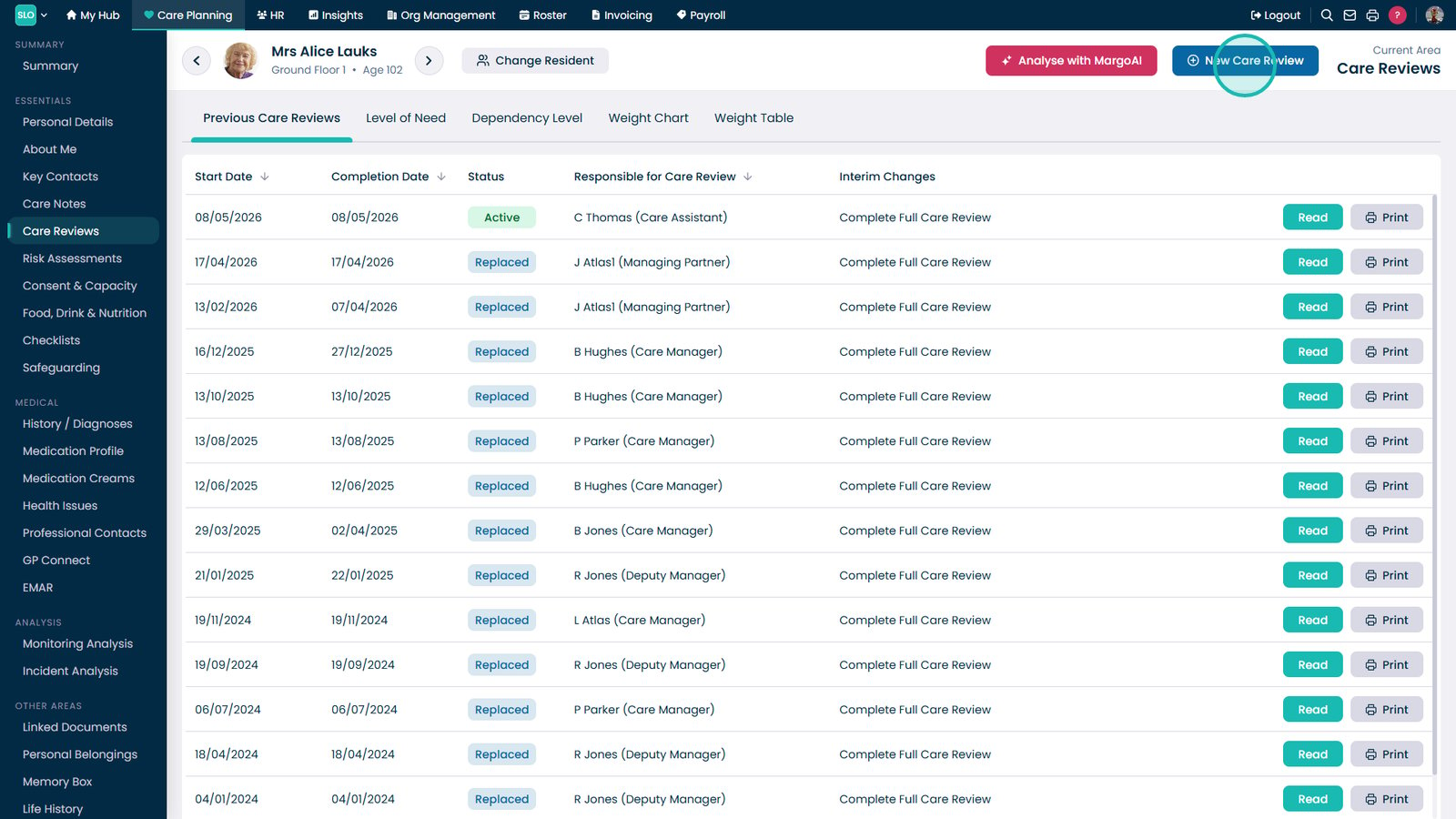
Select New Care Review to begin documenting a new review for the selected service user.
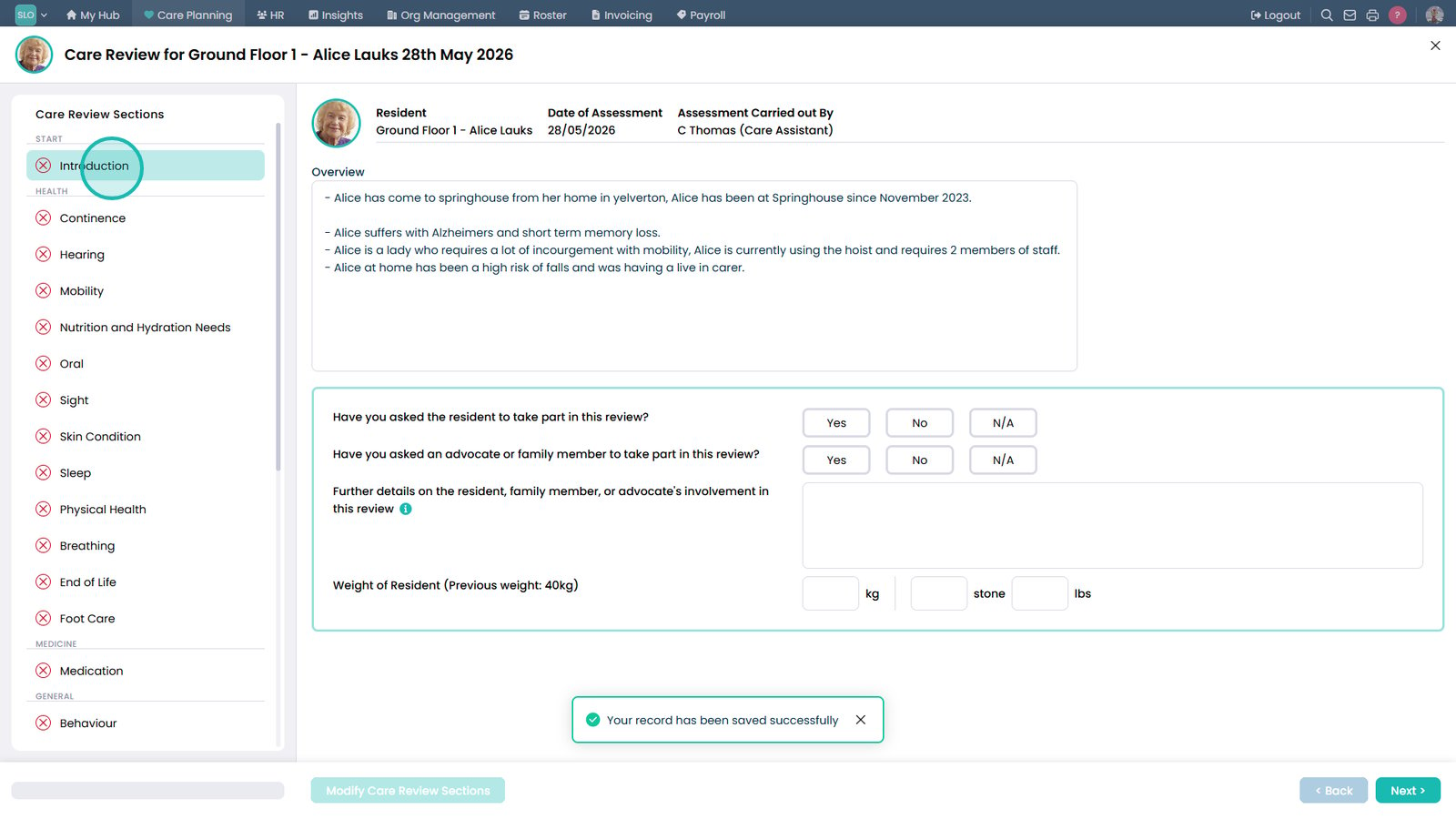
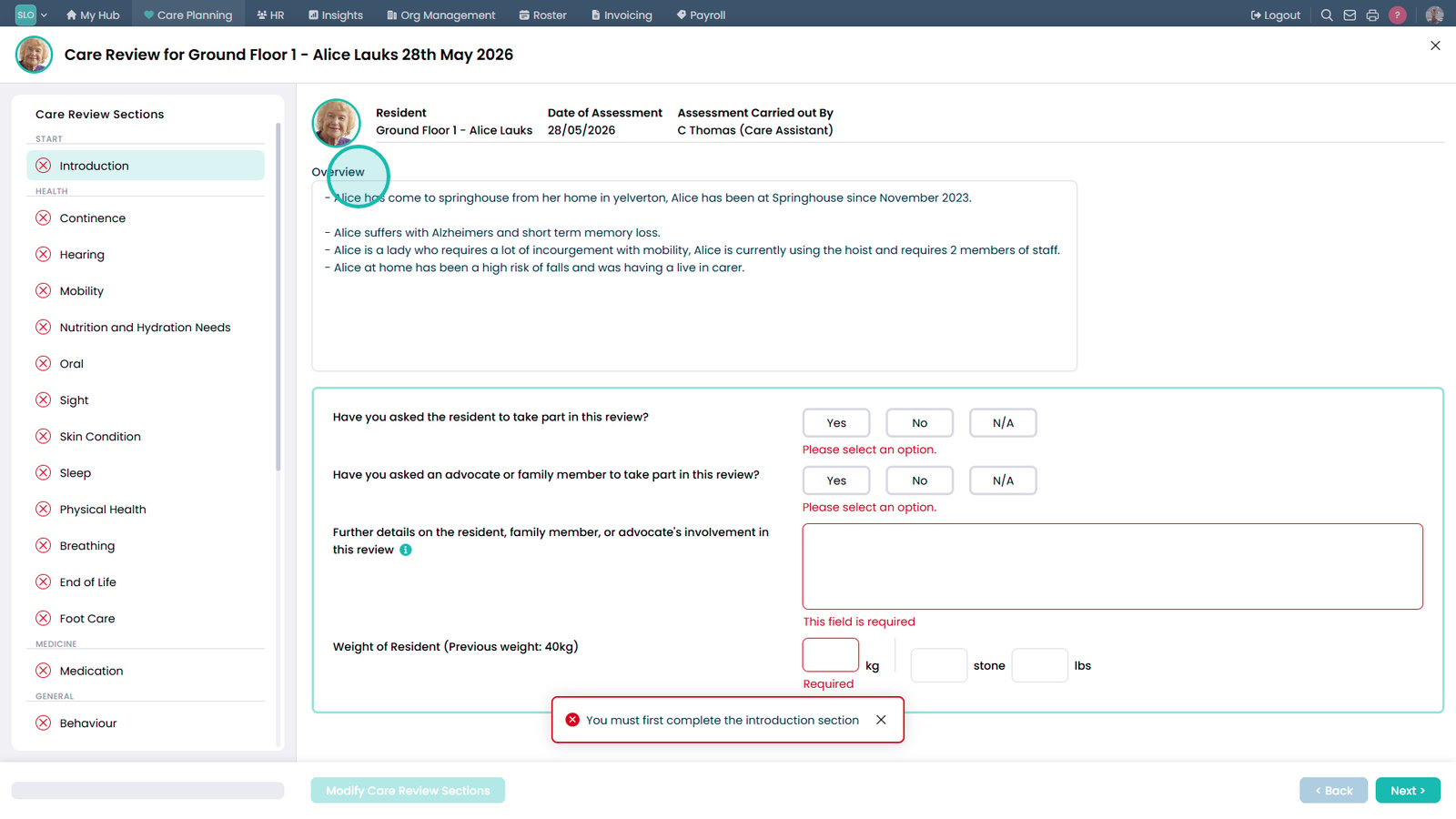
Open the Introduction section to enter or review basic participation and assessment details.
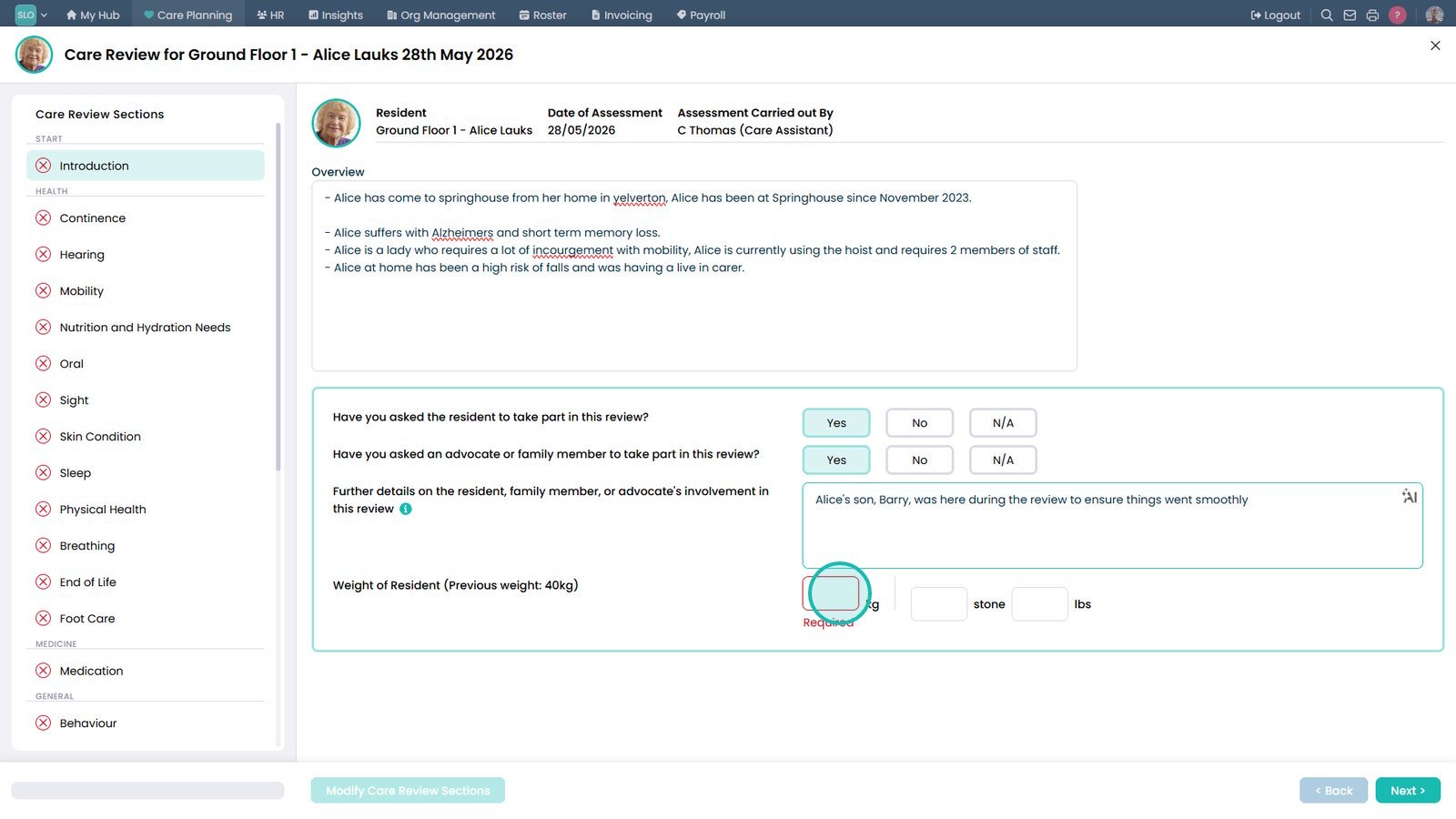
Go to the Overview area in Introduction to summarise the service user's situation and answer participation questions.
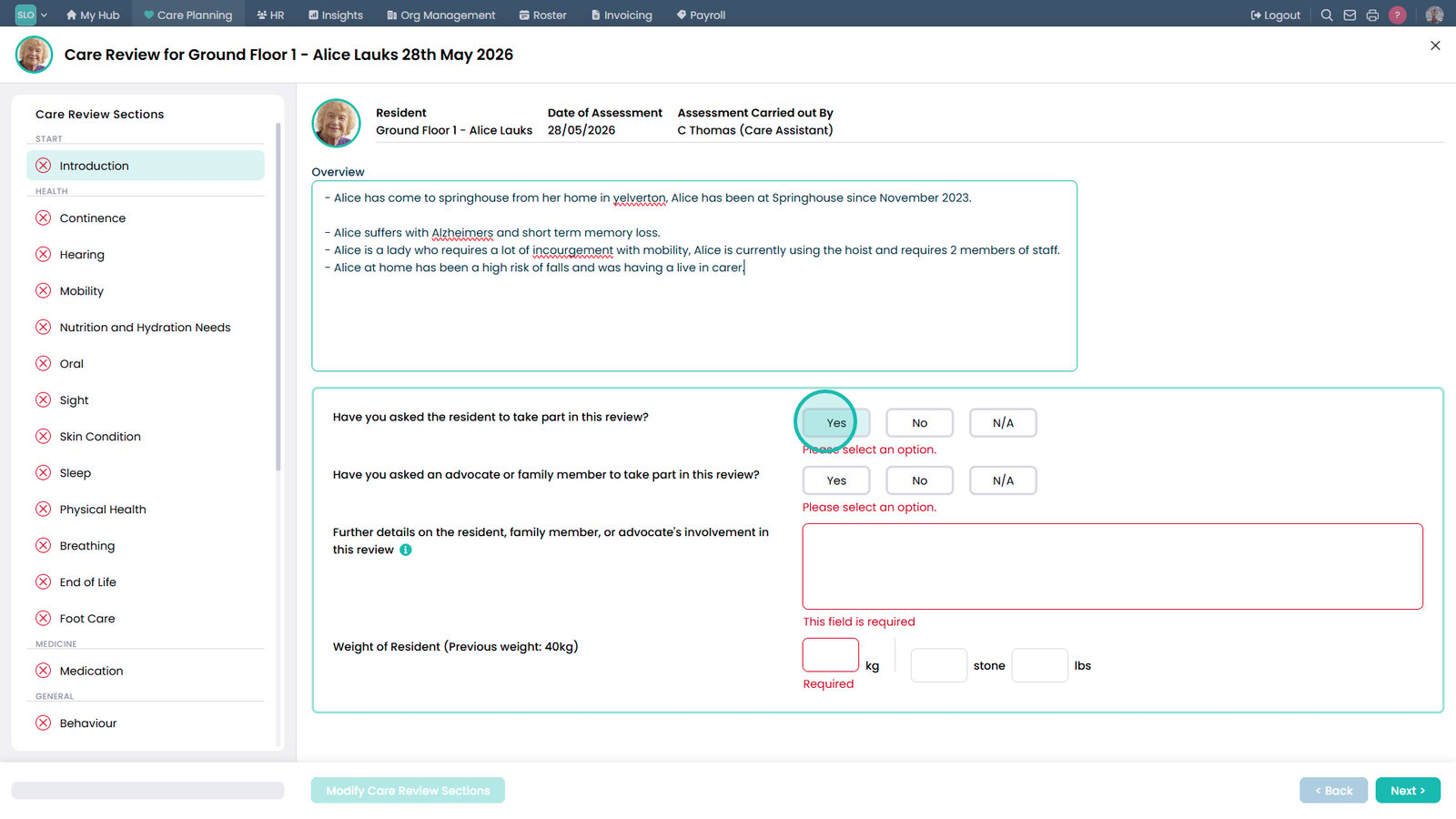
Select Yes to confirm the service user has been invited to participate in the review.
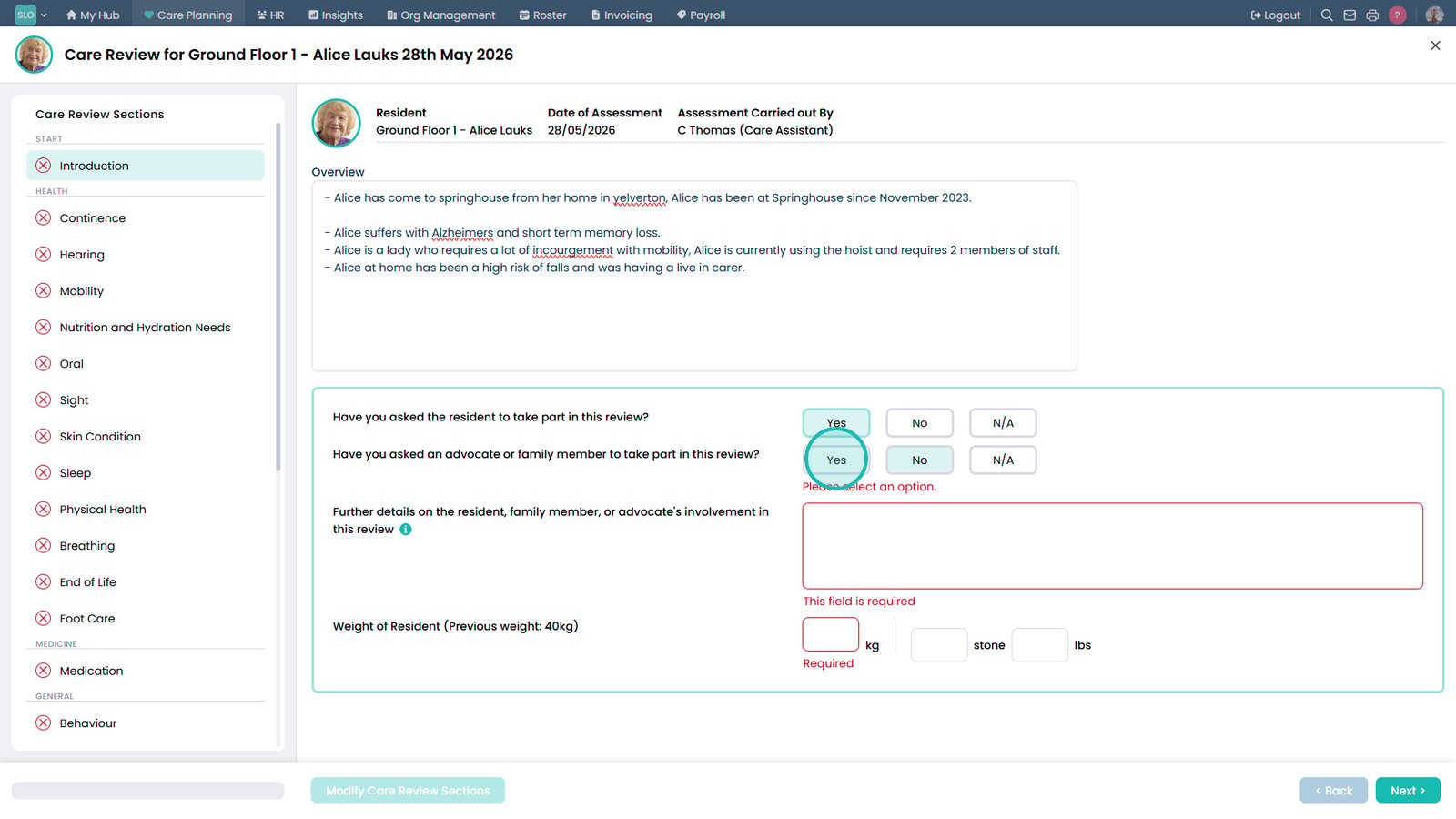
Indicate whether an advocate or family member has also been invited to take part in the review.
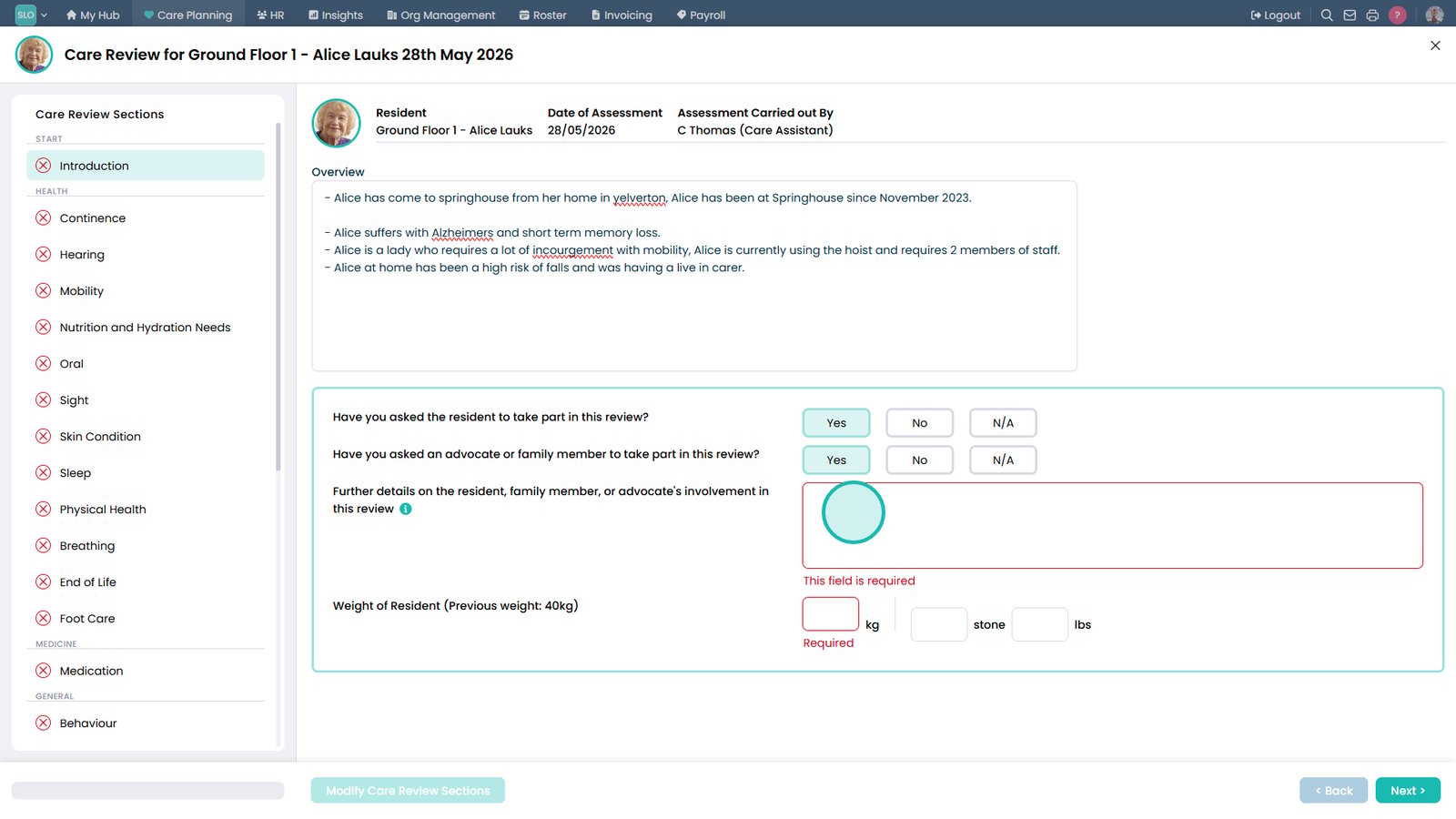
Click into the field to enter further details about the involvement of the service user or support network.
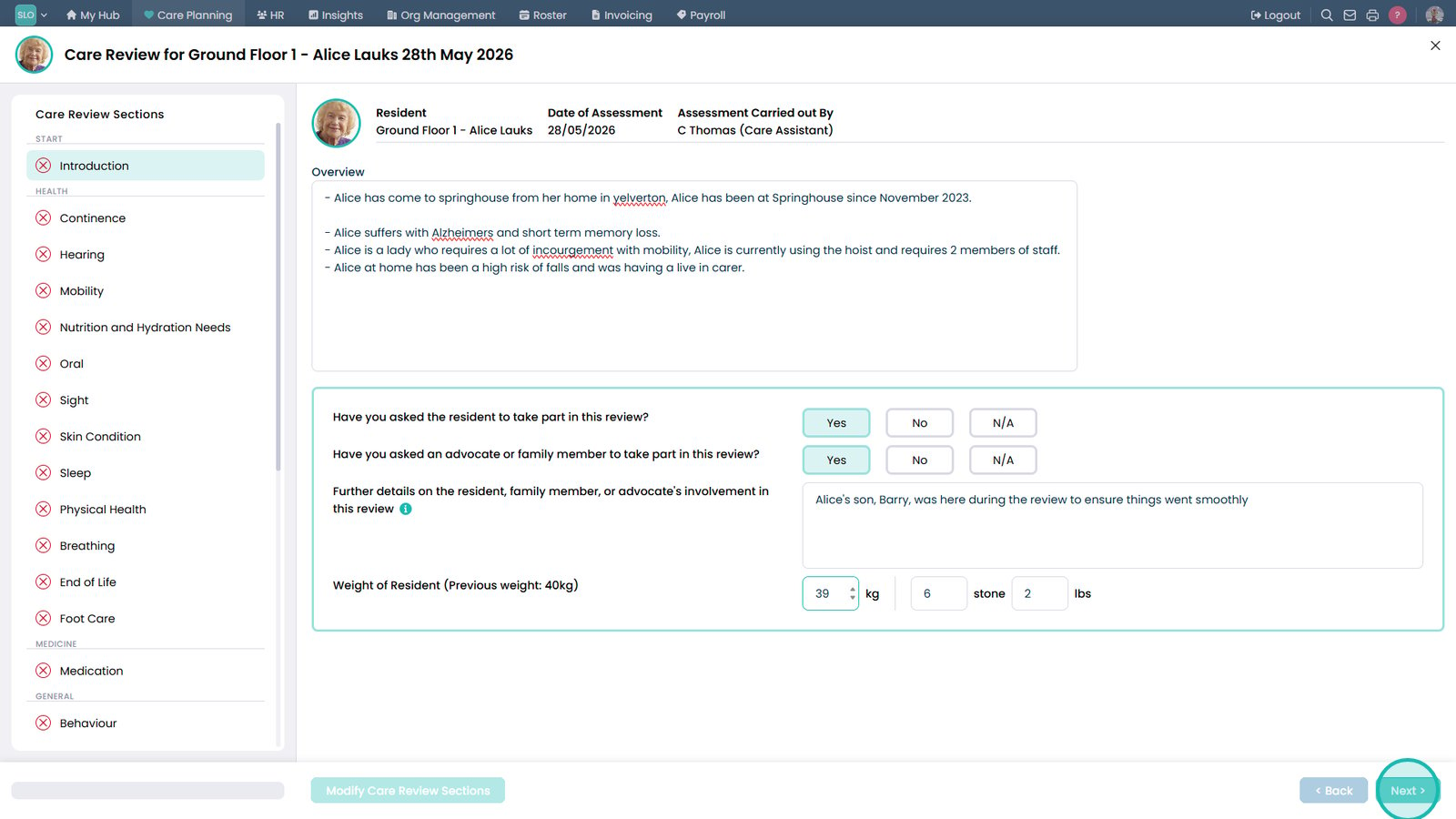
Enter the service user's current weight, which is required for the care review assessment.
Click Next to proceed to the Continence section of the care review.
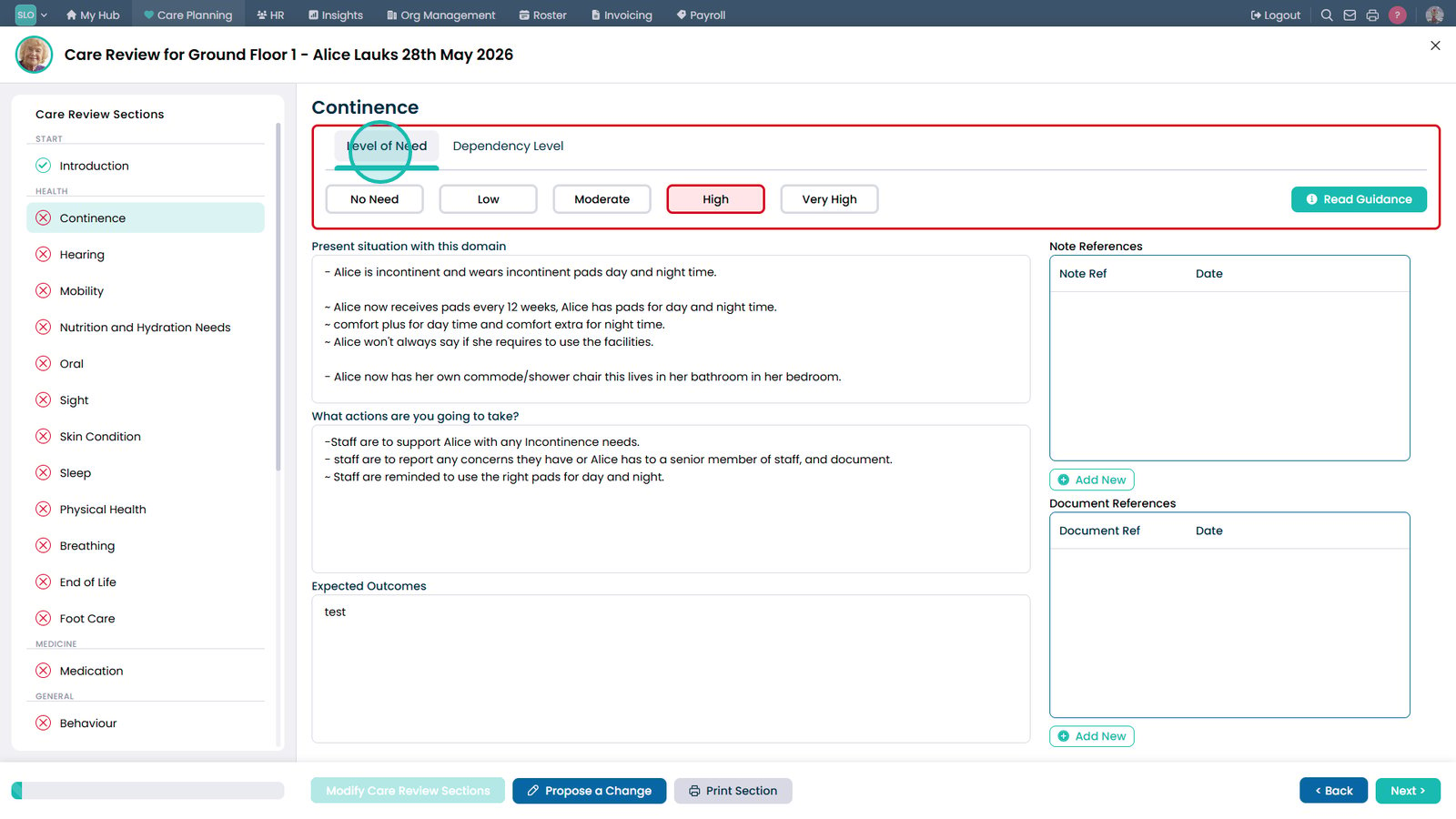
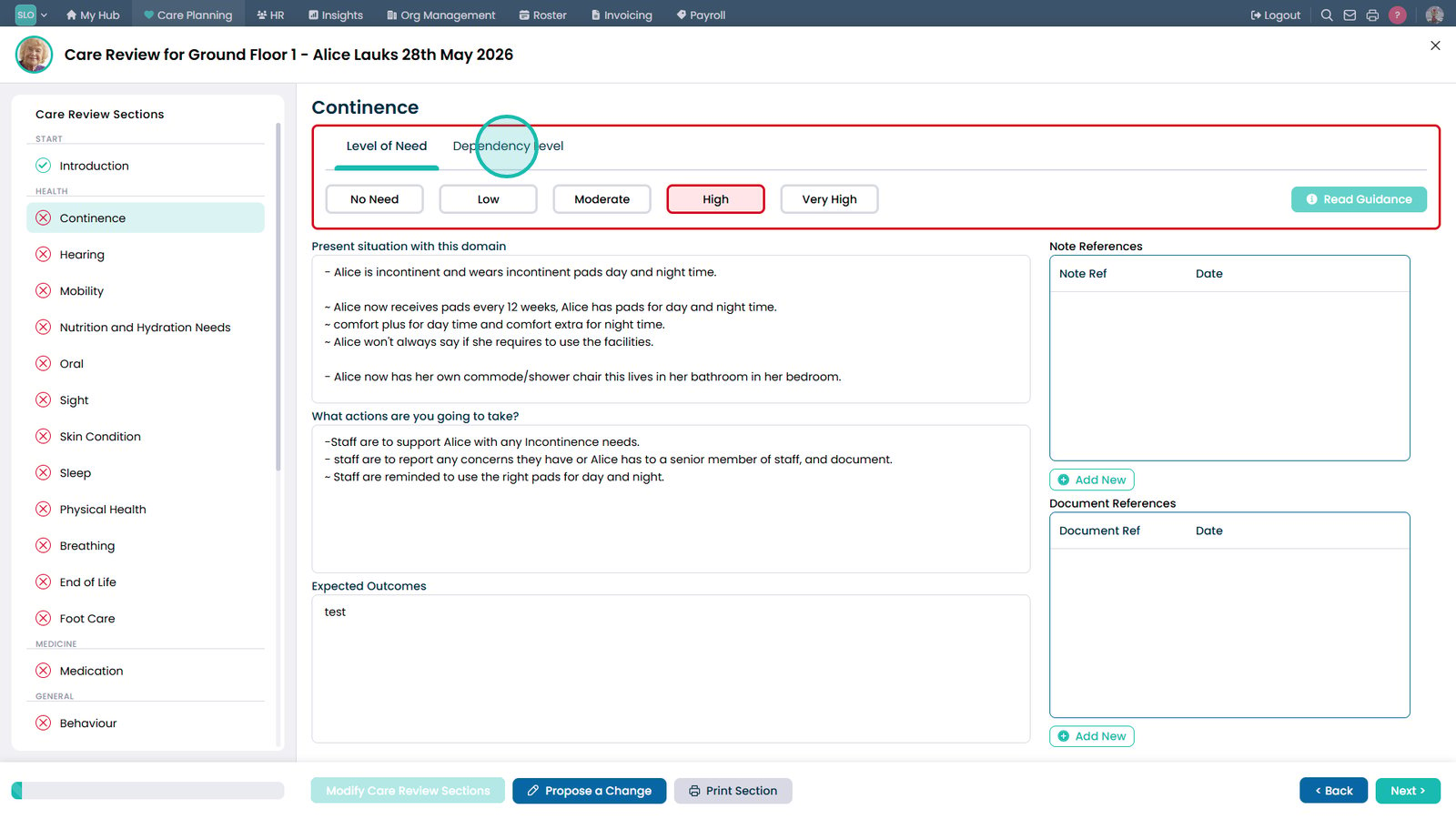
Select the appropriate Level of Need to reflect the service user's current continence support requirements.
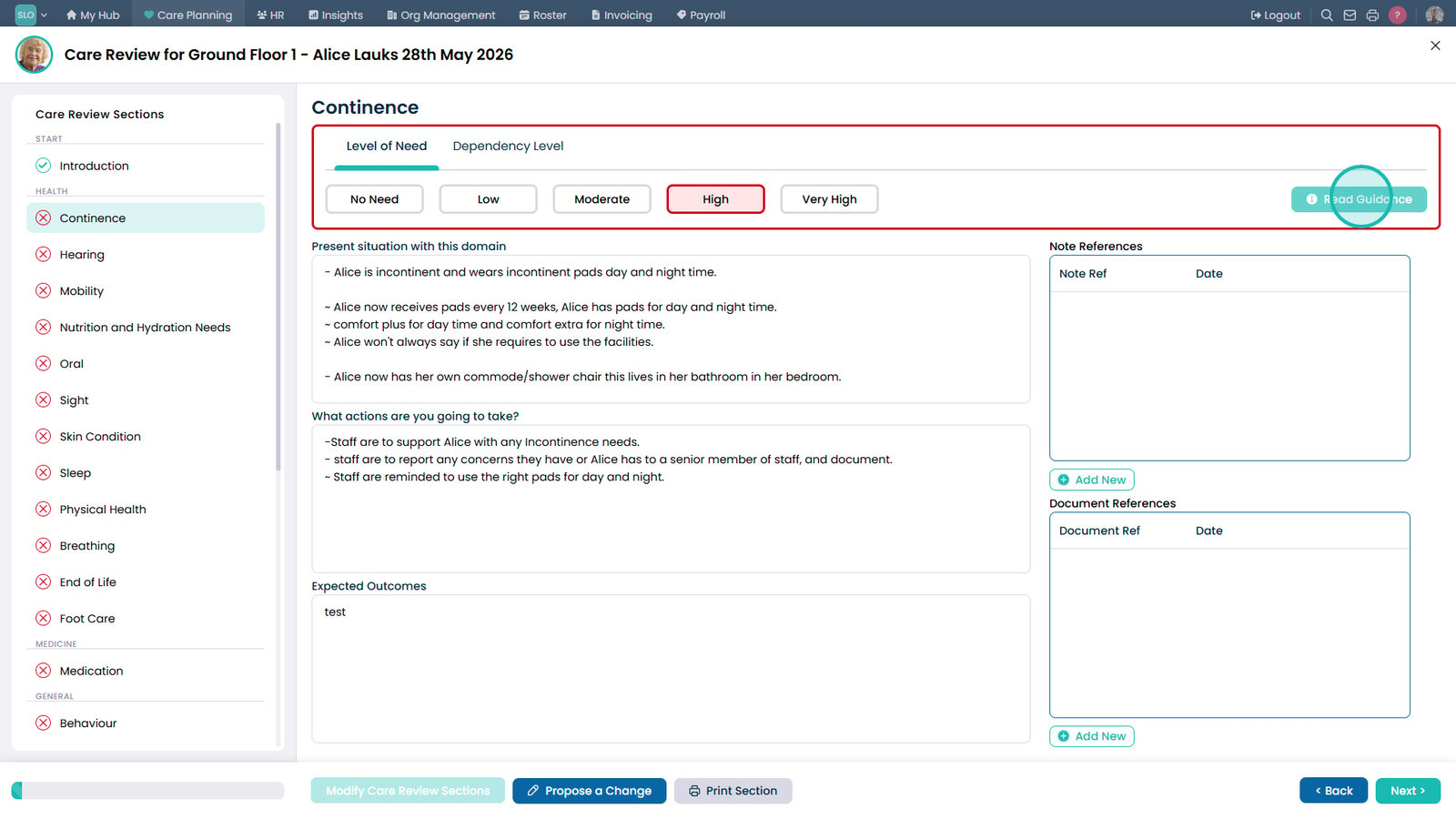
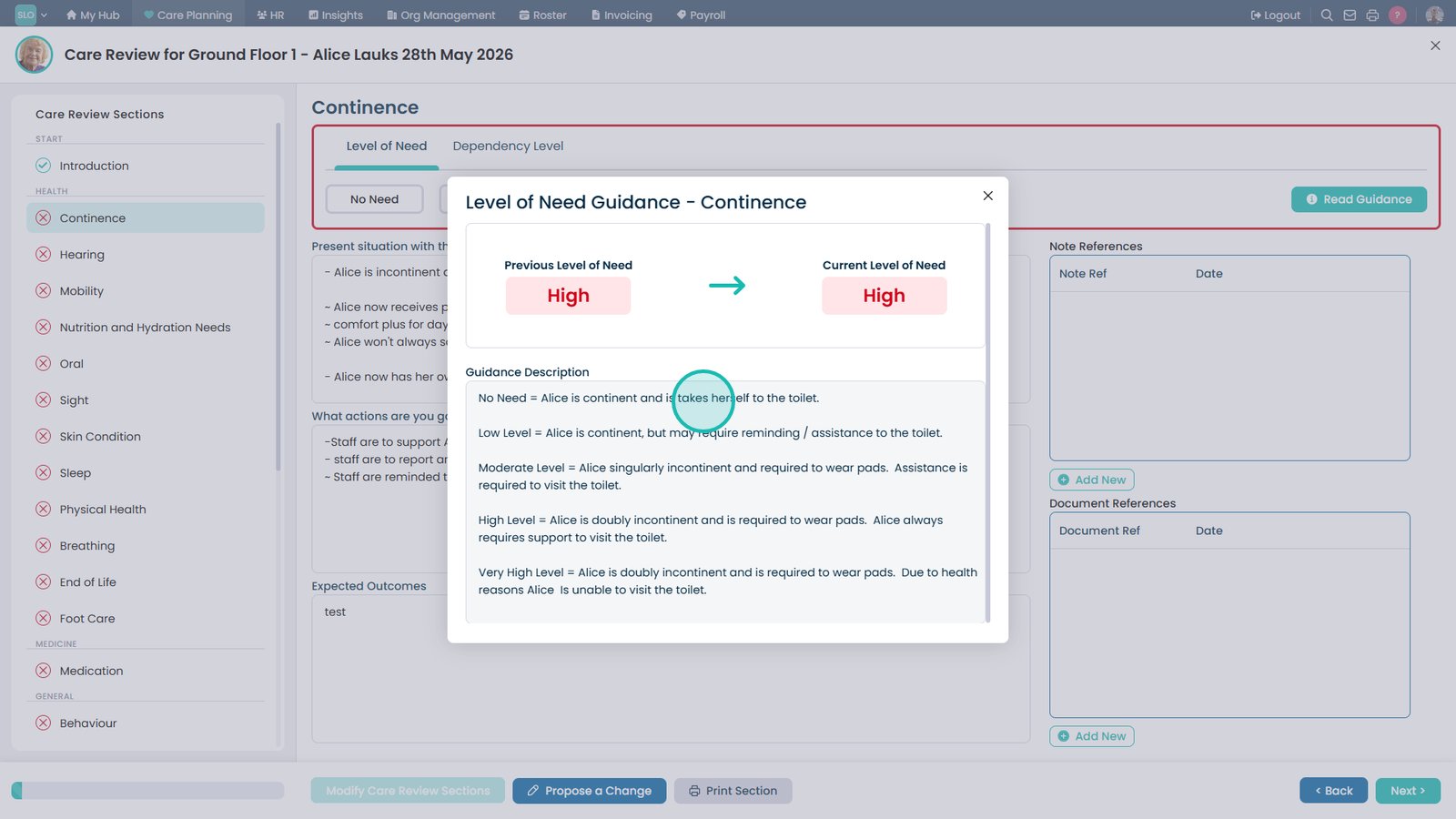
Select Read Guidance to view information about the selected Level of Need.
Review the guidance to help determine the appropriate Level of Need.
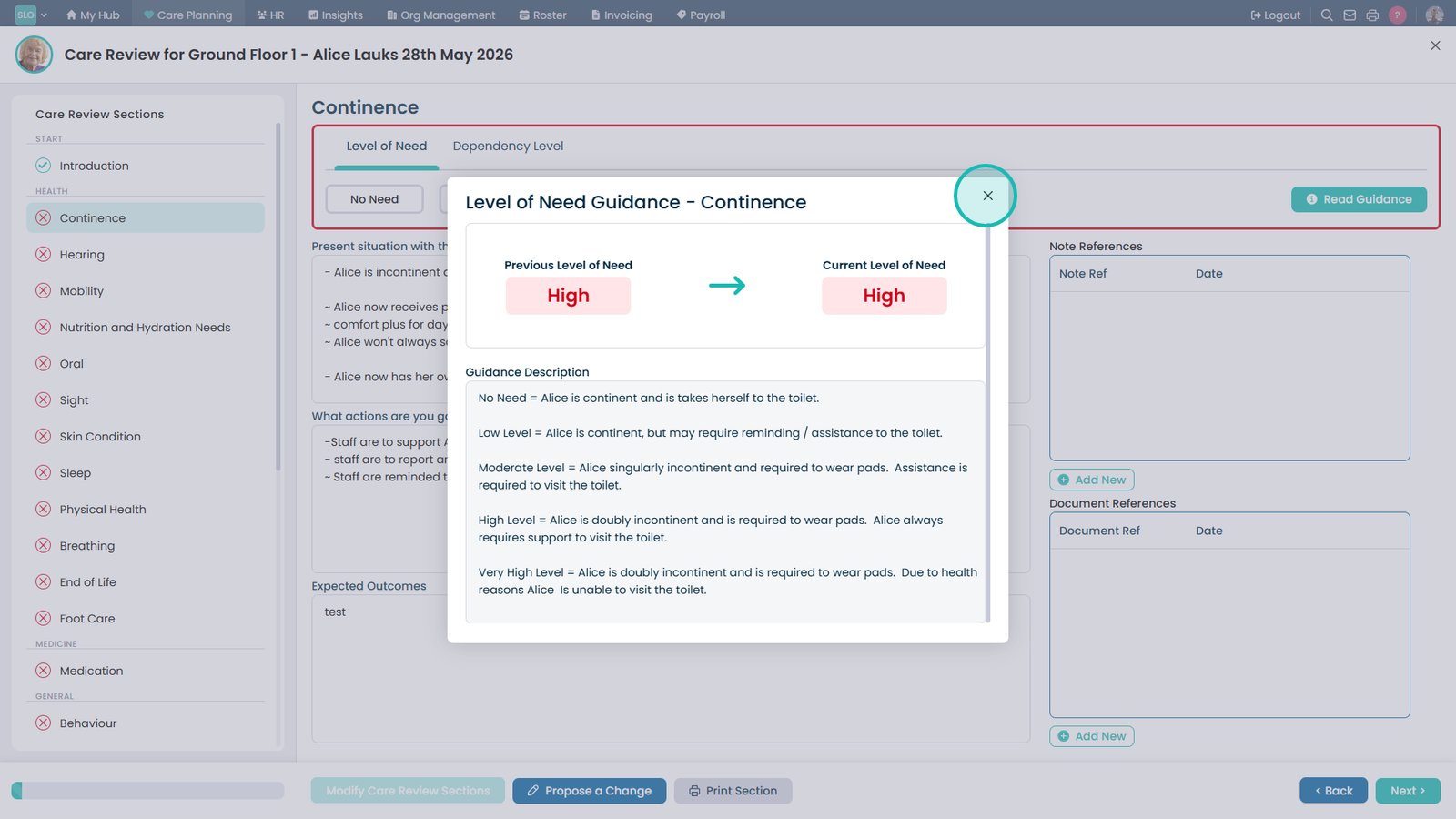
Close the guidance window after reviewing the information.
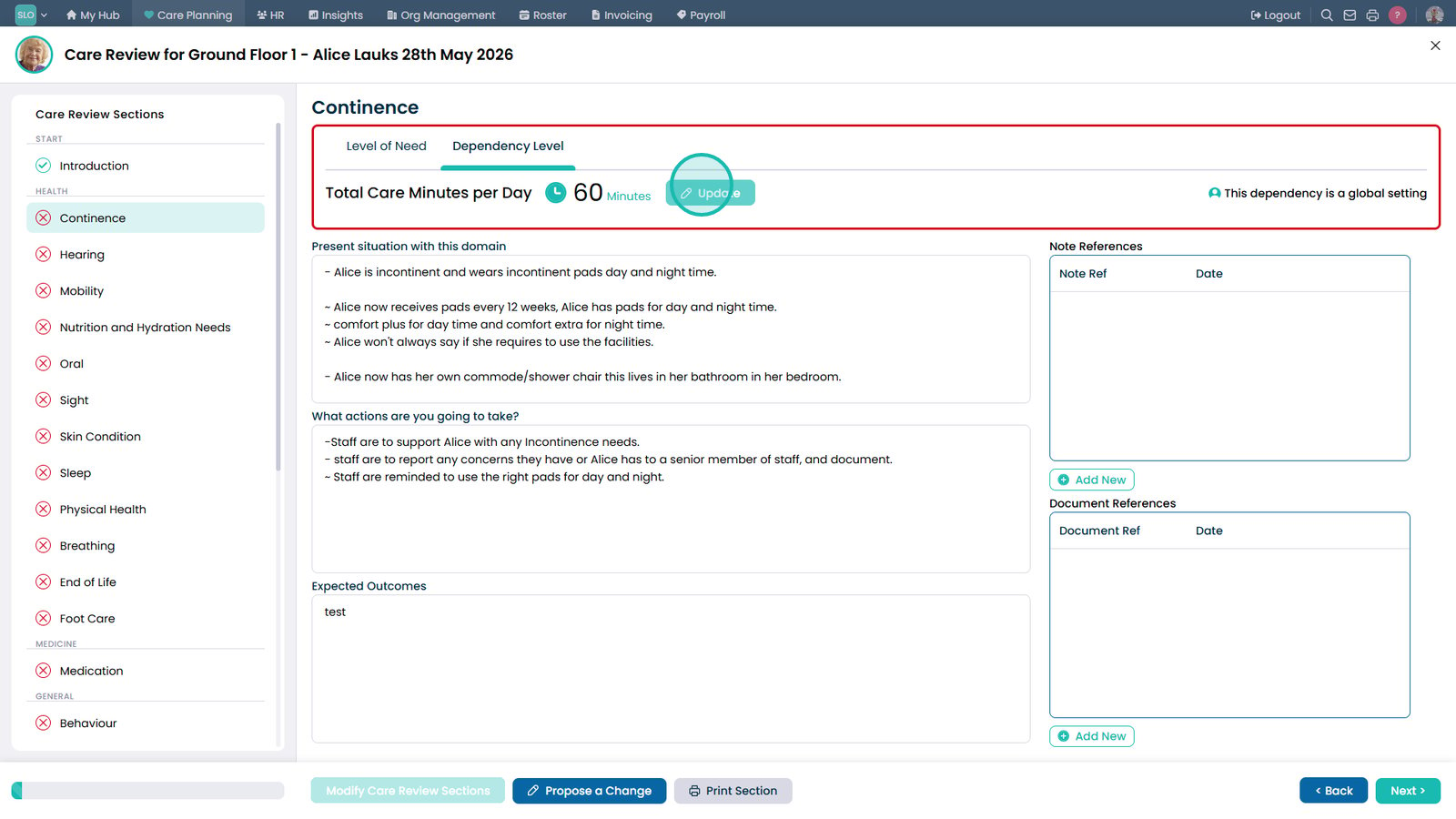
Select the Dependency level to review or update the assistance required.
Select Update next to Total Care Minutes per Day to amend the daily care time if required.
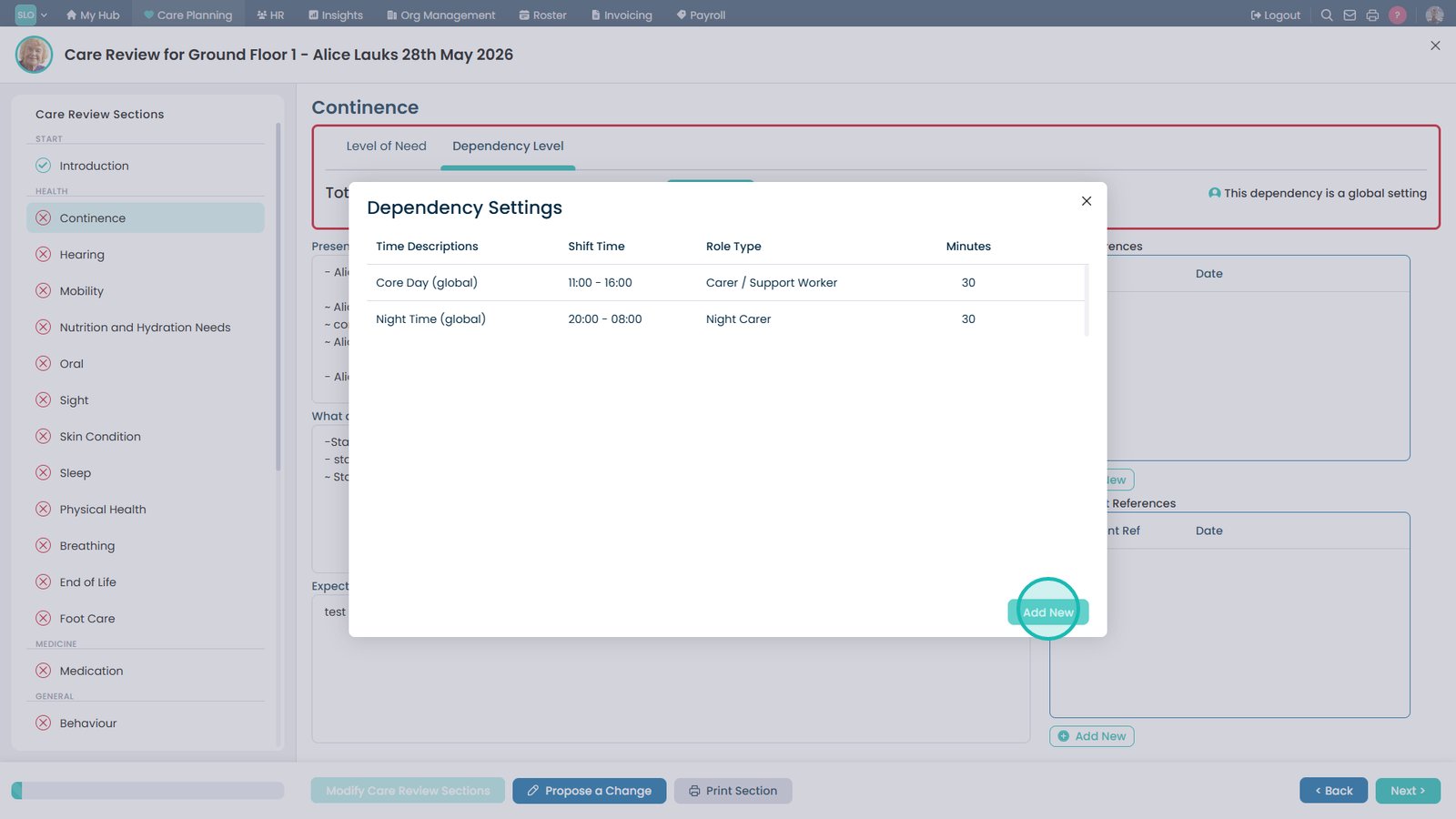
Select Add New to create a new dependency shift or care period.
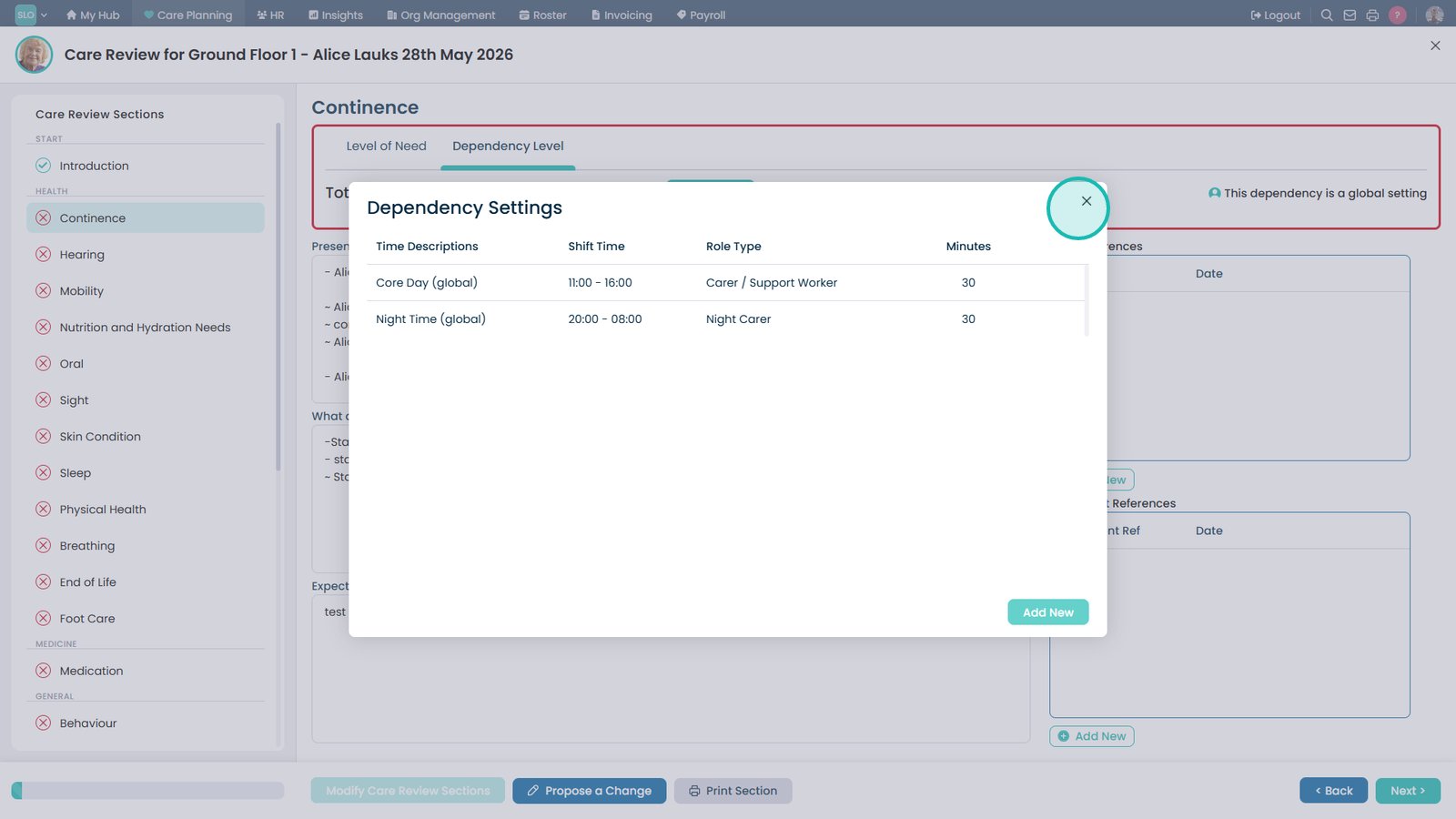
Close the Dependency Settings window after reviewing or updating the care shifts.
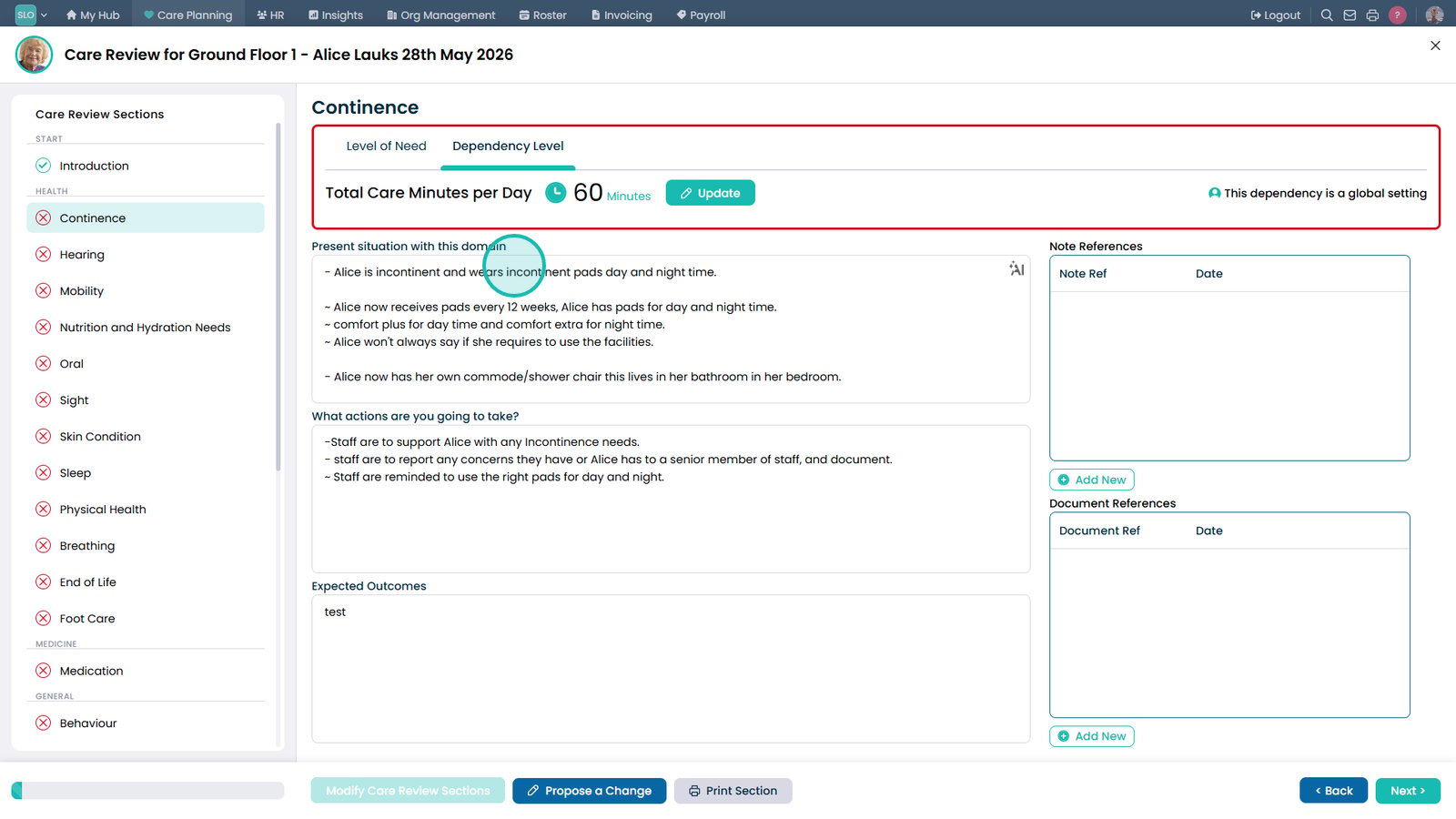
Update the Present Situation field to accurately reflect the service user's continence needs.
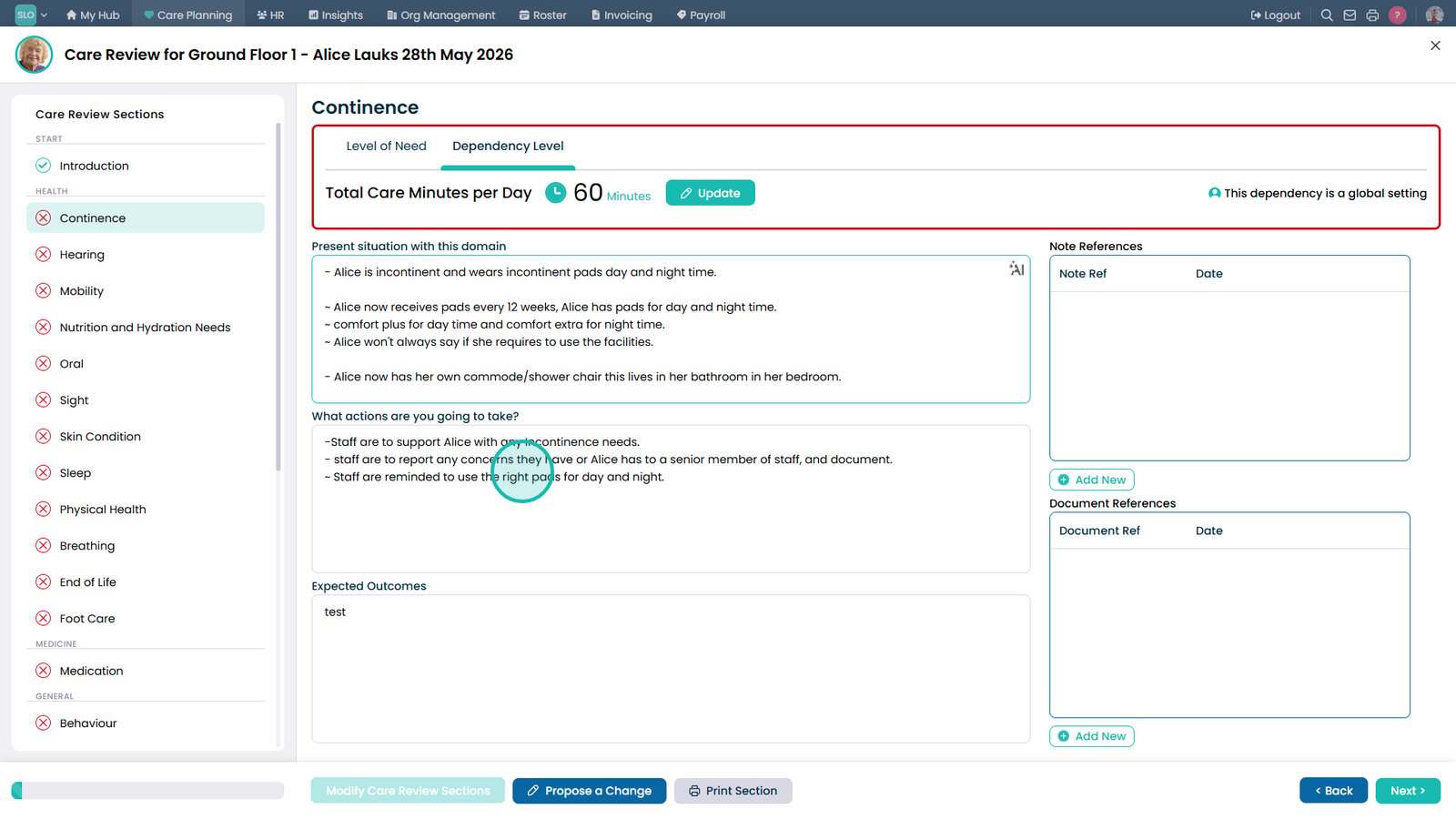
Update the Action Plan to ensure the continence care instructions are clear and accurate.
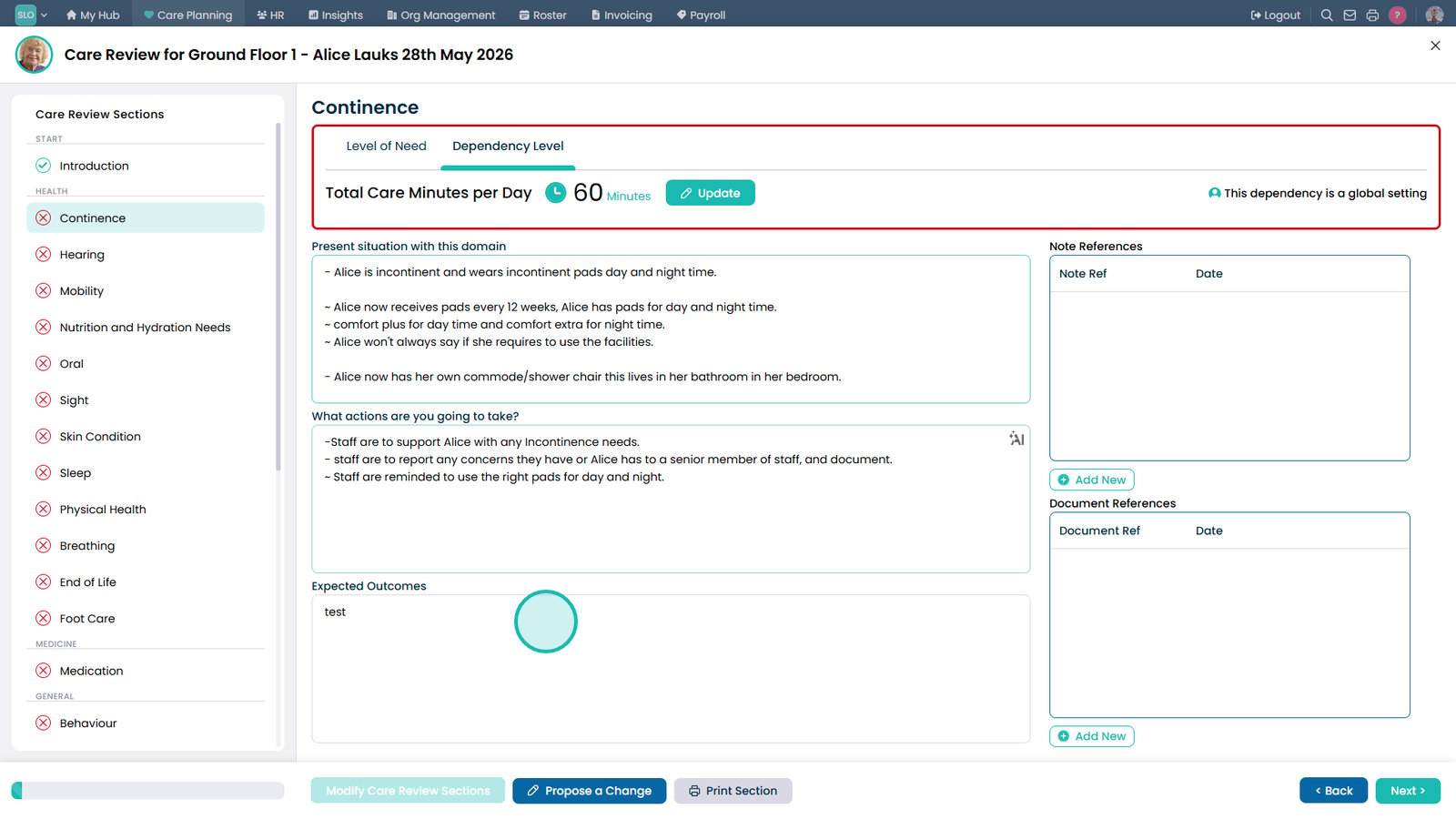
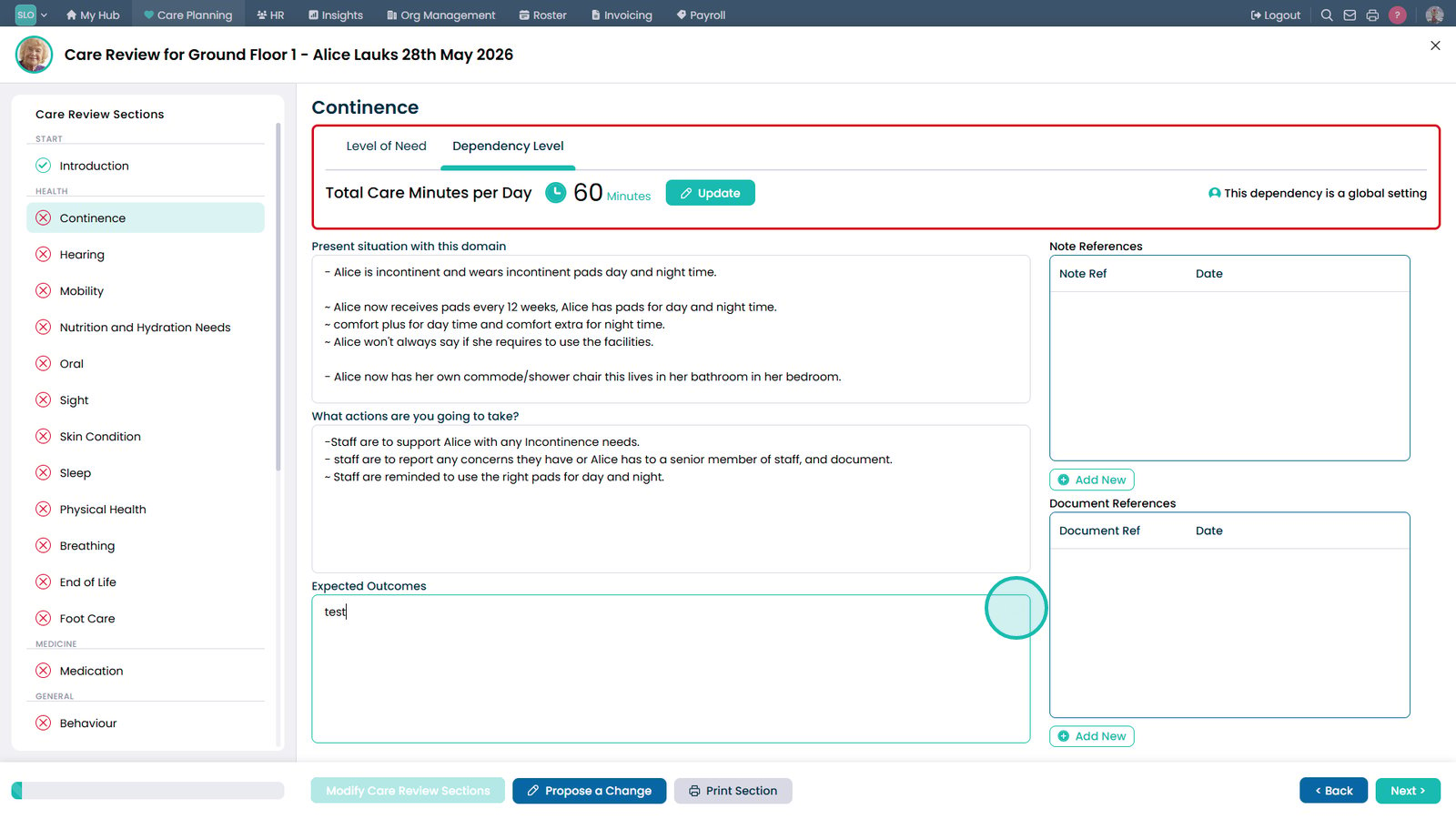
Enter the expected outcomes for the service user's continence care.
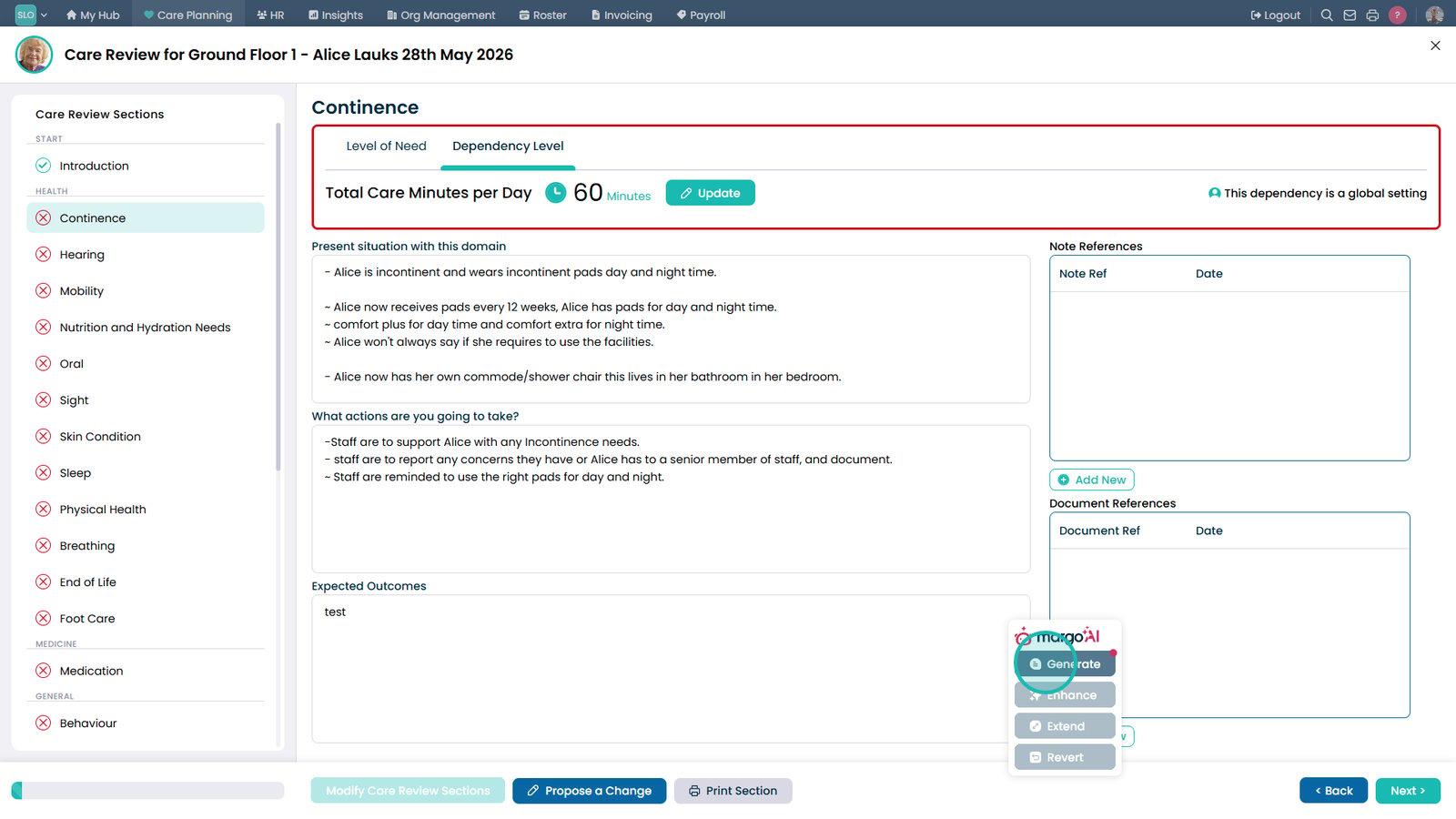
Select the Margo AI icon.
Select Generate to create AI-assisted content for the care documentation if required.
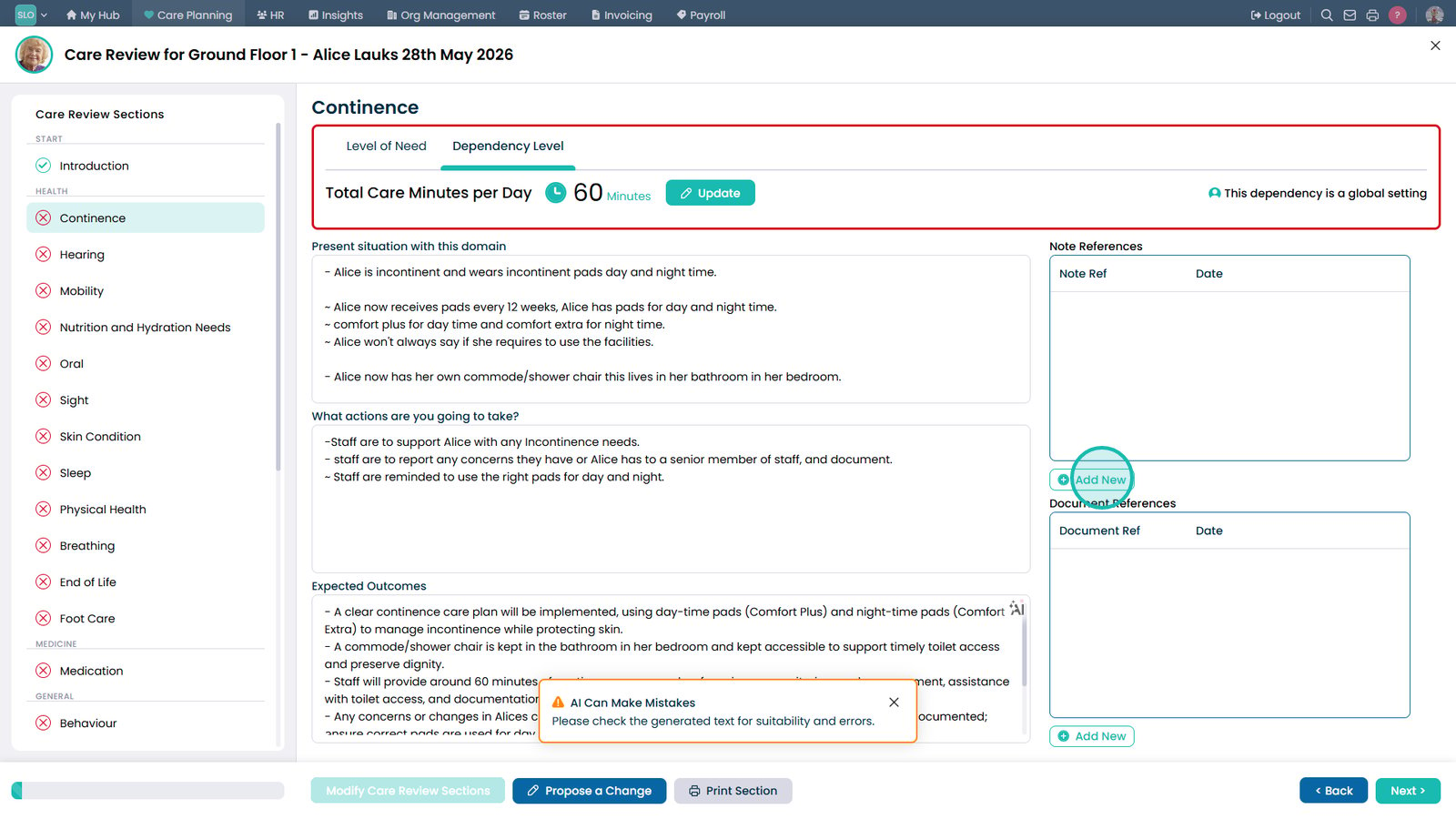
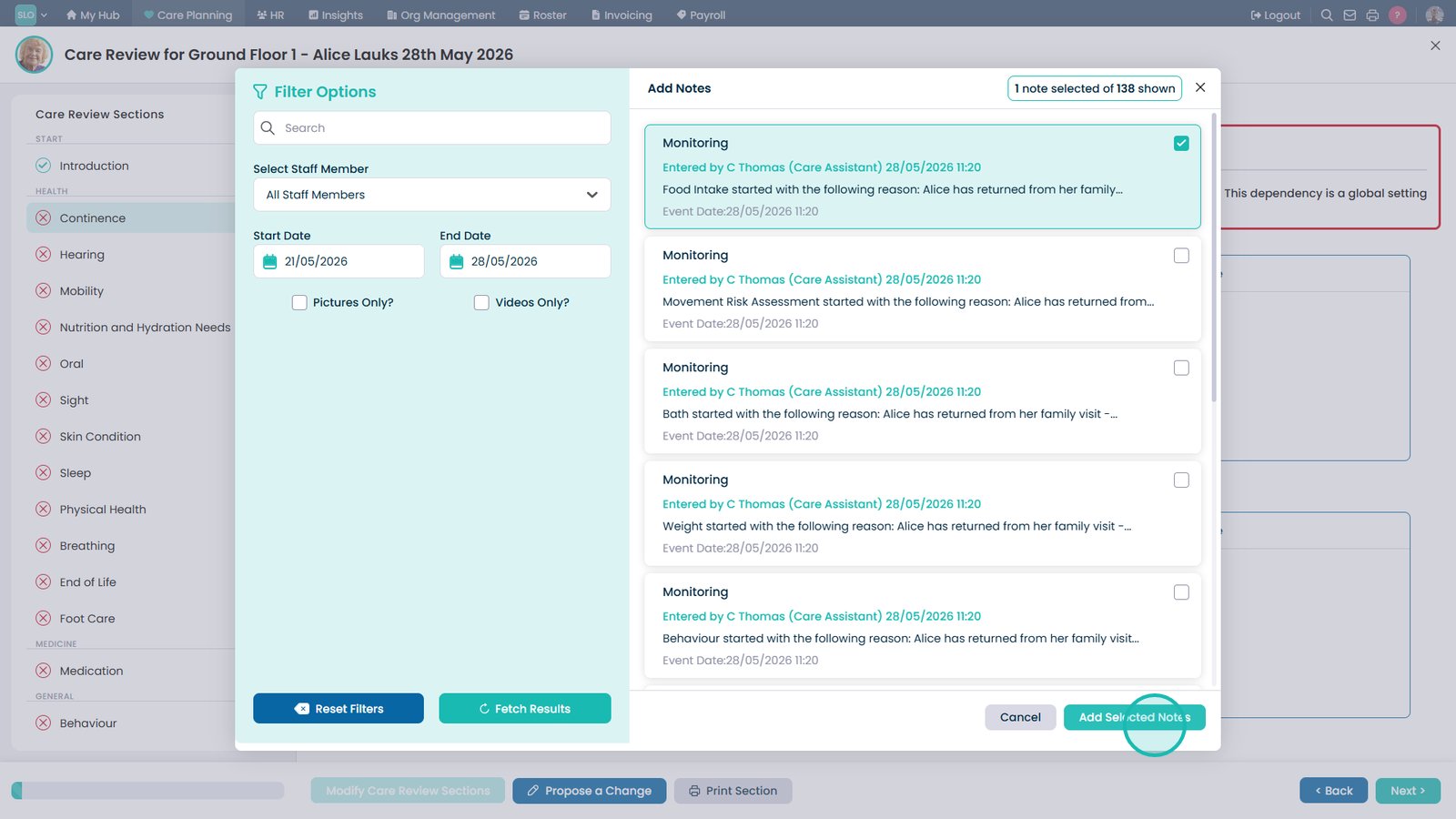
Add a new note reference to support the care review with relevant observations or documentation.
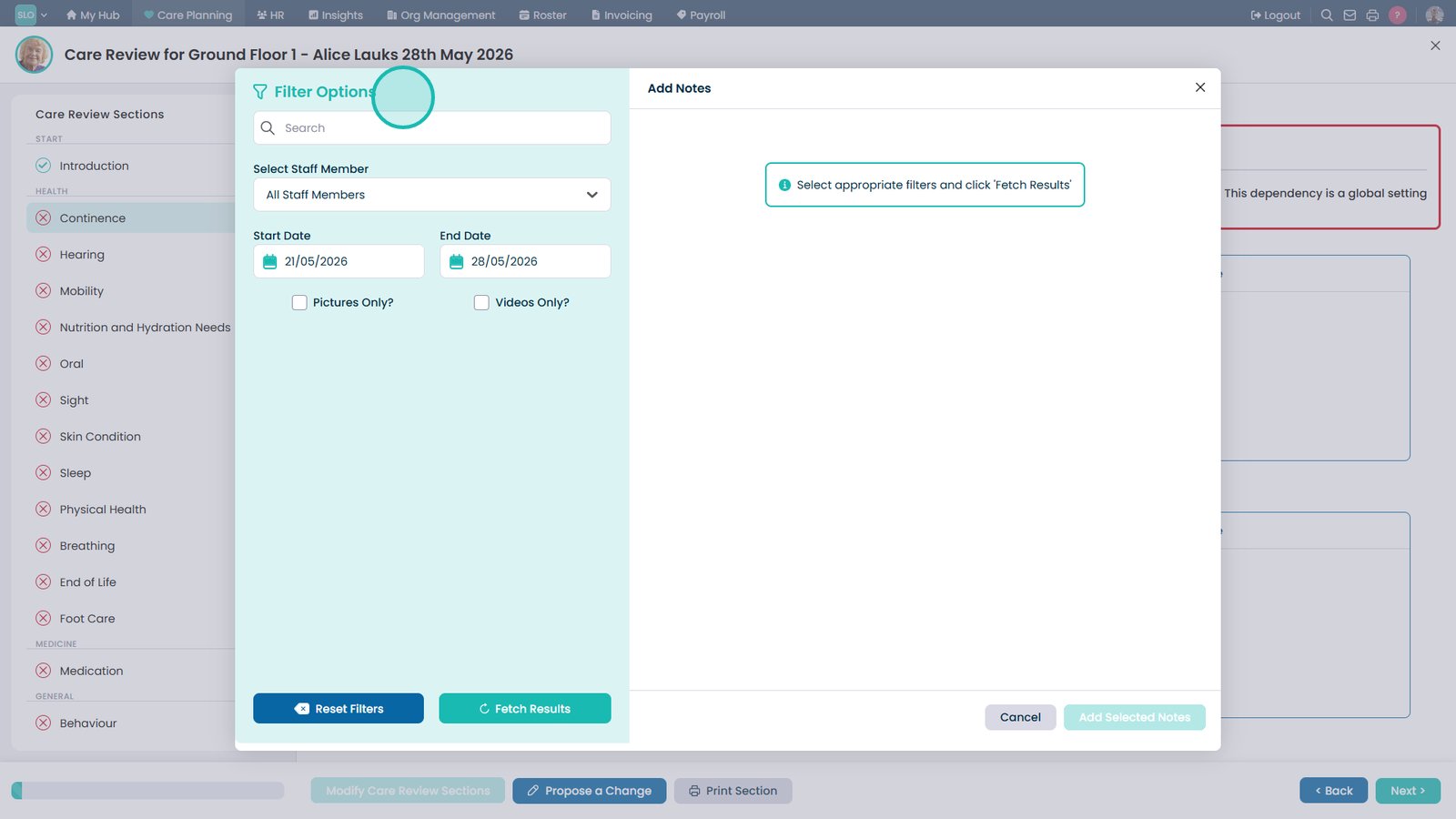
Expand the filter options to refine which notes are displayed.
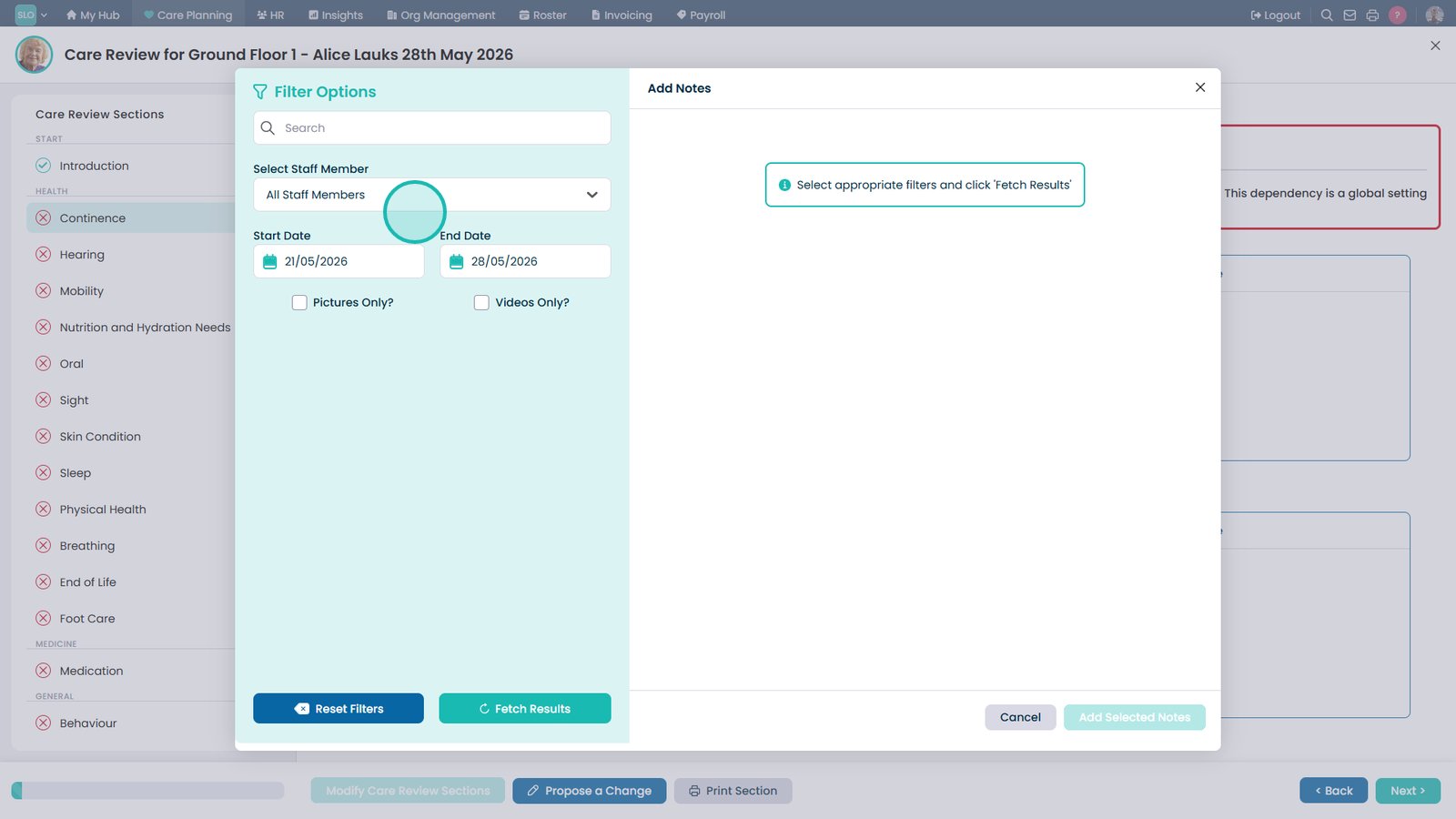
Filter the notes by selecting a staff member.
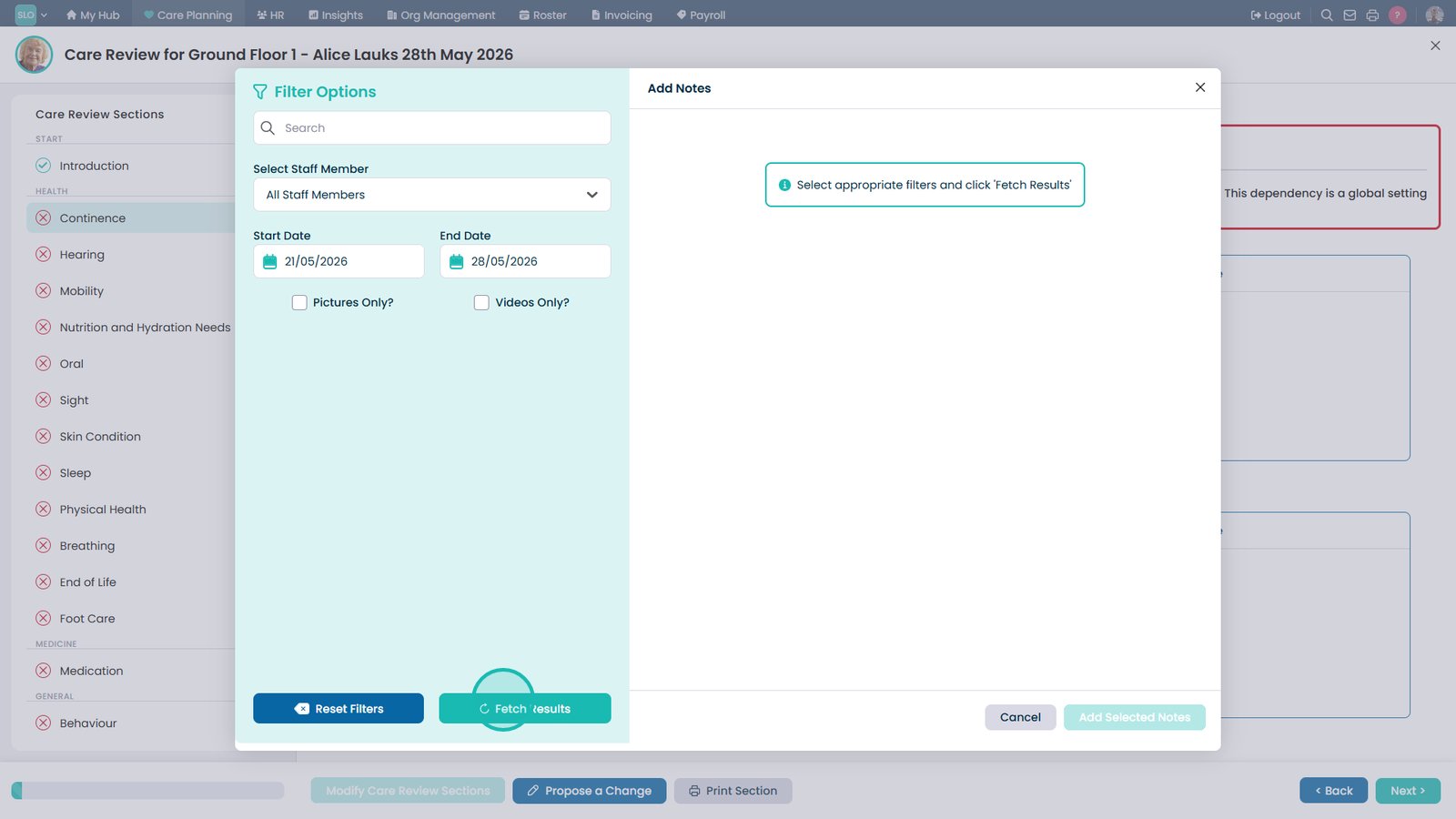
Select Fetch Results to display notes that match the selected filters.
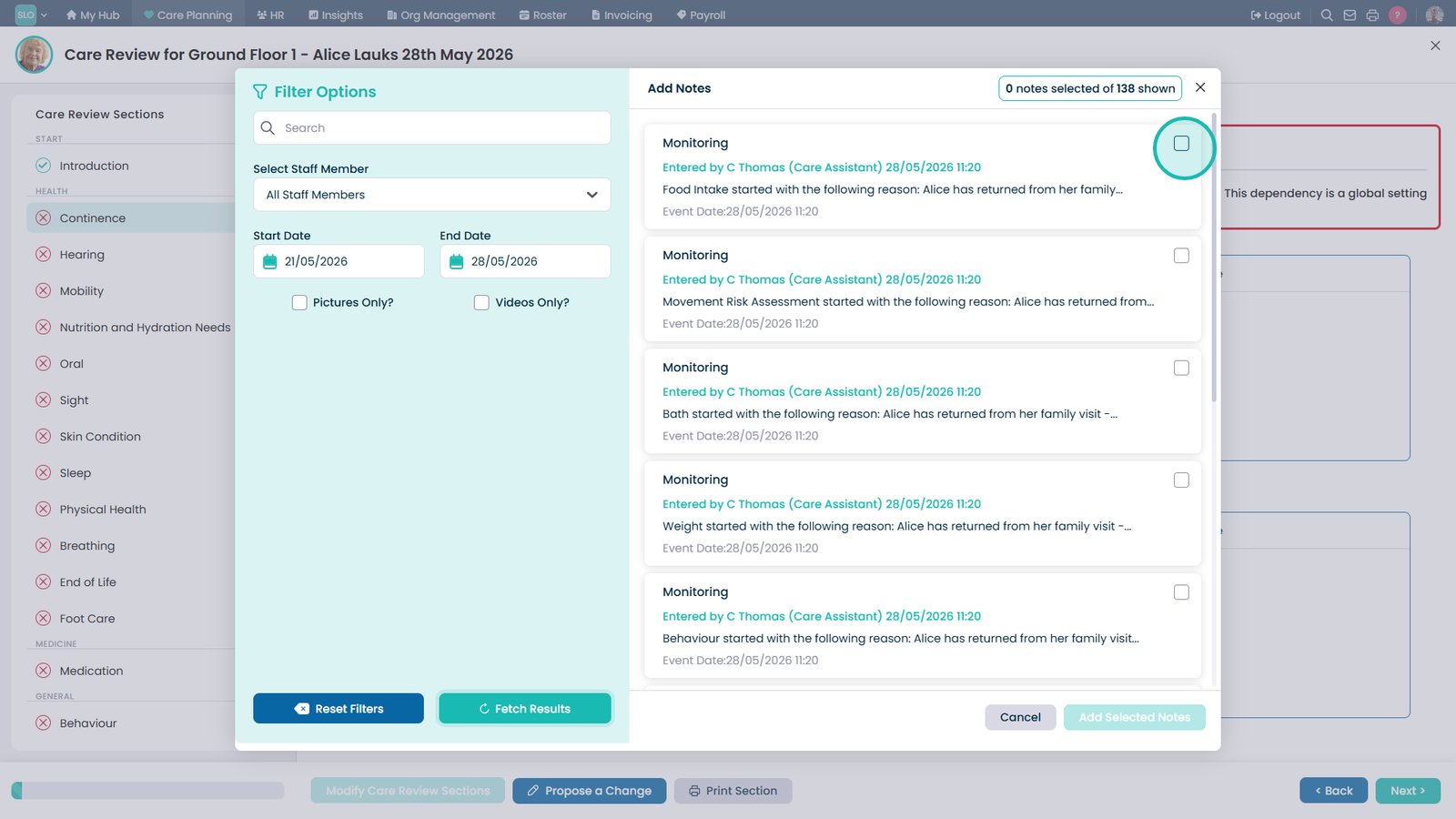
Select the notes you want to include by ticking the relevant checkboxes.
Select Add Selected Notes to attach the chosen notes to the care review.
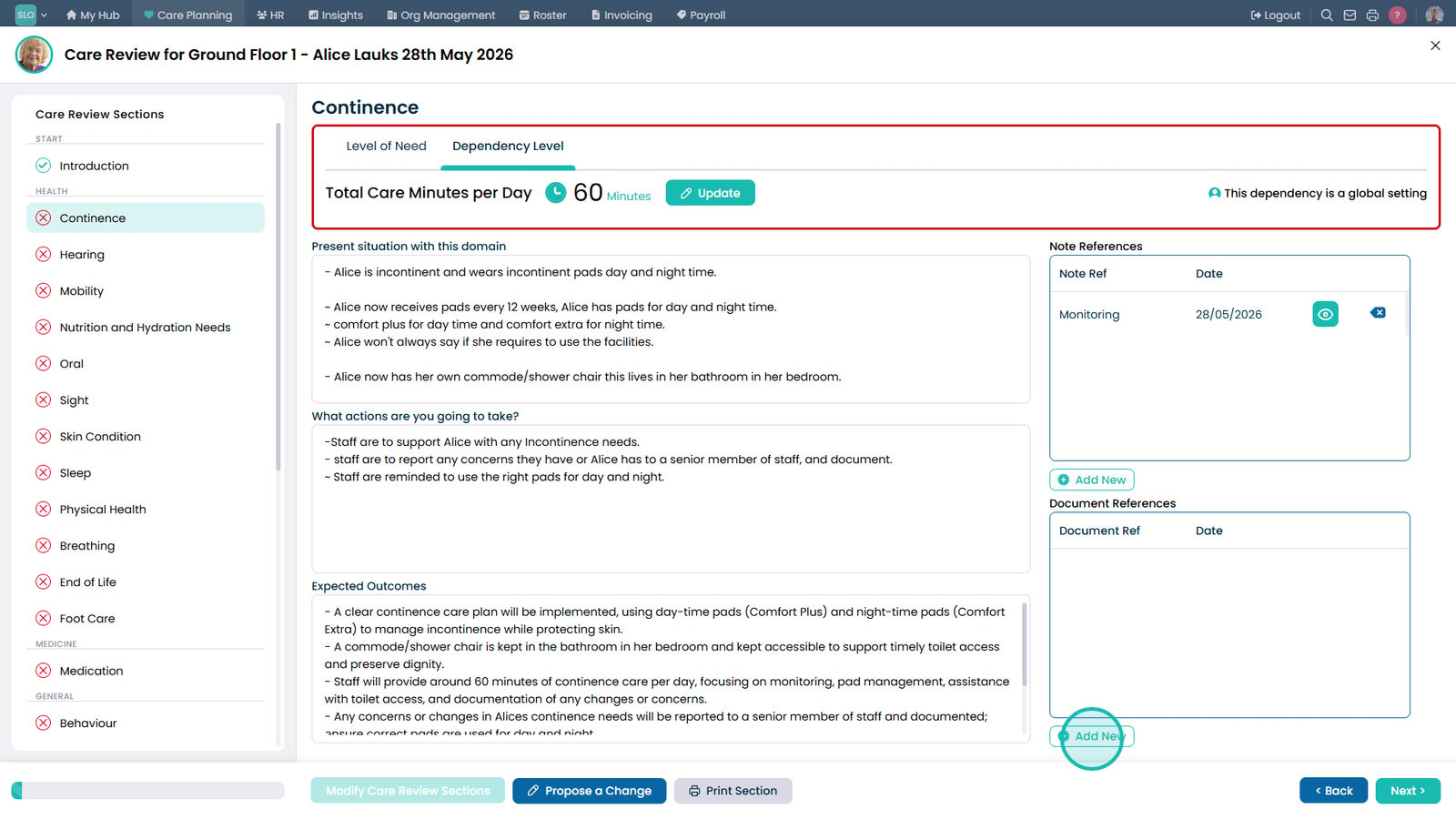
Add a new document reference to support the care review with additional documentation.
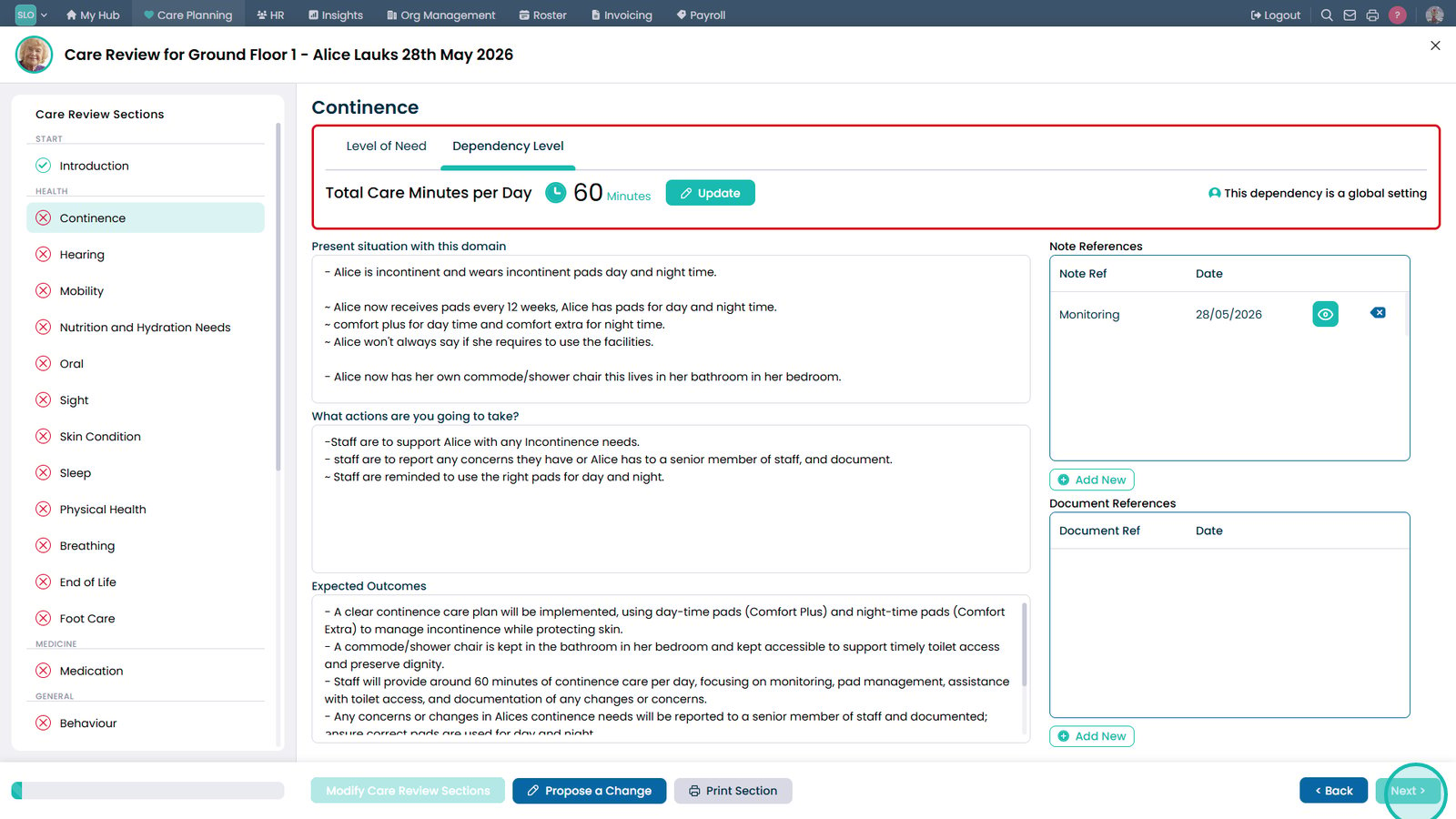
Select Next and continue completing the remaining sections of the Care Review.
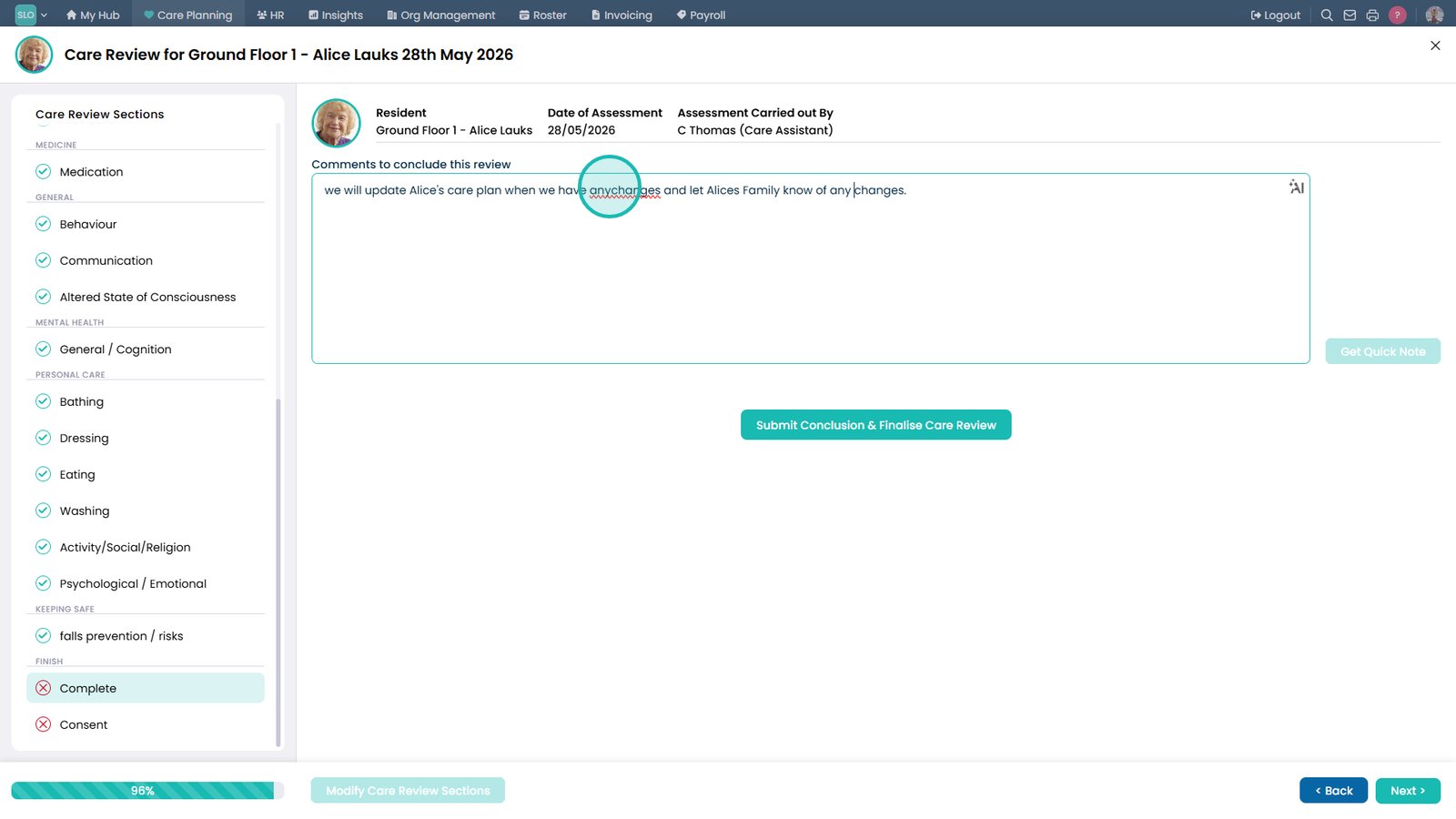
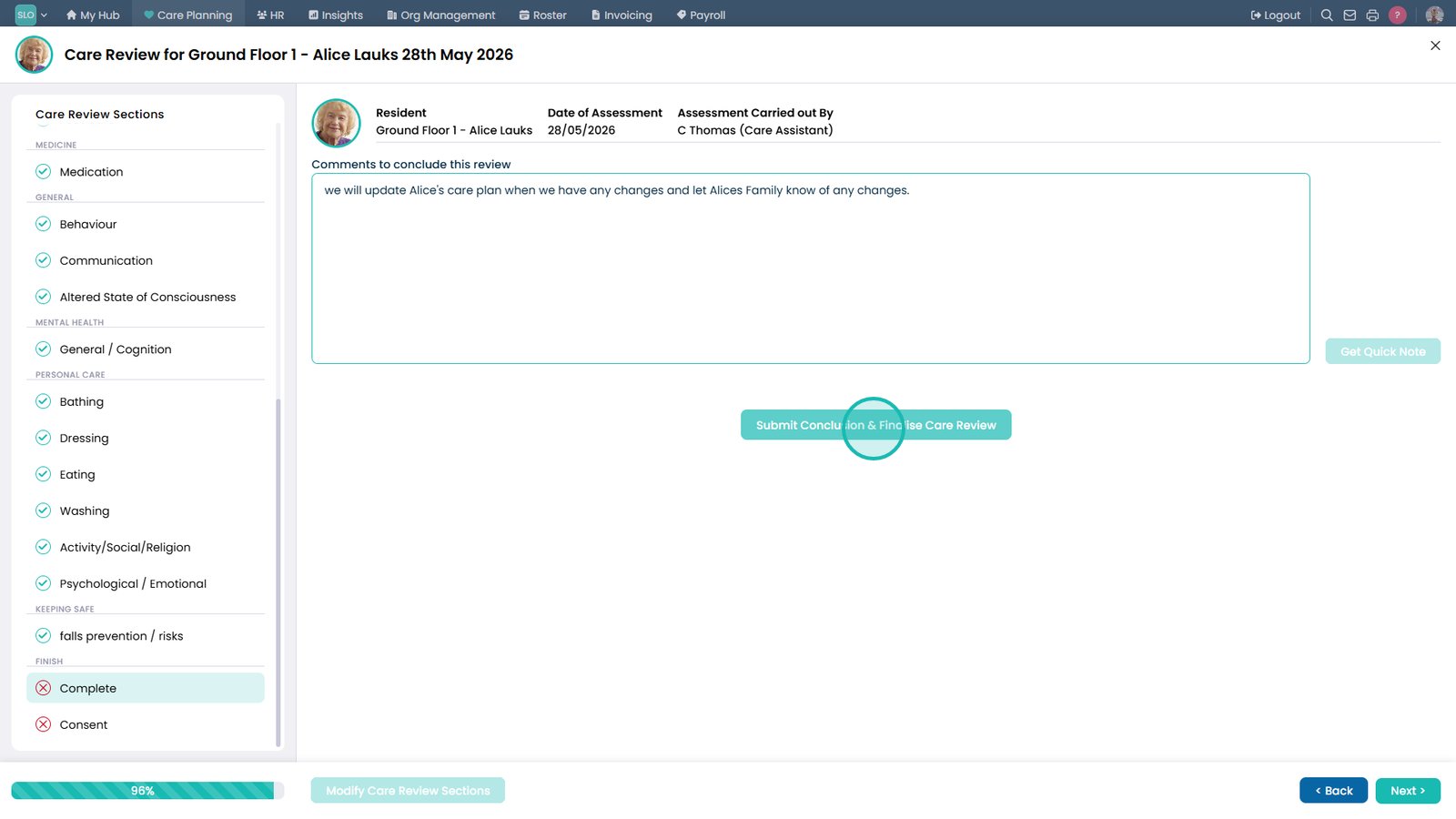
Enter a concluding comment when you reach the final section of the Care Review.
Select Submit Conclusion & Finalise Care Review when you have completed the review.
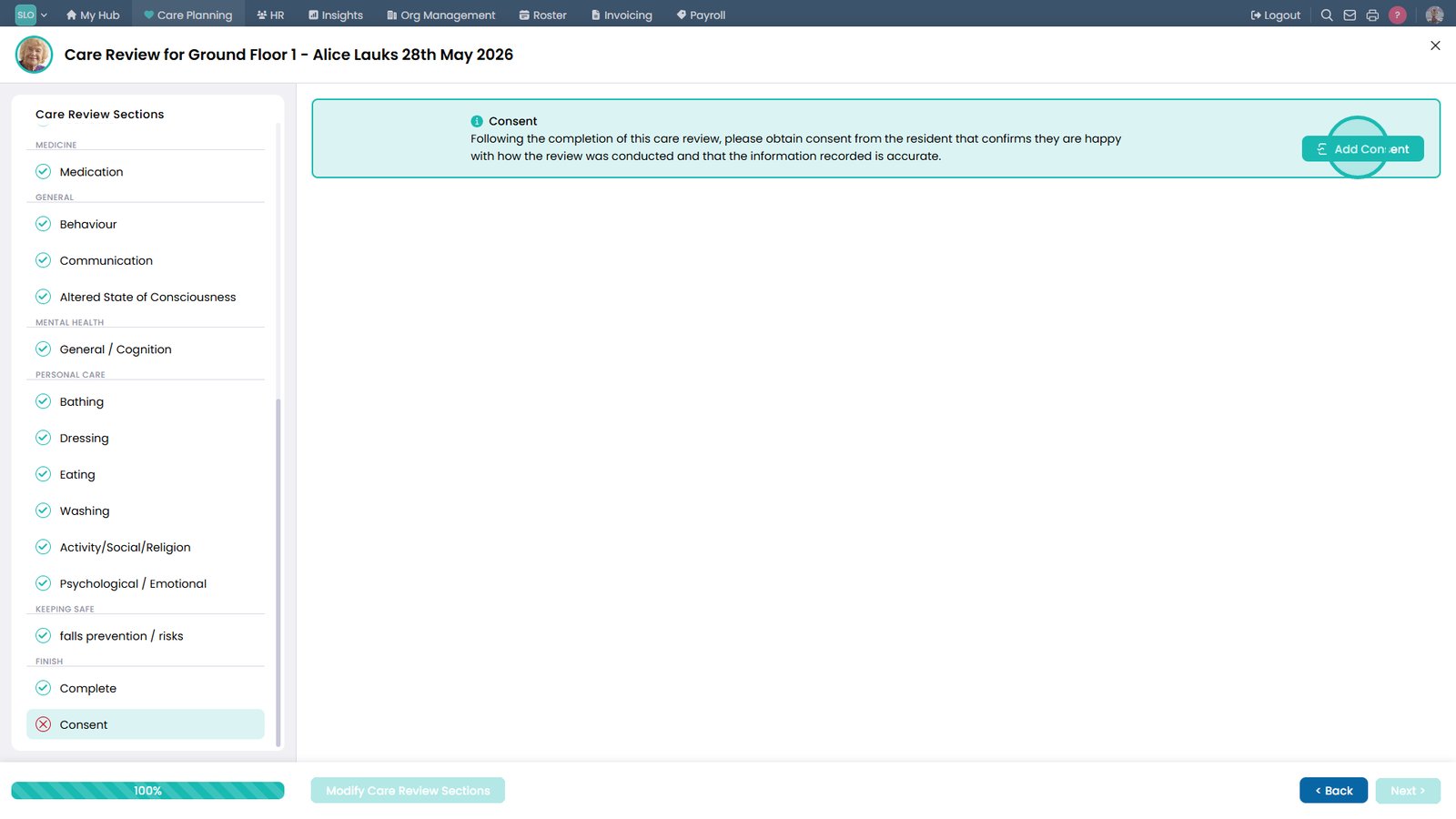
Select Add Consent to record the service user's consent for the Care Review.
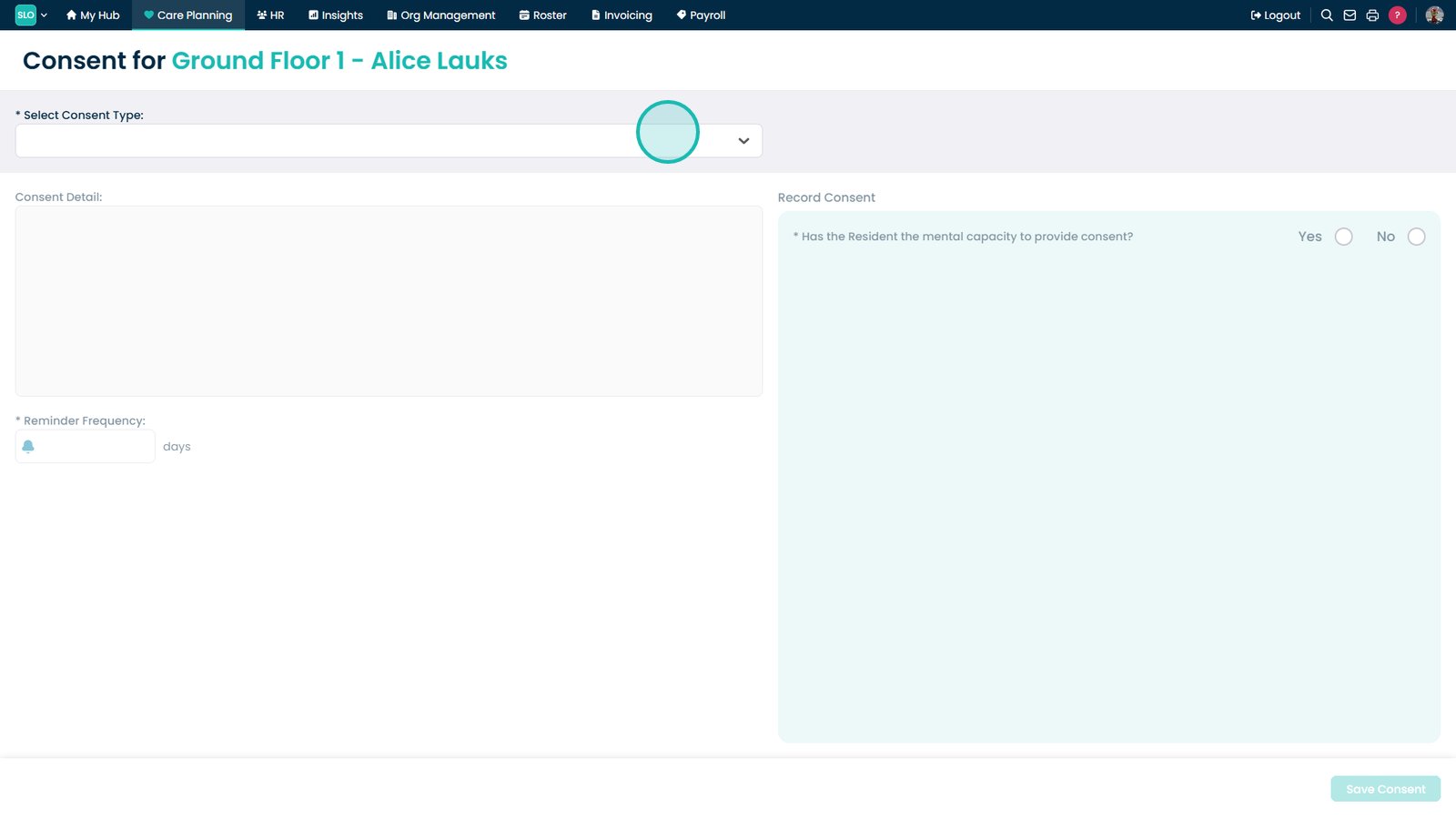
Select a Consent Type from the drop-down list.
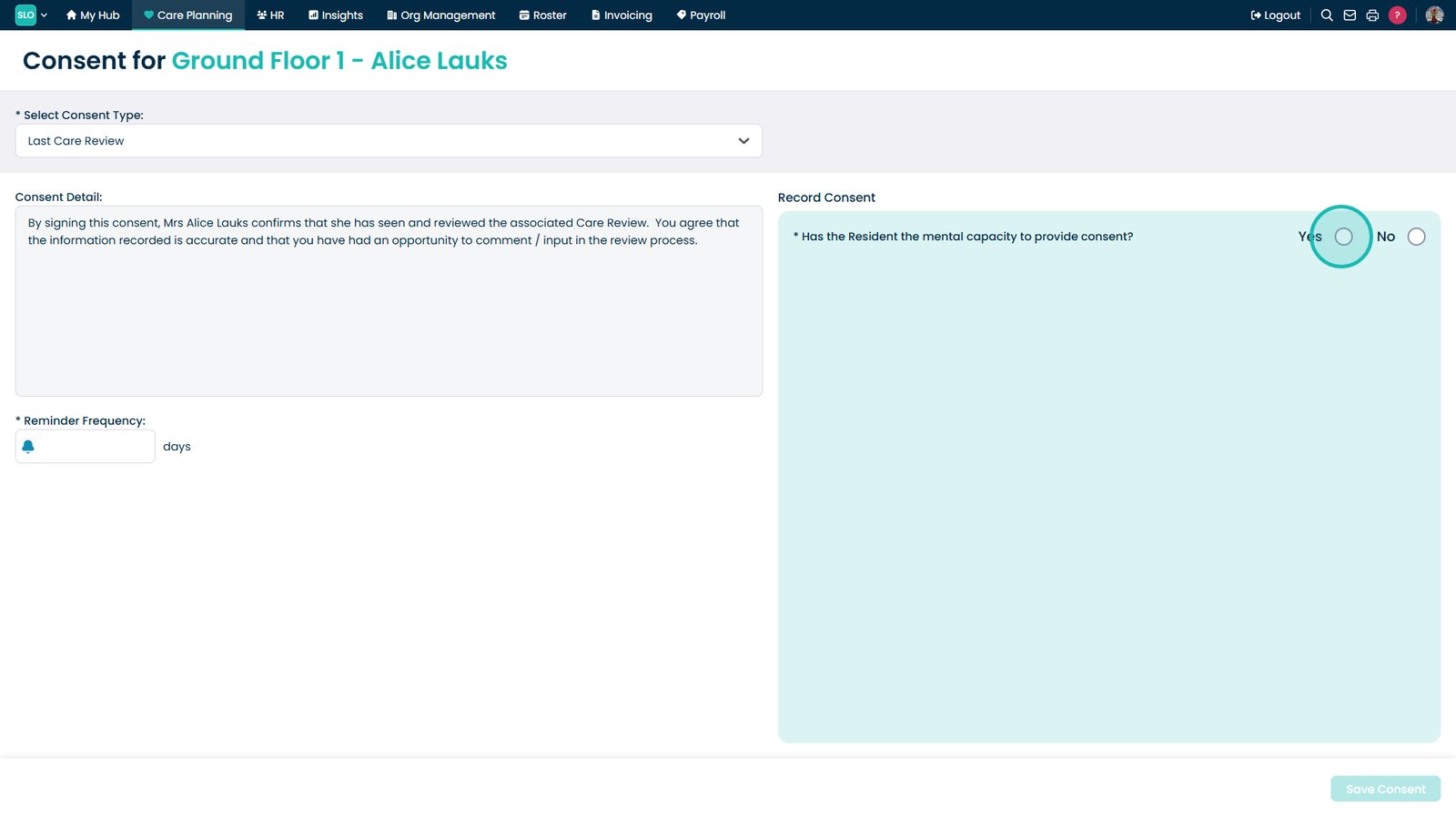
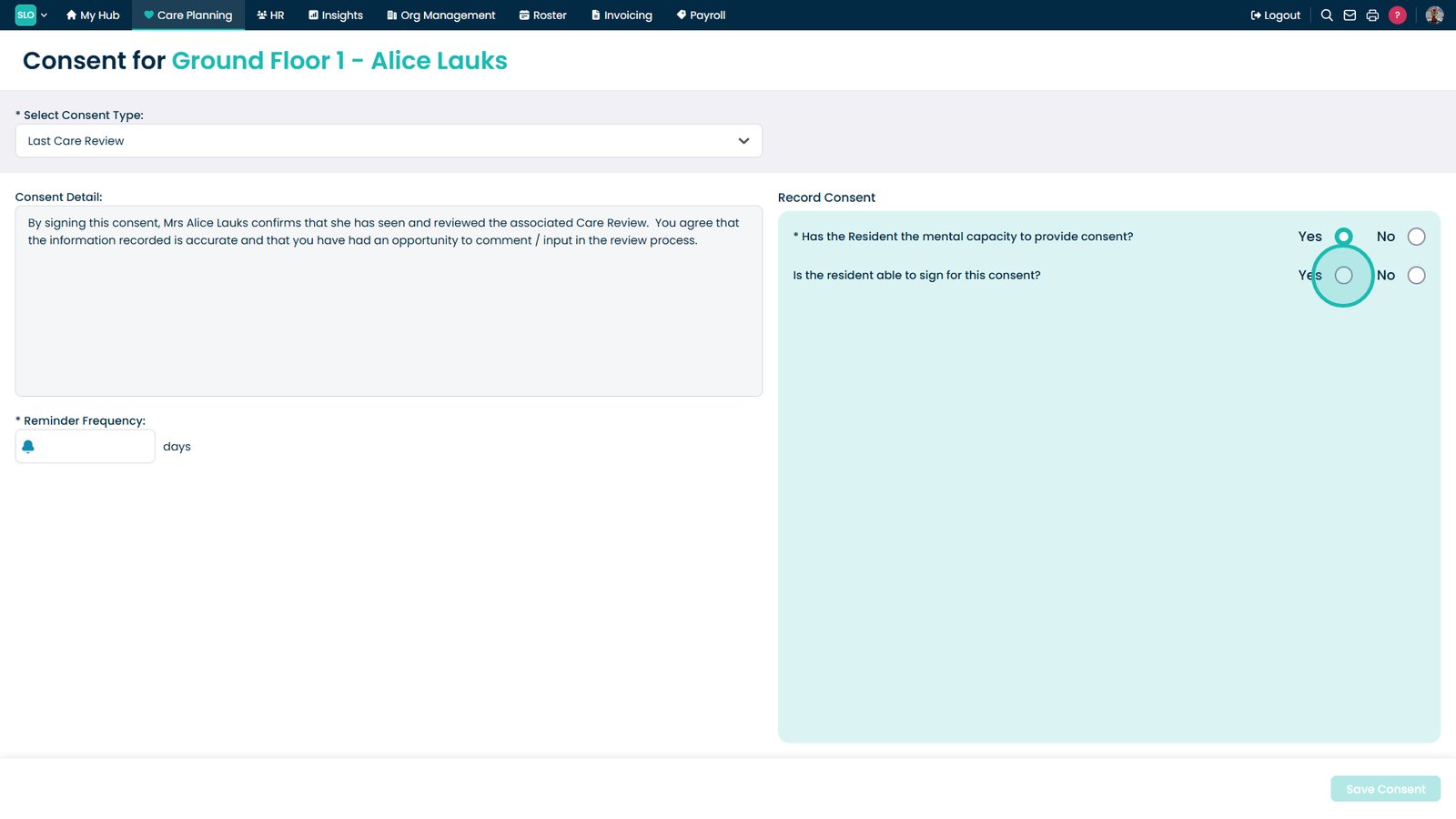
Confirm whether the service user has the mental capacity to provide consent.
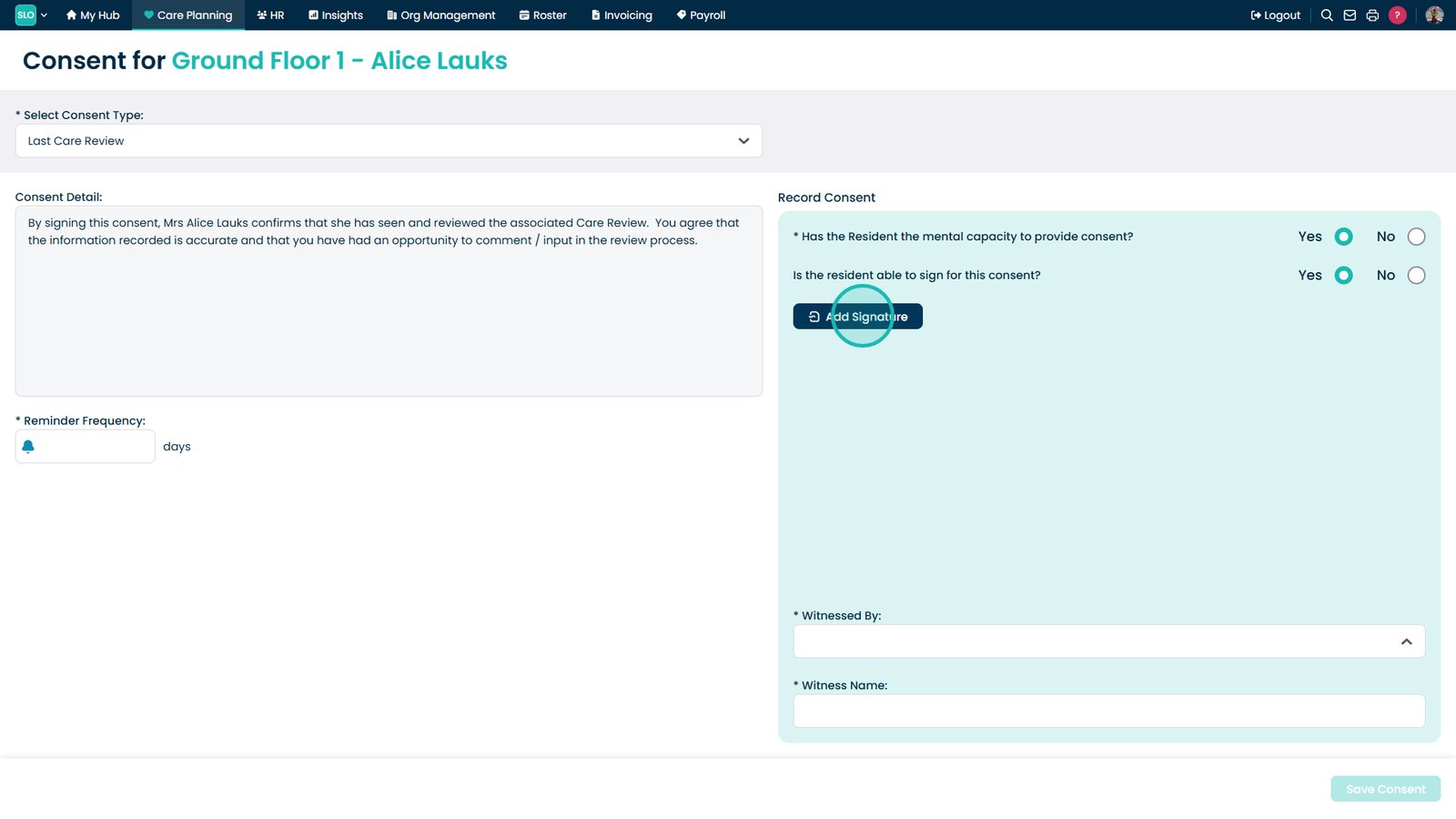
Indicate whether the service user is able to sign the consent.
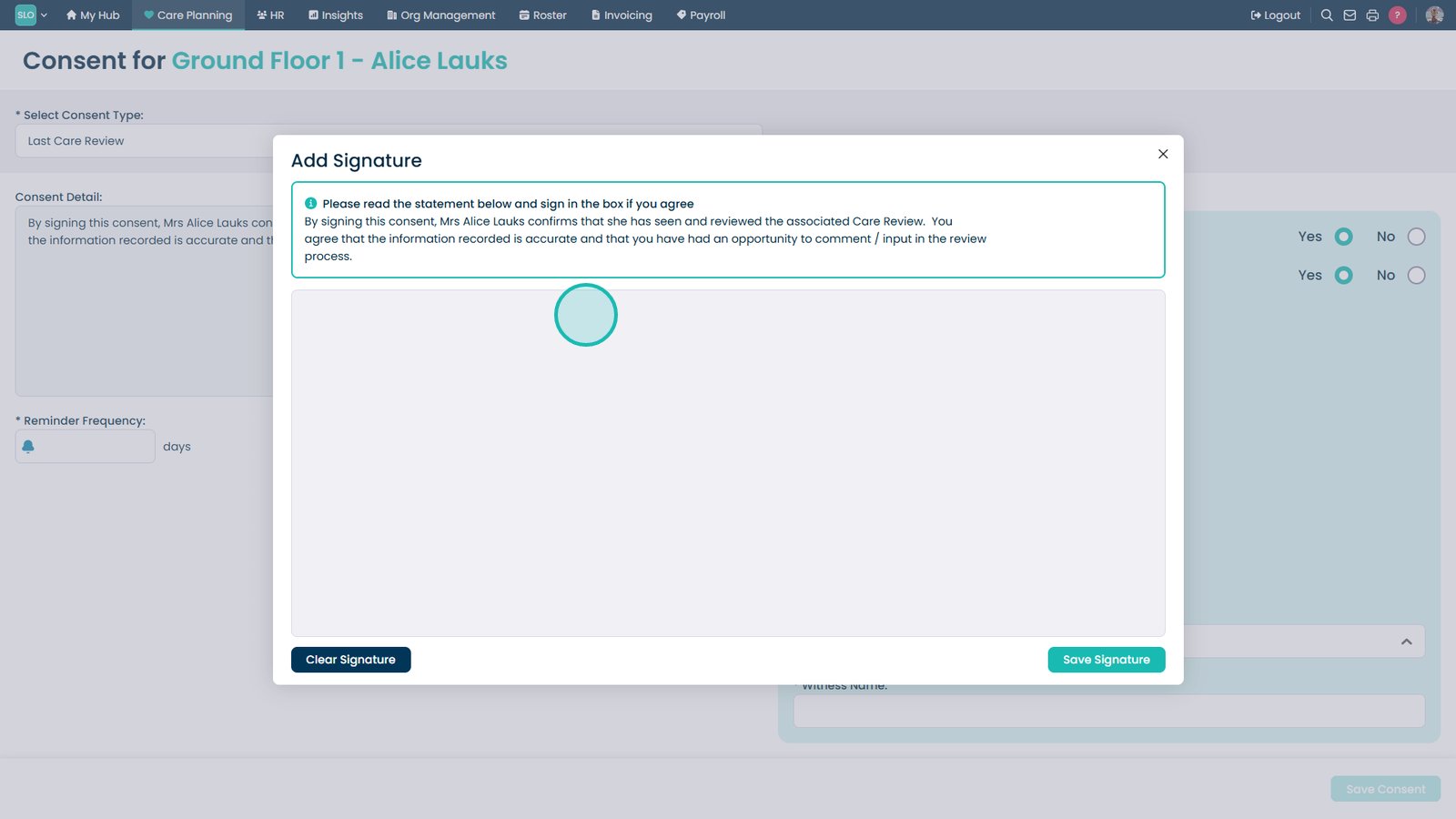
Add the service user's signature.
Ensure the service user has read the consent statement before signing.
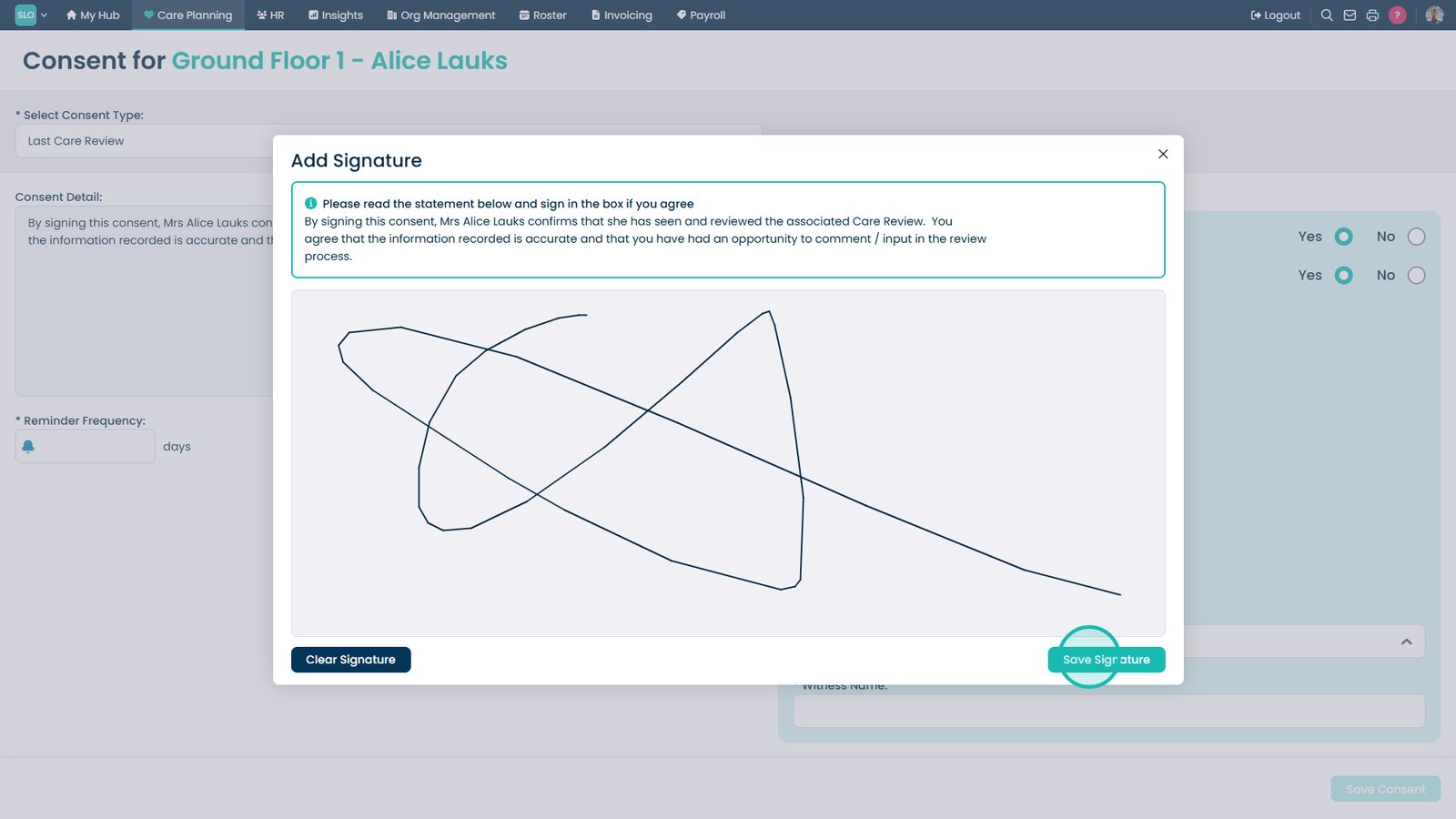
Select Save Signature to continue.
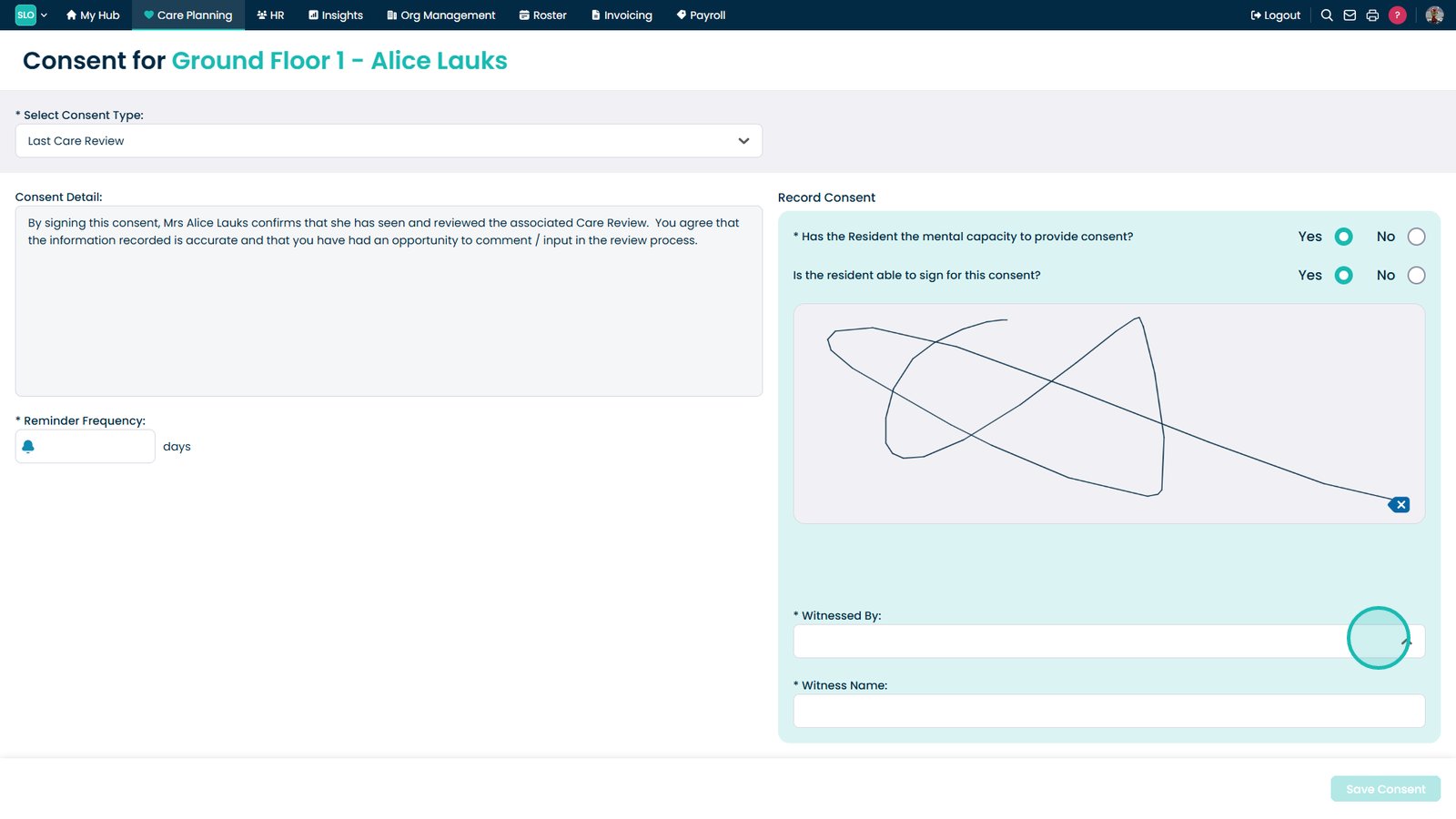
Select who witnessed the Care Review.
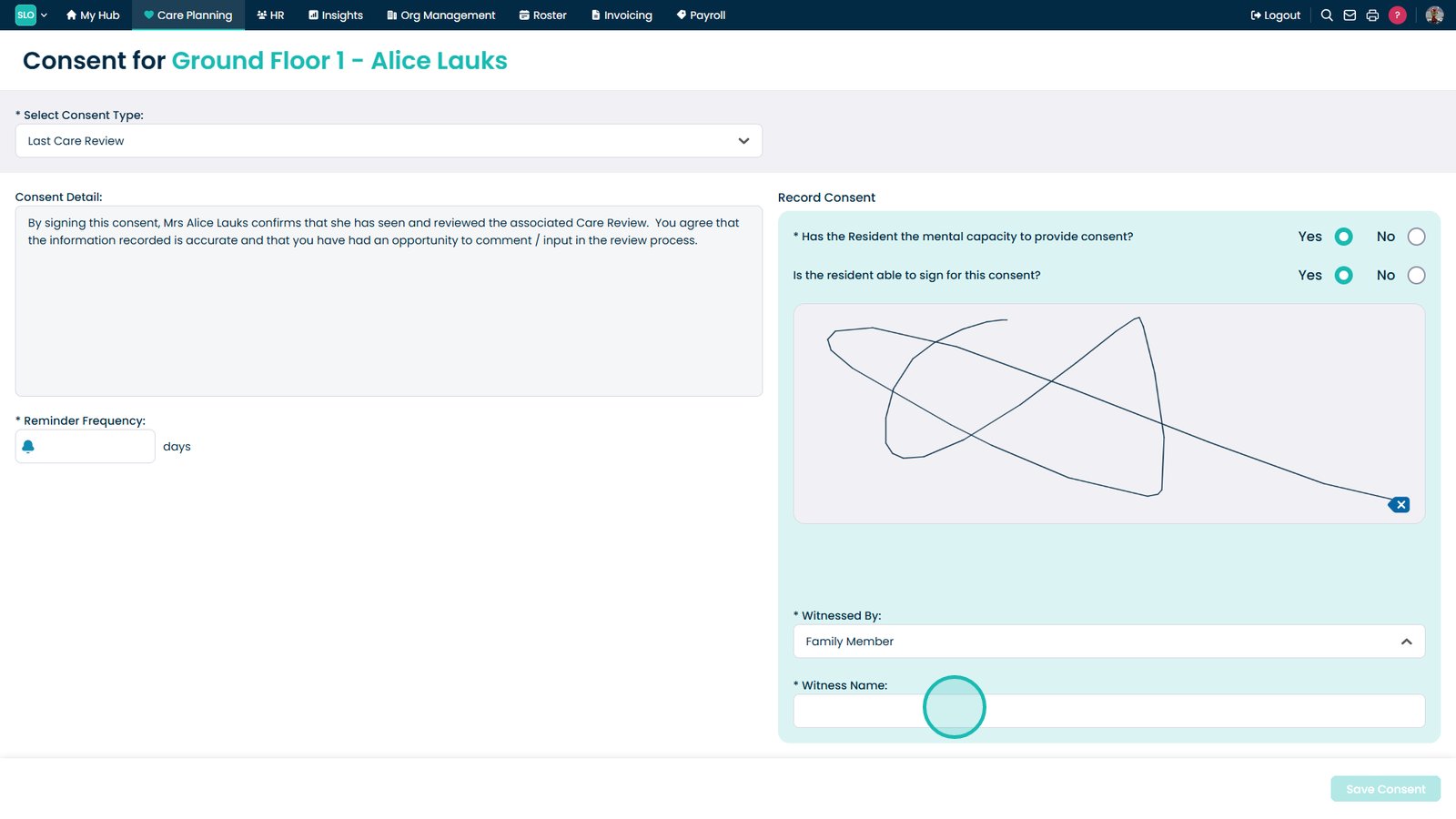
Enter the witness's name.
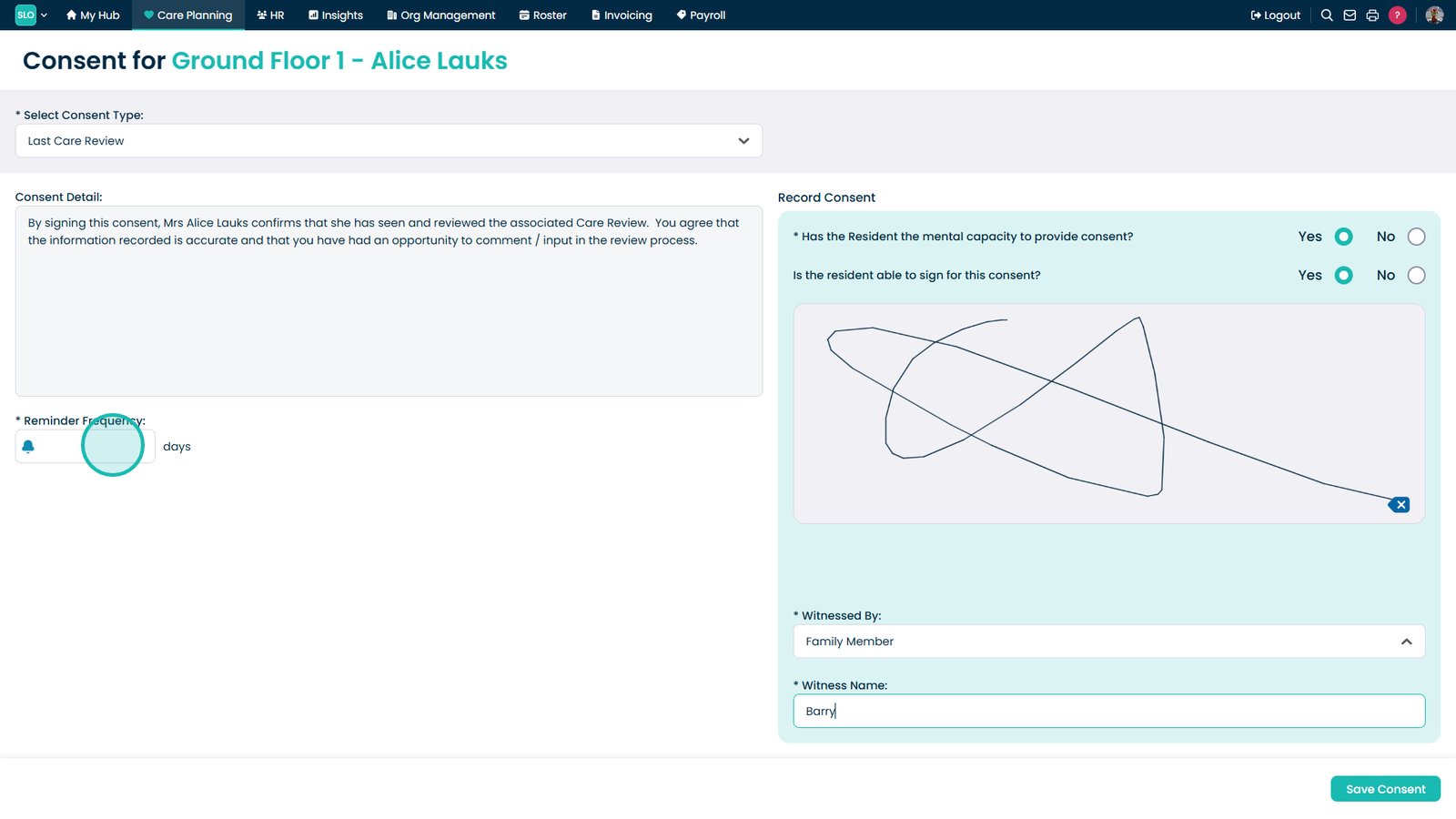
Set the reminder frequency to determine when the next Care Review is due.
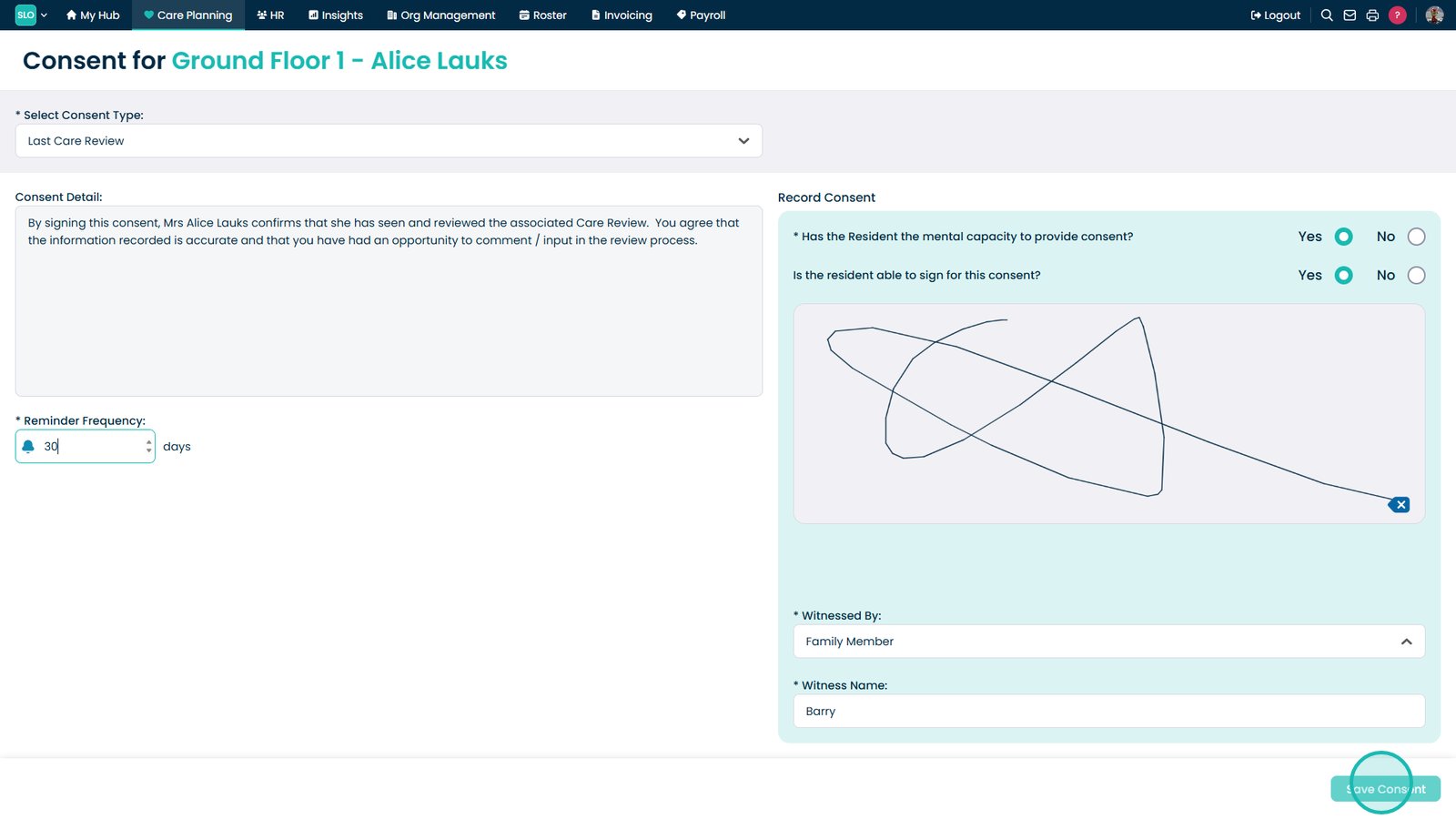
Select Save Consent to complete the consent process.
Top tip
Review each section carefully before finalising the Care Review, as submitted information may be used to support ongoing care planning.