View Categories

How to Record an Enhanced Consent

Learn how to create a new enhanced consent record for a service user, record their capacity to consent, identify an authorised representative where required, attach supporting documentation, capture signatures, and save the completed consent record.
Takes 7 minutes
For: Care Staff
Updated: 28th Sept 2026

Introduction

The Consent & Capacity area allows you to record consent decisions for a service user and document who is authorised to provide consent where appropriate.

You can record the service user's mental capacity, select the relevant consent requirements, identify an authorised person, attach supporting documentation and capture digital signatures. Witness information can also be recorded before the completed consent is saved.

In this guide you'll learn how to:

  • Start a new consent record
  • Record the service user's mental capacity
  • Select consent requirements
  • Identify an authorised person where required
  • Add supporting consent documentation
  • Capture a digital signature
  • Record witness details
  • Save the completed consent

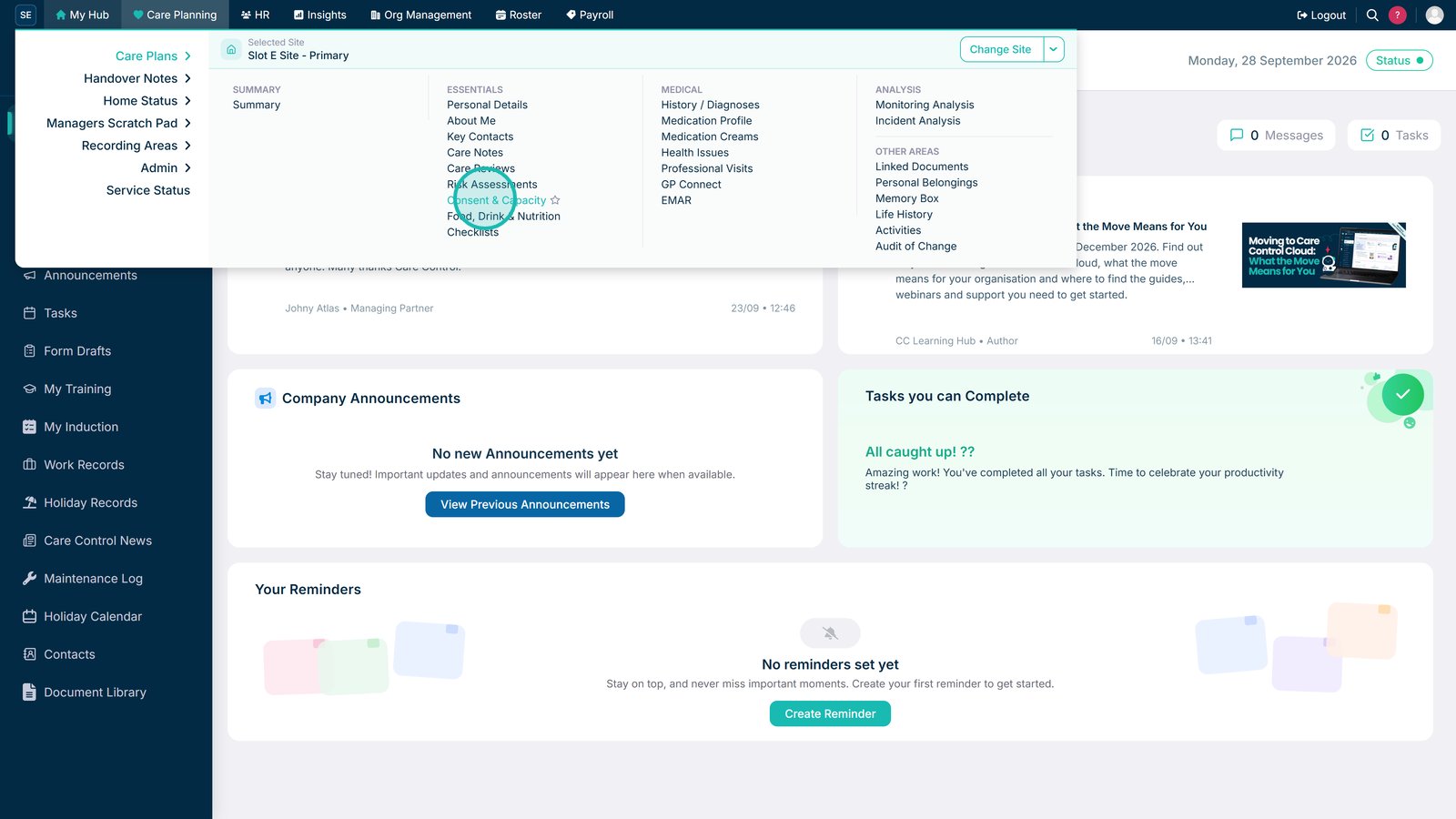
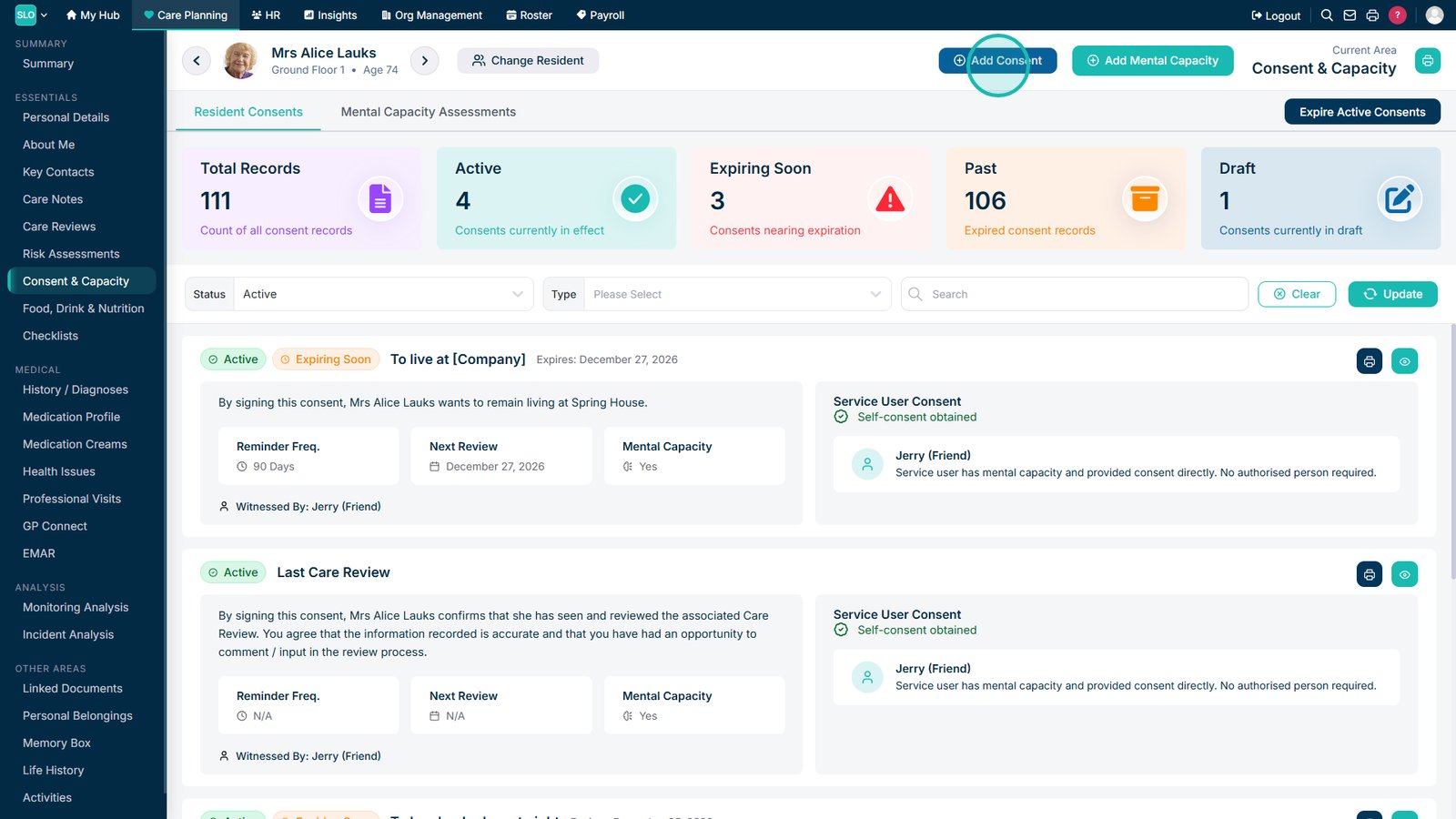
Open Consent & Capacity from the Care Plans menu.

Select Add Consent to create a new consent record.

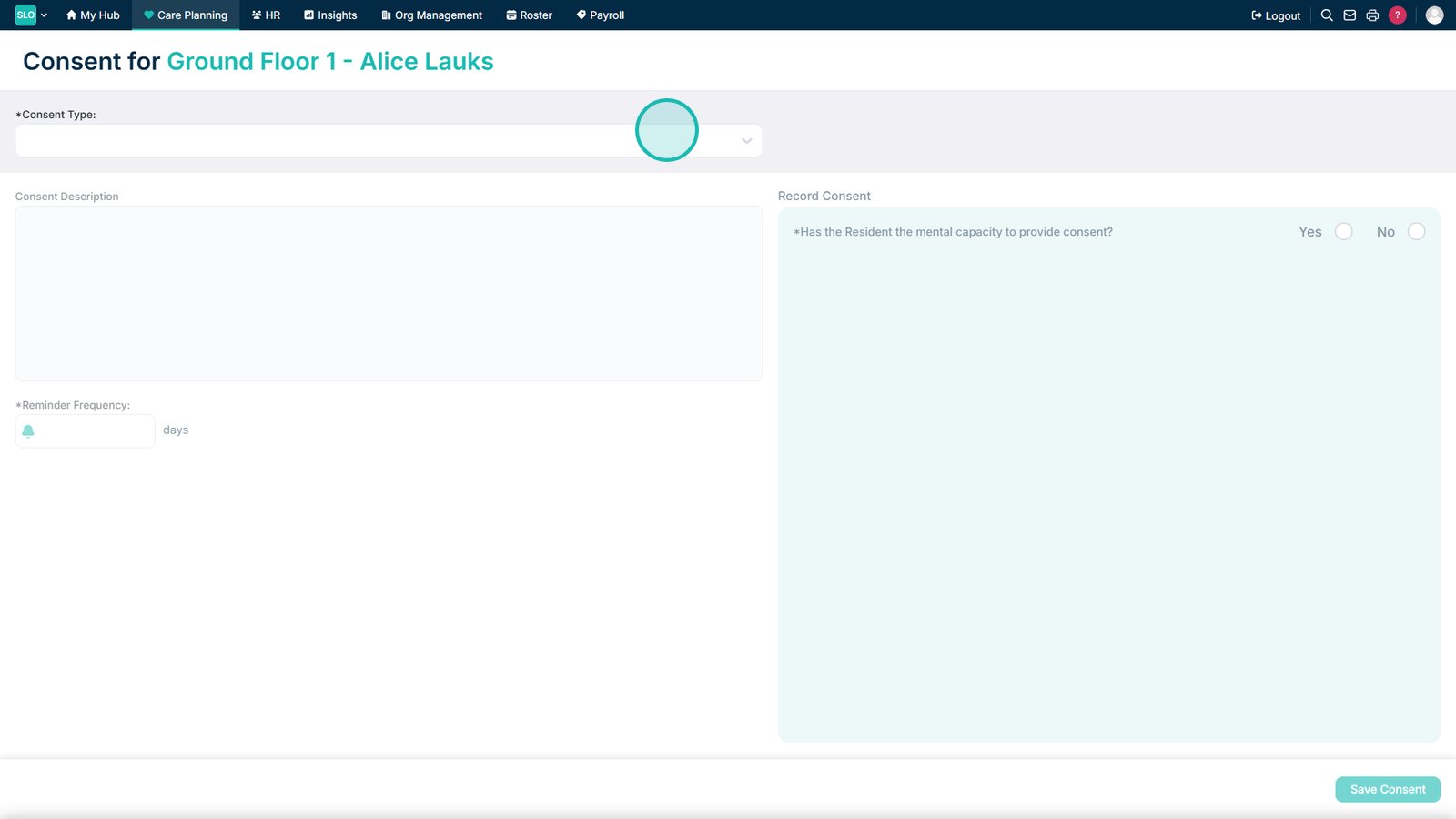
Select the type of consent you want to record.

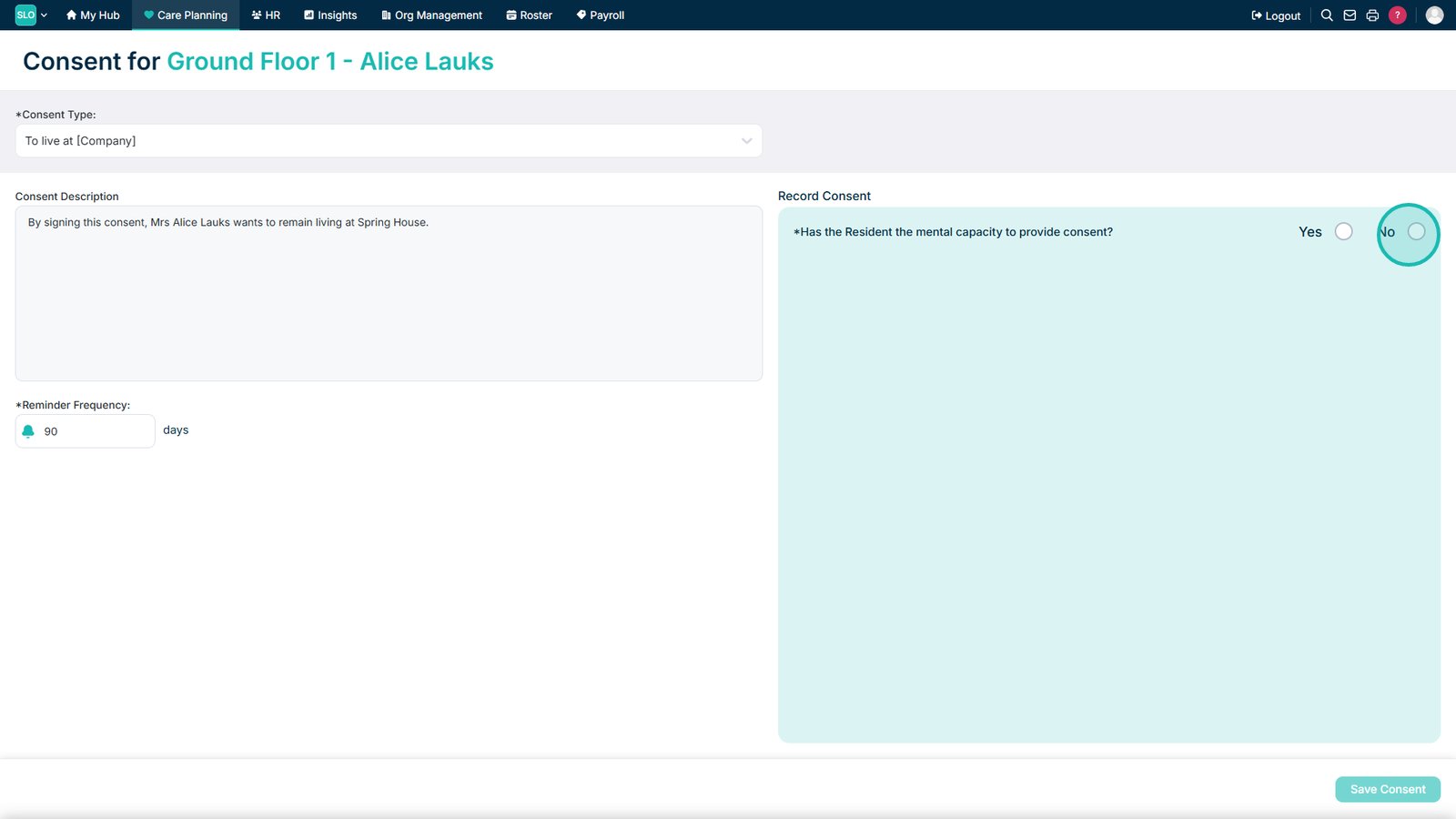
Record whether the service user has the mental capacity to provide consent.

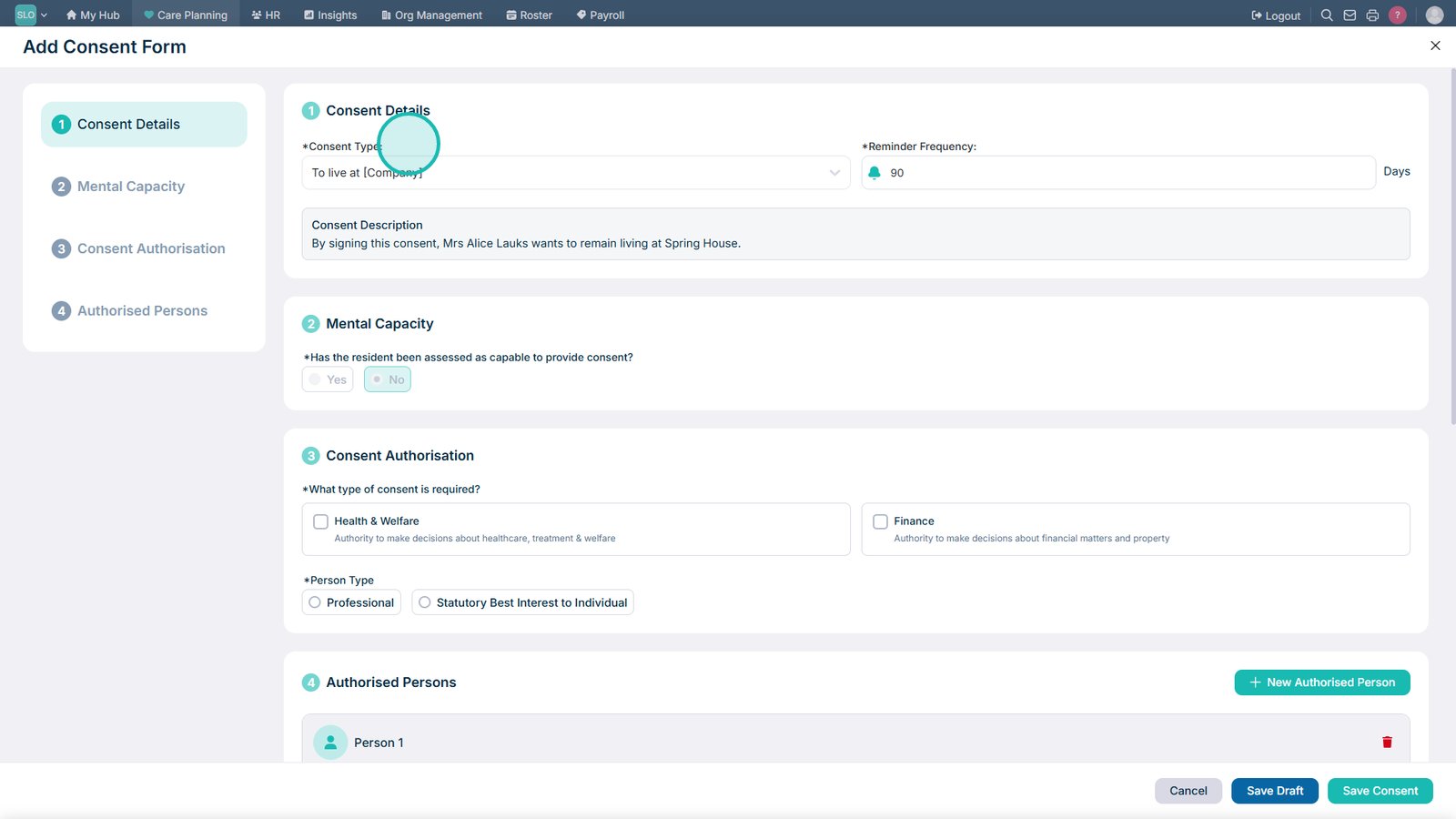
Review the consent details carried forward from the previous screen.

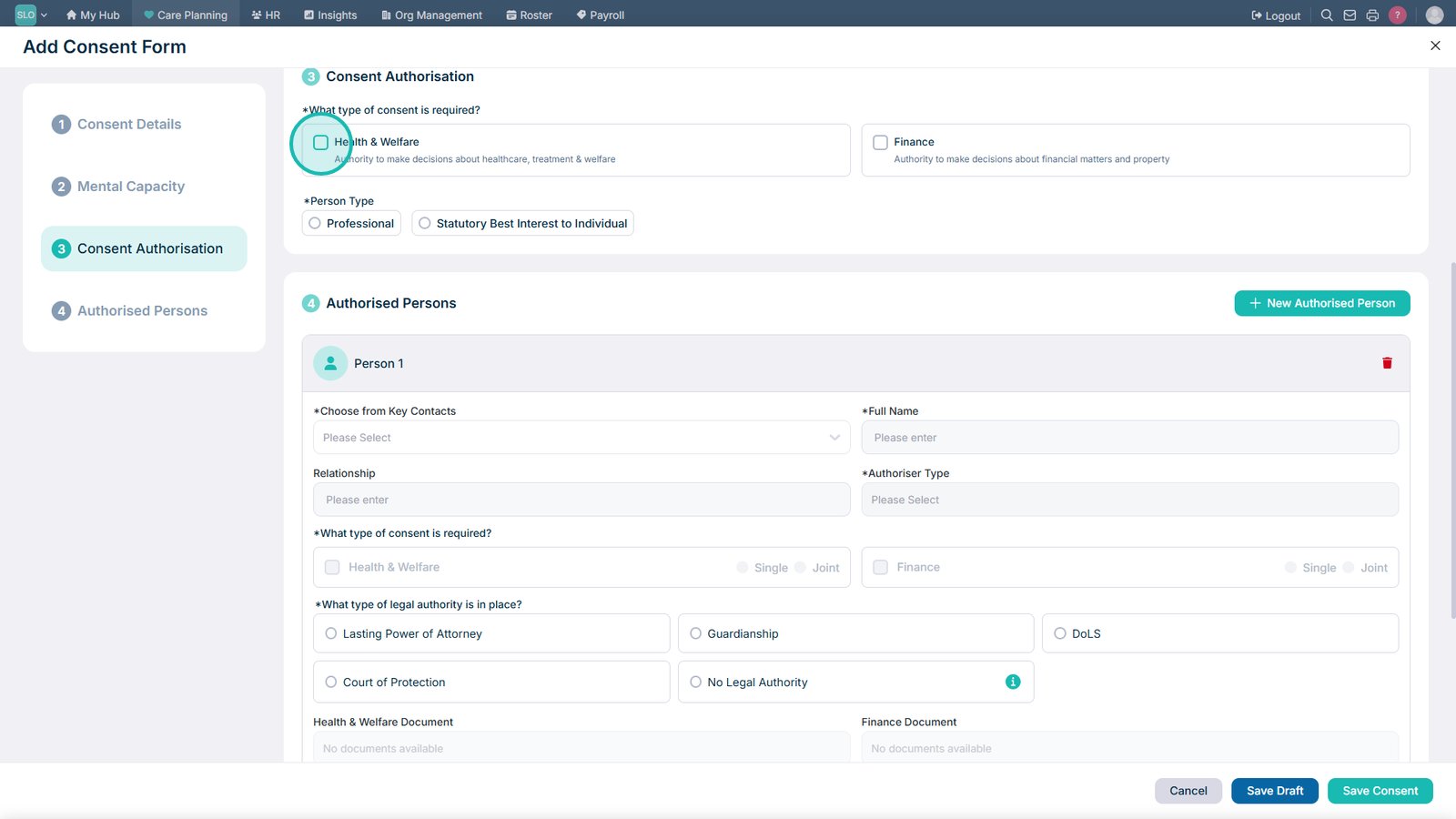
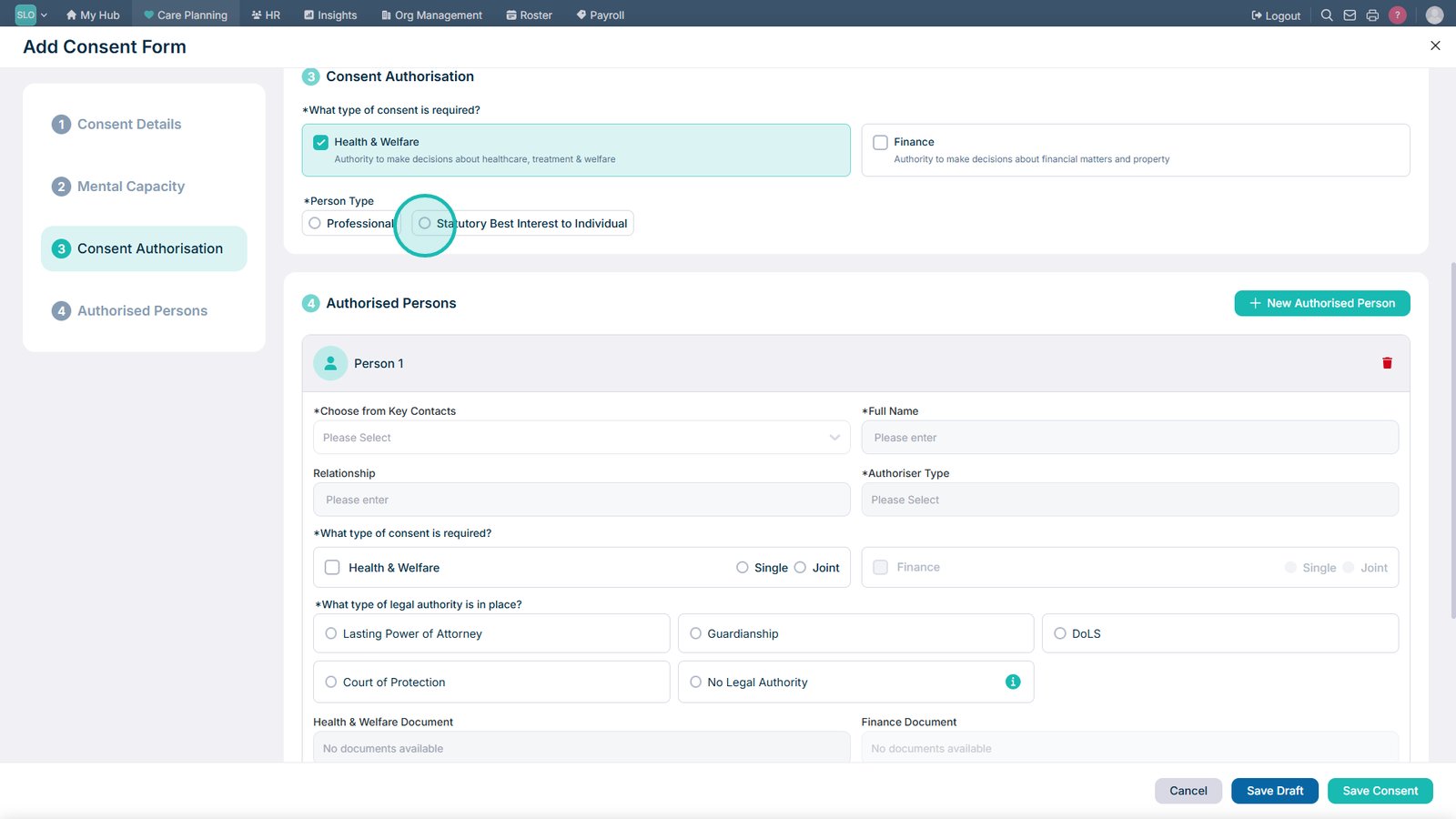
Select the relevant consent requirements, such as Health & Welfare.

Select who is authorised to provide consent where required.

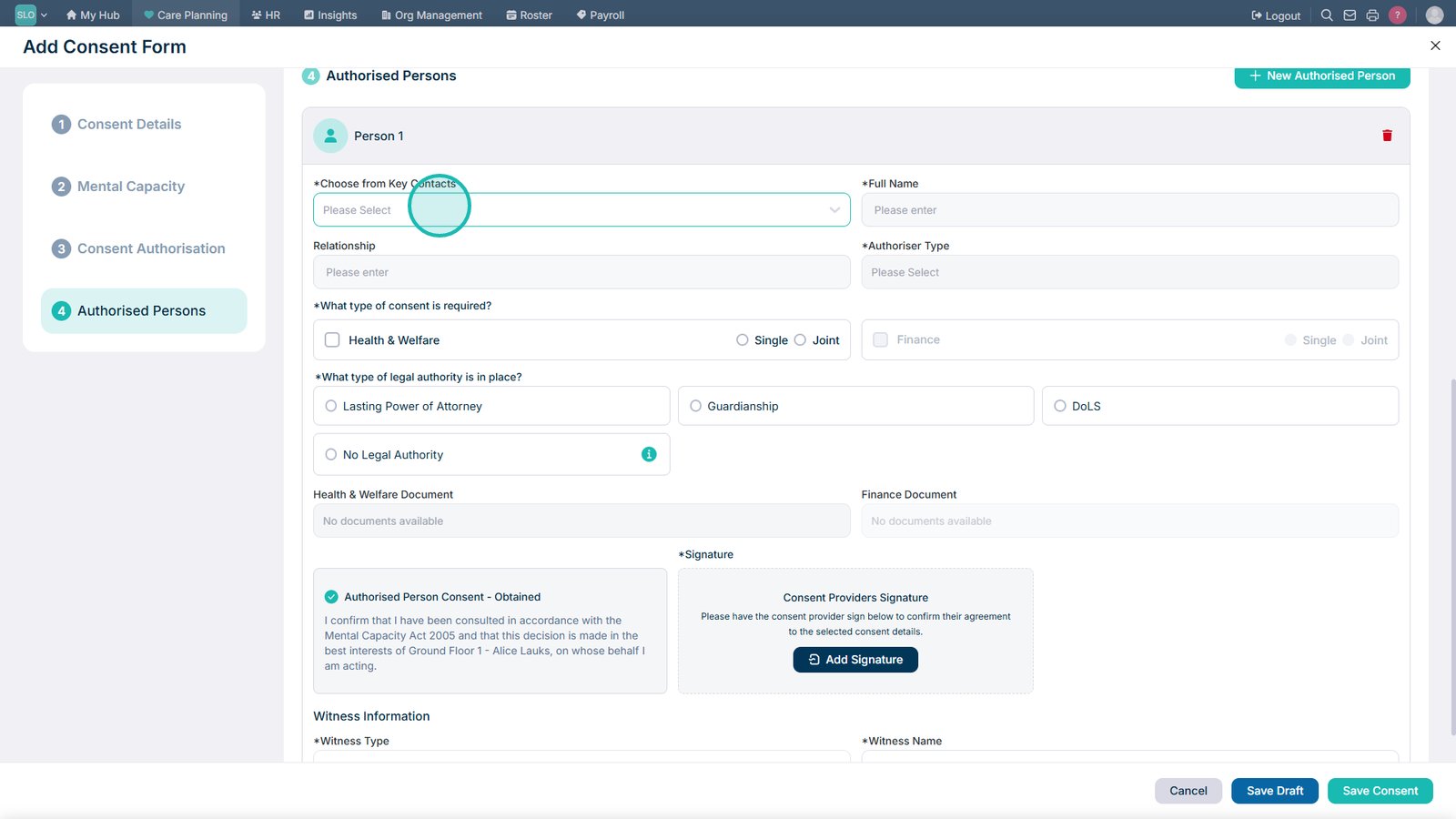
Select the authorised person from the service user's key contacts.

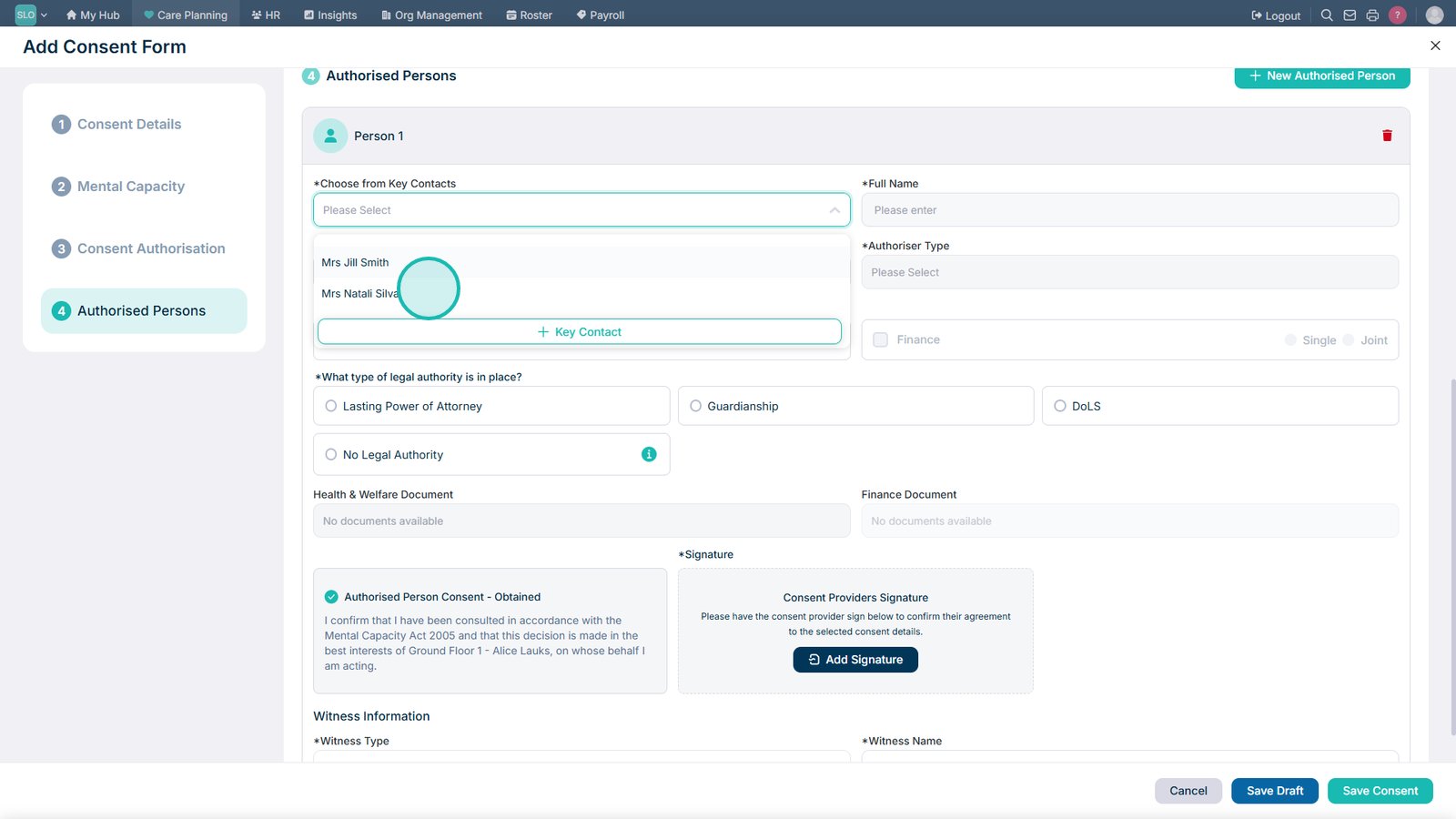
Assign the selected contact as the authorised person for this consent.

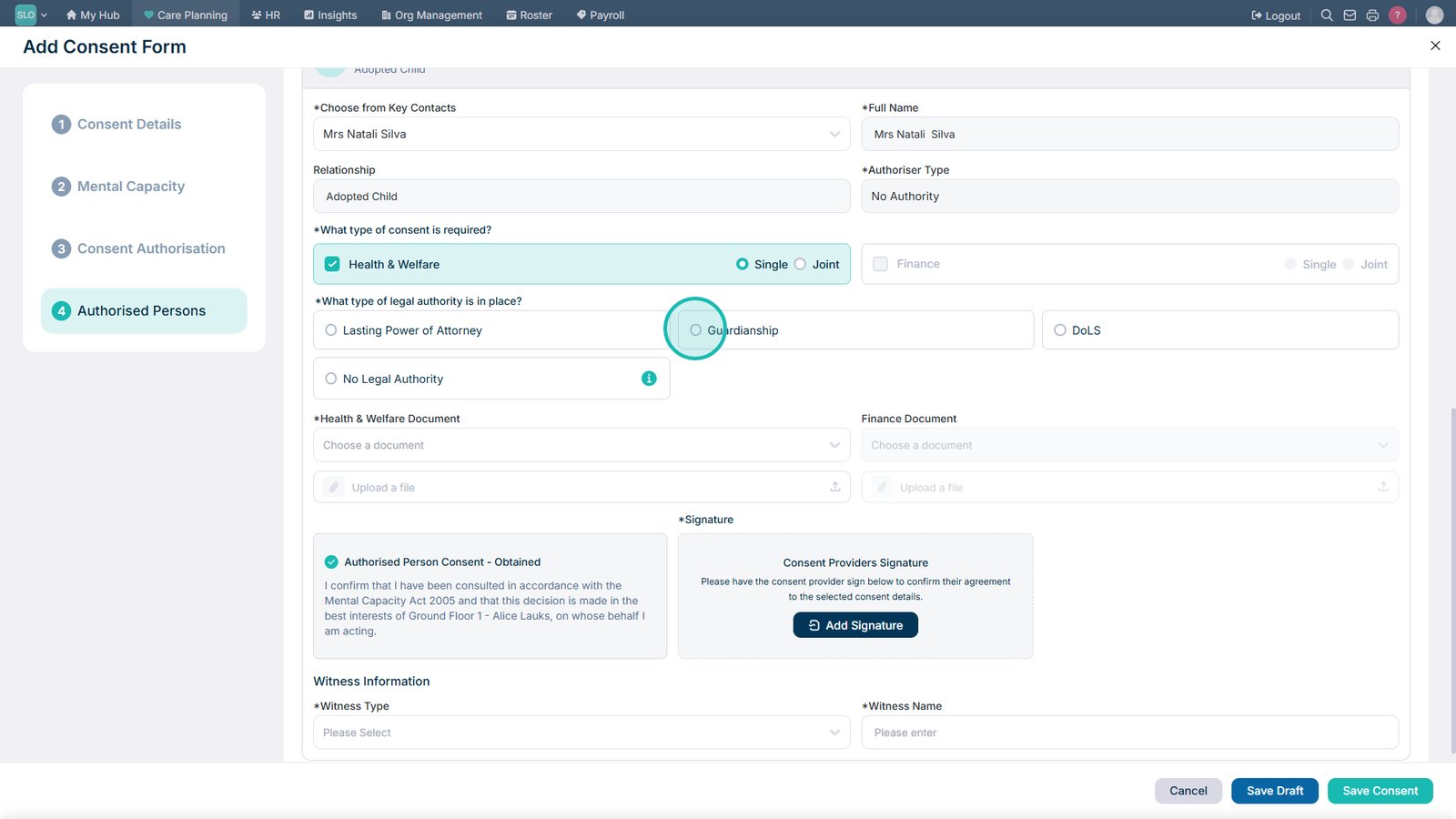
Select the appropriate legal authority type, such as Guardianship.

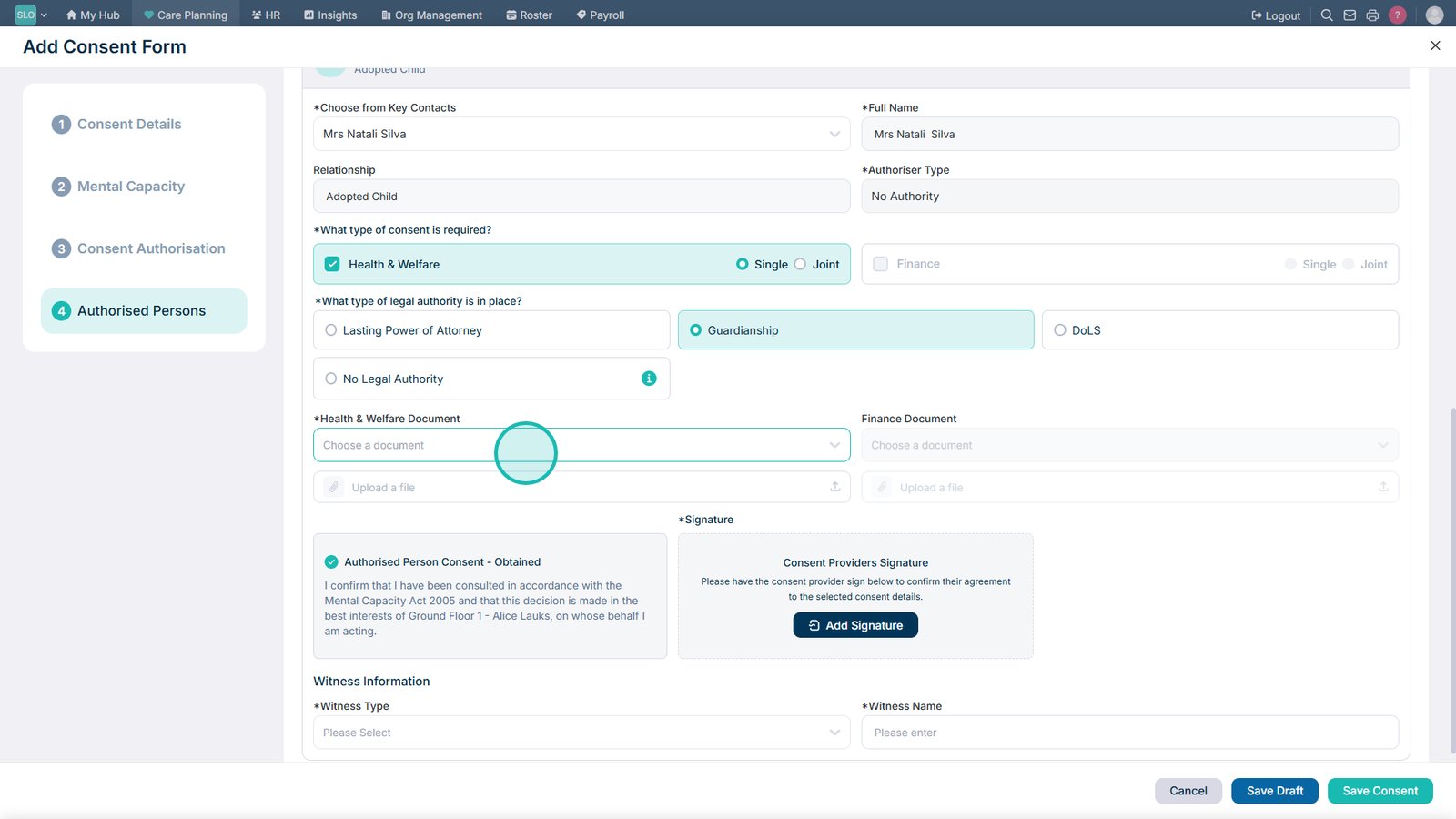
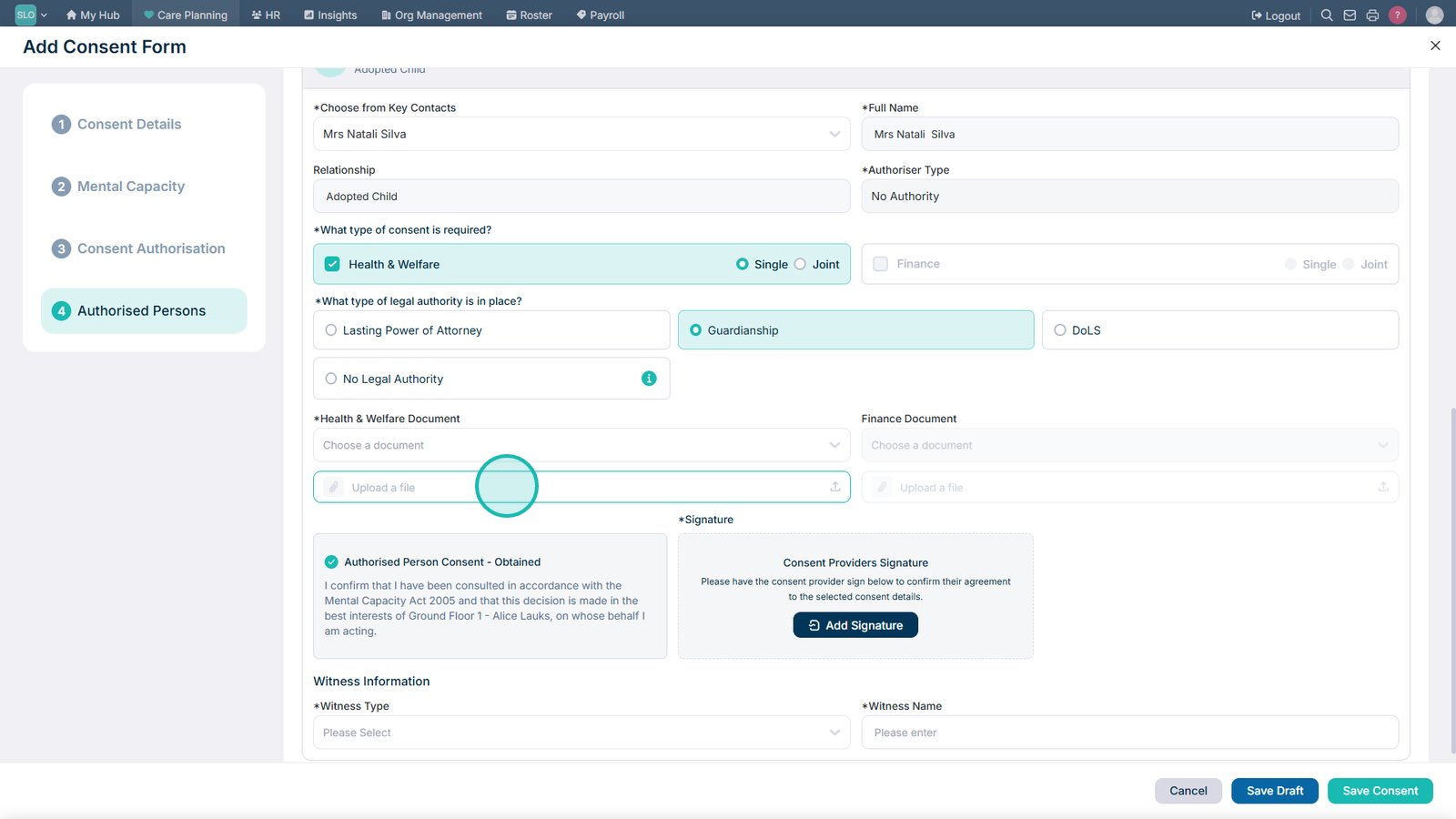
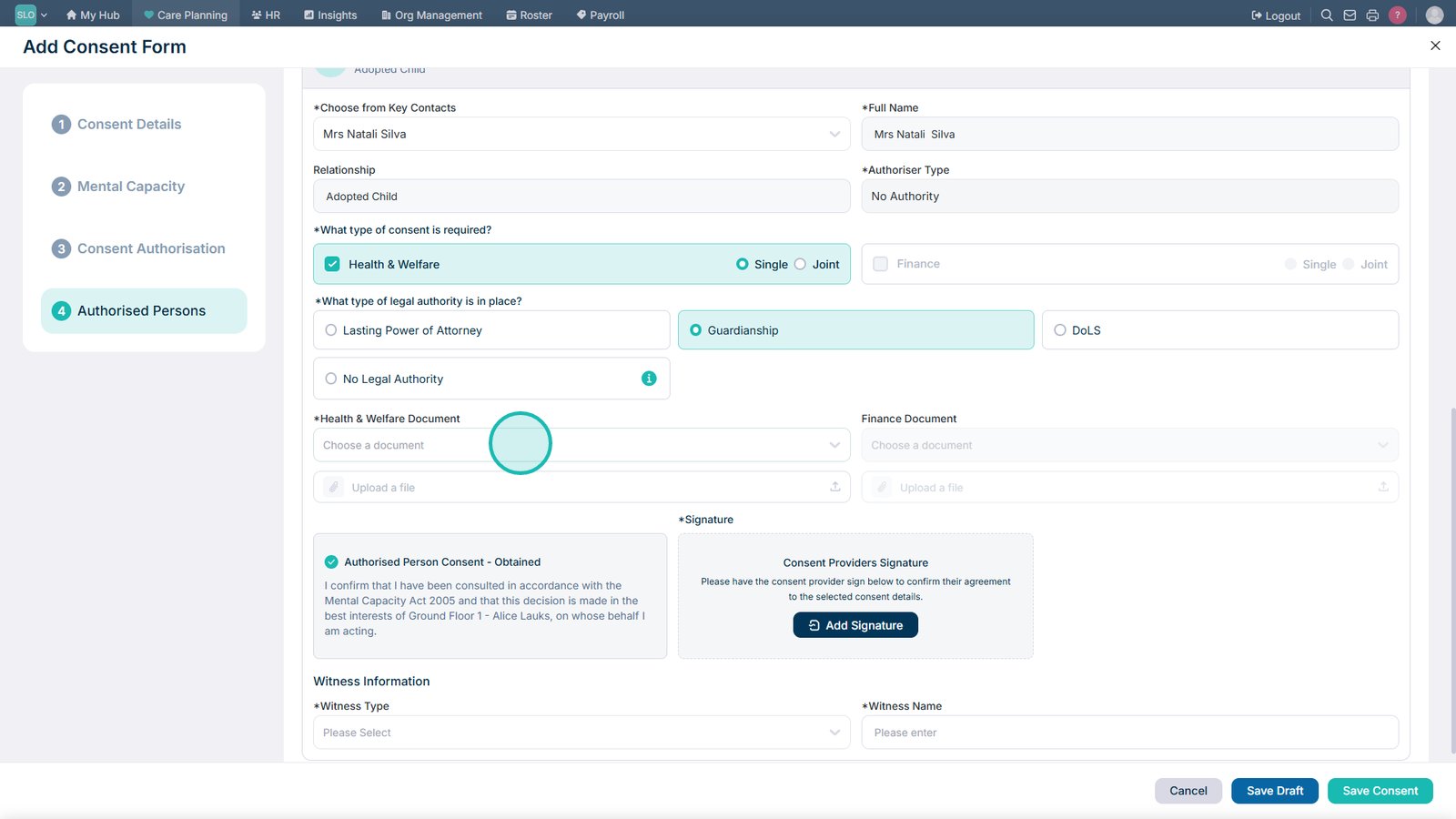
Review the available supporting document options for the consent record.

Upload a new file if supporting consent documentation needs to be added.

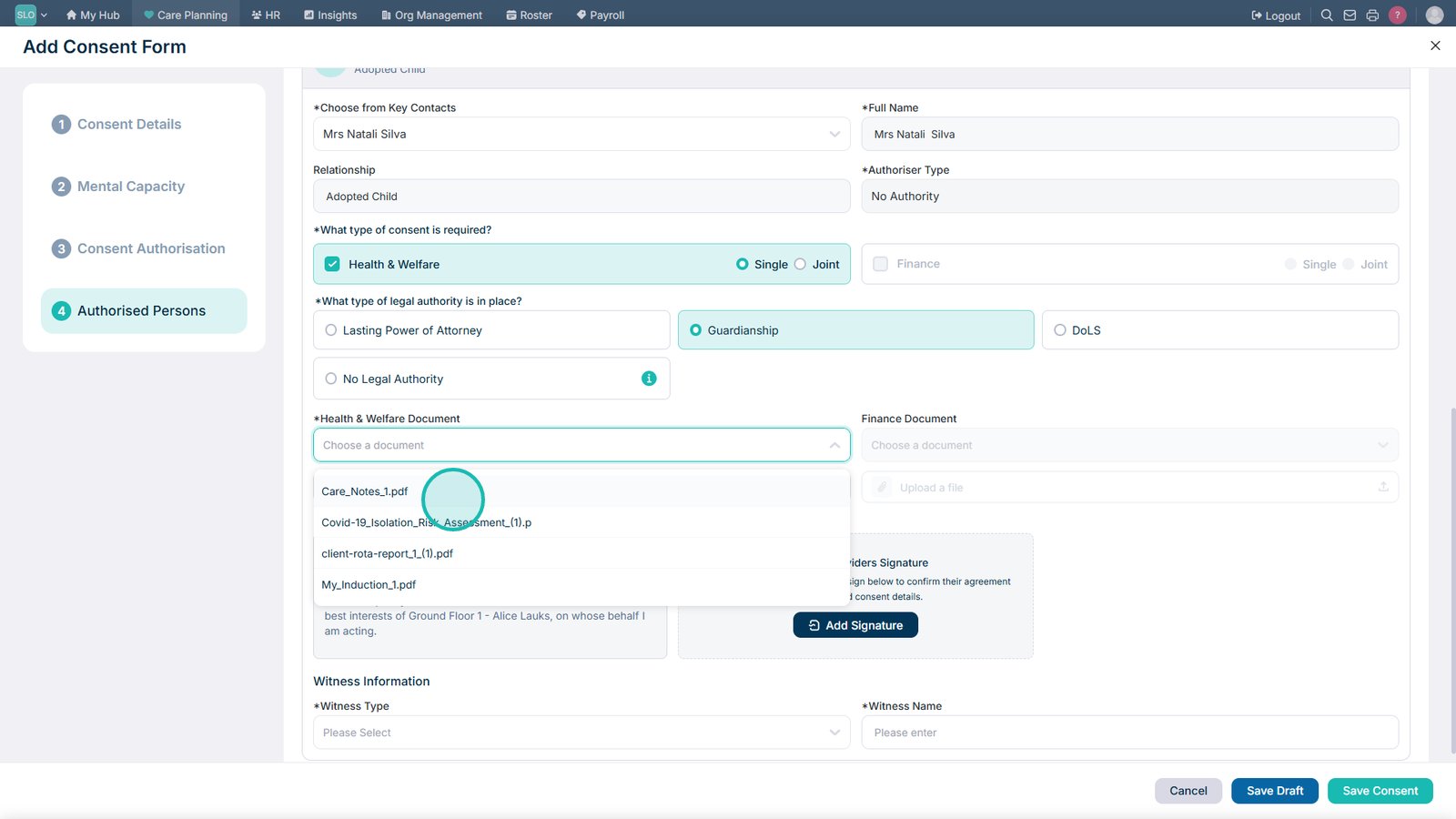
Open the document drop-down to select an existing Health & Welfare document.

Select the supporting document you want to attach to the consent.

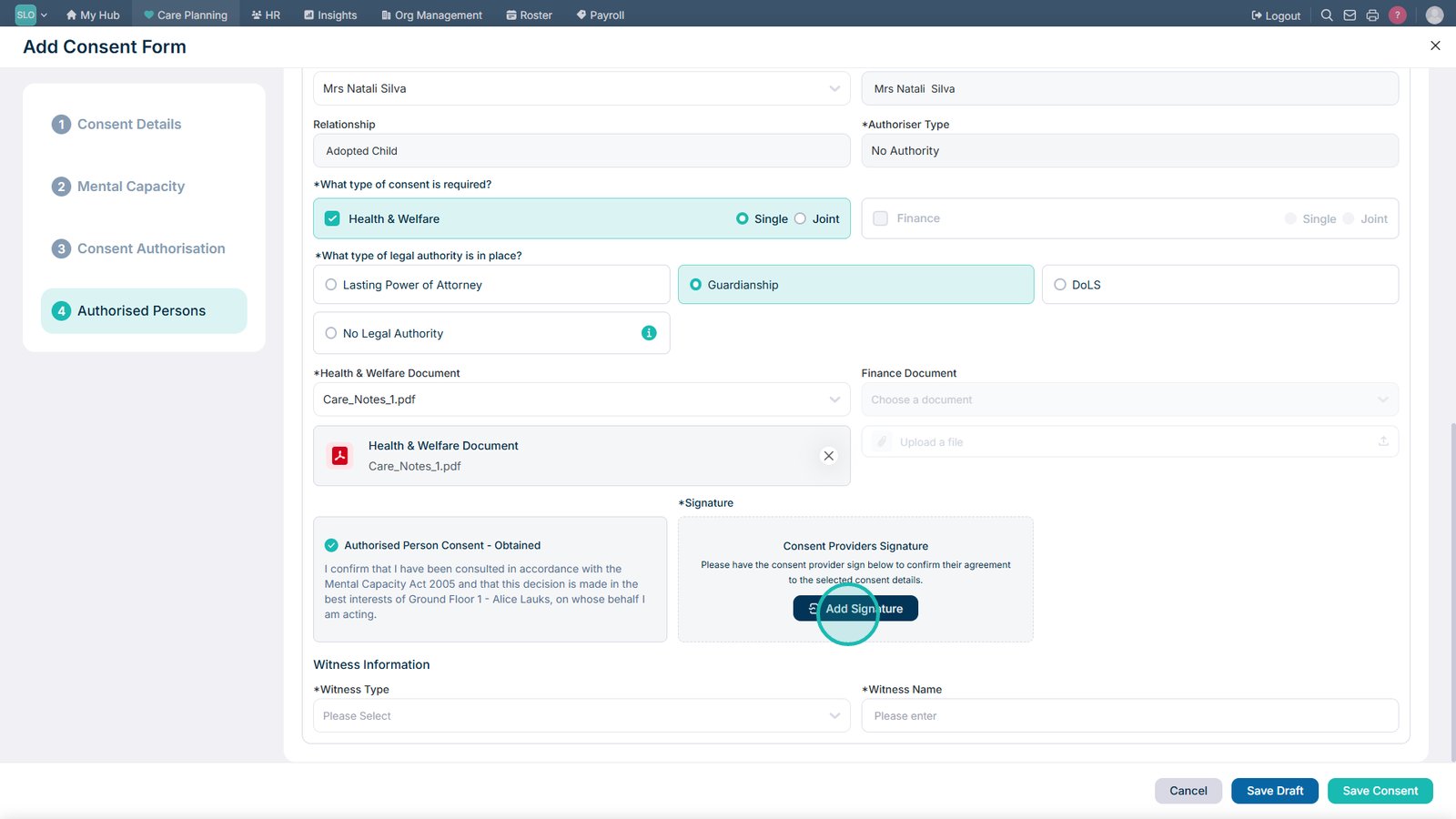
Select Add Signature to record the consent provider's signature.

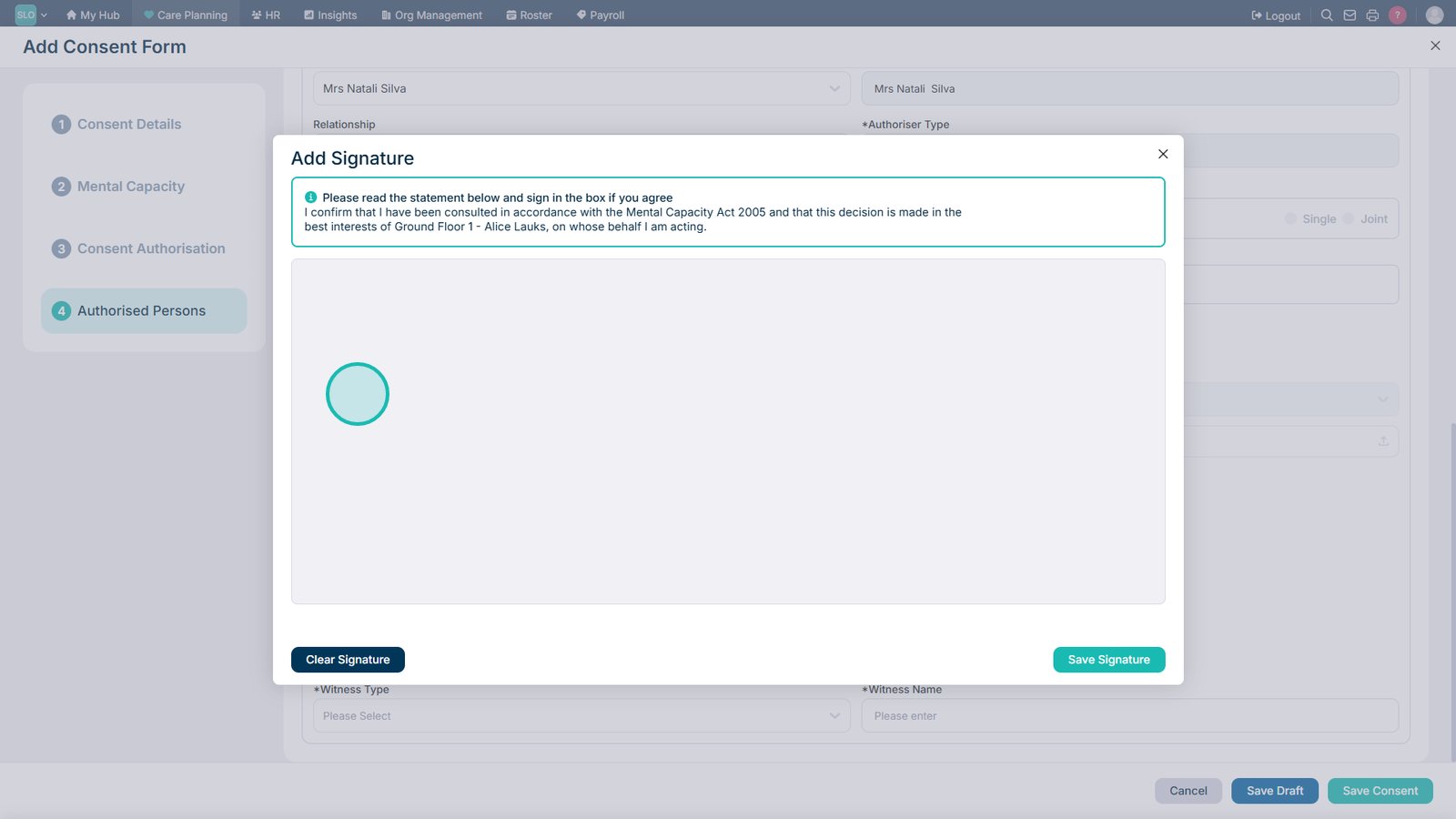
Ask the consent provider to enter their signature in the signature box.

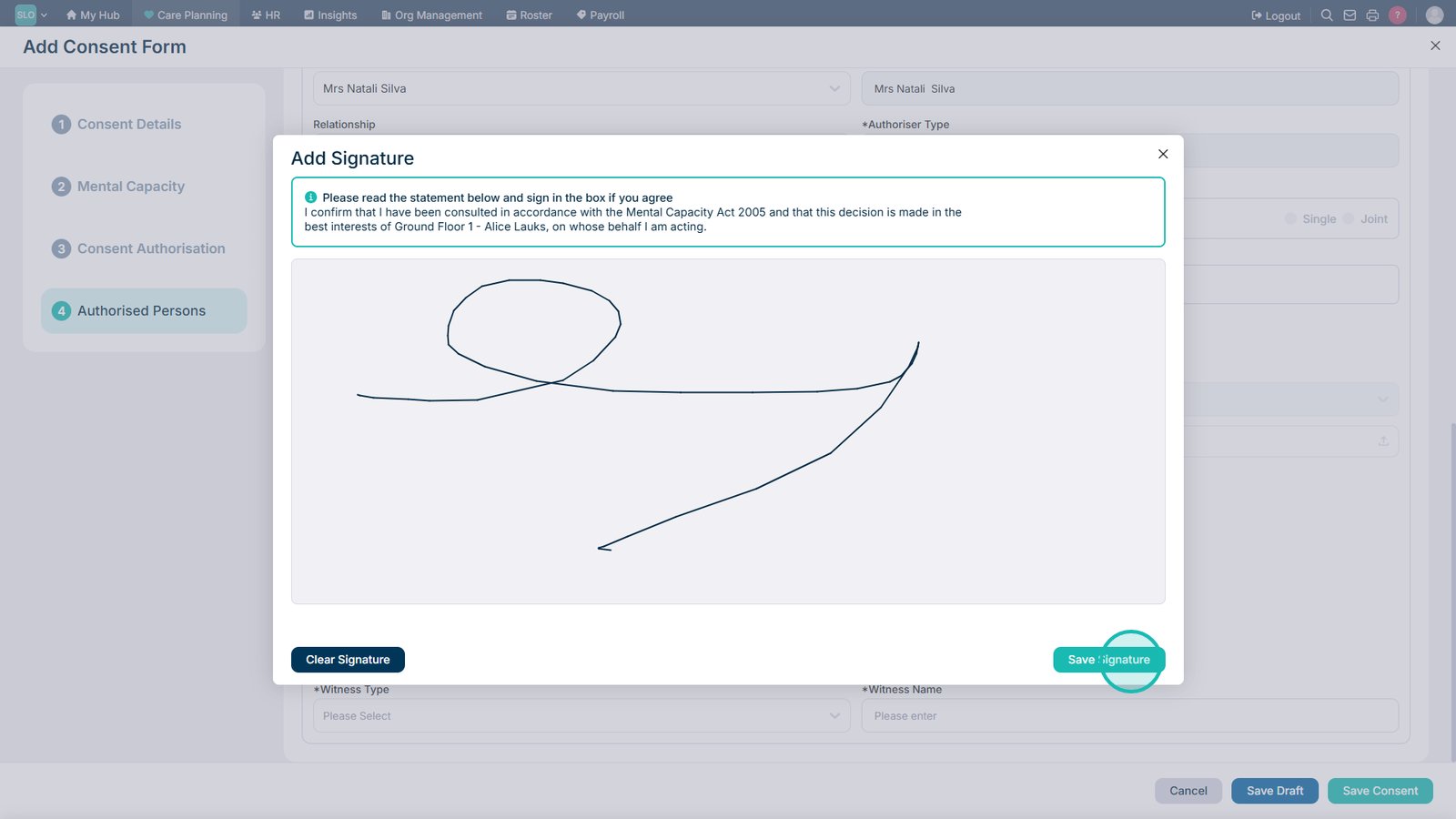
Select Save Signature once the signature has been entered.

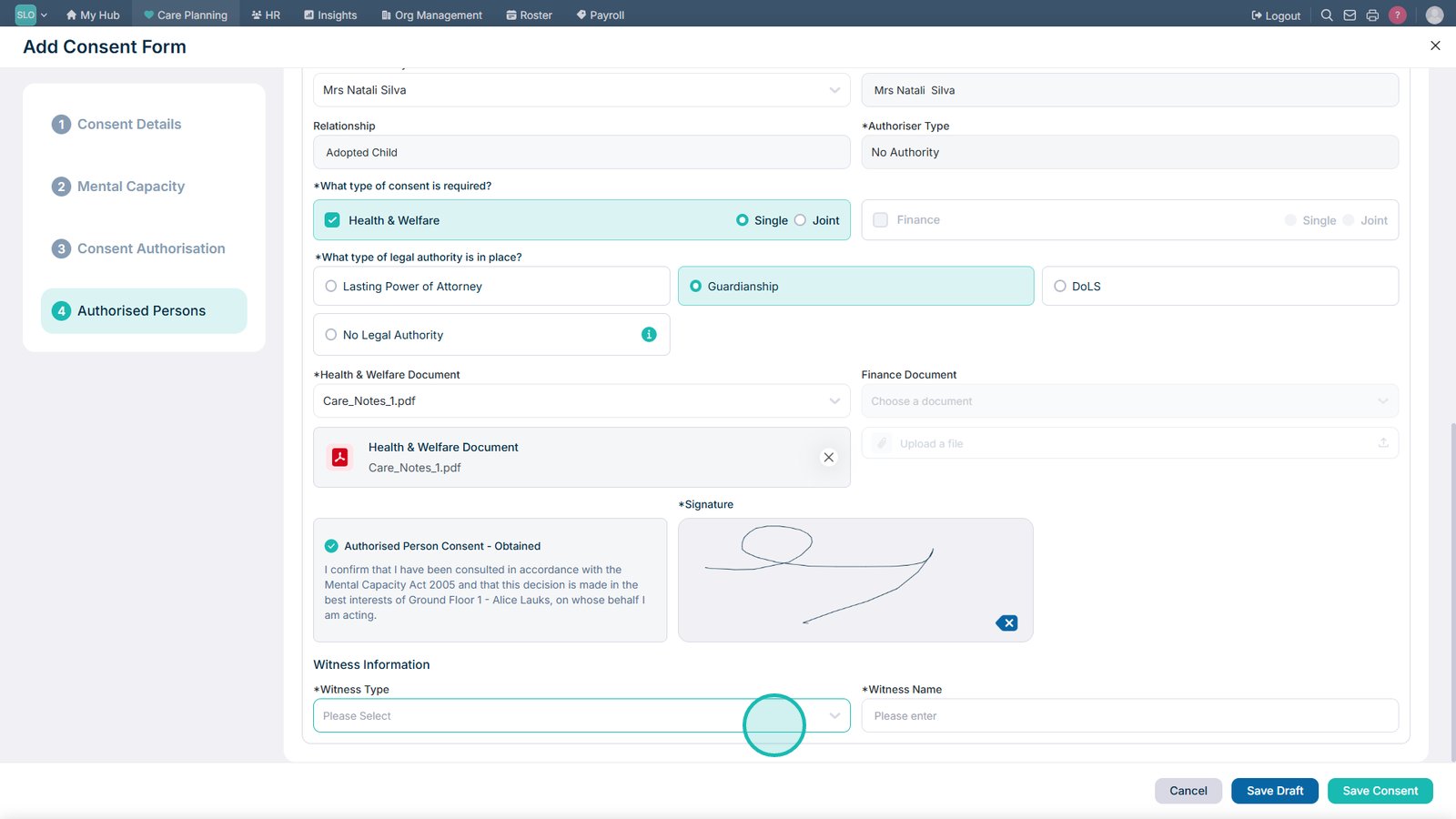
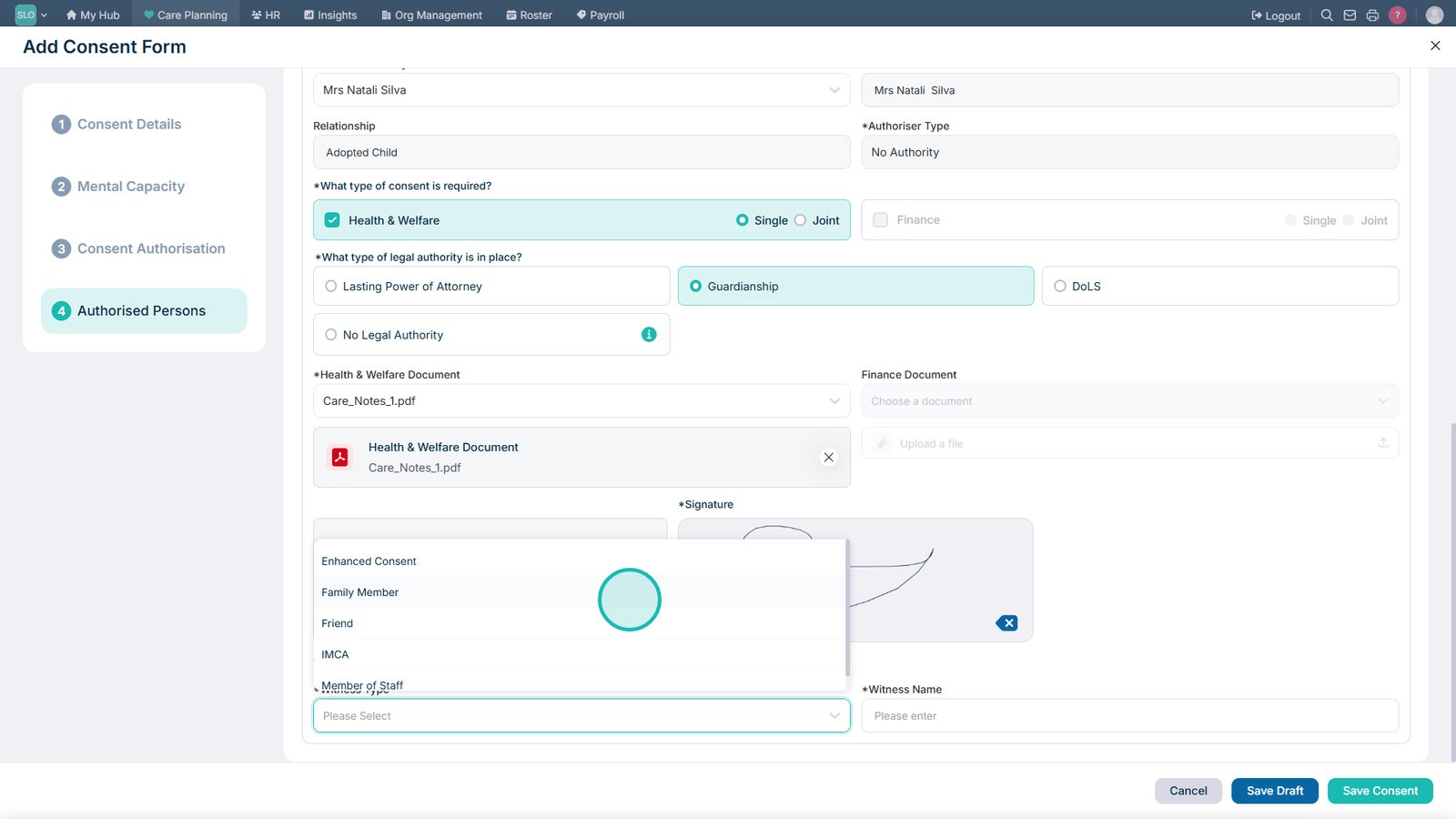
Select the appropriate witness type.

Select the witness's relationship to the service user.

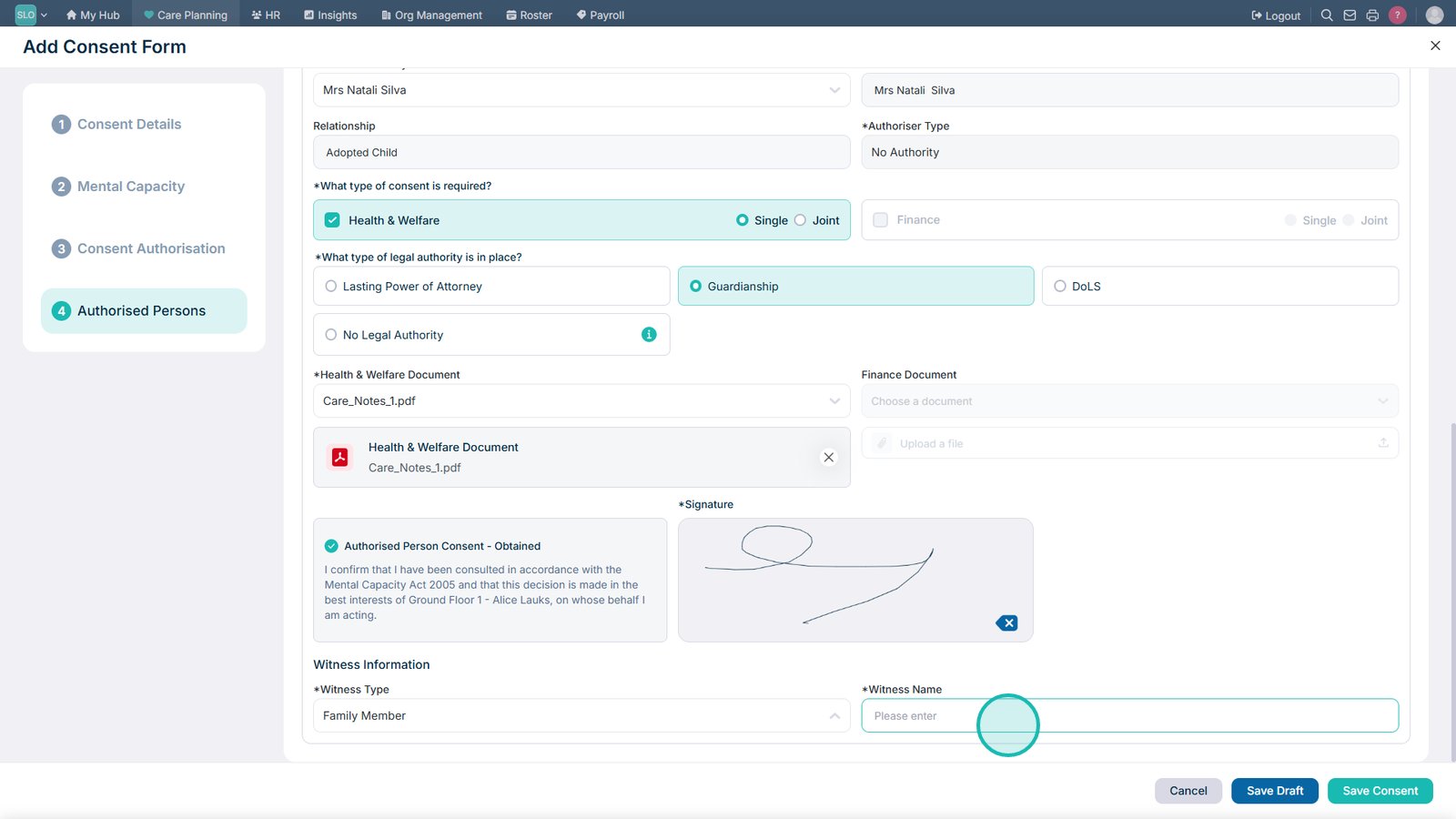
Enter the witness's name.

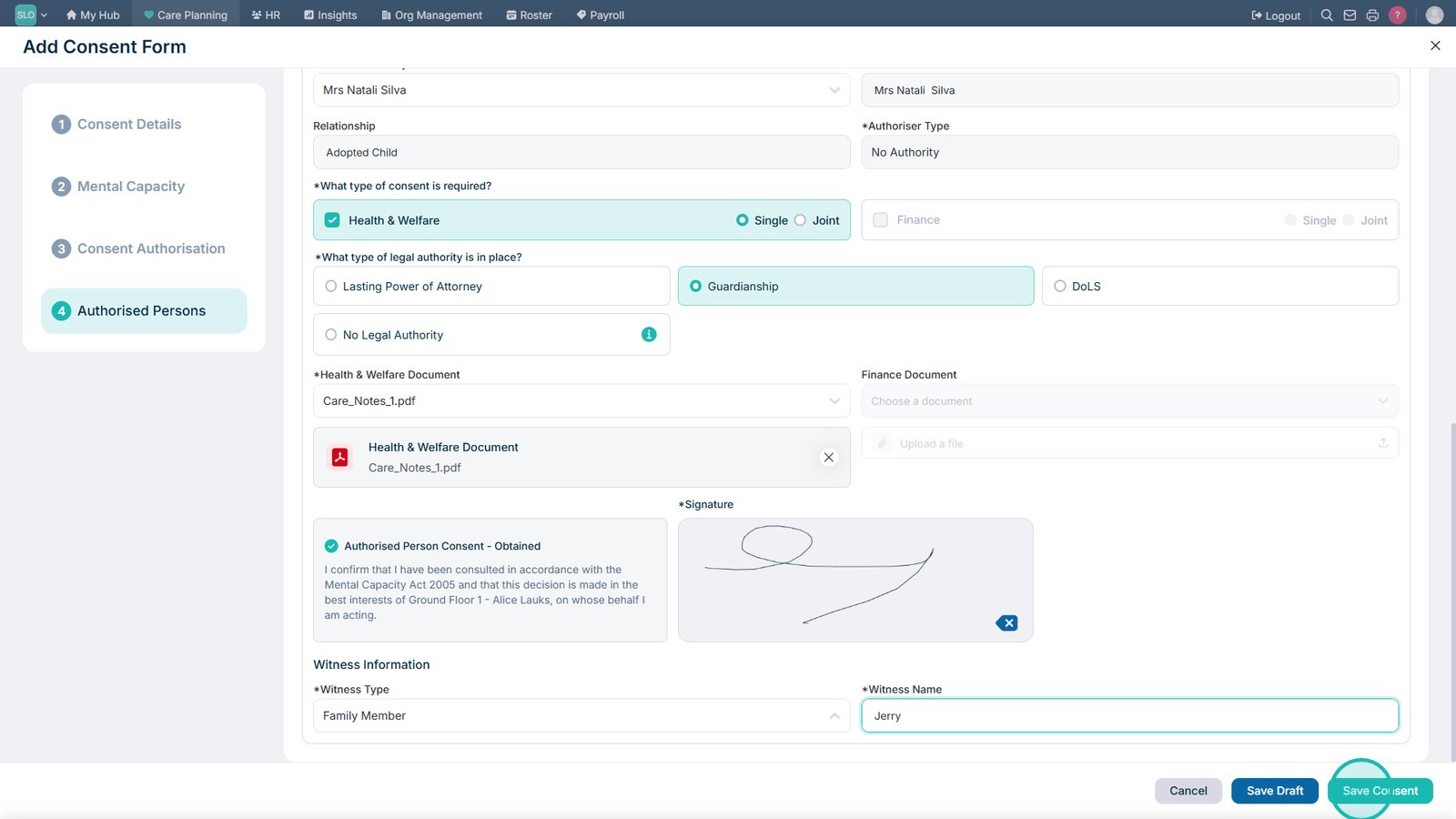
Select Save Consent to complete the consent record.

Top tip

Make sure the consent type, capacity information, authorised person and supporting documentation accurately reflect the individual circumstances before collecting signatures and saving the record.

Was this guide helpful?

Need more help?

Can't find what you're looking for? Our support team is here to help.

Contact Support

Or call us on

On this page