This guide explains how to complete a full Care Review within the Care Planning app for a service user (resident). The Care Review feature allows you to formally assess and document a resident’s current needs, dependency level, and overall wellbeing. During the review, you can record changes in condition, update levels of need, calculate care minutes based on site settings, and document the actions and expected outcomes that will support the resident moving forward.
The Care Review also enables you to reference relevant notes and documents to evidence your assessment, ensuring the review is thorough and person-centred. Once completed, the review must be finalised with consent, including recording mental capacity, capturing signatures where required, and documenting a witness. When submitted, the completed Care Review becomes the active review for the service user, providing a clear and auditable record of their current care requirements.
Interactive Guide
Text based guide
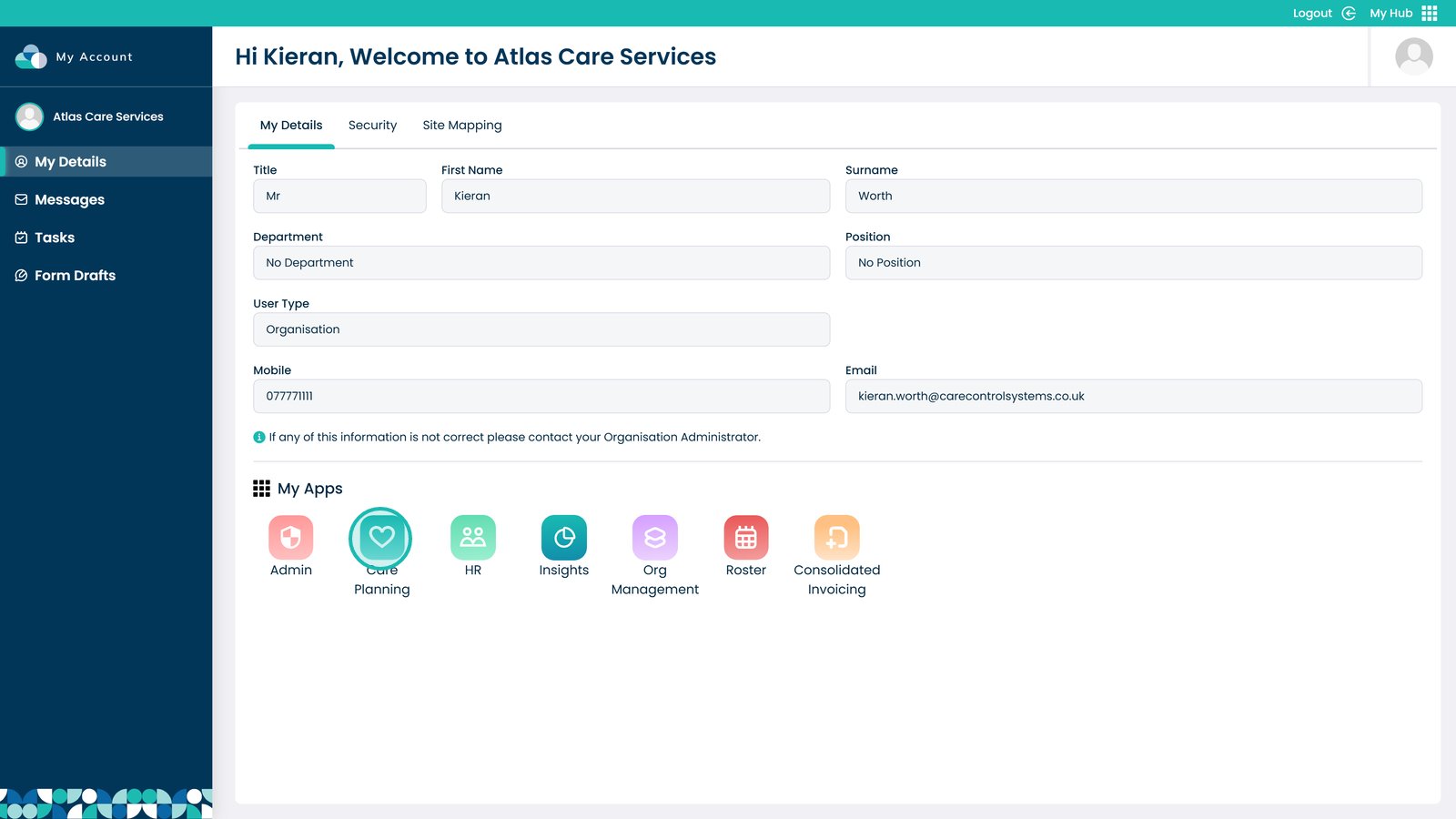
Enter the Care Planning App
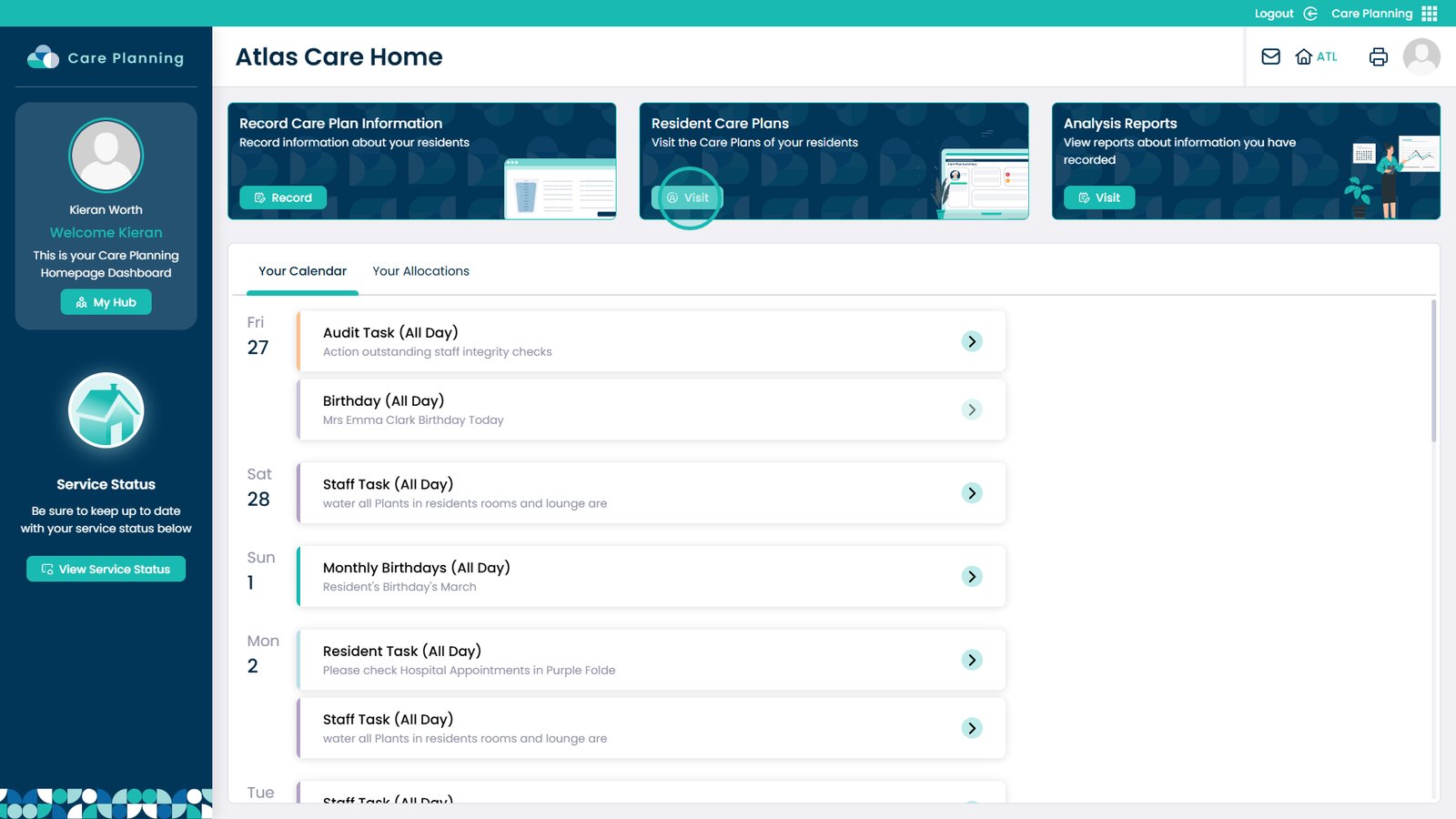
Click Visit under Resident Care Plans
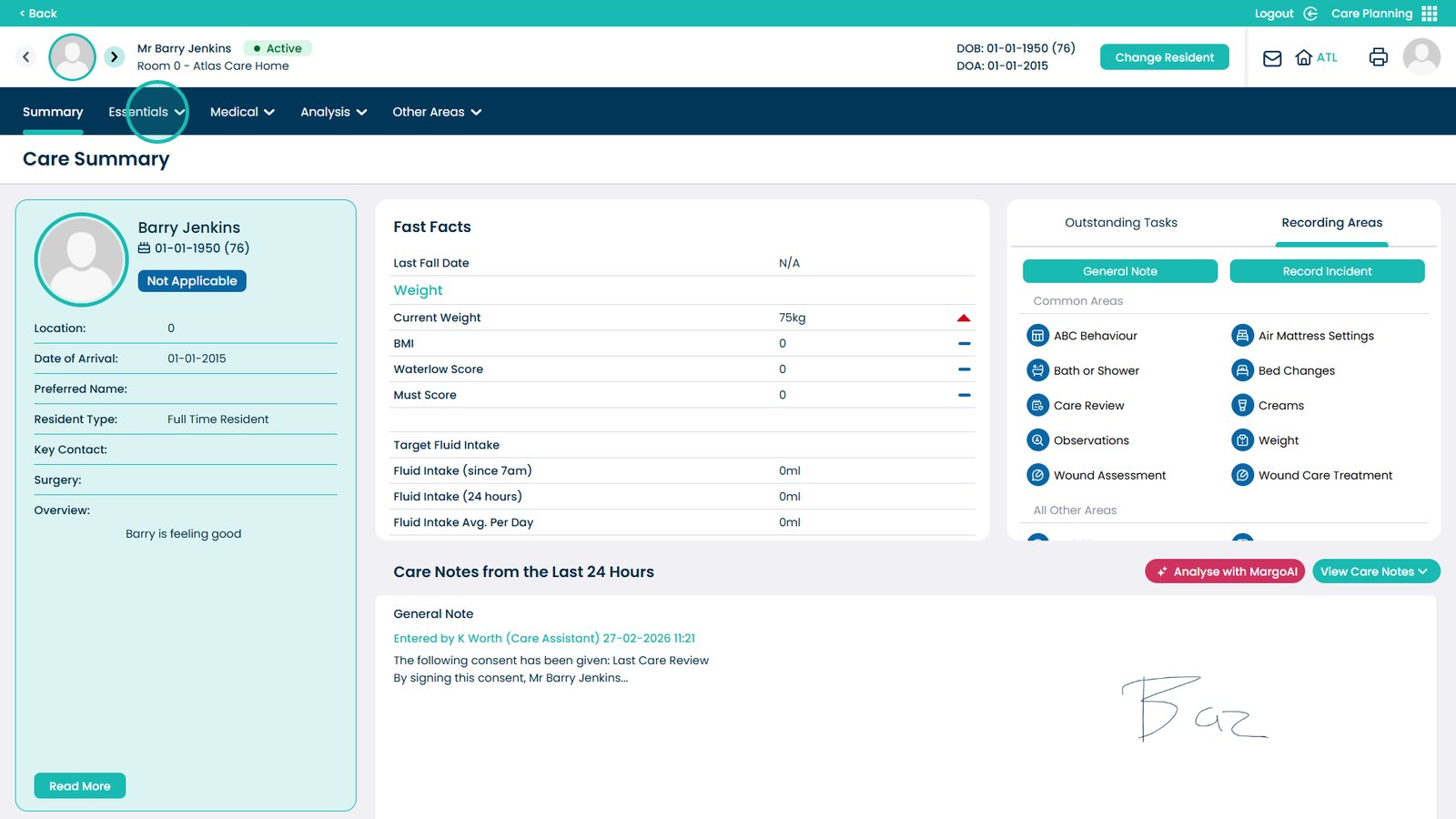
Open the Essentials drop-down
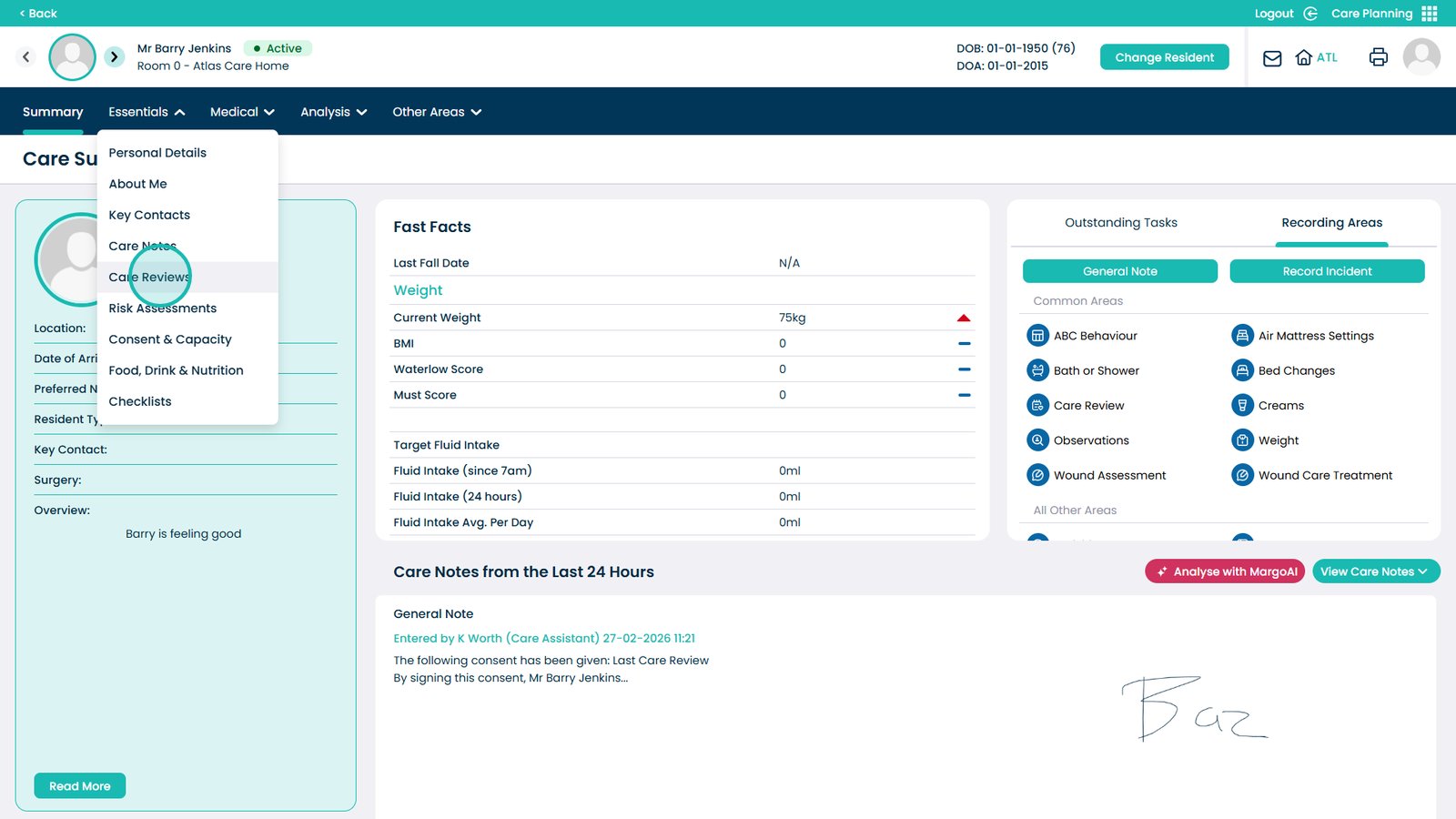
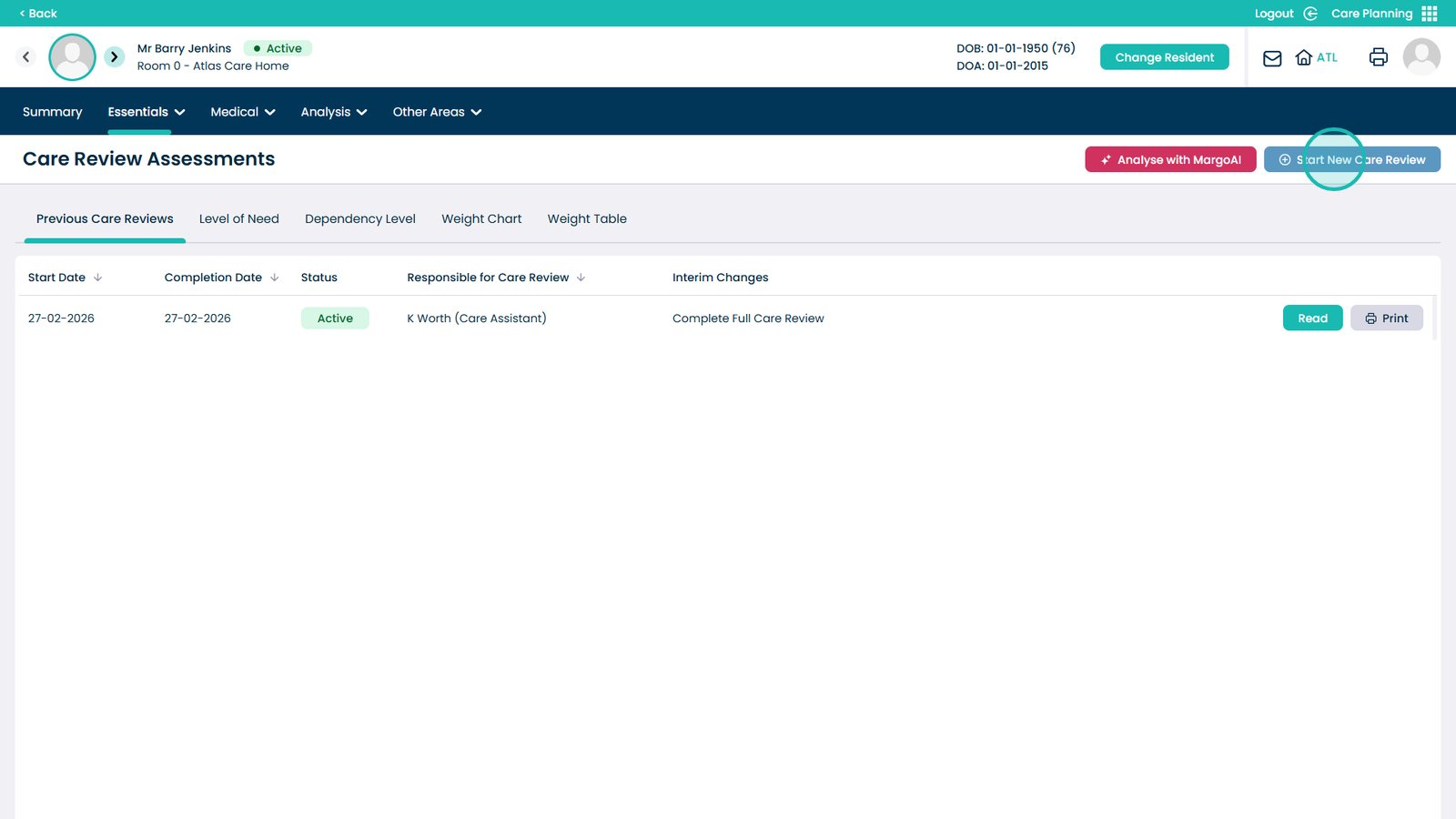
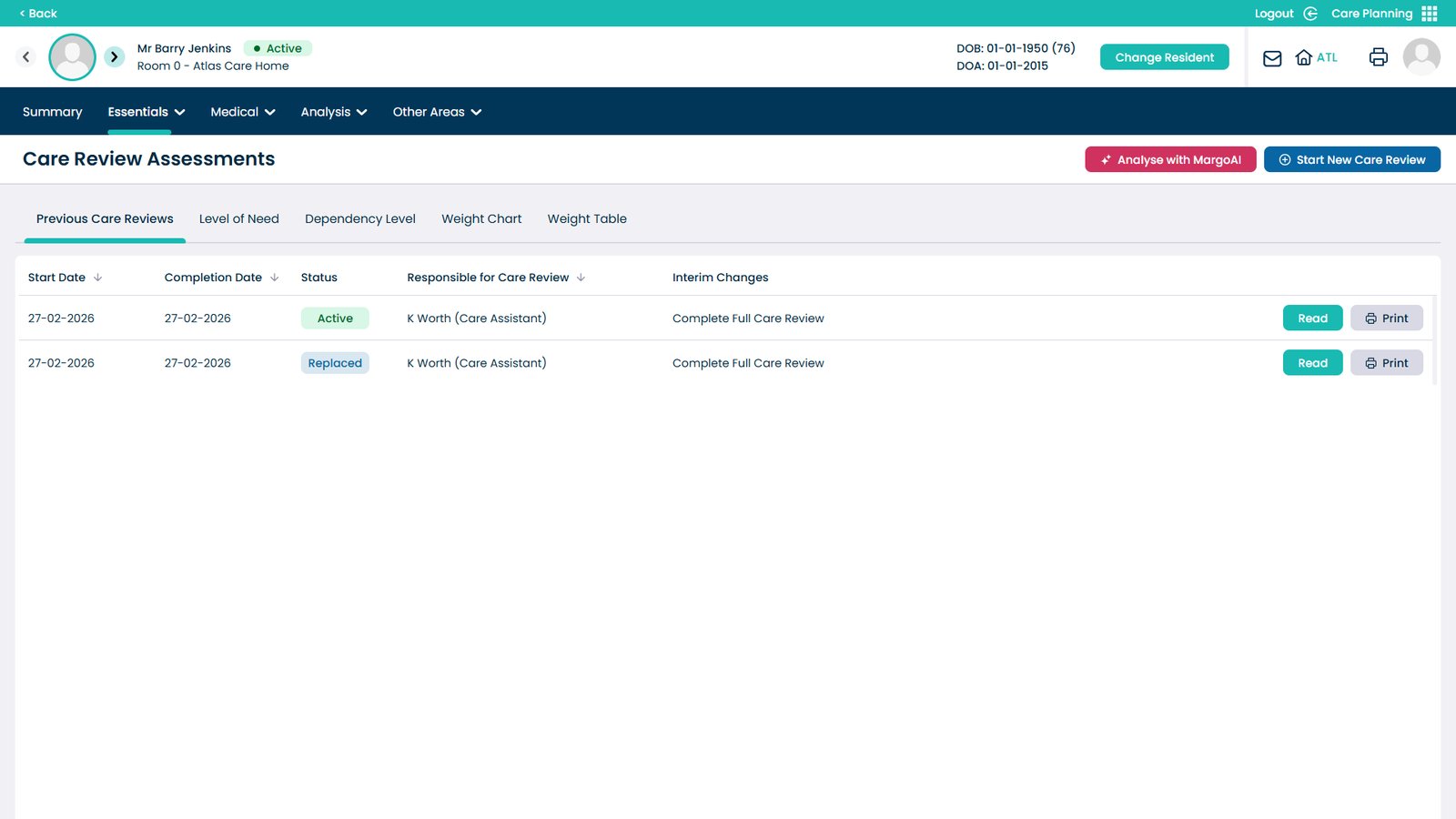
Choose Care Reviews
To start a new Care Review, click the Start New Care Review button
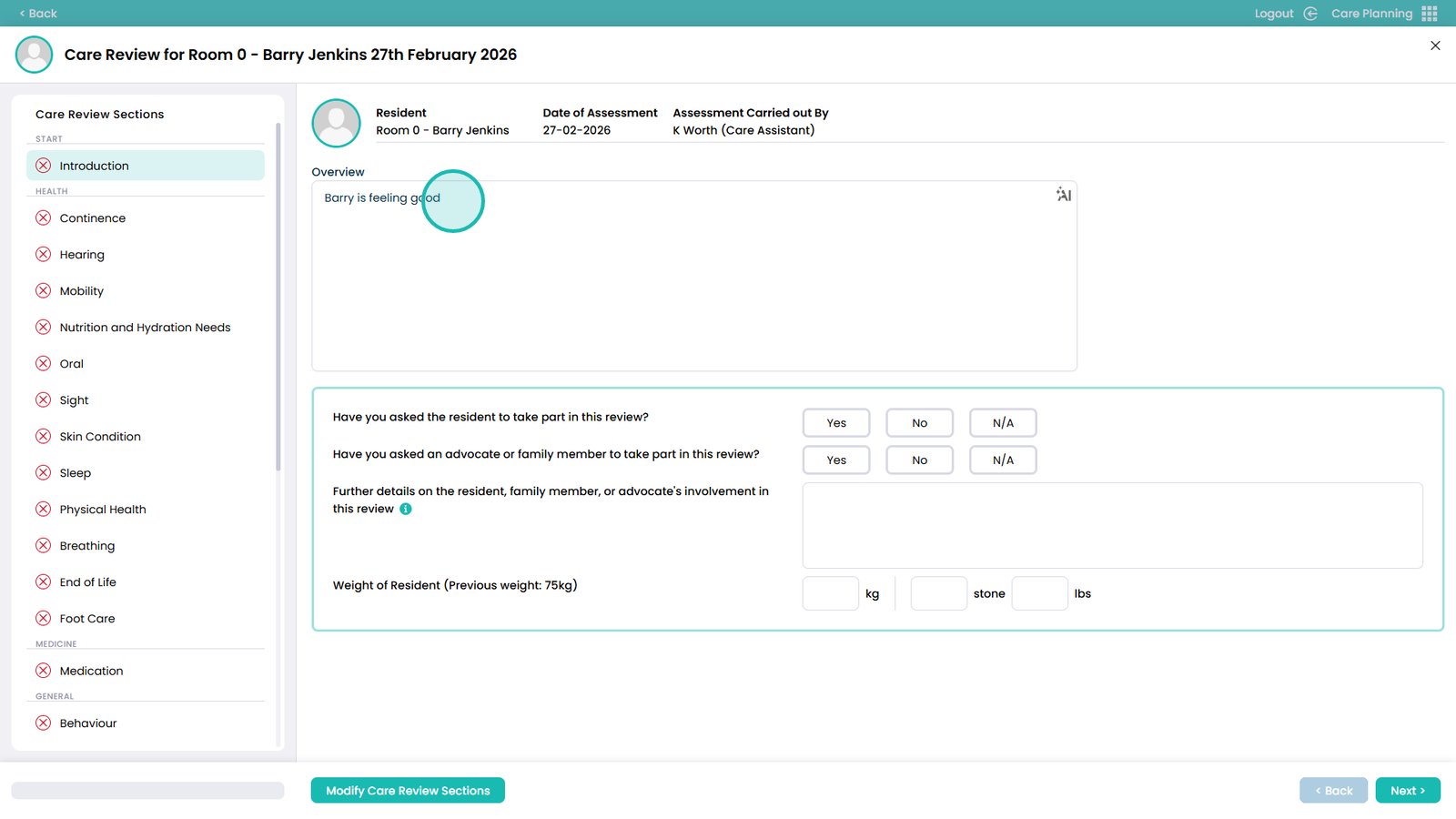
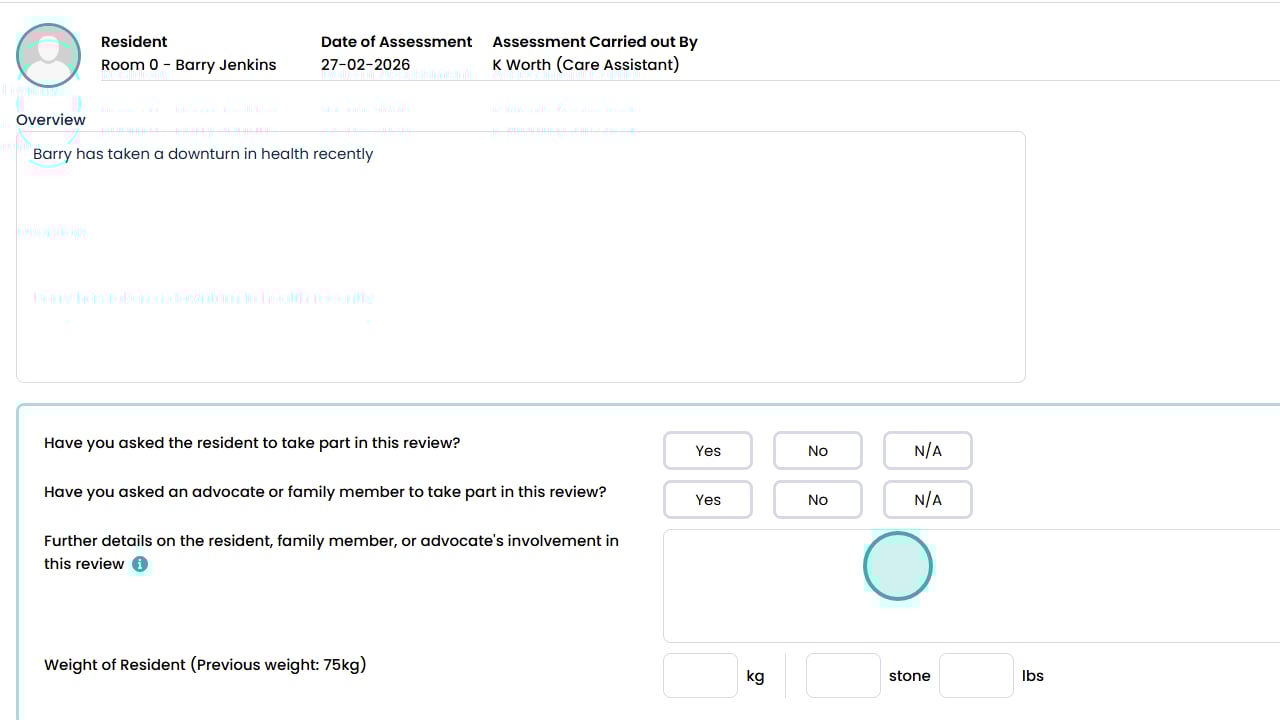
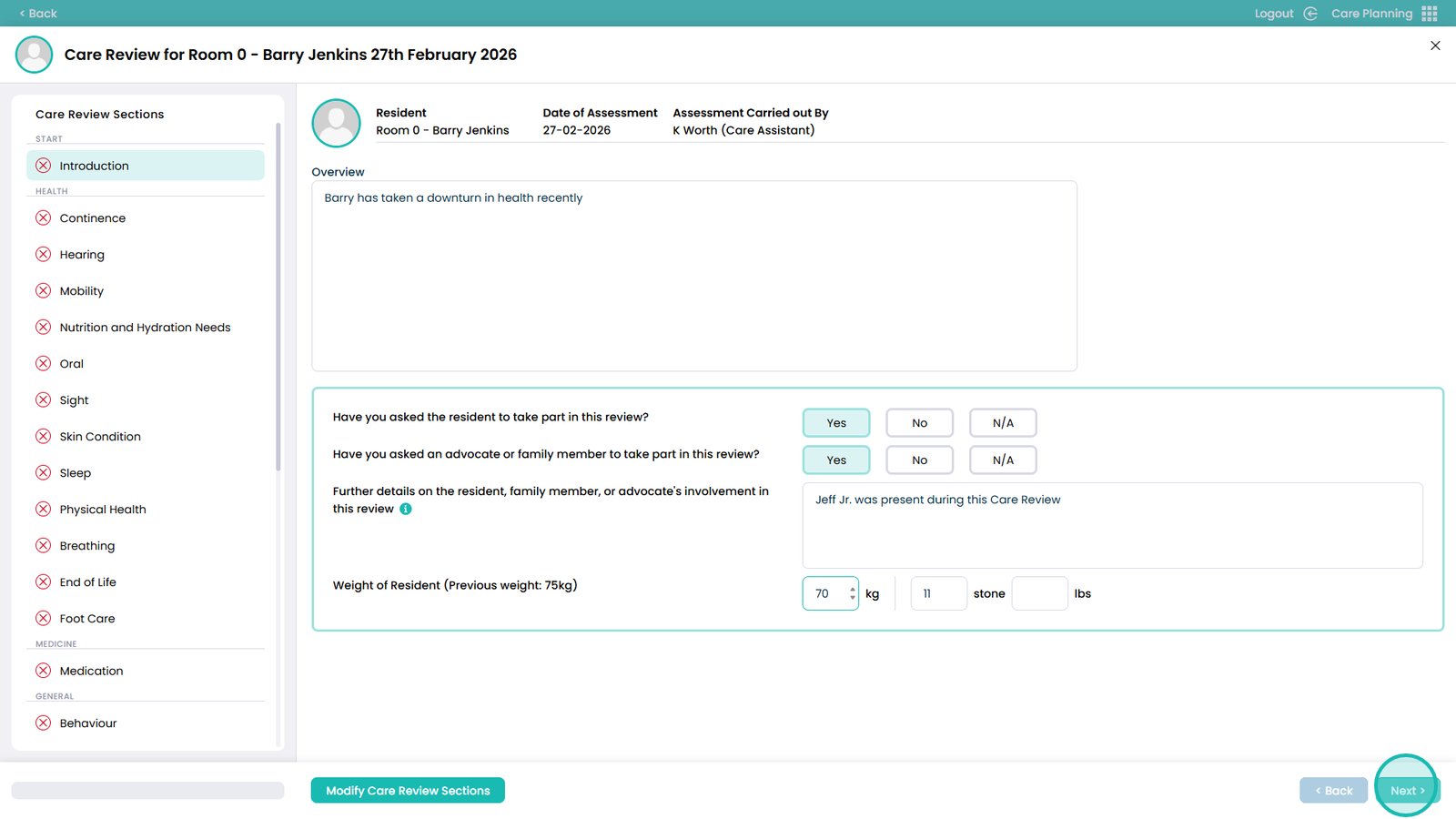
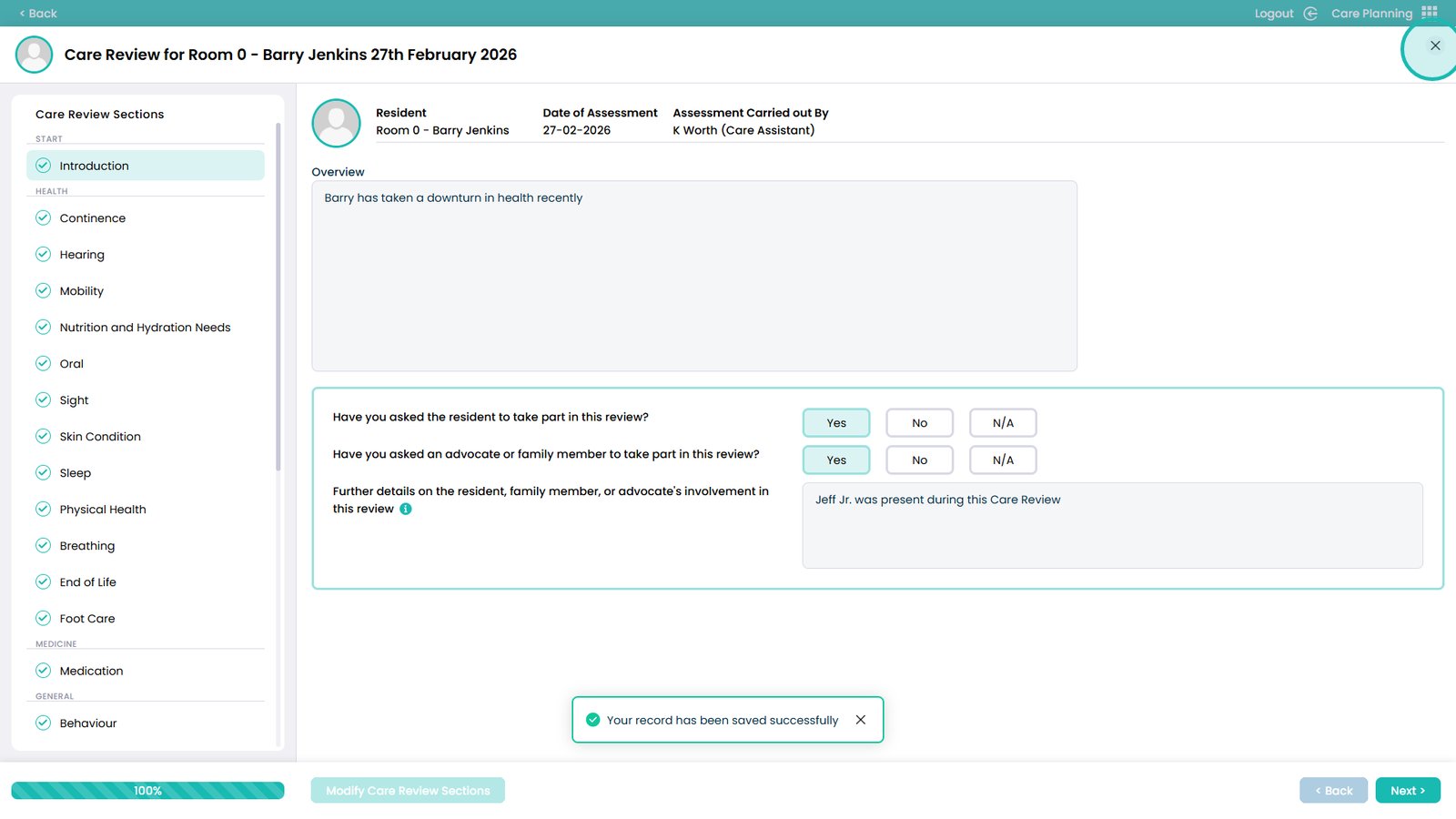
Enter details into the Overview box for the introduction
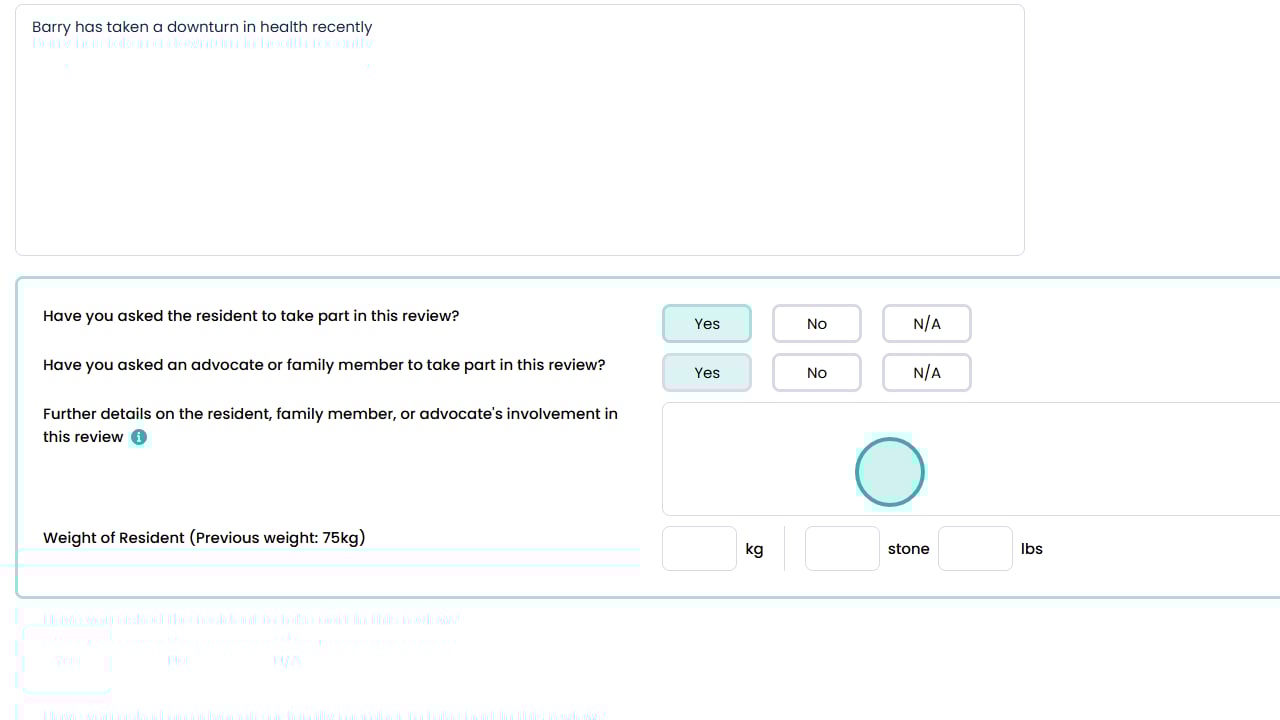
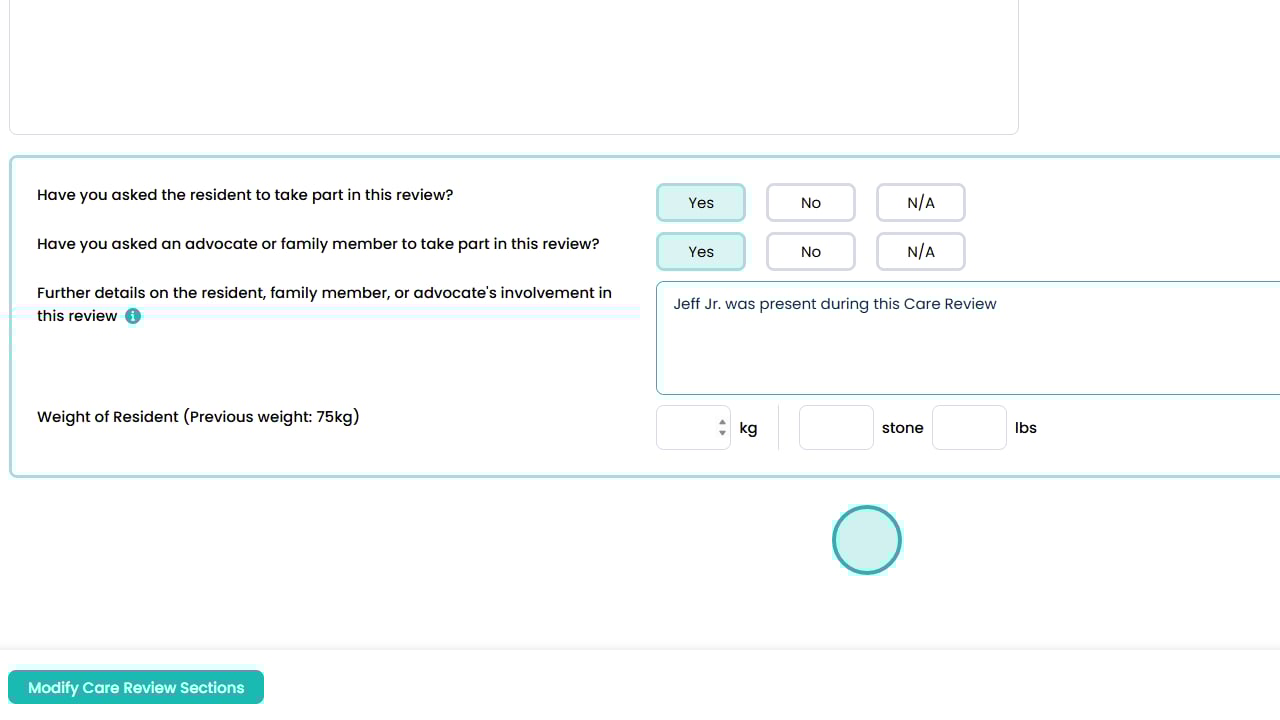
Select if you have asked the resident to take part in the review
Select if you have asked an advocate or family member to be part of the review
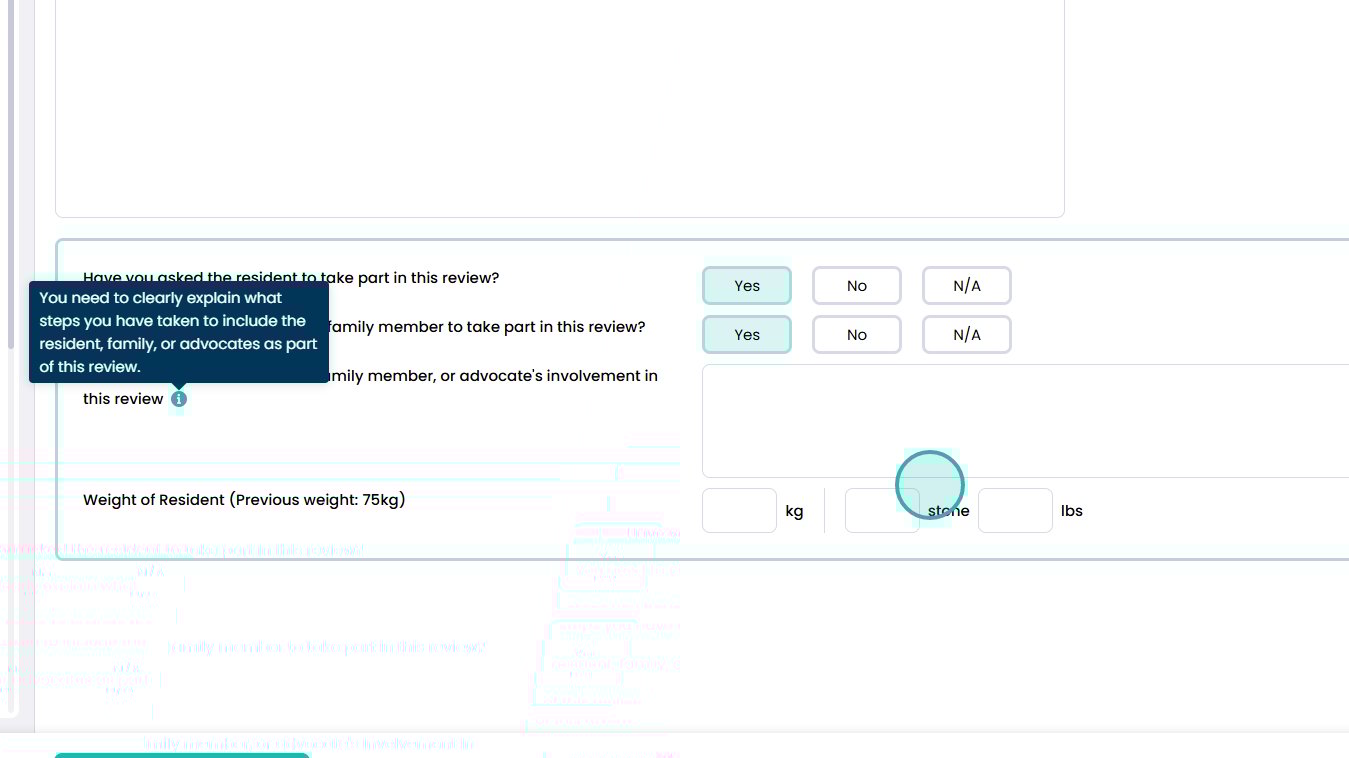
Enter how you have included the resident, family, or advocate in this review
Enter the weight of the resident — the previous weight will be displayed next to the question
Click Next when finished in this area to move to the next one
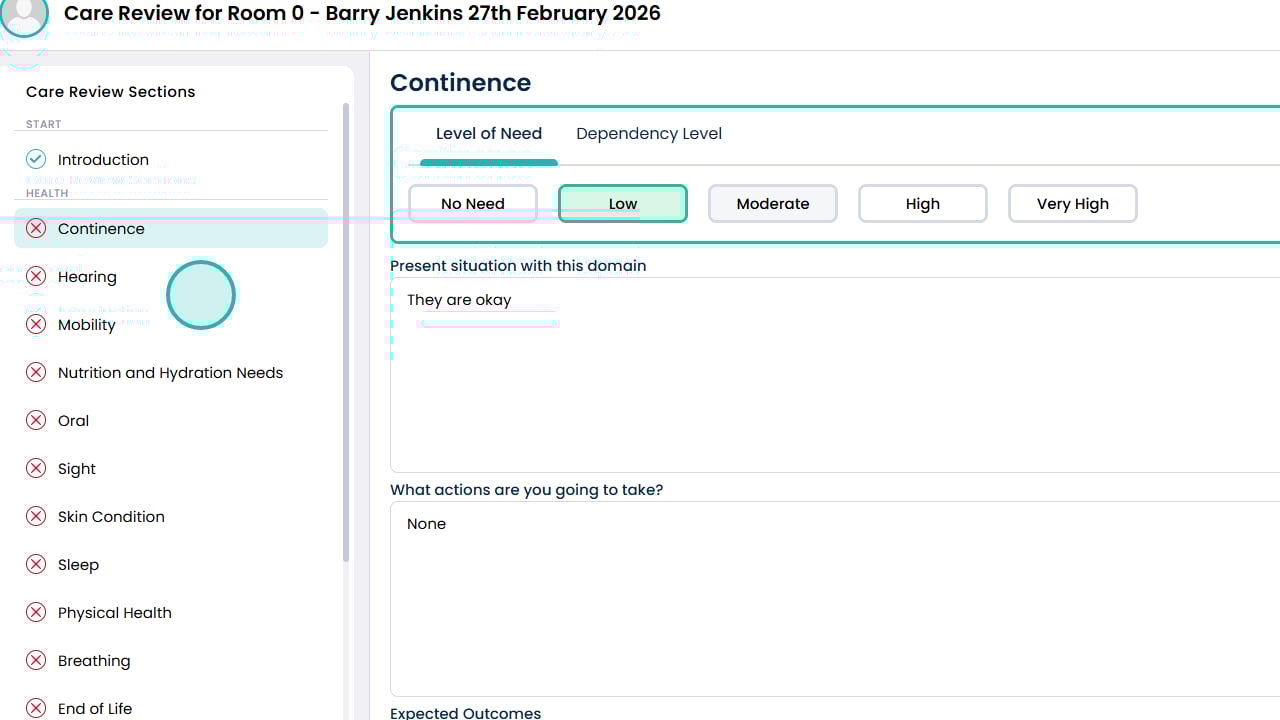
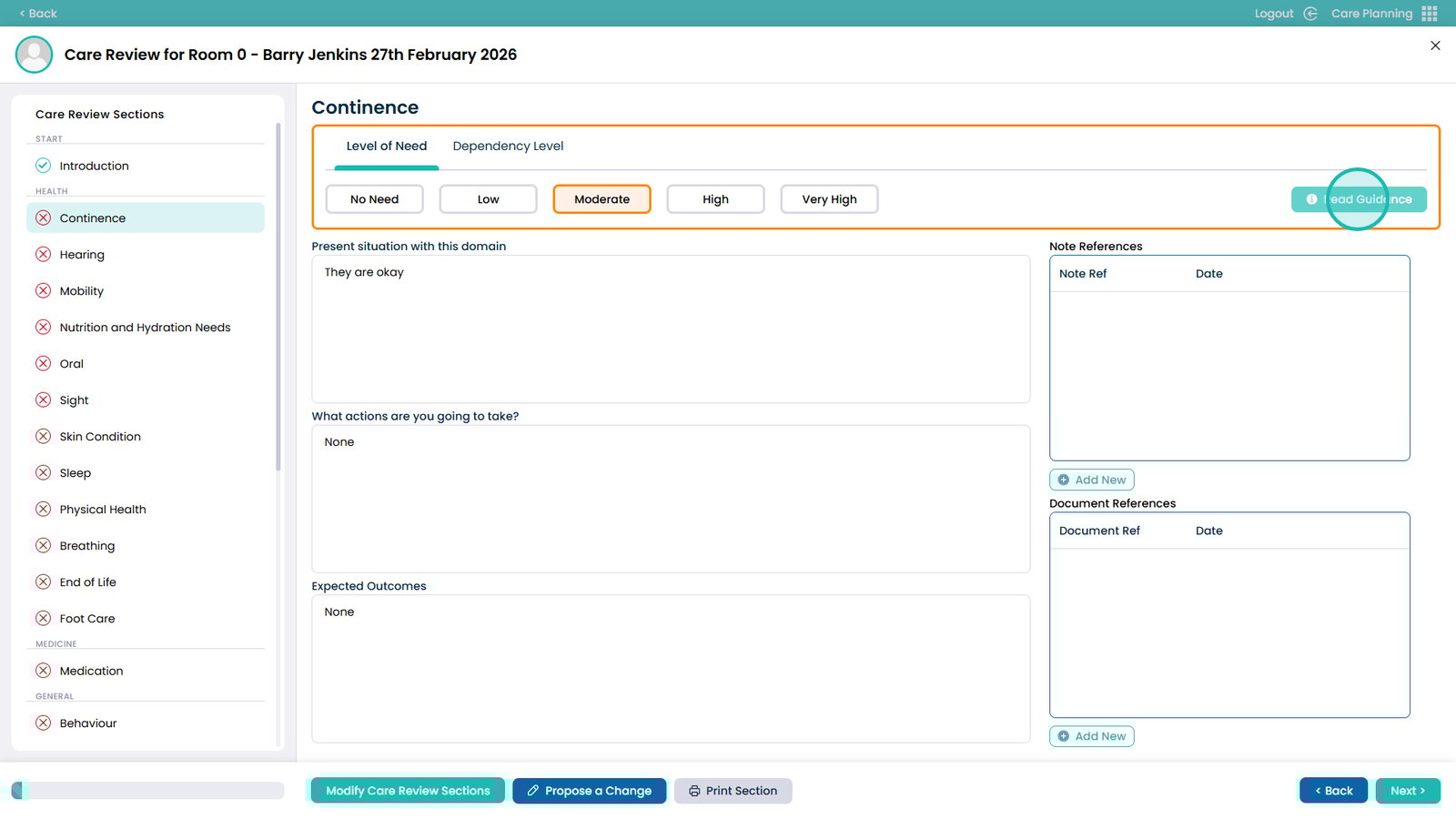
The area you are currently in will be highlighted on the left
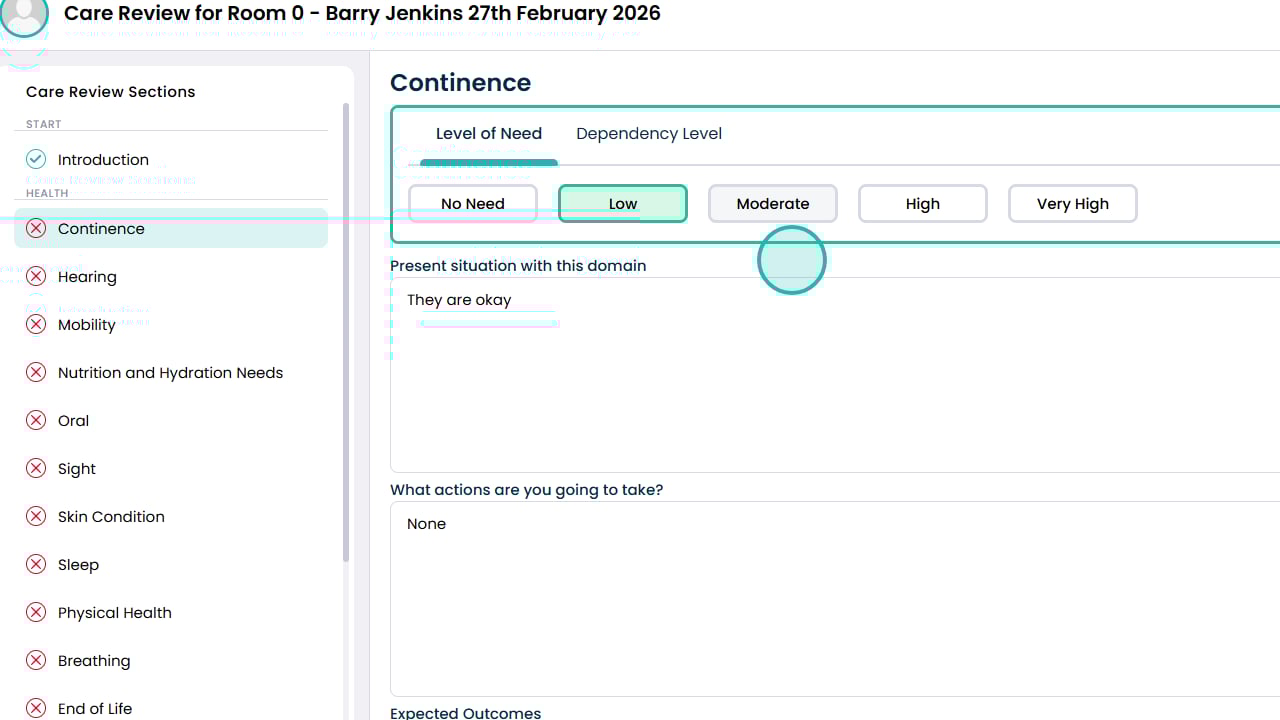
Choose the Level of Need
You can view the guidance for the levels by clicking this button
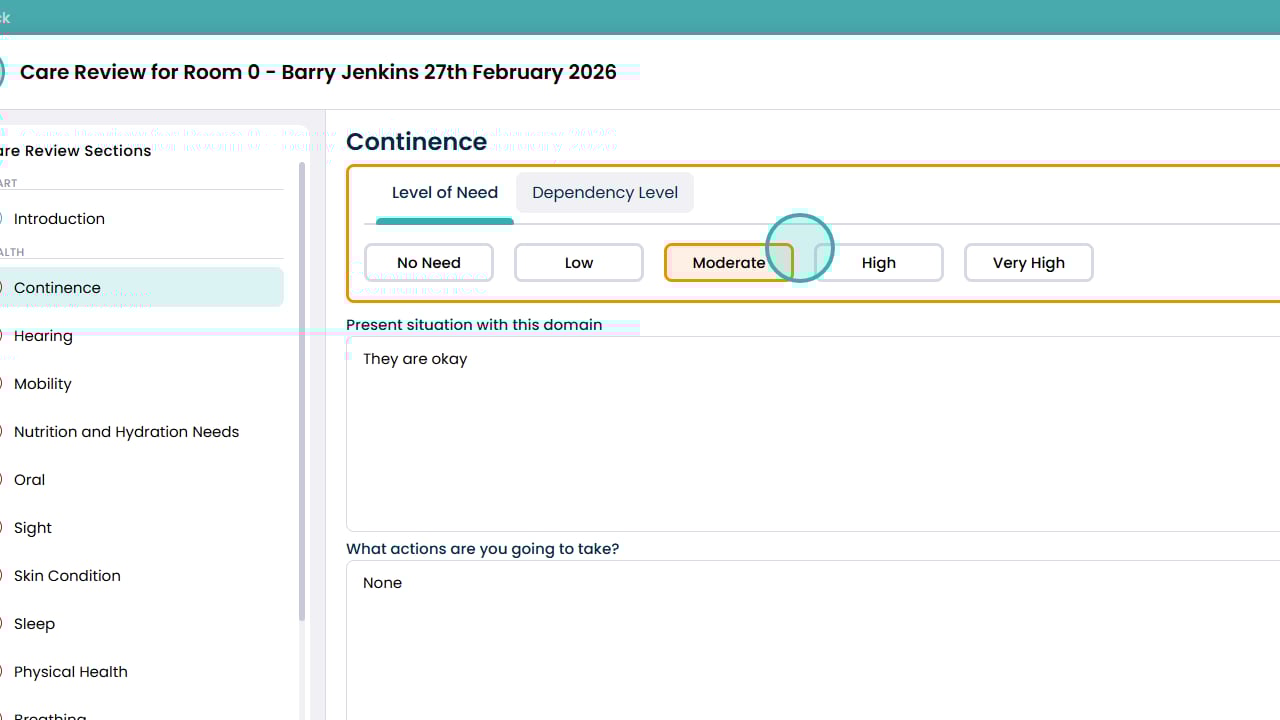
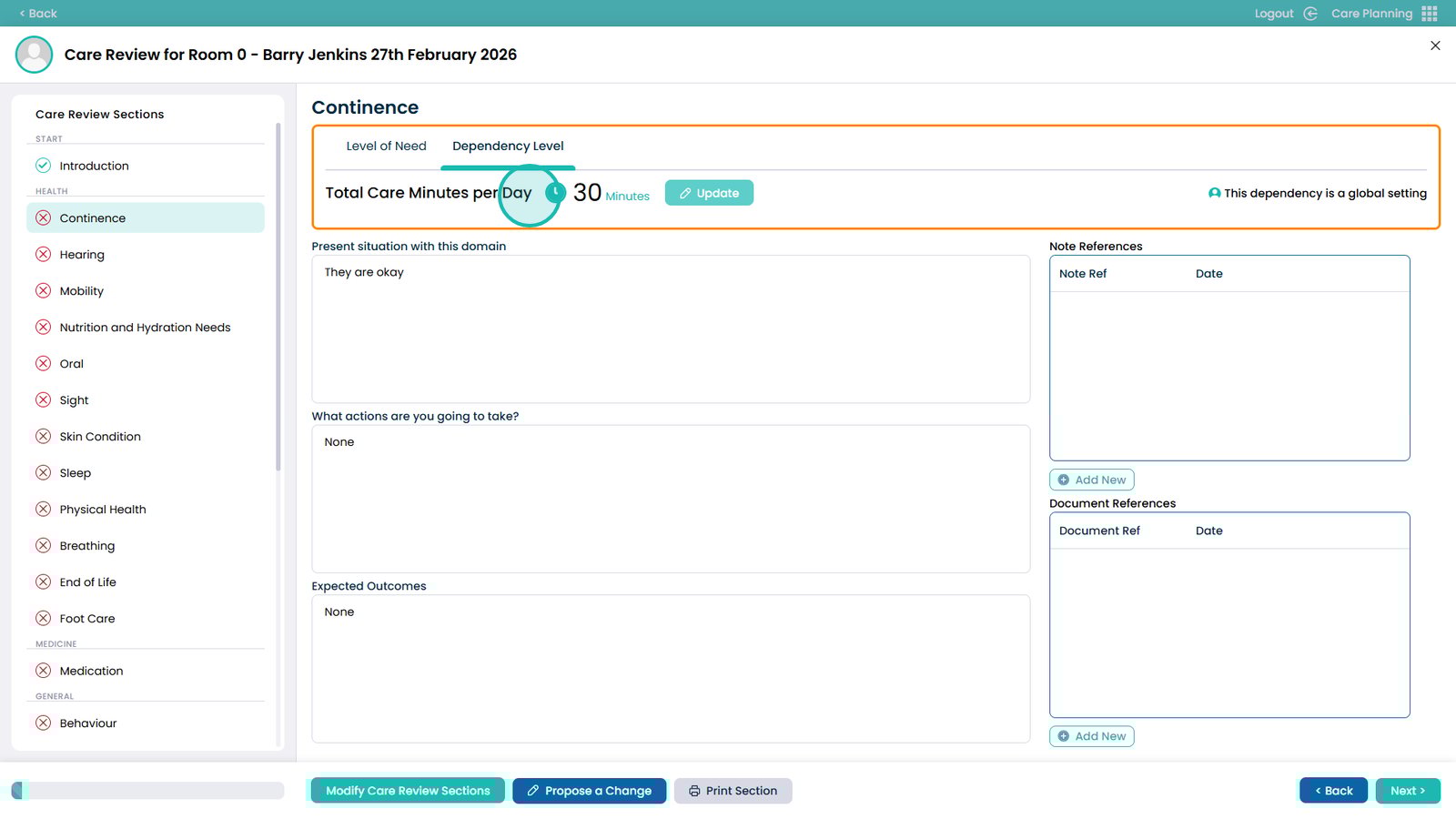
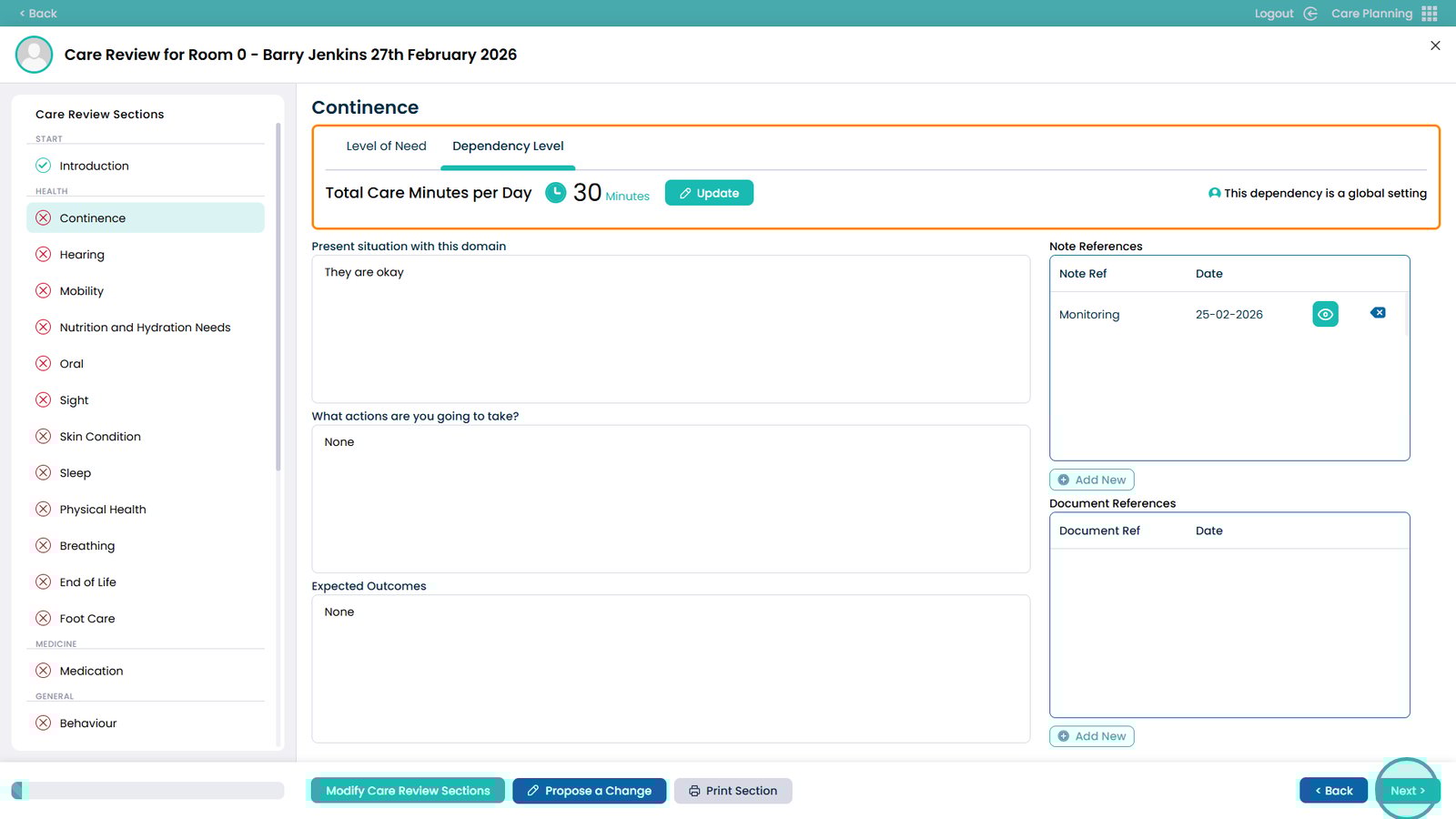
Click the Dependency Level to see how long the service user requires
The total Care Minutes per Day is calculated by the Level of Need and is based on the site’s settings
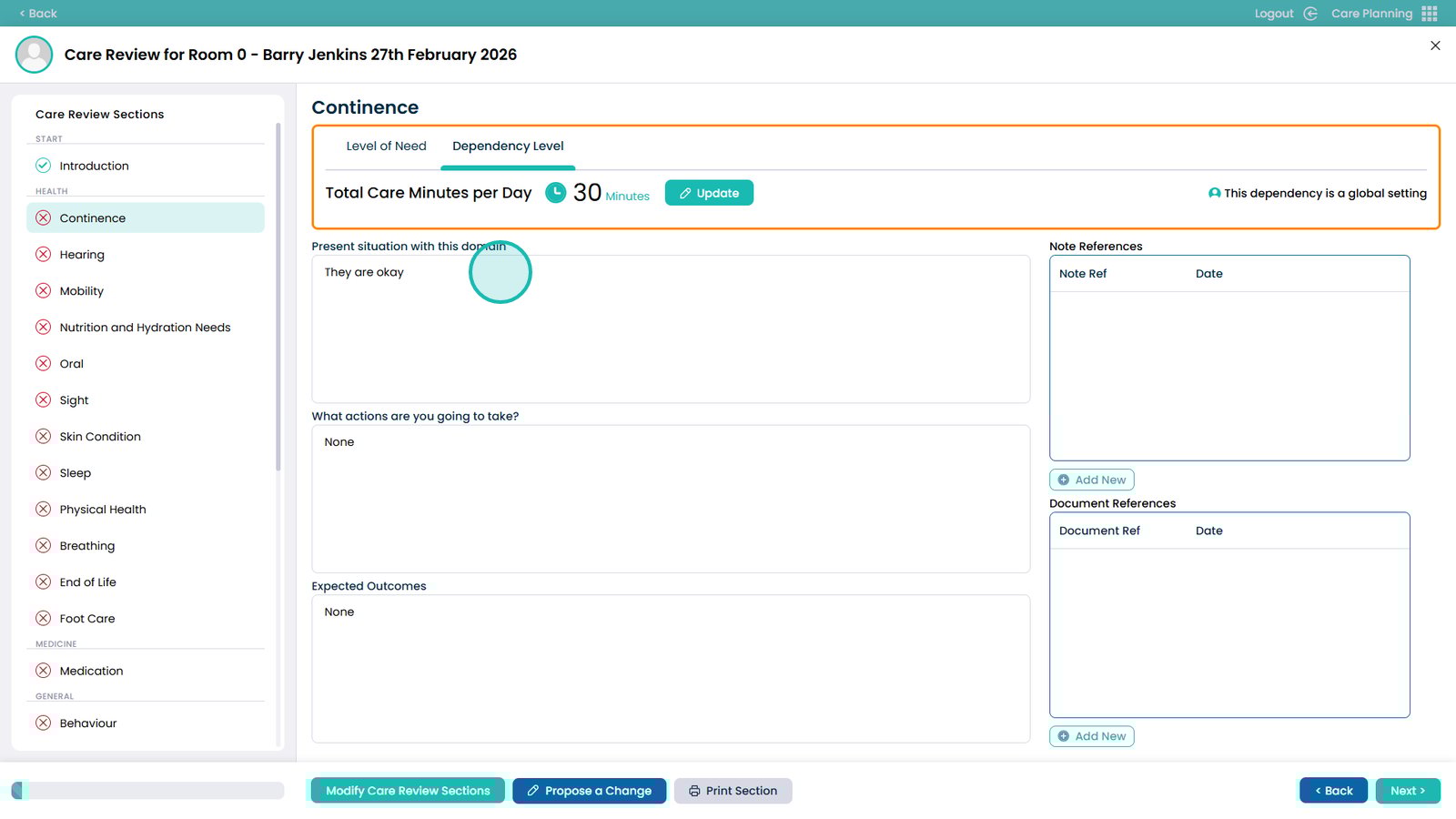
Enter the present situation with this domain
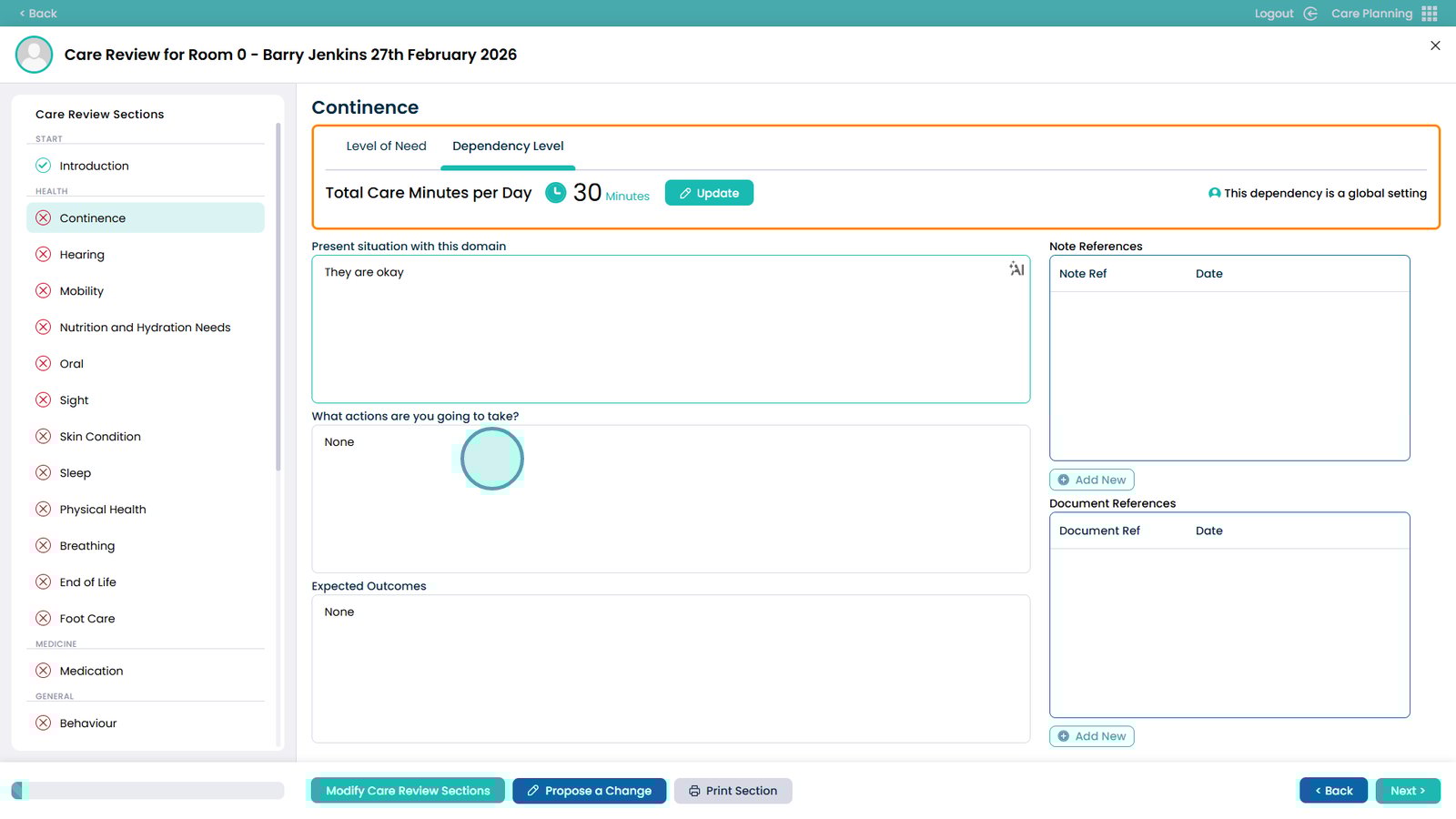
Choose the actions that you are going to take to help
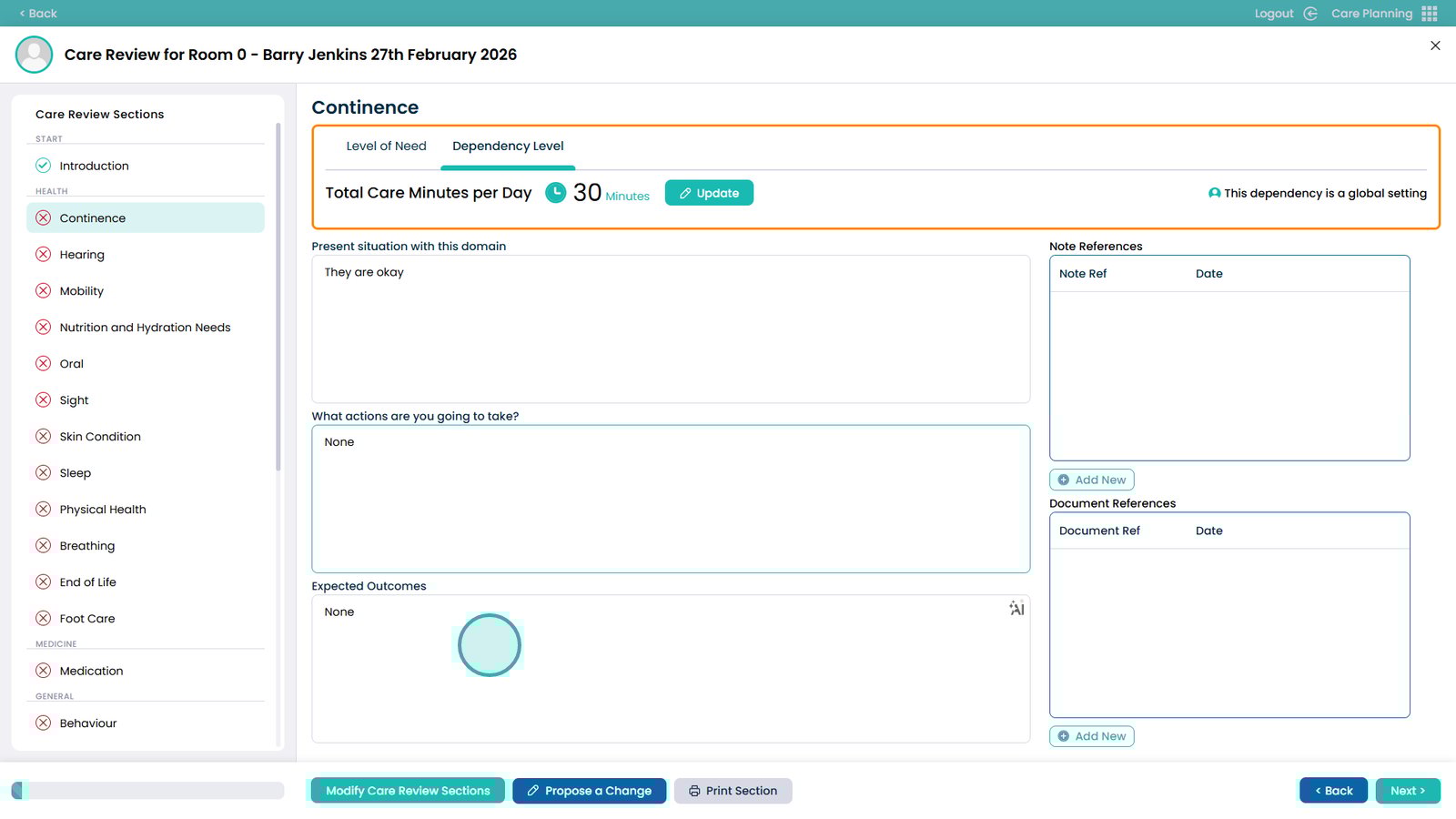
Choose the expected outcomes with the actions
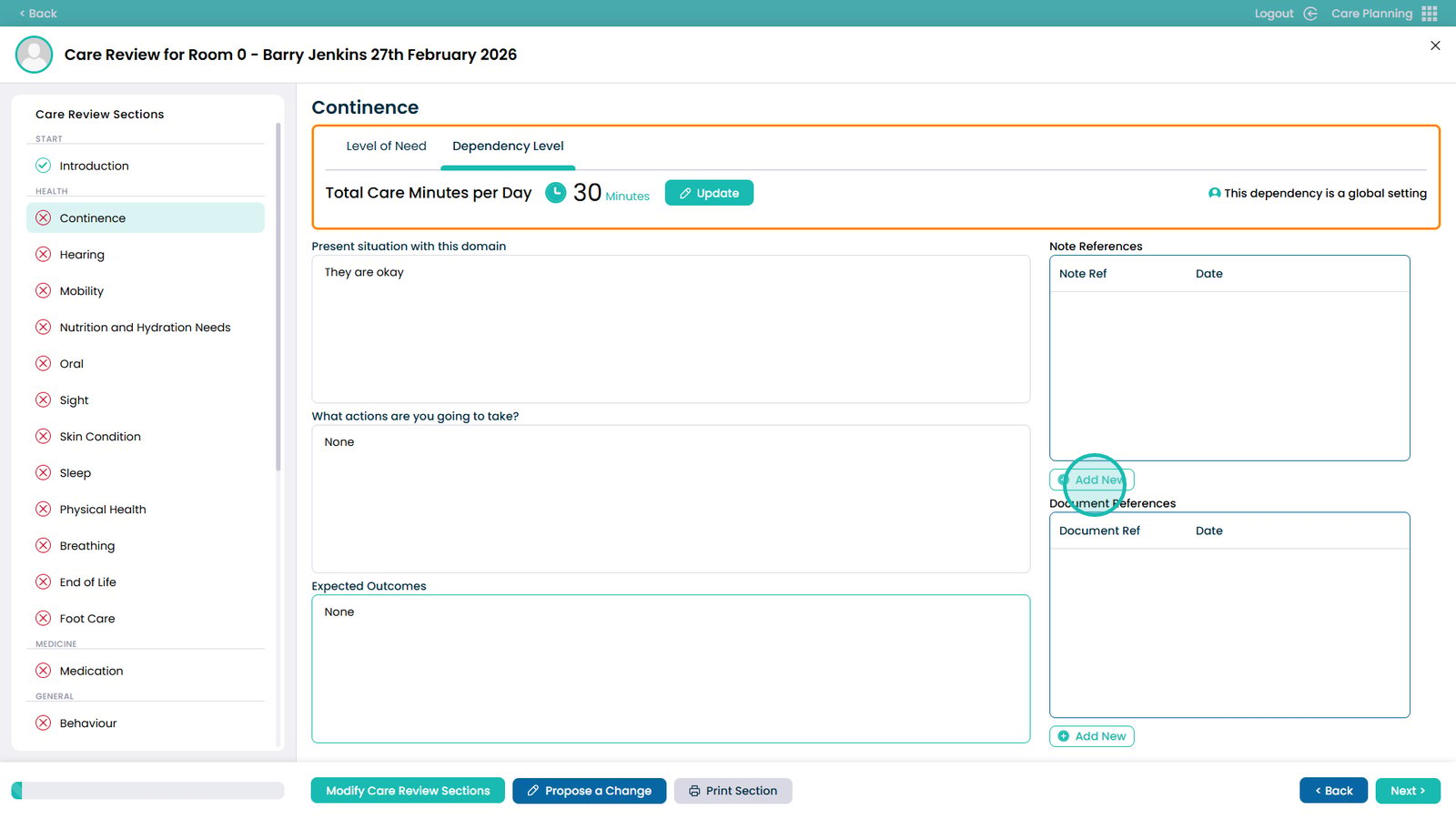
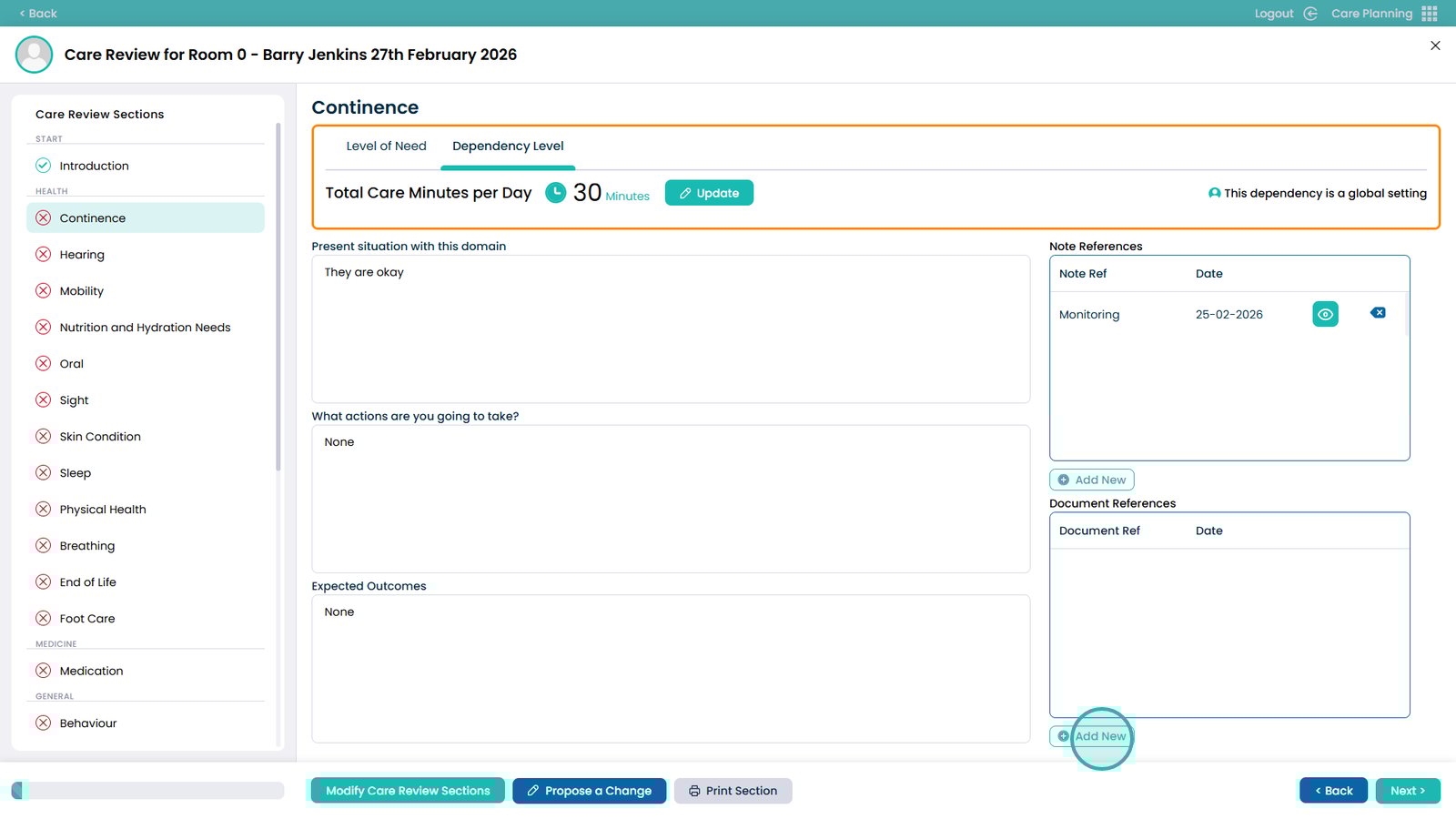
You can add Note References using the Add New button
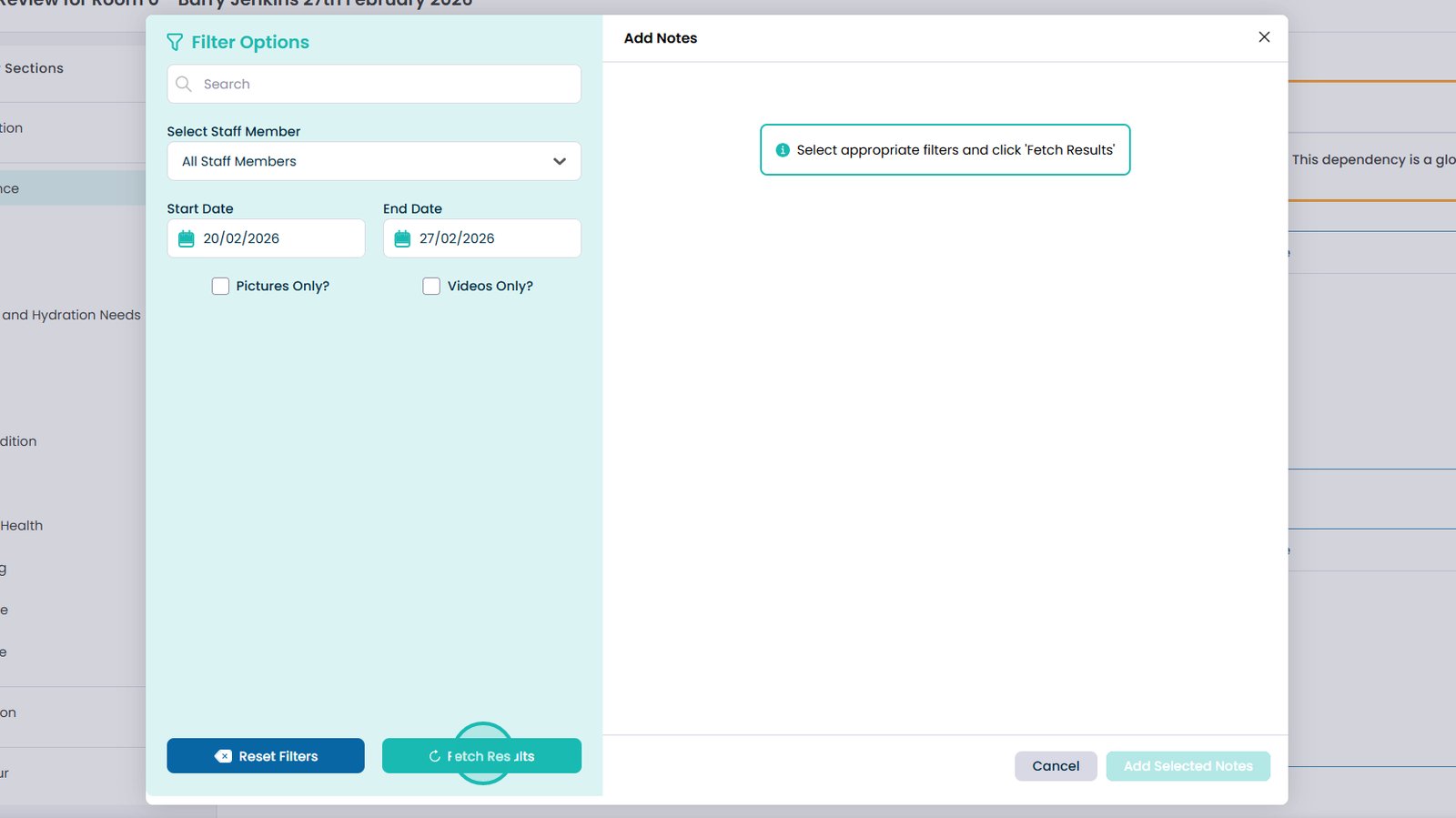
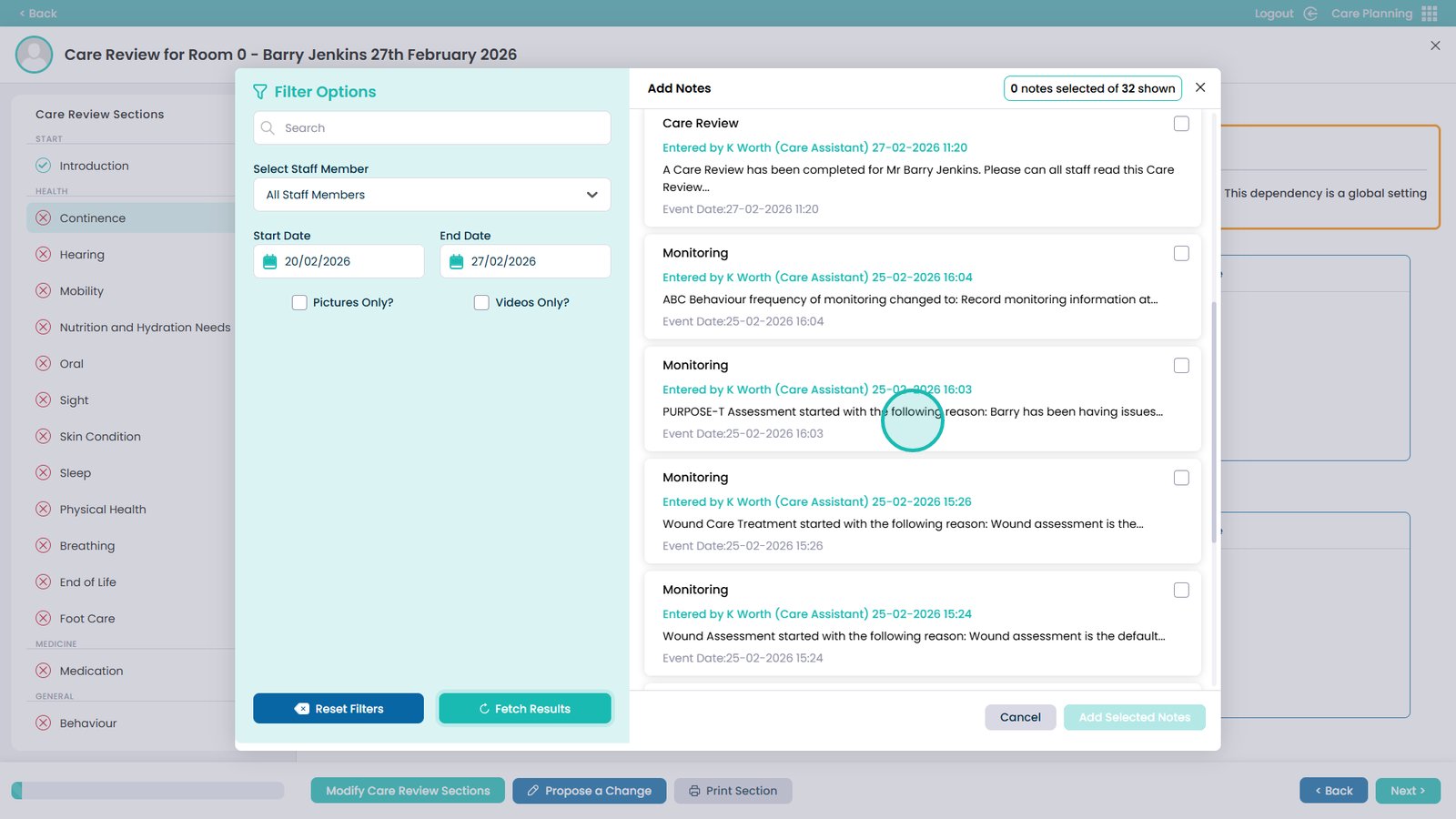
You can filter using the options above and then click Fetch Results to find the note
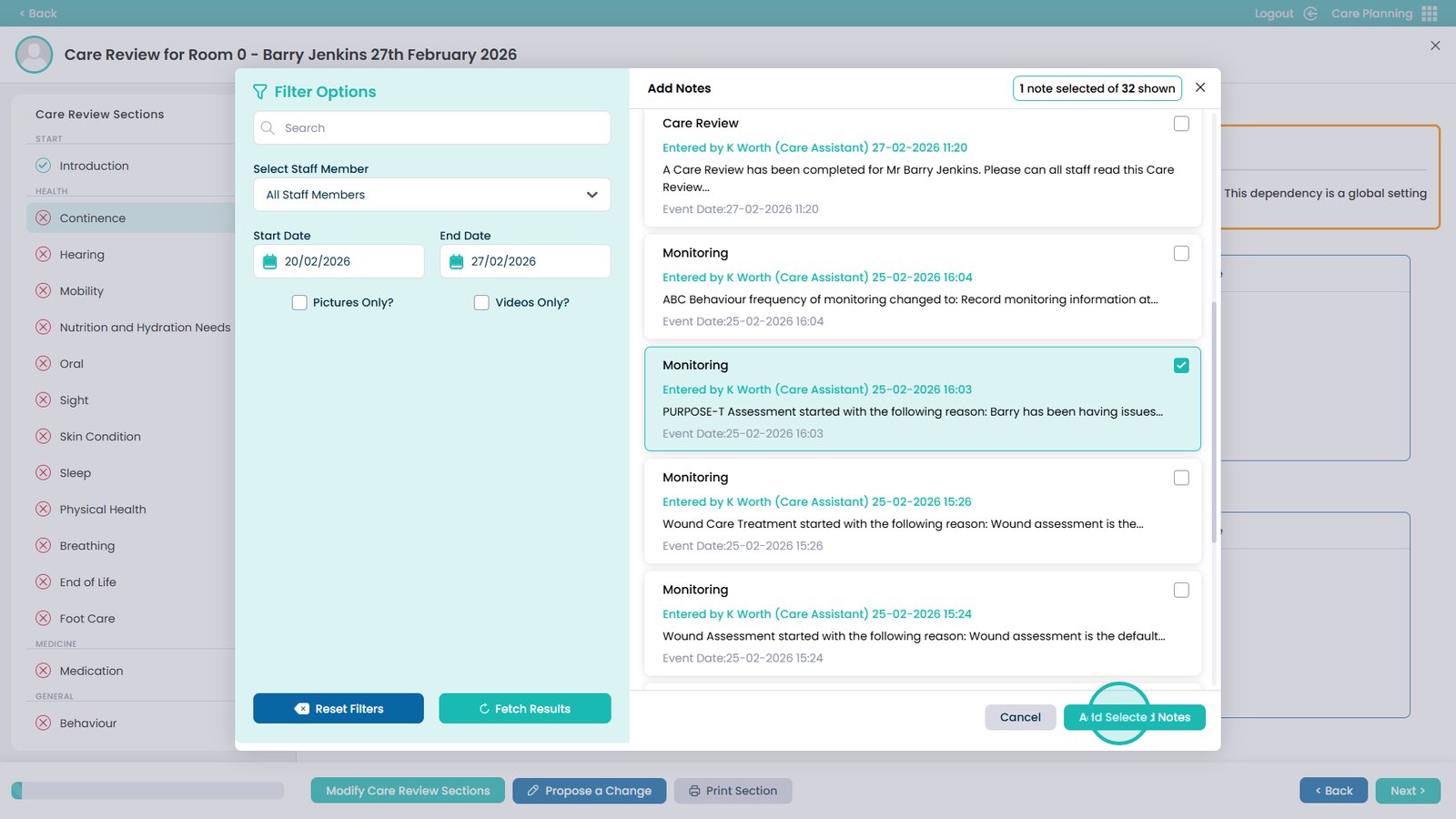
Select the note(s) you want to add to this area
Click Add Selected Notes to confirm your selection
You can also add Document References using the Add New button
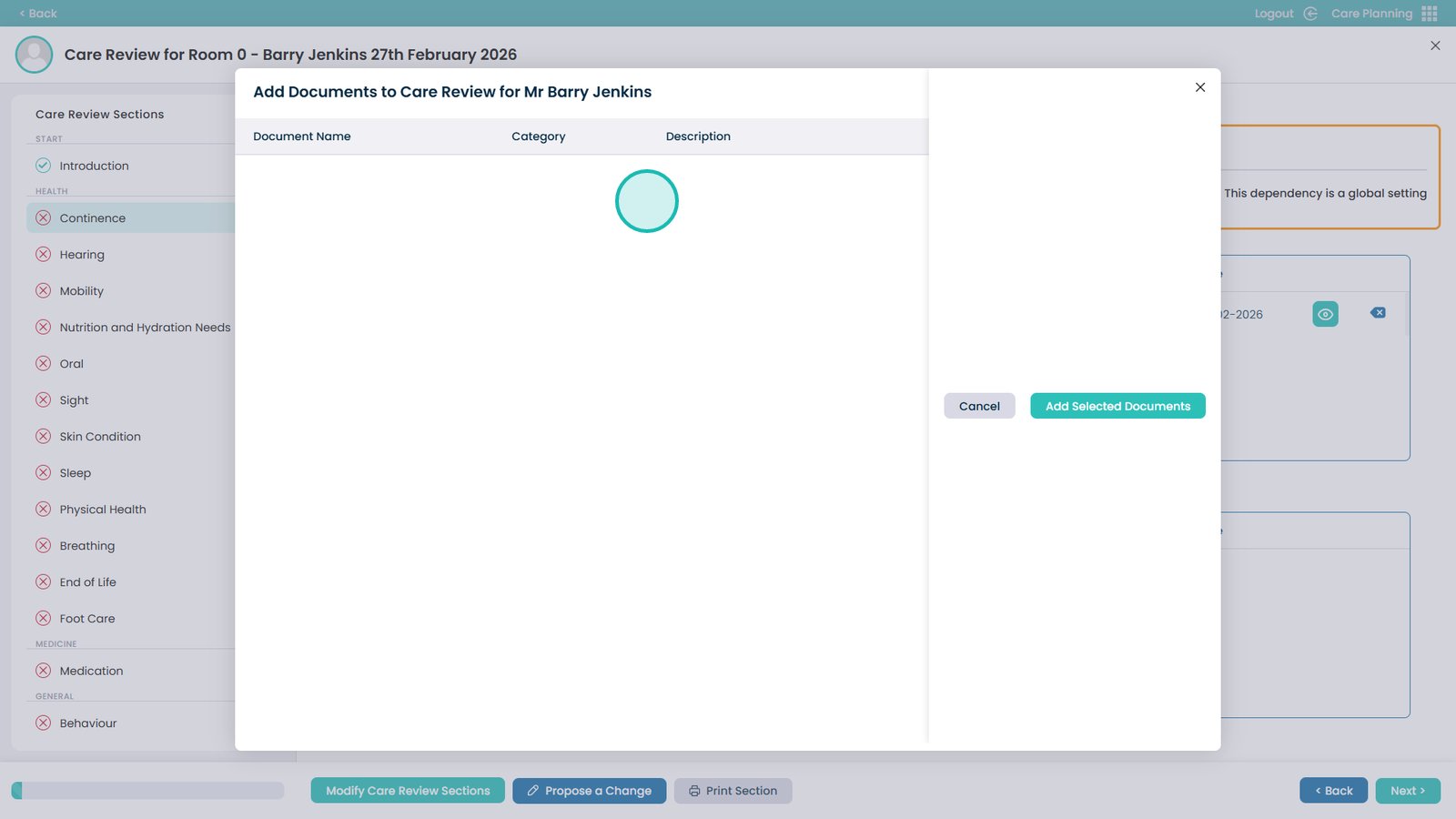
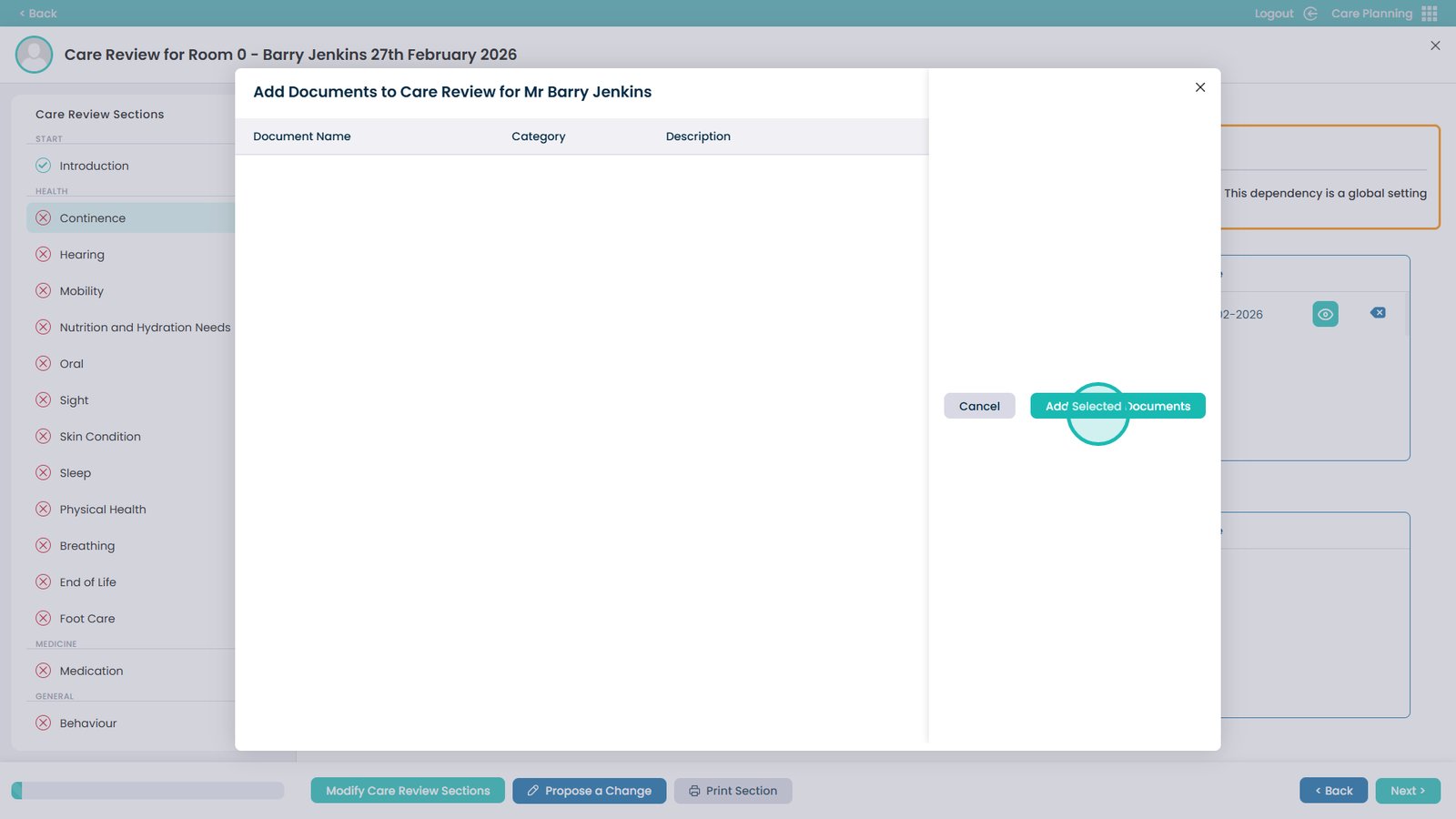
Documents will be listed on the left-hand side
When selected, click Add Selected Documents to input them into the review section
Finish the rest of the areas of the care review by clicking Next
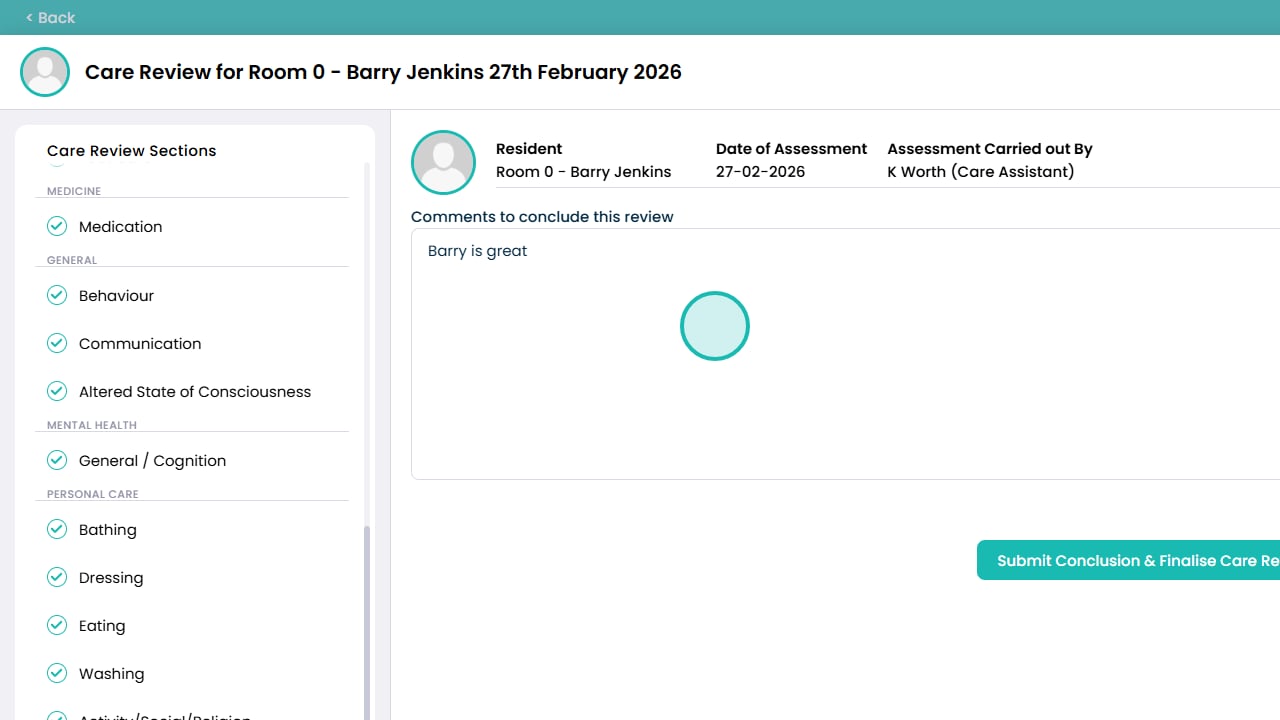
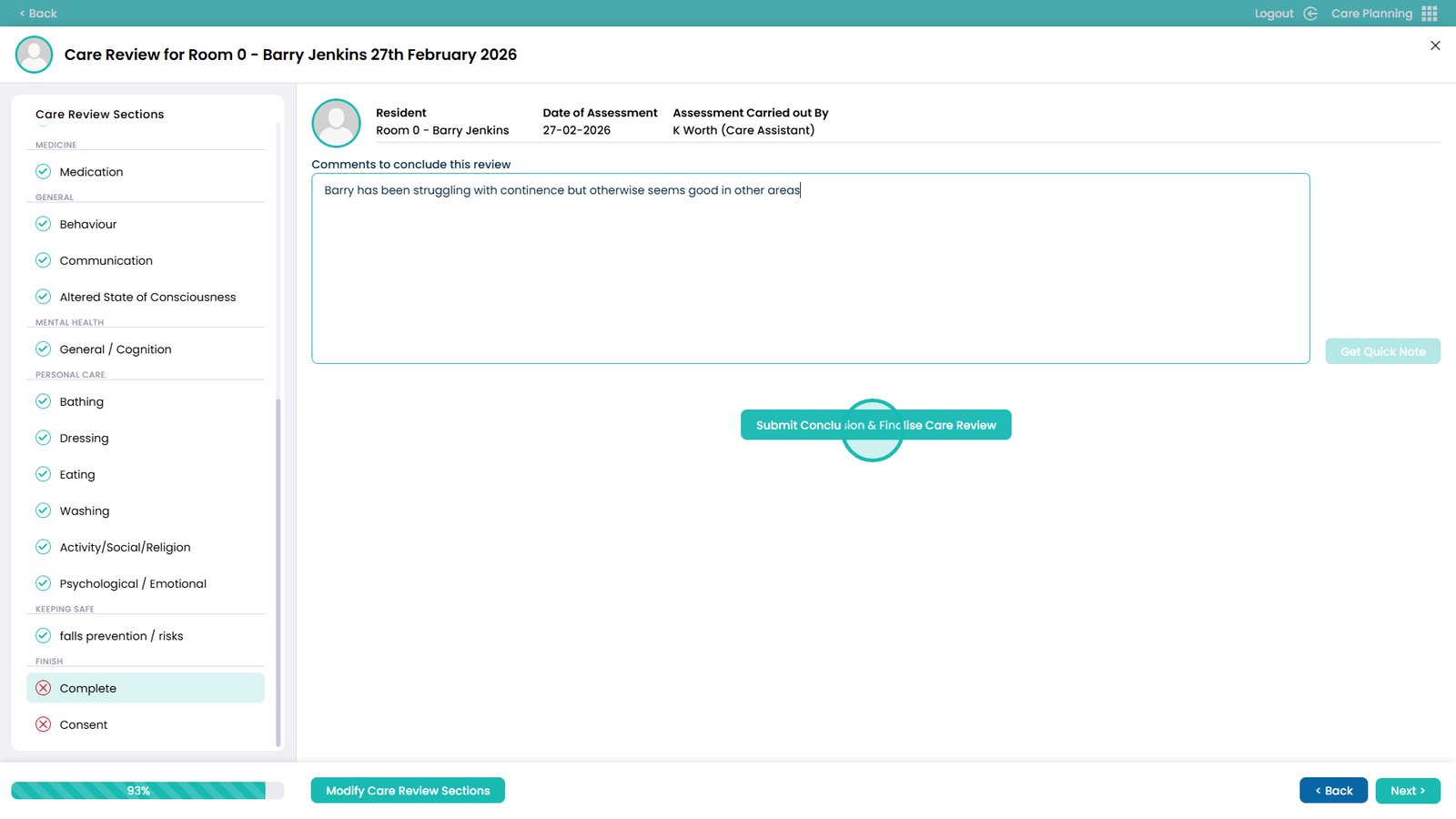
Once you have completed the review, input concluding comments within this box
Submit the conclusion and finalise the care review
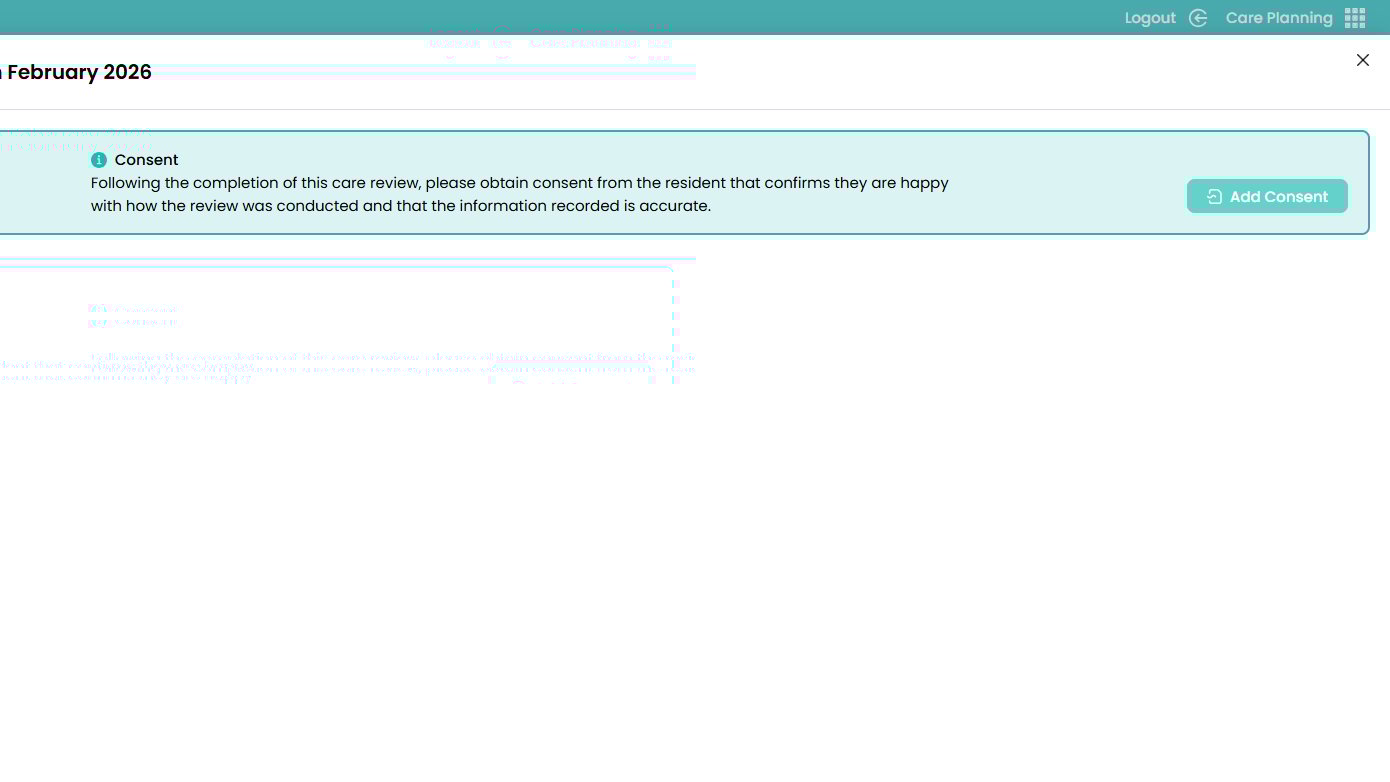
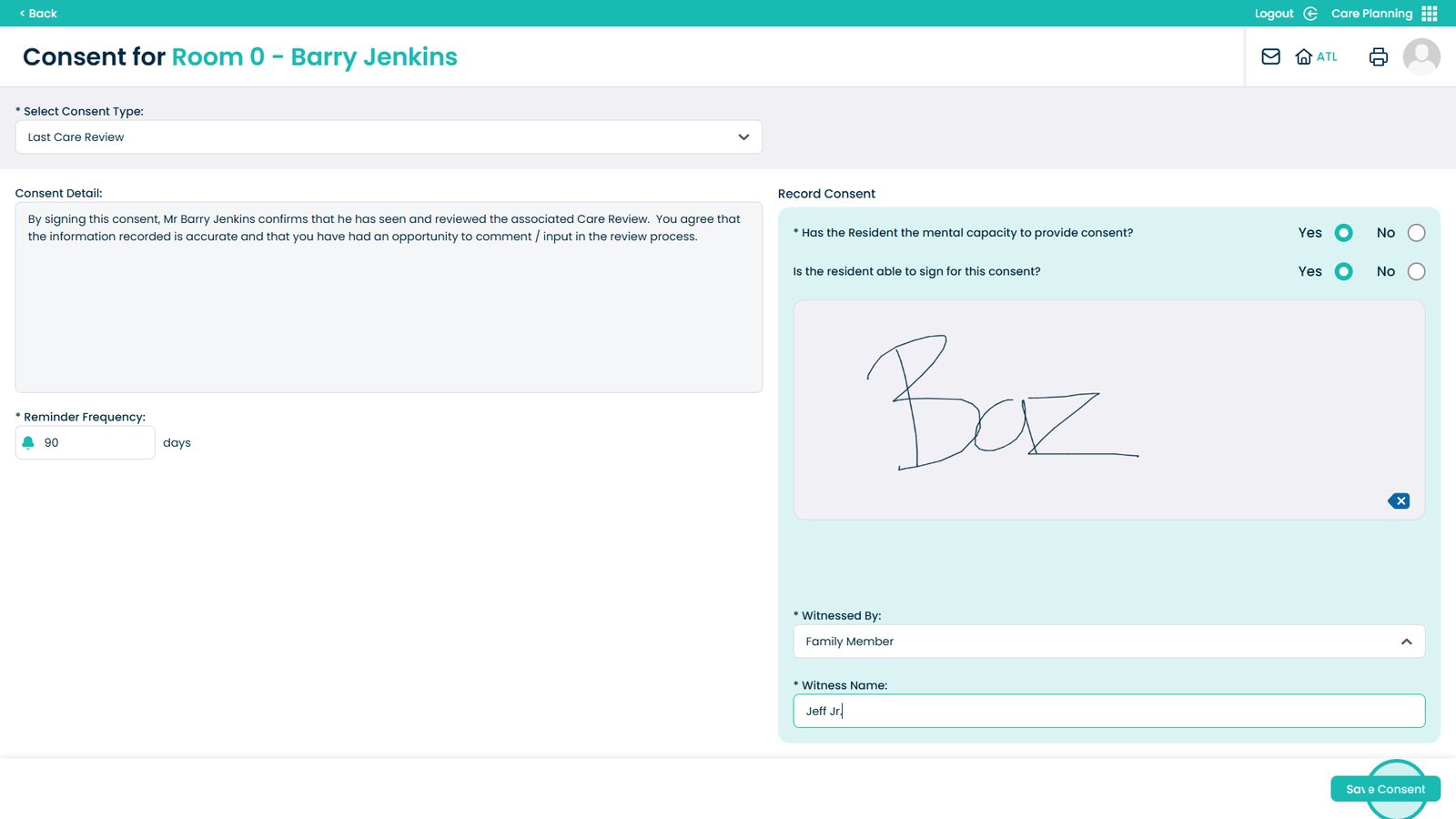
Consent will be required to finish the review
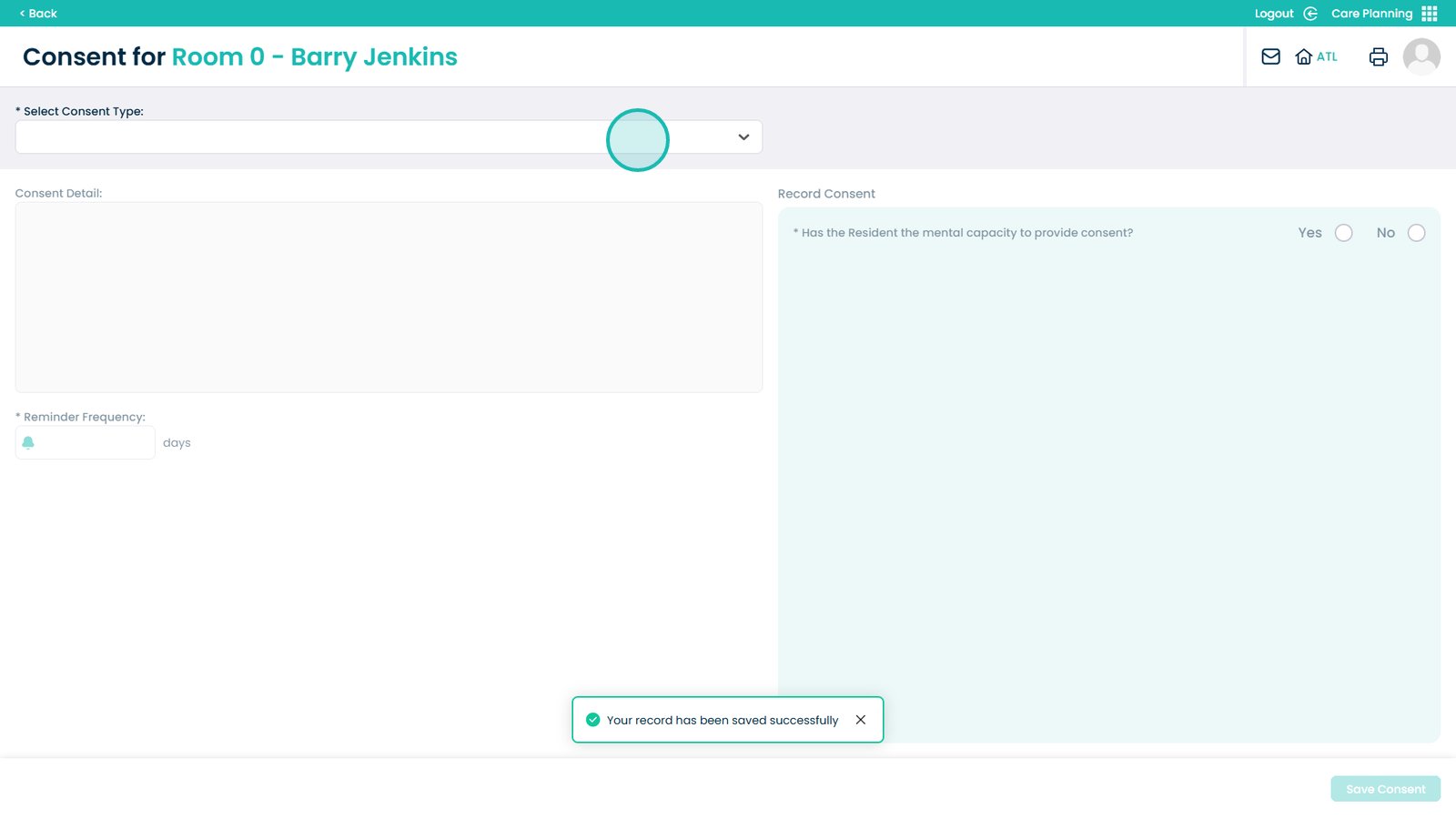
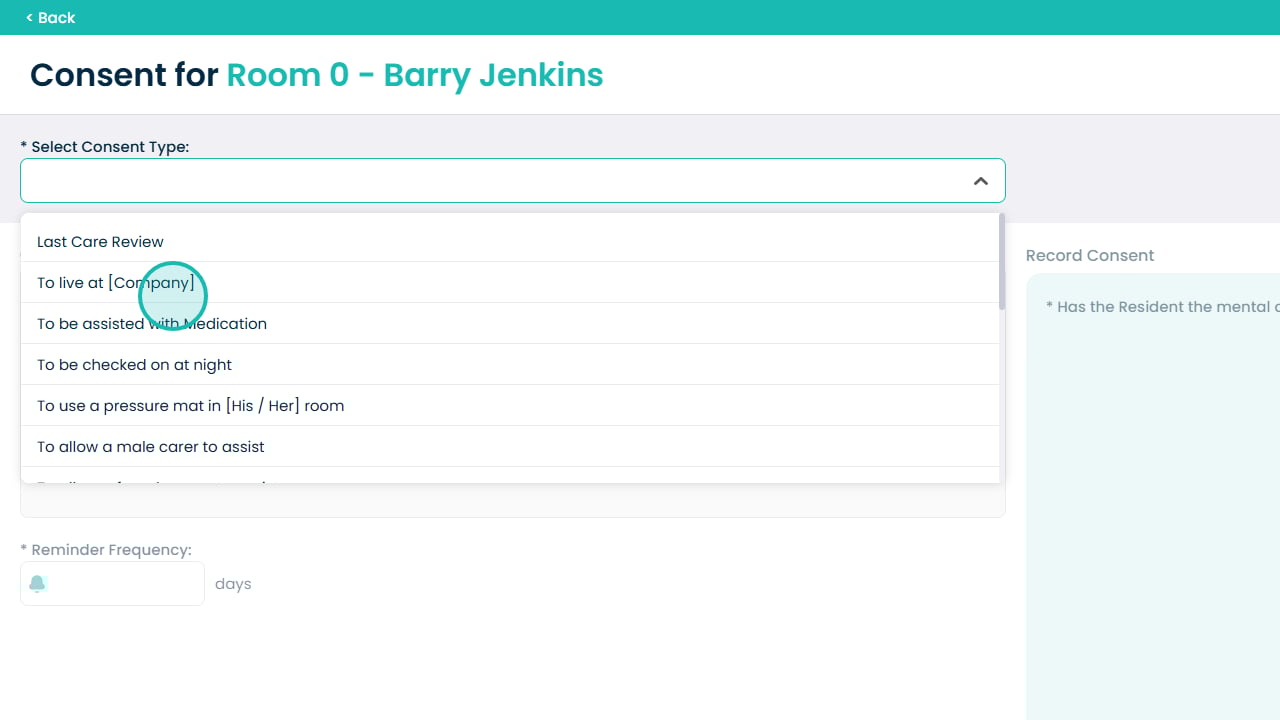
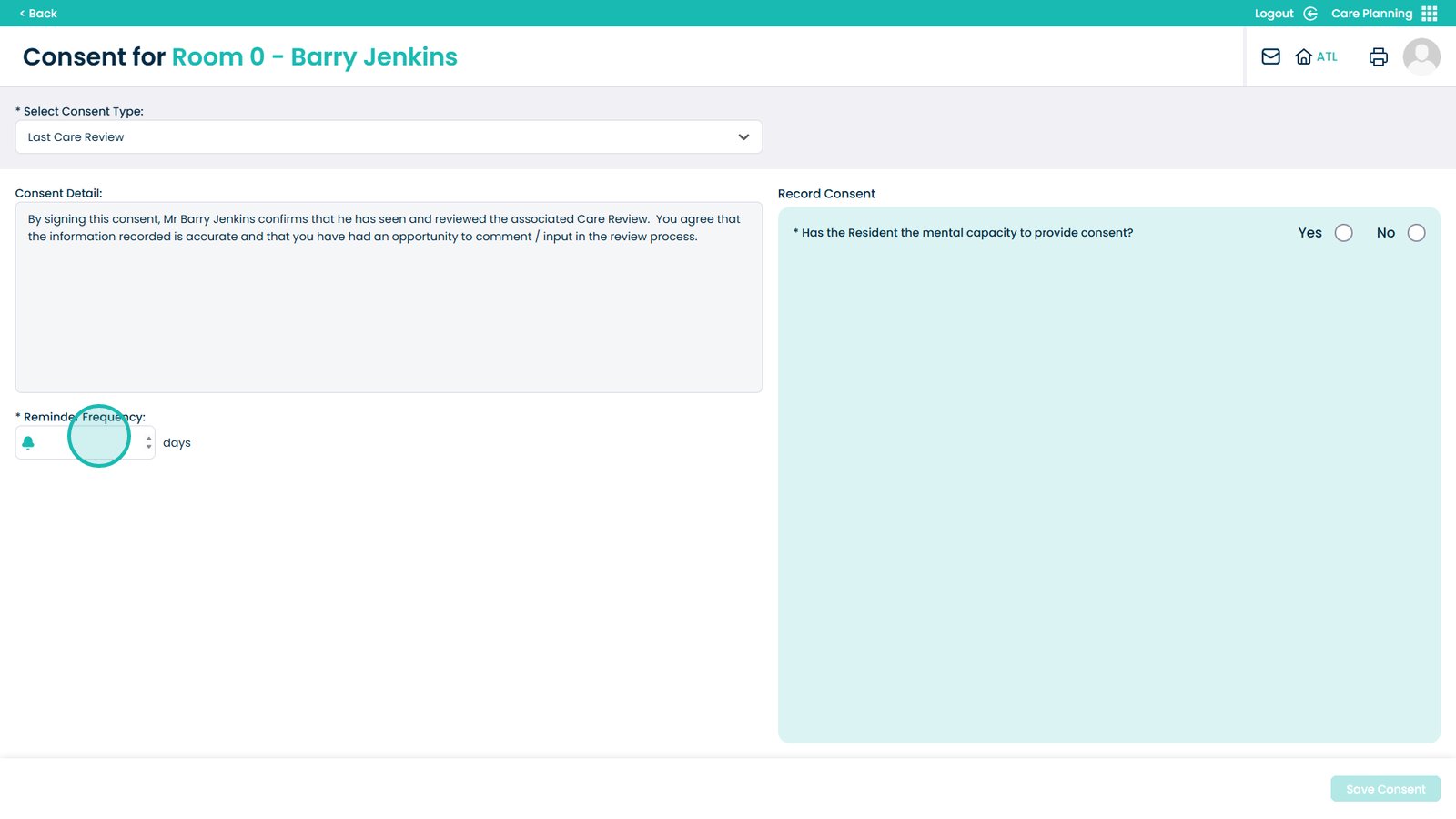
Open the consent type drop-down
Choose Last Care Review
Enter the Frequency if not pre-set
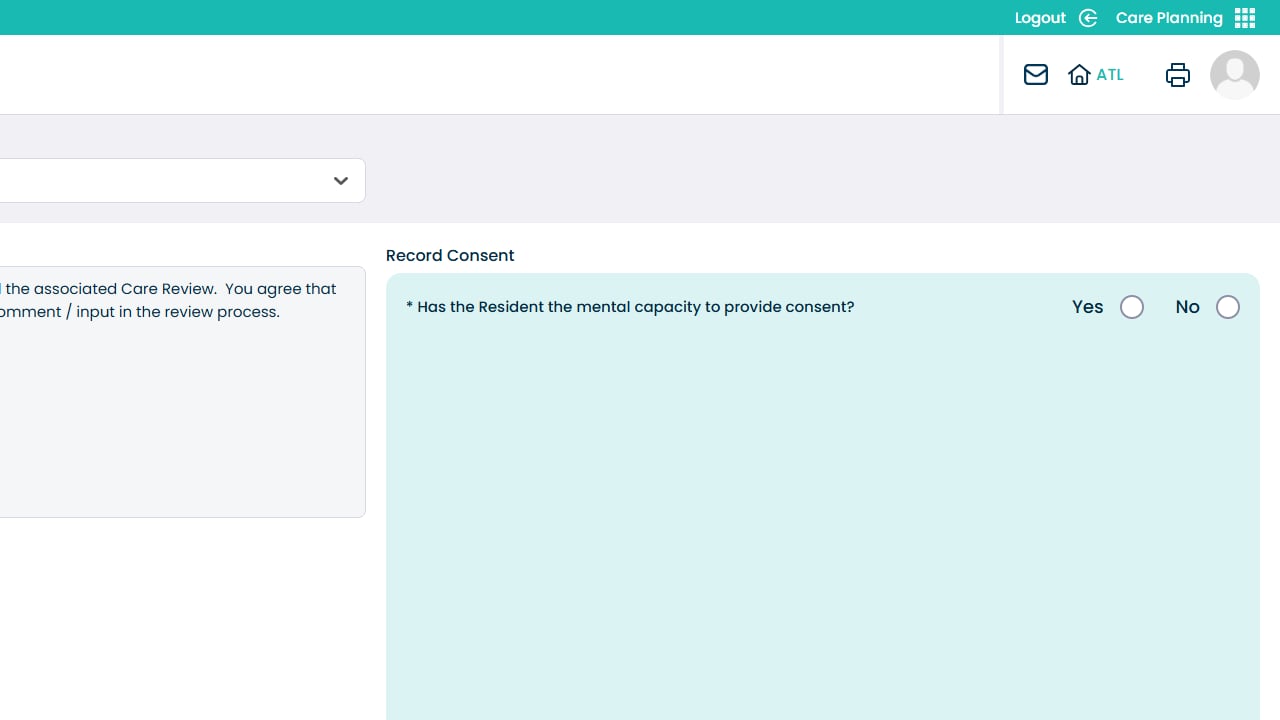
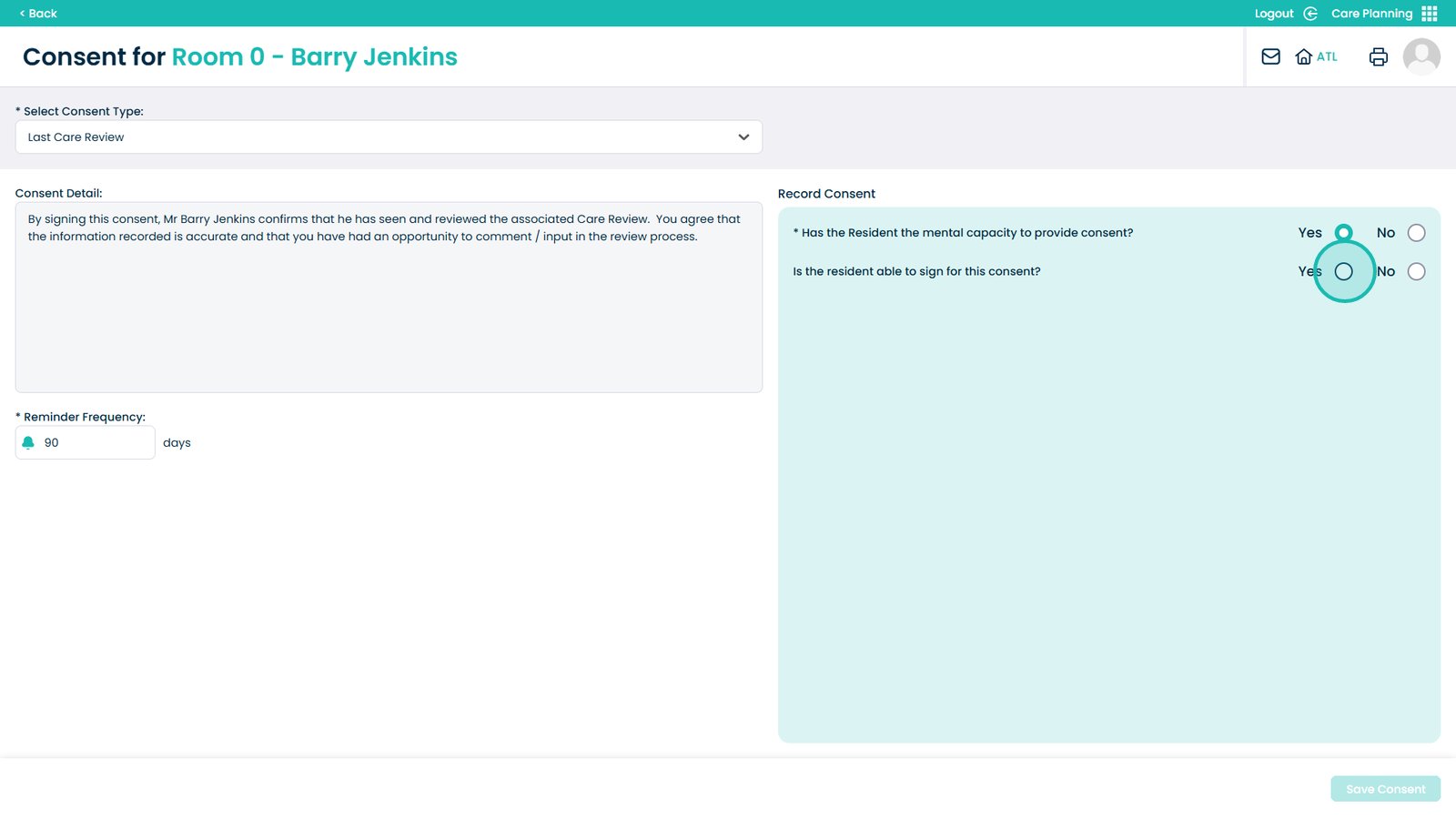
Choose if the service user has mental capacity to consent
Choose if the resident is able to sign
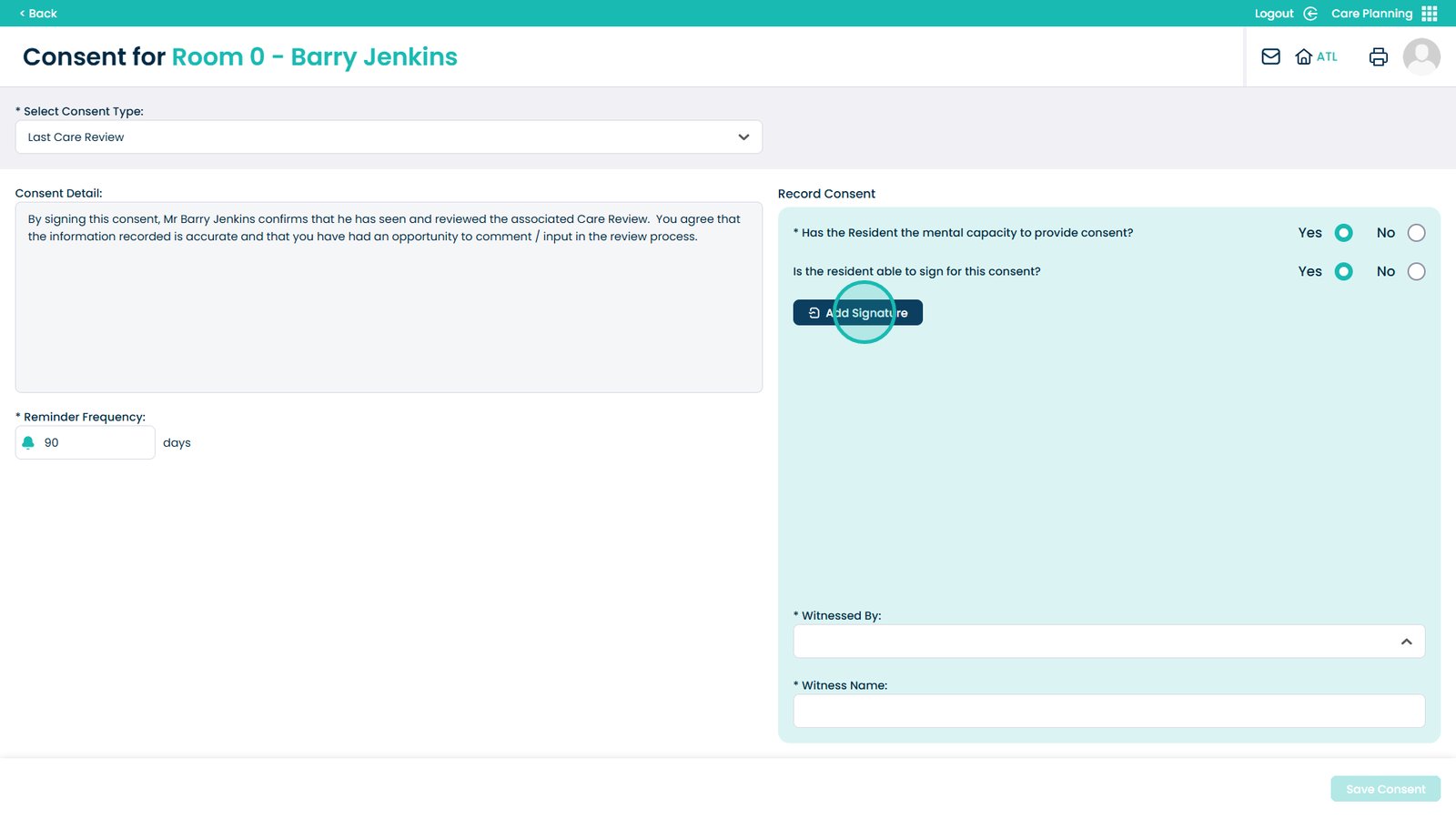
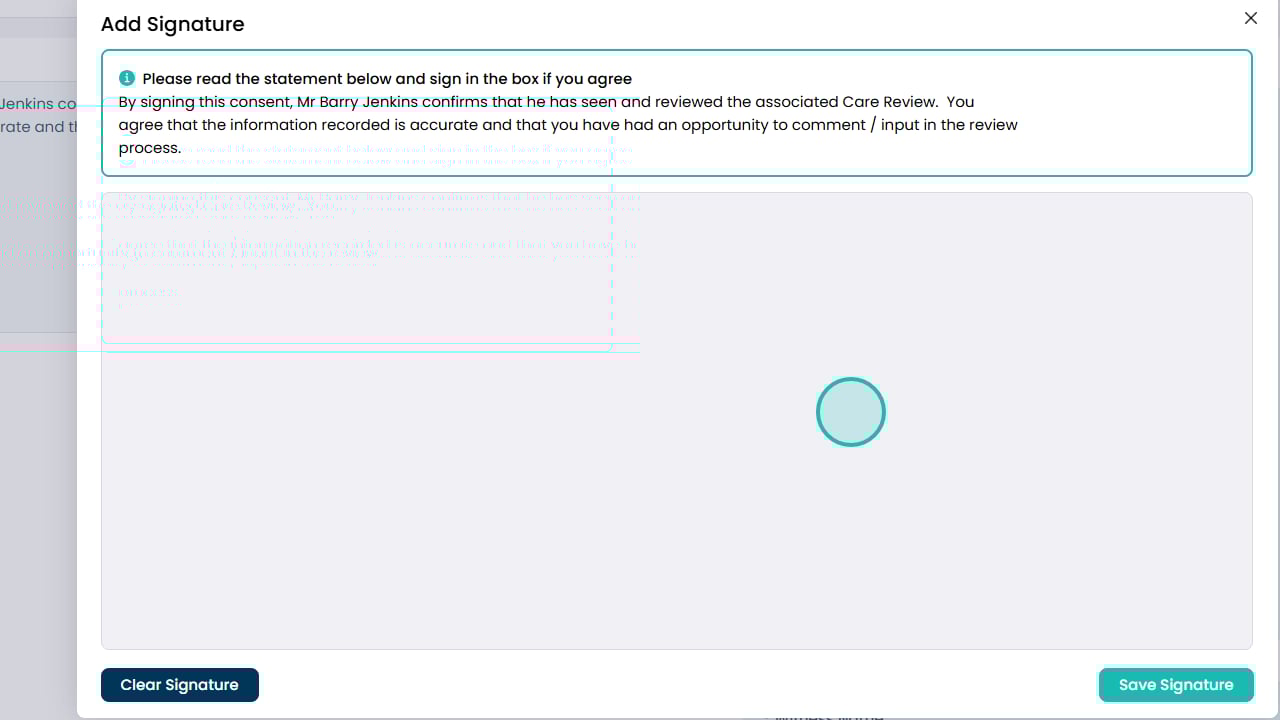
Add the signature using this button
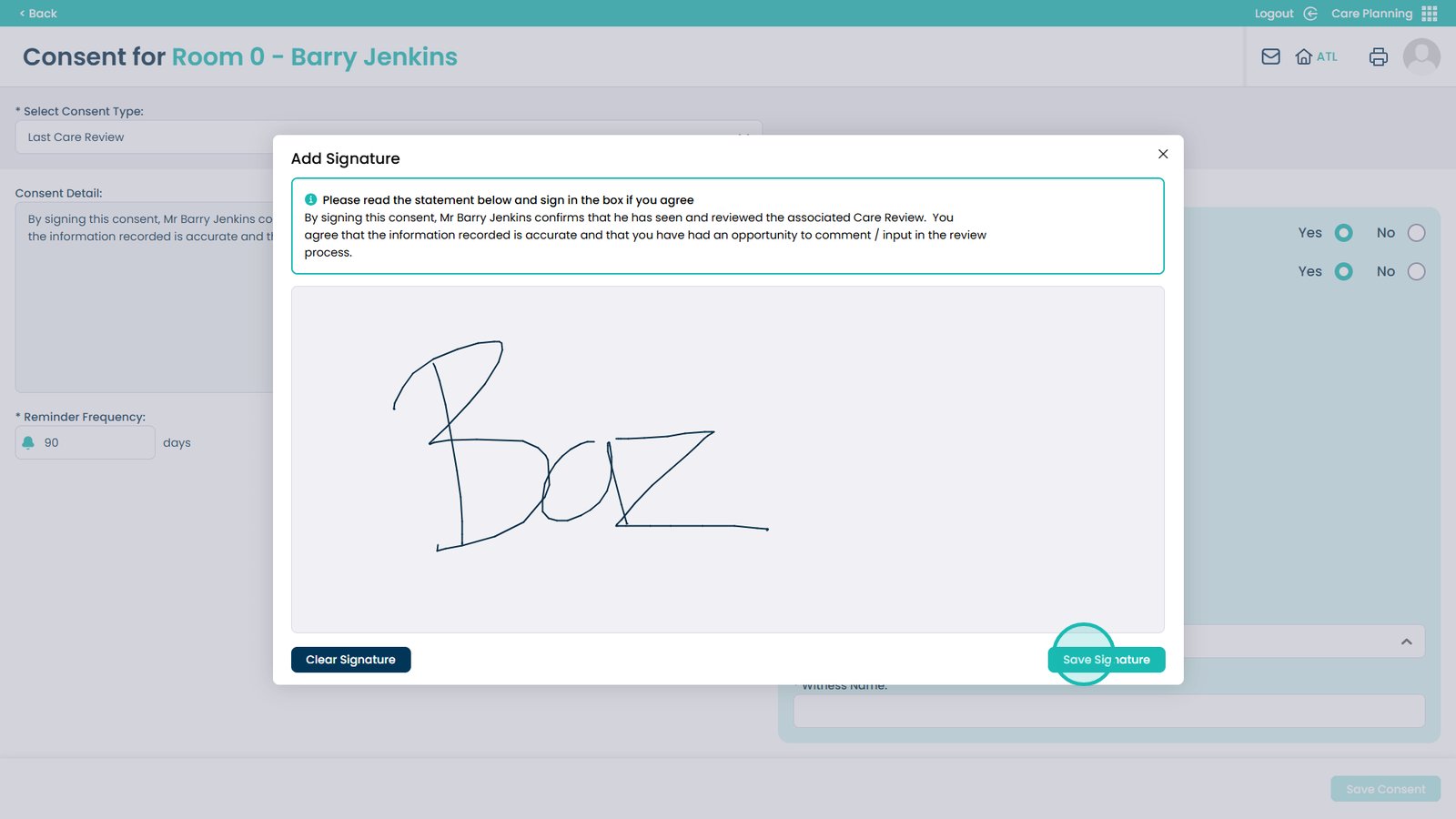
Draw the signature in this box
Click Save Signature when done
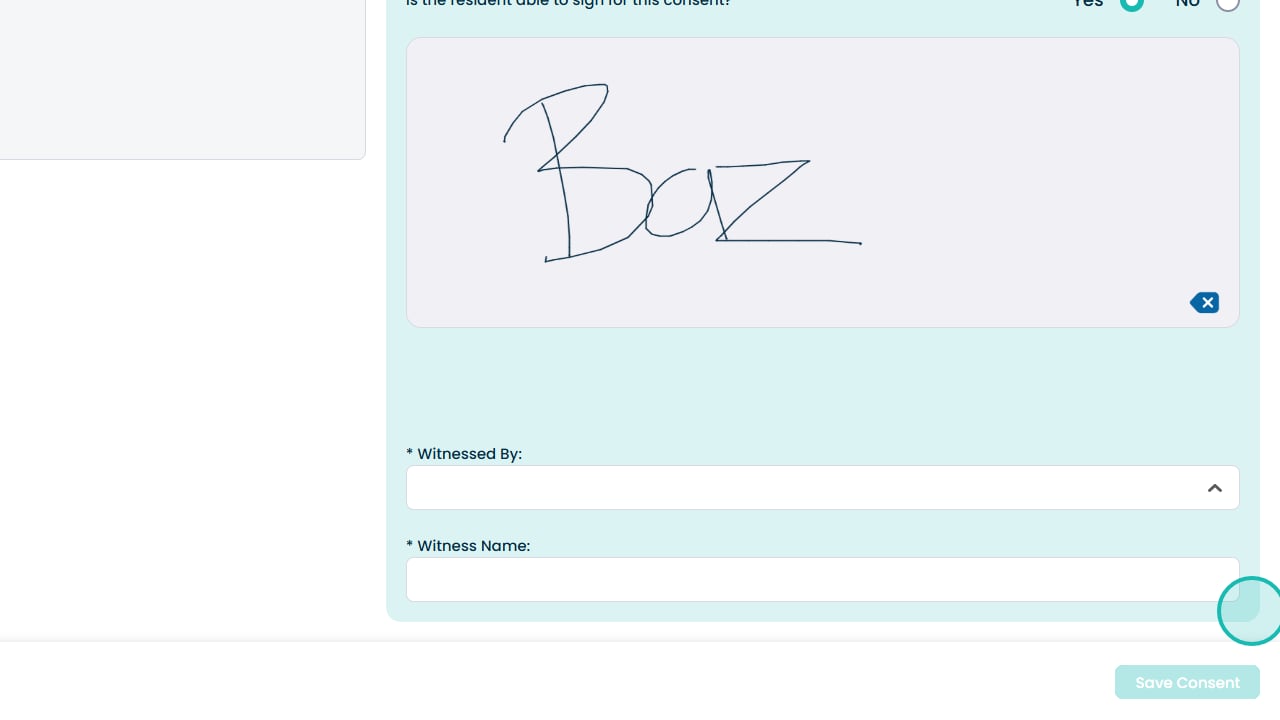
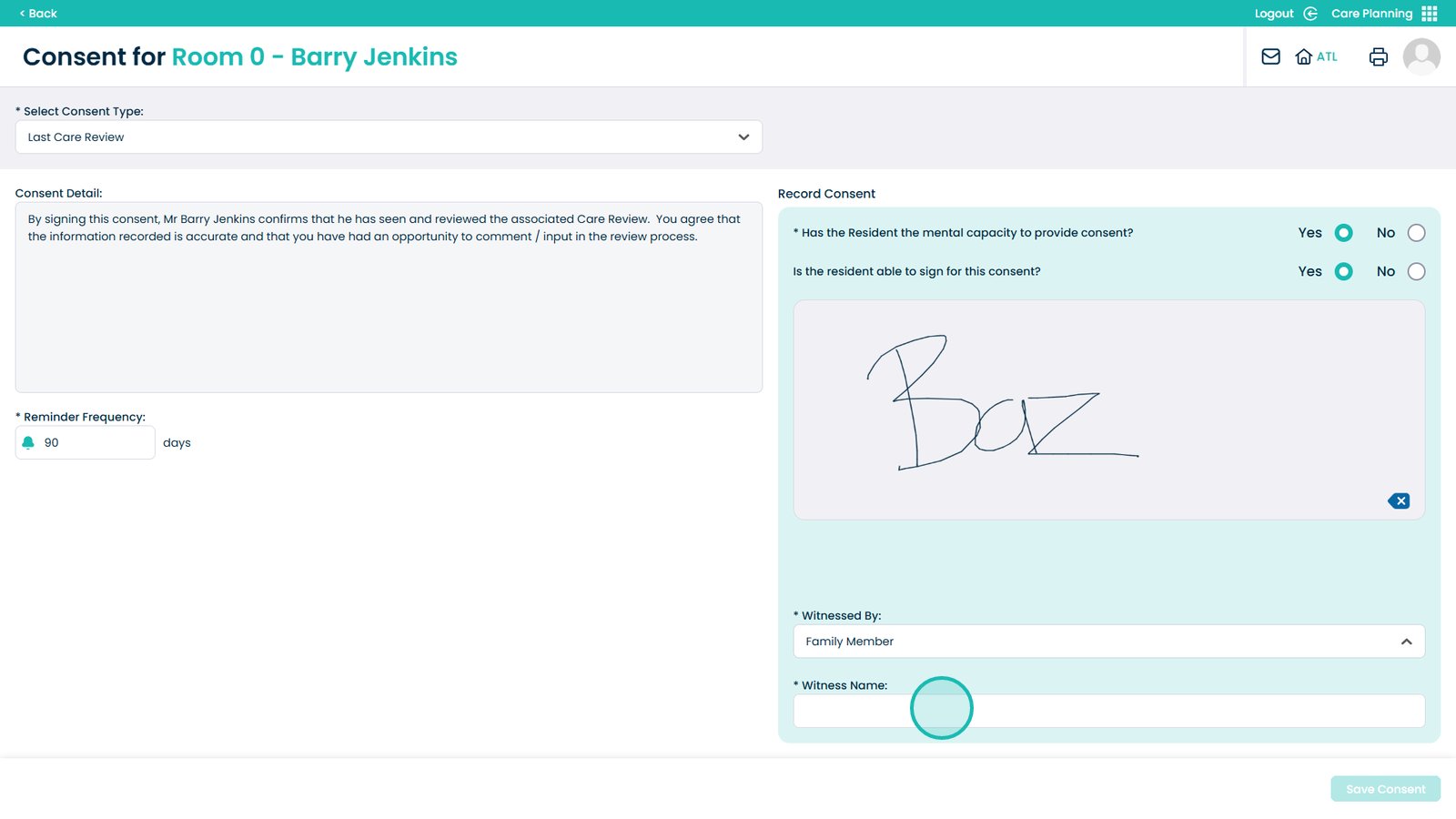
Choose who witnessed the consent
Enter their name within this box
Click Save Consent when done
Now you have completed the review, click the x to close the box
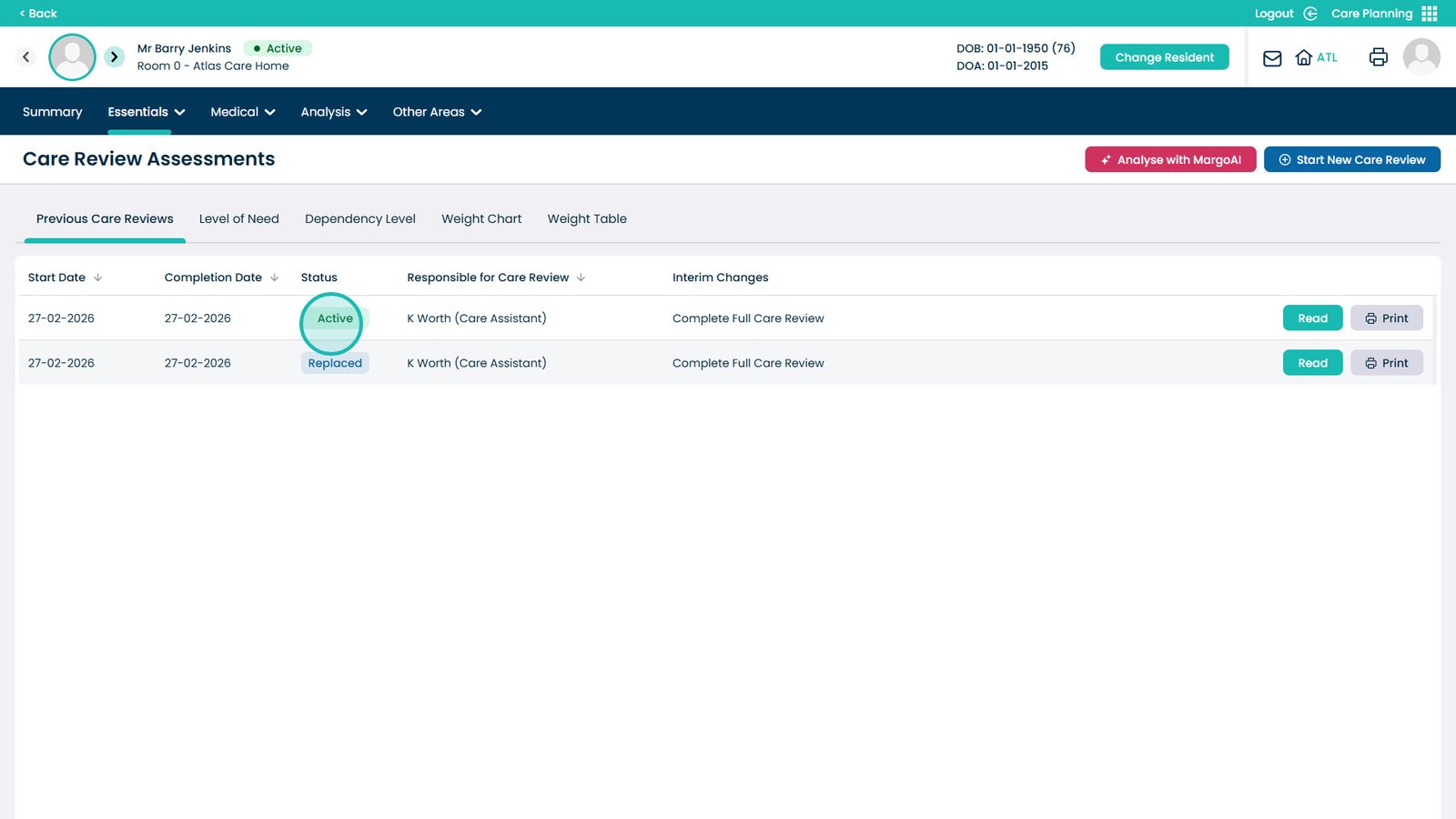
The review just recorded will now be set as active