If you experience any issues with the system, or require support from our Customer Service team, please let us know by submitting our Customer Contact Form and we’ll be happy to help. Click here to access the form.

View Categories

How to Record, Modify and Close a Health Issue

This guide explains how to view, create, update, and close Health Issues for a service user

Takes 5 minutes
For: Care Staff
Updated: 22nd June 2026

Introduction

The Health Issues section provides a central place to record and manage resident health concerns. Staff can document new issues, record treatment plans, attach photographs, add ongoing notes, review historical issues, and formally close issues when they have been resolved.

In this guide you'll learn how to:

  • Review active and historic health issues
  • Create a new health issue record
  • Add treatment plans and supporting evidence
  • Record notes against an existing issue
  • Close a health issue when it is resolved

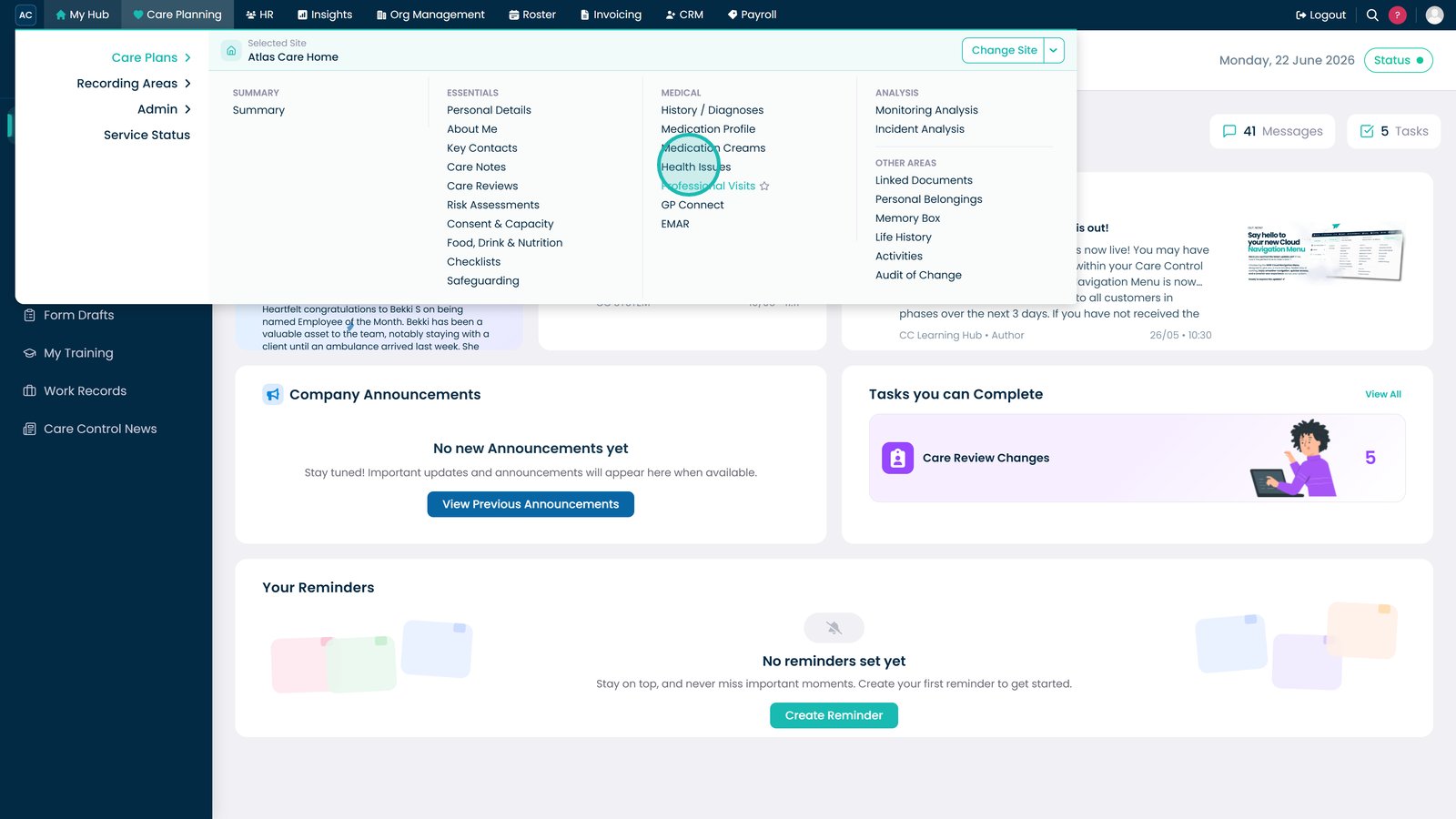
Open Health Issues from the Care Plans menu.

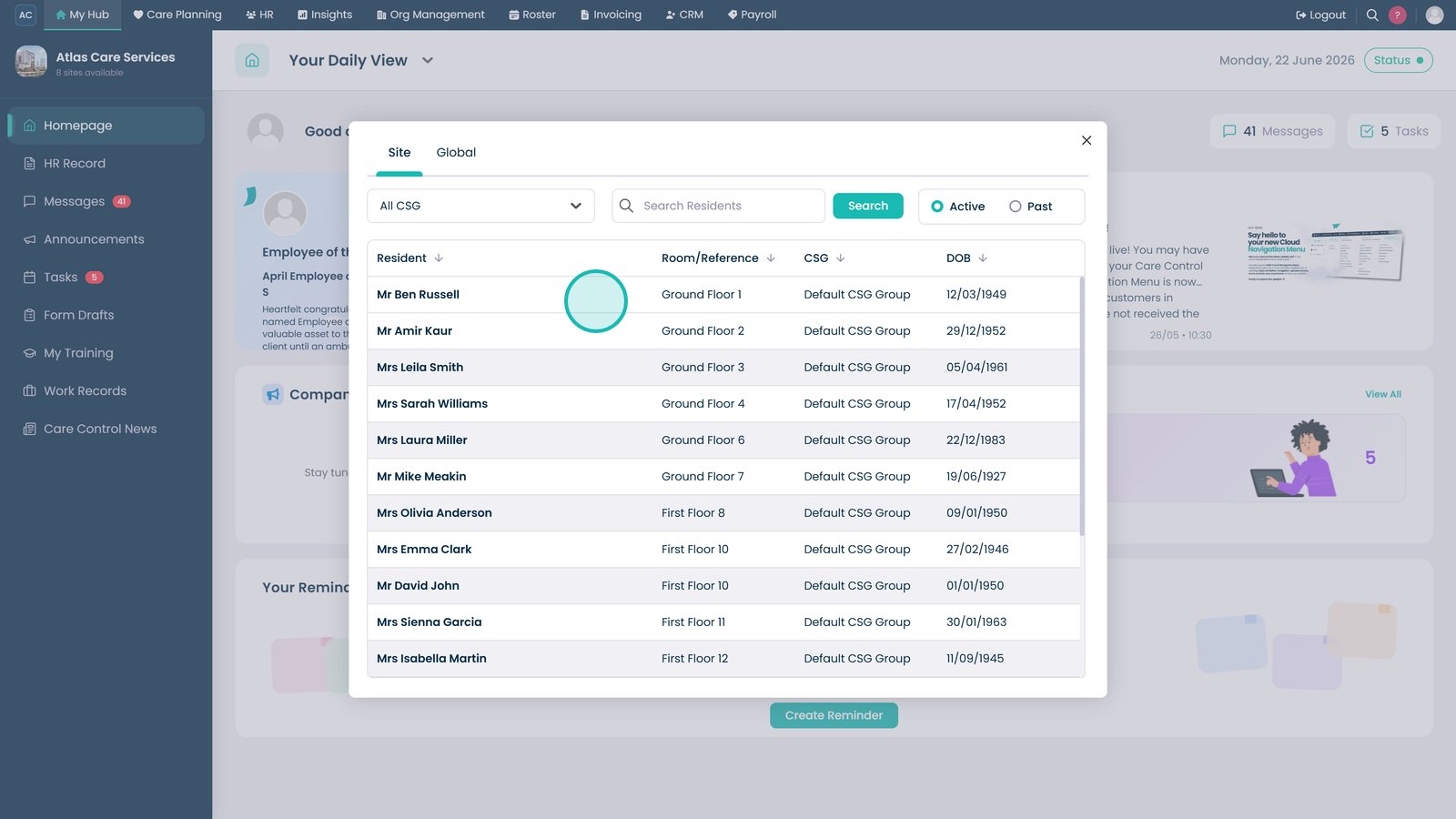
Select the resident whose Health Issues you want to review.

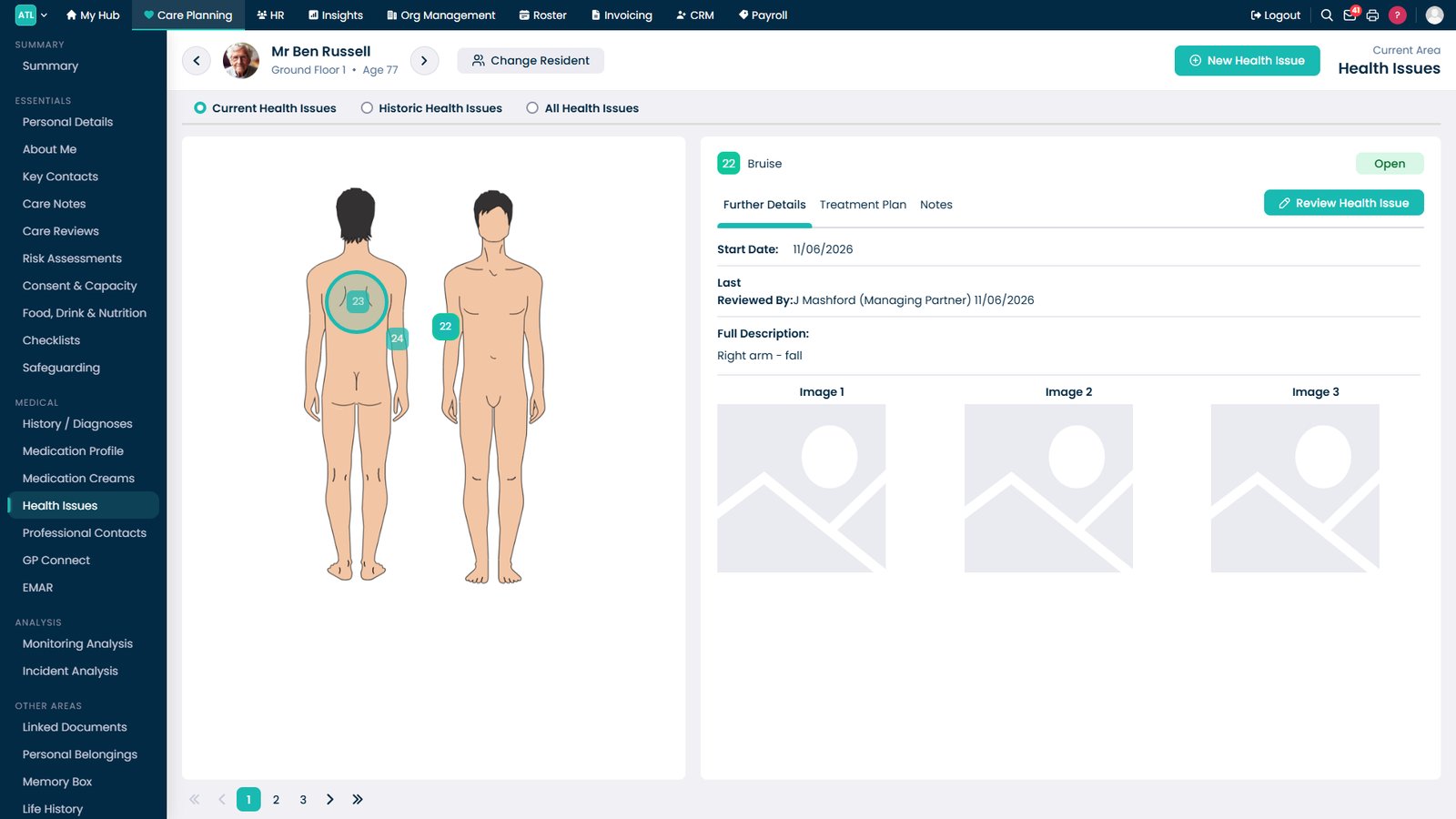
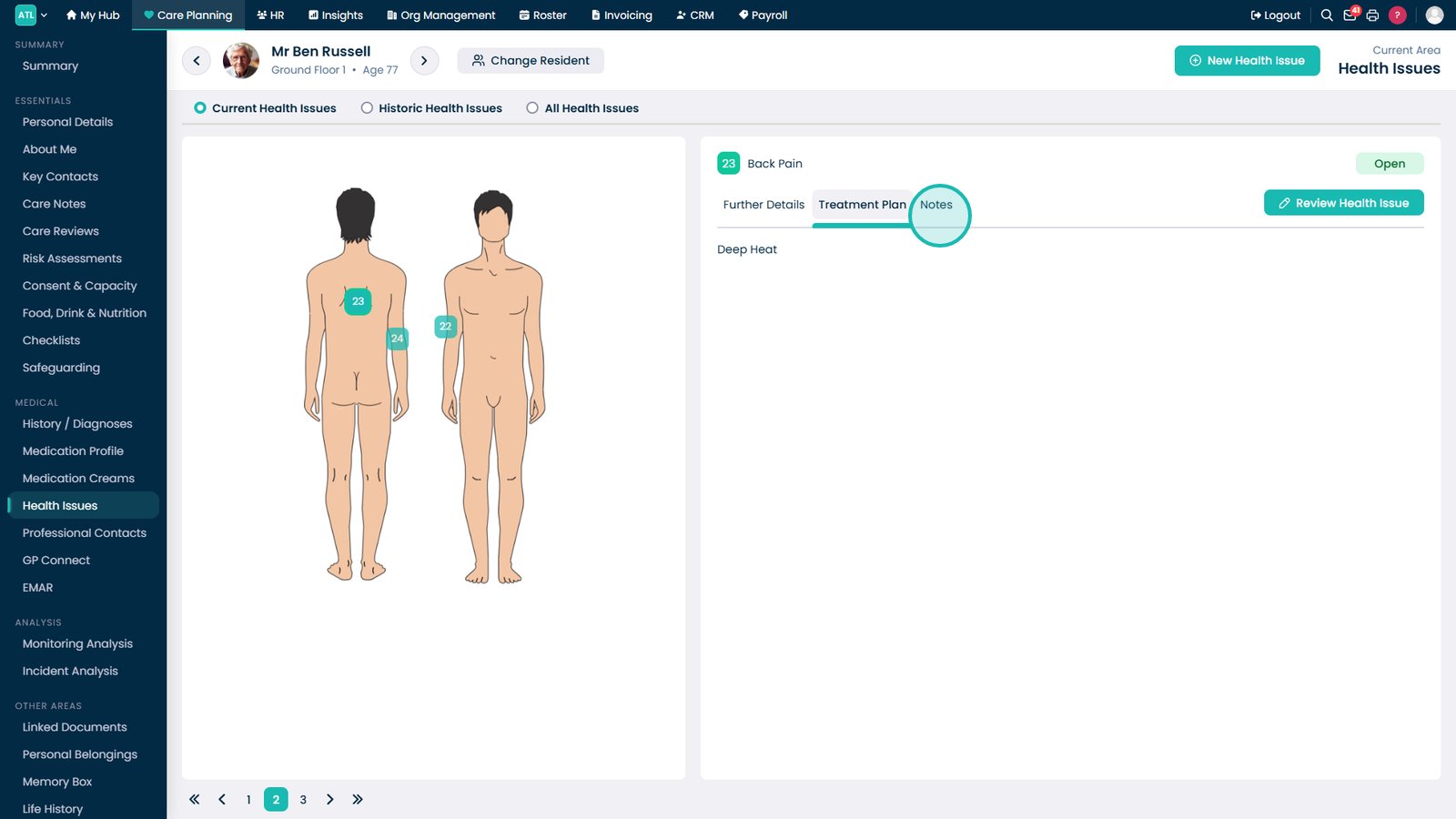
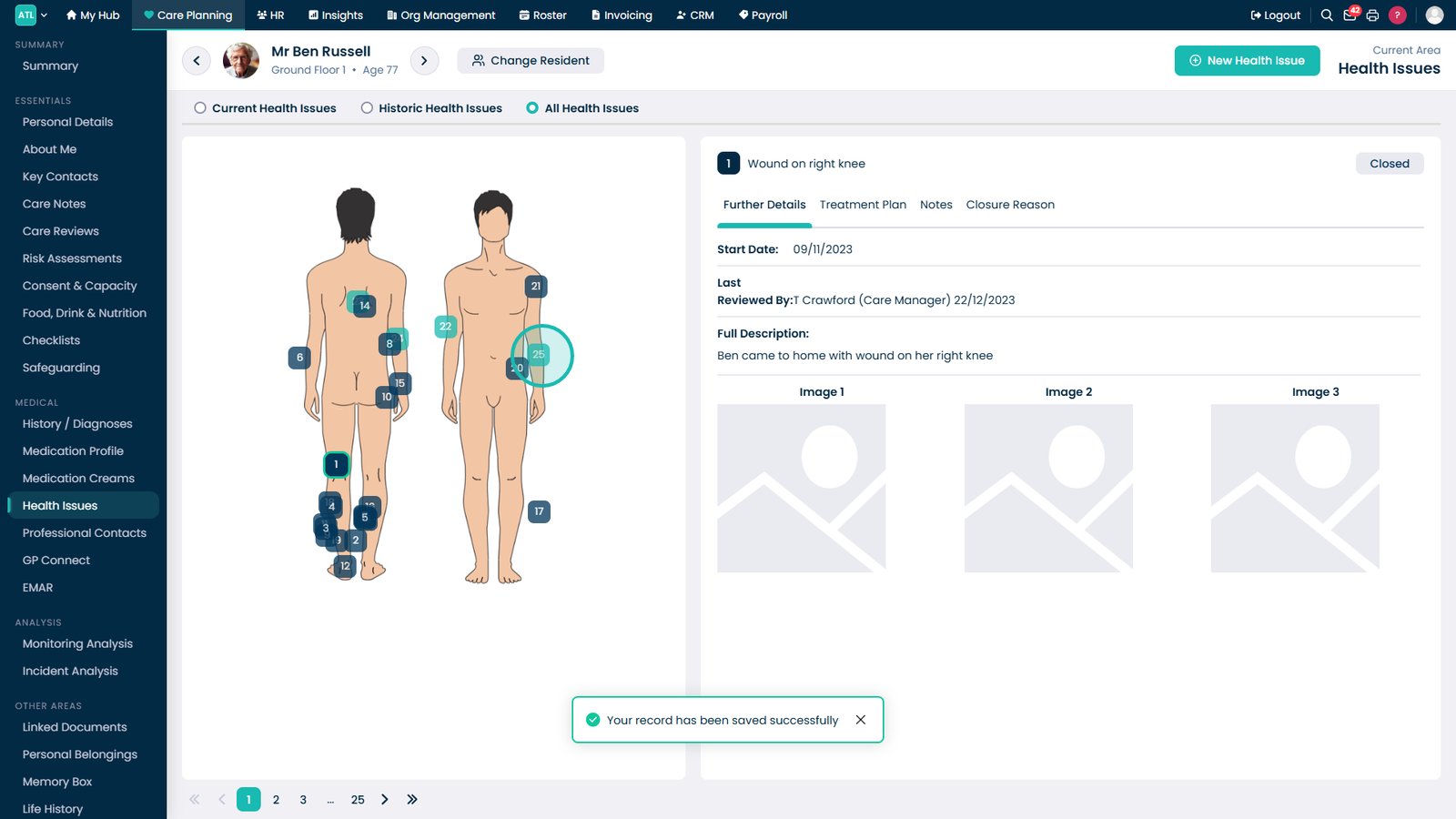
Select a highlighted area on the body map to view details of an existing health issue.

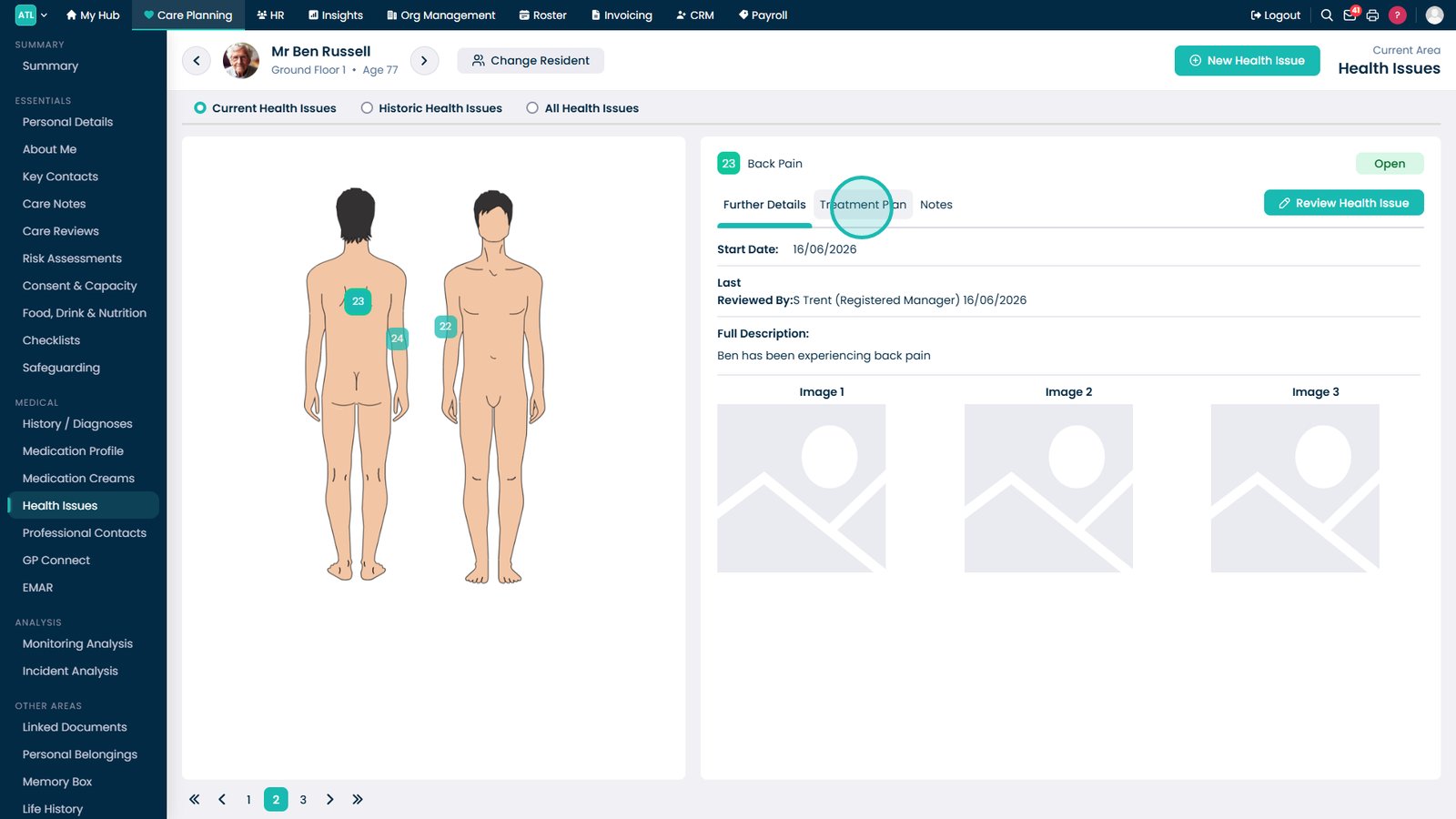
Open the Treatment Plan tab to review the planned interventions and care actions.

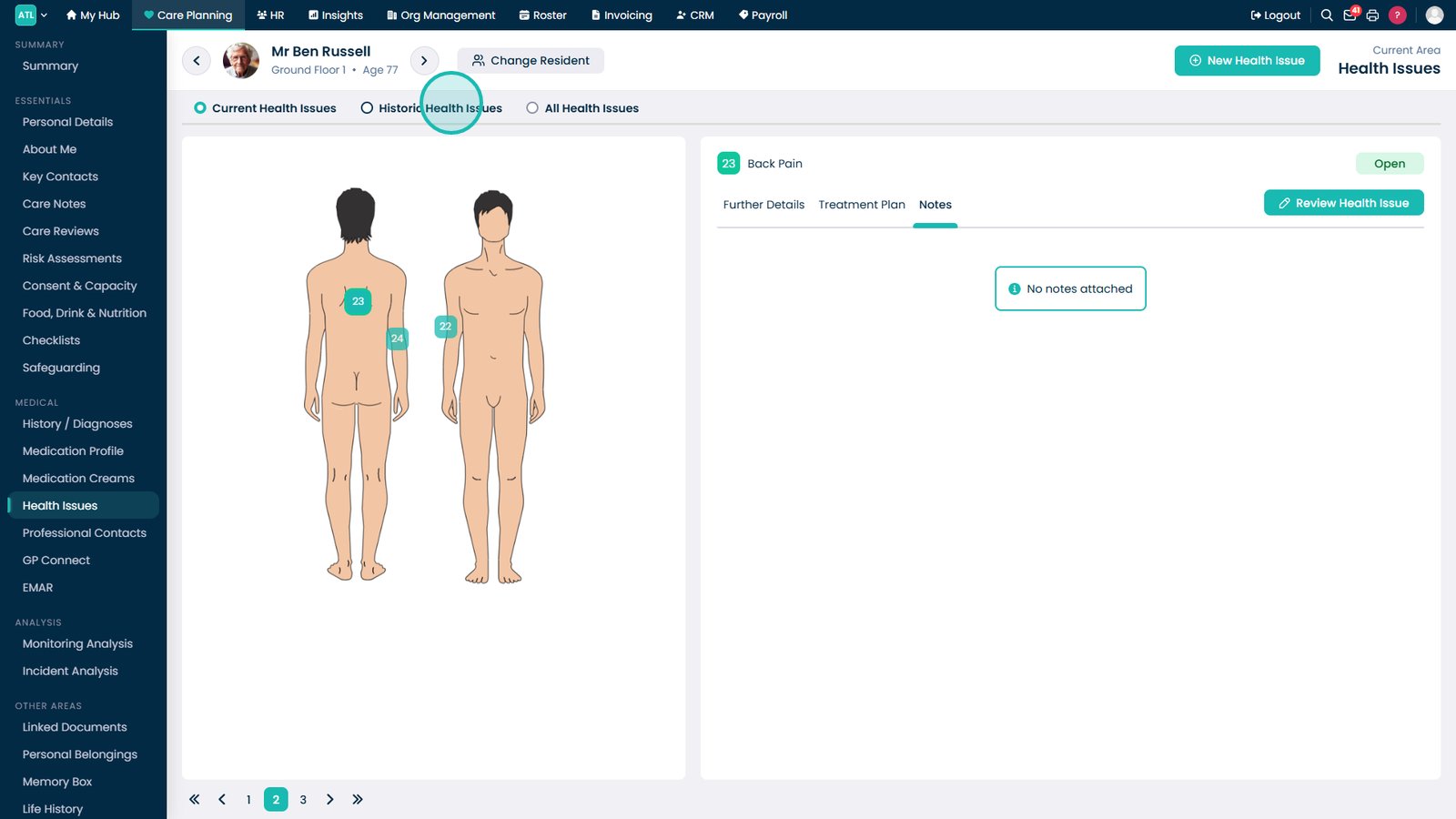
Open the Notes tab to review updates, observations, and comments linked to the health issue.

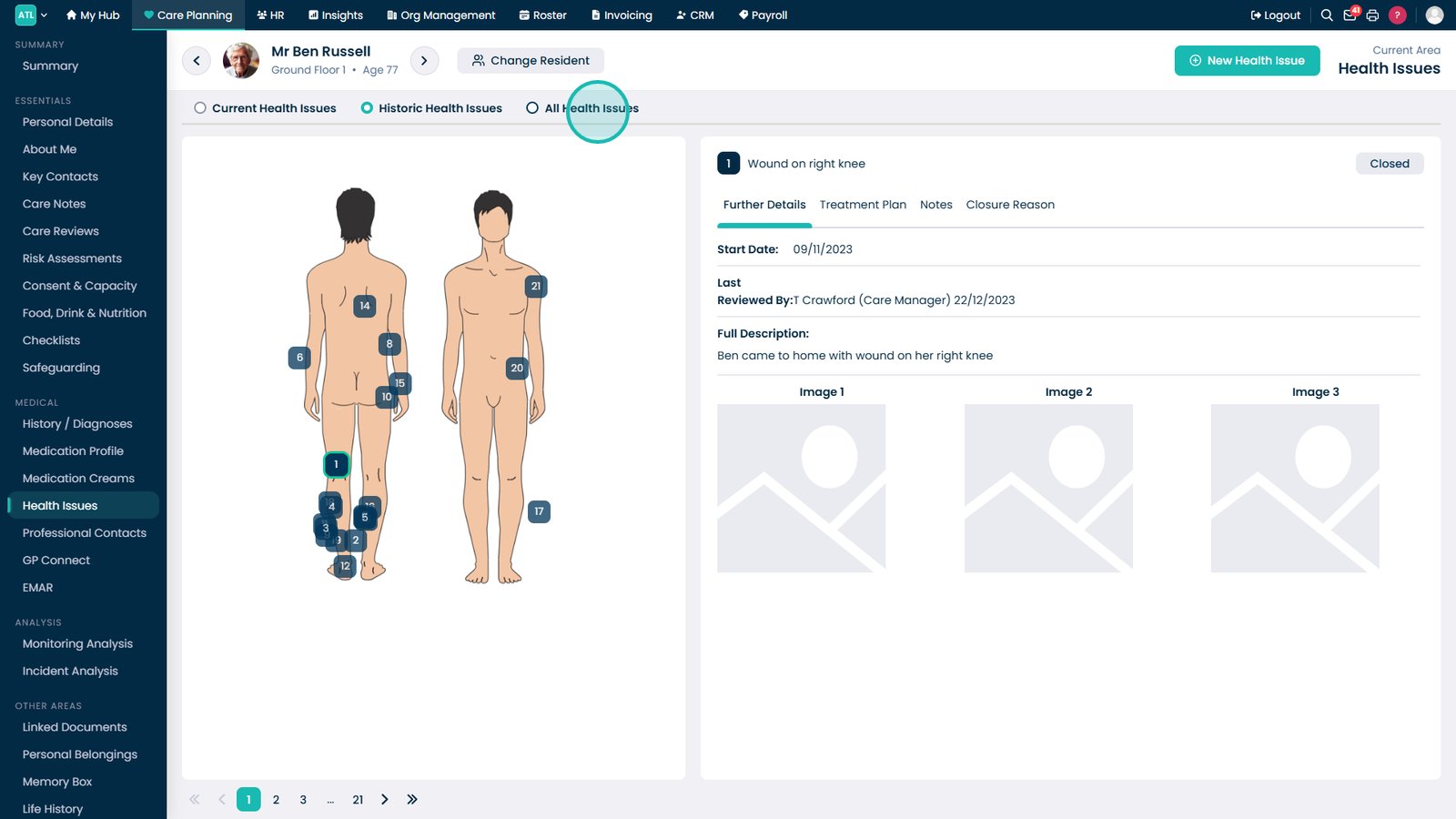
Open Historic Health Issues to review previously closed or resolved concerns.

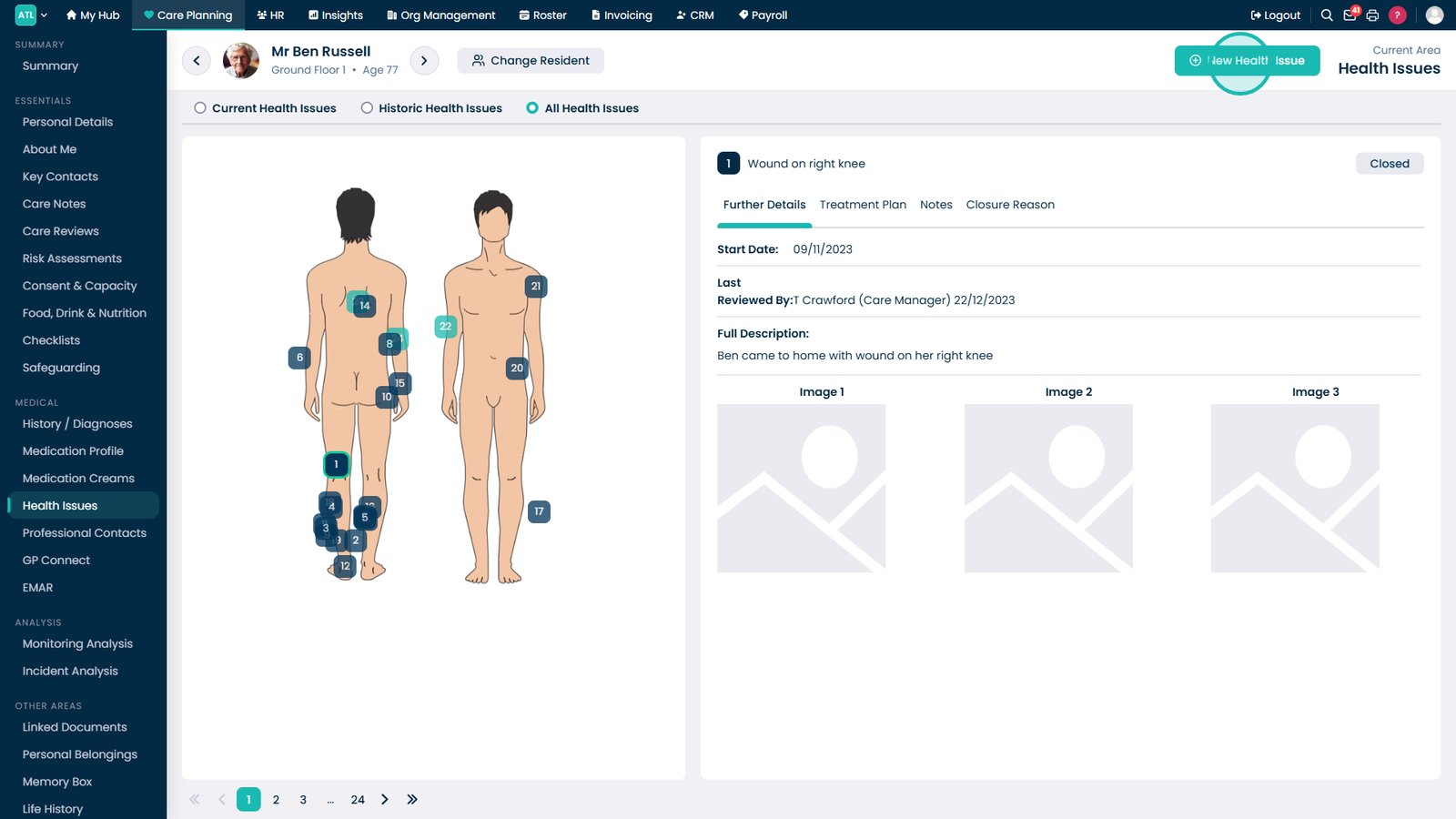
Use the All Health Issues filter to display both active and historical records.

Select New Health Issue to create a new health concern record.

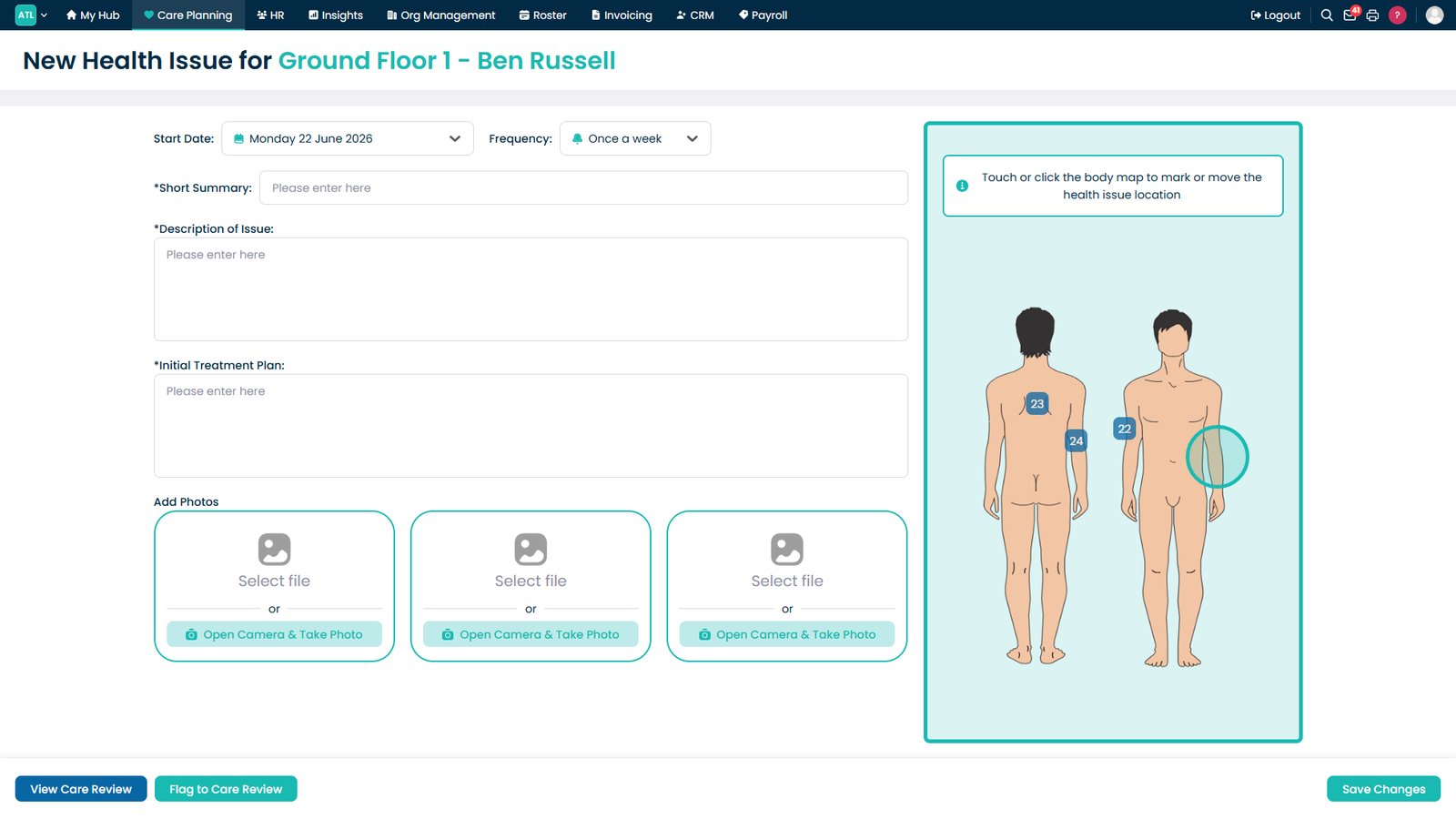
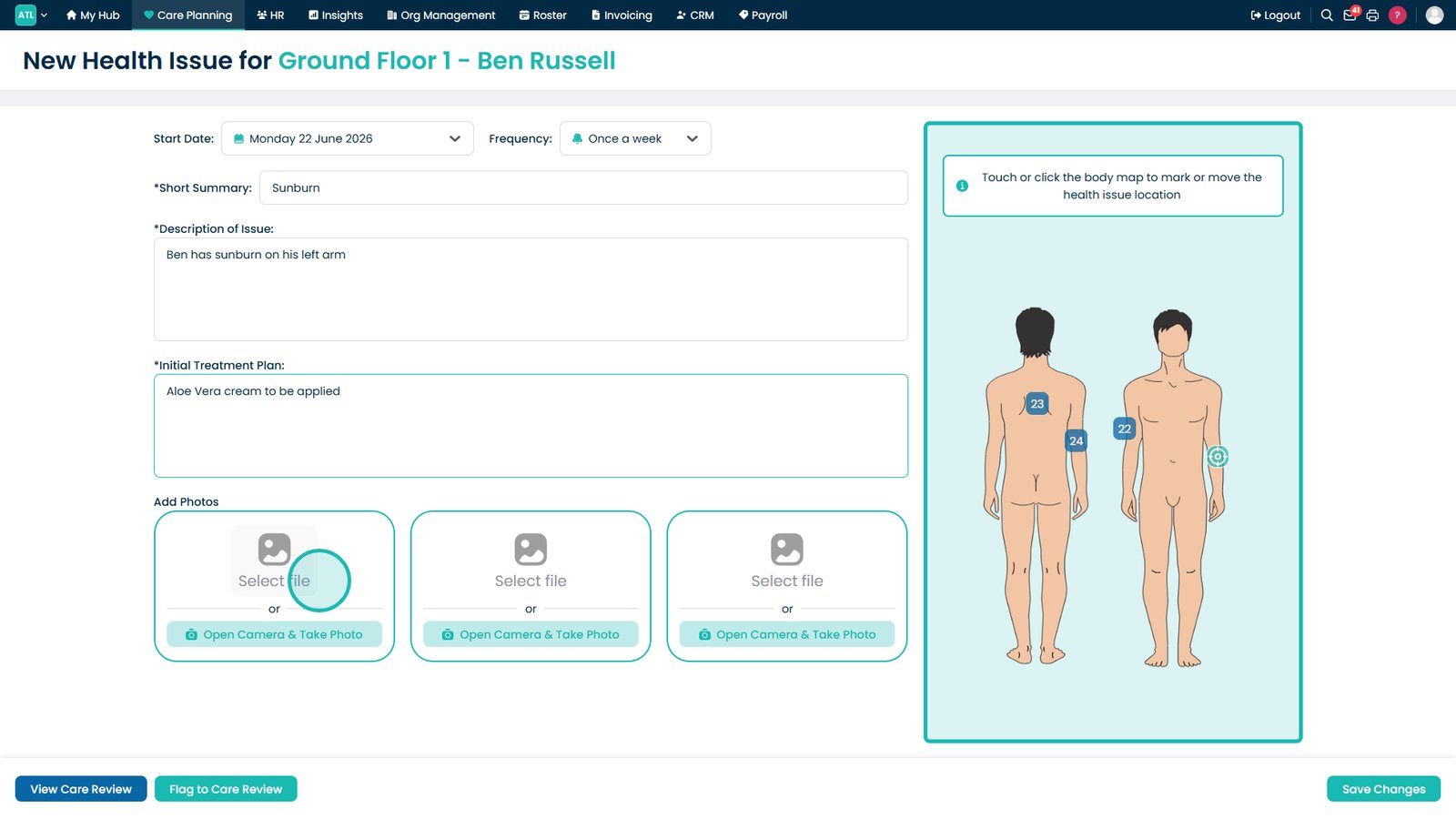
Select the affected area on the body map to identify the location of the issue.

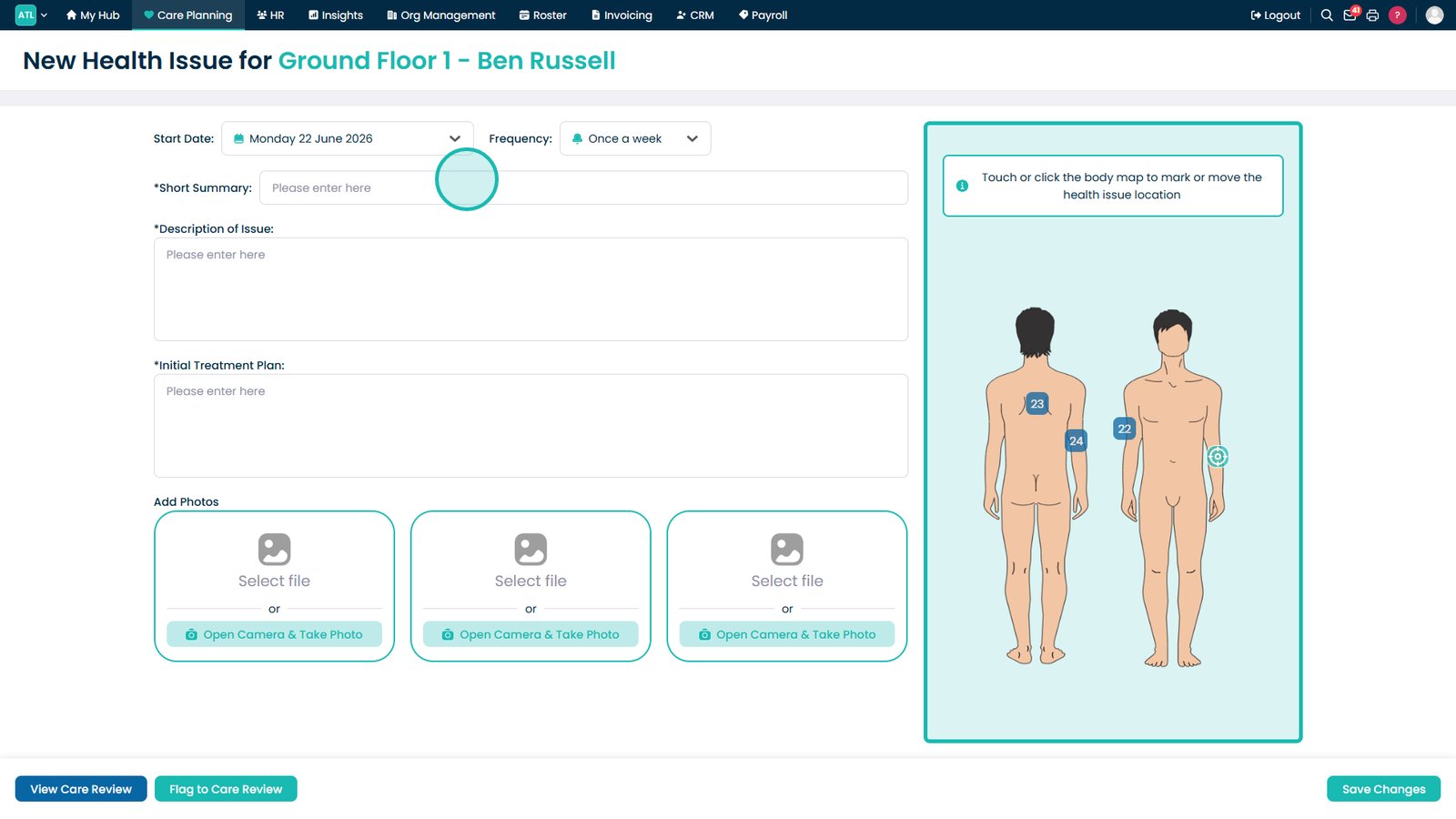
Enter a summary describing the health issue.

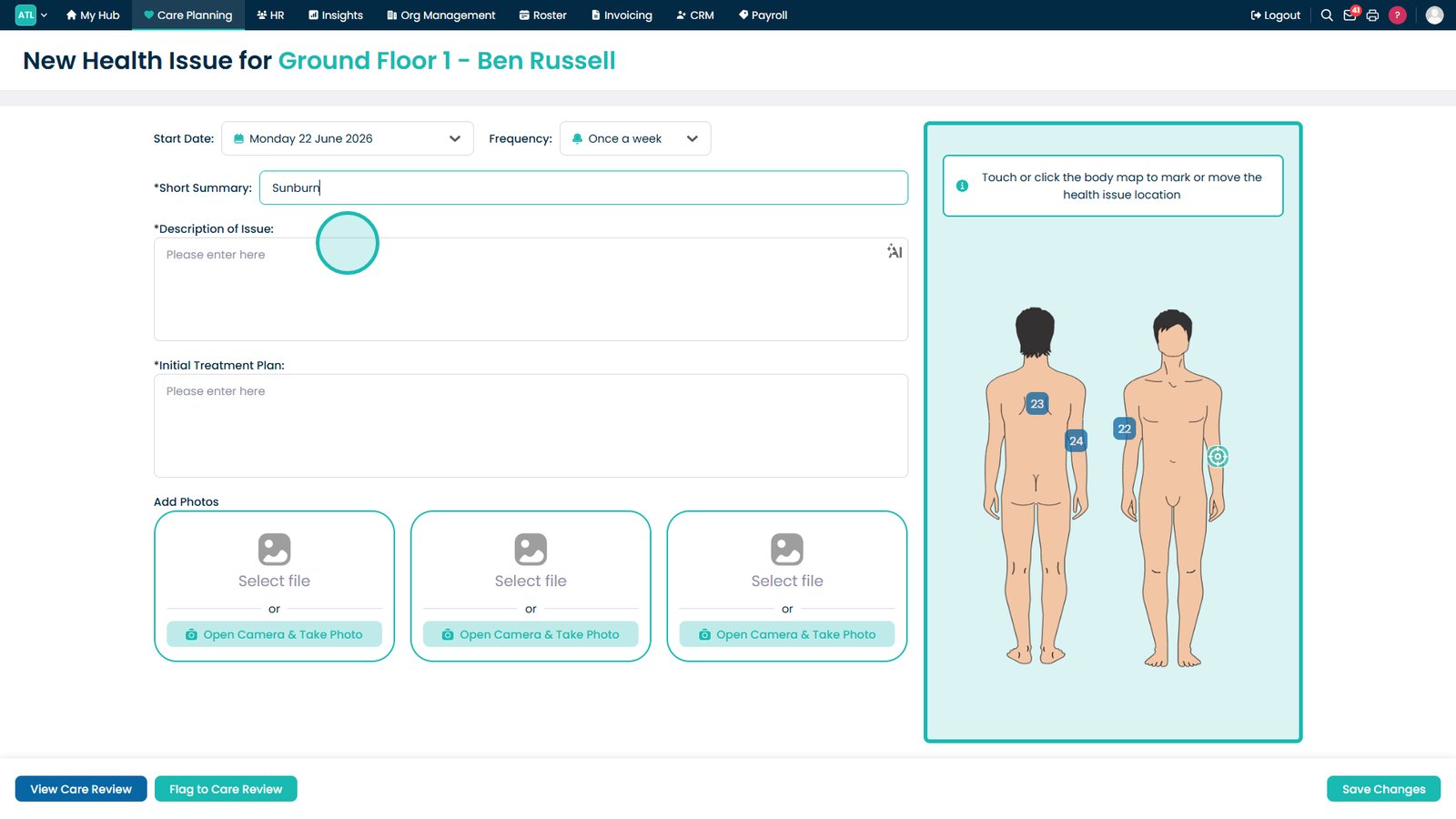
Record a detailed description of the condition.

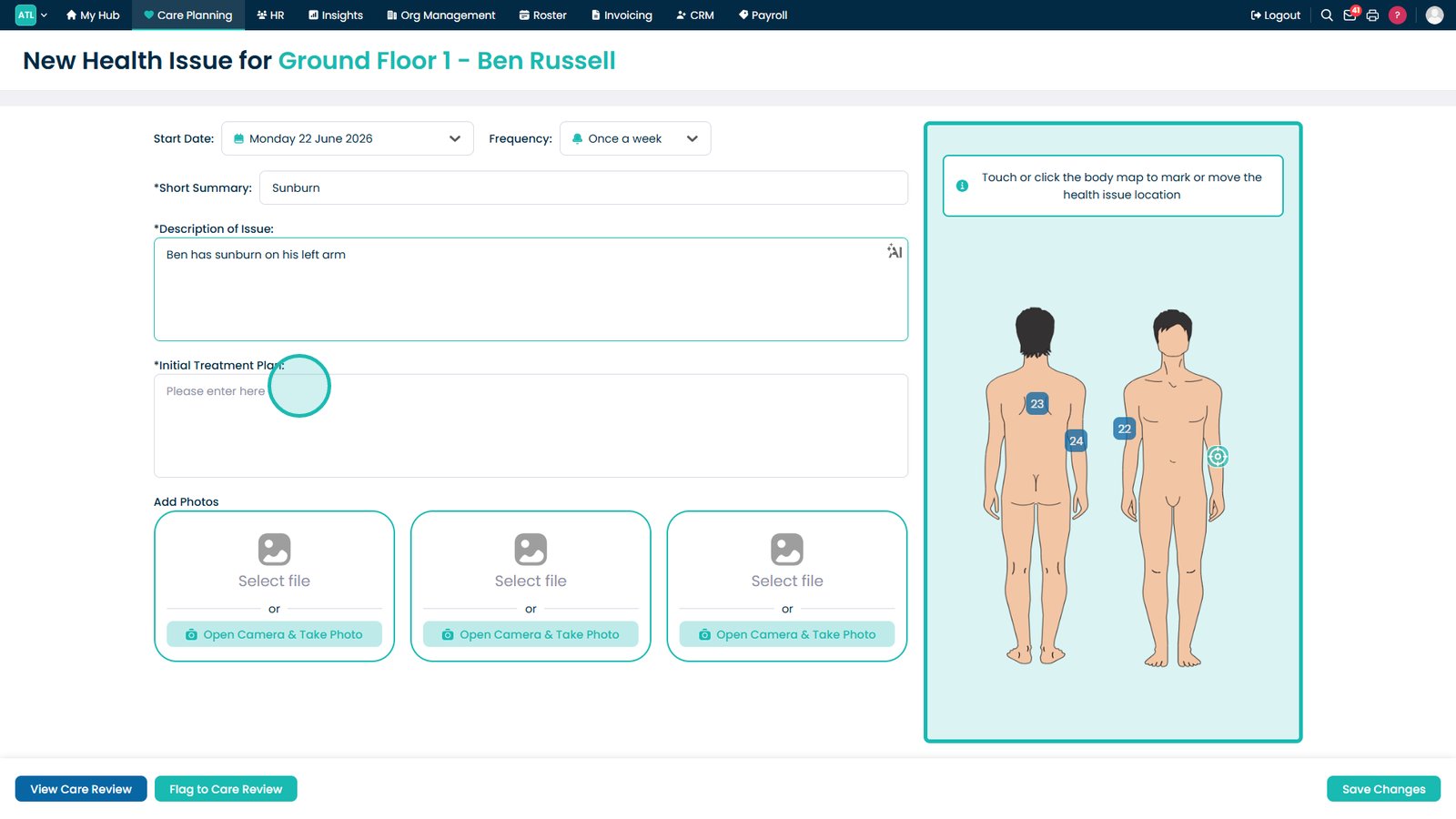
Enter the initial treatment plan for managing the health issue.

Attach a photograph to support assessment and monitoring.

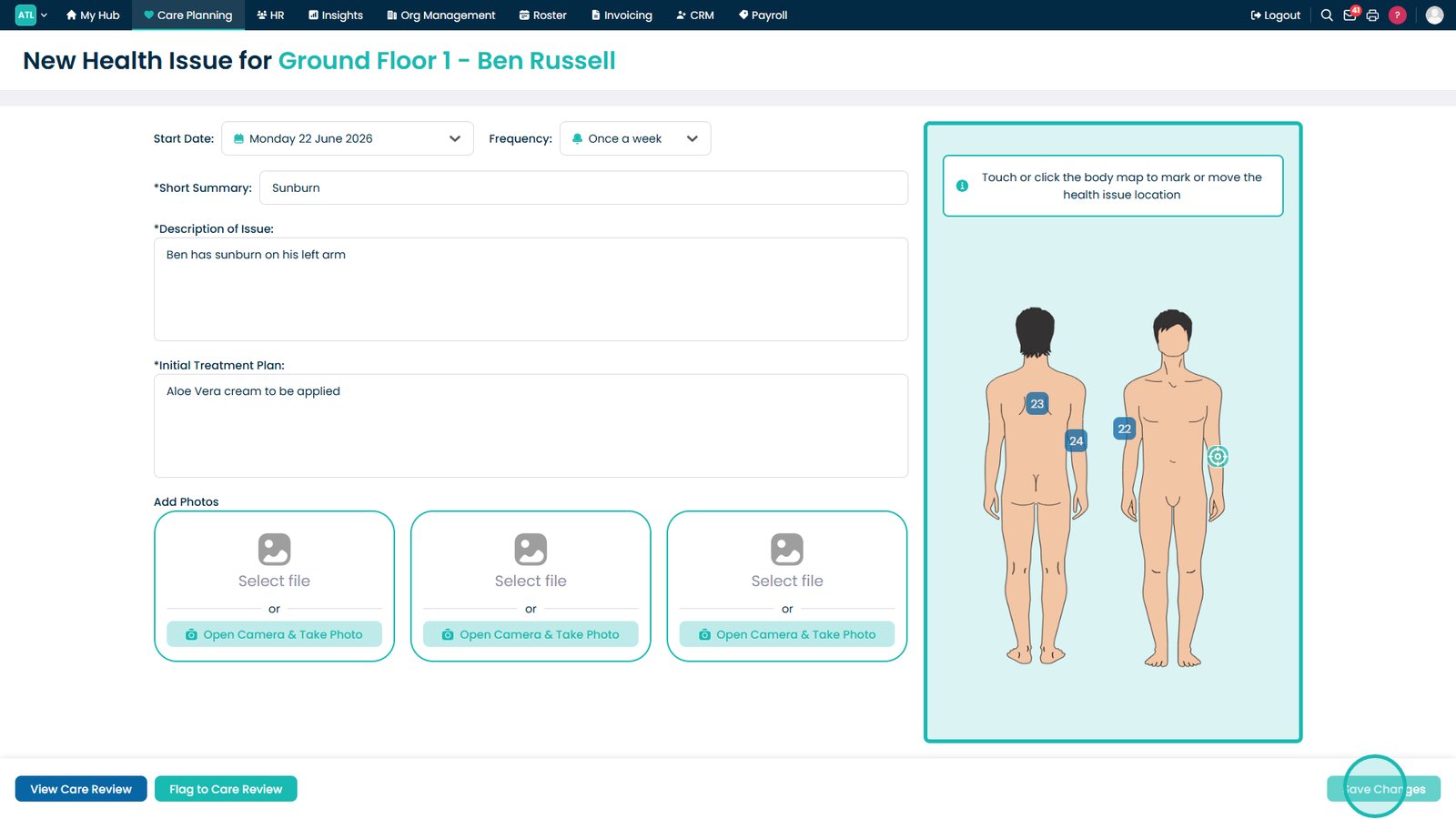
Select Save Changes to create the health issue record.

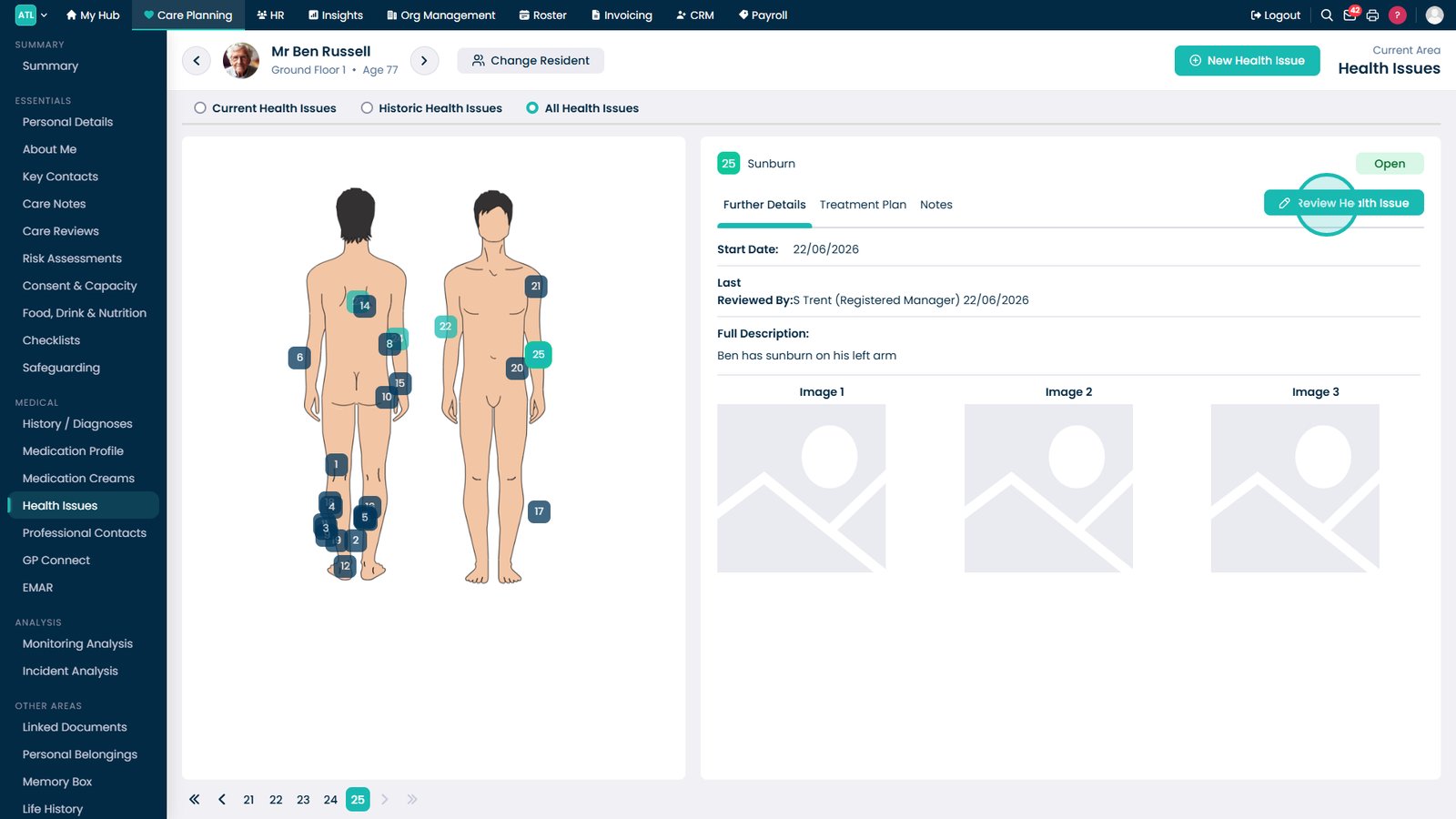
Select an existing health issue to review or update.

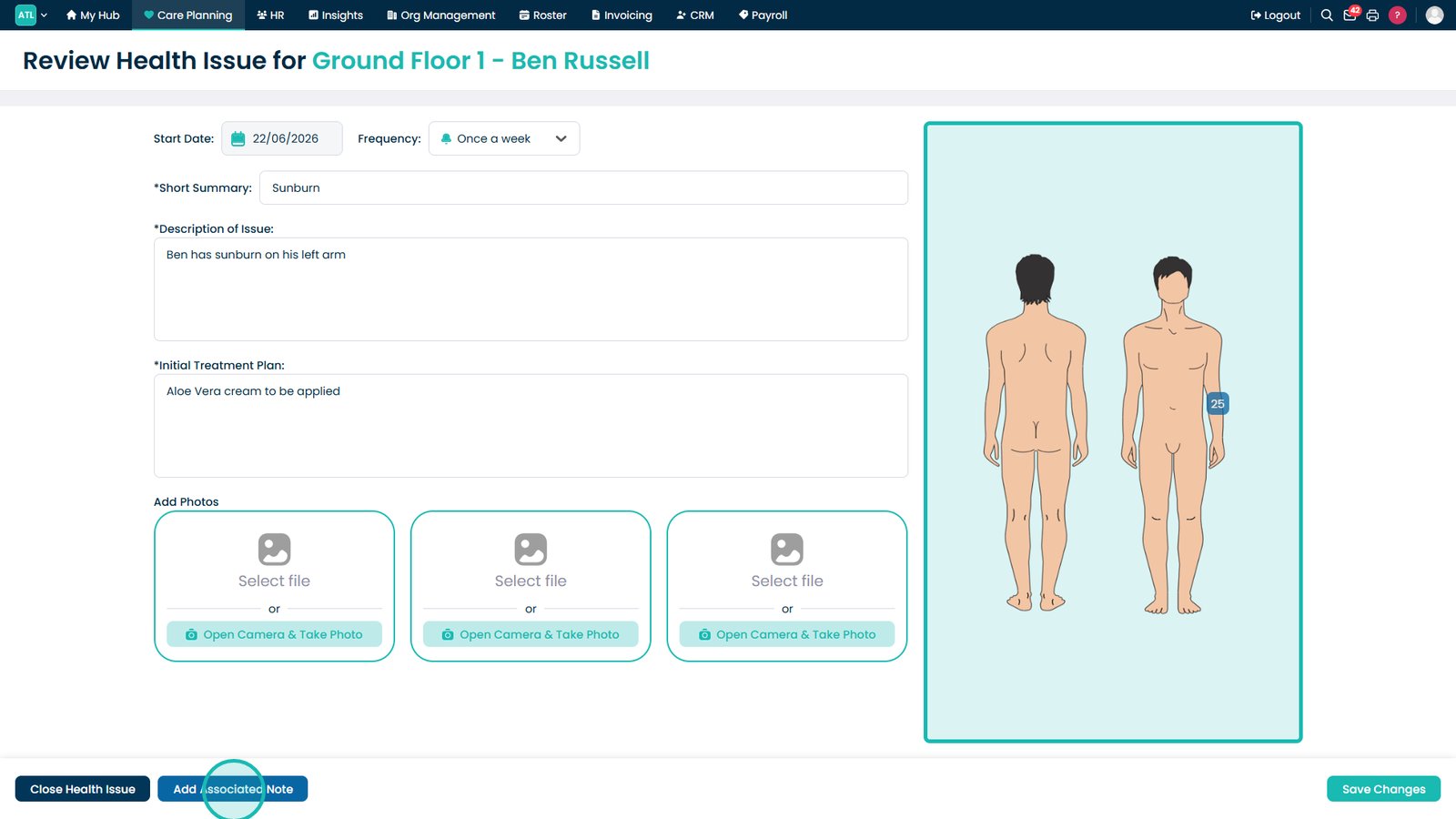
Select Review Health Issue to update details and progress.

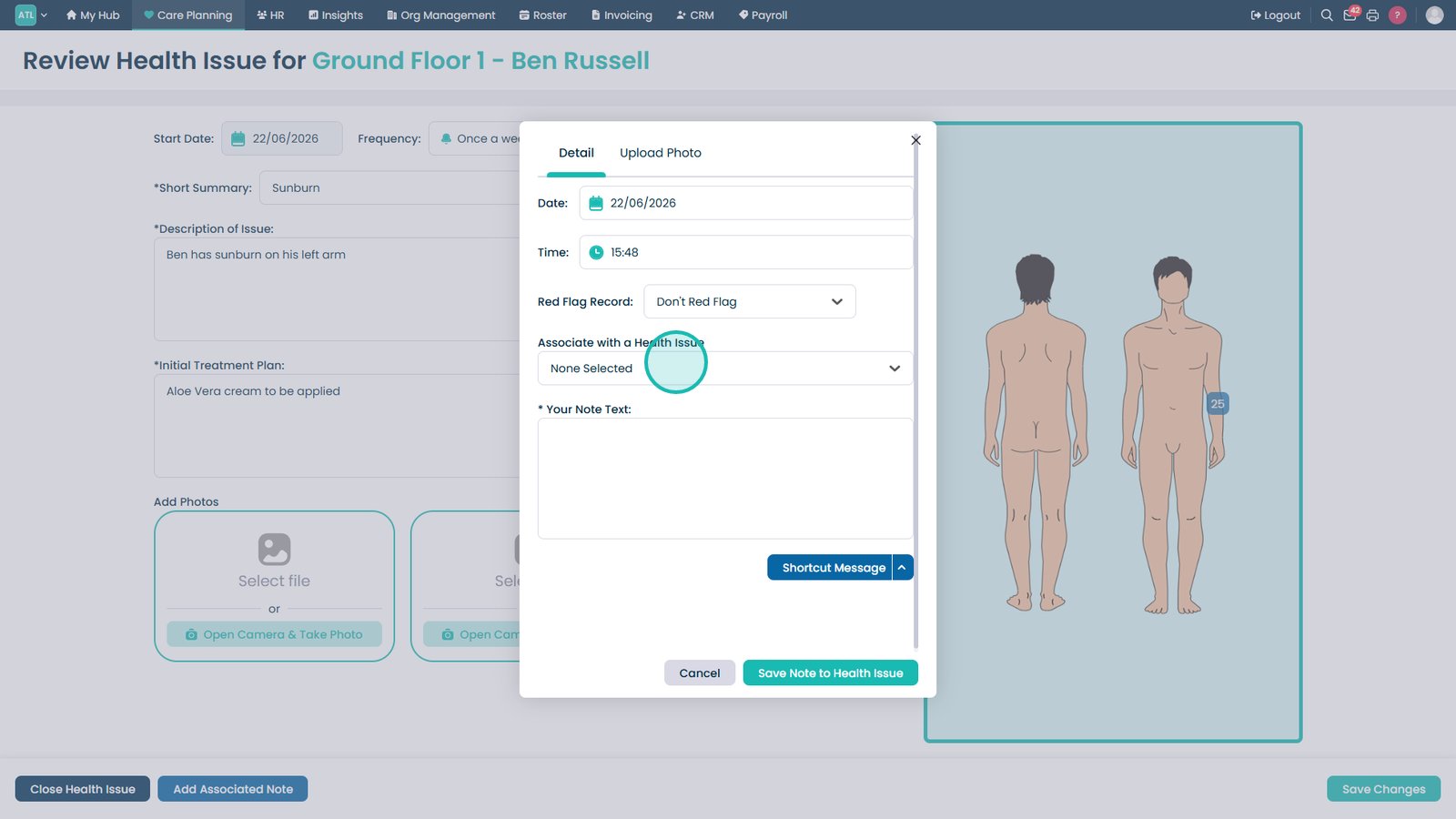
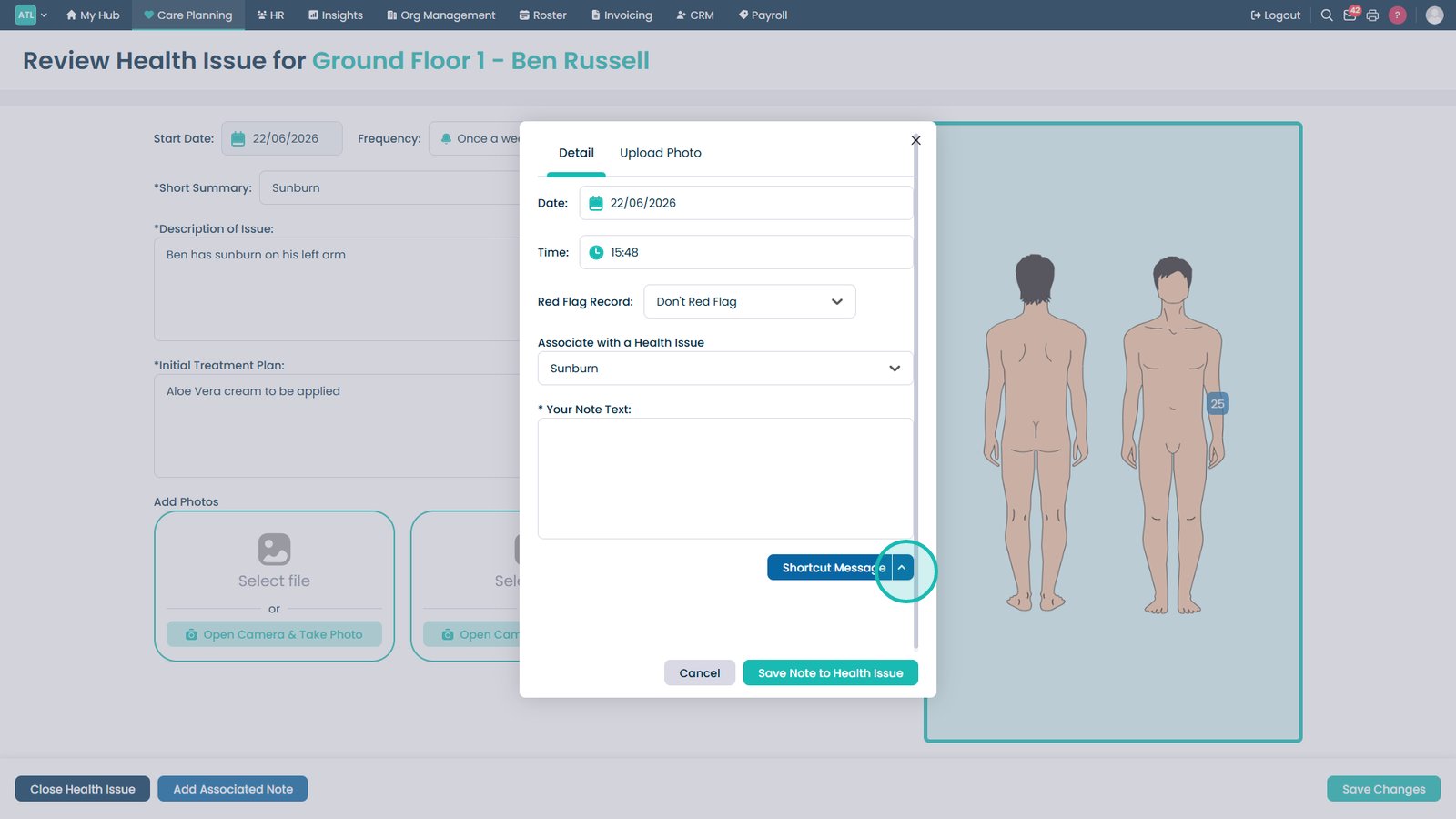
Select Add Note to record an observation or update.

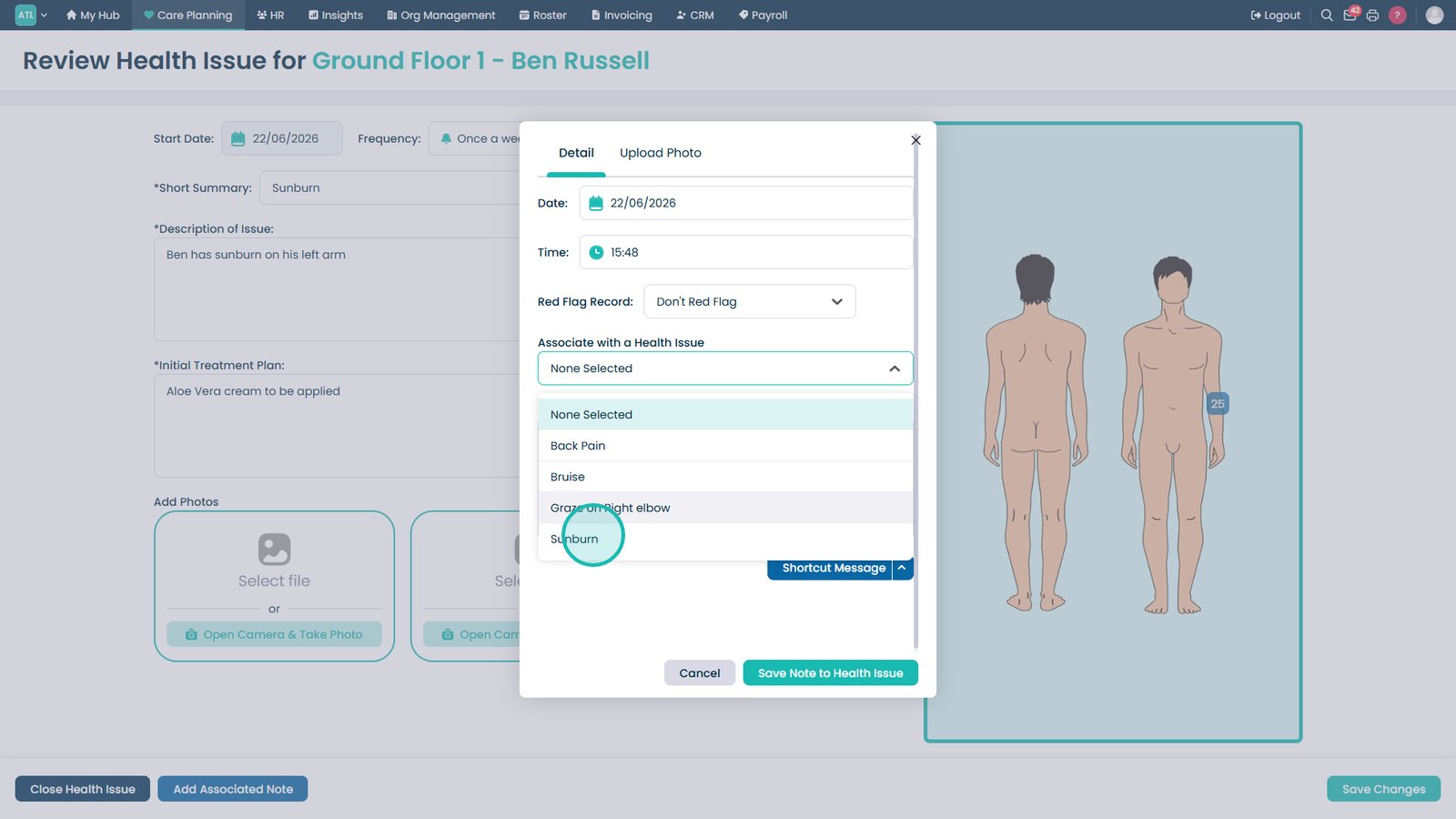
Select the Health Issue dropdown to choose which issue the note relates to.

Select the appropriate health issue from the list.

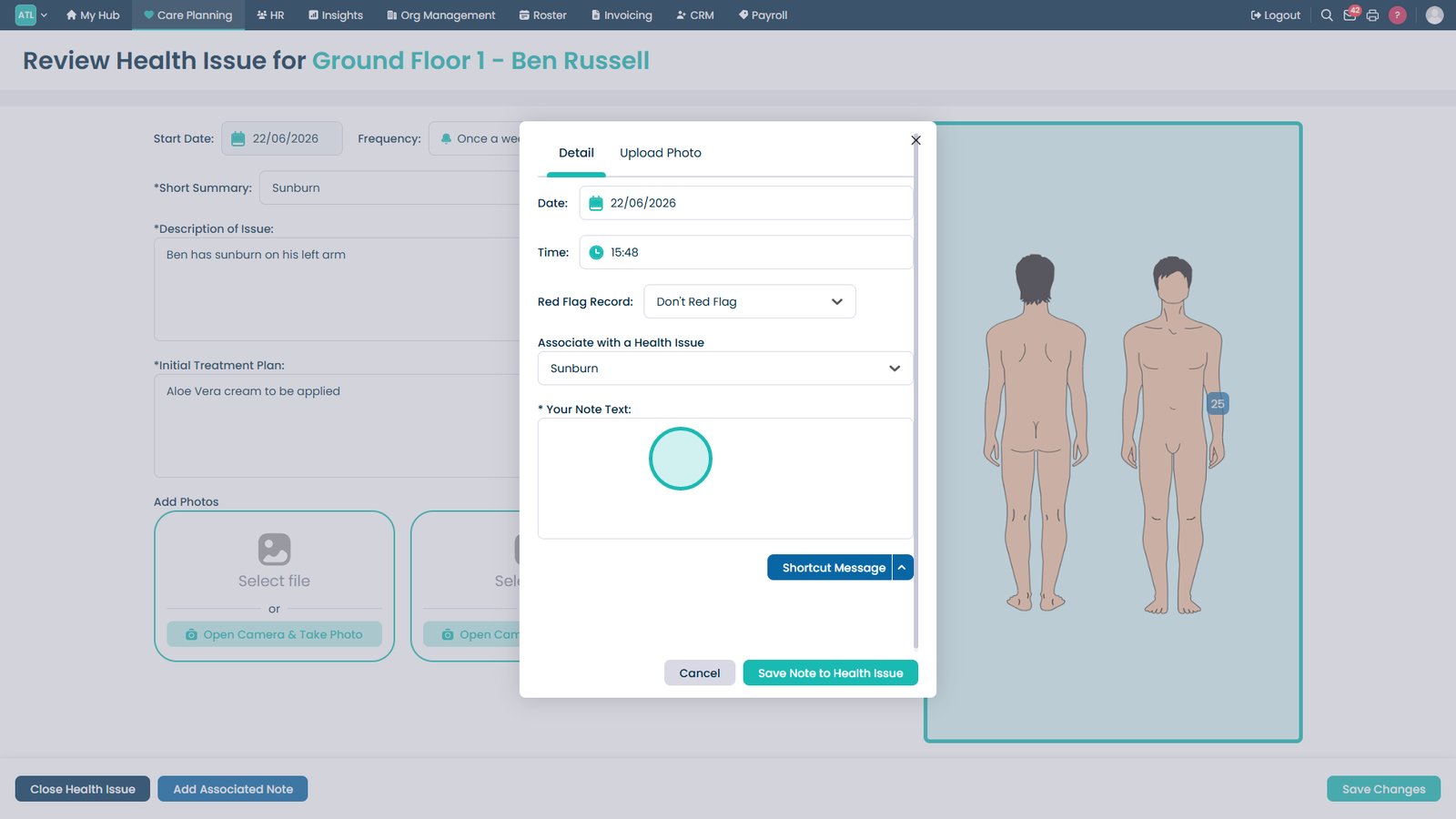
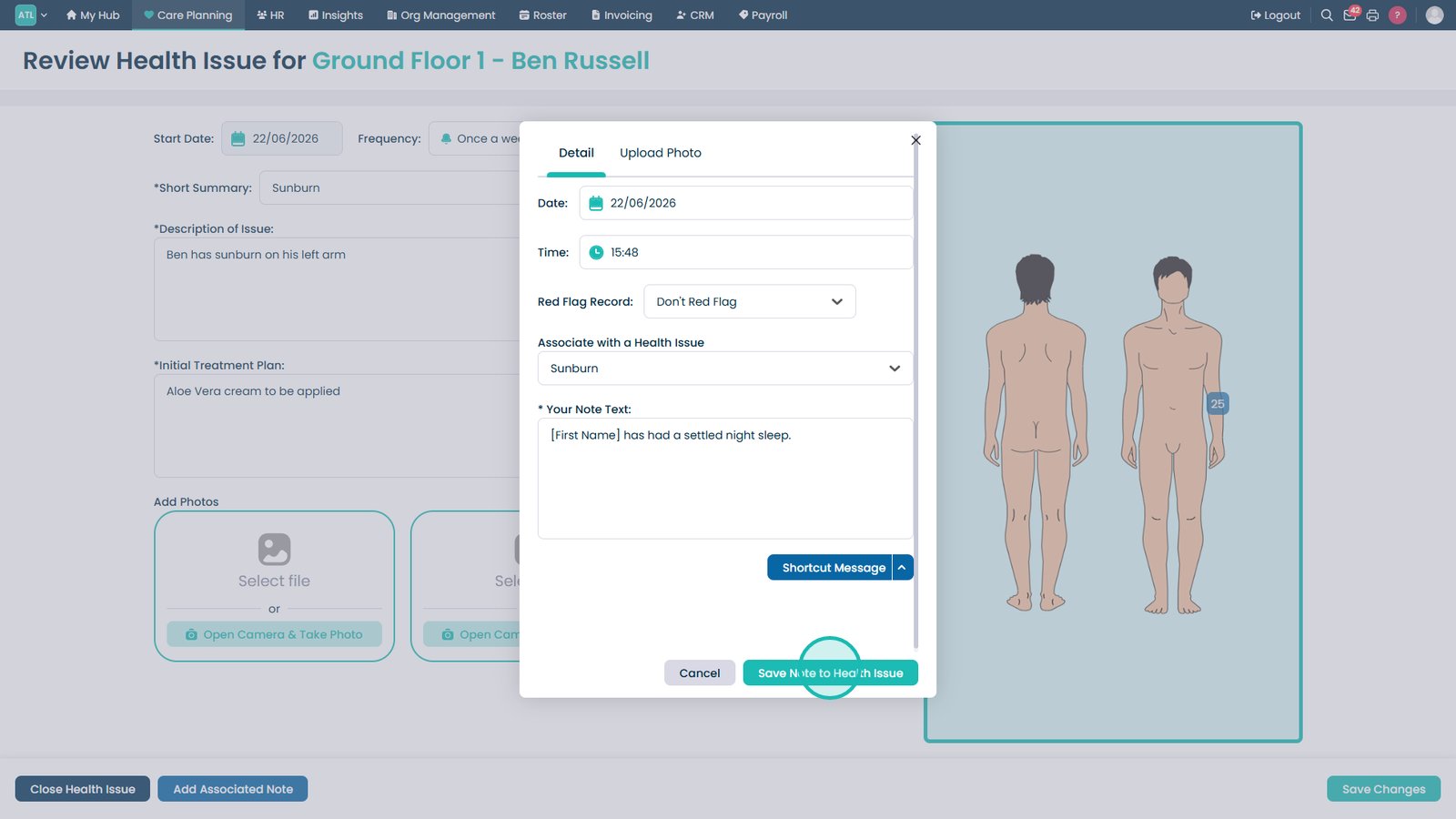
Enter the note details in the text field provided.

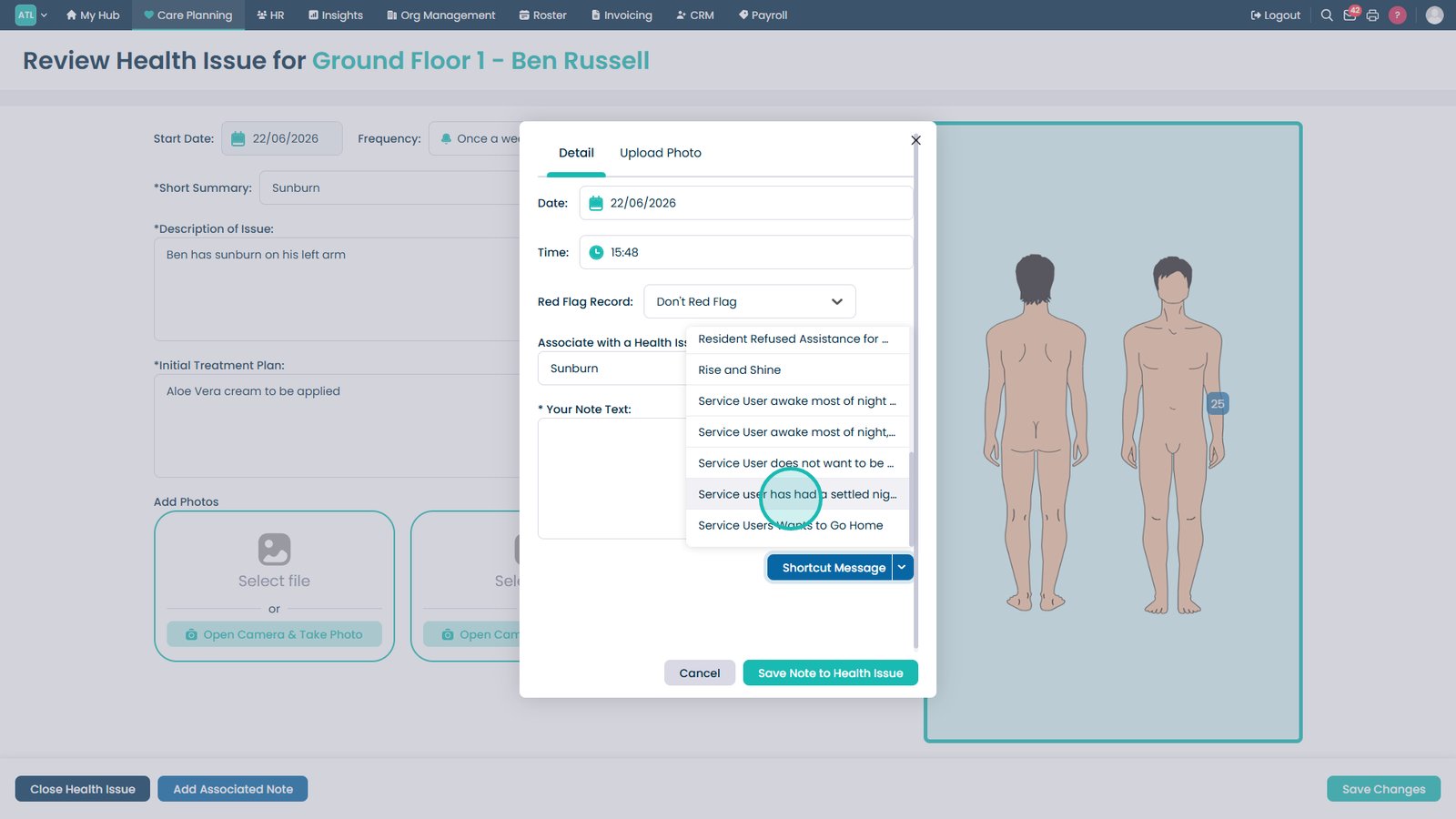
Use Get Quick Note to insert a pre-defined note template if required.

Select a quick note template from the available list.

Save the note to link it to the selected health issue.

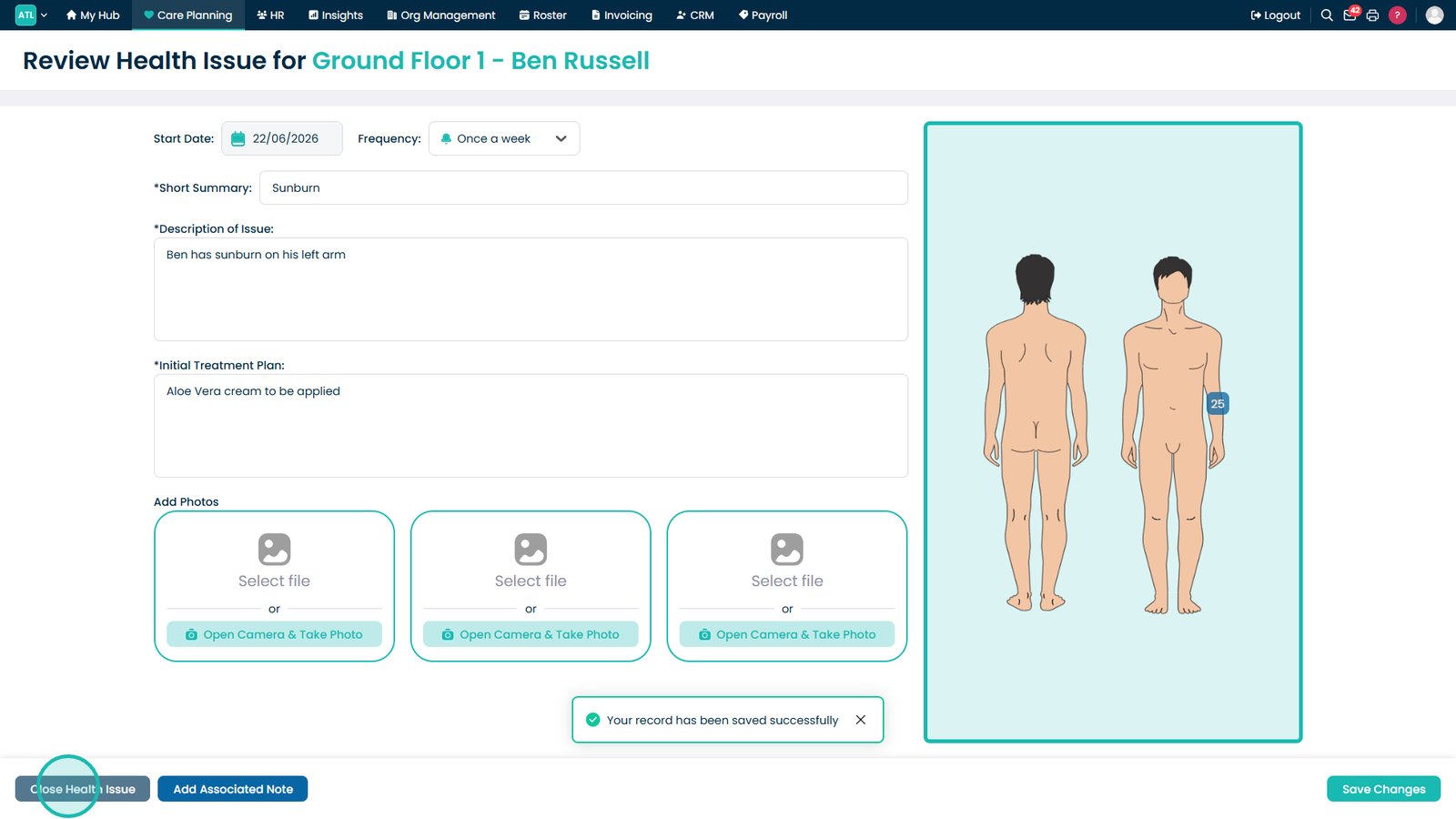
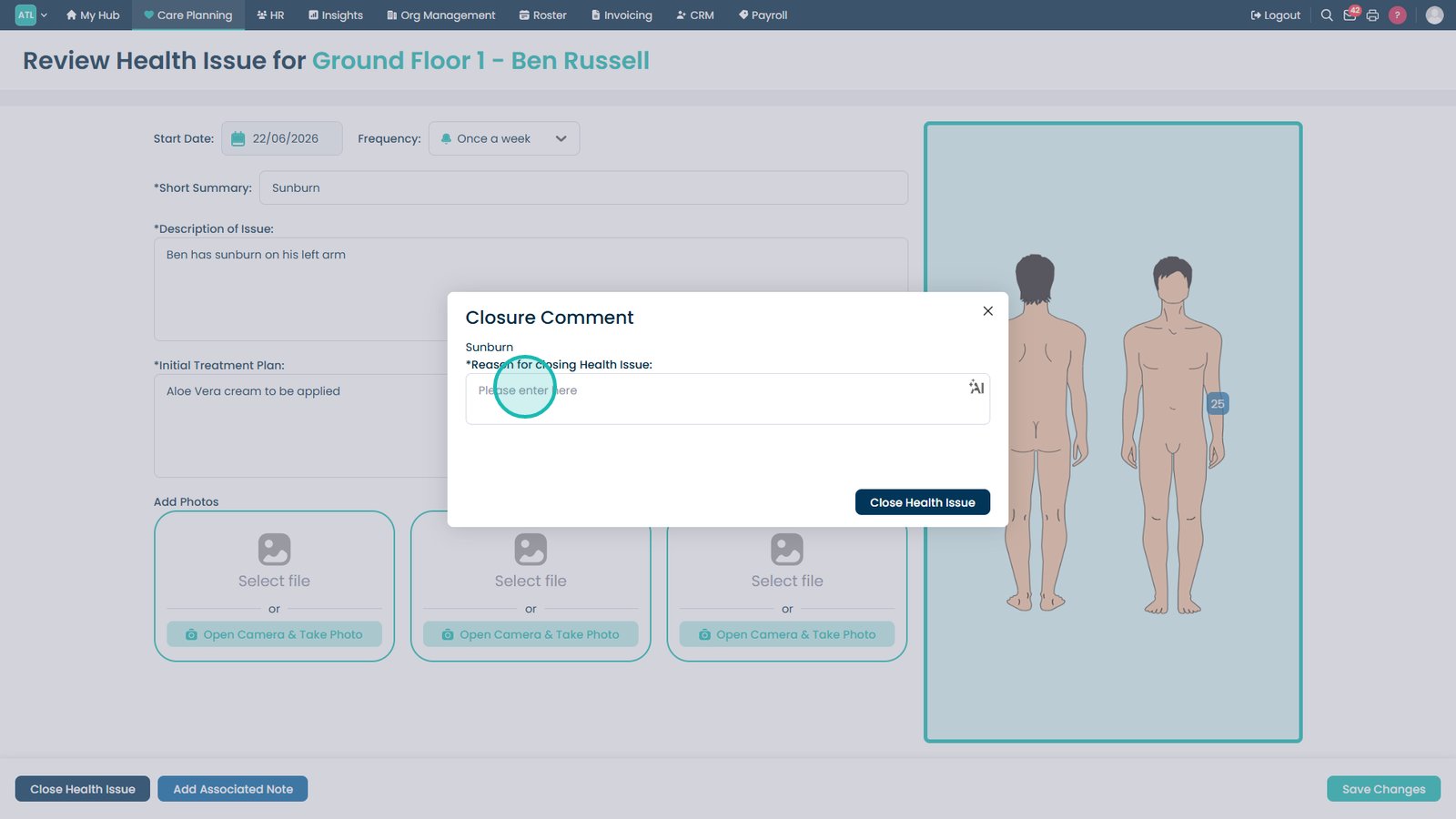
Select Close Health Issue when the concern has been resolved.

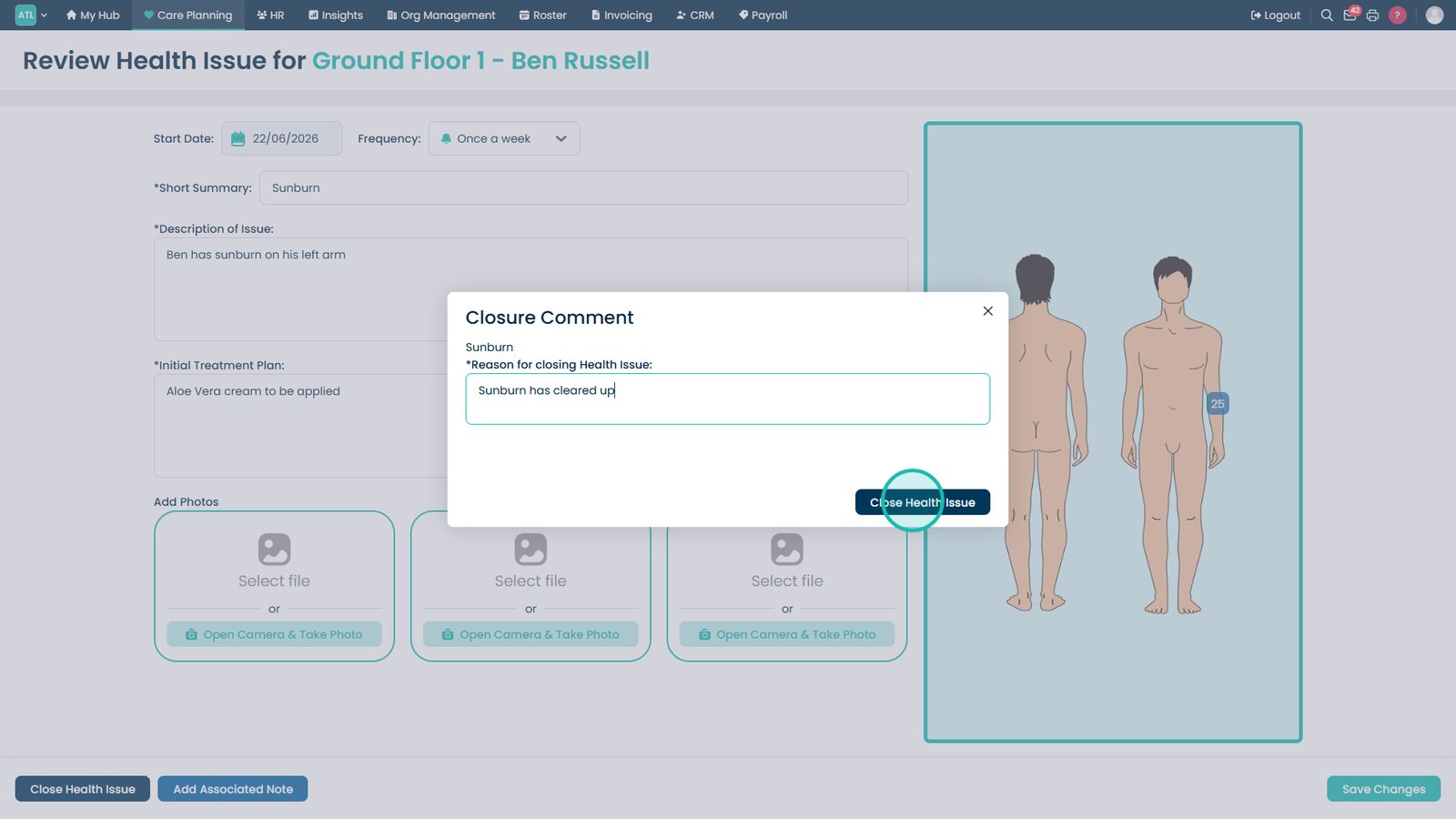
Enter the reason for closing the health issue.

Select Close Health Issue to finalise the closure and move the record into the resident's history.

Top tip

Use the body map and attached photographs together to accurately track the location and progression of wounds, skin conditions, and other health concerns over time.

Was this guide helpful?

Need more help?

Can't find what you're looking for? Our support team is here to help.

Contact Support

Or call us on

On this page