This guide explains how to complete a Multi Custom Monitoring entry
Takes 5 minutes
For: Care Staff
Updated: 30th June 2026
Introduction
The Multi Custom Monitoring module allows you to record the same monitoring entry for one or more service users at the same time. You can select multiple service users, enter monitoring details, generate an automatic comment, and save the completed record.
In this guide you'll learn how to:
Open a Multi Custom Monitoring area
Select one or more service users
Complete the monitoring details
Generate an automatic comment
Save the completed monitoring entry
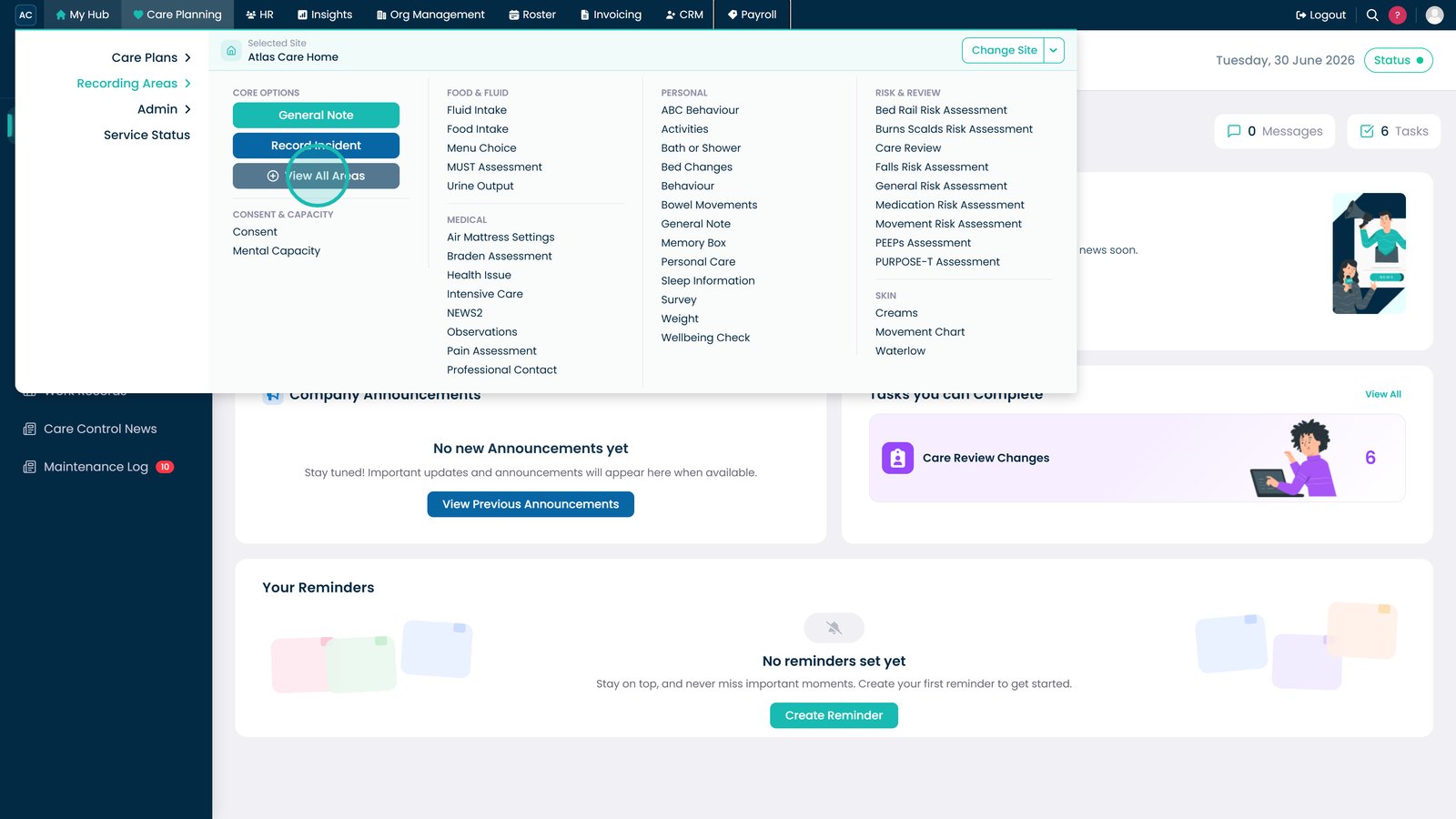
Select View All Areas under Recording Areas.
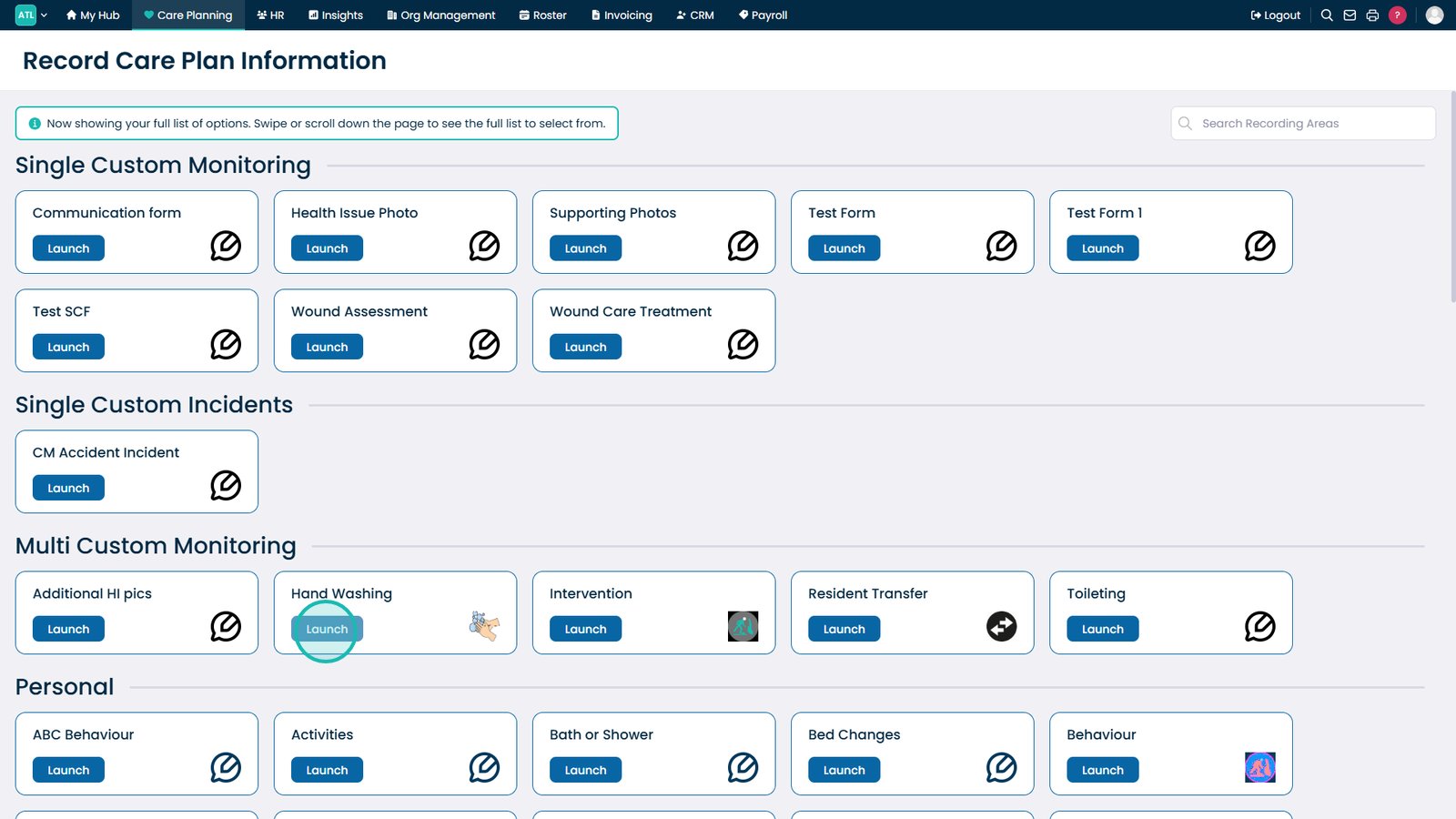
Select one of the Multi Custom Monitoring areas.
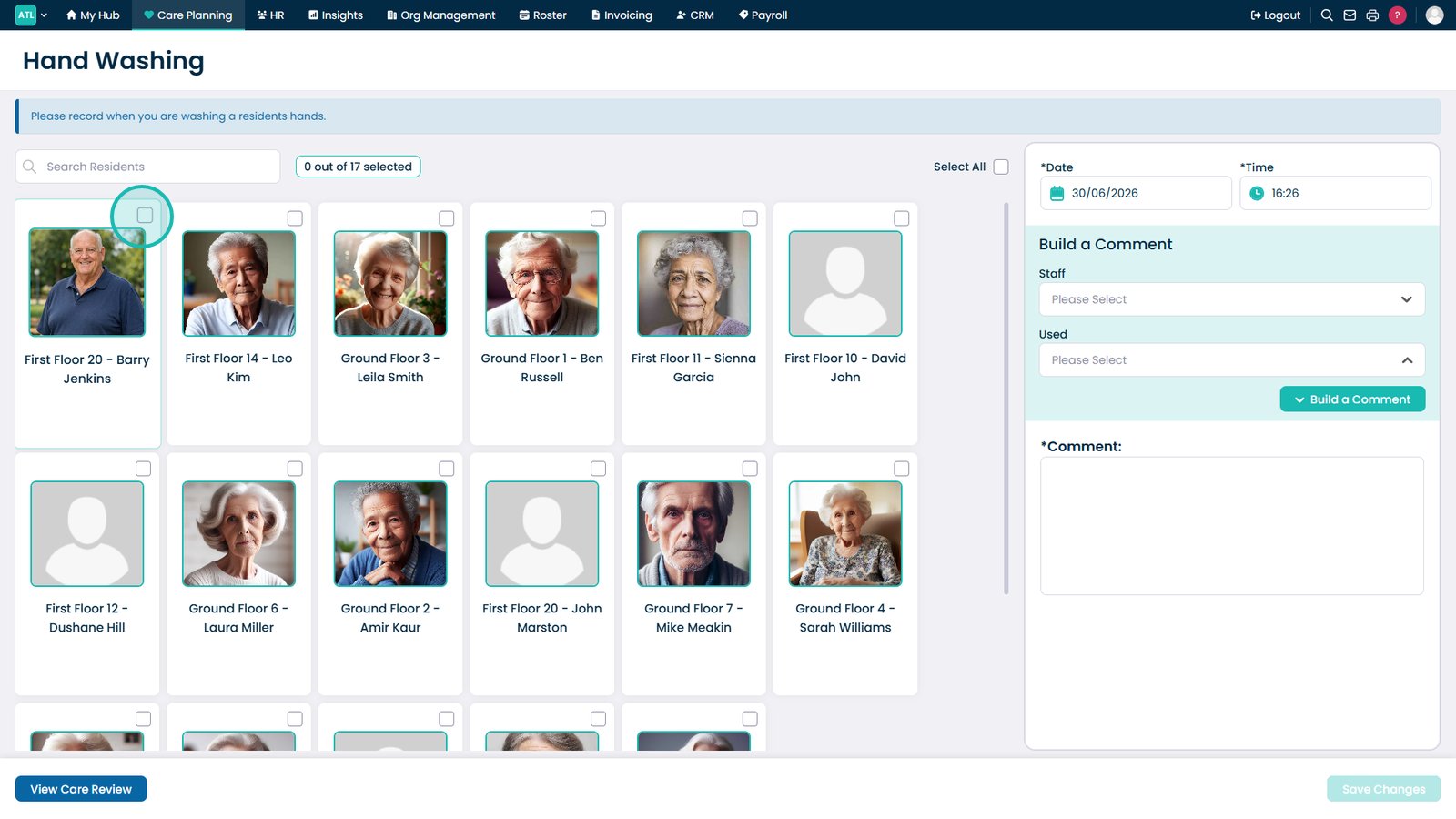
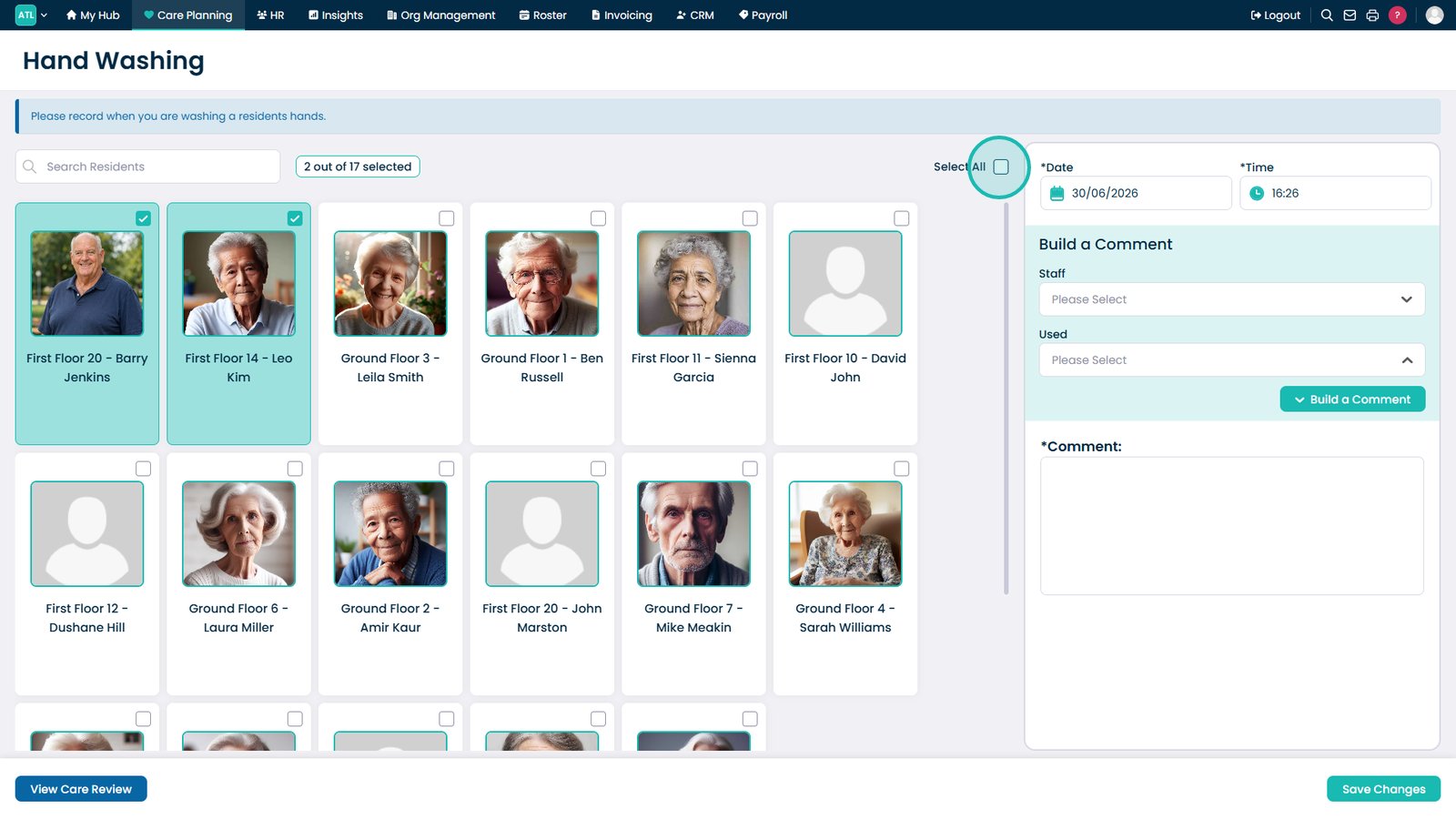
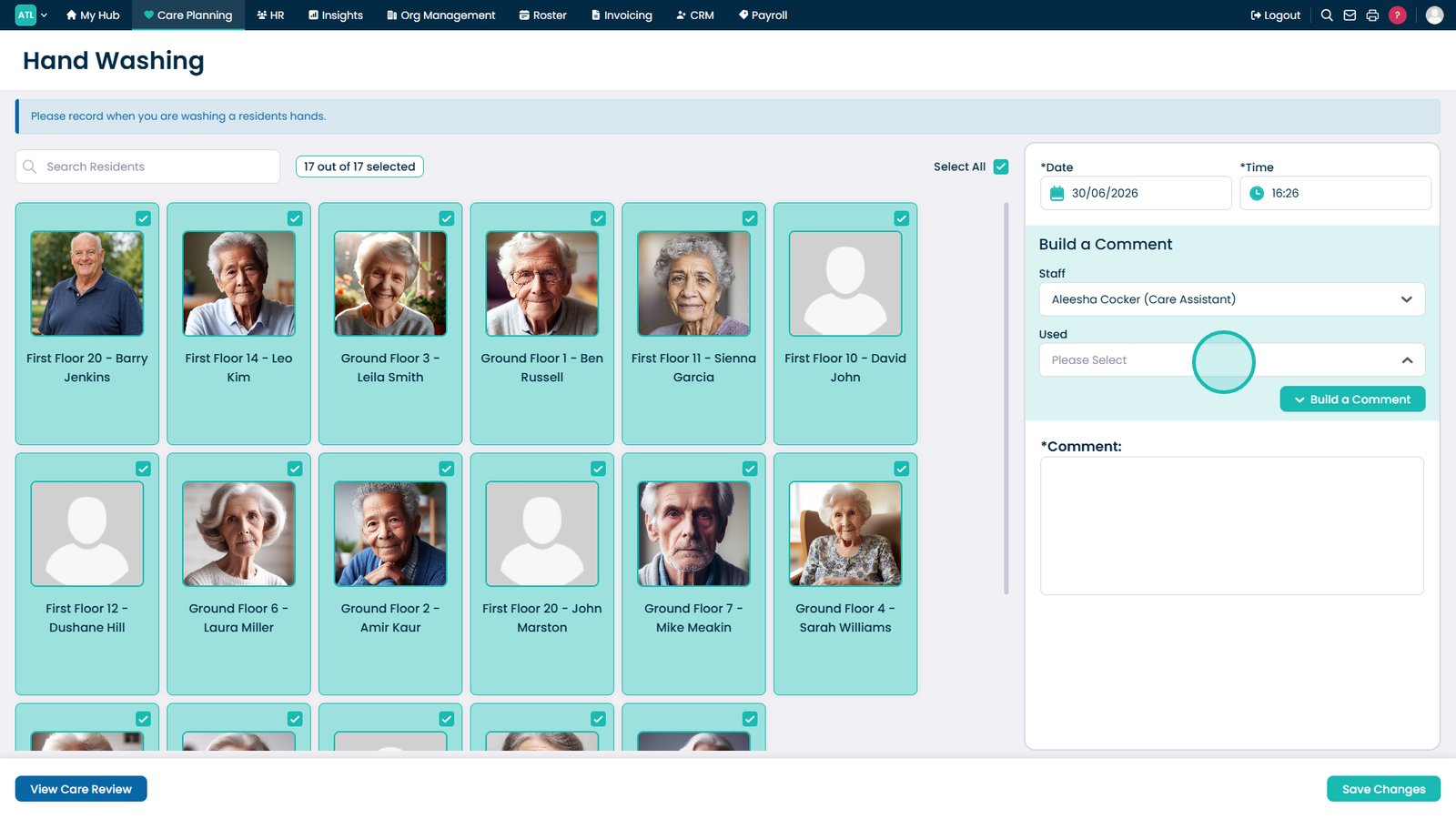
Select a service user.
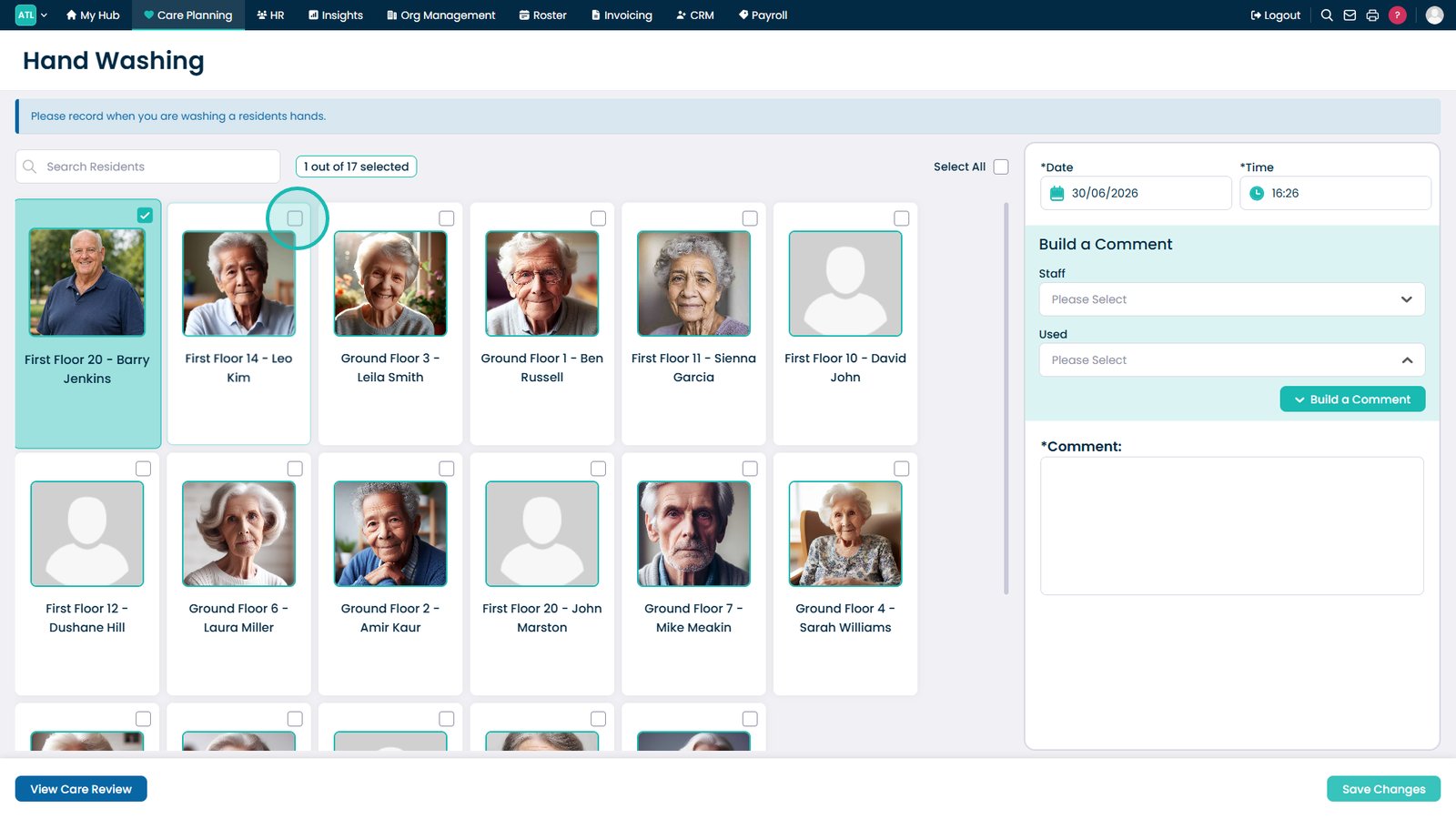
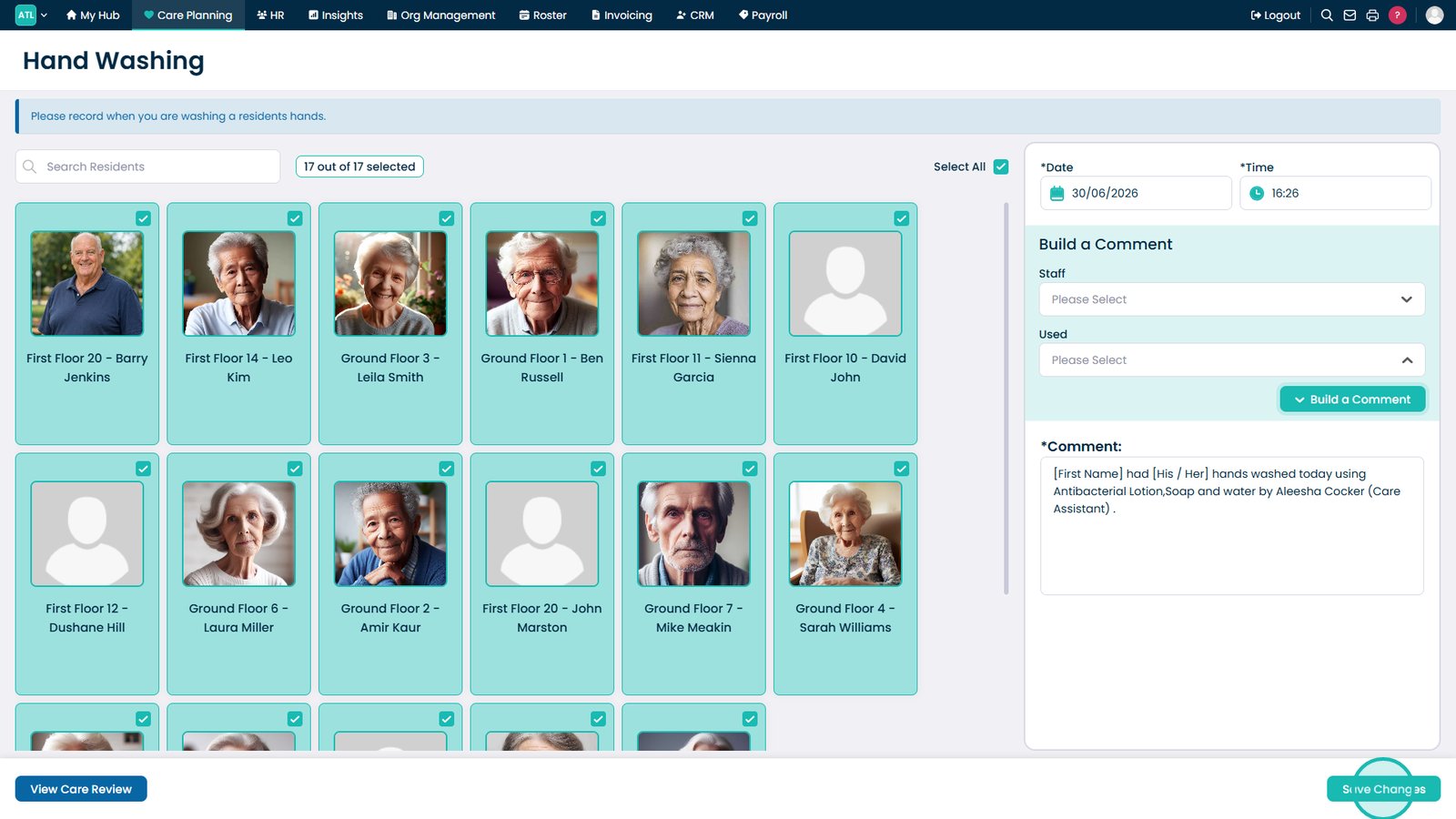
Select additional service users if required. Selected service users will be highlighted.
Select All if you want to include every service user.
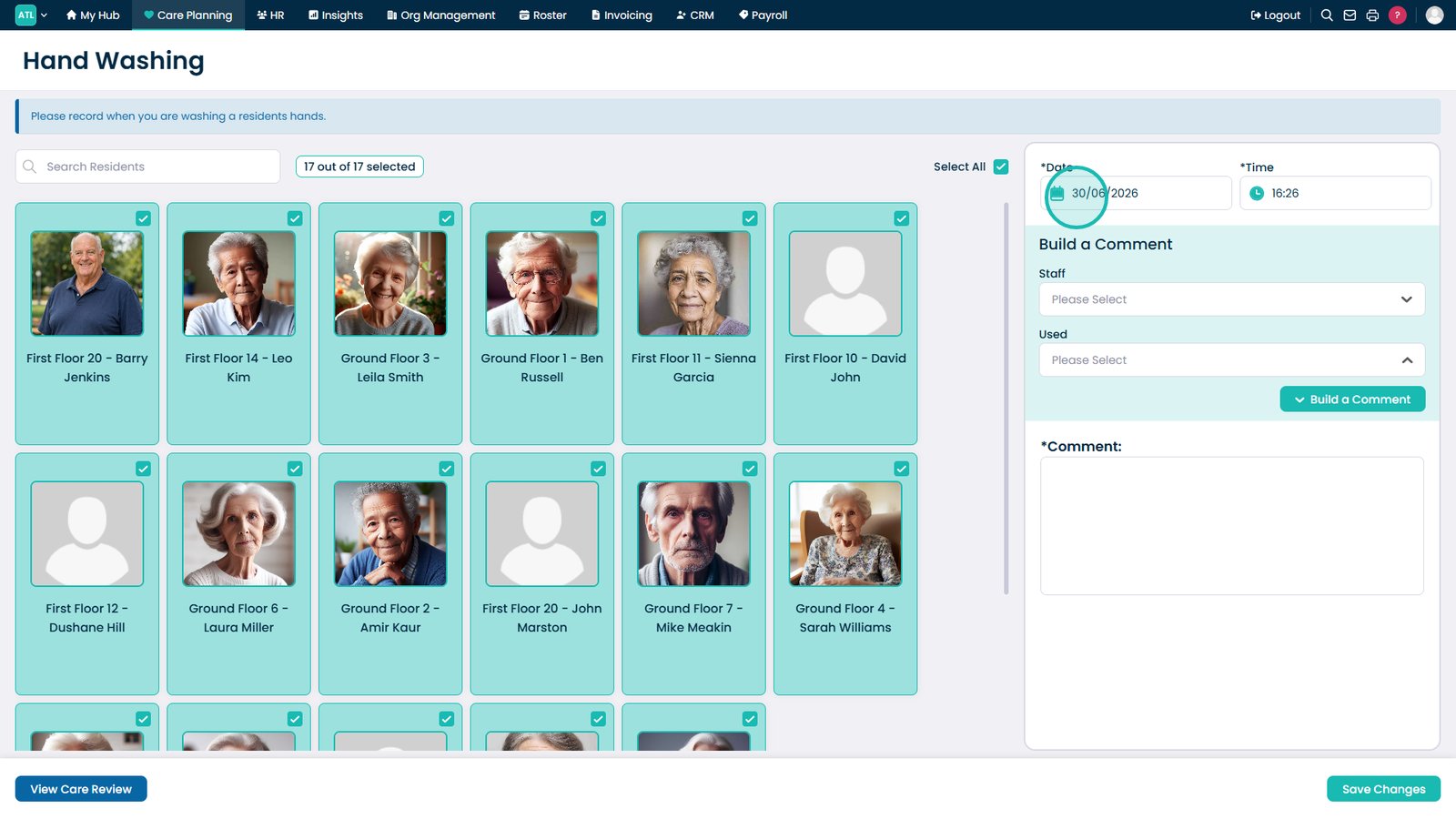
Review or amend the date. It defaults to today's date but can be changed to a past date.
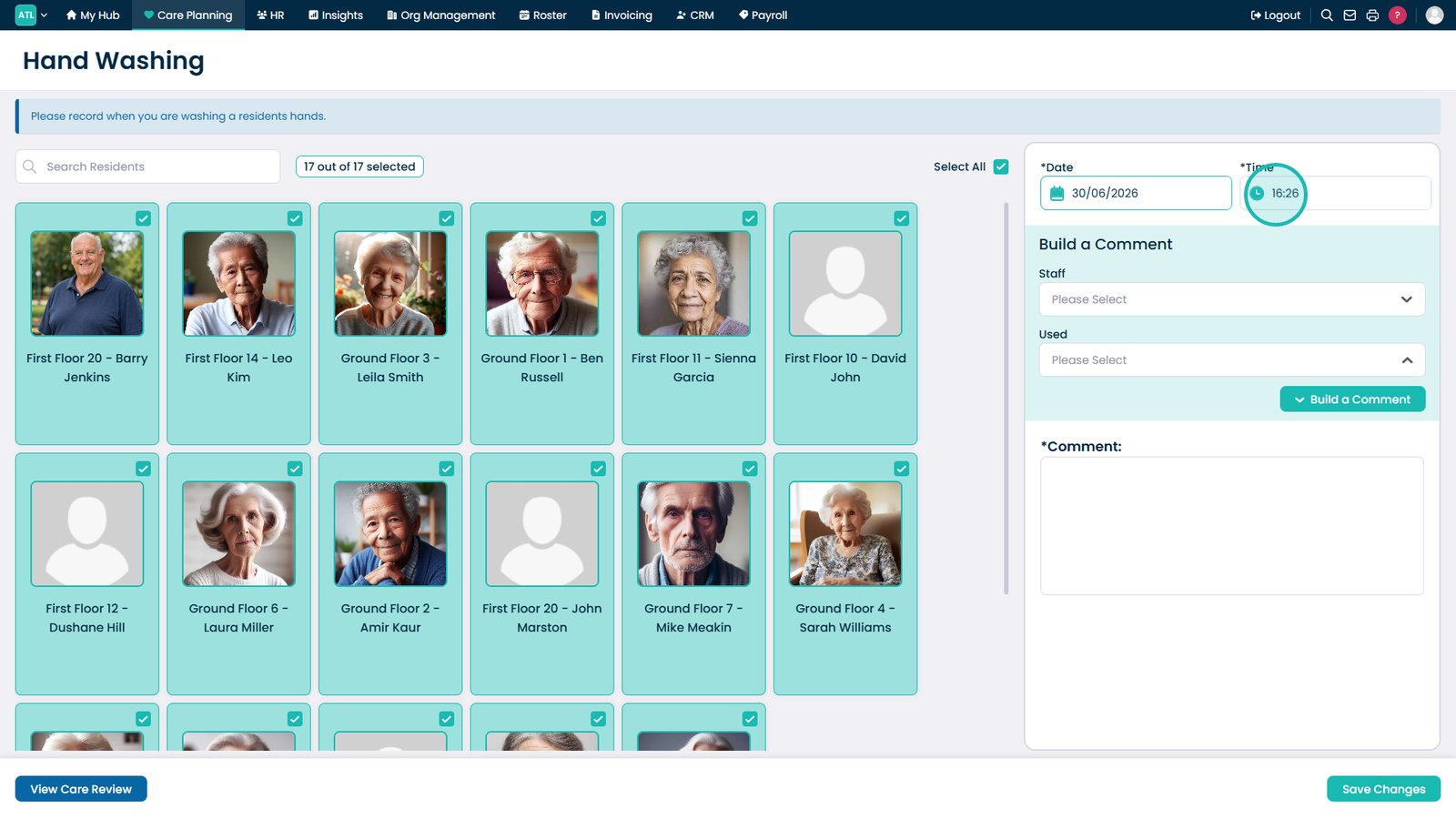
Review or amend the time. It defaults to the current time but can be changed to a past time.
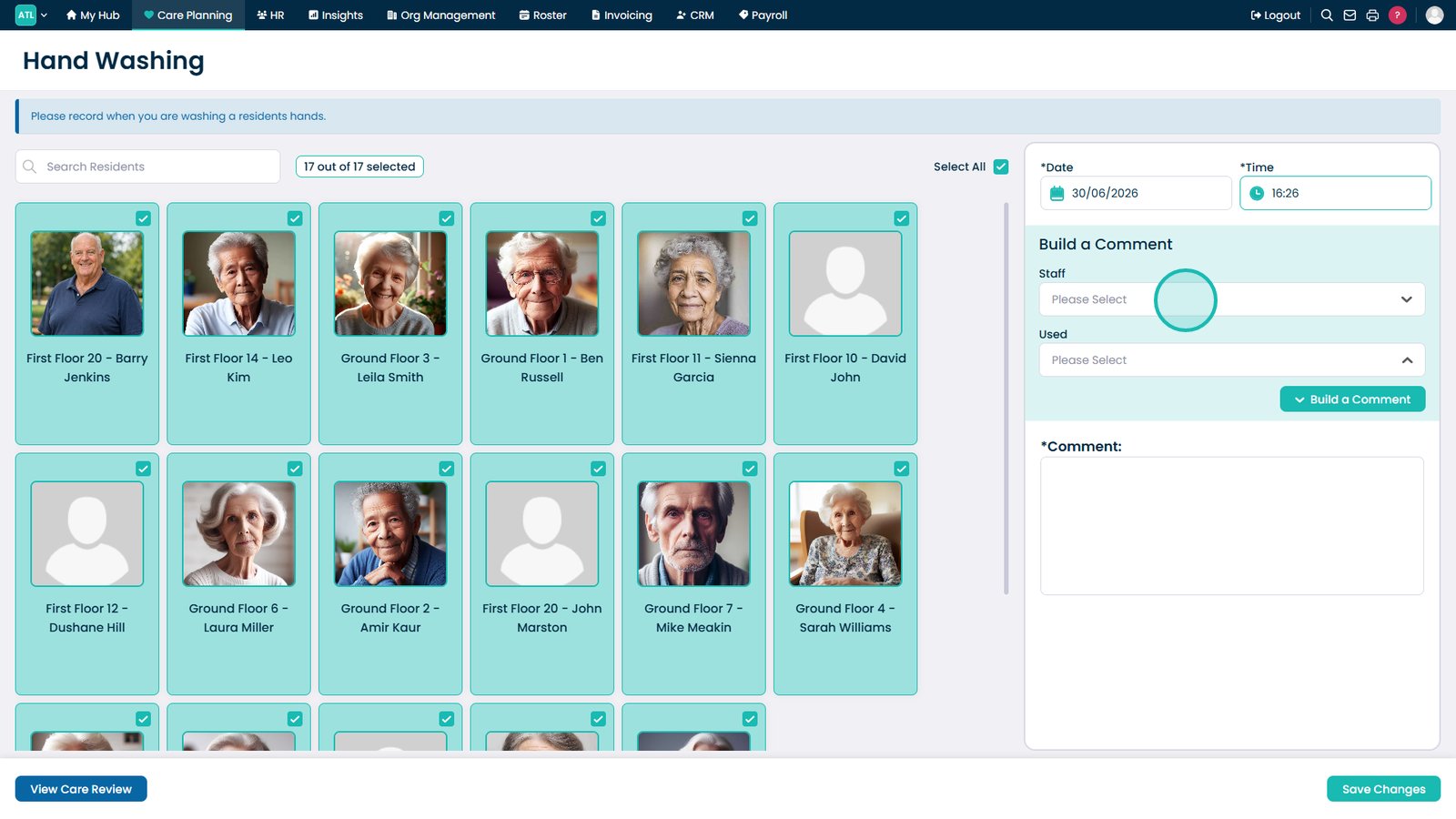
Select the staff member to begin building the monitoring comment.
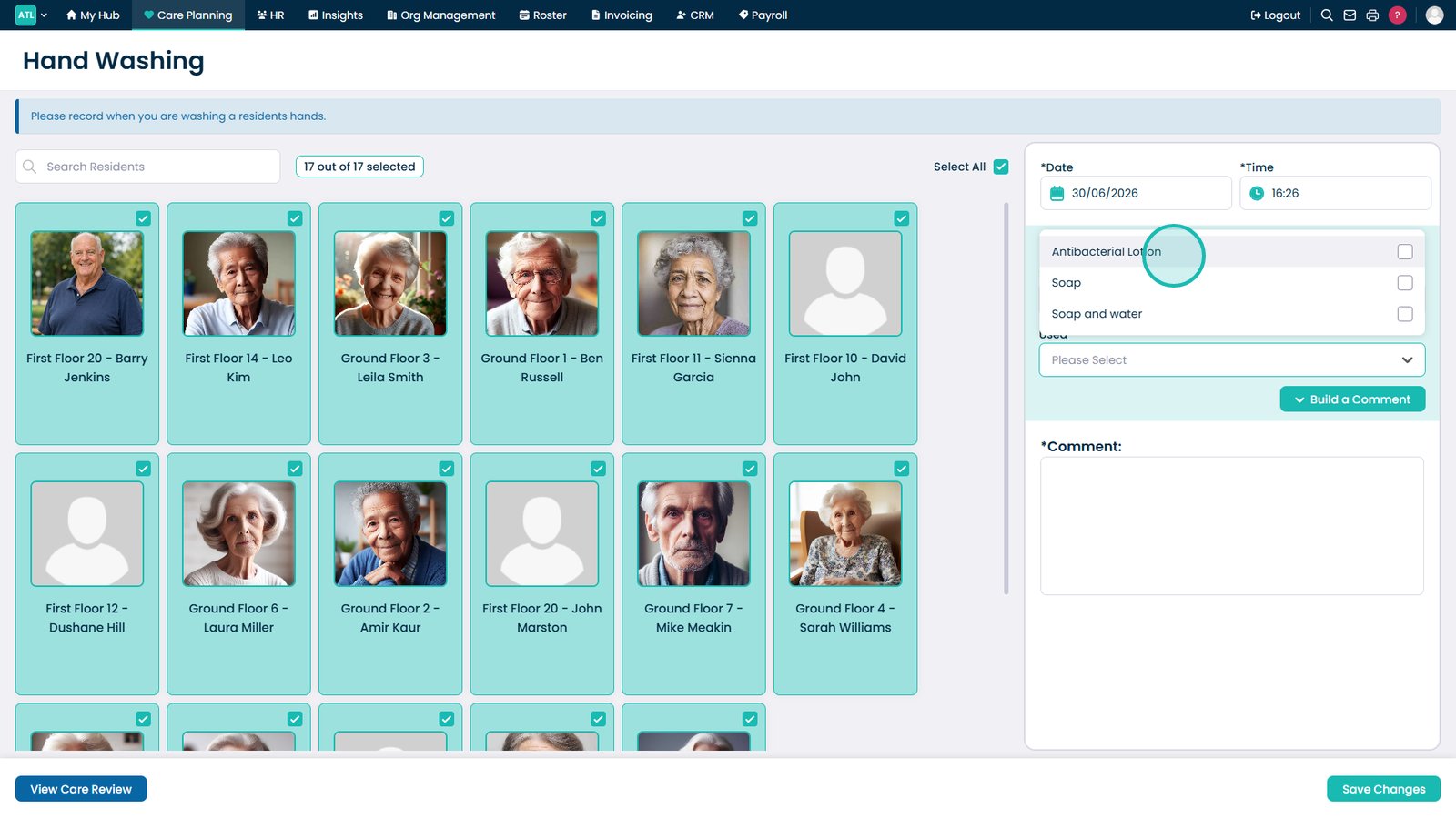
Select what was used during the monitoring.
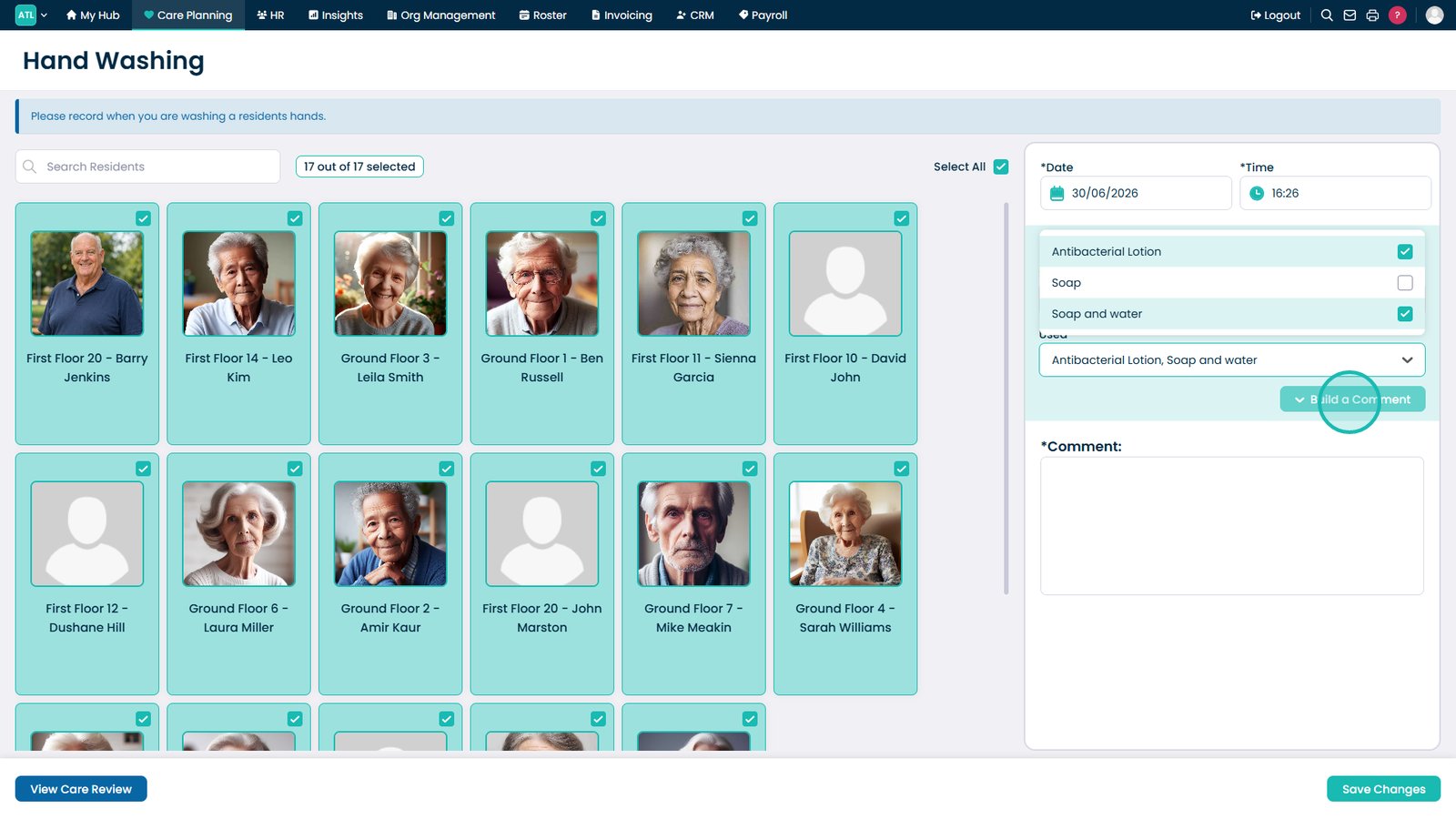
Select multiple options if the monitoring form allows more than one selection.
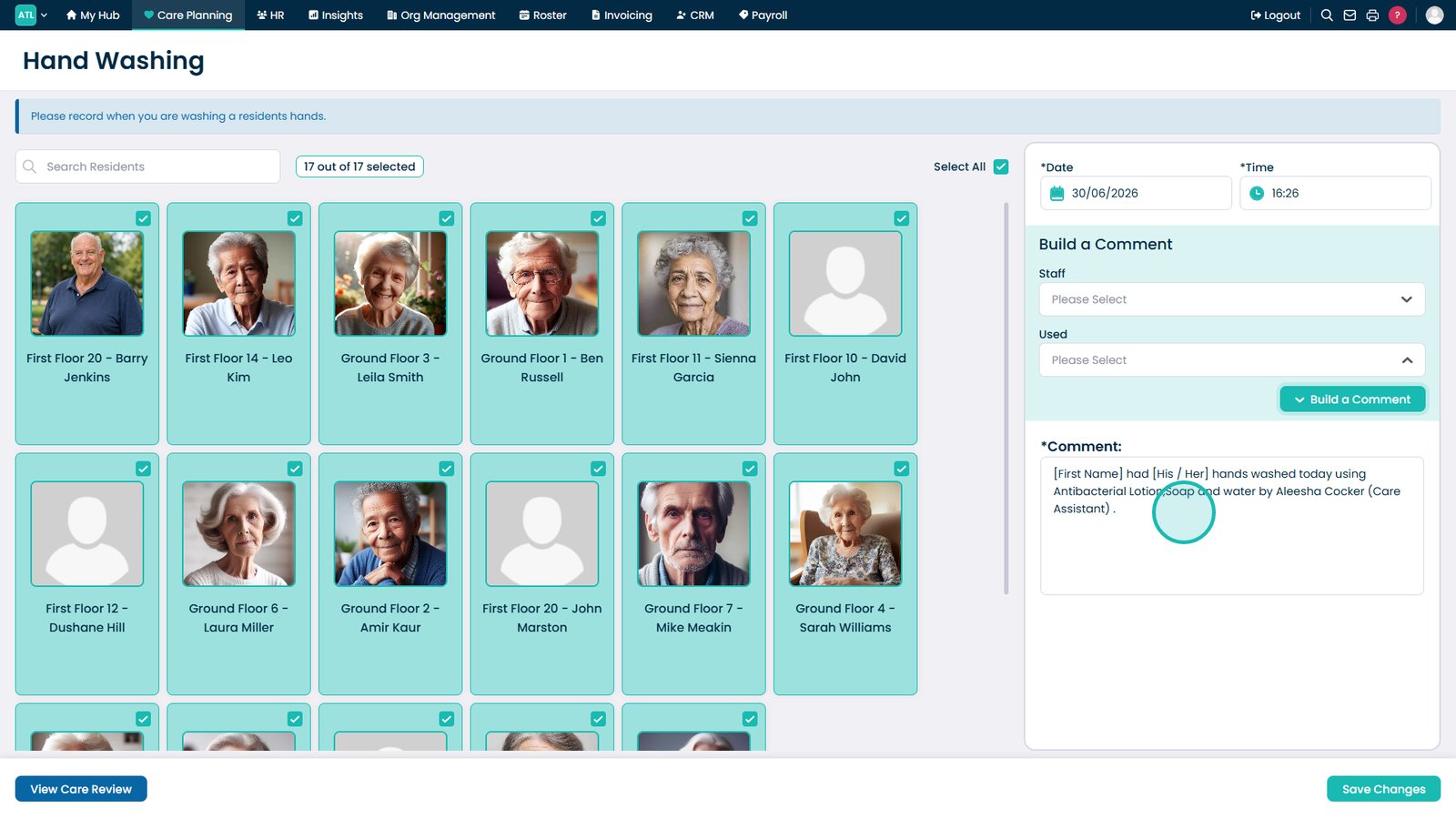
Select Build a Comment once you have completed your selections.
Review the generated comment and edit it if required.
Select Save Changes to save the completed monitoring entry.
Top tip
Review the automatically generated comment before saving to ensure it accurately reflects the monitoring that was completed.