How to Record a NEWS2 Assessment
This guide will walk you through completing a NEWS2 assessment and understanding the resulting risk score.
Takes 10 minutes
For: Care Staff & Nurses
Updated: 4th June 2026
Introduction
The NEWS2 Assessment helps identify residents who may be at risk of clinical deterioration by recording key observations such as respiration rate, oxygen levels, temperature, blood pressure, pulse, and consciousness. The assessment automatically calculates a risk score and provides guidance on the appropriate action to take.
In this guide you'll learn how to:
- Complete a NEWS2 assessment
- Understand NEWS2 risk scores
- Review recommended actions
- Start intensive monitoring where required
- Save assessment results
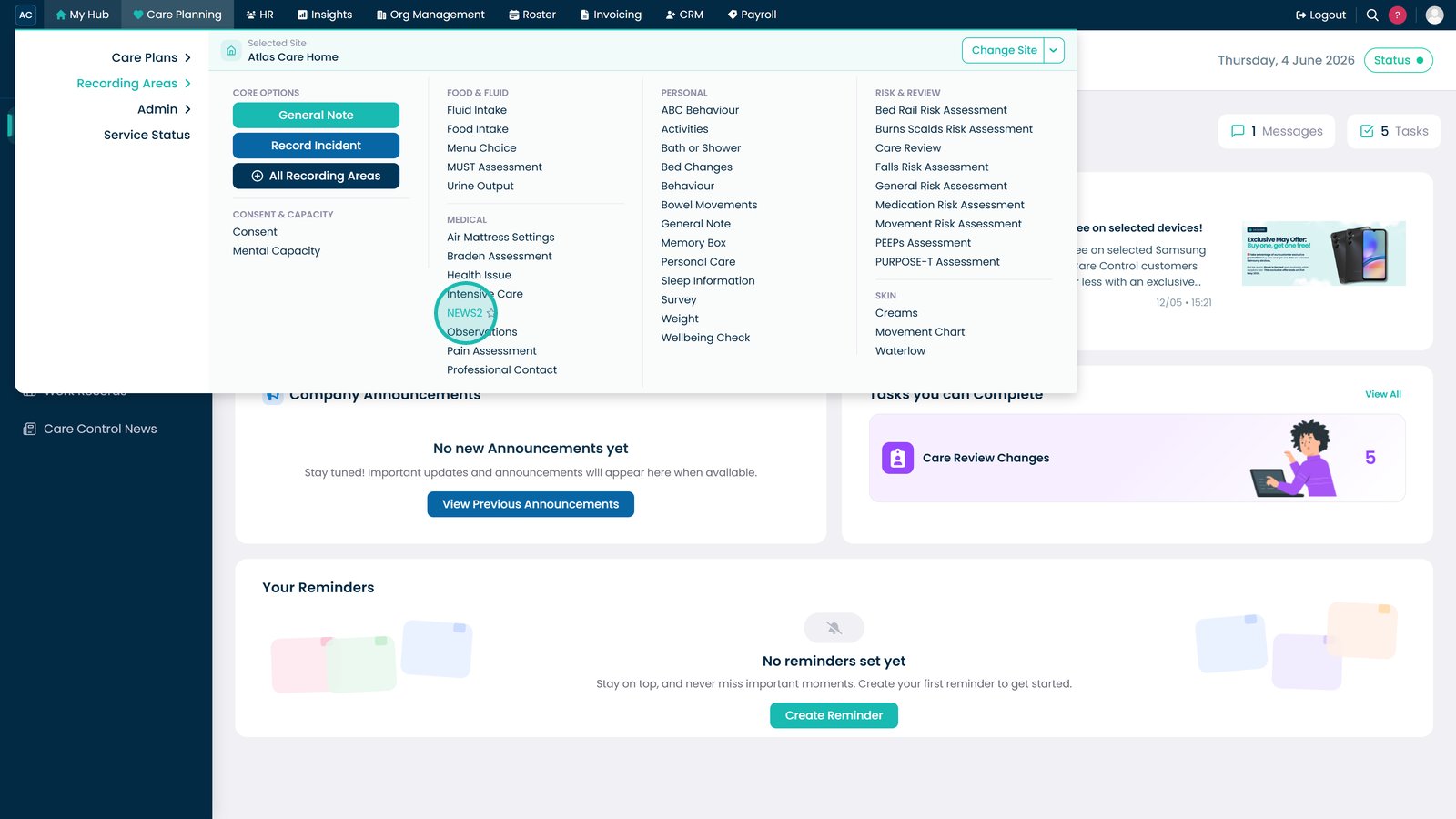
Open NEWS2 from the Recording Areas menu.

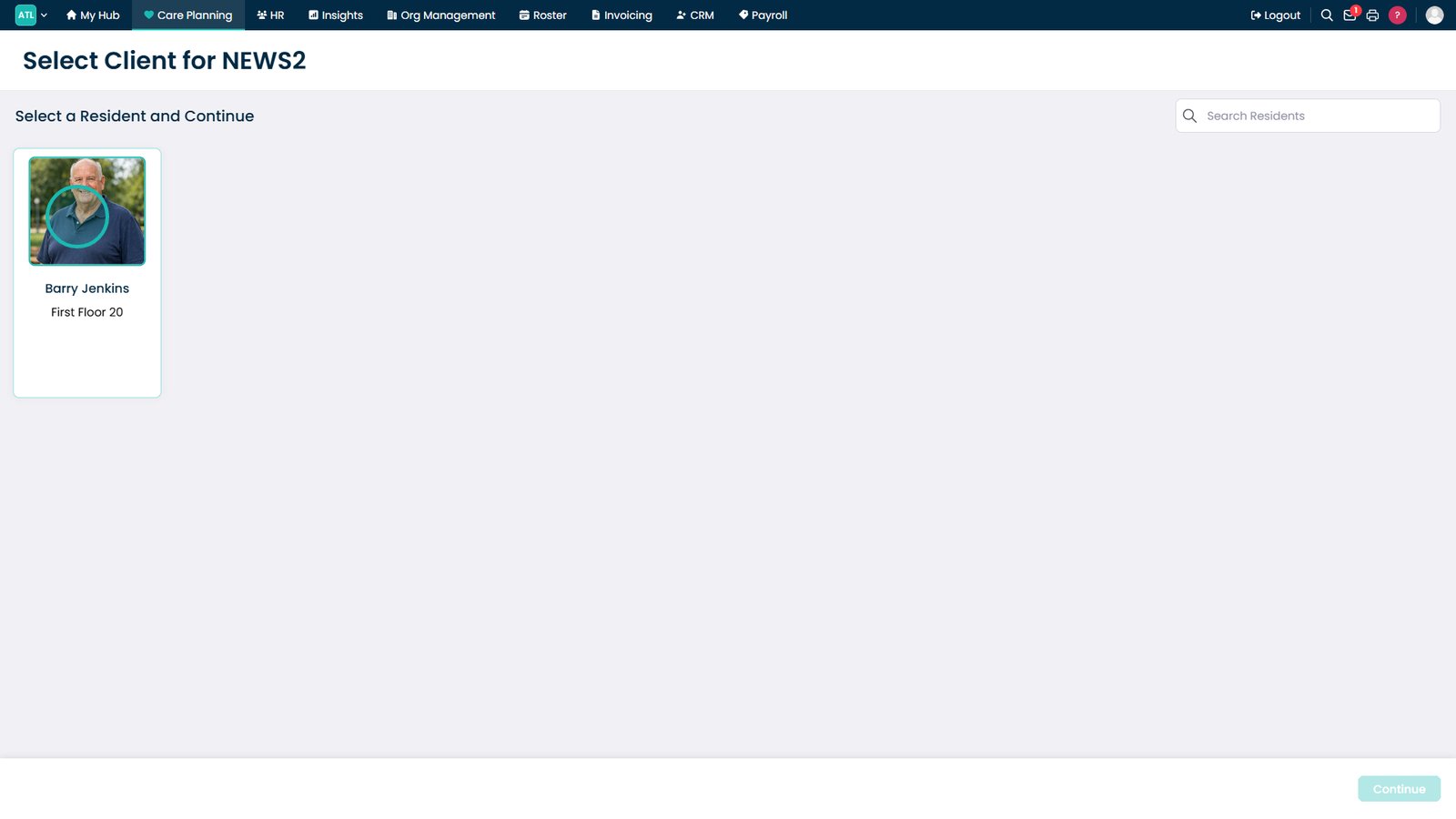
Select the resident you want to complete the assessment for.

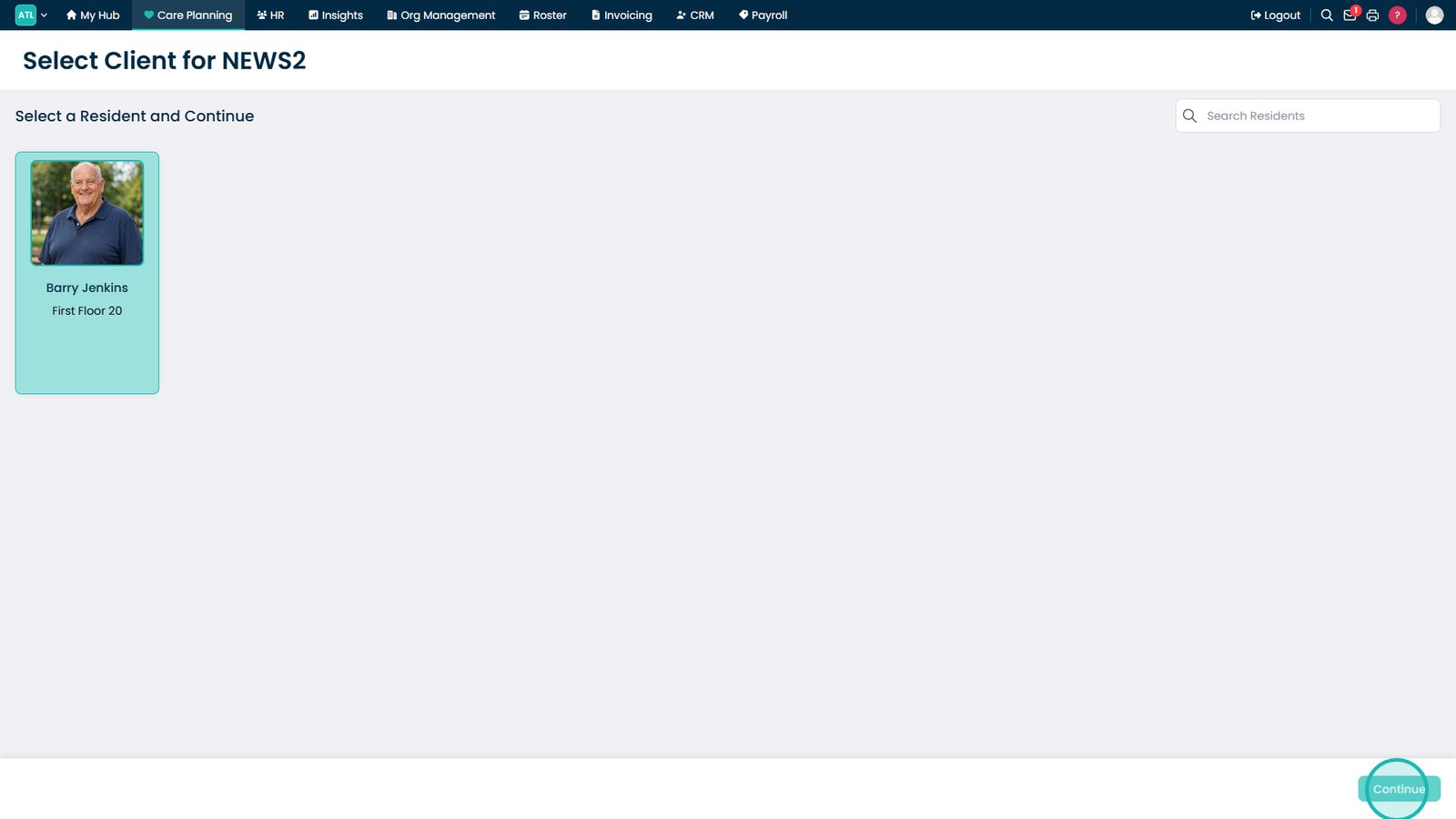
Click Continue to open the NEWS2 assessment.

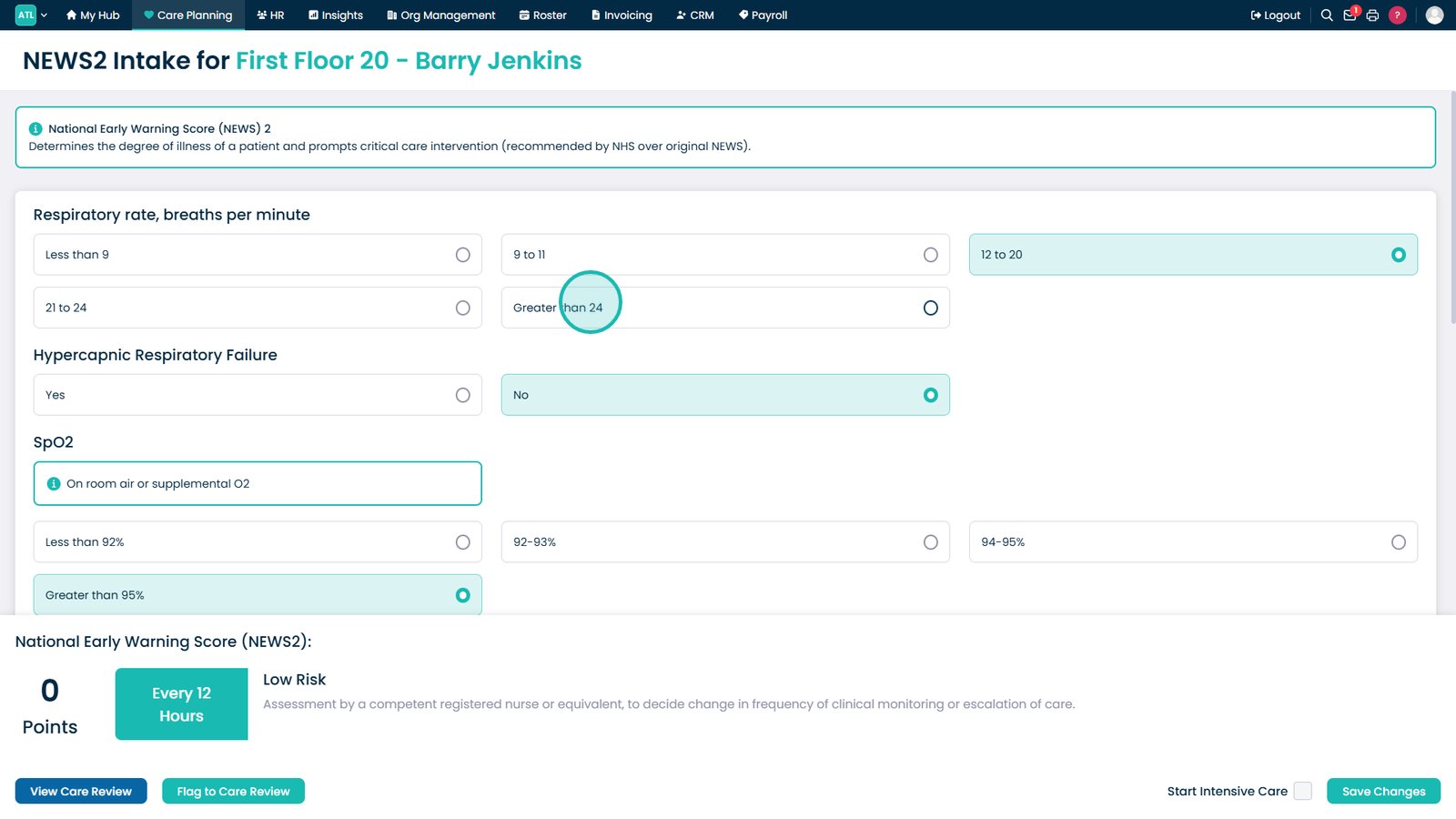
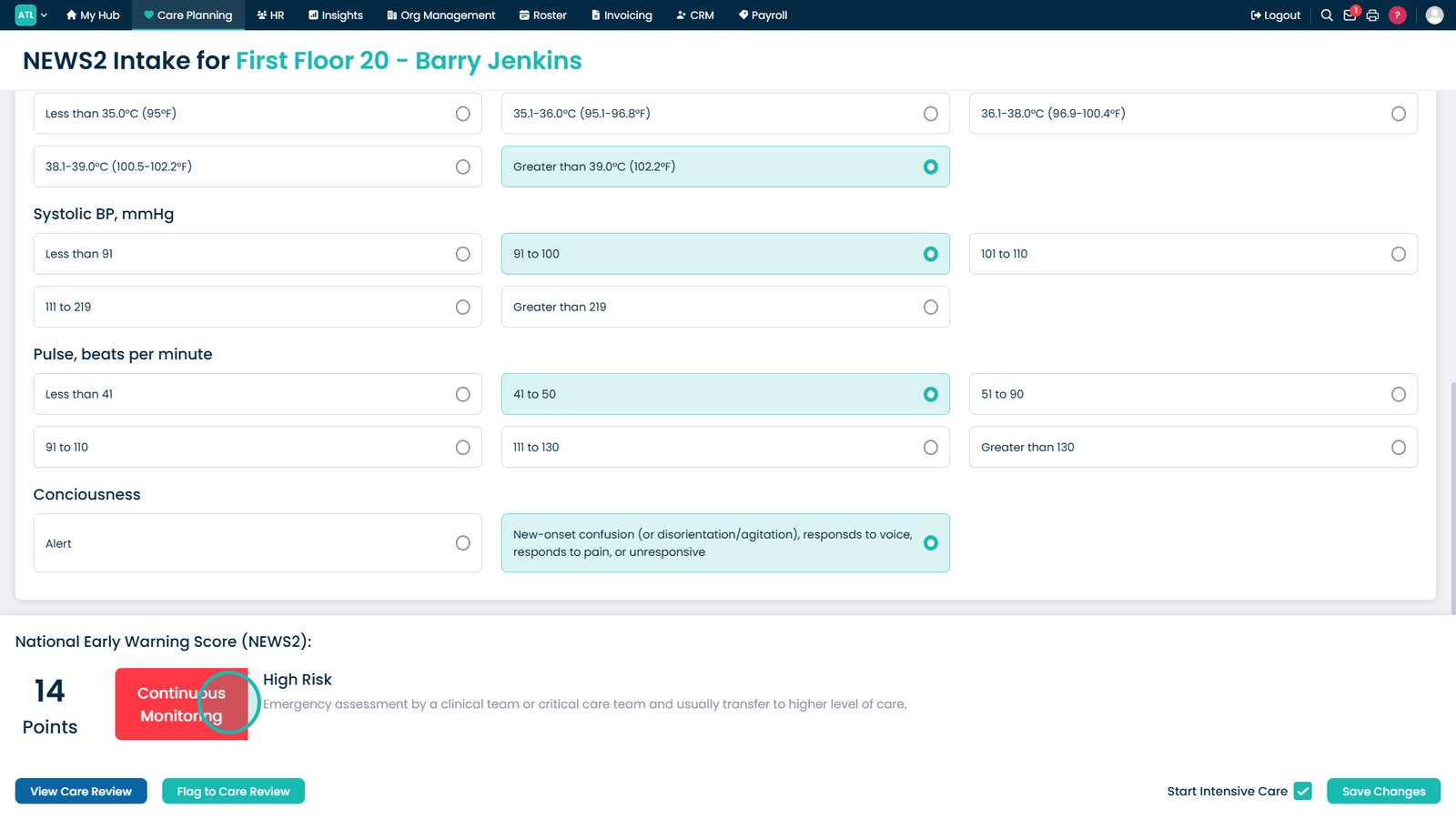
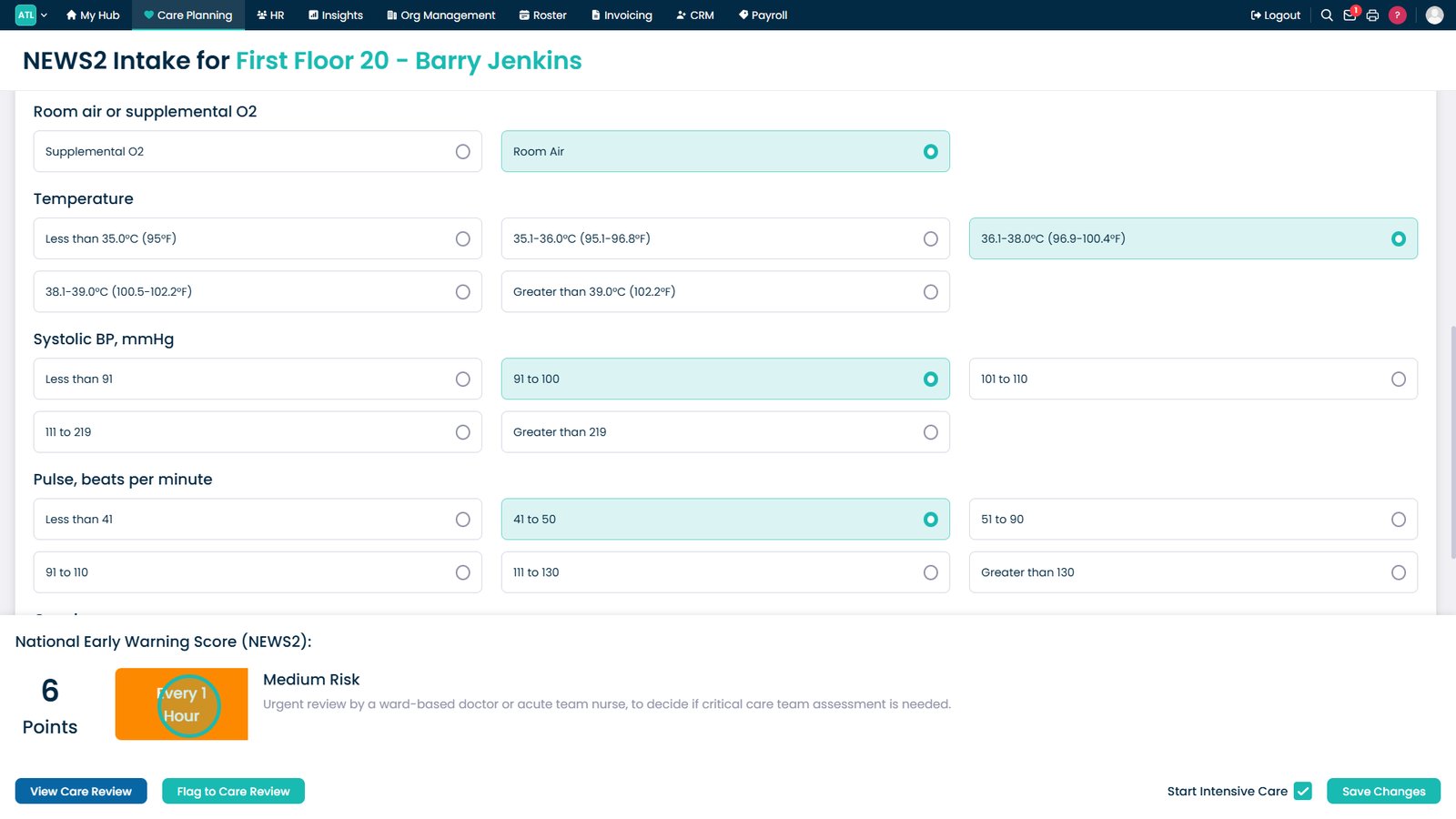
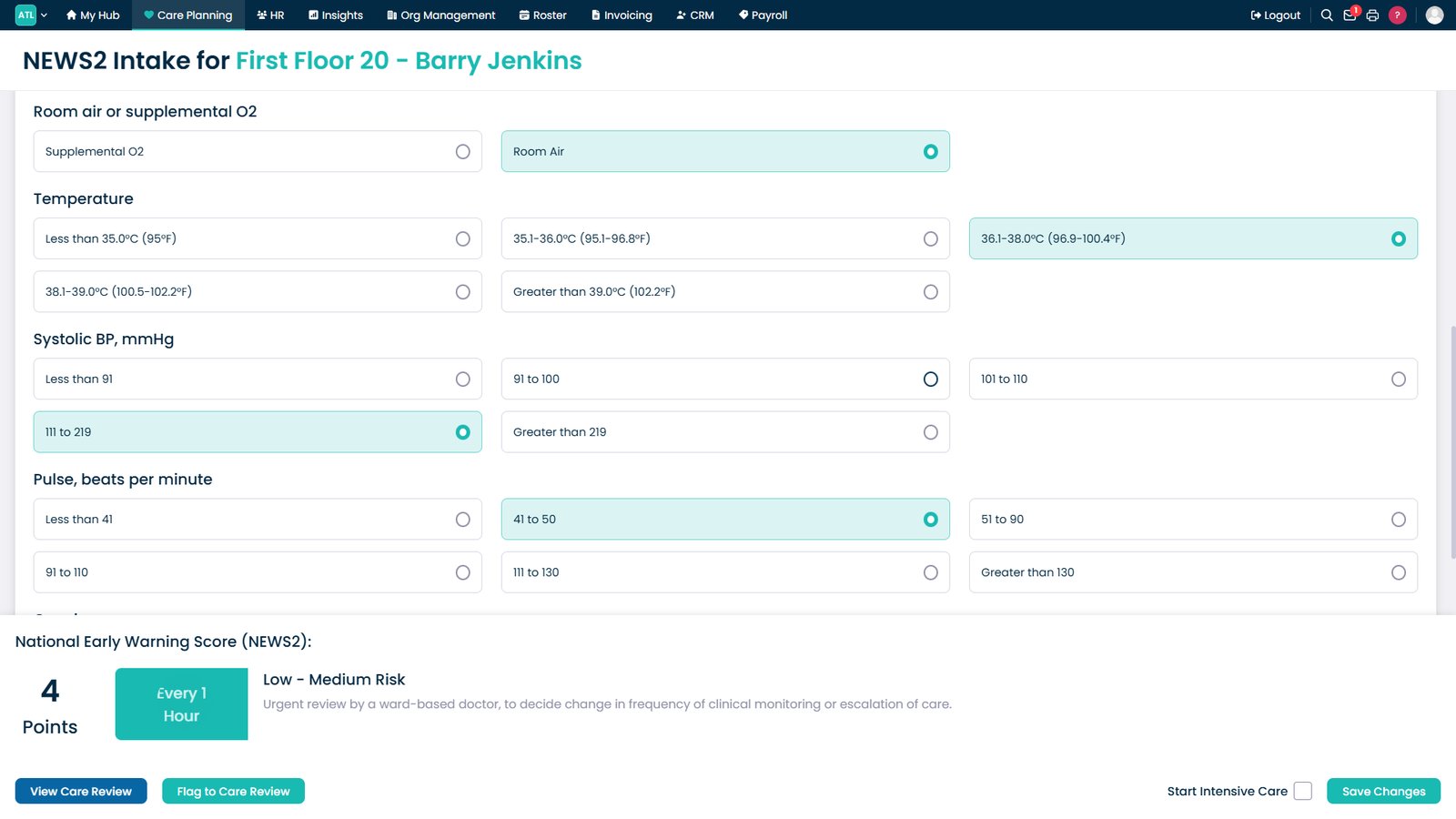
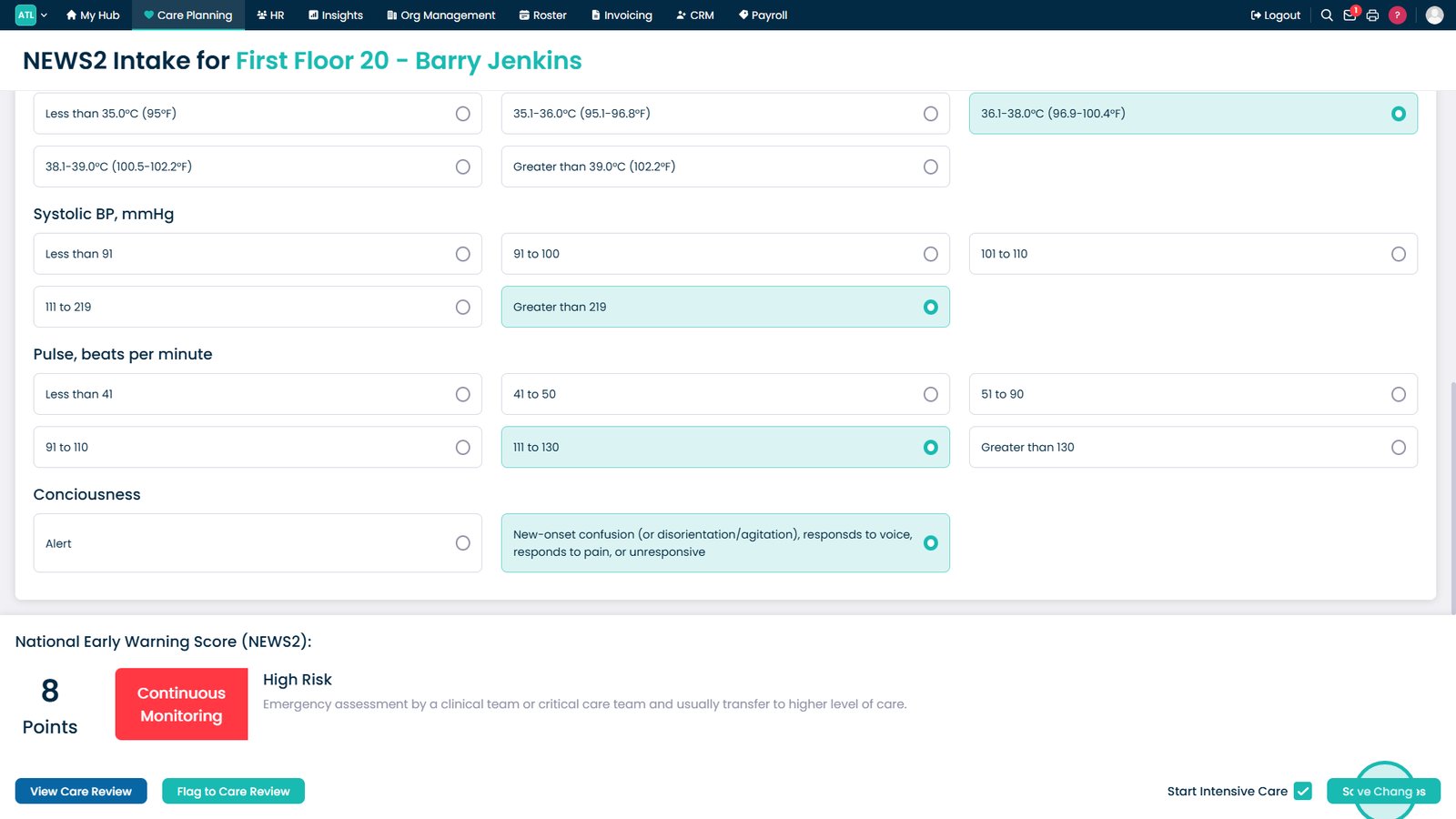
Record the resident's observations as accurately as possible.

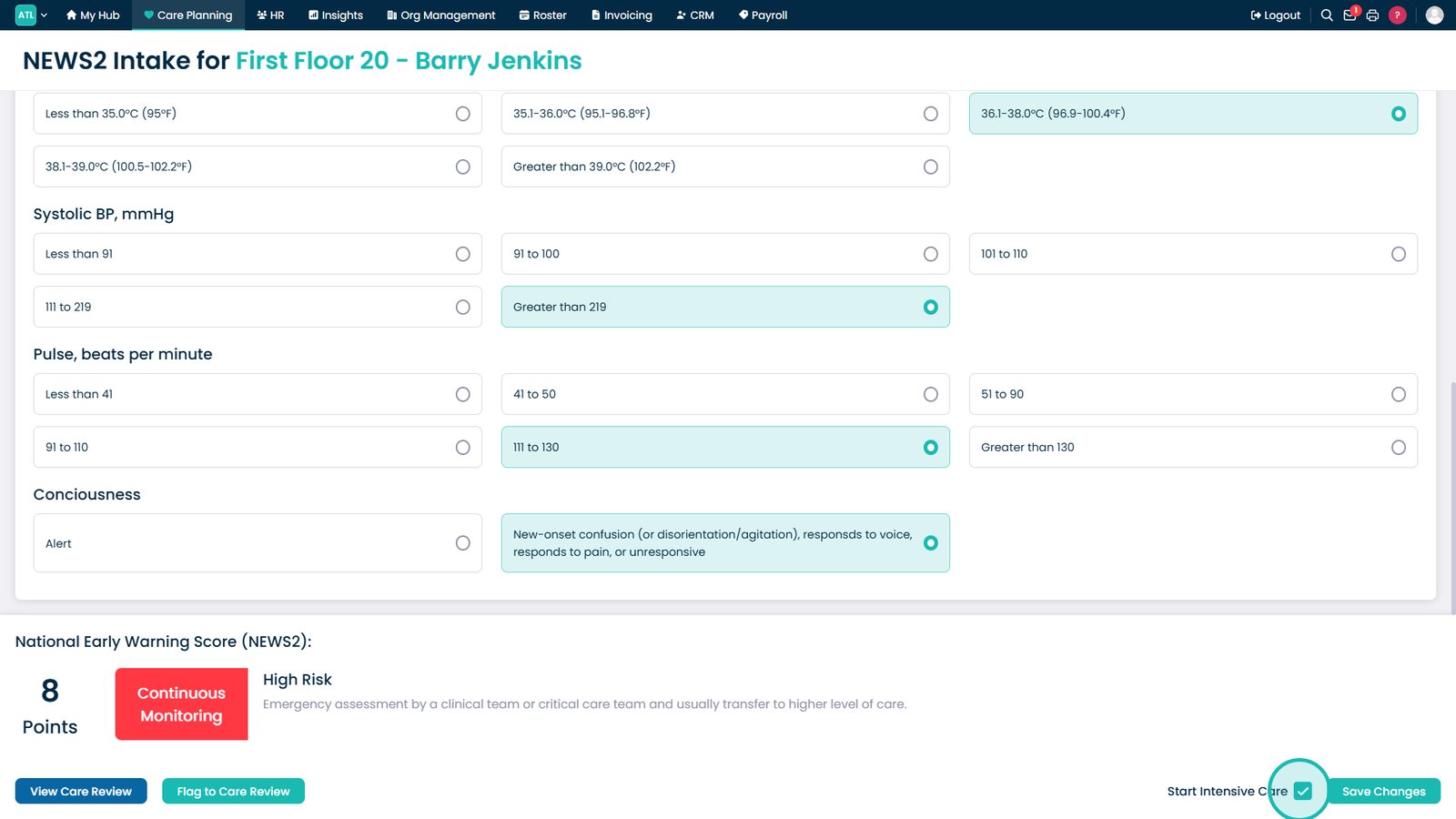
High-risk scores are highlighted in red with recommended actions.

Medium-risk scores are highlighted in amber with guidance provided.

Low-risk scores are highlighted in green with monitoring advice.

Start Intensive Care monitoring if a red or amber score requires closer observation.

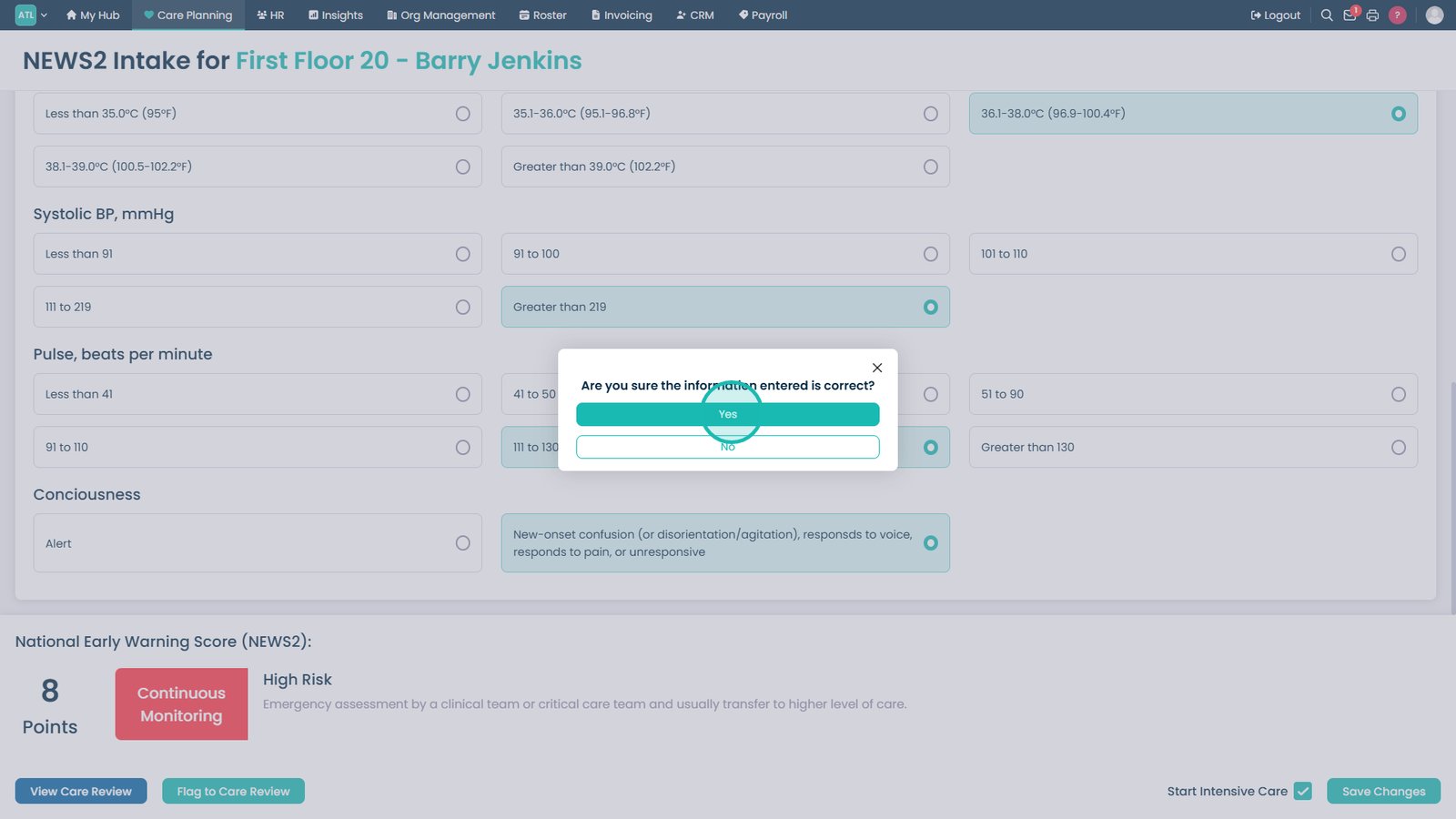
Click Save Changes once the assessment is complete.

Confirm the assessment if all details are correct.

Top tip
Ensure all observations are recorded as accurately and close to the time they are taken as possible, as even small changes can significantly affect the NEWS2 score and recommended actions.
Need more help?
Can't find what you're looking for? Our support team is here to help.
Contact SupportOr call us on