How to Update and Manage Medical History and Diagnoses
This guide explains how to manage a service user's medical diagnoses and medical history records
Takes 3 minutes
For: Care Staff
Updated: 26th May 2026
Introduction
The History / Diagnoses section allows you to maintain an accurate record of a service user's current medical diagnoses and historical medical events. This information supports person-centred care planning, clinical oversight, and continuity of care.
In this guide you'll learn how to:
- Update current medical diagnoses
- Add new medical history records
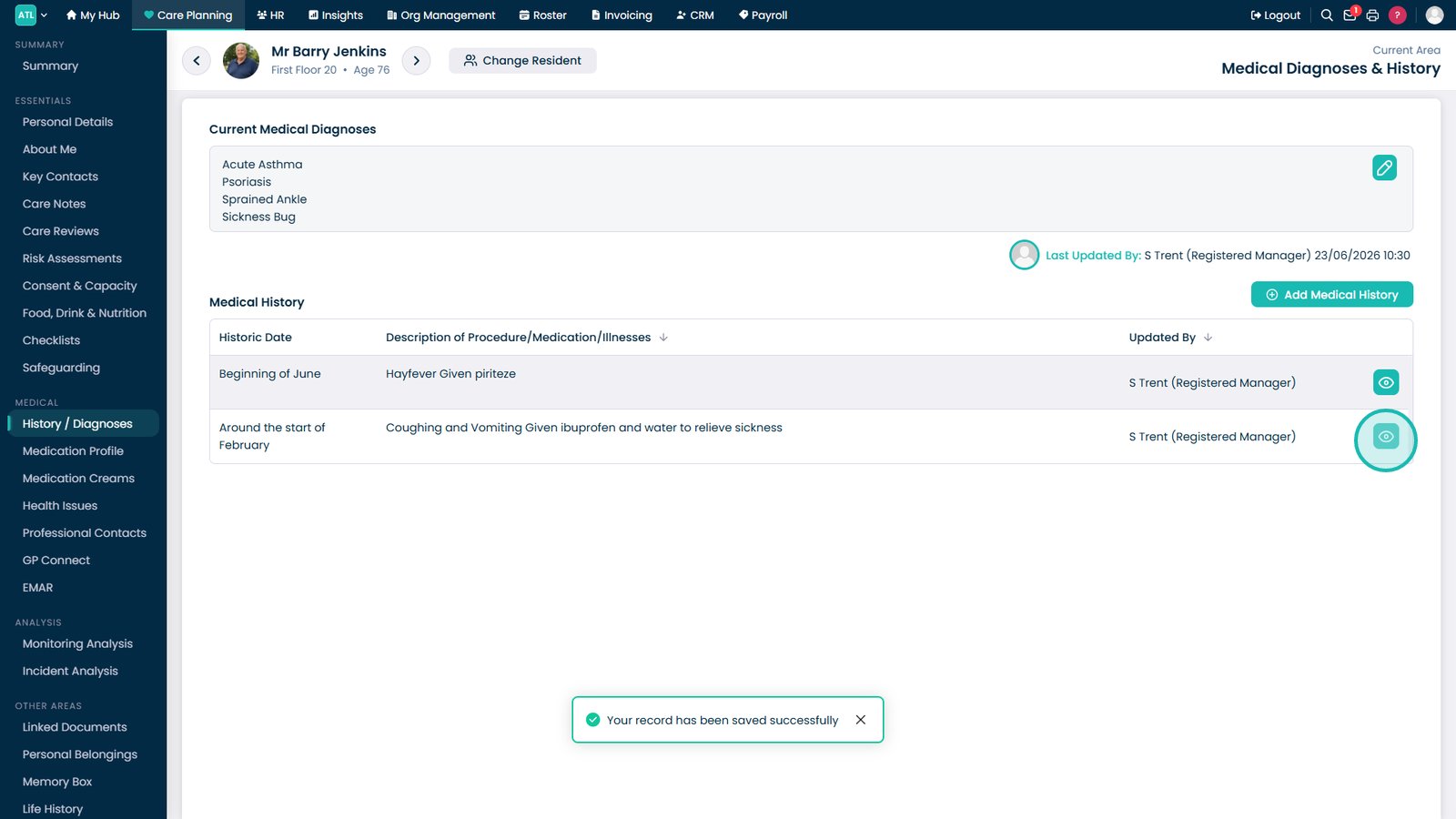
- Review existing medical history entries
- Edit historical records
- Delete outdated or incorrect records
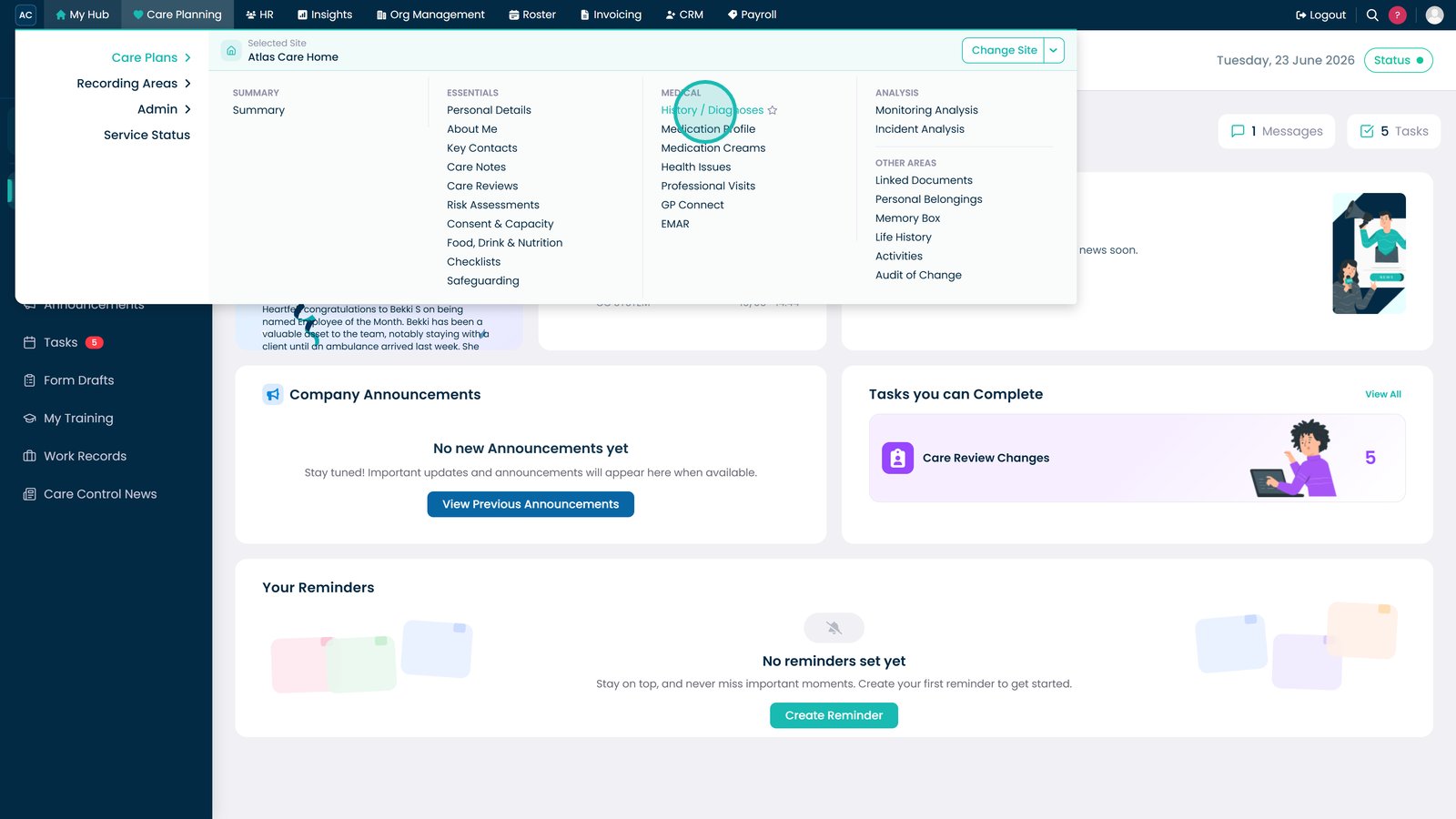
Open History / Diagnoses from the Medical menu.

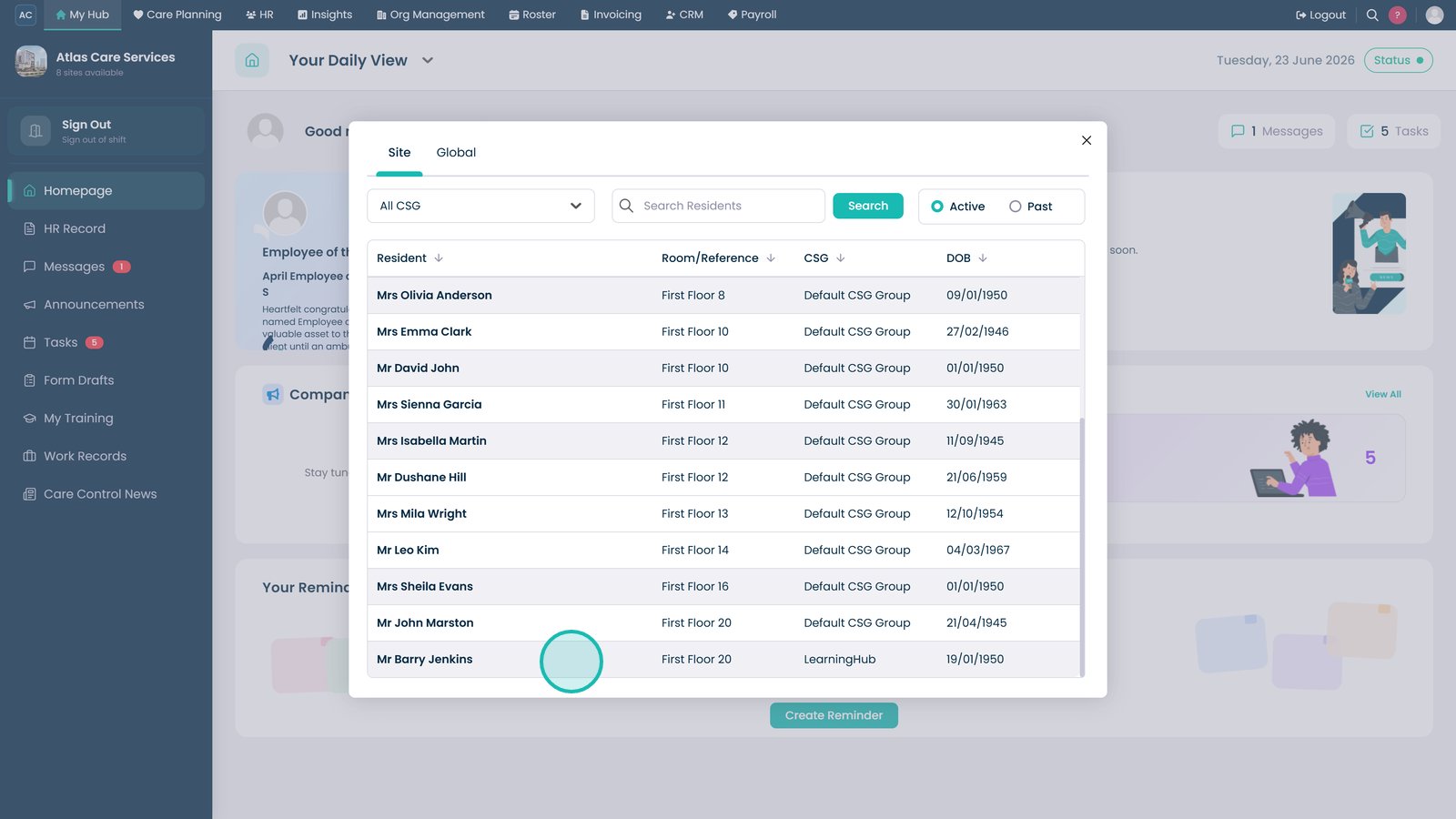
Select the service user whose medical records you want to review or update.

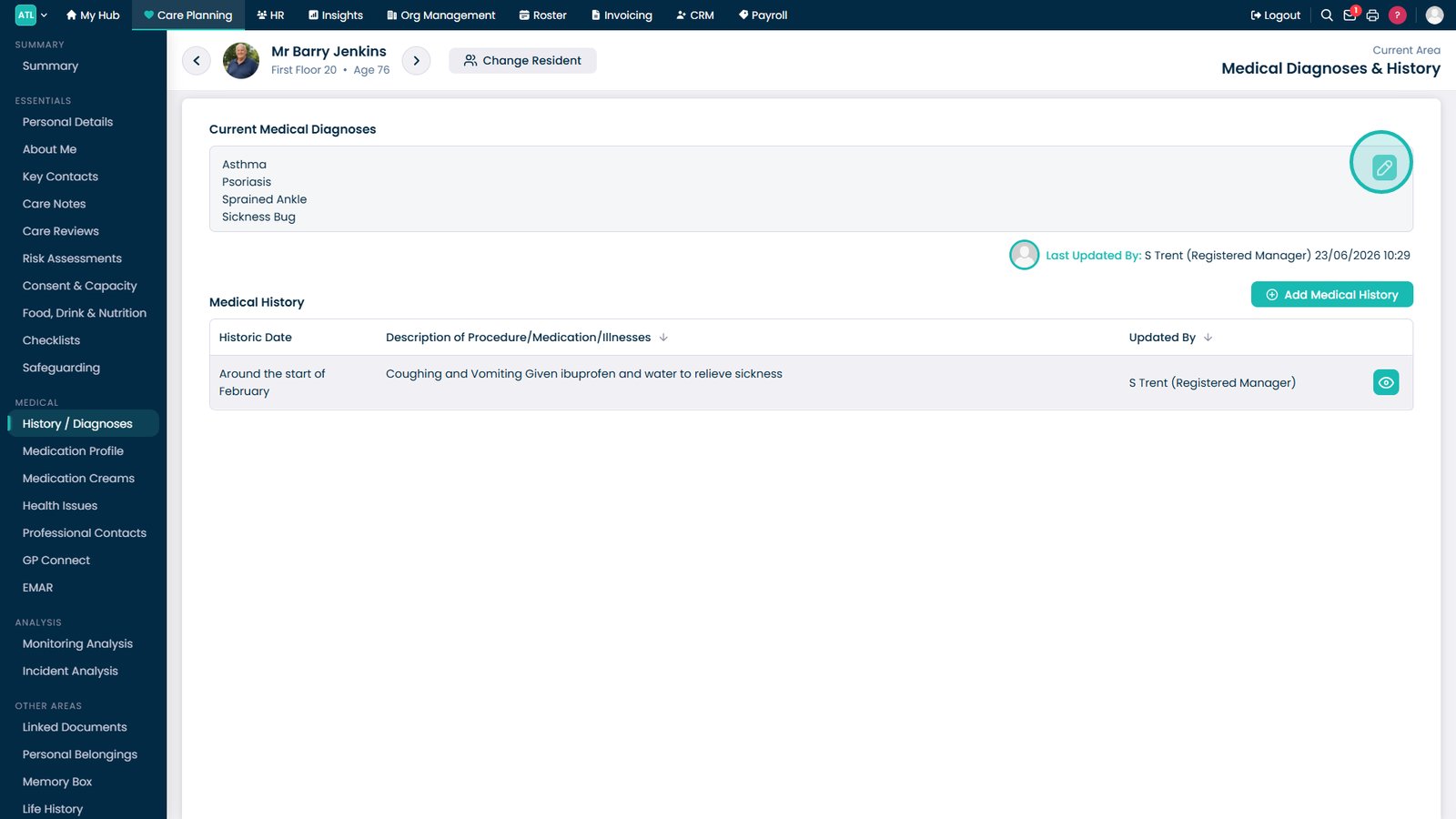
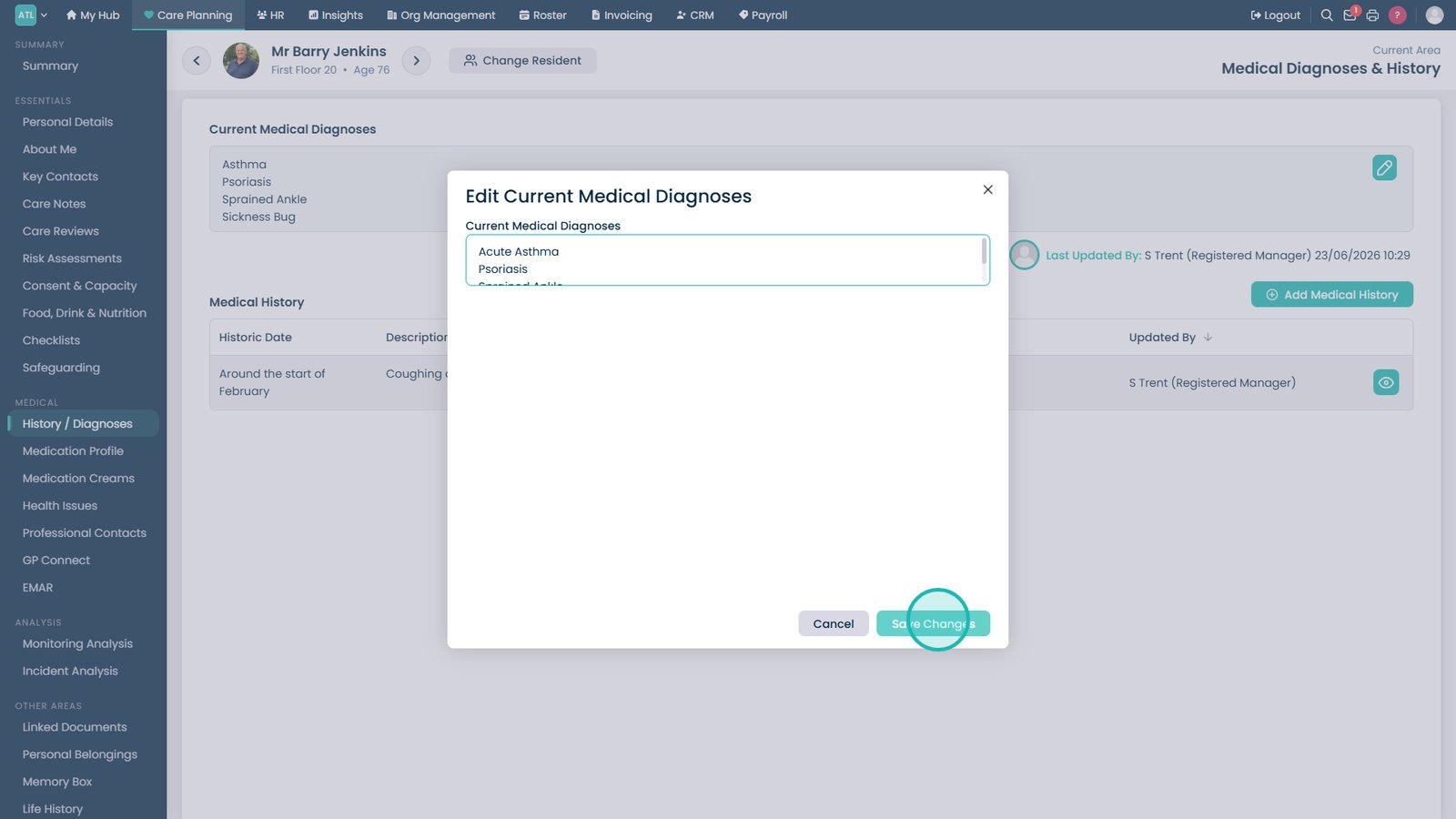
Click the edit icon to update the resident's current medical diagnoses.

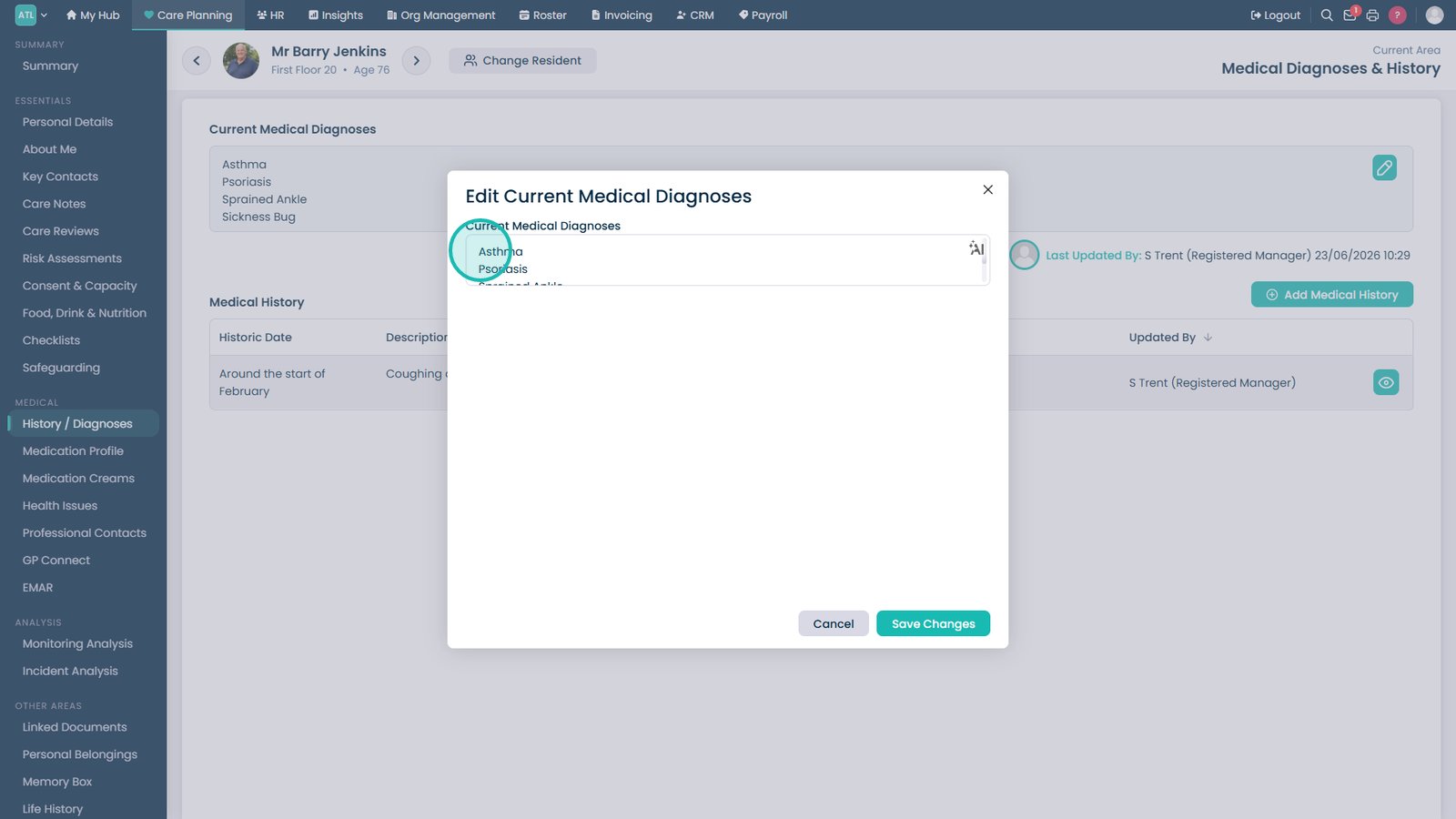
Update the Current Medical Diagnoses list as required.

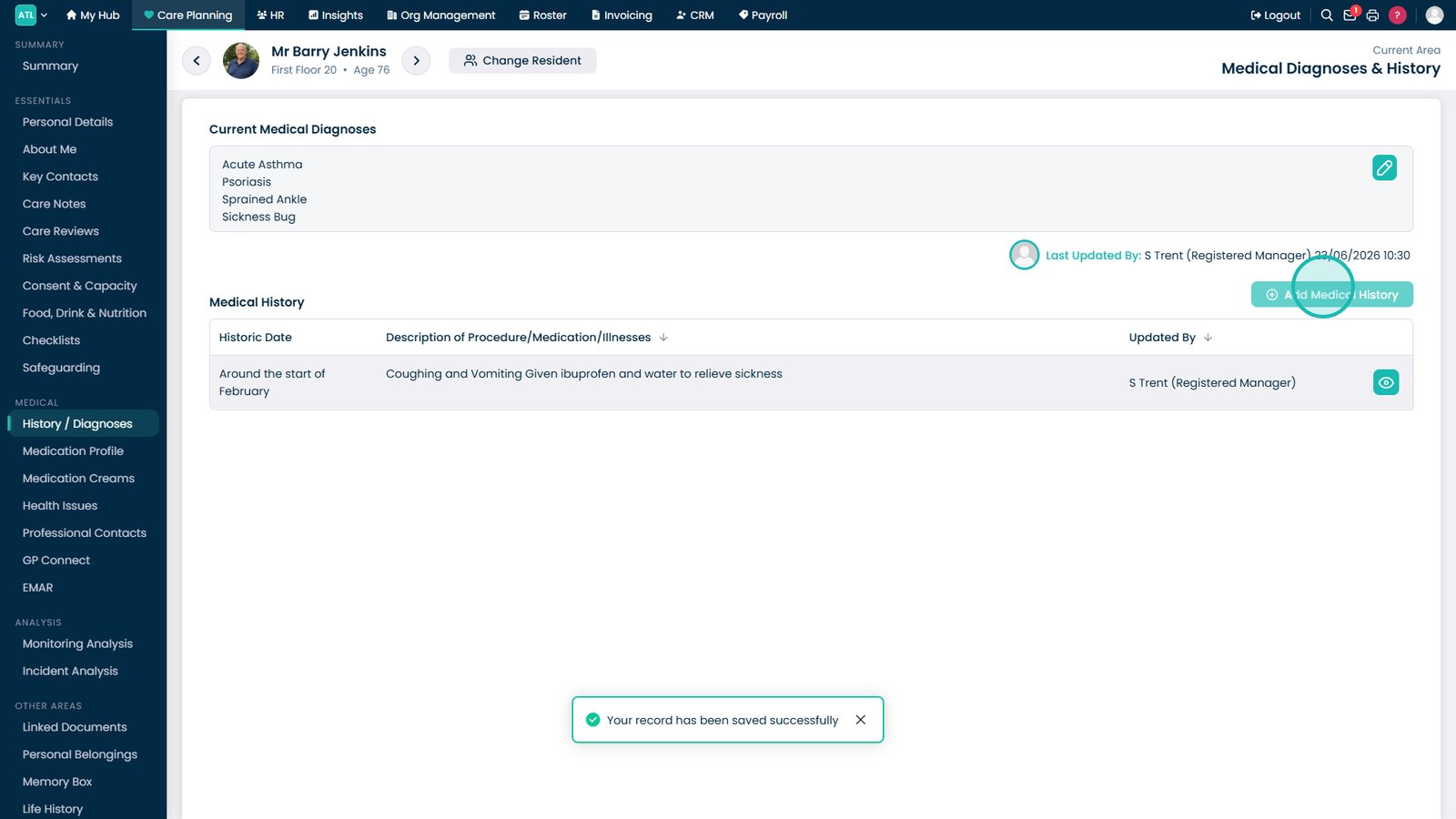
Save your changes to update the diagnoses list.

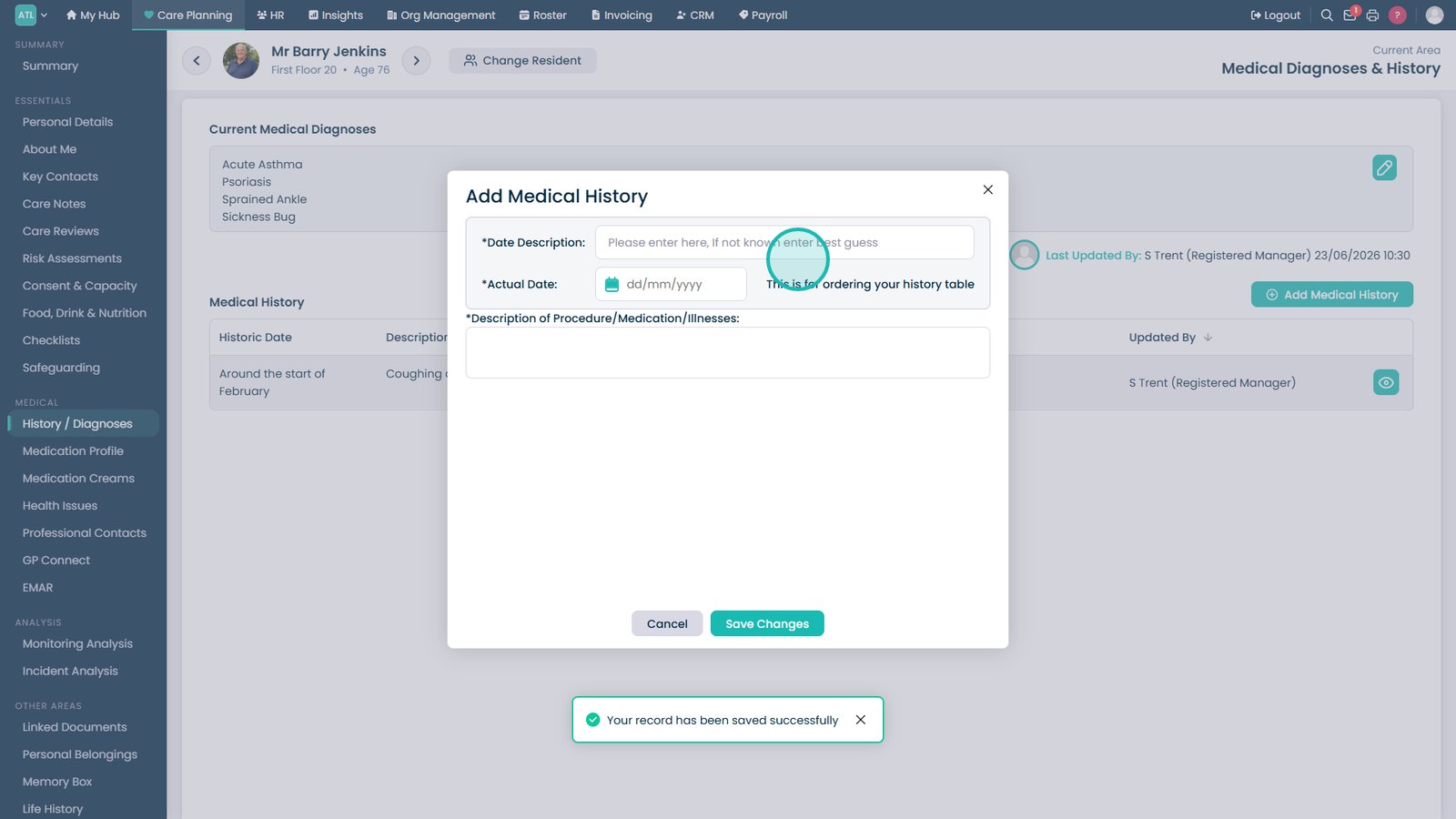
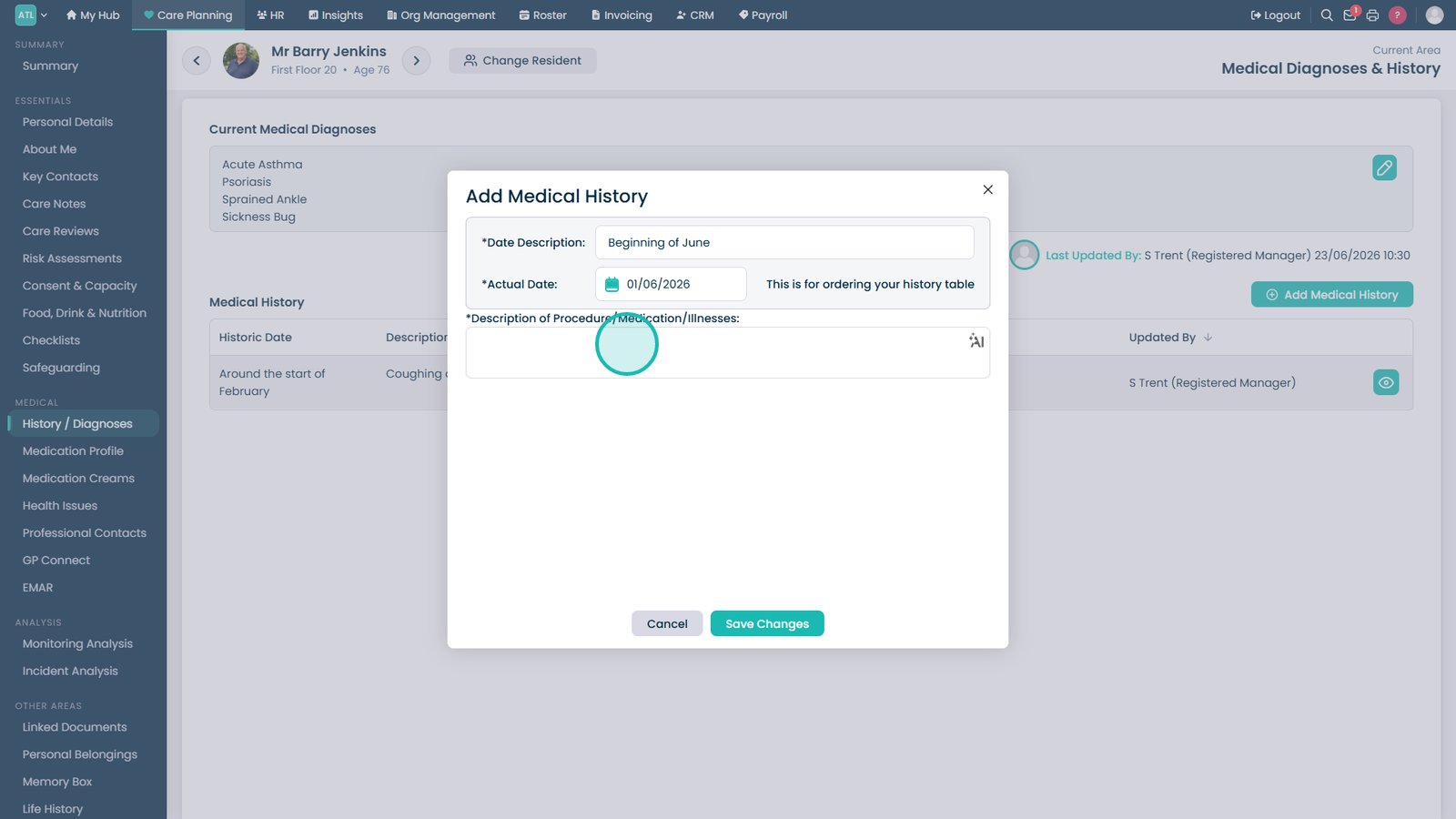
Click Add Medical History to create a new historical medical record.

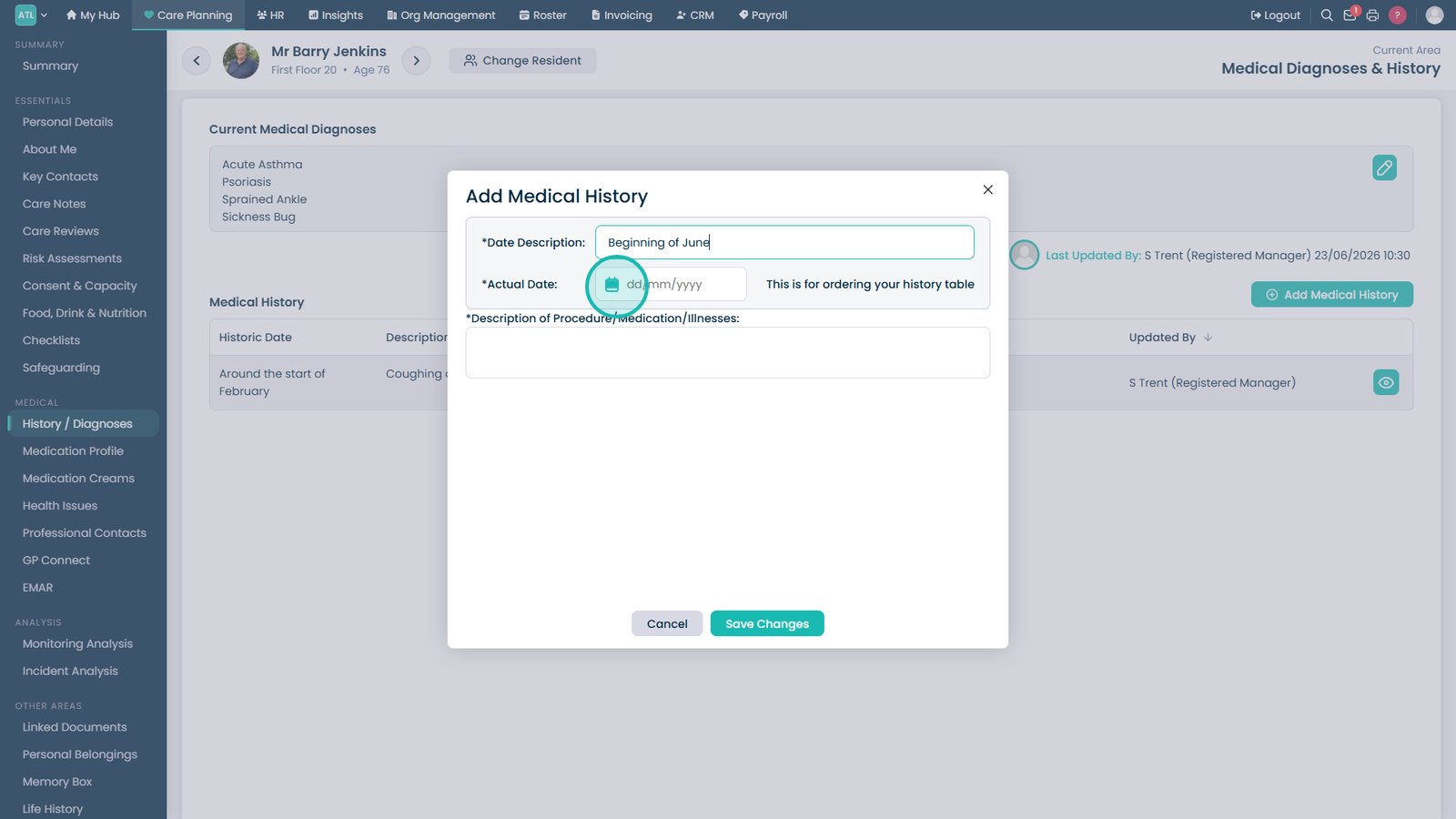
Enter a title or description for the medical history event.

Select the date of the medical event using the date picker.

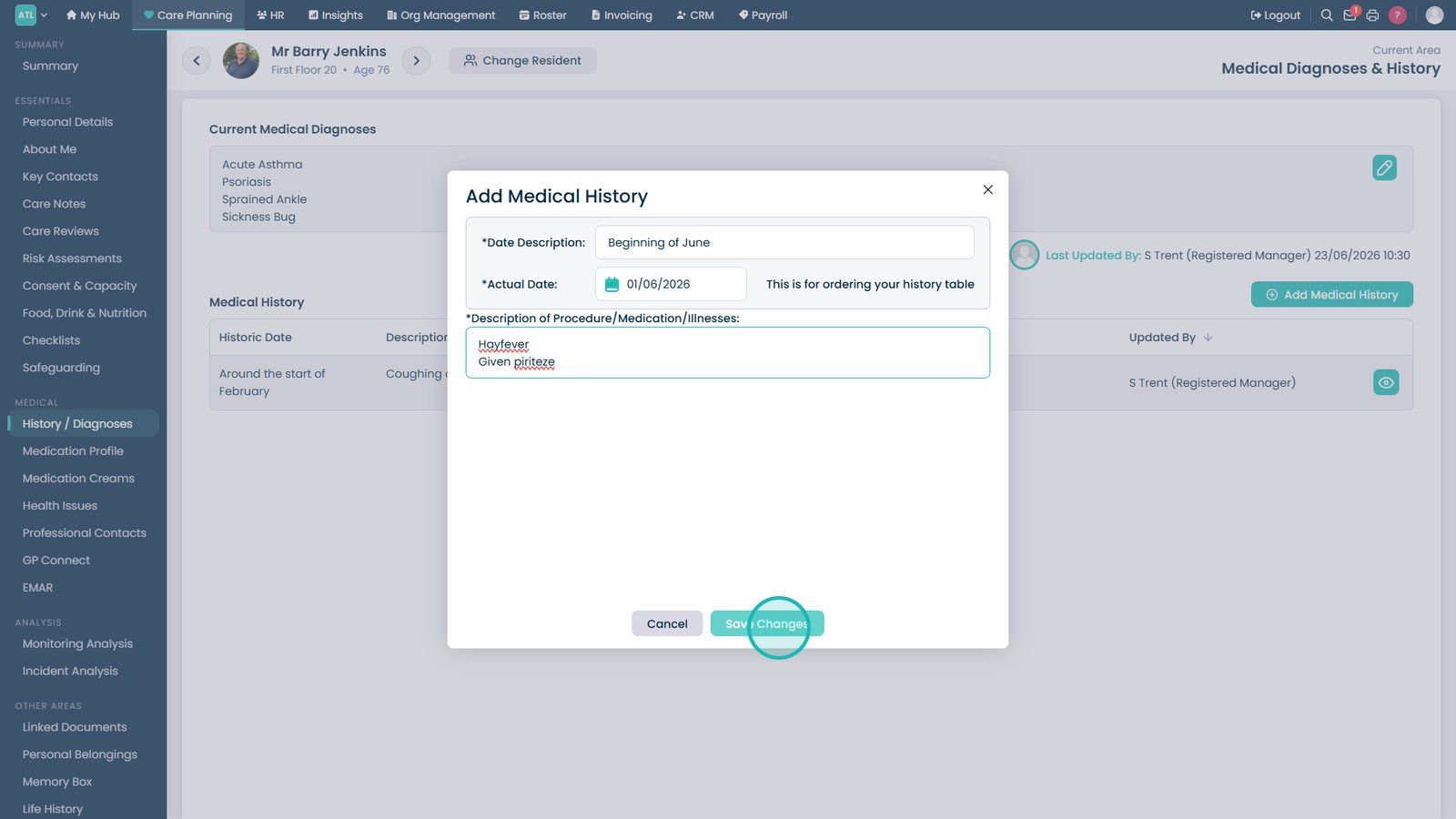
Record details of the procedure, illness, diagnosis, or medication involved.

Save the new medical history record.

Select a medical history entry to review its details.

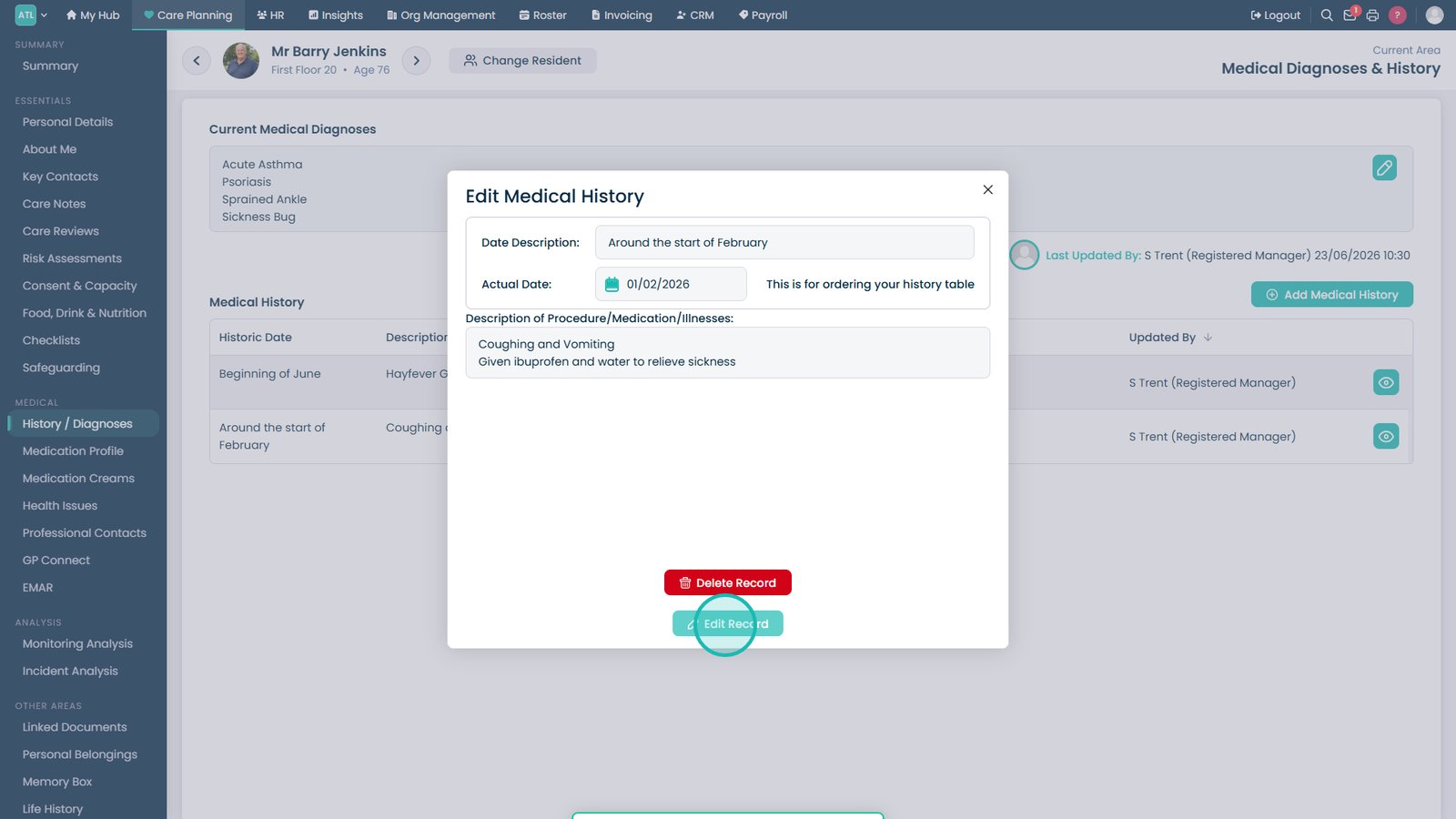
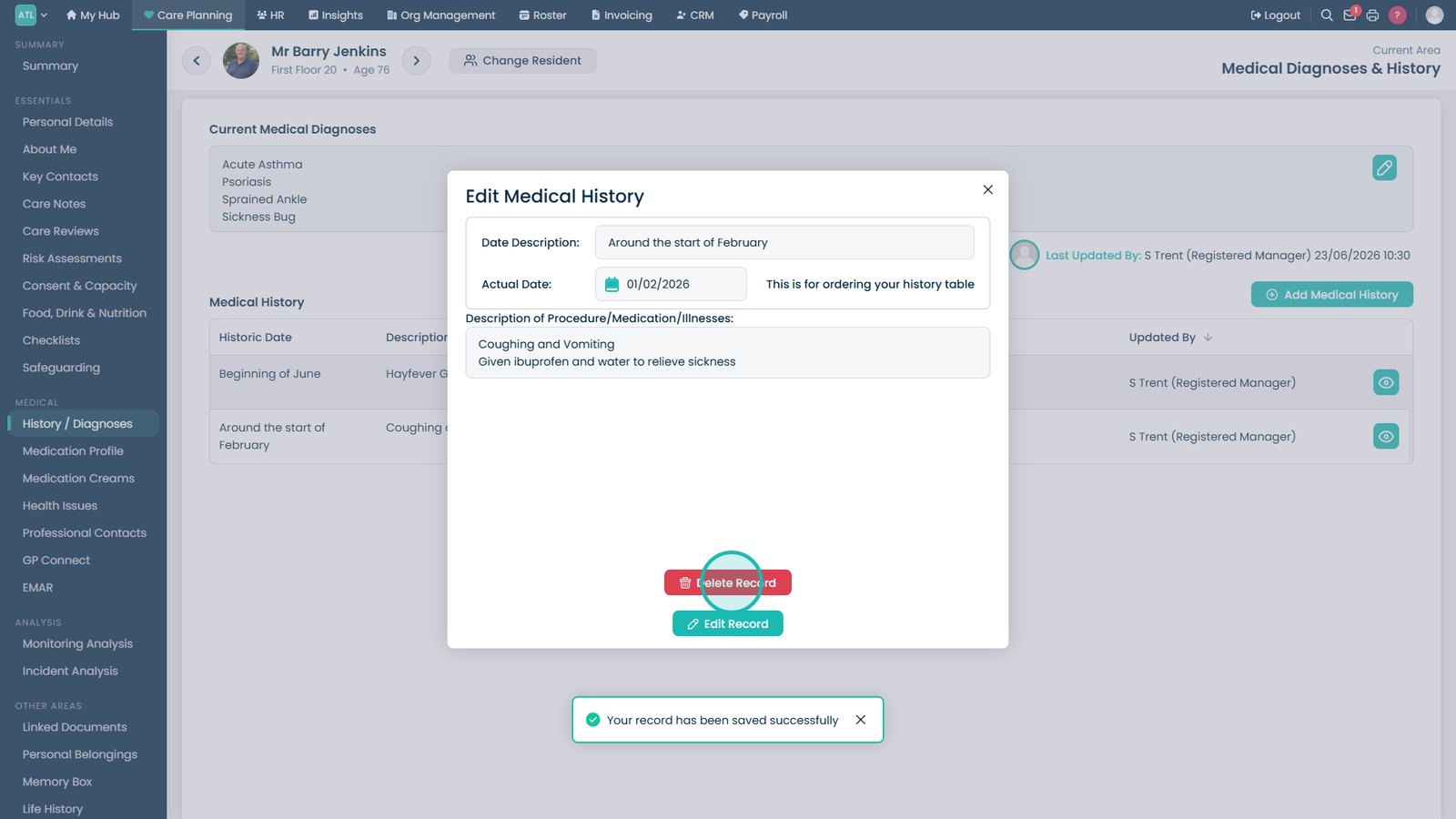
Edit the record if changes or corrections are required.

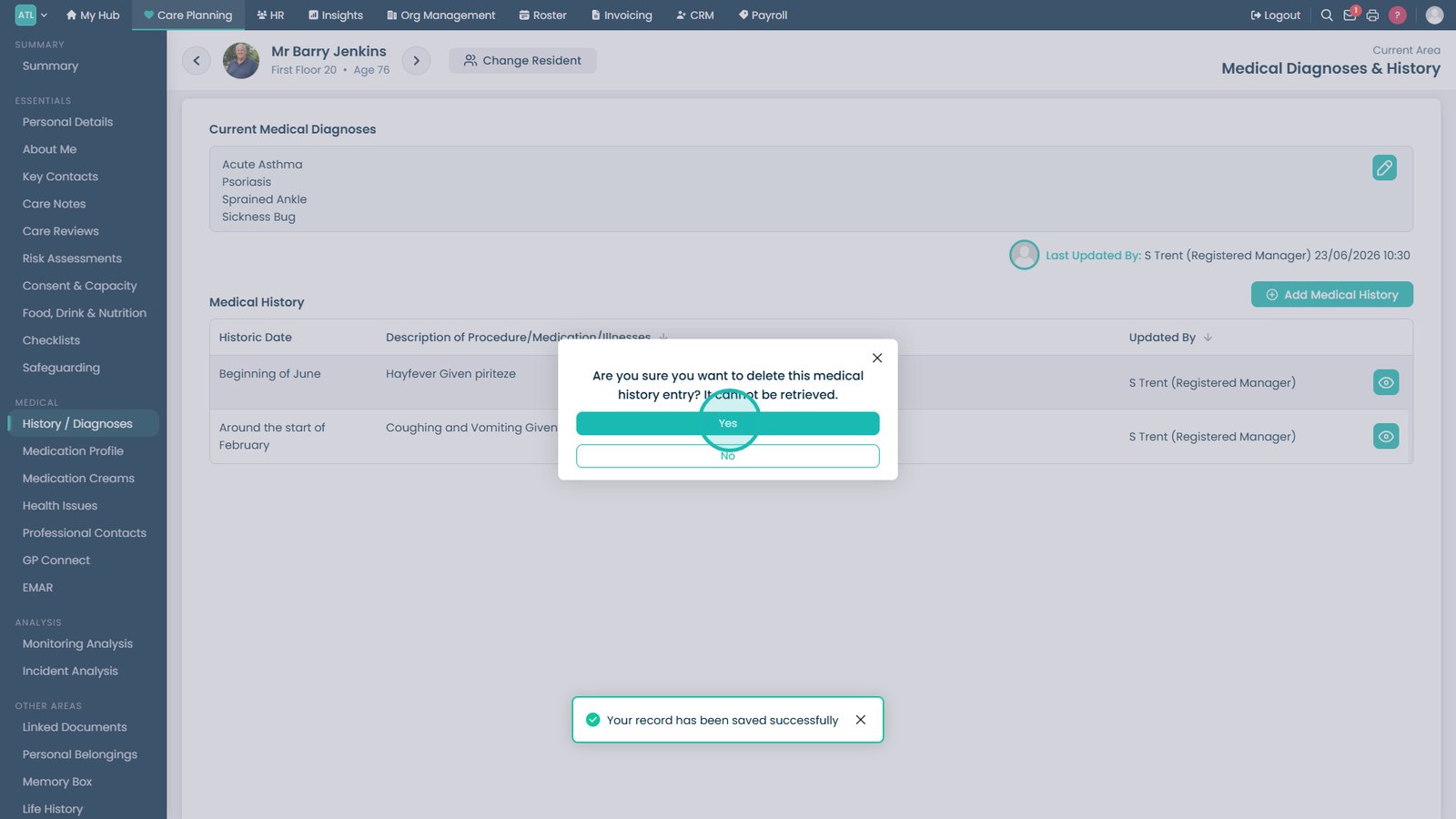
Click Delete Record to remove a medical history entry.

Confirm the deletion to permanently remove the selected medical history record.

Top tip
Use the search bar wherever you are across Cloud to find what you need instantly.
Need more help?
Can't find what you're looking for? Our support team is here to help.
Contact SupportOr call us on