Bring your payroll up to date, join our Cloud Payroll webinar
This guide will cover using voice-to-text in Pocket & Mobile on both Android and iOS devices.
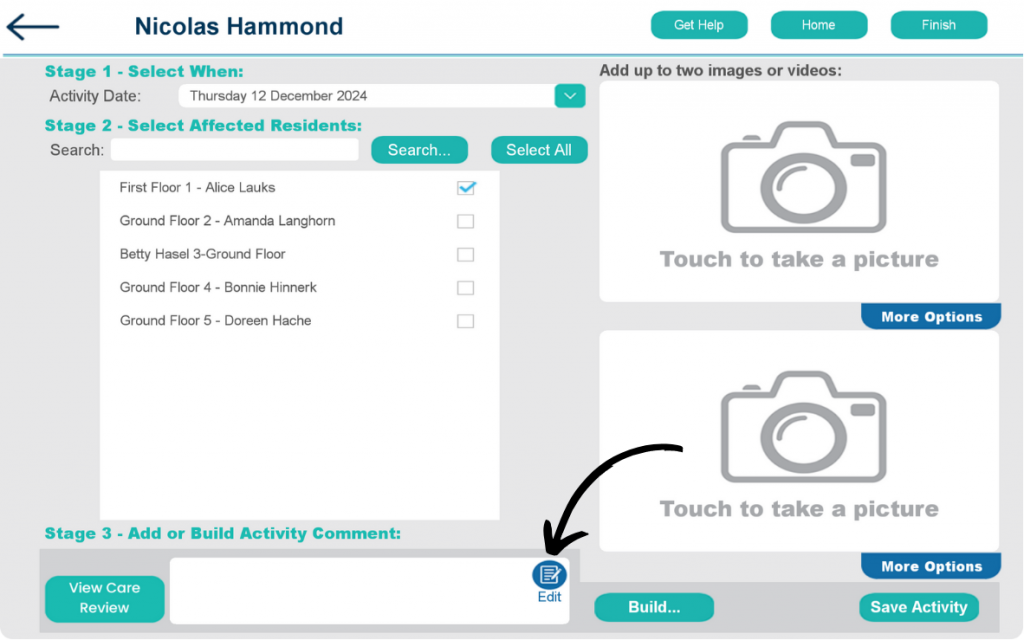
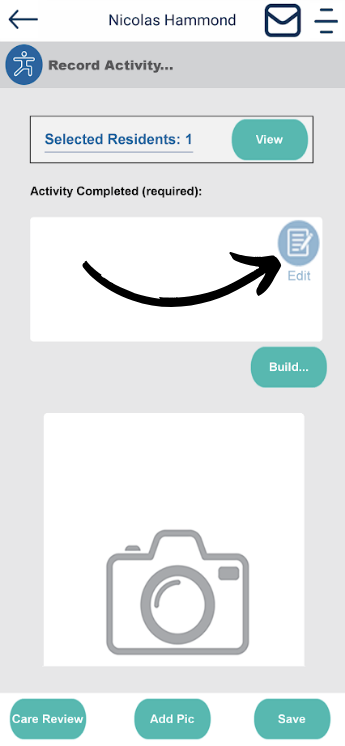
When on any section of the Care Plan where you can input text, click Edit.
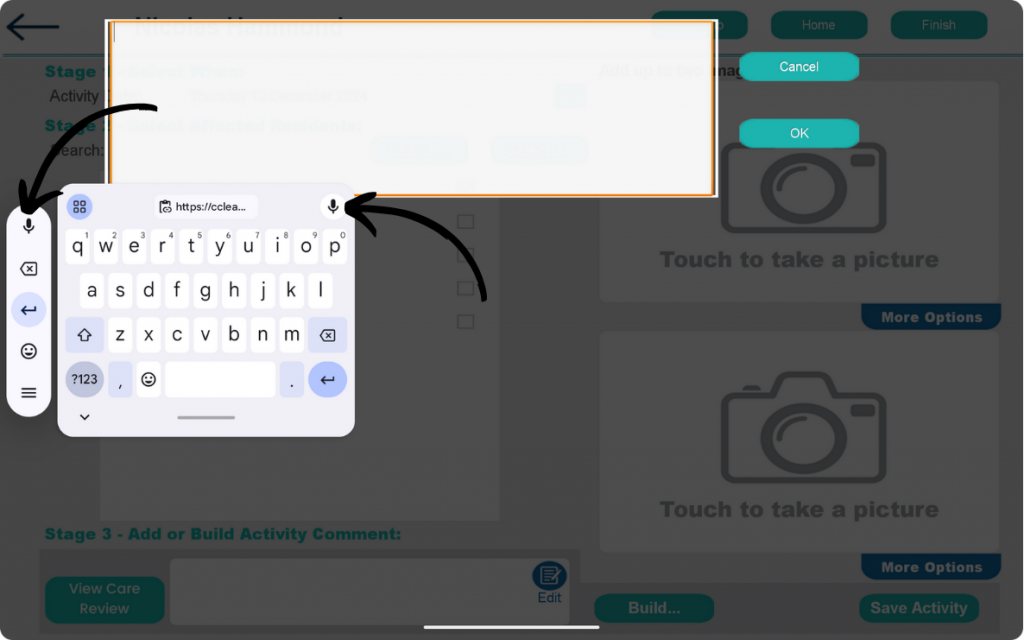
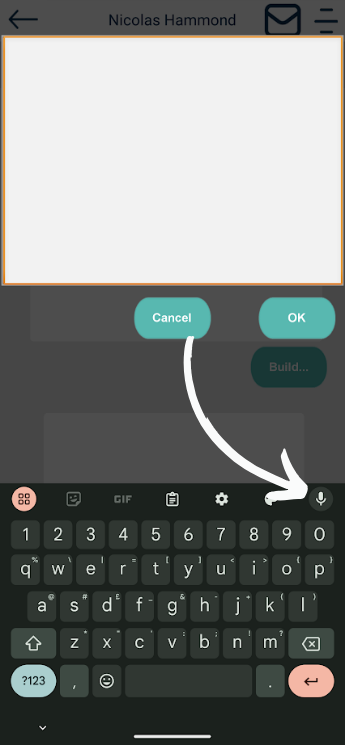
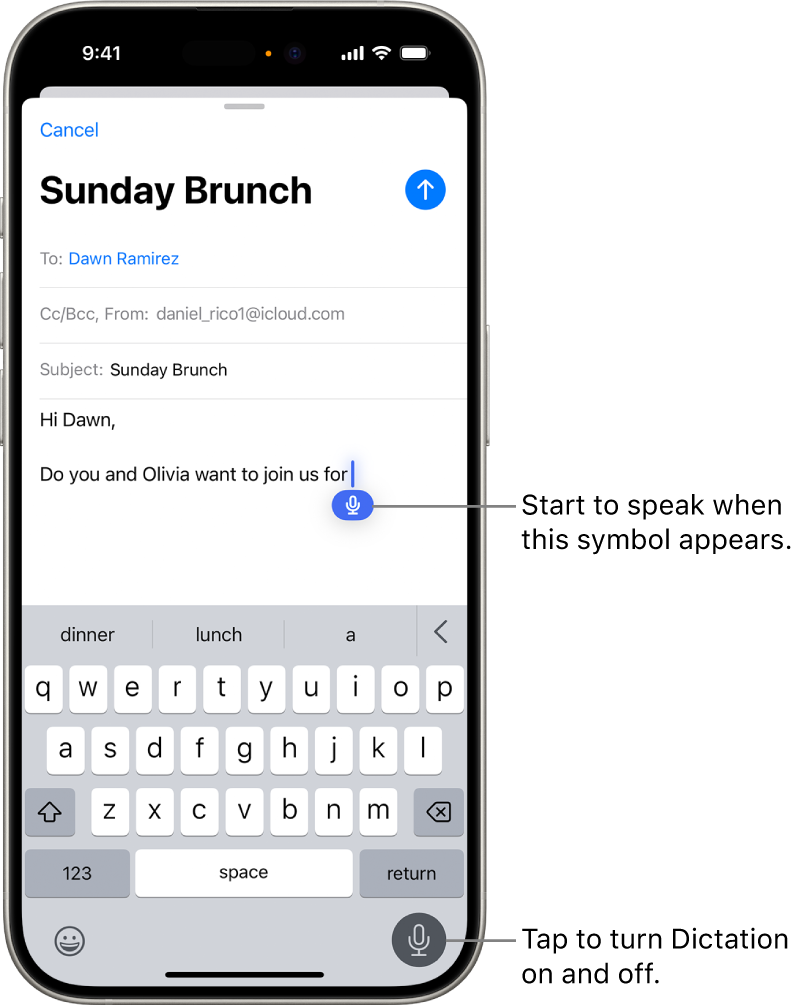
When on the text box, you can select the Microphone icon on either the toolbar or on the keyboard.
You can enable the voice-to-text feature by following this guide.
Now click the Microphone icon and start talking to enable voice-to-text.
You can speak when the Dictate symbol appears. Or select the Dictation icon on the keyboard.