View Categories

How to View Sign In/Sign Out Data and Adjust Pay Accordingly

This guide explains how to review and adjust staff working time records in the Payroll App. In the Work Records section, users can:
  • View staff sign in and sign out data for each shift
  • Identify discrepancies such as late arrivals or incorrect times
  • Submit shift adjustments with updated start times or details
  • Provide a reason for each adjustment
  • Automatically recalculate pay based on updated shift data
  • View the status of adjustments (e.g. pending, processed)
  • Review or cancel adjustments if required
Keeping work records accurate ensures:
  • Correct staff pay
  • Accurate payroll reporting
  • Reliable audit and compliance records
Follow the steps below to view, adjust, and manage shift data within the Payroll App.

Interactive Guide

Text based guide

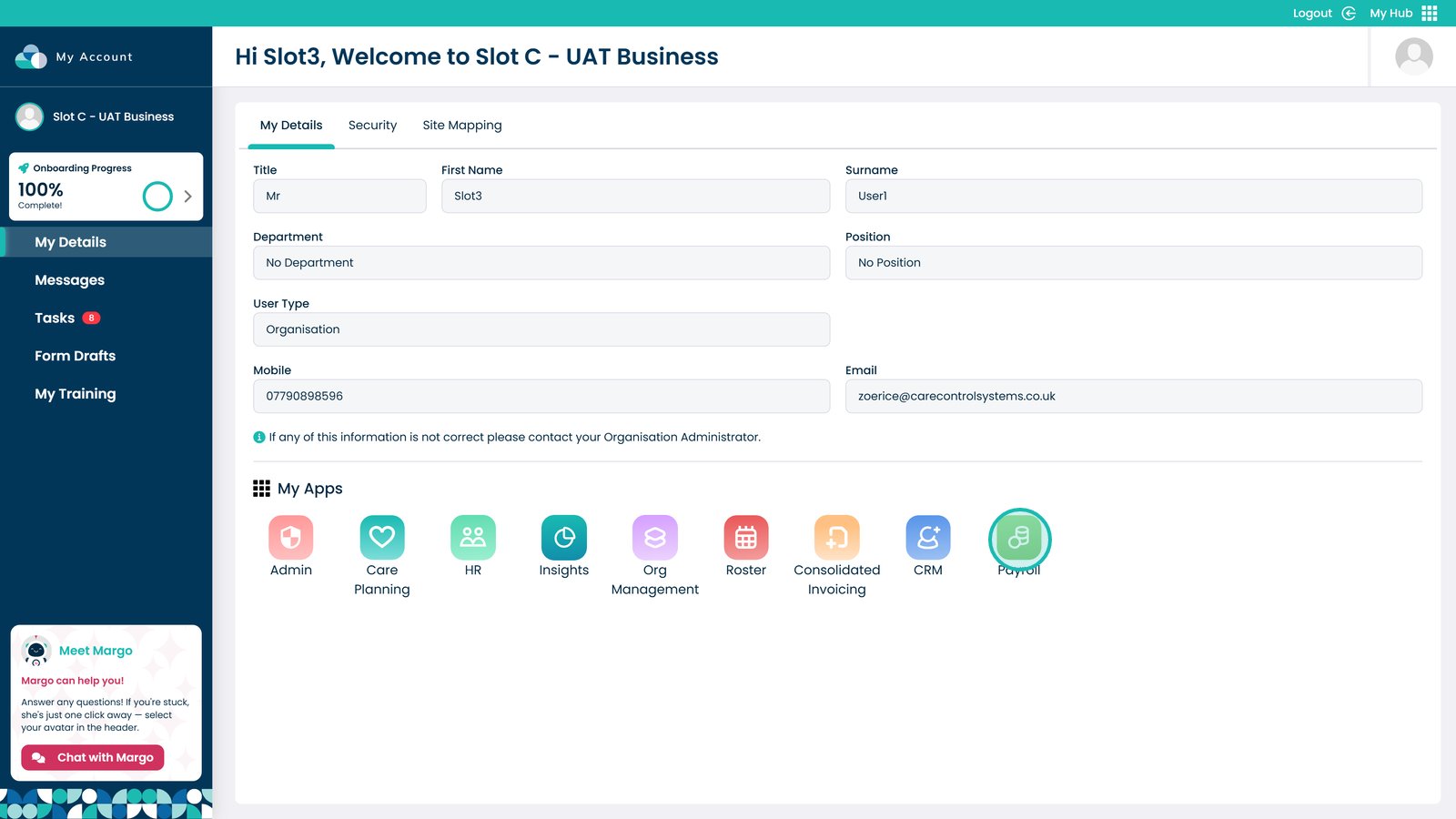
Enter the Payroll App


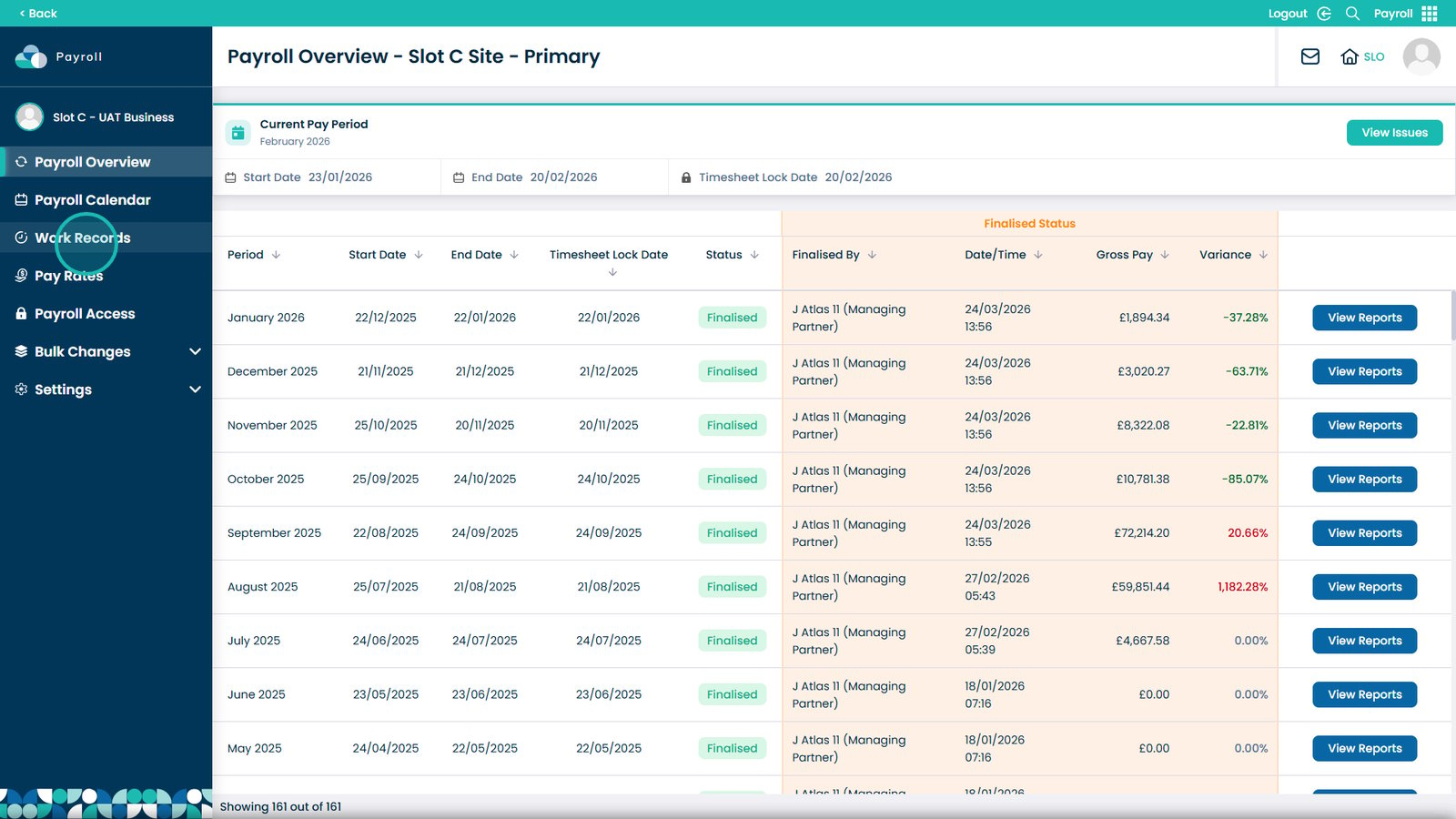
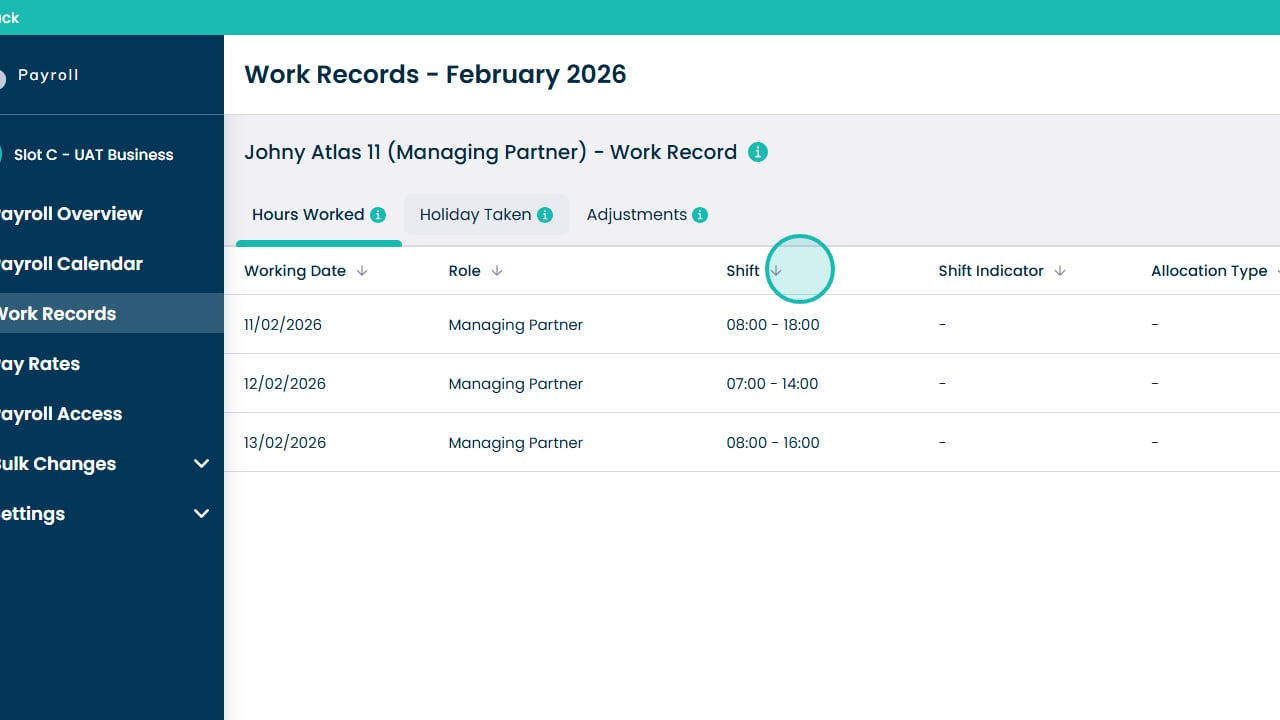
Select Work Records from the left-hand menu

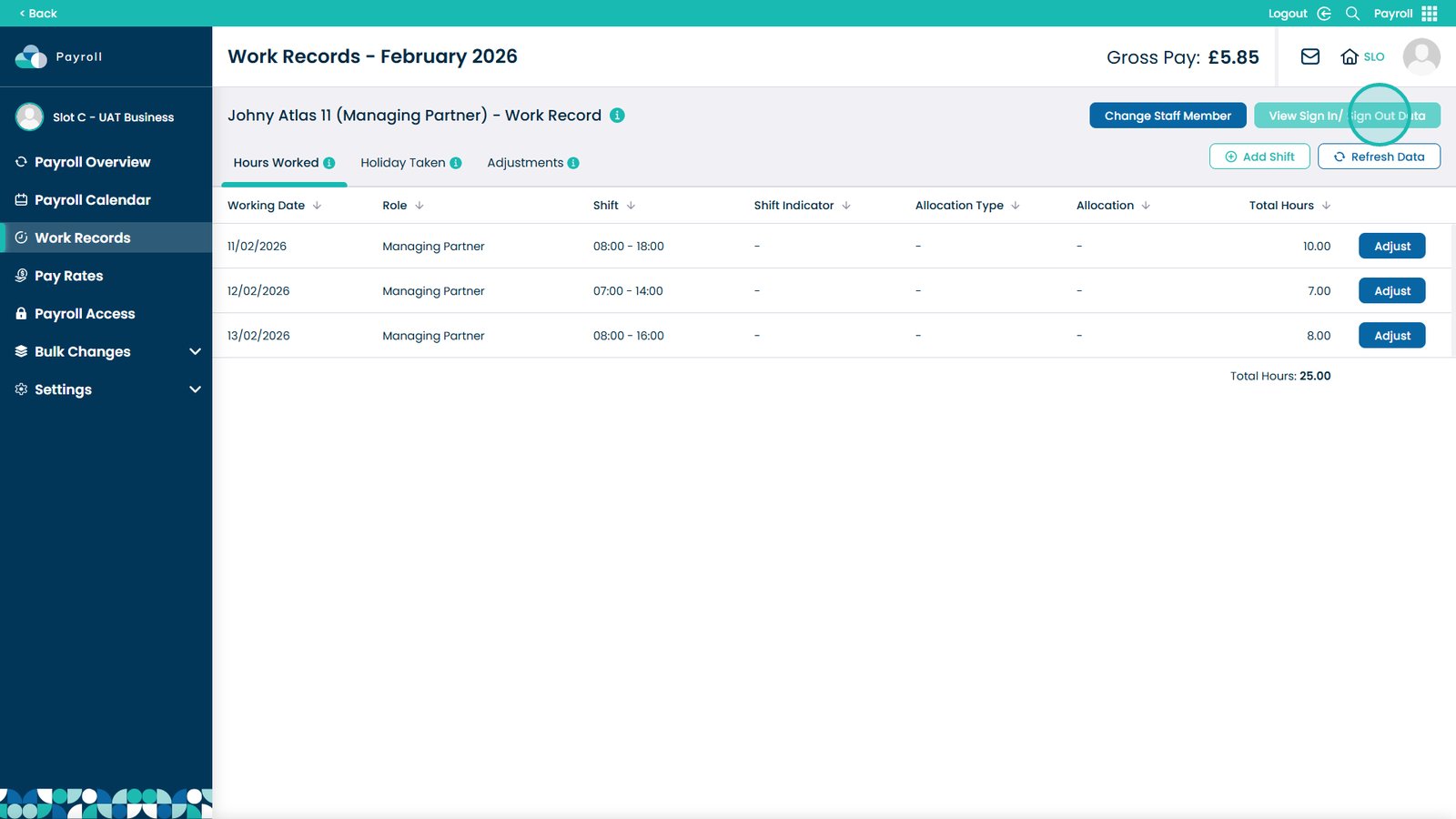
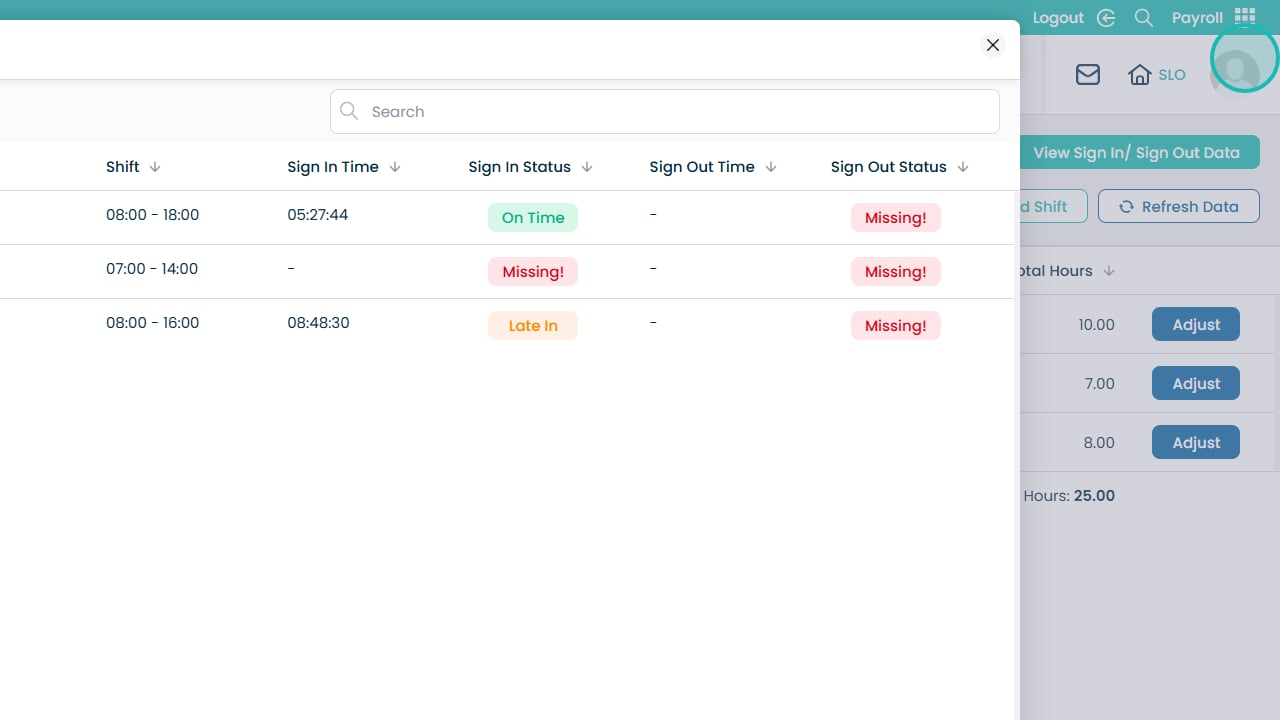
Click View Sign In/Sign Out Data

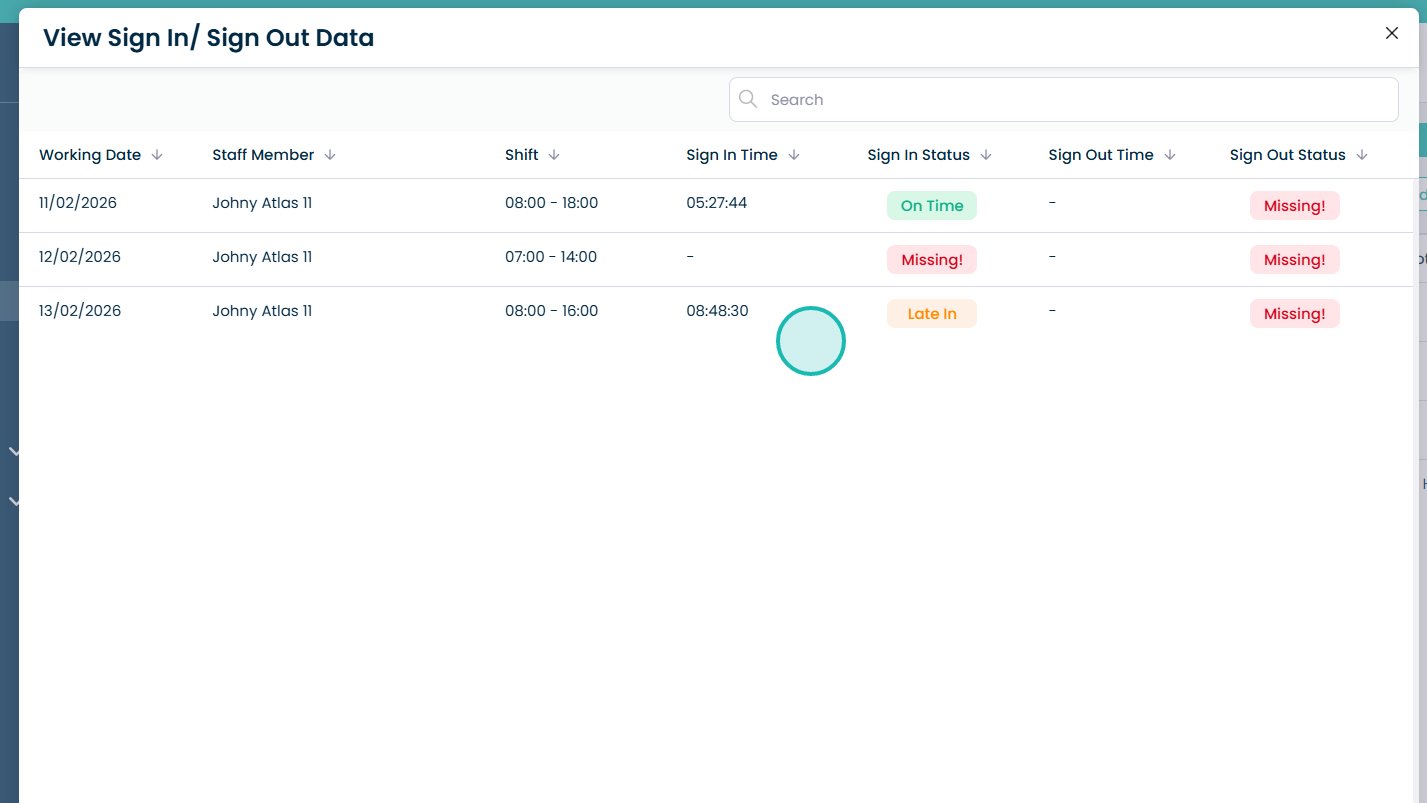
View the monthly sign in and sign out data

Identify any discrepancies such as late sign-ins

Close the window using the X button

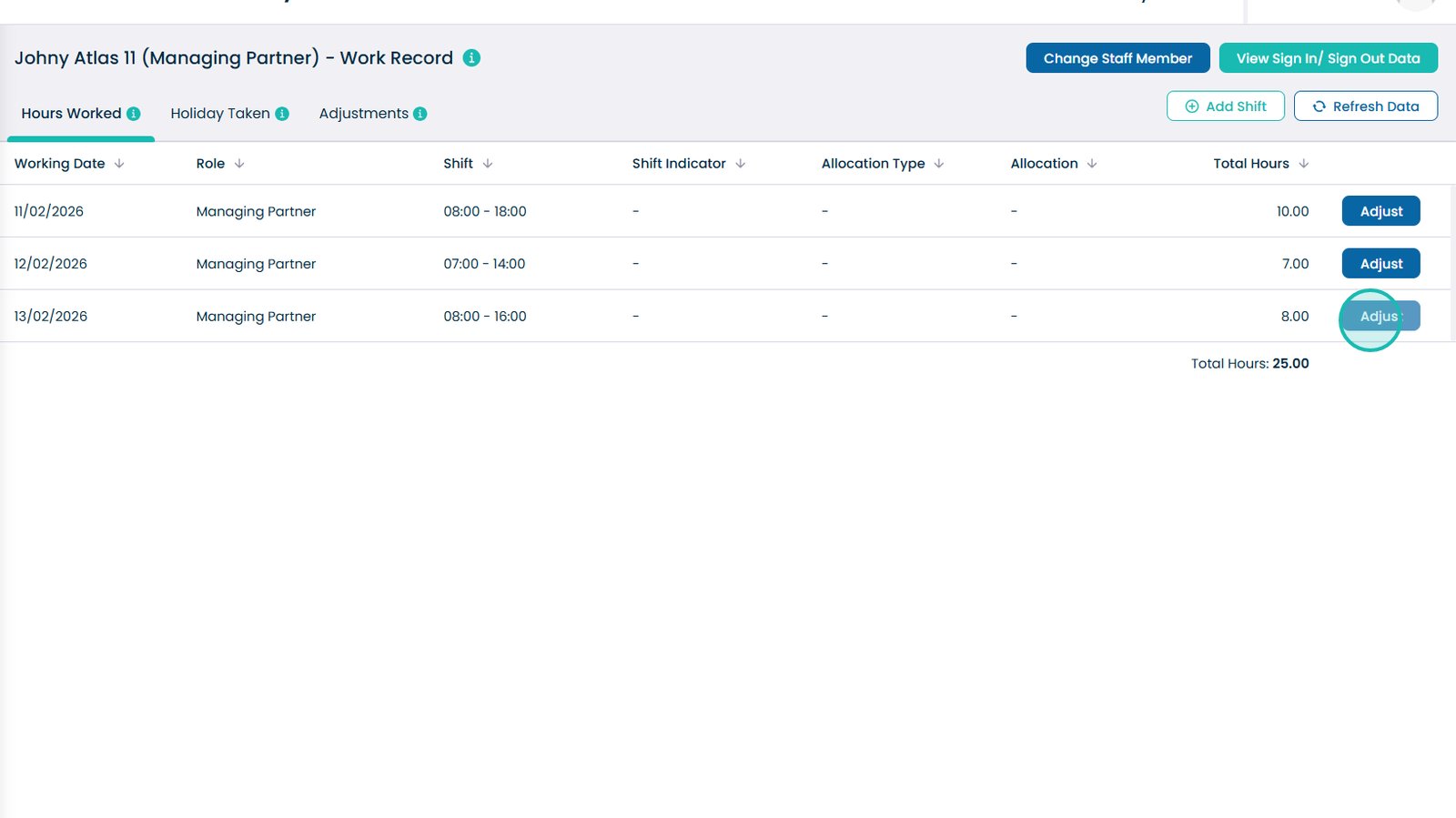
Select Adjust on the relevant record

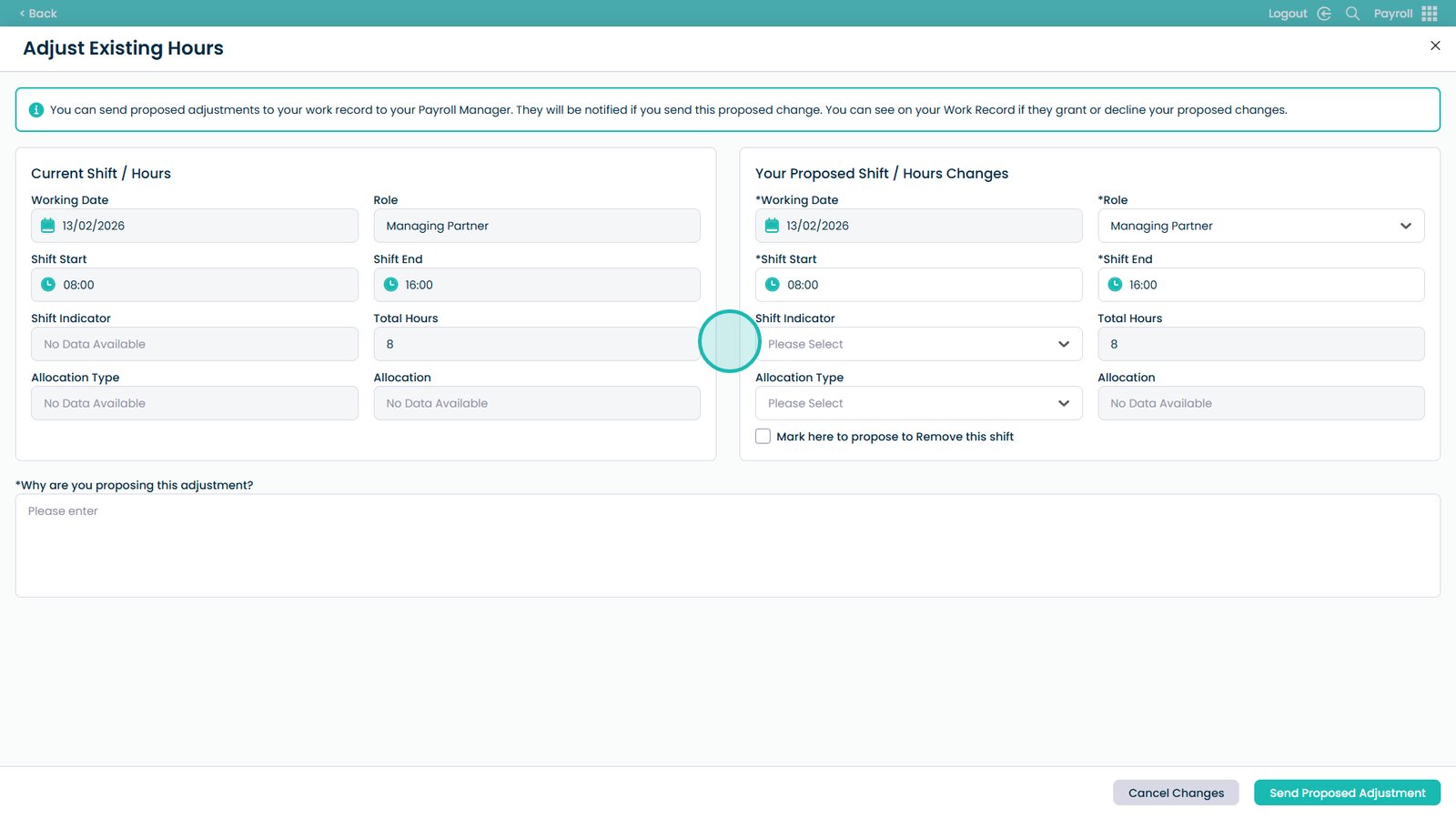
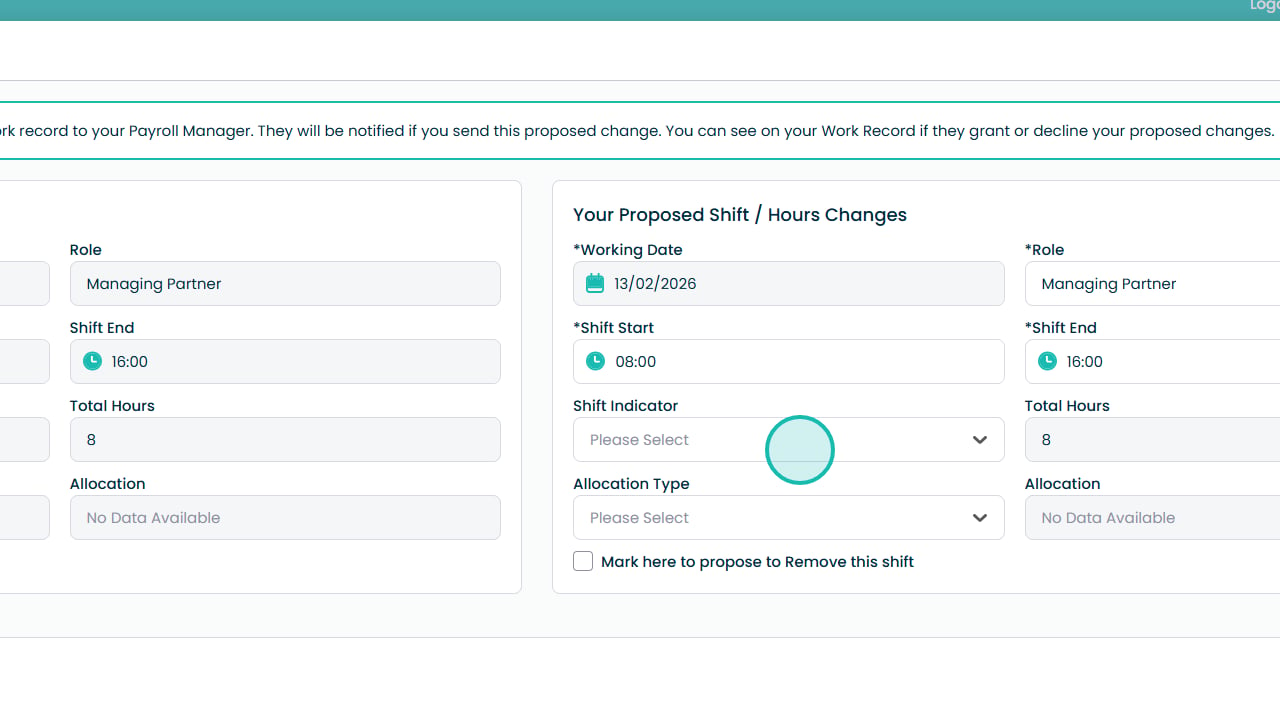
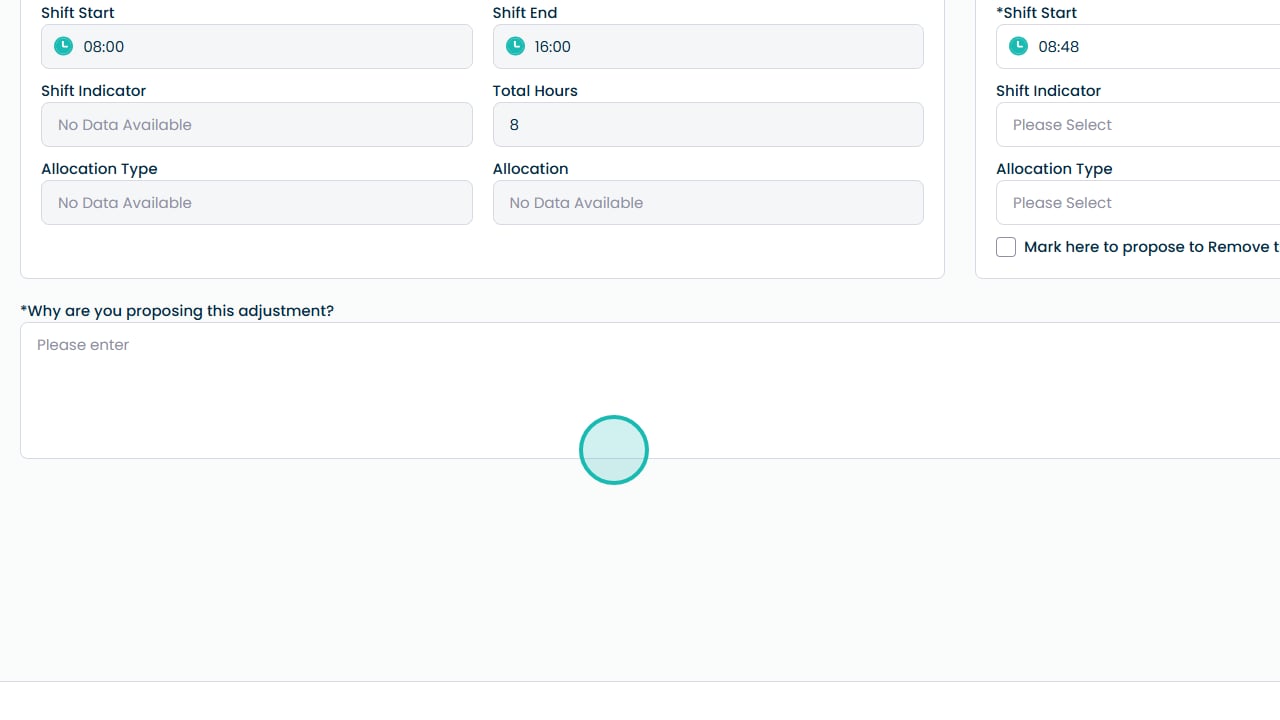
Review shift details and make changes as needed

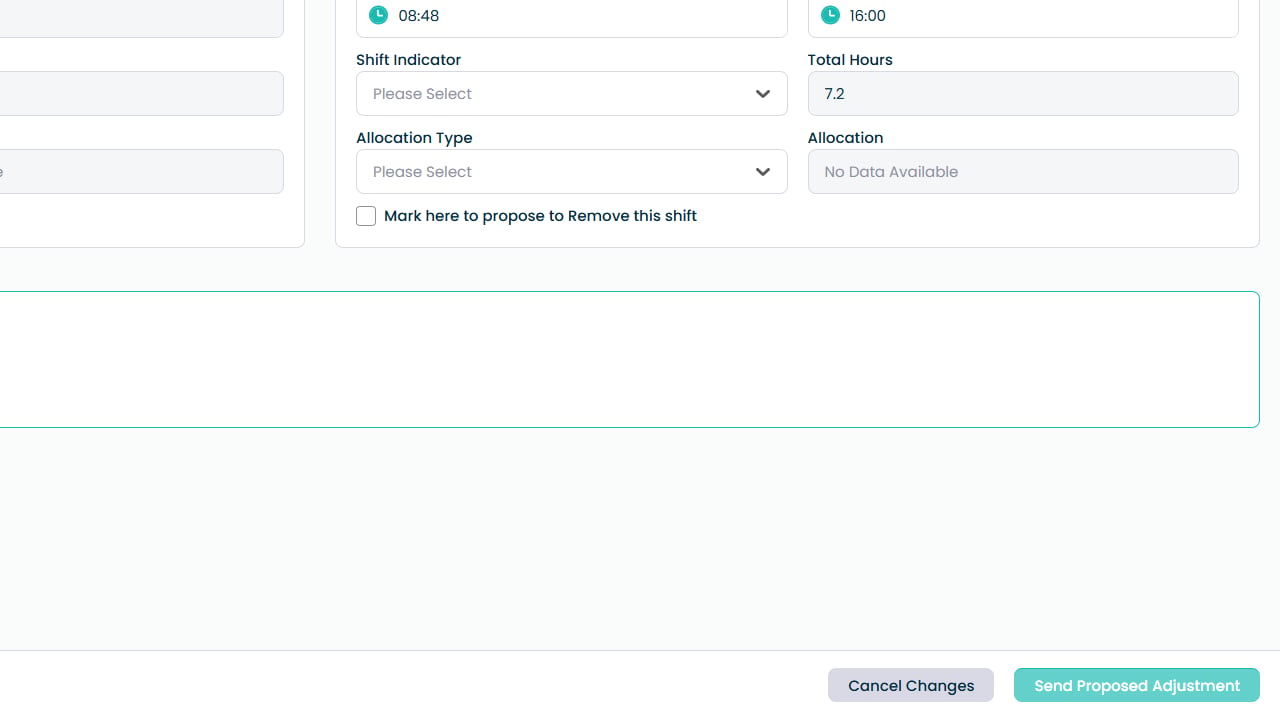
Update the shift start time if required

Enter a reason for the adjustment

Submit the proposed adjustment

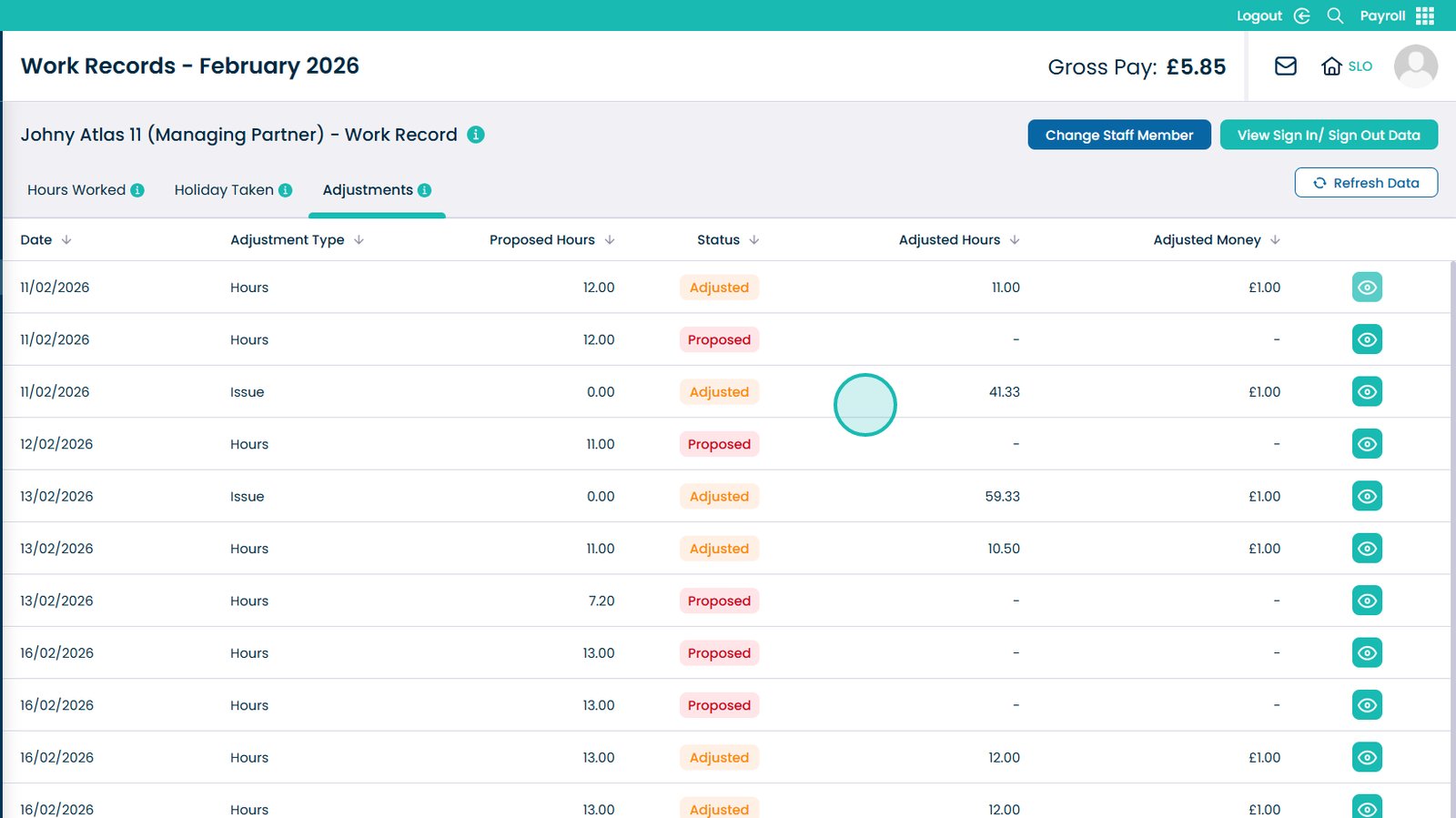
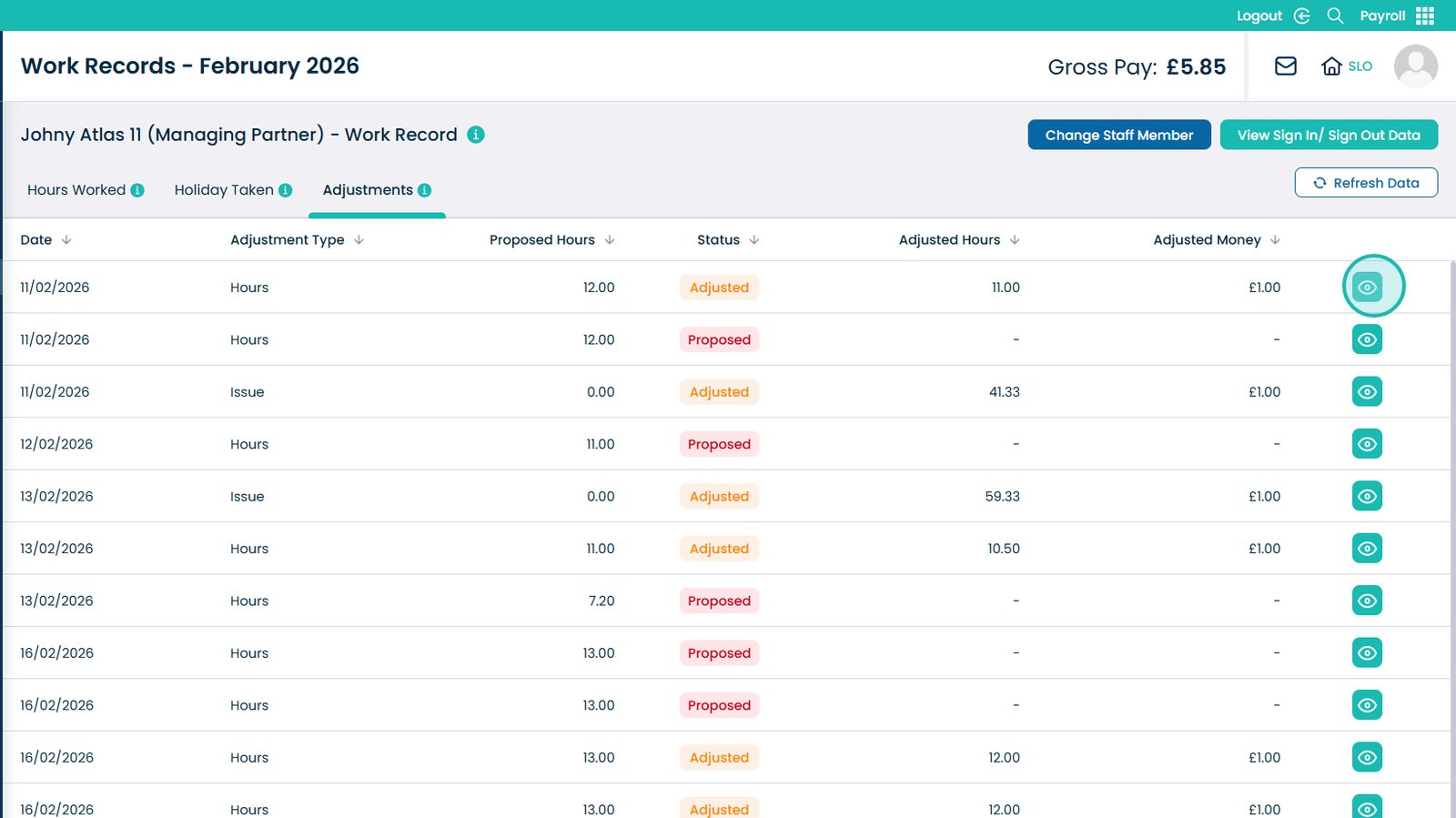
Open the Adjustments tab

Review adjustment status and details

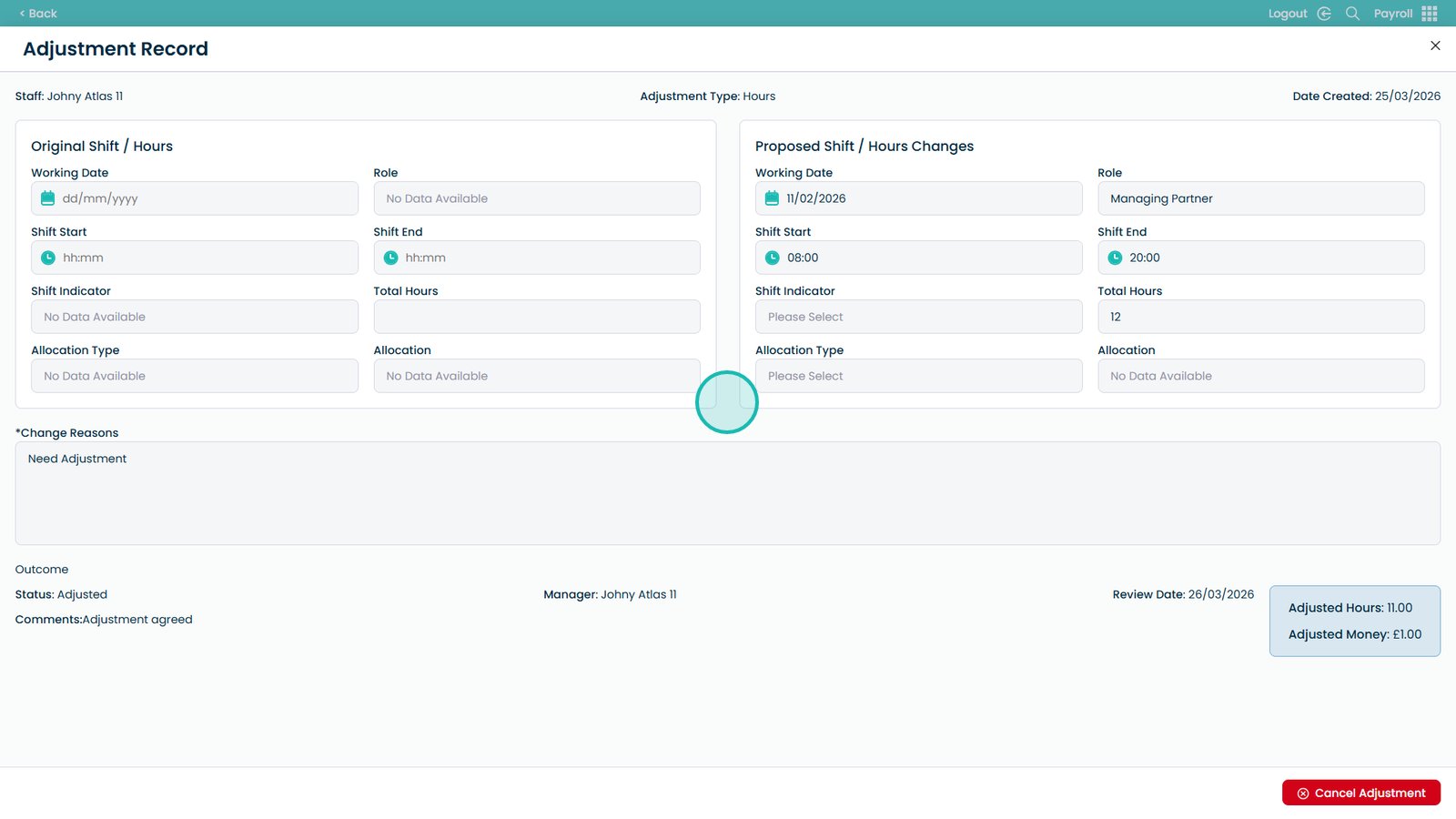
Click the eye icon to view adjustment details

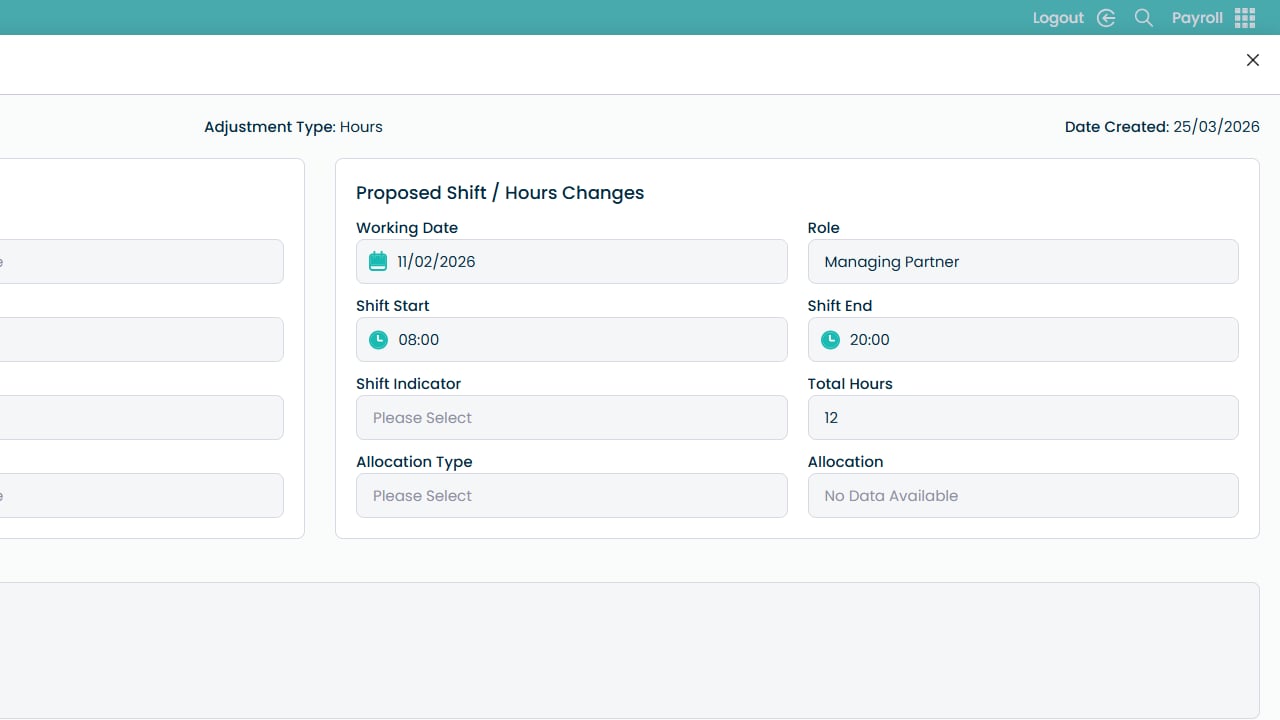
View full adjustment details

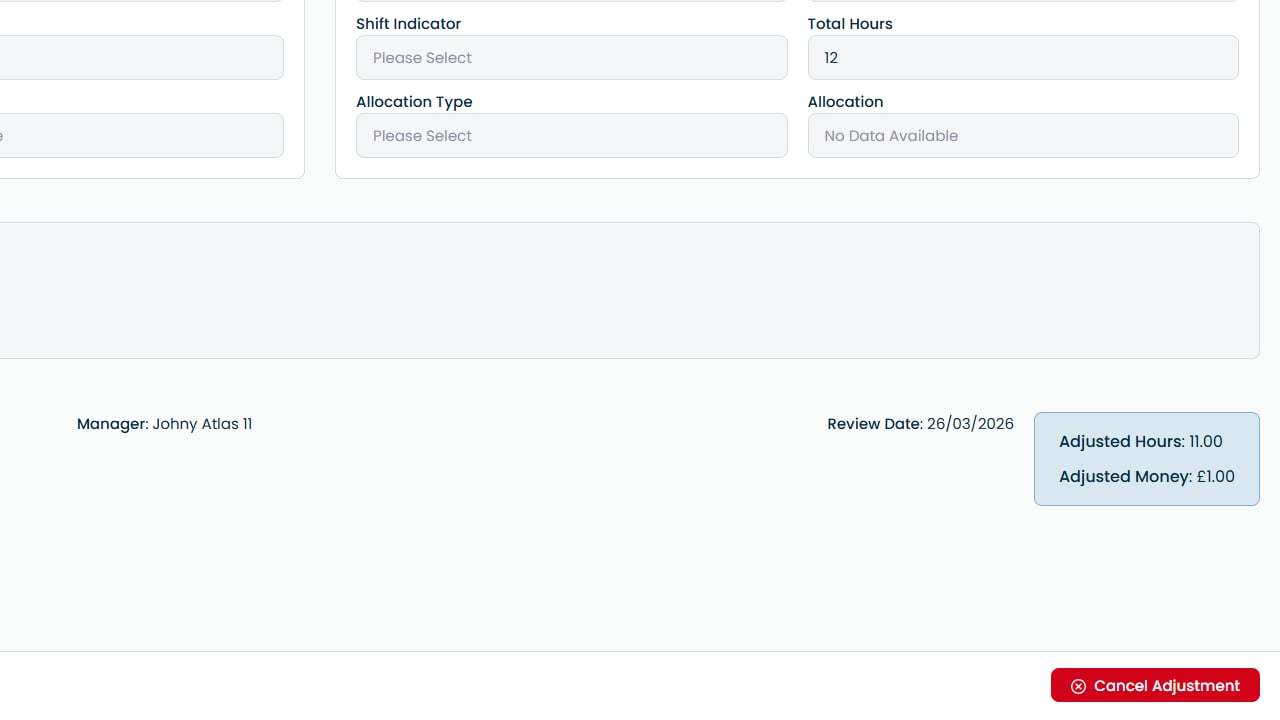
Cancel the adjustment if required

Close the window when finished

Was it helpful ?
Table of Contents
↑ Top