How to record a Risk Assessment
This guide will walk you through viewing, completing, and updating resident Risk Assessments within Care Control Cloud.
Takes 4 minutes
For: Care Staff
Updated: 1st June 2026
Introduction
This guide explains how to view, complete, and update Risk Assessments within Care Control Cloud.
In this guide you'll learn how to:
- Access resident risk assessments
- Review current and historic assessments
- Record a new risk assessment
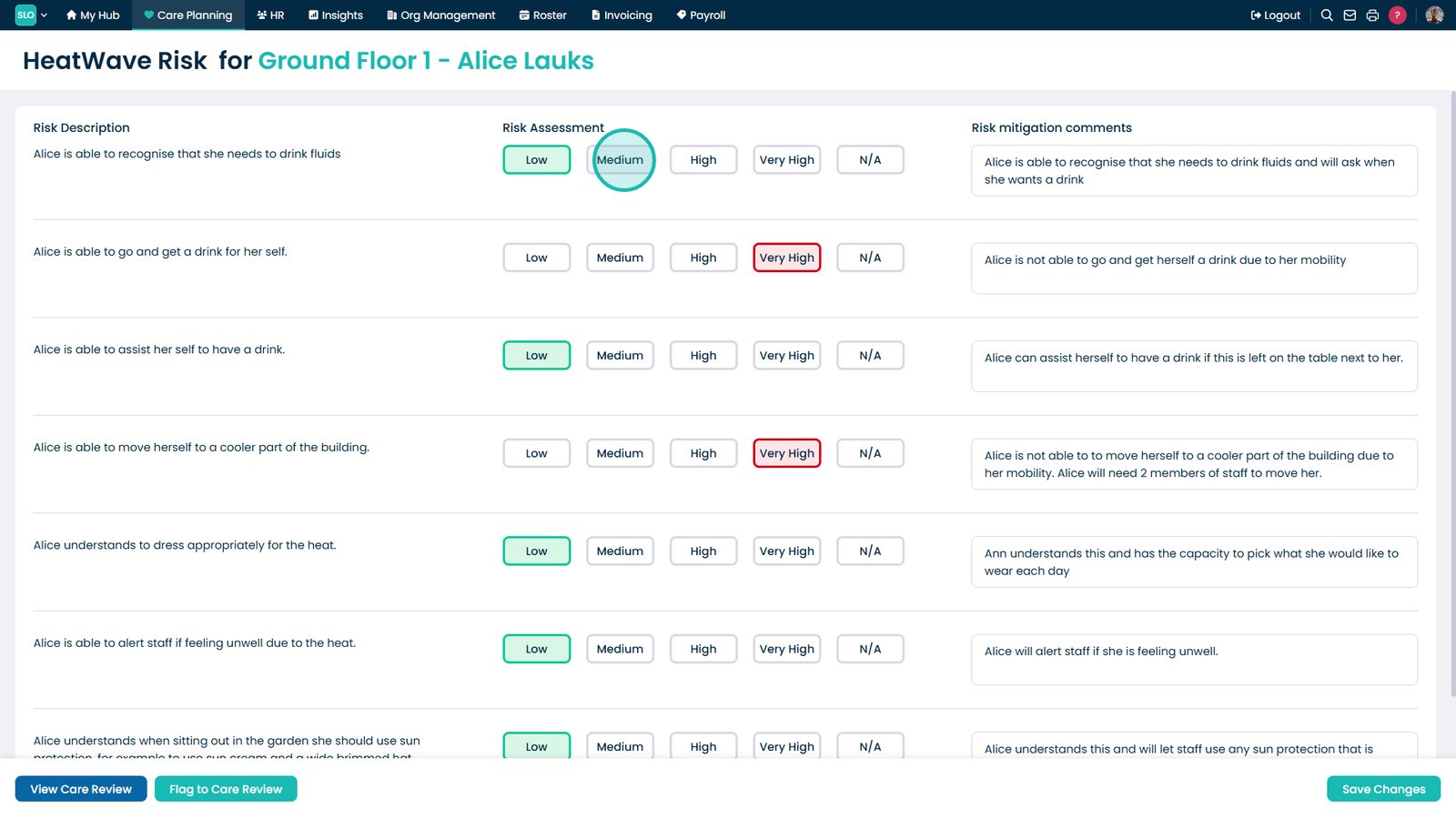
- Assign risk levels
- Save assessment updates
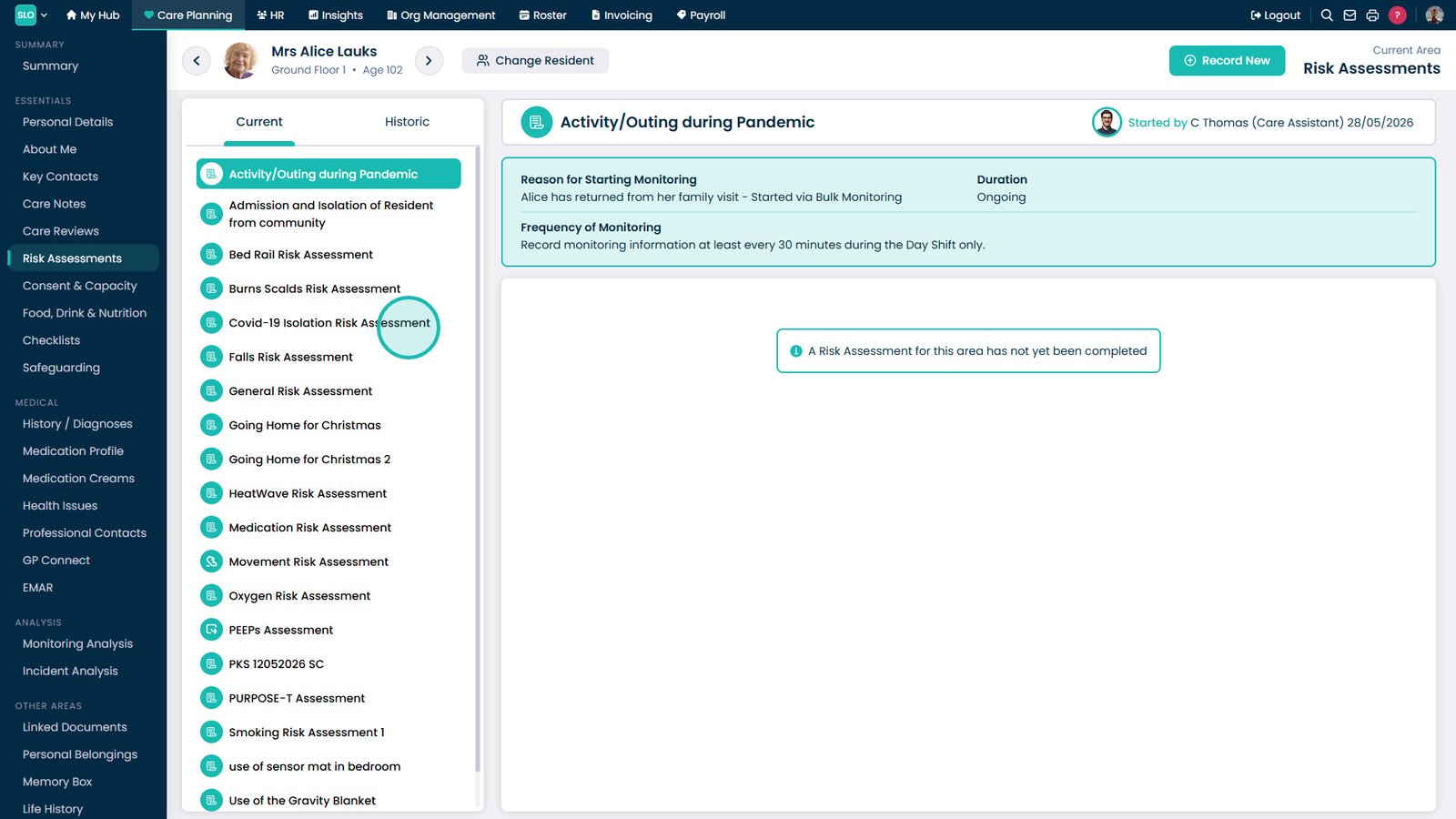
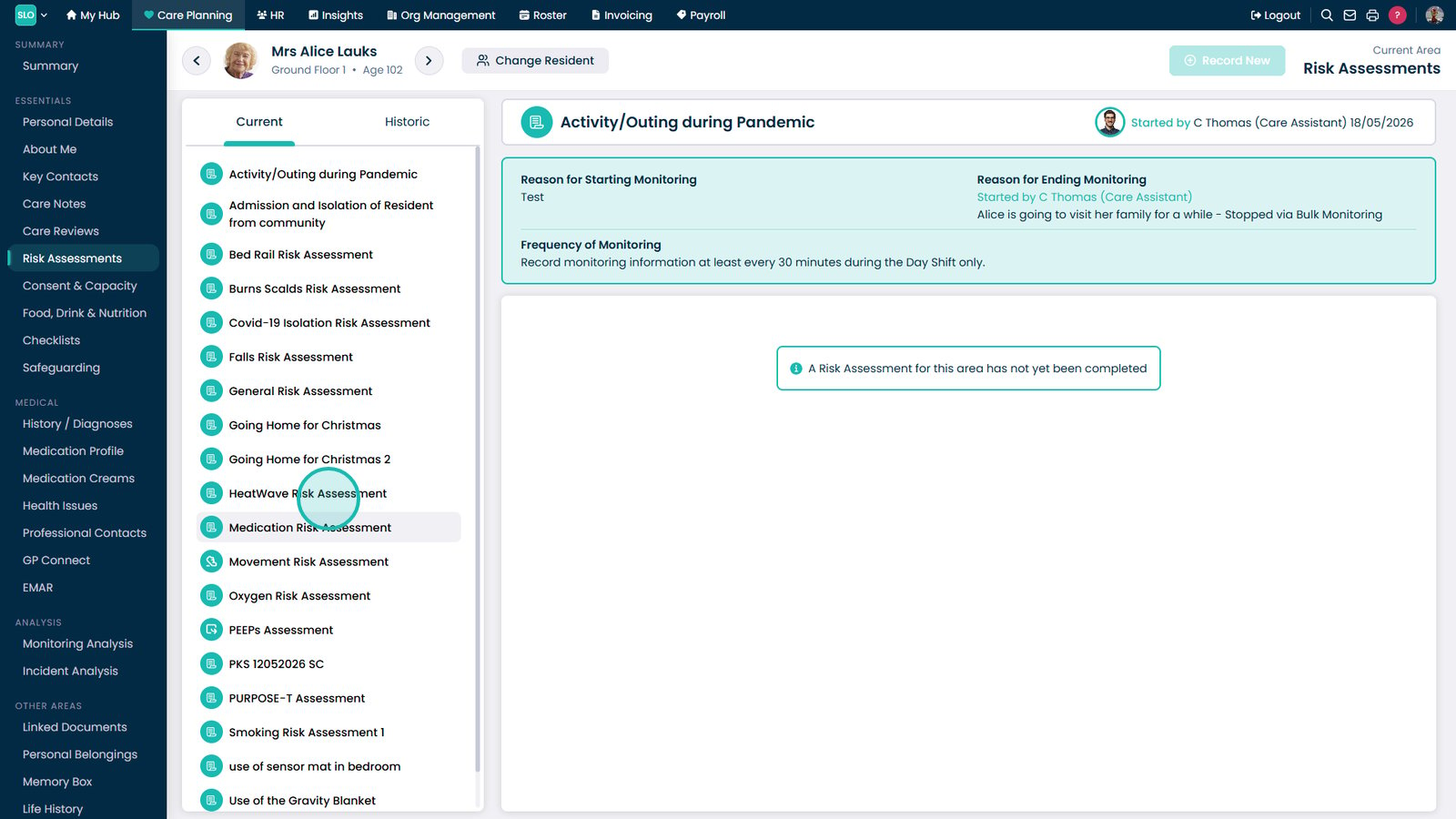
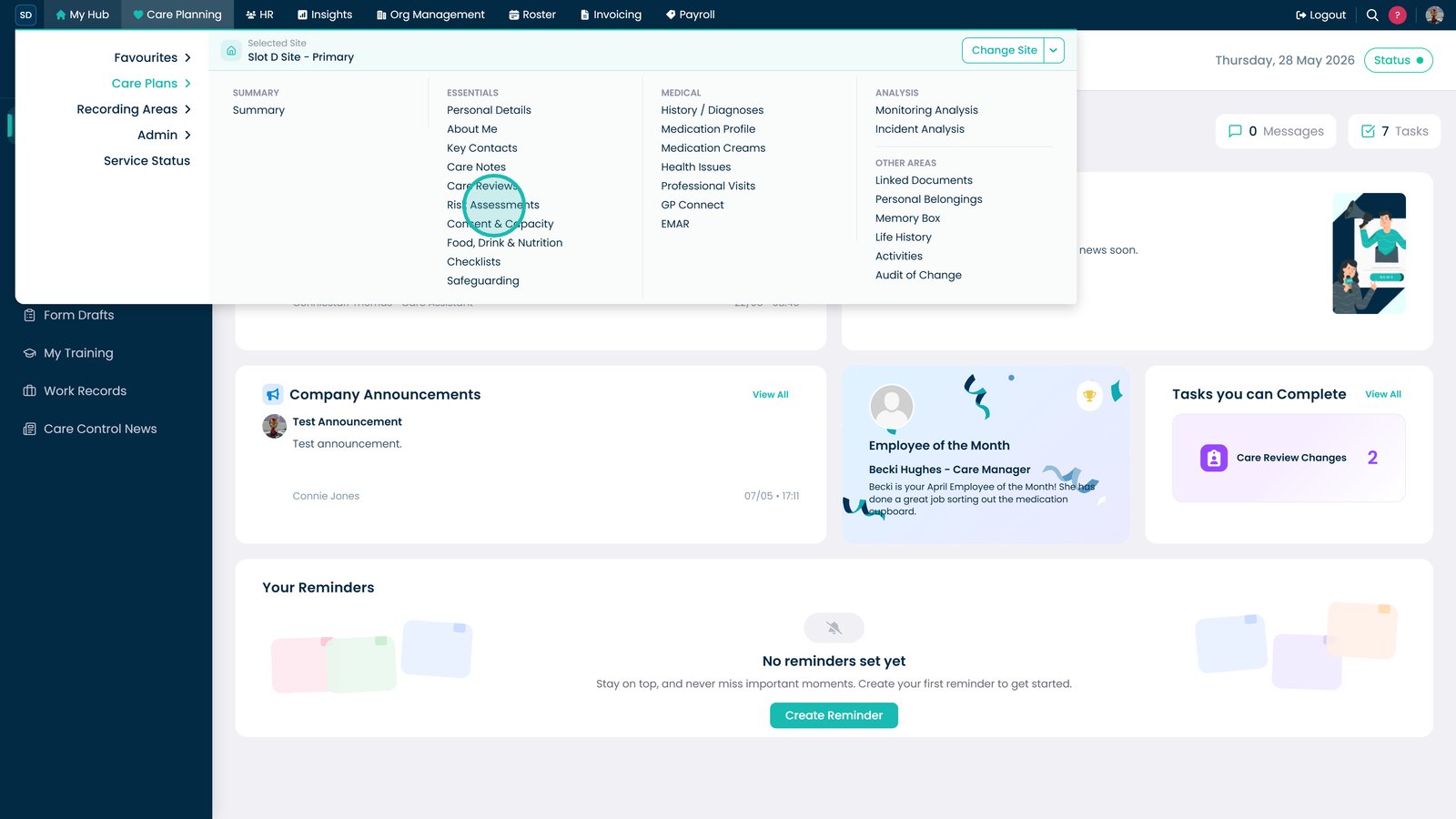
Open Risk Assessments from the Care Planning menu.

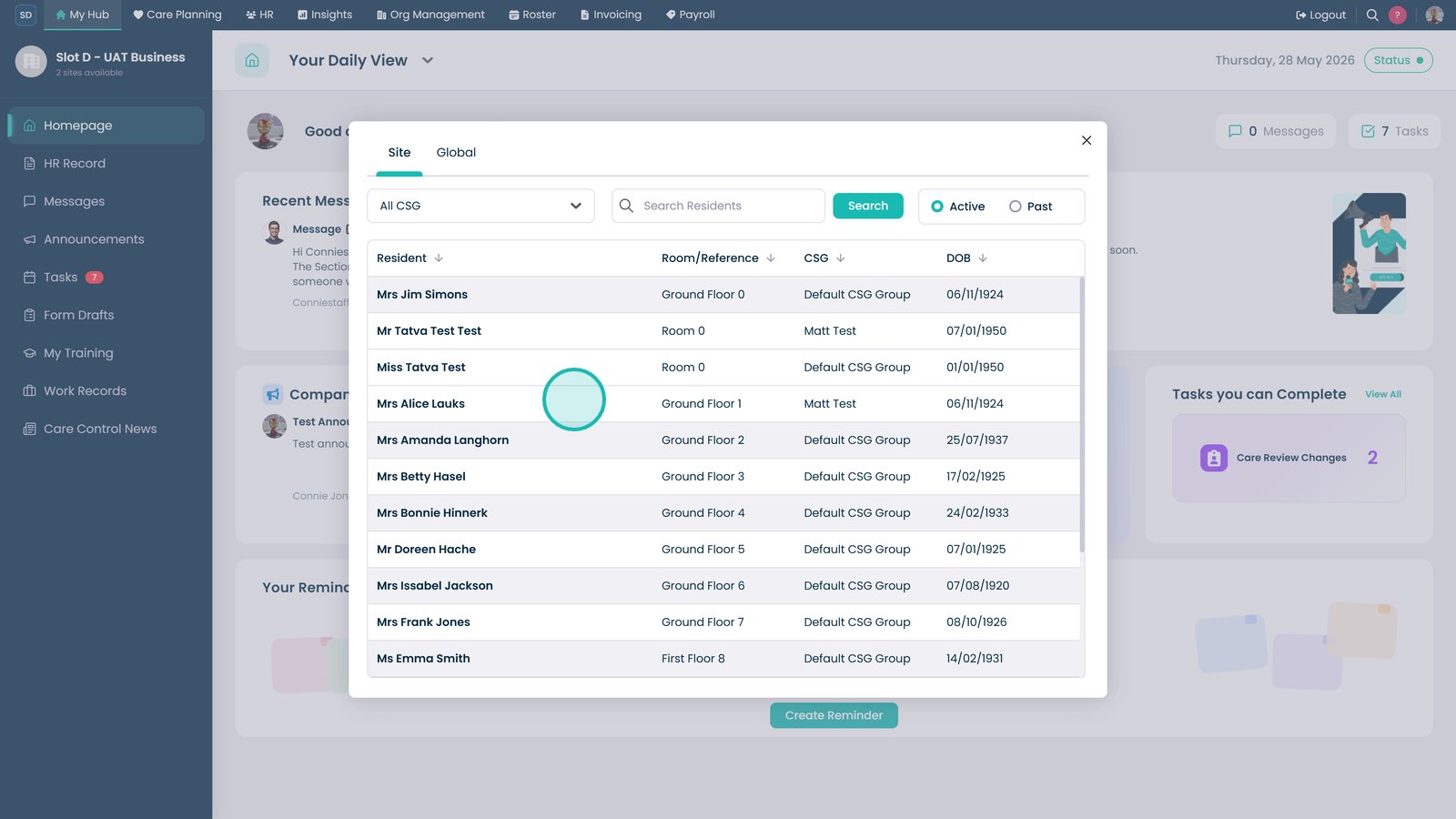
Select the resident.

Browse available risk assessments.

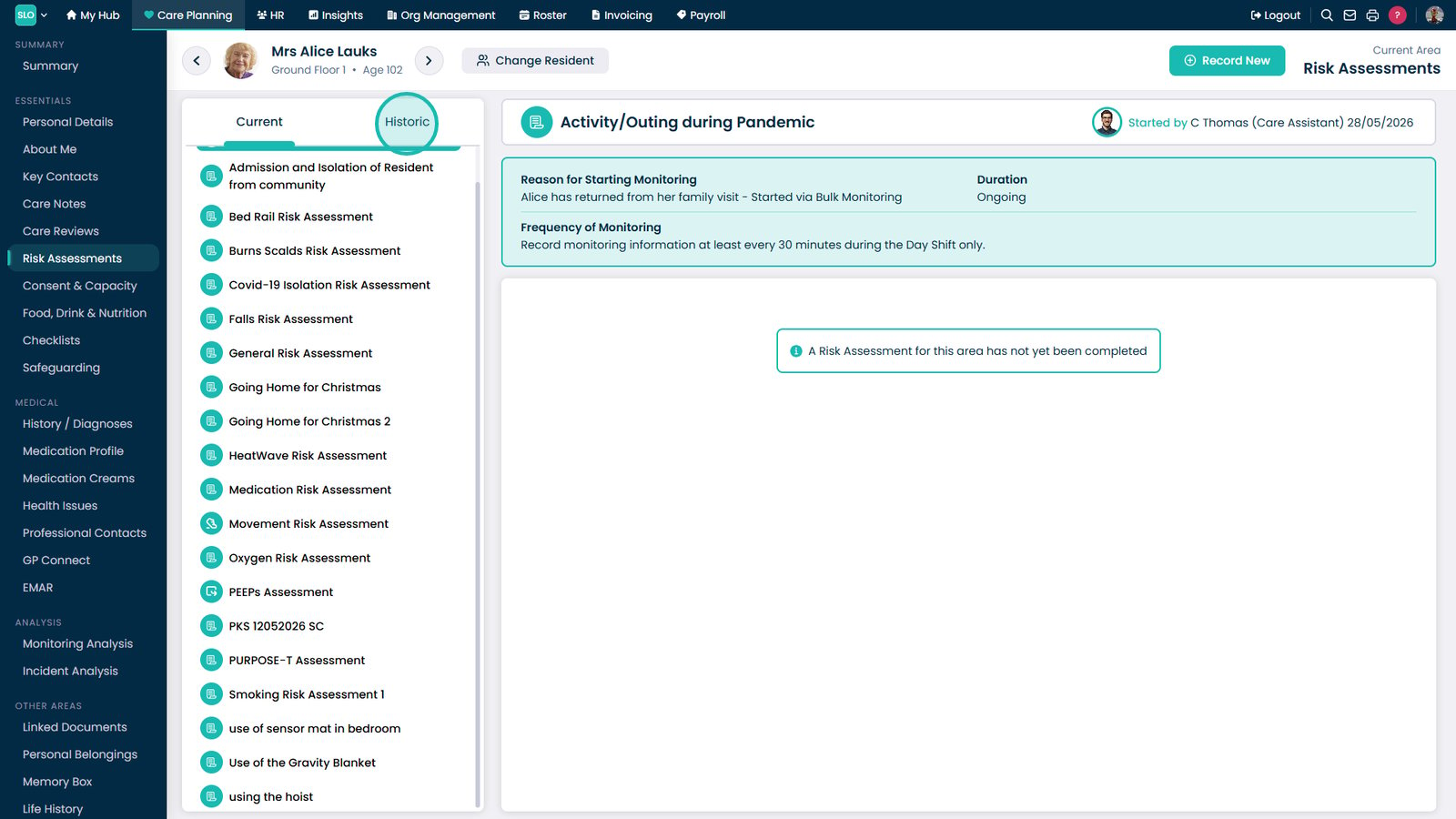
Open the Historic tab to view previous assessments.

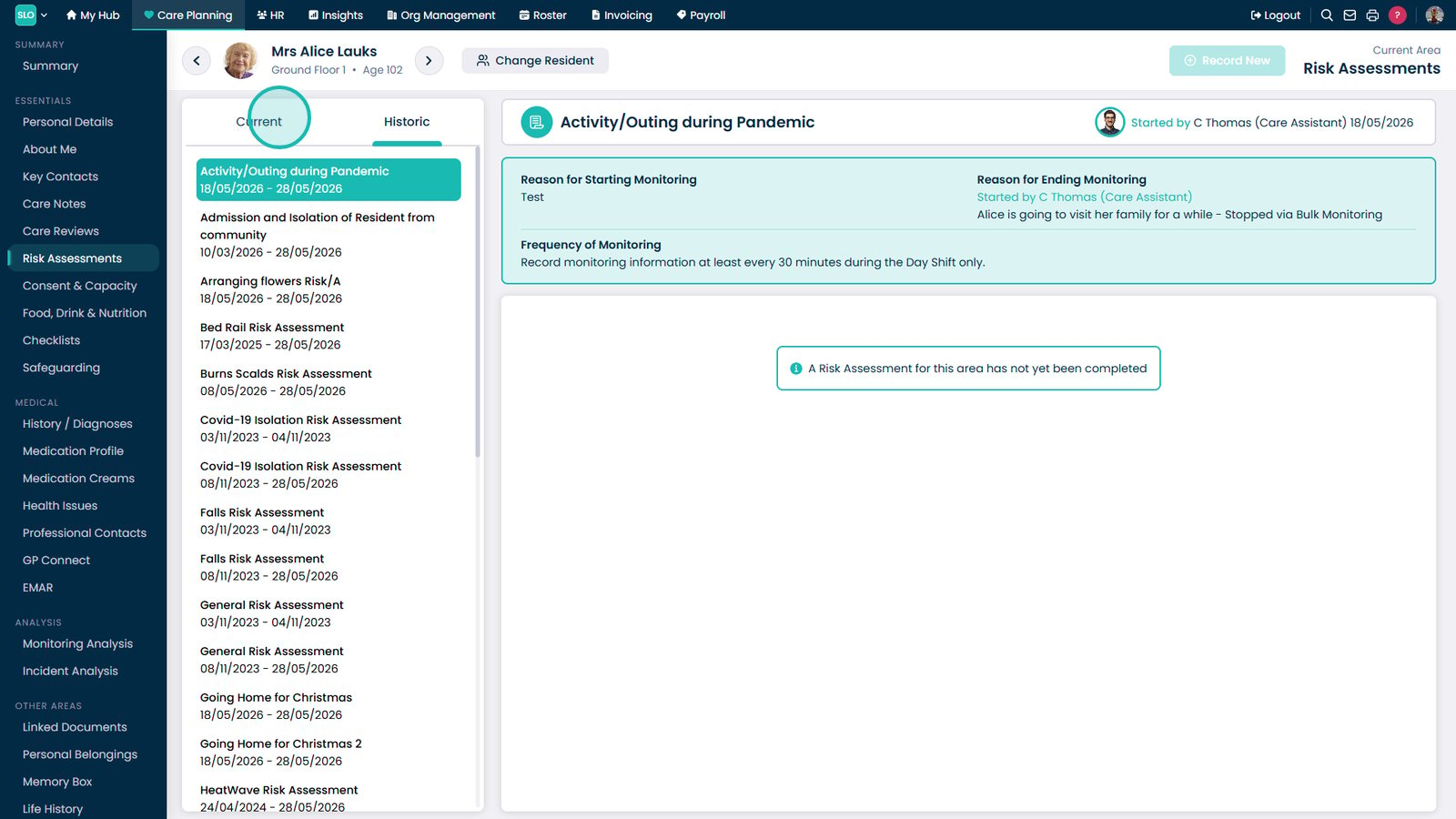
Return to the Current tab.

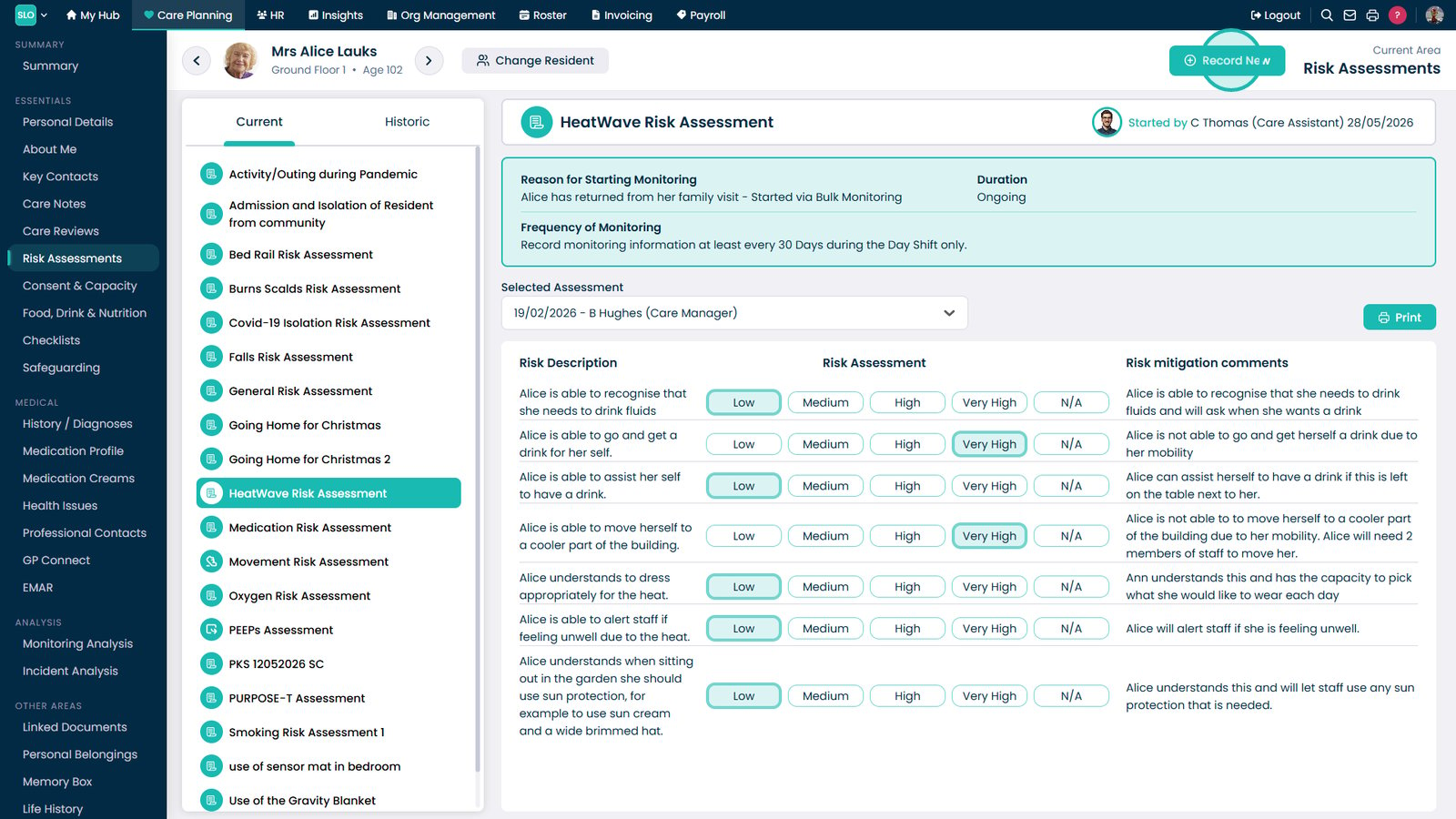
Select a risk assessment to view.

Select Record New.

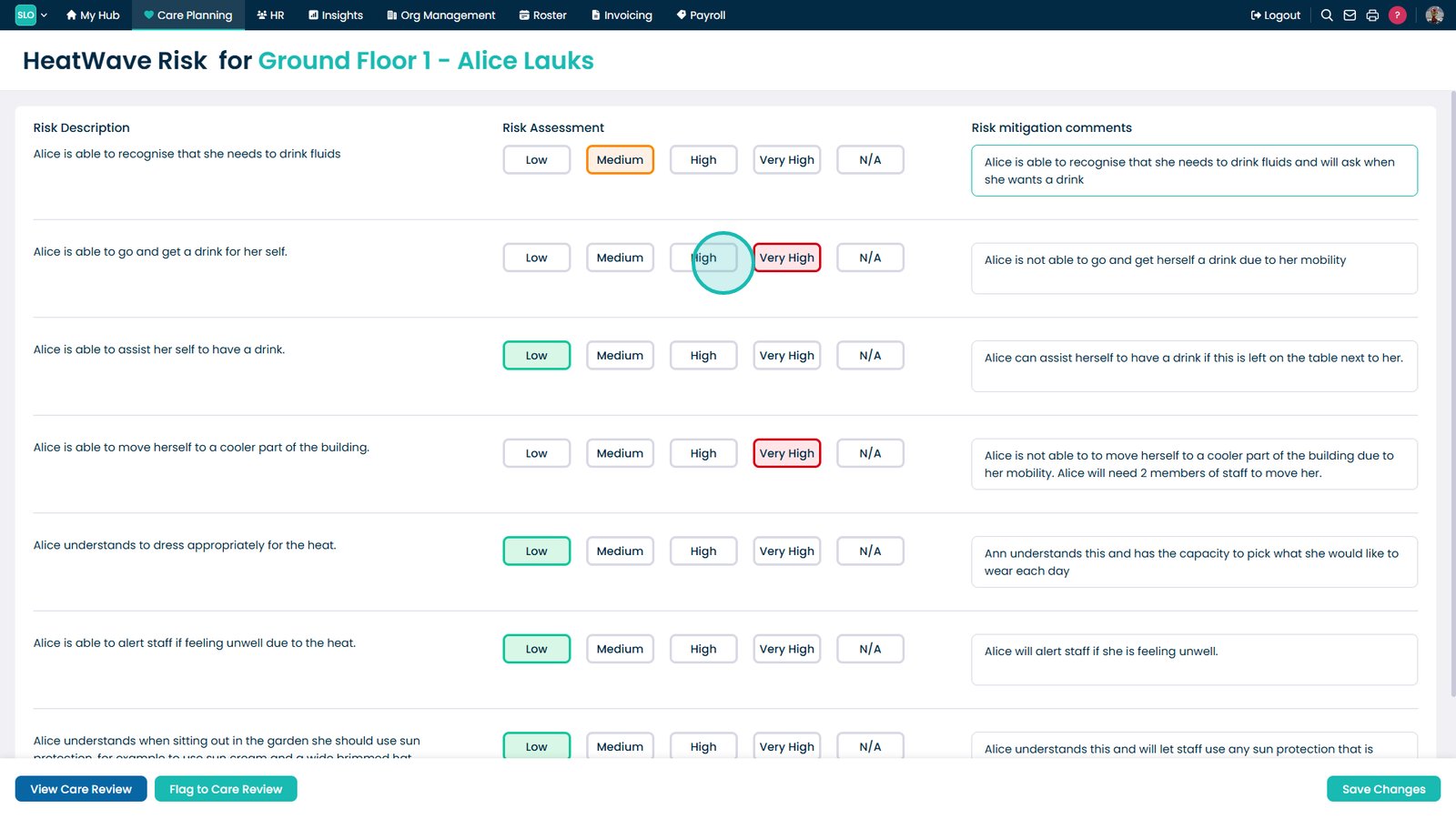
Select a risk level.

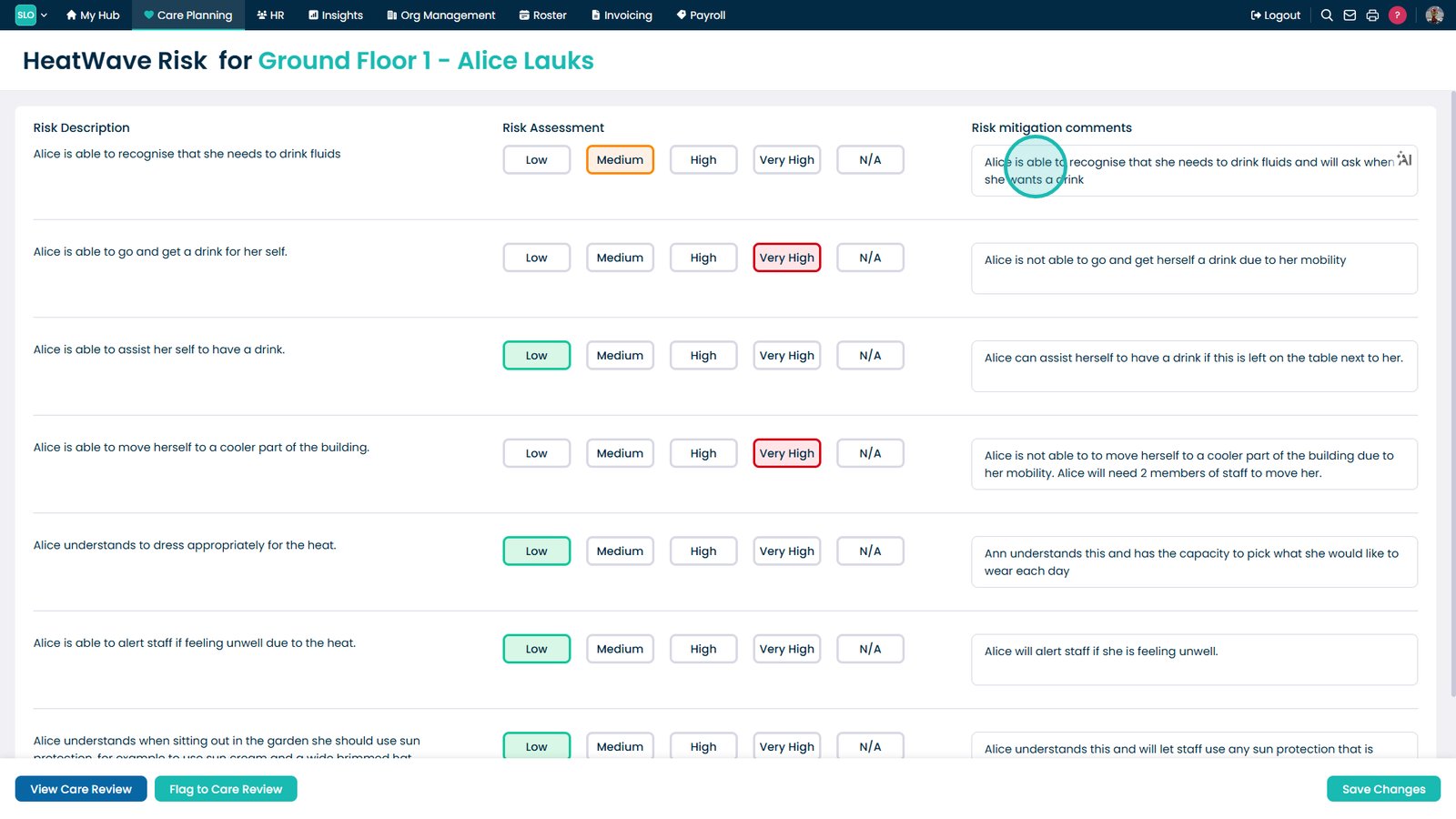
Enter risk mitigation comments.

Complete the remaining assessment sections.

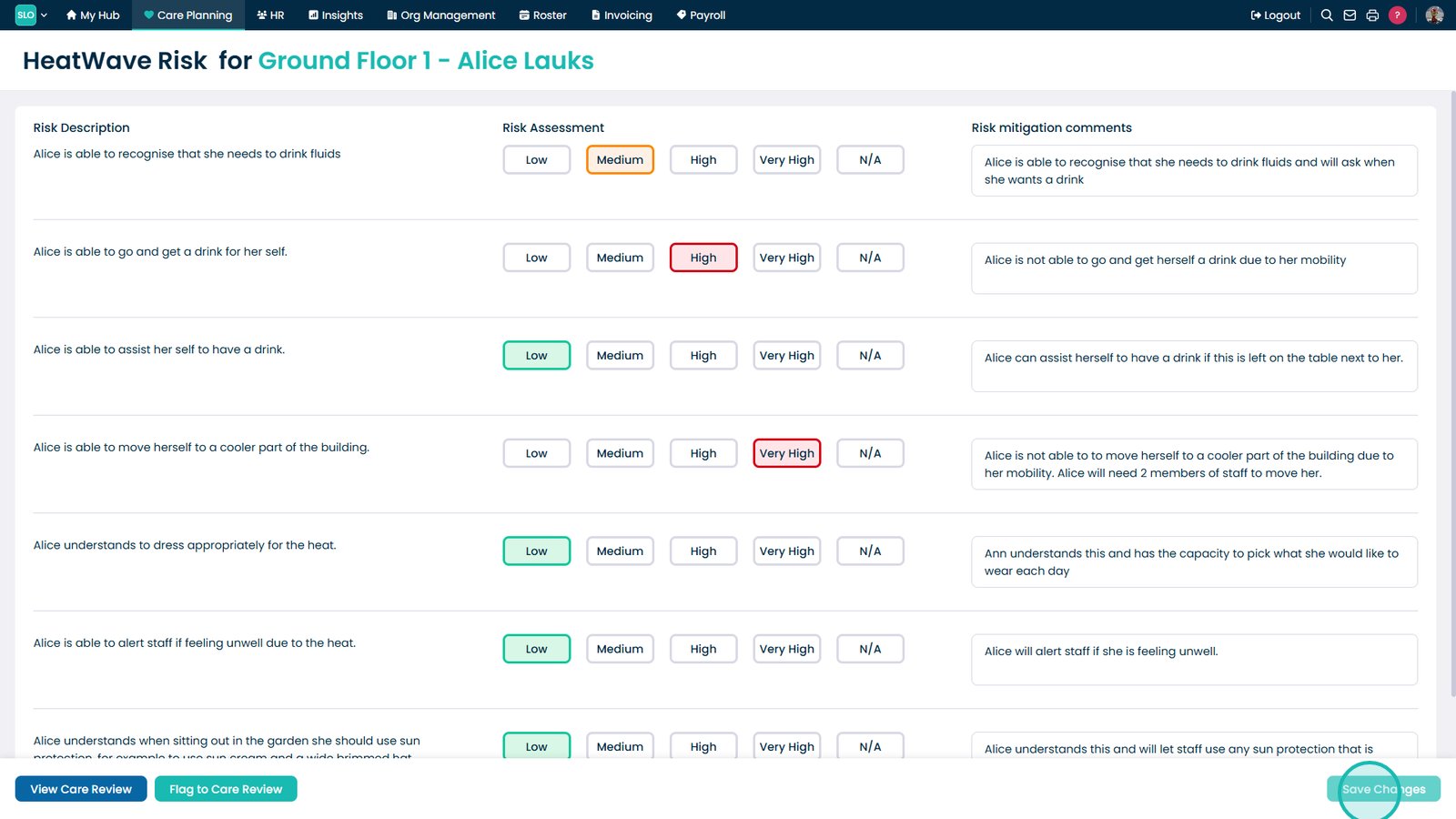
Select Save Changes.

Top tip
Review historic assessments before recording a new one to identify changes in risk levels and ensure appropriate support measures remain in place.
Need more help?
Can't find what you're looking for? Our support team is here to help.
Contact SupportOr call us on