View Categories

How to record a new professional contact on Cloud

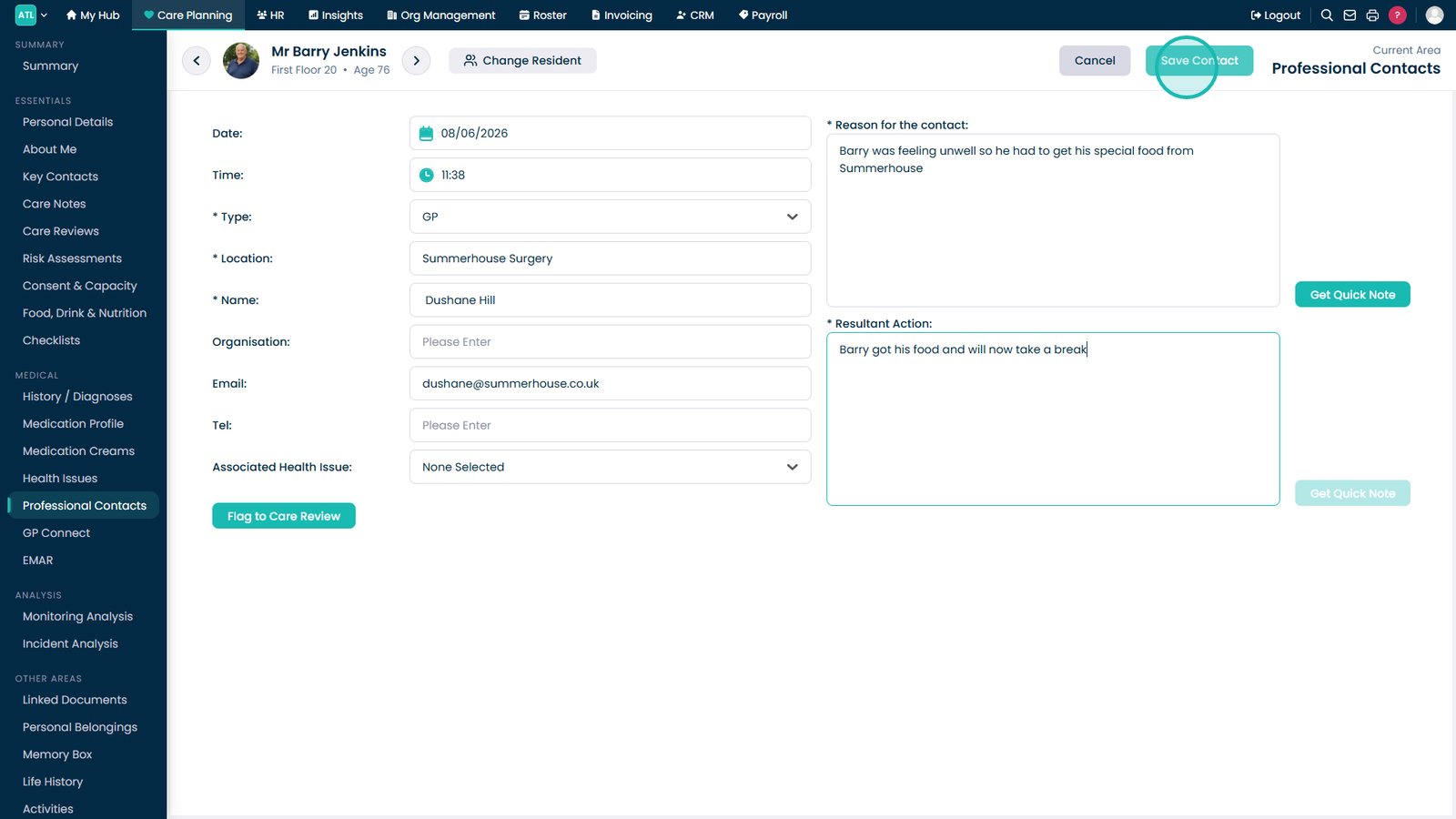
This guide explains how to record a new Professional Contact within the Care Planning App. Professional Contacts are an important part of tracking a customer’s healthcare interactions, such as GP visits, specialist appointments, district nurse visits, therapy sessions, and other professional visits.

Adding these details helps keep the customer’s medical history accurate, supports safer care planning, and ensures all external professionals involved in their care are clearly documented. Use this guide whenever you need to log a new professional contact, update the information linked to a visit, or make sure that all professional interactions are recorded correctly.

Interactive Guide

Text based guide

Enter the Care Planning App


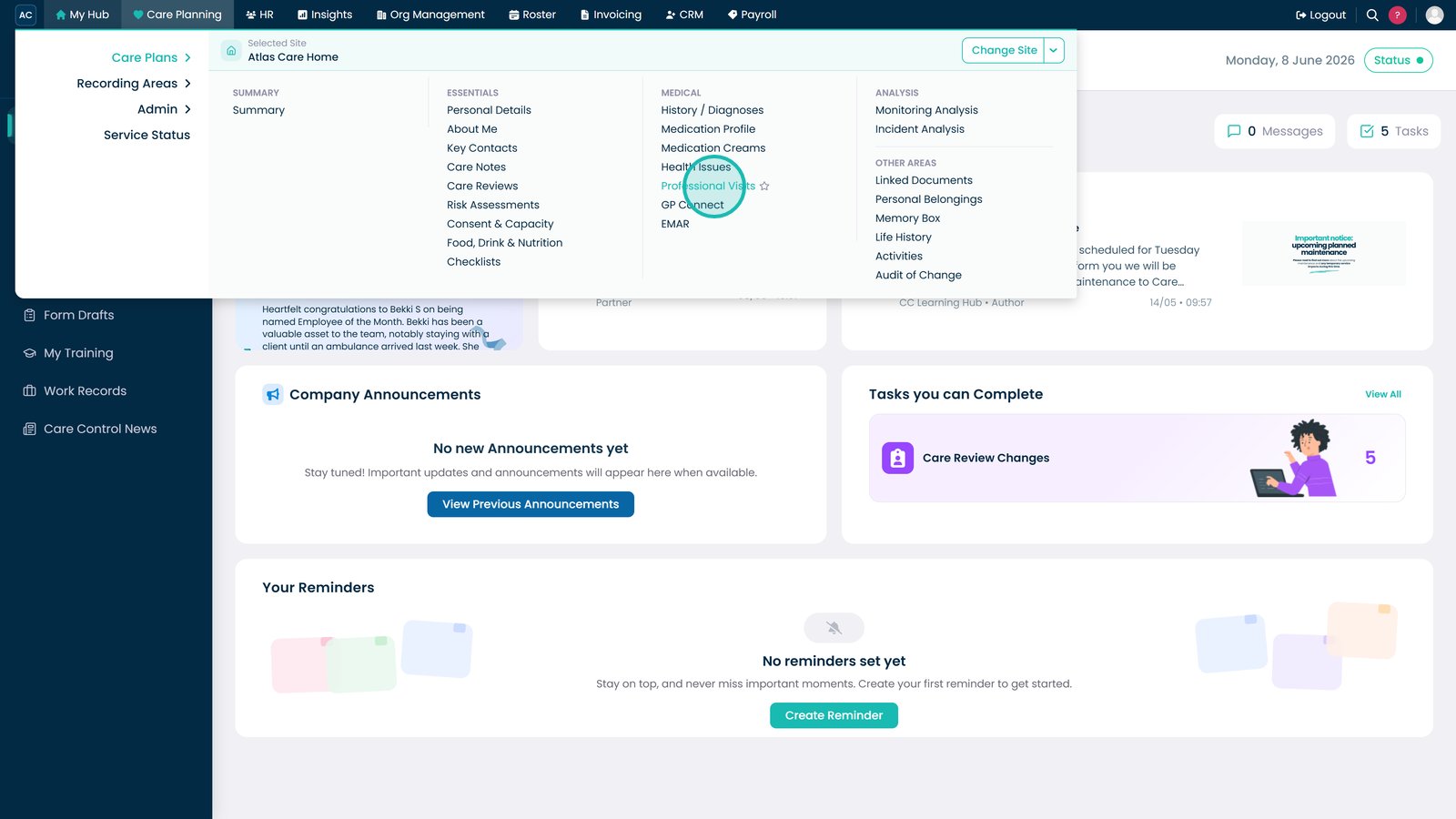
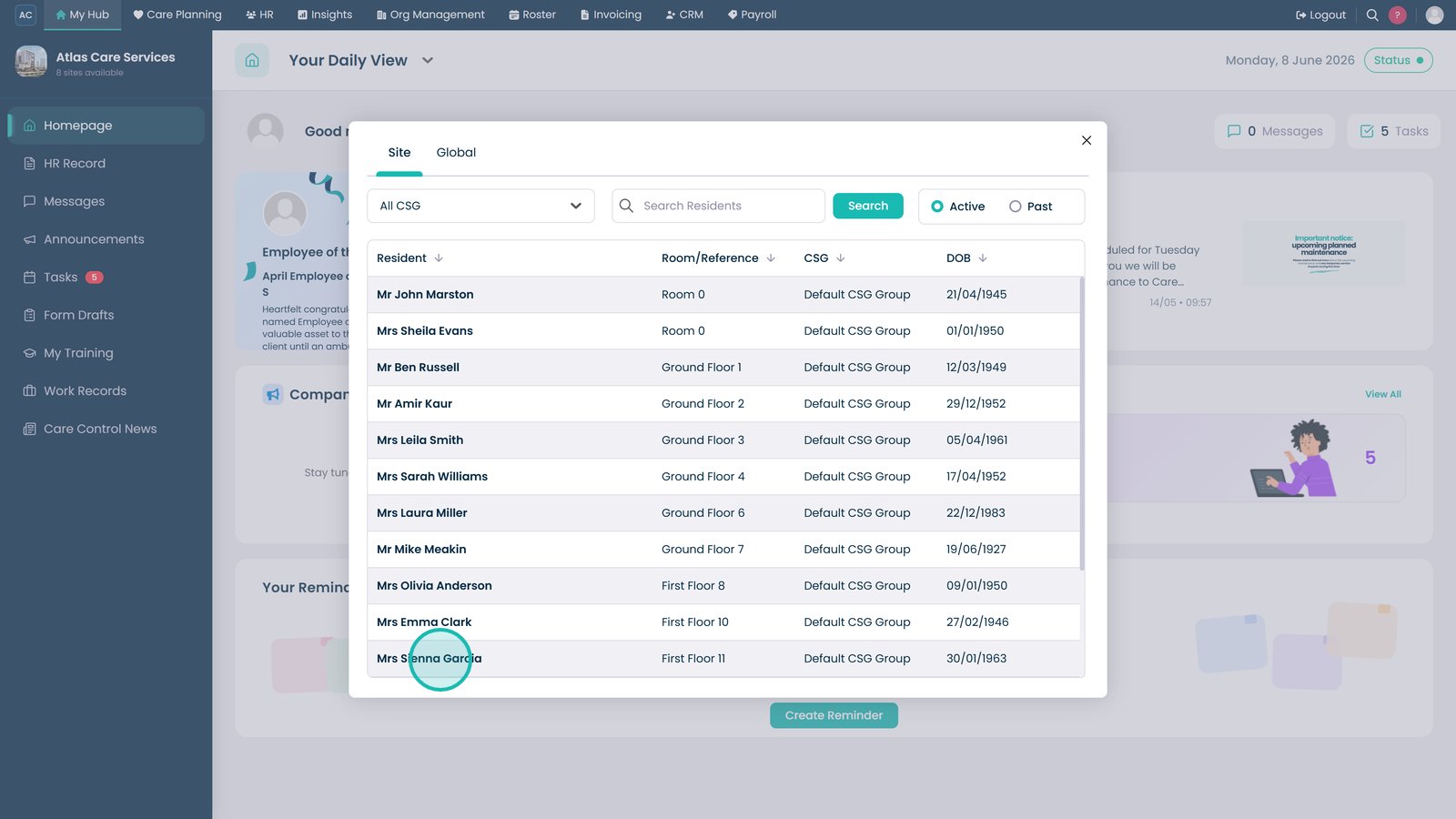
Select Visit in the Customer Care Plans area


Open the Medical dropdown


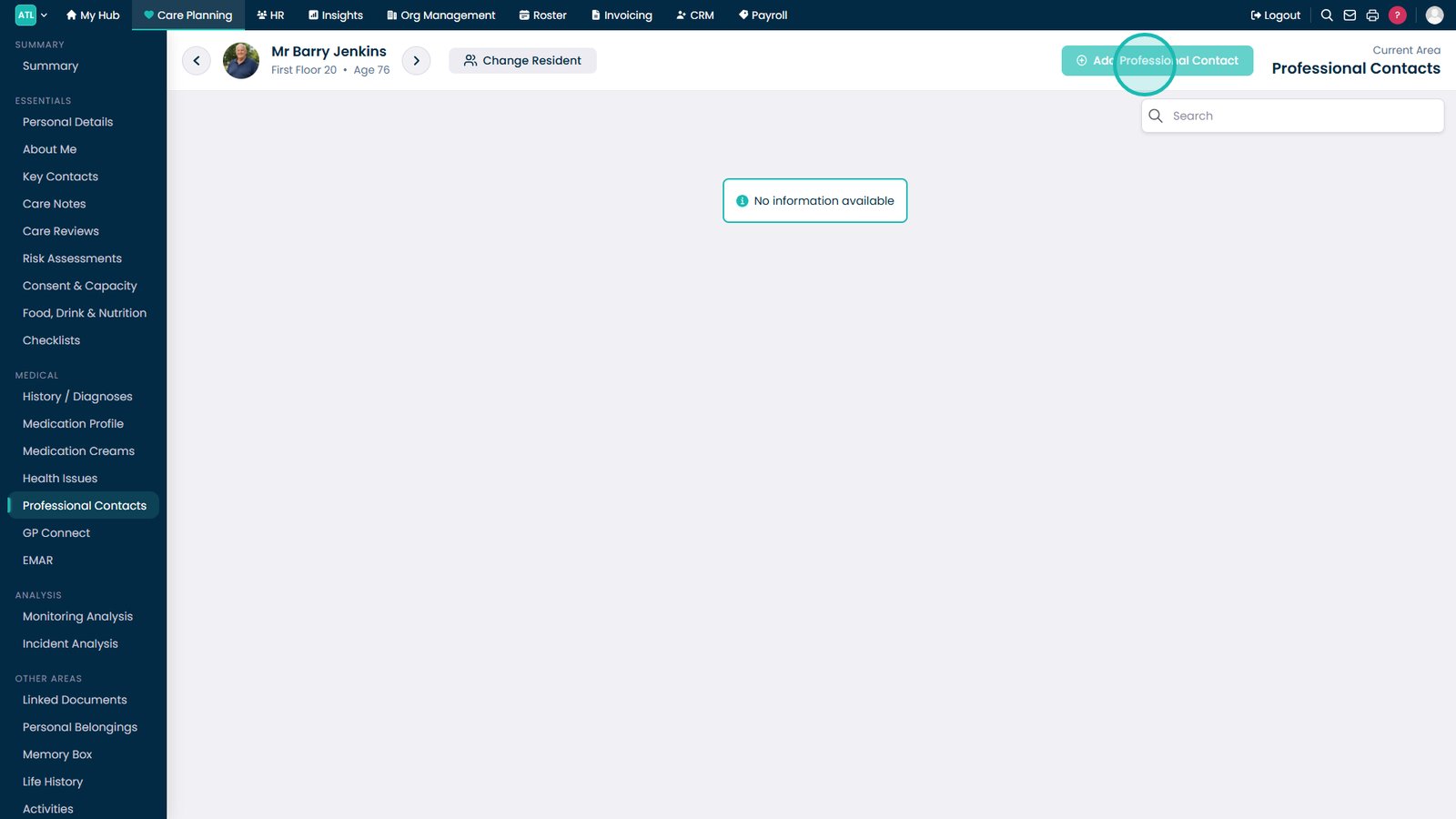
Select Professional Contacts


Click Add Professional Contact


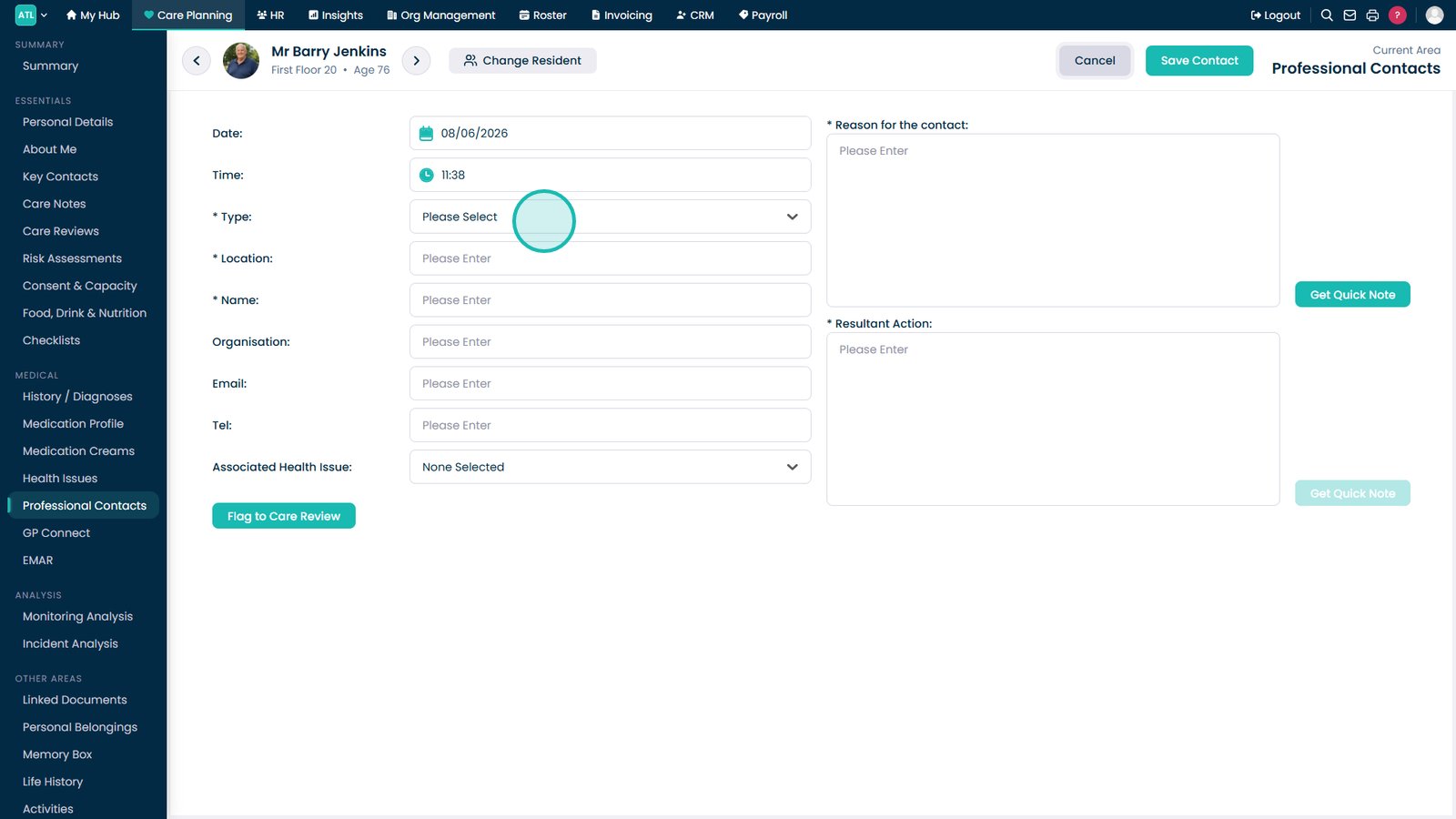
Select the date of the contact


Select the time the contact took place


Choose the time from the dropdown


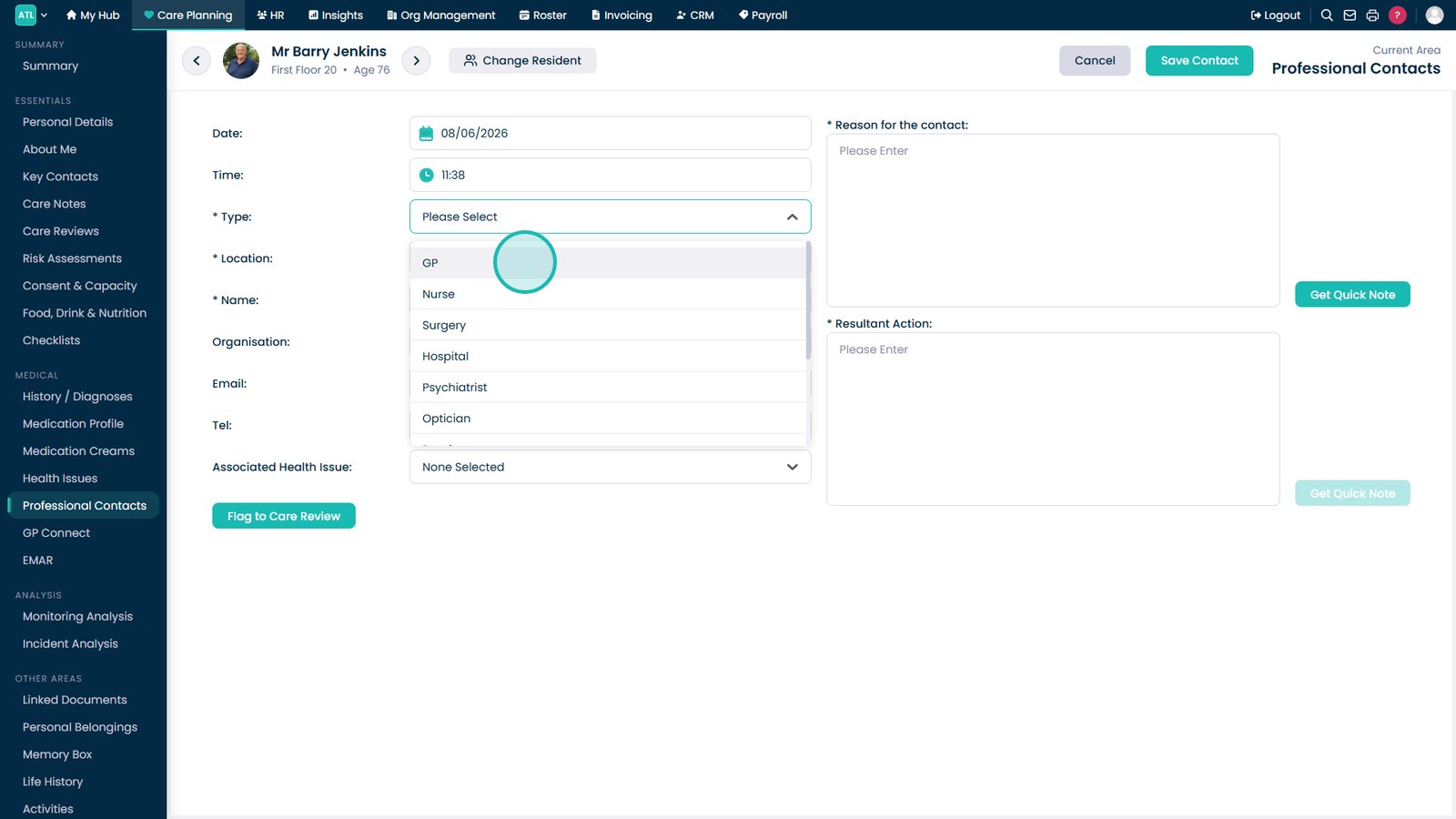
Open the Type dropdown


Select what type of contact was made


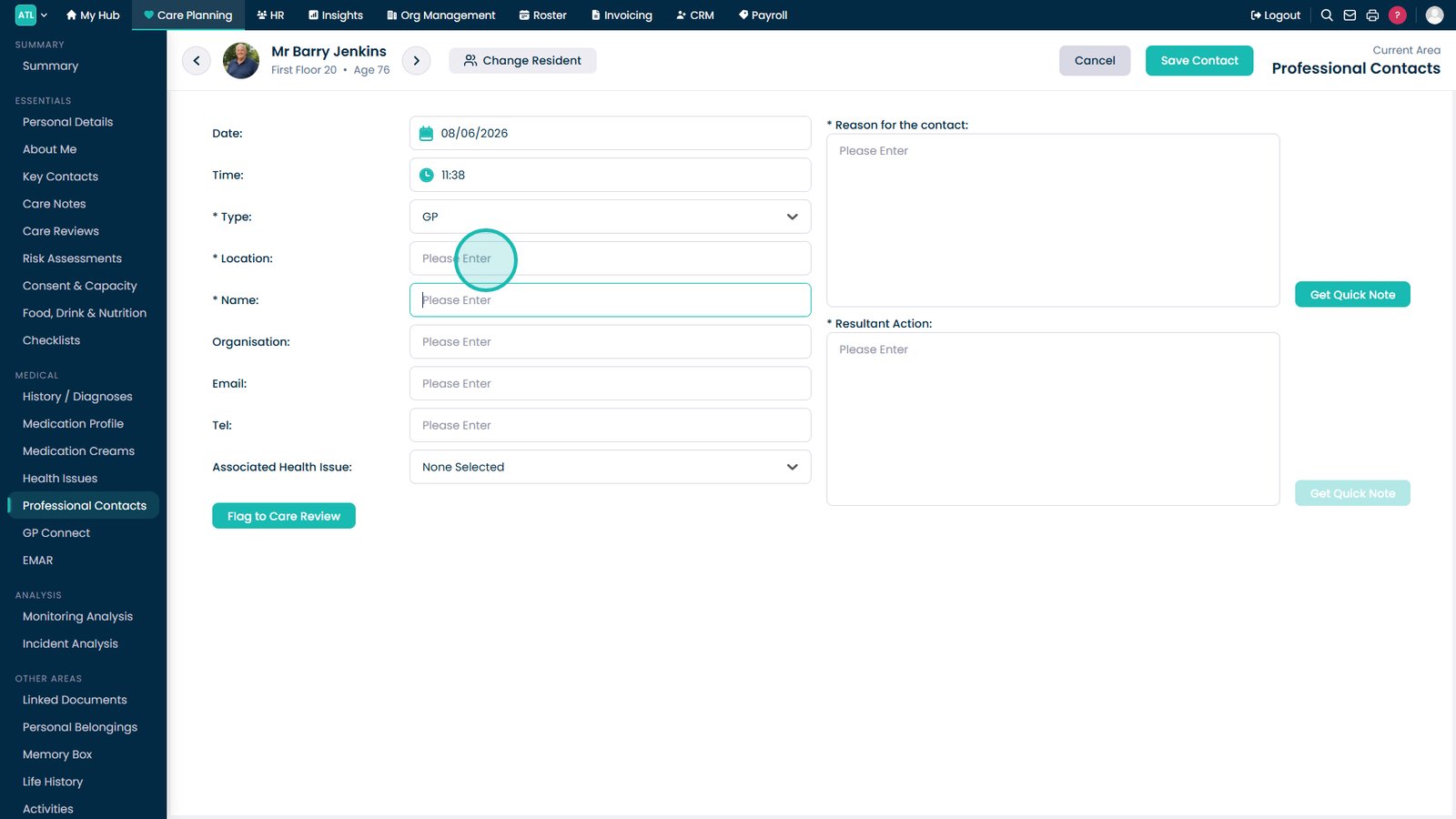
Choose the location the contact took place


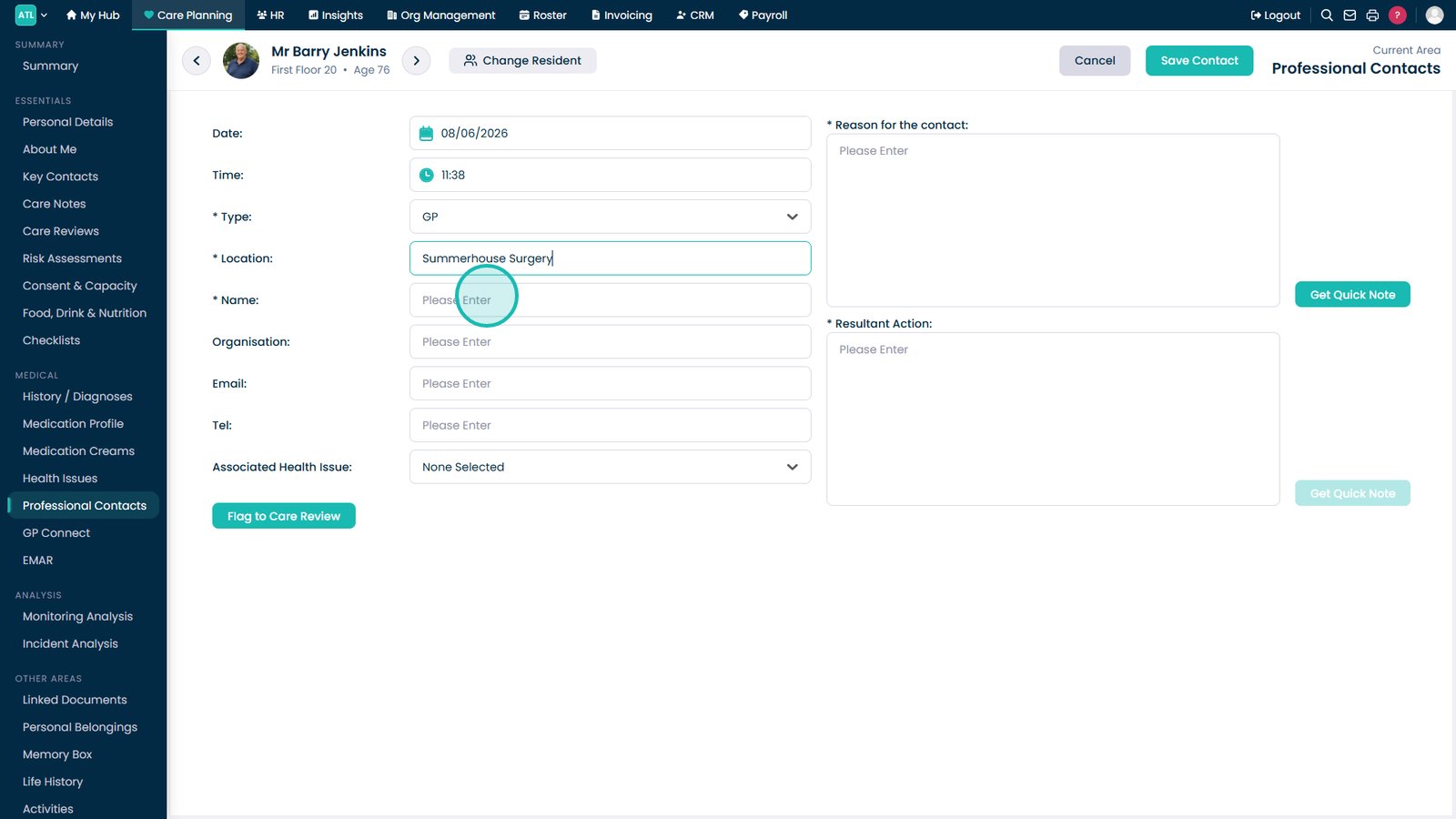
Enter the name of the professional


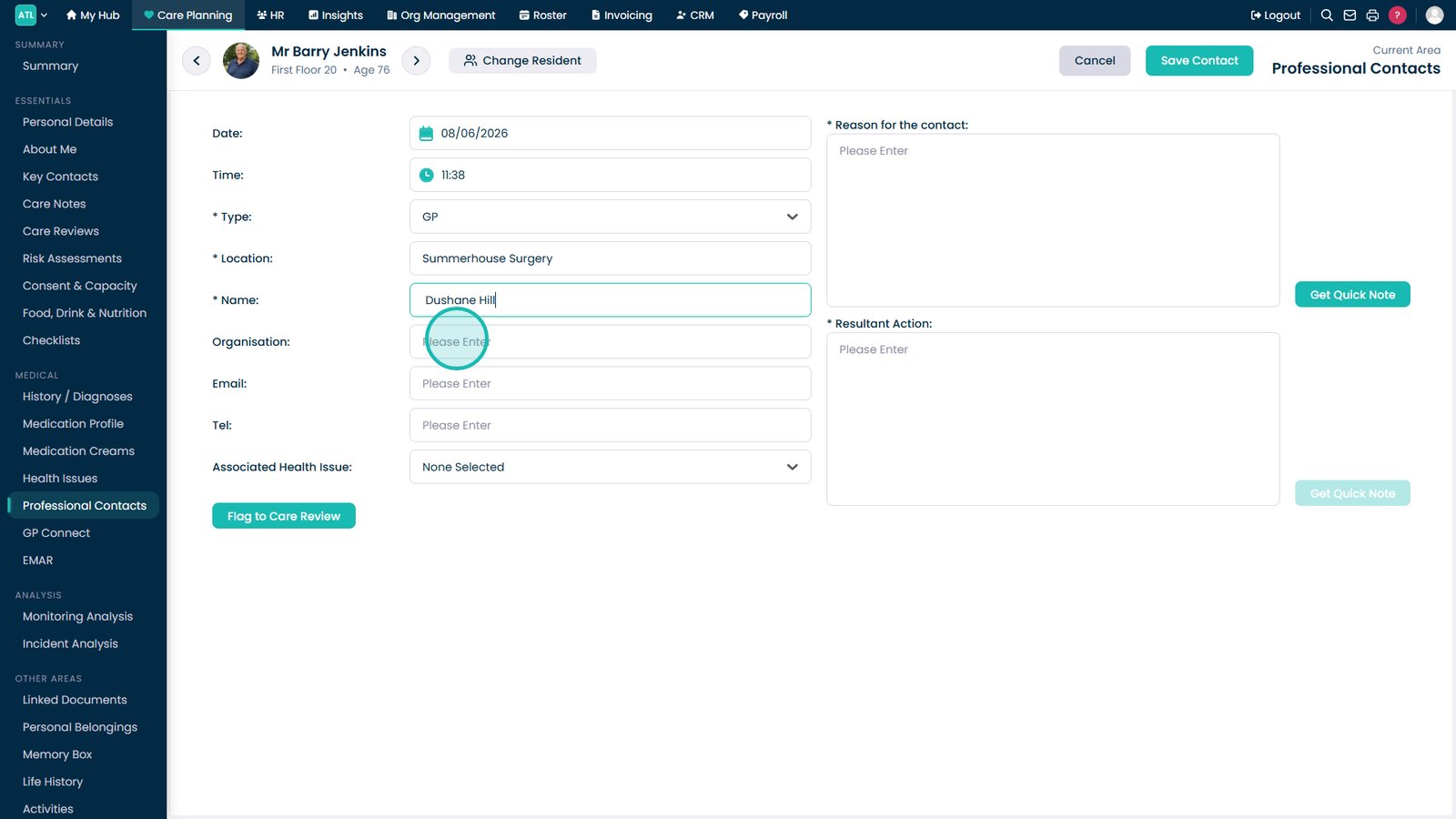
Enter the organisation’s name


Enter an email address if applicable


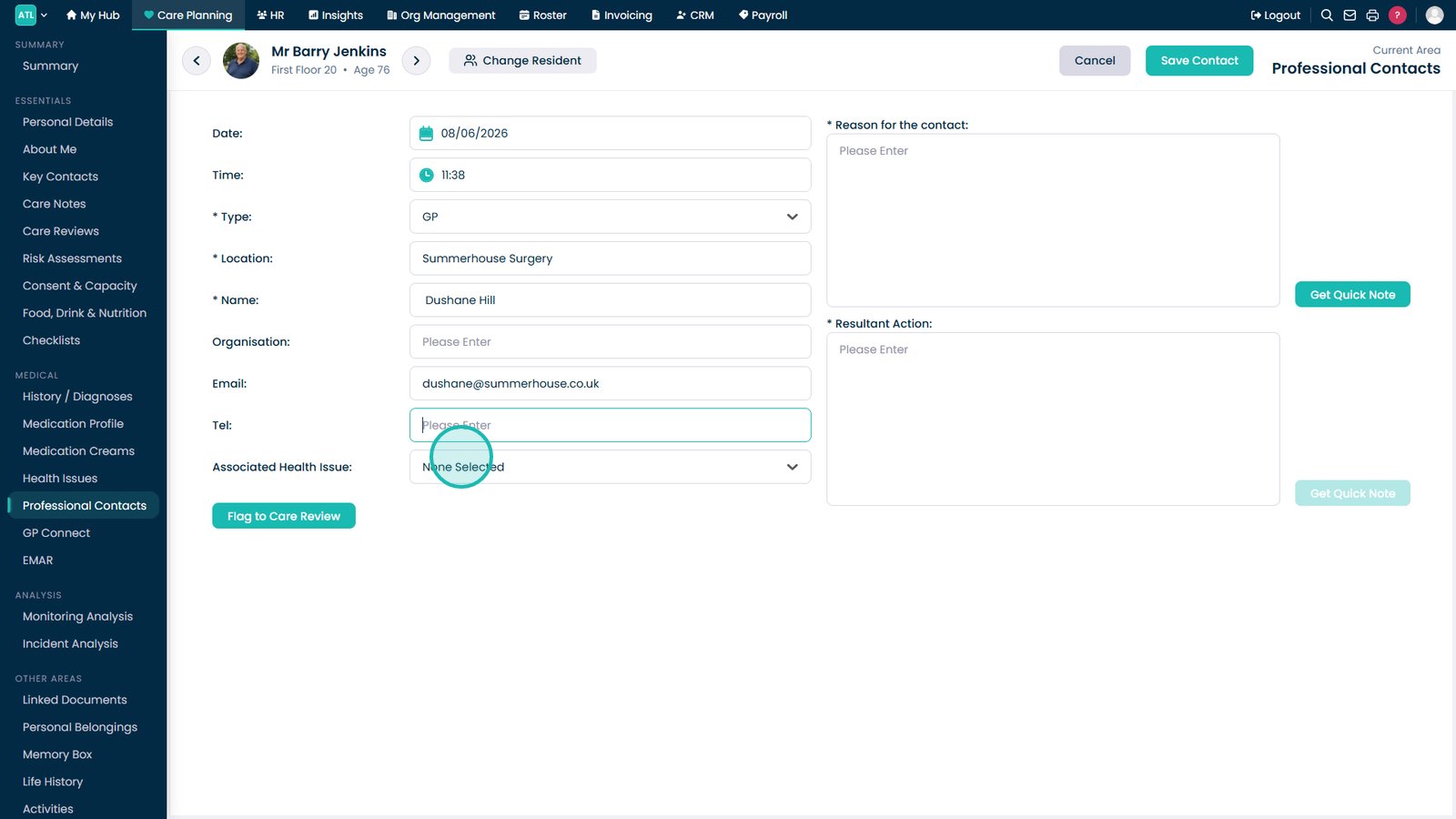
Enter the telephone number of the professional


If applicable, you can associate the contact with a health issue


Upload or attach any related documents if required


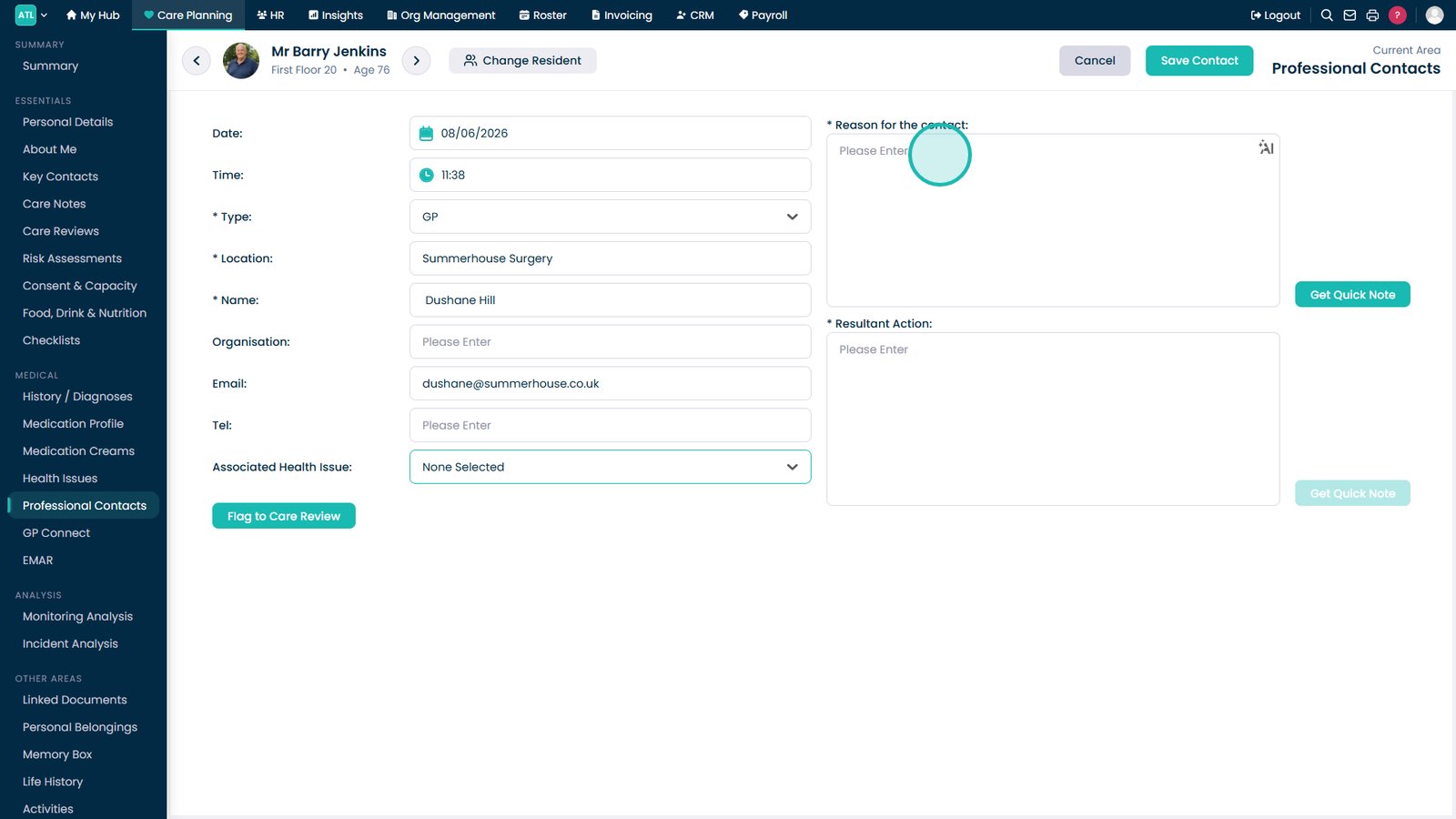
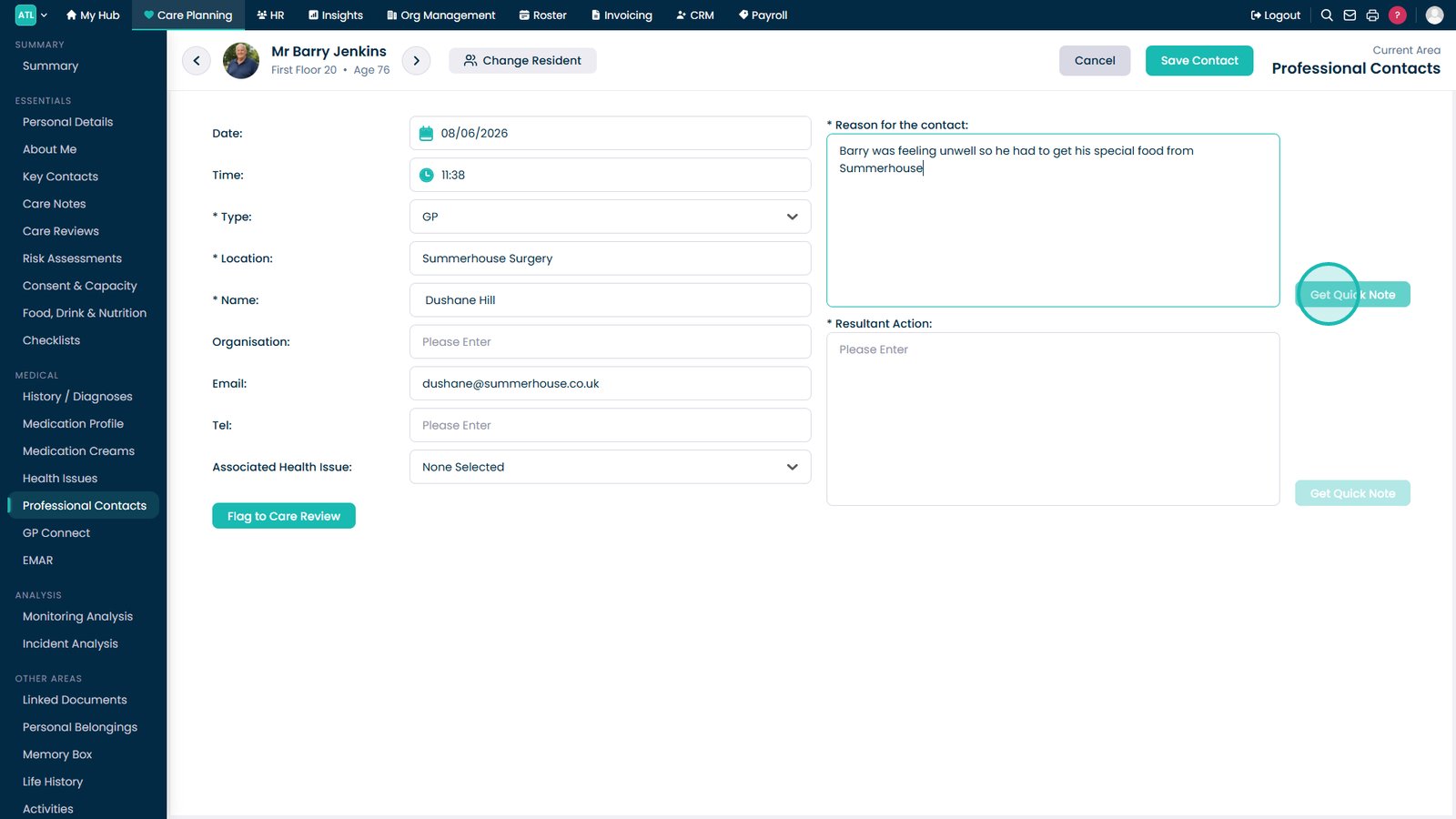
Enter the reason the contact was made


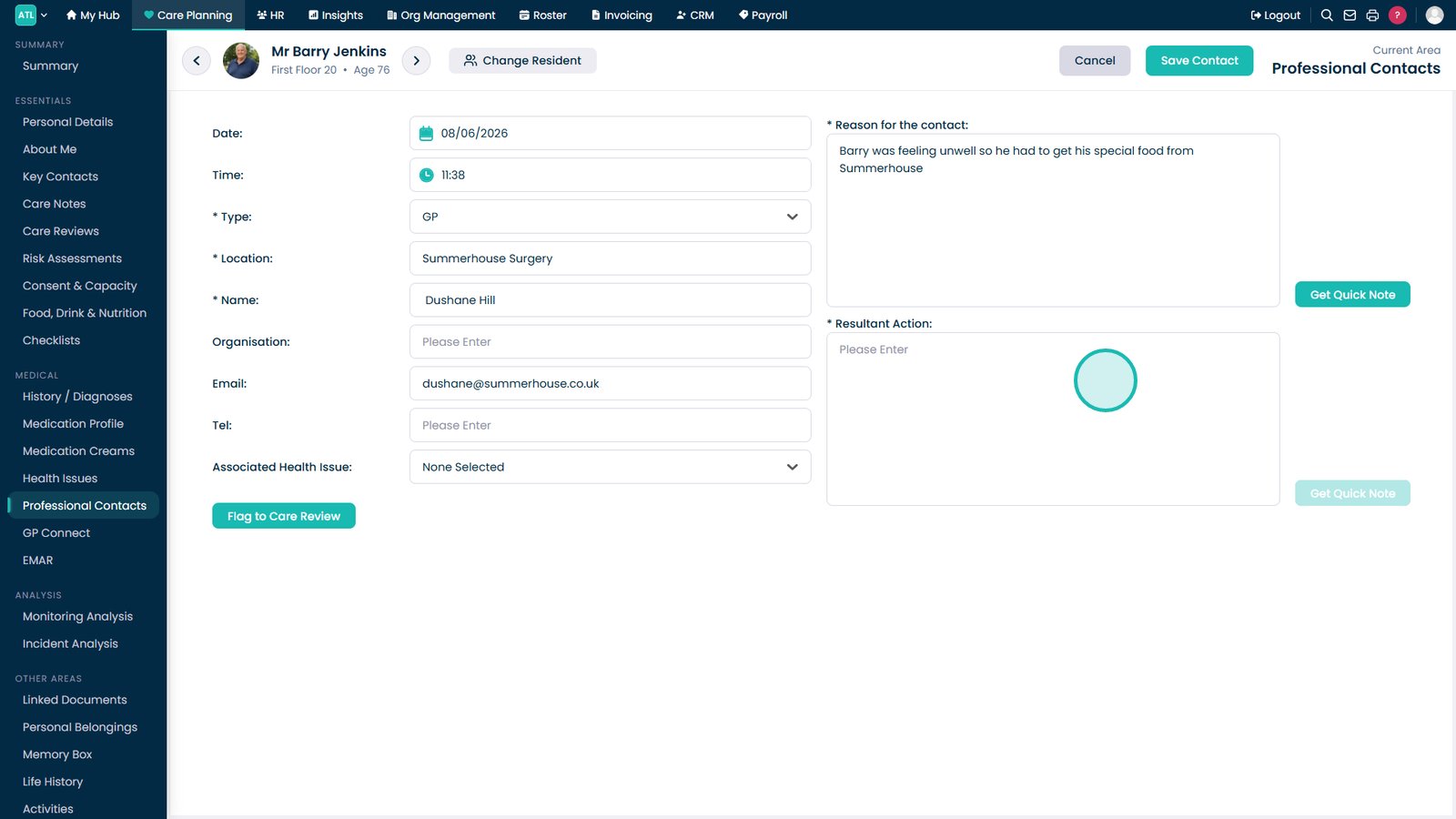
Enter the action that was taken as a result of the contact


If required, flag the contact to a care review section


Choose the care review sections from the list — you may select multiple


Click Continue


Click Save Contact when finished


Was it helpful ?
Table of Contents
↑ Top