How to Assign a Service User to a Fast Facts Template
This guide explains how to assign Fast Facts templates to residents within the Care Planning section of the Admin app.
Managing Fast Facts assignments ensures that staff see the most relevant information at a glance for each resident. This improves efficiency, supports better decision-making, and reduces the risk of missing important care details by ensuring the correct template is applied consistently.
By following this guide, you will learn how to:
- Access the Resident Assignment area within Fast Facts
- Filter residents by their current template
- Select a new template to assign
- Choose individual or multiple residents
- Apply template changes quickly and efficiently
This ensures all residents are assigned the correct Fast Facts template, helping staff access key information quickly and deliver consistent, high-quality care.
Interactive Guide
Text based guide
Open the Admin app to access administrative features
Select Visit on the Care Planning card to open care management tools
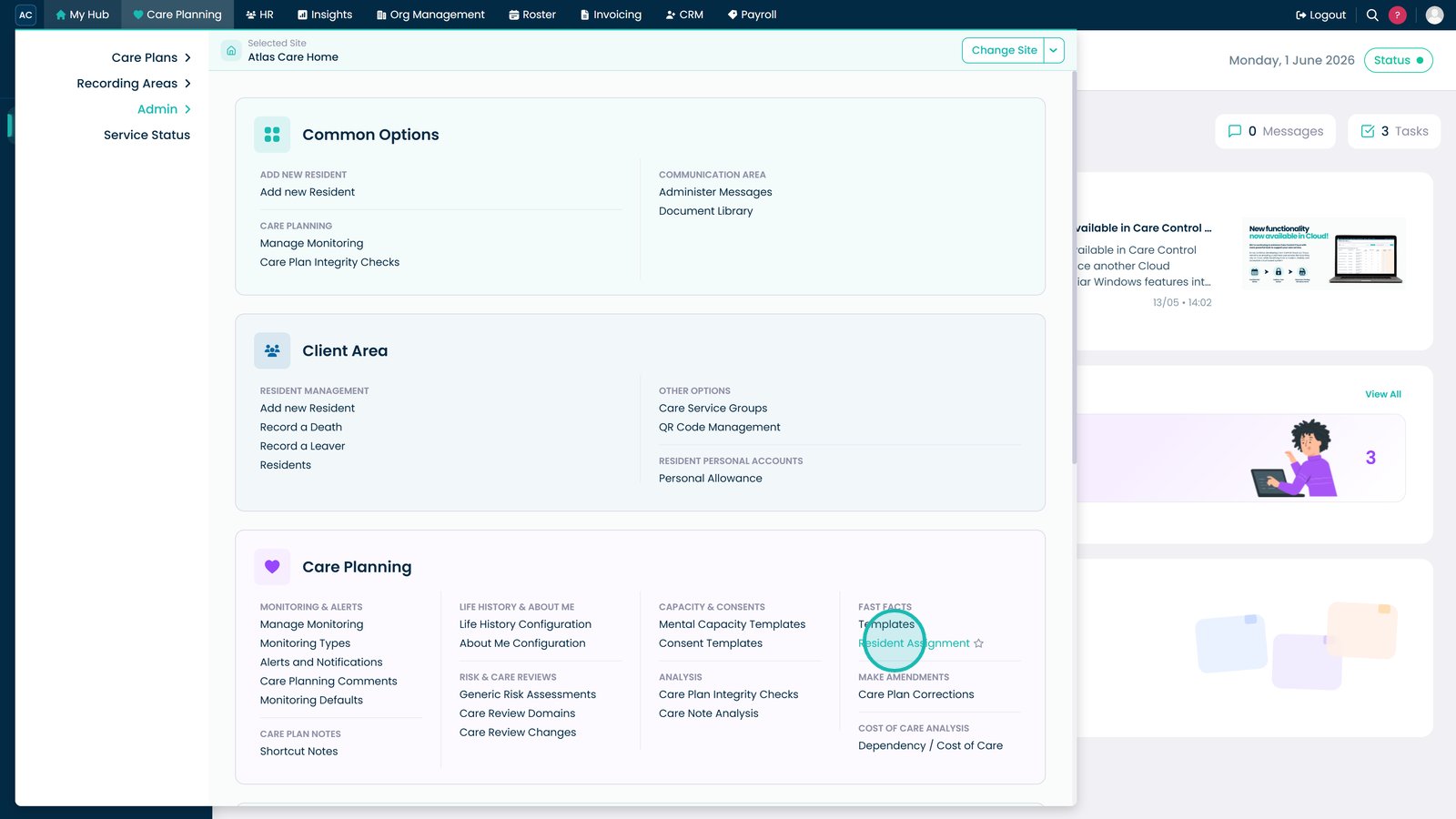
Open the Fast Facts dropdown to access template options
Select Resident Assignment to manage template allocation
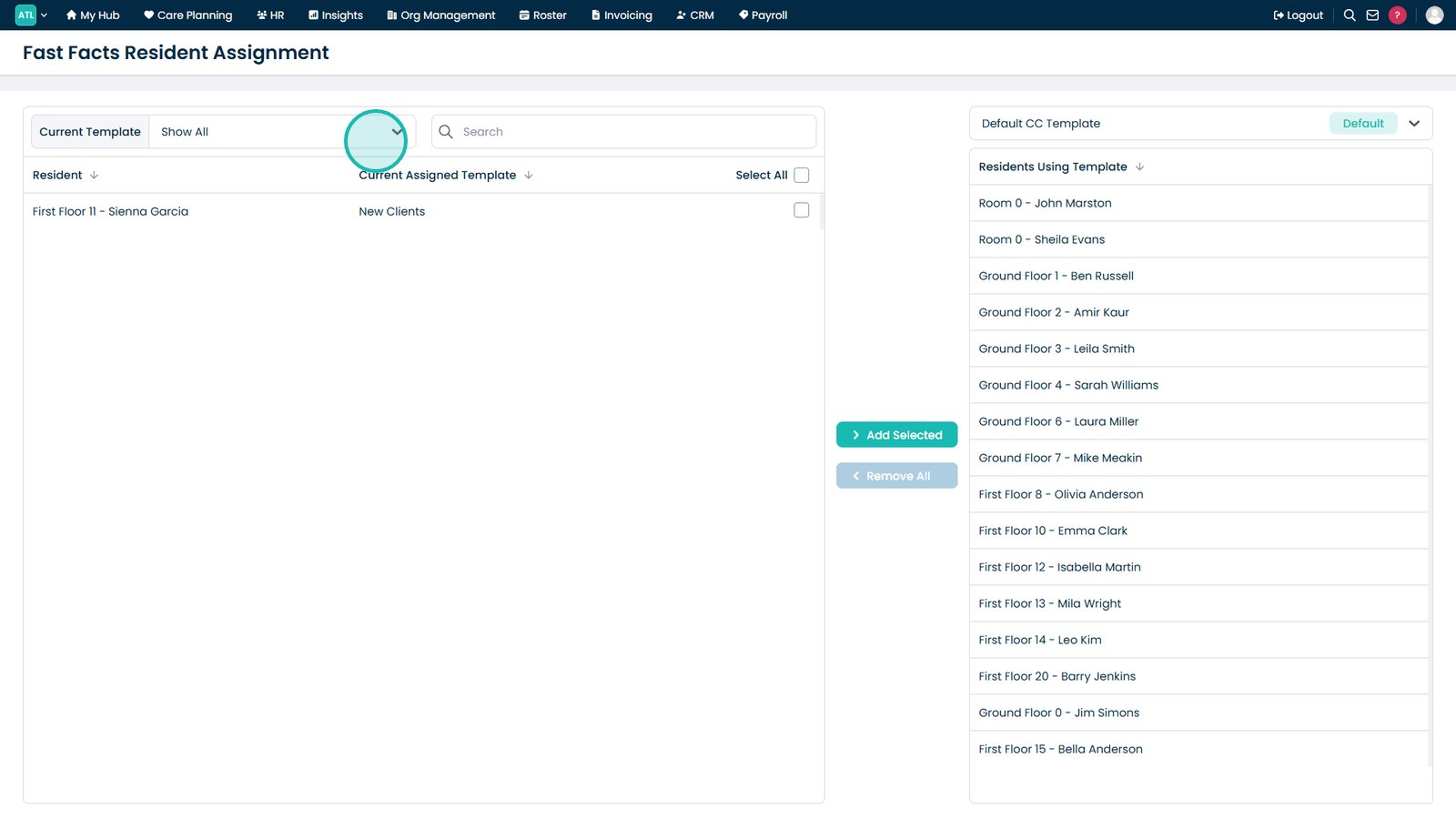
Select the Current Template dropdown to filter service users by template
Select a template to filter by, or choose Select All to view all service users
Use filters such as Default to quickly locate specific groups of residents
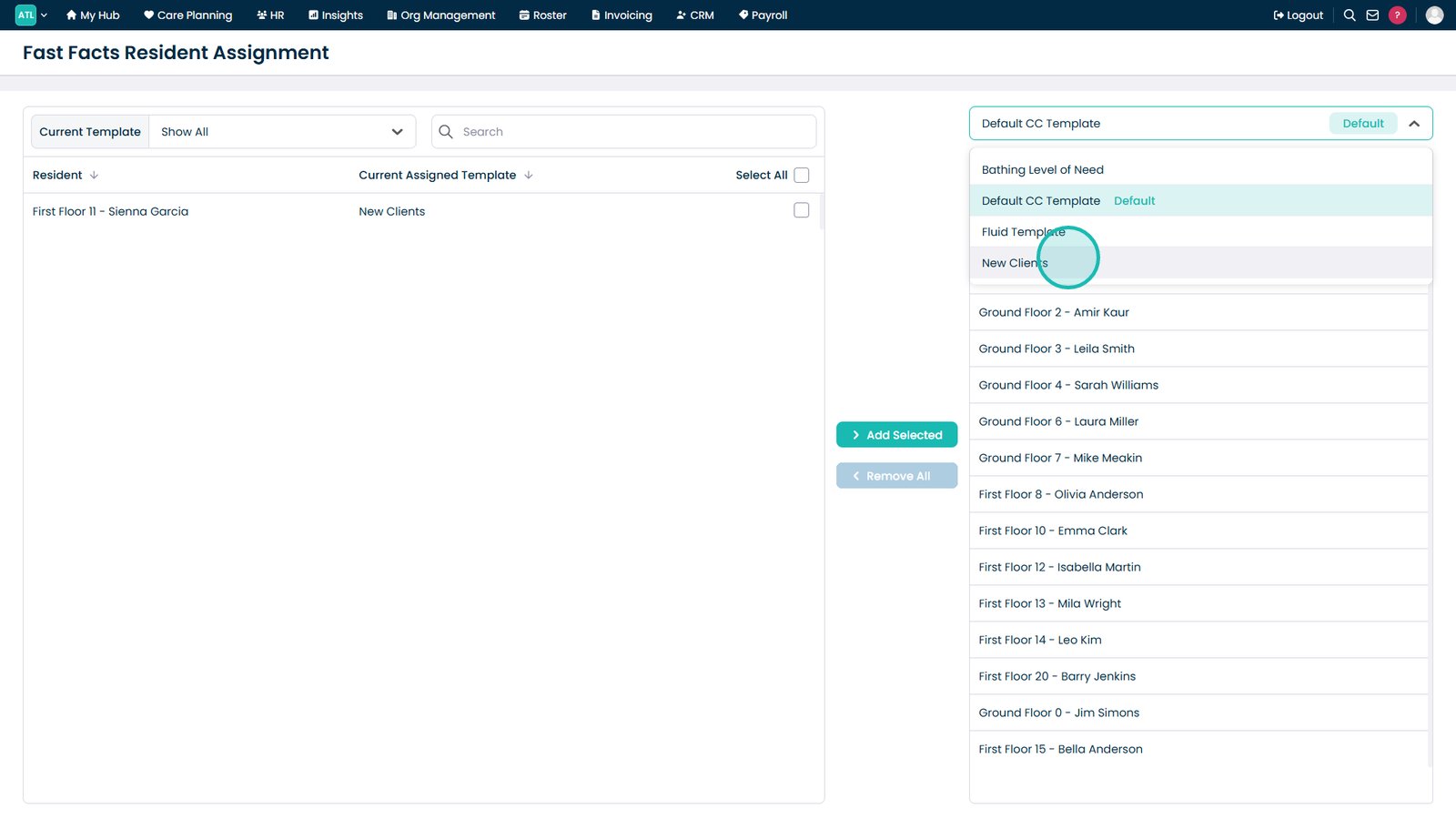
Select a template such as Fluid Template to view or prepare assignments
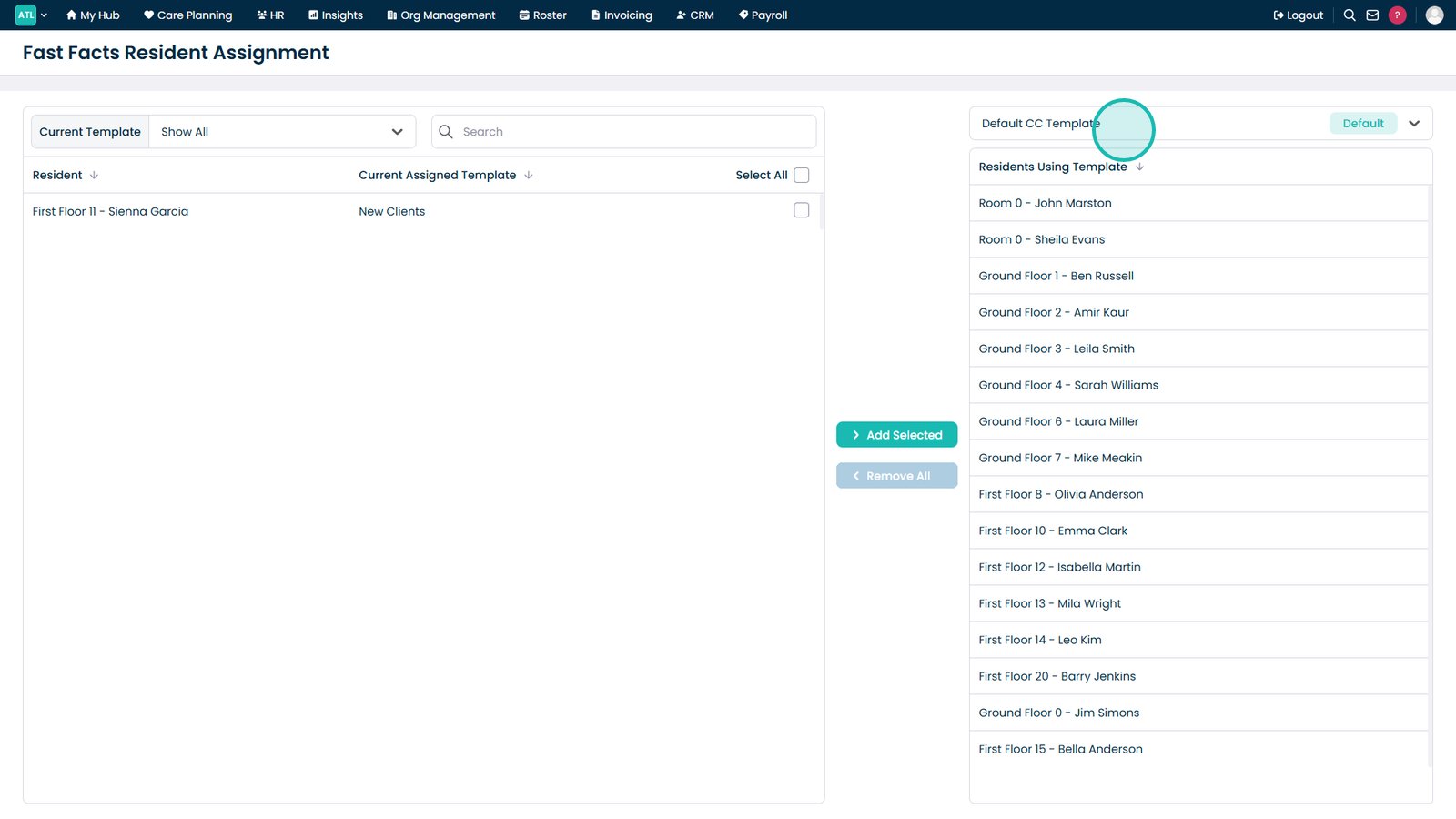
Select the target template from the dropdown to assign service users
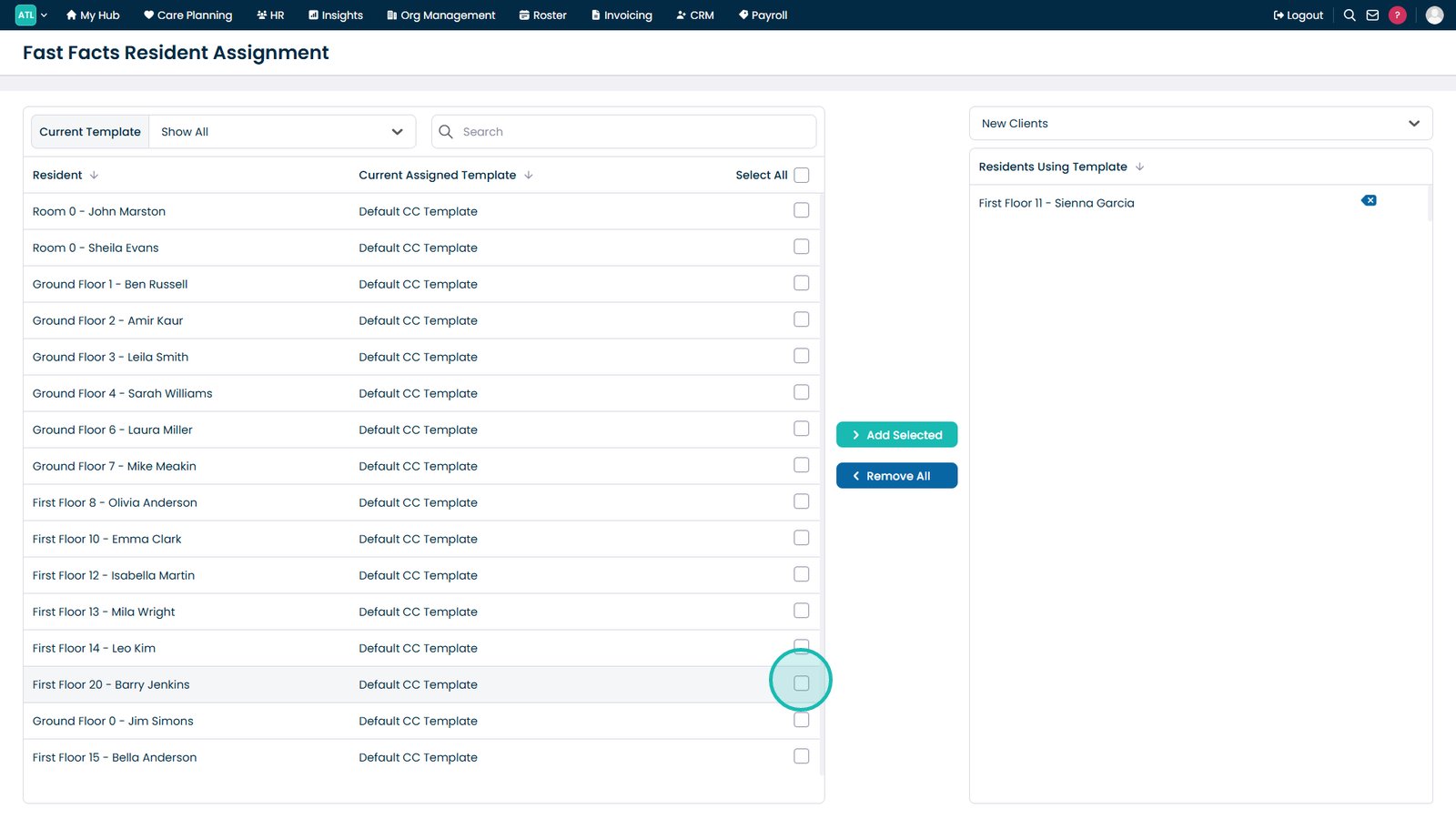
Select one or more residents using the checkboxes
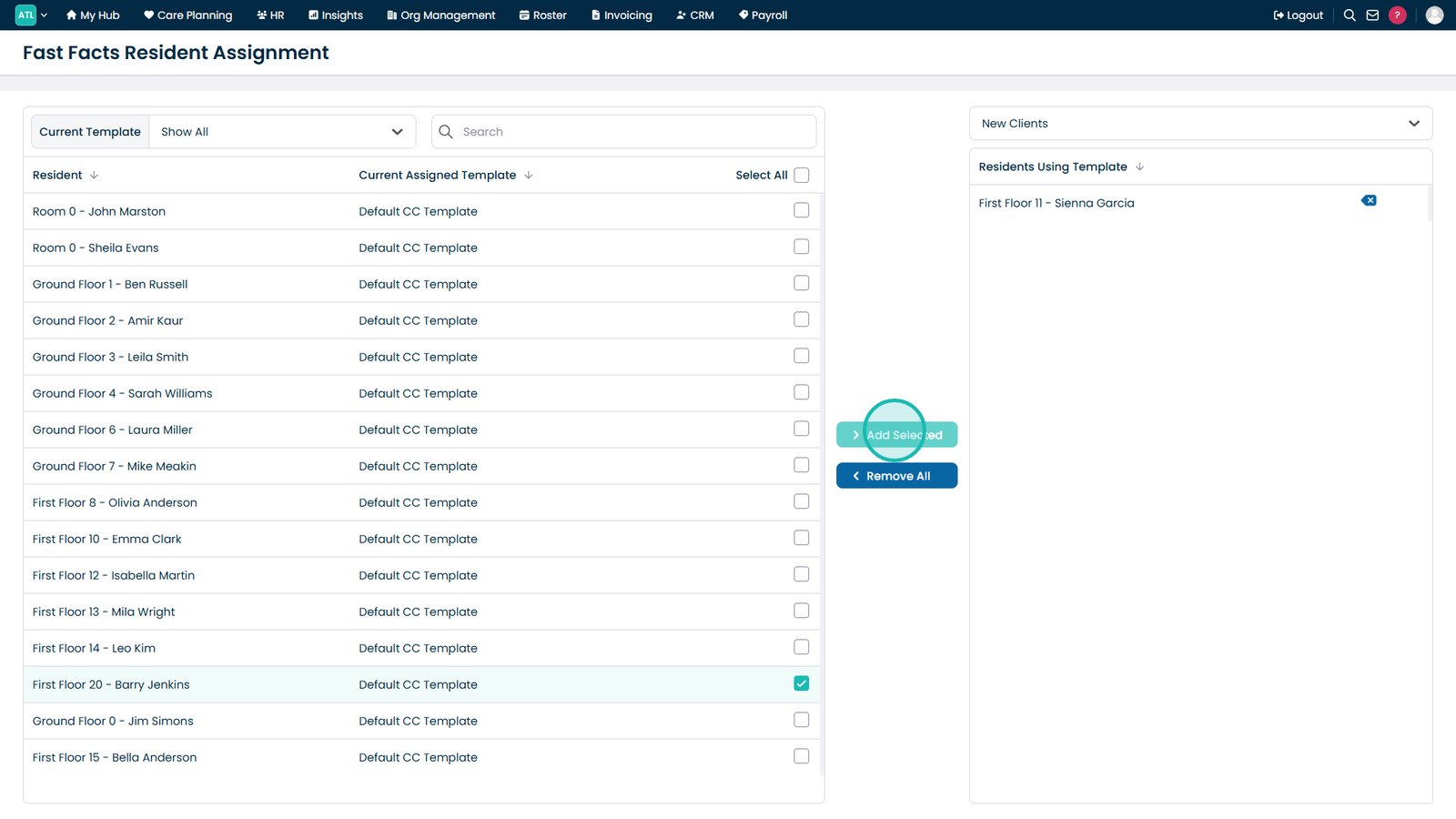
Select Add Selected to assign the chosen residents to the selected template
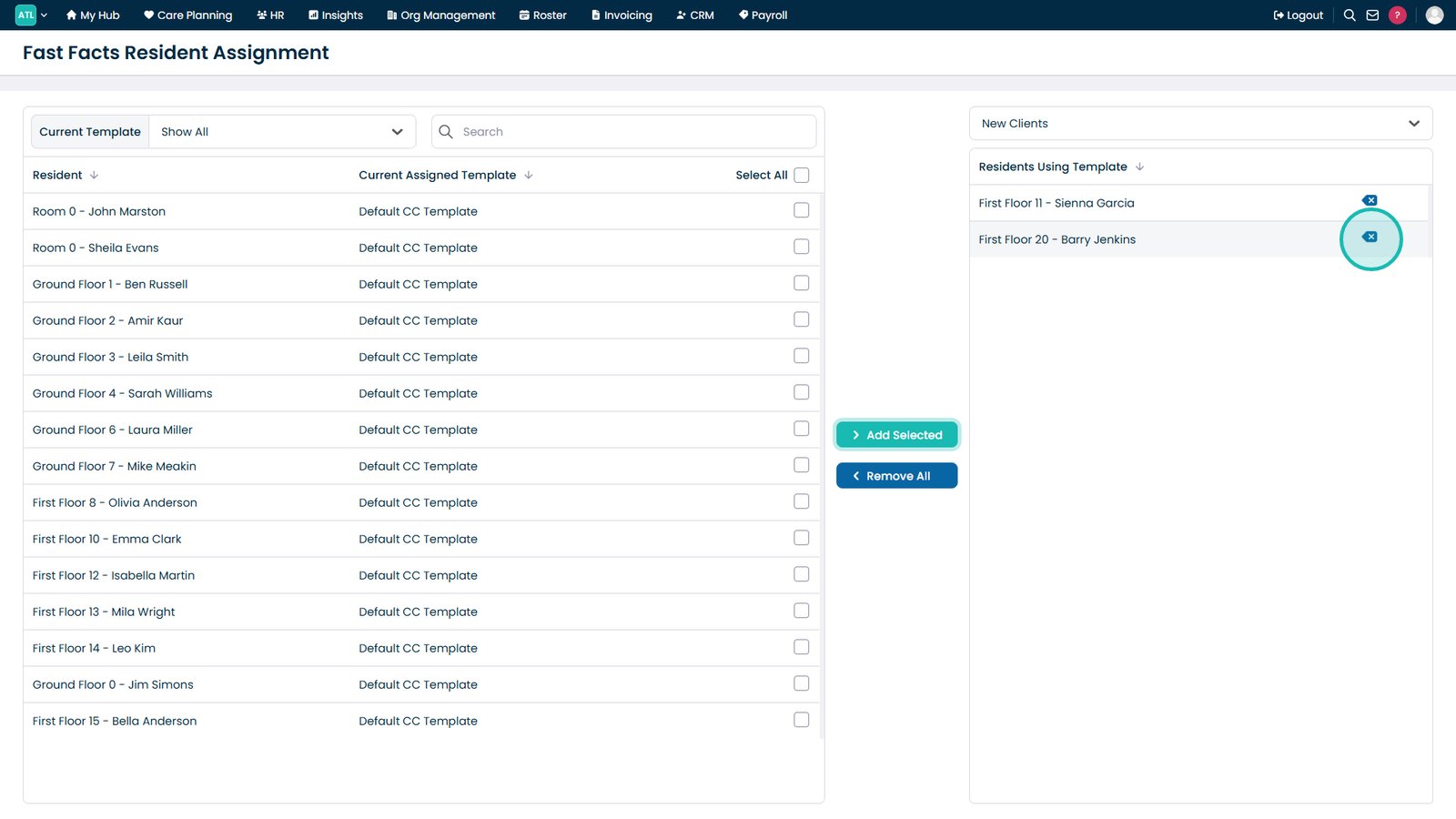
Review the updated assignments to confirm the changes have been applied