View Categories

How to Create a Pre-Care Assessment

Learn how to build a new Pre-Care Assessment from scratch. This guide covers adding headings and questions, creating response options, mapping answers to care domains, previewing the assessment, saving a draft, and publishing it for use in Pre-Care Reviews.
Takes 15+ minutes
For: Managers
Updated: 24th Sept 2026

Introduction

Creating a Pre-Care Assessment from scratch gives you control over the questions included in your assessment and how responses link to different areas of care.

You can organise the assessment using headings, add different question types and create the response options staff can select. Individual responses can then be mapped to one or more care domains, allowing the relevant areas to be identified during the Pre-Care Review.

Before publishing, you can preview the assessment and test your responses to make sure the correct care domains are being triggered. You can also save your work as a draft and return to it before making the assessment available for use.

In this guide you'll learn how to:

  • Start a new Pre-Care Assessment from scratch
  • Add and organise headings and questions
  • Create response options
  • Map responses to care domains
  • Preview and test your assessment
  • Save the assessment as a draft
  • Publish the completed assessment

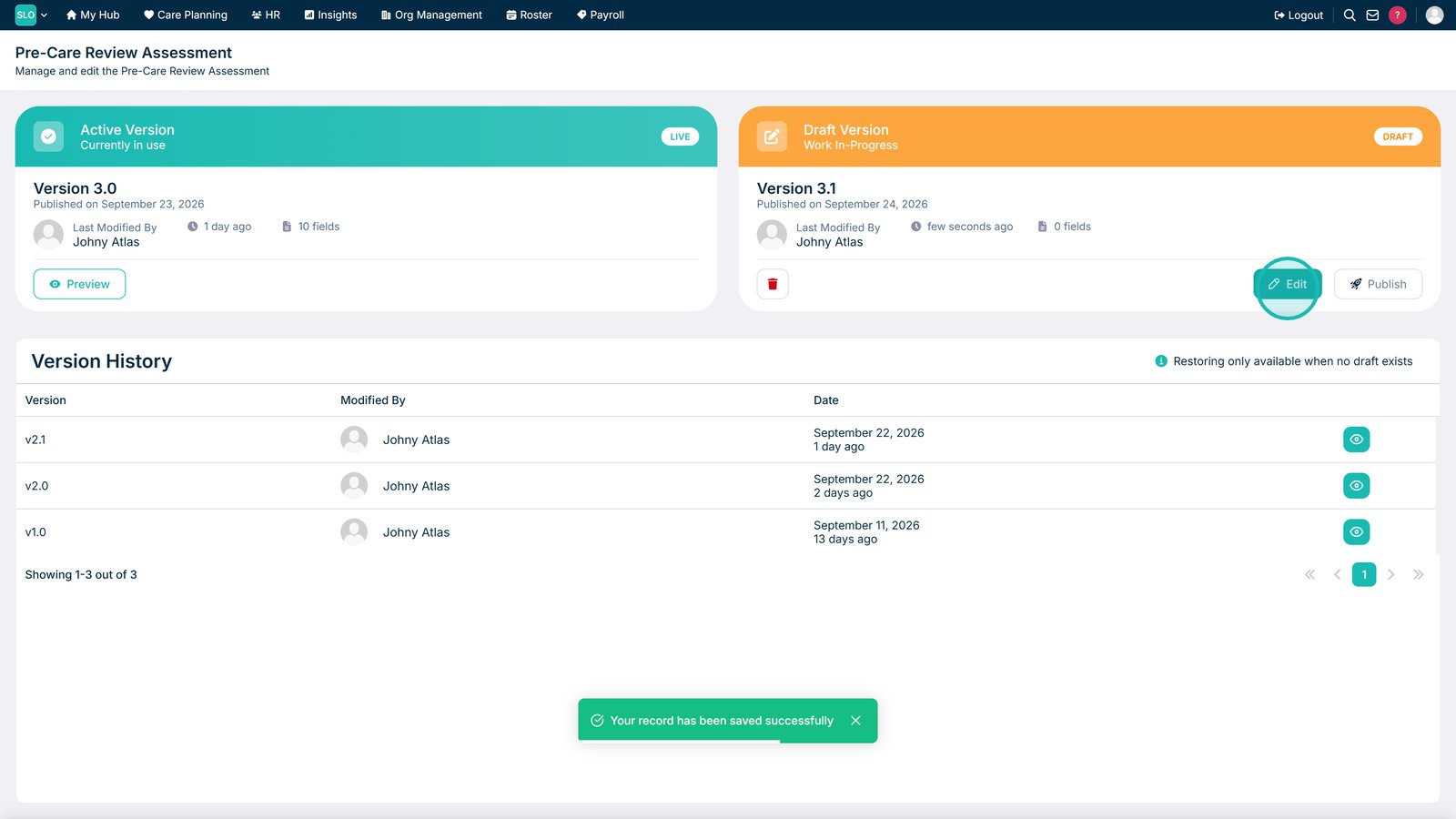
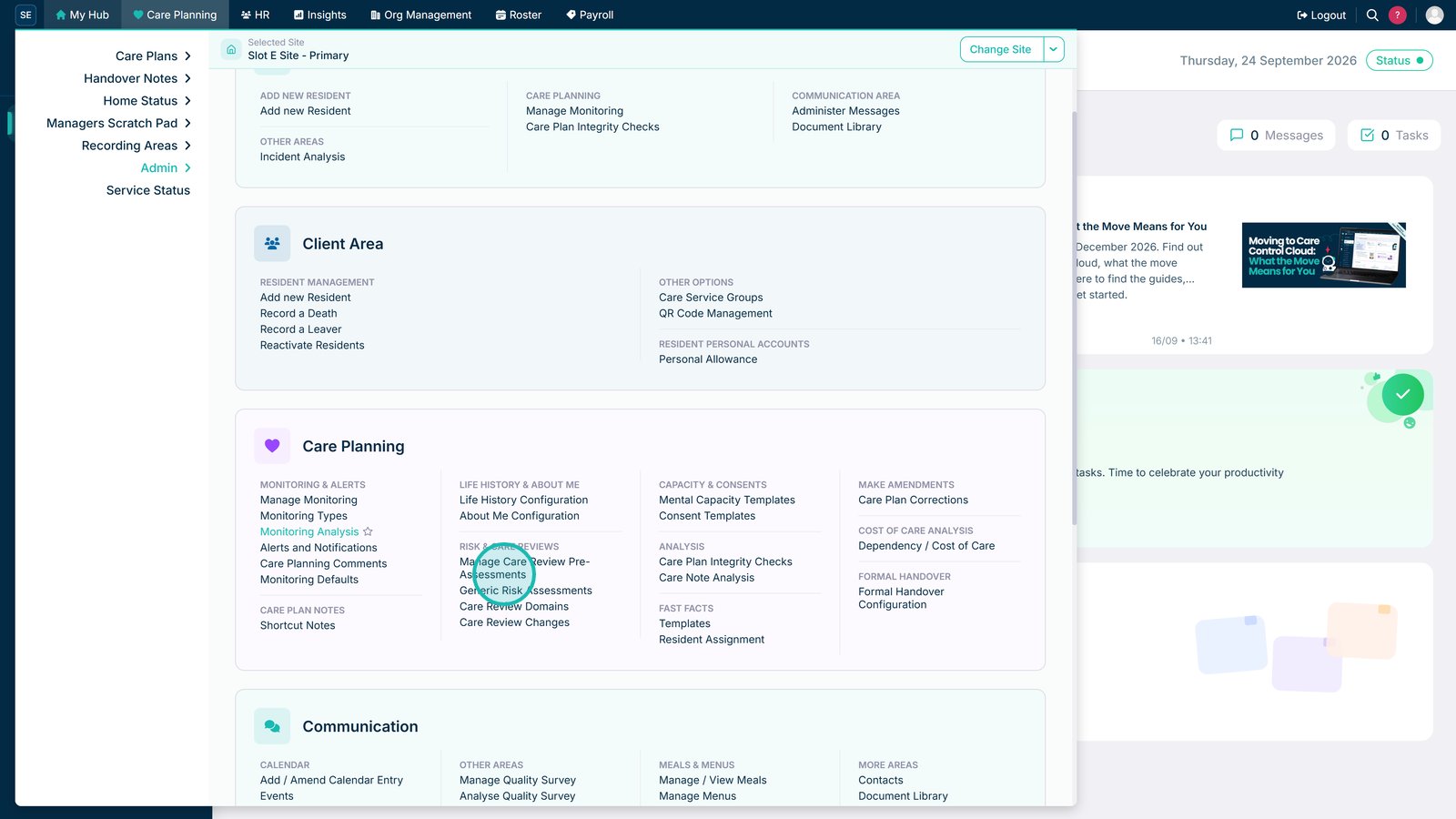
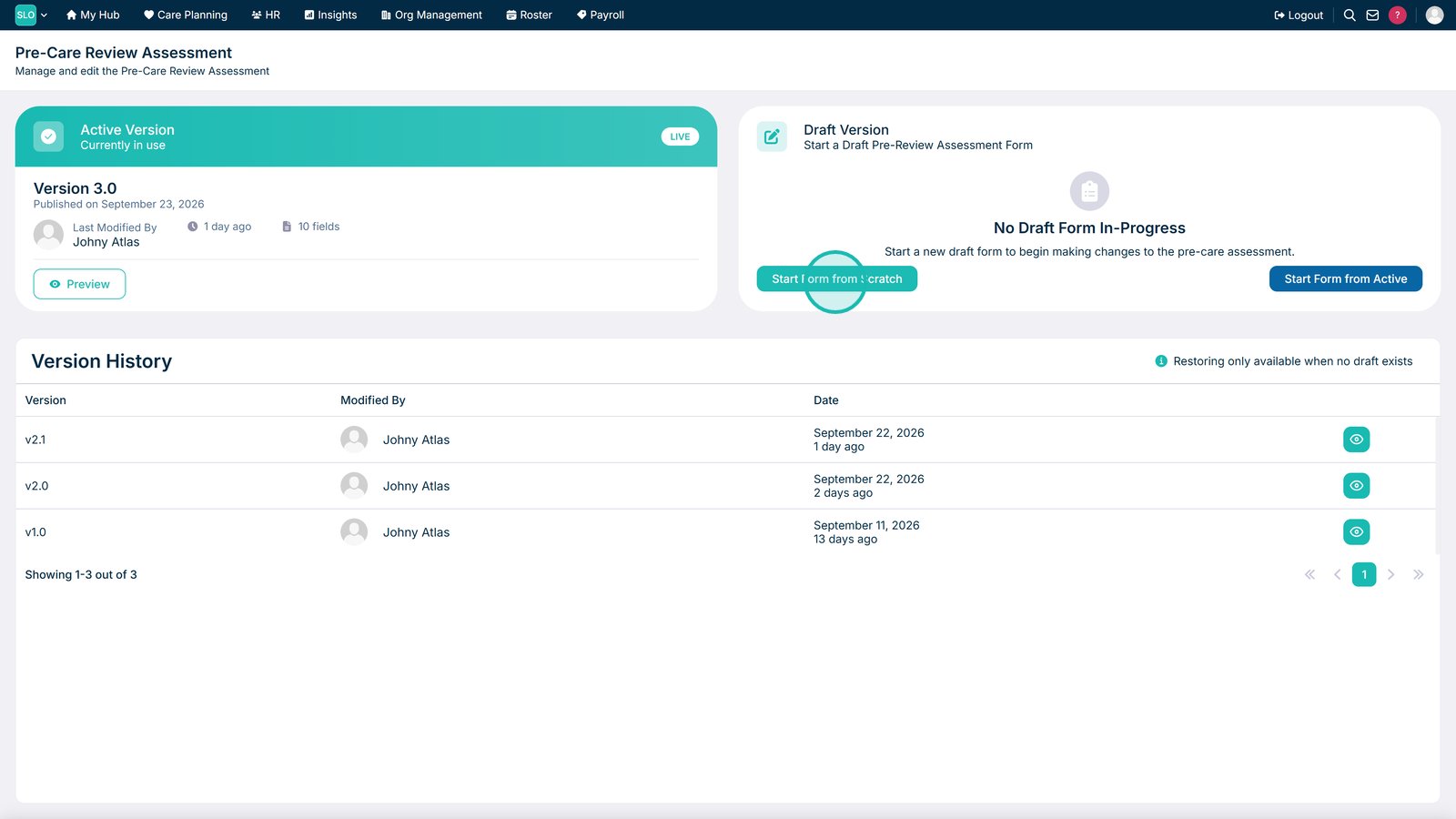
Open the Pre-Care Review Assessment section to review and manage resident assessments.

Select Start Form from Scratch.

Select Edit to begin building the assessment.

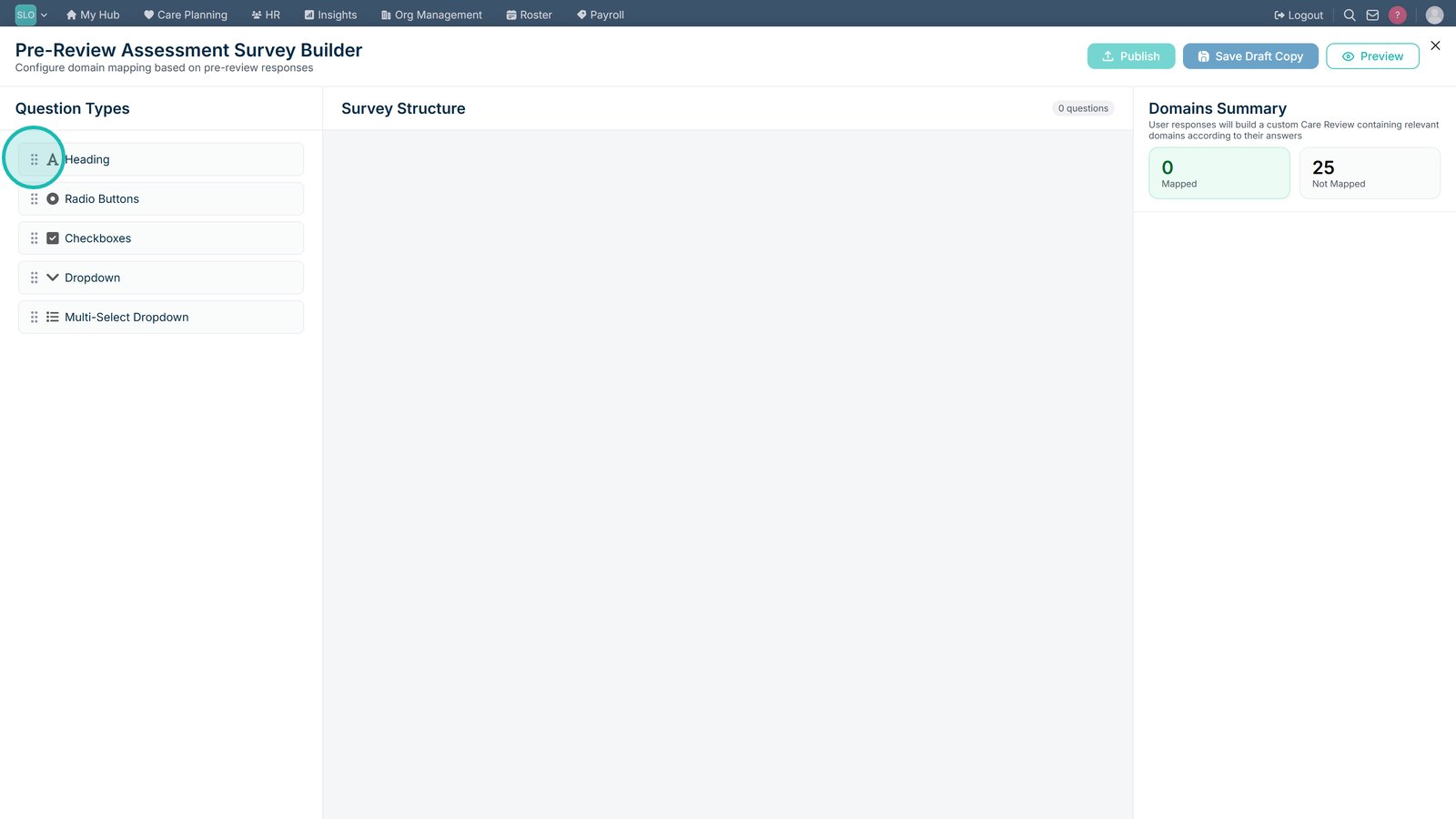
Drag a section from the left-hand menu onto the assessment. Start with a Heading to organise your questions.

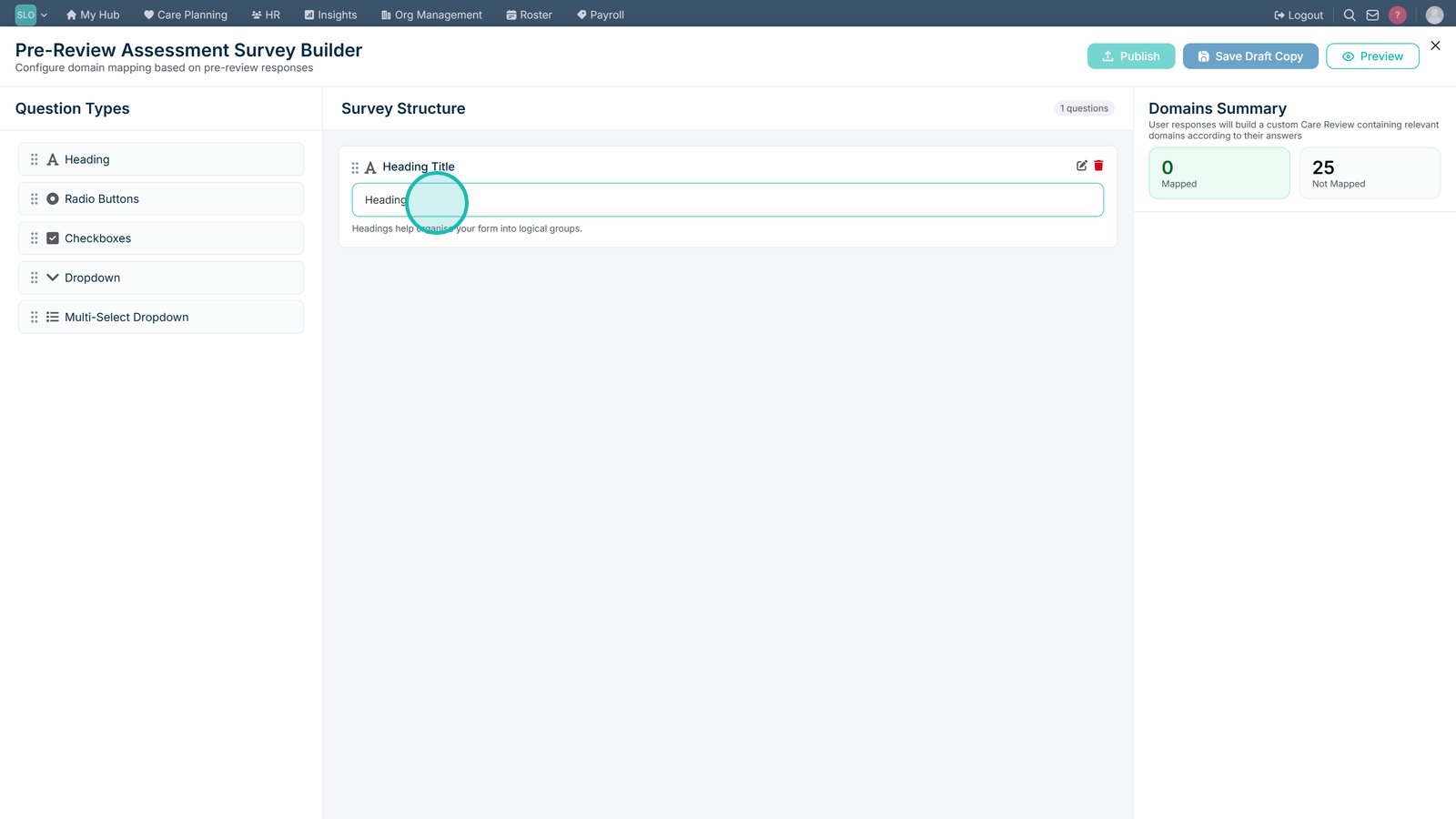
Enter a Heading Title to name the section.

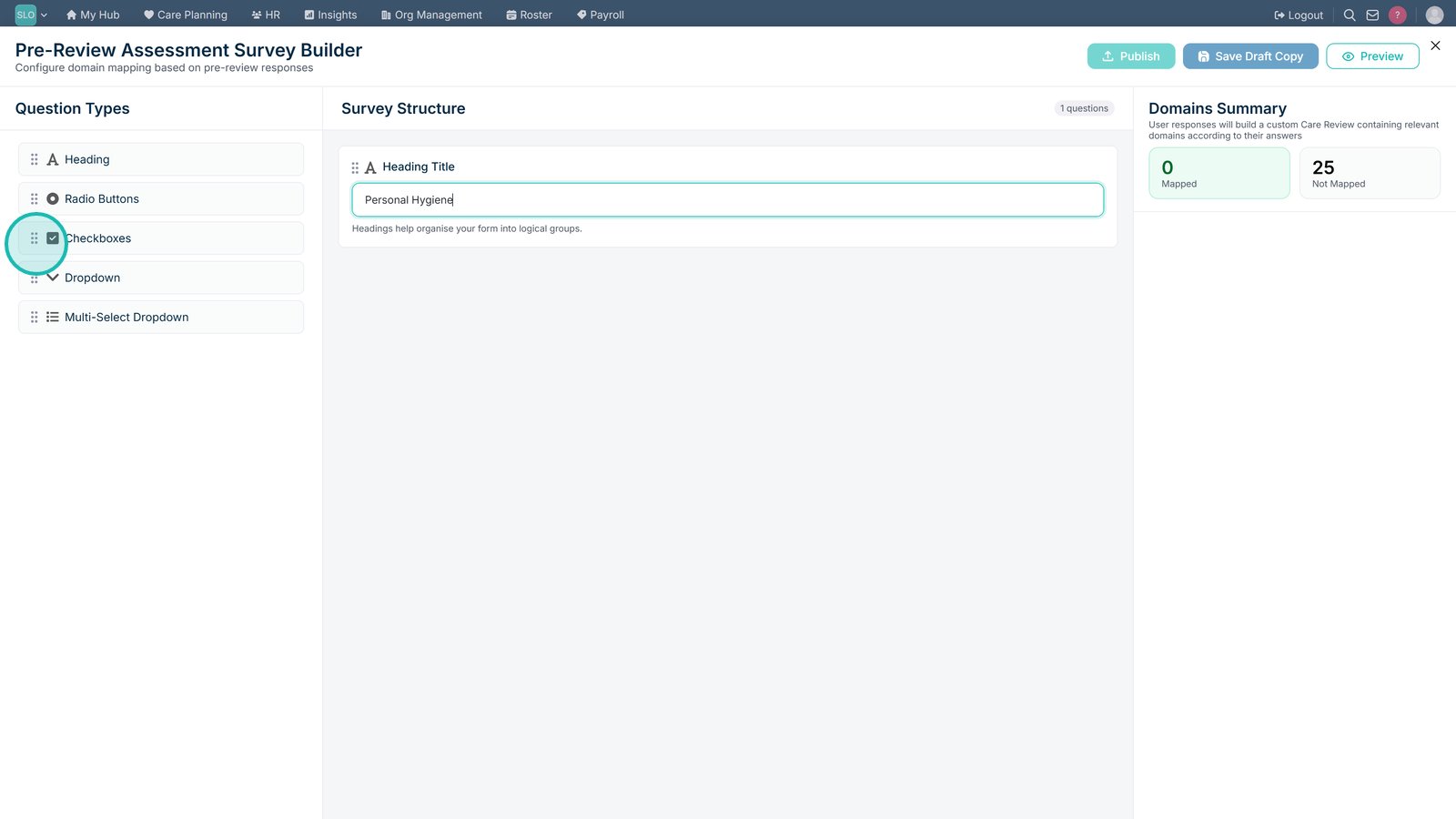
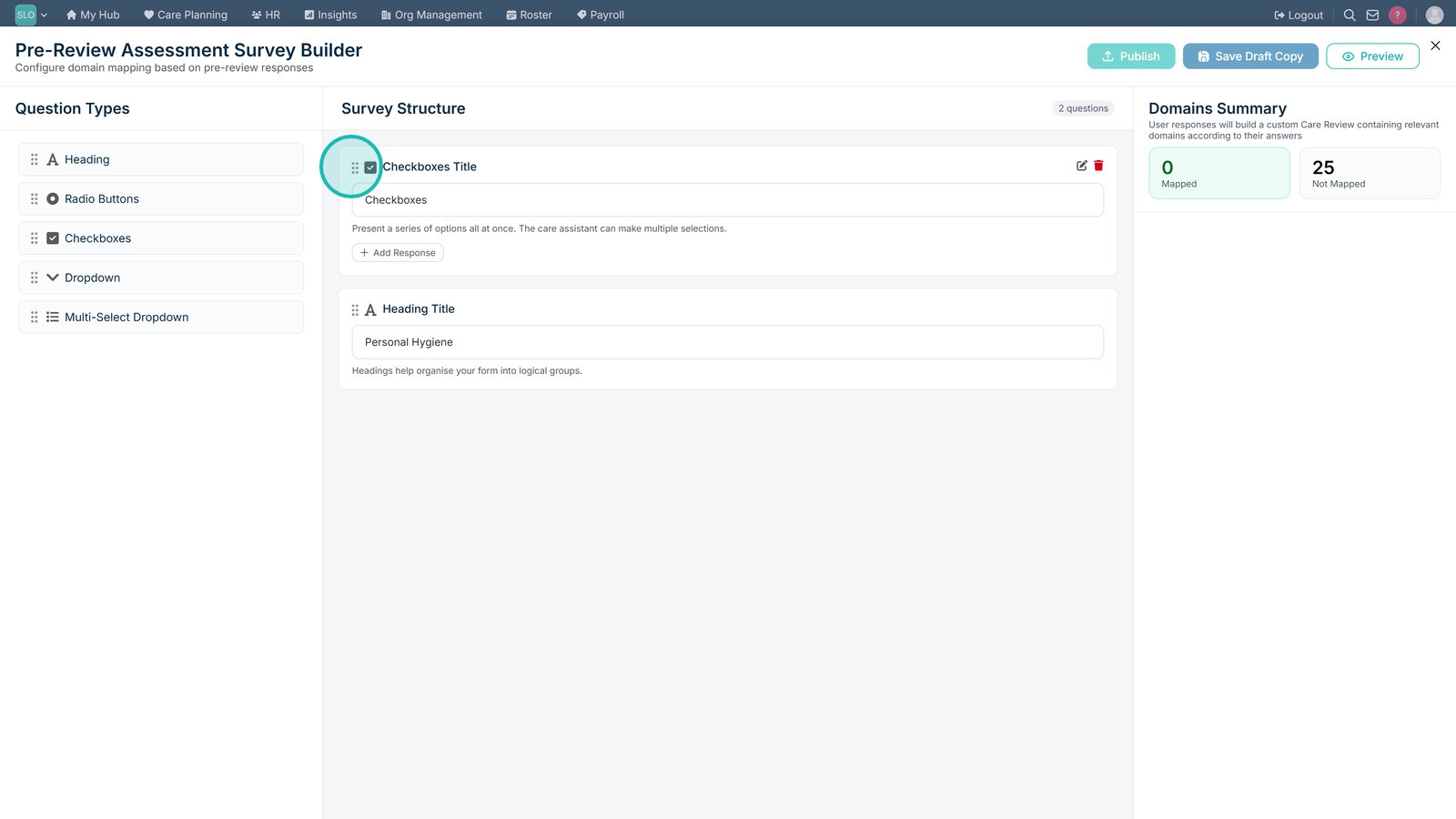
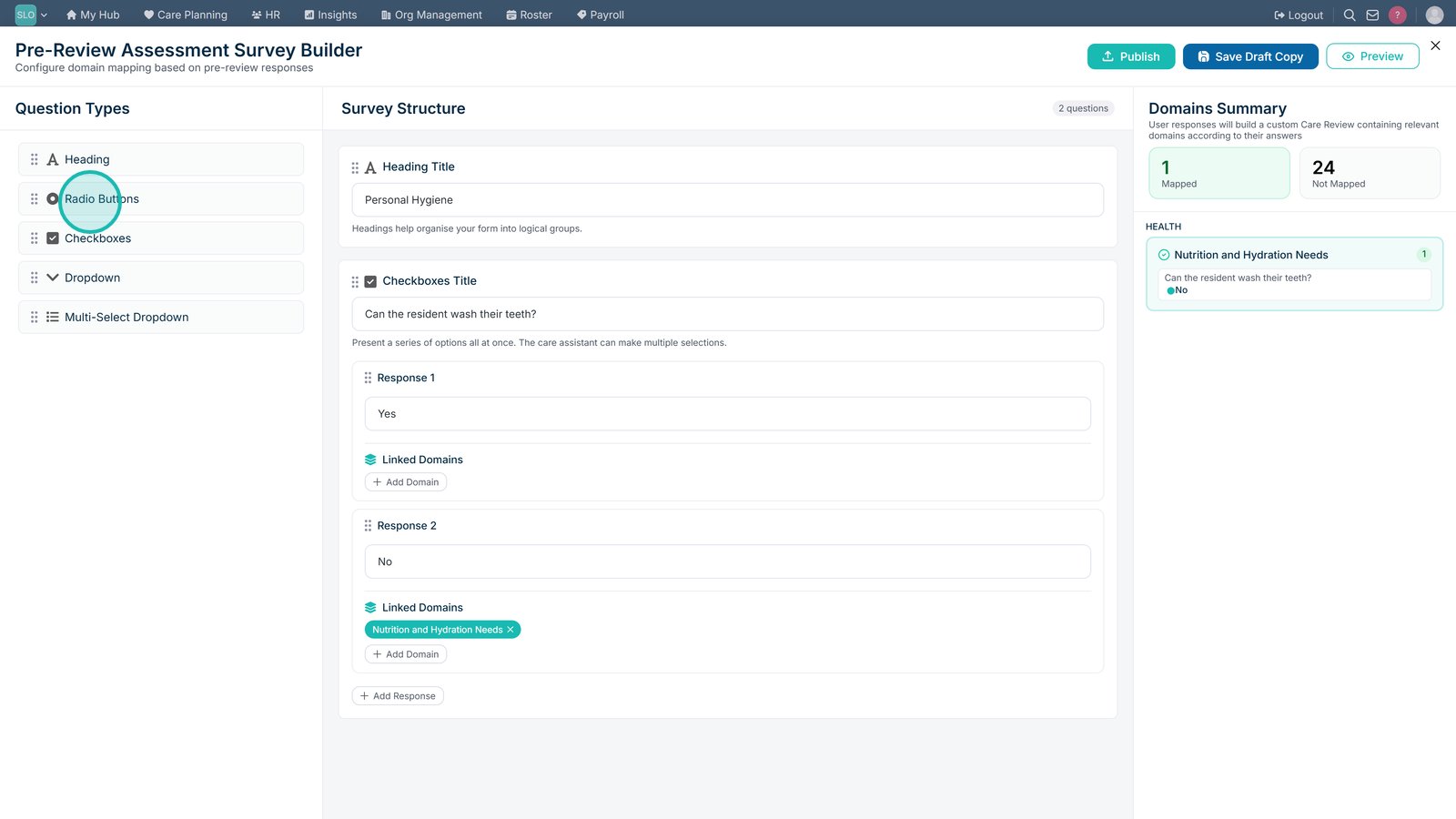
Select a question type from the left-hand menu and add it to the assessment.

Use the six-dot handle to drag the question to the required position.

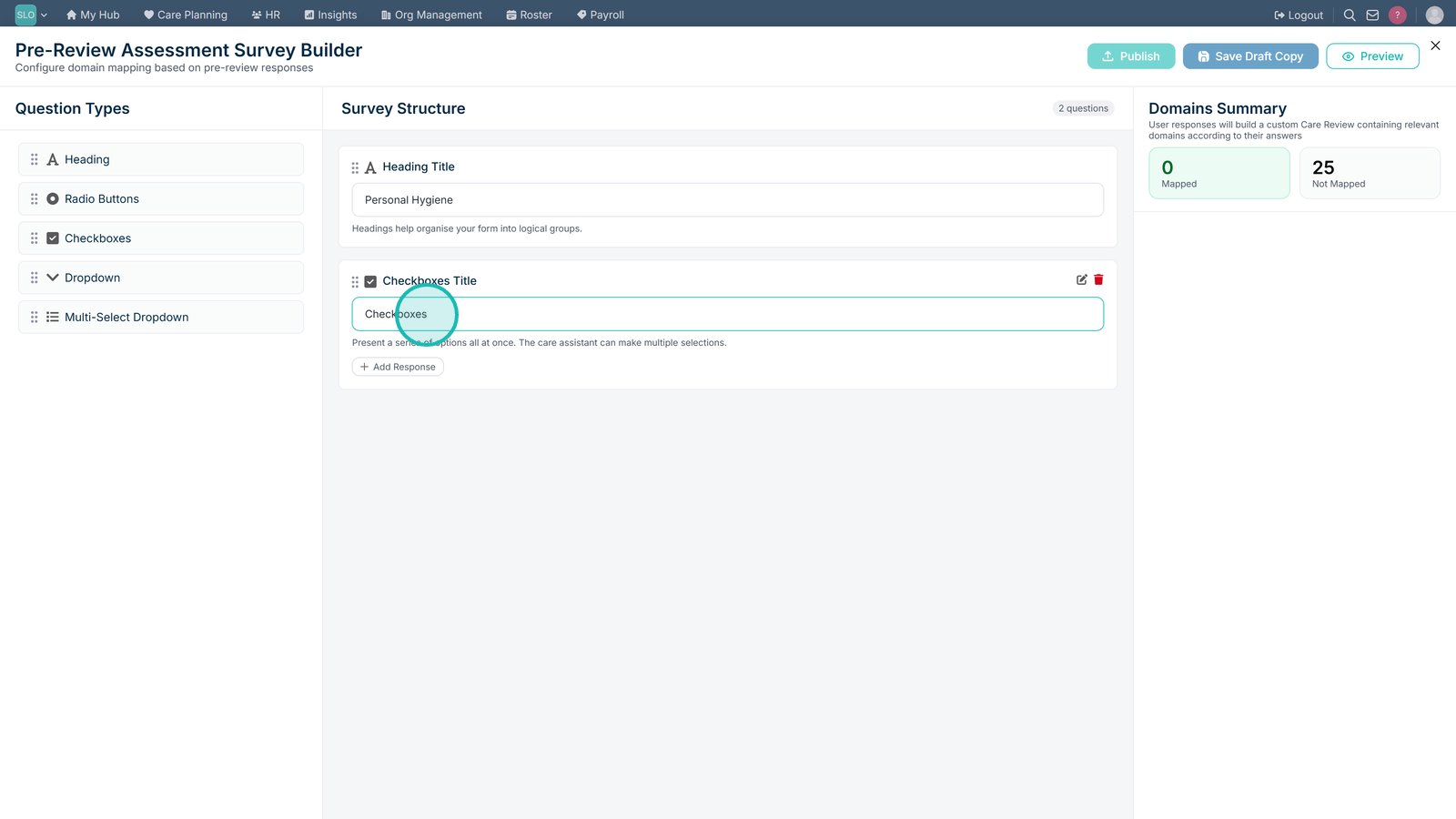
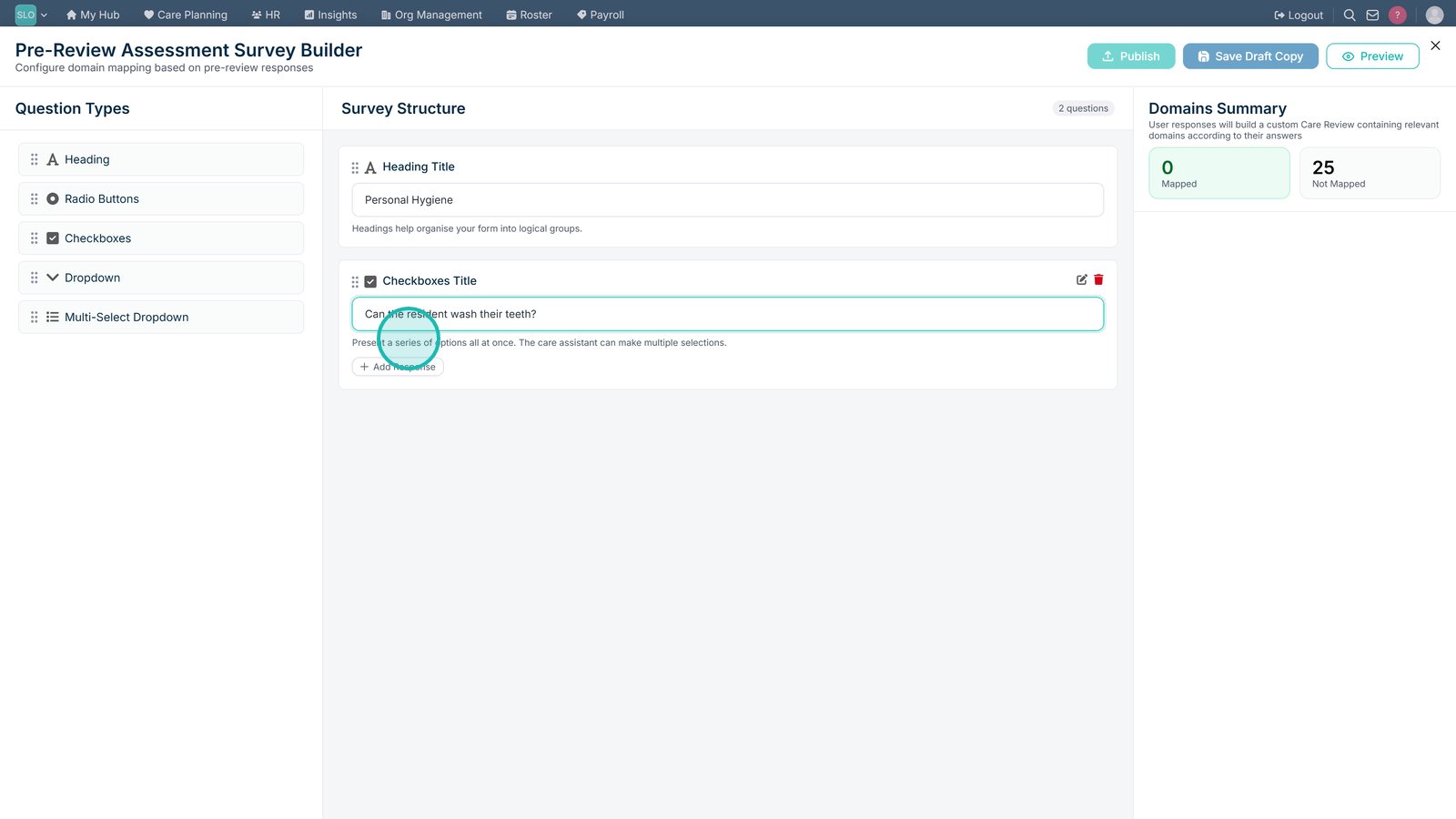
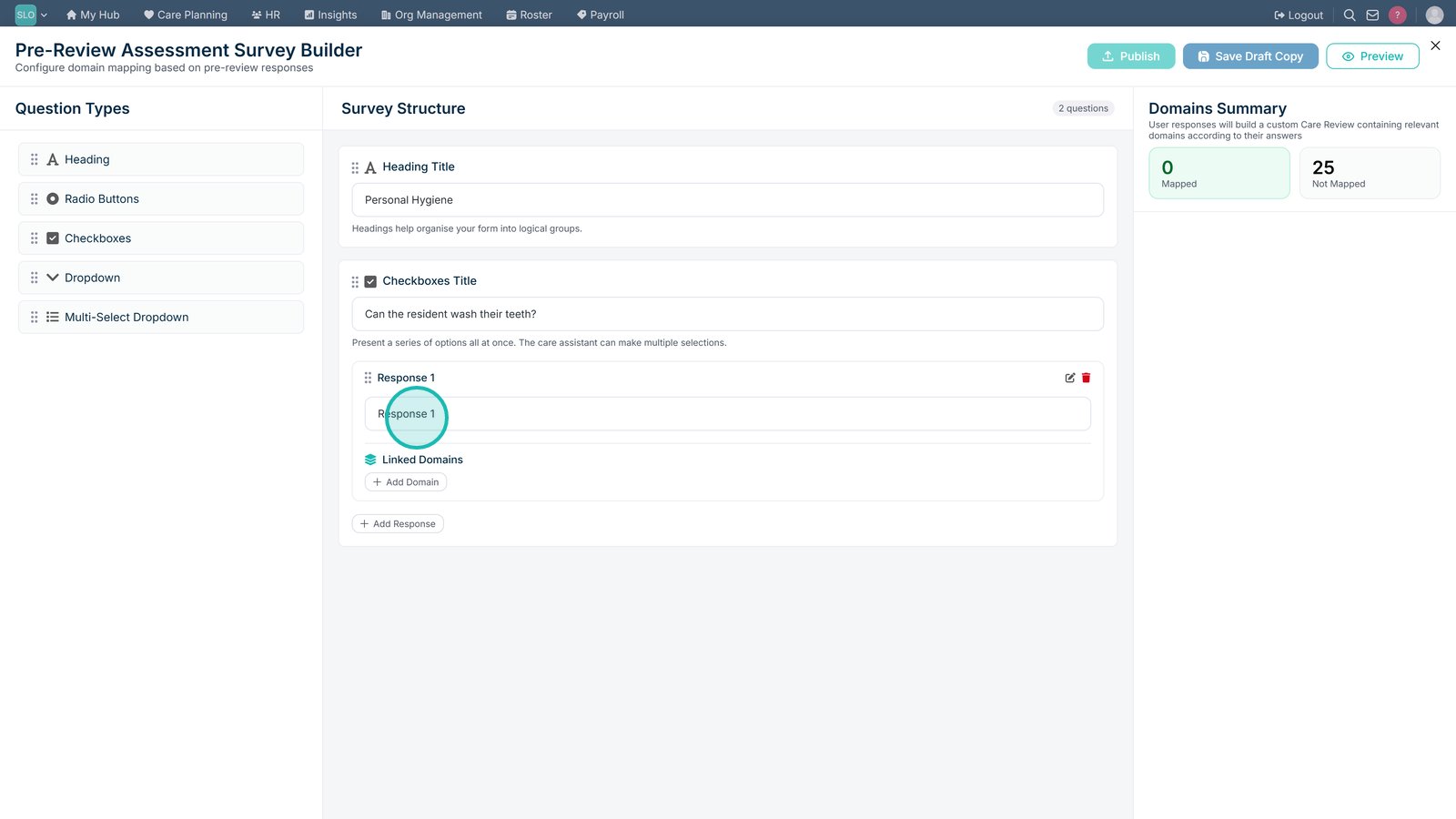
Select the question label to enter the question you want to ask.

Review the response structure displayed underneath the question.

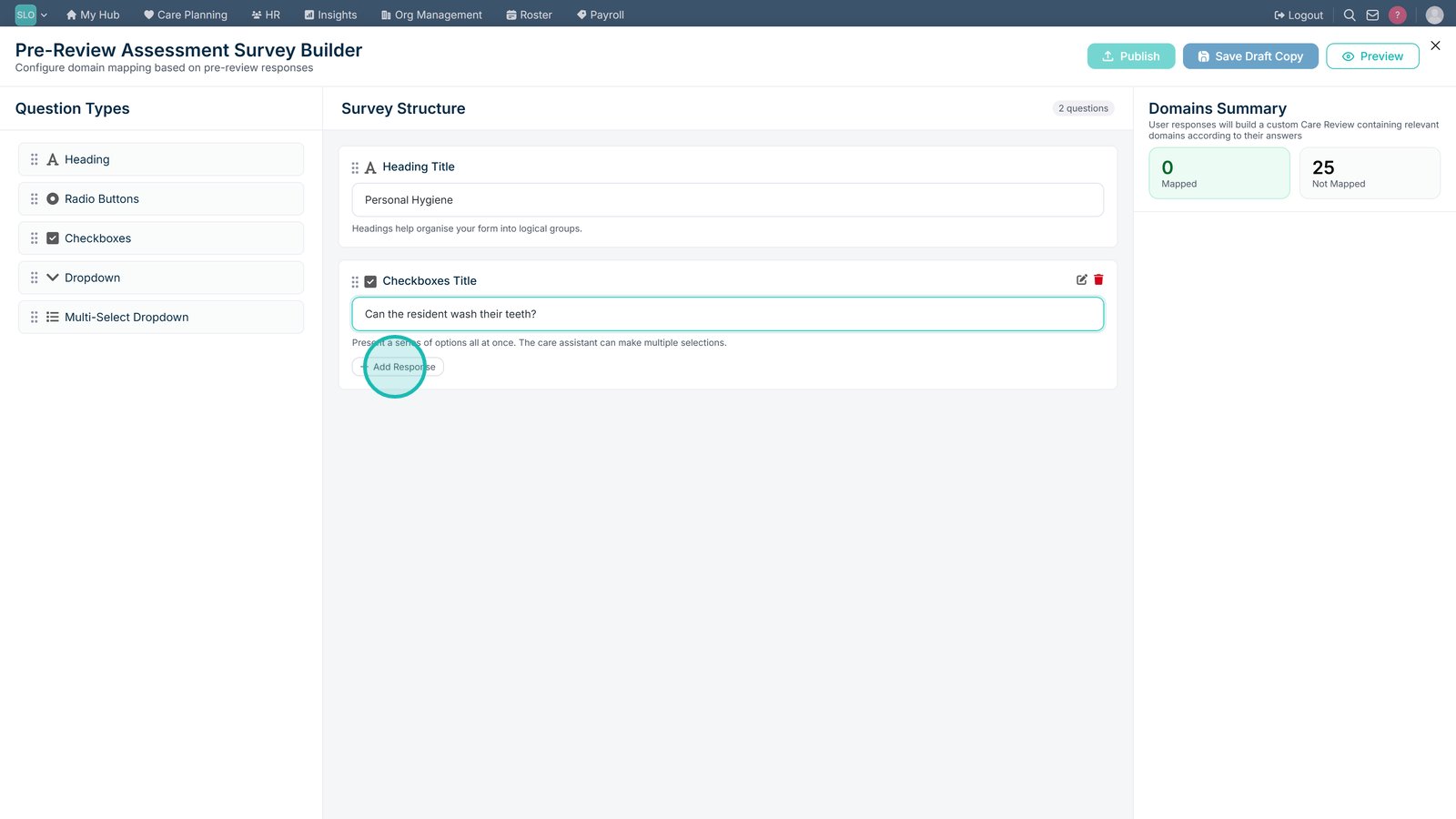
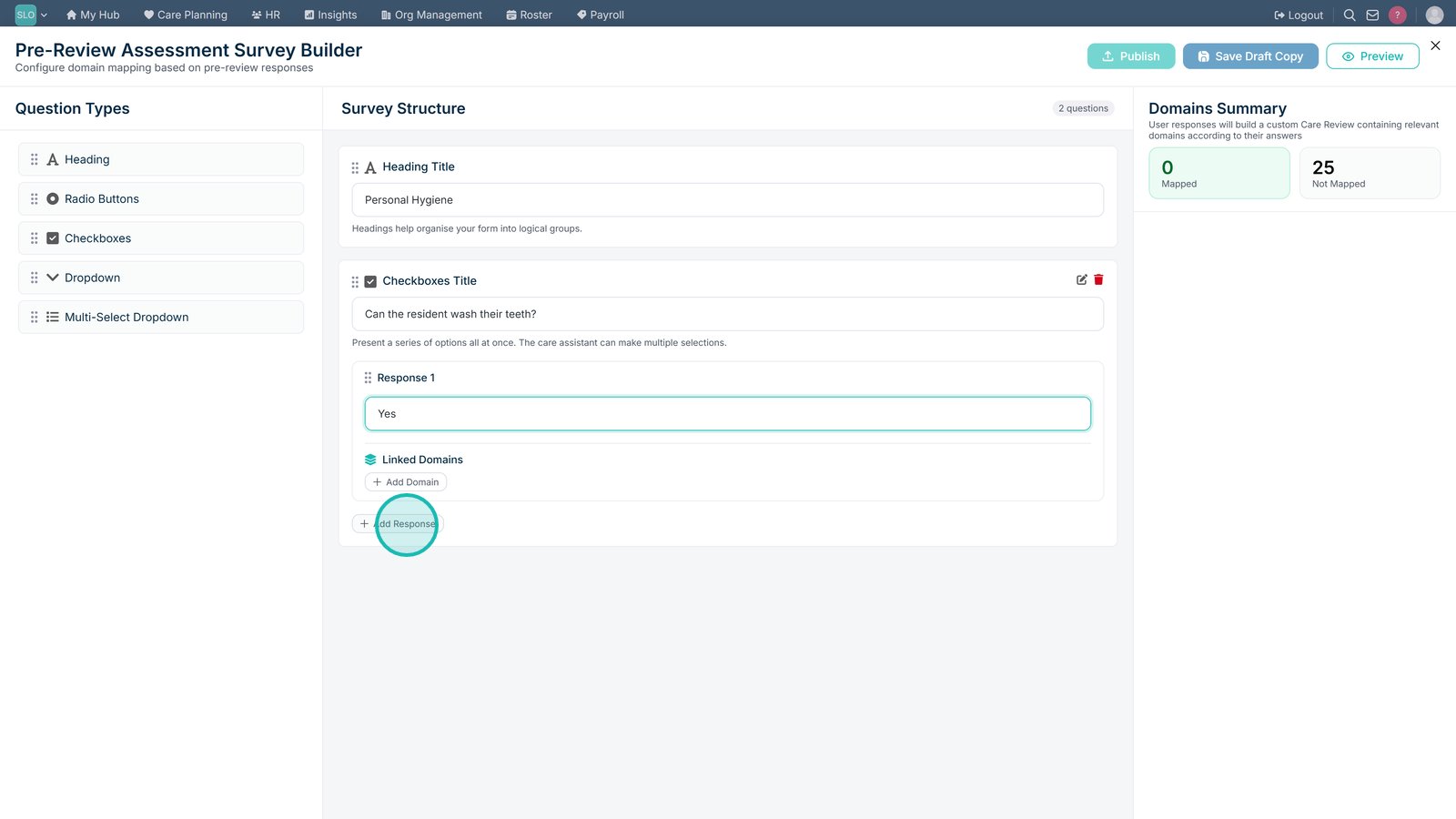
Add a response option to provide another available answer.

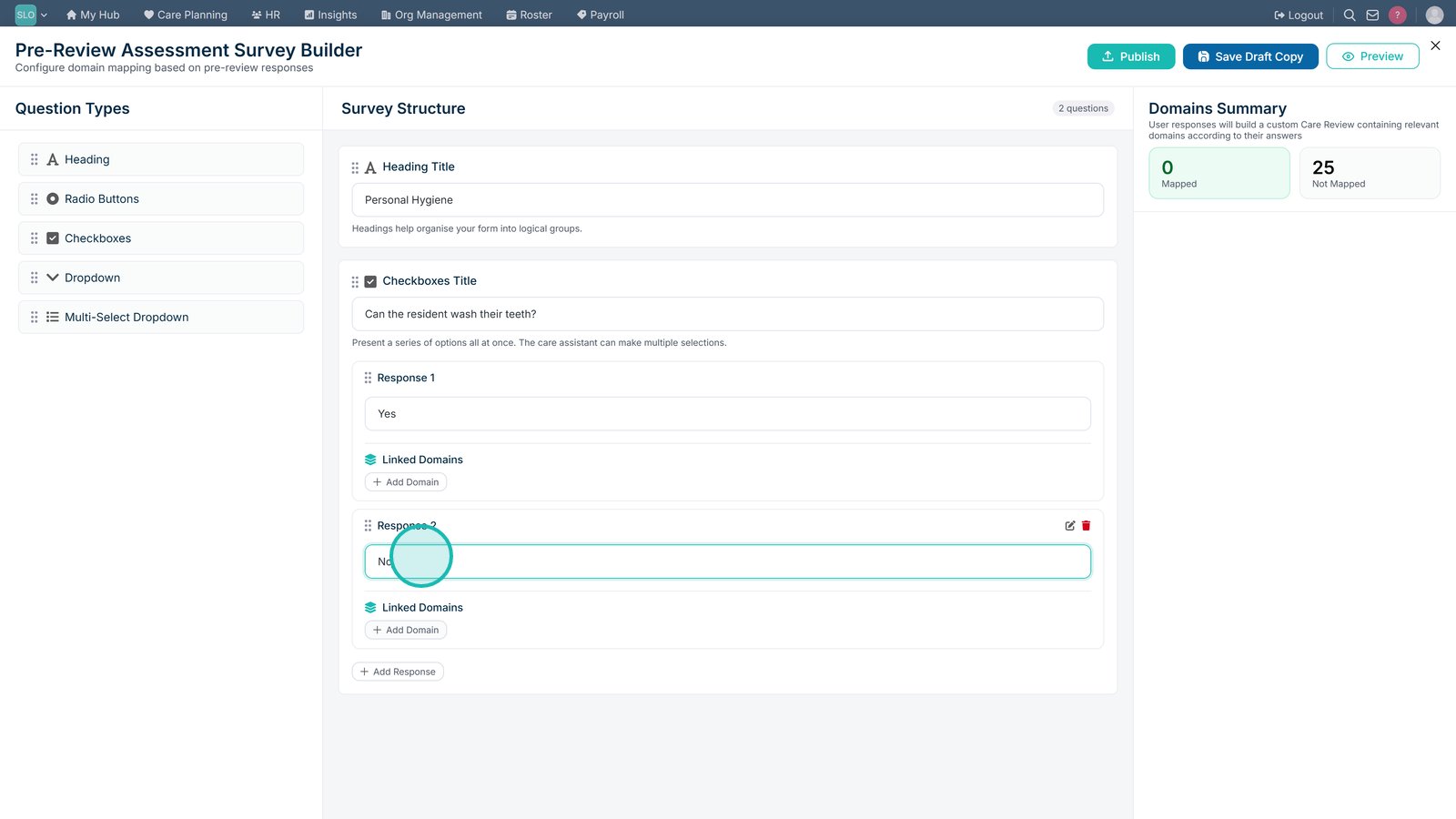
Edit the response text to enter the answer option.

Continue adding response options until you have included the answers you require.

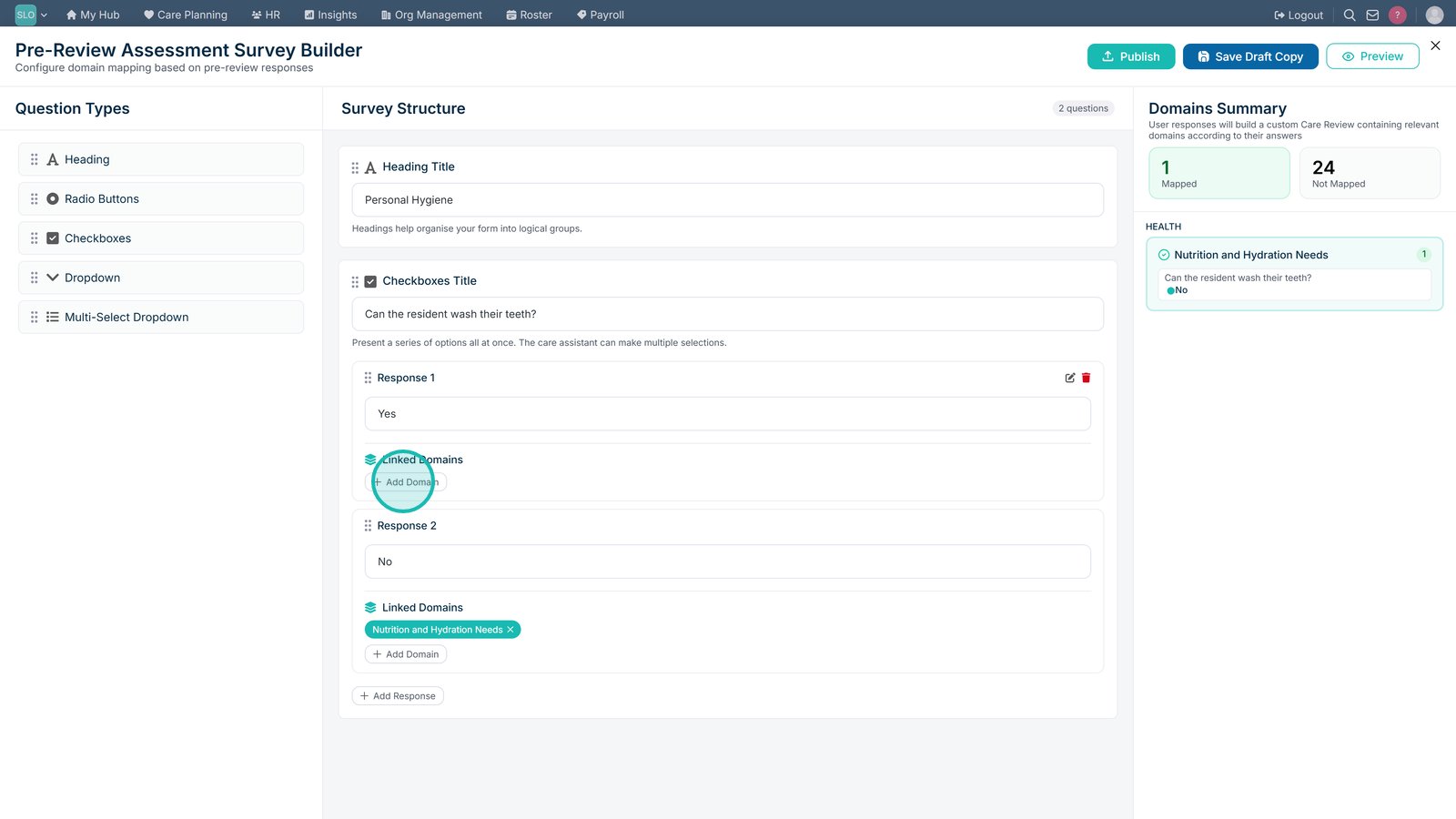
Add another response where required.

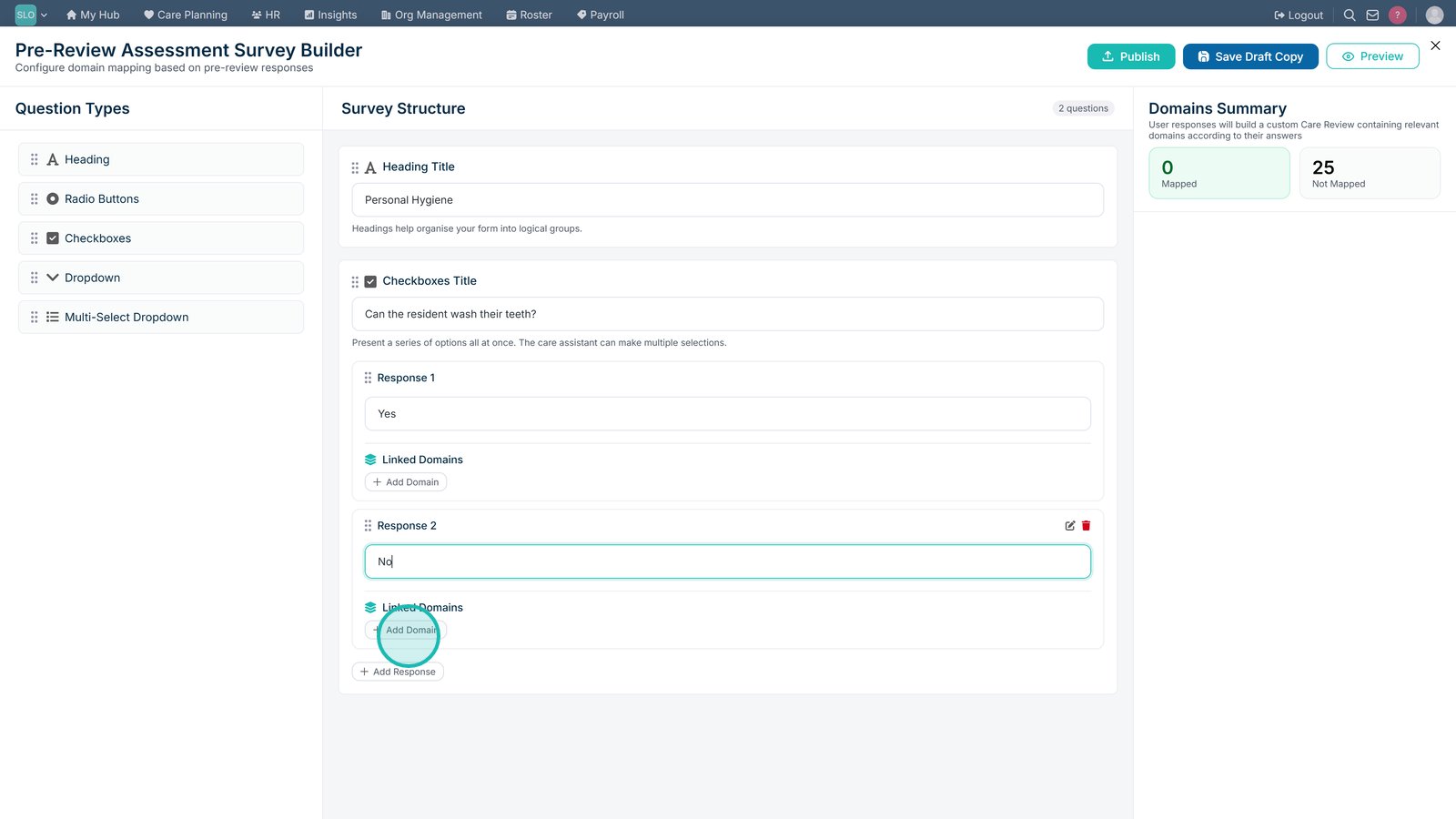
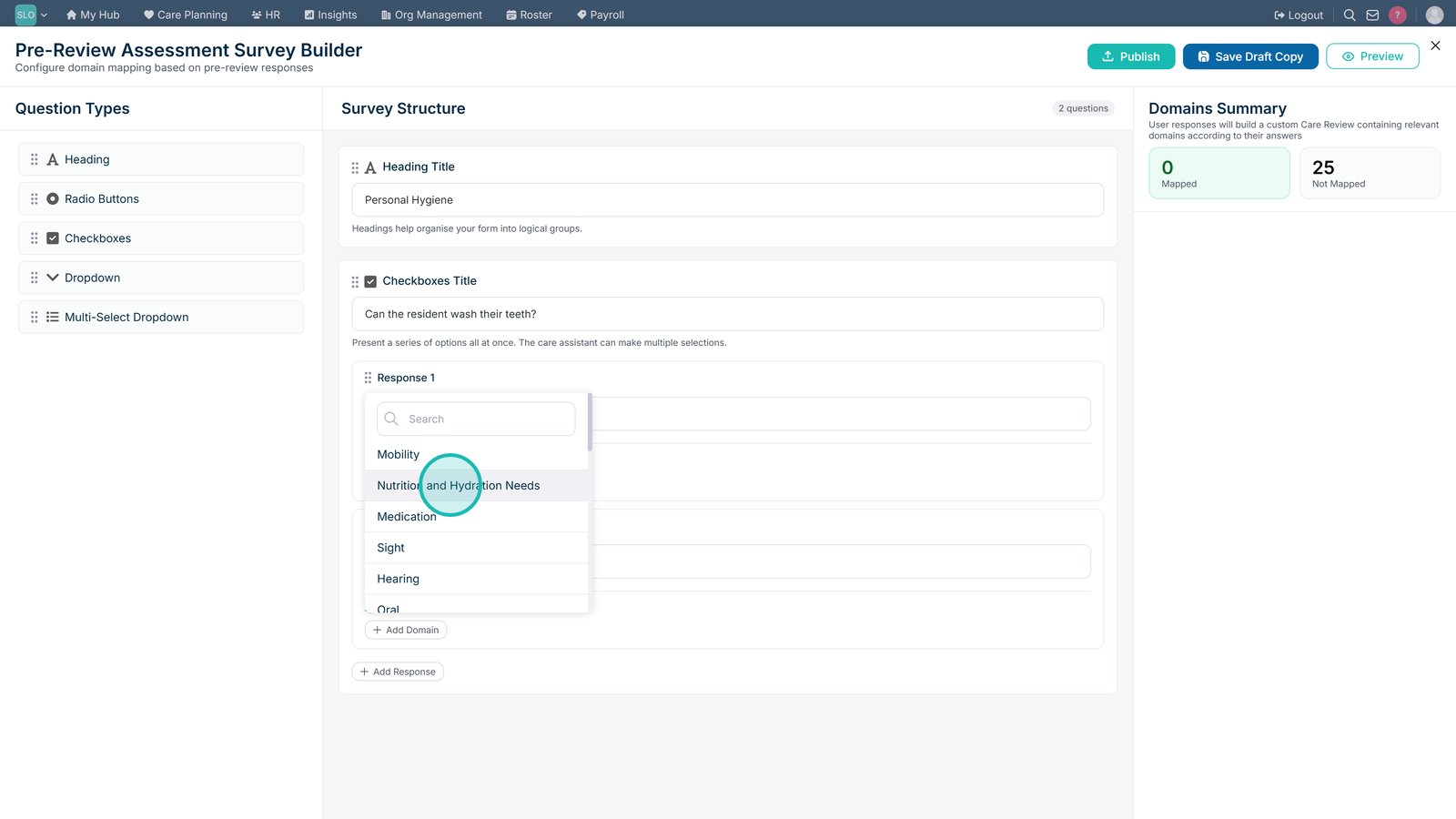
Map a care domain to the response if selecting it should enable that area within the Care Review.

Select the care domain you want to associate with the response.

Add additional care domains if the same response should trigger more than one area.

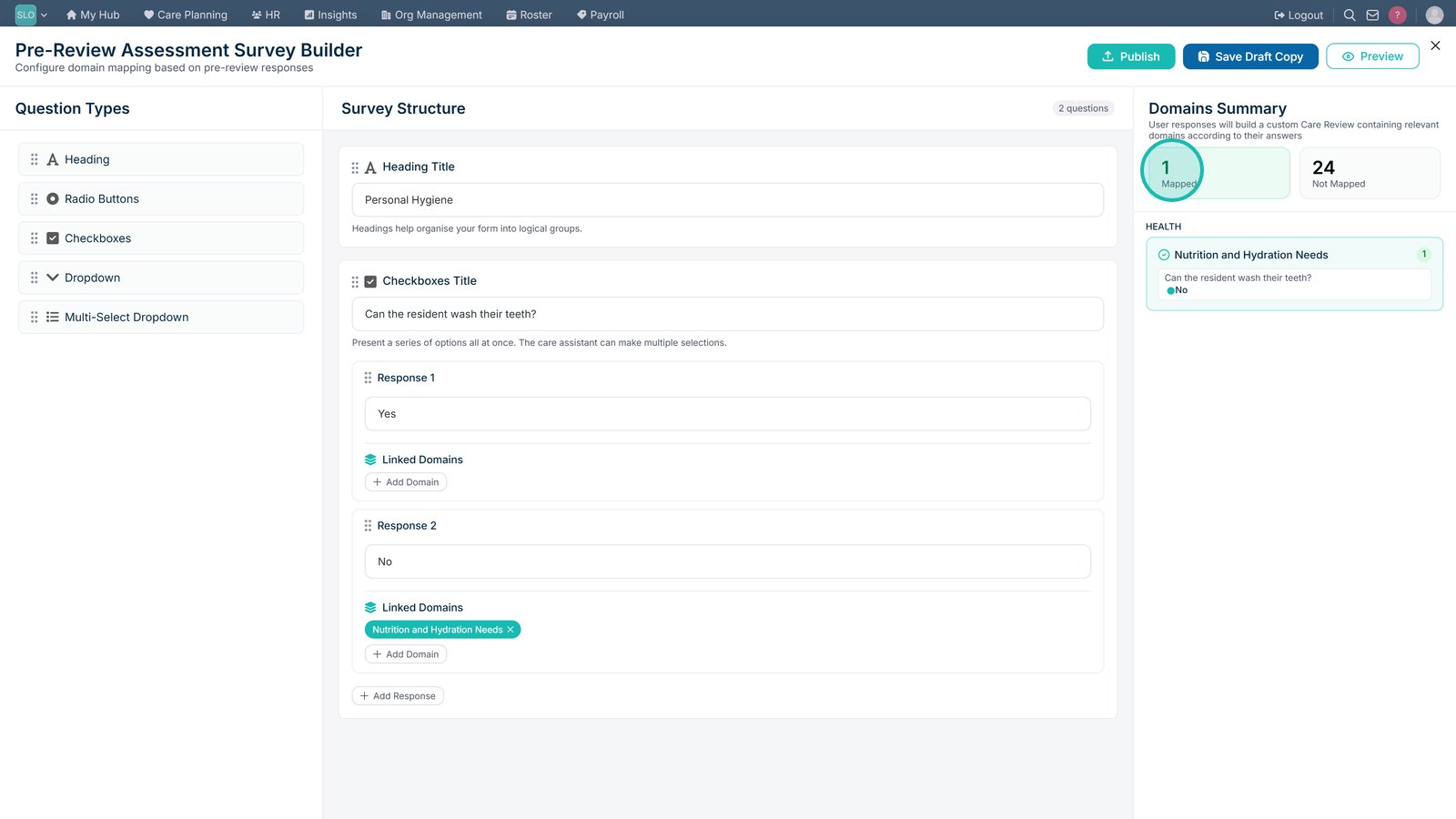
Check the Mapped total to see how many care domains have been mapped within the assessment.

Continue building your assessment and mapping the required care domains.

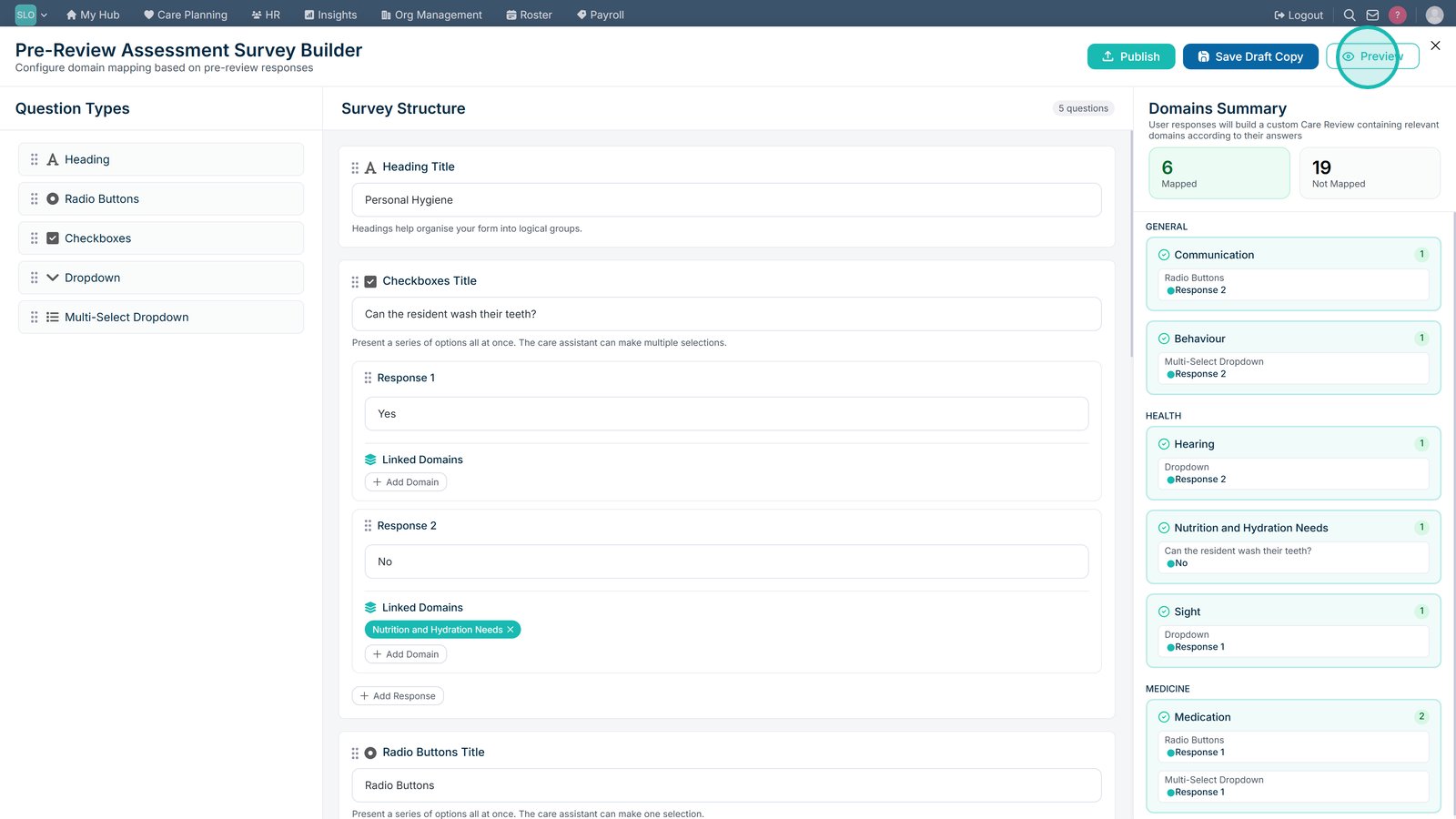
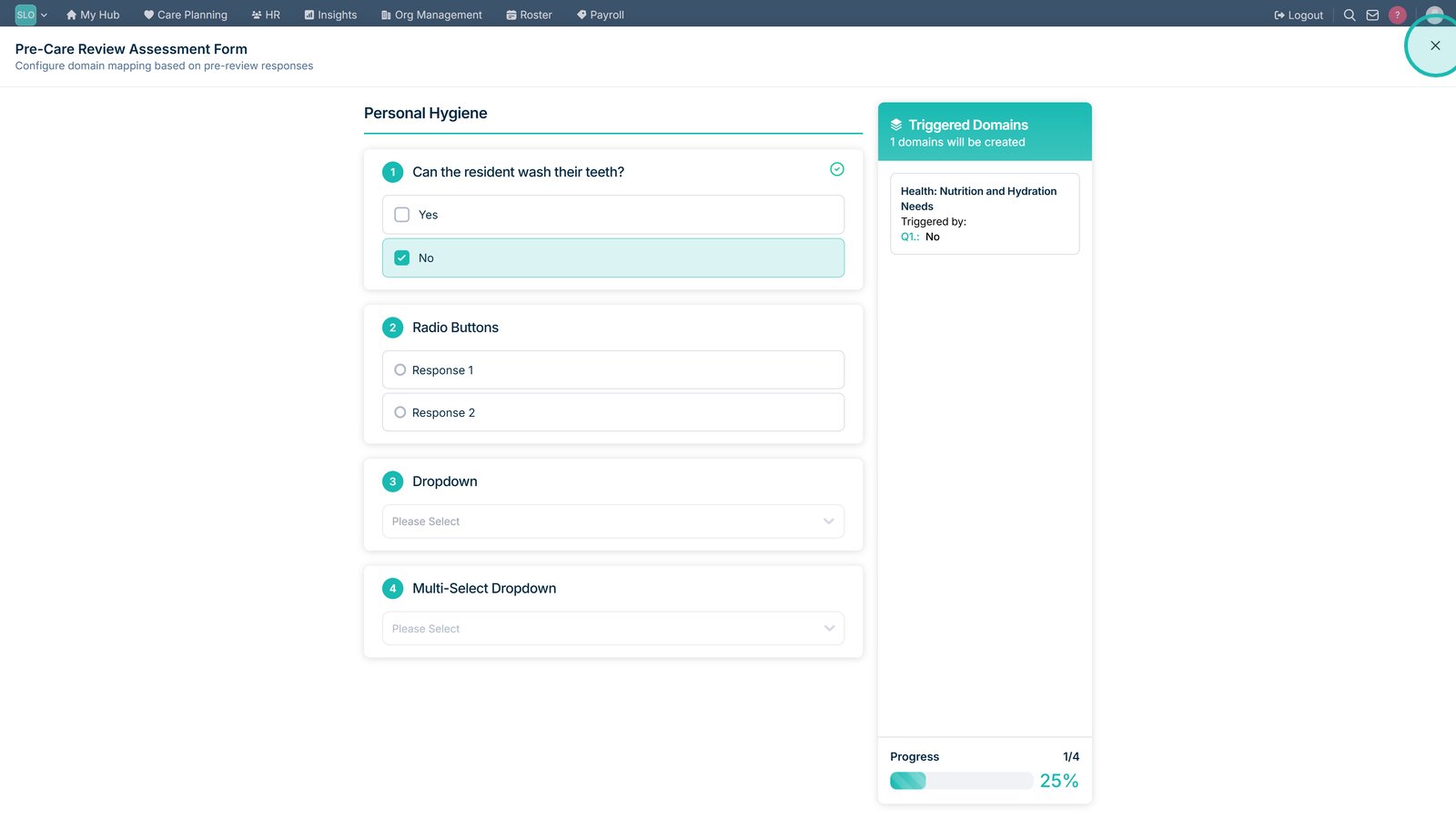
Select Preview to test the assessment before publishing.

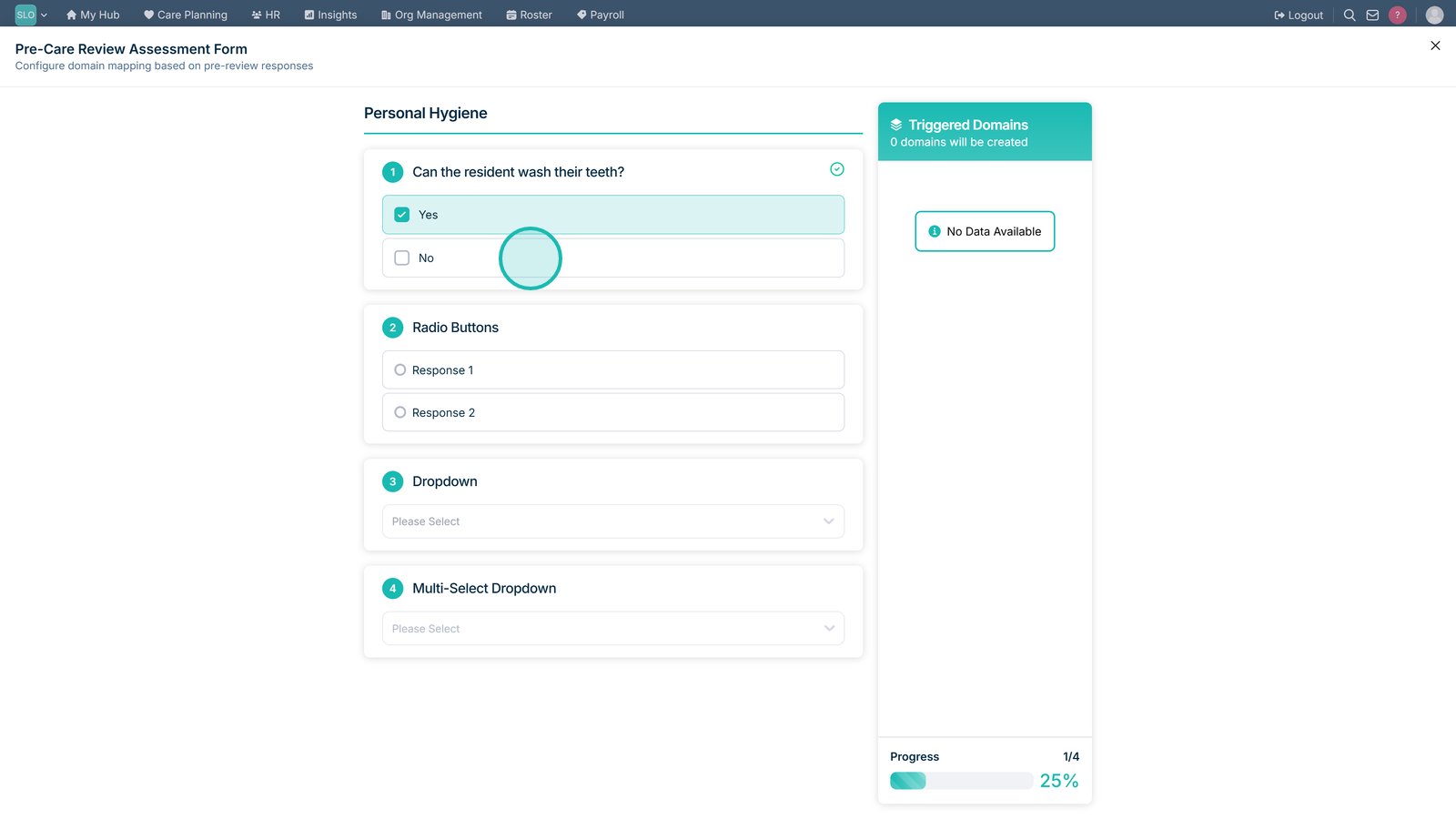
Select a response to check that it triggers the intended care domain.

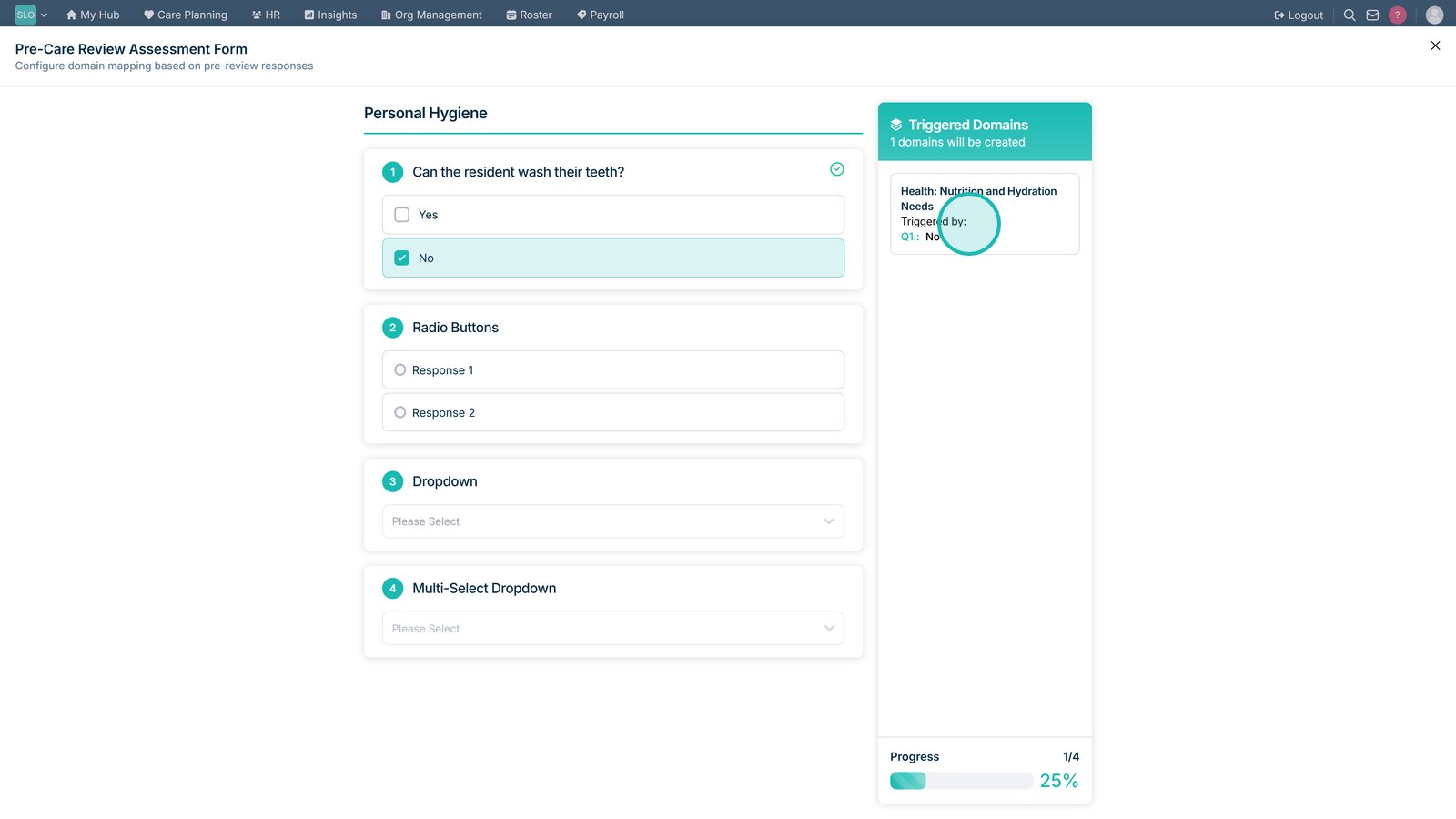
Review the triggered domain and the response that caused it to be included.

Close the preview once you have finished testing the assessment.

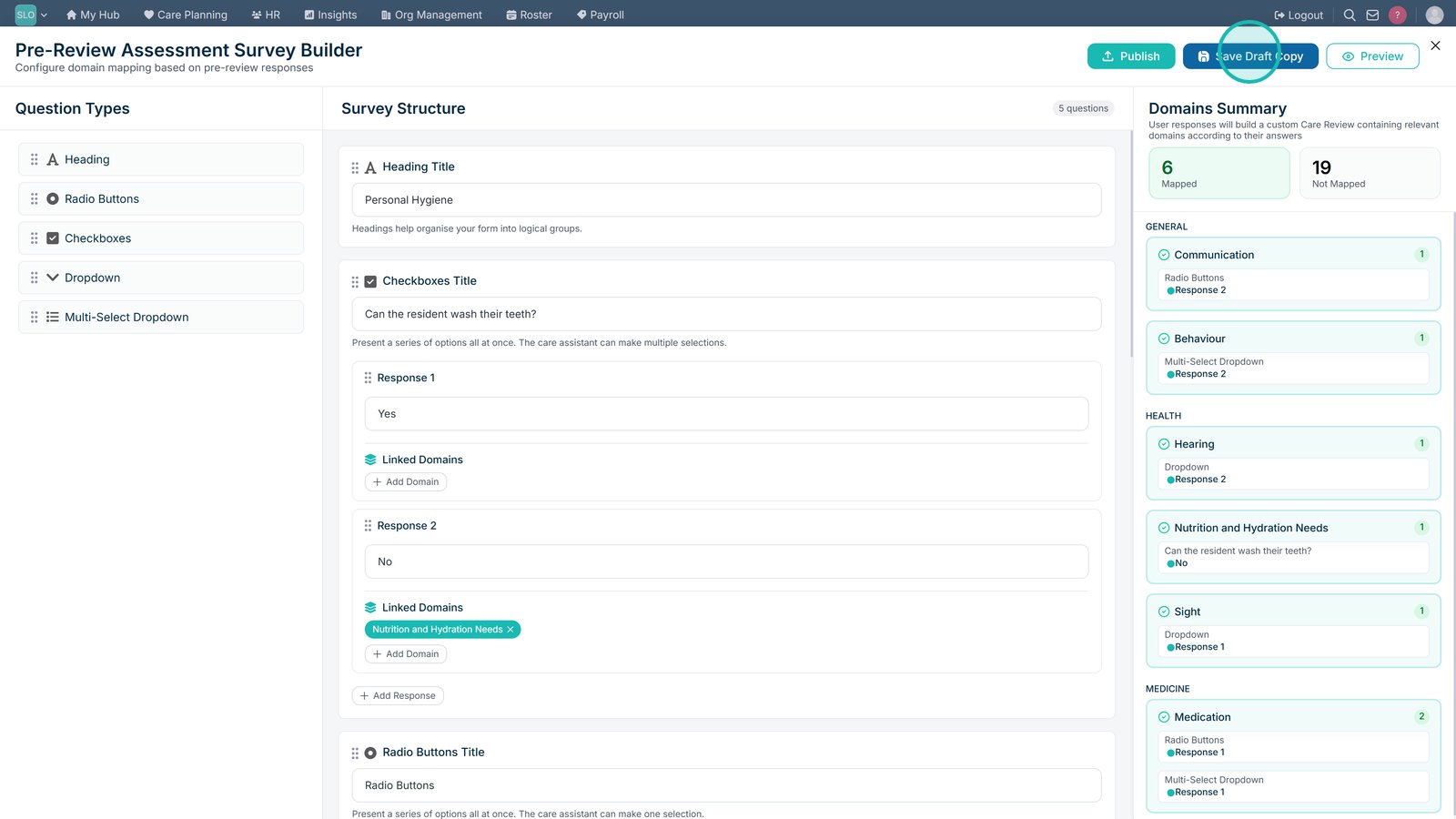
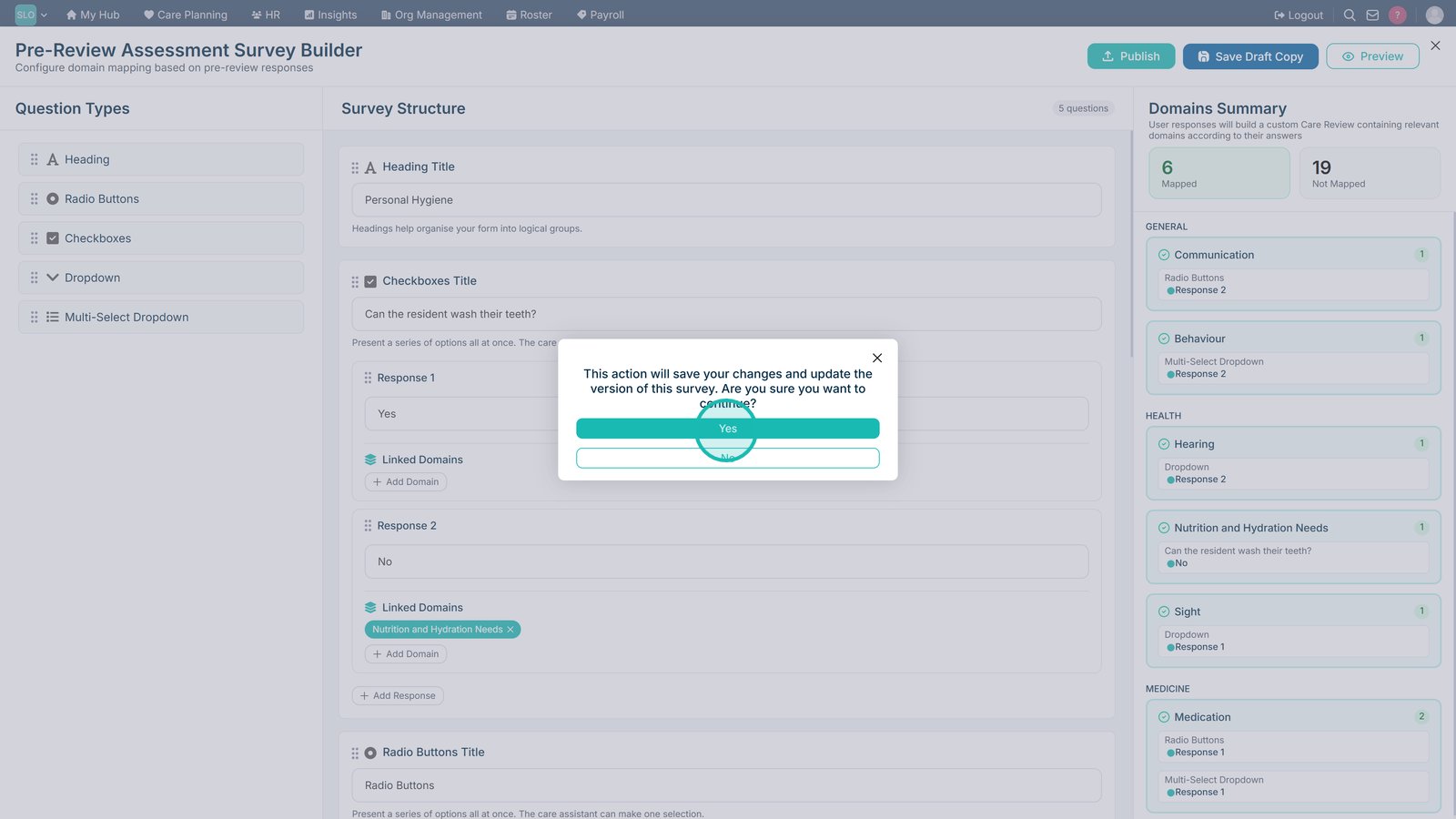
Select Save Draft Copy if you want to save your progress without publishing the assessment.

Select Yes to confirm that you want to save the draft.

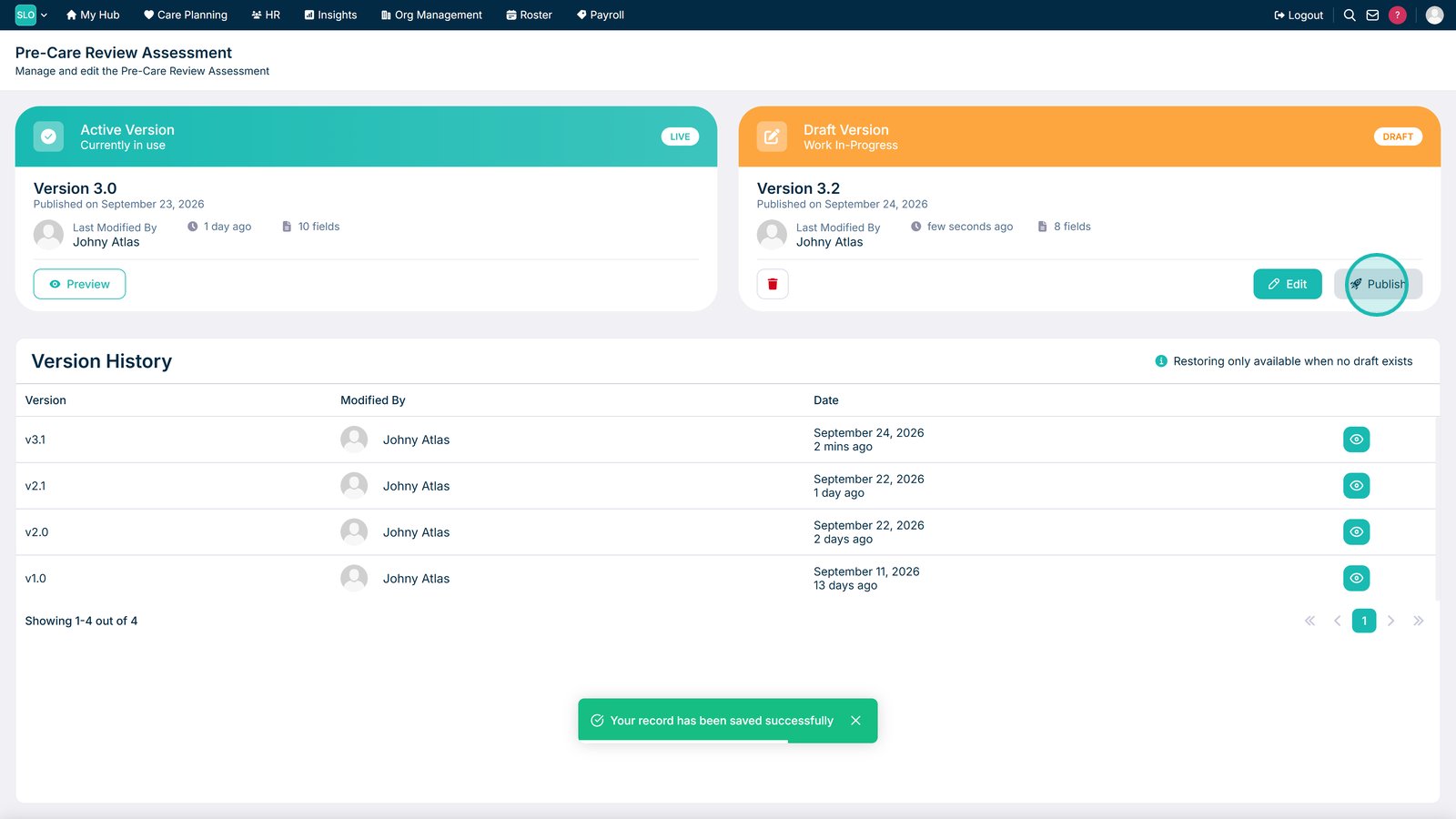
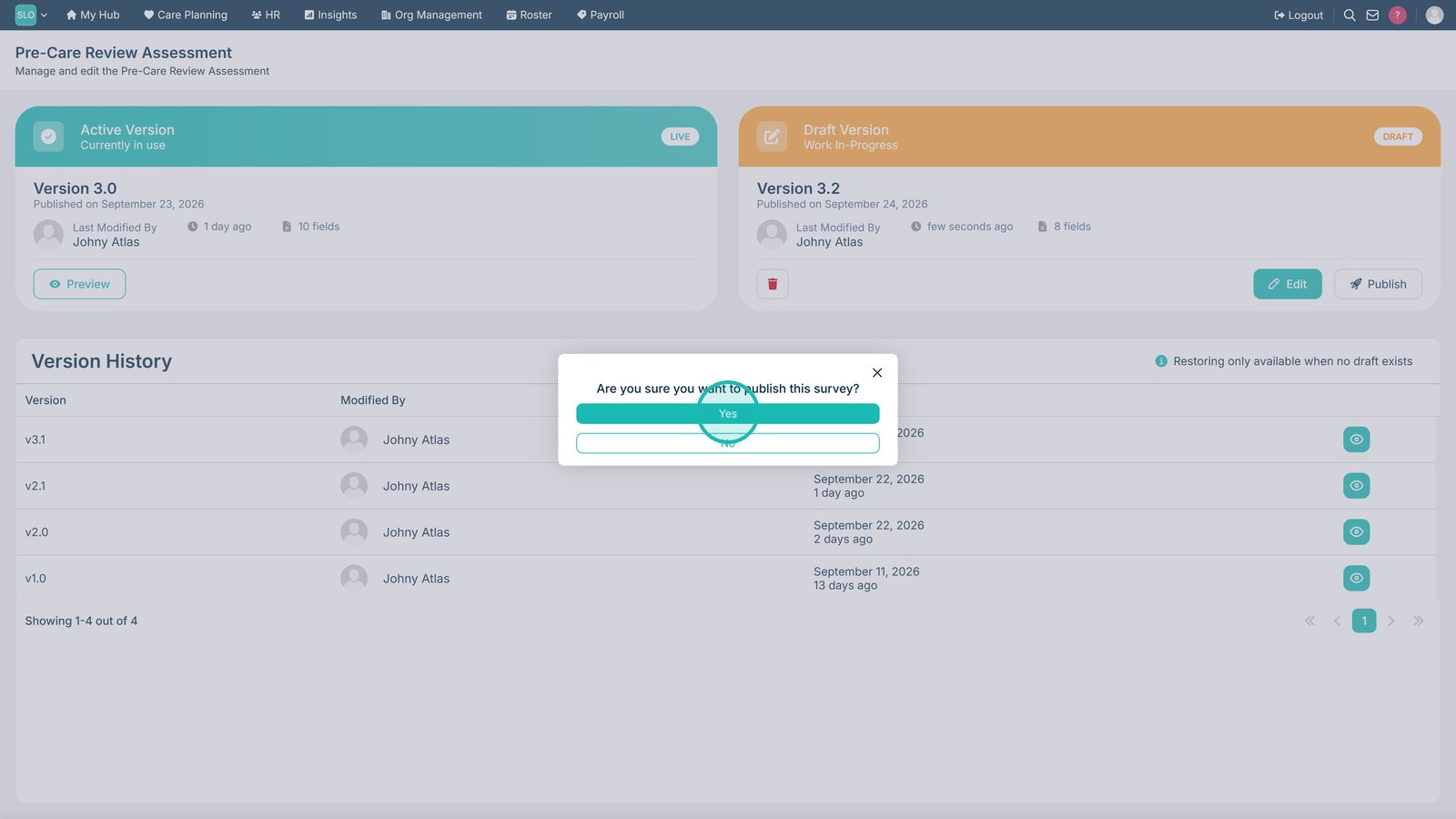
When the assessment is ready, select Publish to make it available for Pre-Care Reviews.
Select Yes to confirm publication.

Top tip

Map responses to the relevant care domains as you build your assessment. Preview the assessment before publishing and test different answers to make sure they trigger the correct domains.

Was this guide helpful?

Need more help?

Can't find what you're looking for? Our support team is here to help.

Contact Support

Or call us on

On this page