How to Add a New Care Review Domain
Learn how to create a new Care Review Domain within Generic Risk Assessments. This guide covers creating or selecting a domain category, adding the domain details and guidance, choosing whether it should be a default domain, and saving it for use in Care Reviews.
Takes 3 minutes
For: Managers
Updated: 28th Sept 2026
Introduction
Care Review Domains represent different areas of a service user's care and needs that can be reviewed as part of the Care Review process.
Within Generic Risk Assessments, you can create your own domains and organise them into categories. Each domain can include information describing its purpose and guidance to help staff understand how it should be used.
You can also choose whether the domain should be included by default when completing Care Reviews.
In this guide you'll learn how to:
- Open Generic Risk Assessments
- Create a new Care Review Domain
- Select or create a domain category
- Add the domain details and guidance
- Choose whether the domain should be included by default
- Save the new domain
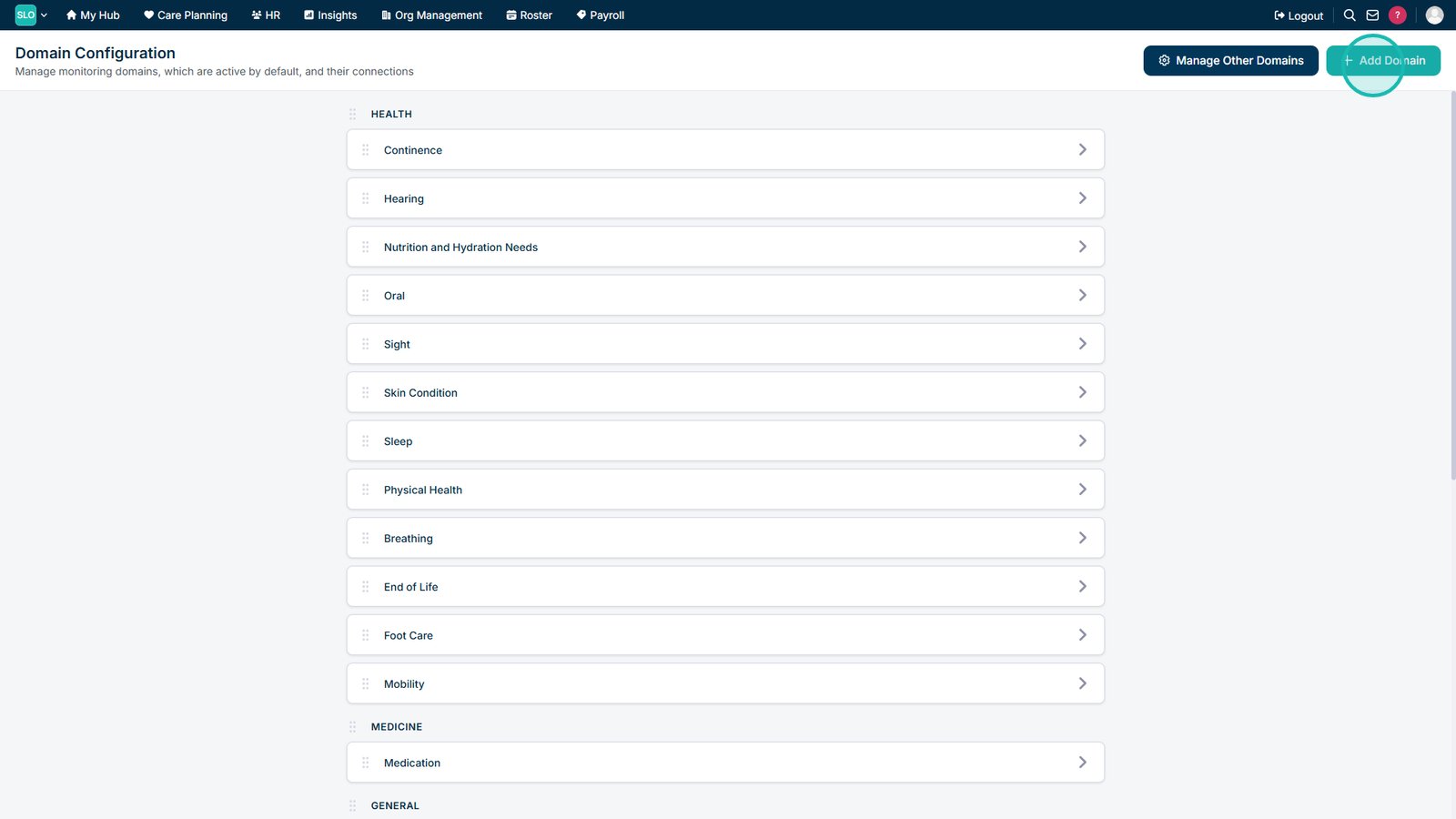
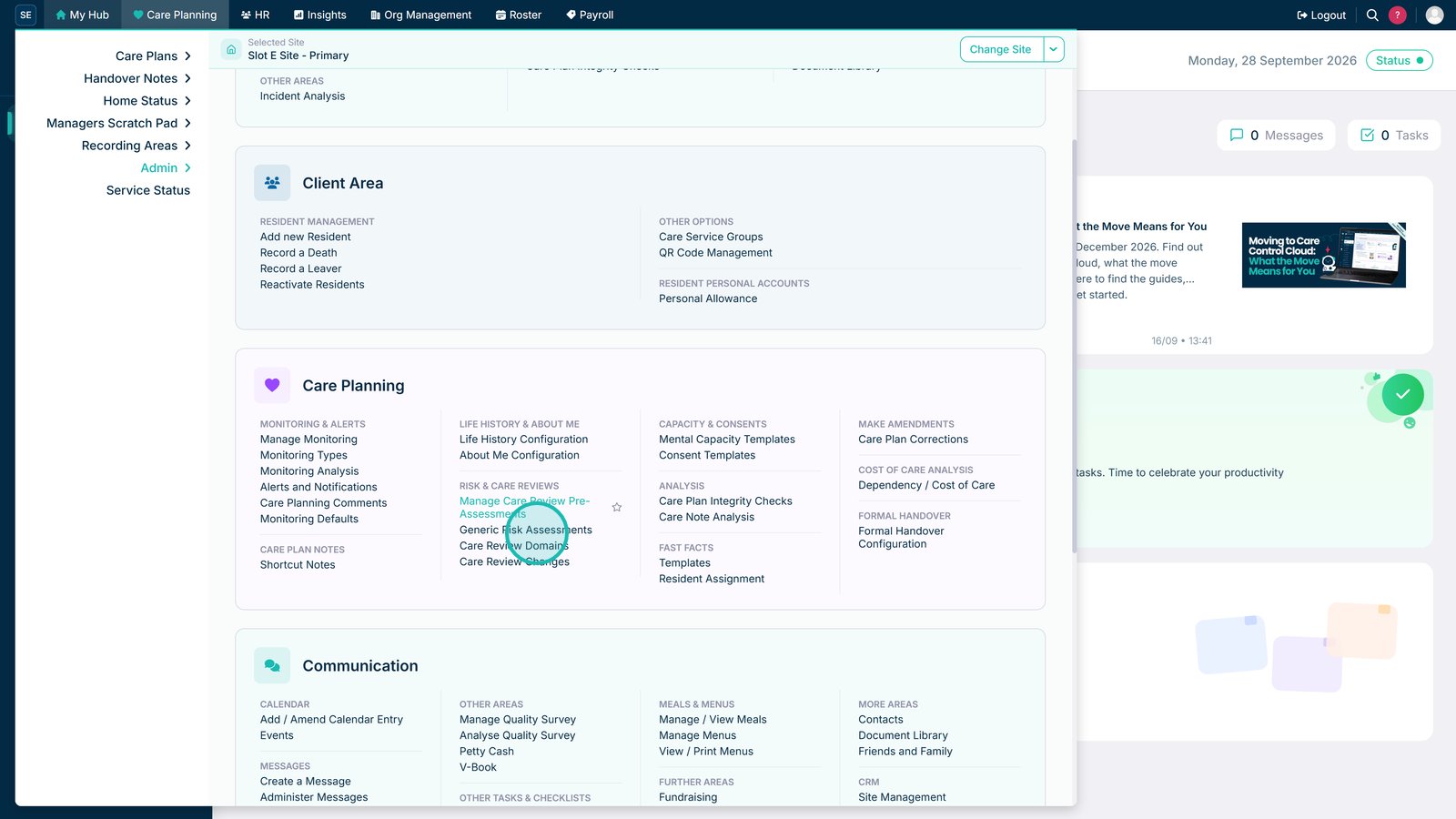
Open Generic Risk Assessments.

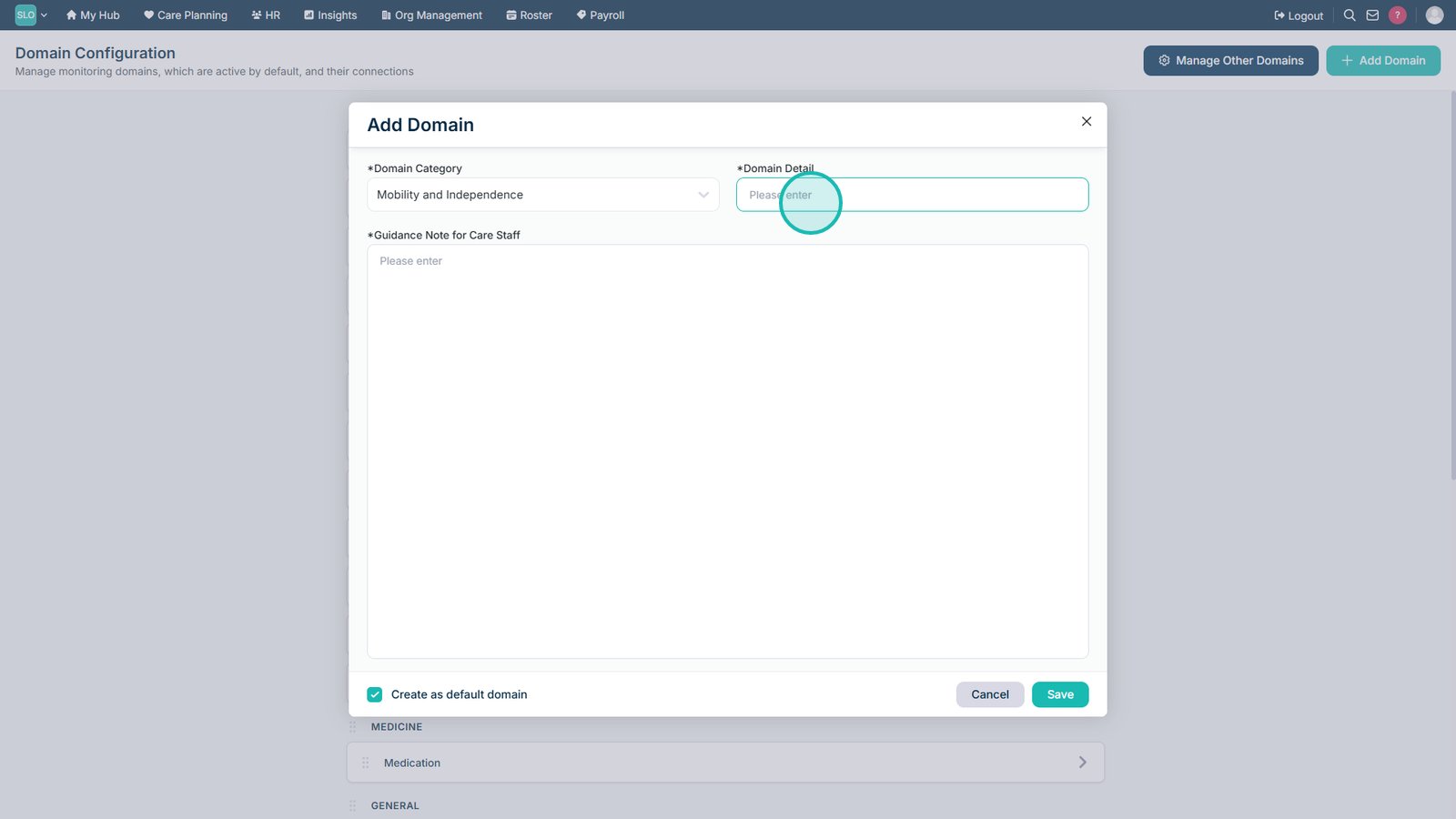
Select Add Domain to create a new Care Review Domain.

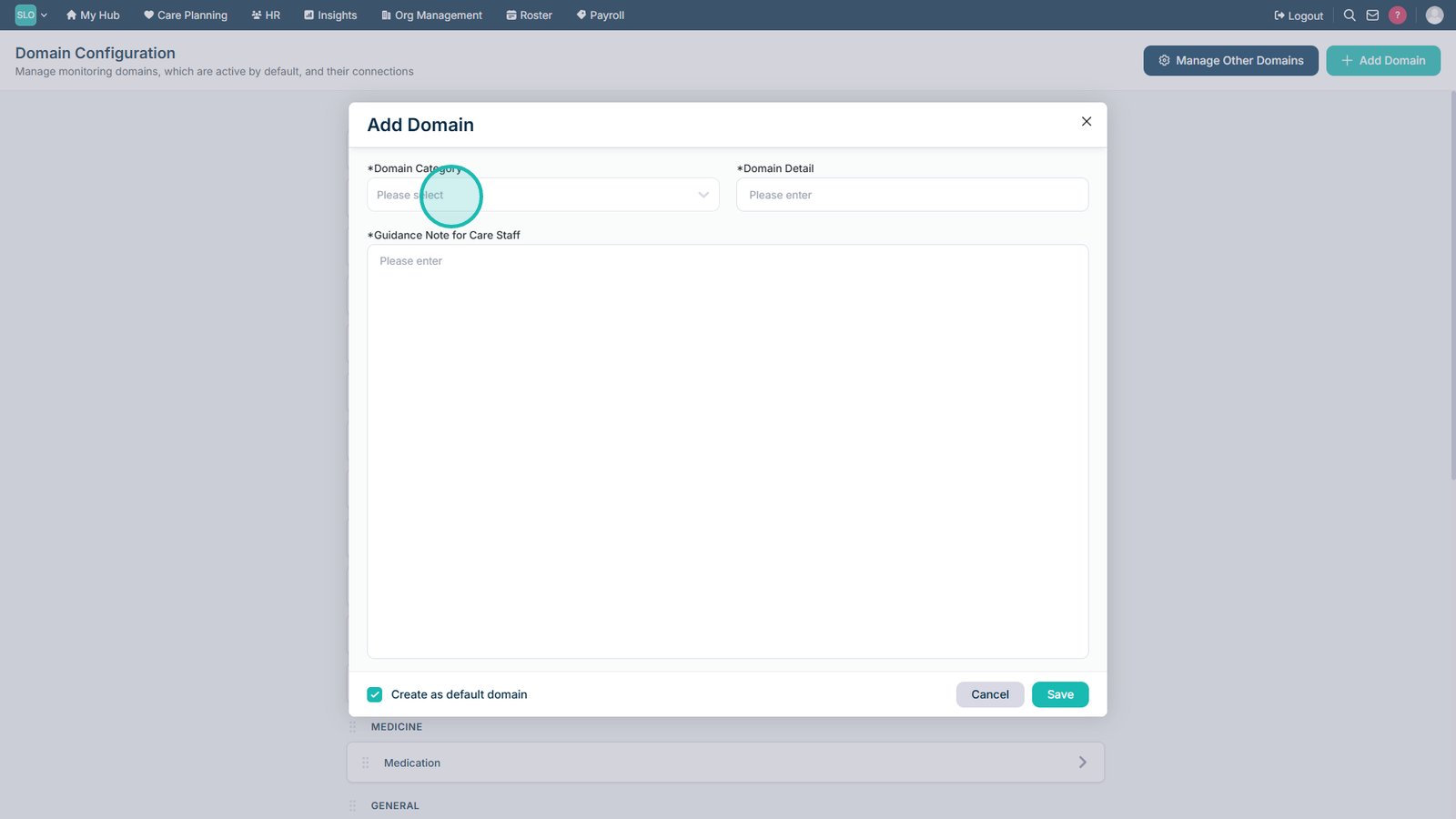
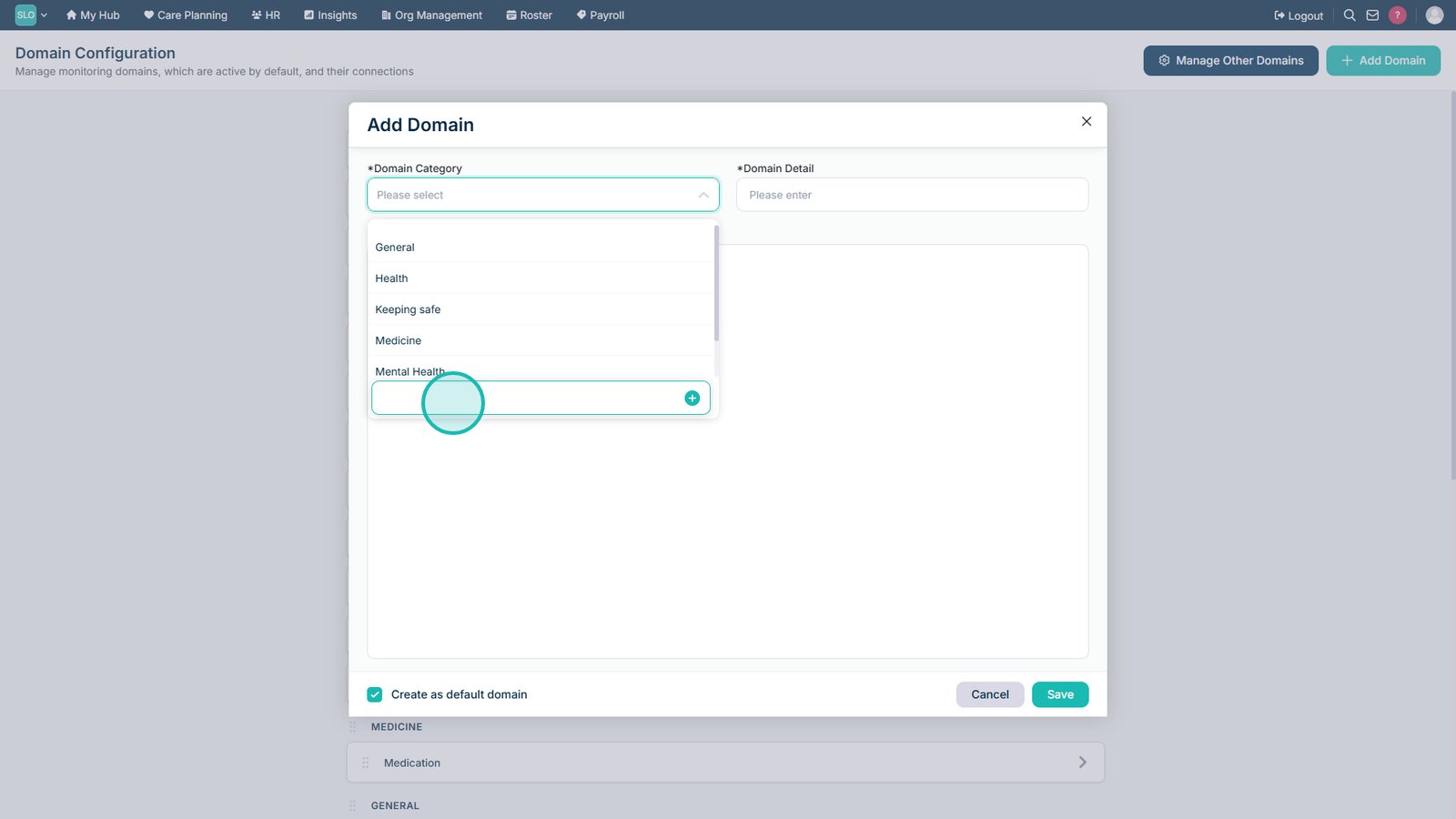
Open the Domain Category drop-down list.

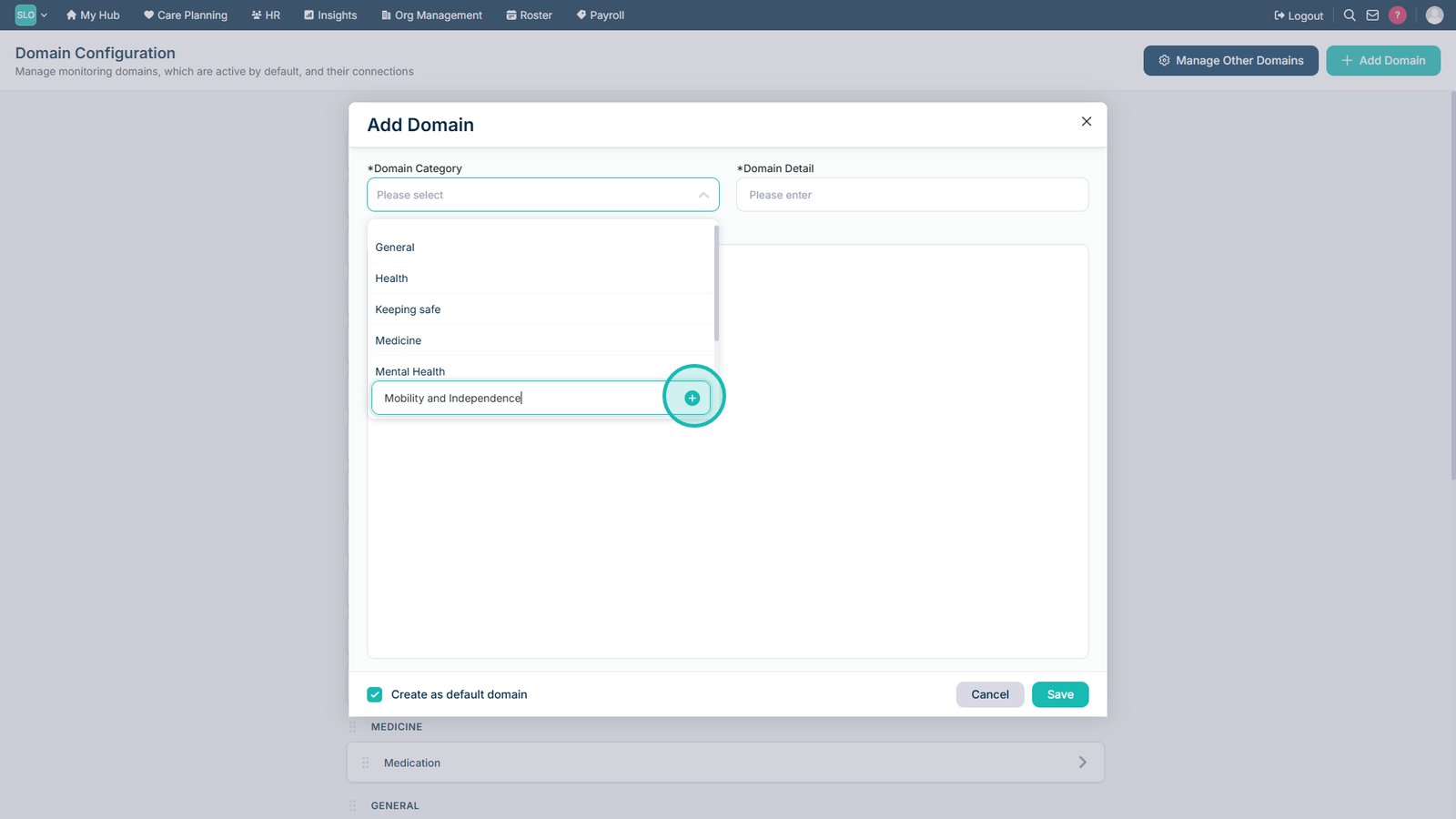
Select an existing category or enter a new category name.

If you entered a new category, add it so it can be used for the domain.

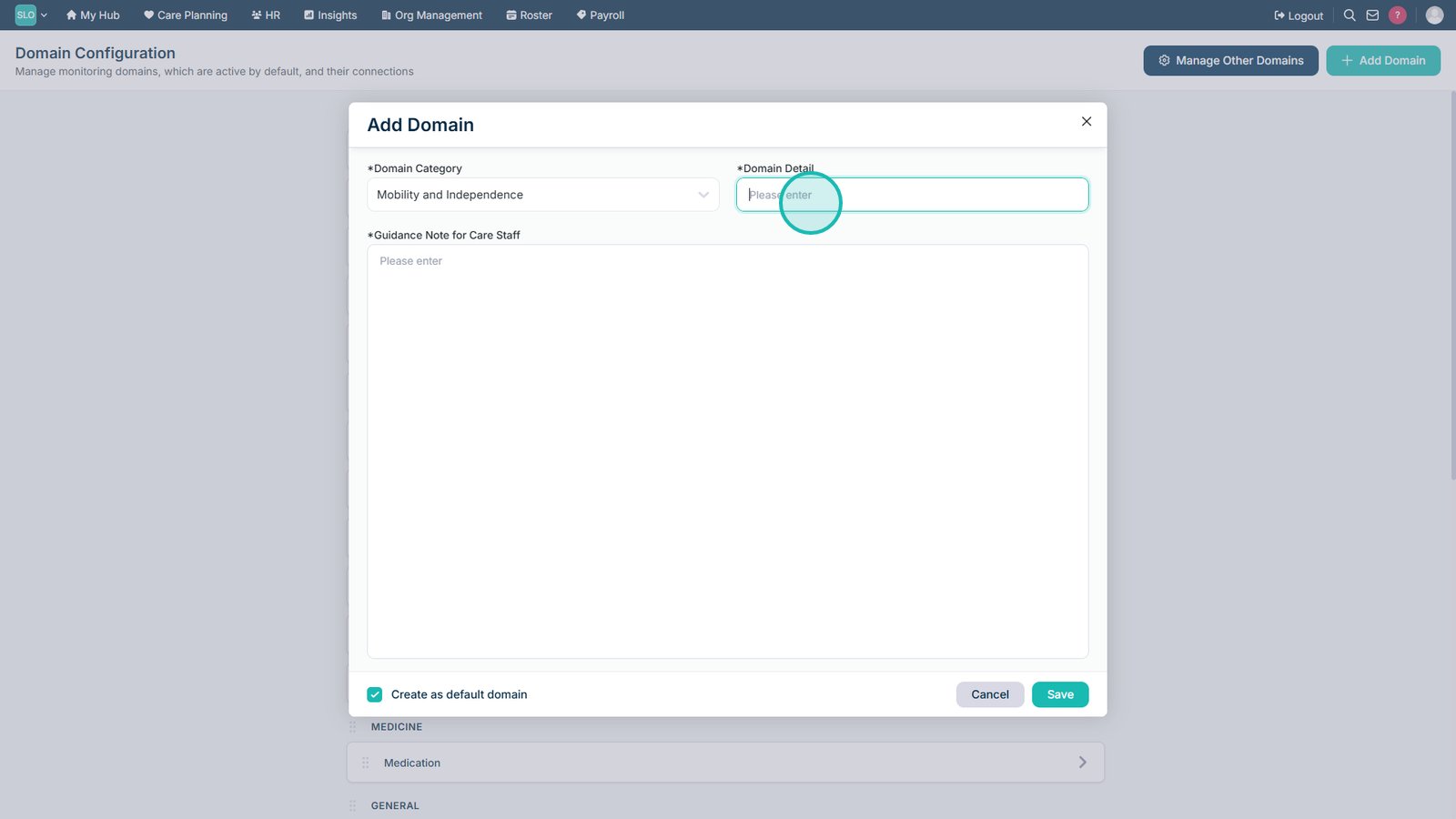
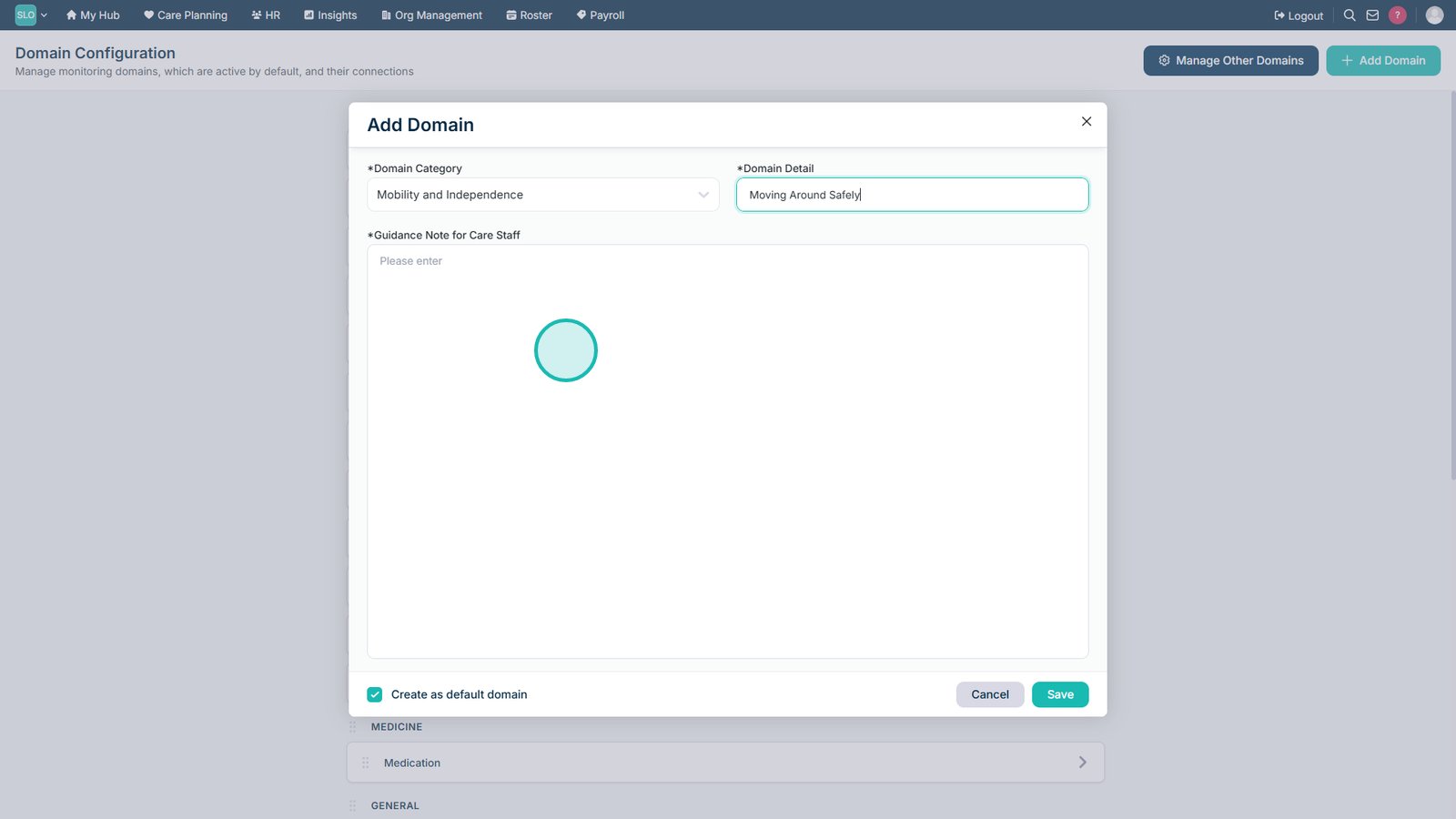
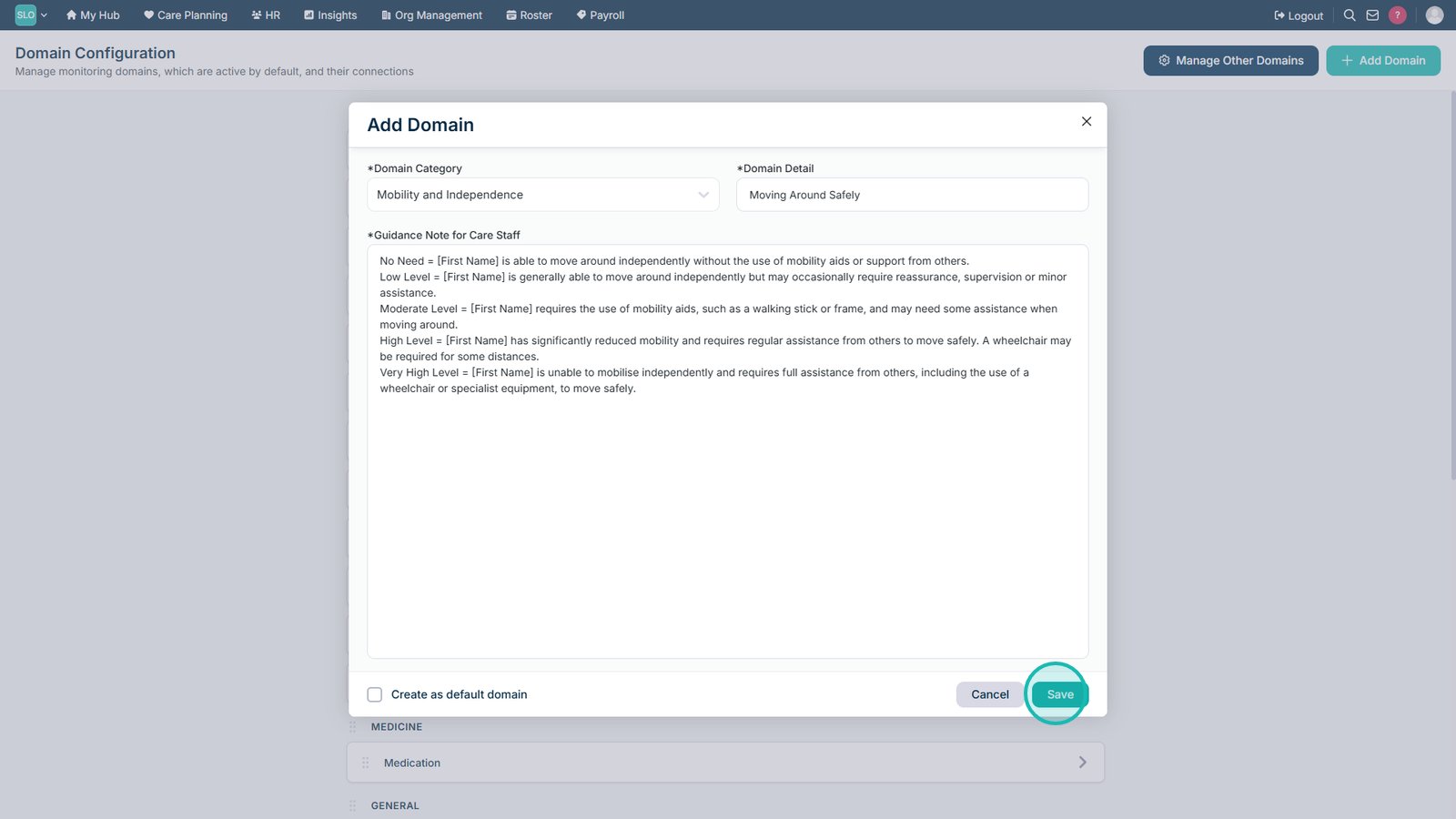
Enter the details for your new Care Review Domain.

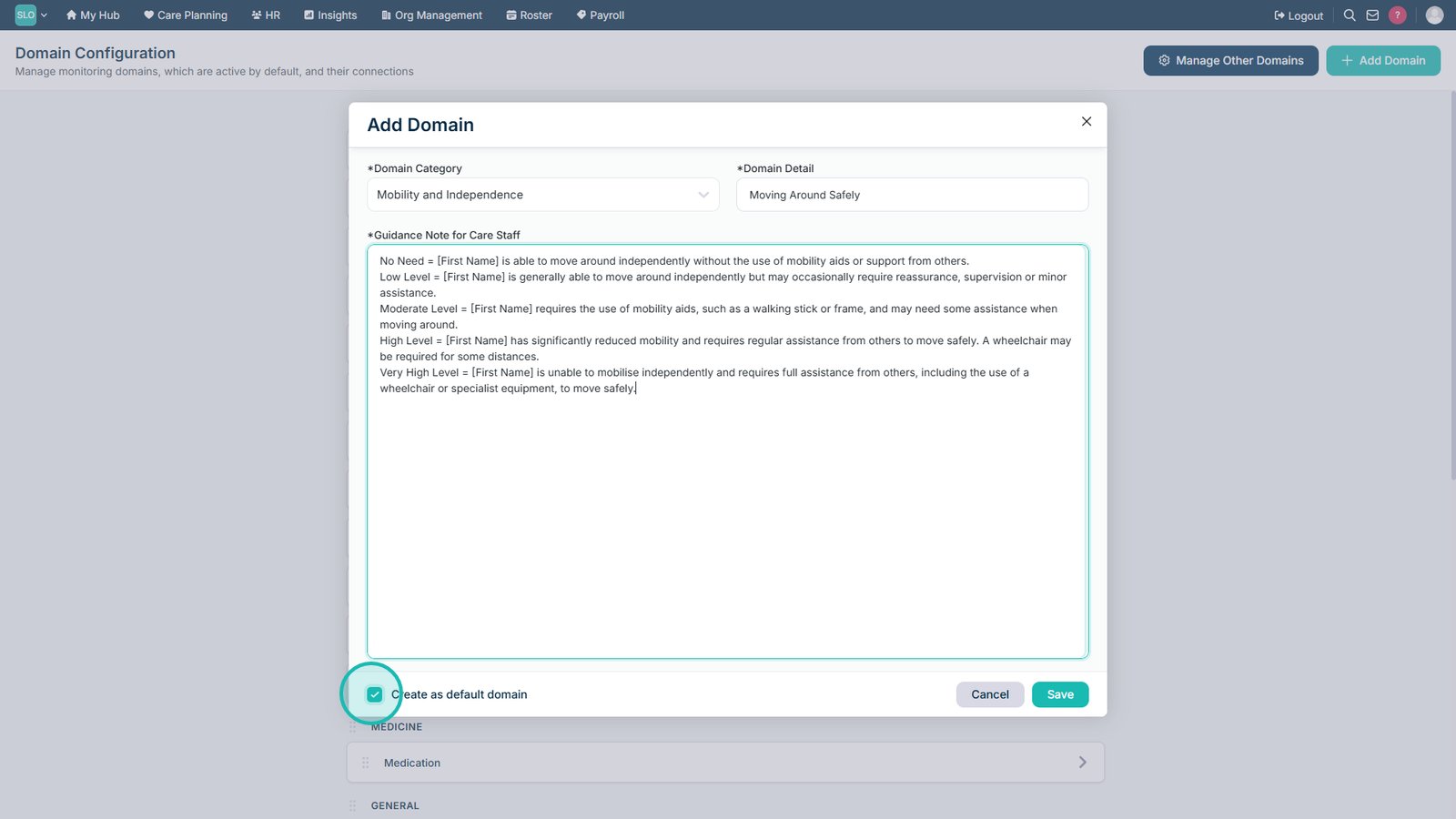
Add the information required for each Level of Need within the domain.

Add guidance to help staff understand how the domain should be assessed.

Enable Default if you want the domain to be included by default within Care Reviews.

Select Save to create the new Care Review Domain.

Top tip
Give each domain a clear name and description so staff can easily understand what area of care it covers. If you create a new category, choose a name broad enough to group similar domains together.
Need more help?
Can't find what you're looking for? Our support team is here to help.
Contact SupportOr call us on