View Categories

How to Add an Administrative Allocation to the Rota

Learn how to add an Administrative Allocation to a staff member's Rota. This guide covers selecting an Administrative Rota, choosing or creating a visit template, assigning an administrative action and reviewing any travel time between shifts.
Takes 5 minutes
For: Managers
Updated: 6th Oct 2026

Introduction

Administrative Allocations allow you to include administrative activities within a staff member's Rota alongside their other scheduled work.

When adding an allocation, you can select the Administrative Rota, choose the appropriate administrative activity and save it against the staff member's schedule. Where other shifts are scheduled, the Rota can also display the relevant travel time.

In this guide you'll learn how to:

  • Access the Staff Availability Rota
  • Add an Administrative Allocation
  • Select an administrative activity
  • Save the allocation to the Rota
  • Review travel time between scheduled shifts

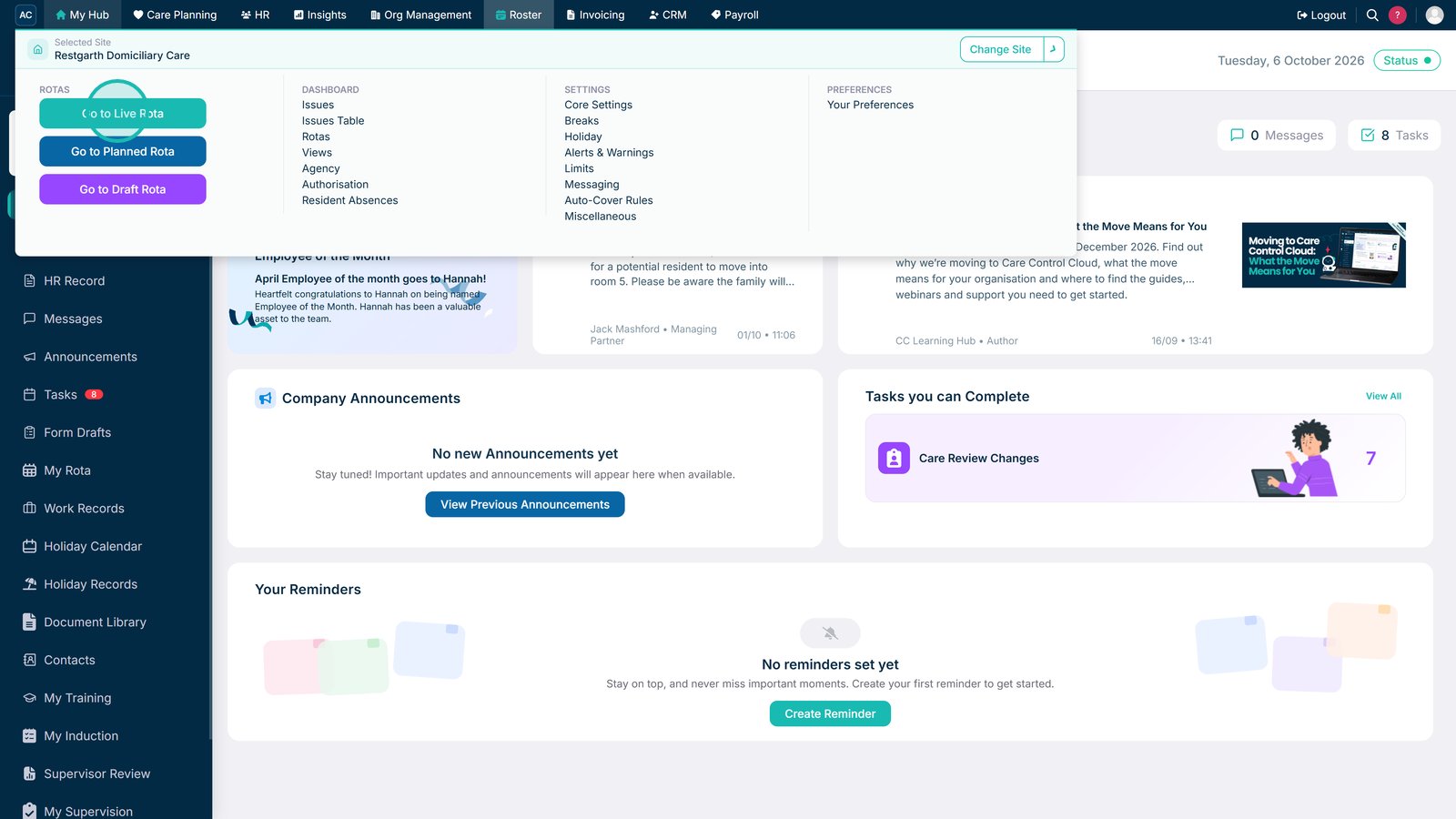
Open either the Live Rota or Draft Rota.

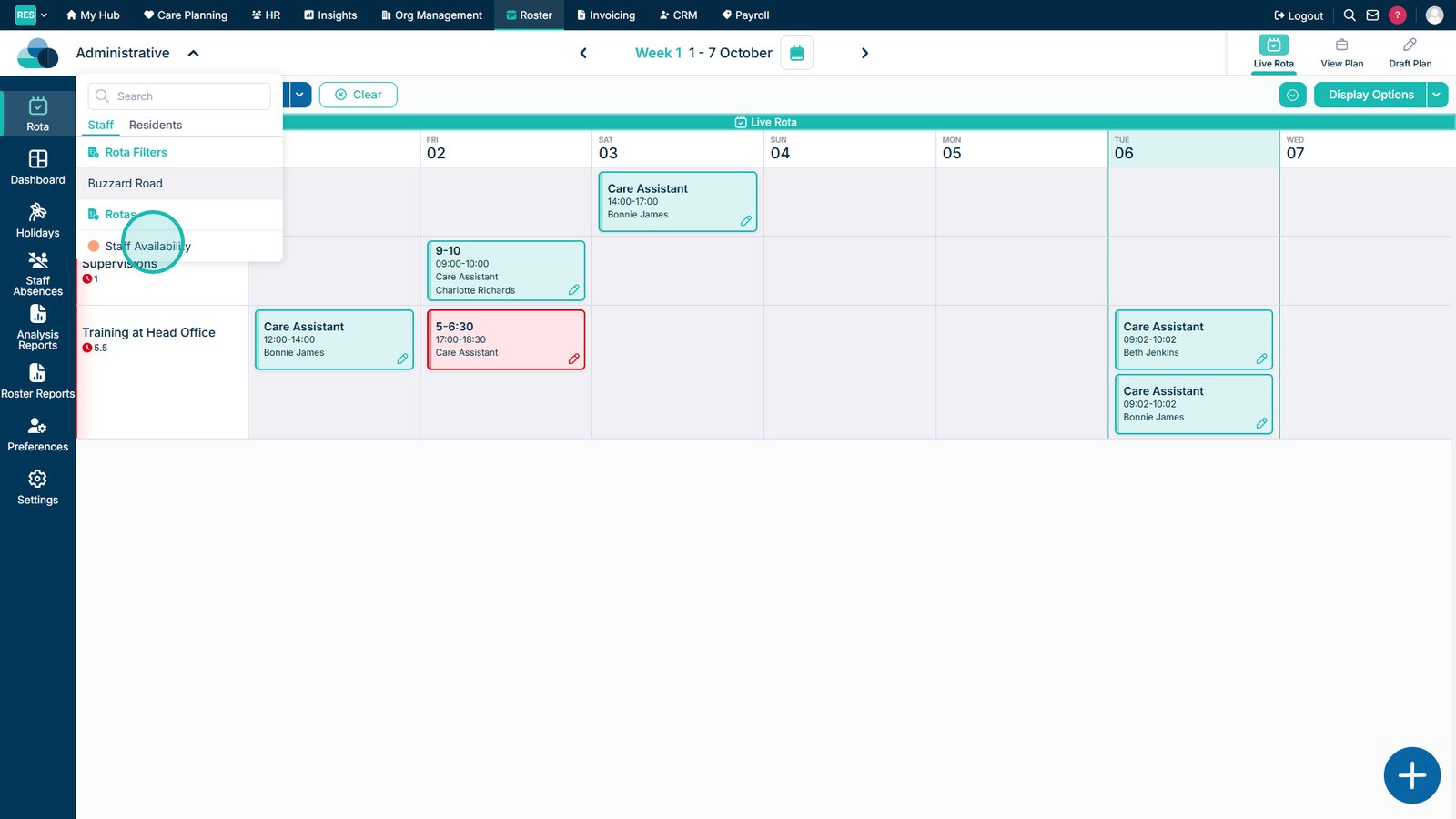
Open the Rota selection.

Select the Staff Availability Rota.

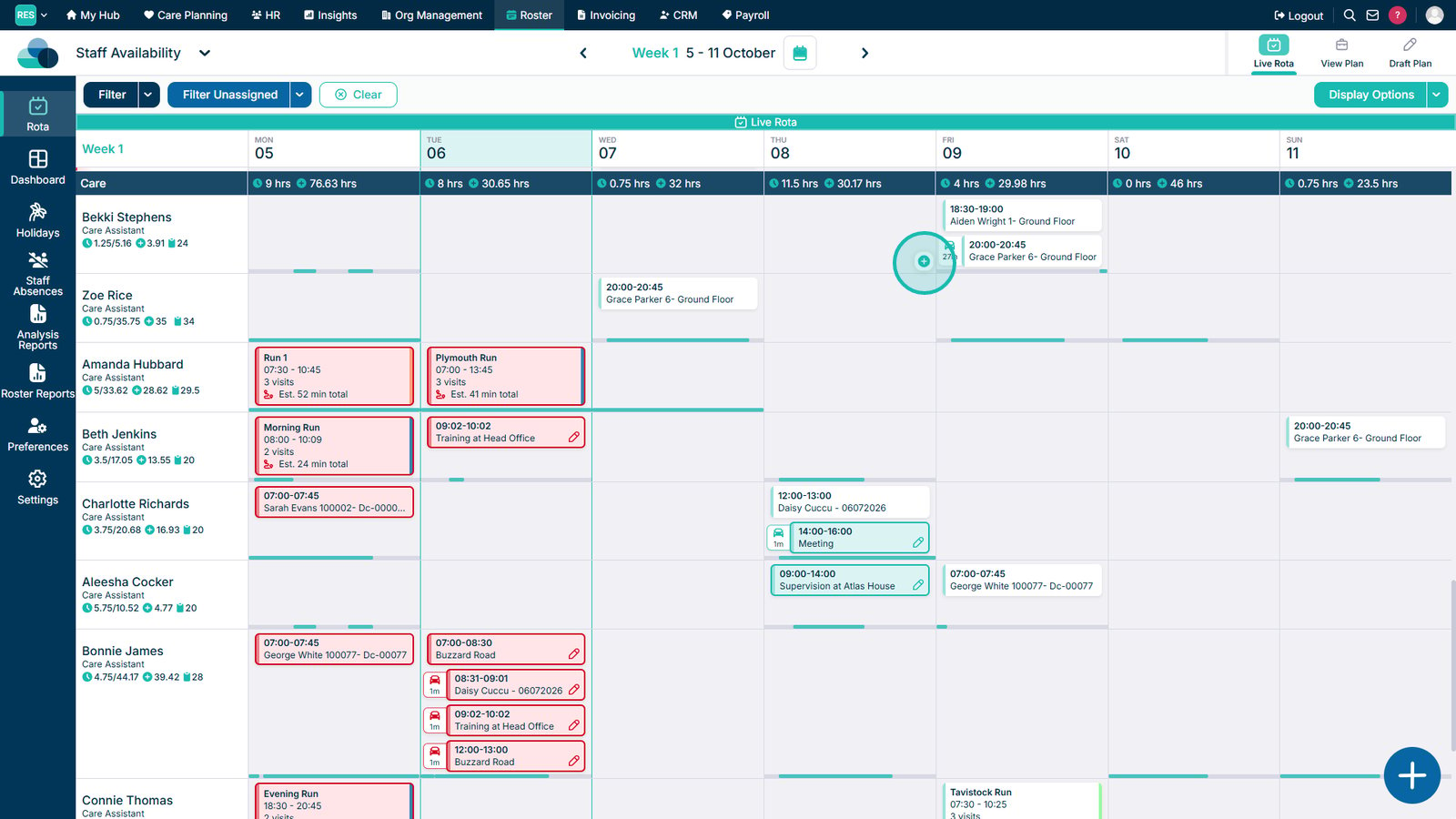
Select the plus icon on the required Rota cell.

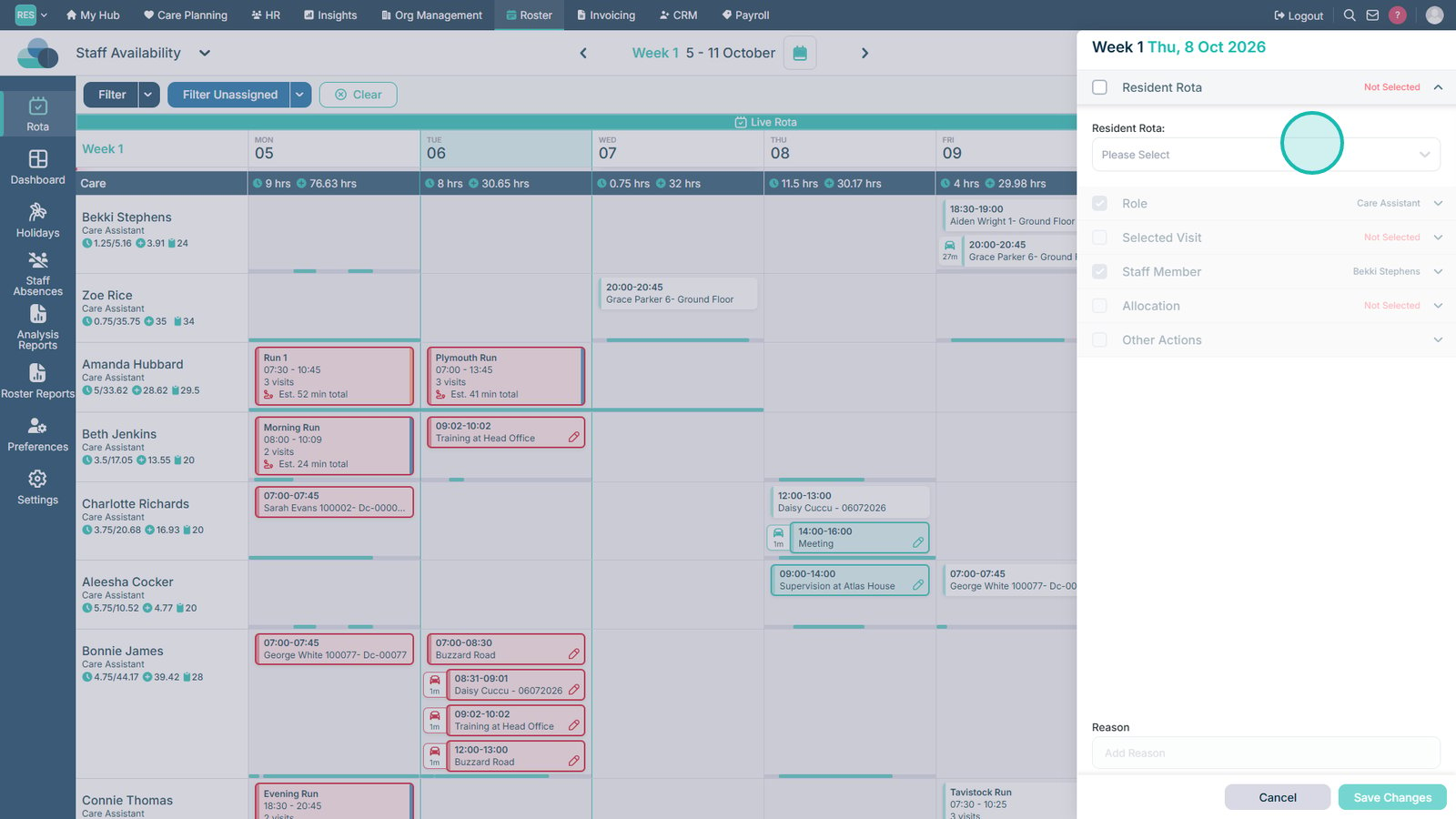
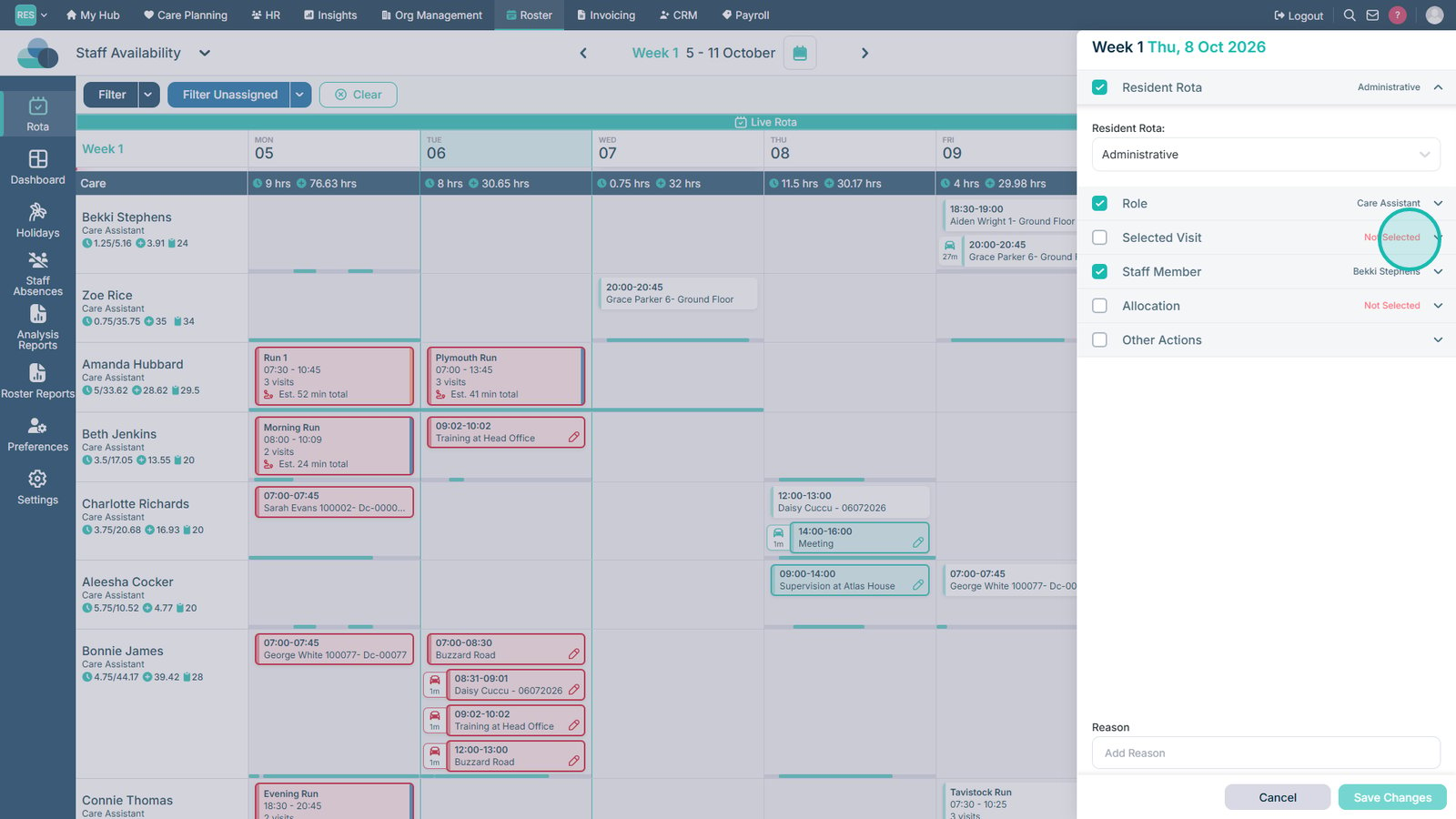
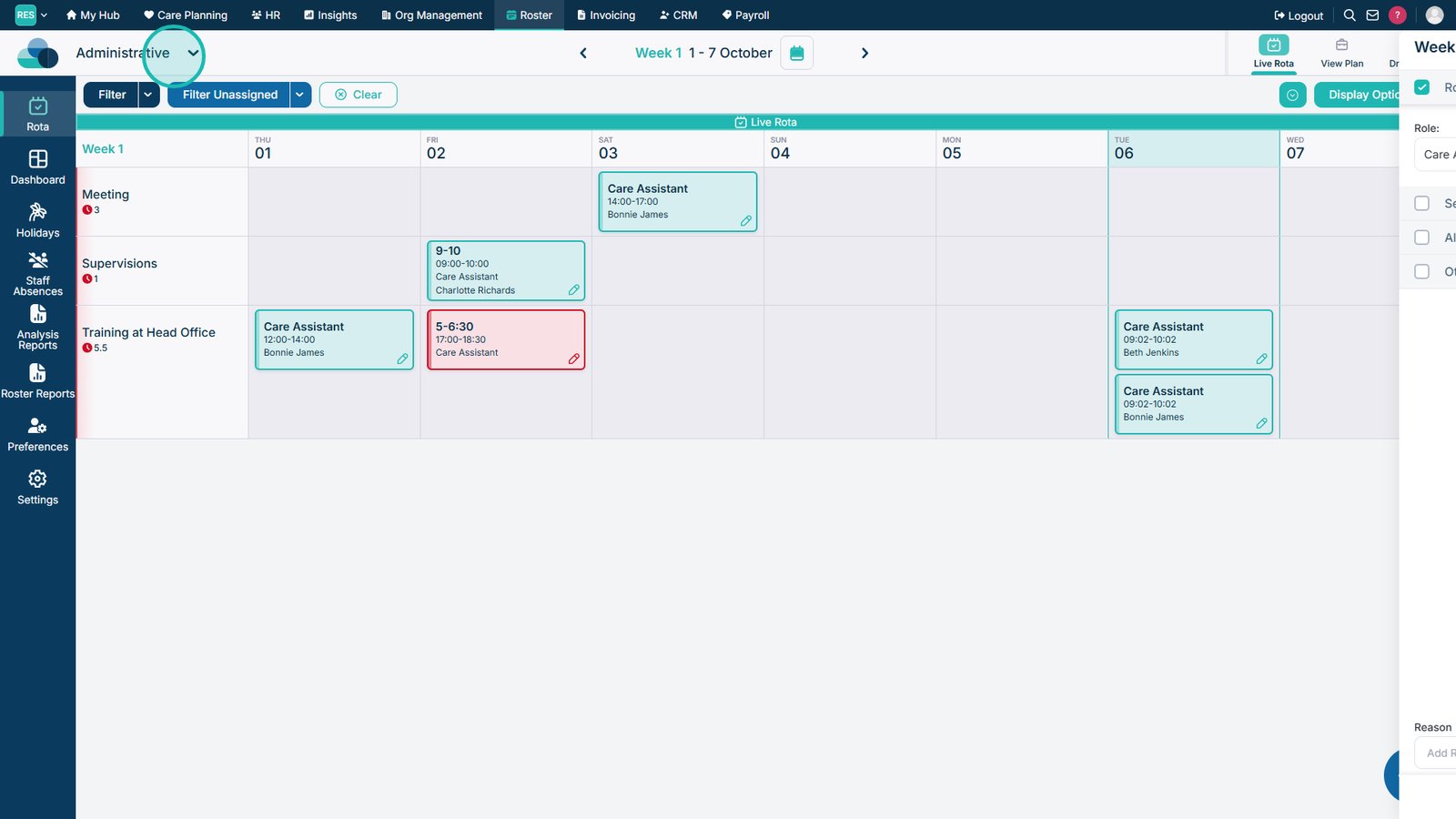
Open the Resident Rota selection.

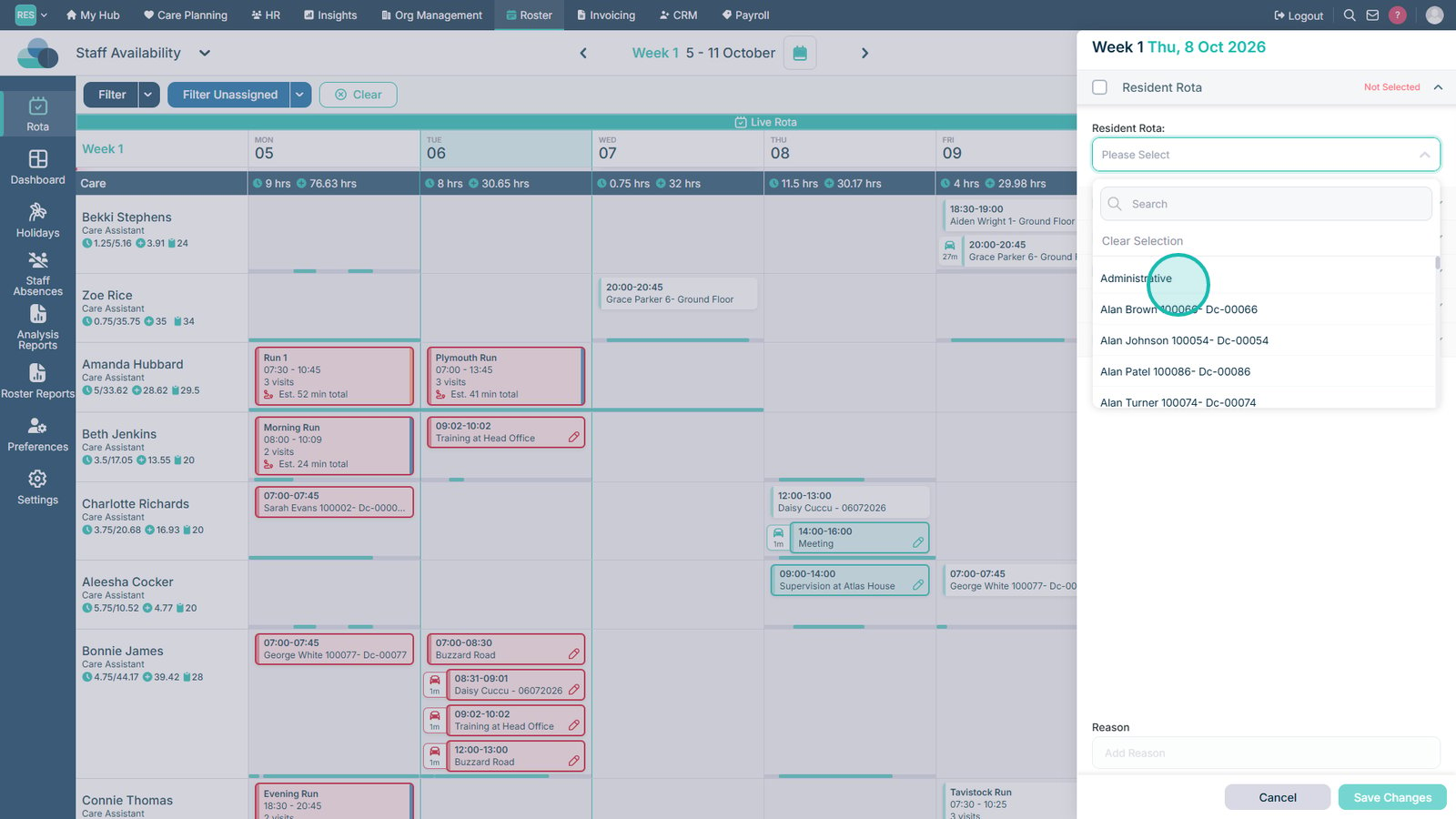
Select the Administrative Rota.

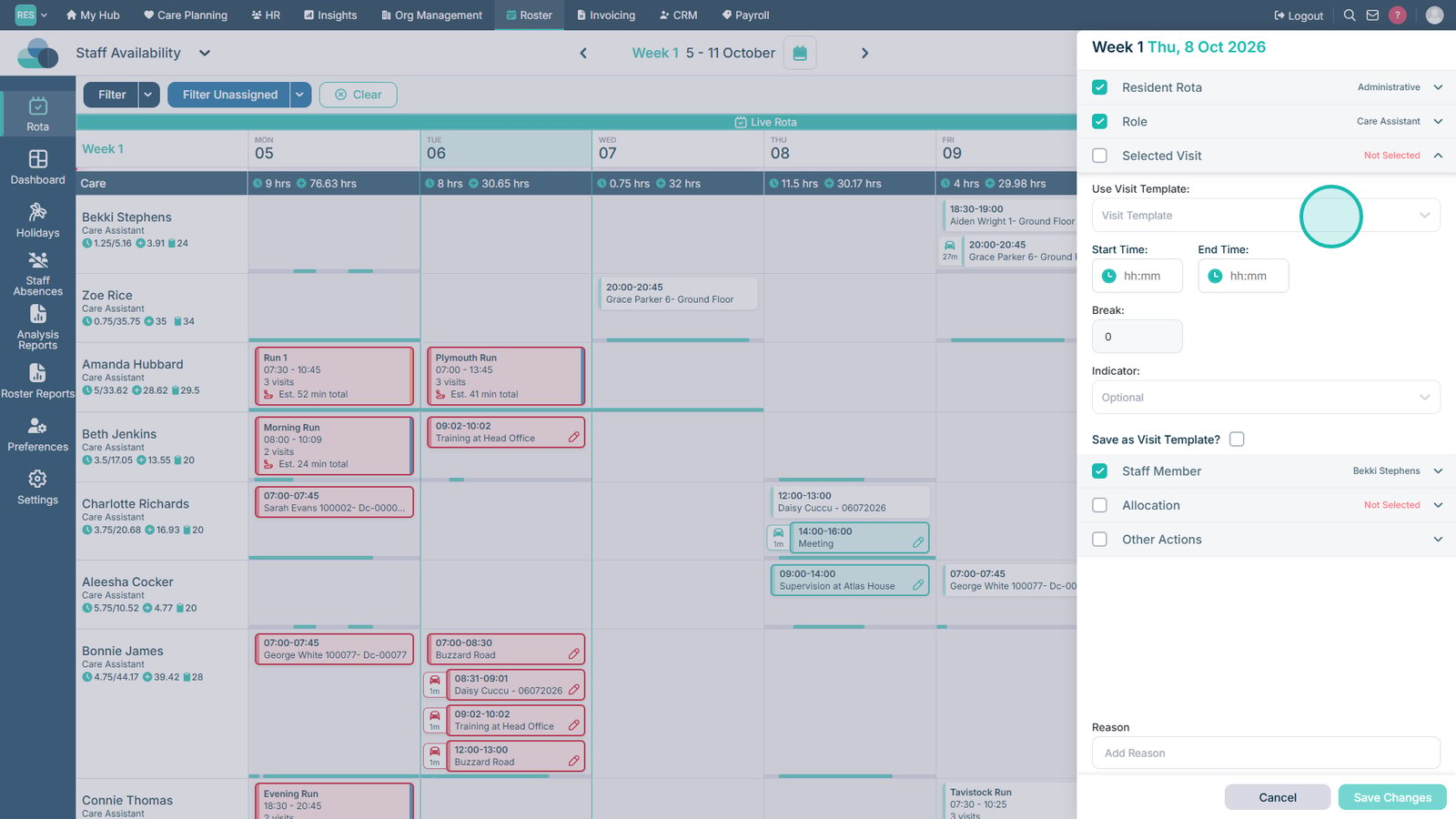
Open the Selected Visit area.

Select an existing visit template or create a new one.

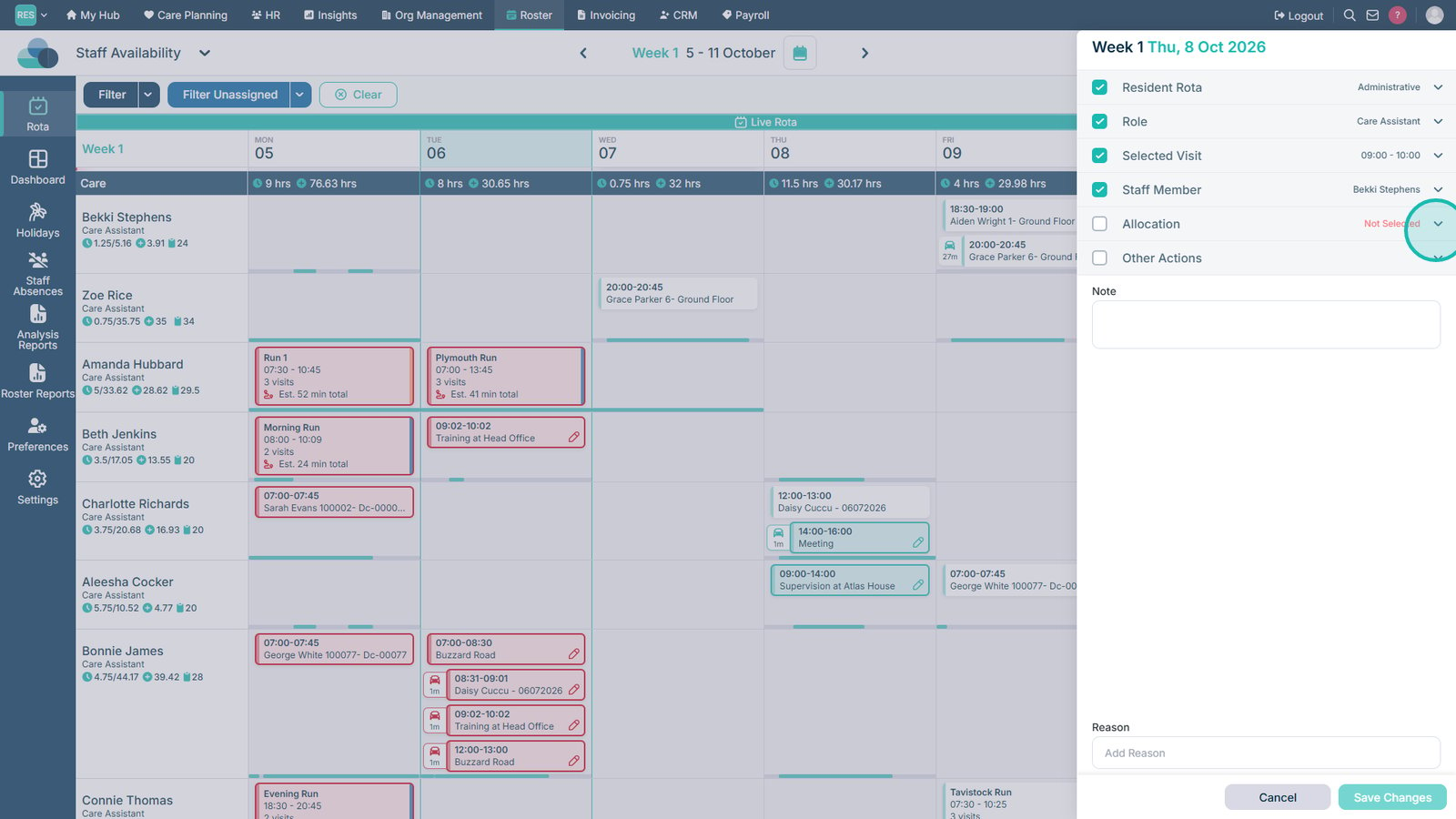
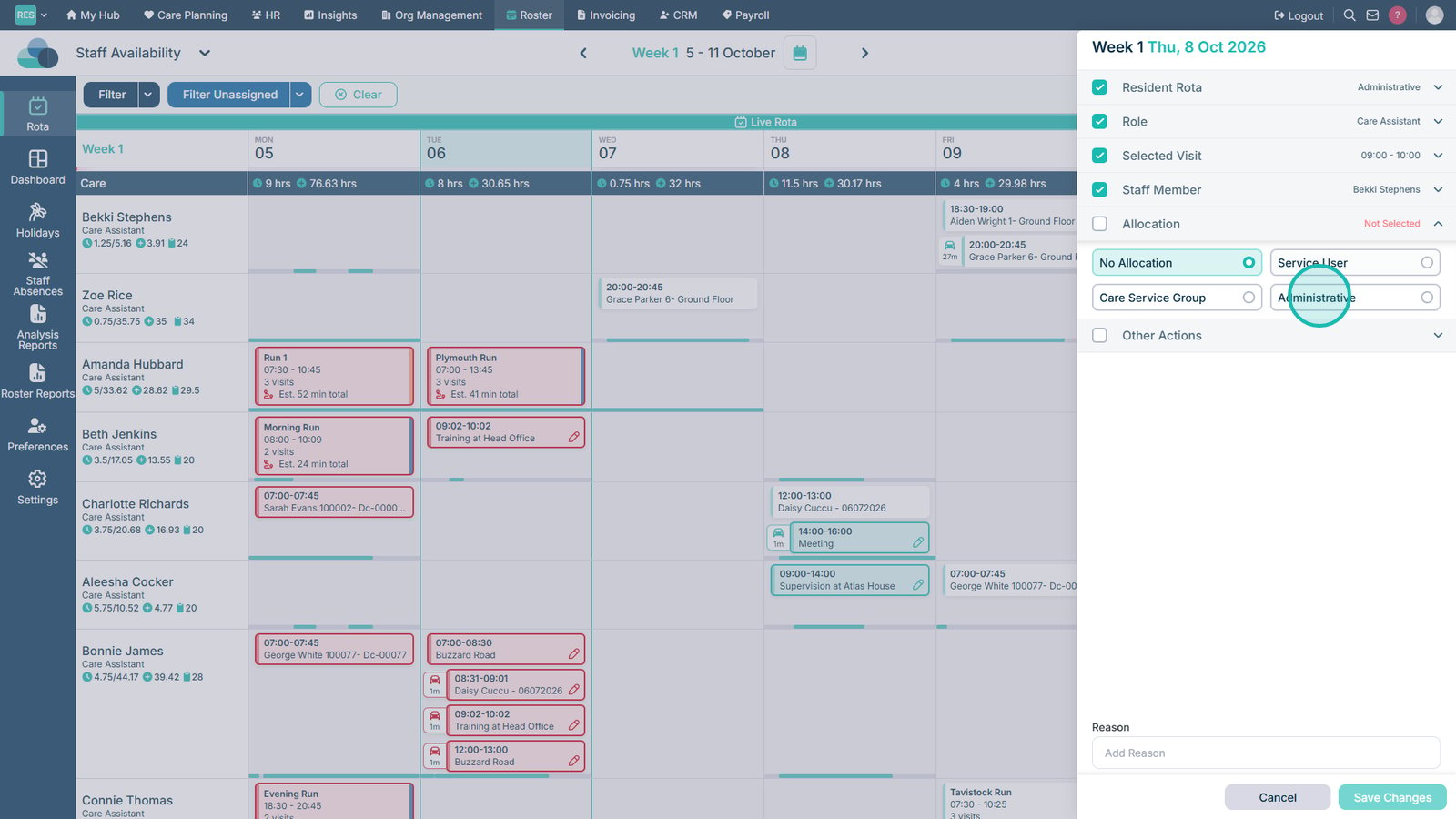
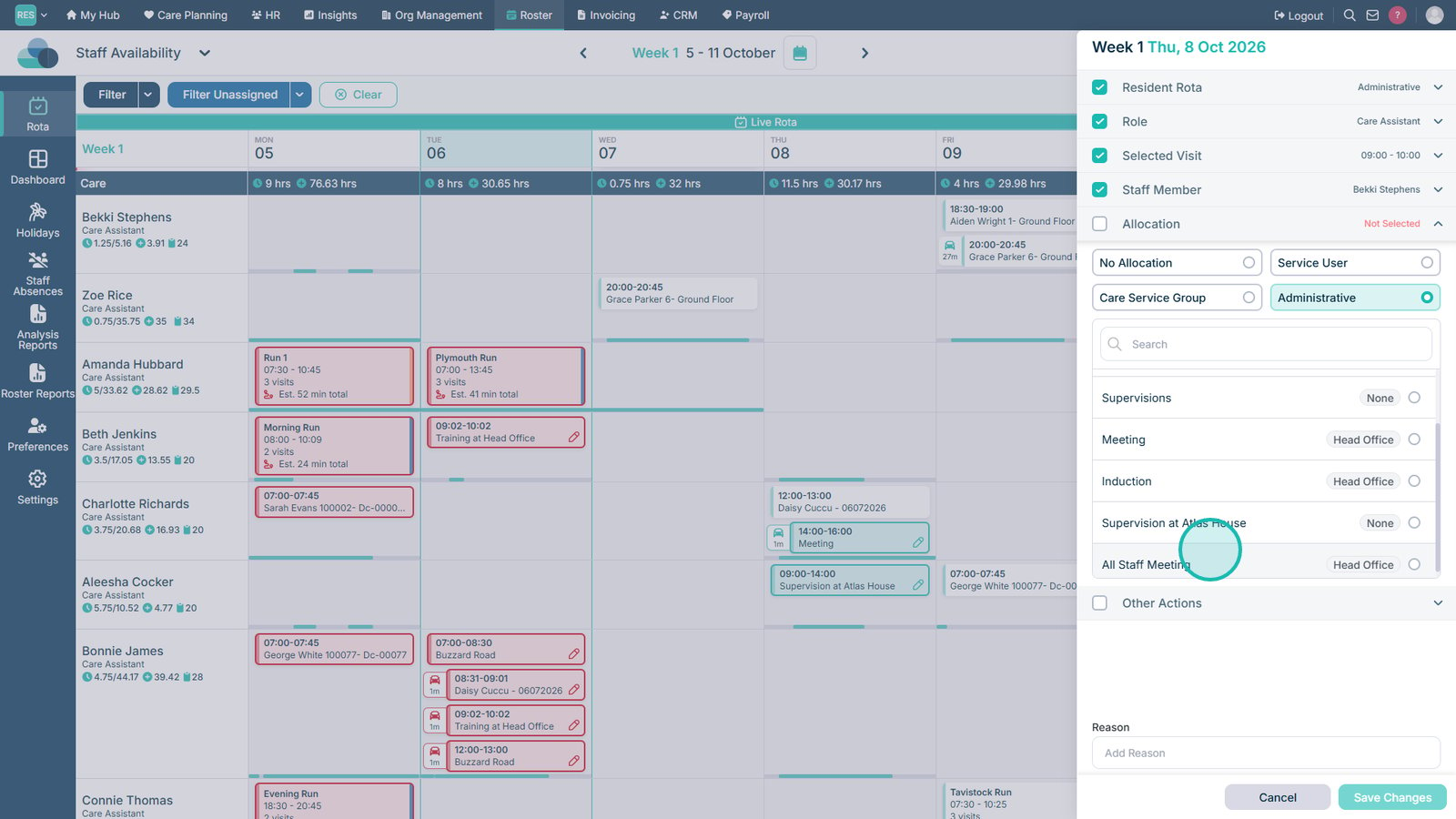
Open the Allocation tab.

Select Administrative.

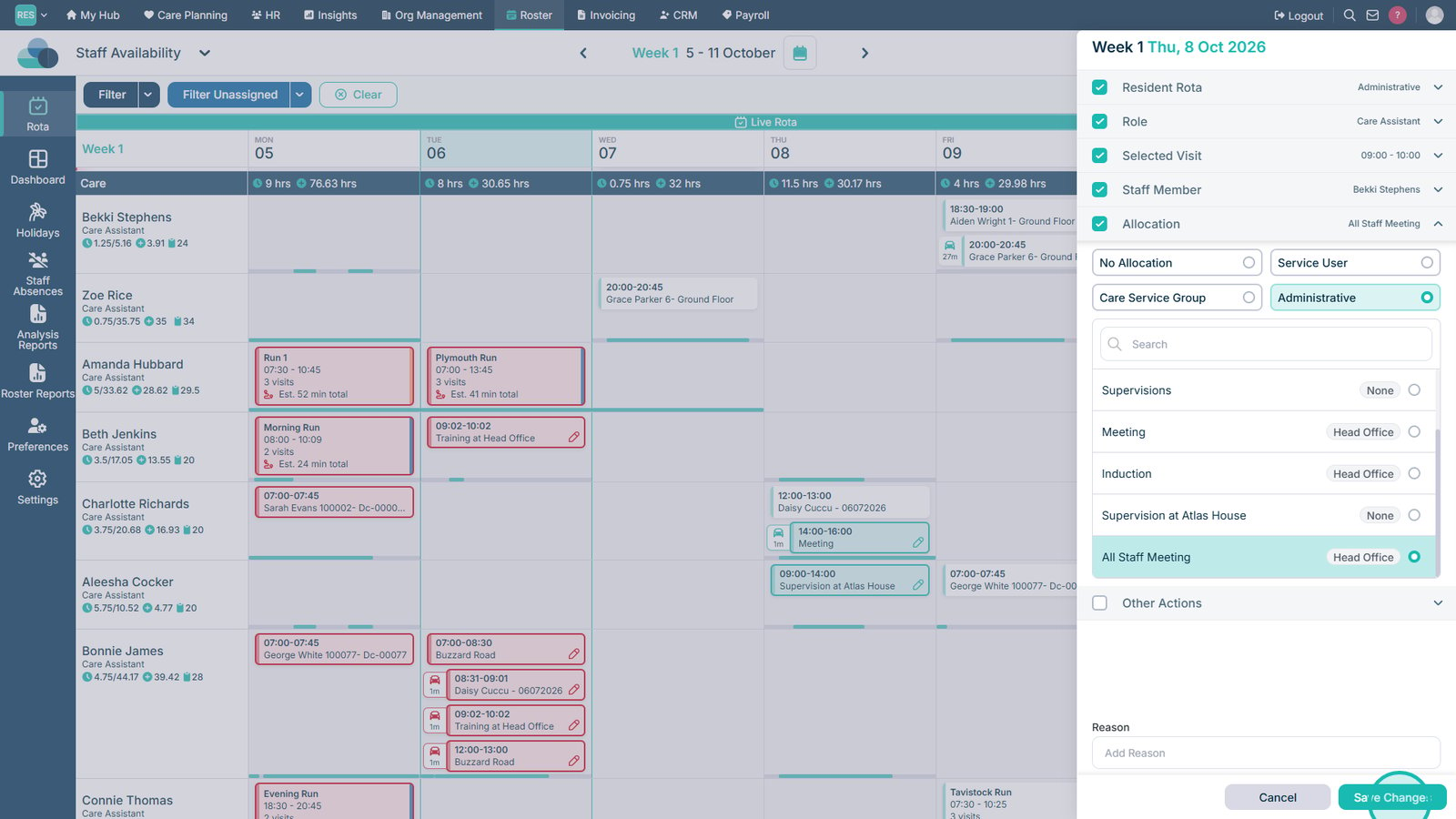
Select the administrative activity that applies to the allocation.

Select Save Changes.

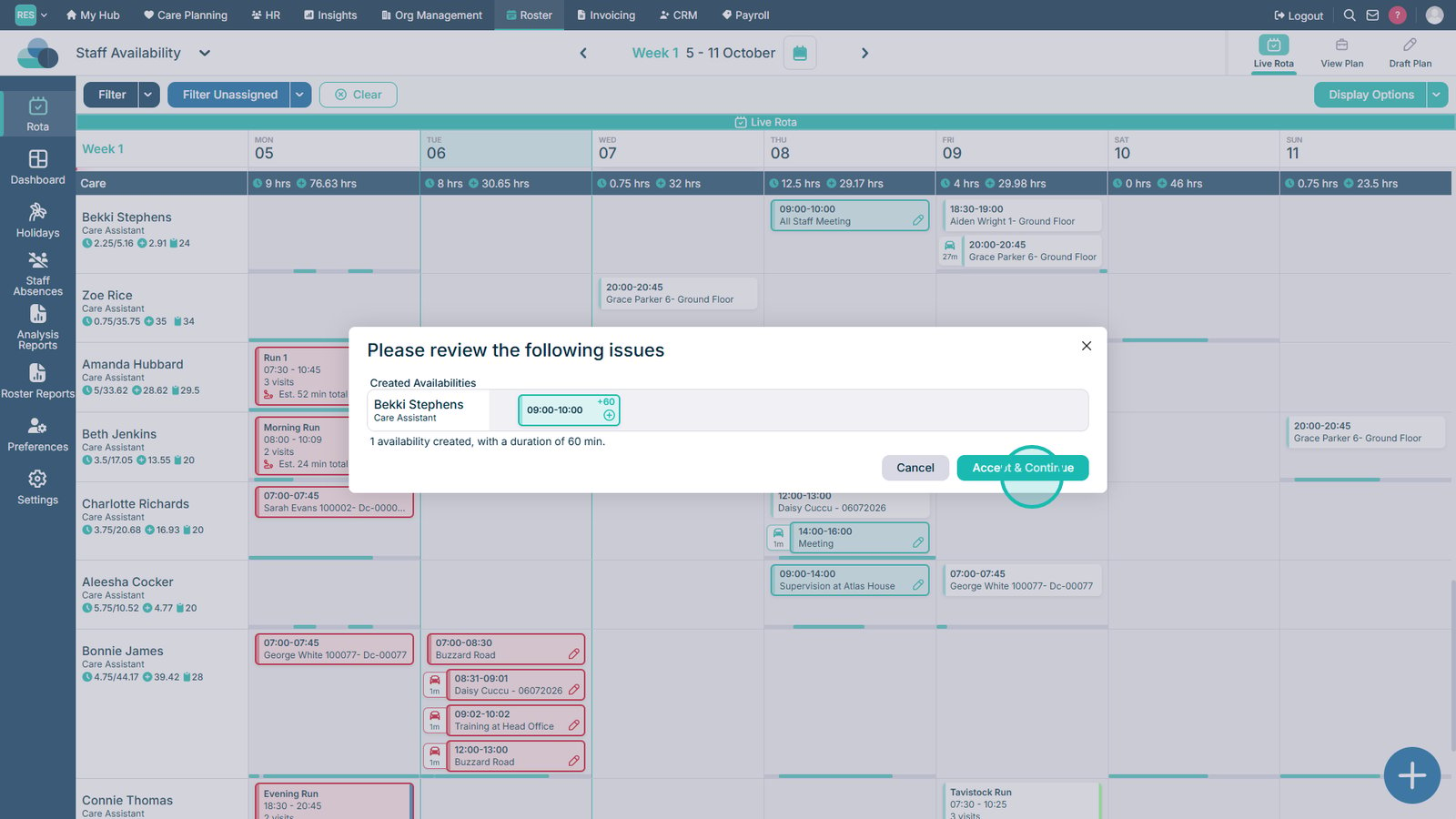
Select Accept & Continue if prompted.

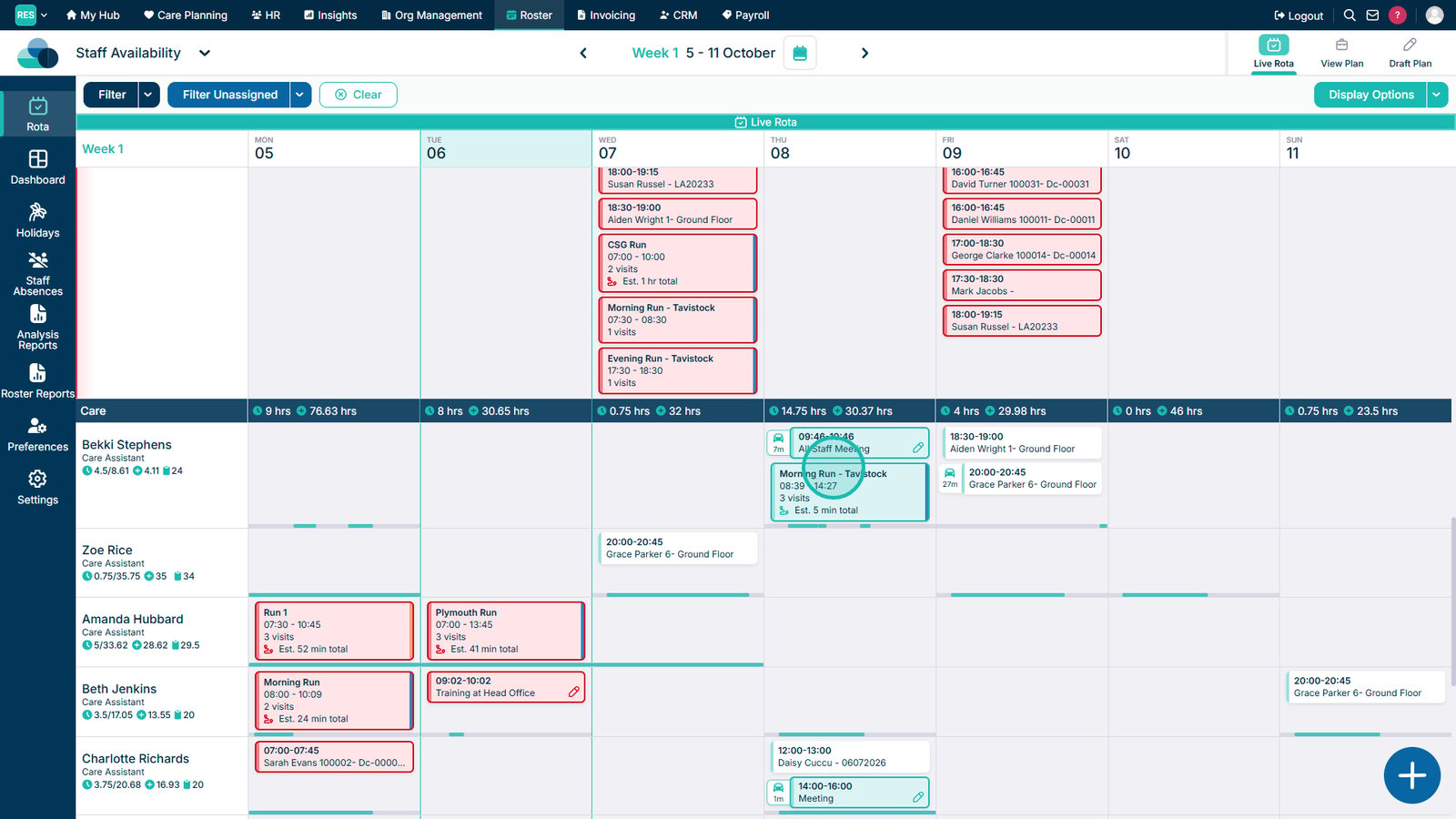
If the staff member has other shifts, any applicable travel time is displayed on the Rota.

Top tip

Set up your Administrative Allocations before adding them to the Rota. This makes it easier to select the correct activity and location when creating the allocation.

Was this guide helpful?

Need more help?

Can't find what you're looking for? Our support team is here to help.

Contact Support

Or call us on

On this page