How to Add a New Room in Cloud
This guide walks you through adding a new room and assigning it to a resident, including the key details that help keep records accurate across your service.
You’ll learn how to navigate to the correct care plan area, create a new room entry, and complete the core room information such as name, number, suffix, occupancy, and size. The guide also covers pricing fields, so you can record minimum and maximum costs where required, along with a short description to help staff quickly understand what the room offers.
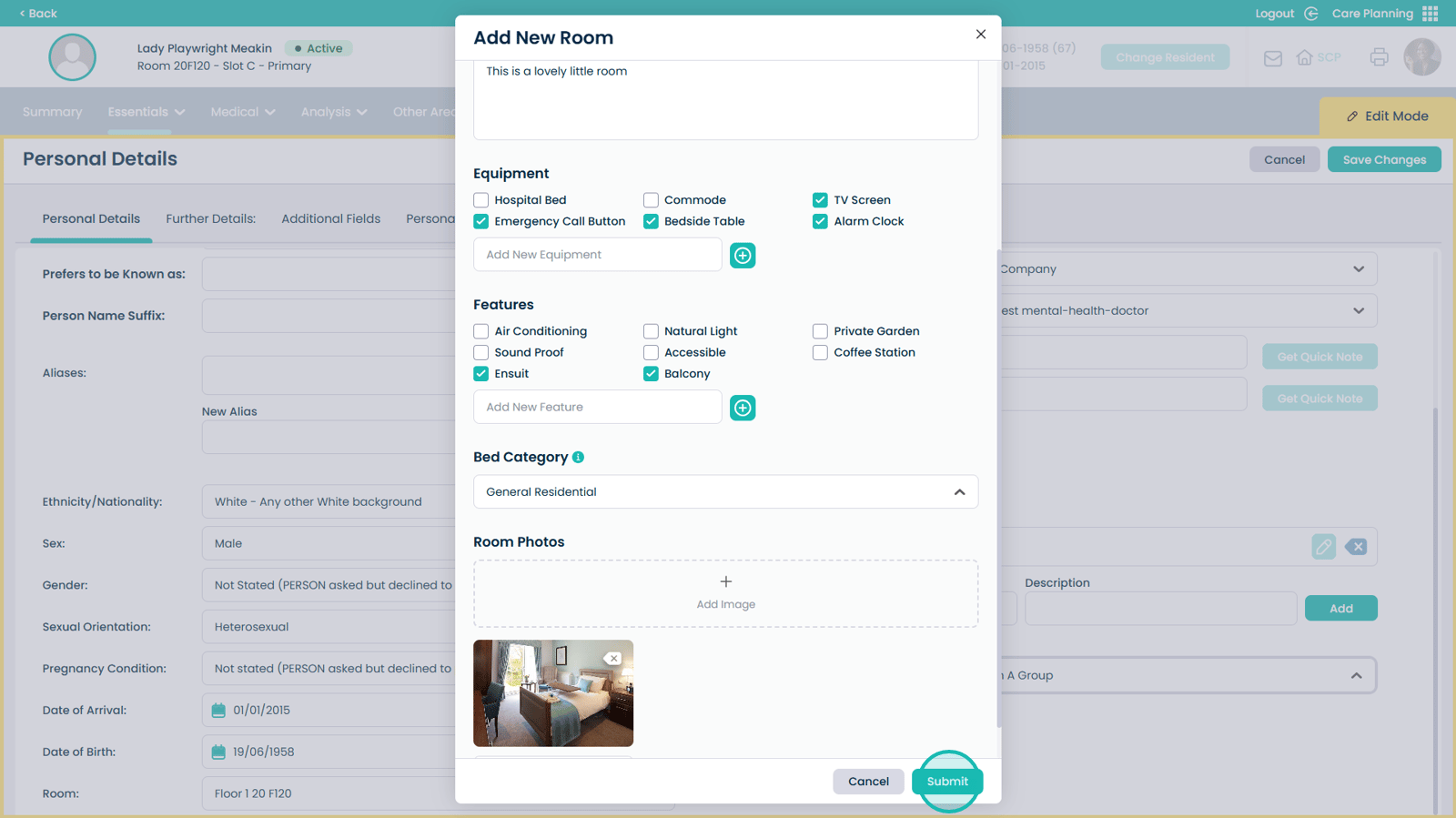
To keep room records useful and searchable, you’ll also see how to add equipment and features (including creating new ones if they don’t already exist), select the appropriate bed category, and upload images with descriptions. By the end of the process, you’ll be able to submit the room details and have the room available in your room list and correctly assigned to the resident.
Interactive Guide
Text based guide
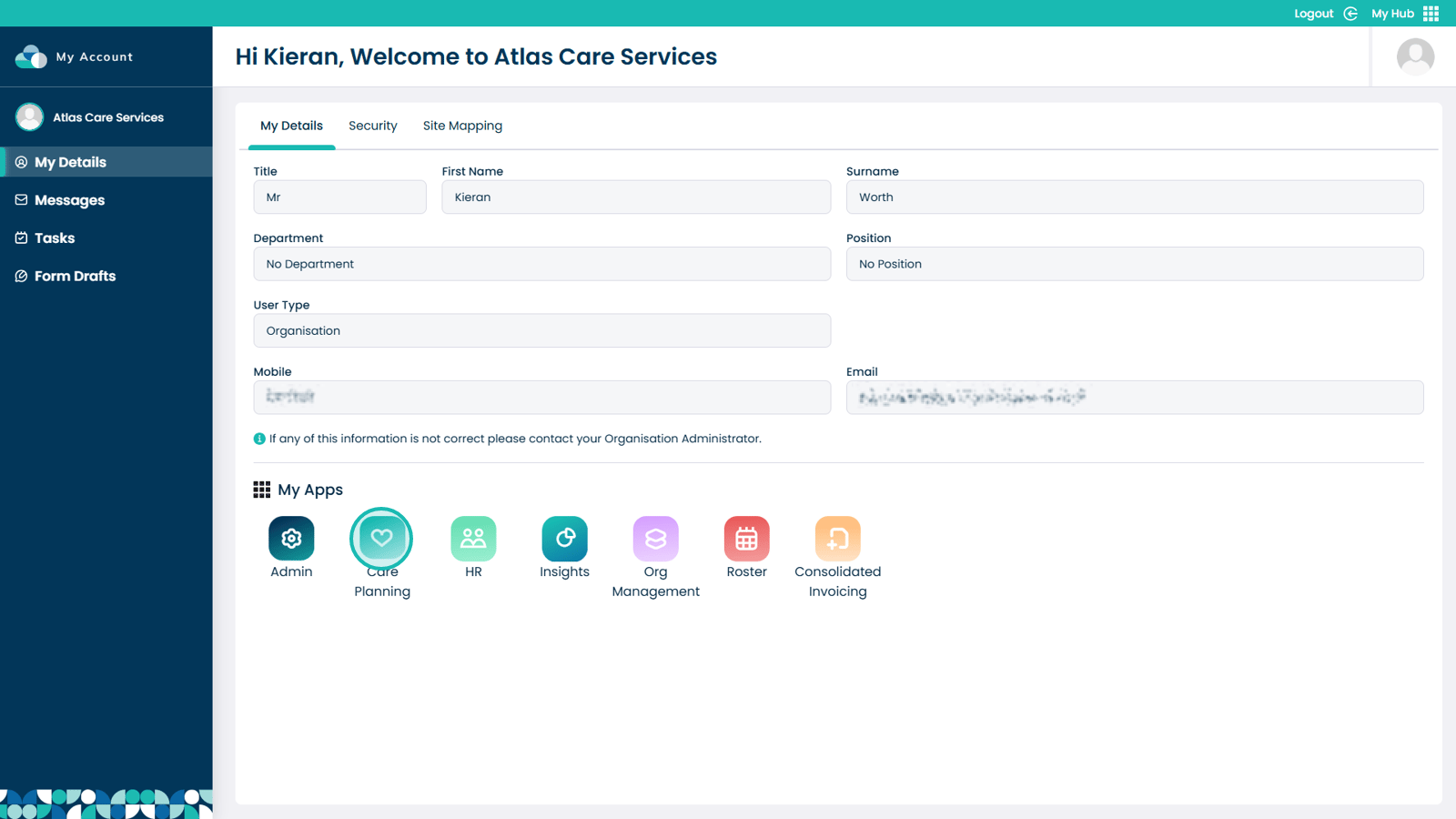
Enter the Care Planning app
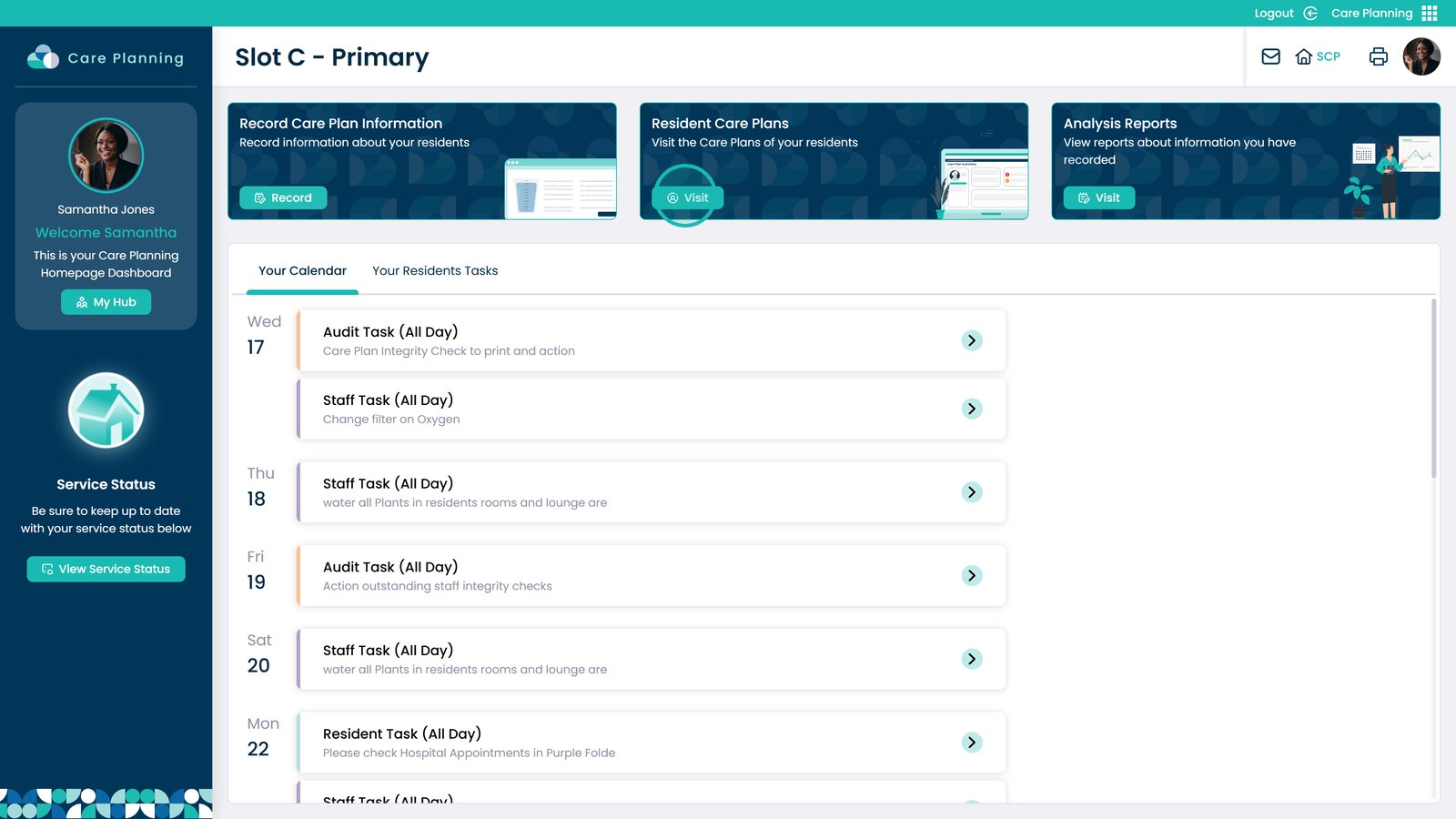
Select Visit on Resident Care Plans
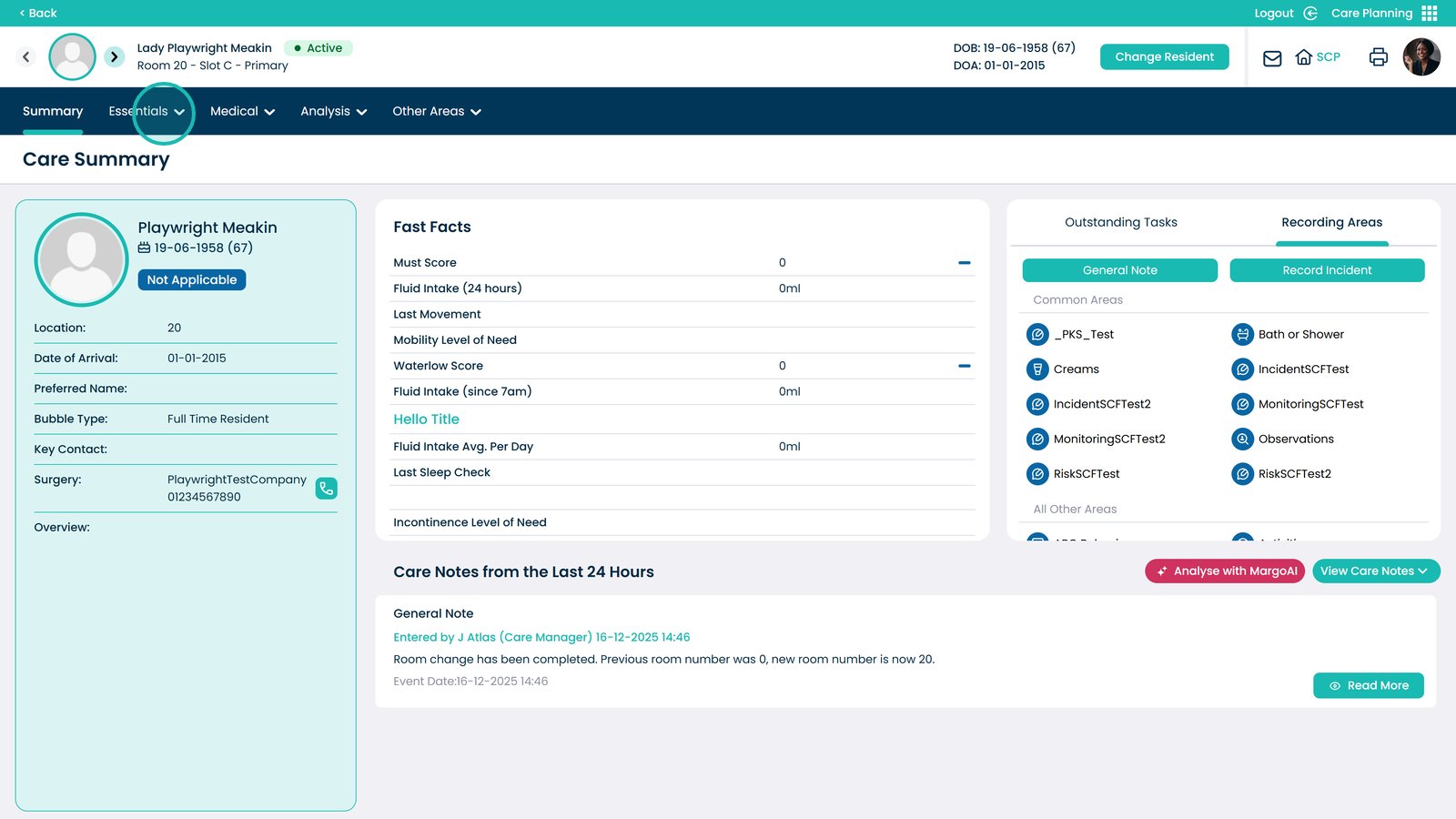
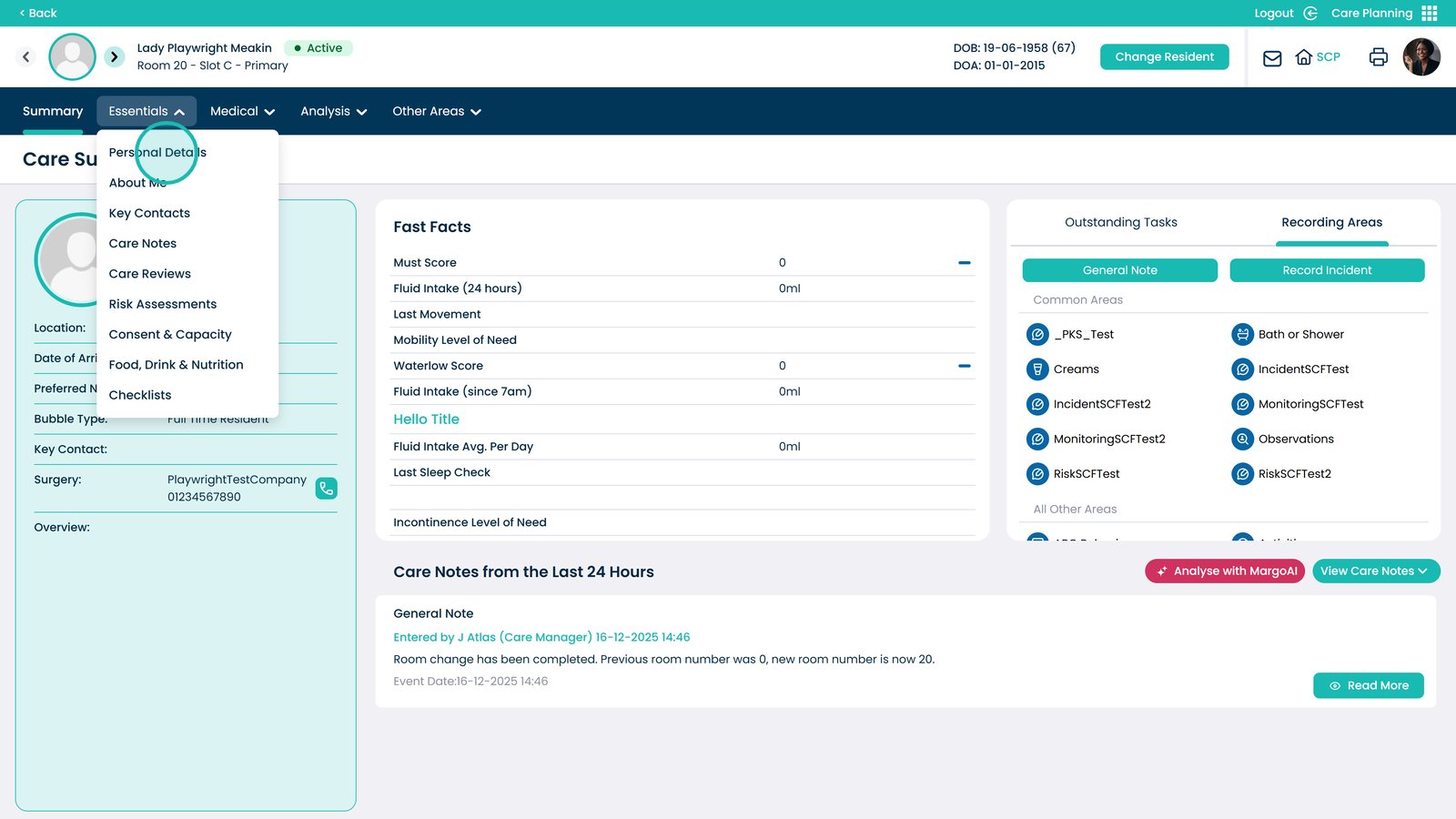
Open the Essentials dropdown
Select Personal Details
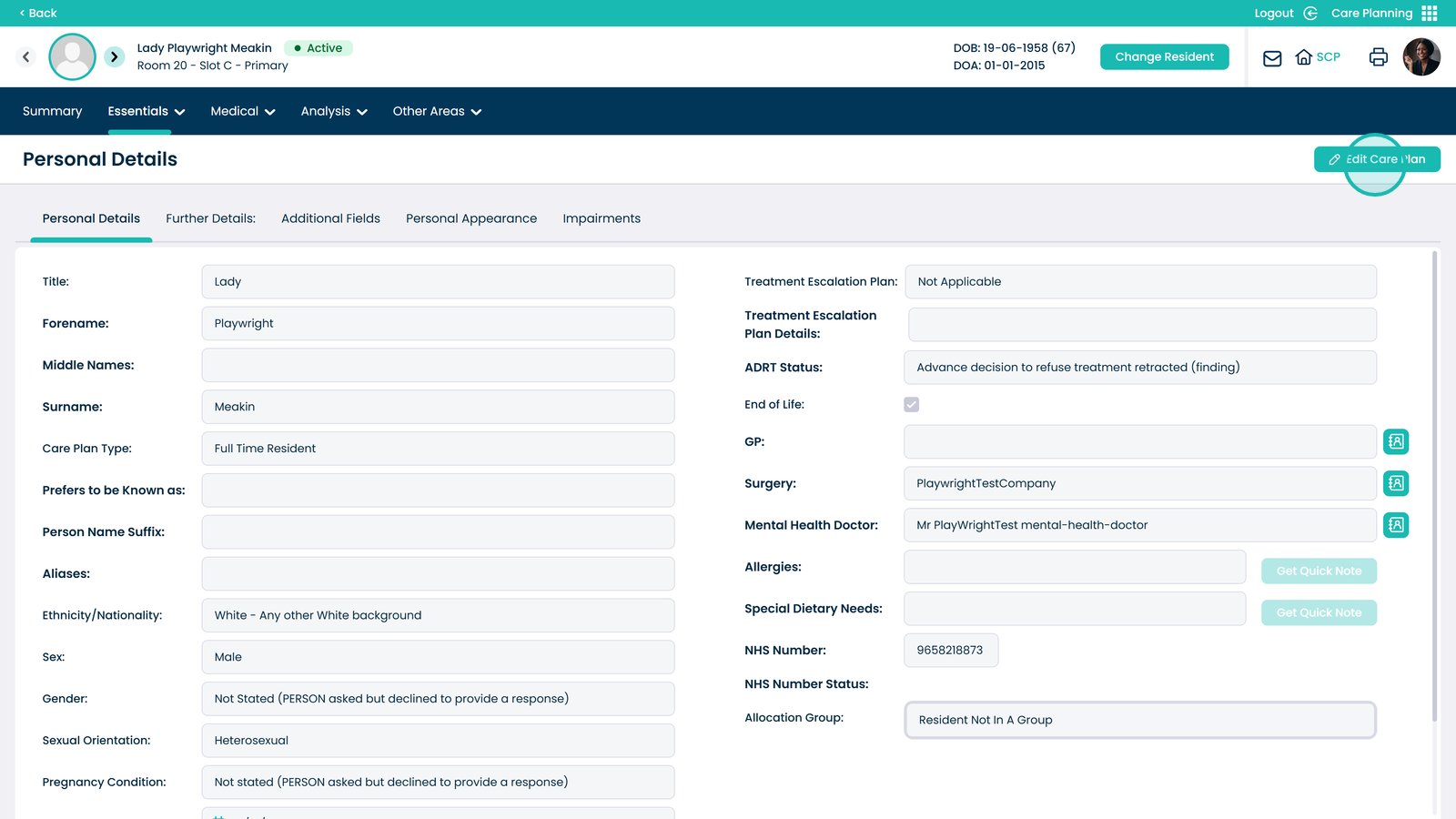
Click Edit Care Plan
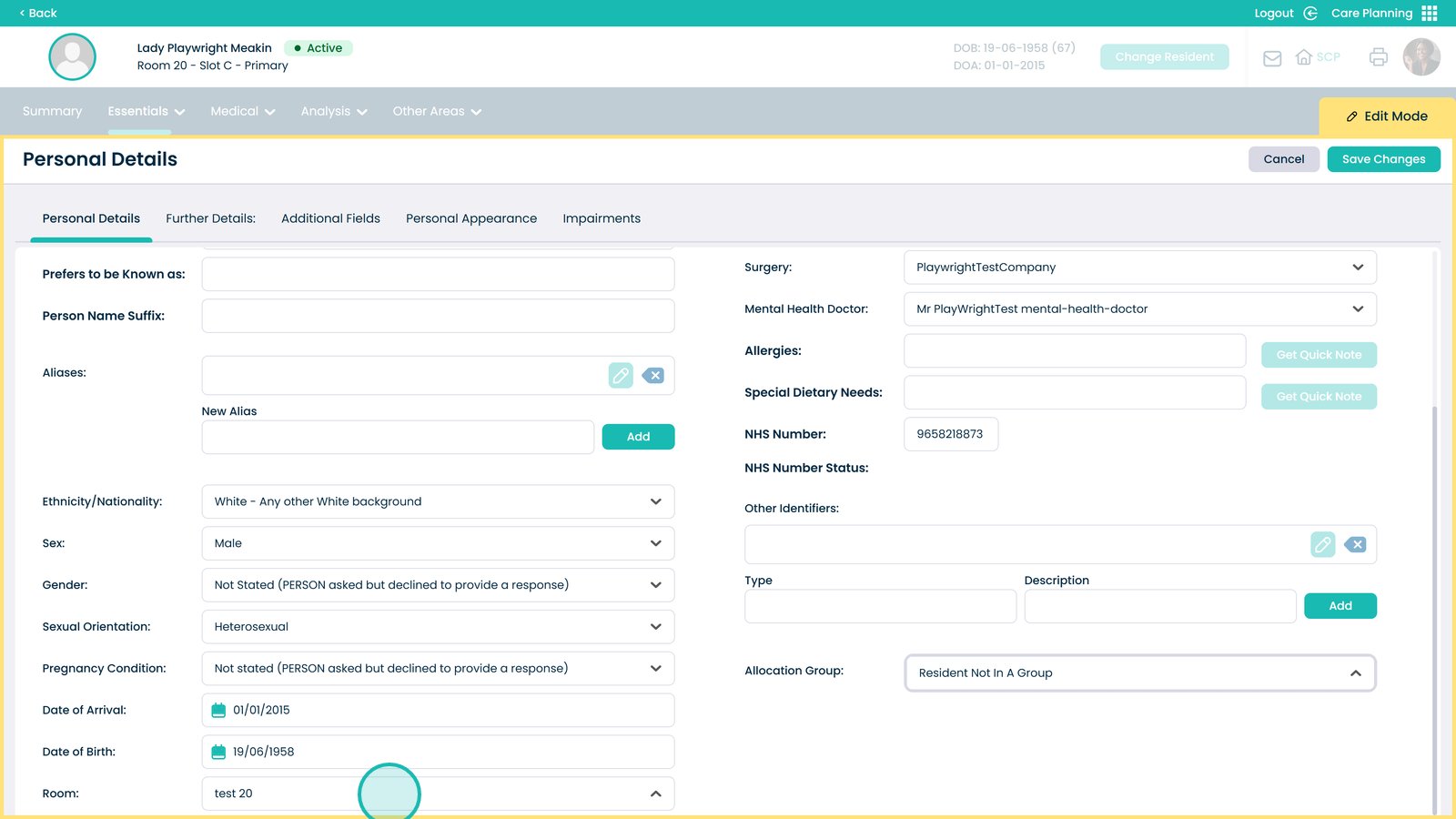
Scroll to Room and open the dropdown
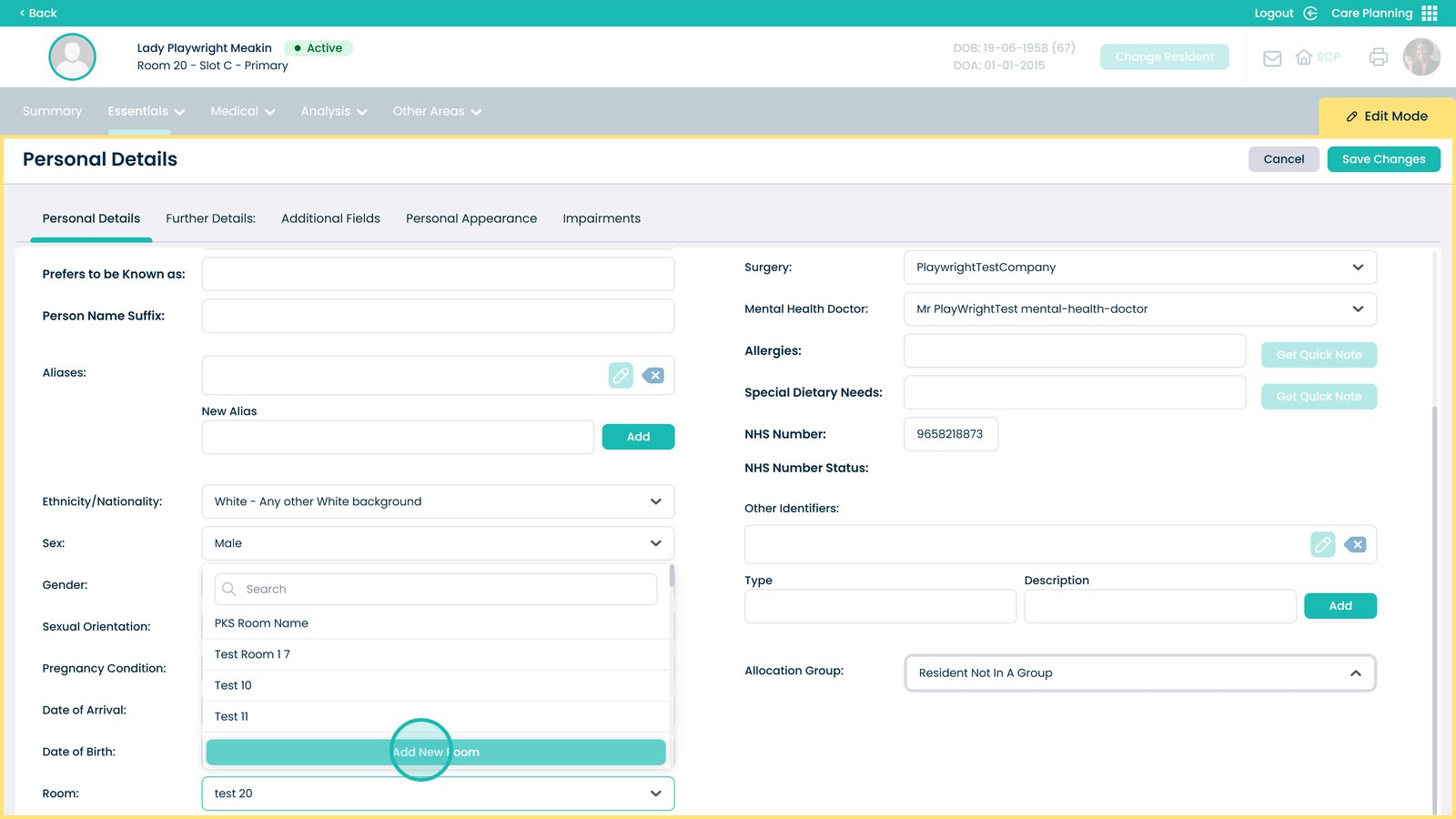
Select Add New Room
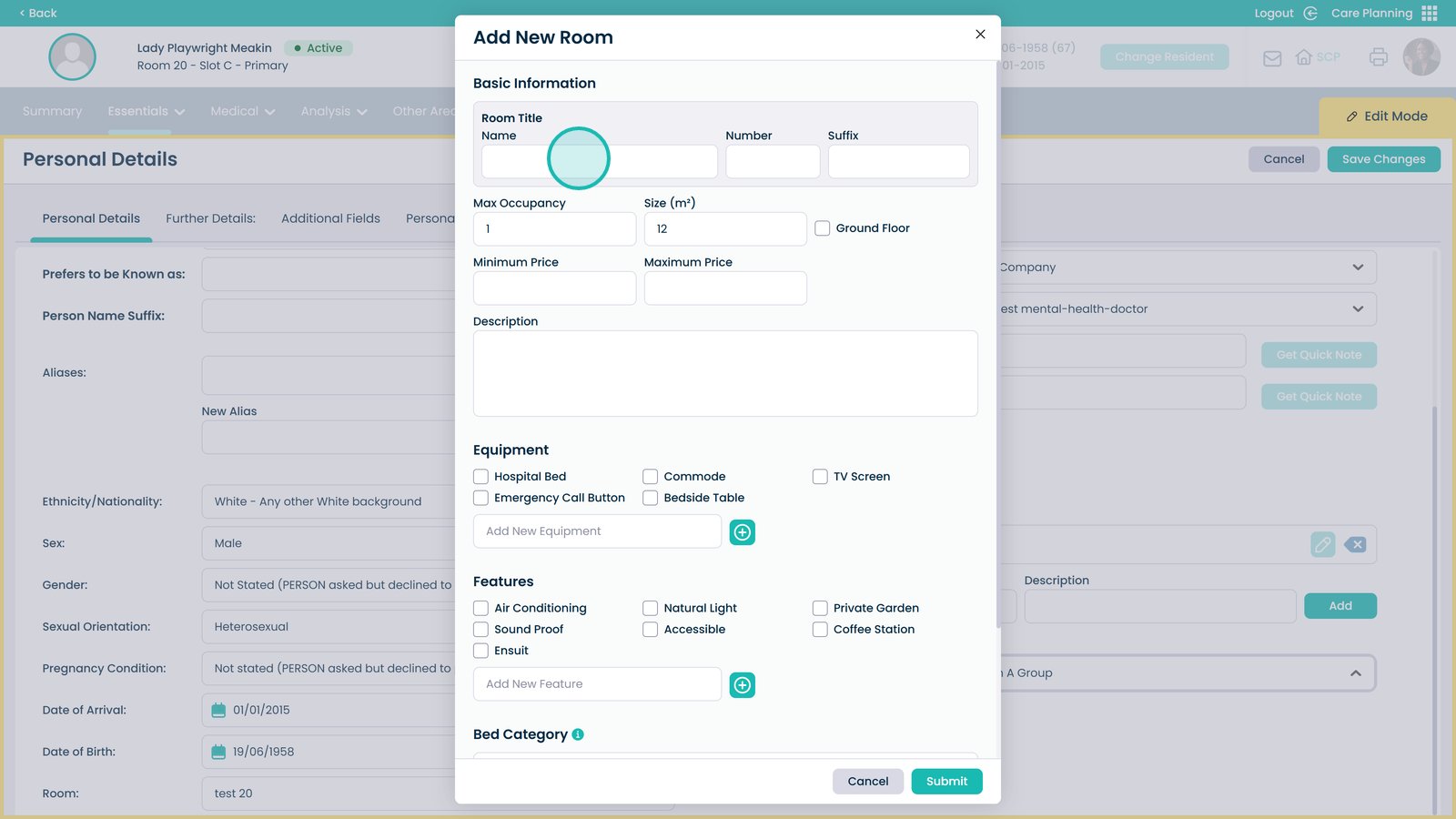
Enter the room name
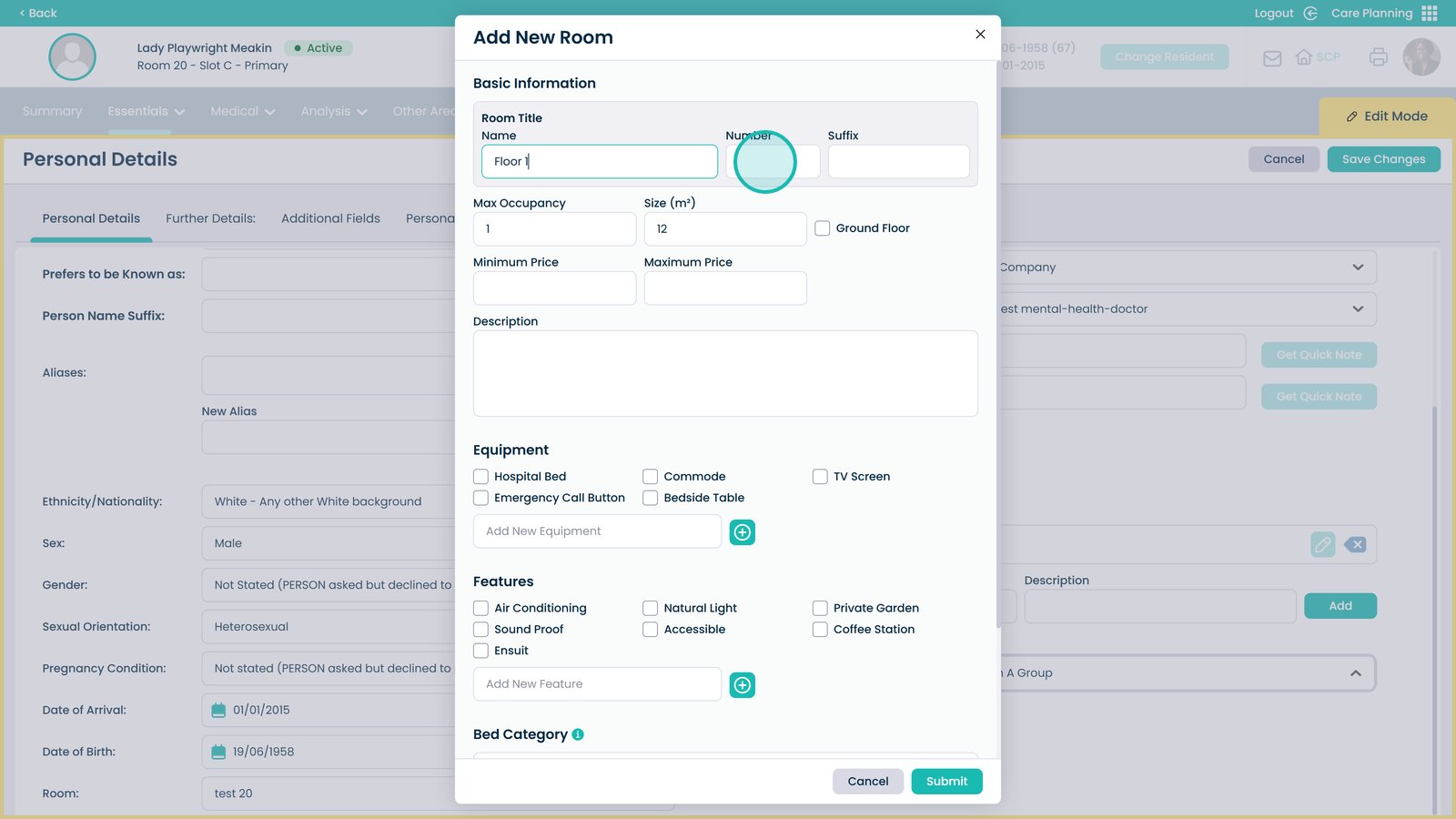
Enter the room number
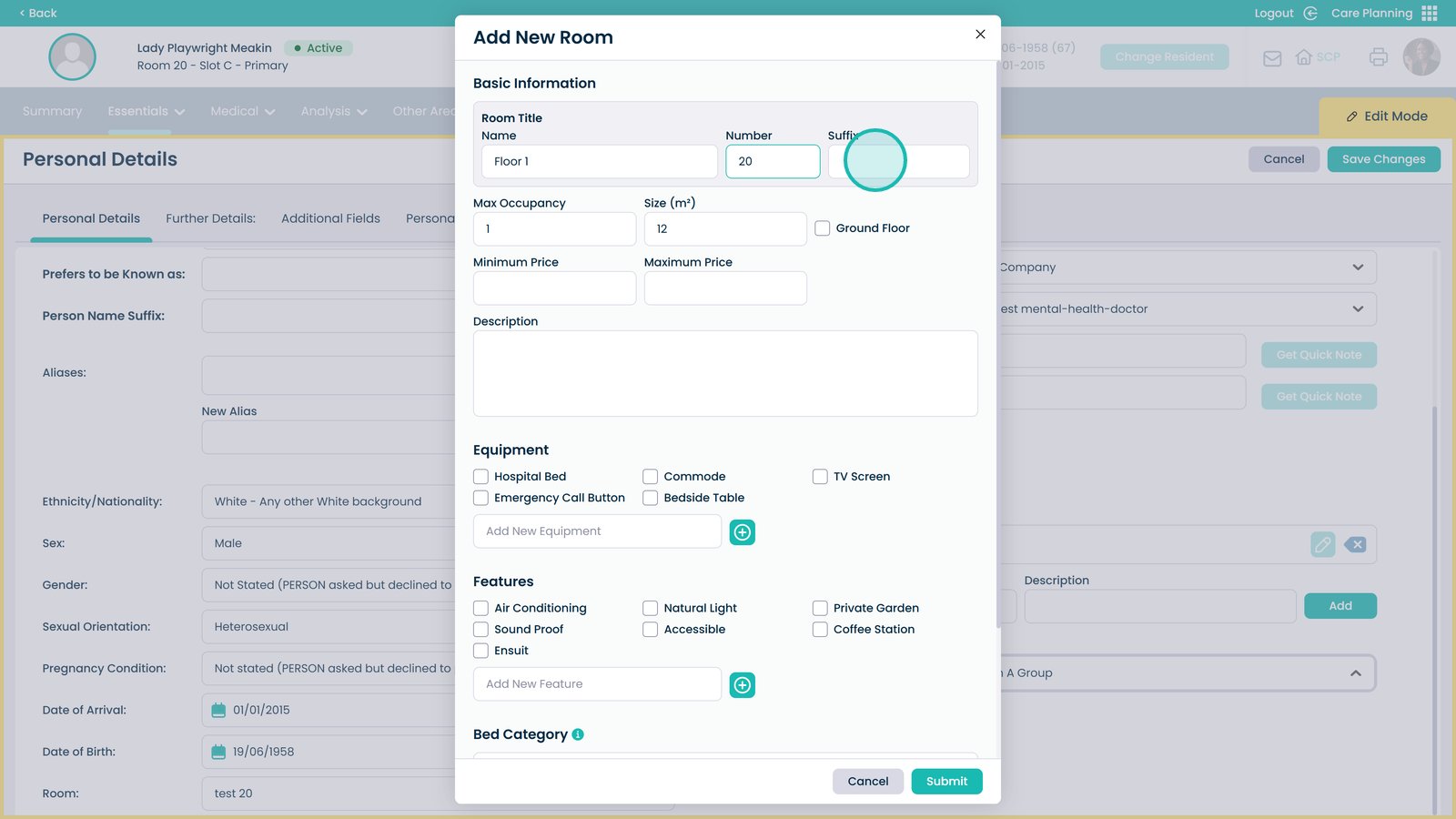
Enter the room suffix
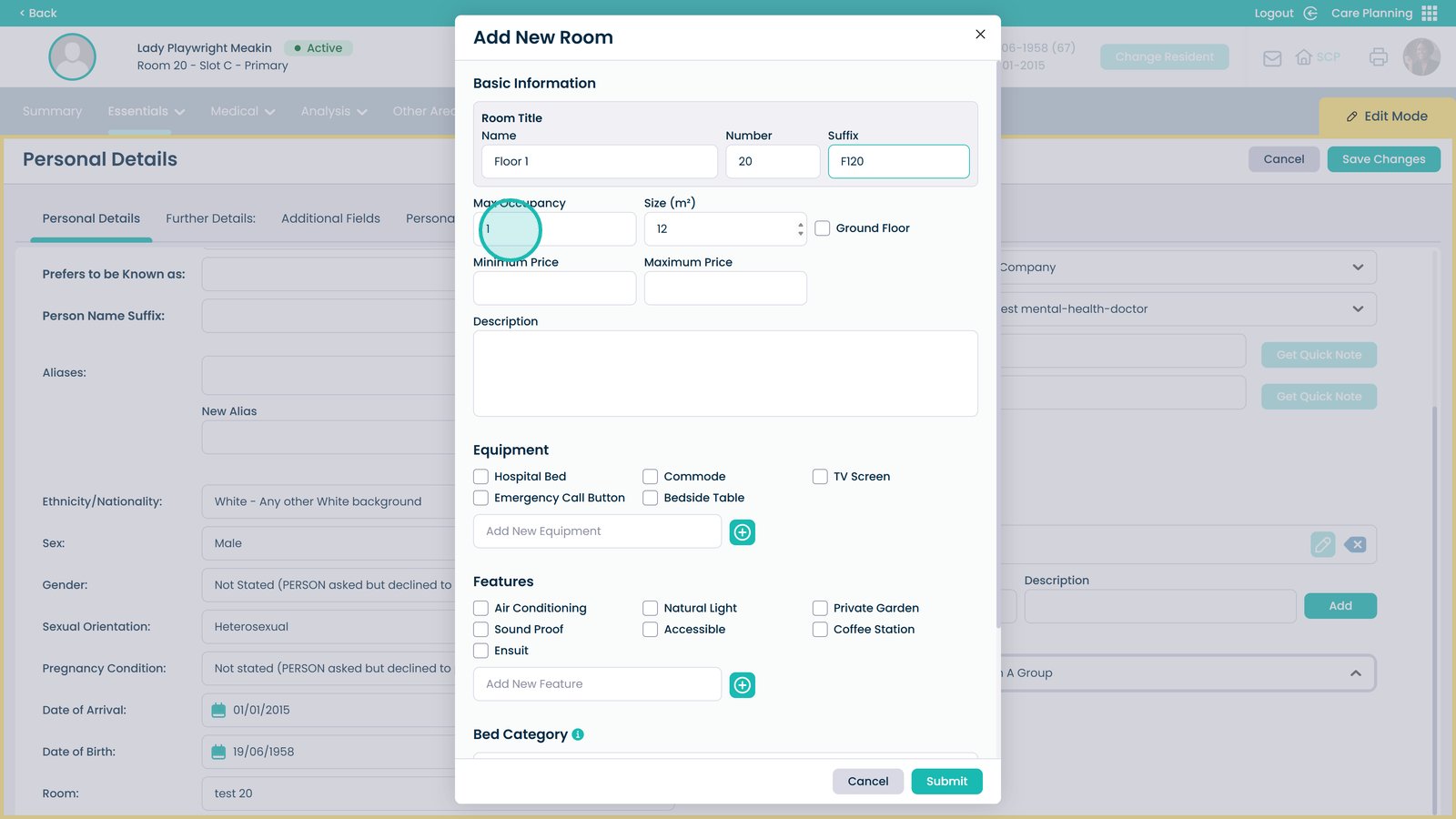
Choose the maximum occupancy
Enter the room size (m²)
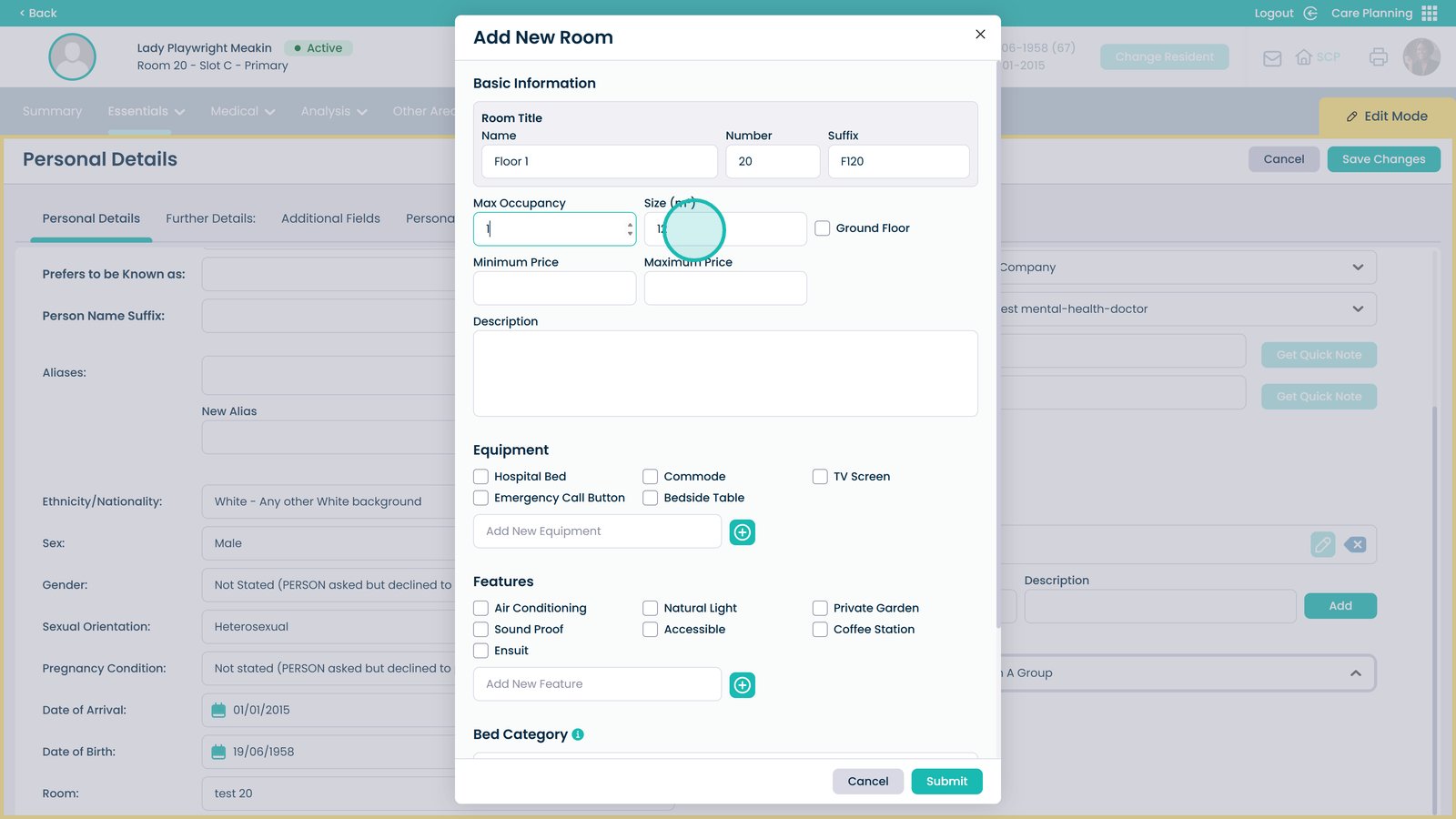
Set the minimum price
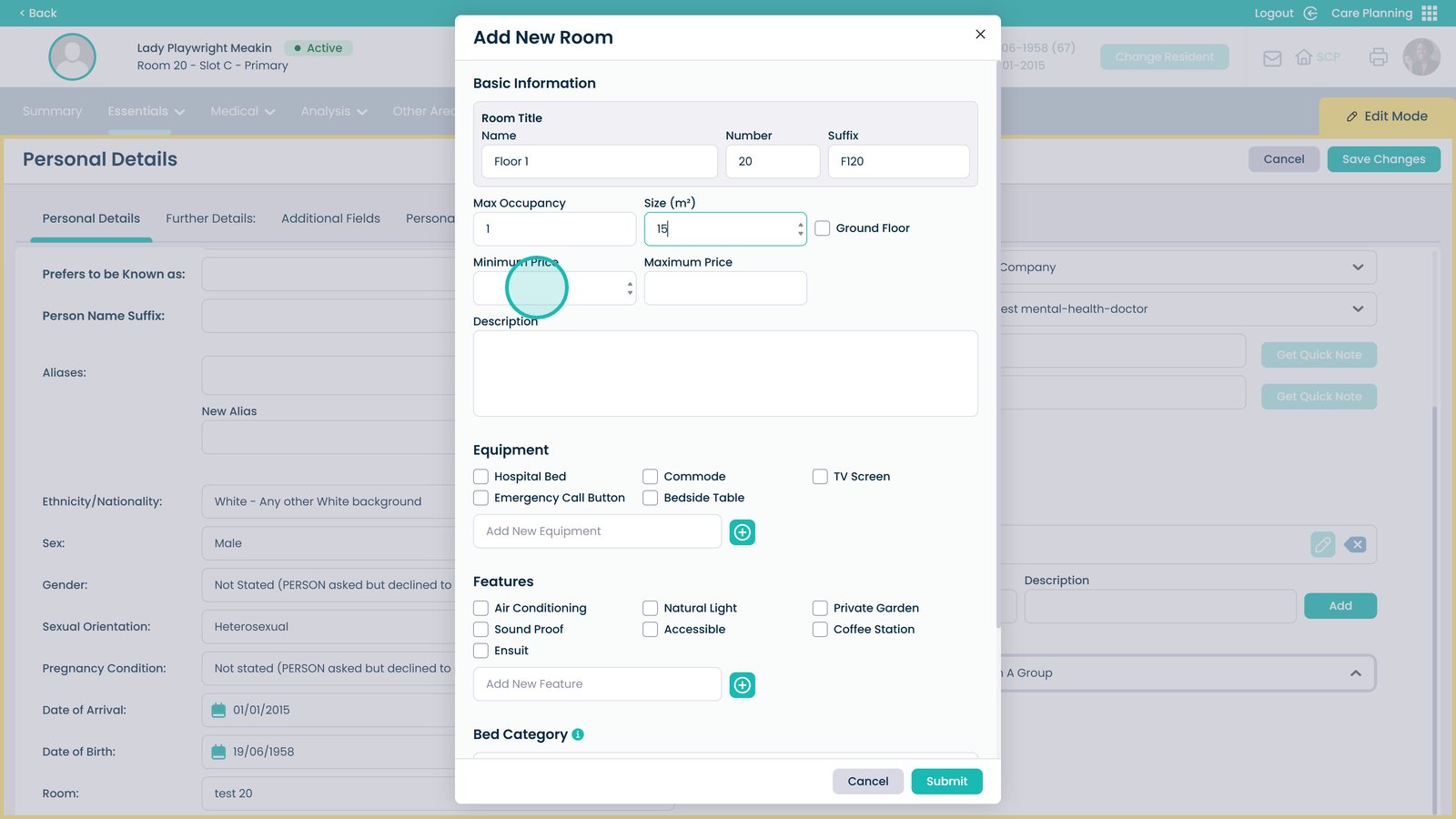
Set the maximum price
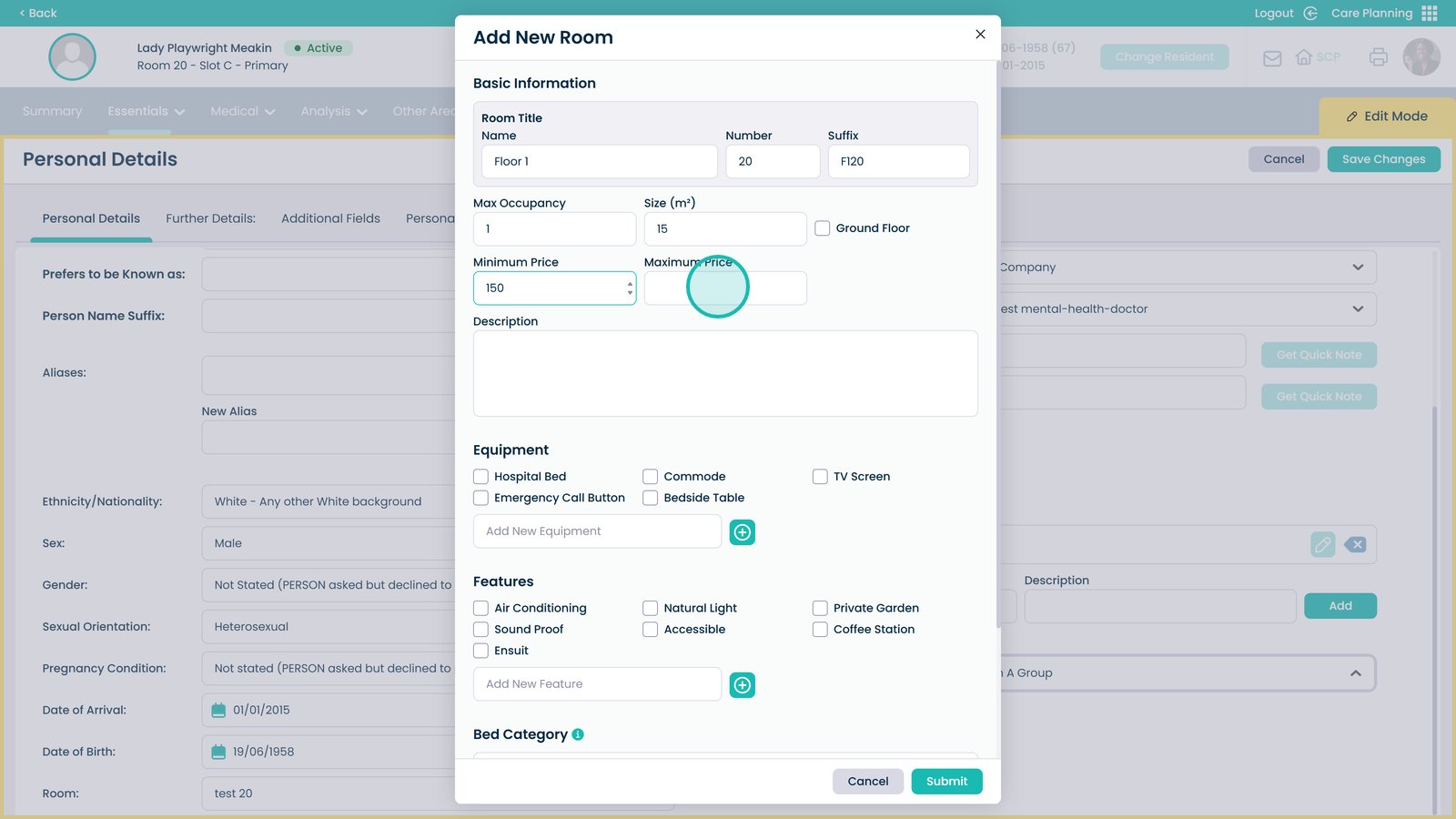
Add a short room description
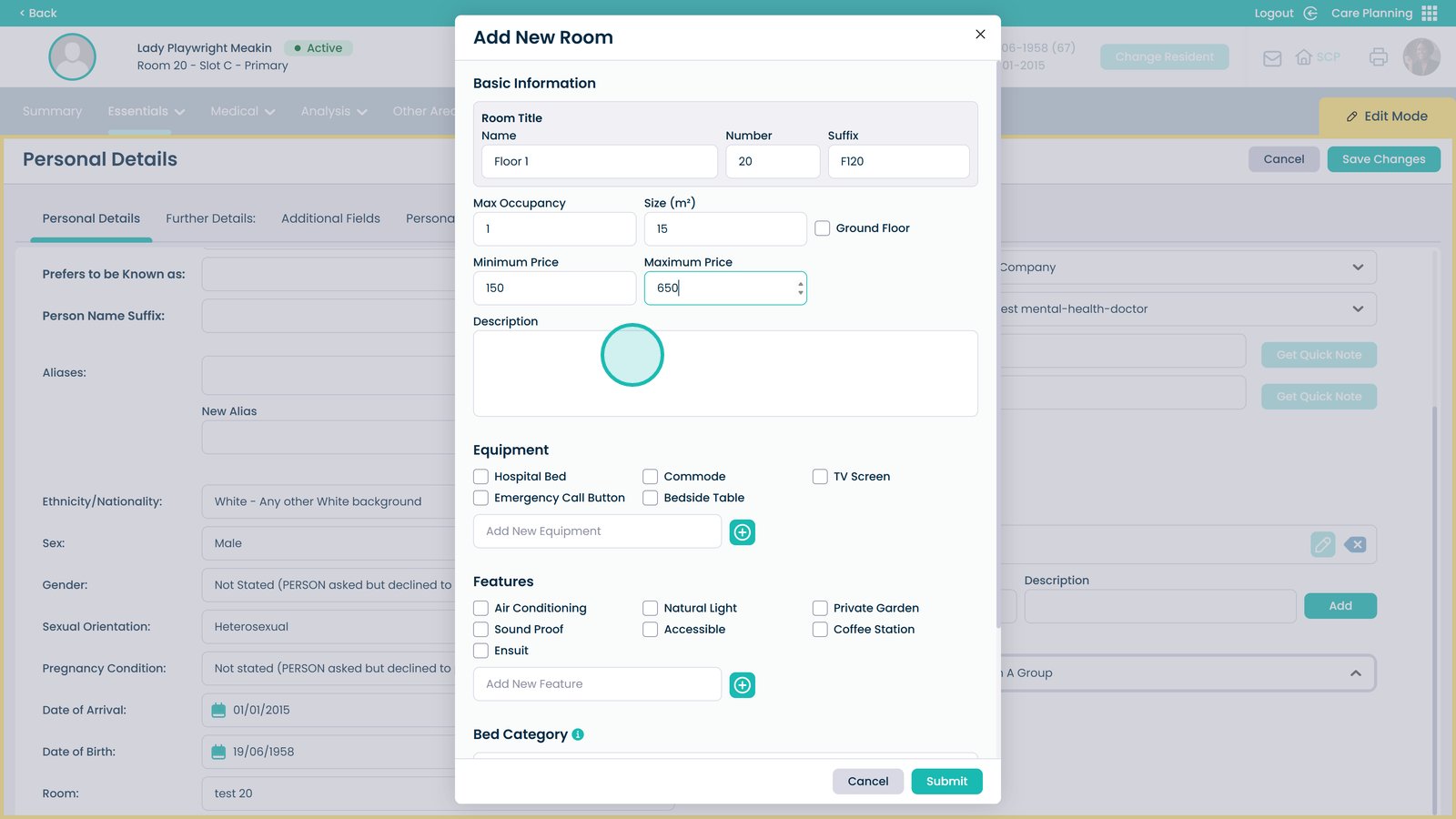
Select room equipment
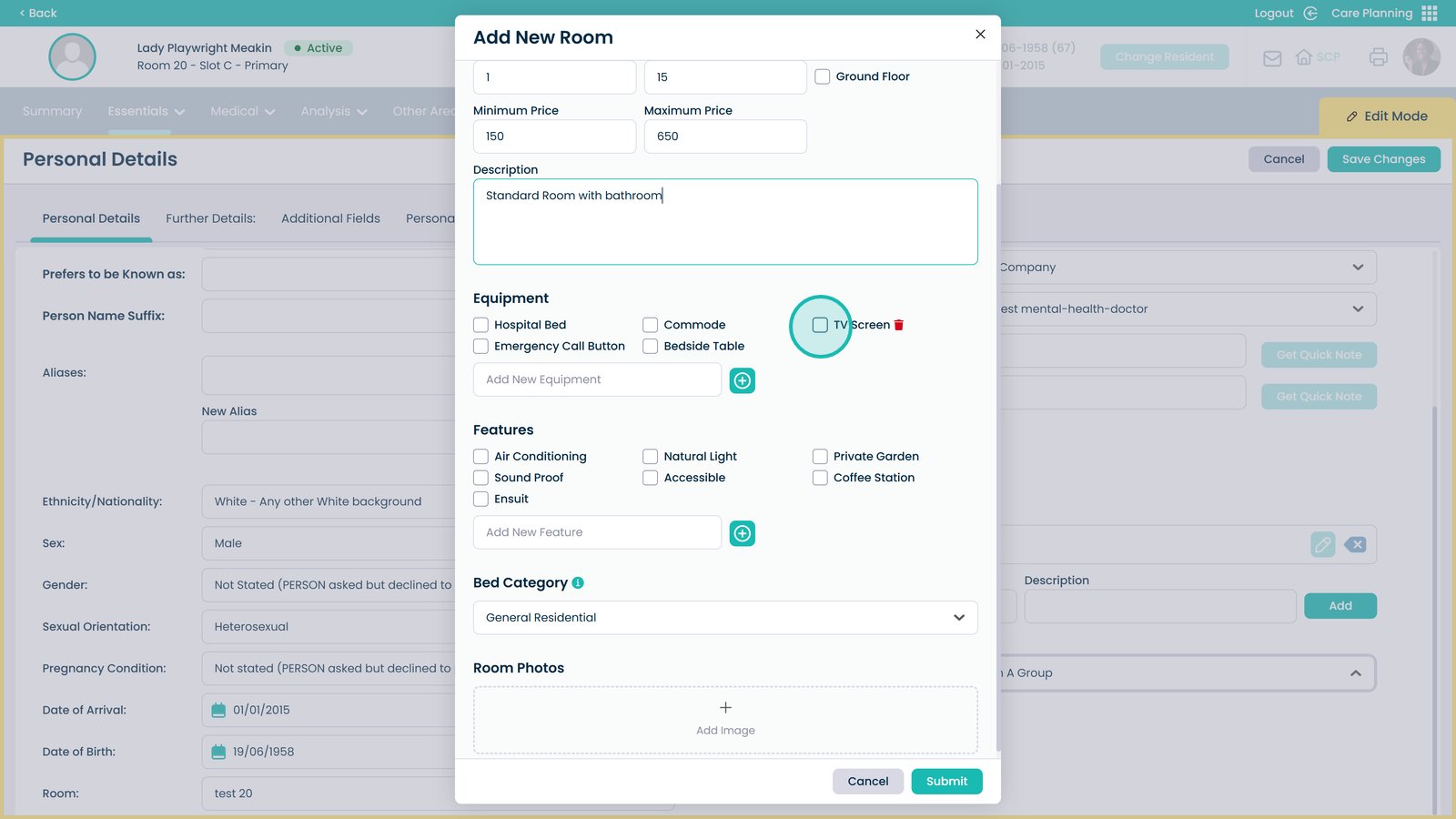
Add new equipment if needed
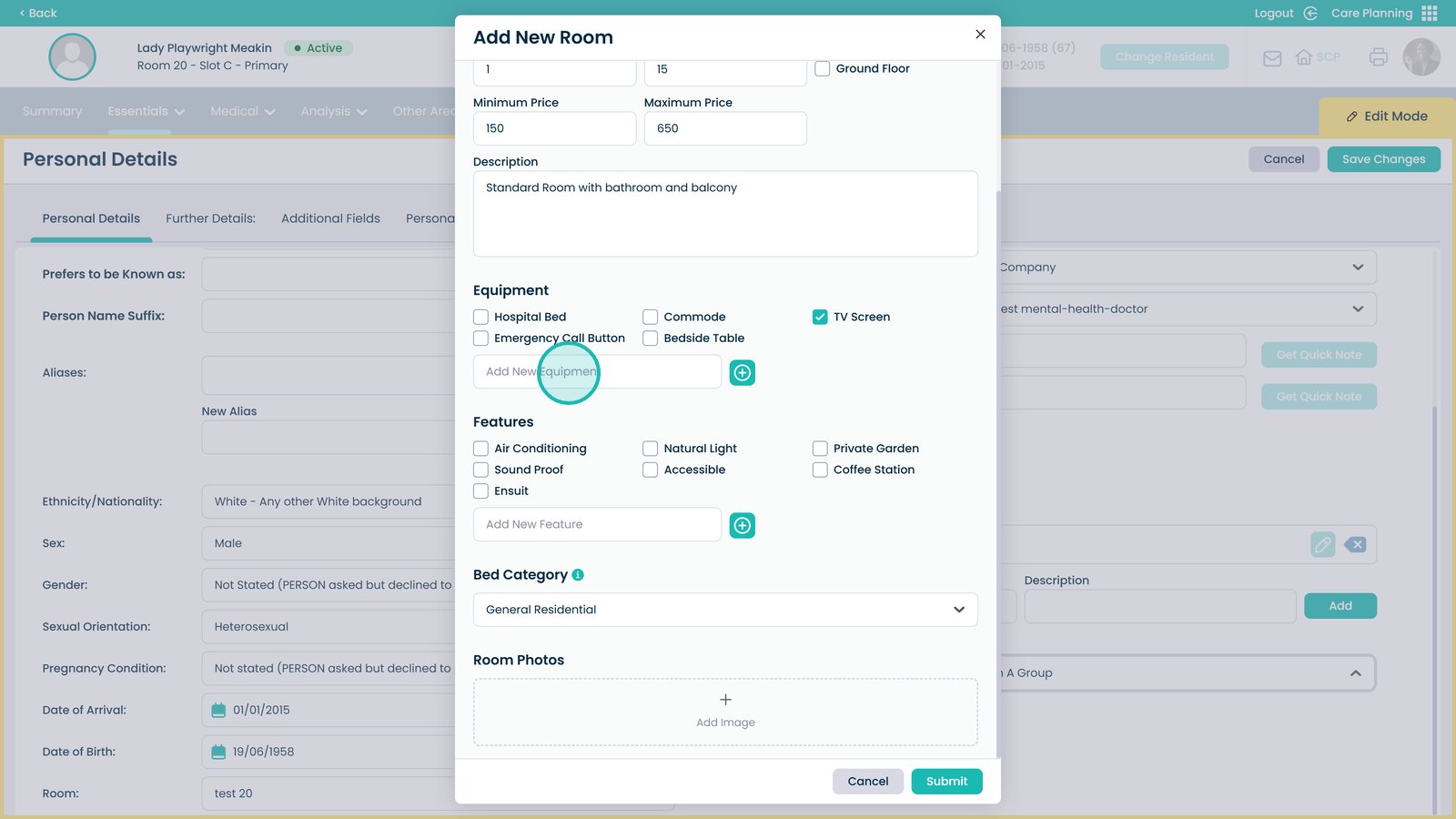
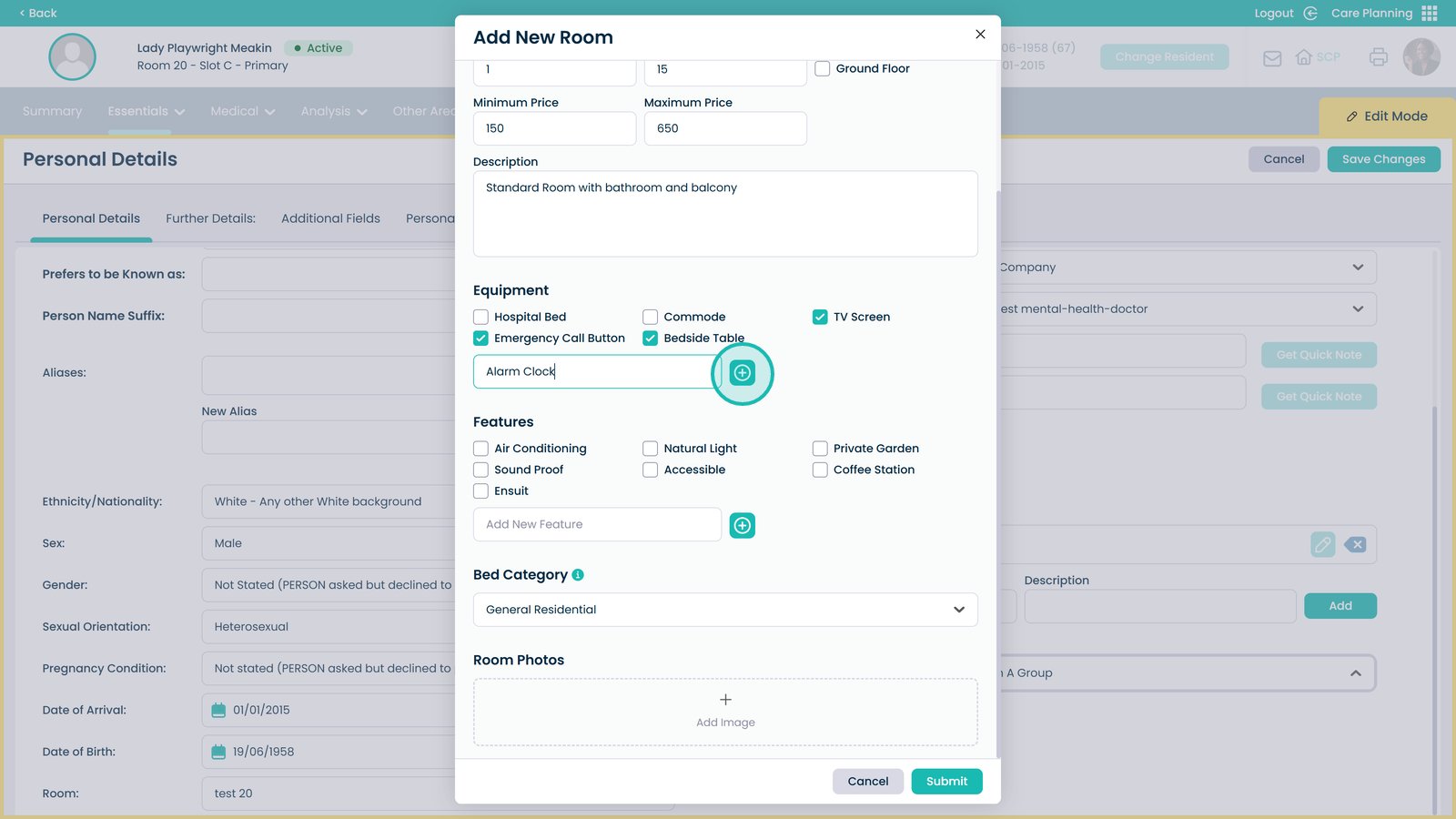
Add the equipment
Select room features
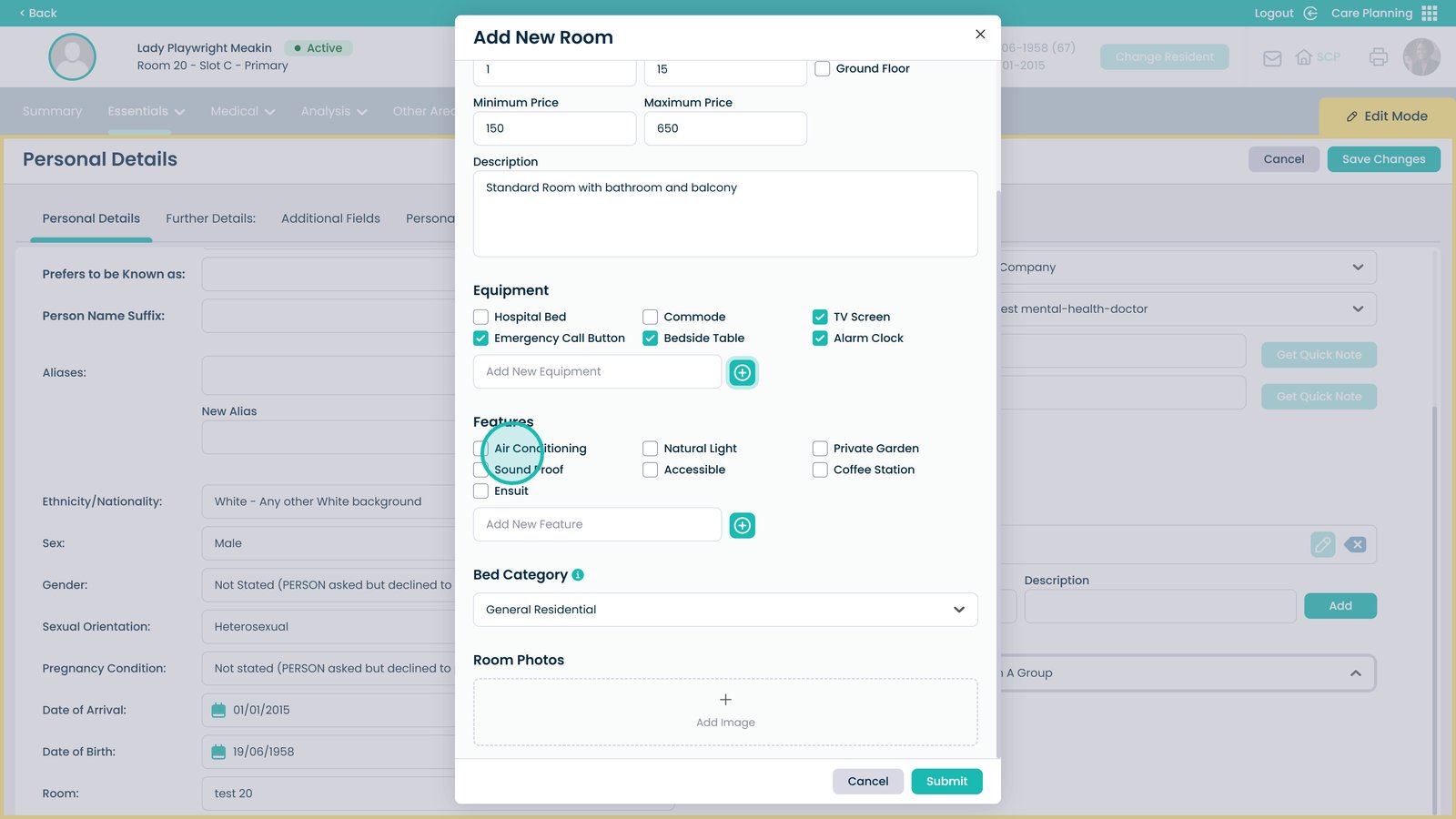
Add a new feature if needed
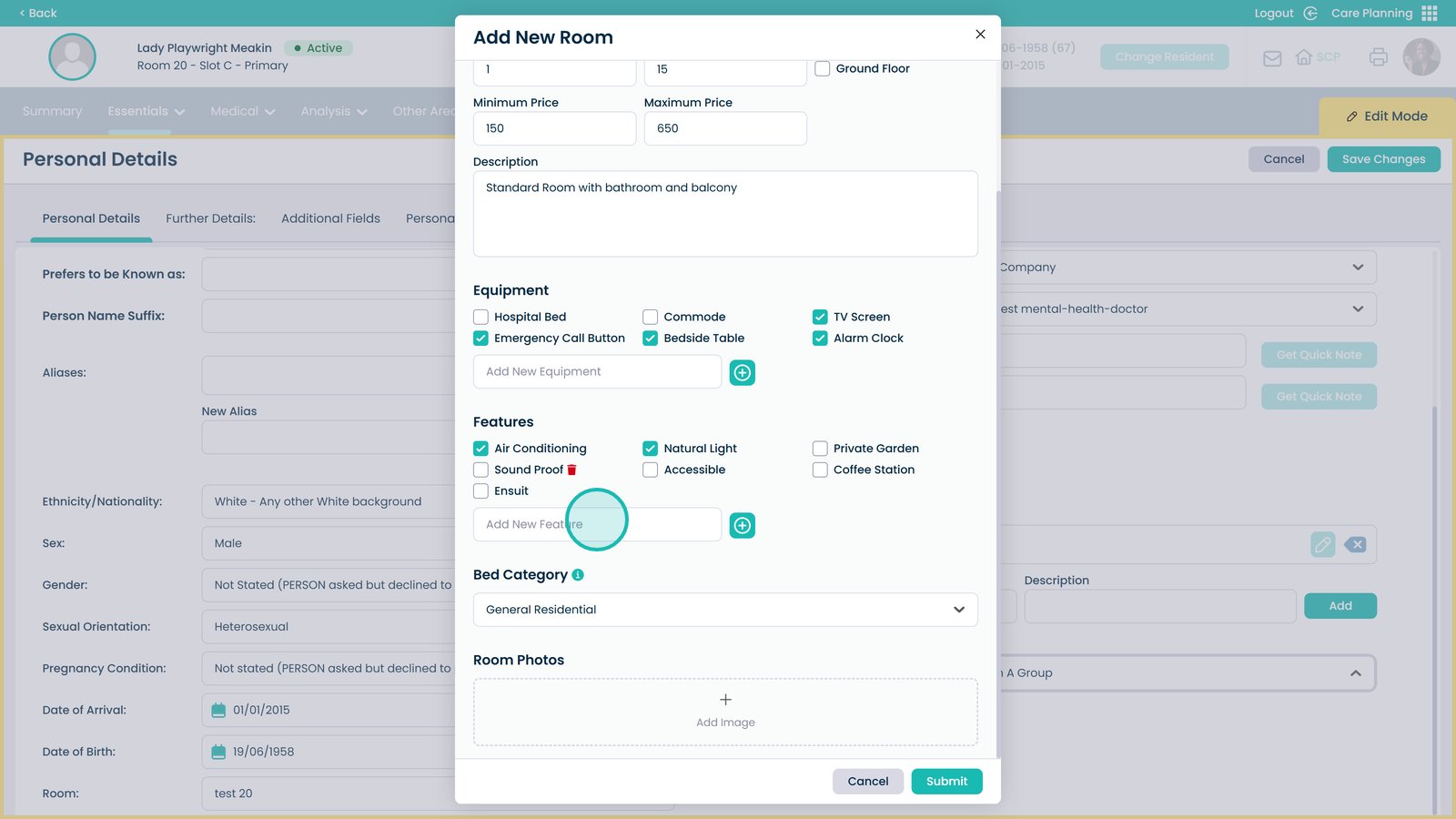
Add the feature

Select the bed category
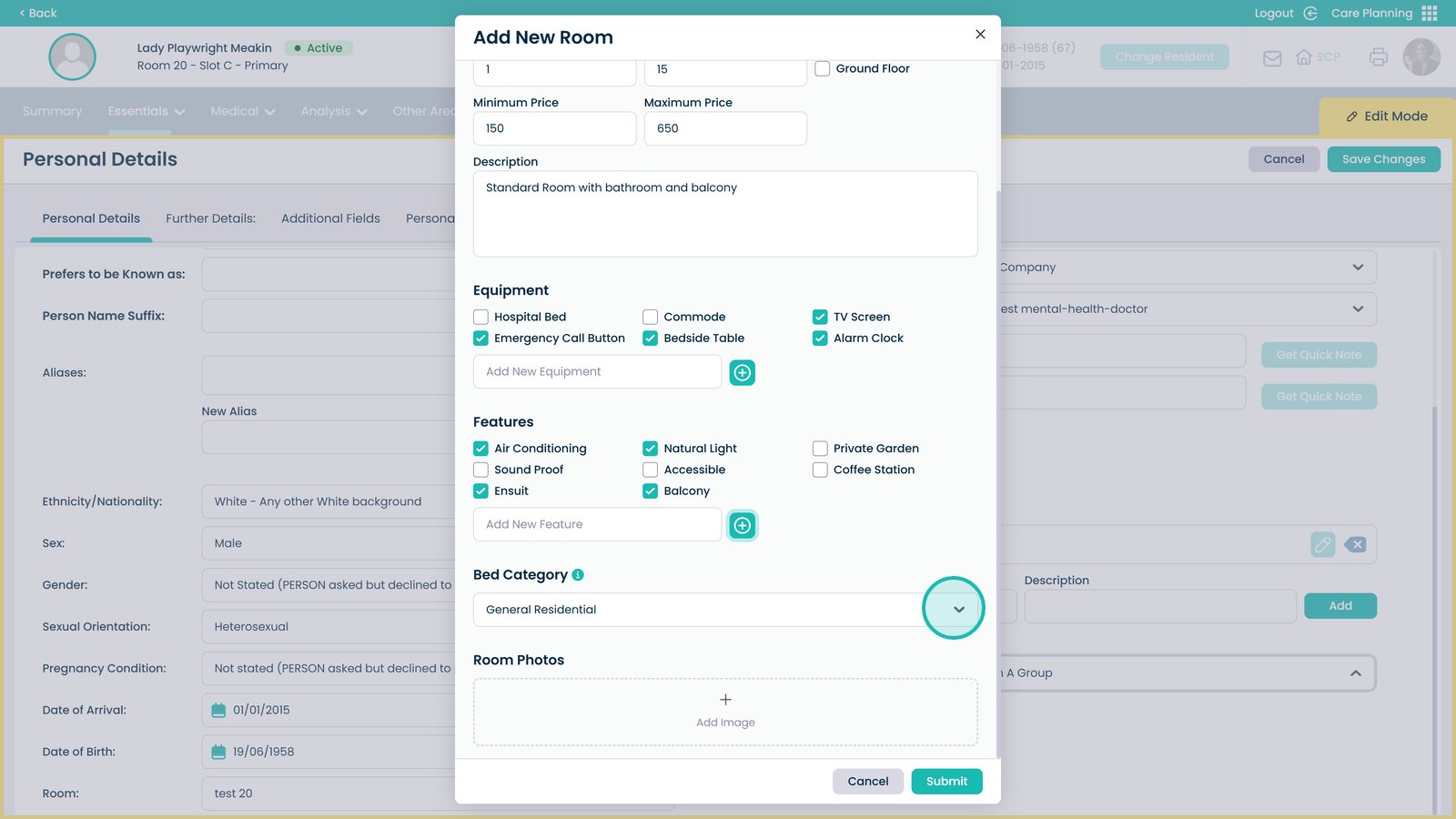
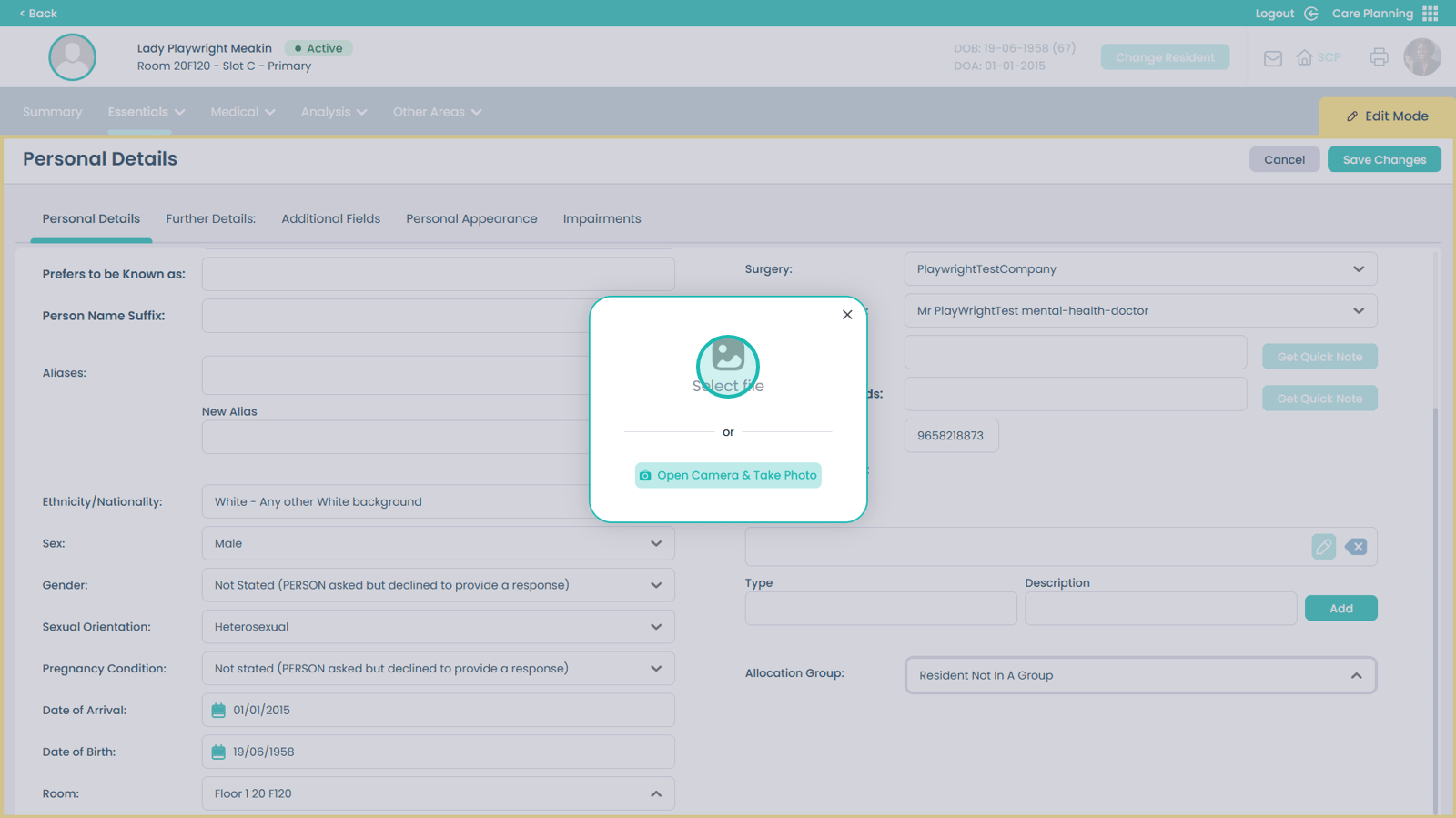
Add room images

Select an image or take a new photo
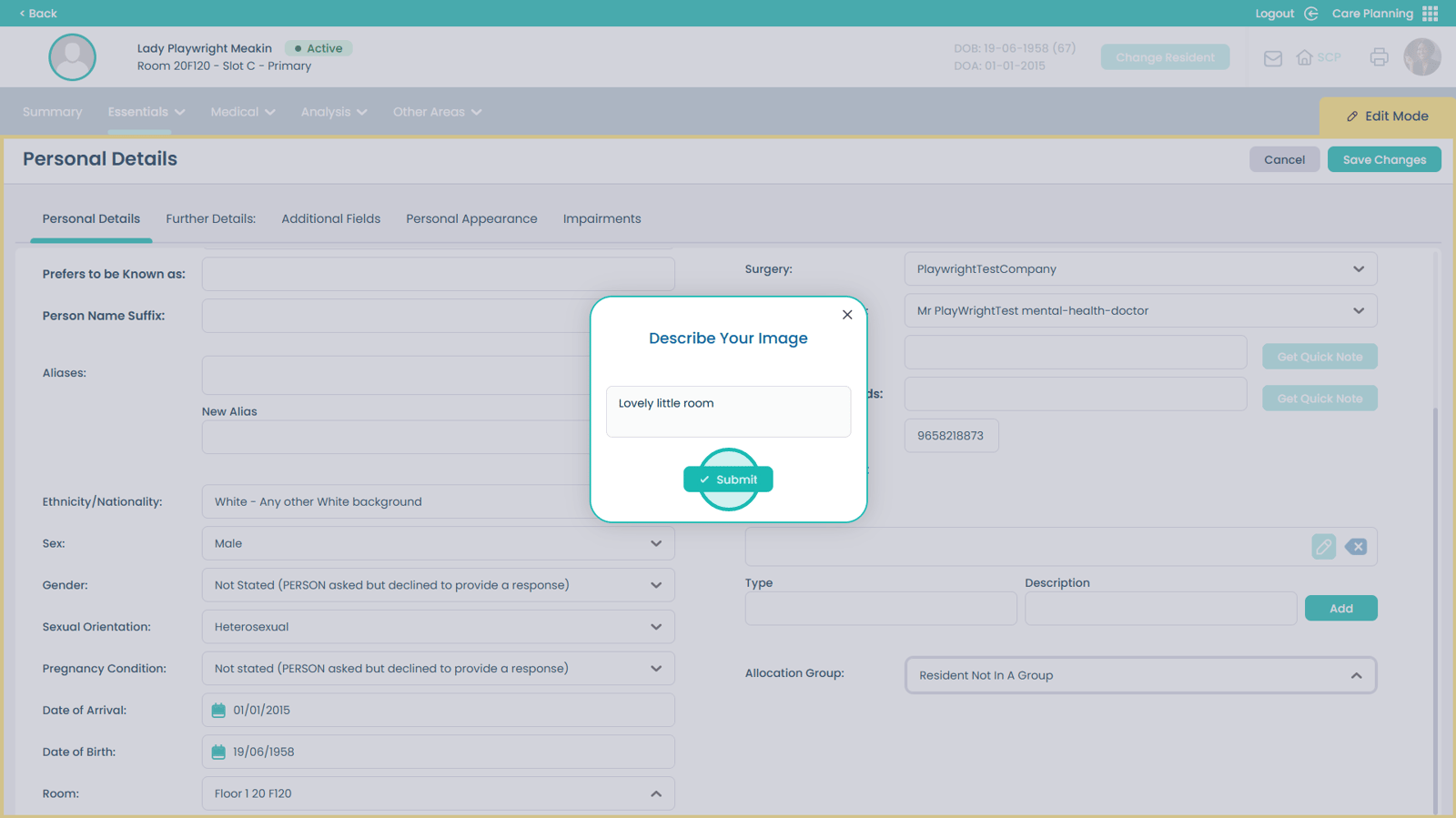
Add an image description
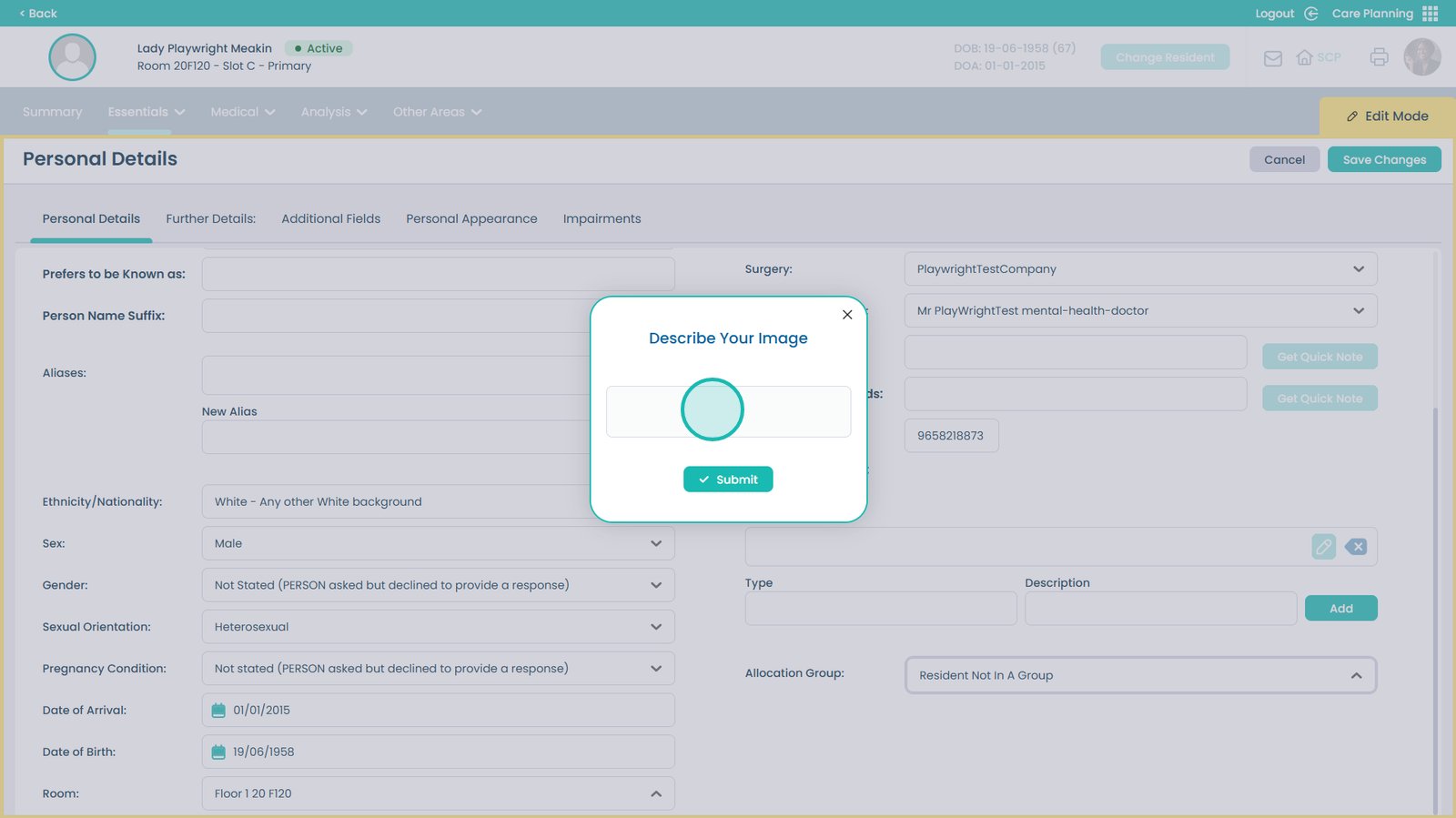
Submit to add the image
Submit to assign the room and save it to your room list