View Categories

How to Add a New Room in the Care Plan

This guide explains how to assign an existing room or create a new room for a service user.

Takes 5 minutes
For: Seniors
Updated: 26th June 2026

Introduction

The Personal Details section allows you to assign a room to a service user or create a brand new room if one does not already exist. When creating a room, you can record occupancy, pricing, equipment, features, bed category, and optional room images before assigning it.

In this guide you'll learn how to:

  • Assign a room to a service user
  • Create a new room
  • Configure room details, equipment and features
  • Apply the room to the service user

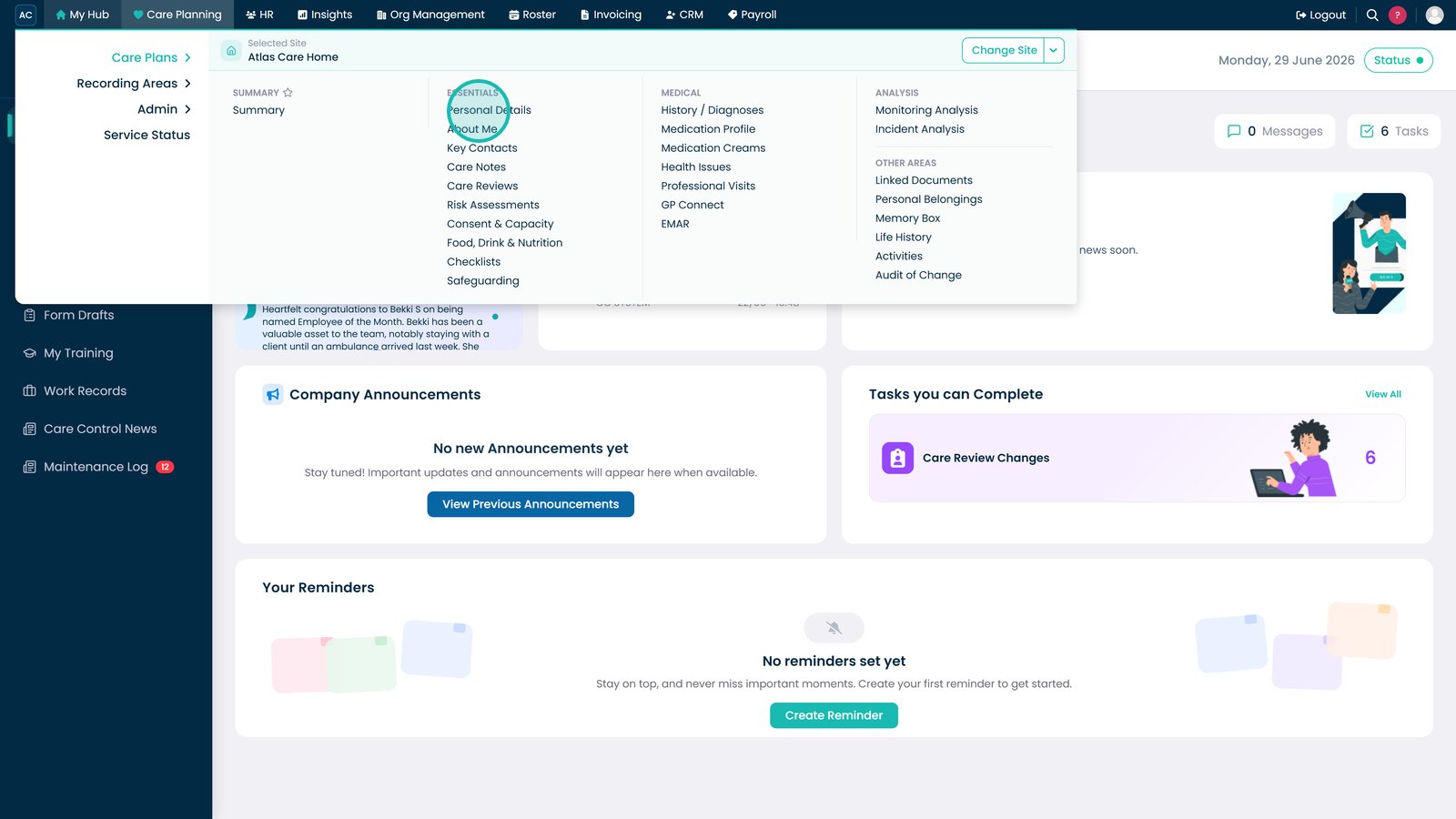
Open Personal Details from the Care Planning menu.

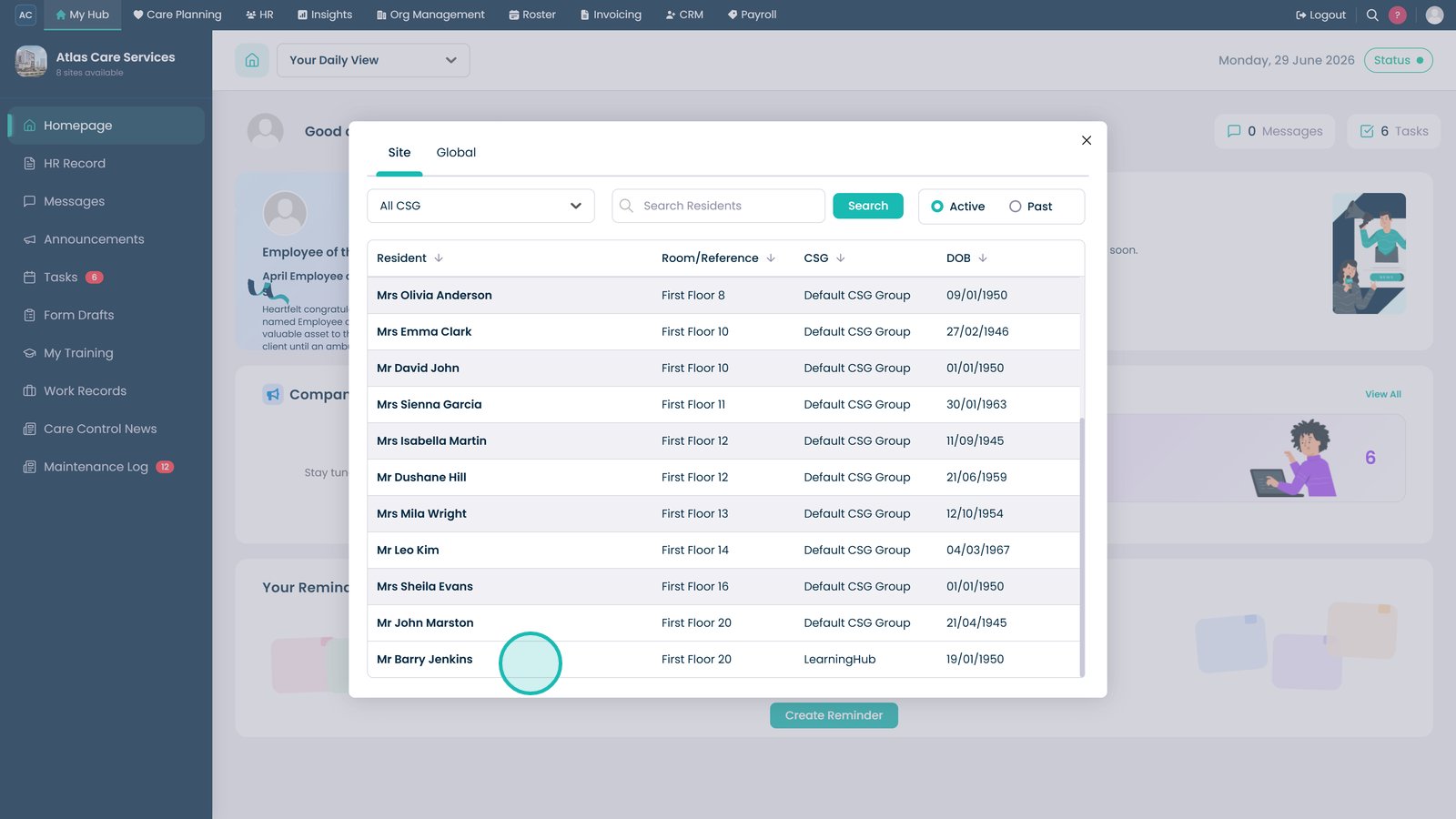
Select the service user whose room you want to update.

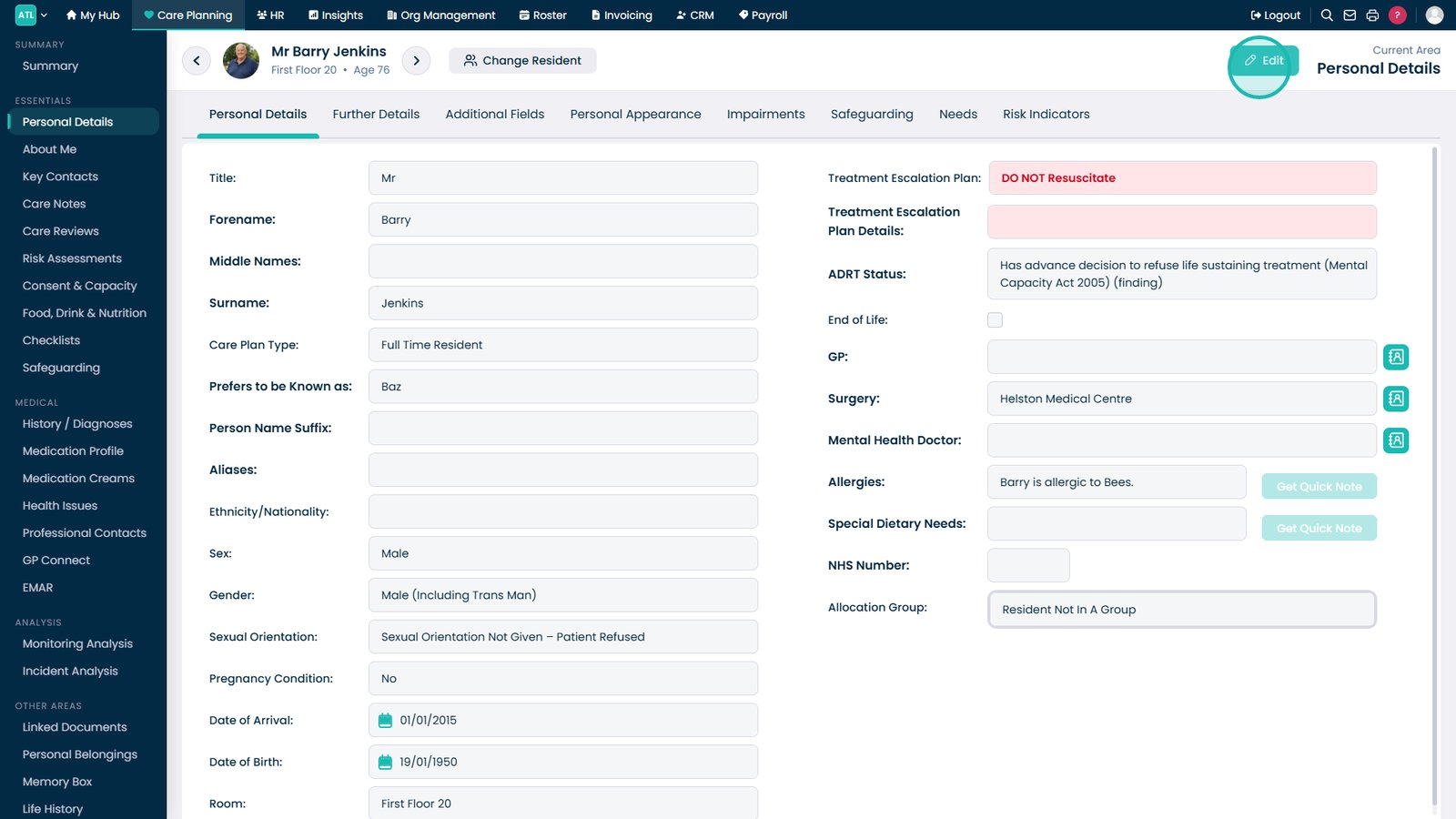
Select Edit.

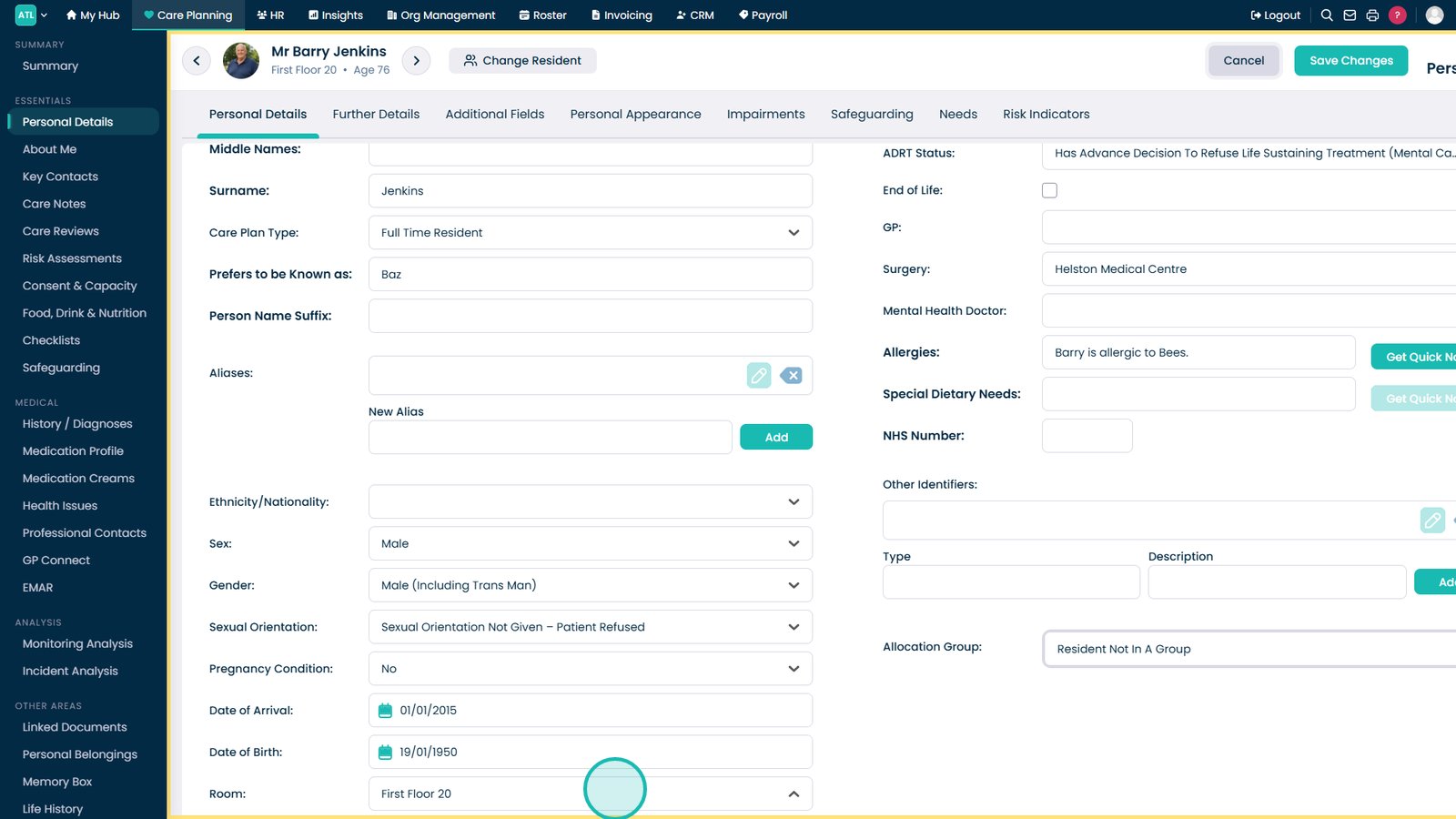
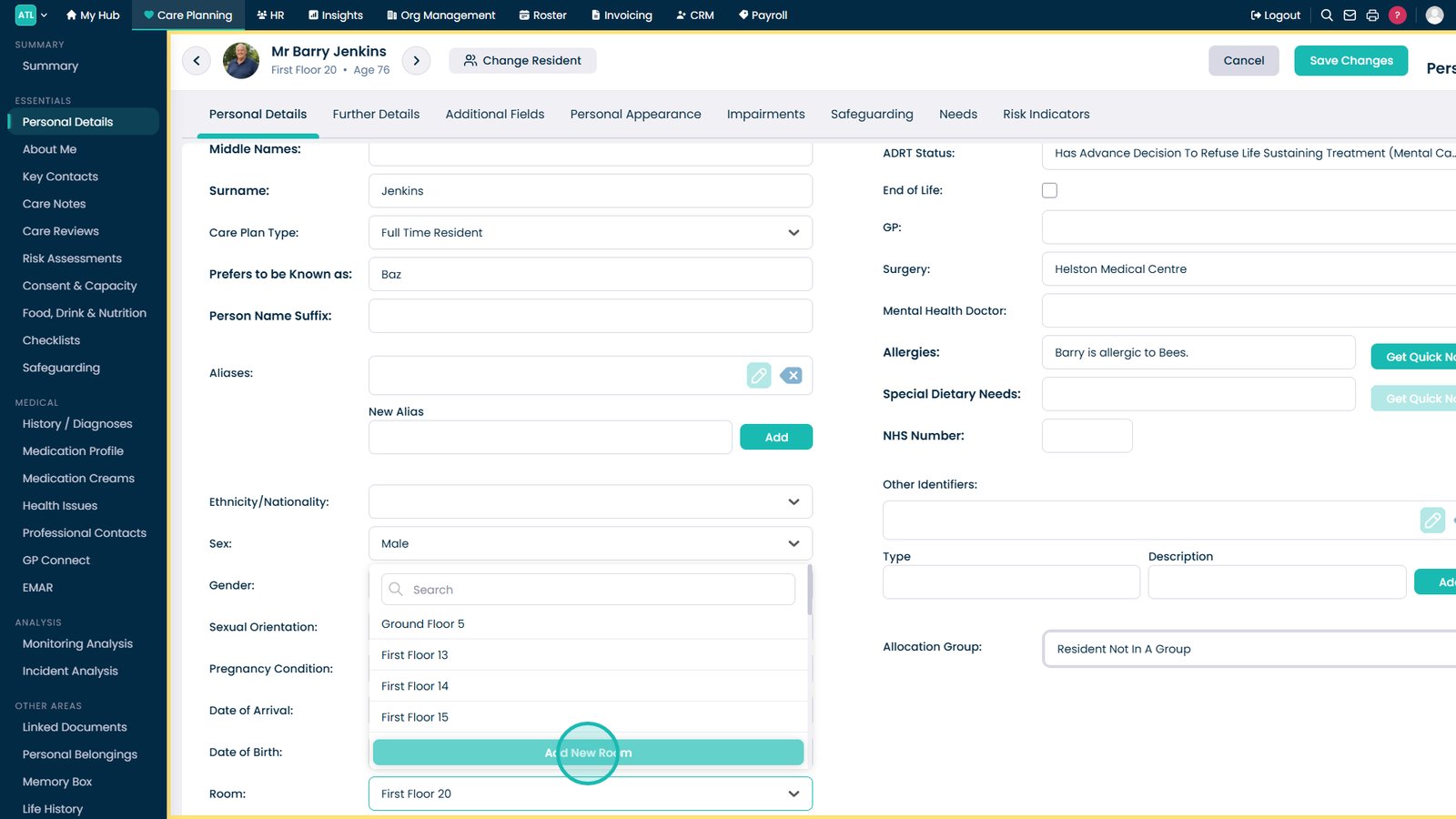
Select the Room field.

Select Add New Room if the required room doesn't already exist.

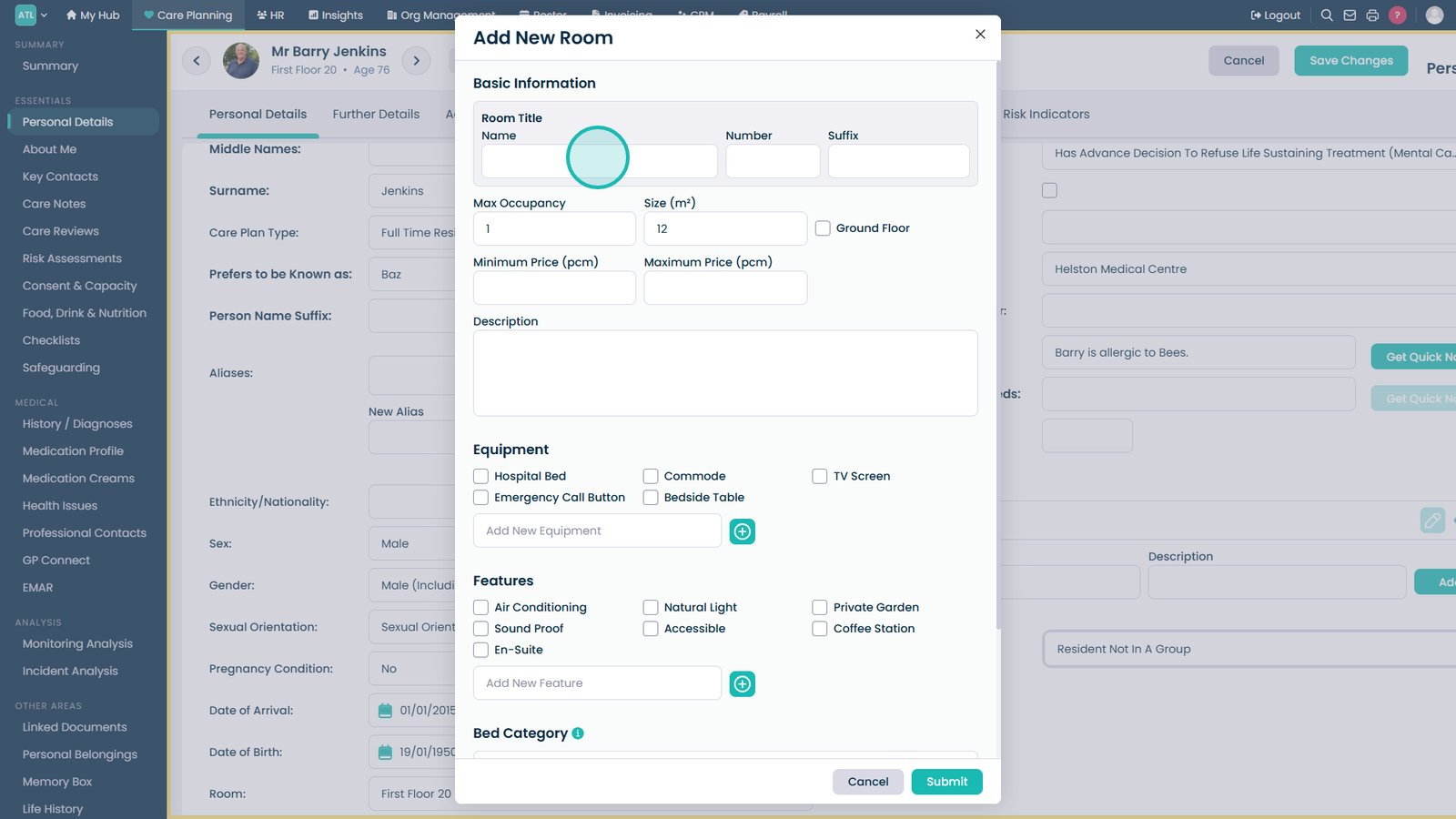
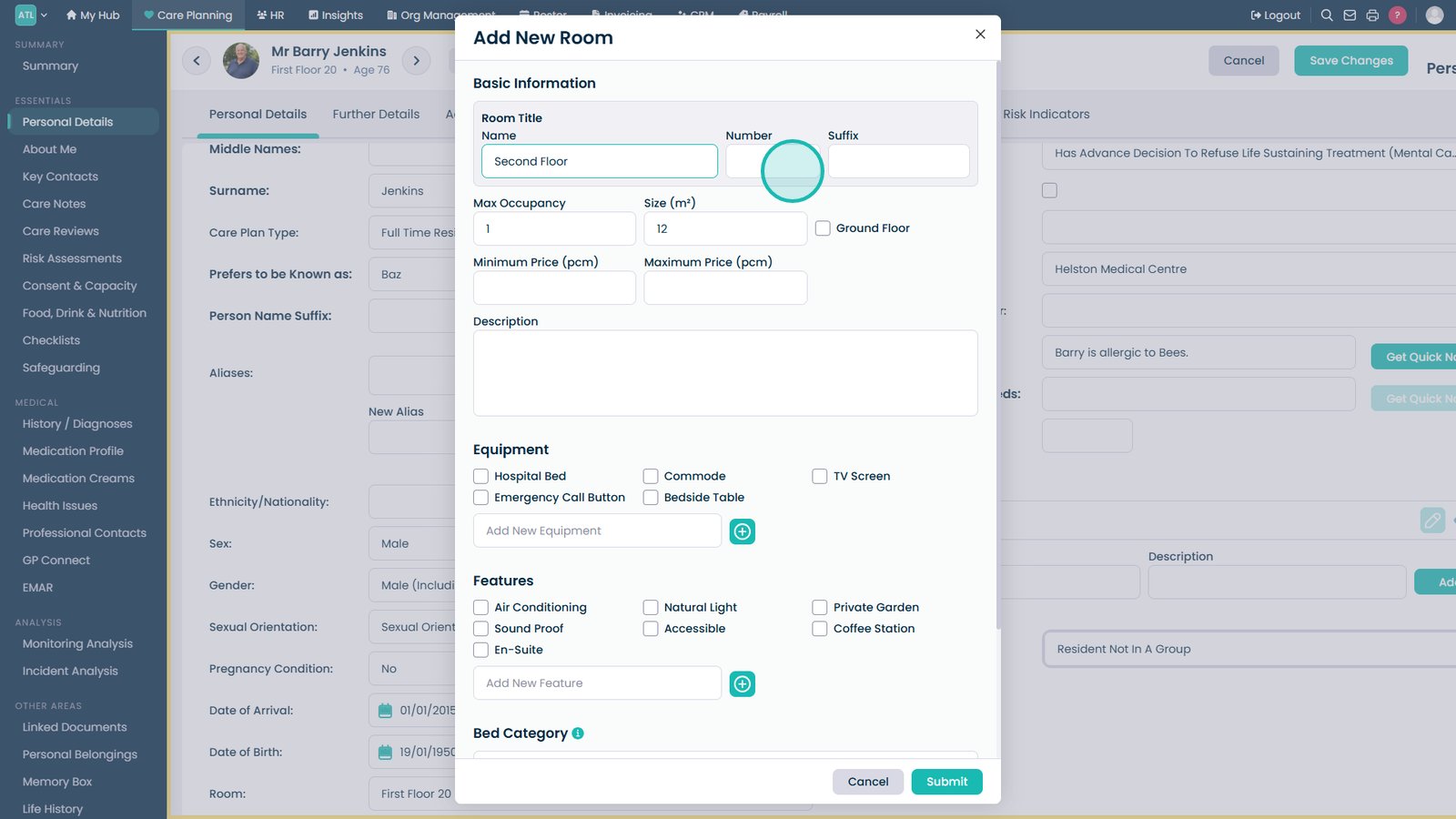
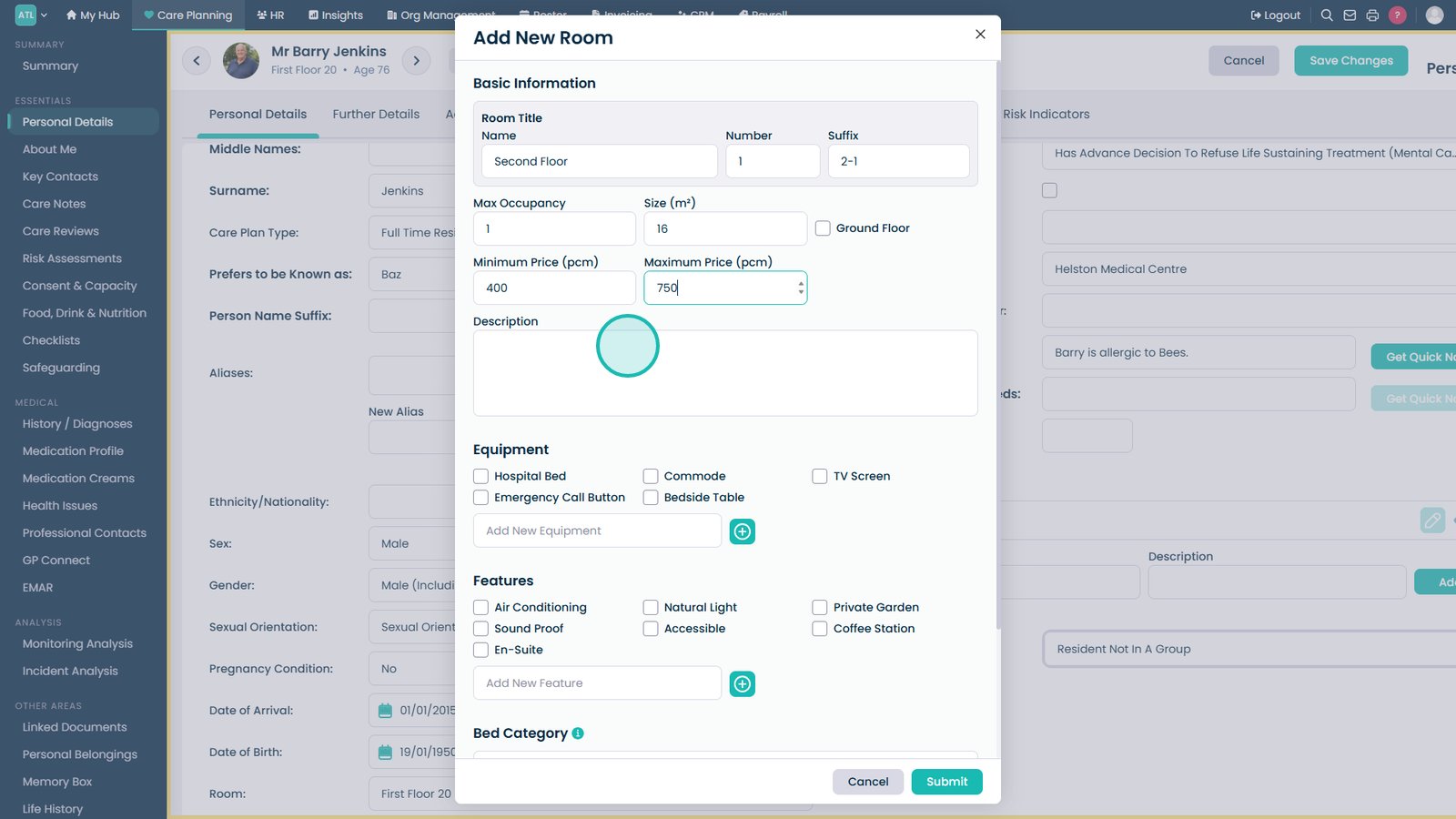
Enter the room name.

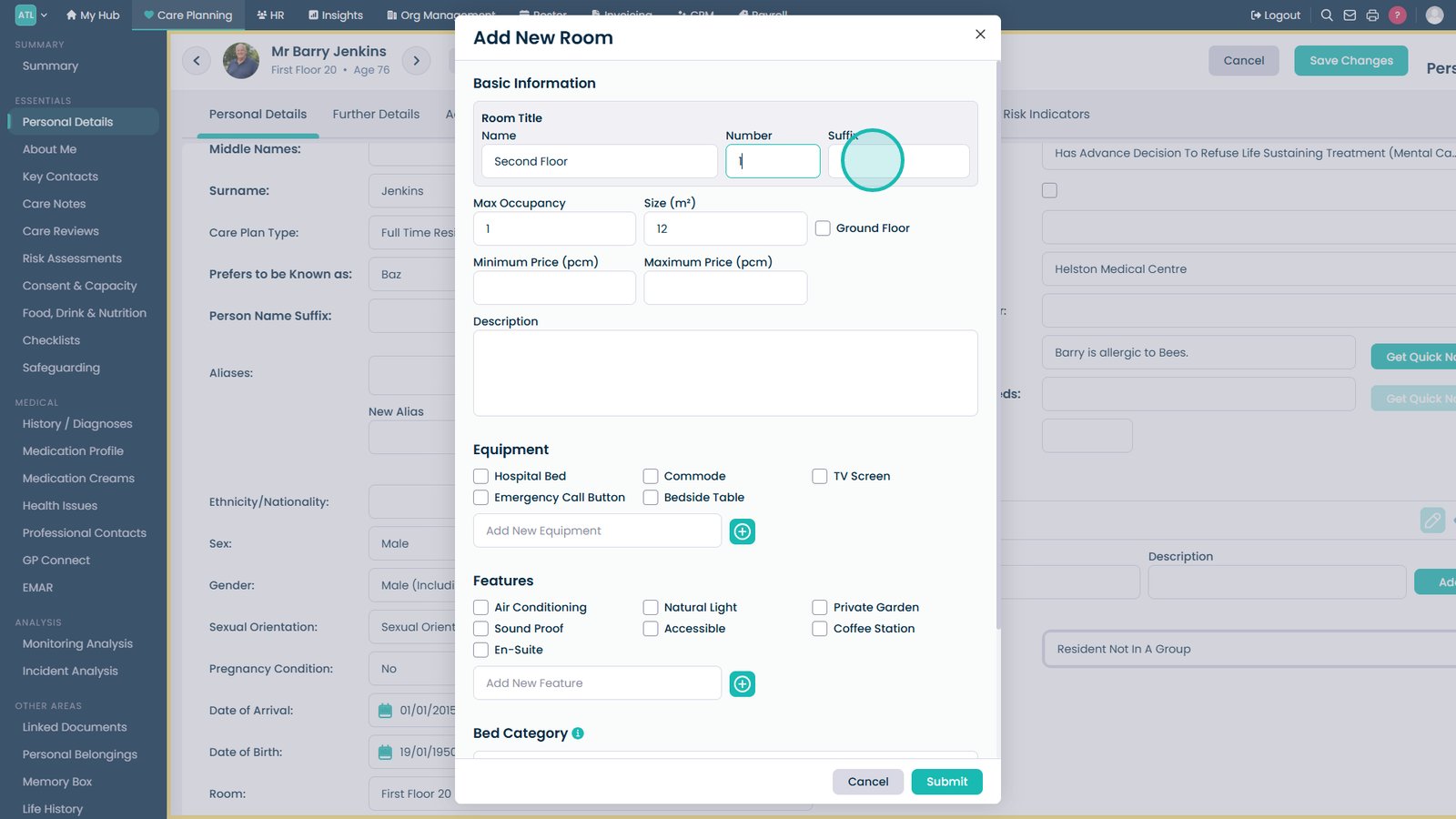
Enter the room number.

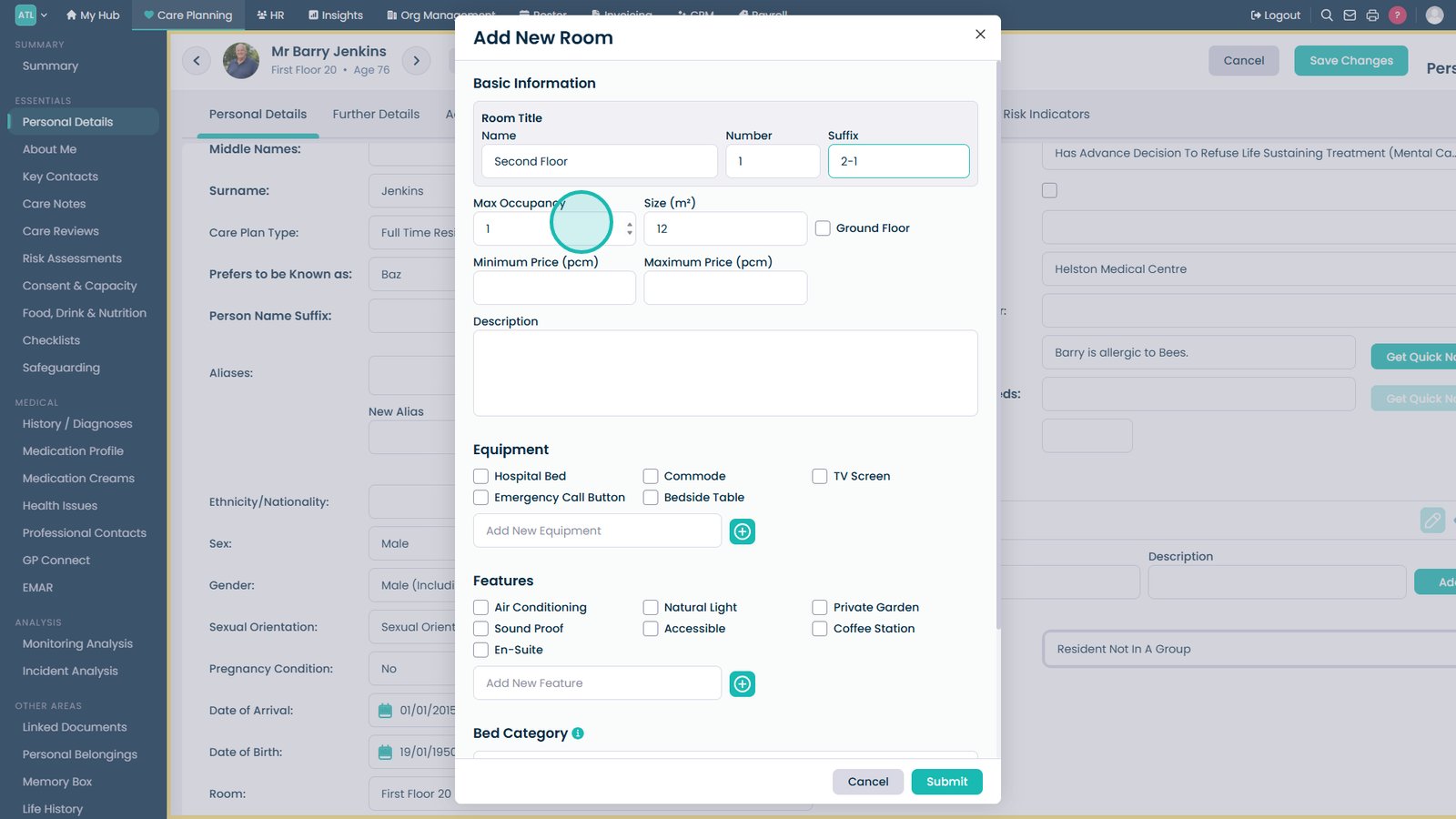
Optionally add a room suffix.

Select the maximum occupancy.

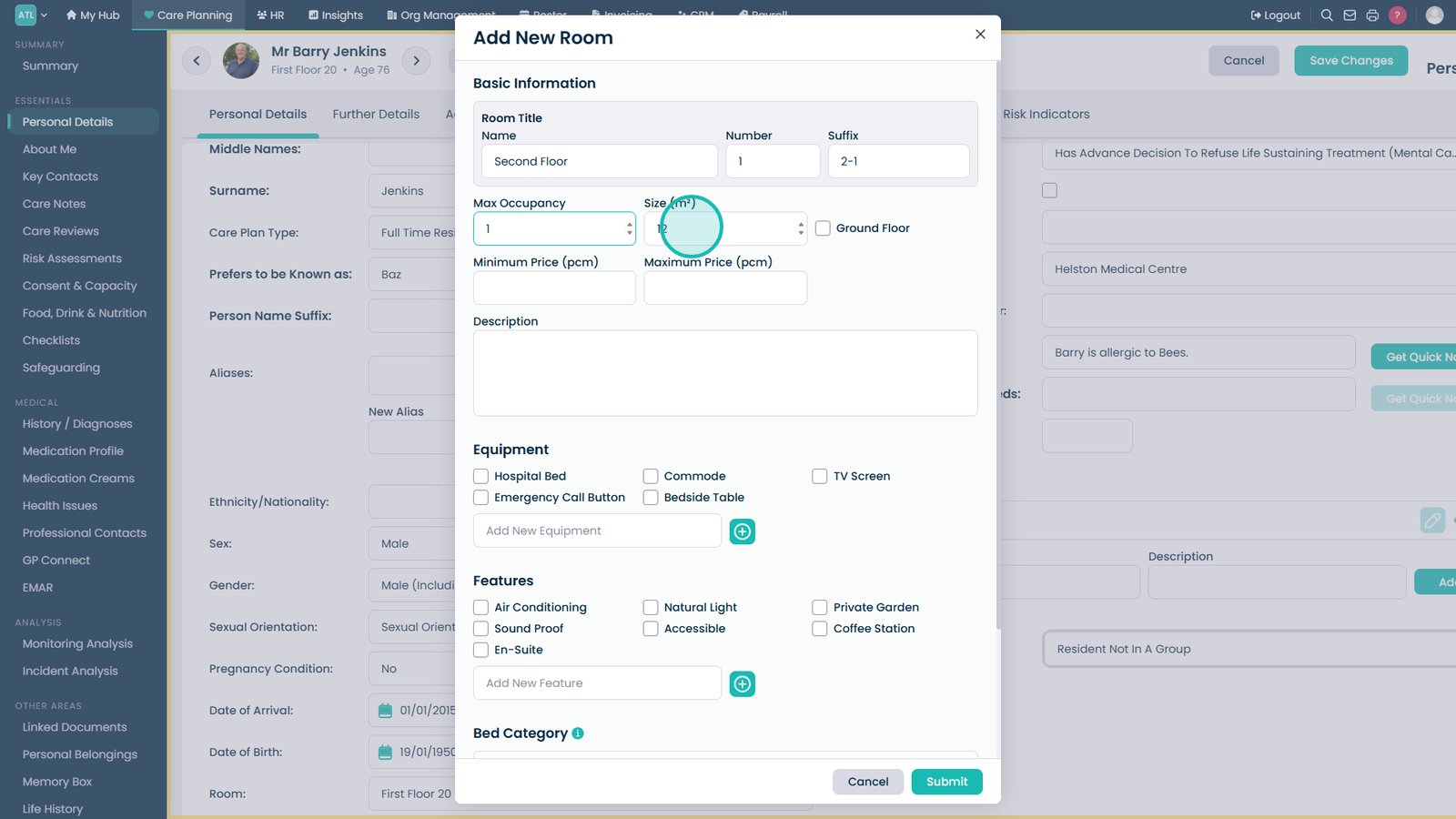
Enter the room size.

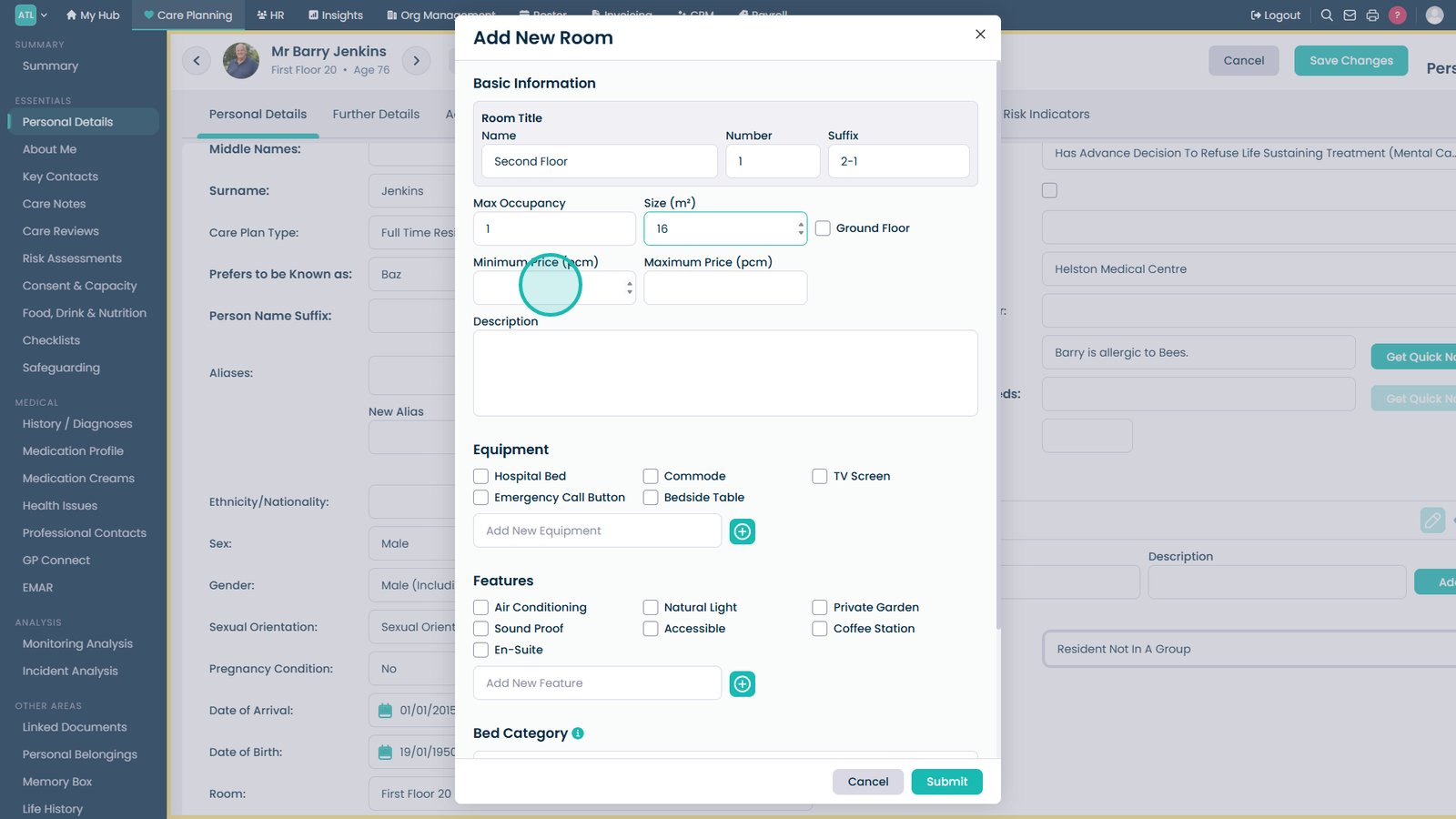
Enter the minimum monthly price.

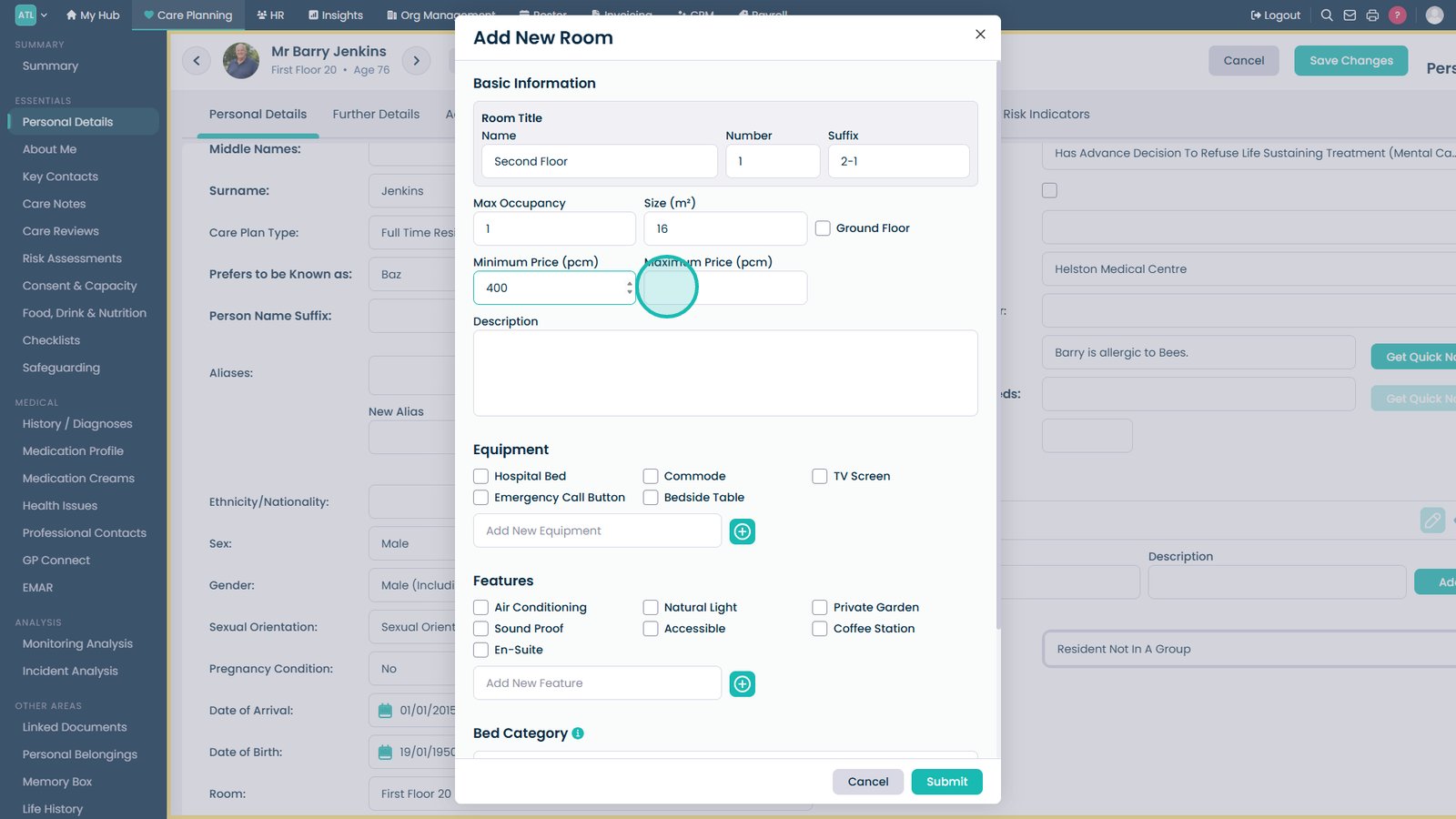
Enter the maximum monthly price.

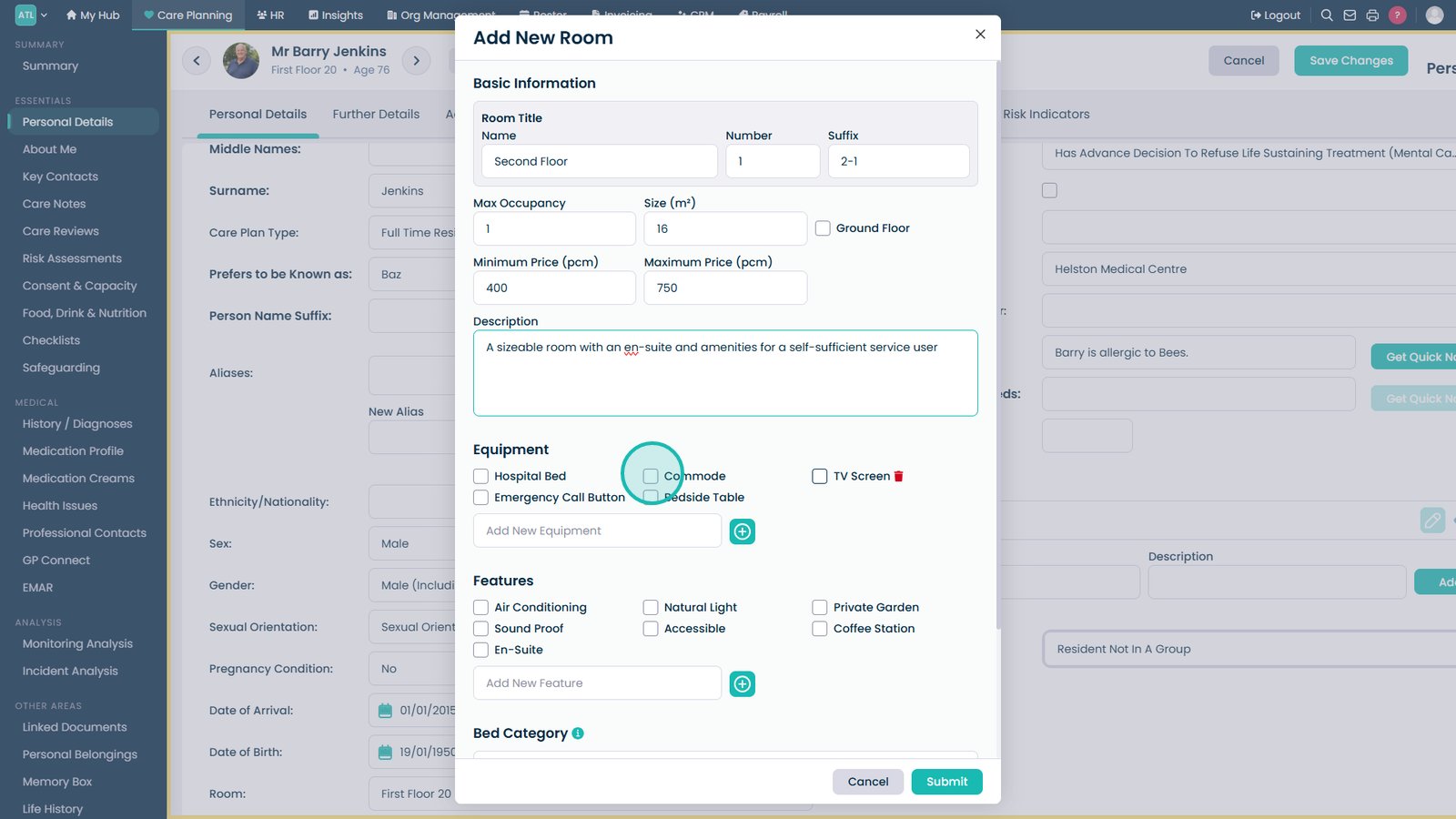
Add a room description.

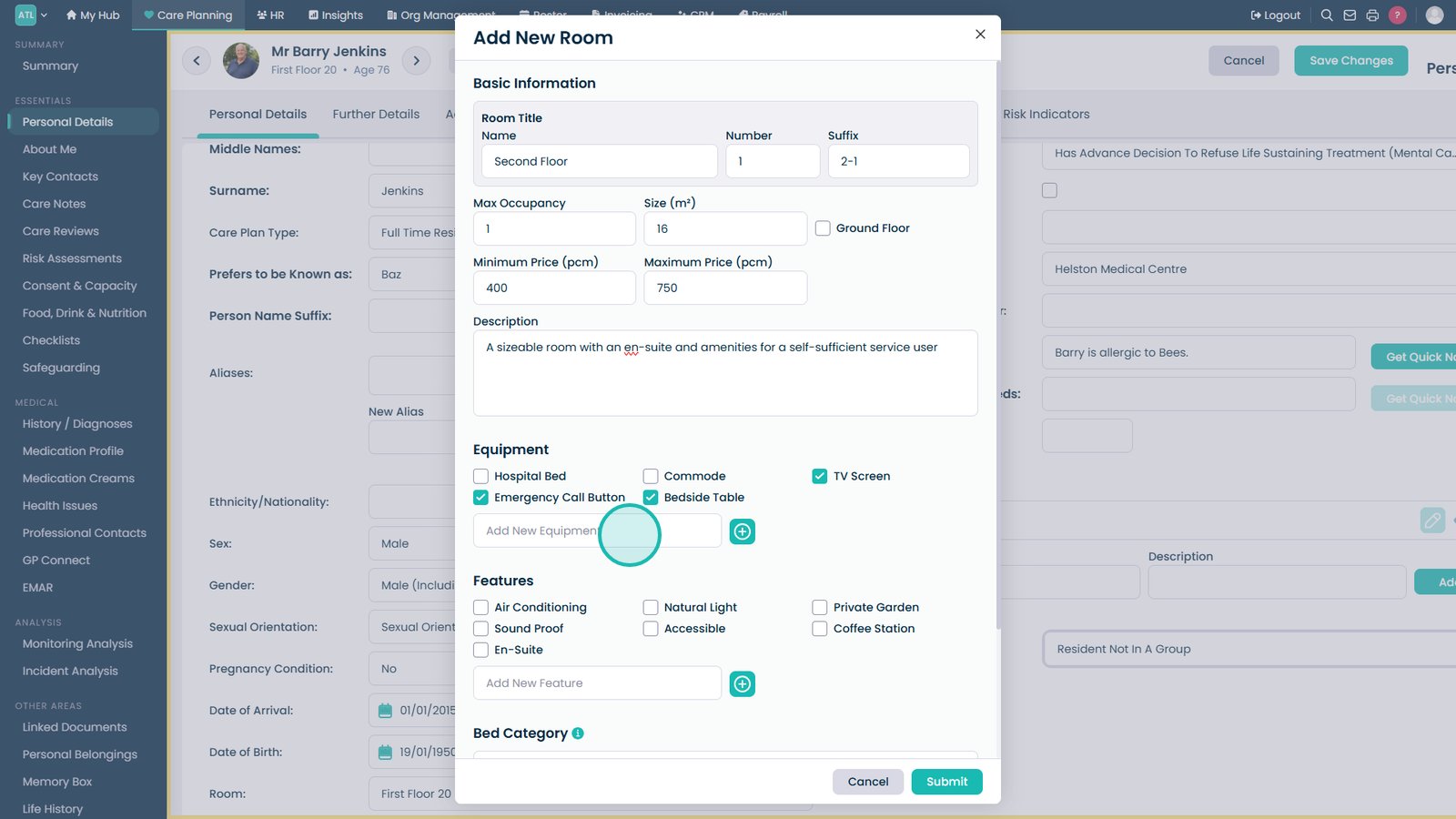
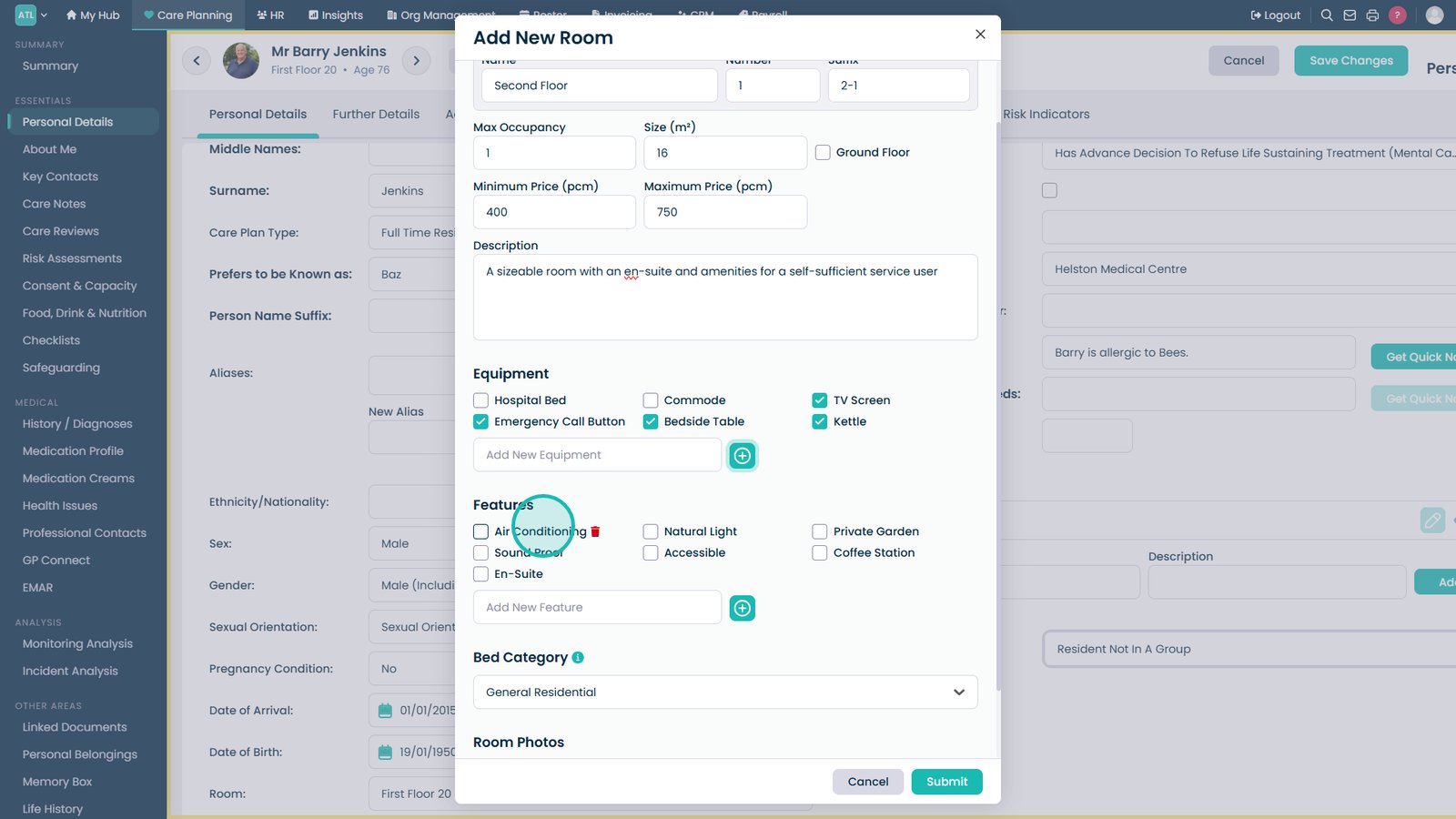
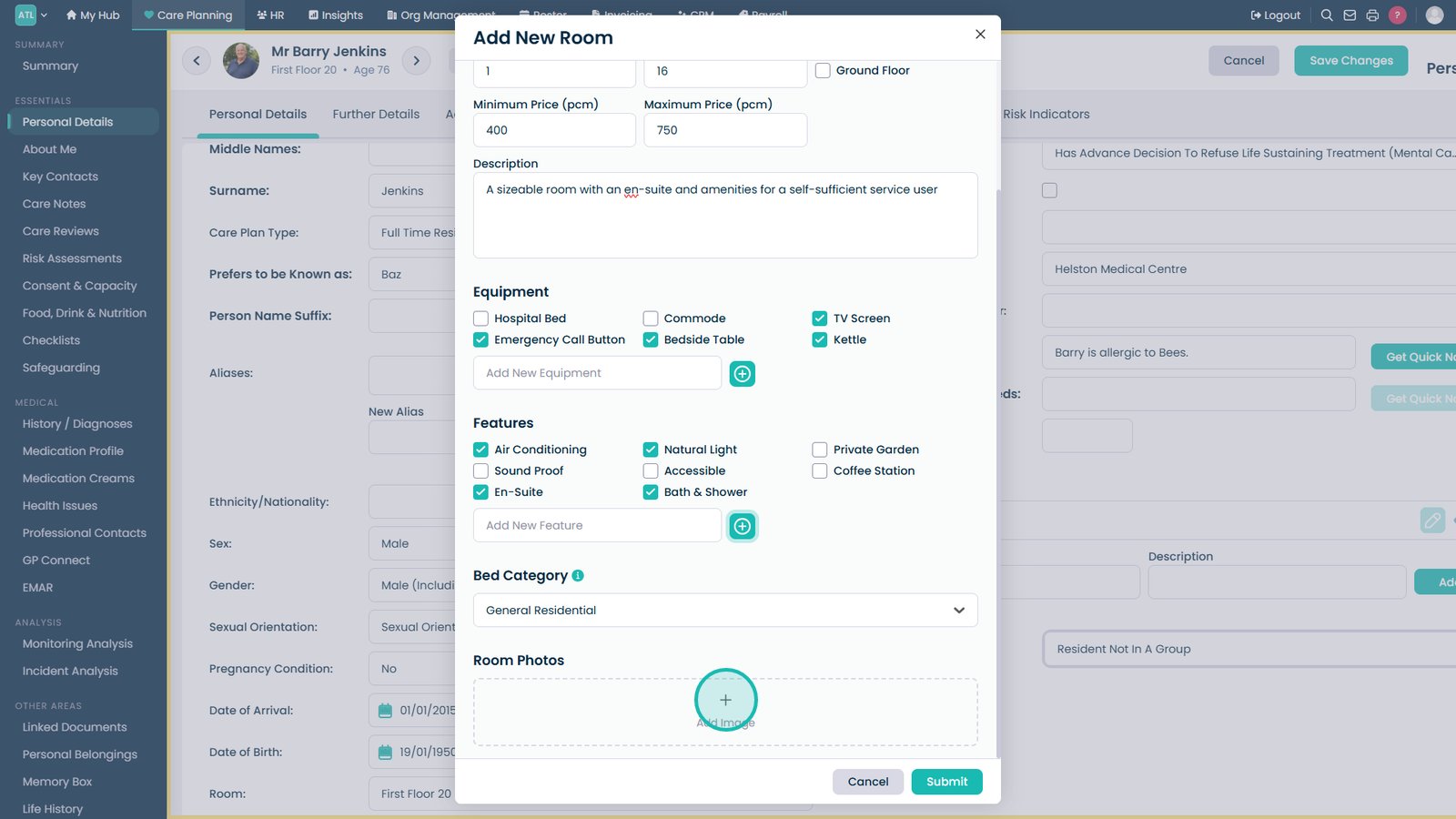
Select the room equipment.

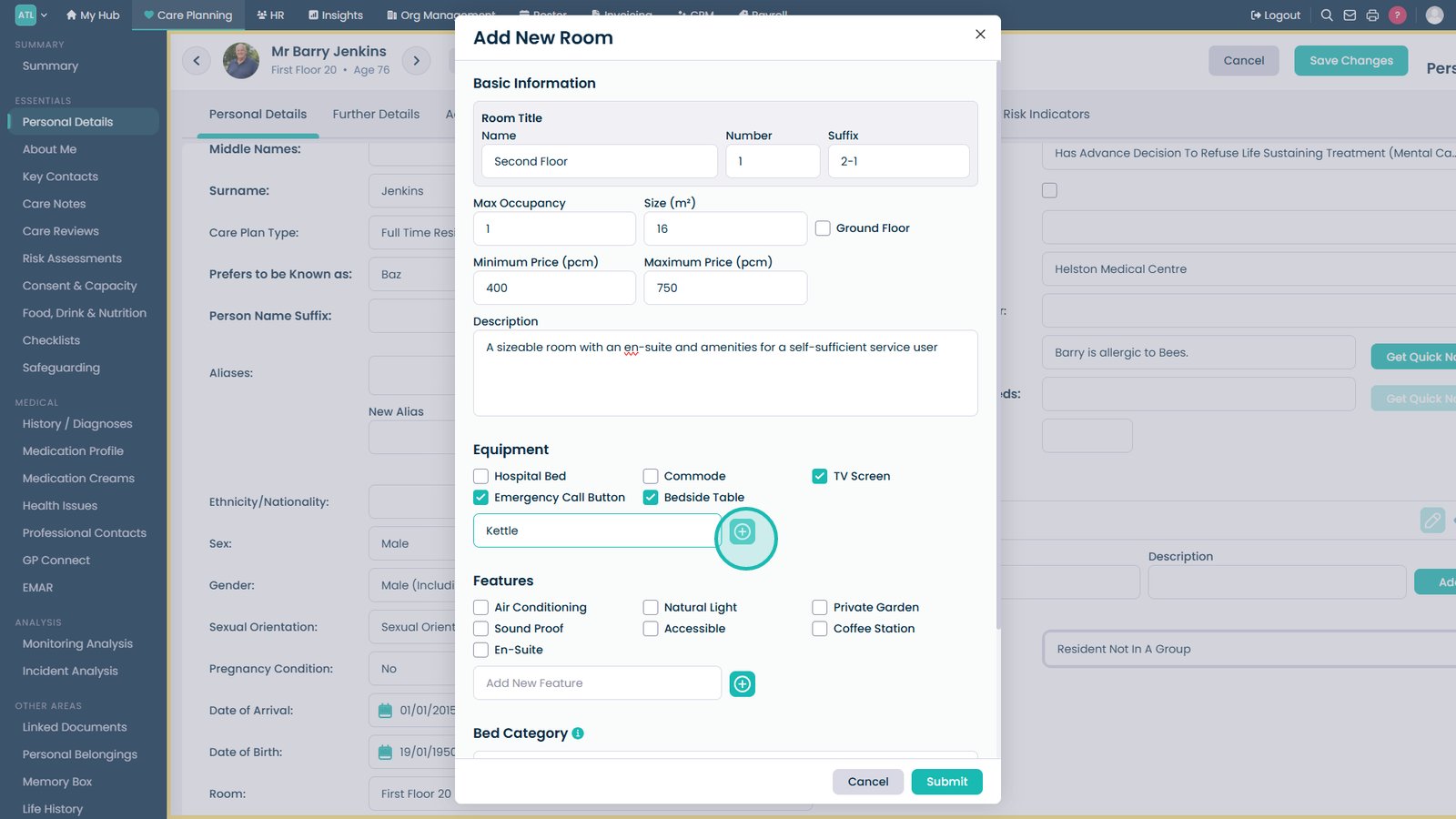
Add a custom equipment item if required.

Select the Add icon to save the equipment item.

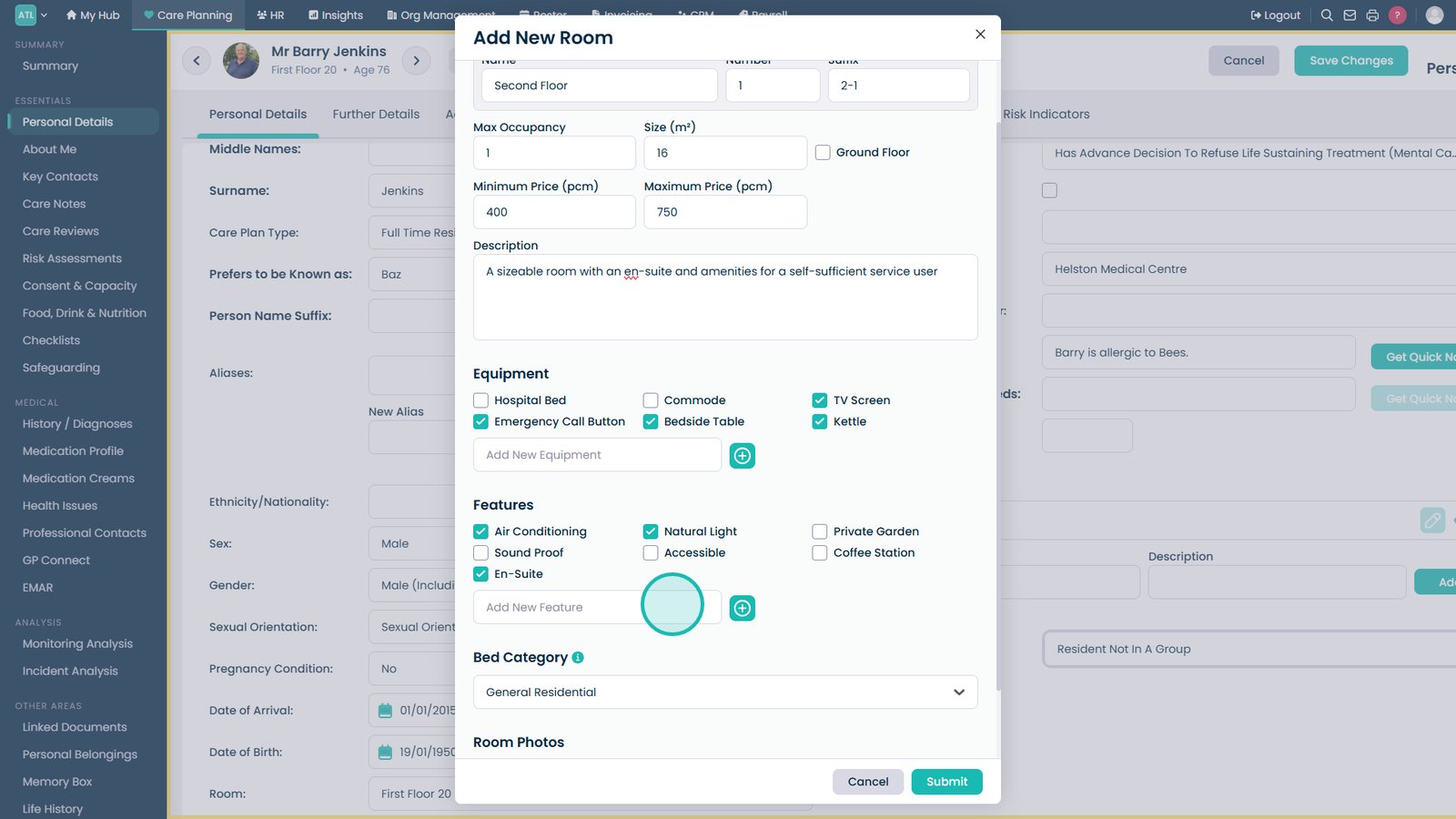
Select the room features.

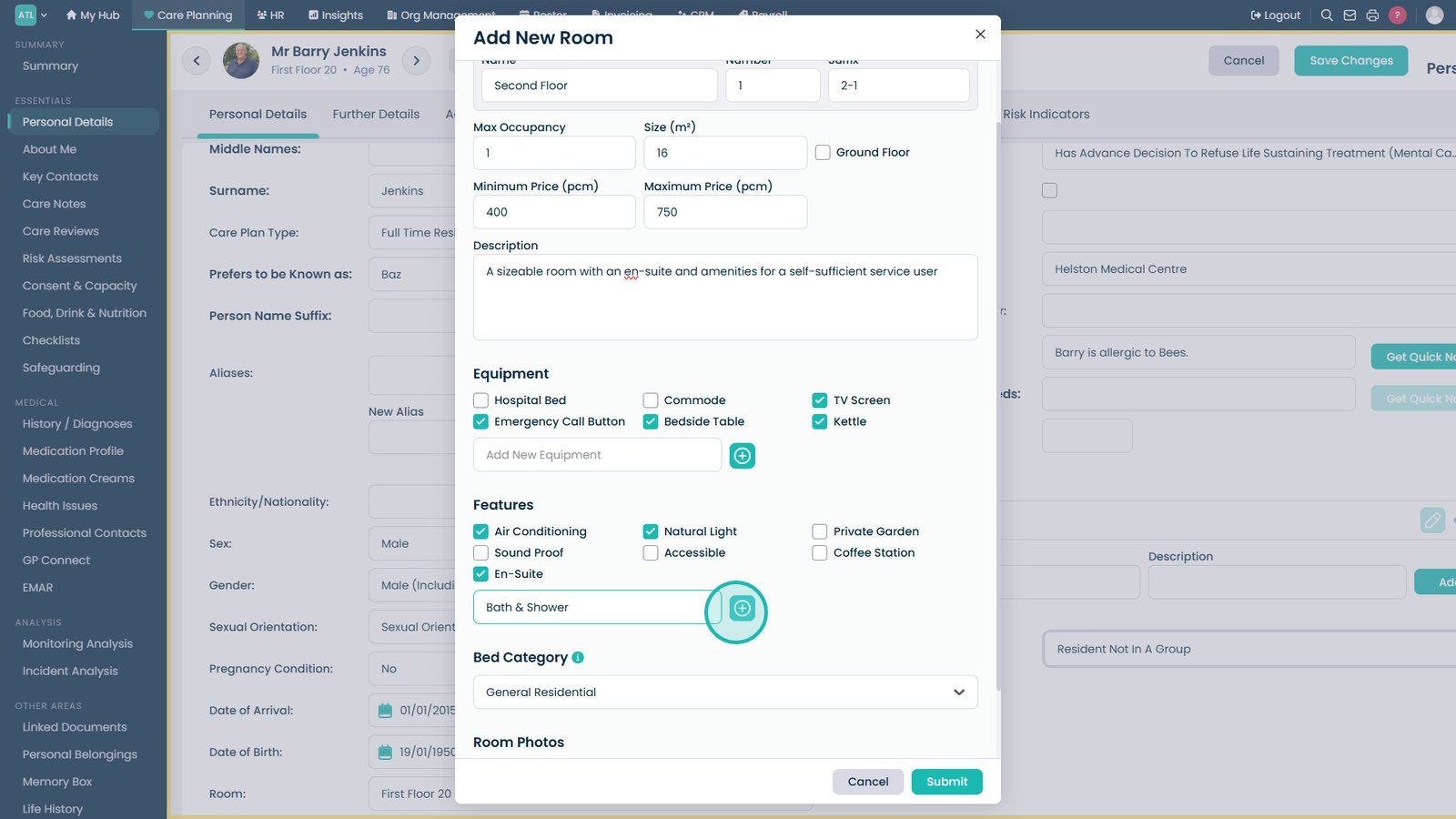
Add a custom room feature if required.

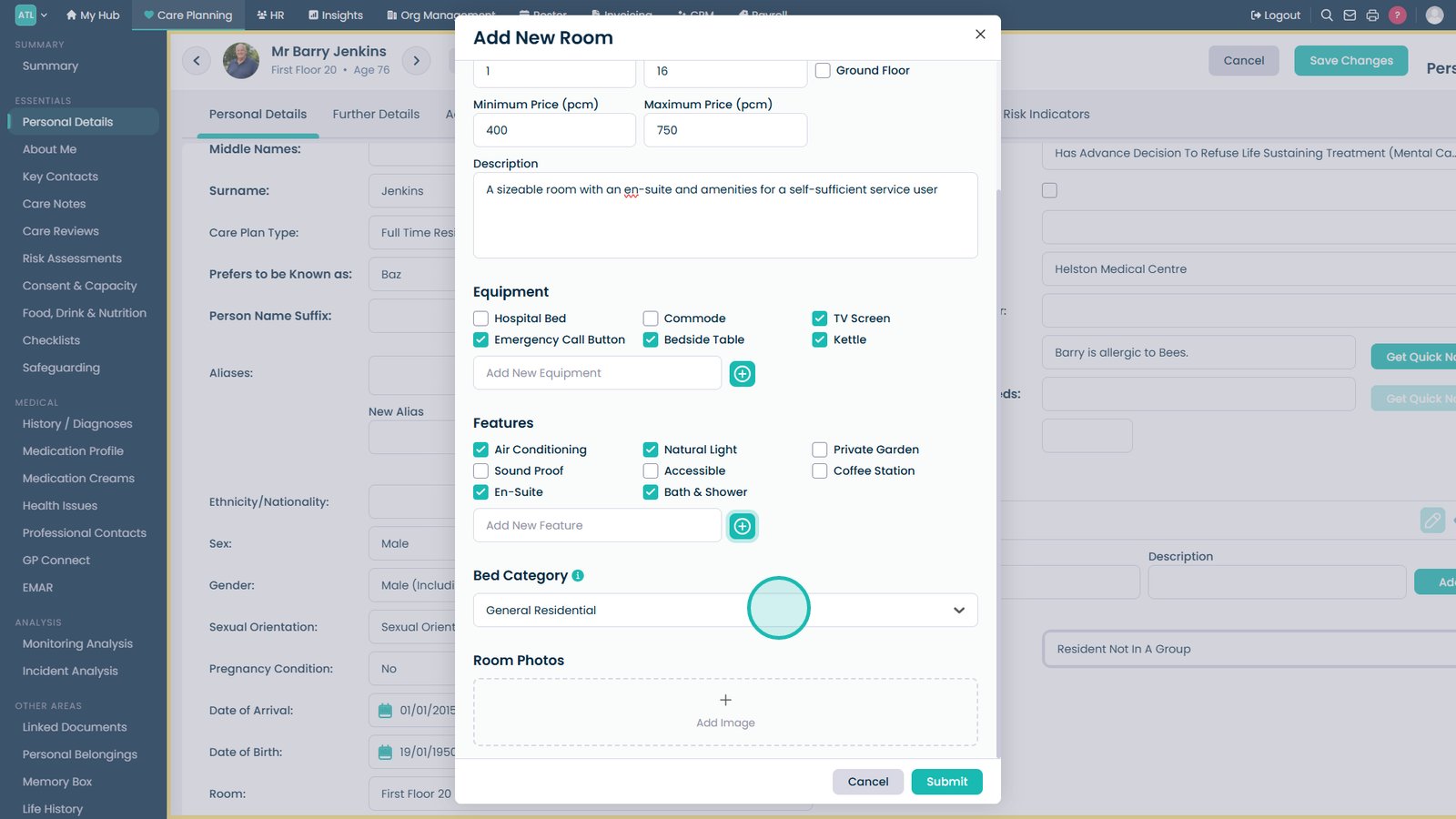
Select the Add icon to save the room feature.

Select the appropriate bed category.

Optionally upload an image of the room.

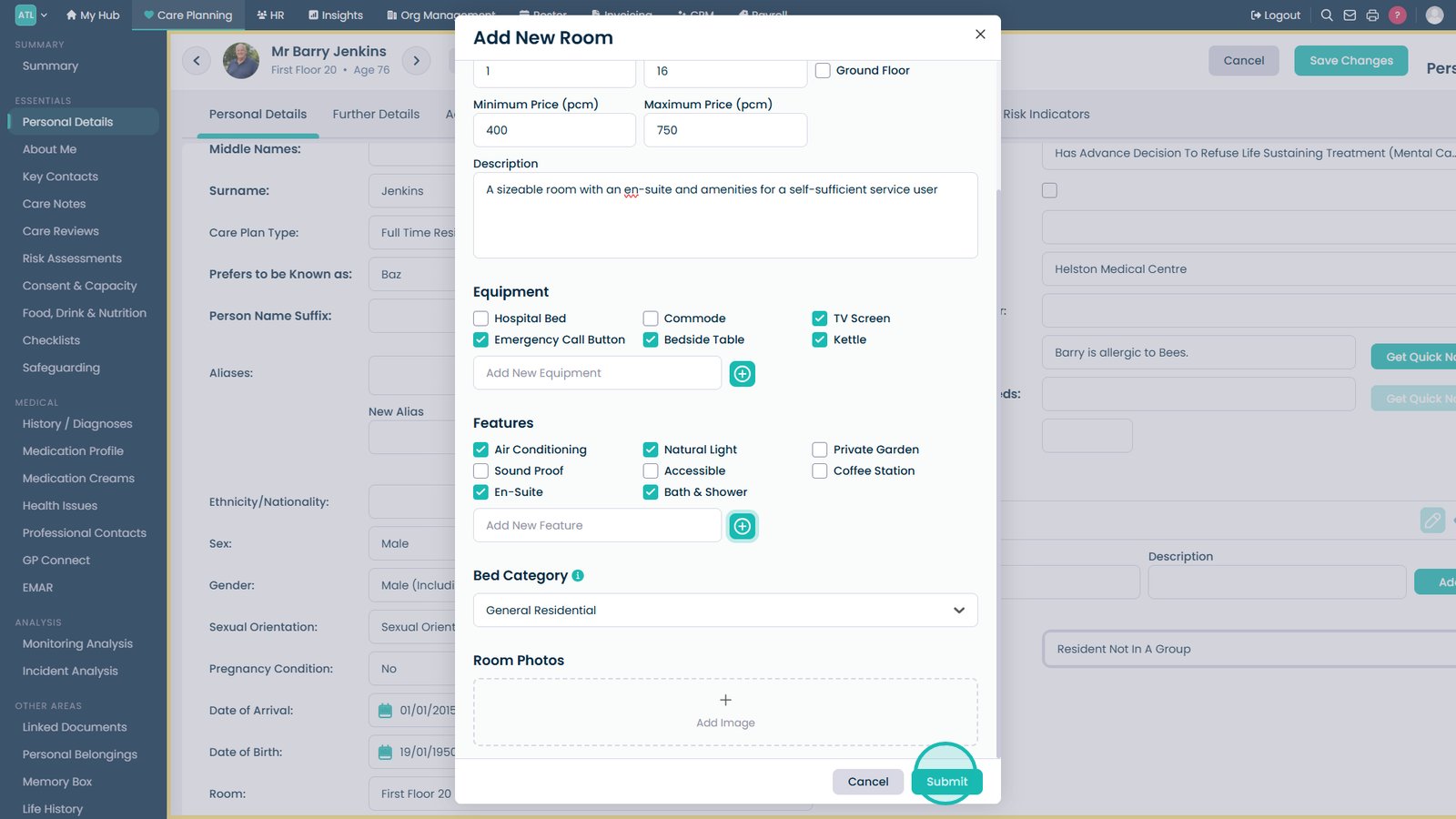
Select Submit to create the room.

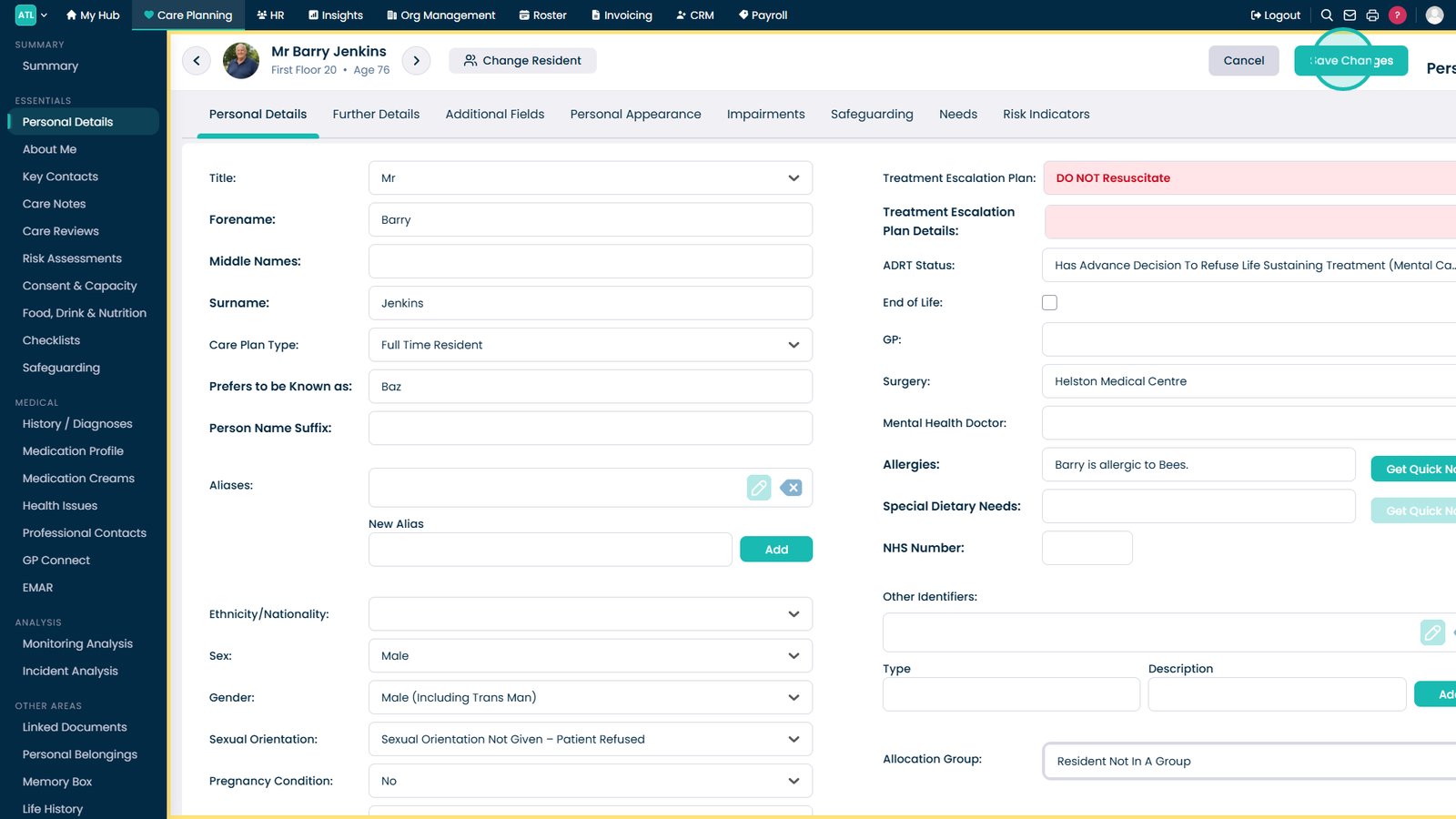
Select Save Changes to assign the room to the service user.

Top tip

If the required room already exists, simply select it from the Room list. You only need to create a new room when it hasn't previously been added.

Was this guide helpful?

Need more help?

Can't find what you're looking for? Our support team is here to help.

Contact Support

Or call us on

On this page