How to Add and Amend a Cream in the Care Plan
This guide explains how to add and manage topical medications.
Takes 2 minutes
For: Managers & Seniors
Updated: 26th May 2026
Introduction
This guide explains how to add and manage topical medications using the Medication Profile within Care Control Cloud.
In this guide you'll learn how to:
- Add a new topical medication
- Use the Body Map feature
- Record application instructions
- Save and manage medication records
- Edit or delete existing medications
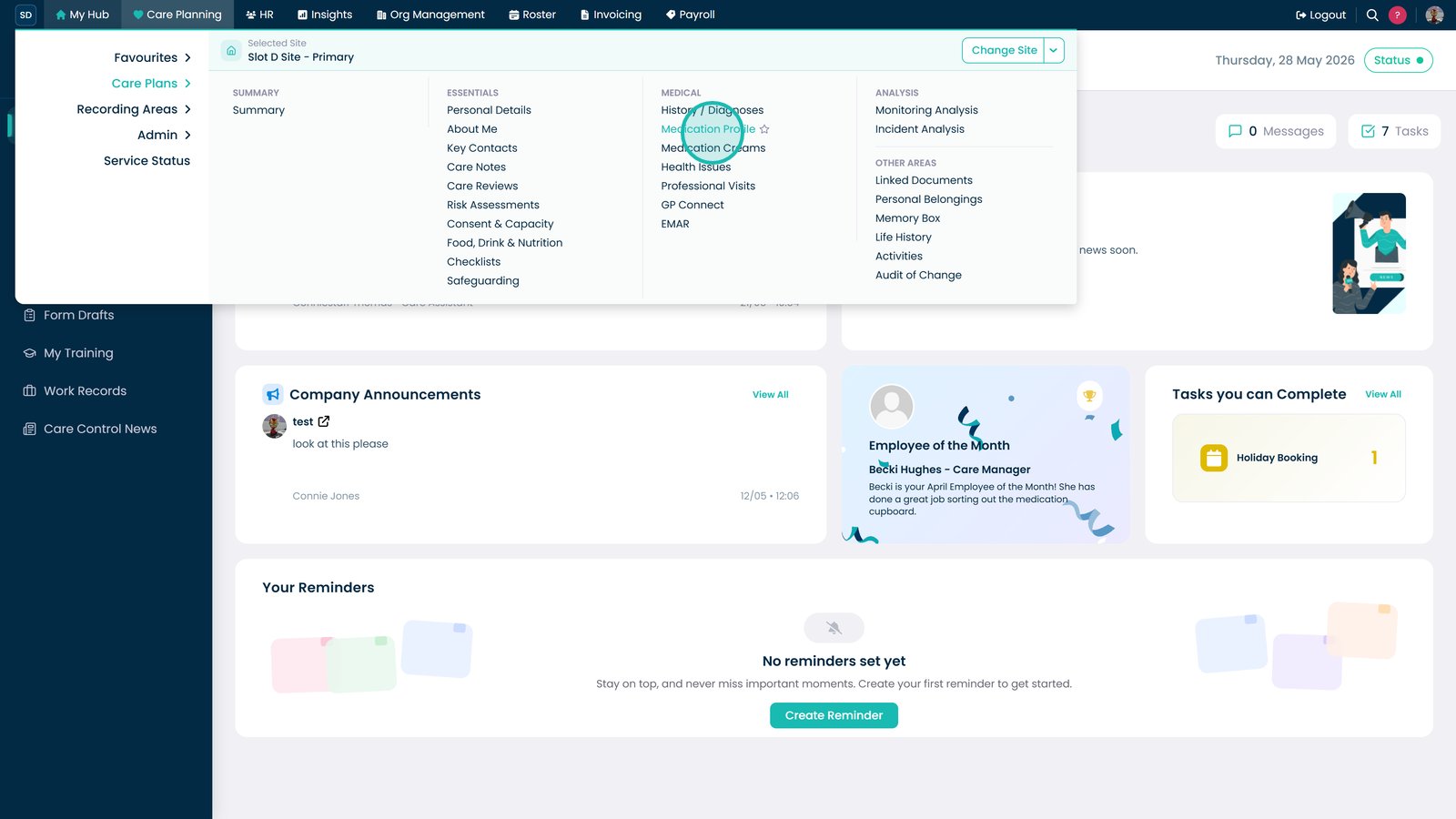
Open Medication Profile from the Care Plans menu.

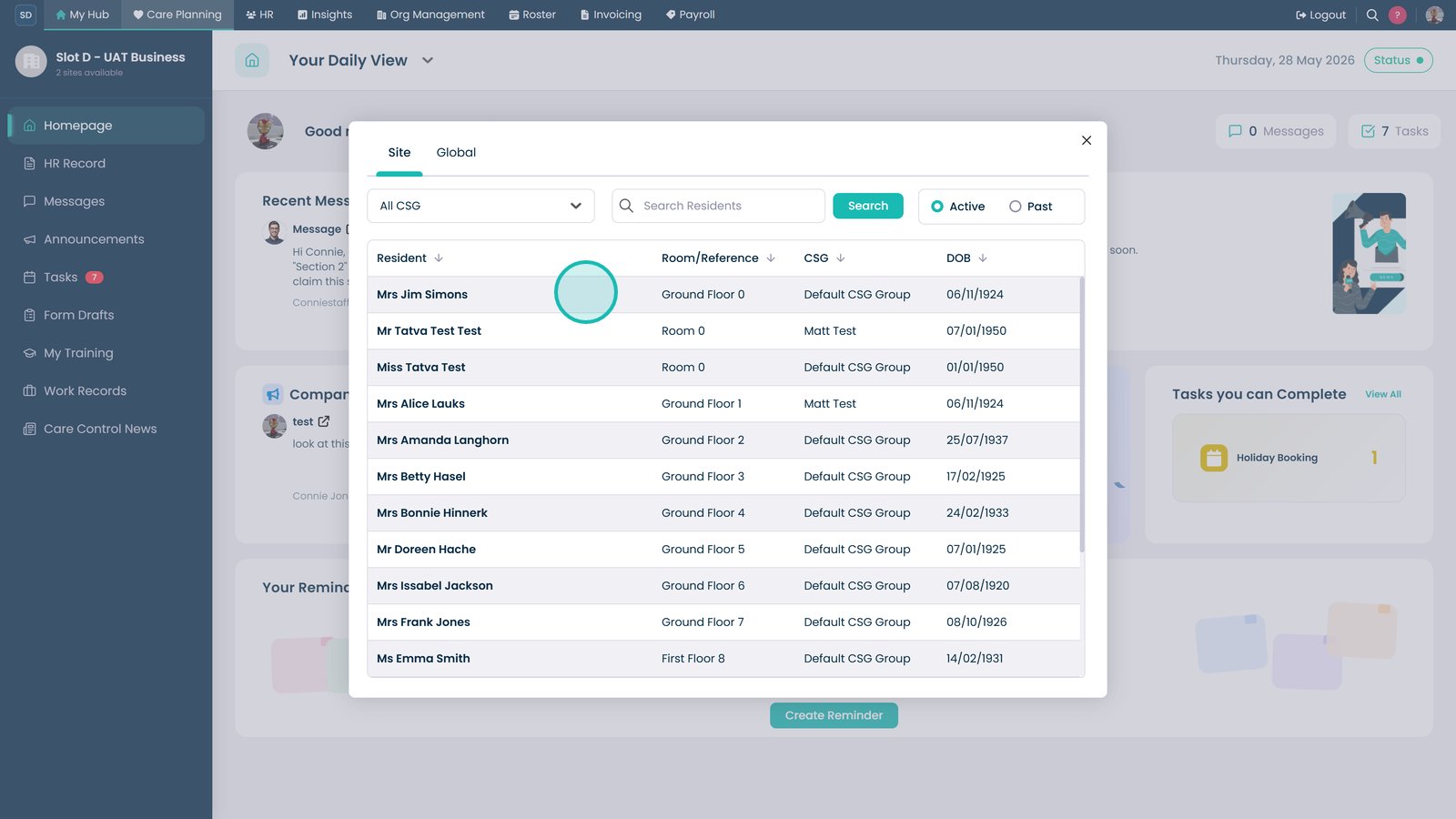
Select the resident.

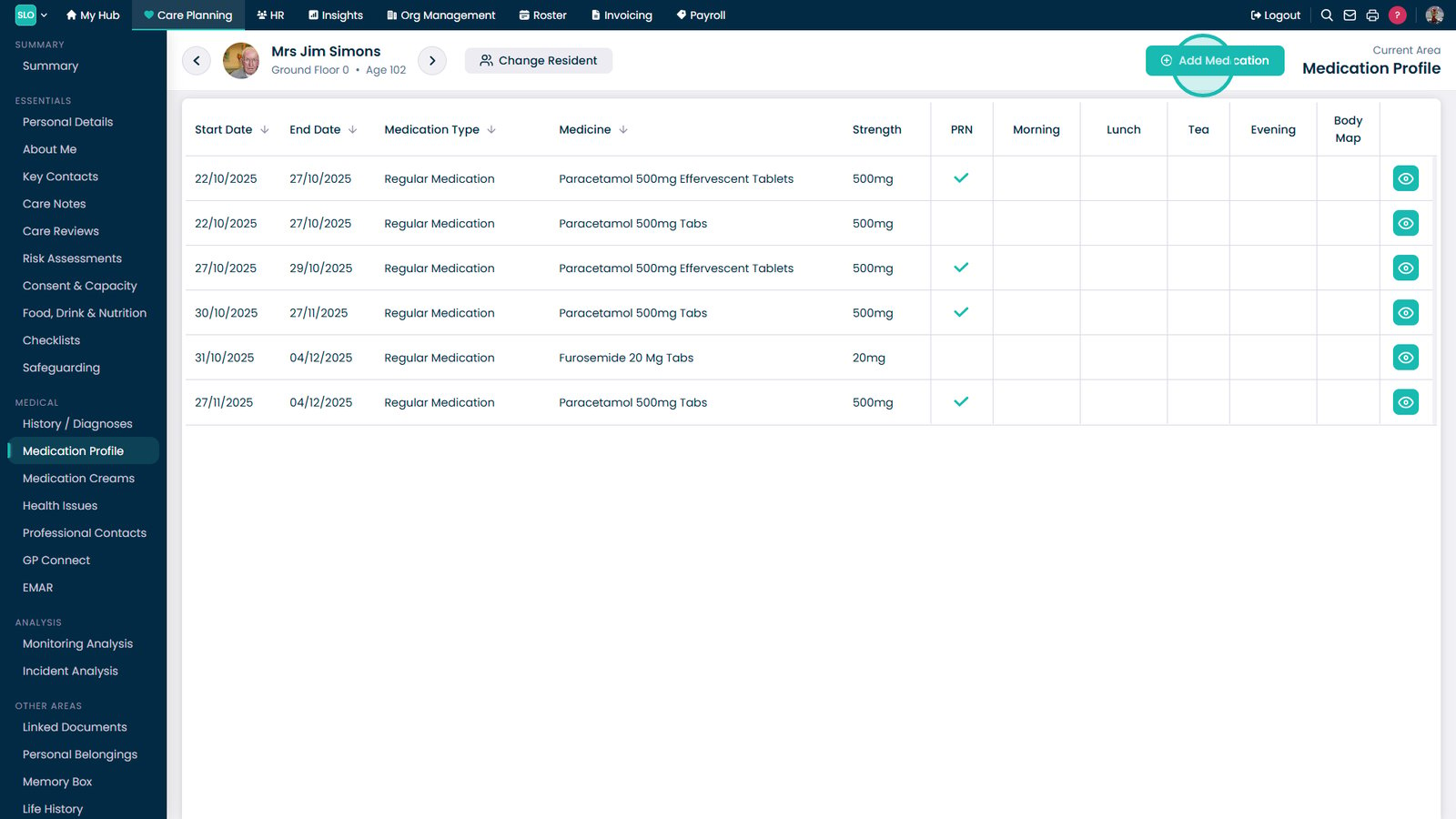
Select Add Medication.

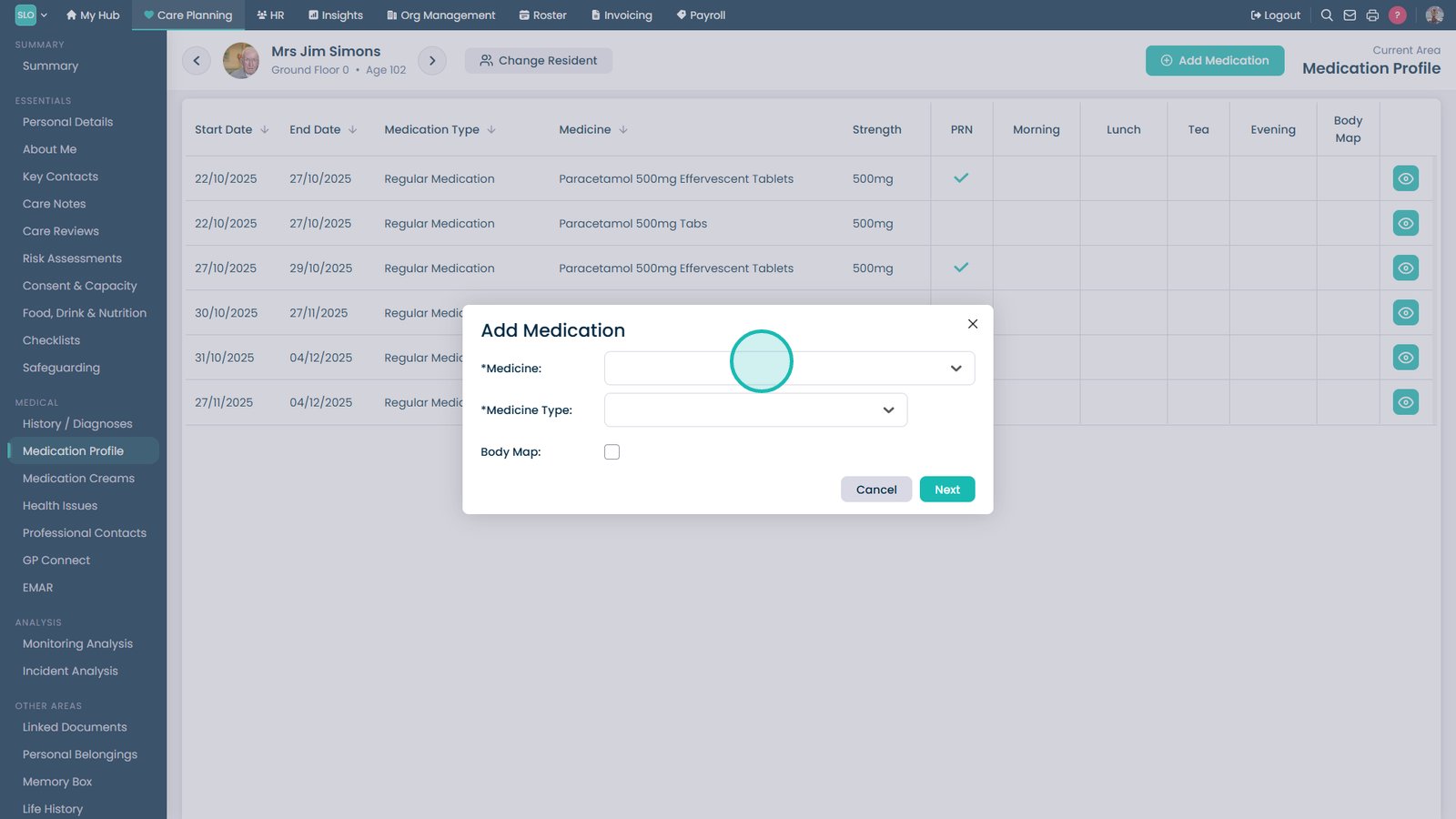
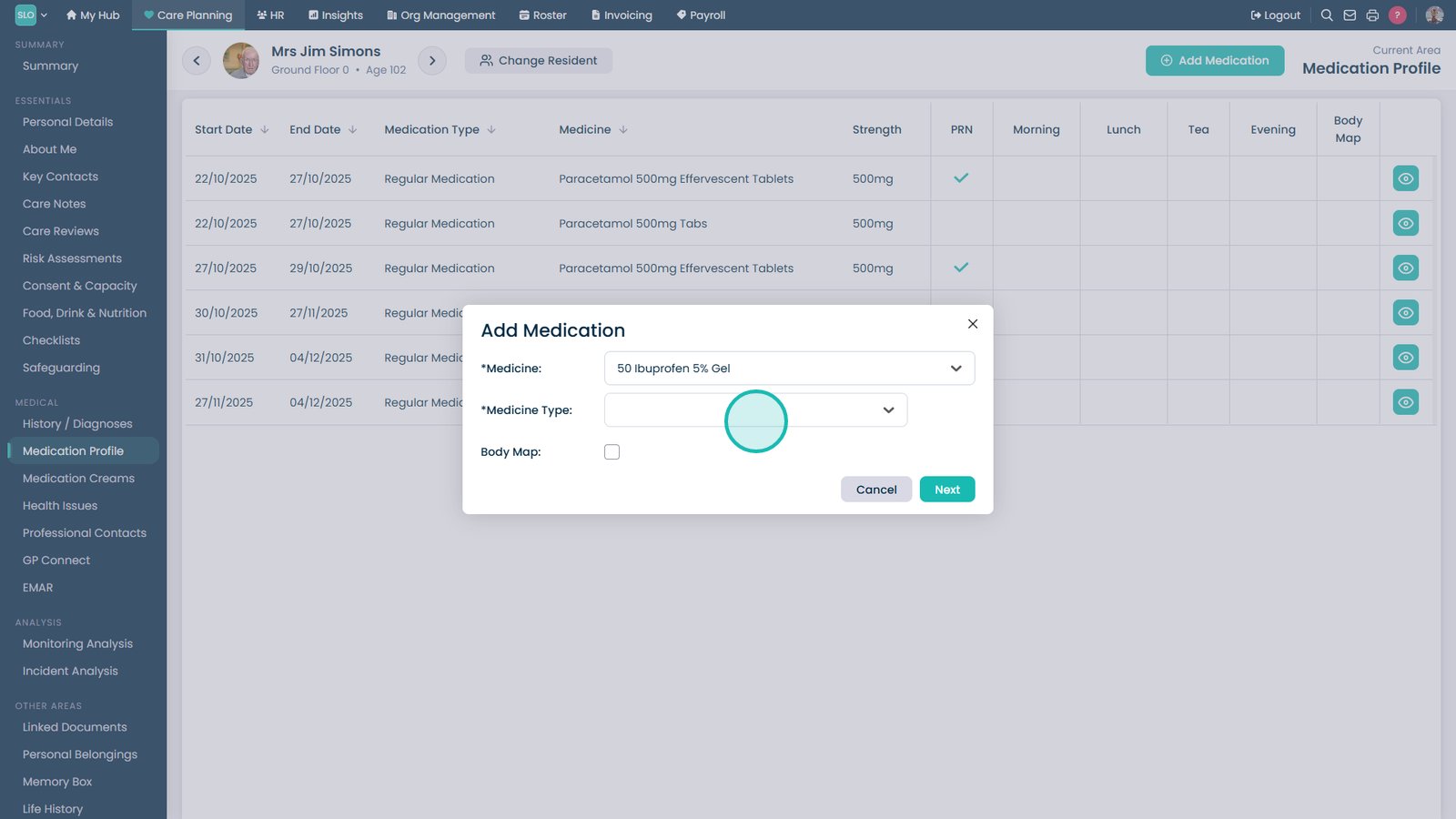
Enter the medication name.

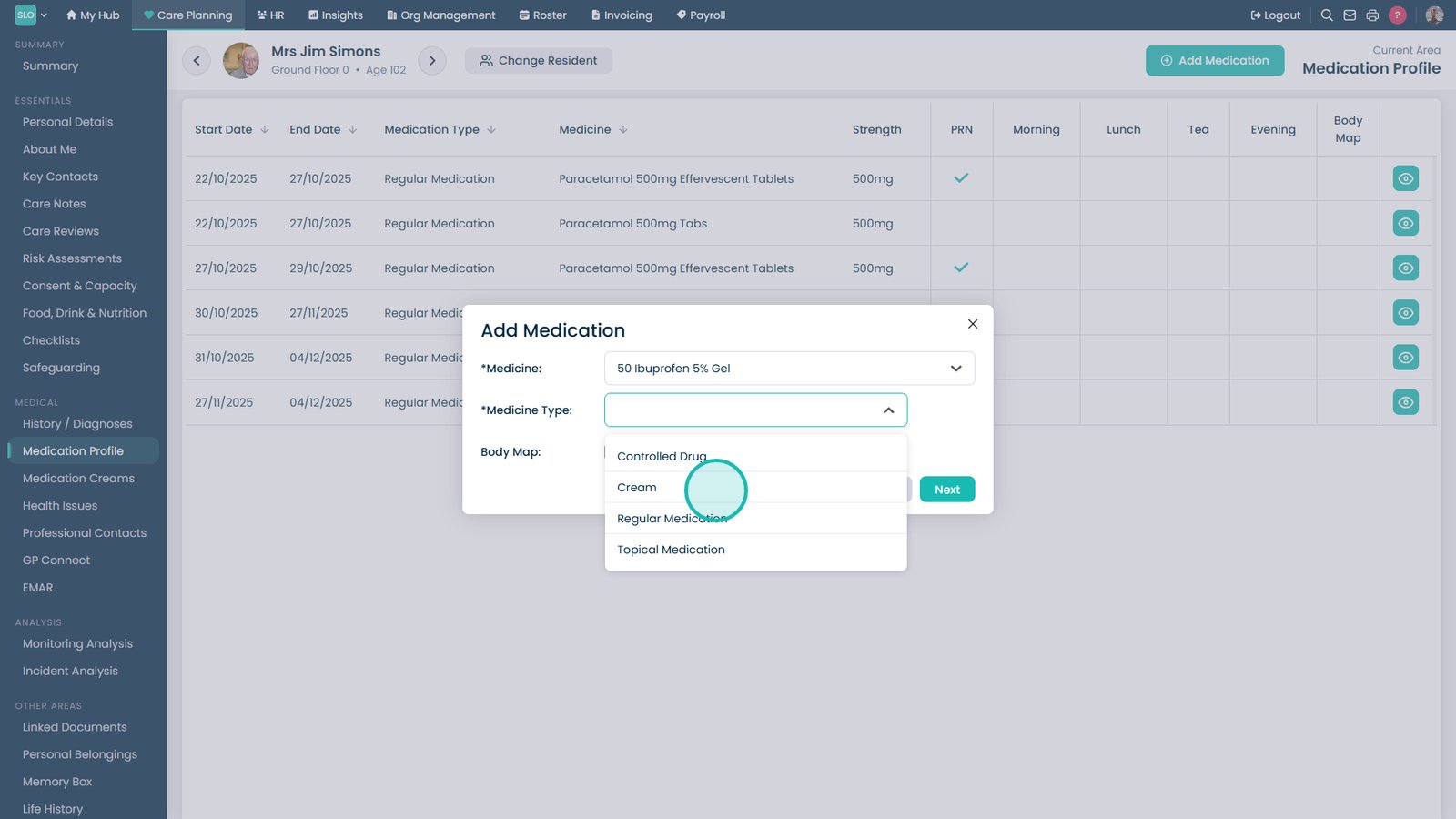
Open the Medicine Type dropdown.

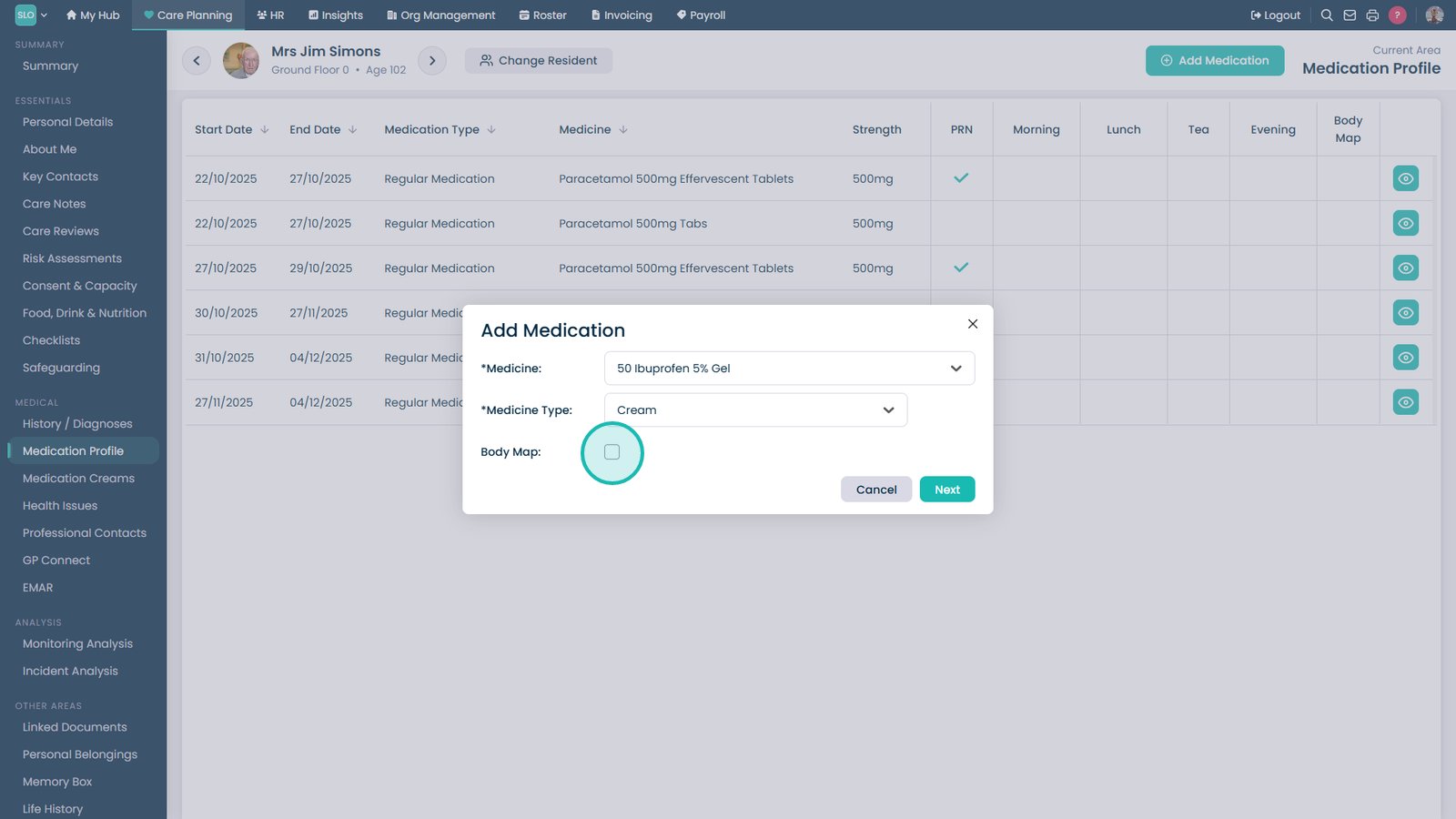
Select Cream as the medicine type.

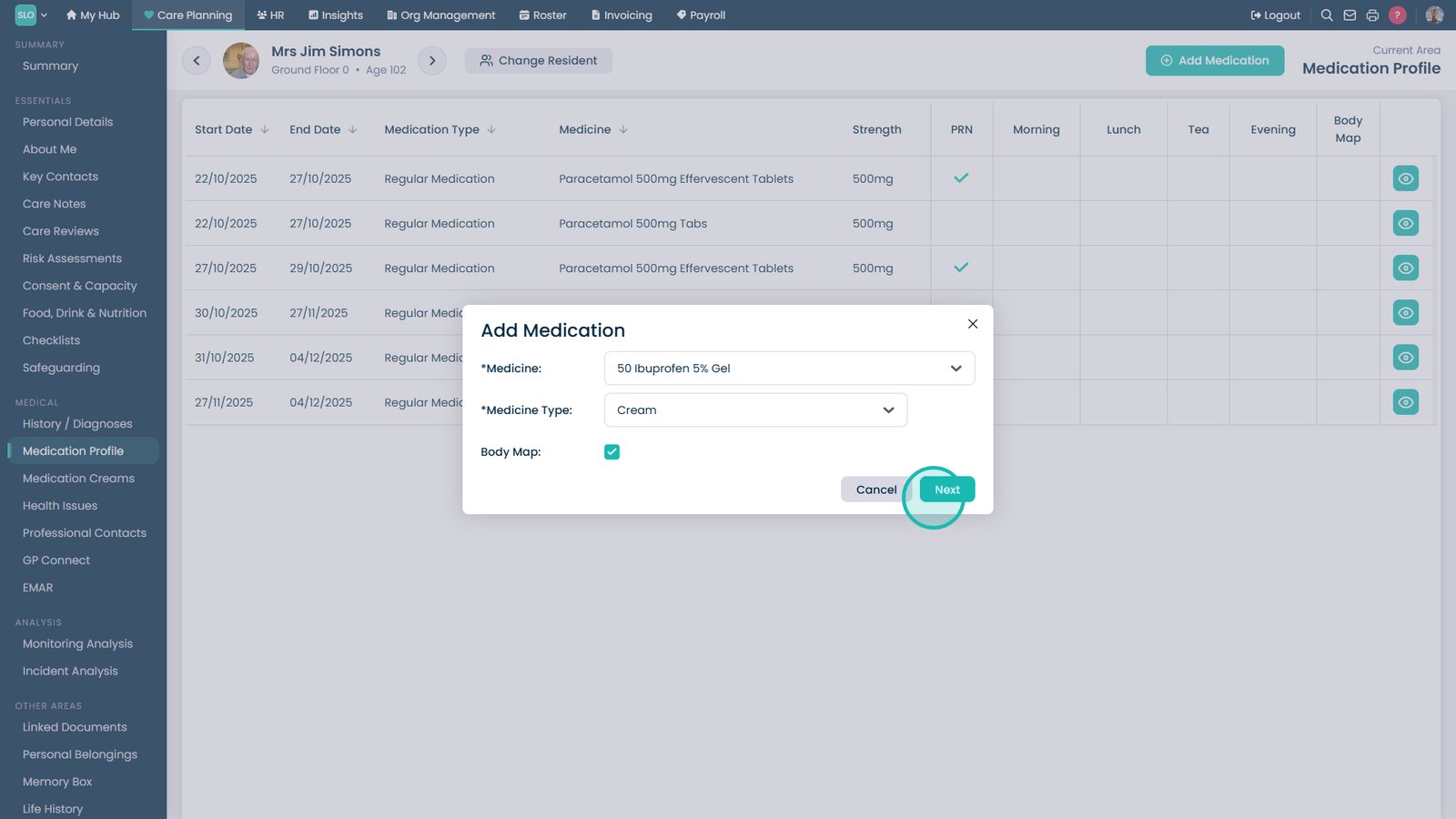
Enable the Body Map option.

Select Next.

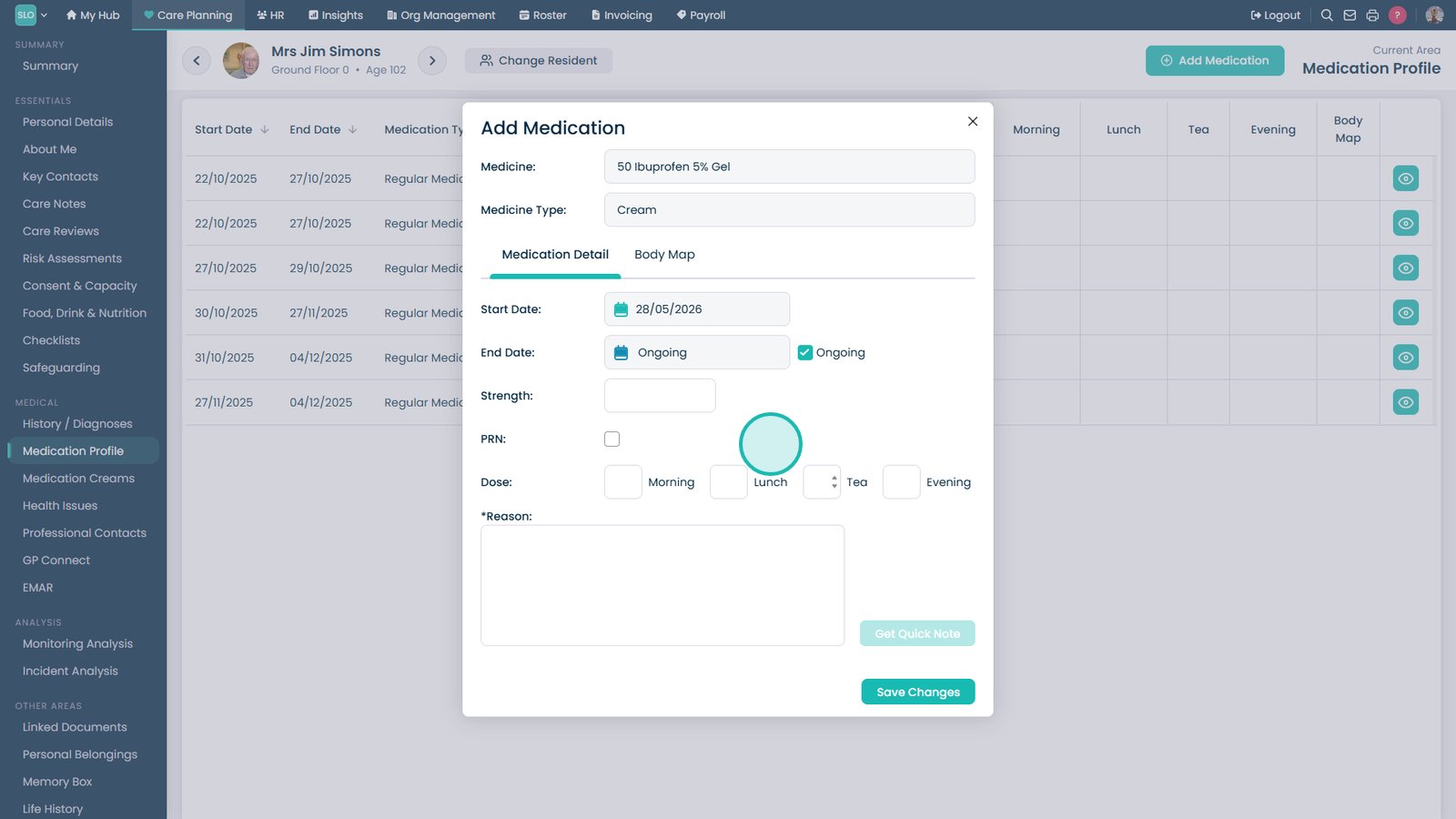
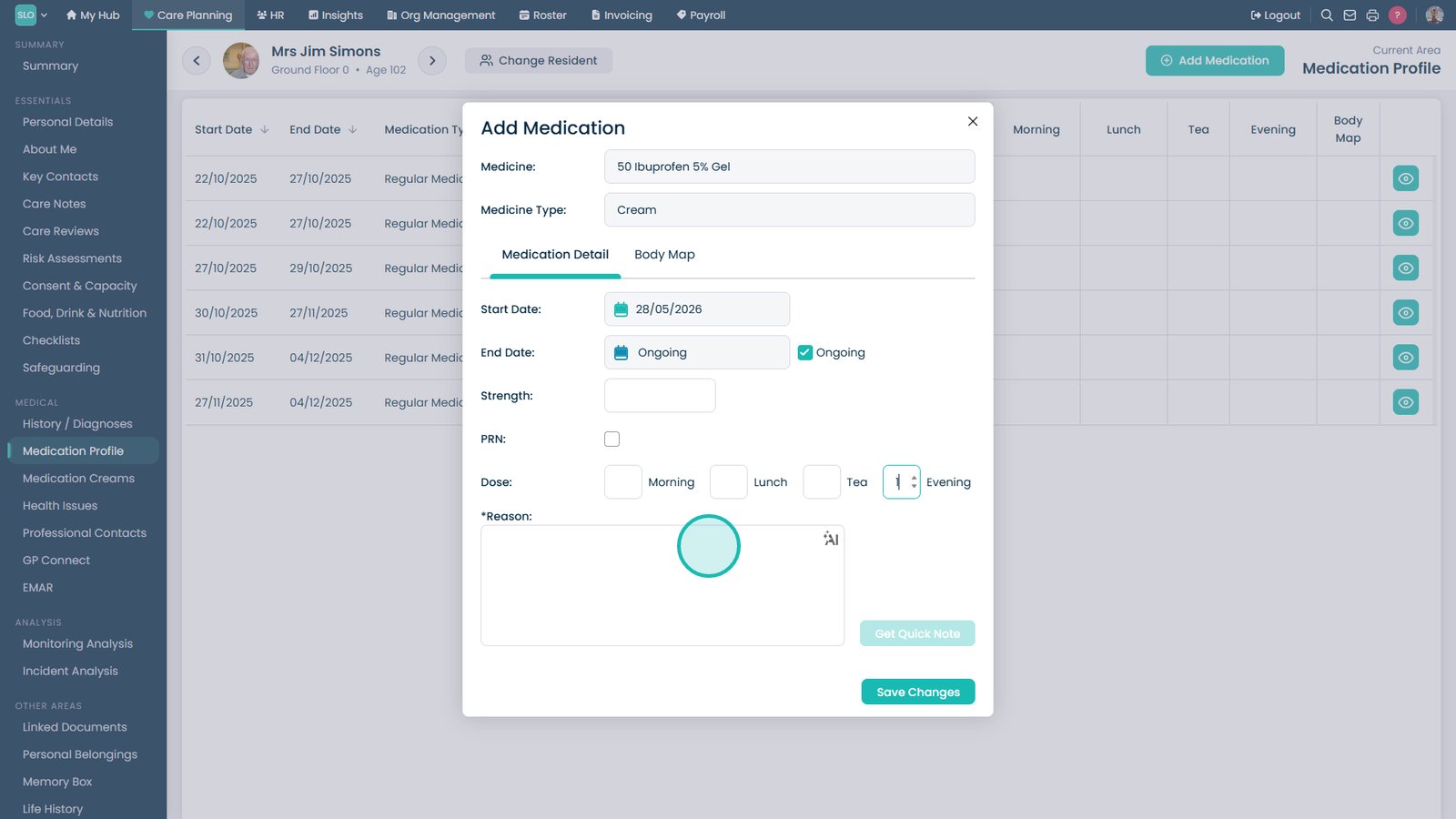
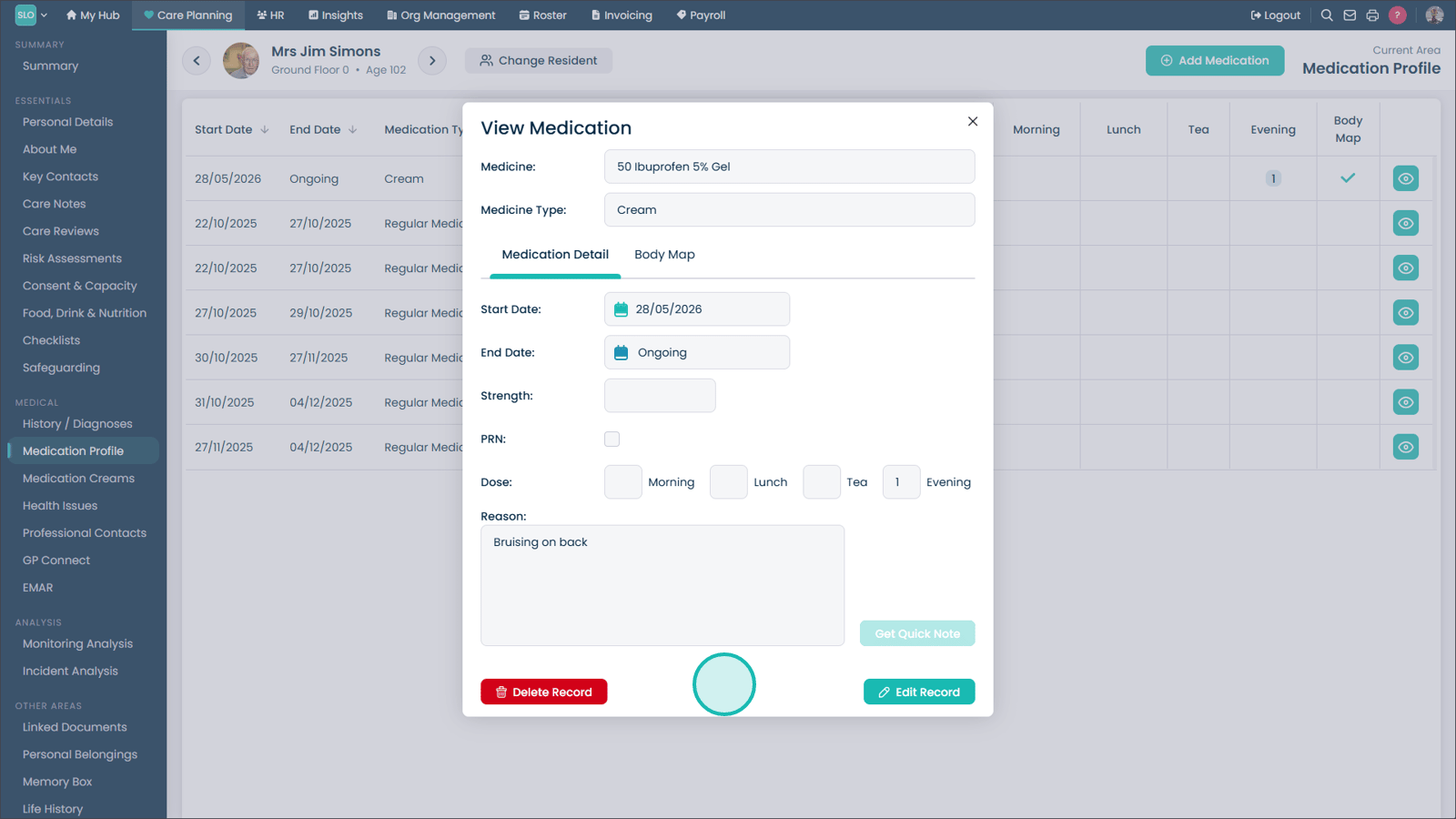
Complete the medication details.

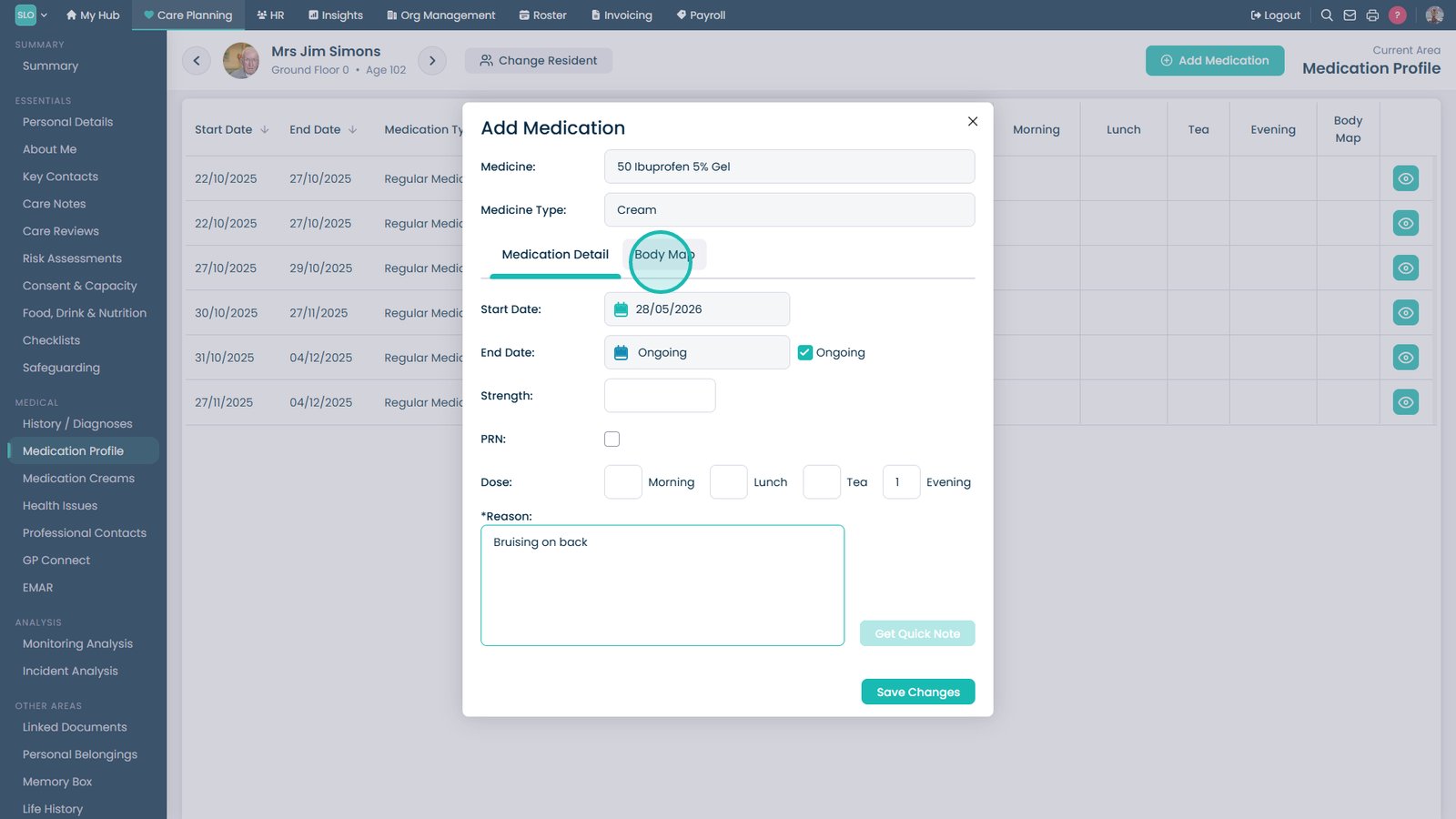
Enter the reason for the medication.

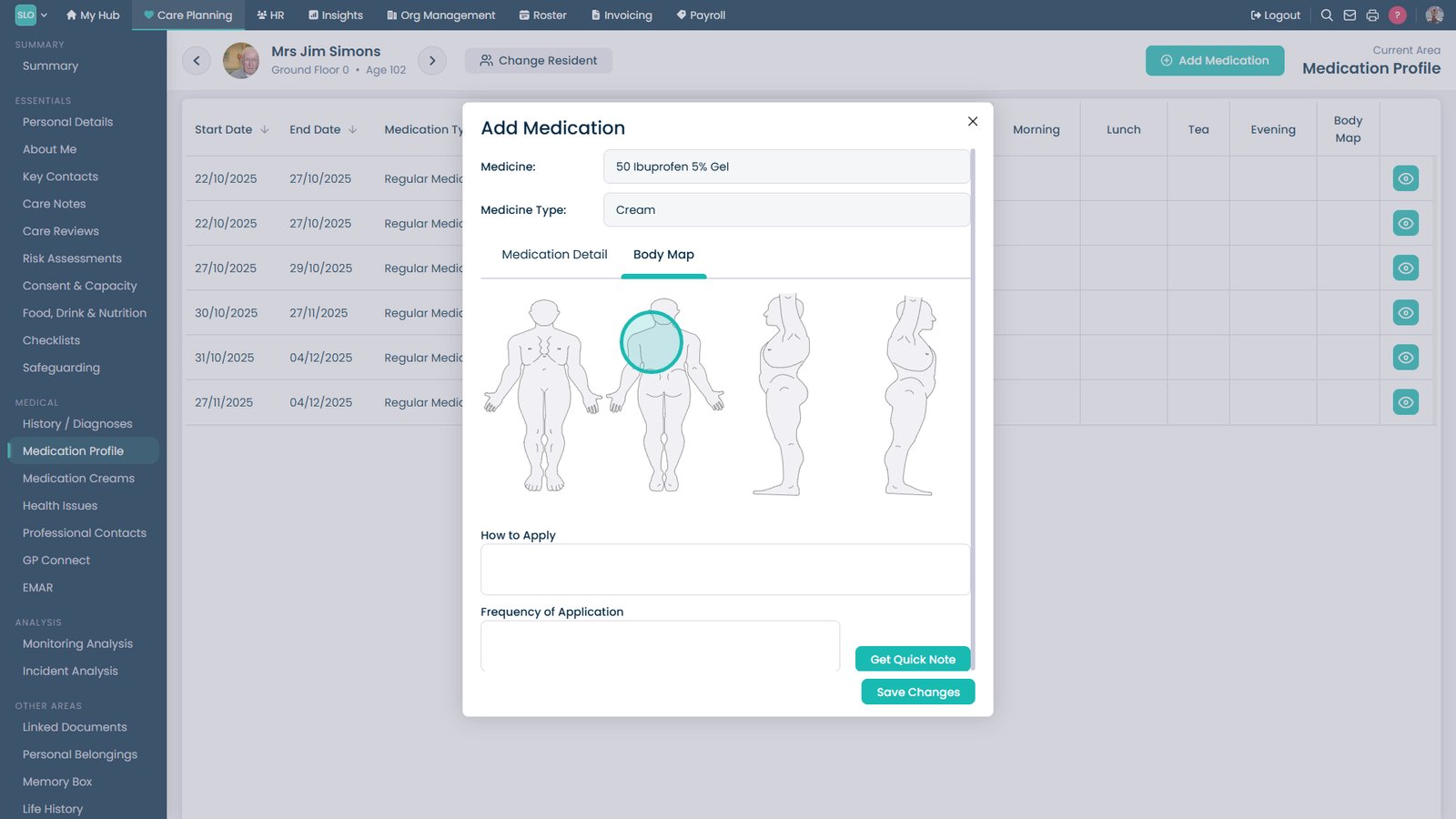
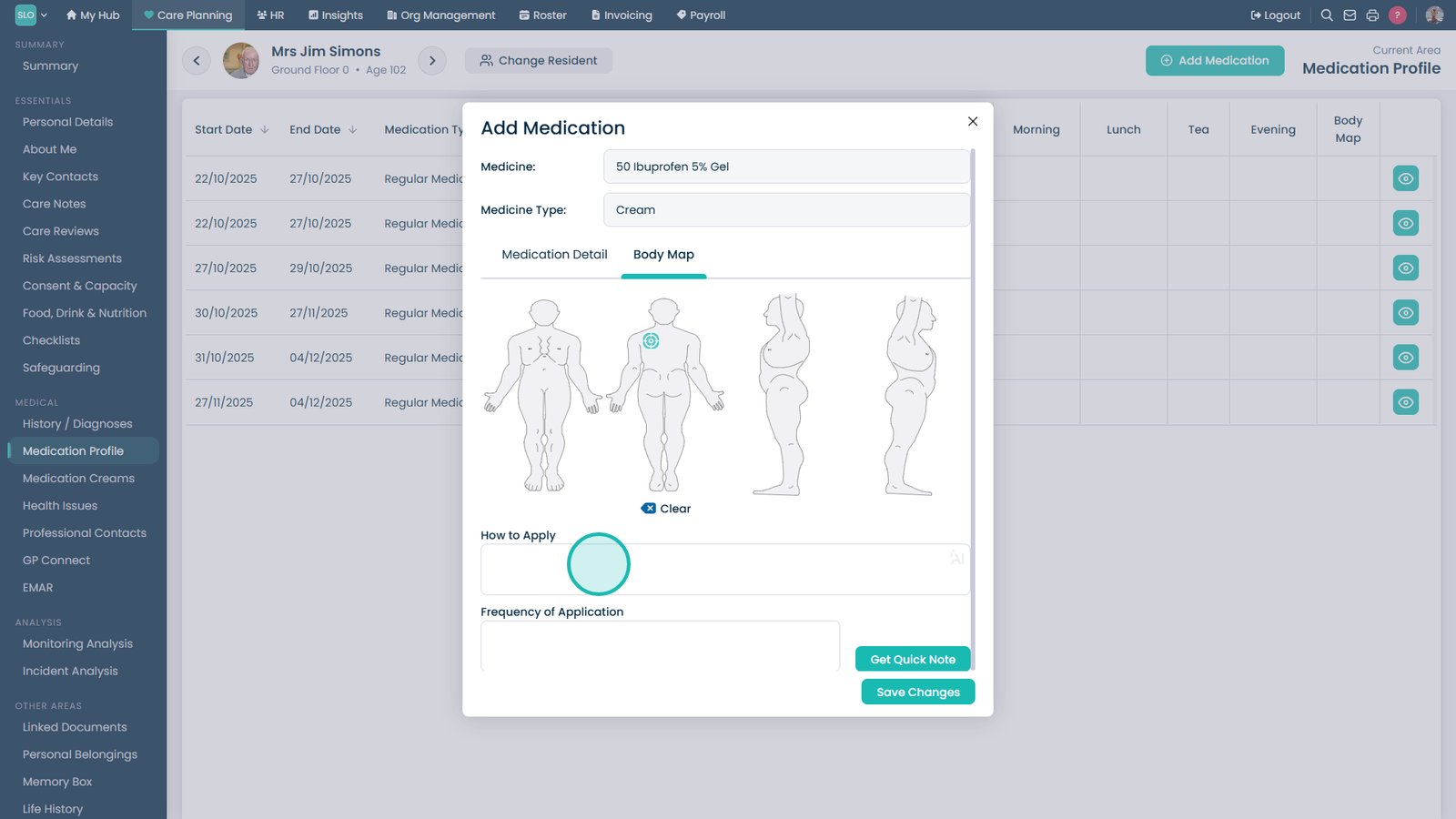
Open the Body Map tab.

Select the application area on the body map.

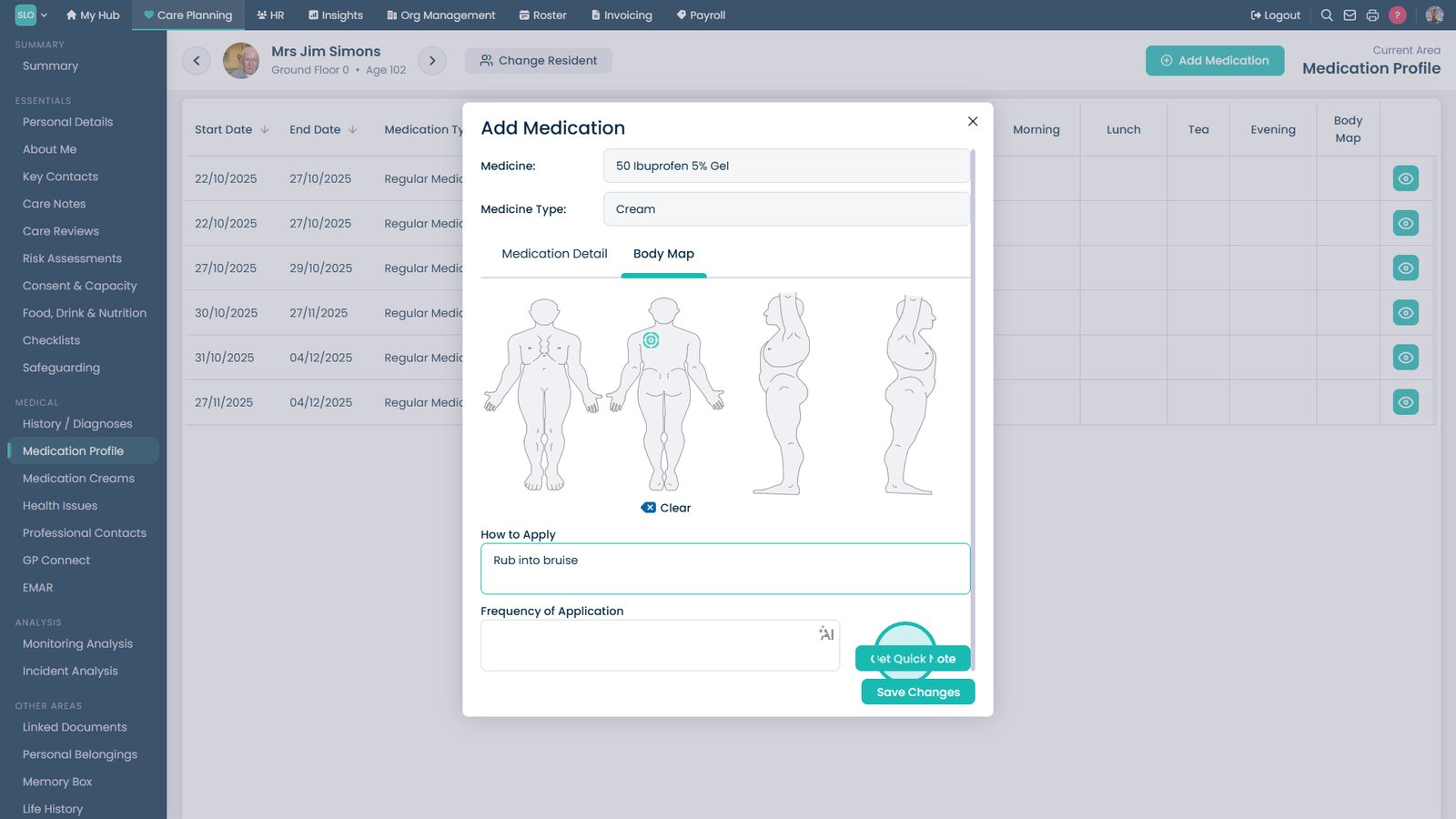
Add any application instructions if required.

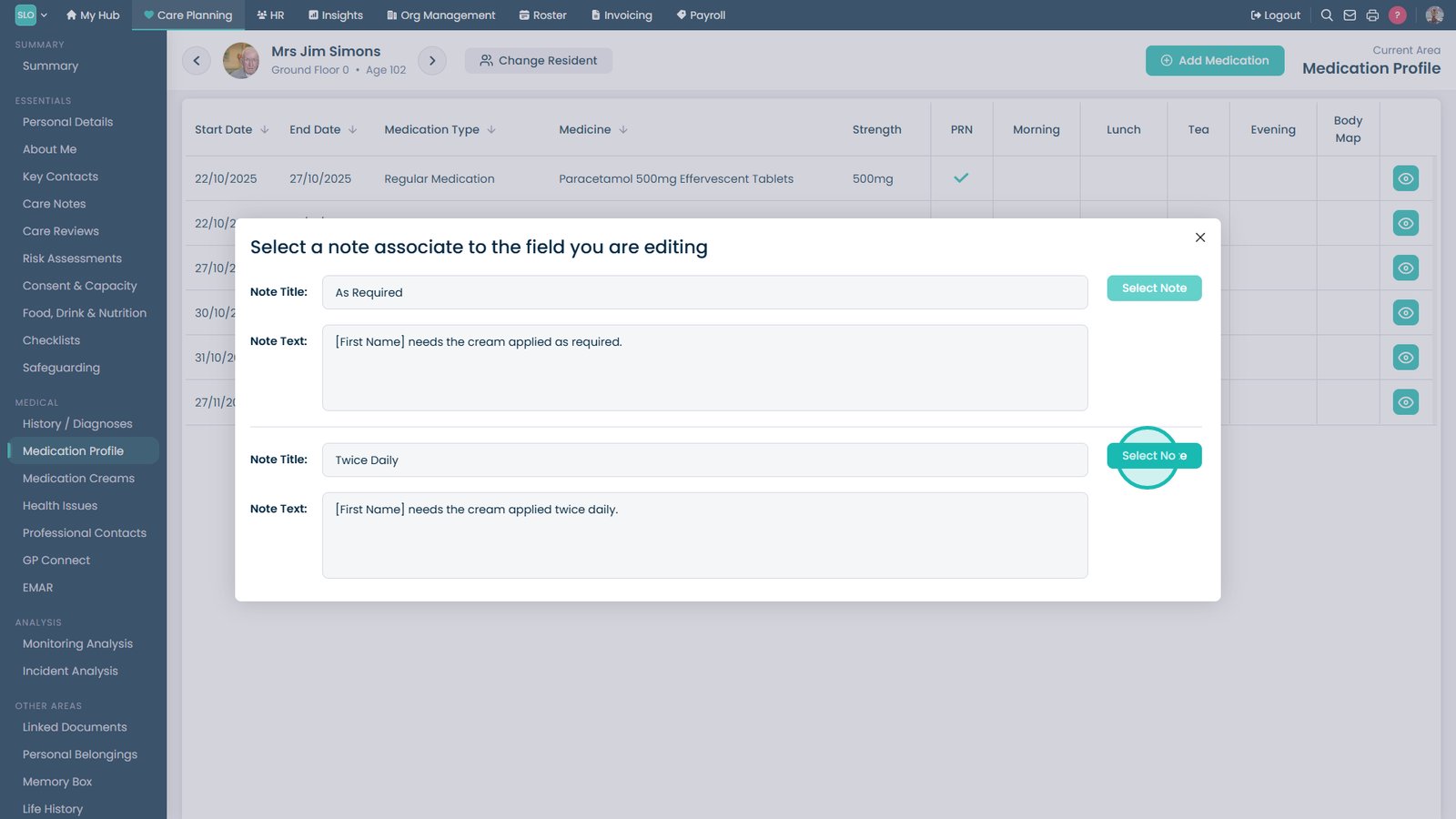
Select Get Quick Note.

Select the most appropriate quick note.

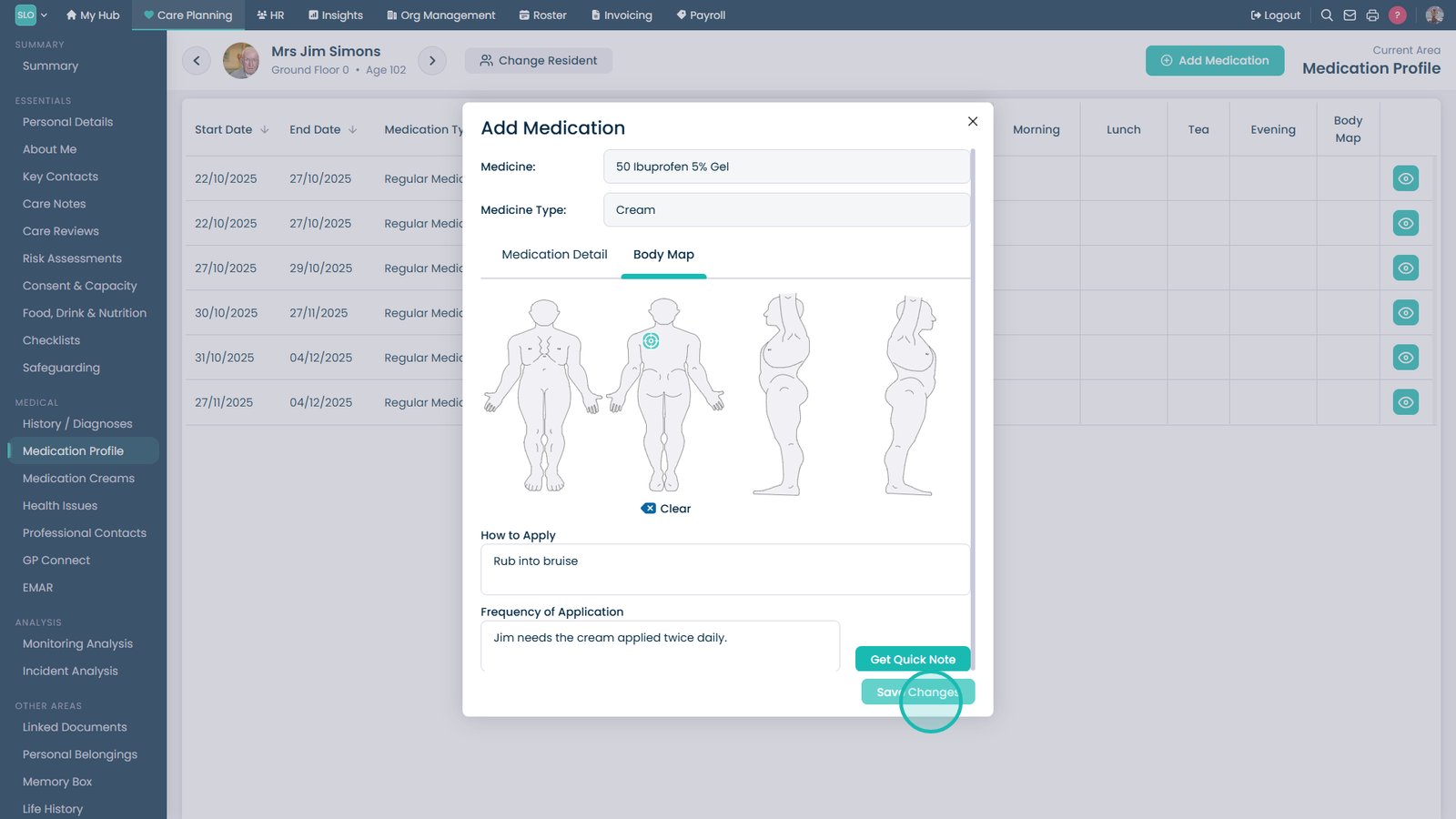
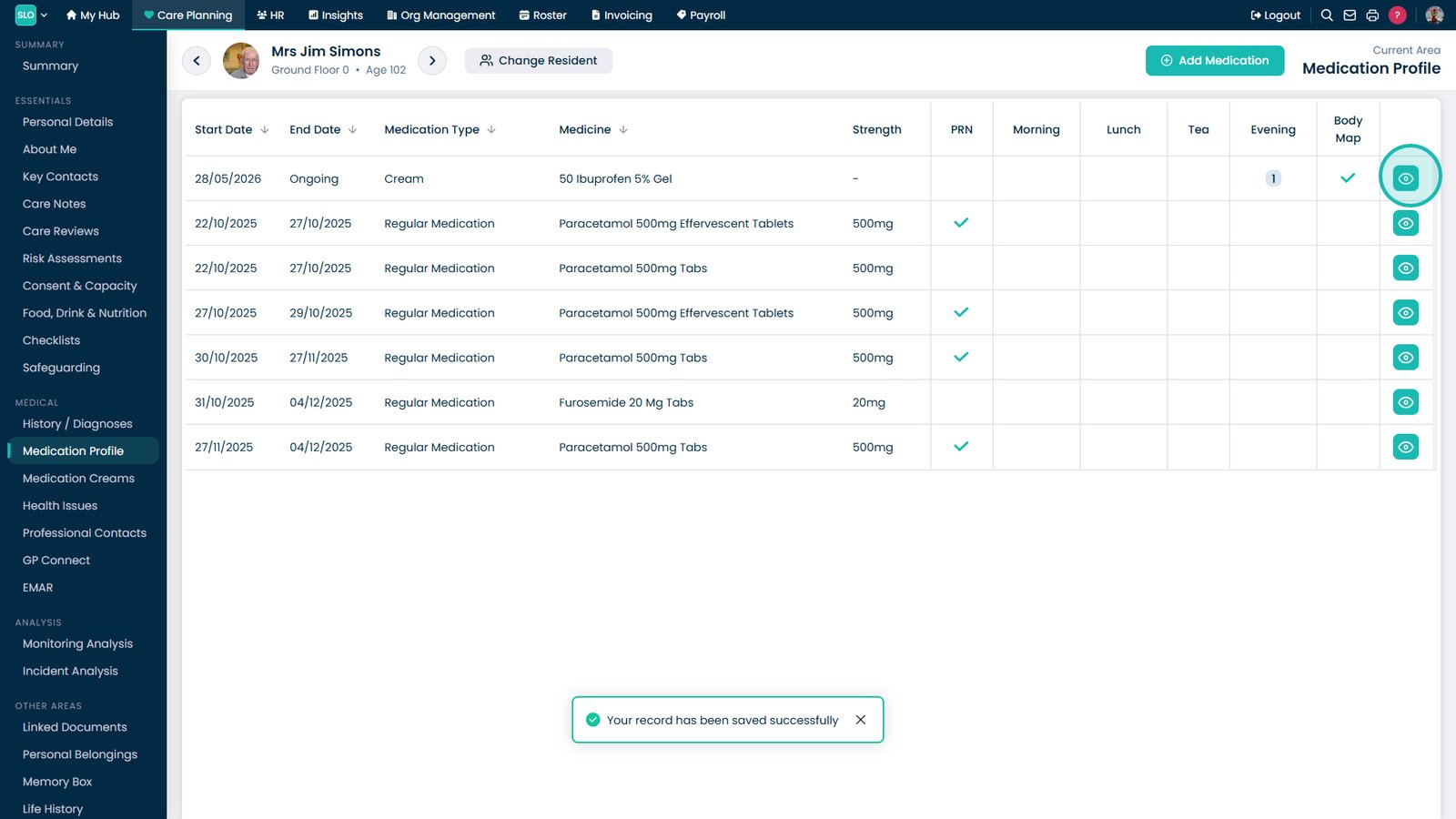
Select Save Changes.

Select the eye icon to view the medication.

Select Edit to update the medication or Delete to remove it.

Top tip
If you’re using our eMAR app, the prescriptions you add on there will automatically copy over to the medication profile of the service user.
Need more help?
Can't find what you're looking for? Our support team is here to help.
Contact SupportOr call us on