How to Create and Manage a Run in Cloud
This feature allows you to create and manage Runs within the Roster app, helping you group visits together in a clear and structured way. By organising visits into dedicated runs, you can plan routes more efficiently and improve oversight of daily schedules.
You can assign a name, colour, and transport mode to each run, allowing the system to calculate travel times accurately and present routes in a way that’s easy to interpret. This supports better time management, clearer visual planning, and improved coordination across your team, while maintaining an organised and auditable schedule.
Interactive Guide
Text based guide
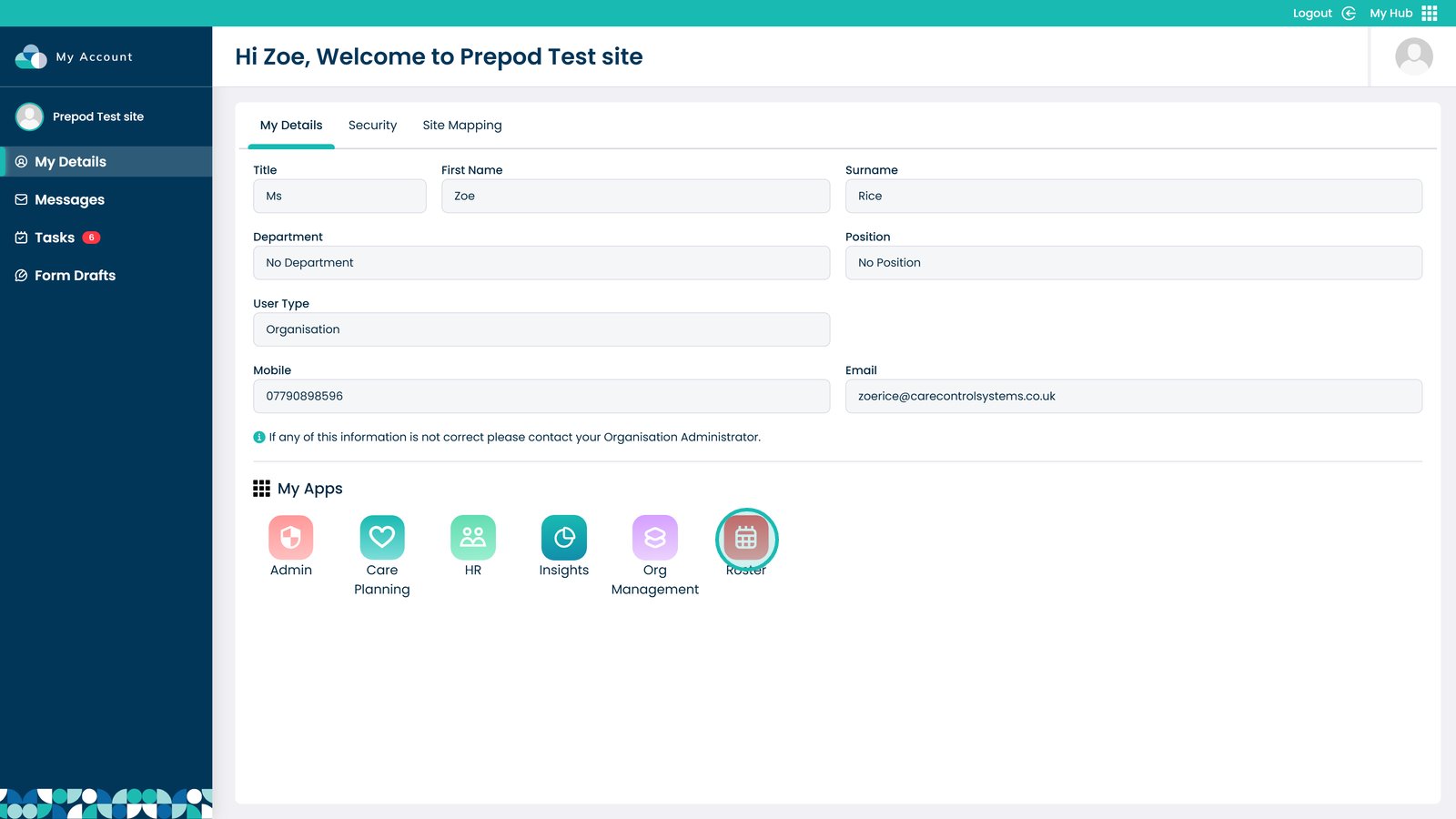
Enter the Roster app

Â
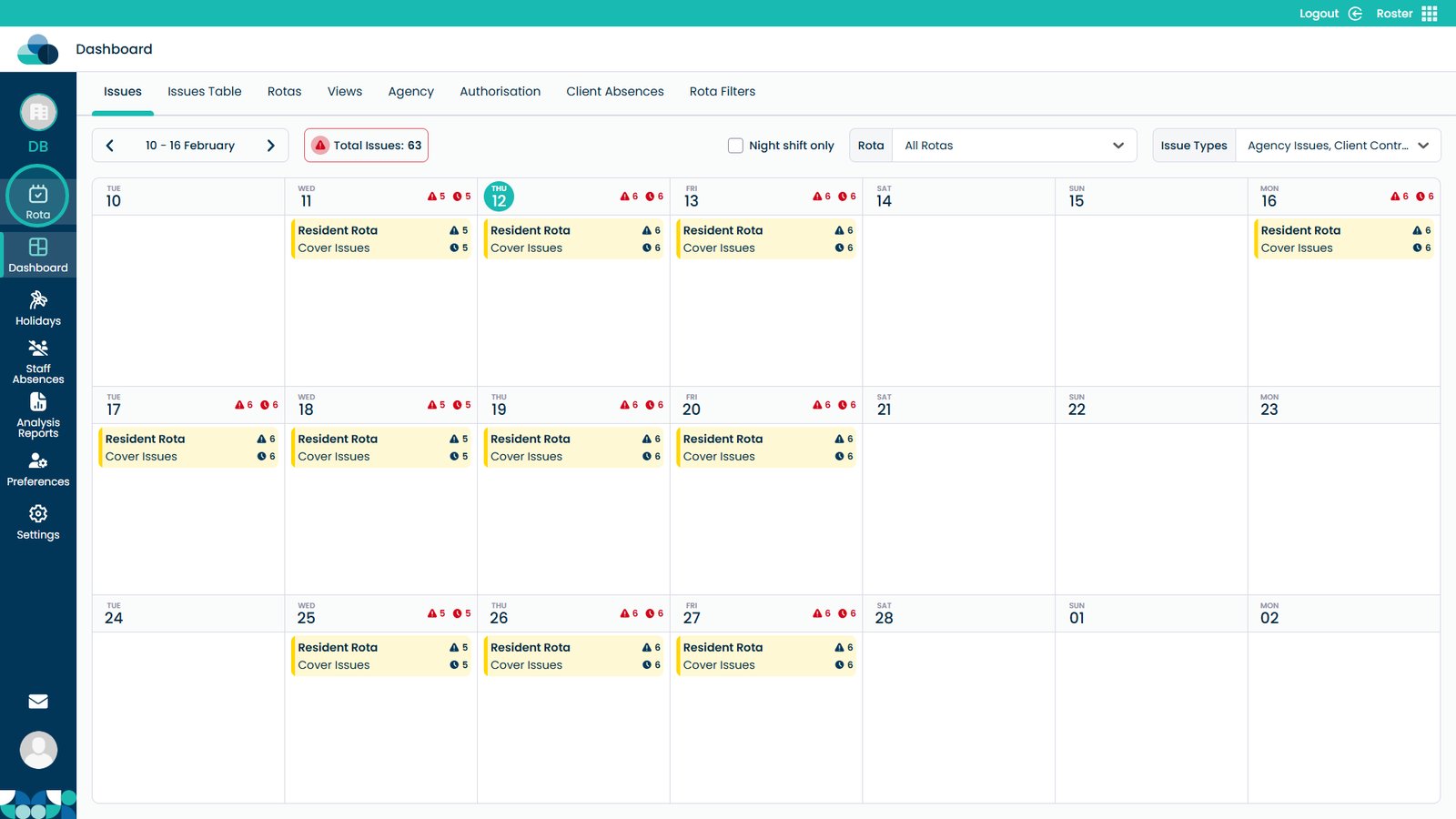
Open the Rota screen

Â
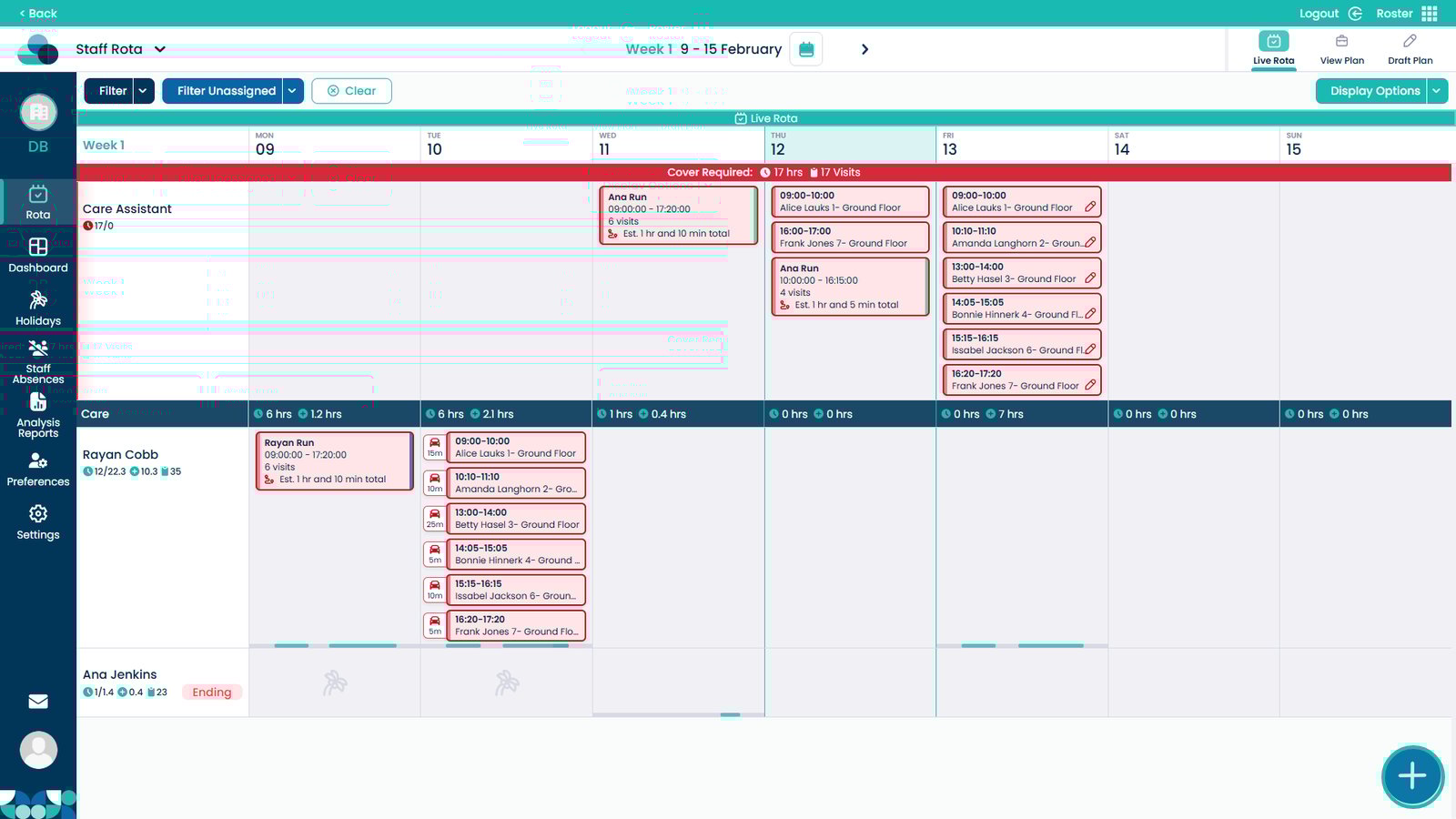
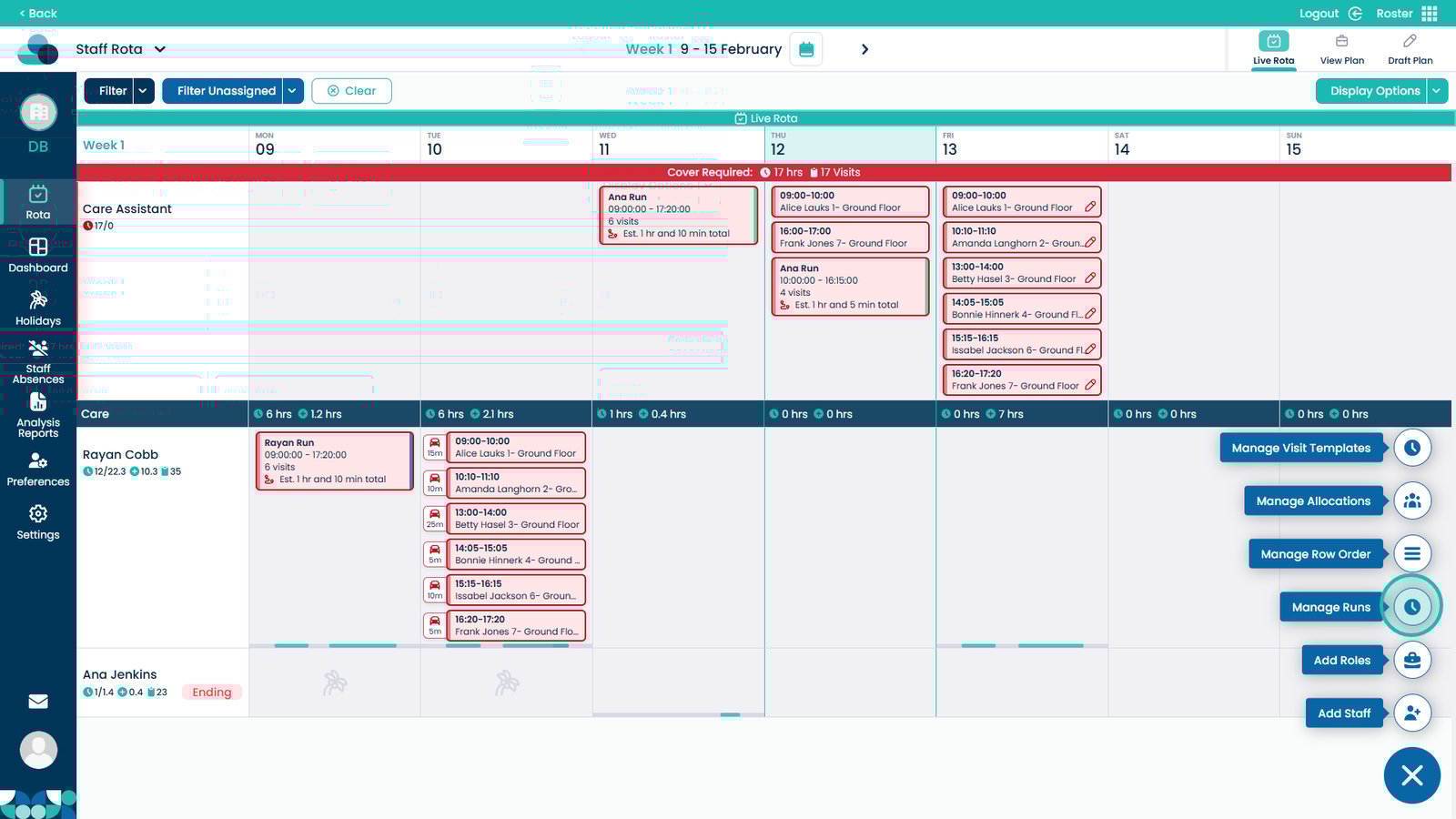
Click the plus button

Â
Select Manage Runs

Â
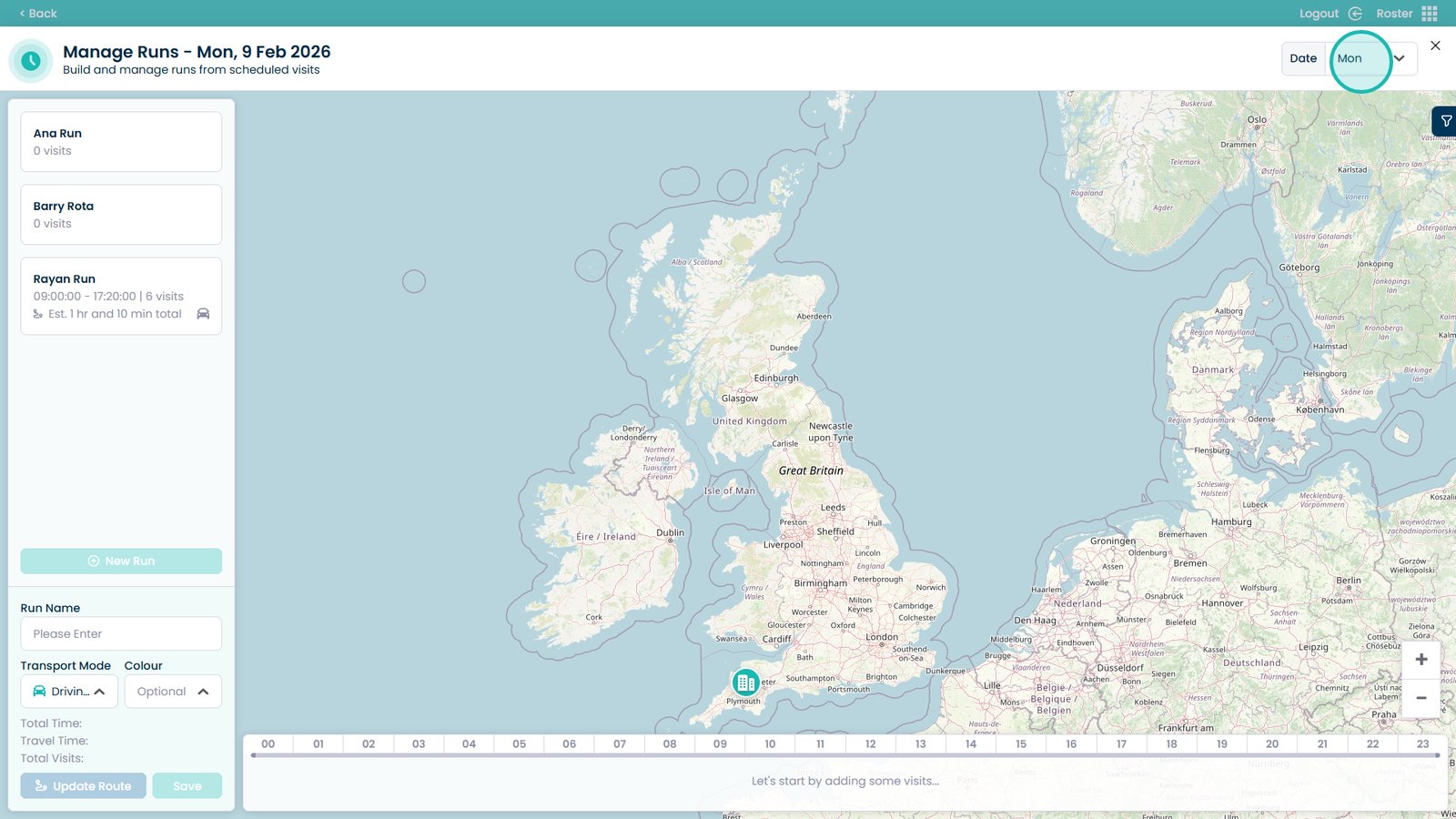
Choose the day of the run in the top right

Â
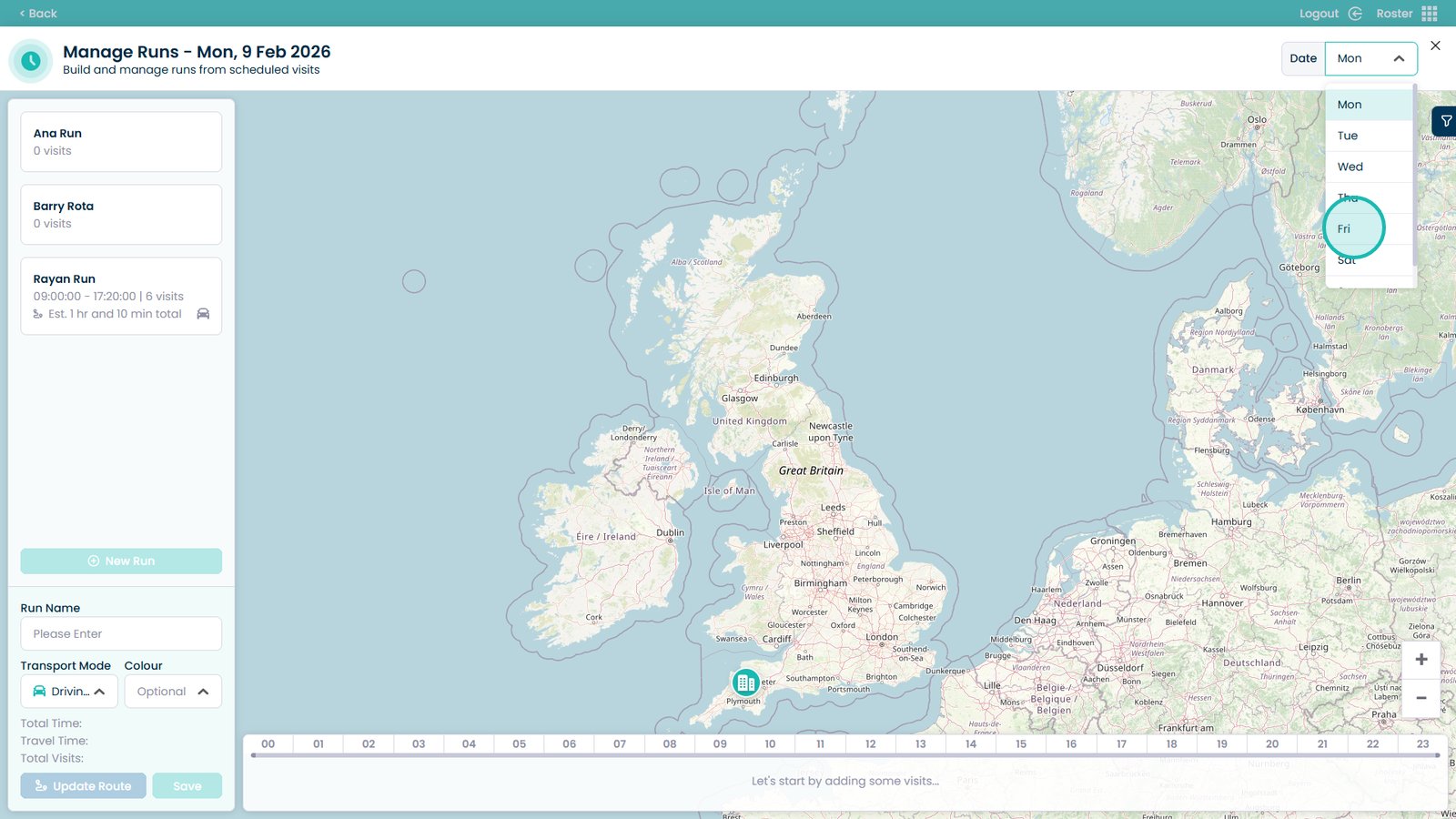
Select the day from the drop-down

Â
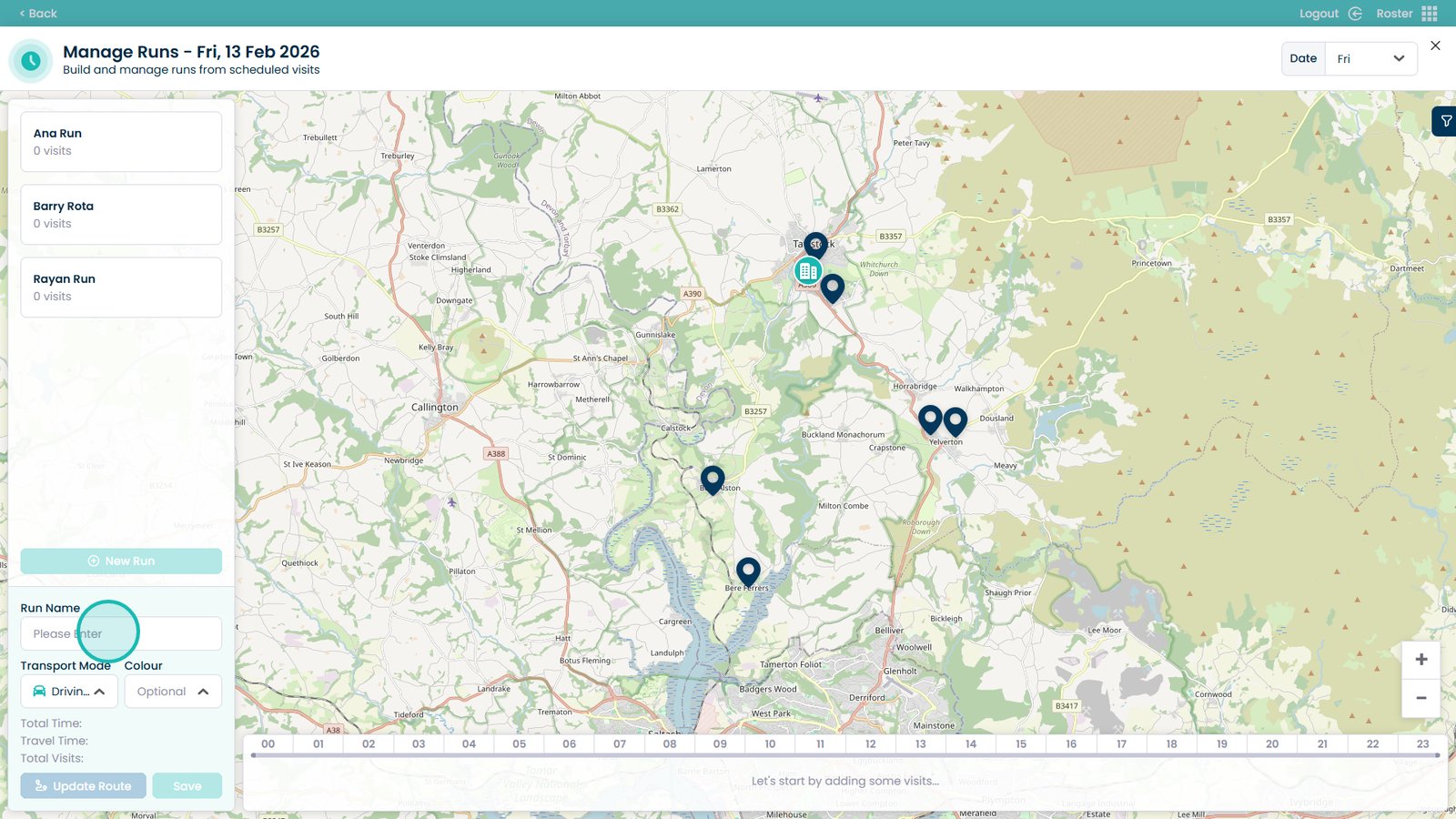
Enter the name of the run

Â
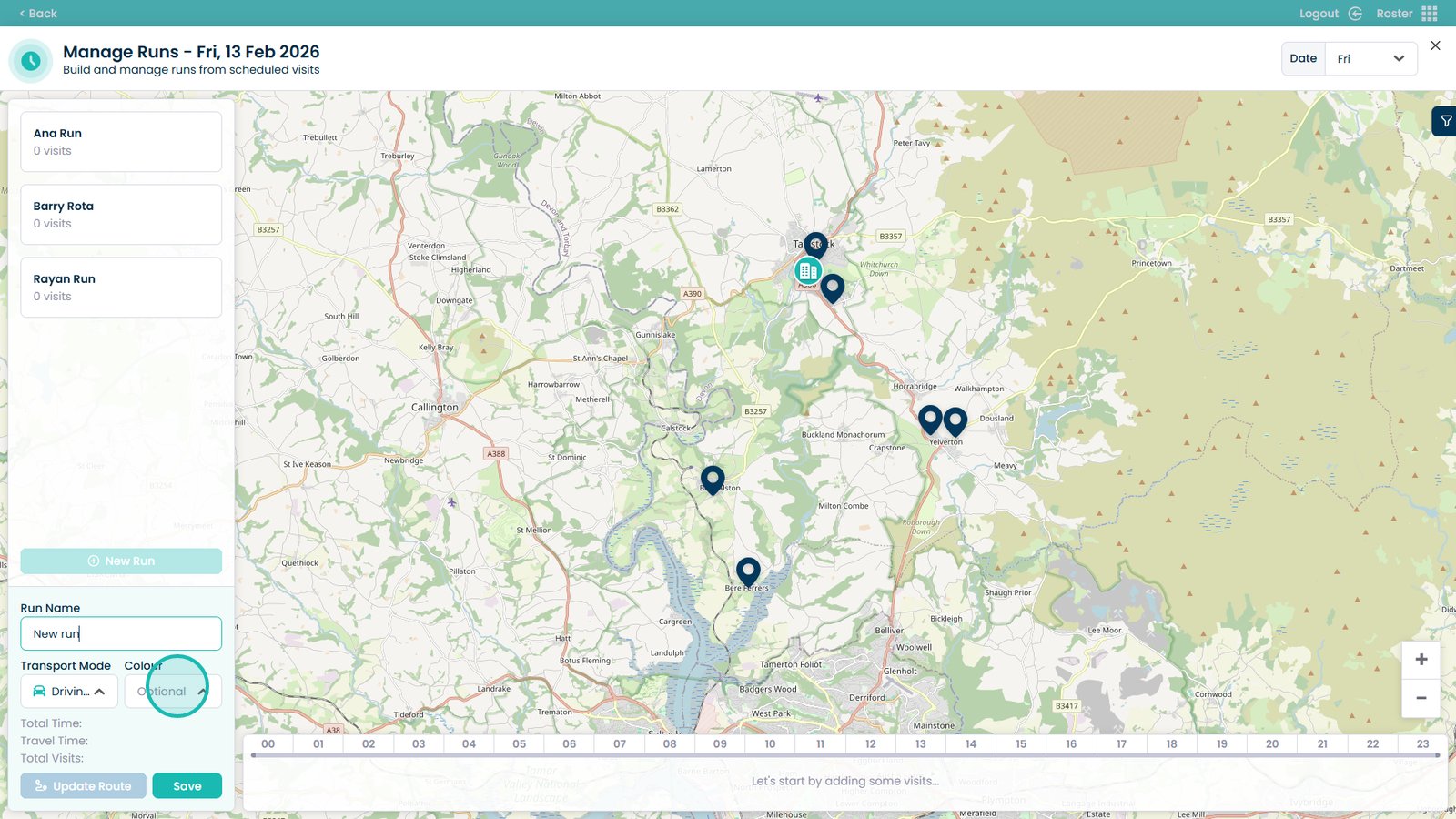
Choose a colour to help differentiate runs

Â
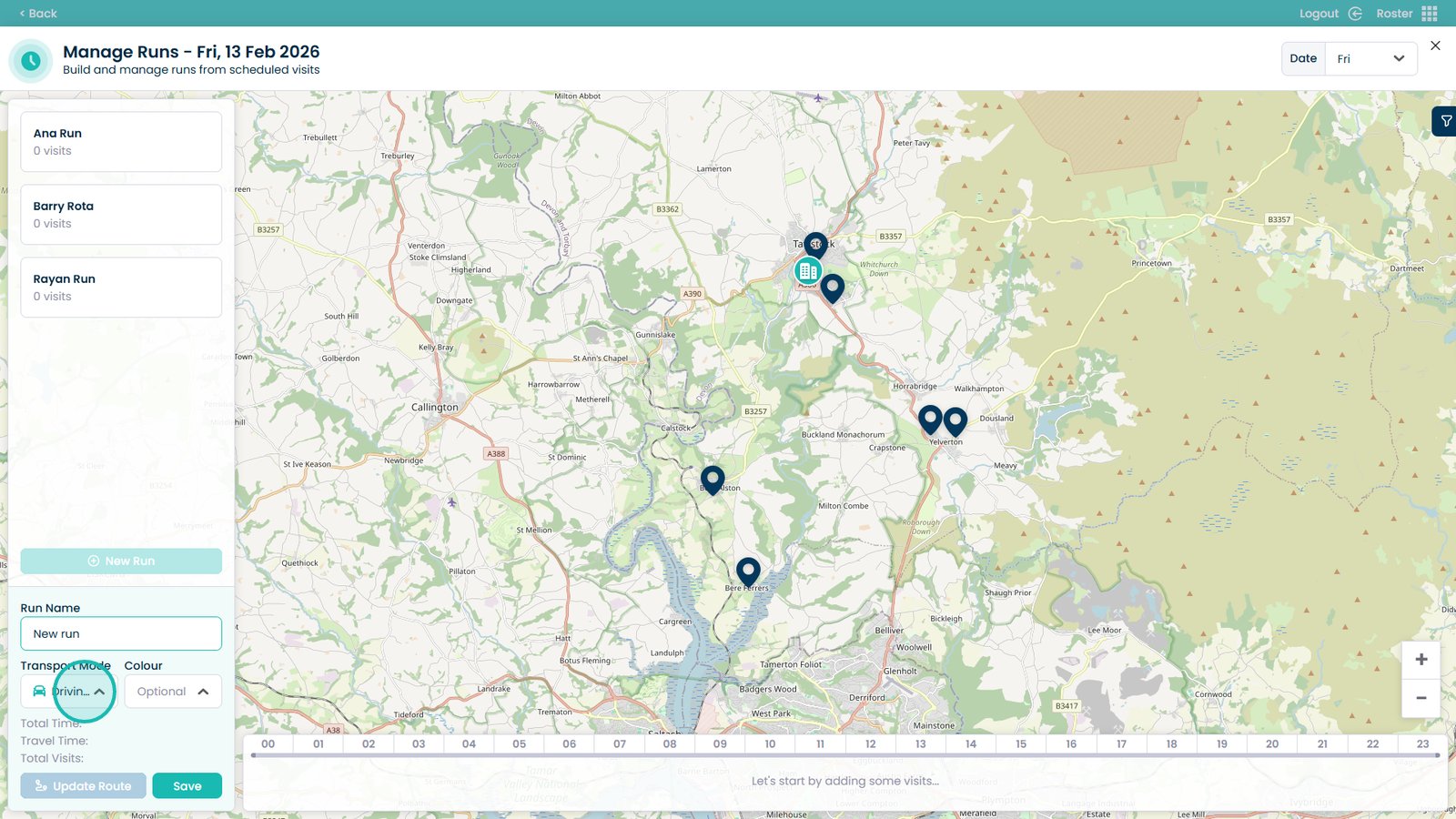
Open the Transport mode drop-down

Â
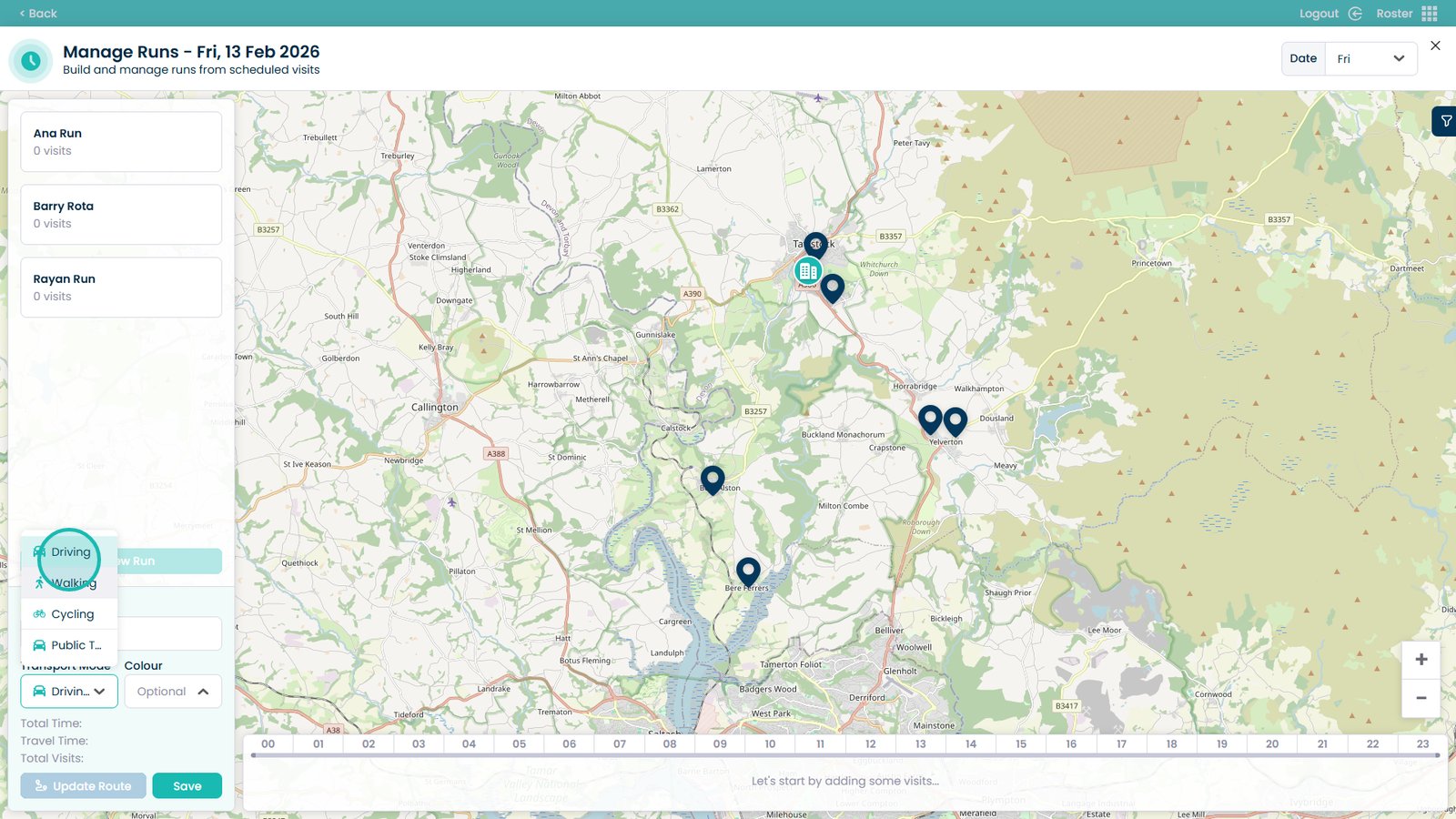
Choose the mode of transport (this affects travel time calculations)

Â
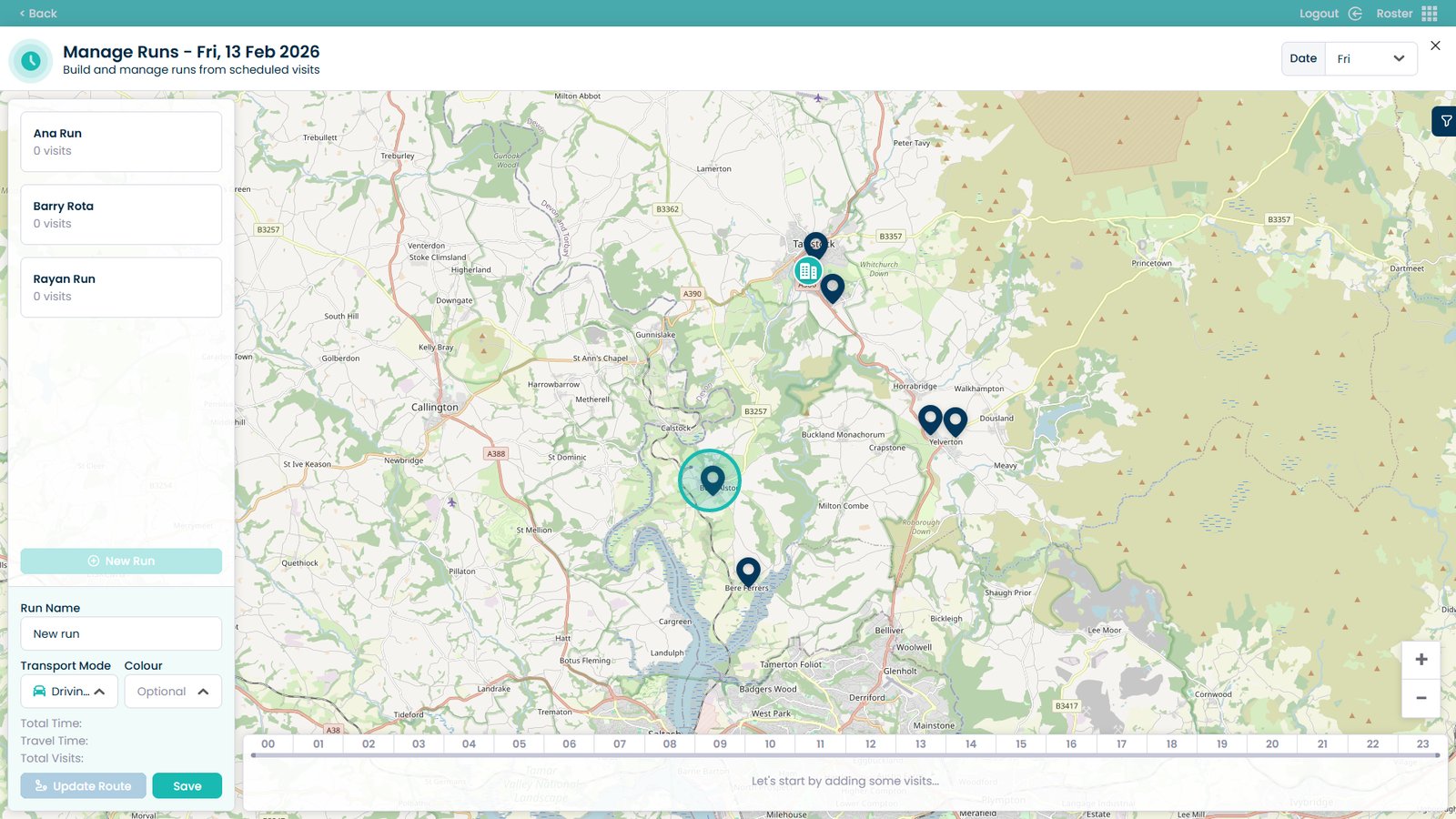
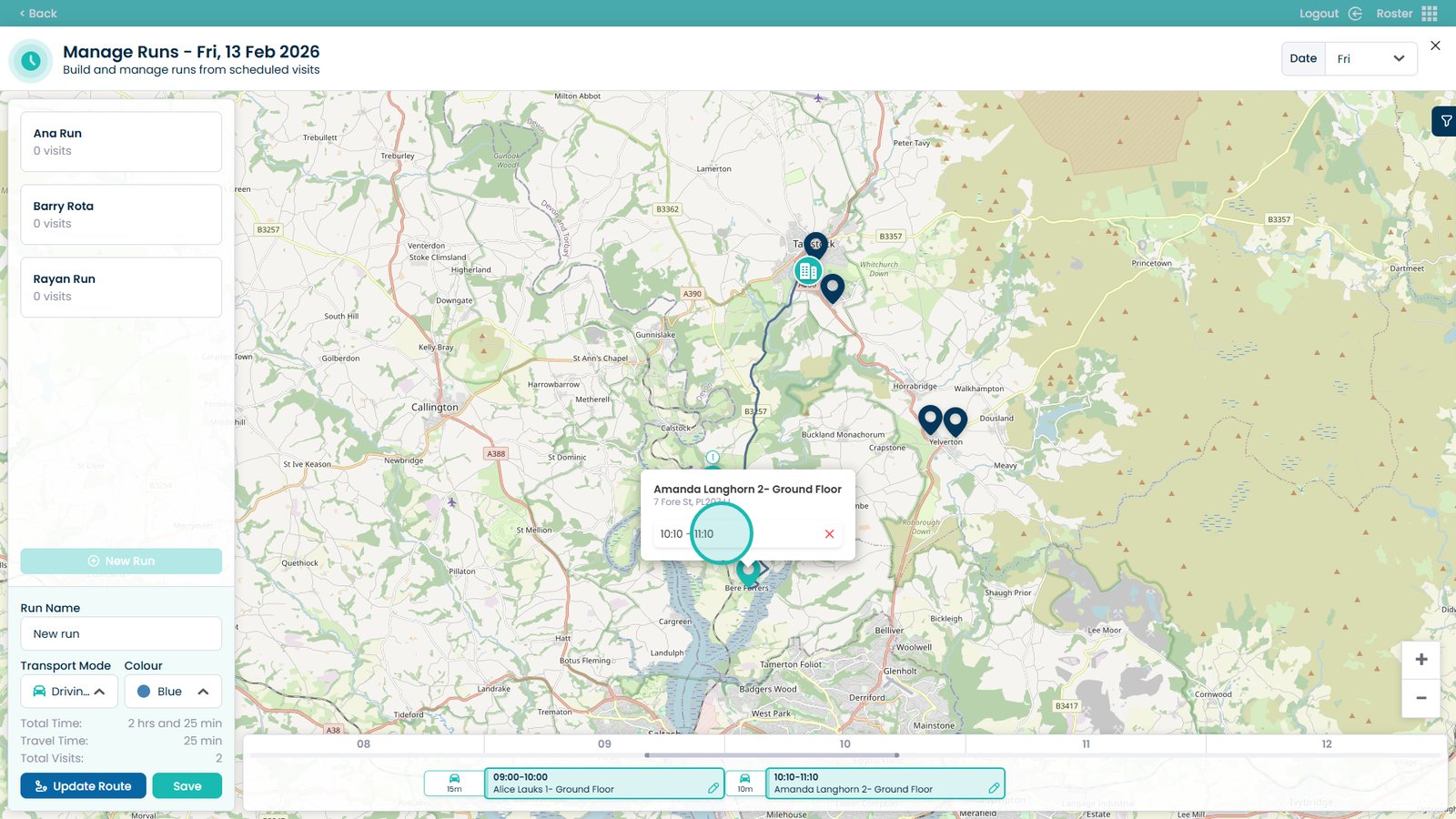
Hover over the visit pin to view visit times

Â
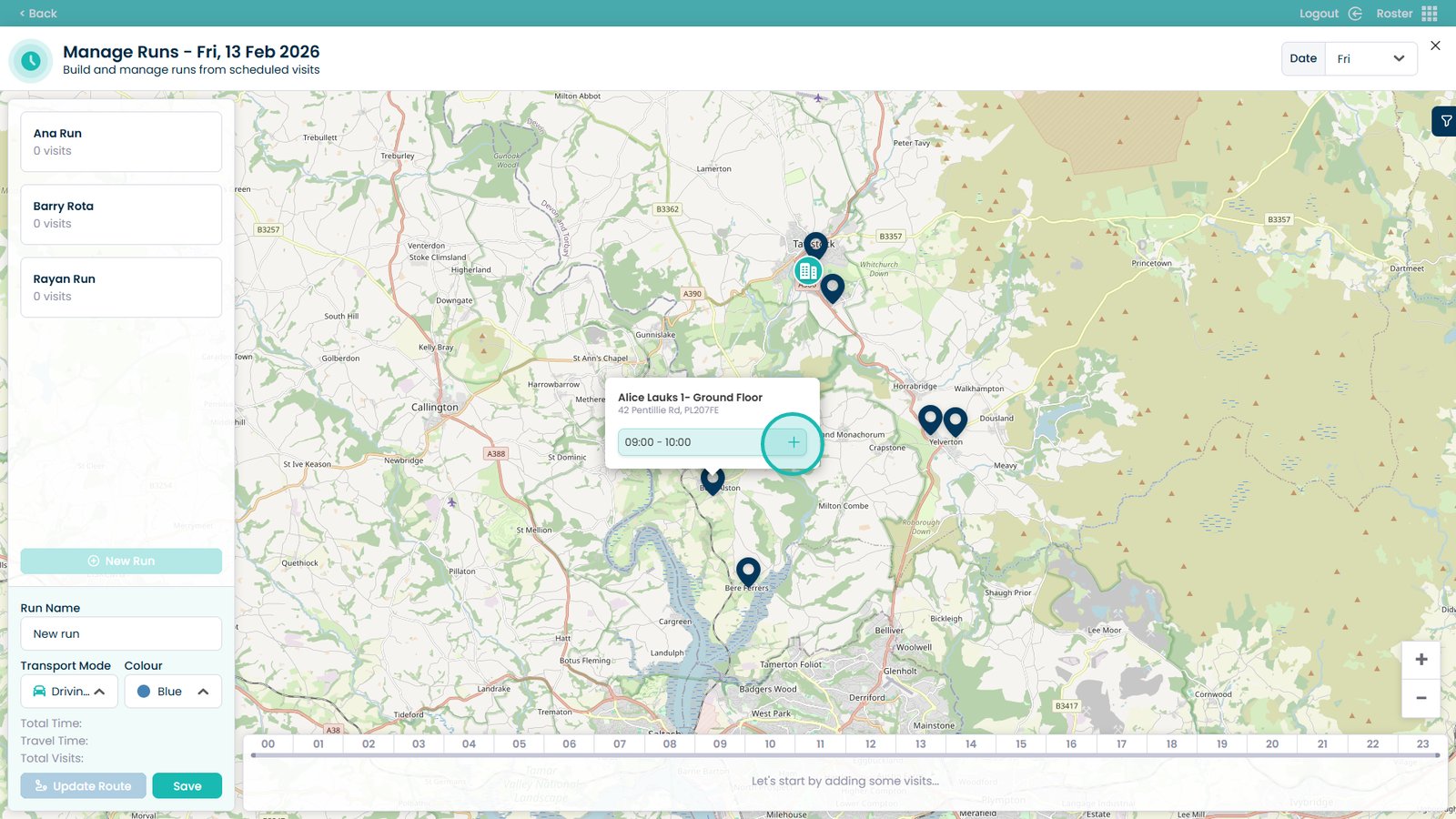
Select the plus button on a visit to add it to the run

Â
Repeat for all visits you want included in the run

Â
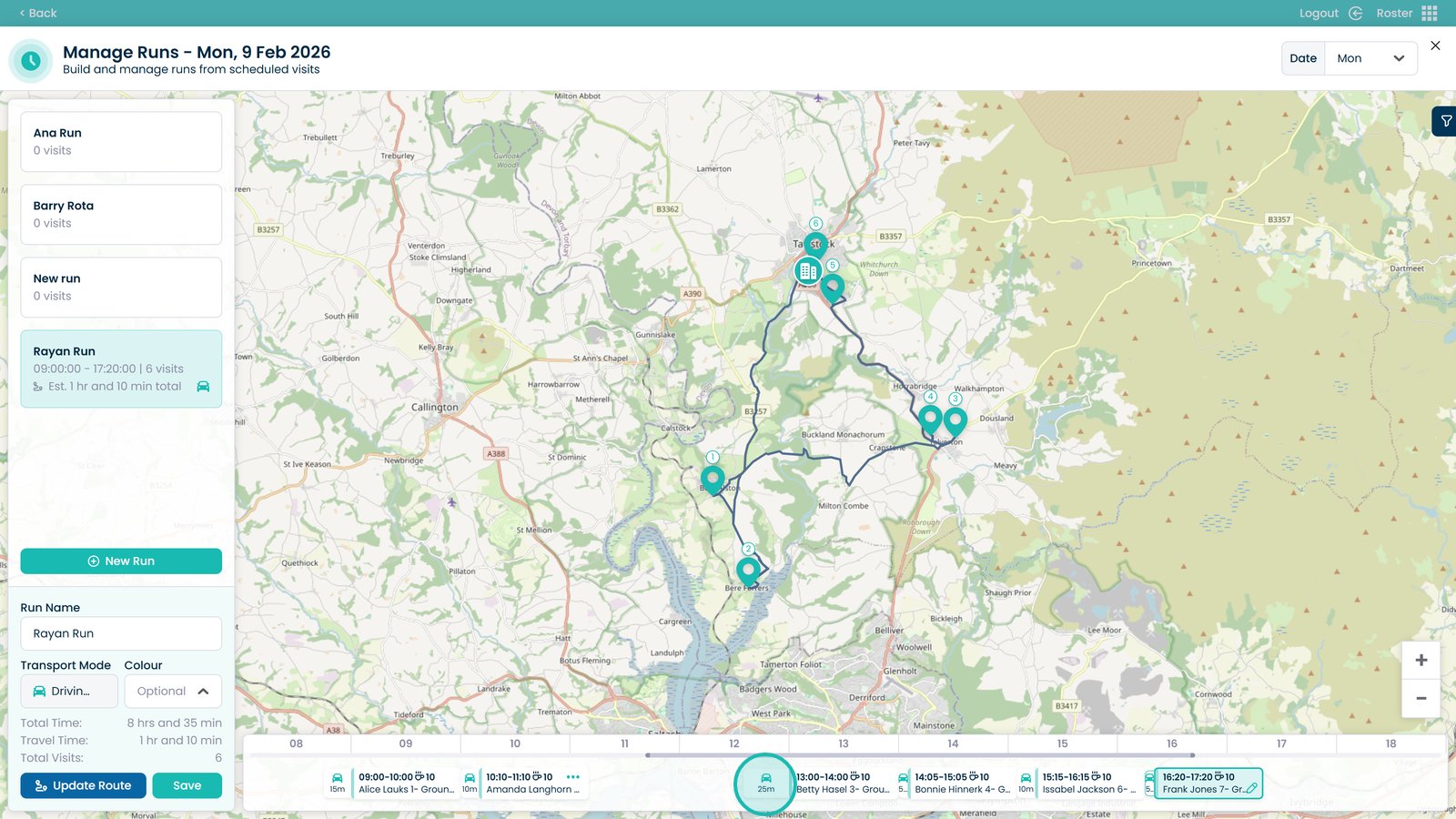
Hover over the transport symbol to view distance and travel time

Â
Click and drag a visit to change its time

Â
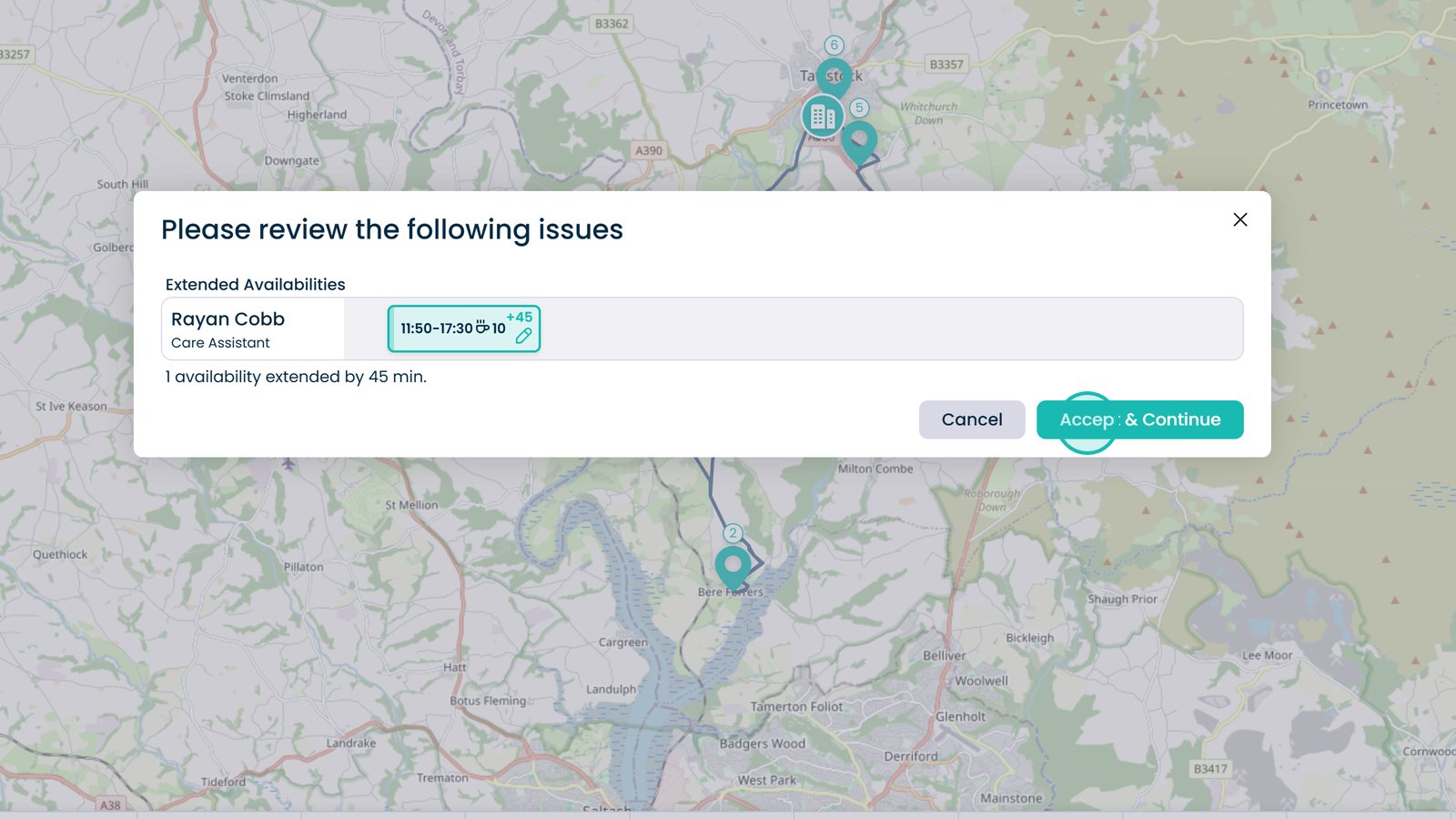
If prompted, confirm availability changes from within the run screen

Â
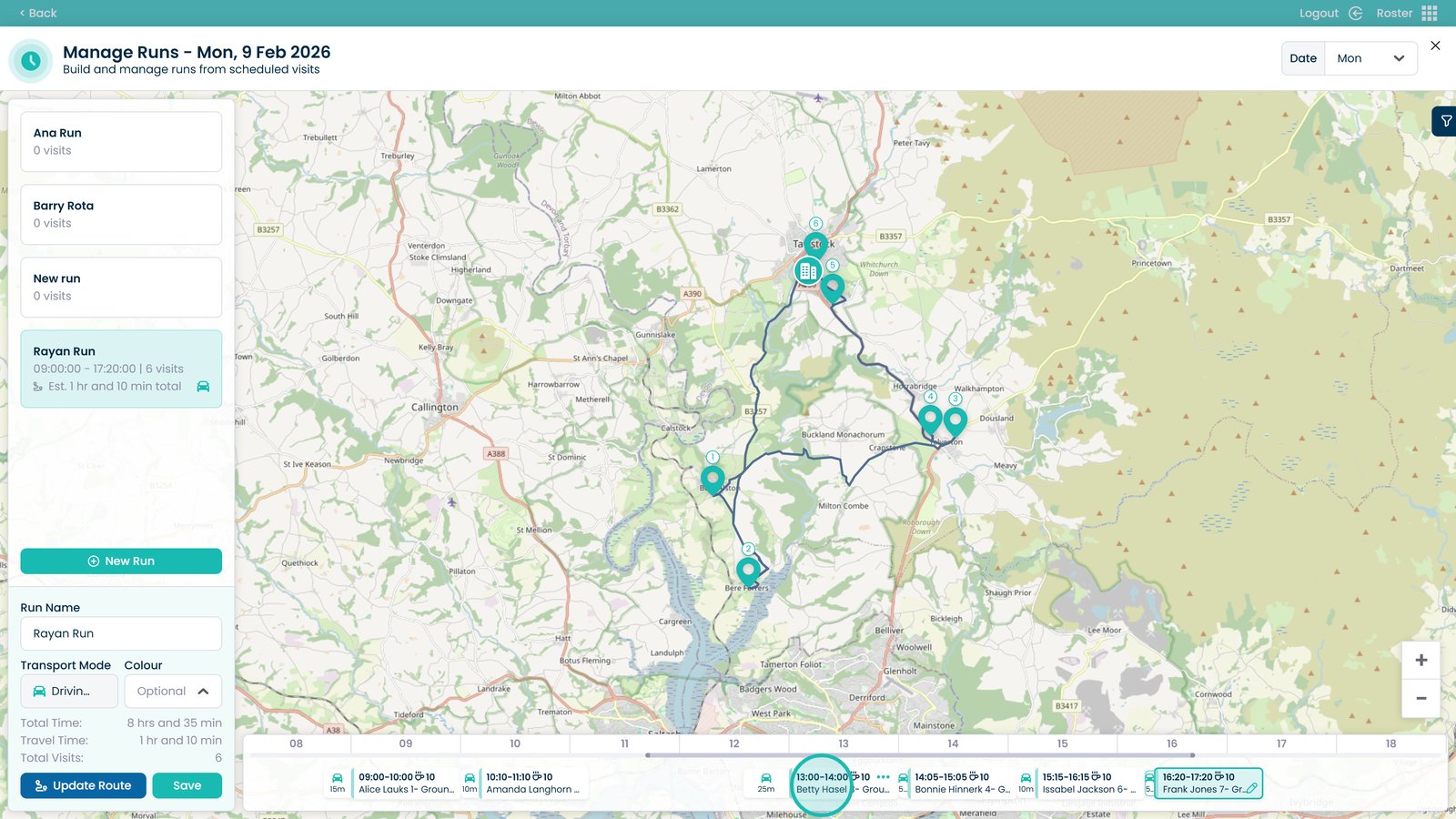
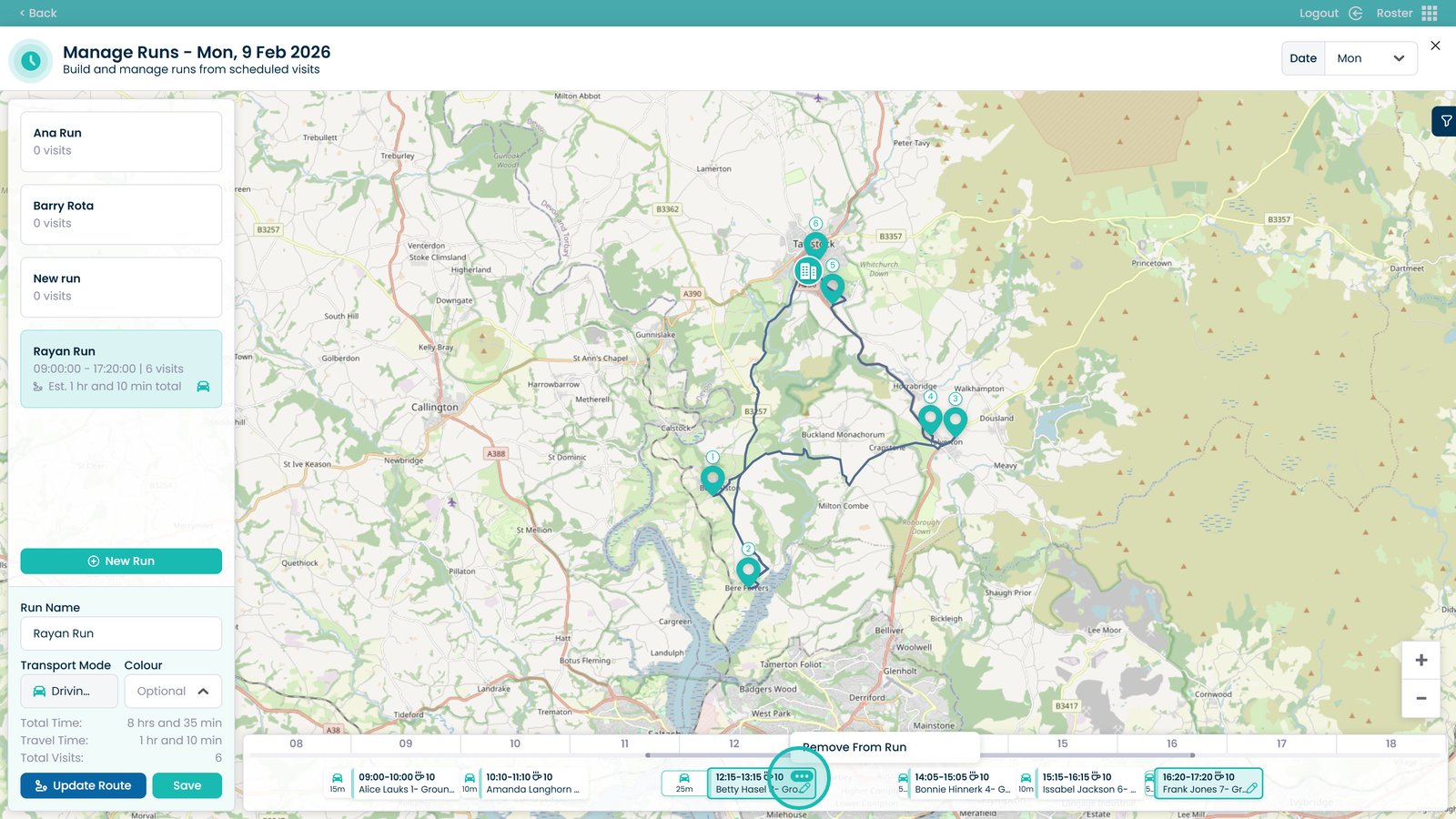
Select the three dots on the visit

Â
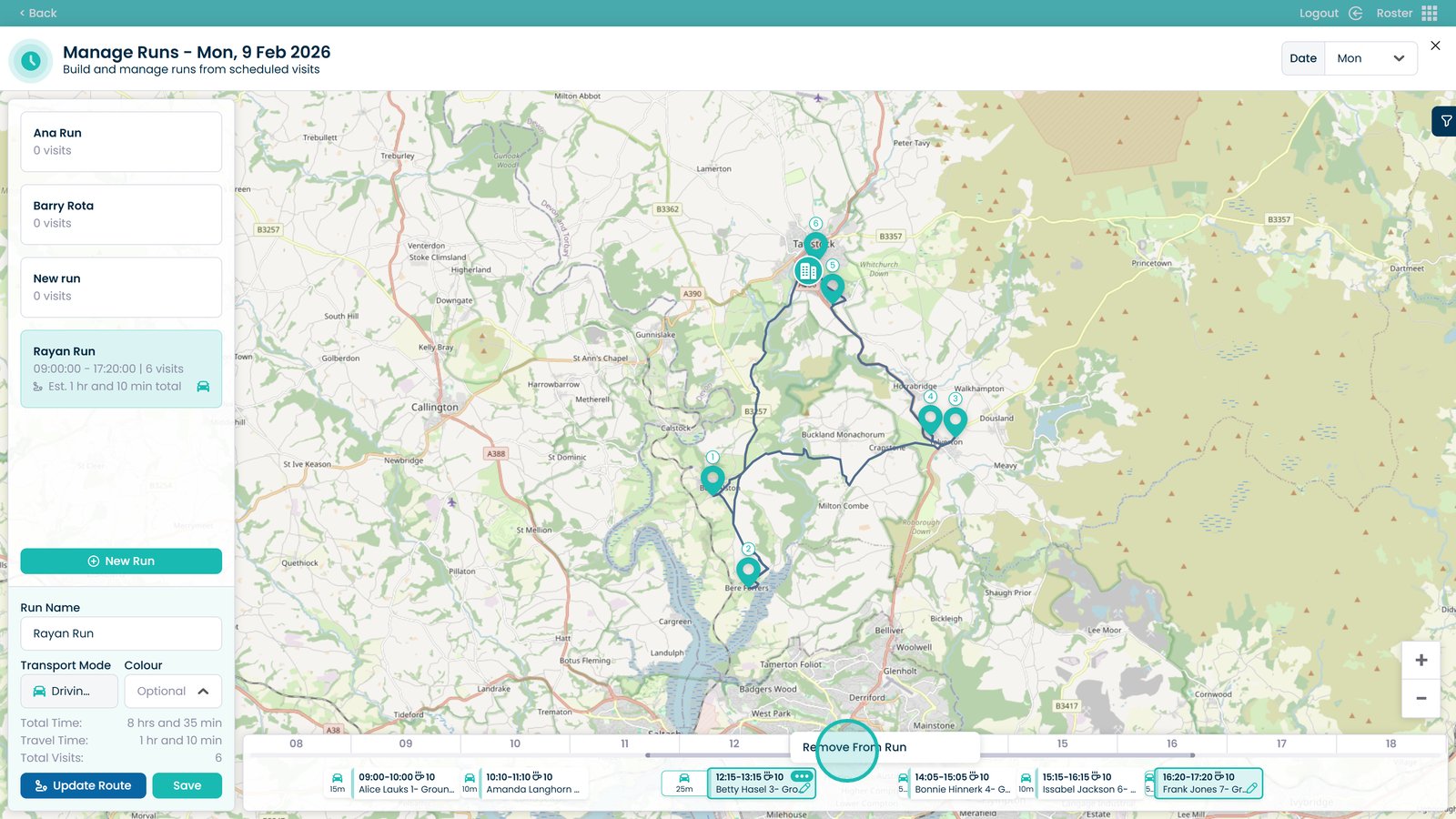
Remove the visit from the run if required

Â
Â
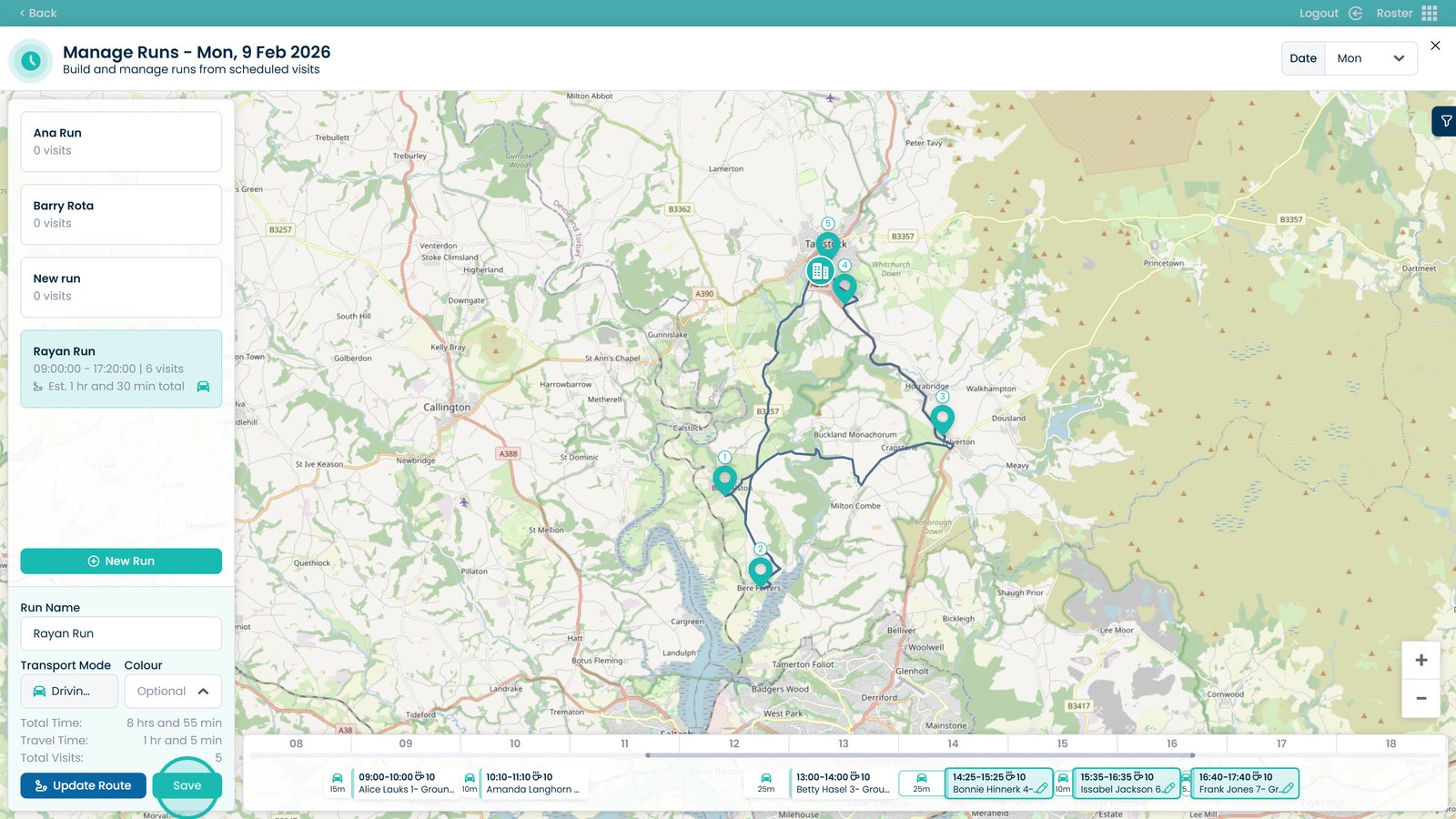
Click Save when finished

Â
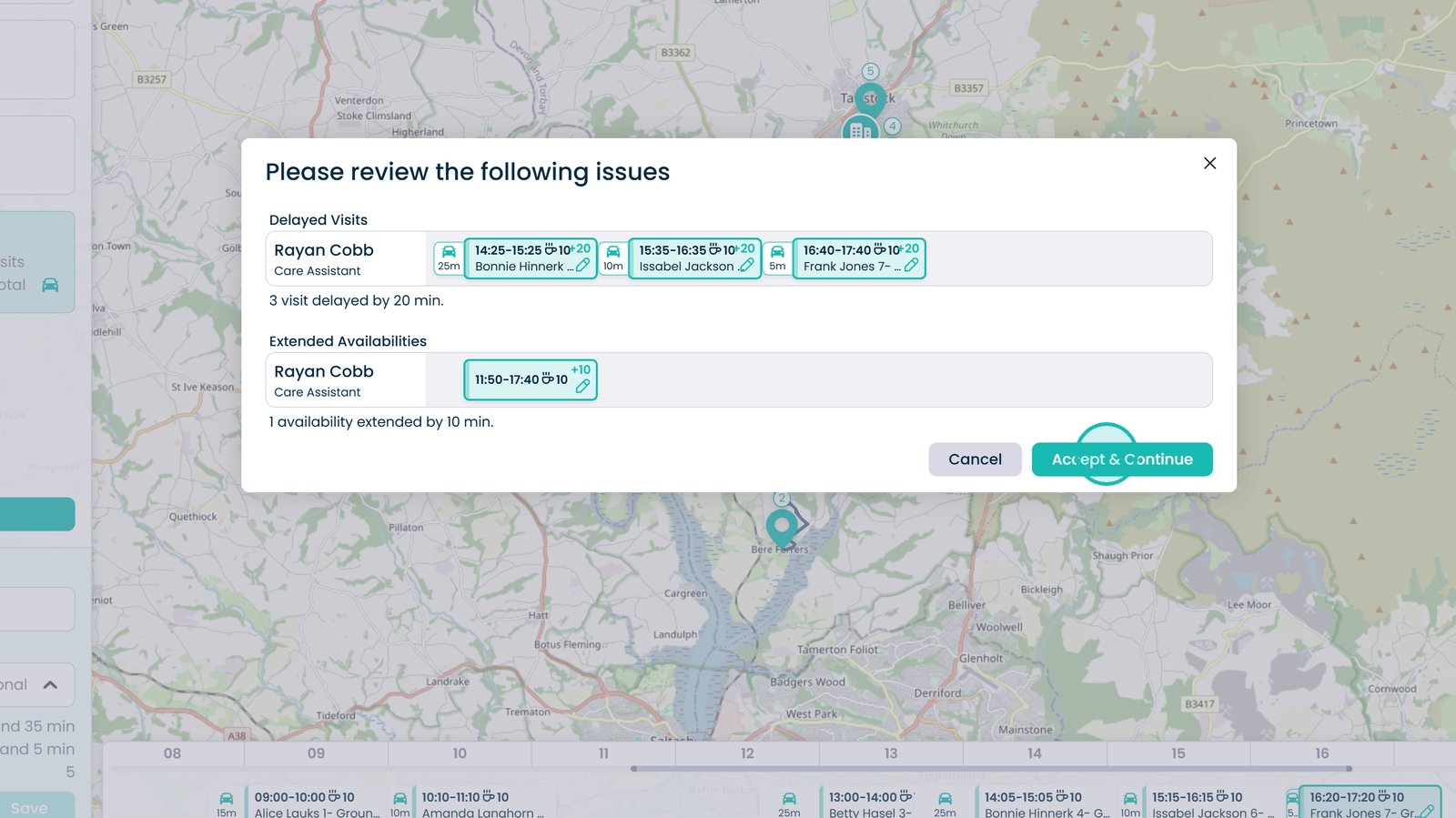
Review any issues and click Accept & Continue to approve changes