Care Review Domains are the individual sections that make up a resident’s Care Review. This feature allows you to create, configure, and manage these domains directly within the Administration app in Care Control Cloud. It’s especially useful for tailoring Care Reviews to your home’s specific needs, ensuring staff are guided through the right areas when completing a review.
By setting up your own domains with detailed guidance notes, you can improve consistency across your team, support compliance, and ensure every Care Review captures the information that matters most.
Interactive Guide
Text based guide
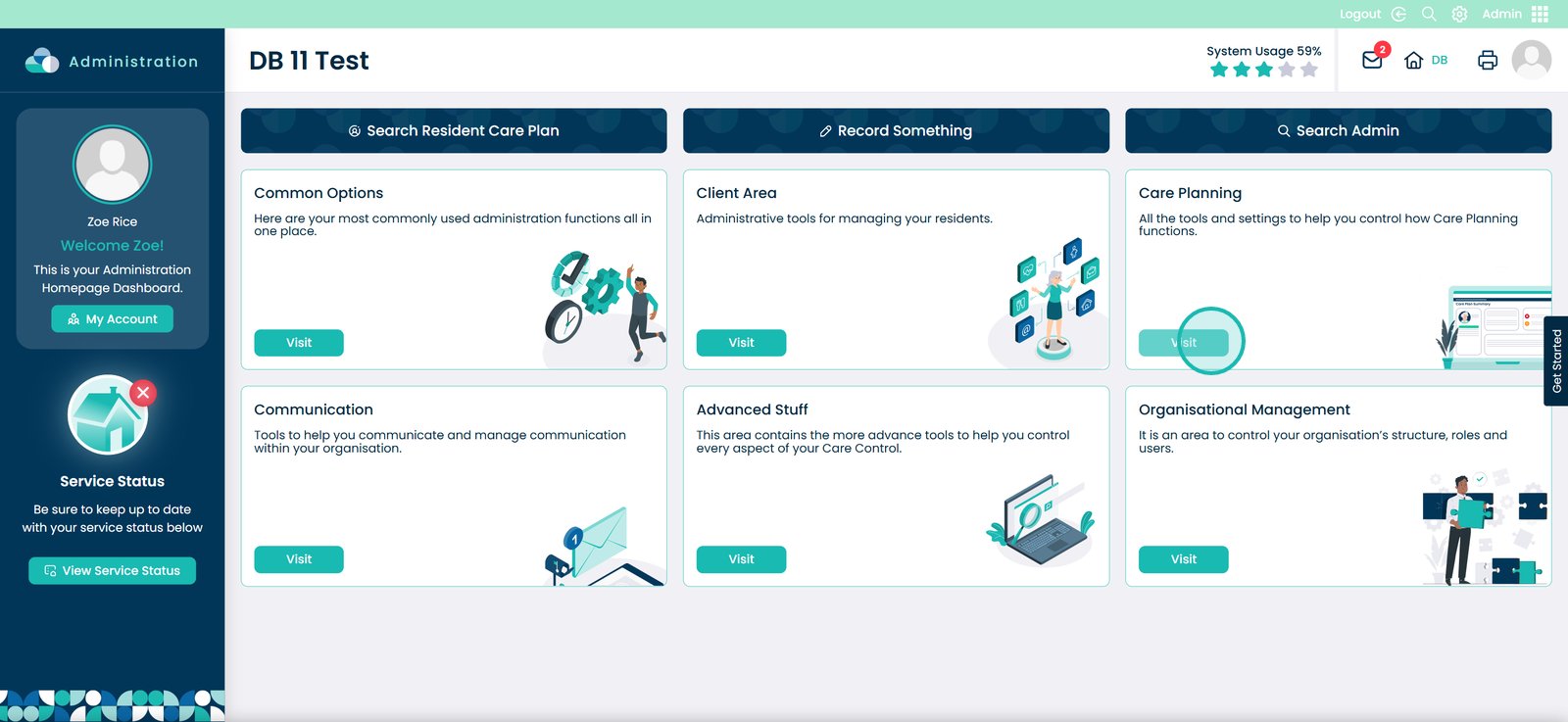
In the Administration app, press the ‘Visit’ button under Care Planning
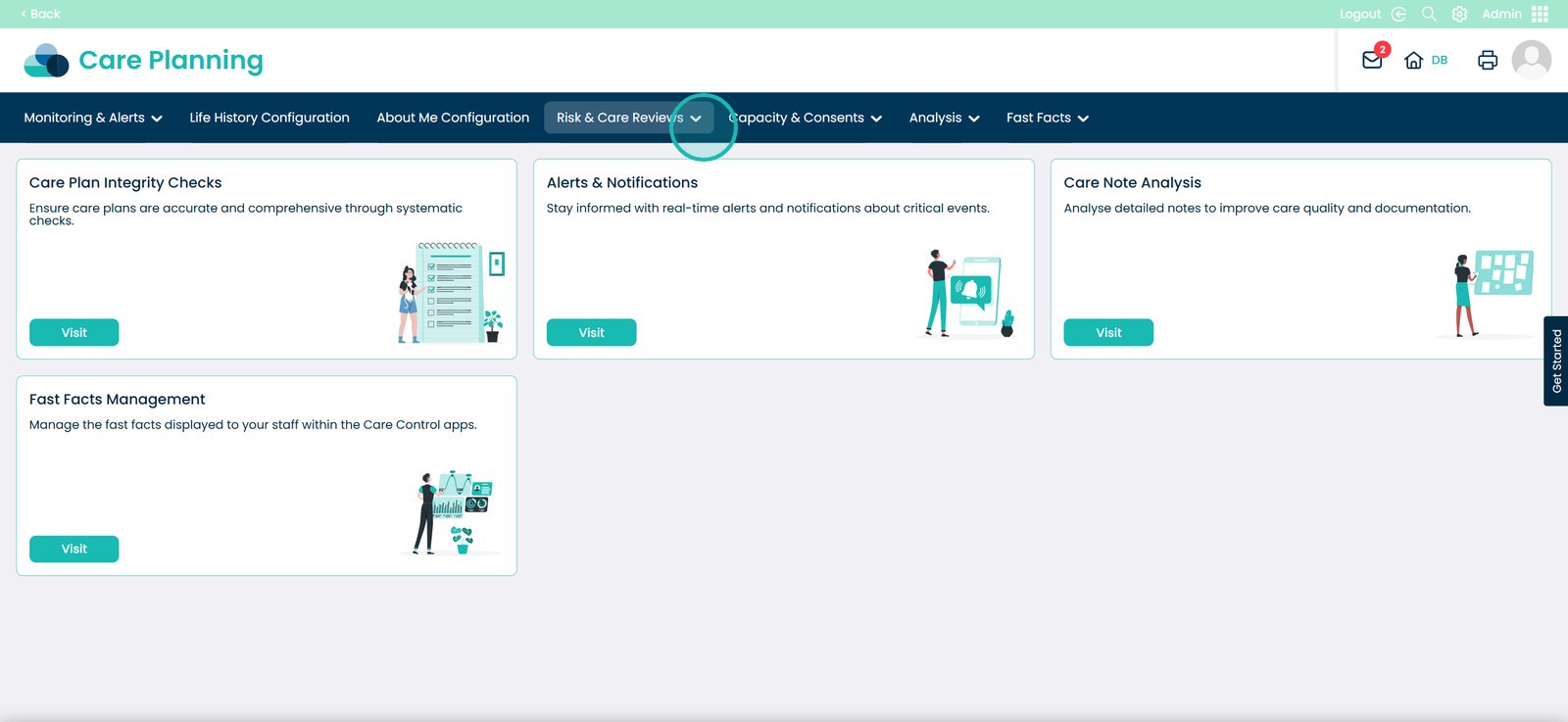
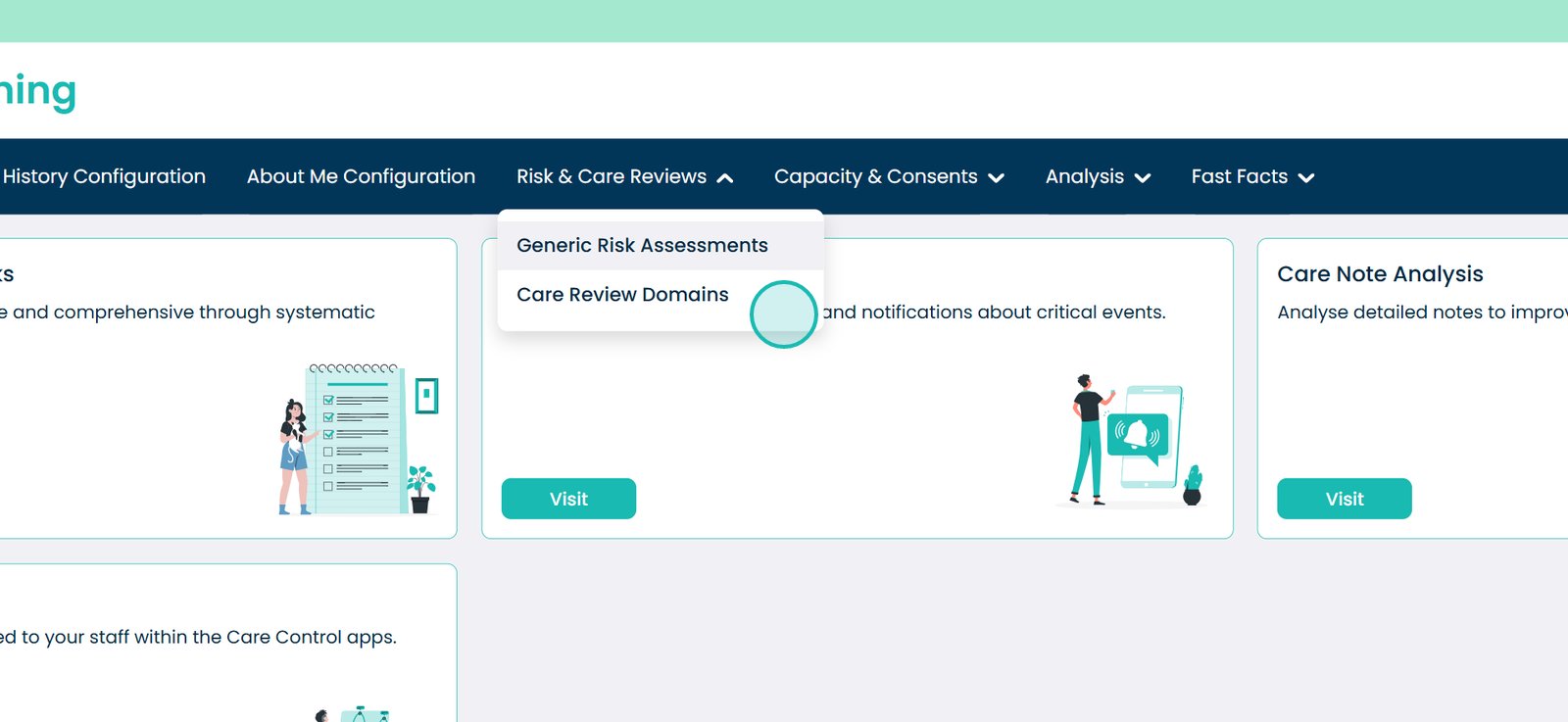
Press the drop-down next to Risk & Care Reviews
Select ‘Care Review Domains’
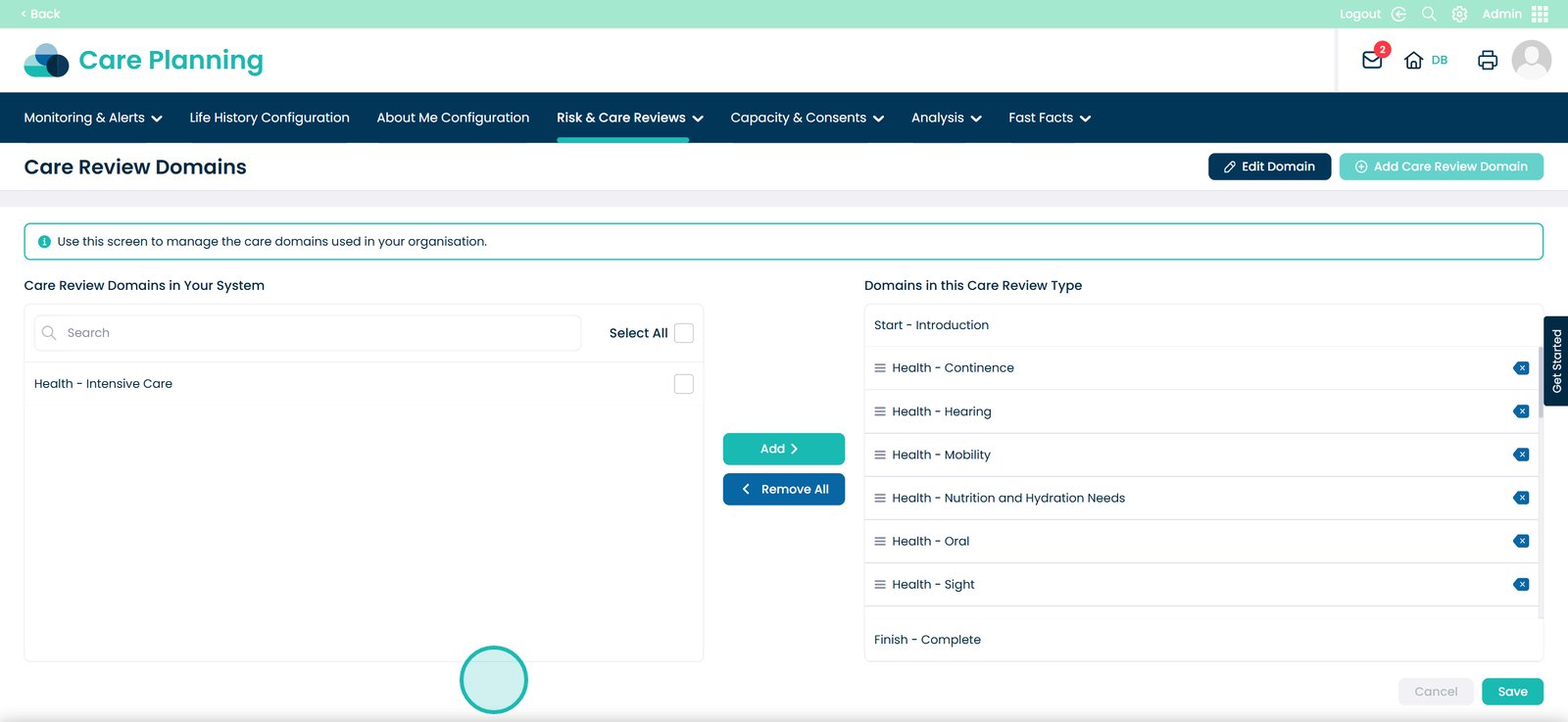
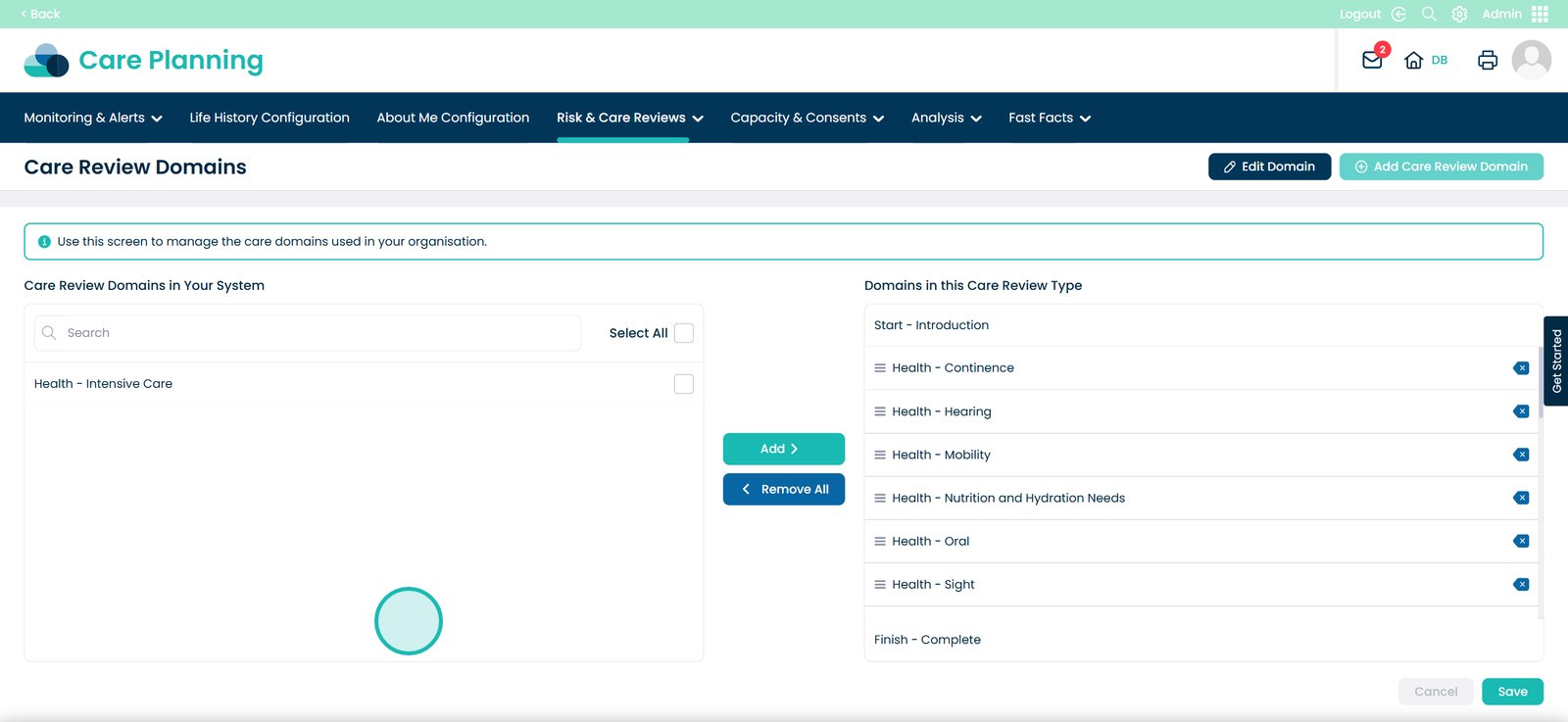
This will lead you to the ‘Care Review Domains’ page
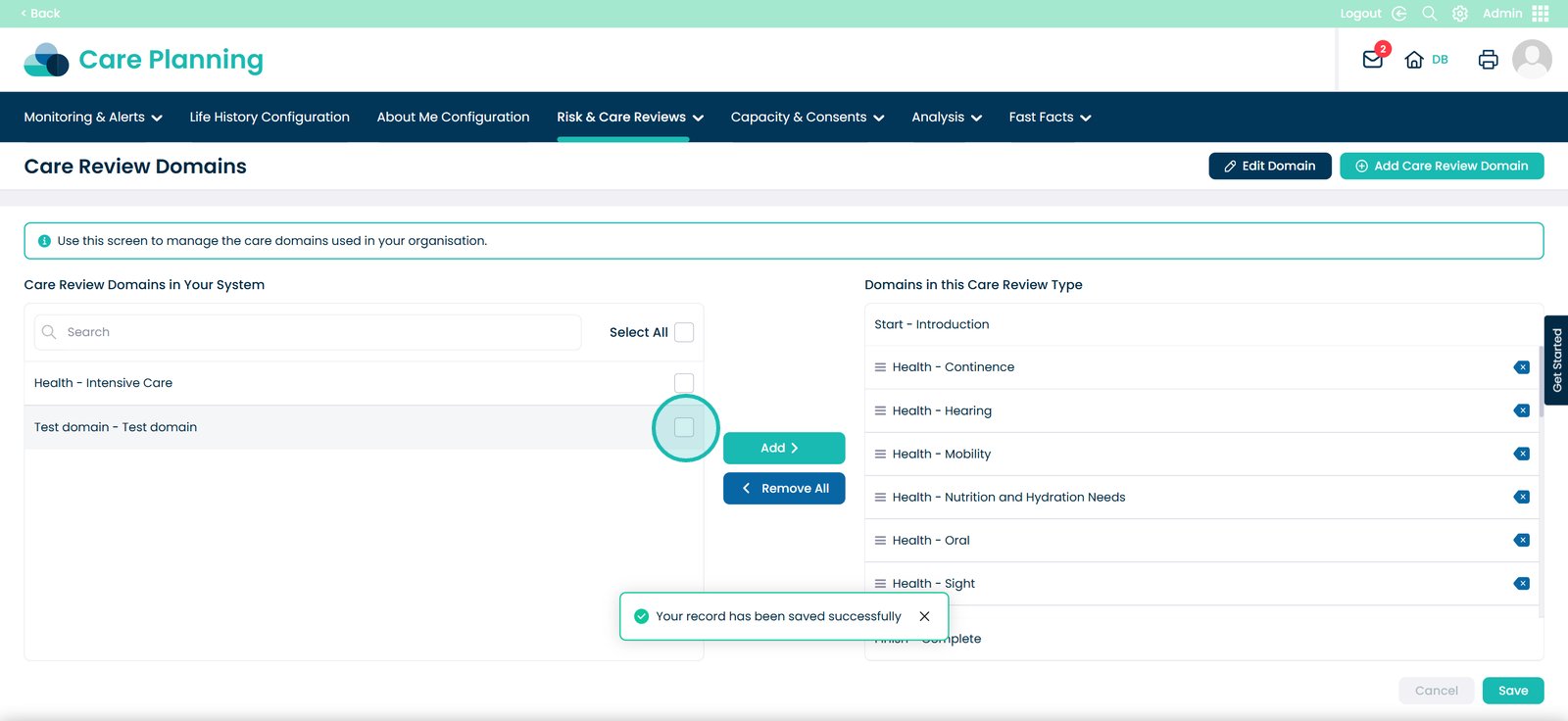
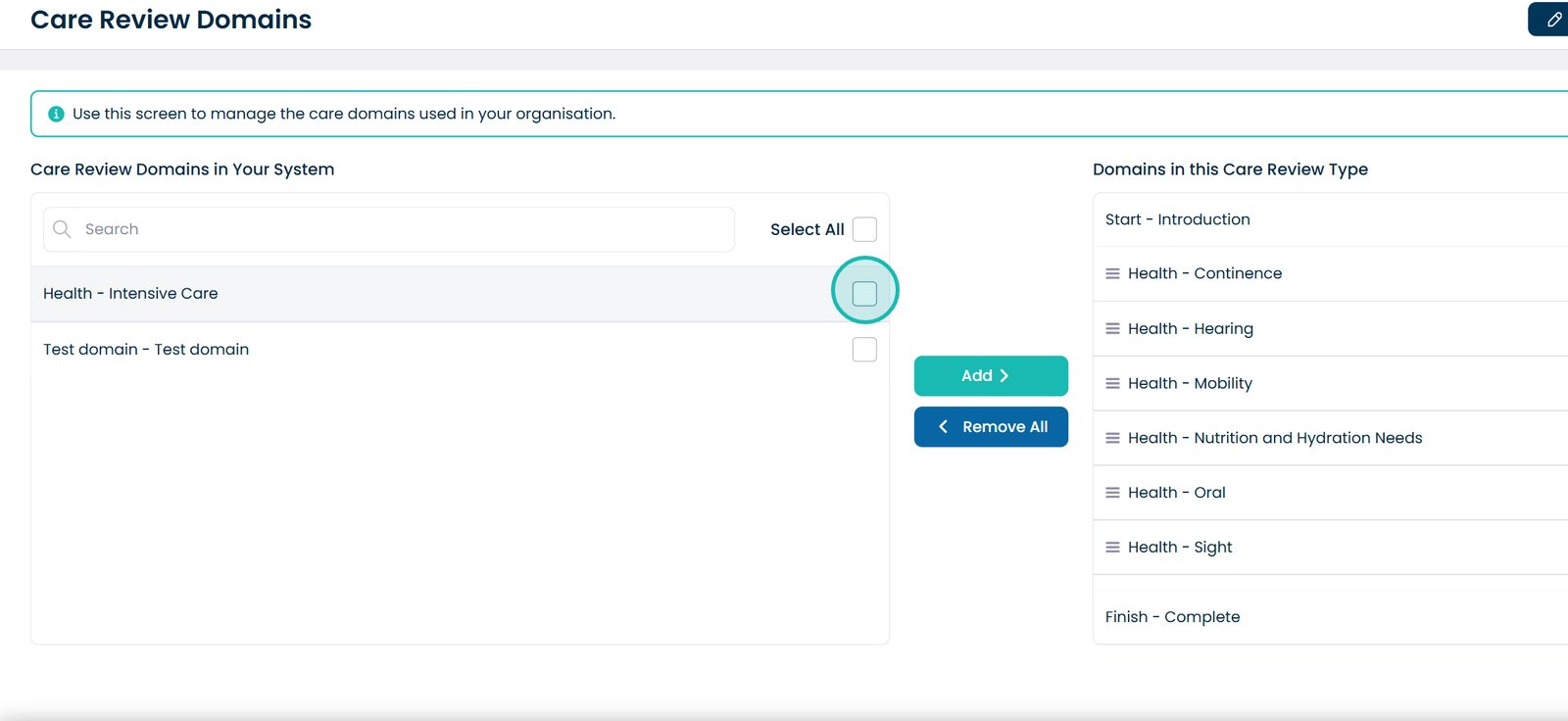
On the left are all the domains, or sections, currently on your system
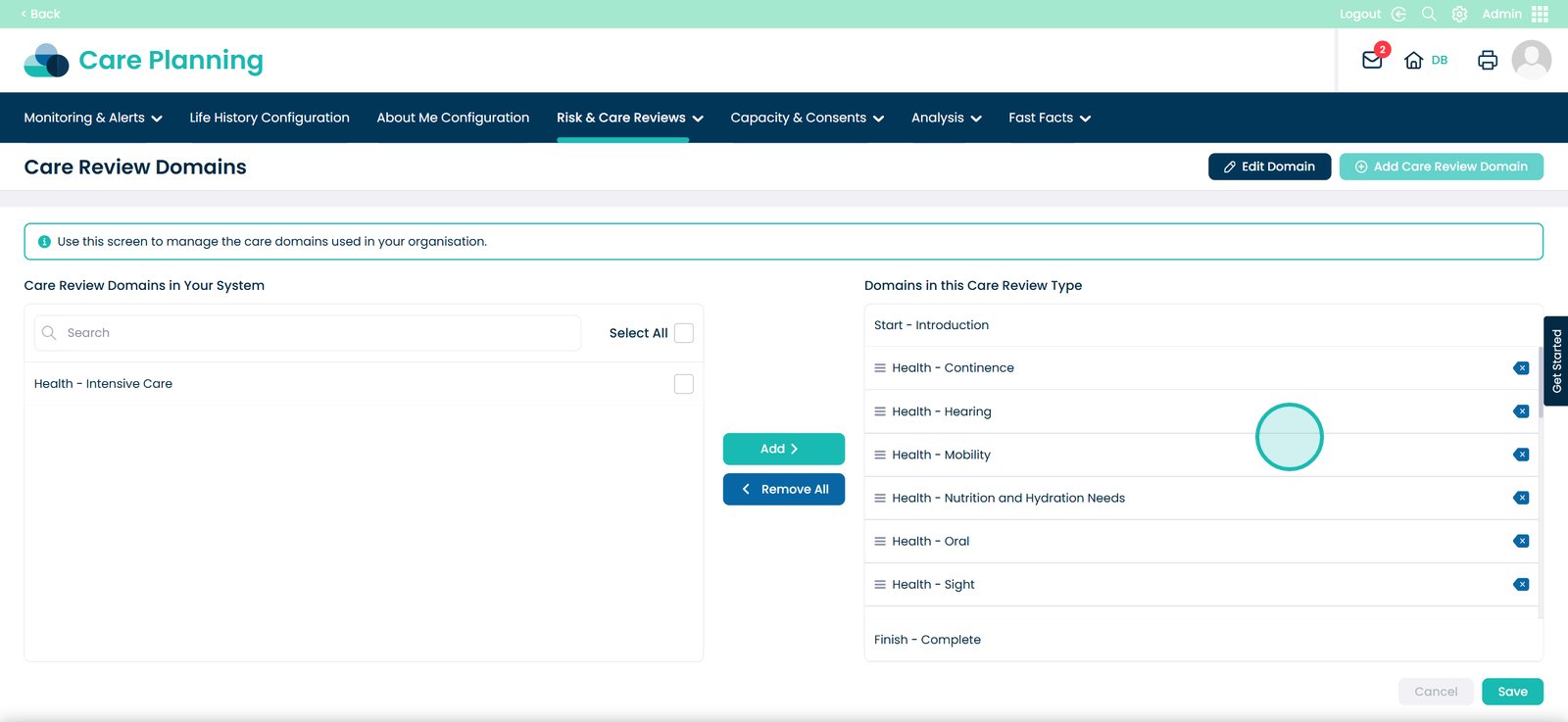
On the right are the active domains in your Care Reviews
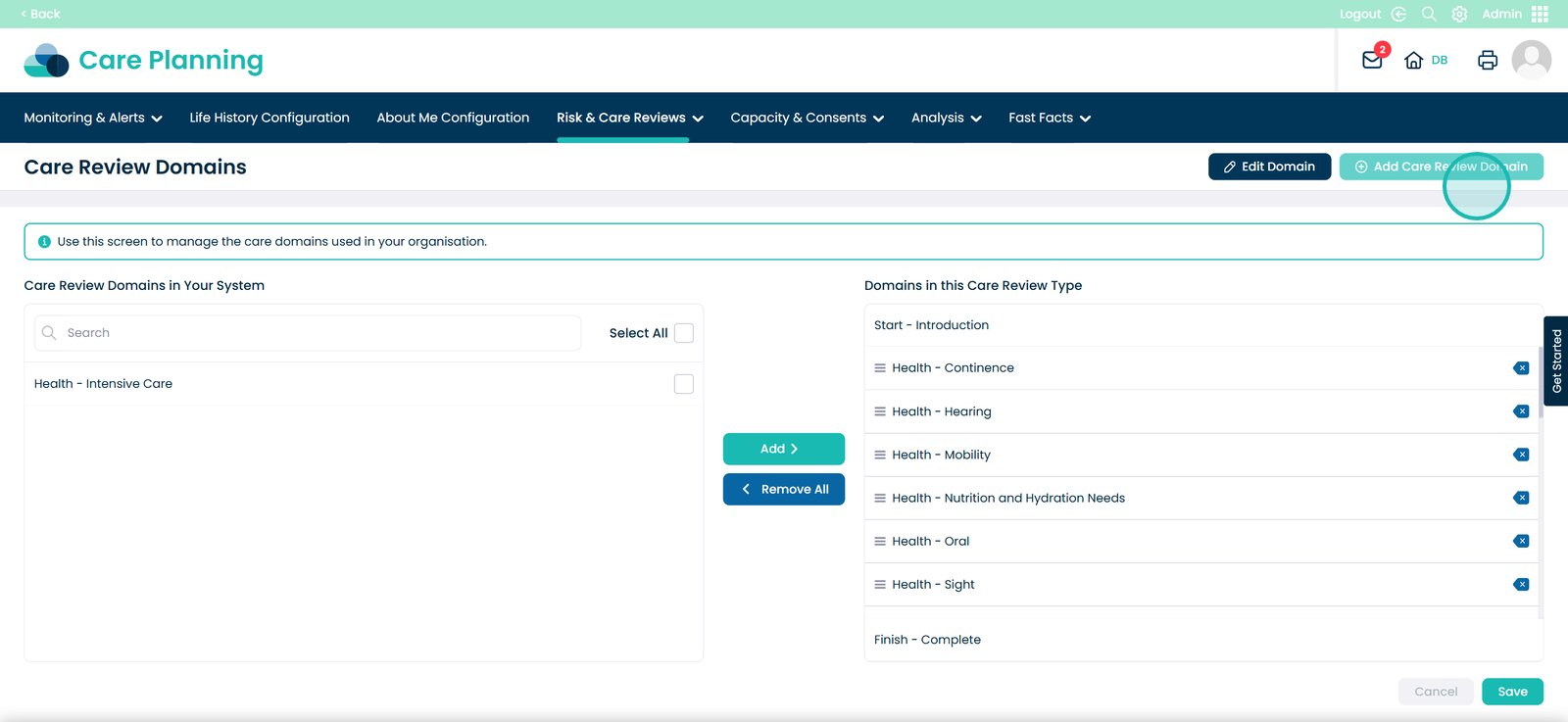
Select the ‘Add Care Review Domain’ button
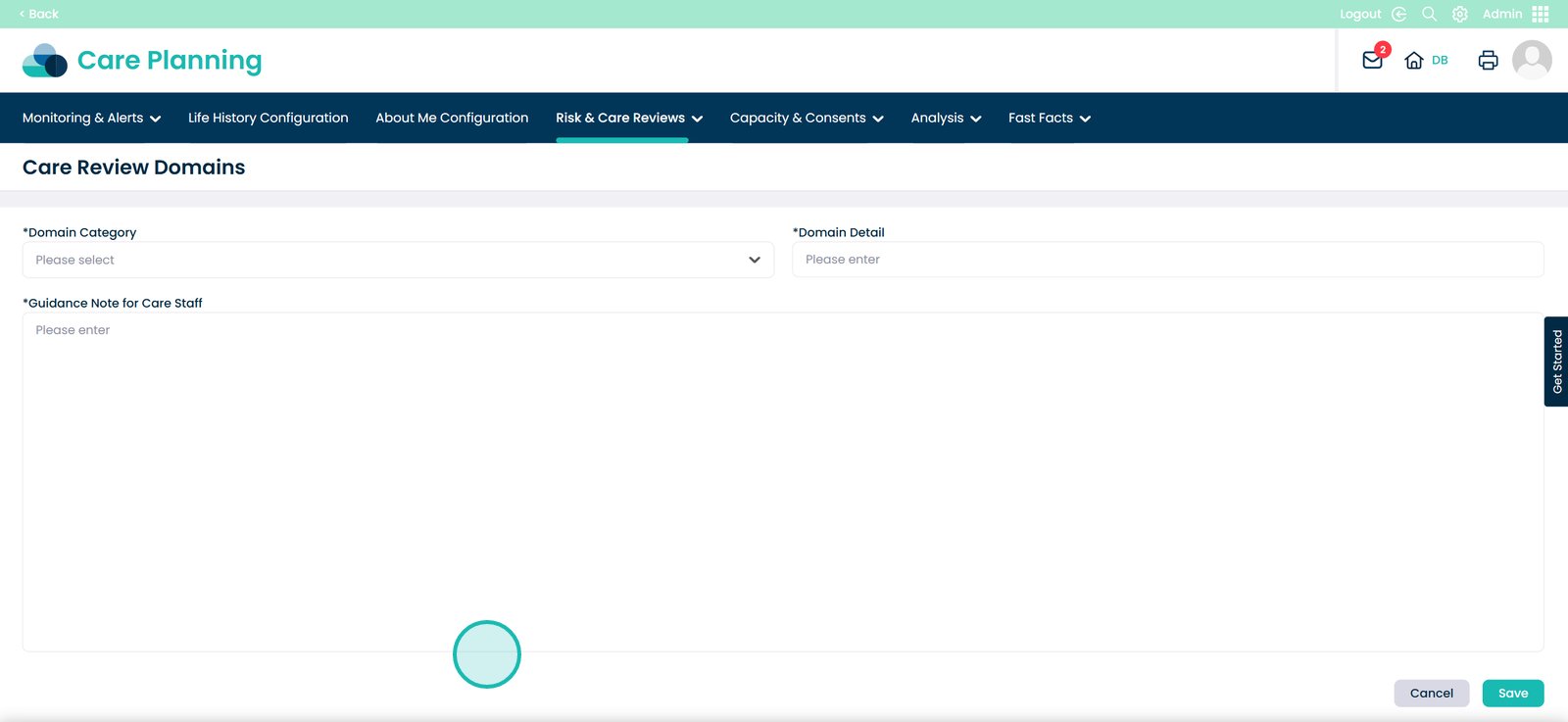
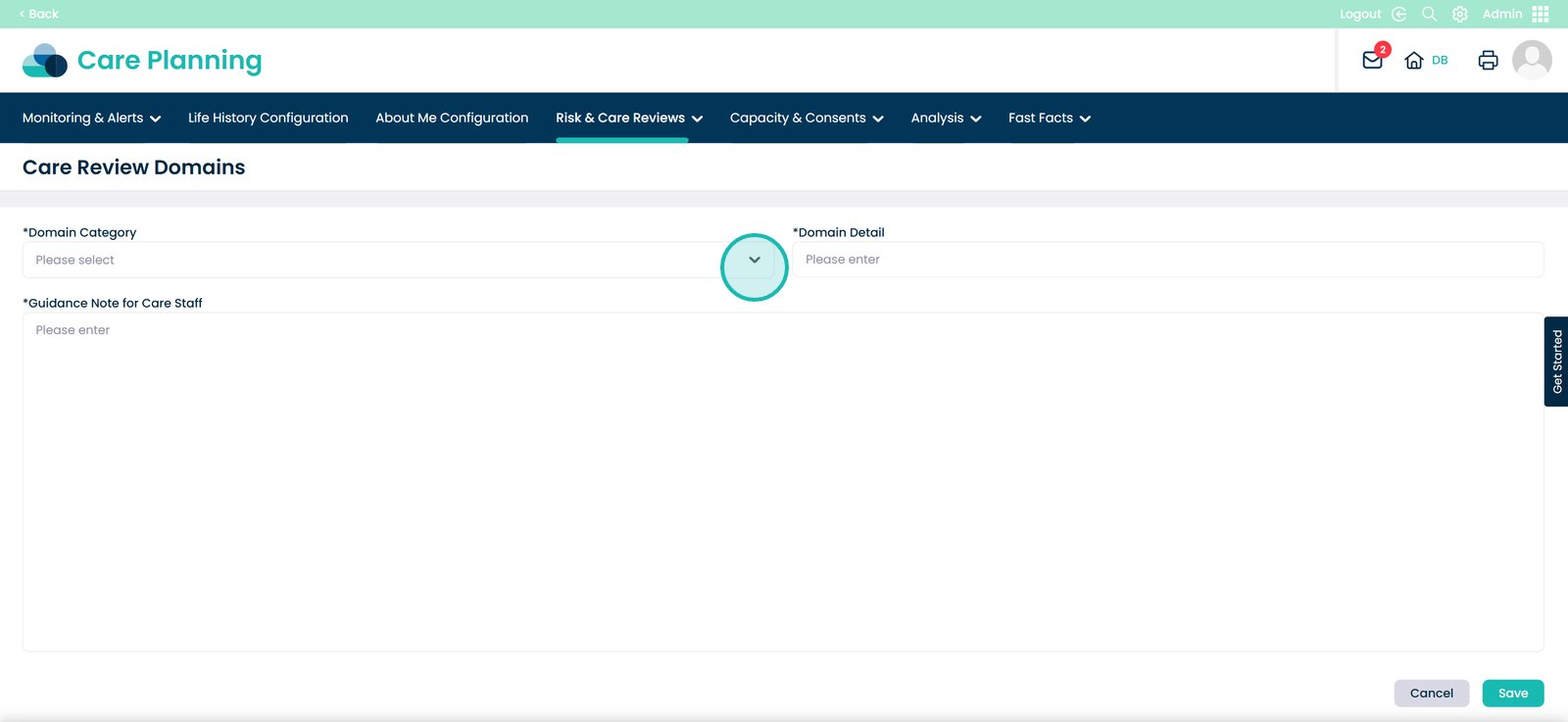
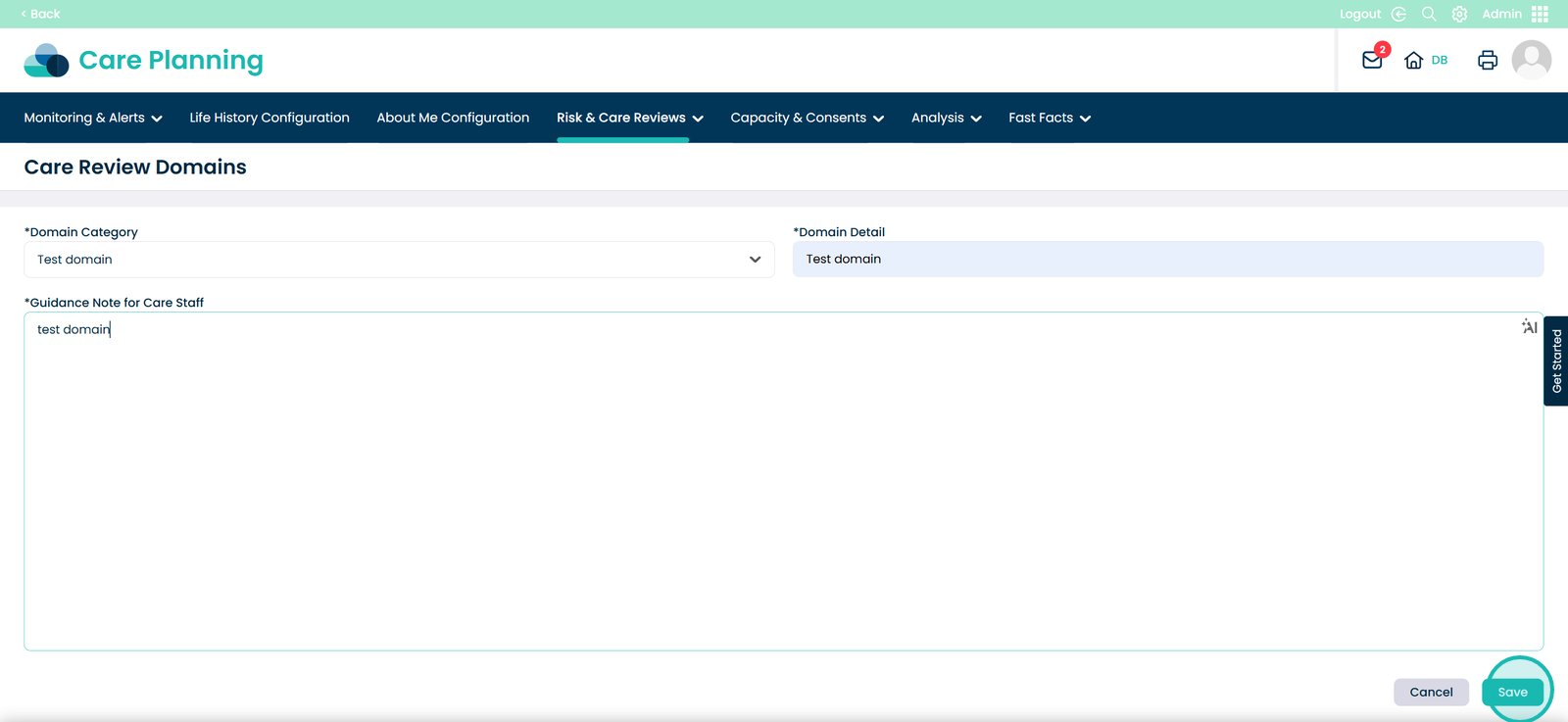
A blank form will load — enter Category and Detail titles, then add any Guidance notes for staff to read when completing a Care Review
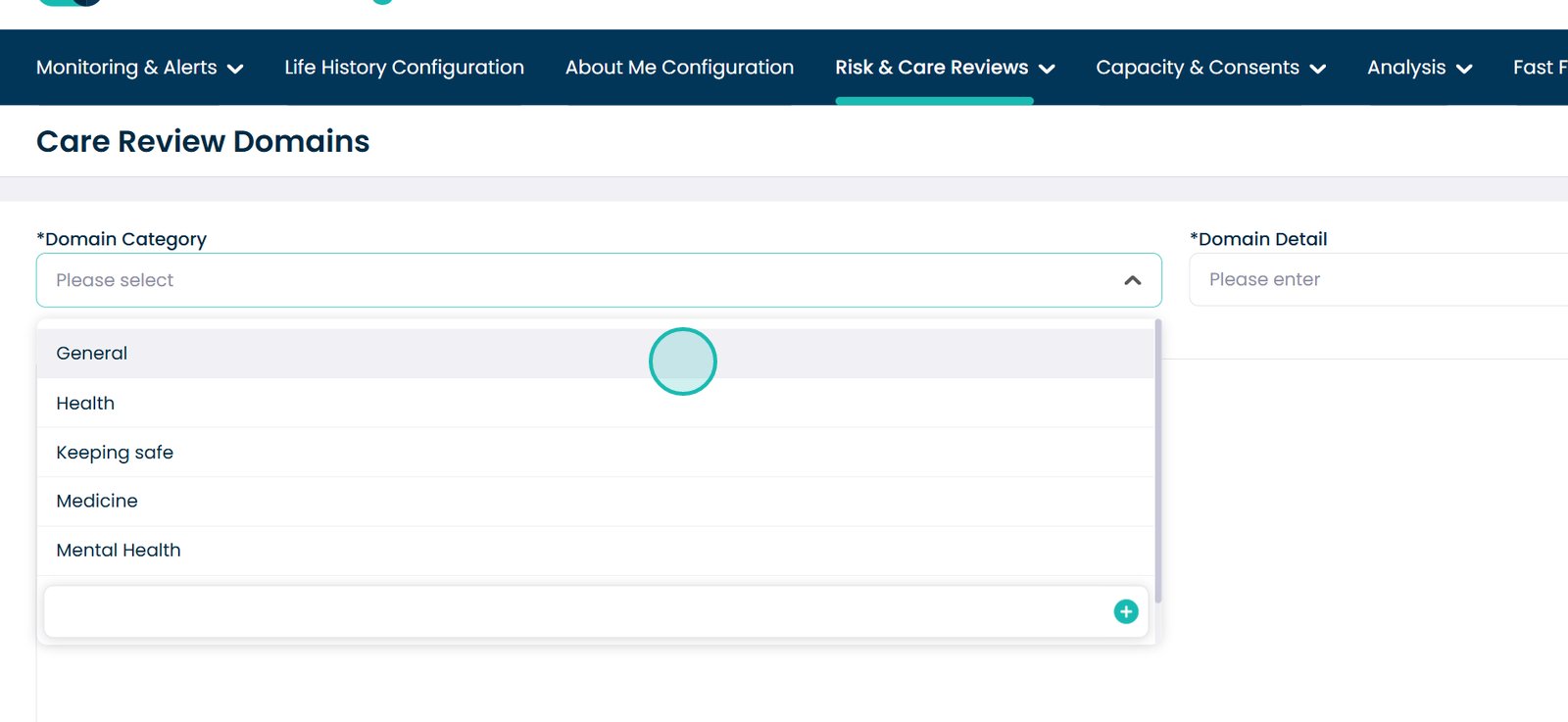
Select the drop-down toggle
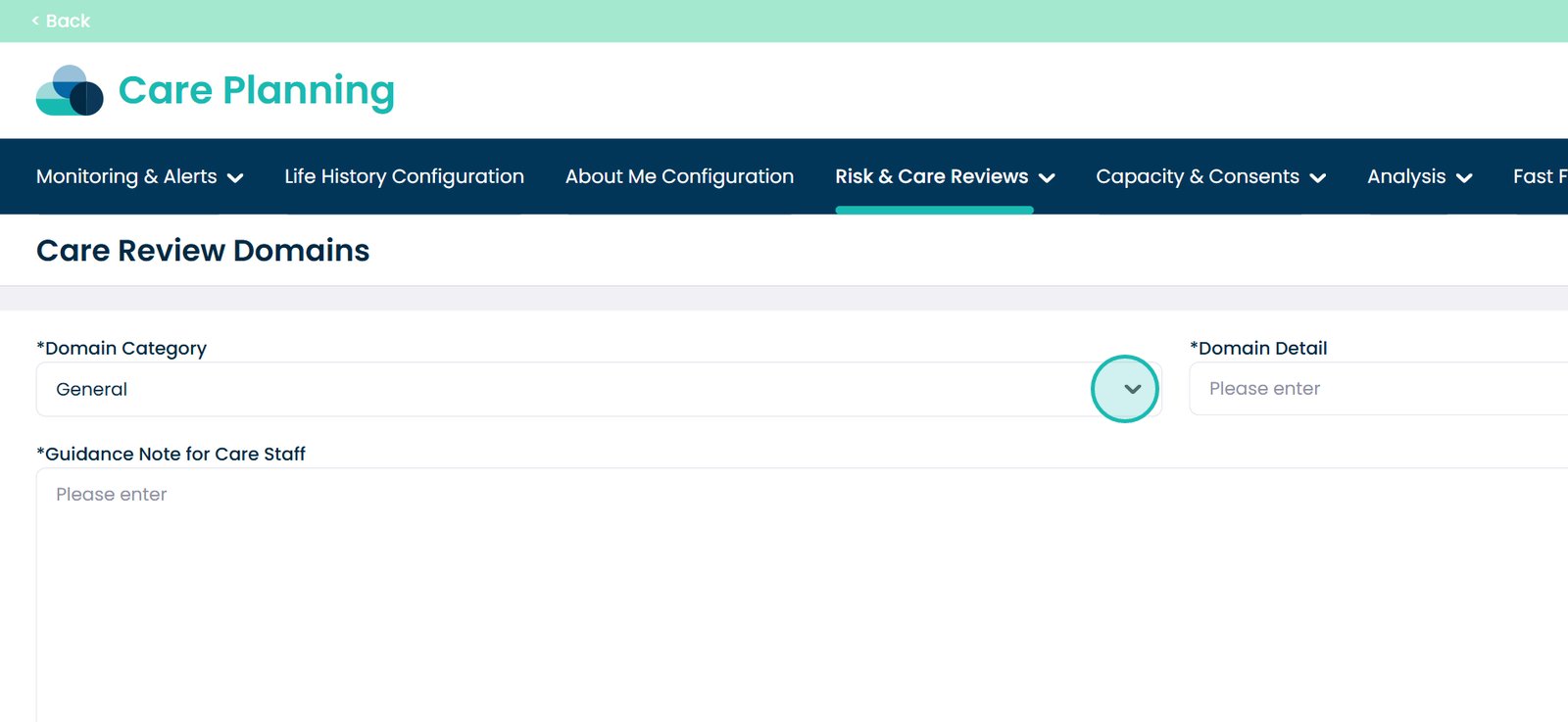
Select your ‘Domain Category’
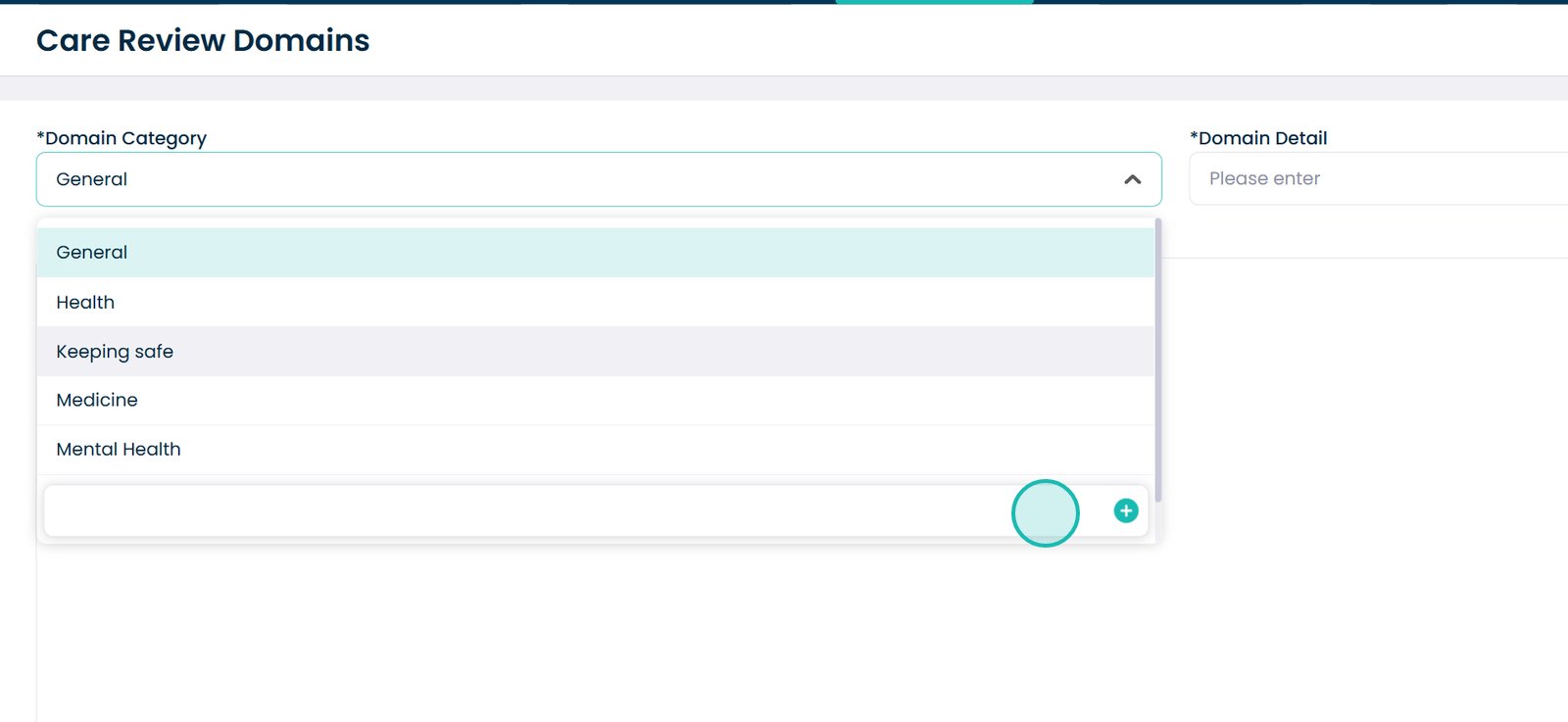
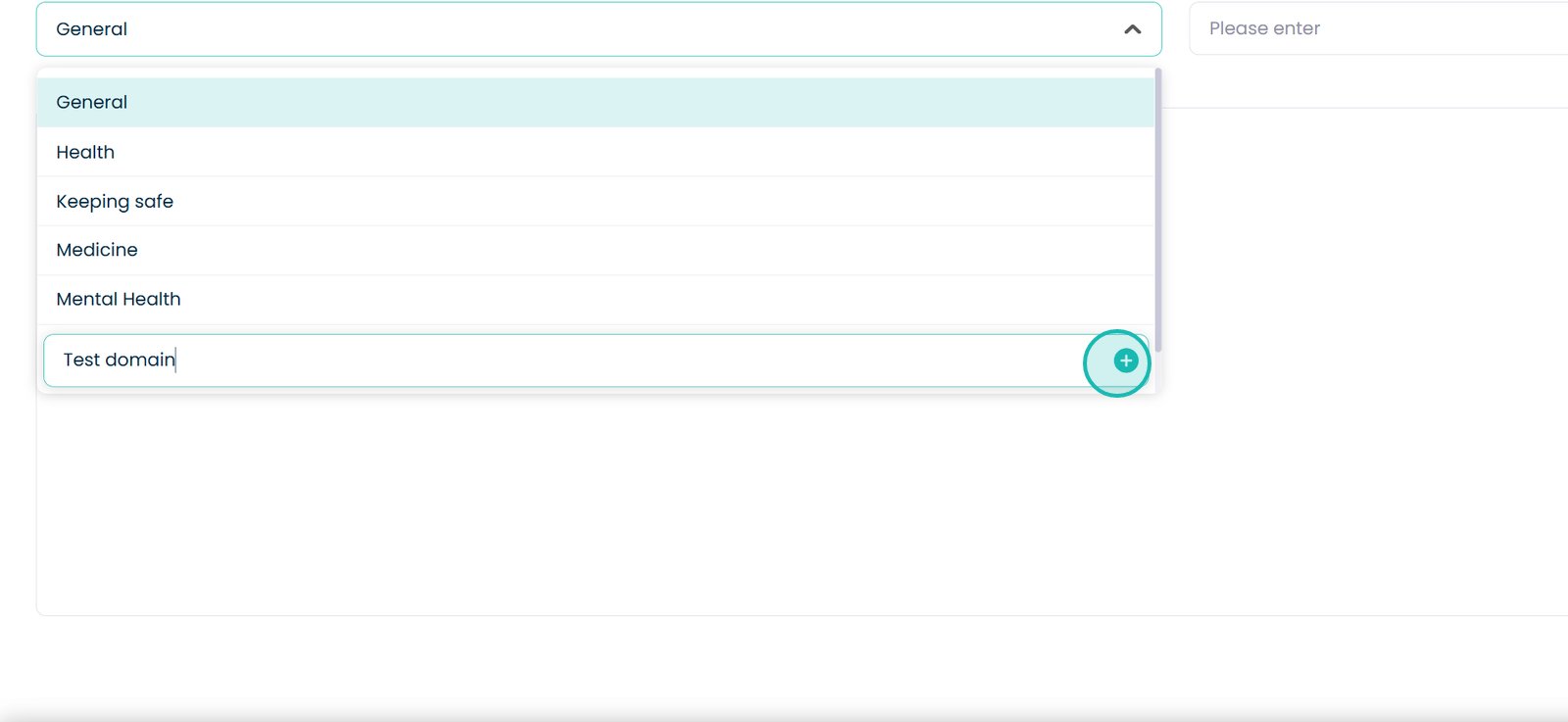
Or, to create your own Domain Category, select the same drop-down
Enter your Domain next to the ‘+’ sign
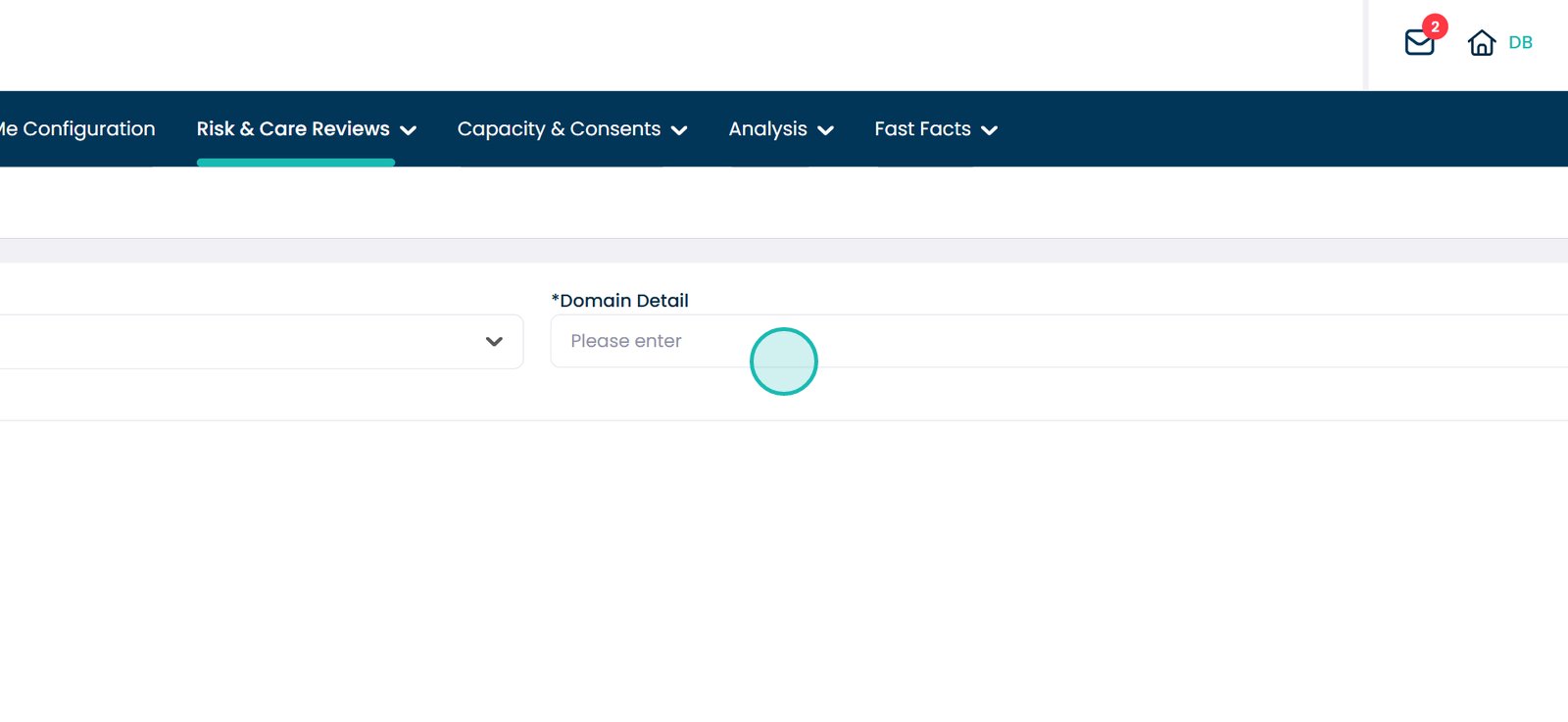
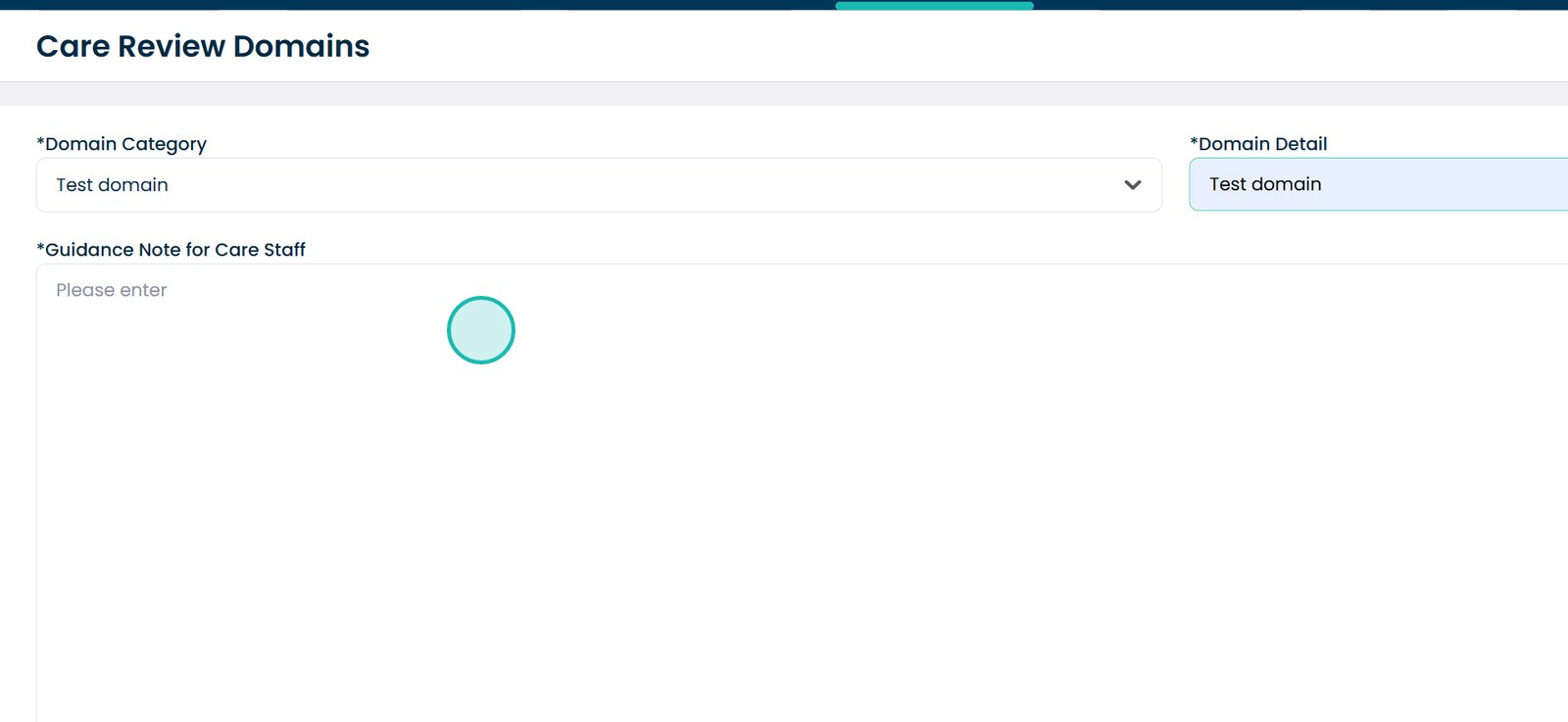
Enter ‘Domain Detail’
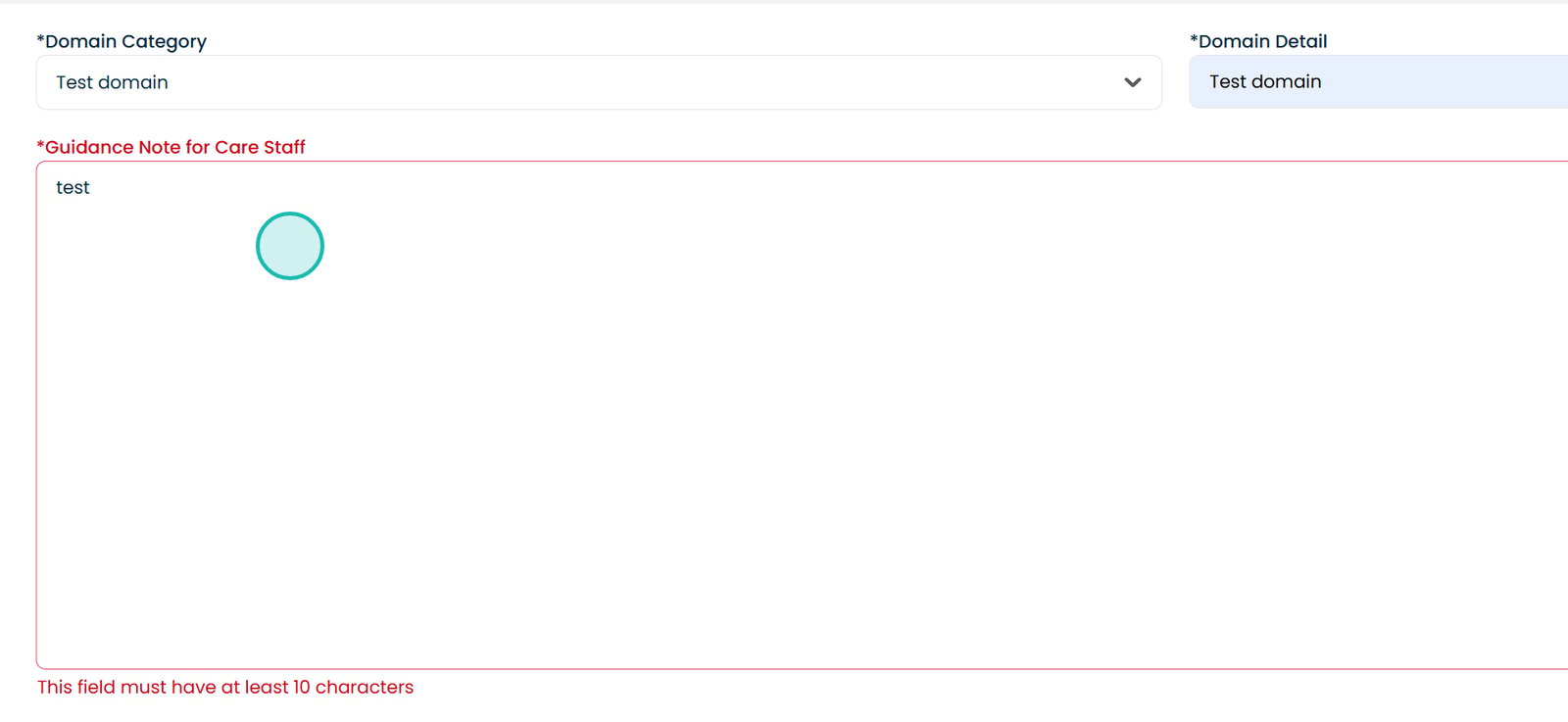
Then enter your ‘Guidance Note for Care Staff’
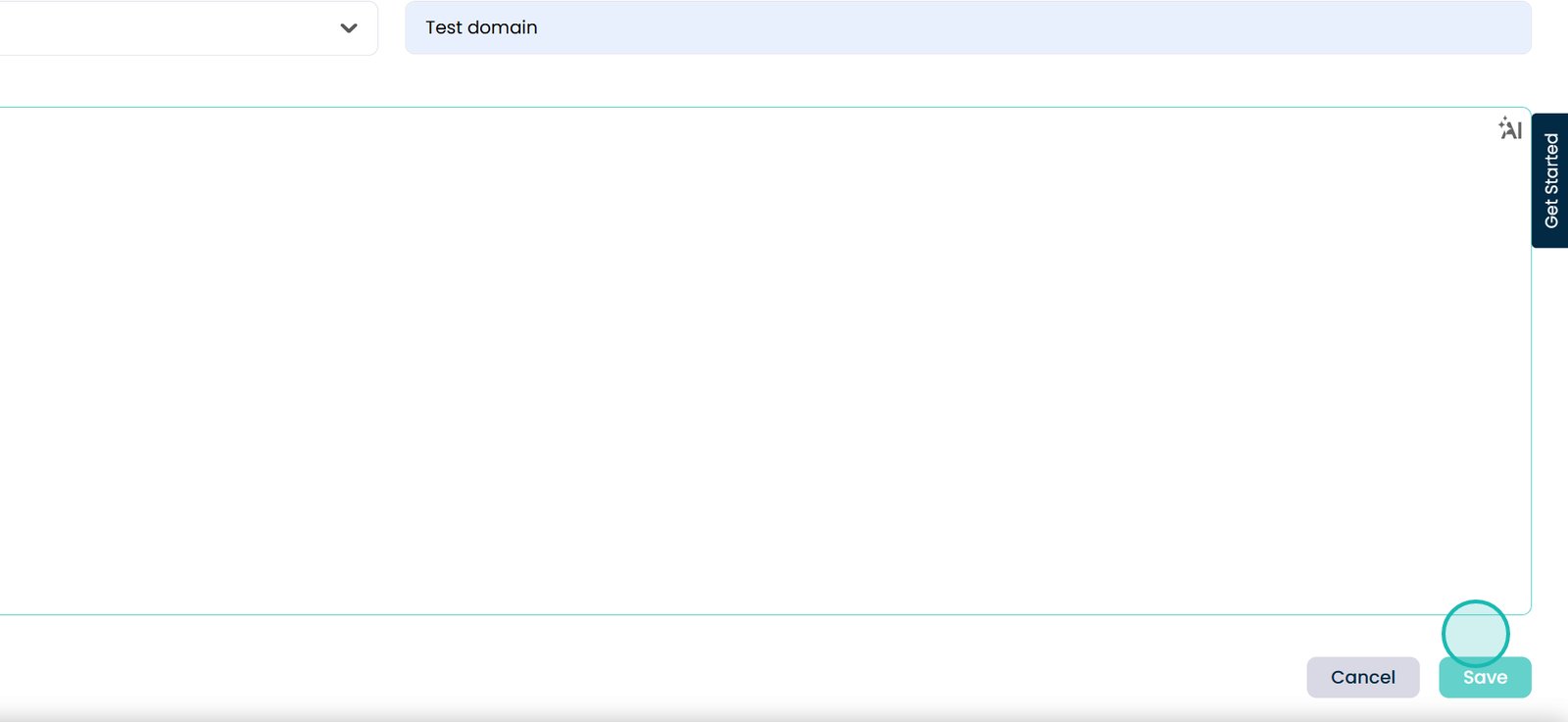
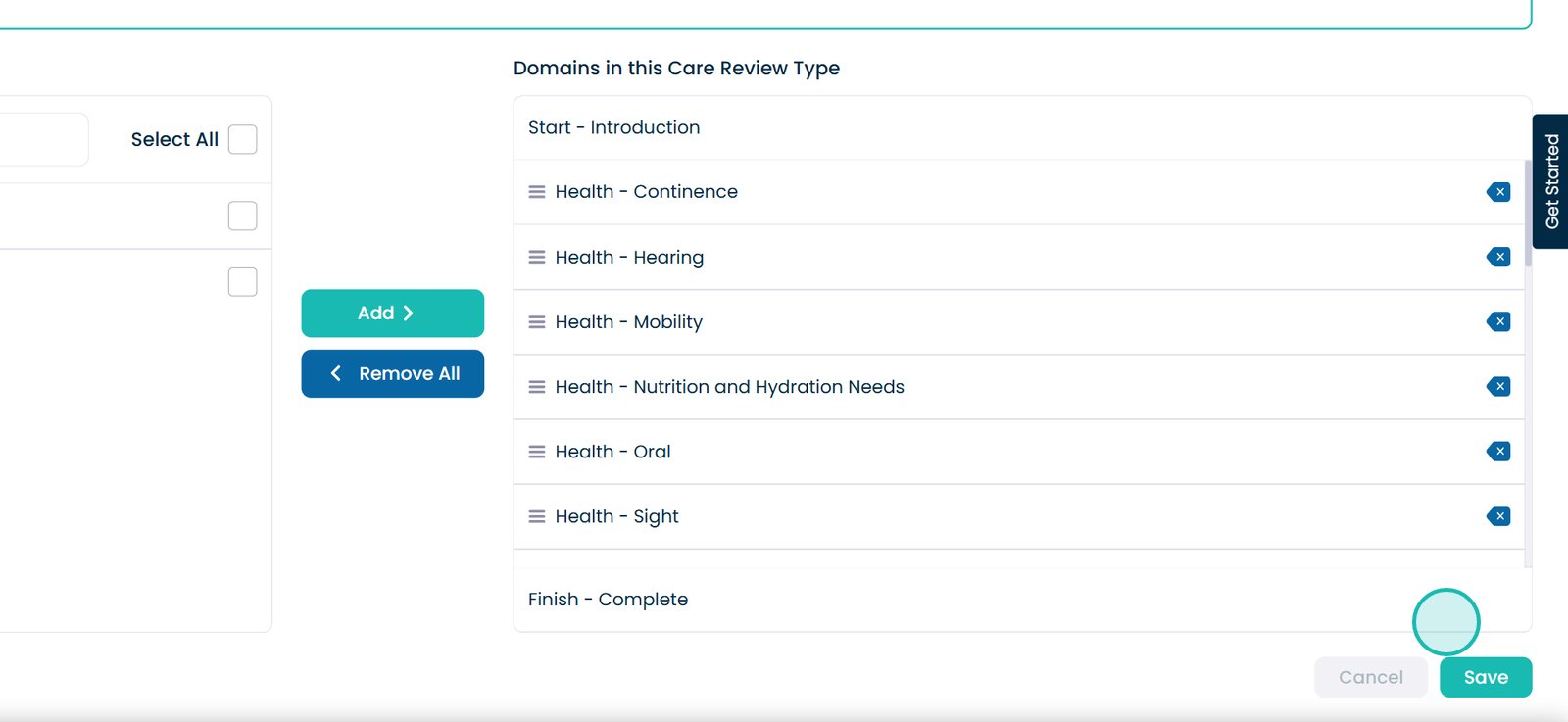
Make sure to press the ‘Save’ button once you have entered your information
The ‘Guidance Note for Care Staff’ section will turn red if you have not included at least 10 characters
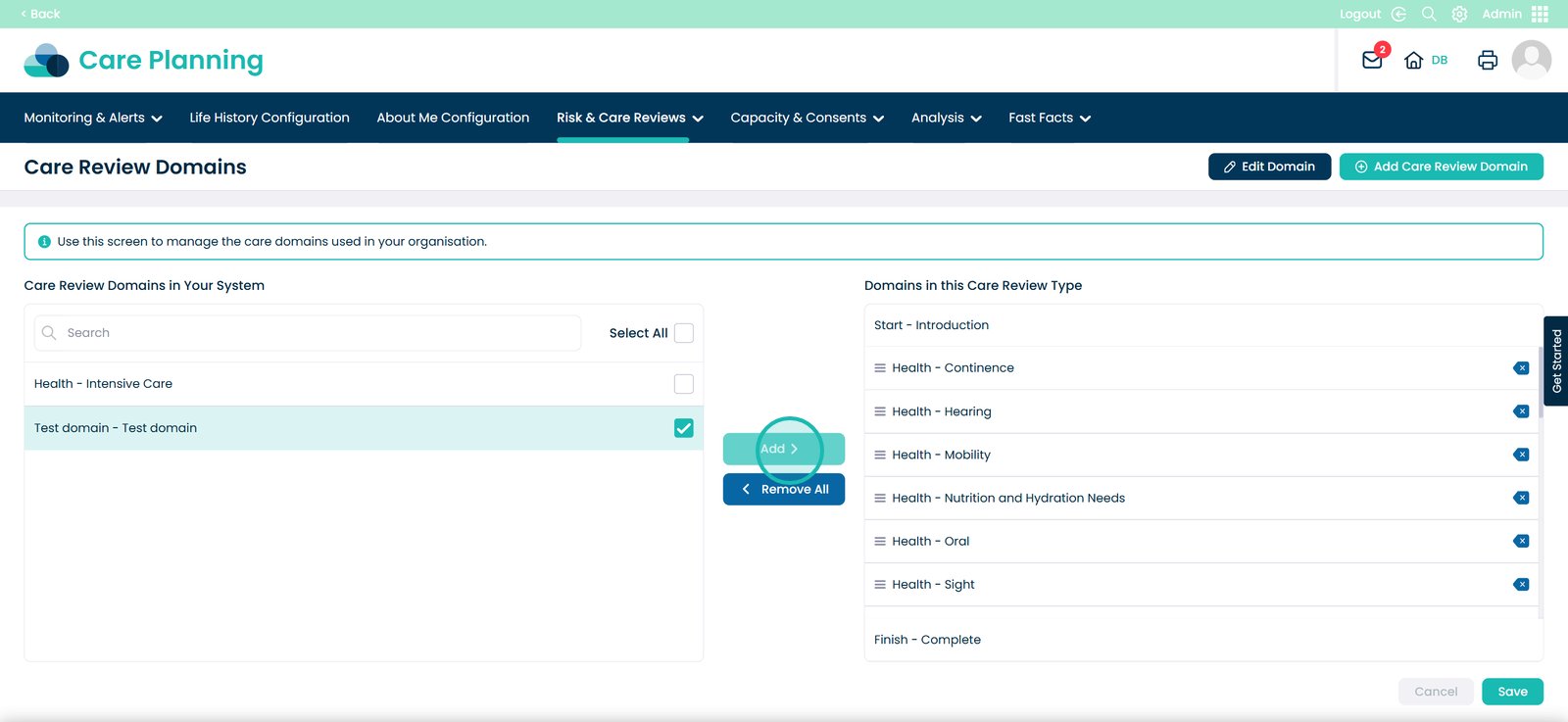
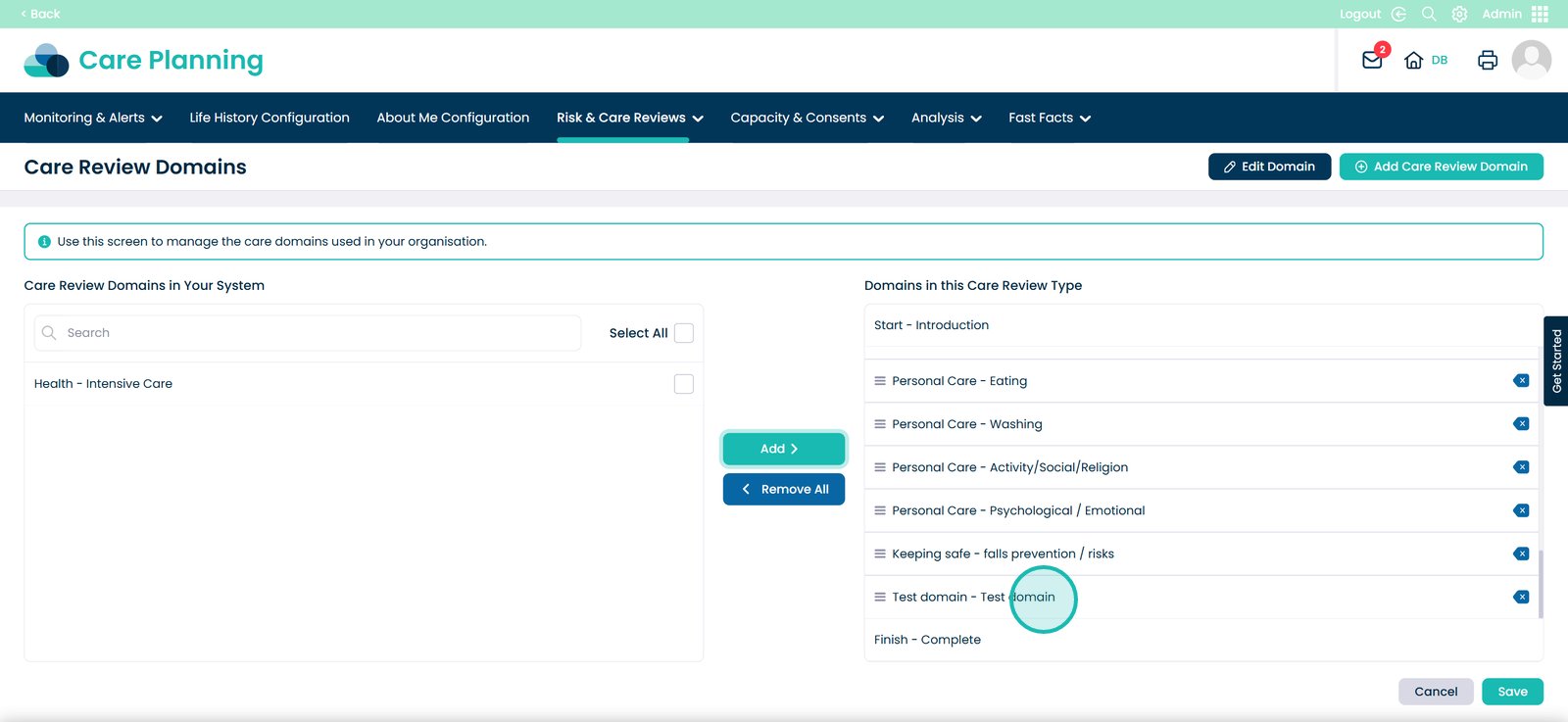
Select items from the left and press Add to move them to the right
Select the ‘Add’ button
Here you will find your Care Review Domain
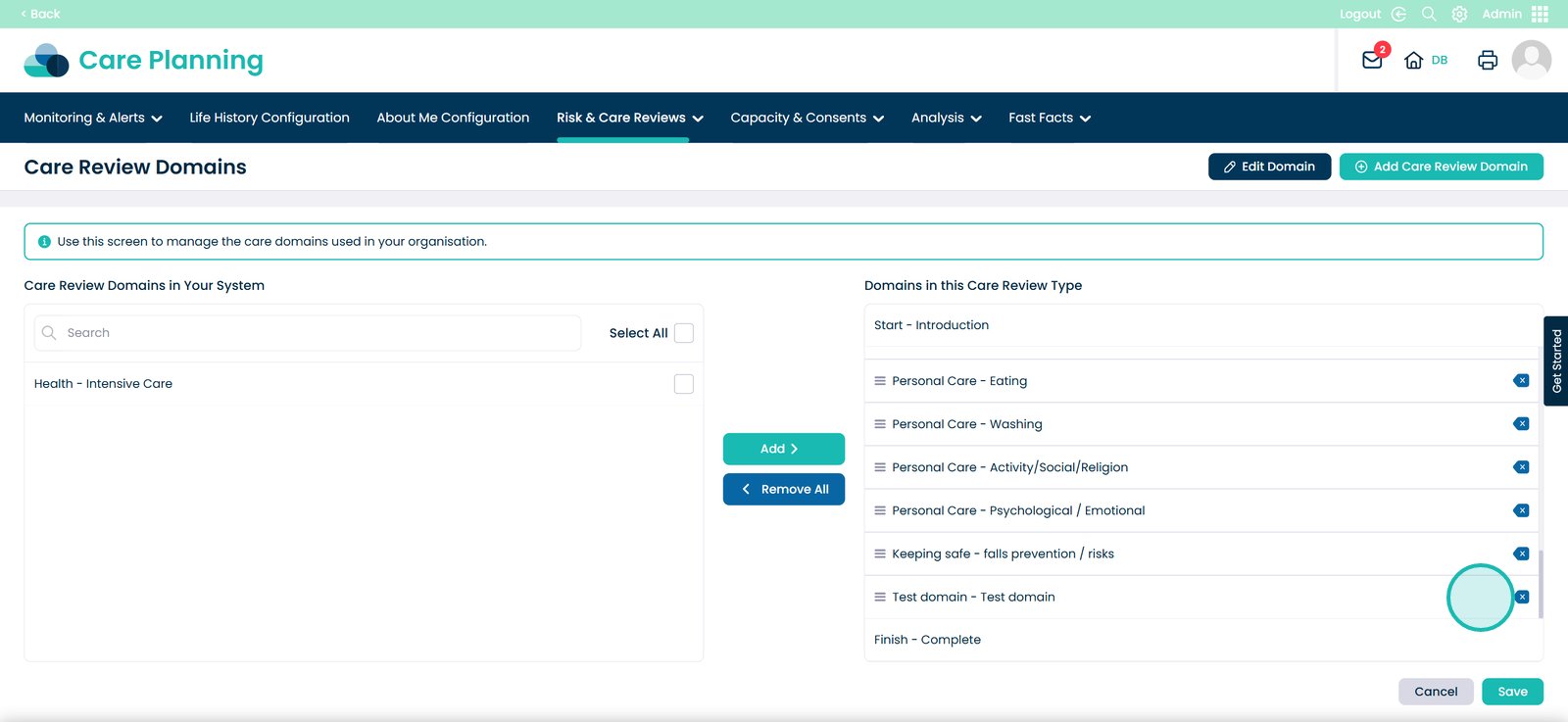
To move your Care Review Domain to the left, select the ‘Arrow’ button
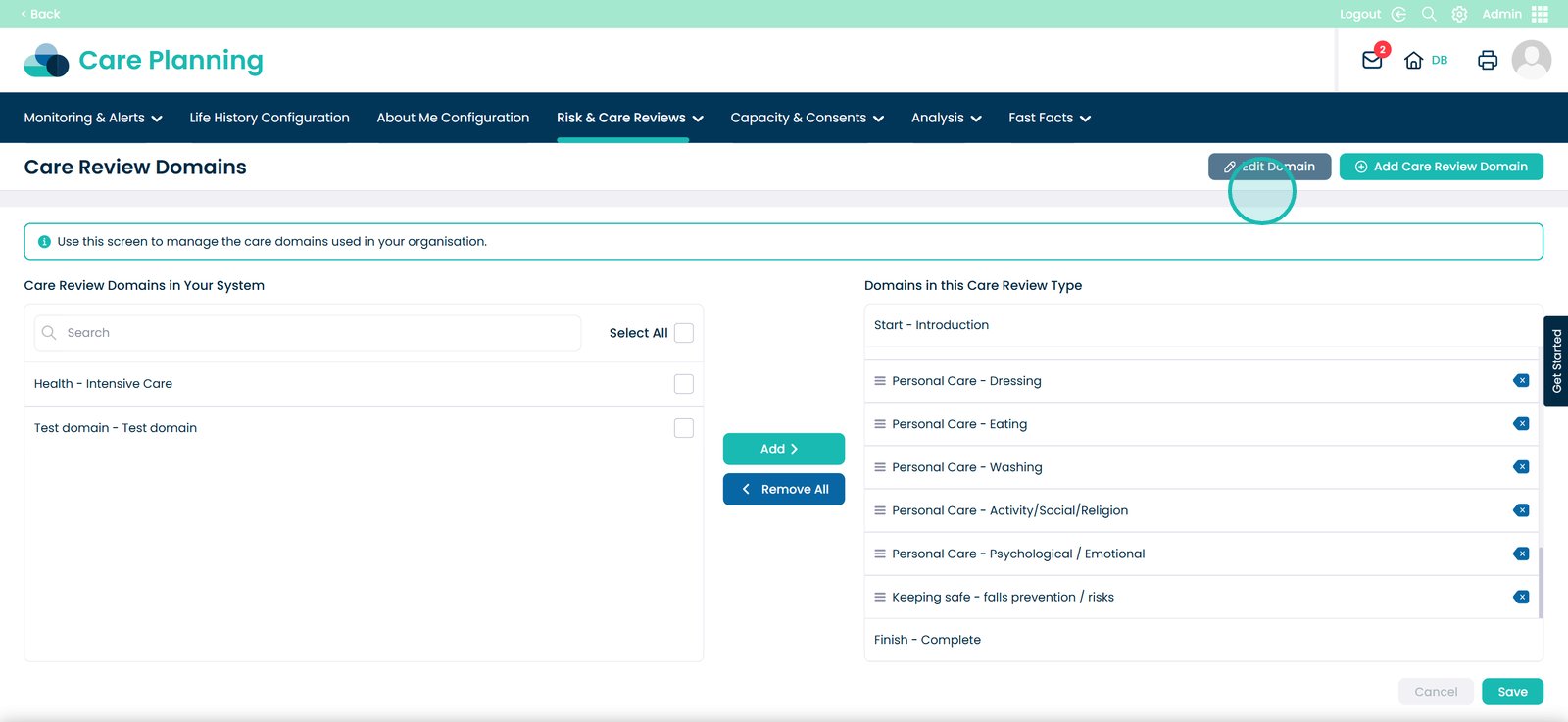
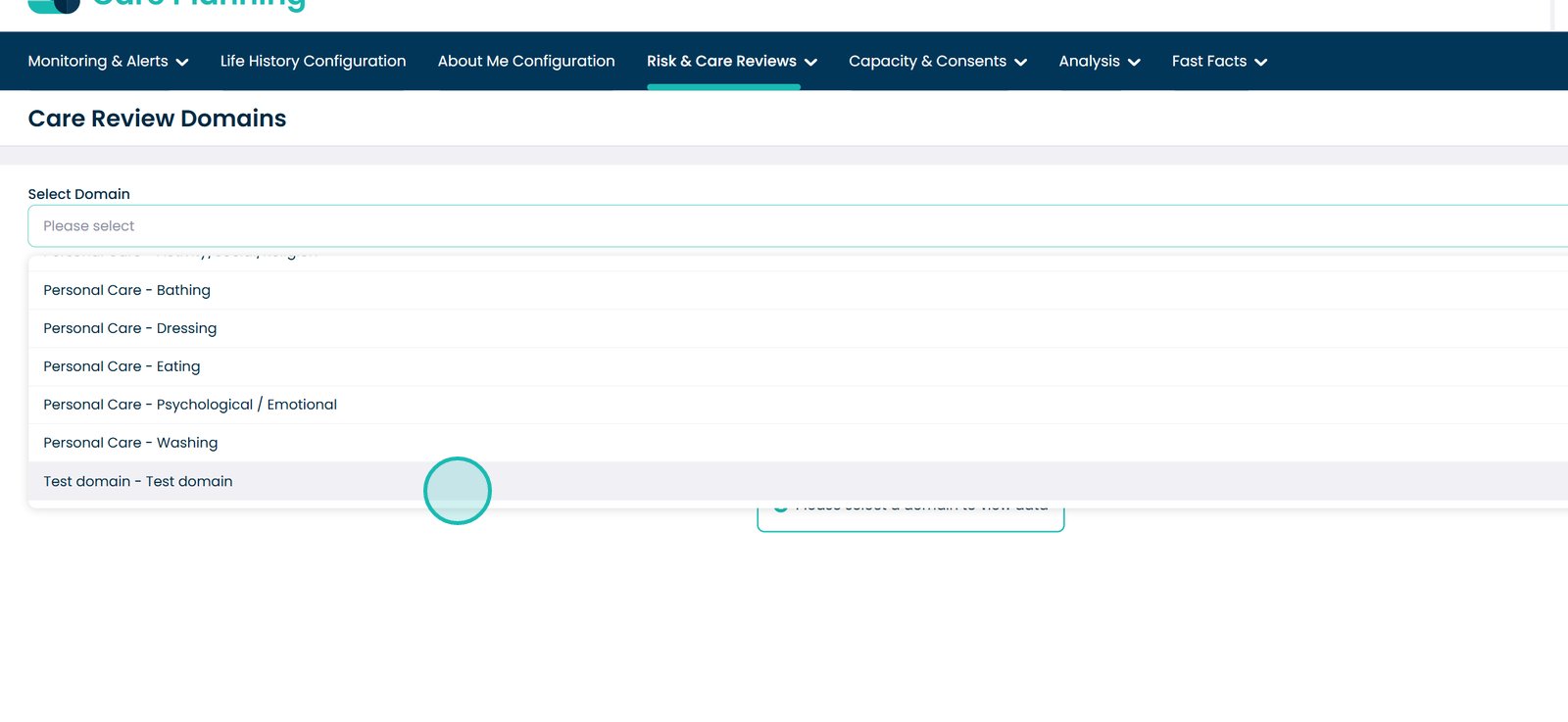
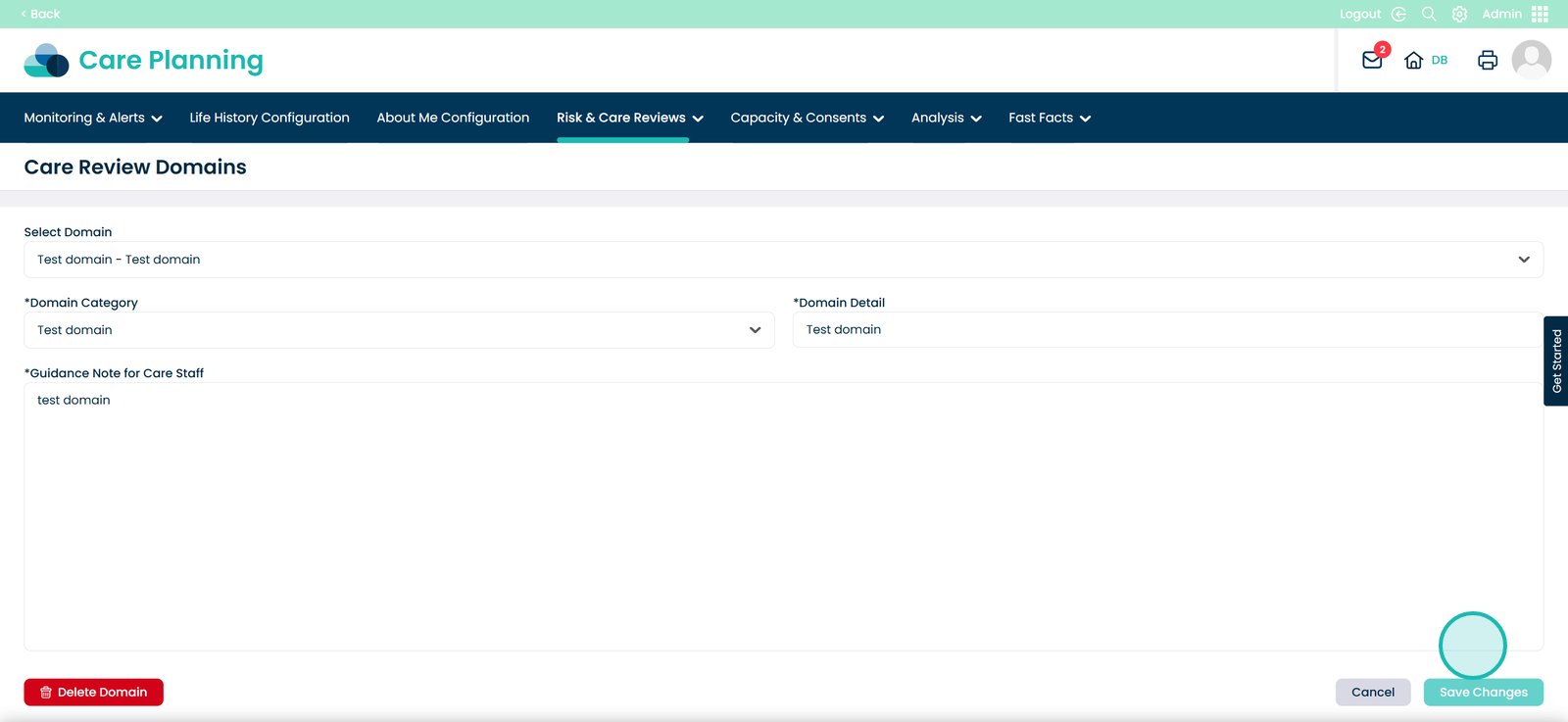
To edit a domain, select the ‘Edit Domain’ button
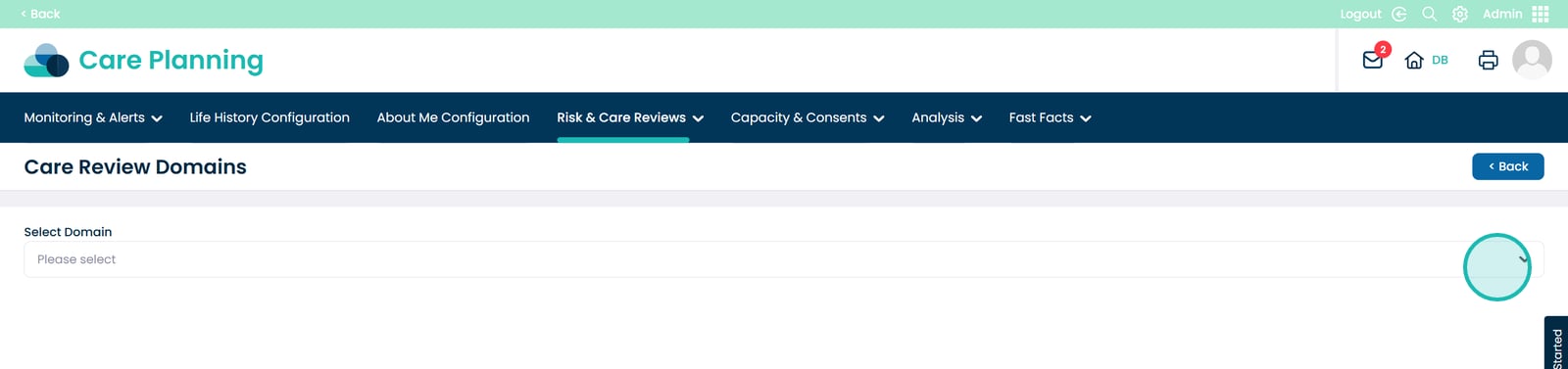
Select the drop-down toggle
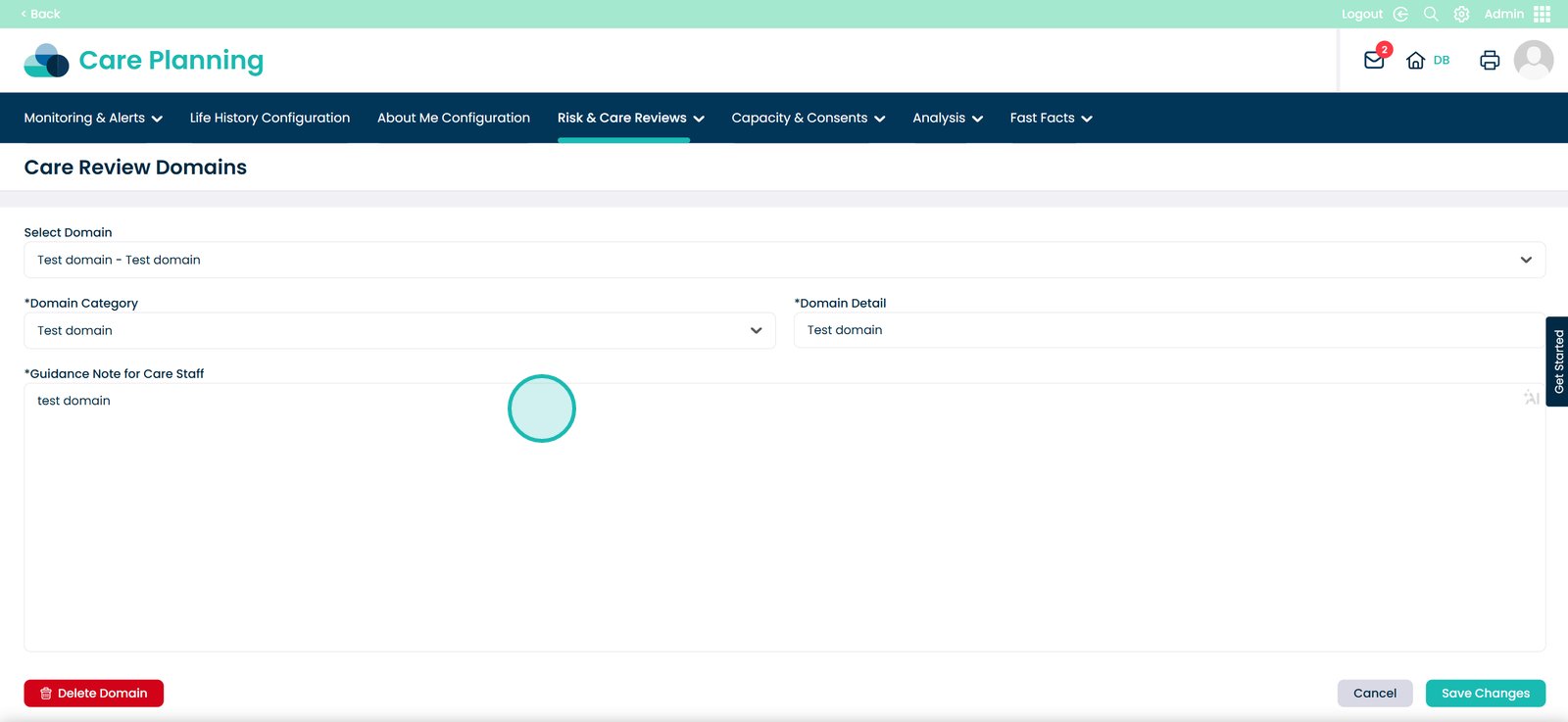
You will then find your Care Review Domain
Add your changes to any existing domains
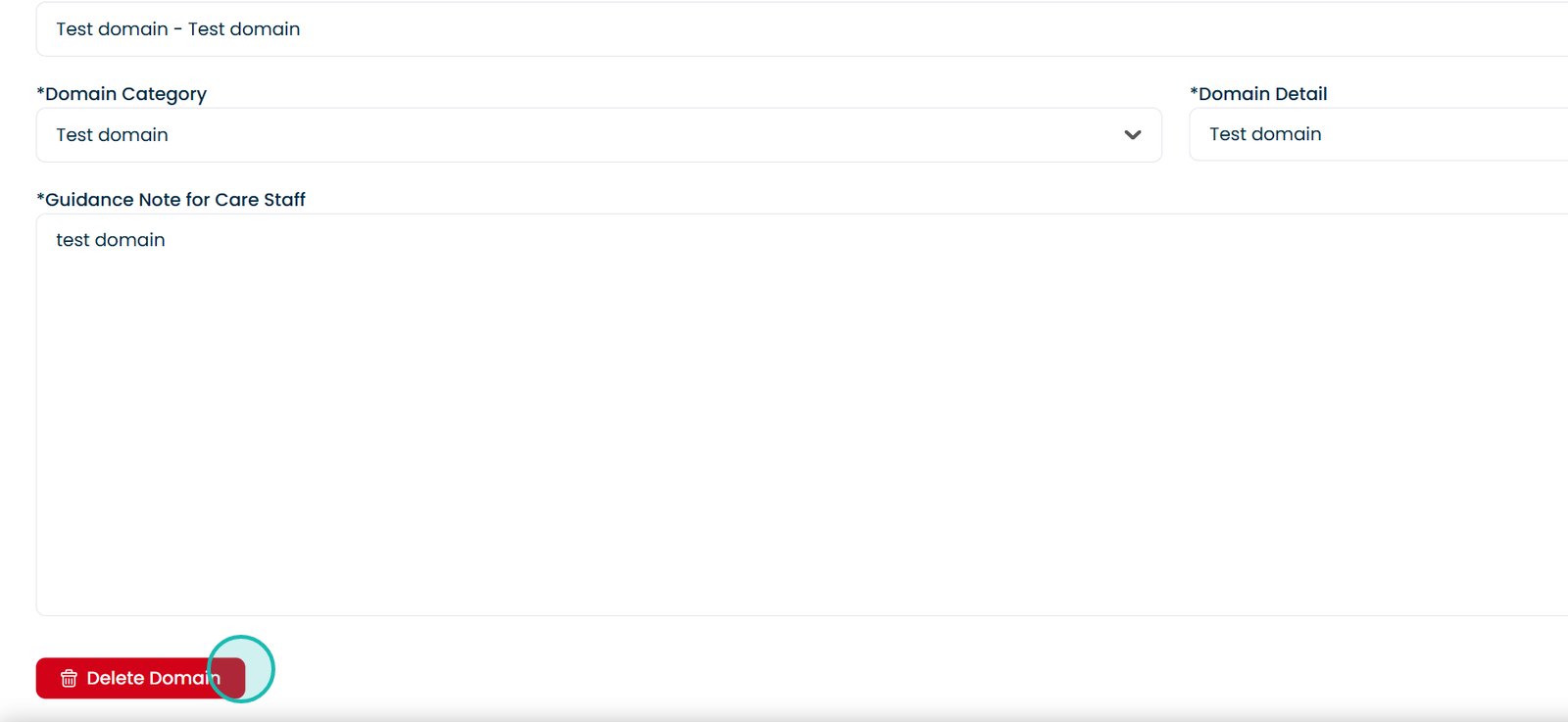
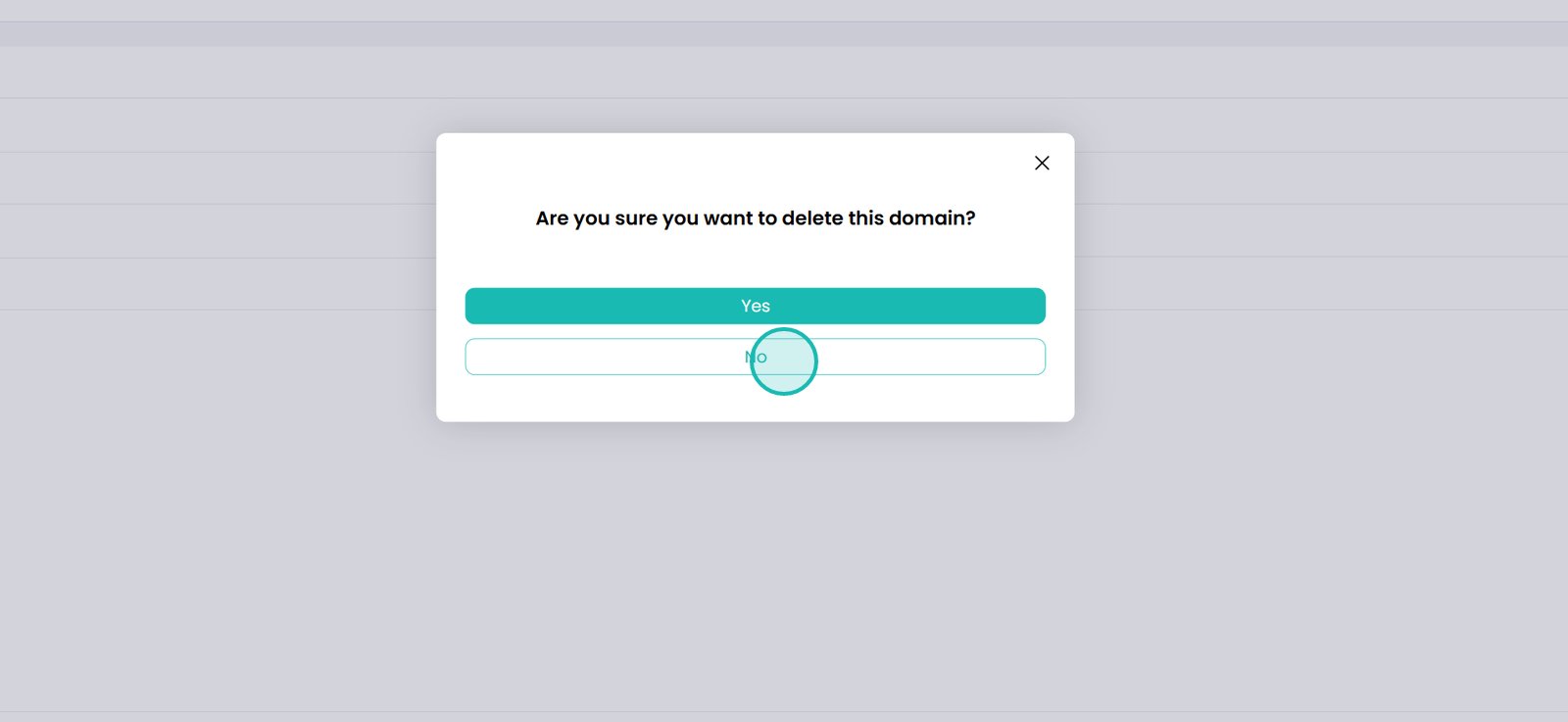
You can also delete the domain by selecting the ‘Delete Domain’ button
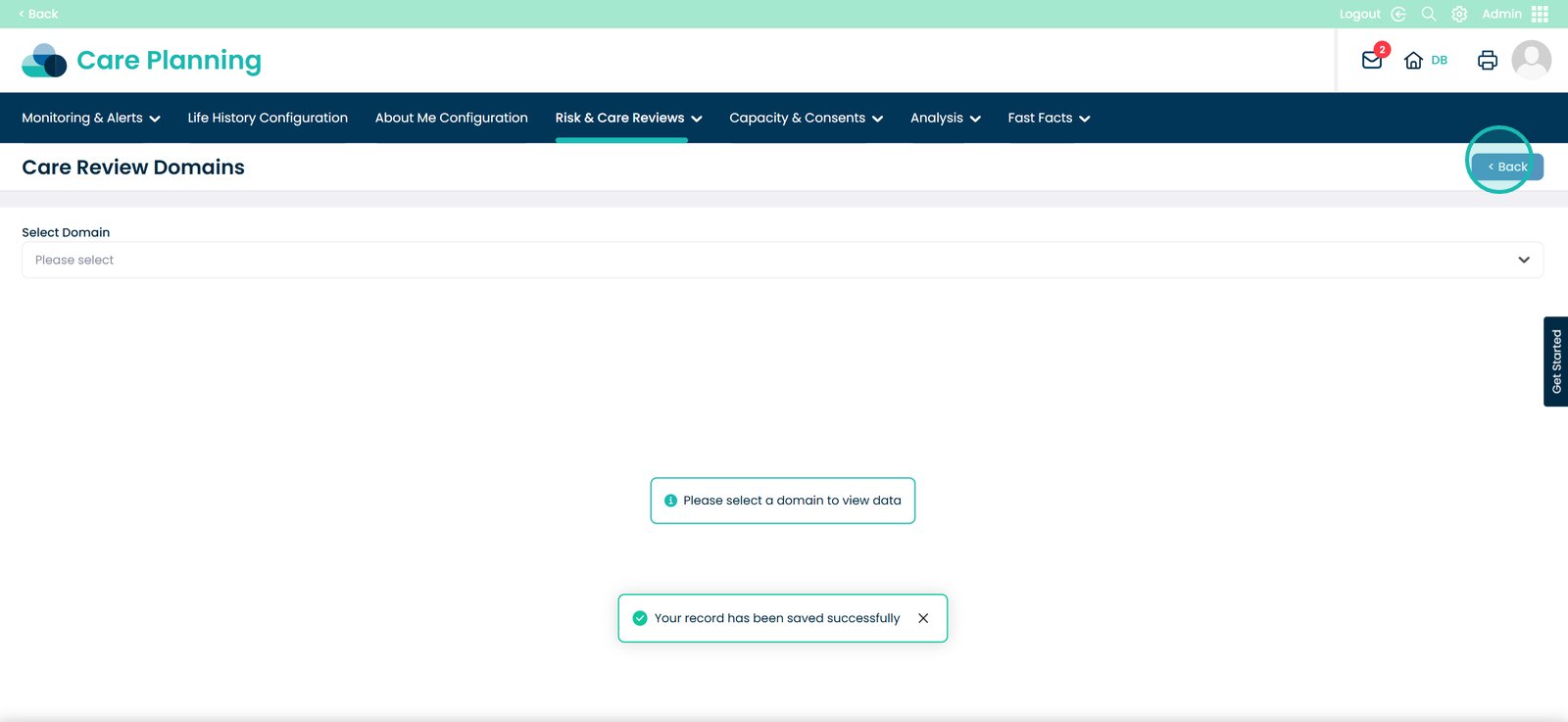
Remember to always select the ‘Save Changes’ button
You can also select existing domains from the list and edit them through the same process
Make sure to press the ‘Save’ button when making any edits